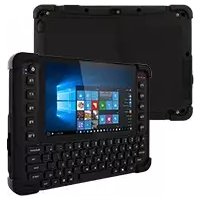
M101BK - Tablet Winmate - Free user manual and instructions
Find the device manual for free M101BK Winmate in PDF.


User questions about M101BK Winmate
0 question about this device. Answer the ones you know or ask your own.
Ask a new question about this device
Download the instructions for your Tablet in PDF format for free! Find your manual M101BK - Winmate and take your electronic device back in hand. On this page are published all the documents necessary for the use of your device. M101BK by Winmate.
USER MANUAL M101BK Winmate
Please read this instructions carefully before using this product, and save this manual for future use.
Contents
Read Me First 3
Advisory Conventions 3
Safety Information 4
Handling and Maintenance 5
Introduction 7
Unpacking 7
Description of Parts 8
Indicators 10
Hotkey for Specific Functions 10
Getting Started 11
Installing Battery 11
Charging Your Tablet 11
Starting the Tablet 12
Operating the Device 13
Using Winset Utility 13
Using the Camera 13
Changing Touch Mode 14
Using Bluetooth 15
Using Wi-Fi 16
Using WWAN 17
Scanning Barcodes 17
Replacing Hot Swappable Battery 18
Basic Troubleshooting
19
Read Me First
Advisory Conventions
Four types of advisories are used throughout the user manual to provide helpful information or to alert you to the potential for hardware damage or personal injury.

Note:
A note is used to emphasize helpful information

Important:
An important note indicates information that is important for you to know.

Caution/Attention
A Caution alert indicates potential damage to hardware and explains how to avoid the potential problem.
An Electrical Shock Warning indicates the potential harm from electrical hazards and how to avoid the potential problem.
This device complies with part 15 FCC rules.
Operation is subject to the following two conditions:
- This device may not cause harmful interference.
- This device must accept any interference received including interference that may cause undesired operation
This equipment has been tested and found to comply with the limits for a class "B" digital device, pursuant to part 15 of the FCC rules. These limits are designed to provide reasonable protection against harmful interference when the equipment is operated in a commercial environment. This equipment generates, uses, and can radiate radio frequency energy and, if not installed and used in accordance with the instruction manual, may cause harmful interference to radio communications. Operation of this equipment in a residential area is likely to cause harmful interference in which case the user will be required to correct the interference at him own expense.
CE Notice (European Union)

Electromagnetic Compatibility Directive (2014/30/EU)
EN55024: 2010/A1: 2015
。 IEC61000-4-2:2009
OIEC61000-4-3:2006+A1:2007+A2:2010
OIEC61000-4-4:2012
OIEC61000-4-5:2014
OIEC61000-4-6:2014
OIEC61000-4-8:2010
OIEC61000-4-11:2004
EN55032: 2012/AC:2013
EN61000-3-2:2014
EN61000-3-3:2013
Low Voltage Directive (2014/35/EU)
EN 60950-1:2006/A11:2009/A1:2010/A12:2011/A2:2013
This equipment is in conformity with the requirement of the following EU legislations and harmonized standards. Product also complies with the Council directions.
Safety Information

Do Not Apply Shocks to the Battery by Dropping It or Applying Strong Pressure to It. Electrolyte leakage, generation of heat, ignition or rupture of battery may occurs.
Do Not Charge the Battery Other Than Methods Those Specified In This Manual. If the battery is not charged using one of the specified methods, electrolyte leakage, generation of heat, ignition or rupture may result.
When the Battery Pack Has Deteriorated, Replace It with a New Battery. Continued use of a damaged battery pack may result in heat generation, ignition or battery rupture.
Do Not Expose the Battery Pack to Excessive Heat, or Extreme Heat (Near Fire, in Direct Sunlight for example) Generation of heat, ignition or rupture may result
Do Not Use the Battery Pack With Any Other Products. The battery pack is rechargeable and is only designed for this specific product. If it is used with a product other than the specified product, electrolyte leakage, generation of heat, ignition or rupture may result.
Do Not Use This Product With Battery Other Than the One Specified.
Discontinue using device immediately if you notice the battery is swelling, or looks puffy or misshapen. Do not attempt to charge or use the device. Do not handle a damaged or leaking battery. Do not let leaking battery fluid come into contact with your eyes, skin or clothing.
Use only accessories specified by the manufacturer.
This product should not be used near water such as bathtubs, sinks, swimming pools, wet basement, etc.
Handling and Maintenance

General Guideline Guide Général
Keep the product at least 13~cm (5 inches) away from electrical appliances that can generate a strong magnetic field such as TV, refrigerator, motor, or a large audio speaker.
Use a soft cloth moistened with water or a nonalkaline detergent to wipe the exterior of the product.
Gently wipe the display with a soft, lint-free cloth. Do not use alcohol or detergent on the product.
Use your finger or the stylus on the display. Using sharp or metallic object may cause scratches and damage the display, thereby causing errors.
Do not use excessive force on the display. Avoid placing objects on top of the display as this may cause the glass to break.
When there is a noticeable discrepancy in the operation of the touchscreen function (your touch does not correlate to the proper location on the screen), recalibrate the touchscreen display.
Congratulations on purchasing Winmate® 10.1-inch Rugged Windows Tablet Computer M101BK.
M101BK is a rugged tablet PC with robust set of features designed to withstand industrial use while providing high tech solutions that increase productivity, improve safety, and reduce operational costs. The processing power comes from Intel's quad core N2930 Bay Trail-M processor paired with genuine Intel graphics for high performance. The tablet features a brilliant, in-plane switching with direct optical bonding projected capacitive touch screen, which is outdoor viewable and offers a 1280 x 800 resolution.
Additionally, the tablet features a QWERTY keypad and function keys for easy data input. Weighing at just 3 pounds (approx. 1350 grams) the M101BK delivers lightweight mobility in a rugged tablet.
Highlights
- Long battery life with Intel Quad Core N2930 Bay Trail-M Processor
8" 1280x800 Wide Viewing Angle with P-Cap Touch - 5MP Auto-focus camera
IP65 waterproof and dustproof
ISO/IEC 9995-3 QWERTY Keypad
Built-in 802.11 a/b/g/n/ac WiFi + Bluetooth 4.0 combo module - Optional WWAN module
- Optional 1D/2D Barcode Reader
- Optional HF/UHF RFID Reader MIL-STD-810G compliant
Unpacking
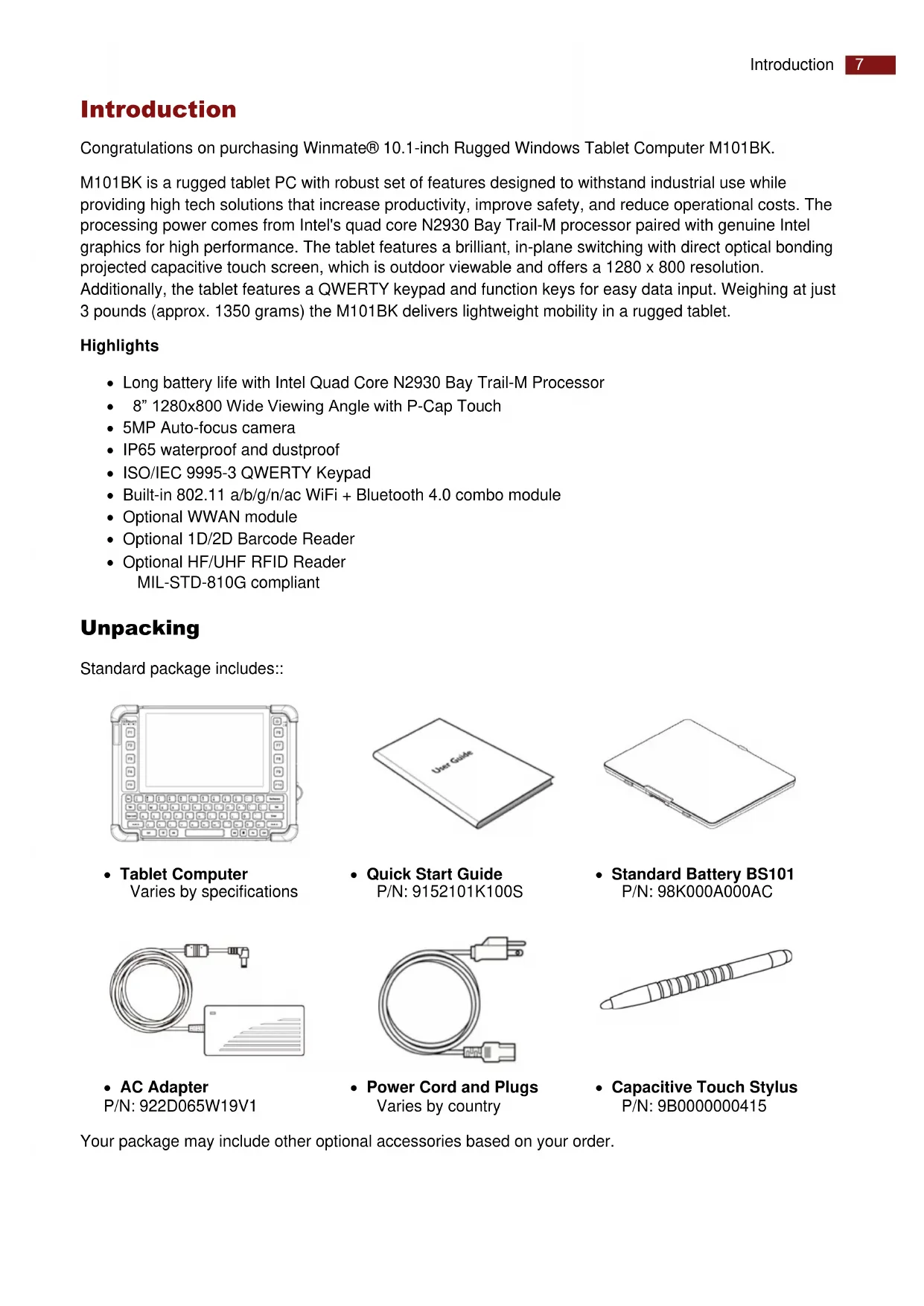
Standard package includes:
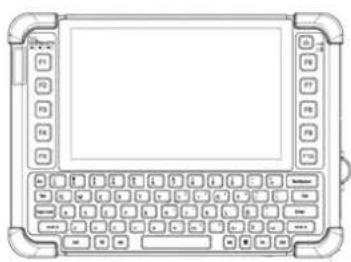
- Tablet Computer
Varies by specifications

Quick Start Guide
P/N: 9152101K100S
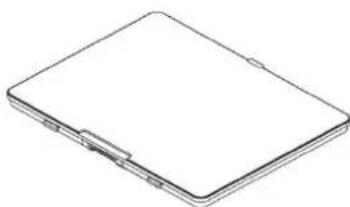
Standard Battery BS101
P/N: 98K000A000AC
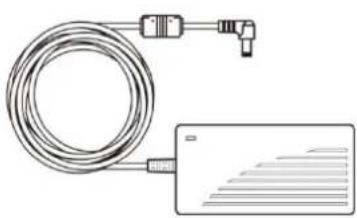
- AC Adapter
P/N: 922D065W19V1
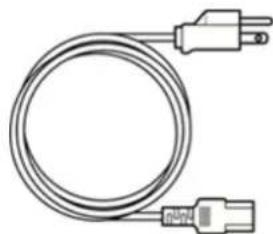
Power Cord and Plugs
Varies by country
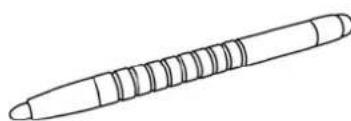
- Capacitive Touch Stylus
P/N: 9B000000415
Your package may include other optional accessories based on your order.
Description of Parts
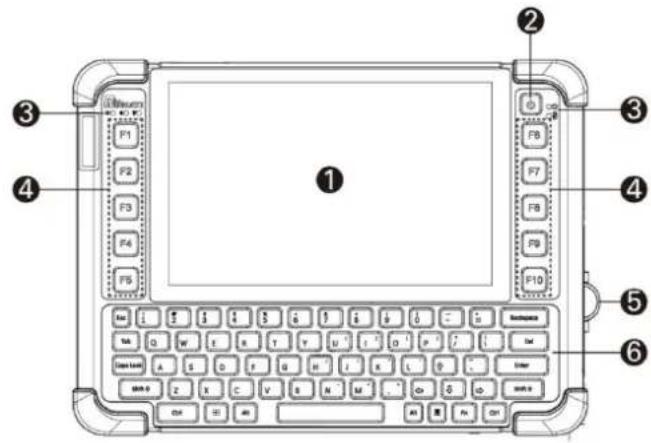
Front:
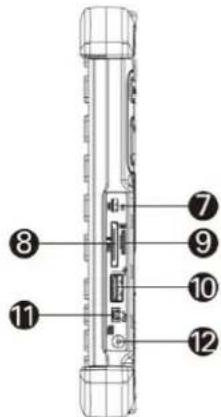
Right:
| No | Item | Description |
| 1 | Touch Screen | Displays and acts as one of the inputs for the computer. |
| 2 | Power Button | Power on/off computer. |
| 3 | LED Indicators: | Shows the current status of the computer. |
| 4 | Function Buttons | Programmable function keys configured by Winset utility. |
| 5 | I/O Cover | Protects I/O ports. |
| 6 | QWERTY Keypad | Input characters using the QWERTY keypad. |
| No | Item | Description |
| 7 | Micro HDMI | HDMI output to external display. |
| 8 | LAN/RS232 | Adapter port for LAN/RS232 connector. |
| 9 | MicroSD Card Reader | Memory card reader port for MicroSD Card. |
| 10 | USB 3.0 | High speed USB port connects to USB devices, such as USB flash drive, mouse, keyboard, printer, etc. |
| 11 | Mic In/Line Out | Headset or headphone can be connected (Mic is only supported with 3.5mm 4-pin headset). |
| 12 | Power Jack | DC power input jack. |
Front LED Indicators Details:
Left side

Right side

Rear:
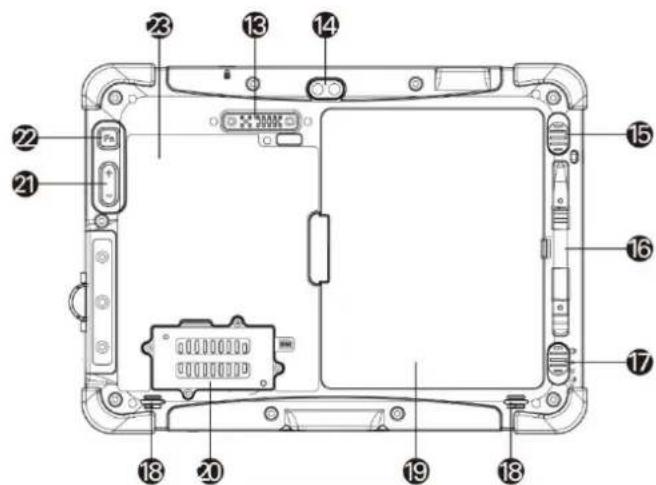
Top:
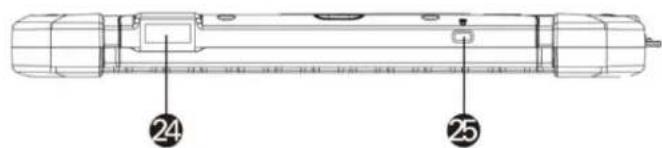
Bottom:

| No | Item | Description |
| 13 | Expansion Port | Provide optional connectivity to custom modules for special application (USB2.0 x 1, RS232 x 1). |
| 14 | Rear Camera | 5MP Autofocus Camera. Captures photos and videos. |
| 15 | Battery Release Slider | Spring-loaded slider that latches the battery in. |
| 16 | Touch Pen Slot | Pen holder slot to store touch pen. |
| 17 | Battery Lock Latch | Latch to lock the battery in place once battery is inserted. Not spring-loaded. |
| 18 | Speakers | Emit sounds. |
| 19 | Battery | 7.4V, typ. 5140 mAh Li-Polymer Battery (2S1P). 7.4V, typ. 10280 mAh Li-Polymer Battery (2S2P, optional). |
| 20 | LTE Module / SIM card slot | Service window to insert Micro SIM card. Also provide access to LTE Module. |
| 21 | Volume Buttons | Volume Control. (+) Raise volume, (-) Lower volume. |
| 22 | Fn2 Button | Toggles Barcode Scanner |
| 23 | Optional HF RFID Reader | Scans HF RFID tags. |
| No | Item | Description |
| 24 | Optional Barcode Reader | Barcode Scanner for reading of 1D/2D barcode. |
| 25 | Kensington Lock Port | Provides lock access for Kensington Lock. |
| 26 | Docking Connector | Port to docking solutions such as vehicle docking to provide power and external antenna |
Indicators
| Item | Description | |
| Power Indicator | Blue- Tablet is ON No light- Tablet is OFF | |
| Battery Status | Orange-AC adapter is plugged in and charging Green-AC adapter is plugged in and battery is full charged Solid Red - Low battery (<10%) Blinking Red - Battery is being hot swapped. No light - Battery is in use and more than 10% | |
| Light Sensor | Light sensor automatically adjusts the panel brightness based on the light settings. | |
| Disk Activity Indicator | Green - Disk Activity No light - Disk Idling | |
| RF Communications | Green - WiFi/BT/WWAN/GPS ON No light - WiFi/BT/WWAN/GPS are all OFF | |
Hotkey for Specific Functions
For the physical buttons on the tablet computer, in addition to its dedicated functions detailed in the previous section, it can also be used to emulate commonly used keyboard key strokes. Under different scenario, a single physical button or a combination of physical buttons provide different keyboard key strokes, which are specified below:
In POST (before Windows boots up):
| Buttons | Keystroke |
| F7 | Enters BIOS Setup Screen. |
| Fn2 | ESC |
| Volume Up (+) | Up |
| Volume Down (-) | Down |
In Windows:
| Buttons | Keystroke |
| Fn + F1 | Opens Win-Set application |
| Fn + F2 | Touch Mode |
| Fn + F4 | RF Power (Wifi/BT/WWAN/GPS Ant.) |
| Fn + F5 | Camera(Call Winset Cam) |
| Fn + F7 | Zoom + |
| Fn + F8 | Zoom - |
| Fn + F10 | Increase size of on-screen keyboard |
| Volume Up (+) | Brightness or Volume (Default Brightness) |
| Volume Down (-) | Brightness or Volume (Default Brightness) |
| Fn2 | Default: Barcode Scan (Configurable) |
Getting Started
To get started:
- Install the battery.
- Charge your tablet.
- Start the tablet.
Installing Battery
To install the battery pack:
- Disconnect any cords connected to the tablet computer.
- Turn the tablet over, back facing up.
- Locate the Battery Lock Latch and push it to the "Unlocked" position.
- Locate the Battery Release Slider that is spring-loaded. Pull back and hold.
- Insert the battery with the connector-pins side first, and then lower the battery into the battery compartment. Continue to hold the Battery Release Slider until the battery is fully inserted.
- Make sure the battery is completely lowered into the compartment before letting go of the Battery Release Slider. Battery will be flat against the housing once fully inserted.
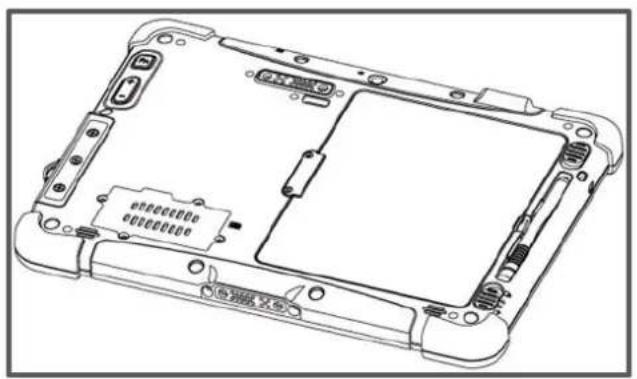
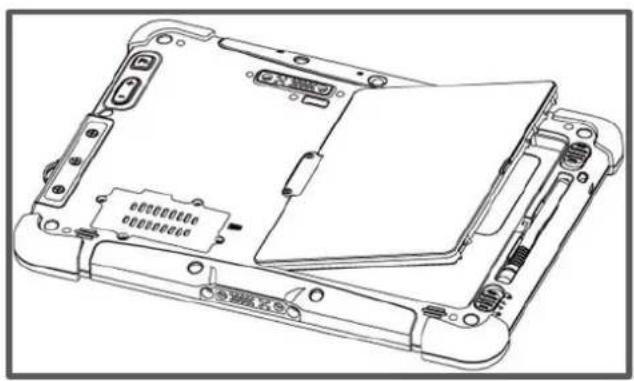
To remove the battery pack:
- Shut down the tablet (or put into sleep mode). Disconnect any cords connected to the computer.
- Turn the tablet computer over, back facing up.
- Locate the Battery Lock Latch and push it to the "Unlocked" position.
- Locate the Battery Release Slider that is spring-loaded. Pull back and hold.
- Lift the battery out using the opening on the side of battery compartment.
Charging Your Tablet
The Tablet operates either on external AC power or internal battery power. It is recommended to use AC power when you start up the Tablet for the first time.

Caution/Attention
Use only the AC adapter included with your Tablet Computer. Using other AC adapters may damage the Tablet Computer and the Battery.
To connect a tablet to AC power:
- Open I/O protective cover by pulling out the latch.
- Plug the DC cord of the AC adapter into the power jack of the tablet computer.
- Plug the AC power cord into the AC adapter.
- Plug the AC power cord into the electrical outlet.
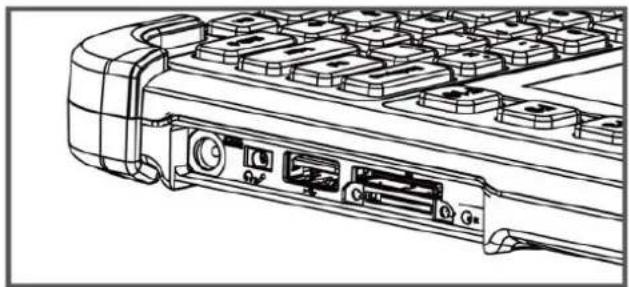

The battery LED indicator shows different battery states:
Orange - AC adapter is plugged in and battery is charging.
Green - AC adapter is plugged in and battery is fully charged.
Solid Red - Low battery level (<10%).
No light - Battery is in use and charged (>10%)
| Item | Battery Life | Battery Charging Time |
| Standard Battery (BS101) | 6 Hours | 2.5 Hours |
| High Capacity Battery (BL101) | 12 Hours | 4.5 Hours |
Starting the Tablet

Important:
When powering on the device for the first time, please make sure there's no interruption during the Windows setting up process, for example, accidentally powering off. If it happened, please access the recovery menu by pressing F6 button on the front bezel to initiate recovery process.
Press and hold the power button for 3 seconds until the blue LED power indicator light up.

Note:
Do not press the power button repeatedly.
Do not perform the following operations until the Disk Activity Indicator off
- Connecting or disconnecting the AC adapter
- Pressing the power button
- Touching the tablet buttons, screen, or external keyboard/mouse
To power off the Tablet Computer:
- Make sure you have closed any programs that are open on the Desktop. Start Screen apps don't need to be closed.
- Tap on the Settings charm.
- Tap on Power.
- Tap on Shut Down.
- Wait for Tablet Computer to power off.

Note:
The computer will forcibly be powered off if the power button is pressed and held for 6 seconds or longer.
Operating the Device
Using Winset Utility
Winset® is a program to control the main functions of the M101BK. In Winset you can check system information, control function button settings, and configure blanking function, scanner wedge and settings.
Long-press Fn + F1 function key to open Winset. You can open Win-Set by double-clicking on the Winset icon on the desktop. The Fn key are located on the bottom right of the keypad.
| System Information | Function Buttons | Device Control | Exit | |
| PC Information | ||||
| BIOS Version | 009 | |||
| EC Version | 009 | |||
| Win-Set Version | 4.1.4 | |||
| OS Version | 95Z0000002C4_180601 | |||
| Serial Number | 1W1860005105 | |||
| Model Name | M101BK for IEC | |||
| Battery Health | Good | |||
| ☐ Check for update | Your software is up to date. | |||
Using the Camera
To take photos or videos:
- Open the Winset application. The on-screen Winset camera indicator lights orange.
- Point the camera at an object.
- Touch the on-screen shutter button to take a photo or video record button to record a video.

| No | Item | Description |
| 1 | Review | Review |
| 2 | Settings | Opens Camera settings page. Available Settings: Picture Save: modify/inspect saved location for pictures. Video Save Folder: modify/inspect saved location for video recordings. Picture Quality: Picture compression quality. |
| 3 | Flash Control | Enables/ Disables LED Flash when taking picture. |
| 4 | Video Record | Tap to Start, and press again to stop recording. |
| 5 | Shutter Camera | Camera Shutter Button. Tap to take picture. |
| 6 | Exit | Exits the Camera and hide Winset utility. |
Changing Touch Mode
The tablet computer supports three built-in operating modes for different usage scenarios:
| Mode | Usage Scenario |
| Normal | Normal mode is the default operating mode of the touchscreen. Under the Normal mode, the touchscreen is set to have the ability to pick up touch inputs from the bare fingertips as well as fine-tip passive capacitive stylus that is shipped with the tablet.Supports the following input solutions:·Fine-tip passive stylus w/ palm rejection·Active stylus w/ palm rejection·Rubber Tip passive stylus·Finger |
| Hand/Rain | Under this mode, the touchscreen is set to have the ability to reject false touch inputs while liquid is present on the touchscreen. Once the liquid is removed from the touchscreen, touch inputs from bare fingertips will continue to operate.Support the following input solutions:·Active stylus w/ palm rejection·Rubber Tip passive stylus·Finger |
| Glove | Under the Glove mode, the touchscreen is set to have the ability to pick up touch inputs while the user is operating the touchscreen with gloves on.Touch inputs from bare fingertips will also continue to operate. Support the following input solutions:·Glove·Rubber Tip passive stylus·Finger |
| Touch Lock | Under the Touch Lock mode, the touchscreen is locked from all touch inputs, while keypad input remains operational. |
To change touch mode:
a. Shortly press Function Key 1 (To define the function key refer to User Manual, Chapter 4).
b. Press (Menu) button on the front to open Winset, or launch Winset application. Choose
Device ON/OFF, and then click "Touch Set" icon.
Using Bluetooth
Your device has integrated Bluetooth capabilities for short-range wireless communication between Bluetooth- enabled devices. You can transfer files, playback audio, configure virtual serial ports, and share network connection via Bluetooth. By default, the Bluetooth feature is enabled as indicated by the Bluetooth icon on the taskbar.
To Enable the Wireless Bluetooth:
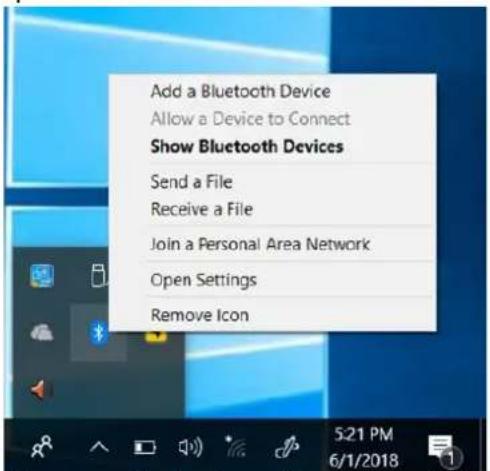
- Click the Bluetooth icon in the windows notification area, a contextual menu for Bluetooth is displayed.
- To add a device, tap on Add a Bluetooth Device, Windows will search any Bluetooth device automatically.
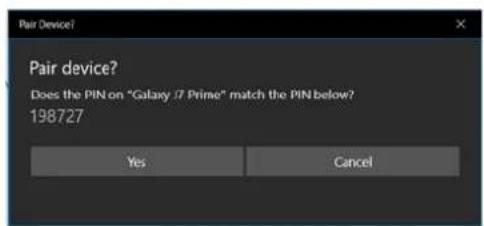
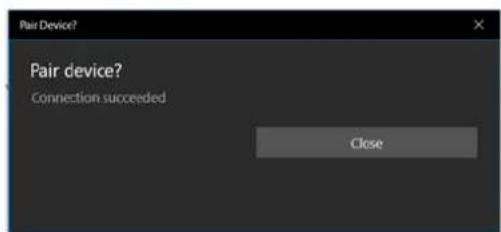
- Choose the Bluetooth device that user wants to connect and follow onscreen prompt to continue the pair procedure and use the Bluetooth device.
Opening My Bluetooth:
- In the notification area in the Taskbar, click to open the Action Center button.
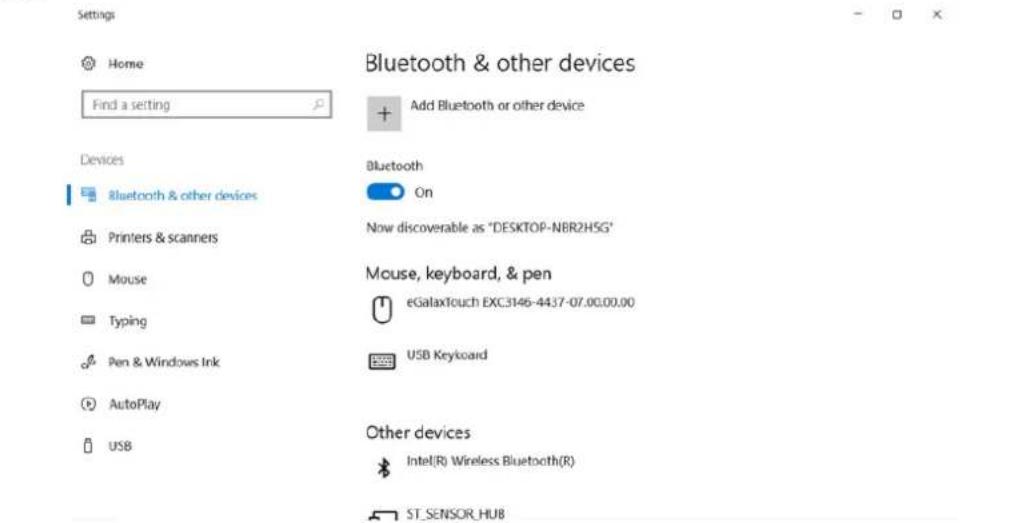
- From the Quick actions area, tap the Add a Bluetooth Devices.
- Then all the enabled devices will appear in the list; click on the device, and it should pair automatically.
Using Wi-Fi
By default, the wireless antenna is turned on.
To turn on the wireless antenna:
- Click the wireless network connection status icon in the Windows notification area. A list of available wireless networks is displayed.
- Double-click a network to connect to it. Provide required authentication information if needed.
- To check the connection status, observe wireless network connection status icon in the Windows notification area. The more bars the icon shows, the better the wireless LAN connection strength is.
- Now wireless LAN connection is setup, try connection to the network with an internet browser such as Internet Explorer.
Perform the following to connect to a wireless network:
- Make sure that the wireless power is "on" (The Wi-Fi LED indicator is green and the Wireless network icon on the taskbar shows).
-
Tap the Wireless Network icon
-
In the list of available networks, tap a Wi-Fi network

- Tap Connect.
- If the network requires authentication, enter the security key or passphrase.
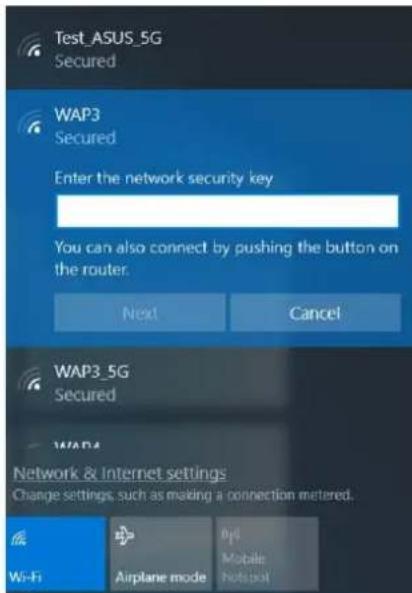
Personal information and files on your wireless network can sometimes be seen by people who pick up your network signal. This can lead to identity theft and other malicious acts. A network security key or passphrase can help protect your wireless network from this type of unauthorized access.
Using WWAN
The M101BK supports data connection with LTE modules and supports Micro-SIM cards. (Note: LTE feature is optional).
To enable WWAN:
- Please insert the Micro-SIM card into your Tablet Computer.
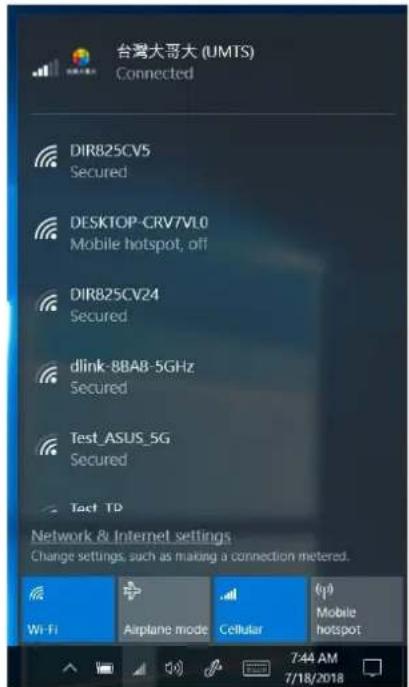
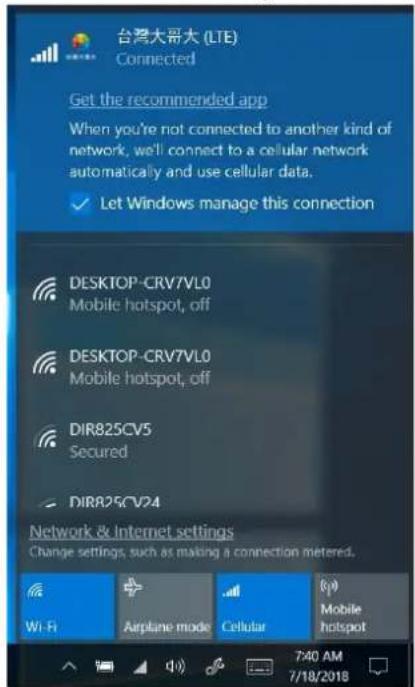
- Check the wireless WAN connection status through the Cellular status icon in Windows notification area. The more bars encompassed, the better the signal is.
- Click on the network title to see more details about the connection settings.
Scanning Barcodes
Depending upon configuration, barcode scanning can be performed using the built-in 1D/2D barcode scanner (Note: barcode scanner is an optional feature).
To enable the Barcode Reader:
- Long-press Fn + F1 function key to open Win-Set®. Users also can open Win-Set® by double-clicking on the Win-Set icon on the desktop
- Click on the Device Control tab under the Win-Set utility and open the Barcode Scanner Wedge Settings.
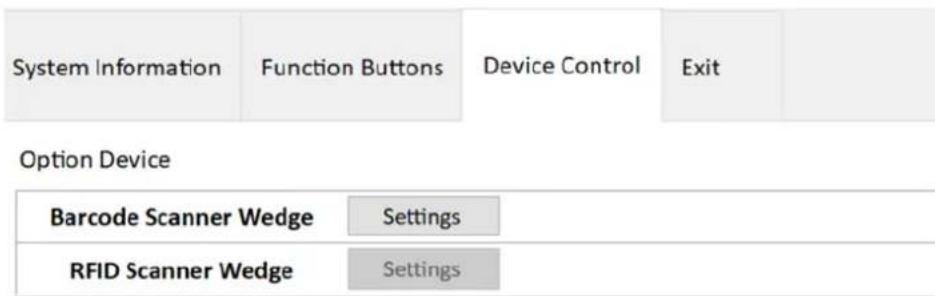
- Choose "Device ON/OFF" and click on "Barcode", and the setting utility will show up as below:
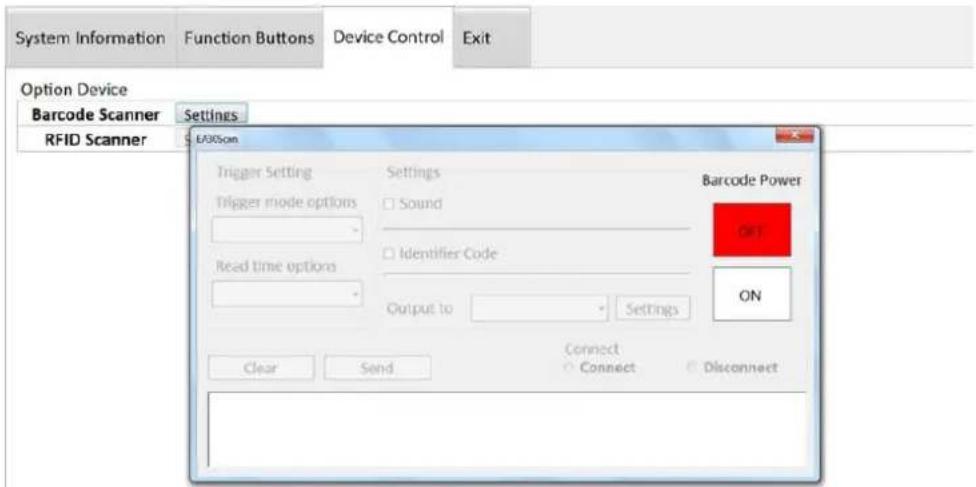
- Tap on the ON button.
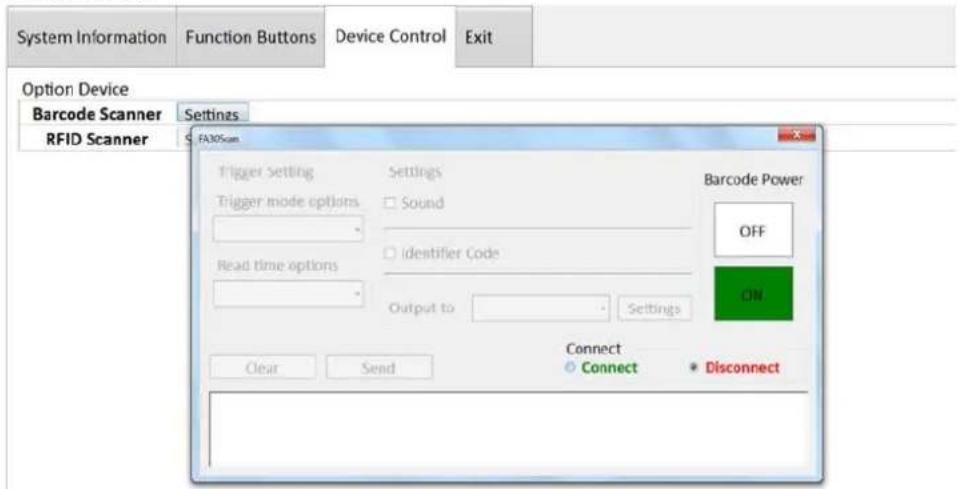
- Open the application where barcode reader will be displaying the scanned barcode. Trigger the barcode reader by pressing Fn2 function key on the back of M101BK.
Replacing Hot Swappable Battery
The rugged tablet supports hot-swapping of batteries, meaning the tablet doesn't need to be powered off in order to replace the main battery. To support this there is a backup battery inside the tablet that is charged up with the main battery. This backup battery cannot be removed and needs to have adequate power for hot swapping of main battery. When the backup battery is fully charged, it can sustain up to 5 minutes of runtime to allow for battery hot-swapping.
Perform the following to hot swap the batteries:
- While the tablet is powered on, open Winset to check on the power level of the Backup battery.
- If the Backup battery level is at "Low", please charge the tablet with AC Power until the Backup battery level is at "Medium" or "High", and do not remove the main battery.
- If the Backup battery level is at "Medium" or "High", continue to remove the main battery.
- Insert a new charged up removable battery into the battery compartment.
- Open Winset to check if the Main battery level can be correctly read. If not, check if the new removable battery is inserted properly.
- If Main battery level can be read, continue to use the tablet computer.

Caution/Attention
| Problem | Solution |
| The removable battery is not charging. | ·Make sure the AC adapter is properly connected, and that the removable battery is properly inserted. |
| Nothing appears on the screen. | ·The tablet computer may be in sleep mode. Press the power button to wake up the display. ·The brightness level may be too low. Increase brightness. |
| The screen suddenly turns blank and the power indicator goes off. | ·Make sure that LED indicator is not powered off in Win-Set. ·Make sure the AC adapter is properly connected. ·If running on battery power, the battery may be depleted, charge the battery. |
| Wireless LAN signal quality is poor. | ·The tablet computer may be out of range. Move the tablet computer closer to the access point or another wireless LAN device associated with it. ·Check if your surroundings have interferences, such as microwave ovens, cordless phones. Move the tablet away from objects causing interference. |
| I cannot connect to another wireless LAN device. | ·Make sure that wireless LAN feature is powered on. ·Make sure that the SSID setting is the same for every wireless LAN device in the network. ·Restart the tablet computer. ·Make sure the IP address or subnet mask setting is correct. |
| I cannot connect to another device with Bluetooth. | ·Make sure that both devices have Bluetooth powered on in Winset). ·Make sure that the distance between the two devices is within 10 meters and there are no walls or large obstructions between the devices. ·Make sure the both devices are powered on and configured to be discoverable. ·Make sure that both devices are compatible. |
| The GPS cannot find my location. | ·Make sure that GPS is powered on in Winset. ·Make sure that GPS receiver and the location sensor are enabled in Control Panel. ·The tablet computer may be out of coverage area. Move your tablet computer outdoors or closer to a window. ·Move the tablet computer away from objects causing interference. |
| No sound is produced. | ·Adjust volume of the tablet computer by pressing on the volume rocker. ·If using an external audio device, make sure that the cable is properly connected. |
| Barcode scanner does not emit laser beam and does not seem to work. | ·Make sure the Barcode scanner device is enabled in Winset. |
| Barcode Scanner emits laser beam but does not read barcodes. | ·Adjust the distance between barcode scanner of the device and the barcode being scanned. ·Make sure the barcode code type is enabled in the tablet. Check "Barcode Scanner Configuration" section of the User Manual for more details. |
| I am having GPS accuracy issue | ·When using the GPS, we recommend disabling the Barcode Reader in Winset to reduce interference. |