
SRU 9600 - Universal remote PHILIPS - Free user manual and instructions
Find the device manual for free SRU 9600 PHILIPS in PDF.


User questions about SRU 9600 PHILIPS
0 question about this device. Answer the ones you know or ask your own.
Ask a new question about this device
Download the instructions for your Universal remote in PDF format for free! Find your manual SRU 9600 - PHILIPS and take your electronic device back in hand. On this page are published all the documents necessary for the use of your device. SRU 9600 by PHILIPS.
USER MANUAL SRU 9600 PHILIPS
Installing the Remote Control 3
Enjoying Your Remote Control 4
Selecting a Device 4
Using Touch Screen Keys and Hard Keys 4
Selecting Extra Functions. 4
Using Activities. 5
Setting Up the Remote Control 5
Add a Device. 5
Delete a Device. 6
Fix a Key. 6
Add a Function 6
Add an Activity 6
Delete an Activity 7
Change Language. 7
Backlight Time Out 7
CopyVolume 7
Full reset. 8
Support 8
Troubleshooting 8
Need help? 8
Introduction
Thank you for purchasing the Philips SRU9600 universal remote control. After installing the remote control, you will be able to operate a maximum of 8 different appliances with it: TV, DVD, satellite or cable decoders, audio systems and many more.
Please refer to the illustration on page 2.
① Standby key
② Page keys
③ Setup key
④Menu key
⑤ Guide key
⑥ Back/Exit key
⑦ Jog Mode key
Volume Up key
Volume Down key
10 Previous Program key
Upper part of the display for:
- Instructions
- Selected device
-Extra functions
Touch screen keys
③ Rotary wheel
14 Cursor keys and OK key
15 Info key
16 Channel Up key
Channel Down key
Mute key
You can find information about how to prepare this remote control for use in the next chapter "Installing the Remote Control".
Installing the Remote Control
To start installing and using the remote control:
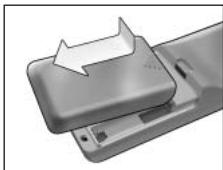
1 Push the battery cover on the back of the remote control inwards and slide it in the direction of the arrow.
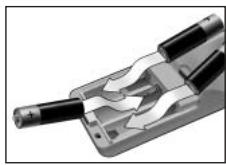
2 Place the three LR06 or AA type alkaline batteries back into the battery compartment, as shown.
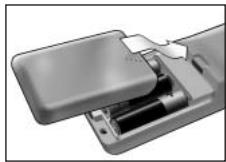
3 Slide the cover back on and click it firmly into place.
The remote control will start up with the Philips logo, then the Installation Wizard will guide you through the installation.
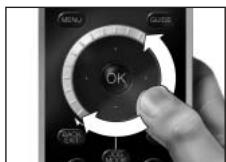
4 Turn the rotary wheel clockwise or counterclockwise to select your preferred language.
5 Press the OK key to confirm the selected language.
The SRU9600 will guide you through the setup process with questions in the upper part of the display.
6 Follow the instructions on the remote control.
Replacing Batteries
When the batteries are almost empty, the Battery Low icon will start blinking, indicating the critical battery level.
Note If the Battery Low icon is blinking, you can still operate the remote control, however you will no longer be able to enter the Setup menu.
Please replace the batteries with new LR06 or AA type alkaline batteries and follow the local regulations for disposal of the empty batteries.
Enjoying Your Remote Control
Selecting a Device
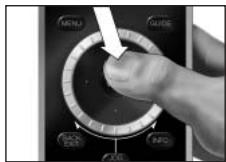
You can select the different devices you have installed on your remote control by turning the rotary wheel clockwise or counterclockwise. When you stop rotating, the touch screen and the hard keys will work for that selected device.
Using Touch Screen Keys and Hard Keys
The most frequently used functions of your devices are covered by these touch screen keys and hard keys.
On the touch screen, you see only the functions that are applicable for the selected device. Press the Page 2 key at the bottom of the touch screen for more functions.
Selecting Extra Functions
Devices can also have extra functions that are not covered by the touch screen keys or the hard keys on the SRU9600. You can select these extra functions in the upper part of the display.
1 Press MOG.
The touch screen keys will disappear and extra functions for the selected device will appear in the upper part of the display.
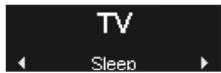
2 Turn the rotary wheel to scroll through all extra functions.
3 If you have selected the function you were looking for, press 品
The remote control will send out the IR signal and return to the touch screen keys of the selected device.
To add extra functions, see chapter "Add a Function" on page 6.
Tip If you cannot find the extra function you are looking for, you can exit the Jog Mode by pressing MODE again.
Note Some devices do not have any extra functions available in the onboard database. However, you can copy additional functions from your original remote by learning keys. See "Add a Function" on page 6.
Using Activities
An activity is sequence of key presses that you can program. For example, to watch a DVD you normally would have to:
Turn on the TV;
Turn on the DVD;
Turn on the surround sound system;
Select the right input on your TV and surround sound system;
Press the Play button to start the DVD.
With an activity, the remote control executes all these steps with just one press.
Your programmed activities appear in the upper part of the display when you turn the rotary wheel, together with the devices.
When you press OK, the remote control executes the sequence of key presses automatically.
To program activities, see chapter "Add an Activity" on page 6.
Setting Up the Remote Control
To change settings of the remote control, use the Setup menu. The Setup menu provides the following options:
| Option | Description |
| Add device | Adds a new device |
| Delete device | Removes a programmed device |
| Fix a key | Fixes a key that is not working correctly, by learning it from your original remote control |
| Add a function | Adds an extra function by learning it from your original remote control |
| Add an activity | Combines a sequence of different IR signals |
| Delete an activity | Removes a programmed activity |
| Backlight timeout | Changes the time-out of the remote control |
| Change language | Changes the language of the remote control |
| Copy volume | Copies the volume keys from one device to another |
| Full reset | Reset the SRU9600 and deletes all your settings |
To enter the Setup menu:
Press and hold for 3 seconds.
The first item of the Setup menu appears.
To exit the Setup menu:
Press EXIT
The touch screen keys of the last selected device reappear.
Add a Device
To be able to operate your devices with your SRU9600, you must add these devices to the
remote control. You can add up to 8 devices from the list of available devices.
You cannot add a device twice. Once you have added a device to your remote control, it will disappear from the list. However, the list of devices contains 'TV-2' or 'VCR-2' when you want to program a second TV or a second VCR.
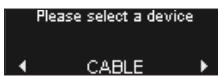
1 Select the option Add a device in the Setup menu and press 心
2 Select the device you want to add.
3 Follow the instructions on the remote control.
The selected device will be programmed and added to your remote control. You can select the device by turning the rotary wheel. The touch screen keys will appear for the selected device.
Delete a Device
You can delete a programmed device from your remote control.
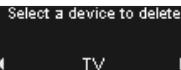
1 Select the option Delete a device in the Setup menu and press OK.
2 Select the device you want to delete.
3 Confirm that you want to delete the device.
The device will be deleted.
The deleted device will be available again in the list of devices you can add.
Note Keys of the deleted device that are used elsewhere, e.g. in an activity or the volume keys you copied, will be deleted as well.
Check the activities you programmed and Volume keys for your devices and reprogram them if necessary.
Fix a Key
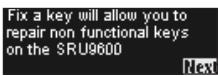
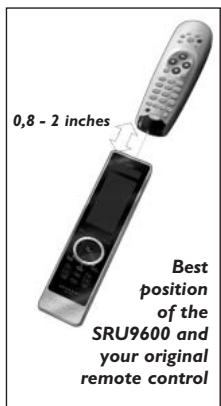
If a hard key, touch screen key or extra function is not working properly with your device, you can learn the key from your original remote control in your SRU9600. You can learn up to 200 keys.
1 Select the option Fix a key in the Setup menu and press OK.
2 Select the device for which you want to fix a key.
3 Confirm that you have a working original remote control available to learn from.
4 Select the hard key, touch screen key or extra function you want to fix.
Extra functions can be selected by pressing the Jog Mode key, selecting the function with the rotary wheel and pressing OK.
5 Follow the instructions on the remote control.
The key will be learned and fixed.
Note Fixing a key overwrites the key's data that was stored in your SRU9600.
Add a Function
You can add extra functions to your SRU9600.
1 Select the option Add a function in the Setup menu and press OK.
2 Select the device to which you want to add a function.
3 Select the label you want to use for the extra function.
4 Learn the function from your original remote.
The extra function will be added to your remote control. You can access the
extra functions by pressing MODE
Add an Activity
You can add activities to your SRU9600.
An activity consists of several key presses that willbe sent out by your remote control with just one pr
By default, the SRU9600 inserts a delay of 300ms between every key press to make sure your devices are responding correctly to the IR signals. You can overwrite this default delay.
If one of your devices needs a longer delay before receiving the next IR signal, you can insert a delay of 3 seconds.
If an activity needs no delay between the different key presses, e.g. turn up the volume, you can add the option 'no delay'.
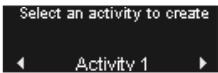
1 Select the option Add an activity in the Setup menu and press
2 Select the label you want to use for the activity.

Add a function allow you to extend the functionality of the SRU9600
3 Follow the instructions on the remote control.
1 Turn the rotary wheel to select a device from the list, press OK and add a key press to the activity.
2 Turn the rotary wheel to select '3 seconds' delay and press OK.
3 Turn the rotary wheel to select 'no delay' and press OK.
4 Repeat step 3 to create the activity.
The activity will be added to your remote control. You can select the activity by turning the rotary wheel.
Delete an Activity
You can delete an activity from your remote control.
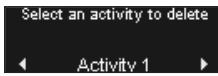
1 Select the option Delete an activity in the Setup menu and press OK.
2 Select the activity you want to delete.
3 Confirm that you want to delete the activity.
The activity will be deleted.
The activity will be available again in the list of activities you can add.
Change Language
You can change the language of your remote control to one of the following languages:
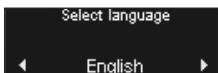
■ English; ■ French; ■ German; ■ Spanish.
1 Select the option Change language in the Setup menu and press OK.
2 Select the language you want to use on your remote control.
3 Confirm the selected language.
The language used in the Setup menu will be changed.
Backlight Time Out
When you use the remote control, the backlight, the touch screen and the upper part of the display
are switched on. After 5 seconds, these components are switched off again. You can change this time out to one of the following options:
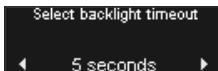
3 seconds; 5 seconds; 10 seconds; 15 seconds.
1 Select the option Backlight timeout in the Setup menu and press OK.
2 Select the backlight time out you want.
3 Confirm the new time out.
The time out will be changed for your remote control.
Note The backlight time out has an impact on the lifetime of the batteries.
The longer the backlight stays on, the faster the batteries will be drained.
Copy Volume
After devices have been added, the SRU9600 automatically copies the Volume keys, as follows:
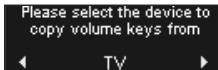
Video devices, such as DVD, DVR, VCR and Satellite box, use the Volume keys of the TV (provided that you have programmed a TV).
Audio devices, such as CD, MD, Tape and Tuner, use the Volume keys of the Amplifier or Receiver (provided that you have programmed an Amplifier or Receiver).
You can change which Volume keys are used, for instance when you want to use the Volume keys of the Amplifier for the DVD.
1 Select the option Copy volume in the Setup menu and press 心
2 Select the device from which you want to copy the Volume keys (e.g.TV or Amp).
3 Select the device to which you want to copy the Volume keys (e.g. DVD or SAT box).
4 Confirm that you want to copy the Volume keys from one device to the other.
The Volume keys are copied.
Full reset
You can reset the SRU9600 completely, deleting all programmed devices, activities, learned keys and
other settings. After the reset, you will have to reinstall your remote control.
A full reset deletes all settings
Are you sure you want to reset?
No Yes
1 Select the option Full reset in the Setup menu and press OK.
2 Select Yes and press OK to confirm that you want to reset your remote control.
3 Press to reconfirm.
The remote control will delete all settings and restarts. This can take up to one minute.
Support
Troubleshooting
| Problem | Cause | Solution |
| One or more buttons are not working with my device. | The function may not be available in the database of the SRU9600. | The SRU9600 can learn the correct function from your original remote control. Go to Setup menu and select Fix a key. |
| I cannot find the brand of my device in the SRU9600. | The brand is not available in the database of the SRU9600. | Select 'Not in list' when the SRU9600 asks to select the brand of your device. The SRU9600 will search the entire database for working functions. |
| I cannot enter the Setup menu. | The battery level is too low. | Remove the batteries and insert new batteries. |
| I cannot wake up the SRU9600 anymore. | The battery level is too low. | Remove the batteries and insert new batteries. |
Need help?
If you have any questions about the SRU9600, you can always contact us: +1 919 573 7854.
Read this Instructions for Use carefully before calling.
When you call our helpline, make sure you have the device with you so that our operators can help you determine whether your remote control is working properly.
The model number of your Philips universal remote control is SRU9600/17.
Date of purchase:
..../...../.... (day/month/year)
Table des matieres
Introduction 9
3 seconds, 5 seconds, 10 seconds, 15 seconds.
Assistance technique
Dépannage
Limited one year warranty
Warranty coverage begins the day you buy your product. For one year thereafter, a defective or inoperative product can be returned to the place of purchase and it will be replaced with a new or comparable product at no charge to you. You must have proof of purchase to exchange the product. This warranty does not extend to the product if damaged or rendered defective because of misuse, accident, unauthorized repair, modification or other cause not within the control of Philips Consumer Electronics.
Replacement as provided under this warranty is the exclusive remedy for the consumer. Philips shall not be liable for any incidental or consequential damages for breach of any express or implied warranty on this product.
Except to the extent prohibited by applicable law, any implied warranty of merchantability or fitness for a particular purpose on this product is limited in duration to the duration of this warranty.
This warranty gives you specific legal rights. You may have other rights which vary from state/province to state/province.
FCC Compliancy
This device complies with Part 15 of the FCC rules. Operation is subject to the following two conditions:
- This device should not cause harmful interference.
- This device must accept any interference received, including interference that may cause undesired operation
This equipment has been tested and found to comply with the limits for a Class B digital device, pursuant to part 15 of the FCC rule and ICES 003 in Canada.
These limits are designed to provide reasonable protection against harmful interference in residential installations. This equipment generates, uses, and can radiate radio frequency energy and, if not installed and used in accordance with the instructions, may cause harmful interference to radio communications.
However, there is no guarantee that interference will not occur in a particular installation. If the equipment does cause harmful interference to radio or television reception, which can be determined by turning the equipment off and on, the user is encouraged to try to correct the interference by using one or more of the following measures:
- Reorient or relocate the receiving antenna
- Increase the separation between the equipment and receiver
- Connect the equipment into to an outlet on a different circuit from the receiver
- Consult the dealer or an experienced radio/TV technician for help.
Caution: User changes or modifications not expressly approved by the party responsible for compliance may void the user's authority to operate the equipment.
