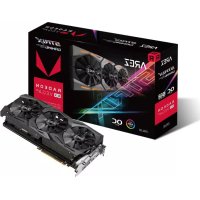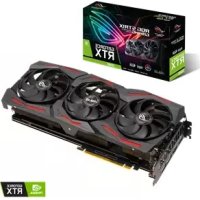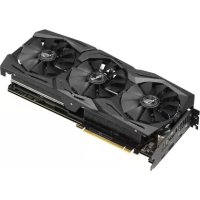
ROG Strix RTX 2070 A8G Gaming - Graphic card ASUS - Free user manual and instructions
Find the device manual for free ROG Strix RTX 2070 A8G Gaming ASUS in PDF.


User questions about ROG Strix RTX 2070 A8G Gaming ASUS
0 question about this device. Answer the ones you know or ask your own.
Ask a new question about this device
Download the instructions for your Graphic card in PDF format for free! Find your manual ROG Strix RTX 2070 A8G Gaming - ASUS and take your electronic device back in hand. On this page are published all the documents necessary for the use of your device. ROG Strix RTX 2070 A8G Gaming by ASUS.
USER MANUAL ROG Strix RTX 2070 A8G Gaming ASUS
Drivers and Utilities
Installation Guide
E14301
Revised Edition V5
May 2018
Copyright © 2018 ASUSTeK Computer Inc. All Rights Reserved.
No part of this manual, including the products and software described in it, may be reproduced, transmitted, transcribed, stored in a retrieval system, or translated into any language in any form or by any means, except documentation kept by the purchaser for backup purposes, without the express written permission of ASUSTeK Computer Inc. ("ASUS").
Product warranty or service will not be extended if: (1) the product is repaired, modified or altered, unless such repair, modification of alteration is authorized in writing by ASUS; or (2) the serial number of the product is defaced or missing.
ASUS PROVIDES THIS MANUAL "AS IS" WITHOUT WARRANTY OF ANY KIND, EITHER EXPRESS OR IMPLIED, INCLUDING BUT NOT LIMITED TO THE IMPLIED WARRANTY OR CONDITIONS OF MERCHANTABILITY OR FITNESS FOR A PARTICULAR PURPOSE. IN NO EVENT SHALL ASUS, ITS DIRECTORS, OFFICERS, EMPLOYEES OR AGENTS BE LIABLE FOR ANY INDIRECT, SPECIAL, INCIDENTAL, OR CONSEQUENTIAL DAMAGES (INCLUDING DAMAGES FOR LOSS OF PROFITS, LOSS OF BUSINESS, LOSS OF USE OR DATA, INTERRUsION OF BUSINESS AND THE LIKE), EVEN IF ASUS HAS BEEN ADVISED OF THE POSSIBILITY OF SUCH DAMAGES ARISING FROM ANY DEFECT OR ERROR IN THIS MANUAL OR PRODUCT.
SPECIFICATIONS AND INFORMATION CONTAINED IN THIS MANUAL ARE FURNISHED FOR INFORMATIONAL USE ONLY, AND ARE SUBJECT TO CHANGE AT ANY TIME WITHOUT NOTICE, AND SHOULD NOT BE CONTRUED AS A COMMITMENT BY ASUS. ASUS ASSUMES NO RESPONSIBILITY OR LIABILITY FOR ANY ERRORS OR INACCURACIES THAT MAY APPEAR IN THIS MANUAL, INCLUDING THE PRODUCTS AND SOFTWARE DESCRIBED IN IT.
Products and corporate names appearing in this manual may or may not be registered trademarks or copyrights of their respective companies, and are used only for identification or explanation and to the owners' benefit, without intent to infringe.
Contents
Notices 5
Safety information 6
About this guide 7
- Support CD information 8
- VGA drivers 9
2.1 Installing the VGA drivers.. 9
2.2 Uninstalling the VGA drivers 10
- ASUS GPU Tweak utility 11
3.1 Installing ASUS GPU Tweak.. 11
3.2 Uninstalling ASUS GPU Tweak 12
- ASUSAPRP 13
4.1 InstallingASUSAPRP 13
4.2 UninstallingASUSAPRP 14
- XSplit Gamecaster 15
5.1 Installing XSplit Gamecaster 15
5.2 Uninstalling XSplit Gamecaster 16
- ASUS AURA 17
6.1 InstallingASUS AURA 17
6.2 UninstallingASUSAURA 18
- Other information 19
7.1 Browse the Support CD 19
7.2 Contact Information.. 19
7.3 Viewing the Read Me file 20
Appendix: Basic troubleshooting 21
Notices
Federal Communications Commission Statement
This device complies with Part 15 of the FCC Rules. Operation is subject to the following two conditions:
This device may not cause harmful interference
- This device must accept any interference received including interference that may cause undesired operation.
This equipment has been tested and found to comply with the limits for a Class B digital device, pursuant to Part 15 of the FCC Rules. These limits are designed to provide reasonable protection against harmful interference in a residential installation. This equipment generates, uses, and can radiate radio frequency energy and, if not installed and used in accordance with manufacturer's instructions, may cause harmful interference to radio communications. However, there is no guarantee that interference will not occur in a particular installation. If this equipment does cause harmful interference to radio or television reception, which can be determined by turning the equipment off and on, the user is encouraged to try to correct the interference by one or more of the following measures:
Reorient or relocate the receiving antenna.
- Increase the distance between the equipment and receiver.
- Connect the equipment to an outlet on a circuit different from that to which the receiver is connected.
- Consult the dealer or an experienced radio/TV technician for help.
The use of shielded cables for connection of the monitor to the graphics card is required to assure compliance with FCC regulations. Changes or modifications to this unit not expressly approved by the party responsible for compliance could void the user's authority to operate this equipment.
Canadian Department of Communication Statement
This digital apparatus does not exceed the Class B limits for radio noise emissions from digital apparatus set out in the Radio Interference Regulations of the Canadian Department of Communications.
This class B digital apparatus complies with Canadian ICES-003.
REACH
Complying with the REACH (Registration, Evaluation, Authorisation, and Restriction of Chemicals) regulatory framework, we published the chemical substances in our products at ASUS REACH website at http://csr.asus.com/english/REACH.htm
Macrovision Corporation Product Notice
This product incorporates copyright protection technology that is protected by method claims of certain U.S. patents and other intellectual property rights owned by Macrovision Corporation and other rights owners. Use of this copyright protection technology must be authorized by Macrovision Corporation, and is intended for home and other limited viewing uses only, unless otherwise authorized by Macrovision Corporation. Reverse engineering or disassembly is prohibited.
Safety information
Electrical safety
- When adding or removing devices to or from the system, ensure that the power cables for the devices are unplugged before the signal cables are connected. If possible, disconnect all power cables from the existing system before you add a device.
- Make sure that your power supply is set to the correct voltage in your area. If you are not sure about the voltage of the electrical outlet you are using, contact your local power company.
- If the power supply is broken, do not try to fix it by yourself. Contact a qualified service technician or your retailer.
Operation safety
- Before installing devices on your motherboard, carefully read all the manuals that came with the package.
- Before using the product, make sure all cables are correctly connected and the power cables are not damaged. If you detect any damage, contact your dealer immediately.
- To avoid short circuits, keep paper clips, screws, and staples away from connectors, slots, sockets and circuitry.
- Avoid dust, humidity, and extreme temperature. Do not place the product in any area where it may be exposed to moisture.
- Place the product on a stable surface.
If you encounter technical problems with the product, contact a qualified service technician or your retailer.
About this guide
Conventions used in this guide
To make sure that you perform certain tasks properly, take note of the following symbols used throughout this manual.

WARNING: Information to prevent injury to yourself when completing a task.

CAUTION: Information to prevent damage to the components when completing a task.
IMPORTANT: Information that you MUST follow to complete a task.

NOTE: Useful tips and additional information for completing a task.
Where to find more information
Refer to the following sources for additional information and for product and software updates.
1. ASUS Websites
The ASUS websites worldwide provide updated information on ASUS hardware and software products. The ASUS websites are listed in the ASUS Contact Information on the inside front cover of this installation guide.
2. Optional Documentation
Your product package may include optional documentation, such as warranty flyers, that may have been added by your dealer. These documents are not part of the standard package.
1. Support CD information
The support CD contains the drivers and utilities for your VGA card. Click the icons on the support CD's main menu to install software, obtain ASUS contact information, browse CD contents, or view the Read Me file.
- The screens in this manual are for reference only and may not exactly match what you see on your screen.
- The device driver and utility in the support CD apply only to specific ASUS VGA card models.
- You may need administrator rights to install the drivers and utilities. See your Windows* 10 / 8.1 / 8 / 7 documentation for details.
- The contents of the support CD are subject to change at any time without notice. Visit the ASUS website at www.asus.com for updates.
Insert the CD into your computer's optical drive. If Autorun is enabled, the Main Menu launches automatically.
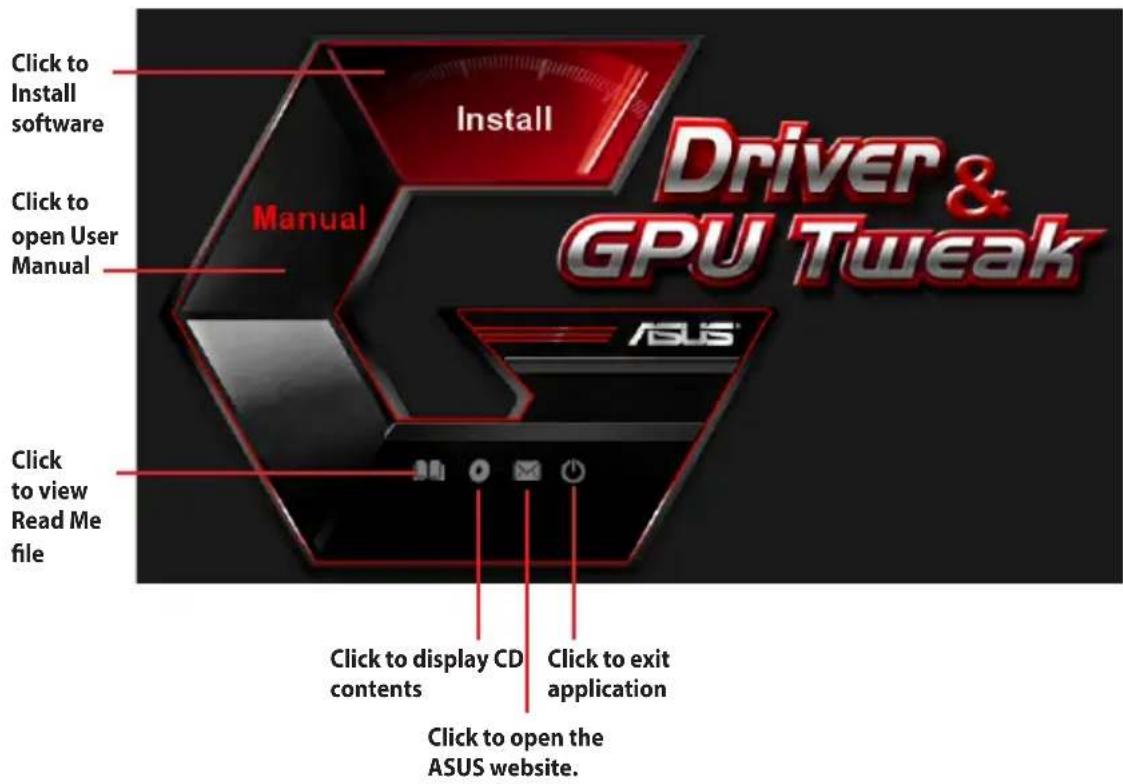

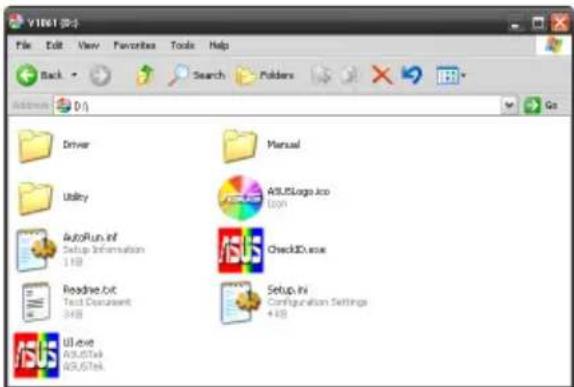
If Autorun is NOT enabled on your computer, browse the contents of the support CD to locate the file UI.exe. Double-click the UI.exe to run the support CD installation program.
2. VGA drivers
The VGA driver is the software program that makes the device work with your operating system. After physically installing your graphics card, use any of the recommended methods in this section to install, update, or remove the VGA driver.
If you are replacing an old graphics card with a new ASUS graphics card, uninstall the old display driver from your system.
2.1 Installing the VGA drivers
2.1.1 Installing the VGA drivers in Windows 10/8.1/8/7 (64-bit)
To install the VGA driver in Windows 10 / 8.1 / 8 / 7 (64-bit):
- Insert the support CD into your optical drive.
- If Autorun is enabled, the main menu appears automatically. If Autorun is disabled, run UI.exe from the root directory of your support CD.
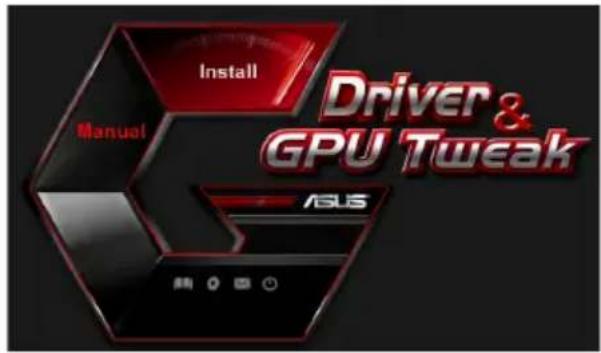
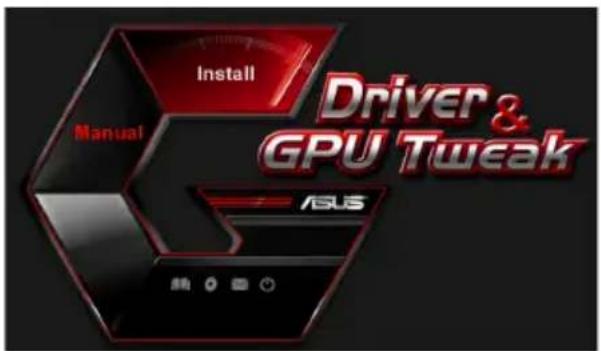
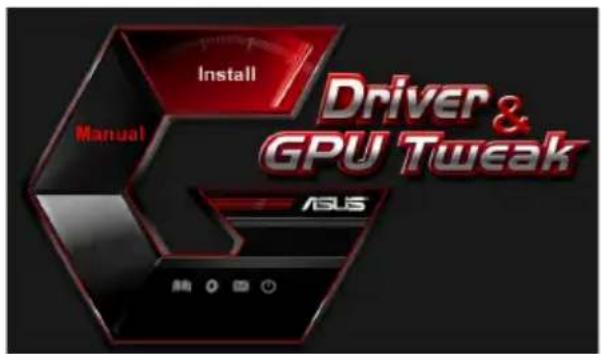
- From the main menu, click Install.
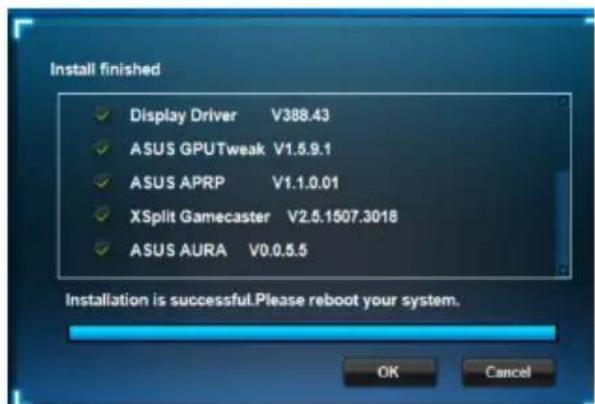
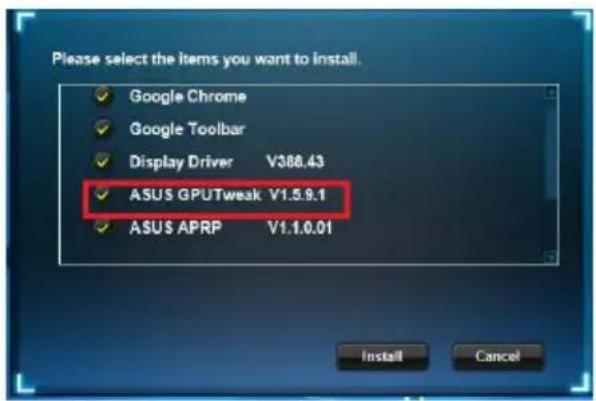
- Select Display Driver and click the Install button.

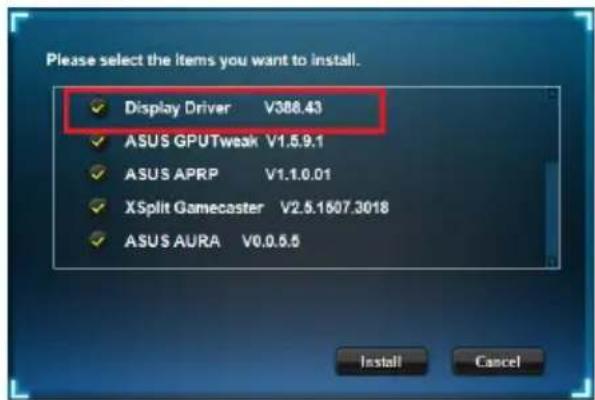
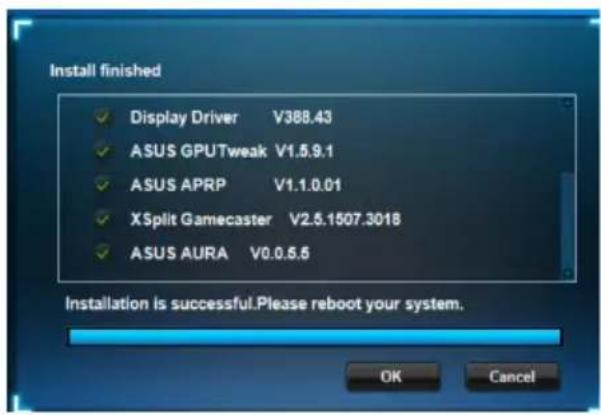
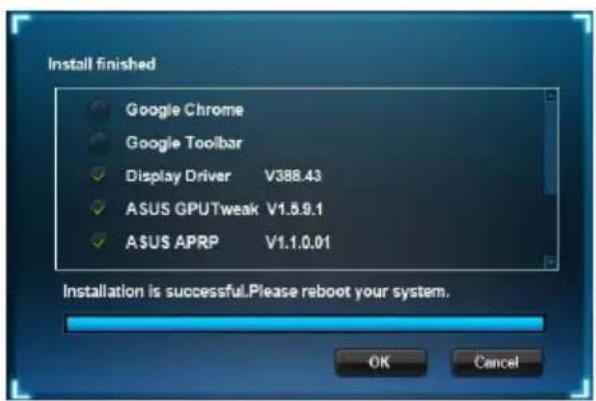
- Once installation is complete, click OK to reboot the system.
2.2 Uninstalling the VGA drivers
2.2.1 Uninstalling the VGA drivers in Windows 10/8.1/8/7 (64-bit)
To remove the VGA drivers in Windows 10 / 8.1 / 8 / 7 (64-bit):
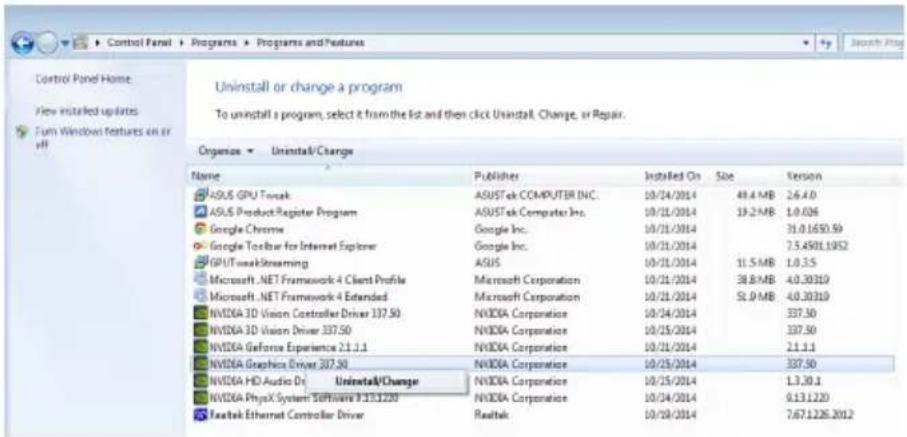
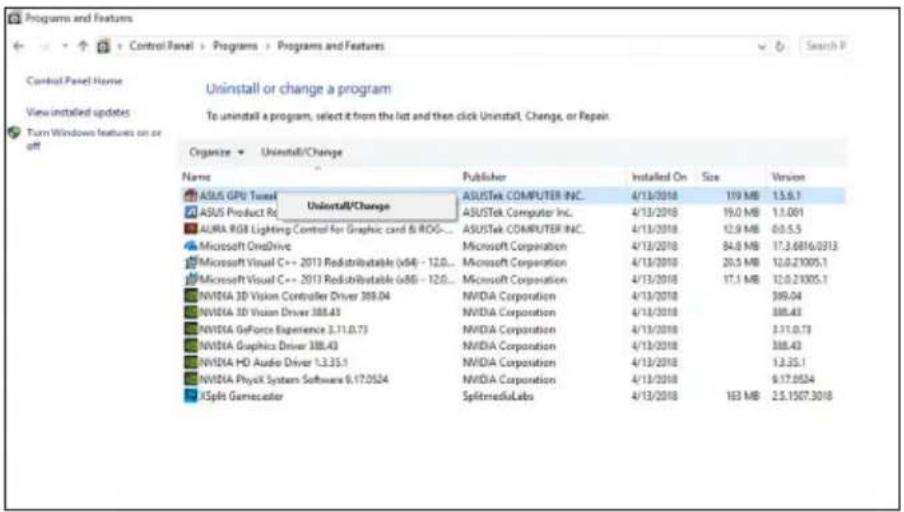
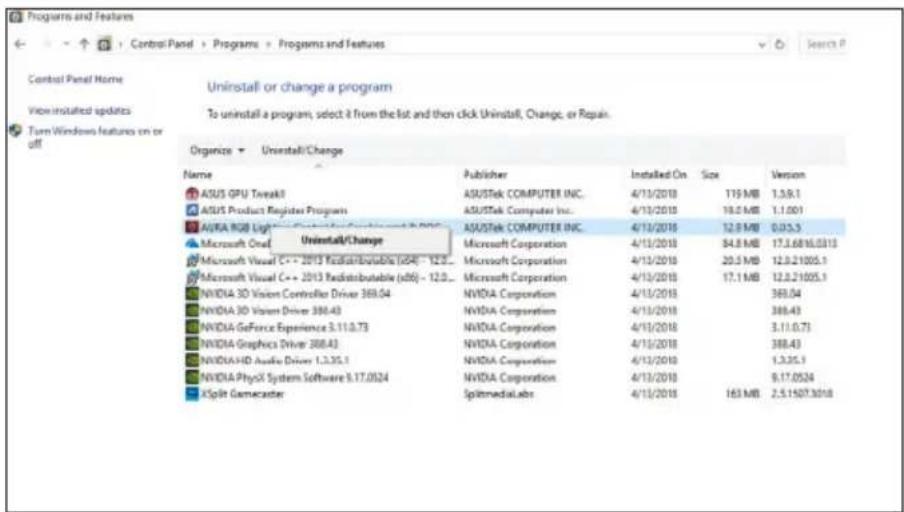
- Click Start > Control Panel > Programs > Programs and Features, select Graphics driver. Click Uninstall.

3. ASUS GPU Tweak utility
ASUS GPU Tweak utility allows you to monitor and optimize the settings of your ASUS Graphics card.
3.1 Installing ASUS GPU Tweak
3.1.1 Installing ASUS GPU Tweak in Windows 10/8.1/8/7 (64-bit)
To install ASUS GPU Tweak in Windows 10 / 8.1 / 8 / 7 (64-bit):
- Insert the support CD into your optical drive.
- If Autorun is enabled, the main menu appears automatically. If Autorun is disabled, run UI.exe from the root directory of your support CD.
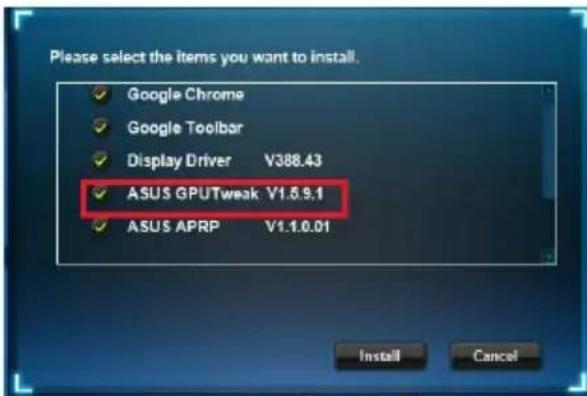
- From the main menu, click Install. Select ASUS GPU Tweak and click the Install button.
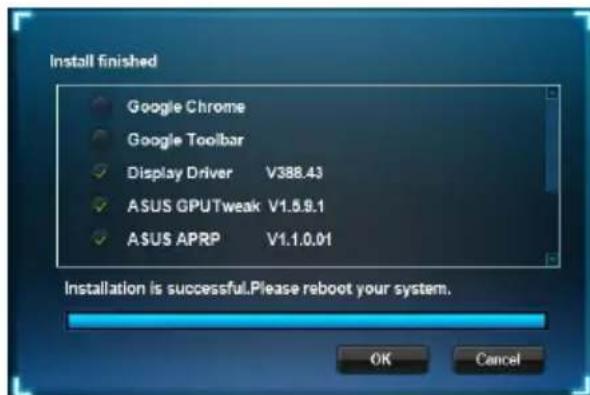
- Once installation is complete, click OK.

3.2 Uninstalling ASUS GPU Tweak
3.2.1 Removing ASUS GPU Tweak in Windows 10/8.1/8/7 (64-bit)
To remove ASUS GPU Tweak in Windows 10 / 8.1 / 8 / 7 (64-bit):
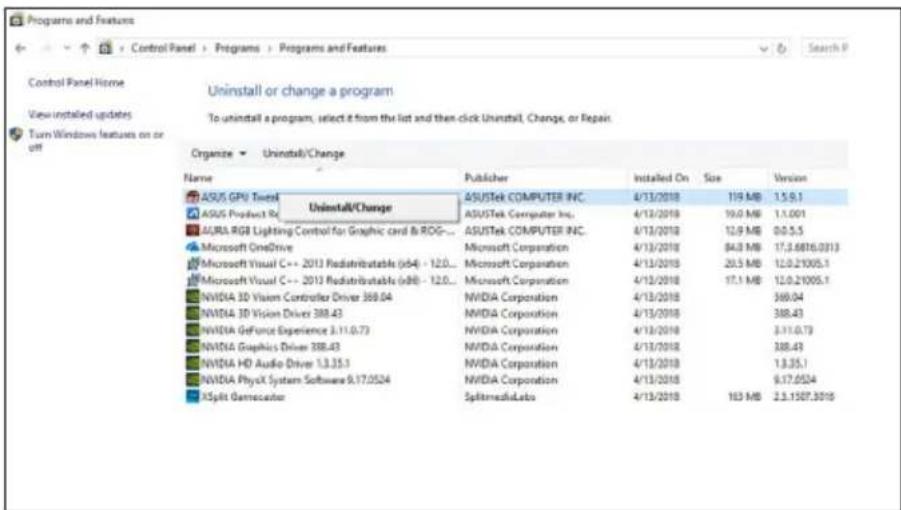
- Click Start > Control Panel > Programs > Programs and Features, select ASUS GPU Tweak. Click Uninstall.
4. ASUS APRP
4.1 Installing ASUS APRP
4.1.1 Installing ASUS APRP in Windows 10/8.1/8/7 (64-bit)
To install ASUS APRP in Windows 10 / 8.1 / 8 / 7 (64-bit):
- Insert the support CD into your optical drive.
- If Autorun is enabled, the main menu appears automatically. If Autorun is disabled, run UI.exe from the root directory of your support CD.
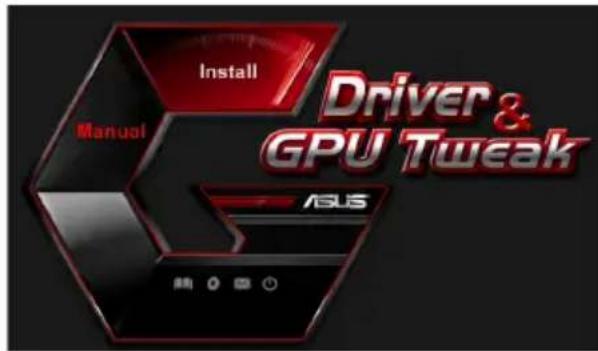
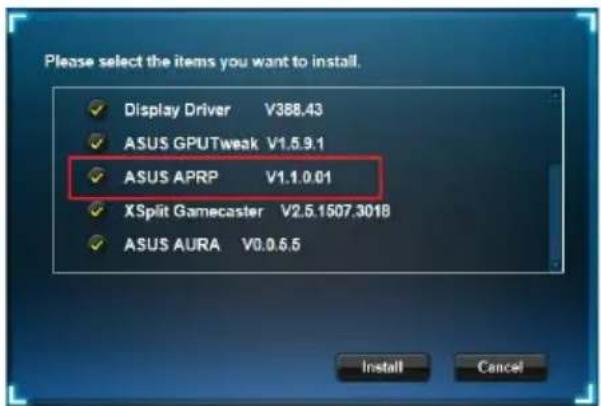
- From the main menu, click Install. Select ASUS APRP and click the Install button.
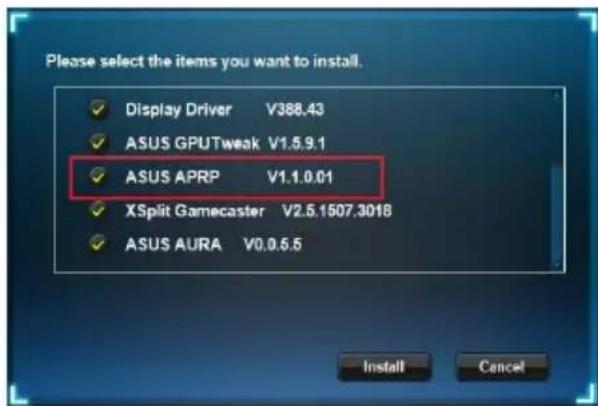
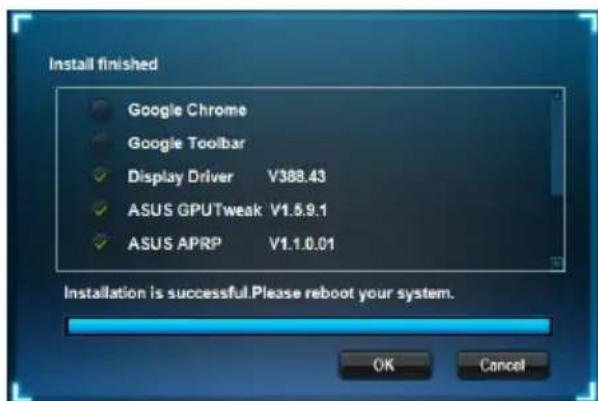
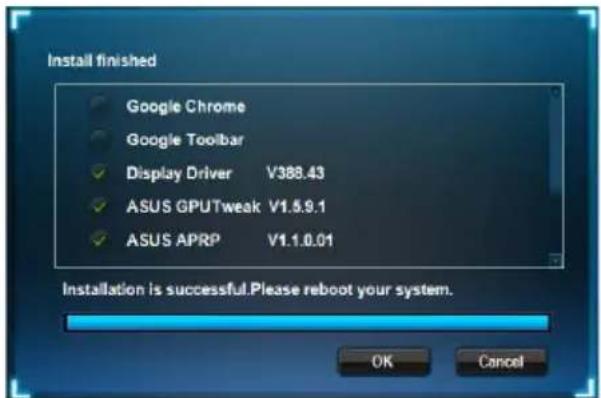
- Once installation is complete, click OK.
4.2 Uninstalling ASUS APRP
4.2.1 Removing ASUS APRP in Windows 10/8.1/8/7 (64-bit)
To remove ASUS APRP in Windows 10 / 8.1 / 8 / 7 (64-bit):
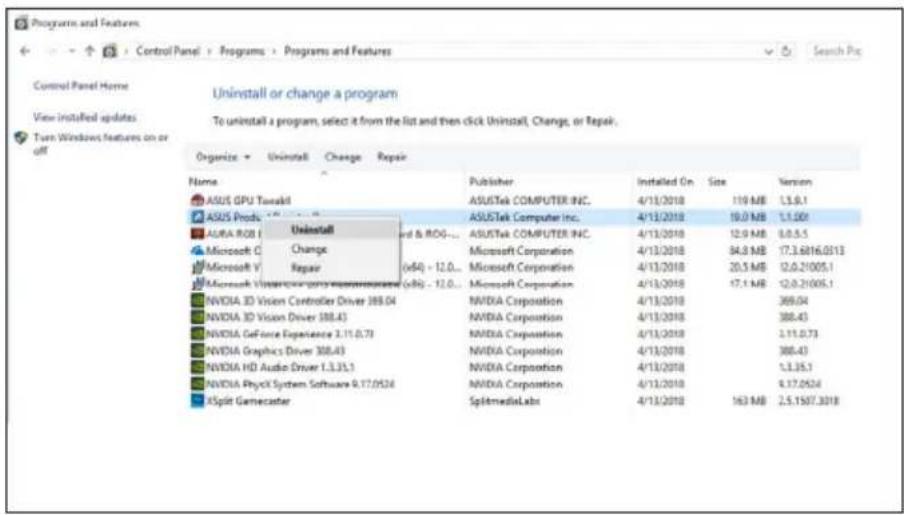
- Click Start > Control Panel > Programs > Programs and Features, select ASUS APRP. Click Uninstall.
5. XSplit Gamecaster
5.1 Installing XSplit Gamecaster
5.1.1 Installing XSplit Gamecaster in Windows 10/8.1/8/7 (64-bit)
To install XSplit Gamecaster in Windows 10 / 8.1 / 8 / 7 (64-bit):
- Insert the support CD into your optical drive.
- If Autorun is enabled, the main menu appears automatically. If Autorun is disabled, run UI.exe from the root directory of your support CD.
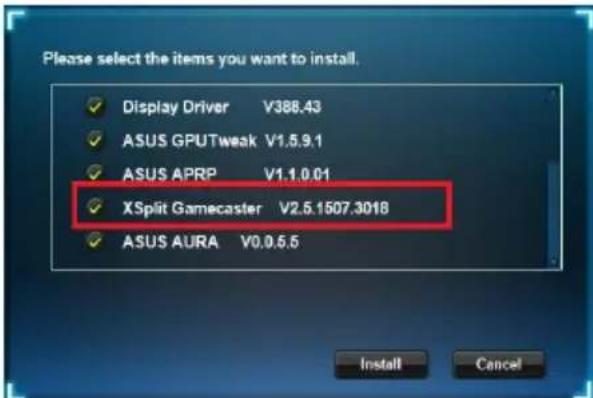
- From the main menu, click Install. Select XSplit Gamecaster and click the Install button.

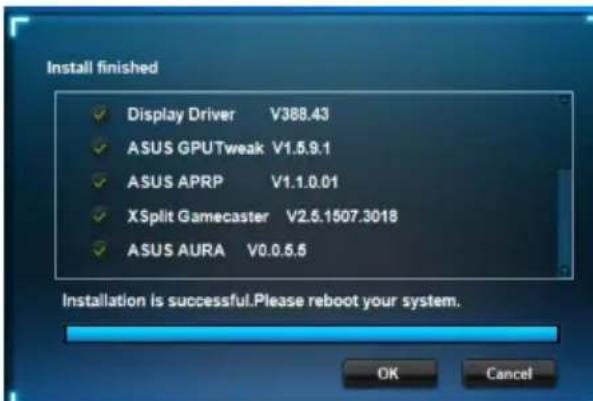
- Once installation is complete, click OK.
5.2 Uninstalling XSplit Gamecaster
5.2.1 Removing XSplit Gamecaster in Windows ^*10 / 8.1 / 8 / 7 (64-bit)
To remove ASUS Streaming in Windows 10 / 8.1 / 8 / 7 (64-bit):
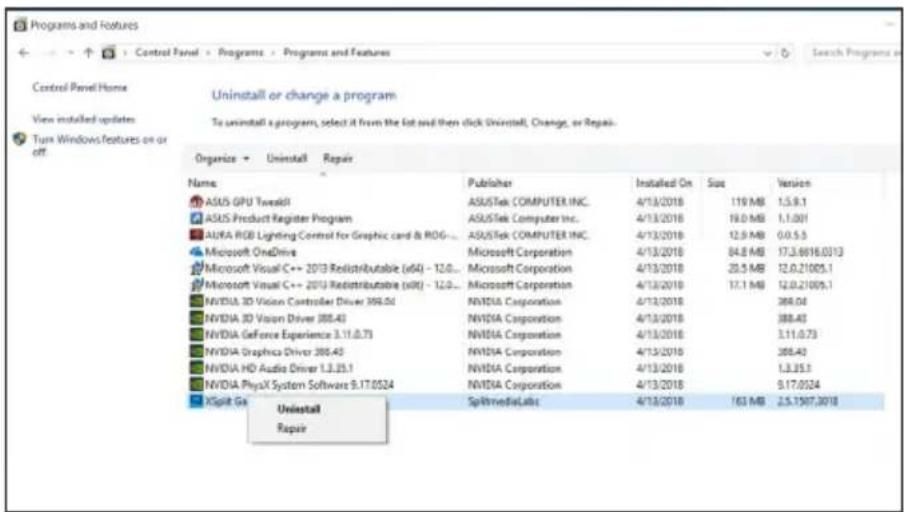
- Click Start > Control Panel > Programs > Programs and Features, select XSplit Gamecaster. Click Uninstall.
6. ASUS AURA
6.1 Installing ASUS AURA
6.1.1 Installing ASUS AURA in Windows ^*10 / 8.1 / 8 / 7 (64-bit)
To install ASUS AURA in Windows 10 / 8.1 / 8 / 7 (64-bit):
- Insert the support CD into your optical drive.
- If Autorun is enabled, the main menu appears automatically. If Autorun is disabled, run UI.exe from the root directory of your support CD.
- From the main menu, click Install. Select ASUS AURA and click the Install button.
- Once installation is complete, click OK.

6.2 Uninstalling ASUS AURA
6.2.1 Removing ASUS AURA in Windows 10/8.1/8/7 (64-bit)
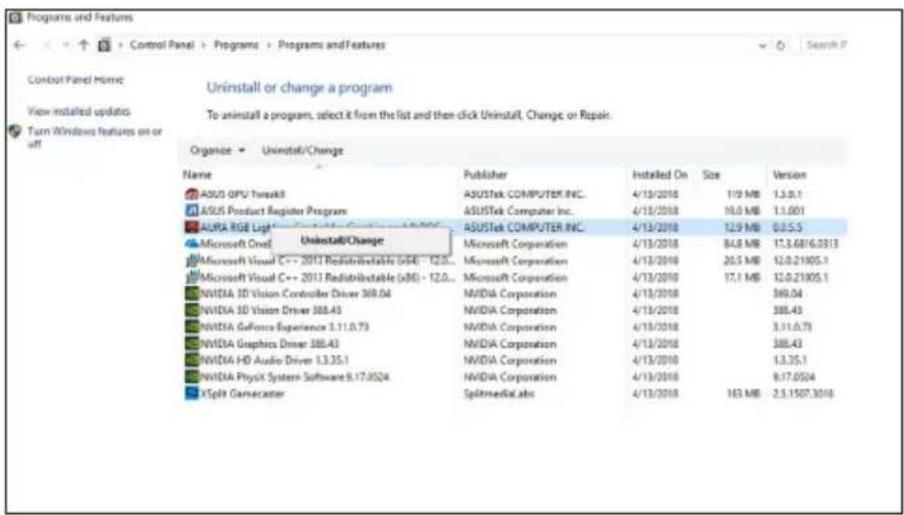
To remove ASUS AURA in Windows 10 / 8.1 / 8 / 7 (64-bit):
- Click Start > Control Panel > Programs > Programs and Features, select ASUS AURA. Click Uninstall.
7. Other information
7.1 Browse the Support CD
To browse the support CD:
- Insert the support CD into your optical drive.
- If Autorun is enabled, the main menu appears automatically. If Autorun is disabled, run UI.exe from the root directory of your support CD.
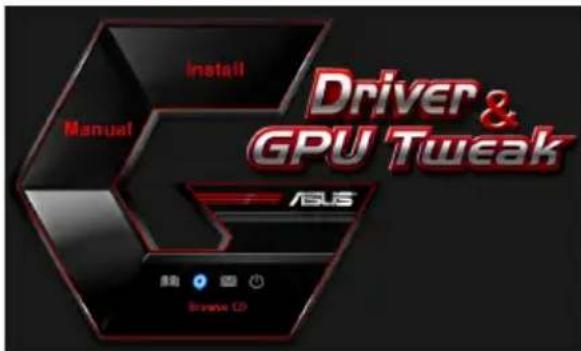
- From the main menu, click Browse CD to view the contents of the CD.
7.2 Contact Information
- Insert the support CD into your optical drive.
- If Autorun is enabled, the main menu appears automatically.
If Autorun is disabled, run UI.exe from the root directory of your support CD.
- From the main menu, click Contact Us to open the ASUS website for additional information.
7.3 Viewing the Read Me file
To view theREADME file:
- Insert the support CD into your optical drive.
- If Autorun is enabled, the main menu appears automatically.
If Autorun is disabled, run UI.exe from the root directory of your support CD.
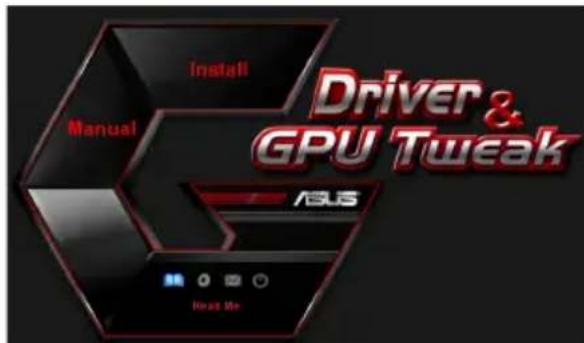
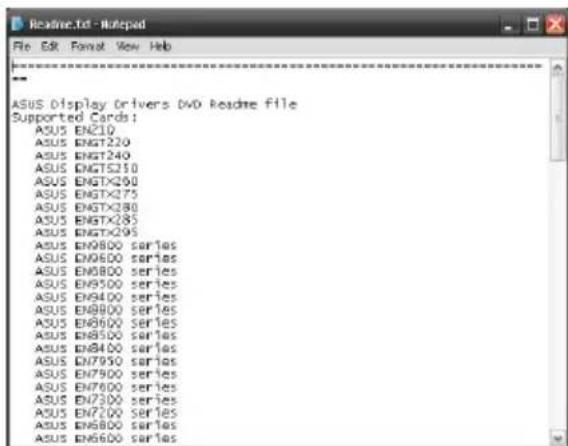
- From the main menu, click Read Me to display the Readme text file.
Appendix: Basic troubleshooting
If you encounter any of the following scenarios after installing your graphics card, try performing one of the possible solutions before calling for technical support.
| Problem No display after the card is installed | |
| Cause Your card might not be properly installed. Solution Make sure that the card is not tilted or skewed on the slot. | |
| Cause Your monitor might not be properly connected. Solution Make sure that the signal cable is properly connected to your monitor and graphics card. | |
| Cause Your graphics card is not supported by your motherboard. Solution Check the technical documentation that came with your motherboard and check the required specifications for your graphics card (e.g. AGP voltage requirement). | |
| Cause The graphics card's auxiliary power is not connected. Solution Make sure that the auxiliary power cables are properly connected with the power supply unit. | |
| Cause Insufficient power supply. Solution Make sure that your power supply unit can provide the minimum power requirement to your system. | |
| Cause Incorrect motherboard hardware system settings (e.g. system control panel connections). Solutions | ·Make sure that the system control panel cables are connect- ed properly (e.g. power switch, reset). ·Make sure that your CPU, CPU fan and/or memory DIMMs are in good working condition and are connected properly. |
| Problem Wrong color balance | |
| Cause Your card might not be properly installed. Solution Make sure that the card is not tilted or skewed on the slot. | |
| Cause Your video controls might not be properly set. Solution • Manually configure your video controls to your desired settings. • Configure your graphics card display resolution in Display properties. | |
| Cause There may be unsupported graphics card drivers installed in your system. Conflicts may occur with graphics card drivers from different vendors. Solution • Remove any unused graphics card drivers installed on your system. • Install the graphics card driver from the support CD that came with your graphics card package. | |
| Cause The graphics card's auxiliary power is not connected. Solution Make sure that the auxiliary power cables are properly connected to the power supply unit. | |
| Cause If your monitor comes with BNC connectors, the port connections may be incorrect. Solution Make sure that all BNC connectors are connected properly to its corresponding port. | |
| Cause Your monitor software settings might be incorrect. Solution Configure your monitor to supported display settings. | |
| Cause Your monitor might not be properly connected. Solution Make sure that the signal cable is properly connected to your monitor and graphics card. | |
| Problem The screen image is garbled | |
| Cause Your monitor cannot support the selected display setting. Solution Make sure that your monitor can support your desired display setting. Refer to the technical documentation that came with your monitor. | |
| Cause Your graphics card cannot support the desired system setting. Solution Make sure that your graphics card can support your desired display setting. See the specifications table that came with this graphics card package. | |
| Cause Some graphics driver files might be corrupt. Solution Remove your current graphics drivers and reinstall the graphics drivers from the support CD. | |
| Cause Poor heat dissipation inside the chassis. Solution Make sure that the chassis fan, CPU, and heatsink with fan, and/or the graphics card GPU fan are working properly. | |
| Cause GPU or VGA memory overclocked beyond optimal working conditions. Solutions Restore default frequency settings of GPU and VGA memory. | |

Other problems that you might encounter can be related to other parts or accessories (e.g., motherboard, power supply unit, LCD/CRT) of your system.
ASUS
顯示卡
驅動程式與公用程式
安装指南
T14301
第五版
2018年5月
版權所有·不得翻印©2018華碩電腦
Federal Communications Commission Statement
This device complies with Part 15 of the FCC Rules. Operation is subject to the following two conditions:
This device may not cause harmful interference
- This device must accept any interference received including interference that may cause undesired operation.
This equipment has been tested and found to comply with the limits for a Class B digital device, pursuant to Part 15 of the FCC Rules. These limits are designed to provide reasonable protection against harmful interference in a residential installation. This equipment generates, uses, and can radiate radio frequency energy and, if not installed and used in accordance with manufacturer's instructions, may cause harmful interference to radio communications. However, there is no guarantee that interference will not occur in a particular installation. If this equipment does cause harmful interference to radio or television reception, which can be determined by turning the equipment off and on, the user is encouraged to try to correct the interference by one or more of the following measures:
Reorient or relocate the receiving antenna.
- Increase the distance between the equipment and receiver.
- Connect the equipment to an outlet on a circuit different from that to which the receiver is connected.
- Consult the dealer or an experienced radio/TV technician for help.
The use of shielded cables for connection of the monitor to the graphics card is required to assure compliance with FCC regulations. Changes or modifications to this unit not expressly approved by the party responsible for compliance could void the user's authority to operate this equipment.
Canadian Department of Communication Statement
This digital apparatus does not exceed the Class B limits for radio noise emissions from digital apparatus set out in the Radio Interference Regulations of the Canadian Department of Communications.
This class B digital apparatus complies with Canadian ICES-003.
華碩REACH
Federal Communications Commission Statement
This device complies with Part 15 of the FCC Rules. Operation is subject to the following two conditions:
This device may not cause harmful interference
- This device must accept any interference received including interference that may cause undesired operation.
This equipment has been tested and found to comply with the limits for a Class B digital device, pursuant to Part 15 of the FCC Rules. These limits are designed to provide reasonable protection against harmful interference in a residential installation. This equipment generates, uses, and can radiate radio frequency energy and, if not installed and used in accordance with manufacturer's instructions, may cause harmful interference to radio communications. However, there is no guarantee that interference will not occur in a particular installation. If this equipment does cause harmful interference to radio or television reception, which can be determined by turning the equipment off and on, the user is encouraged to try to correct the interference by one or more of the following measures:
Reorient or relocate the receiving antenna.
- Increase the distance between the equipment and receiver.
- Connect the equipment to an outlet on a circuit different from that to which the receiver is connected.
- Consult the dealer or an experienced radio/TV technician for help.

The use of shielded cables for connection of the monitor to the graphics card is required to assure compliance with FCC regulations. Changes or modifications to this unit not expressly approved by the party responsible for compliance could void the user's authority to operate this equipment.
Canadian Department of Communication Statement
This digital apparatus does not exceed the Class B limits for radio noise emissions from digital apparatus set out in the Radio Interference Regulations of the Canadian Department of Communications.
This class B digital apparatus complies with Canadian ICES-003.
华硕REACH
Erklärung des Canadian Department of Communications
Dichiarazione FCC (Federal Communications Commission)
Per installare i driver VGA in Windows® 10 / 8.1 / 8 / 7 (64-bit):
Per disinstallare i driver VGA in Windows 10 / 8.1 / 8 / 7 (64-bit):
Copyright © 2018 ASUSTeK Computer Inc. All Rights Reserved.
Copyright © 2018 ASUSTeK Computer Inc. All Rights Reserved.
No part of this manual, including the products and software described in it, may be reproduced, transmitted, transcribed, stored in a retrieval system, or translated into any language in any form or by any means, except documentation kept by the purchaser for backup purposes, without the express written permission of ASUSTeK Computer Inc. ("ASUS").
Product warranty or service will not be extended if: (1) the product is repaired, modified or altered, unless such repair, modification of alteration is authorized in writing by ASUS; or (2) the serial number of the product is defaced or missing.
ASUS PROVIDES THIS MANUAL "AS IS" WITHOUT WARRANTY OF ANY KIND, EITHER EXPRESS OR IMPLIED, INCLUDING BUT NOT LIMITED TO THE IMPLIED WARRANTY OR CONDITIONS OF MERCHANTABILITY OR FITNESS FOR A PARTICULAR PURPOSE. IN NO EVENT SHALL ASUS, ITS DIRECTORS, OFFICERS, EMPLOYEES OR AGENTS BE LIABLE FOR ANY INDIRECT, SPECIAL, INCIDENTAL, OR CONSEQUENTIAL DAMAGES (INCLUDING DAMAGES FOR LOSS OF PROFITS, LOSS OF BUSINESS, LOSS OF USE OR DATA, INTERRUsION OF BUSINESS AND THE LIKE), EVEN IF ASUS HAS BEEN ADVISED OF THE POSSIBILITY OF SUCH DAMAGES ARISING FROM ANY DEFECT OR ERROR IN THIS MANUAL OR PRODUCT.
SPECIFICATIONS AND INFORMATION CONTAINED IN THIS MANUAL ARE FURNISHED FOR INFORMATIONAL USE ONLY, AND ARE SUBJECT TO CHANGE AT ANY TIME WITHOUT NOTICE, AND SHOULD NOT BE CONTRUED AS A COMMITMENT BY ASUS. ASUS ASSUMES NO RESPONSIBILITY OR LIABILITY FOR ANY ERRORS OR INACCURACIES THAT MAY APPEAR IN THIS MANUAL, INCLUDING THE PRODUCTS AND SOFTWARE DESCRIBED IN IT.
Products and corporate names appearing in this manual may or may not be registered trademarks or copyrights of their respective companies, and are used only for identification or explanation and to the owners' benefit, without intent to infringe.
Spistresci
Adnotacja 226
Bezpieczestewo 227
O tym Informatorze 228
- Y roJIOBHOmy MeHIO HaTNCiTb Ha Install (InCTaIIOBaTu).

- Bn6epitb Display Driver (ДраиВер BiDEOKapTu) i HATNCHiTb Ha KhoNci Install (IHCTaIIOBaTu).
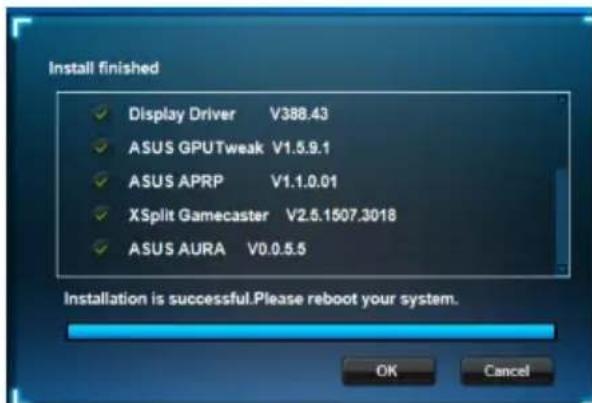
- Koni iHCTaIaIg 3aBepuNTbC, HaTnCHiTb Ha OK, 0o6 nepe3aBaHTaxkntn CnCTeMy.
2.2 DeiHctanayia npaBepa VGA
2.2.1 DeiHctanlaIpaBepa VGA y Windows 10/8.1/8/7(64-6it)
Iio6 BuaaTn dpBep VGA nwn Windows 10/8.1/8/7 (64-6iT):
HaTnCHiTb Ha Start (Ctapt) > Control Panel (KoHTpOlbHa naHeIb) > Programs (Pporpam) > Programs and Features (Pporpam Ta 3aco6u), Bn6epitb nyHKT, AKn Bn 6aJaTe BndaJIntu. BnKOHaBUn, HATnCHiTb Ha Uninstall (DeinCTaIIOBaTu).
3. 3actocy Hok ASUS GPU Tweak
3aTocyHOK ASUS GPU Tweak hadae moKnBictb BiDcTeKyBaTu i ONTmI3OByBaTu npametprn rpaqiuhoi KapTu ASUS.
3.1 InctaniausASUS GPU Tweak
3.1.1 InctaiaASUS GPU Tweaky Windows 10/8.1/8/7 (64-6it)
Ioo6 iHcTaIIOBAtn ASUS GPU Tweaky Windows 10/8.1/8/7 (64-6iT):
- BCTaBTe CD nIaTpUmKn Do ONTNuHOrO dNcKObOyU.
- RaKUaKTUBOBAHO aBTO3aNcK, TOLOBHe MEHIO 3'RABtbcra ABTOMaTnUHO.
KuO aBTO3aNcB uMKHeHO, 3anyctitb UI.exe 3 KopeheBoro MeHIO Ha CD niTpumKn.
- Y rONOBHOMy MeHIO HaTNCiTb Ha Install (IhctanIOBAtu).
Bn6epiTb ASUS GPU Tweak i HaTncHITb Ha KhoNci Install (IhctaJIHOBaTu).
- Koni iHCTaJIci 3aBepuINaC, HATNCiTb Ha OK.
3.2 DeiHcTaIaIaI ASUS GPU Tweak
3.2.1 BvdaneHRAUS GPU Tweaky Windows 10/8.1/8/7(64-6ir)
Iio6 BuaNTn ASUS GPU Tweaky Windows 10/8.1/8/7 (64-6it):
- Hatncitb Ha Start (Pyck) > Control Panel (KoHTpOlbHa naneB) > Programs (PporpaMn) > Programs and Features (PporpaMn Ta 3ac06n), Bn6epiTb ASUS GPU Tweak. Hatncitb Ha Uninstall (DeinhctanIOBAtn).
4. ASUSAPRP
4.1 Inchestangia ASUS APRP
4.1.1 InctaiaASUSAPRPyWindows 10/8.1/8/7(64-6it)
Ioo6 iHcTaIbOaTn ASUSAPRPyWindows10/8.1/8/7(64-6iT):
- BCTaBTe CD nIDTpumkn Do ONTNUHOrO DnCKOBODY.
2.ЯкwoakTNBOBAHOaBTO3anyCK, TOLOBHE MeHIO 3'YBNTbCra aBTOMATNUHO.
Akuo aBTO3aynck BmKHeHO, 3anyctitb UI.exe 3 KopeheBoro MeHIO ha CD niTpumKn.
- Y roJIOBHOmy MeHIO HaTnCHiTb Ha Install (IhctanIOBaTu).
Bn6epitb ASUS APRP i haTnciTb Ha Khoi Install (InctanIObatn).
- Koln iHctanayi 3aBepwnnae, HATNCiTb Ha OK.
4.2 DeiHcTalpaIg ASUSAPRP
4.2.1 BvdaneHHA ASUSAPRPyWindows 10/8.1/8/7(64-6it)
Iio6 BuaaNTn ASUSAPRPyWindows10/8.1/8/7(64-6it):
- Hatncitb Ha Start (Pyck) > Control Panel (KoHTpOlbHa naneB) > Programs (PporpaMn) > Programs and Features (PporpaMn Ta 3ac06n), Bn6epiTb ASUS APRP. Hatncitb Ha Uninstall (DeinhctaIbBaTu).
5. XSplit Gamecaster
5.1 In胶囊 XSplit Gamecaster
5.1.1 Inctaia XSplit Gameaster y Windows 10/8.1/8/7 (64-6ir)
Ioo6 iHcTaIbAtn XSplit Gamecaster y Windows' 10/8.1/8/7 (64-6it):
- BCTaBTe CD nIaTpUmKn Do ONTNuHOrO dNcKOBOyD.
2.ЯкwoakTNBOBAHOaBTO3aNyCK, TOLOBHE MeHIO 3'YBNTbCra aBTOMaTNUHO.
Kkuo aBTO3aynck BmKHeHO, 3anyctitb UI.exe 3 KopeheBoro MeHIO ha CD niTpumkn.
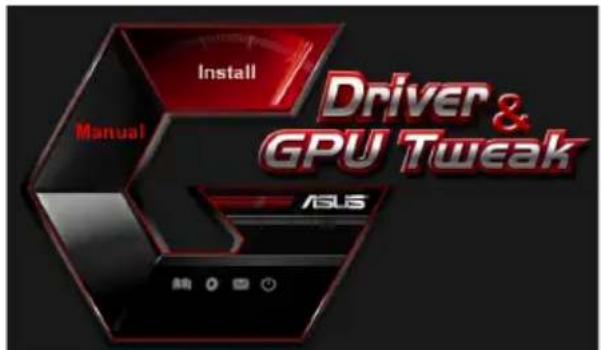
- Y roJIOBHOmy MeHIO HaTNCiTb Ha Install (InCTaIIOBaTu).
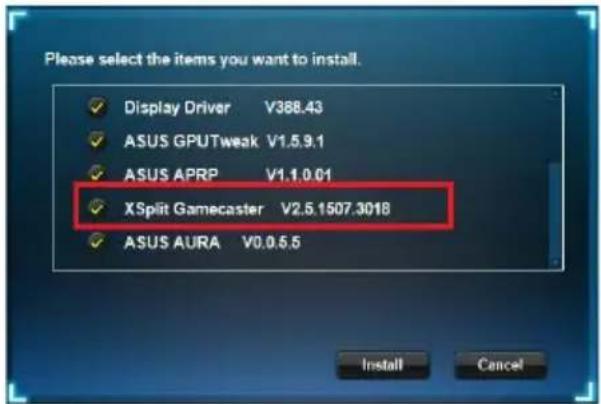
Bn6epitb XSplit Gamecaster iHaTncHItb Ha KhoNci Install (IhctanIOBaTu).
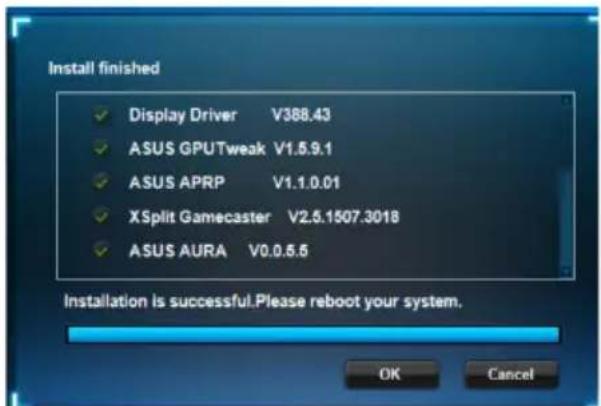
- Koni iHCTaJIaIa 3aBepuINaC, HATNCiTb Ha OK.
5.2 DeiHcTaIaIg XSplit Gamecaster
5.2.1 BvdaneHHXSplit Gamecaster y Windows 10/8.1/8/7 (64-6it)
Iio6 Buaaun XSplit Gamecaster y Windows' 10 / 8.1 / 8 / 7 (64-6ir):
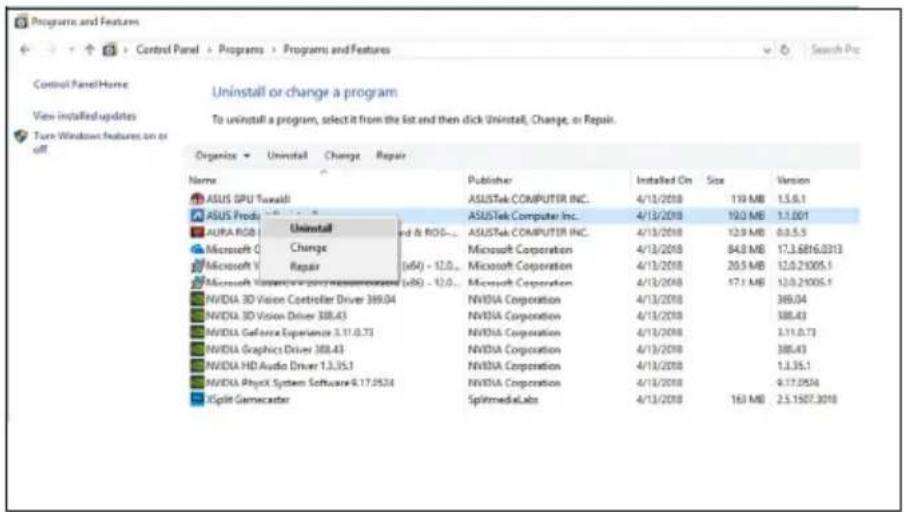
- Hatncitb Ha Start (Pyc) > Control Panel (KohtpoBHa naHb) > Programs (Pporpam) > Programs and Features (Pporpam Ta 3aco6n), Bn6epiXSplit Gamecaster. Hatncitb Ha Uninstall (DeinhctalOBaTn).
6. ASUS AURA
6.1 Inctajci ASUS AURA
6.1.1 Inctaia ASUS AURA y Windows 10/8.1/8/7 (64-6it)
Iio6 iHcTaIOBAtn ASUS AURA y Windows 10/8.1/8/7 (64-6iT):
- BCTaBTe CD nIaTpUmKn do ONTNuHOrO dNCKOBODY.
2.ЯкsoakTUBObaHO aBTO3aNyCK, TOLOBHE MeHIO 3'ABNTbCAr aBTOMaTnUHO.
KuO aTO3aNcBMMKeHo, 3anycttb UI.exe 3 KopeheBoro MeHIO Ha CD nIITpIMKn.
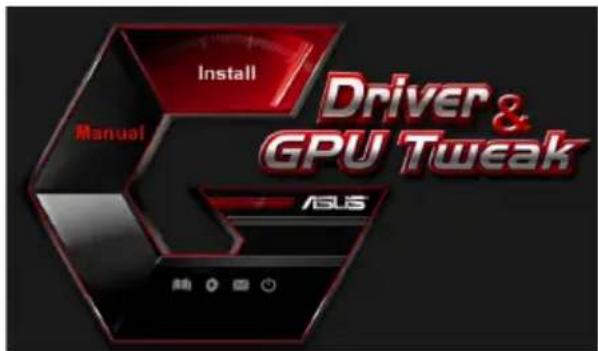
- Y roNoBHOmy MeHIO HaTnCHiTb Ha Install (InctanIOBAtu).
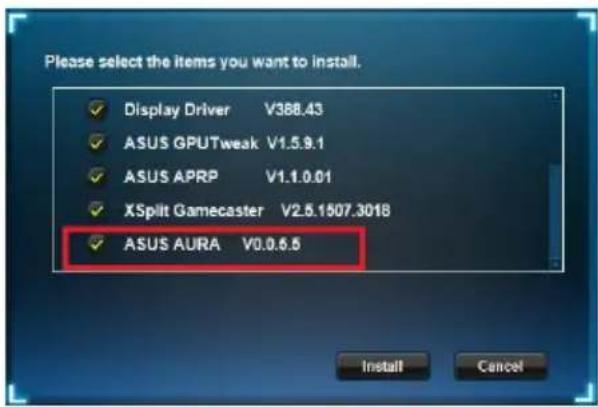
Bn6epitb ASUS AURA i HaTncHITb Ha Khoi Install (InctanIObatn).
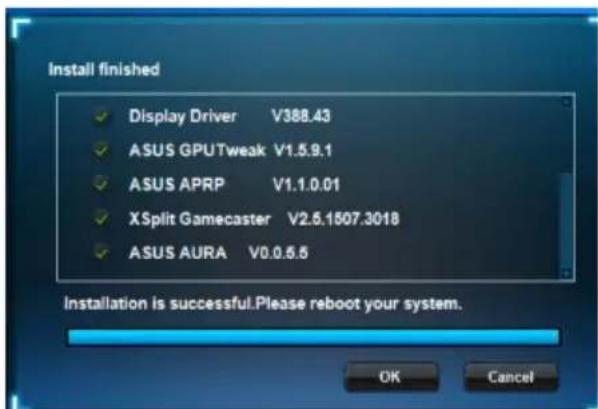
- Koni iHCTaJIaIa 3aBepuINnac, HATNCiTb Ha OK.
6.2 DeiHcTalpaIg ASUS AURA
6.2.1 BvdaneHRAAS AURA y Windows 10/8.1/8/7 (64-6it)
Iio6 BuaaNTn ASUS AURA y Windows 10/8.1/8/7 (64-6it):
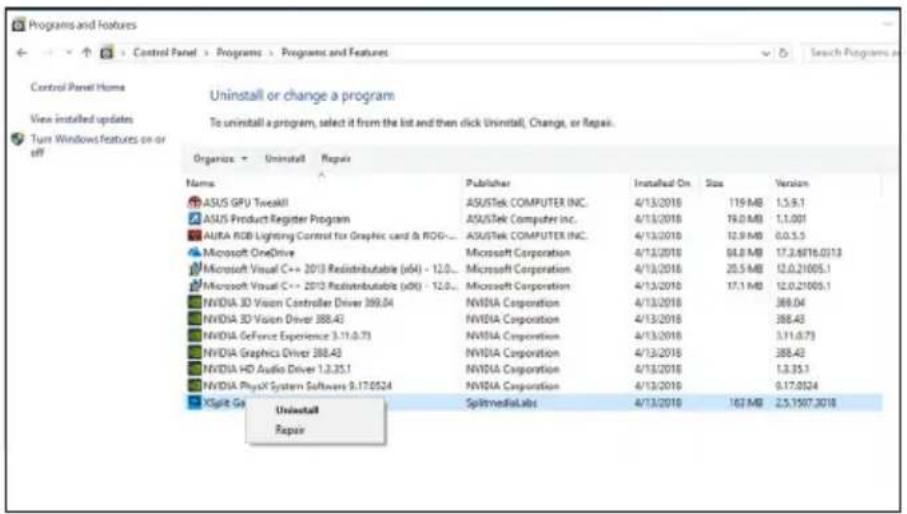
- Hatncitb Ha Start (Iyck) > Control Panel (KoHTpOJbHa naHelenb) > Programs (IporpaMn) > Programs and Features (IporpaMn Ta 3aco6n), Bn6epiB ASUS AURA. Hatncitb Ha Uninstall (DeiHcTaNIOBaTu).
Copyright © 2018 ASUSTeK Computer Inc. All Rights Reserved.
No part of this manual, including the products and software described in it, may be reproduced, transmitted, transcribed, stored in a retrieval system, or translated into any language in any form or by any means, except documentation kept by the purchaser for backup purposes, without the express written permission of ASUSTeK Computer Inc. ("ASUS").
Product warranty or service will not be extended if: (1) the product is repaired, modified or altered, unless such repair, modification of alteration is authorized in writing by ASUS; or (2) the serial number of the product is defaced or missing.
ASUS PROVIDES THIS MANUAL "AS IS" WITHOUT WARRANTY OF ANY KIND, EITHER EXPRESS OR IMPLIED, INCLUDING BUT NOT LIMITED TO THE IMPLIED WARRANTYORIES OR CONDITIONS OF MERCHANTABILITY OR FITNESS FOR A PARTICULAR PURPOSE. IN NO EVENT SHALL ASUS, ITS DIRECTORS, OFFICERS, EMPLOYEES OR AGENTS BE LIABLE FOR ANY INDIRECT, SPECIAL, INCIDENTAL, OR CONSEQUENTIAL DAMAGES (INCLUDING DAMAGES FOR LOSS OF PROFITS, LOSS OF BUSINESS, LOSS OF USE OR DATA, INTERRUsION OF BUSINESS AND THE LIKE), EVEN IF ASUS HAS BEEN ADVISED OF THE POSSIBILITY OF SUCH DAMAGES ARISING FROM ANY DEFECT OR ERROR IN THIS MANUAL OR PRODUCT.
SPECIFICATIONS AND INFORMATION CONTAINED IN THIS MANUAL ARE FURNISHED FOR INFORMATIONAL USE ONLY, AND ARE SUBJECT TO CHANGE AT ANY TIME WITHOUT NOTICE, AND SHOULD NOT BE CONTRUED AS A COMMITMENT BY ASUS. ASUS ASSUMES NO RESPONSIBILITY OR LIABILITY FOR ANY ERRORS OR INACCURACIES THAT MAY APPEAR IN THIS MANUAL, INCLUDING THE PRODUCTS AND SOFTWARE DESCRIBED IN IT.
Products and corporate names appearing in this manual may or may not be registered trademarks or copyrights of their respective companies, and are used only for identification or explanation and to the owners' benefit, without intent to infringe.
Sadržaji
Obavijesti 314
Copyright © 2018 ASUSTeK Computer Inc. Vse pravice pridrzane.
YdoctOBepenHe DeapTaMeHTa no cpeCTBaM CBa3N KaHaDbI
DaHoe cnofoe yctpoiCTBO He npebbIaet orpaHueHnKlacca B no bIeJeHnIO paNIOwyma OT cnofoBbIX ycTpoiCTB, yCTaHOBJIeHHbIX B npaBnax n o paNIOnomexAm DeapTaMeHTa no cpeCTBaAM CB3N KaHaDbI.
Данhoe zuфpoBoe yctpoIcTBO Knacca B COOTBeTcTBye t cTahdApTy ICES-003.
REACH
Corglaco perlamenty EC REACH (Registration, Evaluation, Authorization, and Restriction of Chemicals - Perictpaunia, OceHka, Pa3peHnna I OrpaHnueHna Ha nCpOJIb3OBaHne XmMuecknx BeueCTB), ha caIte ASUS REACH pa3meuen cncock xmmuecknx BeueCTB coepkauxcB npodyktax ASUS: http://csr.asus.com/english/REACH.htm
Ihopmaia o6 n3dennn Kopnpaun Macrovision
ДанhoeиздениькючaelВсебятхлогиюзцntы abTOpCKnx npab,3aunuHHy npTeHTamn CUSA,ииньправиHTeJIeKtuaьно сбctBeHHoCTN,прнадлжашие Корnapauи Macrovisionи Дугим Лцam.ИспolyзOBaHne daHHOJ TexHOLorin 3aunTbI abTOpCKnx npab BO3MOxHToTBko c corlacnja Koprnapauи MacrovisionиnpeducmOTpeHoToTBko Дя дOMaшнeroи Инoro orpaHueHHOrO nCpOlb3OBaHna,ecnInHoe He npednicaHo KoprnapaueM Macrovision.ИнxeHepbl aHaIIN3 n pa36bOpka 3anpeueHbl.
HΦopMaζη o npaBnλx 6e3oNaChOCTN
3neKtpo6e30nacHocTb
- Пи добаьени ИИи n3Bleuehenи KOMnoHENTOB cnCTembl, nepeД NOДКЛIOчEHnEM cnHahbHx Ka6eNei, y6eINTEcB, YTO nITaIOUne Ka6eNt OTKIOUeHbI. ПО BO3MOJXHOCTN, NepeД yCTaHOBKOY cTPOINCTB OTKIOUHTe OT CNCTeMbI BCE nITaIOUne Ka6eNt.
- Y6eHITecb, yTO HAnpJxKeHne 3NeKTPocetn B DOnyCTMbIX npeJeIax. EcNI Bbl He yBepHeBtTIne 3NeKTPoPHTaHnB BaWeM dome, npOKOHcyIbTnpyIITecb C MeCTHOJ 3HEpreTNUeCKO KOMNaHnei.
- Ecni 3JIeKTPoPiTuHHe HEnCnPaBHo, He nbIaTecb HalaIITb erO caMOCToTebHo. O6paTntEc b KBAJIuΦiUPOBaHHOMy TexHnky IIN npOdaBu.
Ponb3OBaTeIbckne npabuHa 6e3oNaChOCTN
- Перацьовский на Baшу материнскую палу, Тцателно почту востплараимble руховodства.
- Ipepe nCnoJb3ObaHnem npOdyKta, yDcTObepbTeCb, yTO BCE ka6e nn npaBnIbHo noDKJIIOUeHbI, n Ka6e nn nITaHn He NOBpeXdEhbl. Ecn Bbl o6napxnn Kakoe-Hn6yNb IOBpeXdEHne, HemeJeHHo CBXNTecb C Baunm dInepom.
- 4To6bI n36eKaTb KOpOTKnx 3aMbIkaHn, XpaHnTe cKpeKN dJa 6yMaR, BnHTbl, NpdaJIbIe OT coeINHnTeNe, CNoTOB, pa3beMOB n CXEm.
- I36eraIte nbIIN, BnaXHOCTn n 3KCTpeMaJIbHbIX TemNepaTyp. He nomeuaIte npOdyKT Tya, rDe OH MOKeT HaMOKHyTb.
- YcTaHaBnBaIe npOdyKT Ha yCTOnuNByIO NOBepxHocTb.
Bcnyae,ecn y Bac Bo3HKnTexHueckne npo6nembI c n3deHnem,obpaTntecb K KBaIIuHnupOBaHHOMy CneuaNCTy ueHTpa o6CnyKbAHn IIN K npOdaBcy.
OpykoBoDCTBe
06o3haeHna, nCnoIb3yEmble B pyKOBODCTBe
B pykoBDCTBe IMeOTc npimeaHn I npedynpexKeHn, c KOtOpbIMn Bam HxKHO3HaKOMITbcra IyCneuHOro BbvINHeHn 3aDaq.
BHUMAHNE:Инфорmaця O DeiCTBnax, KOtOpbIe MOryt npNBecTNI K NOBpeKdEHHIO O6OpyIDOBaHnI, NToTepe DaHHbIX I 6bITOBbIM TpaBMam.

BHUMAHNE:Инфорmaцьо DeiCTBnax, KOTOpbIe MOryT npINBeCTN K NOBpeKdEnHIO O6OpUdoBaHnI.
BAXHO:Инфорmaця,КOTopoB BbldoJXHbI cneIOBaTb npu BblonHeHn 3aJaU.

PIMMEAHHE: CobetbI IN DOONHHTeBHaN HOpMaun, NOMaouaepn BblONHeHm 3aDa.
Ie hain 6onbwe nHopmaun
O6paTntecb K cIeDyIOUIM NCTOChNKaM 3a DOnOJIHTeBHOH INHΦOpMaUnei n dIg
6HOBHeHn IporpAMMHOrO OecneueHn.
1. CaNTbI ASUS
CaTbI ASUS no Bcemy Mnpy npedocTabJIoT 6HOBHeHHyo HOpMaHIO OTHCnteHbO 6OpUdoBaHn I nporpaMMHoro 6eCneHnA ASUS. CaTbI ASUS yKa3aHbI B KOHTaKTHoINHOpMaun Ha BVHTpeHHe CTopoHe 6NoJKN.
2.Дононтельнаддokумerteця
B KOMnIeK T BaIero npOdyKaT MoKeT 6bITb BKJIouYeHa DoONJIHNTeJIbHa JOKyMeHTaUra, TIna rapaHTnHbIX TaIOHOB, KOtOpbIe MOrY T 6bITb Do6aBHeBaIIM dIInepom. 3Tu DOKyMeHTb He RaBIAOTcyaCTbIO KOMnIeKTaUIN.
1.Информацnia O komпаКТ-ДИСКЕ
Ha KOMnakT-DnCKe HaxoJrTaIpaBepbI yTuNtbl Iy VGA KapTb.I B rIaBHOM MeHIO KOMnAKT-DnCKa MoXHO yCTaHOBNTI pOrpamMHOe oecneueHne NOnyHTb KOHTaKTHyIO IHOpMaunIO ASUS, npocmOTpeTB coepxHMOe KOMnAKT-DnCKa nn foai ReadMe.
Bce n3o6paXeHn npuBeHehbl TOnbKO dIa CnpaBKn mOryT OTnuaTbcra OT Tex, 1TO Bbl yBnnte Ha 3kpaHe.
HeKOTOpBle IpaBepa HytINbHa KOMnAKT-DnCKe NOIePKNBaT ToIbKO K onpeDeneHHbIe MoEN BnEoKapr ASUS.
Дя установки драиьеров и утлNT могут понадобпся паы
адMinностразopa. Пдрбю Инфорmaцю CMOTРTE В ДOKум entaцин Ha
Windows 10/8.1/8/7.
Codepxmoe support CD moKet n3MeHrTbC8 6e3 yBeOMIeHn. Hobbie BepCNBIOS moXHO haTn Ha oOuHaNbHom caTe KOMNaHN ASUS (www.asus.com).
BcTaBbTe KOMnAaT-DnCK B ONTNueckn npNBOD KOMNbIOTepa. Ecnn aBTo3aNyCK BKIOUeH, rIaNbHOe MeHIO NOBuTcR aBTOMaTIueCKn.
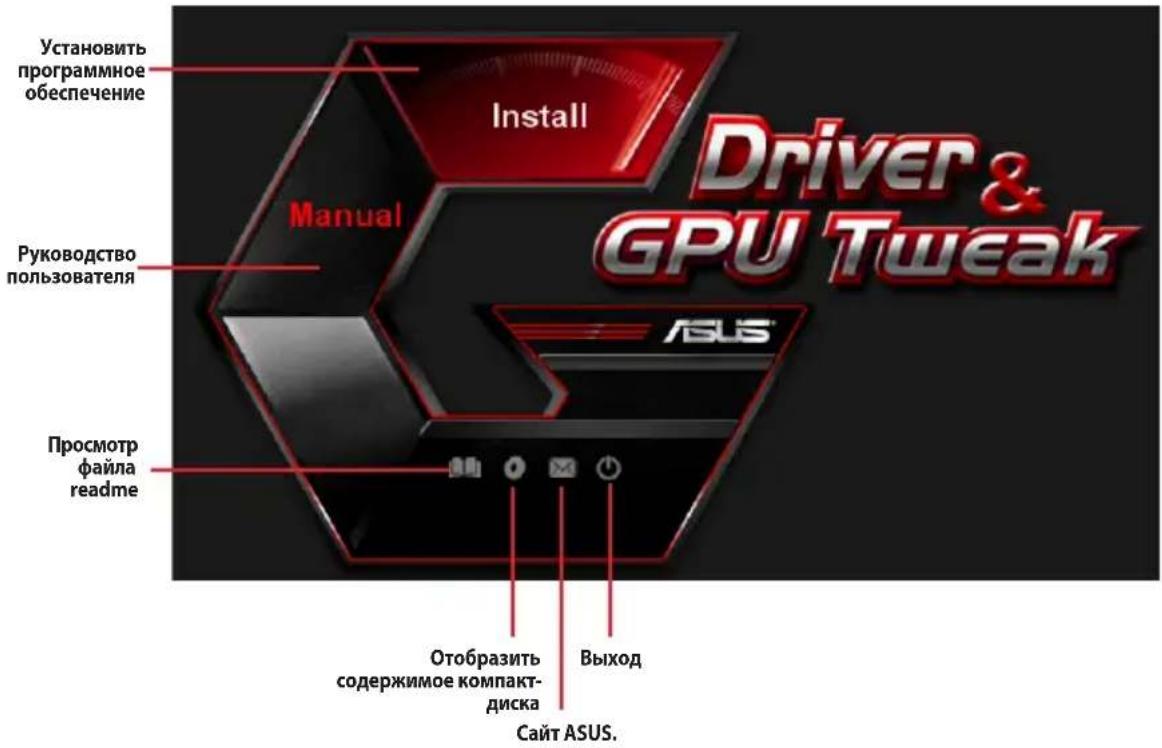

Ecnn aTO3aNcK BbIKIoueH,HaIInTe Ha IINcKe faiu UI.exe. DBaXdbI eJIKNHTe nO UI.exe Ira 3aNcKa MeHIO.