
SRU1060 - Remote control PHILIPS - Free user manual and instructions
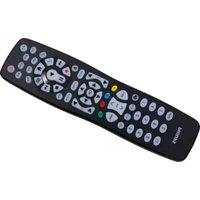
Find the device manual for free SRU1060 PHILIPS in PDF.
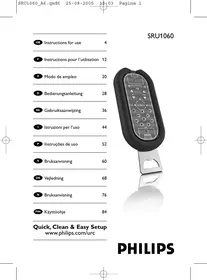


| Product Type | Universal Remote Control |
| Brand | PHILIPS |
| Model | SRU1060 |
| Power Supply | CR2025 lithium battery (included and spare) |
| Compatibility | TV and DVD player/recorder |
| Configuration Methods | Automatic search and manual code entry |
| TV Functions | Volume, channel, mute, input selection, standby |
| DVD Functions | Play, pause, stop, disc menu, navigation, OK, back |
| Indicator Light | Indicates remote status and low battery (4 flashes) |
| Factory Reset | Yes, by pressing DISC MENU and BACK keys |
| Care and Cleaning | Wipe with a soft, dry cloth to remove dust |
| Safety | Do not immerse in water, keep away from shocks and humidity |
| Spare Parts | CR2025 battery available as replacement |
| Repairability | Contact Philips support service in case of malfunction |
| Manual Languages | French, English, German, Spanish, Italian, Dutch, Portuguese |
| Included Accessories | Spare battery, user manual |
| Dimensions | Approximately 20 x 5 x 2 cm |
| Weight | Approximately 100 g (with battery) |
Frequently Asked Questions - SRU1060 PHILIPS
User questions about SRU1060 PHILIPS
0 question about this device. Answer the ones you know or ask your own.
Ask a new question about this device
Download the instructions for your Remote control in PDF format for free! Find your manual SRU1060 - PHILIPS and take your electronic device back in hand. On this page are published all the documents necessary for the use of your device. SRU1060 by PHILIPS.
USER MANUAL SRU1060 PHILIPS
- Introduction 4
- Installing the remote control 4-8
Replacing the battery. 4-5 Testing the remote control. 5 Setting the remote control. 6-8
- Keys and functions 9
- Restoring the original functions of your remote control. 10
- Troubleshooting 10-11
- Need help? 11
Code list of all brands / equipment. 92-105
Information to the Consumer. 106
1. Introduction
Congratulations on your purchase of the Philips SRU1060 universal remote control. After installing the remote control you can operate a TV and a DVD player/recorder with it.
You can find information about how to prepare this remote control for use in the chapter 'Installing the remote control'.
2. Installing the remote control
- A battery is already placed in the battery compartment of the SRU1060. Just remove the protective foil from the battery and the SRU1060 is ready for use.
Replacing the battery
The SRU1060 comes with one spare battery in the packaging.
1 Press the little latch on the right hand side of the battery compartment. Keep the latch pressed and slide the compartment outwards.
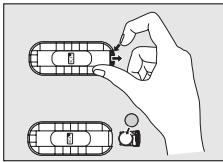
2 Place the spare CR2025 Lithium battery into the battery compartment, as shown. Make sure to place the text side of the battery upwards. 3 Slide the cover back and click it firmly into place.
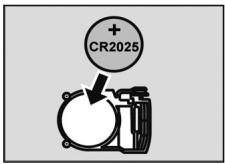
Note: If the LED blinks four times after every key press, the remote control is indicating that its battery is running low. Replace the old battery with a CR2025 Lithium battery.
Testing the remote control
The remote control has been programmed to operate most Philips brands. Because the SRU1060 may use different signals for each brand and even for different models of the same make, it is advisable to test whether your brand responds to the SRU1060.
The example below (TV) instructs you how to do this.
You can repeat the same steps for your DVD player/recorder which you want to operate using the SRU1060.
Example of TV:
1 Turn your TV on manually or use the original remote control. Tune to channel 1. 2 Check whether all the keys are working. For an overview of the keys and their functions see '3. Keys and functions'. If the TV responds as it should to all of the key commands the SRU1060 is ready for use.
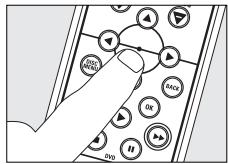
If the LED does not light up, check whether the battery has been properly inserted.
See 'Inserting the battery'.
If the device does not respond at all or not to all of the key commands, follow the instructions under 'Setting the remote control', or for online setup go to: www.philips.com/urc.
Setting the remote control
This is only necessary if your brand does not respond to the SRU1060. If that is the case, the SRU1060 does not recognize the brand and/or model of your device, and you need to program the remote control to do so.
The example below (TV) instructs you how to do this.
You can repeat the same steps when setting the SRU1060 for your DVD player/recorder.
You can set the remote control either automatically or manually.
Automatically setting the remote control
The remote control will now automatically search for the right code for your brand.
Example of TV:
The keys between brackets are used for setting the SRU1060 for your DVD player/recorder.
1 Make sure the TV is switched on and select a channel using the original remote control or the keys on the TV (for example channel 1). The SRU1060 emits the 'switch off TV' signal for all models of TV that are stored in the memory. If the device is a DVD player/recorder, insert a disk and start playback. 2 Then keep keys VOL + and PROG + (← and →) on the SRU1060 pressed simultaneously for three seconds, until the LED flashes twice and then remains lit.
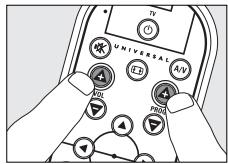
3 Press and hold the TV (DVD) key of the SRU1060.
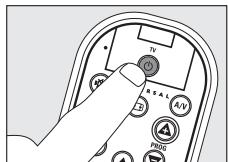
The SRU1060 now starts emitting all known
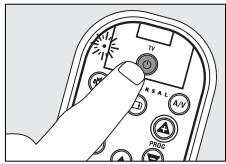
'TV off' signals, one by one.
Each time a code is sent, the LED lights up.
5 When your TV switches off (stand-by), release the TV (DVD) key of the SRU1060 immediately. The SRU1060 has now found a code that works on your TV. 6 Check if you can operate all functions on your TV with the SRU1060. If this is not the case, you can redo the automatic setting. The SRU1060 will then search for a code that works better. After the SRU1060 has run through all the known codes, the search will stop automatically and the LED stops flashing. Automatic programming of a TV takes a maximum of 5 minutes. For DVD this time is 2 minutes.
Manually setting the remote control
Example of TV:
The keys between brackets are used for setting the SRU1060 for your DVD players/recorder.
1 Turn on the TV manually or use the original remote control. Tune in to channel 1. 2 Look up the code of your TV in the code list at the back of this manual.

8 ENGLISH
The code consists of a combination of 5 keys (always the cursor keys and the OK key in various combinations). E.g. left, OK, left, OK, down. One or more codes are shown for each brand. Note the first code. Be careful! There are separate tables for TV and DVD.
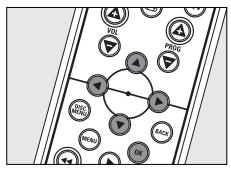
On our website www.philips.com/urc you can directly select your device type number to find the right code. Make sure you use the codes from the correct table.
3 Keep keys VOL + and PROG + (left and right) on the SRU1060 pressed simultaneously for three seconds until the LED flashes twice and then remains lit.
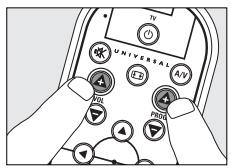
4 Then enter the code noted in step 2 using the left, right, left, and OK keys.
The LED will now flash twice. If the LED flashes once for an extended period, the code has not been entered properly or the wrong code has been entered. Start again from step 2.
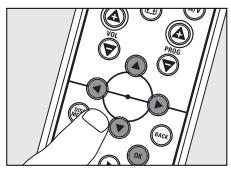
5 Point the SRU1060 at the TV and check that it responds as it should. - If the TV responds to all of the key commands, the SRU1060 is ready for use. Do not forget to note your code. If the device does not respond at all, or not to all of the key commands, start again from step 2 and try the next code from the list.
3. Keys and functions
The illustration on page 3 gives an overview of all keys and their functions.
TV keys
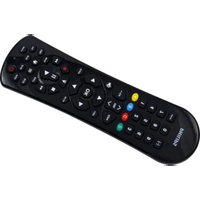
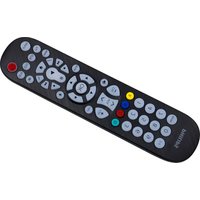
3 4 - VOL + adjusts the TV volume. (2) mutes the sound of the TV. 22 A/V switches between external inputs of your equipment. 19 20 - PROG + selects a previous or following channel. 21 13 selects wide screen TV. 23 TV switches TV on and off.
DVD keys
(11) DVD: switches DVD on and off. ⑦ DISC MENU: opens disc menu. ⑤ ⑰ Cursor keys: cursor up, down in a menu. ⑥ ⑧ Cursor keys: cursor left, right in a menu. 8 MENU: turns the menu on and off. (9) ←: rewind. 14 10 12 13 OK: confirms your selection. 16 BACK: jumps back one level in the menu or turns off the menu.
General
① LED
If the device does not respond at all, or not to all of the key commands, follow the instructions under 'Setting the remote control'. It is possible that you must enter another code for the device.
ENGLISH
4. Restoring the original functions of your remote control
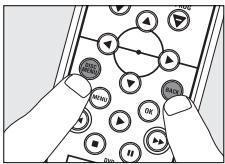
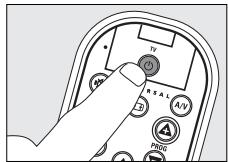
1. Keep keys DISC MENU and BACK on the SRU1060 pressed simultaneously for three seconds, until the LED flashes twice and then remains lit. 2. Press the TV (or DVD) key. All original functions have now been restored and any extra functions have been deleted.
5. Troubleshooting
Problem Solution
The LED blinks four times after every key press. - The remote control is indicating that its battery is running low. Replace the old battery with a CR2025 Lithium battery. - The device you want to operate does not respond and the LED does not flash when you press a key. Replace the old battery with a CR2025 Lithium battery. - The device you want to operate does not respond but the LED does flash when a key is pressed. - Point the SRU1060 at the device and make sure that there are no obstructions between the SRU1060 and the device. - The SRU1060 does not respond properly to commands. - Maybe you are using the wrong code. Try programming the SRU1060 again using another code, which is mentioned under the brand of your device, or reset for automatic search to find the right code. If the device still does not respond, call our helpline.
You have difficulties operating all of the functions on your device. - Maybe the SRU1060 has to be adapted to the model of the device. Call our helpline for details. - Your brand of device is not in the code list. Try to set the SRU1060 automatically. See 'Automatically setting the remote control'. - None of the codes works during manual setting of the remote control. - If that is the case, follow the instructions under 'Automatically setting the remote control'.
6. Need help?
If you have any questions about the SRU1060, you can always contact us. You will find contact details after the code list at the back of this manual.
Read this manual carefully before you make a call. You can solve most of the problems yourself. If you cannot find any answers to your problems, write down the details of your device shown in the code list at the back of this manual. This will help our operators to assist you better and more quickly.
Look up the numbers of the models in the instructions accompanying the device or on the back of your device. When you call our helpline, make sure the device is to hand so that our operators can help you determine whether your remote control is working properly.
The model number of your Philips universal remote control is SRU1060.
Date of purchase: ..../..../.... (day/month/year)
Table of contents
The remote control will now automatically search for the right code for your brand.
TV example:
Television buttons
Dual...OK, OK, OK, OK
...
Dual Tec.
Dumont.
▲▲OK, ...,▲OK▼▲, ▲OKOKOK
Elbe....OKVOK,ABVA,
...
Elin.....OK,OKVAA,AVADV
...
OK
Elite. OK, OK, OK
Elman. OK
Elta.
Emco. OK, OK
Emerson. OK, OK, OK
... OK, OK, OK, OK, OK
... OK, OK, OK, OK
OK
Emperor OK
Envision.
Erres. OK
Euroman. OK, OK
Europa OK
Europhon. OK, OK
OK
Expert. OK
Exquisit. OK
FNR. OK
Fenner.
Ferguson OK,
...OK
A
OK, OK OK OK OK
Fidelity....
OK, AAA, AOK
OK OK
Filsai. OK
Finlandia. OK, AA, AOKOKO
AOKOKV,
Finlux. OK, ▲▼OK
▲▼OKOK, ..., OK OK, ▲▲OK,
...OK
OKOKV, OKOKOK
▲OK▼▲OK
FirstlineOK,OK,OK
...▲▼OKOK,▲OK▼▼,▲OK▼OK,
A ▲▼▲, ▲▲OKOK
OK,OKOK
Fisher▲▼▲OK, ▲▲▶▼, ▲▲▼OKOK,
...OKOK,OK,OK
OK▼▲OK, ▲OK▼
Flint...OK, OK, OKOKA
Codes
TV
...
Forgestone. OKA
Formenti. OK, OK OK
...OKV,OKV,OK
OKOKOK,OKVOK
Fraba... OK, ▲▼OK
Friac....OK, OK
Frontech.
...OKVOK, ▲▲OKOK, ▲▼▼▼
VOKAA
Fujitsu. ▲▲▼OKOK, ▲▲▲OK,
OKOK
Funai OK
GBC...OKOKA,▲OK▼
A▼▲,▲OK▼▲OK
GEC...▲▲OK, ▲▼▲▼, ▲▲▼OKOK,
...
GPM. OKOK
Galaxy... OK, OK
Galaxis... OK, △▼▲OK
Geloso. ▲▲◇, ▲OK▼
OKOKOK, △▼▲
OKVOK
General Technic
GenexxaOKOKA,▲△◇,▲◇▼
Germanvox. OKV
Gibraltar.
GoldStar.▲OK, △▼▼▼, ▲▲
.
...
OK
Grandin OK, OK
OK,
...
Grundig. OK
. OK, OK OK, OK OK OK
...
.
OK
HCM. OK, OK OKA, OK
... OK OK, OK OK OK
HMV. OK
Halifax. OK
Hampton. OK OK
Hanimex. OK
Hanseatic...OK▼▼, ▲▲▶OK,
...
...
A▼▼△,▲▼▼△,
Hantarex. OK, OK▼
Hantor. OK
Harwood. OK, OK
OK
Havermy. ▲▲OKOKA
Hema.
Hifivox ▲▼OK▼, ▲▼▲, ▲OK▲▼,
OKOK
Codes
TV
A
Hikona. OK OK
Hinari. OK, OK OK
...OK OK A, triangle down triangle up, triangle up triangle
A triangle A, triangle V triangle
Hisawa. OK OK A
OK, OK, OK
Hit. OK
Hitachi... OK, OK down triangle up
OK, triangle up square triangle triangle triangle
...OK OK, OK OK
... triangle down triangle up, triangle down OK down, triangle up OK down triangle up,
...OK OK, OK OK OK OK
...
...OK triangle up V OK, OK down OK, play
Hornyphone. OK
Huanyu. OK▼, △▼
Hyper. OKV
OK, OKOK
Hypersonic. ▲▼▲
Hypson. OK, OK
OK, ▲▼
ICE OK▼, △OKOKA, △OK▼
OKOK, ▲▼▲OK
ICeS. OKOKA, OKV
IR
ITC. OKVAK
ITS. OKV, △OKV
ITT. .OKVAA, △VA▼
...OKKOKV
OKA, OKA
ITV. OK
Iberia. OK
Imperial.
...OKA, OKOK,
...OKAOK
Indesit. OK
Indiana OK
Ingelen.
Ingersol
Inno Hit.
OKOK,
Interbuy. OK
Interfunk. OK,
...OK, OK, OK, OK, OK,
...OK, OK, OK, OK, OK,
Internal OK
Intervention. OK, OK
...OK, OK, OK, OK, OK,
...OK, OK, OK, OK
OK, arrows, arrows, arrows, arrows, arrows, OK, arrows, OK, up arrow
Irradio. OK, OK, OK
... up arrow, OK, down arrow
Isukai. OK, OK, OK
OK
JVC....4444, OK, OK,
...
AOK
KB Aristocrat.
KTV.
Kaisui OK, OK OK KA
...OK, ▲OK▼
OK OK, OK
Kamp
Kapsch....△▼▲▼, △▲▲▲, △▼▲
OK
Karcher OK, OK
OK
Kasui. OK
Kathrein. OK
Kendo...OK, OK, OK
...▲▲▶▶, ▲▲OKOK, ▲▼▲▶OK,
Codes
TV
A
Kennedy. OK, OK
Kenwood
Kingsley. OK
Kneissel... OK, OK, OK
.
Kolster. OK
Konka. OK, OK, OK
Korpel. OK
Korting.
OK
Kosmos. OK
Koyoda.
Kraking.
Kyoto
L&S Electronic.
LG. OKV,
LaSAT. OK
Lenco.
Leyco. OK, OKOK
OK
Liesenk & Tter. OK
Liesenkotter OK
Lifetec OK, OKOKOKA,
Loewe. OK, OK OK
OK, OK OK
Logik. ▲▲▼, ▲▼OK
Luma.....OKOK, OK
Lumatron. OK
Luxor....OKVAA,AAVAAV,AAVAA
OK, △▼, △▼▲
...
M Electronic. OK, OK
.
...
......OKOK,OK,OK
...
OK OK
MGA.
MTC...▲OK,▲▼▲,▲OK OK
Magnadyne...
...OKOK, OKOKOK,
OK
Magnafon. ▲▲OK▲▼, ▲▲▲OK,
OKV, OKV
Magnavox
Magnum. OK
Manesth. OK, OK
...OKOK
Marantz OKOK, OK
Marelli. OK
Mark. OK
Matsui. OK, OK
OKOK, . ▲▲▶▼, ▲▼OK
...
.
...OKOK, OK, OK
OK, △▼△, △▼▲OKV
Matsushita
Mediator OK
Medion. OK, OK
OK, OK
Megas.
Melvox. ▲
Memorex. OK, OK
Memphis
Metronic
Metz. OK, OK
...OK▼▲, ▲▼▲OK, ▲▼OKOK,
OK▶▶, OK▼
Micromaxx
Codes
TV
A
Microstar
Minerva. OK, OK, OK, OK, OK
Minoka
Mitsubishi. OK, OK, OK, OK, OK
Mivar. OK, ADV, ADV,
Monaco
Motion. OK
Motorola. OK, OK
Multibroadcast. OK
Multitech. OK, OK, OK, OK, OK, OK, OK
Murphy. OK, OK, OK, OK, OK, OK
Myryad. OK
Novatronic. OK, OK Oceanic. OK, OK, OK, OK, OK, OK
Okano. OK, OK, OK, Onwa. OK, OK
Optimus. 1234567890123456789012345678901234567890123456789012345678901234567890123456789012345678901234567890123456789
Codes
TV
Otto Versand.....OKV▼,AOK
...△▼△▼,△▲▼▼,△▲△▼,△▲◇◆,
OKOKA,
...
...
...
...OKOKOK,▲▼▲▲,OK
...OKOK,OK▶▶,OK▼▲OK,
OK
Pael. OK
Palladium.
Panama.
Panasonic.
Panavision
Pathe Cinema.
Pathe Marconi.
Pausa.
Perdio...OK, ▲▼▲, ▲▼OK
Philco. OK, ▲▼OK
riangle riangle OK riangle riangleleft ,.
OK▼▲, ....AKOK, OK
OK
Philex.
Philips. OK
...OK,OK,OKOK,OKOK
...
Phoenix.
...OK▼, ▲▼OK▶, ▲OK▼▲OK
Phonola. OK, OK
...OKA, OKV
Pilot.
Pioneer▲OK,▲OK▲▼,▲▼▲▼
AOK, A▼
Plantron
Playsonic. OK
Portland.
Prandoni-Prince.....A▼▲▼,▲OK▼
Precision. OK
Prefex....▲▼▲▼,▲▲◇◇,▲▲OK▲▼,
△▼△,△▼▼
Profi
Profitronic. OK, OK
Proline.
Prosonic OK
ProtechOK,OK,OK
...▲▲OK,▲OK▼OK,▲▲OKOK,
OKOK,OK
...
Pye OK OK, OK OK
OK
Quasar. OKOK
Quelle...OK, △▼▼▼, △▲◇
...
...
...
...OK▶▶, ▲OK▼▲OK, ▲OK▼
Questa.
R-Line OK
RBM
RFT▲▼OKOK,▲▲OK>OK,▲▼▼
RTF. OK
Radialva. OK, OKOKA
OKOK,
RadioShack. OK, OK
Codes
TV
A
Radiola. OK, OK OK
Radiomarelli...OK,OKOK OKOK
Radiotone▲OK,▲△←,▲▼
Rank Arena
Realistic.
Recor. OK
Rediffusion. OKVAA, △V△▼
A▼▲▼
Redstar OK
Reflex. OK
Reoc. OK
Revox. OK
Rex. ▲▼△, ▲OK▼, ▲
Roadstar. OK, OKOKA
... OKA
Robotron OK
Roxy. ▲▼OK▲
SBR. OK, OK
SEG...OK, OK, OK, OK
...
OK
OK, OK OK
SEI....▲▲◇▶,▲▲OK▶OK,▲▲▲OK,
...OK,OKOKOK
OKOKOKOK
OK
SEI-Sinudyne... OK, OK
SVA... OK OK OK
Saba..... A4A4A4, OK VAA, AOK VBA
...
...
... OK, OK, OK
Singer. OK OK, OK OK
Sinu OK
Sinudyne.
... OK, OK, OK
OK
OK OK OK, OK VOK
Skantic. OK, OK
Solavox. OK VAA, V V
Sonitron.
Sonoko... OK, OK
Sonolor.
Sontec... OK, OK
OK
Sony.
...
A
Sound & Vision.
Soundwave... OK, OK
OK
Sangyong.
Standard.
A
Starlite. OKVOK
Stenway. OKOK, OK
Stern.
Strato. OK
Stylandia. OK
Sunkai...▲▲▶,▲▼OK▶,▲▶OK▶
A▼▲
Sunstar. OK, OK, OK
Sunwood OK
SuperTech. OK, OK
OK
Supra.
Susumu. OKOKA
Sysline. OK
Sytong. OK
T+A. ▲▼OKOK
TCM
TMK.
TVTEXT 9OK... OK▼
Tandberg. ▲▼▲▼OK
Tandy. OKOKA, OKOK
...OKOK,
A
Tashiko....▲▼,▲◇▼▲,▲OK▼
OKOK,
Tatung. OK, △OK
▲▼OKOK,
Teac. OK, OK
Tec...▲▲◇,▲OK▼OK,▲▲OKOK,
Technema.
Technics
Teleavia.
Telefunken.
Codes
TV
A
Telegazi. OK
Telemeister. OK, OK
Telesonic. OK
Telestar OK
Teletech. OK, OK
OKOK
Teleton. OK
OKOK, OK
Televideoon. OK, OK,
OK
Temco OK
Tennessee OK
Tensai OK, OKOKOKA,
...OK
...OKOK, OK
... ▲▼OK, ▲▼OK, ▲▼▲OK▼
Tenson. ▲▼OK
Texet.▲OKOKA,▲OK▼
Thomson. OK, OK
OKVOKV
...OK, OK, OK
...OKOKOKOKA, △▼▲
...▲▼▲<,▲▼OKOK▼,▲OK▲▼
...OK▲▼,OKVOKA,▶OKOKOK
Thorn. OK, △▼▲▼
▲▼OKOK, ……▲OK▲, ▲▲
A<OKA, . ▲▲▼△, ▲OK
OKOKA, △▼△↓, △▼△↓
...OKOKOKOKOK
OK
Thorn-Ferguson. OK
Tokai... OK
OK, OK
Tokyo
Tomashi. OK
Toshiba, OK, OK
... OK, OK, OK
OK, OK,
Towada. OK
Trans Continens. OK
Tristar. OK, OK
Triumph.
... OK, OK
Tsoschi. OK
Uher. OK, OK ▲OK▼, ▲OK▼
...OK, △▼△, △▼OK
Ultravox... OK, OK
...OK,OKV▲,OK▼
...OKOK, △▼▲▼, △OK▼▲OK
Unic Line. OK, OK
United. OK
Universum... OK, ▲▼▲▼
White Westinghouse. OK,
OKV,OKOKOK
Windstar. OK
Xcrypton OK
Yamishi.
OK
Yokan OK
Zanussi.
Zenor.
SETUP CODES FOR DIGITAL VERSATILE DISC
Acoustic Solutions.
Alba.
Amstrad.
Apex Digital.
Bush.
Clatronic.
Clayton.
CyberHome.
Cytron.
Daewoo OK
Dansai. OK
Decca OK
Denon. OK
DiViDo. OK
Enterprise. OK
GoldStar
Goodmans.
Greenhill. OK
Grundig. OK
H & B.
Hiteker OK
JMB.
JVC.
Jaton.
Kenwood.
Kiss
LG.
Lenco
Limit
Logix
Magnavox.
Matsui
Metronic
MiCO
Monyka.
Mustek.
Olidata.
Onkyo.
Oritron.
Panasonic.
Philco
Philips
Philips
Pioneer.
Proline.
Proscan.
REC
Revoy.
Roadstar
Rotel.
SM Electronic.
Samsung.
Sanyo.
Schneider
Scott. OK
Sharp
Shinco OK
Sony OK
Tatung. OK
Technics. OK
Thomson OK
Tokai
Toshiba OK
Umax.
Universum. OK
Codes
DVD
Wesder. OK Wharfedale XBox. OK OK OK Yamada Yamakawa Zenith OK
Helpline

Country
Belgium
Denmark
France
Germany
Spain
Greece
Ireland
Italy
Luxembourg
Netherlands
Norway
Austria
Portugal
Finland
Sweden
Switzerland
United Kingdom
Phone number
070 253 011
35258758
0891650007
01805007533
902 889 343
0080031221219
016011158
199404043
4066615645
0900 0400 062
22708258
0820 901116
21359 1441
0922948258
087505196
01 212 0045
0906 1010 018
Tariff
€ 0.17
Local tariff
€ 0.23
€ 0.12
€ 0.15
Local tariff
Local tariff
€ 0.25
Local tariff
€ 0.20
Local tariff
Local tariff
Local tariff
Local tariff
Local tariff
Local tariff
£ 0.15
GB Information to the Consumer
Disposal of your old product
Your product is designed and manufactured with high quality materials and components, which can be recycled and reused.
When this crossed-out wheeled bin symbol is attached to a product it means the product is covered by the European Directive 2002/96/EC.
Please inform yourself about the local separate collection system for electrical and electronic products.
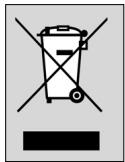
Please act according to your local rules and do not dispose of your old products with your normal household waste. The correct disposal of your old product will help prevent potential negative consequences for the environment and human health.
Dealer's name, address and signature
- INTRODUCTION
- INSTALLING THE REMOTE CONTROL
- REPLACING THE BATTERY
- TESTING THE REMOTE CONTROL
- EXAMPLE OF TV
- SETTING THE REMOTE CONTROL
- AUTOMATICALLY SETTING THE REMOTE CONTROL
- MANUALLY SETTING THE REMOTE CONTROL
- ENGLISH
- KEYS AND FUNCTIONS
- TV KEYS
- DVD KEYS
- GENERAL
- RESTORING THE ORIGINAL FUNCTIONS OF YOUR REMOTE CONTROL
- TROUBLESHOOTING
- NEED HELP
- TABLE OF CONTENTS
- TELEVISION BUTTONS
- CODES
- TV
- A
- SETUP CODES FOR DIGITAL VERSATILE DISC
- DVD
- HELPLINE
- COUNTRY
- PHONE NUMBER
- TARIFF
- GB INFORMATION TO THE CONSUMER
- DISPOSAL OF YOUR OLD PRODUCT
Brand : PHILIPS
Model : SRU1060
Category : Remote control