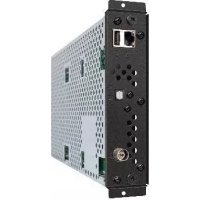
SBL009KV - TV receiver NEC - Free user manual and instructions
Find the device manual for free SBL009KV NEC in PDF.



| Product type | DTV and IPTV tuner module |
| Brand | NEC |
| Model | SBL009KV (SB-L009KV) |
| Category | TV receiver (module for LCD monitor) |
| Supported analog TV systems | PAL B/G, PAL I, SECAM D/K, SECAM L |
| Digital TV system | DVB-T |
| DVB-T demodulation | QPSK, 16QAM, 64QAM |
| DVB-T bandwidth | 7 MHz, 8 MHz |
| Decoded video formats | MPEG-2, H.264/AVC (level 4.1), VC-1 |
| Audio formats | AAC, HE-AAC, Dolby Digital, MP3, WMA |
| IPTV | Unicast / Multicast, RTP, IGMP v2/v3 |
| Network connectivity | Ethernet RJ45 10/100 Mbps |
| Antenna input | IEC female (RF IN) |
| Digital audio output | S/PDIF optical |
| USB port | For maintenance only |
| OSD languages | English, French, German |
| Power supply | +16 V DC, 580 mA (from optional monitor slot) |
| Power consumption | 9.3 W |
| Net dimensions (W × H × D) | 155.5 × 40.5 × 281.5 mm |
| Net weight | 1.2 kg |
| Operating temperature | 5 to 40 °C |
| Operating humidity | 20 to 80% (without condensation) |
| Storage temperature | -10 to 60 °C |
| Storage humidity | 10 to 90% (without condensation) |
| Limited warranty | 3 years parts and labor |
Frequently Asked Questions - SBL009KV NEC
User questions about SBL009KV NEC
0 question about this device. Answer the ones you know or ask your own.
Ask a new question about this device
Download the instructions for your TV receiver in PDF format for free! Find your manual SBL009KV - NEC and take your electronic device back in hand. On this page are published all the documents necessary for the use of your device. SBL009KV by NEC.
USER MANUAL SBL009KV NEC
Connections English-5
Basic Operation·
OSD (On-Screen-Display) Controls English-7
[Initial Settings] English-7
[Channel Search] English-7
[Auto Scan] English-7
[Manual Scan] English-7
[Check DTV Signal] English-7
[Network Settings] English-8
[IP Program Settings] English-8
[Channel Edit] English-9
[Menu Language] English-9
[Country Setting] English-9
[Time Zone] English-9
[Parental Control] English-10
[Channel Lock] English-10
[Password Setting] English-10
[Sound] English-10
[Information OSD] English-11
[System Information] English-11
[Software Update] English-11
[Reset] English-11
Controlling the module via LAN Control English-12
Troubleshooting English-13
Specifications· English-14
Manufacturer's Recycling Information English-15
Important Information
Refer to the "Safety Precautions, Maintenance & Recommended Use" of the LCD Monitor in the User's Manual for notes on handing.
Declaration
| Declaration of the Manufacturer | |
| We here by certify that the DTV & IPTV and marked with Tuner Module SB-L009KV(L009KV) is in compliance with Council Directive 2004/108/EC: - EN 55013 - EN 55020 - EN 55022 - EN 55024 | CE NEC Display Solutions, Ltd. 4-13-23, Shibaura, Minato-Ku Tokyo 108-0023, Japan |
WARNING: Do not insert foreign objects inside the cabinet during installation.
1
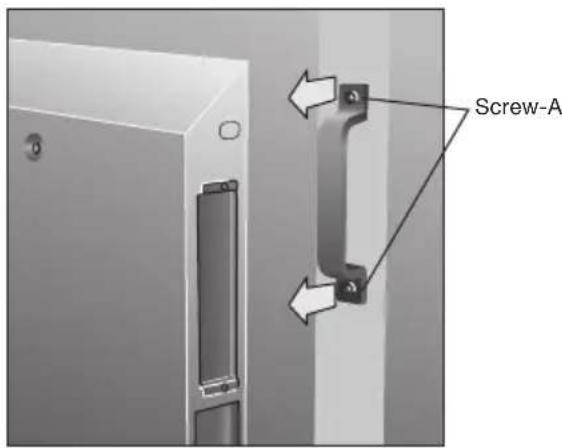
Turn off the main power of the Display. Unscrew the 2 screws (Screw-A) and remove the handle.
2
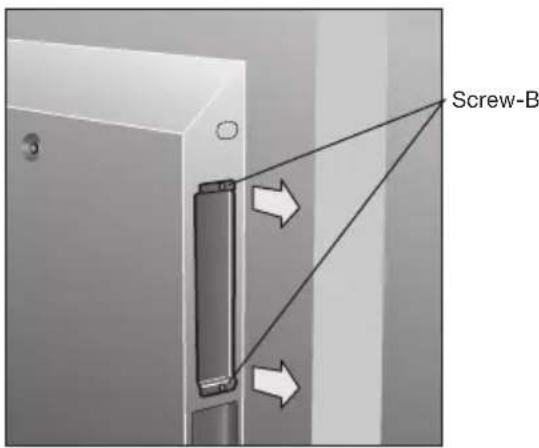
Unscrew the 2 screws (Screw-B) and remove the cover from the OPTION Slot.
3
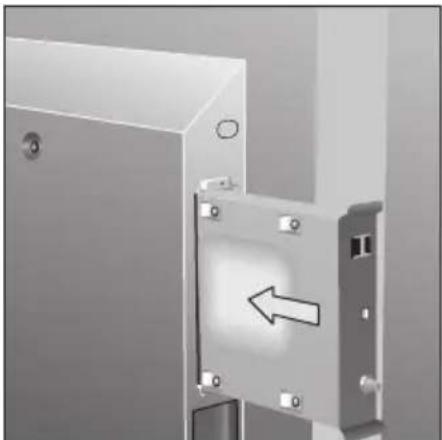
Insert this module in the monitor. Secure this module to the monitor with 2 screws (Screw-B).
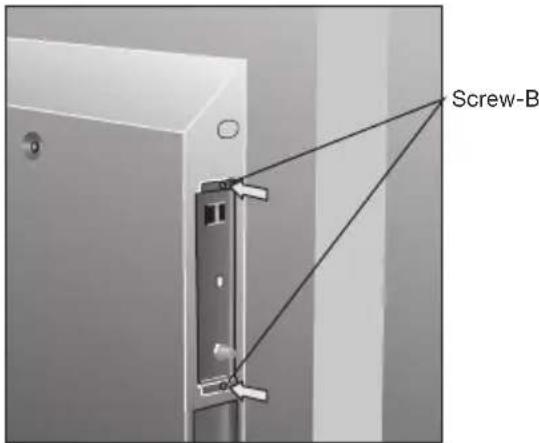
4
5
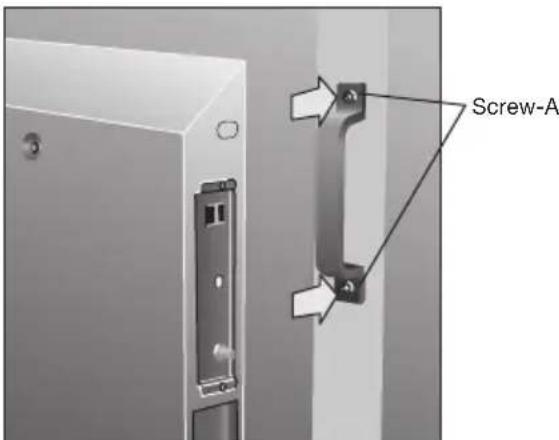
Secure the handle by 2 screws (Screw-A).
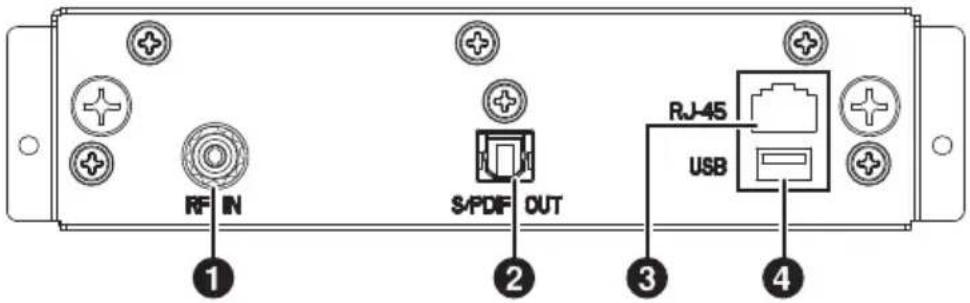
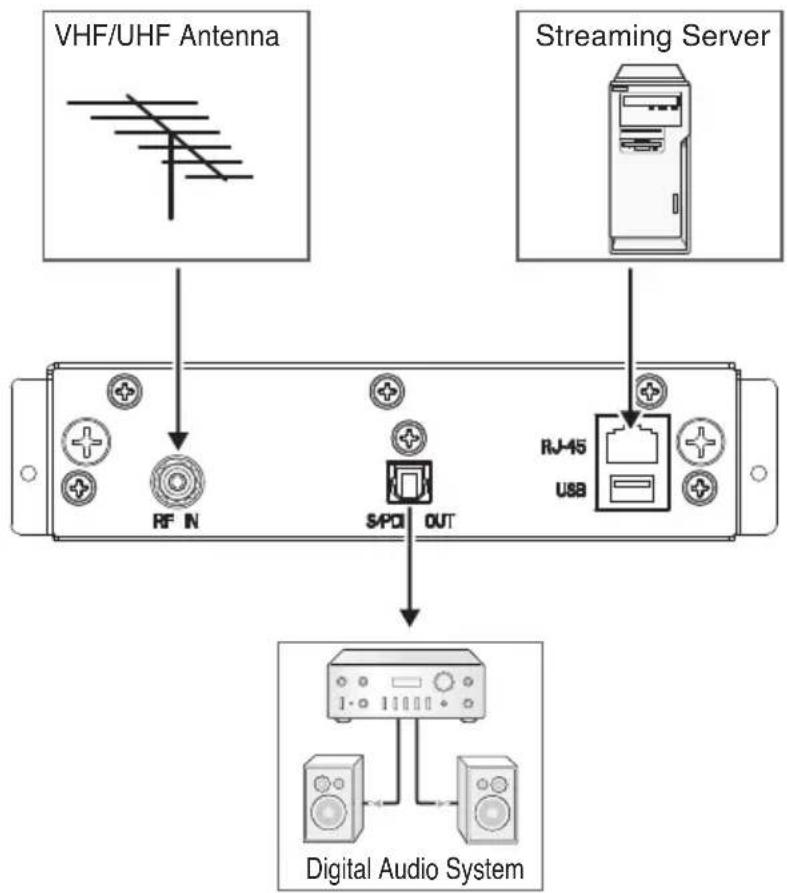
- [RF IN] (IEC Female)
RF input that connects to your VHF/UHF Antenna.
- [S/PDIF OUT] (optical)
Digital audio output for connection to external digital audio system.
- Ethernet port [RJ-45]
Ethernet port for used IPTV input.
4.[USB]
USB connector for service use only.
Connections
NOTE: Do not connect/disconnect cables when turning on the monitor or other external equipment as this may result in a loss of the monitor image.
Before making connections:
-
First turn off the power of all the attached equipment and make connections.
-
Refer to the user manual included with each separate piece of equipment.
Wiring Diagram
Selecting TV
Press the [OPTION] button on the remote.
Opening TV OSD menu
When the input signal of the monitor is [OPTION], press the [OPTION] button to turn on/off the TV OSD.
Wireless Remote Control
NOTE: Use the display's Wireless Remote Control. For details about procedures other than those listed below, see the display user manual.
1. [POWER ON] button
Switches the power on/standby.
2. [ASPECT] button
Selects picture aspect, [FULL],[NORMAL],[WIDE] and [ZOOM].
3. [OPTION] button
Set Input signal to [TV]. When [TV] is set, turn on/off the TV OSD.
4. KEYPAD
Press buttons to set and change passwords and change channel.
5. [ENT] button
Sets channels.
6. [DISPLAY] button
Turn on/off the information about the current channel.
7.[MENU]button
Turn on/off the monitor OSD menu.
8. UP/DOWN button
Act as button to move the highlighted area up or down to select items within OSD menu.
9.[SET]button
Makes selection
10. MINUS/PLUS [-/+] button
Act as button to move the highlighted area right or left to select items within OSD menu.
11. [EXIT] button
Returns to previous menu within OSD menu.
12. [VOL] +/- button
Increases or decreases audio output level.
13. [GUIDE] button
Turn on/off EPG (Electronic Program Guide).
14. [CH] +/- button
Moves channel up or down.
15. [MUTE] button
Turn on/off the audio mute.
When mute is on, [S/PDIF OUT] is also muted.
16. button
Turn on/off the Subtitle/Teletext menu.
17. [MTS] button
Select Multi-language (DVB-T) or Multi-channel television sound mode (PAL/SECAM).
![NEC SBL009KV - [MTS] button - 1](/content/2026/03/446255/images/d1e295a90a653a43580852a07a74627359f7ca9701c69a6f0c1f9df9859e0be9.jpg)
OSD (On-Screen-Display) Controls
[Initial Settings]
When powering on for the first time, you will be prompted to select Menu Language and Country.
- On the [INITIAL SETTINGS] menu page, press button on the remote control to select Menu Language, then press [SET] button. You will see the [Country Setting] menu.
- Press button to select Country, then press [SET] button.
[Channel Search]
When powering on for the first time, you will be prompted to scan and memorize all available channels from your RF input signal. To start this process, press [OPTION] button to display the TV OSD menu.
NOTE: When [Channel Lock] function is [On], the [Channel Search] cannot be used. If [Channel Lock] is [On], set it to [Off] before proceeding.
[Auto Scan]
Depending upon the RF input signal, you will need to scan for off air (antenna) channels.
- On the [Tuner] menu page, press button to select [Channel Search], then press [SET] button. There are two sub-menu are listed.
(1) [Auto Scan]
(2) [Manual Scan]
-
Select [Auto Scan], then press [SET] button.
-
Press button and [SET] button to select the TV System, Digital and Analog. Select [Scan], then press [SET] button to start channel scanning.
![NEC SBL009KV - [Auto Scan] - 1](/content/2026/03/446255/images/205f0300adb8ba883e77ba779e3b6267d7a3e5eb1adf23f917a1910f6067b041.jpg)
NOTE: It takes several minutes to complete the scanning process; the percentage bar displays the progress.
- When the scan had completed, press [OPTION] or [EXIT] button to leave this window. Press [CH + ] and [CH-] buttons to verify the channels are found and memorized.
[Manual Scan]
[Manual Scan] allows you to individually add new channels into memory without running [Auto Scan].
- On the [Channel Search] menu page, select [Manual Scan], then press [SET] button.
- Select [Digital] or [Analog], then press [SET] button.
- Press the numeric buttons to enter the [Channel Number]. Then the [Frequency] and the [Bandwidth] will display automatically.
NOTE: In Australia, select [A] for channel "9A".
- Select [Scan], then press [SET] button to scan for and load the channel. The scanned channel will appear if the desired scanning channel has been searched successfully.
- When the scan had completed, press [OPTION] or [EXIT] button to leave this window.
[Check DTV Signal]
This function indicates the status for the Digital TV signal level and the [C/N].
- On the [Tuner] menu page, press button to select [Check DTV Signal], then press [SET] button.
- The status for the Digital TV signal level and the [C/N] will be indicated. [Good/Normal/Weak]
- Press [OPTION] or [EXIT] button to leave this window.
![NEC SBL009KV - [Check DTV Signal] - 1](/content/2026/03/446255/images/f403195bc2f0427fd84a793365436f9384979a3ef9cb8ece1ea15ed8f7f02f70.jpg)
![NEC SBL009KV - [Check DTV Signal] - 2](/content/2026/03/446255/images/759b6b835de722e6304b4a64bf893a526b818426175f88c23382fa9aba00d8a7.jpg)
[Network Settings]
This module will automatically attempt to establish a network connection using DHCP when an active network cable is connected, or can be manually configured to use a static IP address. (Contact your network administrator to acquire the correct values for each parameter before making the changes.)
[DHCP]
- On the [Network Settings], press button to select [DHCP], then press [SET] button. You will see [DHCP] menu.
- Select [Yes], then press [SET] button to connect. (To confirm a successful connection, select [System Information] on the [System] menu page to check for the presence of an IP address.)
- Press [OPTION] or [EXIT] button to leave this window. [Static IP]
- On the [Network Settings], press button to select [Static IP], then press [SET] button.
- Press the numeric buttons to enter the IP Address [IP], Subnet mask [Netmask], [Gateway] and [DNS] parameters. When finished, select [Done], then press [SET] button to manually implement the network settings.
- Press [OPTION] or [EXIT] button to leave this window.
[IP Program Settings]
- On the [Tuner] menu page, press button to select [IP Program Settings], then press [SET] button.
- Select [Add], then press [SET] button. There are two sub-menus are listed.
(1) [Unicast]
Press button to select [Unicast], then press [SET] button, you will see the [Channel No.] and [Port] to be typed. Select [Add], then press [SET] button to apply. (2) [Multicast]
Press button to select [Multicast], then press [SET] button, you will see the [Channel No.], [IP Address] and [Port] to be typed. Select [Add], then press [SET] button to apply.
- Select [Delete] on the step 2 above, then press [SET] button, you can type the [Channel No.] to delete the IP channel program.
- Press [OPTION] or [EXIT] button to leave this window.
![NEC SBL009KV - [IP Program Settings] - 1](/content/2026/03/446255/images/cdafb4bfb066cd8863ccacbd7cec3902b333595a39ba74a8bd56262ae91506a0.jpg)
![NEC SBL009KV - [IP Program Settings] - 2](/content/2026/03/446255/images/c8b8ae01f19166510848f762e85b6a774e54fdbdf2e8b1fe7382ef8977cdac51.jpg)
![NEC SBL009KV - [IP Program Settings] - 3](/content/2026/03/446255/images/ba6f3df614ce2b9ef187d6069631a4709c53e5d8f9281a0b101175809ea8a8c3.jpg)
![NEC SBL009KV - [IP Program Settings] - 4](/content/2026/03/446255/images/47faac25671dbfb55a5aec345d58900f802079af90fa23796ee4a2ead20bdbb2.jpg)
![NEC SBL009KV - [IP Program Settings] - 5](/content/2026/03/446255/images/e030b19dbb971c5968a49433d84071523fd3617509d31ad5063e2486b3b8bb82.jpg)
[Channel Edit]
This feature allows you to select which channels in memory are tuned when using the [CH + ] or [CH-] buttons.
NOTE: When a multicast channel is listed, the IP address is displayed with the channel number.
- On the [Tuner] menu page, press button to select [Channel Edit], then press [SET] button to display the list of memorized channels. Press [SET] button again to enter the channel list.
- Press button to select each channel in the list. Pressing [SET] button on a checked channel will remove it from the list (skip), while pressing [SET] button on an unchecked channel will add it to memory.
- Press [OPTION] or [EXIT] button to leave this window.
[Menu Language]
This function selects OSD menu Language.
- On the [Configuration] menu page, press button to select [Menu Language], then press [SET] button.
- Select OSD Menu Language, then press [SET] button to apply.
- Press [OPTION] or [EXIT] button to leave this window.
[Country Setting]
This function selects Country.
- On the [Configuration] menu page, press button to select [Country Setting], then press [SET] button.
- Select Country, then press [SET] button to apply.
- Press [OPTION] or [EXIT] button to leave this window.
[Time Zone]
This function selects the Time Zone and D.S.T. (Daylight Saving Time) settings.
NOTE: When Australia is selected in [Country Setting], this function can be changed.
- On the [Configuration] menu page, press button to select [Time Zone], then press the [SET] button.
- Press to highlight [Time Zone], then press [SET] button.
- Press to select the [Time Zone], then press [SET] button.
- Press to highlight [D.S.T.], then press [SET] button.
- Press to select the [D.S.T.], then press [SET] button.
![NEC SBL009KV - [Time Zone] - 1](/content/2026/03/446255/images/57a36c78791d5eda83bd5f5661c2ede1496dd9713d9624a8ff4af3a25d068761.jpg)
![NEC SBL009KV - [Time Zone] - 2](/content/2026/03/446255/images/46324f2513a37bdfc48cb16a265f35d5f3dc25c83bbdd0899774187f05af9fd5.jpg)
![NEC SBL009KV - [Time Zone] - 3](/content/2026/03/446255/images/6339ef6aba2fd718a26a6e701ea40b31944efe931e4352417aafd52280fc301d.jpg)
![NEC SBL009KV - [Time Zone] - 4](/content/2026/03/446255/images/51097025d1b4c617e3b511b1970fa4b2e91b0dd1e0dfa856e86f59971f44ad57.jpg)
[Parental Control]
This function can block certain types of programming based on the rating.
NOTE: This function is protected by a password.
- On the [Configuration] menu page, select [Parental] Control, then press [SET] button.
- Press numeric buttons to enter the four digit password. The default password is "0000". Select [OK], then press [SET] button.
- Press [SET] and buttons to select Rating, then press SET button to apply.
- Press [OPTION] or [EXIT] button to leave this window.
![NEC SBL009KV - [Parental Control] - 1](/content/2026/03/446255/images/a31706b959a35ffaa31e47807d988b9c9ff2db4da311a1827327cc5931053fdb.jpg)
[Channel Lock]
This function controls the display of channels.
When [Channel Lock] is [On], the same channel is fixed until unlocked with a password.
NOTE: This function is protected by a password.
When [Channel Lock] function is [On], the [Channel Search] cannot be used.
- On the [Configuration] menu page, press button to select [Channel Lock], then press [SET] button.
- Press numeric buttons to enter the four digit password. The default password is "0000". Select [OK], then press [SET] button.
- Select [On] or [Off], then press [SET] button to apply.
- Press [OPTION] or [EXIT] button to leave this window.
[Password Setting]
The password controls access to [Parental Control], [Channel Lock] and [Reset] functions.
CAUTION: Be sure to keep a record of or memorize the new password.
- On the [Configuration] menu page, press button to select [Password Setting], then press [SET] button.
- Press numeric buttons to enter the four digit password. The default password is "0000". Select [OK], then press [SET] button.
- Press numeric buttons to enter [New Password] and [Confirm Password]. Select [Change], then press [SET] button to change the password. When the change is completed, [Change password succeeded.] message appears.
- Press [OPTION] or [EXIT] button to leave this window.
![NEC SBL009KV - [Password Setting] - 1](/content/2026/03/446255/images/a44e1816f8bee0502e4e0656c8994303298a509d296bca4e28cfc7fbe6afe4e2.jpg)
[Sound]
This function selects S/PDIF output format.
- On the [Configuration] menu page, press button to select [Sound], then press [SET] button.
- Select S/PDIF output format, then press [SET] button to apply.
- Press [OPTION] or [EXIT] button to leave this window.
NOTE: When [Off] is selected, the [S/PDIF] output will be muted.
![NEC SBL009KV - [Sound] - 1](/content/2026/03/446255/images/7ae61845d7edccbafaa216f12eeaf9f40e0ca57d1d108db20d9465f9155070f9.jpg)
[Information OSD]
The [Information OSD] displays channel, signal source, resolution and (if available) programming data on the screen upon the channel change.
- On the [System] menu page, press button to select [Information OSD], then press [SET] button.
- Select [On] or [Off], then press [SET] button to apply.
- Press [OPTION] or [EXIT] button to leave this window.
[System Information]
This function displays the software version, the network settings and the MAC address.
- On the [System] menu page, press button to select [System Information], then press [SET] button. The system information will appear.
- Press [OPTION] or [EXIT] button to leave this window.
[Software Update]
This function is for service use only.
![NEC SBL009KV - [Software Update] - 1](/content/2026/03/446255/images/529eb22bc422edebf09c954af1777270e295257da3f525a3870a84635e02a9eb.jpg)
[Reset]
This function returns all OSD settings to their default settings. Password is also reset to default. NOTE: This function is protected by a password.
- On the [System] menu page, press button to select [Reset], then press [SET] button.
- Press numeric buttons to enter the four digit password. The default password is "0000". Select [OK], then press [SET] button.
- Select [Yes], then press [SET] button. All the settings will return to the default value, then this module will reboot.
Controlling the module via LAN Control
This module can be controlled by connecting a personal computer via this module's Ethernet port. NOTE: This LAN control can not control the LCD monitor.
1. Connection
First turn off the power of the LCD monitor and the computer, then make connection with LAN cable. NOTE: Use a category 5 or higher LAN cable.
2. Network Setting
Set the IP address of the module on the [Network Settings] OSD menu. NOTE: Please refer to the [OSD Controls - Network Settings] section of this manual for the IP address setting.
3. Operation
1) Access is gained to the HTTP server function by starting the Web browser on the computer via the network connected to the module, then entering the following URL.
http://
Example: When the IP address of the module is "192.168.0.1", the URL is http://192.168.0.1
2) Click the button on the control panel of the computer to execute the function or the setting.
NOTE: Please refer to the "Basic Operation" section of this manual for the function.
Example 1: Direct Channel Setting
Clicking numeric buttons
[1],[0],[0],[0],[ENT] will change the channel to "1000".
Example 2: Current Channel Read
Clicking the [CURRENT CHANNEL] button will display the current channel number to the Display Area.
Troubleshooting
| Problem Solution | |
| No picture, but a message is displayed. | Be sure to perform a channel scan before you watch the TV program. Check to see if antenna is properly connected. |
| No picture • Check to make sure that Video Input is selected to [OPTION]. • Check to see if this module is properly installed. Move them away from the monitor if necessary. | |
| No sound • Check to see if speaker cable is properly connected. • Check to see if mute is activated. • Check to see if volume is set at minimum. • Check to make sure that Audio Input is selected to [OPTION]. | |
| No sound from S/P DIF out • Check to see if optical cable is properly connected. • Check to see if audio output format (PCM/DOLBY D) for [Sound] setting is suitable for your digital audio system. • Check to see if audio output format setting is not set to [Off]. | |
| Not all channels are available after performing an [Auto Scan] | Perform an [Auto Scan] to scan these missing channels. Once the tuner picks up the signal, all the transmission parameters will be stored in tuner's memory automatically. |
| No Subtitle/Teletext displayed | Make sure the channel you are watching carries Subtitle/Teletext information. Press the button on the Remote Control to check for Subtitle/Teletext data output. |
| IPTV does not work • Check to see if LAN cable is properly connected. • Check to see if the network settings of both of this module and your system is correct. | |
| Remote control does not work • Make sure the batteries are inserted properly. • Test the batteries for strength/life. • Make sure to point the remote directly at the sensor on the monitor. • Check if the remote is in Remote ID mode. • The remote control may not function when in direct sunlight or when there is strong illumination on the remote sensor of the monitor. |
Specifications
| TV System Analog: PAL B/G, PAL I, SECAM D/K, SEC L | AM L Digital: DVB-T | |
| Channel Coverage PAL B/G: VHF E2-12 / UHF E21-69 VHF A-H,H1,H2 VHF AU0-12, 5A, 9A / UHF AU28-69 VHF NZ1-11 / UHF NZ21-62 PAL I: UHF B21-69 SECAM D/K: VHF R1-12 / UHF R21-69 SECAM L: VHF F2-10 / UHF F21-69 DVB-T: VHF: 5 - 12 ch, UHF: 21 - 69 ch | ||
| Demodulation QPSK, 16QAM, 64QAM | ||
| Bandwidth 7MHz, 8MHz | ||
| Format Decoding Video | MPEG-2 | H.264/AVC main and high profile to level 4.1 VC-1 advanced profile @ level 3 VC-1 simple and main profile |
| Audio | AAC LC,AAC LC+SBR Level 2, AAC+Level 2, AAC+Level 4 Dolby Digital, Dolby Digital Plus * MPEG | Layer1,2, 3 (MP3) Windows media audio (WMA) | |
| IPTV | Streaming Type | Unicast, Multicast |
| Network Protocol | TCP/IP, UDP/IP, IPv4, HTTP 1.1, DNS Client, DHCP Client | |
| Streaming Protocol | RTP (Real-time Transport Protocol) | |
| Multicast Protocol | IGMP v2/v3 | |
| Interface | Antenna Input IEC Female | Connector x 1 |
| Audio Output | Digital Audio S/P DIF Optical Connector x 1 | |
| Ethernet | RJ-45 Ethernet Port x 1 (10/100 Mbps Fast Ethernet) | |
| USB | USB (for service use only) | |
| OSD language | English/ French/ German | |
| Power Supply | +16VDC@580mA (from Option slot interface) | |
| Power Consumption | 9.3W | |
| Operational Environment | Temperature | 5 - 40°C |
| Humidity | 20 - 80% (without condensation) | |
| Storage Environment | Temperature | -10 - 60°C |
| Humidity | 10 - 90% (without condensation) | |
| Dimensions | Net | 155.5(W) x 40.5(H) x 281.5(D) mm |
| Gross | 218.0(W) x 86.0(H) x 369.0(D) mm | |
| Weight | Net | 1.2kg |
| Gross | 1.5kg | |
| Complied Regulatory and Guidelines | CE: Class B, C-tick: Class B | |
| Accessories | User's manual | |
| Limited Warranty | 3 Years Parts and Labor | |
*Dolby Digital: Manufactured under license from Dolby Laboratories.
Manufacturer's Recycling Information
NEC DISPLAY SOLUTIONS is strongly committed to environmental protection and sees recycling as one of the company's top priorities in trying to minimize the burden placed on the environment. We are engaged in developing environmentally friendly products, and always strive to help define and comply with the latest independent standards from agencies such as ISO (International Organisation for Standardization) and TCO (Swedish Trades Union).
Disposing of your old NEC product
The aim of recycling is to gain an environmental benefit by means of re-use, upgrading, reconditioning or reclamation of material. Dedicated recycling sites ensure that environmentally harmful components are properly handled and securely disposed. To ensure the best recycling of our products, NEC DISPLAY SOLUTIONS offers a variety of recycling procedures and gives advice on how to handle the product in an environmentally sensitive way, once it has reached the end of its life.
All required information concerning the disposal of the product and country-specific information on recycling facilities can be found on our following websites:
http://www.nec-display-solutions.com/greenccompany/ (in Europe),
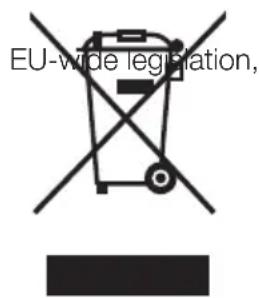
WEEE Mark (European Directive 2002/96/EC)
Within the European Union
as implemented in each Member State, requires that waste electrical and electronic products carrying the mark (left) must be disposed of separately from normal household waste. This includes monitors and electrical accessories, such as signal cables or power cords. When you need to dispose of your NEC display products, please follow the guidance of your local authority, or ask the shop where you purchased the product, or if applicable, follow any agreements made between yourself and NEC.
The mark on electrical and electronic products only applies to the current European Union Member States.
Outside the European Union
If you wish to dispose of used electrical and electronic products outside the European Union, please contact your local authority so as to comply with the correct disposal method.
Index
Informations importantes . . . . . . . . . . . . . . . . . . . . . . . . . . . . . . . . . . . . . . . . . . . . . . . . . . . . . . . . . . . . . . . . . . . . . ..
Déclaration ………………………………………… français-2
Installation . . .Francais-3
NEC Display Solutions, Ltd. 4-13-23, Shibaura, Minato-Ku Tokyo 108-0023, Japan
[Check DTV Signal] (Verification du signal TVN)
[Static IP] (IP fixe)
IPTV Tunermodul SB-L009KV(L009KV) in
NEC Display Solutions, Ltd.
4-13-23, Shibaura,
Minato-Ku
Tokyo 108-0023, Japan
- [RF IN] (IEC-Buchse)
[Manual Scan] (Manueller Scan)
[Time Zone] (Zeitzone)
http://www.nec-display-solutions.com/greenccompany/ (in Europa),
WEEE Mark (Europäische Richtlinie 2002/96/EG)

- Important Information
- Declaration
- Connections
- Wiring Diagram
- Selecting TV
- Opening TV OSD menu
- Wireless Remote Control
- [POWER ON] button
- [ASPECT] button
- [OPTION] button
- KEYPAD
- [ENT] button
- [DISPLAY] button
- 7.[MENU]button
- UP/DOWN button
- 9.[SET]button
- MINUS/PLUS [-/+] button
- [EXIT] button
- [VOL] +/- button
- [GUIDE] button
- [CH] +/- button
- [MUTE] button
- button
- [MTS] button
- OSD (On-Screen-Display) Controls
- [Initial Settings]
- [Channel Search]
- [Auto Scan]
- [Manual Scan]
- [Check DTV Signal]
- [Network Settings]
- [DHCP]
- [IP Program Settings]
- [Channel Edit]
- [Menu Language]
- [Country Setting]
- [Time Zone]
- [Parental Control]
- [Channel Lock]
- [Password Setting]
- [Sound]
- [Information OSD]
- [System Information]
- [Software Update]
- [Reset]
- Controlling the module via LAN Control
- Connection
- Network Setting
- Operation
- http://
- Troubleshooting
- Specifications
- Manufacturer's Recycling Information
- Disposing of your old NEC product
- WEEE Mark (European Directive 2002/96/EC)
- Within the European Union
- Outside the European Union
- Index
- [Check DTV Signal] (Verification du signal TVN)
- [Static IP] (IP fixe)
- [Manual Scan] (Manueller Scan)
- [Time Zone] (Zeitzone)
- WEEE Mark (Europäische Richtlinie 2002/96/EG)
Brand : NEC
Model : SBL009KV
Category : TV receiver