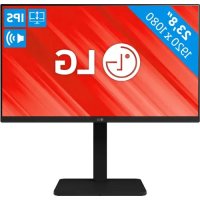
24BA560 - Monitor LG - Free user manual and instructions
Find the device manual for free 24BA560 LG in PDF.
 FR
FR
 BG
BG
 CS
CS
 DA
DA
 DE
DE
 EL
EL
 EN
EN
 ES
ES
 ET
ET
 FI
FI
 HU
HU
 ID
ID
 IT
IT
 JA
JA
 KK
KK
 KO
KO
 LT
LT
 LV
LV
 MK
MK
 NL
NL
 NO
NO
 PL
PL
 PT
PT
 RO
RO
 RU
RU
 SK
SK
 SL
SL
 SQ
SQ
 SV
SV
 TR
TR
 UK
UK
 ZH
ZH
| Technical Specifications | 24-inch IPS screen, resolution 1920 x 1080 (Full HD), 5 ms response time, 250 cd/mb2 brightness, 178b0 viewing angle. |
|---|---|
| Connectivity | HDMI, DisplayPort, VGA ports, and audio output. |
| Usage | Ideal for office work, multimedia, and casual gaming. |
| Maintenance | Clean the screen with a soft cloth, avoid harsh chemicals. |
| Safety | CE, RoHS, and Energy Star certified for safe and environmentally friendly use. |
| General Information | Weight 5.5 kg, dimensions with stand: 54.1 x 41.4 x 22.5 cm, 2-year warranty. |
Frequently Asked Questions - 24BA560 LG
User questions about 24BA560 LG
0 question about this device. Answer the ones you know or ask your own.
Ask a new question about this device
Download the instructions for your Monitor in PDF format for free! Find your manual 24BA560 - LG and take your electronic device back in hand. On this page are published all the documents necessary for the use of your device. 24BA560 by LG.
USER MANUAL 24BA560 LG
[Settings] > [Picture] > [Resolution] (alleen D-SUB)
The SuperSpeed USB Trident logo is a registered trademark of USB Implementers Forum, Inc.
![LG 24BA560 - [Settings] > [Picture] > [Resolution] (alleen D-SUB) - 1](/content/2026/03/445876/images/efdb9af0960cf584bd8d6ac2027195cc15496173f7657dcc13d154663915ef6b.jpg)
This Product qualifies for ENERGY STAR®
Changing the factory default configuration and settings or enabling certain optional features and functionalities may increase energy consumption beyond the limits required for ENERGY STAR® certification. Refer to ENERGY STAR.gov for more information on the ENERGY STAR® program.
IMPORTANT PRECAUTIONS
This unit has been engineered and manufactured to ensure your personal safety, however improper use may result in potential electrical shock or fire hazards. In order to allow the proper operation of all safeguards incorporated in this display, observe the following basic rules for its installation, use, and servicing. All precautions and safety information apply to LCD and OLED models.
On Safety
Use only the power cord supplied with the unit. In case you use another power cord, make sure that it is certified by the applicable national standards if not being provided by the supplier. If the power cable is faulty in any way, please contact the manufacturer or the nearest authorized repair service provider for a replacement.
The appliance coupler is used as the disconnect device.
Please make sure the device is installed near the wall outlet to which it is connected and that the outlet is easily accessible.
Operate the display only from a power source indicated in the specifications of this manual or listed on the display. If you are not sure what type of power supply you have in your home, consult with your dealer.
Overloaded AC outlets and extension cords are dangerous. So are frayed power cords and broken plugs. They may result in a shock or fire hazard. Call your service technician for replacement.
As long as this unit is connected to the AC wall outlet, it is not disconnected from the AC power source even if the unit is turned off.
Do not Open the Display:
- There are no user serviceable components inside.
- There are Dangerous High Voltages inside, even when the power is OFF.
- Contact your dealer if the display is not operating properly.
To Avoid Personal Injury :
- Do not place the display on a sloping shelf unless properly secured.
- Use only a stand recommended by the manufacturer.
- Do not drop an object on or apply impact to the product. Do not throw any toys or objects on the product screen.
It can cause injury to human, problem to product and damage the display.
To Prevent Fire or Hazards:
- Always turn the display OFF if you leave the room for more than a short period of time. Never leave the display ON when leaving the house.
- Keep children from dropping or pushing objects into the display's cabinet openings. Some internal parts carry hazardous voltages.
- Do not add accessories that have not been designed for this display.
- When the display is to be left unattended for an extended period of time, unplug it from the wall outlet.
- In the presence of thunder and lightning, never touch the power cord and signal cable because it can be very dangerous. It can cause electric shock.
On Installation
Do not allow anything to rest upon or roll over the power cord, and do not place the display where the power cord is subject to damage.
Do not use this display near water such as near a bathtub, washbowl, kitchen sink, laundry tub, in a wet basement, or near a swimming pool.
Displays are provided with ventilation openings in the cabinet to allow the release of heat generated during operation. If these openings are blocked, built-up heat can cause failures which may result in a fire hazard.
Therefore, NEVER:
- Block the bottom ventilation slots by placing the display on a bed, sofa, rug, etc.
- Place the display in a built-in enclosure unless proper ventilation is provided.
- Cover the openings with cloth or other material.
- Place the display near or over a radiator or heat source.
Do not rub or strike the Active Matrix LCD with anything hard as this may scratch, mar, or damage the Active Matrix LCD permanently.
Do not press the LCD screen with your finger for a long time as this may cause some afterimages.
Some dot defects may appear as Red, Green or Blue spots on the screen.
However, this will have no impact or effect on the display performance.
If possible, use the recommended resolution to obtain the best image quality for your LCD display. If used under any mode except the recommended resolution, some scaled or processed images may appear on the screen. However, this is characteristic of the fixed-resolution LCD panel.
Displaying a still image for long time on the monitor may leave persistent image or stain on the monitor screen. To avoid this problem, use a screen saver and power off when this product is not used. Persistent image or stain caused by long time usage are not covered by the warranty on this product.
Do not shock or scratch the front and sides of the screen with metallic objects.
Otherwise, it may cause damage to the screen.
Make sure the panel faces forward and hold it with both hands to move. If you drop the product, the damaged product can cause electric shock or fire. Contact an authorized the service center for repair. Avoid high temperatures and humidity.
Do not install this product on a wall if it could be exposed to oil or oil mist.
- This may damage the product and cause it to fall.
For displays with glossy bezels the user should consider the placement of the display as the bezel may cause disturbing reflections from surrounding light and bright surfaces.
Do not use products using high voltage around the Monitor. (ex. Electrical Swatter)
- Monitor may have malfunction as its electrical shock.
Precautions to the AC Adapter and Power
If water or any foreign substance goes inside the product (TV, monitor, power cord, or AC adapter), disconnect the power cord immediately and contact the service center.
- Otherwise, this may cause a fire or electric shock due to damage to the product.
Do not touch the power plug or AC adapter with wet hands. If the pins of the plug are wet or dusty, wipe and dry them before use.
- Otherwise, this may cause a fire or electric shock.
Make sure to completely insert the power cord into the AC adapter.
- If loosely connected, the poor connection may cause a fire or electric shock.
Be sure to use power cords and AC adapters provided or approved by LG Electronics, Inc. - The use of non-approved products may cause a fire or electric shock.
When unplugging the power cord, always pull it by the plug. Do not bend the power cord with excessive force. - The power line can be damaged, which may cause electric shock or fire.
Be careful not to step or place heavy objects (electronic appliances, clothing, etc.) on the power cord or AC adapter. Be careful not to damage the power cord or AC adapter with sharp objects. - Damaged power cords may cause a fire or electric shock.
Never disassemble, repair or modify the power cord or AC adapter.
This may cause a fire or electric shock.
Be sure to keep the outlet, AC adapter, and pins of the power plug clean from dust and etc.
This may cause a fire.
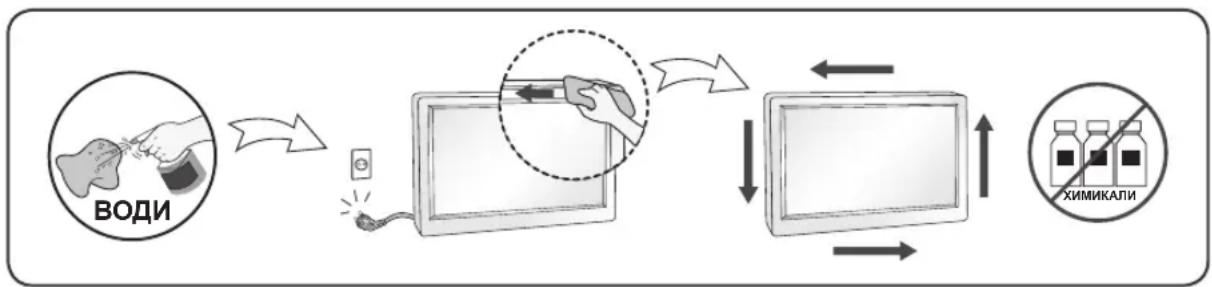
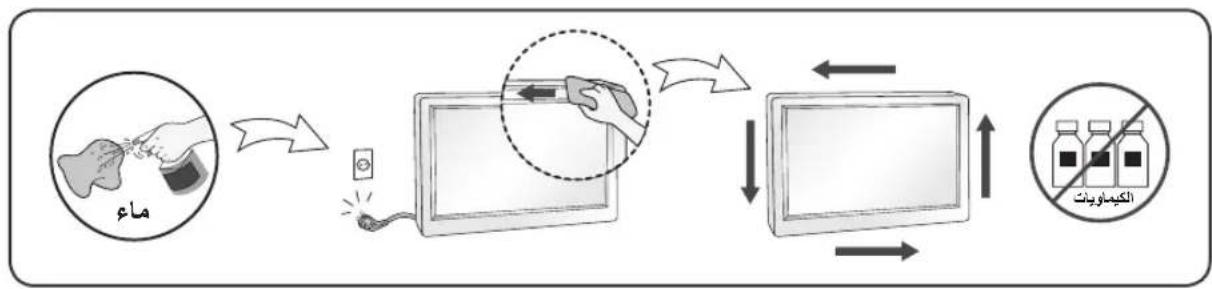
On Cleaning
- Unplug the display before cleaning the face of the display screen.
- Use a slightly damp (not wet) cloth. Do not use an aerosol directly on the display screen because over-spraying may cause electrical shock.
- When cleaning the product, unplug the power cord and scrub gently with a soft cloth to prevent scratching. Do not clean with a wet cloth or spray water or other liquids directly onto the product. An electric shock may occur. (Do not use chemicals such as benzene, paint thinners or alcohol)
- Spray water onto a soft cloth 2 to 4 times, and use it to clean the front frame; wipe in one direction only. Too much moisture may cause staining.

On Repacking
- Do not throw away the carton and packing materials. They make an ideal container in which to transport the unit. When shipping the unit to another location, repack it in its original material.
MASA TÉ RÉNDÉSISHME PARAPRAKE
Ky aparat ᵓshte inexhinieruar dhe prodhuar né MENyre qē tē garantojē sigurīne tuaj personale, sidoqofté, pērdorimi i gabuar mund tē shkaktojē elektroshok ose zjarr. Ně MENyre qē tē lejoni funkSIONimin e sakte tē githa siguresave tē brendatrupēzuara ně kětē televizor, vēzhgoni regullat bazē tē mēposhtme per instalimin, pērdorimin dhe mirëmbajtjen e tij. Tē githa masat paraprake dhe informazioni i sigurise vlejnè per modelet LCD dhe OLED.
Rrethsigurise
Pördorni vetem kordonin elektrik qè jepet me aparatin. Nèse pördorni njè kordon tjeter elektrik, sigurohuni qèèshte i vertetuar nga standardet kombëtare né fuqi nèse nuk juèshte ofruar nga furnizuesi. Nèse kabloja elektrikeèshte me defekt, lutemi tèkontaktoni me prodhuesin ose ofruesin e autorizuar tè sherbimit tè riparimit mè tè afert per ta zëvendésuar.
He otBaprTe dinCpIe:
B HrO He ce cBdIbXaT KOMNoHEHTN, KOITo MOraT da ce o6cnyXBaT OT nOTpe6nTeJIa.
B HrO ca 3aJIOXeHn ONaCHn HAnpeXeHn BUCOKo BbTpe, DOpN KOraTo 3axpaHbaHeTo e N3KJIouHo.
Cbpxte ce cbc cBor npectabnten, ako dincnneer He pa60tn npabnHO.
3a da n36eHete Teleecn nobpei:
He noctabraye dinpIe Ha haknoheHn pafoBe, oCbeH aKO nocneHnTe He ca yctOnuBO 3actonopeHn.
- I3non3BaIte cAmO cToiKN, npenopbuaHn OT npon3BOJnteJIa.
He n3nyckaIte npedmetn H ne ynpaxkHbAitne HaTNC Bbpyx yctpoiCTBOTO. He noCTabTe irpaKm nn Dpyrnpedmetn Bbpxy ekpHa Ha ycTPOiCTBOTO. Toba moKe da npuHn HapaHbAhe Ha xopa, npo6JIemC yctpoiCTBOTO n NOBpeHa Ha dncJIeJ.
He ydpnTe n He dpackaTe npedHaT a n CtpaHnHnTe Yactn Ha ekpaHa C MeTaHn NpeDMeTn.
B npotuben cnuyaToba moke da doBeDe do nobpeHa ekpaHa.
Korato npemecTBate ycTpoiCTBOTO, npOBepTe daJIIN naHeIbT cToN c IInue HAnpe n rO dpBXTe C DBete cn pbc. Ako n3nycheTe ycTpoiCTBOTO, NOBpeHEnrT npOdyKT MOKe Da npuHHn TOKOB ydap nJIN nojkap.
CbpxKeTe ce cbc ynbHOMOeH cepBn3eH ueHTbp 3a nonpaBka. N36raBte BucOKn Tempeatypn BlaxKHOCT.
He nocTae Te npOyKta Ha cTeHa, KbTeTo da 6bJe N3IOKeH Ha N3napeHn O T Ma3HnHa IIN npBcKn OT ONIO.
ToBa moKe da nobpei npodyKaIa da npuHn npaHe npaHxJb3raHe.
3a ekpaHnte c nbckabn pHHn notpe6nteT Tpr6Ba da o6Mncna 3a nocTabraHTo Ha ekpaHa, 3aIoTO pHHnTe MoKe Da DOBeDaT Do Cmyuabaun OtpaxeHnO T OKoJHaTa CBETJnHa N CBETJn NOBbpxHOCTN.
He n3no13BaIte yctpoiCTBa C BnCOKO HanpeXeHne OKoNo MOHTopa. (HaNP.eJekTpuecka MyxoboiKa)
- MoHITOpbT MoKe Da Ce NOBpeN, HAnpIMeP Da Bb3HnKHe TOKOB yap.
IpeDnA3Hm MepKn, Cbbp3aHn c AC aanTepa n 3axpaHbaunKa6eJ
AkoB npOyKta (TeJeBn3Op, MOHToP, 3axpaHbAs Ka6e nIi AC aanTep) HABJe3e B0da IIN dpyra yJxda cy6ctaunia, He3a6abHo n3KnHouTe 3axpaHbAs Ka6e n Ce CbpxKeTe cbc cepBn3nueHTbp.
B npotnbeH cnuyaToba moKe da doBeTe do noXap nIIN TOKOB ynap, npaIIOBpeHa npOdykTa. He dokocbaIte uencena nIi AC aIanTepa c MOKpn pue. Ako uNTOBete Ha uencena ca MOKpn nI npaunH, n36bpweTe rN rN n3cywete npedynoTpe6a.
B npotnbEN cnyaT OBA moKe da doBepe do noXap nIIN TOKOB yap.
Ybepete ce, ye cte BkapanDokpa3 3axpanBaunKa6eN B AC aanTepa.
Ako exna6abOBcBbP3aH, looTO CBbp3BaHe MoKe da doBeJe Do noXap nn TOKOB ynap.
YBepete ce, ye n3non3BaTe 3axpaHbaun Ka6eN i AC aanTepn, npedocTaBeHn nn odo6peHn ot LG Electronics, Inc.
- YnoTepe6aTa Ha HeoDo6peHn IpOdyKT MoKe Da DoBee Do noKap UIN TOKOB yIap.
Korato n3kIIOvBaTe 3axpaHbAunKa6eI, BnHaRn n3dIbpNbaIte uencena. He orbBaIte 3axpaHbAun Ka6e IpekaJeHo cnJHo.
3axpaHbauyne Moe Ja Ce NOBpeu, KOeTo Da DOBeDe Do TOKOB ynap Nn Nokap.
BnHmabaiTe da He cTbNbaTe n da He noCTaBATE TeKKn npEiMeTu (eJeKtpoHH yCtpoiCTBa, dpexn t.H.) Bbpxy 3axpaHbauia KabeJ nn AC aanTepa. BnHmabaiTe da He nobpeiTe 3axpaHbauia Ka6eJ nn AC aanTepa c ocTpr npEiMeTu.
- NOBpeHEn 3axpaHbau Ka6e MoKe Da DoBeDe Do noXap nn ToKOB yIap.
Hnkora He demoHTnpaTe, He nonpaBraTe n He moNnPhiuPaTe 3axpaHbauJna Ka6eJ nn AC aanTepa.
ToBa MoKe Da DoBeDe Do NoXap Nn TOKOB ydap.
PoiDlbpkaTe KOHTaTa, AC aIantepa u IuΦTOBe Ta HuaenCeNa UcHn OT npax n T.H.
ToBa MoXe Da npEiN3BnKa noXap.
Pn nouchTbaHe
- ɪəkʌŋuɔyBaɪte Ṣɪçπηèr āpèdi Na noʊciCTnTe NOBbpxHocCTTа Ha ekpaHa My.
- 13no3BaTe Jeko HabJaxHeHa (He Mokpa) Kbpna. He npbckaTe ekpHa Ha dncnner c aep030n, 3aTO ppeKomepHTo npckaHe MoKe da npuHH ToKOB ynap.
- Pn nouctbahe Ha yctpoictBOTo n3BaTe ΜeNCEla Ha 3axpaHbUaŋka Ka6eI OT KOHTaɪn 36bpseTe C MeKa Kbpna, 3a Da npedotBpataHe NaDpackBaHe. He nouctbaite C BlnaxHa Kbpna Hr npckaTe ycTPOiCTBOTo C BOda IIN DpyrTeuHocIn. B npotBEN cnyaM MoKe da Bb3HkHe TOKOB yap. (He n3non3BaTe XmMueeKn BeueCTBa KaTO 6eH3eH, pa3peNTeJIN nn anKoxon.)
- HanpbckaTe Meka Kbpna C Boda ot 2 do 4 nbTu n I n3non3BaIte 3a NouchTbAHe Ha npedHaTa pamka; 3abpcBaIte caMoB eEHa nocoka. IpekomepHata Bnara MoKe da npuHn 3aunBaHe.
- MoHHTOP TOK COY CNYKtbl Dpypbic KymbIC Xacamaybl MymkIH.
AinbimalbI Tok aadantepi meH KyaTka 6aJnaHbICTbI caKtbIK shapaIapbl
Erep cy Hemece 6eIe 3aTtap eHIMHIN (TeleIuIapdbH, MOHTOpdbH, KyaT cbIMbIHbH Hemece aHbMaIbI Tok aadantepiH) iuiHe kipce, KyaT cbIMbH bipdeh axbipatbIn, KbI3MeT KepeTy opTaIbIFbHa xa6apNaCbHb3.
BAJKH N MEPKN HA IPNETNA3JINBOCT
Oboj ypeE e KOHCTpyuPAn H npOn3BeDeH 3a da ja ocInrpyn BaWata JnUHa 6e36eHocT, Ho cenak, He npabunna hata ynoTe6a MoKe Da npEni3Bnka nToeHnJaien eJeKtpuye Hap nn OnacHOCT od noXap. Co en da ce o6e36eDn npabunho fynKcunOHnpaHe Ha CNTe MepKn Ha 3aHTTa BrpaDeHN BO OBOJ ekpan, npdpxuyBaJIte Ce KOH CNeDnHte OCHOBn npabunla 3a HerOBOTO INctaInpaHe, ynoTe6a n cepBncupaHe. Cnte MepKn Ha npetNa3nIOBcT n 6e36eHocn INhOpMaunce Ondecybaat Ha moDenITE LCD n OLED.
OkoIy 6e36eHocTa
KopncTeTe ro camo ka6eIOT 3a HanojyBaHe koJ e IcnpaHaC oypeIoT. KoKny KopnCTnte dpyr Ka6eI 3a HanojyBaBe KOJ He e obe36eHEn OJ CTpaHa Ha do6abyBaOTo, npOBepTe daNIMa cepTnФkAT 3a PnIMeHNBNTe MeYHarOpDnCTaHdApN. KoKny Ka6eIOT 3a HanojyBaHe e OwTeTeH Na Koj 6nIO HAuH, Be MOJIme ObpAteTe Ce Do IpnI3BOIDTEIoT INI Haj6nCKnOT OBnacteH CepBnC 3a NOnpaBKn 3a Da Ro 3aMeHInTe.
CnojHncaTaHa anapatOT ce KopncTn kako ypei 3a ncknyBaHe. Be moIme ocNrgpajTe ce deka ypeoT e HCTaIIpaH BO 6JIIN3InHa Ha sTeKePOT Ha SIOOT Bo KoJ e npNKnyeH n DeKa do wTeKePOT Ima Jnecen npictan.
EkpaHOT npKnyyBajTe ro eDInHCTBeHO ha n3BOp ha eJeKtpuHa eHeprJa kako IToe Ha3NaYeHO BO CneUΦnKaunTE Ha OBA yNaTcTBO nIHa ekpaHOT. Ako He cTe cnrypHi KaOB TnHa HAnoJyBaHe mMaTe BO BAaHOT Dom, o6paTeCe Do BAaHOT npOdaBaY.
IpeontobapeHnte npKnyo3a cTpyja n npOJnxTeJIHnte Ka6n ce OAnCH. NcTOTo Baxn 3a OwTeHnte Ka6n 3a HanojyBaHe n npKnyoOn. Oba moKe da npEIN3BnKa onaCHOCT od eJeKtpueh ydap nn noXap. ObpaTeTe ce do BaNtCepBncep 3a 3ameHa.
Cé Idoke ypeoTe nOBp3aH Ha SIneH uTEKeep Ha HAn3MeHnUHa cTpyja, Toj e NOBp3aH Ha N3BOp Ha HanojyBaHe n Pokpaj Toa uTo MoKe6n e NCKnyuH.
He otbopajte ro ekpahot:
Bhatpe Hema DeNoBN KOI MOKAT Da ce nonpaBaat OJ KOpNCnUte.
- Iocton onachocT od BnCOK HanoH, dypu n Kora hanojyBaHBeTo e NCKNyuEHO.
-Дokonky ekpaHOT He pa6Otn npaBnHNo obpaTe ce kaj Baunot npoDaBaU.
3a da ce n36erHe IInuHa nobpeda:
He noctabvajte ro ekpaHOT ha 3akocHa nonuca oCBeH BO cnyuj kora Toj e npabunno 06e36eJen.
KopncTeTe eHnCTBeHO dpKaJ KOe npenopaHaOn OJ pOn3BOAnTeNt.
He ncyuutajte npedmetn Bp3 npo3BOODT He npimehybajte cna Bp3 nCTNOt. He pplaje irpaKu nn npedmetn KOH ekpaHOT.
PnToa MoKe Da DoJde Do NOBpeHa NyfeTo, npo6IeMn Co pOn3BOoT N OwTeYBaHe Ha ekpaHOT.
3a da ce cnpeu noxap n dpyrn onacnoctn:
- Cekoraw kora no donro ke ja hanywntte co6ata NCKJyETE ro ekpaHOT. Hnkoraaw he octabajte ro ekpaHOT BKJyUeH kora ro hanywtaTe domOT.
He do3BOyBajTe Dea Da HcnyuTaaT npEdMeTu Bp3 ekpaHOT nn Da TypKaaT npEdMeTu BO OTBOpHT Ha Kyknteto. Hekon BHaTpeuHn DeNoBn ce noD BnCOK HANOH.
He KopncTeTe DoaToUc KOH He ce dHaJnpaHn 3a OBoj ekpaH.
Kora ekpahot Tpe6a da ro octabnte 6e3 na3op nooJro Bpeme, ncknyte ro od snHnot Tekep. - Пи пова на громови и мольн, Нкогаш He донпajte Г Каблente 3a habоуваные сгнанбидевтоа може за бидemeMHory onacho. Toa може за п徳иЗвka щелковен удap.
OkoIy nHcTaJInpaHeTo
He cMeete HnITo Da noCTaByBaTe Bp3 Ka6eIOT 3a HanojyBaHe IIN da ro octaBate npOn3BOIoT Ha MeCTa HA KO E MOXHO OwTeTyBaHe Ha Ka6eIOT.
Hemojte da ro nocTabyBaTe ekpaHOT BO 6n3Ha Ha BODa KaO Ha npMep, 6ncky do KaDa, MjaJIHK, nepaHa, BnaKeH NOpym Hn Bo 6n3Ha Ha 6a3eH.
EkpaHnTe HMaat OTBOpn 3a BeHTnlaunja Ha KyKuWTeTO KOn OBO3MOxyBaAT Da ce ocNo6oN ToTnHaTa KoJa Ce C03daBa Pn HNBHOTo pa6OteHe. DOKoIky OTbOpnte Ce 6JIOknpaHn, AkymylnpaHaTa TOnnHa MoKe Da npEiIN3BnKa OwTeTyBaHa KaON MoKe Da DOBeDaT Do ONaCHOCT Ond NOXap.
3apaDi oBa, HIKOFAI:
He 6nokpajTe rN OTBOpNTe 3a BaHTnlaunja co nocTaByBaHbE Ha ekpaHot Ha KpeBET, cOfa, KNIM, nTH.
He noctabybajTe ro ekpaHOT BO 3aTbopeHn eIemEn 3a BrpaNyBaHe, oCBeH Kora e 06e36eHa npabunHa BeHTunaJia.
He nokpmbajte rnoOTbopnte co TkaehnHa nn npMaTepnjaJI.
He nocTaBayBaJTe ro ekpaHOT Bo 6n3Ha Ha paDnjaTOp nn npy r N3BOP Ha TOnnHa.
HemojTe da ro TpneTe nnn ydnpatc LCD ekpaHot co aKTHBn MaTpuca co ubpctn npedmetn 6nndejkn Toa Moke da npedn3Bnka rpe6he n TpaJHO OwTeYBaHe Ha LCD ekpaHot co aKTHBn MaTpua.
HemojTe da npitnckate Ha LCD ekpaHot co npctot noDolro BpeMe 6ndejkn Oba Moxe da npedn3Bnka OwTeTyBaHe Ha cnkaTa. Moxe da ce nojabat defeKTn Ha Toyknte BO o6nKn Ha CpBeHn, 3eNeHn nn CnHn TOkN Ha ekpaHot.
Cenak, Oba Hema Da Bnjae Bp3 nepoopmaHCnte Ha ekpaHOT.
ДOKOLКУ e можно, корис-te ja пенирачана та pezoуциja 3a за доби-te有很大бар KBалNTET ha cnkaTа Ha LCD ekpanOT. ДOKOLКY ekpanOT ce korпст bo ржим co pezoуциja koja otstanyba od npenopupaHa, можда се поави сика срплагodeна rolемпа ил перабoteha сика. Oba сенak e kapakтериска на LCD ekpanite co Фнсна pezoуциja.
DOnrTpajHTo npKakYBaHe Ha HeNoDbNkHa Cnka Ha MOHTOpOT MoKe Da Npei3BnKa NojBa Ha BpexKa HcNka IIN dAMKn Ha ekpaHot OJ MOHTOpOT. 3a Da ro n36erHeTe OBOJ npo6IeM, KopncTeTe 3aHTnHK Ha ekpan N ncknyBajTe ro pON3BODoT Kora He ce ynotpe6yBa. TpaJHO BpexKaHata Cnka IIN daMKITE KOI CE Npei3BnKaHn CO DOnrTpajHo KOpncTeBe He ce onfateHn co rapaHunjaTa Ha OBOJ npoN3BOd.
He ydnapte n He rpe6eTe n npedHnOT n ctpaHnHnTE deNoBn Od ekpaHOT co MetaJIHN npeDMtN.
Bo cnpoTnBeH cnyaj, moKe da dojde do oWTeYBaHe Ha ekpaHOT.
3a nomectybahe Ha npo13BOJOT NOCTaBeTe ro anapaTOT co naHeIOT KOH HAnpeiN IprKeTe rO CO DBeTe paue. Ako ro nCnyuHTte npo13BOJOT, OwTeTeHnOt npo13BOJ MOKe Da npeDn3BnKa CTrpyeH yIap nnnoKap. 3a npnpabkA o6paTeTe ce do OBlaCTeHnOT cepBnCeH ueHap. N36erHyBaJTe BnCOKI Tempepatyn I rOJIema BnJaXHOCT.
He nHCTaInpajTe ro OoJ npOn3BoD Ha sN,doKoJIky TaMy MoKe Da ce N3IOXn Ha MacNo IIN MaCHN YECTNUKN.
Toa moKe da npedn3Bnka oWTeTyBaHe n naHaBe Ha npOn3BODoT.
3a dincnne co CBeHTn PNHn KOpncnKOT Tpe6a da pa3mncna 3a noctaByBaHe Ha ekpa, 3aToa To PNHra MoKe Da npEIN3BnKa BO3HemnpyBauchn Ondlecou OD OKoHNTE CBeTInHn IN CBeTIn NOBpHHN.
HemojTe da KopnCTte npOn3BoDn KOn KopnCTat BnCOK HAnOH BO 6JIn3Ha Ha MOHTopoT.
(Ha np. eJektpnHa TeNaJa 3a MyBn)
- MoHntOpOT MoKe Da He paBToN IcnpaBNo KaKo NocJIeDnua Ha cTpyeH yIap.
MepknHa npetna3nBocT 3a AC aanTepot n hanojyBaHeto
Iokonky BO npou3BODOT (TeNeBn3Op, MOHITOP, Ka6en 3a HanojyBaHe uN AC aAnTep) BJe3e BoDa IIN HeKaBa HADBopeuHa CyntcaHua, BeDnAsh OTkaueTe ro Ka6eIoT 3a HanojyBaBe N KOHTaKtnpajTe CO cepBnCHnOT ueHTap.
- Bo cnpoTnBHO, OBA moKe Ia IIOBeIe IIO noXap IIN eIeKtpuueH yIap IopaI N oWTeTyBaHeTo Ha npOn3BOIoT.
He donnpajte ro ctpyjhnot ka6en nIAC aadantepot co Bnaxn paue. Dokonky npnknyoonte ha eJektpnuHnot ka6en ce Bnaxn nI npaunBn, n36pniweTe rN uNCuweTe rN pnd ynoTpe6a.
- Bo cnpotnBHO, oba moKe Ia npedn3BnKa nokap IJIeKtpuH ydap.
PpOBepeTe daHn cenocHO CTe ro BMeTHane Ka6eNoT 3a HanojyBaHe BO AC aAnTepoT.
- Iokolny He e doBoJHo Do6po npuBpcTeH, cna6OTo noBp3yBaHe MoKe da npedn3BnKa noXap nnneKtpuH eYdap.
BHHMabajTe da KOpNCtnte Ka6JIn 3a HanojyBaHe n AC aAnTepn OBO3MOKeHn JIn Oo6peHn od CtpHa Ha LG Electronics, Inc.
KopncTeHeTo Ha HeoO6peHn POn3BOu MoKe Da npEdu3BnKa nOka pIJI eJeKtpueH yap.
Kora ro otkauybate ka6enot 3a HanojyBaHe, BJeTe ro 3a npnkyokot. He npeBntKyBajte ro ka6enot 3a HanojyBaBe KopncTejk npekymepHa cnla.
- Moxe da ce ouwTeTn XucaTa 3a cTpyja, wTo MoXE da npedn3BnKa eNeKtpnH eJap nIIN noXap.
BHHMabajTe da He ro 3ra3HeTe nn Da He NoctabyBaTe TeWKn npEdMeTN (eNEKtpOHcN ypeu, o6NeKa nTH.) Ha Ka6enot 3a HanojyBaBe nn Ha AC aanTepOT. BHHMabajTe da He ro oWtETe Ka6enot 3a HanojyBaBe nn AC aanTepOT co octpn npEdMeTN.
- OuTeTeHnTe Ka6Ia HAnOjyBaHbe MoKe Da npEiN3BnKaat NoxKap IINeKtpueH ydap.
Hemojte da ro packlionybaTe, nonpaBaTe nn MeHyBaTe Ka6eIOT 3a HanojyBaHe nn AC aanTepoT.
Oba moKe da npedn3Bnka noXap nIeN eNktpnH ydap.
BnImabajTe wTekepoT, AC aanTepoT npKnyoUte Ha eNekTpHnot ka6eJ da He coDpXaT npaunHa nHaDbOpeuHcynctaHc.
Oba moKe da npedn3Bnka noKap.
OkoIy uInCTeHbeto
- Ппд устende на прднастара on ekpaHOT, Икпунеу te ekpaHOT od wTekep.
KopncTeMe MaIky HABnaXHeTa (He BoeHa) Kpna. He KopncTeTe aepocoN dIpeKTHO Ha ekpaHot 6ndejkn npekymepHTo npckaHBe MoKe Da npeDn3BnKa eJekTpueH ydp. - Ppi nucTeHe Ha npOn3BOoT, NCKnyeTe ro cTpyjHnO T Ka6en n NcNCTe Co MEka TkaEHnHa 3a Da He Dojde do rpe6Be. He nuCteTe co BaxHa TkaEHnHa H He npckajTe BOa n Dpyr TeuHocTN dIpeKTHo Ha npOn3BOoT. MoKe da dojde do eNeKtpuyeH yap. (HemojTe da Kopncnte Xemnckn CpeDCTBa kako 6eH30n, pa3peyBaau Ha 6oja nn ankoXon.)
- IcnpckajTe Meka Kpna 2 do 4 nat co Boda, n co Hea nCnCTe je npedHaTa pamka; 6pnue te camo BO eHa Hacoka. PemHory Bnara Moke da nped3BnKa nojaba Ha damkn.
OkoIy noBtOpHTo naKyBaHbE
He pnpajte ng kaptonite n MaTepnjanoT 3a nakybahe. Tne ce ndeanho nakybahe 3a npenecybahe ha ypeoT. Pn npemecTyBaHe Ha dpyra Iokaunja, nobTopHO cnaKybaJe ro ypeoT BO opnHaHaTa am6anaxa.
BELANGRIJKE VOORZORGSGMAATREGELEN
- He yctaHabIbAte DnCpJIe Ha NaKIOHHyU NOJky 6e3 NaDeXHOrO KpenJIeHna.
- IcnoIb3yIe ToIbKO pa3peWeHHyIO npOn3BOIDTeJEM NOCTaBky.
He poHnIte npEIMeTbHa ycTpoIcTBo n He noDbepraTe erO ydapam. He 6pocaTe B ekpaH dinCnpe IrgpyuKN nn dpyrne npEIMeTbI.
3TO MOKET NOBLey TpaBMY, npo6nemblc yctpoiCTBOM INI NOBpeXeHne DnCnJIeJ.
Bo n36exaHne Bo3ropaHnI nn nopaxeHnI 3JIeKtpnuecknM TOKOM:
Bcerda BbiknouaTe Dncnney yxOgI n3 KOMHaTbI Ha npoOnkntbHoe Bpem. HnkOrda He ocTabnTe DcnpJe BKNHOeHHbIM yxOgI n3 doma.
He donyckaIte, yTo6bI DeTn poHJIIN HII 6pOcaJI INpeMTeB O TBePcTna B Kopnyce Dncnner. HeKOTOpbie BHytpeHHne Yactn HaxoJrTcN IOd BBICOKIM HanpJxKeHem.
He nCnoB3yIte akceccyapbl, KOtOpbl he 6bln pa3pa6oTaHbI dlaDaHHoro ducnJeer.
- Ecπn DiucπΠe ΚθaεΤα Εε3 πρισκΟτρa Na προδιλχιπελθΗοε BνρεΜ, OTΚΙηουγιν ΦΗρ πιταίνησι Οροδικόντης.
Bo Bpemrpo3blOTKJIIOUaHTe Ka6BnITaHmN cINHaJIbHbI Ka6EJb, T.K. OHn IpeDCTaBnIOT BbICOKyIO onaCHOCTb. 3TO MOKeT pINBeCTN K NopaxKeHHIO 3JIeKTpueeCKMIM TOKOM.
Mоntаж
He cTabbTe npedMeTb Ha Ka6eIb NITaHn I He pa3MeuaTe Dncnne B MeCtax, rKe Ka6eIb NITaHn MoKet 6bItb NOBpeKdEh.
He nCnoB3yIte dncnnepeaom C BOIOH, HApnPmeP, PdOM C BaHHo, yMbBaJIbHOu INN KxOHHO paKOBnHO, EMKOCtBuO dIg CTnPK, BO BnAxAHOM IOBaJe INN B6n3n BaccenHa.
IinCnIIe OChaUeHb BEHTUNLAUONHHbIMN OTBepCTnMn B KOpnyce DnIa OTBODa TENJa, 6pa3yUoeroC8 BO BpeMa pa6Obl. Ecn 3TN OTBepCTnA 3abIOKIpOBaHbI, HakaJIINBAIOUeecr TEnJIO MOKeT NOBJeYb HeNCnPabHOCTn I BO3ROPaHHe.
HIO3Tomy HIKOΓA:
He 3akpbBaIte BEHTnIaHIOHHbIe OTBepCTnBAH3y, yCTaHaBJIINBaJ DNcPJIeH Ha KPOBaTn, DnBaHe, KOBe n T.D.
He yctaHaBlaBaIe TDCJIpeB HnH,ecn He co6JIOdaIOTcTpe6oBaHnK BeHTnlaCn.
- He HαkpbIbaIe OTBepCTnT KαHbIou IJIn dpyrIM MaTePnaIOM.
- He yctaHabIbAitTe dncnJe pRdOM nHn HaD 6atapee nn DpyrUm nCTouHnikom Tepna.
He Tpnte Hn He zapanaTe MaTpuz KK-naheJn TBepdbIMn PpeDMeTam, T.K. To MoKet npNBecTu K NOBLeHNO ZapannH NJI Heo6paTumOMy NOBpeKdEHHO.
Ha HadaBnBaIte Ha KK-3kpan nalbCem B TeueHne npoJOnKnteHbHO nepNoDa BpeMeHn, T.K. 3TO MOKeT npNBecTI K NOBJIeHIO OCTaToCHoro N3O6paXeHn. Ha 3kpaHe MOrY TNOBJIaTbcra ToeUHbIe DeΦeKTbI B BVide KPOSeHbIX KpacHbIX, 3eNeHbIX ININ CNHIX PATEH.
Ho 3TO He BnnaeT Ha KaueCTBO pa60tbi MOHITopa.
EcnB03MOxH0, nCnOJIb3yIte peKOMeHNdyEMoe pa3peSeHne IJr DOCTNXeHn HAINyUWeRo KaYeCTBa
n3o6paXeHn JKK-Dncnpe. Pn nCnOJIb3OBaHHn C dpYHM, OTNNUHbIM OT peKOMeHNDoBAHHoro,
pa3peSeHnEm, Ha 3kpaHe MOryt 6bITb 3aMeTHbl CneIb MaCuTbApOBaHHn IObpa6OTKn N3o6paXeHn.
Ho 3TO KAueCTBO npucyu CeM JKK-DncnpeJeM C qNKcnpoBAHHbIM pa3peSeHnEM.
OTo6paXeHHe HeNoDnBnKHO r3o6paXeHnHa MoHTope B TeueHne DInTeJIbHOrOBpMeHN MoKeT npNBecTN K NOBpeXeHnIO 3KpaHa N NoRbIeHnIO ocTaTOHOro 3o6paXeHn.
YTo6bI n36exKaTb 3ToI npo6nembl, nCNoJb3yIte 3KpaHHyO 3actaBky I BBIKIOuHaTe yCTpoiCTBO, KOrDa OHO He nCnoJIb3yETc. TapaHTnI dIra DaHHoro yCTpOiCTBa He pacnpocTppaHReTCa Ha noRbIeHne octaTOHORo n3o6paKeHnI.
He noDBepraIte yCtpoiCTBO BCTpRcKe I He capanaiTe MeTaNlHuEckMn PpeDMeTamN PepeHIOU N 6okobIe qactn dncnner.
3To MoKet Bbl3BaTb NOBpeKdHe NkpaHa.
Pn npeHocke depKnte yctpoiCTBO DBym pykAmn NaHeIbIO BnepeI. NaJeHne ycTpoiCTBa moKet npBecTI K nopAkeHNIO 3JKeTprueckIM TOKOM NIN BO3rOpaHIO. O6paTNTecB CepBnCHBI CEHTp DnpeMOnTA. He noDbepraite ycTPOiCTBO BBICOKIM TemNepaTypam IN BnaXHOCTN.
He yctHaBnBaIte 3TO yCTpOcTBo Ha cTeHy, IDe OHO MOKeT 6bITb NOBepKeHO BO3dEChTBnIO MaCna INMACnHOrO TymHa.
- 3TO MOKET NOBpeiNb yCTpoiCtBO IN pINBEcT N K ERO NaDeHnIO.
IINCJIeB C IINHcEBOI pAMKo, npy yCTAHOBKe NOJb3OBaTeNb DOJXeH yYeCTb BO3MOXHbIe 6NIKN HpaMKe TB ot OKpykaIOUero OCBeueHn.
He nCnoB3yIe npOdyKtbi, noB BbICOKIM HAnpJxKeHnEM, B6JIu3N MOHTopa. (HaNPmep, 3JIeKTPnueckyo Myxo6oIky)
- 3TO MOKET npBecTN K HENOJaKam MOHITOPa BCNeDCTBNE BO3JeCtBnA 3JIeKTpuYeCKORo TOKa.
Mepblnpedoctoopoxhoctn pni nCnoB30BaHnn aanTepa nepemehnHO Toka N 3JeKTPoNTaHn
Pn npaHn B yctpoBCTBO (TeNEBn3Op, MOHTop, Ka6eNb NITAHN IIN aanTep nepemehoro ToKa) BObl IIN JIObIX DpyrNX NOCTOPOHHX BeueCTB HemeJeHHO OTKIIouHtE Ka6eNb NITAHN IOBpaNTecb B cepBnchbI ueHtp.
B npotnbHOM cnuyae, 3TO MOKeT npNBecTN K NOXapy NIN NopaxKeHHO 3NeKtpnueckm TOKOM BCNECTBne NOBpeKdEHHY ycTpoiCTBa.
He npikacaiTecb K BNKe nITaHn a adanTepy nepemEHoro TOKa MOKpbIM pykam. Ecnu wTbIPN BnKn BnaXhIe IIN NOKpbITbI PbIbIO, npOTpNTe IX nepeD NCNOJIb3OBAHNEM.
B npotnbHOM cnyae 3TO MOKeT npuBeCTn K noXapy nnnpopaxeHnO 3JeKtpueeCKnM TOKOM.
Y6eIITecb B TOM, UTO Ka6eJIb NITaHnB CtABnEh B aIaNTep NpeMeHHoro Toka Do KOHca.
HeNIOTHoe coeINHeHne MOKeT npINBeCTn K IOKApy INI NopaxKeHHIO 3JIeKTpUYeCKM TOKOM.
Y6eIITecb, YTO IcNoIb3yEmbIe Ka6eJI NITaHnI aAdanTepbI nepeMeHHoro TOKa Ipn3BeHehI INN Odo6peHbI KOMNaHnei LG Electronics, Inc.
IcnoB3OBAHHe HeyTBepeKDeHHbIX npOdyKToB MoKeT npuBecTu K NoXapy Nn NopaxeHIO 3JIeKtpuYeCKm TOKOM.
Pn oTcoeHHeHH Ka6JIa NHTAHN Ta HNTe 3a BNkY. He nepeH6aIte Ka6eB NHTAHN C n3NIuHM ycHnEM.
BAJKINBI 3ACTEPEXEHH
Ley npicptpi po3p06neHO Ta BnroTOBNeHO 3 ypaxyBaHHM BaIo i6e3neKi, ane Ioro HeHaJIexHe BnKOpNCtAHH MoKe npu3BeCTN do ypaKeHH eJeKTpuHm CTpyMOM a6o nokeki.
Ira HaneKHOi pO60Tu BCix 3aNo6ixHnx 3ac06iB uBoRo Bnpo6y DoTpMMyTeCra OCHOBHX npaBnI Noro BCTaHOBHeHH, BnKOpNCtAHnHa Ta o6cnyroByBaHH, 0o BnKaJaeHi Hxue. Yci 3actepexeHH Ta iHopMaicr 3Texhki 6e3neKn CTocyIOb cmaJe i 3 nncnpeMn LCD Ta OLED.
3axoDi 6e3neKei
BnKOpNCTOByIte NIIe Toi Ka6eNb KINBNeHn, IIO NoCTaHaTbC B KOMnneKTI 3 BnPo6om. RaIO BnKOpNCTOBYcBcI HsHNI Ka6eNb KINBHeHH, He HAdAHNI NOCTaHaJIbHNKOM, BiH MaE 6yTN cepTnΦIKOBaHNI 3rIHO 3 BiNIOBIDHMn HAIOHaJIbHNM CTAHdApTaMn. RaIO Ka6eNb KINBNeHH NOWKOJKeHO 6yDb-IAHM 3BepHITbcI DO BnPObHnKa aO bHaN6bIaXoRO ABTOPn3OBaHOrO cEpBICHORO CEHTpy dIra 3aMIH N Ka6eNo.
IiBicEHaHH npictpoIO iD eJeKtpomepeX BnKOpncTOByte uTekep KaebJIO XNBHeHn. Pnctpi CiiBCTaHOBNIIBaTn nopAid i3 po3eTKOIO, kA 3HaxoNDbcB B JERKOIOCTynHOMy Micci.
IiD'edHyte dncnne Jnwe do xkepeJna XNBHeHH, je Bka3aHe b po3dini "TexHuiXapaKepntuKn" Uboro noc6Hka a6o Ha dncnne. RaUO Bu He BneBHeHi, kN TnM MepeXi XNBHeHH y BaWOMy Domi, 3BepHITbcra do npodabua Bnpo6y.
BnKOpNCTOByaTn nepeHabaHTaxKeHi eNEKtpuHHi po3eKn 3MiHHoro cTpMy Ta noObKyBaui He6e3neHNO. TaKoX He6e3NeuHmE notepti ka6eni Ta 3Jamahi wTekepn.BoH MoKyTB cnpuHHTN ypaXeHHr eNEKtpuHIM CTpymOM Ta NoXeKy. 3BepHITcBra B cepBicn ceHTp, 063amIHNTn NOkOxHeI deTajl.
Pnucpii 3aIIuHaebc niD'EnHaHm Do Ixepena 3miHHoro ctpymy noctiHo, KOJI BIn yBIMKHeHn B pO3eTky 3miHHoro ctpymy-Habitb TOni, KOJI KINBHeHH npIcTpOo BIMKHeHO.
He BixkpuBaIte Incnpei
BcepeunHHeMaekOMnoHeHTiB,akiNtpe6yIbO6cJyROByBaHHKOpNCTyBaUem.
BcepeHnH e Detani niD BucKOHO Hanpyo, HabItb ToDi, KOn JKnBHeHHB BMMKHEHO.
- JaKuo DnCnne He npaHoe HaneXHM YINHom, 3BepHiTbcra Do npoDaBa.
Ioo6 yHnKHyTN TpaBMyBaHHaJIoDei:
He CTABTe DnCnne Ha noxuni nobepxhi 6e3 HaneKHO raiHoro 3akpinHnHra;
BnKOpncToByTe NIIe nIDctABky, peKOMeHDoBaHy Bnpo6HnKOM;
- obepiraTe Bnpi6 BiD ynapiB Ta naiHHa Hboro iHux npedMeTIB; He KndaTe irpaXk Ta iHui npedMetn Ha ekpan Bnpo6y.
LcMoKe cnpuHHTn TpaBMyBaHHIIOde Ta npuyehnA yHKioHyBaHHa 6o noKdoKeHHBnO6y.
Ioo6 yHnKHyTn noxexi Ta iHux He6e3neK:
3abKINBAIITE XINBnHnA DnCnpeo, KOIN BNXOOnTe 3 KIMHaTn Ha TpNbAIn Yac; HIKOI He 3aIIuauTe dncnney VBIMKHEHM, KOIN BNXOOnTe 3 Domy;
cIikyTe, 06 dtn He KnaJn Ta He BknaJaan iHx npedmetiB O TBOpn Ha Kopnyci Bnpo6y; deaKi BHytpiHi YactuHn nepe6ybaotb nid He6e3neHIO Hanpyroio;
- He BnKOpncToBvIe DoaTkoBI akcecyapri, kki He npni3NaueHDo Iy cboRo DNcNneIO;
3aIIuauOuHnCnIe Ha TpUbaIy uac, BiD'edHaIte Ka6eJIb XJbIeHHB BiD po3eTK;
- niz yac rpo3n 3 bnckabkam Ta rpoMOM hikon He TopkaTecra Ka6eIO JNIBNEHHa Ta Ka6eIIO noaui ciHany, ockibkn ce Moke 6yTu dYxhe He6e3neuHO. Taki di MOkyTB npn3BecTN do ypaKeHHa eJIeKtpnHm CTpyMOM.
BctaHOBJIeHHa
He cTaBTe Ta He nepeKoyuIe npEmdEt upe3 Ka6JIb XnBJIeHHa, He cTaBTe DnCpJIe y Micx, De Ka6JIb XnBJIeHHa MOXHa JERKO NOLIKODHTN.
He KopnctyIteca nucnneem no6n3y BODn, Hanpknad, 6iJra BaHHN, yMnBaJIbHnka, kXOHHOI cy npaJIbHOI MnKn, y BOIoromy niDaJI a6o no6n3y baceHy.
Icnptnei Maotb y Kopnyci BeHTnlaui Hi OTBOp n IaBBeHHe Hn Ta, 0yTbpOeTbcN iD cac po6Ot npictpo. JaKIO nepeKpHTu ci OTBOp, hakOnnueHHra Tenna MoKe cnpunHHTn HeCnpabHocTi Ta npn3BecTu do noxeki.
Tomy HIKOJI:
He nepekepnBaIte HIXHI BeHTUNJauCII Hi OTBOpN, CTaBnAyn DNcPNeH Ha JIXKO, DnBaH, KNIM TOIO;
He CTaBTe DnCnneBcepeHnHy Me6JIb, RaIIO B Hnx He 3a6e3neUcTbcra HaLeXHOi BeHTnIaIi;
He HAKPBAIte OTBOPN TKAHINHO YI INHM MaTepiaJOM;
He CTaBTe DnCnnei no6n3y Hn 3Bepxu Hnd 6atapeo onaneHHA 60 iHm dKepeJOM TenJa.
He TpiTb i He BdapnTe PK ekpaH Active Matrix 6ydb-kaMn TBepdIm npedMeTamN, OckIbKn TaKIM YINOM MoJHa noDpAaTn PK ekpaH Active Matrix, zincyBaTu NOro 3OBHiuHi BnIa dabo HENOpabHo NoUkoDHTn ekpaH.
He HatackaTe naIbIeM TpIbAun Yac Ha PK ekpaH, aJxte ce MoKe cPnUHHITn NOyBy 3aIIuKOBHX 3o6paKeHb. DeRki DepeKtN MOKyTb BnBJIaTncb y BnIJIaI chepBOHnx, 3eJeHnx abO CnHix ToOcK Ha ekpaHI. Odnak Ce He BnIINBaE Ha po60Ty ducnner.
KUIO MOKINBO, BUKOPNCTOByTe peKOMeHDoBAHy po3dInbHy 3daTHicTb IJIa 3a6e3neueHHr ONTMaJIbHOI
KoCTI 3o6paKeHHHa PK dncnpei. JkuO BUKOPNCTOByETbcra IHuH, He peKOMeHDoBaHm peXIM
po3dJIbHOI 3daTHocTi, DeRki 3o6paKeHHHa eKpaHi MoKyTB BnrrJaTaN CTChHTUMn, PO3TyrHtUMn a60
IHWM UNHOM 3miHeHMn. Ondak ue xapaKTePHo dner PK ekpahy 3 fikCObAHOIO po3diNbHOIO 3daTHicTIO.
KaHnHaekpaHIMOHITOPaDobrnnuac3aINIuaetbcHepyXome 3o6paXeHHN,ceMOKe npn3BecTndoNOBn 3aIIuKOBHX 3o6paXeHb aO pIaM Ha ekpaH.Ioo yHNkHytn cIbOro,BNKOpNCTOByte eKpaHny 3actaKy Ta BmIKaIe Bpi6, KOJIi BIn He BnKOpNCTOBycR. IapaHTia Ha Bpi6 He NoIupIOeTbc Ha 3aIIuKOBi 3o6paXeHHa oPiMaHa ekpaH, cPnUnHeHi TpUbaIm BiO6paXeHHM HepyXOMNX 3o6paXeHb.
HeBapraTe Ta He npaTe nepedHTo 6iHi naneIe kpaHa MeTaJIeBIMn IpedMetam.
Taki di MOKyTb noWKoDHTn ekpaH.
IooB nepeMICtHTn Bnip6, Bi3bMItb Ioro DbOMa pykAmnepeHbOIO naHeHHIO bID ce6e. JaKIO Bnip6 Bnape, N0sKOJKeHN Bnip6 MoKe npN3BeCTn Do ypaKeHHN eJeKTpUHNM cTpyMOM a6o nOkeKi.ДЯ peMOHTy 3BepHiTbC4 Do MlCeBOrAO ABTopu3OBaHOrO cepBicHO rENTpy.ObepiraTe Bnip6 BiD BnINBy BnCOKnx TemnepaTyp i HaMipHOI BOJorOCTi.
He BCTaHOBnHouTe Bnpi6 Ha CTiHi y Micci, De Ha HbORO MOKe IOTpaNTn Jxnp Ta JxipOBi Bnnap.
BoHH MoKyTb NOnKoDHTn Bupi6 i cnpuHHTn naDiHHa.
IyIINCnIeIB 3 IJHueBIM O6pAMJIeHH KOpNCtYBaU NOBHe H PO3rJIHyT NPO3MIeHH IINCJIeN aHeJI MoKe BIKNIKATn TpINBOXHI BiD3epKaJIeHb BiD HABKOJIuNHBOrO CBITNa i RCKpaBnx nobepxOHb.
He BnKOpncToBvIe nO6JIn3y MoHITopa npucTroo 3 BnCOKoIO HAnpyroIO (HaPnKnaD, eJeKTpnuHi myx06oKn).
- EneKtpuHn po3pI MOKe cPruHHHTn HeCnpaBHiCTb MOHITopa.
3aTepeKeHnI 10o o aanTepa 3MiHHoro cTpyMy i Ka6eJIO KINBHeHnI
Kkuo Bcepeinyu Bnpoby (Teenebiopa, MoHITopa, Ka6eHIO XNBJIeHHa aanTepa 3MiHoro ctpmy) Notpanntb BOda a60 iHua CTOpOHnpeyOBnHa, HeaHHO BiD'cHaNte Ka6eIb XNBJIeHHa i 3BepHiTbcra do ceHTpy o6cnyroByBaHH.
- HexTyBaHnHa 1eIO BmOrO MoKe np3BecTu Do 3aMAnH a6o ypaKeHH eIekTpHuHM Ctpymom Upe3 N0sKoJKeHH Bnpo6y.
He TopkaTecra Tekepa Ka6eJIO XINBNeHnA 60 aanTepa 3minHoro cTpyMy BONorMn pykam. KIcoKoHTAKTN WTekepa BOJOri YN 3anuHeli, BuTpItb ix i BucyWitb, nepu HIX BIKOpNCTOByBaTu.
- HexTyBaHHI ZICIO BIMORIO MOKe npN3BecTn Do 3aMmHnA bO ypaKeHHe eJIeKTPnHm CTpyMOM.
O6OB'3KOBO Do KINcA BCTabJIte Ka6eJIb XINBJeHHa B aIanTep 3MiHHoro cTpMy.
Cna6ke 3'edHaHH MoKe CTaTI npuHHO 3aMaHnA aOy ypaKeHH eJeKtpuHm CtpymOM.
O6OB'3KOBO BKNOPNCOTByTe Ka6eJI XNBLeHHra i aanTepn 3mHoro ctpMy hanaHi abo cxbaJeHi KOMnHaHIO LG Electronics, Inc.
BukopncTaHH HecxBaHEnx Bnpo6iB MoKe npu3BeCTn Do 3aImaHH a6o ypaXeHH eJekTpHm CTpyMOM.
Bid'edhyoun ka6eJb kNvBJeHHa, TargHtB Noro 3a uTekep. He 3rHaIte Ka6eJb XuBHeHHa 3 HaMipHOcNIOIO.
- Lé Moxé NOUKOДTN UHyp KINBHeHHI npu3BecTn Do ypaXeHHr eJeKtpuHm CTpyMOM a60 BUNHKHeHHa 3aMaHH.
HamaraTecn He Ctynatn i He CTaBnTu Ha Ka6eNb XINBHeHnry n aAdanTeP 3MiHHoro cTpyM y BaxKi npEdMeTn (eJekTpOnpncTropo, Ondr Toio). Bydte o6epexHi, uo6 He nouKoDnTu Ka6eNb XINBHeHnry n aAdanTeP 3MiHHoro cTpyM y roCTpumn npEdMetamn.
MUHIM EHTIYOT CHORALARI
Shaxsiy shikastlanishlarning oldini olish:
To'g'ri mahkamlanmagan bo'lsa, displayni qiya tokchalarga o'matmang.
- Faqat ishlab chiqaruvchi tomonidan tavsiya qilingan tayanchlardan foydalaning.
- Mahsulot ustiga buyumlarni tashlamang yoki uni hech qanday ta'sir ostiga qo'ymang. Mahsulot ekraniga o'yinchoglar yoki boshqa buyumlarni otmang.
Bu odamlarning jarohatlanishi, mahsulot bilan bog'liq muammolar va displayning shikastlanishiga olib kelishi mumkin.
<|im_start|>assistant
使用上の注意
Jn no nlll gge pae aieaiae aiee ae eae aee aee aee aee aee aee aee aee aee aee aee aee aee aee aee aee aee aee aee aee aee aee aee aee aee aee aee aee aee aee aee aee aee aee aee
:
. 由上得 1a^2 + 2b^2 + 3c^2 = 1 + 67 + 245 +
.
·
:
·C 10000000000000000000000000000000000000000000000000000
:
a a a a a a a a a a a a a a a a a a a a a a a a a a a a
aalw
a 1
Active Matrix LCD 12
LCD
yll y
aiee eae aee
a
Jaa aee aee aee aee aee aee aee aee aee aee aee aee
aaii i 1
.LCD
aiee aee eae ee eae
a 1234567890
Jgall 1
Aulily, skil gol 21.
a 1
y 1
a
y jll s j l y jll aai jil jai i j 1s 1j bla g qaii
- a4 = a2 + 3d a_4 = 13
与 SU = S 一致成立
a aal jll jao jao jao jao jao jao jao
LG Electronics, Inc. 1
a 1
a a a a a a a a a a a a a a a a a a a a a a a a a a a
o 1
.
a a a a a a a a a a a a a a a a a a a a a a a a a a a a a a a a
.
A
jglal 2 A aaiy y gaiy aei yiae aeaiaaiaaa aay ay aaiy jaiy ai
.
1 1 1 1 1 1 1 1 1 1 1 1 1 1 1 1 1 1 1 1 1 1 1 1
()
a a a a a a a a a a a a a a a a a a a a a a a a a
aai jgi aai jai gjj
4.2.2.2.
DDC is a communication channel over which the monitor automatically informs the host system (PC) about its capabilities.
DDC protocol
① DDC1/DDC2B
An uni-directional communication channel.
② DDC 2AB/DDC2B+/DDC2Bi
A bi-directional communication channel.
Note
- PC must support DDC functions to do this.
E-DDC (Enhanced DDC)
A protocol based on I^2C and used on a bidirectional data channel between the display and host. This protocol accesses devices at I^2C address of A0/A1 as well as the address 60. The 60 address is used as a segment register to allow larger amounts of data to be retrieved than is possible using DDC2B protocols. The protocol is compatible with DDC2B protocols.
DEUTSCH
DDC(Display Data Channel)
② DDC 2AB/DDC2B+/DDC2Bi
② DDC 2AB/DDC2B+/DDC2Bi
Canal de communication bidirectionnel.
Remarque
② DDC 2AB/DDC2B+/DDC2Bi
② DDC 2AB/DDC2B+/DDC2Bi
② DDC 2AB/DDC2B+/DDC2Bi
② DDC 2AB/DDC2B+/DDC2Bi
DbvctopoHHn KaHJI CBA3N.
ПРИМЕЧАНЕ
- Ppumeyaue:ДЯ paobmbl 3mOM pexkume Heo6xodumo 3a2py3umb coombeemcmyouu dpauepe KOMnbIomepa.
E-DDC (PacunpeHbI KaHaJI nepedaUn daHHbIX)
IpoTOKoN, OCHOBaHHbI Ha TexHONorHn I2C, KOtOpBn NcNoB3yEtCra DnA DByCTOpOHHe npeDaun DaHHbIX MeKdy DnCnJIeEM n NcToUHNkOM BnDeOaHHbIX. DnA DoCTyna K yCtPoJCTBAM NcNoB3yIOTCra 6nTbI aDpeca I2C (A0/A1), a TaKKe aDpec 60.
Ampc 60 yka3bIbaeHa peIncTp cerMeHTOB, KOtOpBn PO3BOJraT NOyUaTb 6OJIbUme 06bEmbl DaHHbIX, Yem npn NcNOJb3OBAHm npoToKoJa DDC2B. 3OT npToKoJ COBMeCTM c npToKoJam DDC2B.
中国
DDC(DIsLpReI DlEITe T
DDC是MOU的能用,可通量部自动上
DDC protocol
① DDC1/DDC2B
② DDC 2AB/DDC2B+/DDC2Bi
皂藻皂 藻土,
平
② DDC 2AB/DDC2B+/DDC2Bi
仅方向通信不
注
AB/DDC+B+/DDC Bi DDC ②
alai jai li jai sii
边
d DDC 1
DDC)E-DDC
This program is designed to have computer equipment manufacturers build circuitry into their products to reduce power consumption when it is not in operation.
When this monitor is used with a PC on which a screen blanking software complying with the VESA Display Power Management Signalling (DPMS) Protocol is installed, it can conserve significant energy by reducing power consumption when it is not in operation.
There are 2 signal lines, 3 modes of operation. : On Mode, Sleep Mode, Off Mode.
| Mode Definition | |
| On mode | The normal operation. When the monitor is on mode, being connected to a power source, it displays an image. |
| Sleep Mode | The reduced power state. returns to on mode when the user moves the mouse or presses a key on the keyboard. |
| Off Mode | The lowest power consumption state. returns to on mode when the user pushes a power switch. |
Note
- The energy saving Design monitors only work while connected to the computers that have energy saving features.
Unplug the monitor from the wall outlet and refer servicing to qualified service personnel when :
- The power cord or plug is damaged or frayed.
Liquid has been spilled into the monitor. - The monitor has been exposed to rain or water.
- The monitor does not operate normally following the operating instructions. Adjust only those controls that are covered in the operating instructions. An improper adjustment of other controls may result in damage and often requires extensive work by a qualified technician to restore the monitor to normal operation.
- The monitor has been dropped or the cabinet has been damaged.
- The monitor exhibits a distinct change in performance.
- Snapping or popping from the monitor is continuous or frequent while the monitor is operating. It is normal for some monitors to make occasional sounds when being turned on or off, or when changing video modes.
Do not attempt to service the monitor yourself, as opening or removing covers may expose you to dangerous voltage or other hazards. Refer all servicing to qualified service personnel.
DEUTSCH
Wartun
Please read this manual carefully before operating your set and retain it for future reference.
"EPEAT registered where applicable/supported. EPEAT registration varies by country - see www.epeat.netfor registration status by country."
JORDAN ONLY
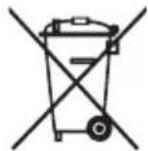
WEEE
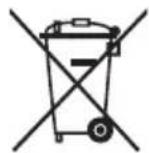
Disposal of your appliance
The symbol indicating separate collection for electrical and electronic equipment consists of the crossed-out wheeled bin.
WEEE
a
Clll 1a haiia i y jy gill jy
e 3i 2j 4j 5j 6j 7j 8j 9j 10j
SYMBOLS (SYMBOLES)
| Language | ~ | ~ | [ | |||
| English | Refers to alternating current(AC). | Refers to direct current(DC). | Refers to class II equipment. | Refers to stand-by. | Refer to "ON" (power). | Refers to dangerous voltage. |
| Svenska | Gäller växelström (AC). | Gäller likström (DC). | Gäller utrustning i klass II. | Gäller stand-by. Gäller "PÅ" (ström). Gäller farlig spanning. | ||
| Norsk | Refererer til vekselsström (AC). | Refererer til likestrøm (DC). | Refererer til klassle II-utstyr. | Refererer til ventemodus. | Refererer til "PÅ" (strøm). | Refererer til farlig spening. |
| Dansk | Refererer til vekselsstrøm (AC). | Refererer til jævnstrøm (DC). | Refererer til klassle II-udstyr. | Refererer til ständby. | Refererer til "Tændt", (Strøm). | Refererer til farlig elektrisk spanding. |
| Suomi | Viittaa vahtovirtaan (AC). | Viittaa tasavirtaan (DC). | Viittaa II luokan laitteeseen. | Viittaa valmiustilaan. | Viittaa (virta) "pääälä" -tilaan. | Viittaa vaarallisen jännitteeseen. |
| Deutsch | Steh für Wechselstrom (AC). | Steh für Gleichstrom (DC). | Steh für Geräte der Klasse II. | Steh für Standby. | Steh für „Ein“ (Einschalten). | Steh für gefährliche Spannung. |
| Français | Fait reférence au courant alternatif (CA). | Fait reférence au courant continu (CC). | Fait reférence à l'équipement de classe II. | Fait reférence au mode veille. | Correspond à la commande "Marche" (marche-arrêt). | Fait reférence à des tensions dangereuses. |
| Italienano | Indica la corrente alternata (CA). | Indica la corrente continua (CC). | Si riferisce ad appearechiatura di classe II. | Indica lo stato di standby. | Indica lo stato di "acceso" (alimentazione). | Indica una tension pericolosa. |
| Espanol | Se refiere a la corrente altema (CA). | Se refiere a la corrente continua (CC). | Se refiere a equipments de classe II. | Se refiere al modo en espèra. | Se refiere al modo "ON" (encendido). | Se refiere a voltages peligrosos. |
| Portugués | Refere-se à corrente alternada (CA). | Refere-se à corrente continua (CC). | Refere-se a um equipamento da Klasse II. | Refere-se ao modo de suspência. | Refere-se ao estudo de alimentação "LIGADA". | Refere-se a tensão perigosa. |
| Nederlands | Verwijst maar wisselstrom(AC). | Verwijst maar gelijskstroom(DC). | Verwijst maar Klasse II-apparatuur. | Verwijst maar stand-by. | Verwijst maar "AAN" (stroom). | Verwijst maar gevaarlijk voltage. |
| Éλληνικá | Yποδεικυέι to εναλλασόμενo ρεύμα (AC). | Yποδεικυέι to συνεύς ρεύμα (DC). | Yποδεικυέι tov εξολιομό κατηγρολίς II. | Yποδεικυέι ηνιν αναμονής. | Yποδεικυέι ηνιν "ENEPΟΙΝΗ" (λειουργία). | Yποδεικυέι επικύνην τάŋ. |
| Magyar | Váltóáramot jelent (AC). | Egyenáramot jelent (DC). | Class II berendezétst jelent. | Keszénlétí allapotot jelent. | Bekapcsolt allapotot jelent (tâpelláts). | Veszélyes feszültsegot jelent. |
| Polski | Oznacza prad zmienny(AC). | Oznacza prad staly(DC). | Oznacza urzadzenie klasy ochronność II. | Oznacza tryb czuwania. | Oznacza przycisk „Wt.” (zasilanie). | Oznacza niebezpieczne napiȩcie. |
| Česky | Oznacje střidavý proud (AC). | Oznacje stejnosměný proud (DC). | Oznacje zařizení třidy II. | Oznacje pohotovostní režim. | Oznacje režim „ZAPUTO" (napájeni). | Oznacje nebezepećné napětí. |
| Slovenčina | Oznacje striedavý prud (AC). | Oznacje jegnosměný prud (DC). | Oznacje zariadenie triedy II. | Oznacje pohotovostní režim. | Oznacje stav „ZAP." (napájenie). | Oznacje nebezepećné napáiie. |
| Pуssкій | Означает переменный tok (AC). | Означает постонный tok (DC). | Означает оборUDOBANHEКlasca II. | Означает ржим ожidiань. | Означает "BKЛ." (питанце). | Означает onасhoe наразожende. |
| Кацakша | Айымалы токka katысты. | Тураfterы токka katысты. | II klastby жабдыкая katысты. | Тіреке katысты. | «КOCY» (kyat) Күйине katысты. | Kayinti kerheyre katысты. |
| Укpairьба | Почаимся зminнистуМ. | Почаимся постийстуМ. | Почаимiec obchodnamяknacу II. | Почаимiec CTAN Oчікунья. | Почаимiec CTAN "Увімкніні". (Жавлени). | Почаимiec Neбізени. Наруг. |
| О'zbekcha | О'zgaruvchan tokni anglatadi (AC). | О'zgarmas tokni anglatadi (DC). | II-sinf qurilmasi ekanligini anglatadi. | Kutish rejimi nglatadi. | "YOQILGAN" (quvvat) nglatadi. | Xavfli kuchlanishni anglatadi. |
| Language | ~ | == | 回 | I | ||
| Türkçe | Alternatif akimi (AC) niteler. | Doğru akimi (DC) niteler. | Sinif II donanimi niteler. | Beklemeyi niteler. | "ACIK" (güç) durumunu niteler. | Tehlikeli voltaji niteler. |
| العربية | العربية الحرفية (AC) | العربية الحرفية (DC) | العربية الحرفية (IL) | العربية الحرفية (IL) | العربية الحرفية (IL) | العربية الحرفية (IL) |
| الترجمة | الترجمة (.com) | الترجمة (.com) | الترجمة (.com) | الترجمة (.com) | "الترجمة" on"on" (nonsign) | الترجمة (.com) |
| Español (latin) | Se refiere a la corriente alterna (ca) | Se refiere a la corriente continua (cc) | Se refiere a los equipos class II | Se refiere al modo deespera | Se refiere a "ENCENDIDO" (alimentacion) | Se refiere a voltaje peligioso |
| FRANÇAIS (CANADA) | Se rapporte au courant alternatif (ca.) | Se rapporte au courant continu (cc.) | Se rapporte à un appeareil de classe II | Se rapporte à la mise en veille | Se rapporte à la mise en marche (alimentation) | Se rapporte à une tension dangereuse |
| BAHASA INDONESIA | Mengacu pada arus bolak-balik (AC) | Mengacu pada arus search (DC) | Mengacu pada peralatan kelas II | Mengacu pada siaga | Mengacu pada "AKTIF" (daya) | Mengacu pada tegangan berbahaya |
| 日本語 | 交流 (AC)を表します | 直流 (DC)を表します | ケラスIIの装置を表します | -Stankenバイを表します | 「才」(電源)を表ります | 表危険な電圧を表ります |
| 한국어 | 고류 (AC)을 기재 (DC)을 기재 II에 기재 Class II | Refere-se à corrente continua (CC) | Refere-se ao equipamento de classe II | Refere-se a stand-by | 원원 "ON"상태를 기재 | 원원 "ON"상태를 기재 |
| Portugués (brazil) | Refere-se à corrente alternada (CA) | Refere-se à corrente continua (CC) | Refere-se ao equipamento de classe II | Refere-se a stand-by | Refere-se à "LIGADO" (Liga/Desliga) | Refere-se à tensão perigosa |
| USINGE | wnwnnewnnewnneennn (AC) | wnwnnewnneennnneenn (DC) | wnwnnewnneennnna Class II | wnwnnewnneennnna | wnwnnewnneennnna (電源) | wnwnnewnneennnna |
| 简体中文 | 表示交流电 (AC) | 表示直流电 (DC) | 表示Ⅱ类设备 | 表示待机 | 表示“开” (电源) | 表示危险电压 |
| 繁體中文 | 代表交流電 (AC) | 代表直流電 (DC) | 代表Ⅱ級設備代表待機 | 代表「開歴」 (電源) | 代表危险電壓 | |
| Language | ! | i | + | |
| English | CAUTION Instructions | Coin / button cell battery | Moving parts | |
| Svenska | VARNING Instruktior Knappcellsbatteri | Rörliga delar | ||
| Norsk | ADVARSEL Instruktior Knappcellbatteri | Bevegelige deler | ||
| Dansk | FORSIGTIG Vejledning | Mønt-/ knapcellbatteri | Bevegelige dele | |
| Suomi | VAARA Objekt Kolikko-/nappiparisto Likingkucvia osia | |||
| Deutsch | VORSICHT Anweisungen Knopfzellenbatterie | Bewegliche Bauteile | ||
| Français | MISE EN GARDE Instructions | Pilet bouton Pièces mobiles | ||
| Italienano | ATTENZIONE | Batteria a bottone Parti mobili | ||
| Español | PRECAUCión | Pila de tipo moneda/ botón | Piezas moviles | |
| Portugués | CUIDADO | Pilha botão/em forma de moeda | Peças em movimento | |
| Nederlands | LET OP | Knoopelbatterij | Bewegende onderden | |
| Еλλυκά | ПОДΟXYн | Млатaria σε σχήμα νουlpόμatoc/ кουmpιου | Кivουμενα εξαρτήματa | |
| Magyar | FIGYELEM Utasítások Gombelem Mozgó alkatrészek | |||
| Polski | PRZESTROGA Instruktje | Bateria guzikowa/pastylkowa | Csěsci ruchome | |
| Česky | UPOZORNÉNÍ | Knofíková baterie | Pohyblíve Časti | |
| Slovenčina | UPOZORNENIE | Gombíková batéria | Pohyblíve Časti | |
| Русsekni | ВИМАНСЕ! | Зелемпь петаший KMONOчно/ tabл致电чно Типа | Двíжунецяdetani | |
| Казakшa | АБAJПANБIЗ! Ночайnap | Тын/туменишдбатер | ЖылжIMалыбanelkterp | |
| Украïnhьka | УВΑГÀ! | Батеру у φорmicMonét/N tabл致电н | Рухом dietani | |
| О'zbekcha | DIQQAT! | Tanga / tabletkasimon batareya | Harakatlanuvchi qismlar | |
| Türkçe DİKKAT | Kullanim Talimatlari | Madeni / Düğme pil | Hareketli parçalar | |
| العربية | العربية | العربية | العربية بابي علیا بابي علیا | العربية |
| н'дзу | н'dзу | н'dзу | н'dзу / роггурцу | н'dзу |
| Language |  |  |  |  |
| Espanol (latin) | PRECAUCION Instrucciones | Bateria de moneda/ botón | Piezas@móviles. | |
| FRANÇAIS (CANADA) | MISES EN GARDE | Instructions Pile bouton | Pièces mobiles | |
| BAHASA INDONESIA | PERHATIAN Petunjuk | Baterai sel berbentuk koin/ kancing | Komponen yang bergerak | |
| 日本語 | 注意 取报説明書 ミイン/ボーナン電池 可動部分 | |||
| 한국어 | 주의 썸명서 썸이일/버드단선지가동부 | |||
| Portugués (brazil) | CUIDADO Instruções | Bateria de célua tipo moeda/botão | Peças em movimento | |
| 山東省 | ### | ### / ### | ### | |
| 简体中文 | 注意 说明 | 硬币型/纽 扣型电池 | 活动部件 | |
| 繁體中文 | 警告 | 指示 | 硬幣型/鈕扣型 電池 | 可動部分 |

LG
Life's Good