ManualGo.com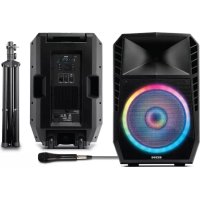
Total PA Spartan - Speaker ION - Free user manual and instructions
Find the device manual for free Total PA Spartan ION in PDF.



| Technical Features | Portable speaker with rechargeable battery, 1000 Watts power, Bluetooth connectivity, AUX input, wireless microphone included. |
|---|---|
| Usage | Ideal for parties, outdoor events, and entertainment. Easy to carry thanks to its compact design. |
| Maintenance and Repair | Regularly clean the speaker with a soft cloth. Check connections and battery to ensure optimal operation. |
| Safety | Avoid exposure to water and moisture. Do not use at excessive volumes to prevent hearing damage. |
| General Information | Compatible with most Bluetooth devices, battery life up to 12 hours, 1-year warranty. |
Frequently Asked Questions - Total PA Spartan ION
Download the instructions for your Speaker in PDF format for free! Find your manual Total PA Spartan - ION and take your electronic device back in hand. On this page are published all the documents necessary for the use of your device. Total PA Spartan by ION.
USER MANUAL Total PA Spartan ION
User Guide (English) Introduction Thank you for purchasing the Total PA
Spartan. At ION, your entertainment is as important to us as it is to you. That’s why we design our products with one thing in mind—to make your life more fun and more convenient. Box Contents Total PA
Spartan Microphone with Cable (5 ft / 150 cm) Speaker Stand IEC320 C13 Power Cable (15 ft / 450 cm) Quickstart Guide Support For the latest information about this product (system requirements, compatibility information, etc.) and product registration, visit ionaudio.com. For additional product support, visit ionaudio.com/support. Caution: Do not expose Total PA
Spartan to rain or standing water. Quick Setup
1. Make sure all items listed in the Box Contents are included in the box. Look in the box under the
foam sheet for the speaker stand rubber feet, speaker stand mounting knob, power cable, and microphone.
2. Read the Safety & Warranty Manual before using the product.
3. Study the Connection Diagram.
4. Make sure all input devices such as microphones, CD players, or digital media players are turned
off and volume settings are set at “zero.”
5. Connect all devices as shown.
6. Switch everything on in the following order:
- audio input sources (i.e. microphones, instruments, CD players)
7. When turning off, always reverse this operation:
Items not listed under
ox Contents are sold se
Tablet Microphone SD Card USB drive Smartphone Power4
1. Fully extend the speaker stand tripod legs on a flat, stable
surface. Look in the box contents under the foam sheet for the rubber feet and speaker stand mounting knob.
2. Raise the mounting pole up to the appropriate height needed
and tighten the side adjustment knob.
3. Insert the pin into the bottom pin-hole so the mounting pole
stays at your set height.
Spartan, adjust the bottom knob counter- clockwise so the screw is not blocking the opening.
5. Line up the Total PA
Spartan mounting hole with the speaker stand pole and place on the pole.
6. Tighten the mounting knob clockwise on Total PA
1. Control Knob: Turn the knob to adjust the Main Volume. Push to select SOURCE to adjust Bluetooth,
Radio, Aux, or USB/SD Volume, or select and adjust the Mic Echo, Low EQ or High EQ settings.
2. USB Port: Connect your USB flash drive here to play music. You can also use this port for charging a
3. SD Card Slot: Insert your SD card here to play music.
Note: A USB drive or SD card must contain playable files in order for it to appear properly in the media panel’s display.
4. Display: Shows the Media Panel modes: USB/SD, FM radio, and Bluetooth. The icon for the currently
selected mode will be illuminated on the Display. Note: The Display comes with a plastic protector on it. Remove this for optimal viewing.
5. Previous: Press this button to play the previous USB, SD, or Bluetooth track. When listening to the FM
radio, press the button once to skip back through the FM stations and hold the button down to seek back through the channel presets.
6. Next: Press to play the next USB, SD, or Bluetooth track. When listening to the FM radio, press the
button once to tune the radio down one preset and hold the button down to seek forward through the channel presets. Note: In some apps, pressing the Previous or Next buttons may go to another playlist or music genre.6
7. Play/Pause: When USB/SD or Bluetooth is selected as the audio source, plays/pauses audio.
Note: Files are played from the USB or SD source first by alphabetical order of what is on the root level, then alphabetical by folder, and then alphabetical by the track name.
8. Repeat Button: Press to cycle through four options: repeat all of the tracks (ALL), repeat all of the
tracks in the folder (FOLd), repeat the current playing USB or SD track (OnE), or shuffle the track order (rAn). Press and hold this button to link your speaker to another Total PA
Spartan. See Operation > Linking Two Speakers for more information.
9. Mode: Switches the audio source between USB/SD, FM radio, and Bluetooth.
10. Light Mode Button: Press this button to toggle between five modes for the lights on the front panel:
- Color Wheel: The lights spin on and around the woofer.
- Color Wheel Beat Sync: The lights spin on and around the woofer according to the tempo of the music playing.
- Color Cycle: The lights steadily cycle th rough different colors.
- Beat Sync: The lights flash and change colors according to the tempo of the music playing.
- Off: The lights turn off.
12. Aux Input (1/8” / 3.5 mm): Connect a CD player, digital media player, or other audio source to this 1/8”
(3.5 mm) stereo auxiliary input. Adjust the volume using the Control Knob.
13. XLR Input (XLR): Connect a line-level mixer or musical instrument to this XLR line-level input. Use this line-
14. Mix Out (XLR): Connect this XLR output to another active (powered) speaker.
Spartan is powered on or off.
16. Clip LED: This LED will flash red if the signal from the inputs or media panel source is clipping. If this
happens, decrease the setting of the Main Volume, Source Volume, or Mic Volume.
17. Power Cable Input (IEC): Insert the included power cable here to power the unit.
18. Fuse Holder: If the unit’s fuse is broken, remove the Fuse Holder and replace the broken fuse with one
that has the correct rating (as indicated on the Fuse Holder). Using a fuse with an incorrect rating can damage the unit and/or fuse.
Operation Automatic Power Shut-Off Total PA
Spartan is equipped with an automatic power shut-off to save energy in compliance with the energy efficiency regulations for compact audio products. Total PA
Spartan will enter an energy- saving mode after 15 minutes of inactivity unless an audio signal at a moderate level is detected from the XLR Input, the Aux Input, the USB/SD media player, the Radio, or a Bluetooth connection. In energy-saving mode, the display and lights will turn off and audio playback will be disabled, but the unit will remain powered on in standby. To resume normal operation, simply use the Power Switch to turn the unit off and then back on. To prevent automatic shut-off, an audio signal should remain active at a moderate volume level from the XLR Input, the Aux Input, the USB/SD media player, the Radio, or a Bluetooth connection. We recommend setting audio source (i.e., Aux Input or Bluetooth) volume at max and the Master Volume to 5 or higher to prevent shut-off. Pairing with a Bluetooth Device
1. Turn on your Bluetooth device.
2. Power on Total PA
3. Use the Mode button to select Bluetooth as the audio source, which appears as "bt" in the
Spartan will automatically go into pairing mode to search for Bluetooth devices. You will know you are in pairing mode when the Bluetooth icon is flashing. In addition, automatic voice prompts from the speaker will alert you of the device’s status: Bluetooth Pairing, Bluetooth Connected, or Bluetooth Disconnected.
4. Navigate to your Bluetooth device’s setup screen, find Total PA Spartan, and connect. The
Bluetooth icon will remain solidly lit. Note: Users should consider updating their device’s OS if experiencing trouble with pairing or playing music.
5. To disconnect pairing, turn off Bluetooth on your device or select Forget this device on your
Bluetooth device’s setup screen.1 If you would like to disable (or enable) the voice prompts, press and hold the Play/Pause button. Note: Bluetooth must be selected as the audio source in order to disable (or enable) the voice prompts.8
App Control IMPORTANT: To ensure the best possible experience with the app, use the most current Android OS or iOS on your device. Note: Ensure that your device has internet access via your service provider or wireless connection. You can also download the app on your computer, but remember to connect and sync your device to transfer the app. Follow these steps to download the free app on your device:
3. Follow the on-screen instructions to download and install the app. Once downloaded, the ION
app will appear on your device's home screen.
4. Connect your device to Total PA
Spartan via Bluetooth. See Pairing with a Bluetooth Device to learn how to do this.
app. If prompted, allow the app to access your device's Bluetooth and Location Services.
6. Tap to select Add A Product on the screen. The app will scan and find Total PA
Spartan. If you are having issues connecting, tap Help with setting up? for additional tips.
7. Select the Total PA Spartan icon to go to the next screen, where you can use the app to control
various functions of the speaker, such as:
- Radio: Play the radio, change stations, and edit presets.
- EQ: Adjust the speaker's equalization.
- Mic Volume: Adjust the volume for the microphone input.
- Source Volume: Adjust the volume for Bluetooth, Aux input, and the FM radio.
- Main Volume: Adjust the source volume together.
- Echo Effect: Adjust the amount of echo effect.
- Lighting Effects: Select the lighting effect or turn the lighting effects on/off.
- Voice Prompts: Enable or disable the voice prompts.
- Support: Visit ionaudio.com, contact Technical Support, and view Warranty information and Frequently Asked Questions.9
Linking Two Speakers To wirelessly link two Total PA
1. Power on both speakers using their Power Switches.
Spartan to select Bluetooth as the audio source, which appears as "bt" in the display. This will be the "secondary" speaker.
3. Press the Link button on a second Total PA
Spartan to enter Stereo Link Mode. This will be the "primary" speaker.
4. Wait up to 1 minute for the speakers to make the connection. Once the two speakers are linked,
press the Mode button on the "primary" speaker to select the desired audio source.
5. To disconnect, double-press the Link button on the "primary" speaker.
To link two Total PA
1. With the Power Switch on each speaker turned to the off position, connect each speaker to a
2. Plug an XLR cable into the Mix Out located on the rear panel of one Total PA
Spartan speaker. This speaker (the primary) is the one to which you will connect audio sources such as a Bluetooth device, microphone, or USB flash drive.
3. Plug the other end of the XLR cable into the XLR Input on the rear panel of your second Total
Spartan speaker. This second speaker will receive the audio from any devices connected to the first speaker (the primary).
4. Power on both speakers using their Power Switches.
5. Connect your audio sources to the first speaker (the primary).
6. Make sure that each speaker’s Master Volume control is set to the same position.
7. With one of your audio sources playing, gradually turn up the Aux Input Volume on the second
Spartan speaker until the volume of this speaker matches the volume of the first speaker (the primary).10
Troubleshooting If the sound is distorted: Try lowering the volume control of your sound source, musical instrument, or microphone. Also, try to reduce the overall volume of Total PA
Spartan using the Master Volume knob. If there is too much bass: Try adjusting the tone or EQ control on your sound source to lower the bass level. This will allow you to play the music louder before clipping (distortion) occurs. If there is a high-pitched whistling noise when using a microphone: This is probably feedback. Point the microphone away from the speaker. If you can’t hear the microphone over the music volume: Turn down the music volume from your source. When I press Previous [<] or Next [>], it doesn’t increment to the next FM station: Short presses of the button will jump to presets. Hold the button down to seek to the next station. If the radio station channel is flashing: The unit is currently muted. Unmute to stop the flashing and resume playback. If the Bluetooth logo is flashing rapidly: The unit is currently in pairing mode. If the Bluetooth logo is flashing slowly: A device is paired, but the music is muted. Unmute to stop the flashing and resume playback. The USB track number (Example: 001) is flashing slowly: The USB drive music playback is muted. Unmute to stop the flashing and resume playback. The LCD shows “NONE”: If a USB drive or SD card is already properly inserted, make sure it contains playable files. If you cannot connect your audio device to Total PA
- Have your audio device (e.g., smartphone or tablet) and Total PA
Spartan as close together as possible while trying to connect. Make sure both the audio device and Total PA
Spartan are unobstructed by walls, furniture, etc.
- Reset the Bluetooth connection on Total PA
Spartan to disconnect Total PA
Spartan from any other audio device and restart the search process. If this does not work right away, power off Total PA
Spartan and then power it back on. See Operation > Pairing a Bluetooth Device for more information.
- Reset the Bluetooth connection on your audio device by turning Bluetooth off and back on. You can find this under the Bluetooth menu in the Settings for your phone or other audio device. If this does not work, and you have connected to Total PA
Spartan before, find Total PA
Spartan in the list of available or previously connected devices in your audio device's Bluetooth menu, tap the "gear" or “i” icon located next to it and then select Unpair or Forget. Turn Total PA
Spartan off and back on and try pairing again once it reappears in your available devices list. Note: If Total PA
Spartan has been paired to another audio device recently that is still within range, you may need to repeat this process with that audio device to fully disconnect.11
Appendix (English) Technical Specifications Output Power 500 W (peak) Max SPL (@ 1 m) 116 dB peak, 110 dB continuous C-weighted, free space Low Frequency 15” (381 mm) woofer High Frequency 1” (25 mm) tweeter Crossover
Frequency Response 55 Hz – 20 kHz (+3 dB) Frequency Range 45 Hz – 22 kHz (@ -10 dB) Horn Coverage 80/100° H x 60° V, nominal (@ -6 dB) Input Gain Range: -∞ to +10 dB (microphone/line) Max Input Level: +10 dBu Impedance: 22 KΩ External Controls Channel volume, master volume, power on/off with LED, clip limiter with LED, echo, 2-band equalizer, mode, play/pause, repeat, previous track, next track Connectors (3) XLR inputs (2 dynamic microphone/line, 1 line) (2) 1/4” (6.35 mm) TRS inputs (1) 1/8” (3.5 mm) TRS input (1) XLR mix output (1) SD card slot (1) USB port (host) (1) IEC power connection Bluetooth* Profile: A2DP, AVCTP Module: Bluetooth 5.0 Speed: 3 Mbps Range: Up to 100 feet / 30.5 meters* USB Charging Port +5V, 1A USB/SD Card Audio: Music playback from USB drive or SD card Supported File System: FAT32 Supported File Types: MP3 Maximum File Size: < 64 GB Maximum USB Drive / SD Card Capacity: < 64 GB30
Specifications are subject to change without notice.
- Bluetooth range is affected by walls, obstructions, and movement. For optimal performance, place the product in the center of the room so it is unobstructed by walls, furniture, etc.
Trademarks & Licenses ION Audio is a trademark of ION Audio, LLC, registered in the U.S. and other countries. App Store is a trademark of Apple Inc., registered in the U.S. and other countries. Android and Google Play are registered trademarks of Google Inc. The Bluetooth word mark and logos are owned by the Bluetooth SIG, Inc. and any use of such marks by ION Audio is under license. All other product names, company names, trademarks, or trade names are those of their respective owners.ionaudio.com