ManualGo.com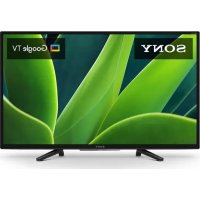
KD32W830K - TV SONY - Free user manual and instructions
Find the device manual for free KD32W830K SONY in PDF.


Download the instructions for your TV in PDF format for free! Find your manual KD32W830K - SONY and take your electronic device back in hand. On this page are published all the documents necessary for the use of your device. KD32W830K by SONY.
USER MANUAL KD32W830K SONY
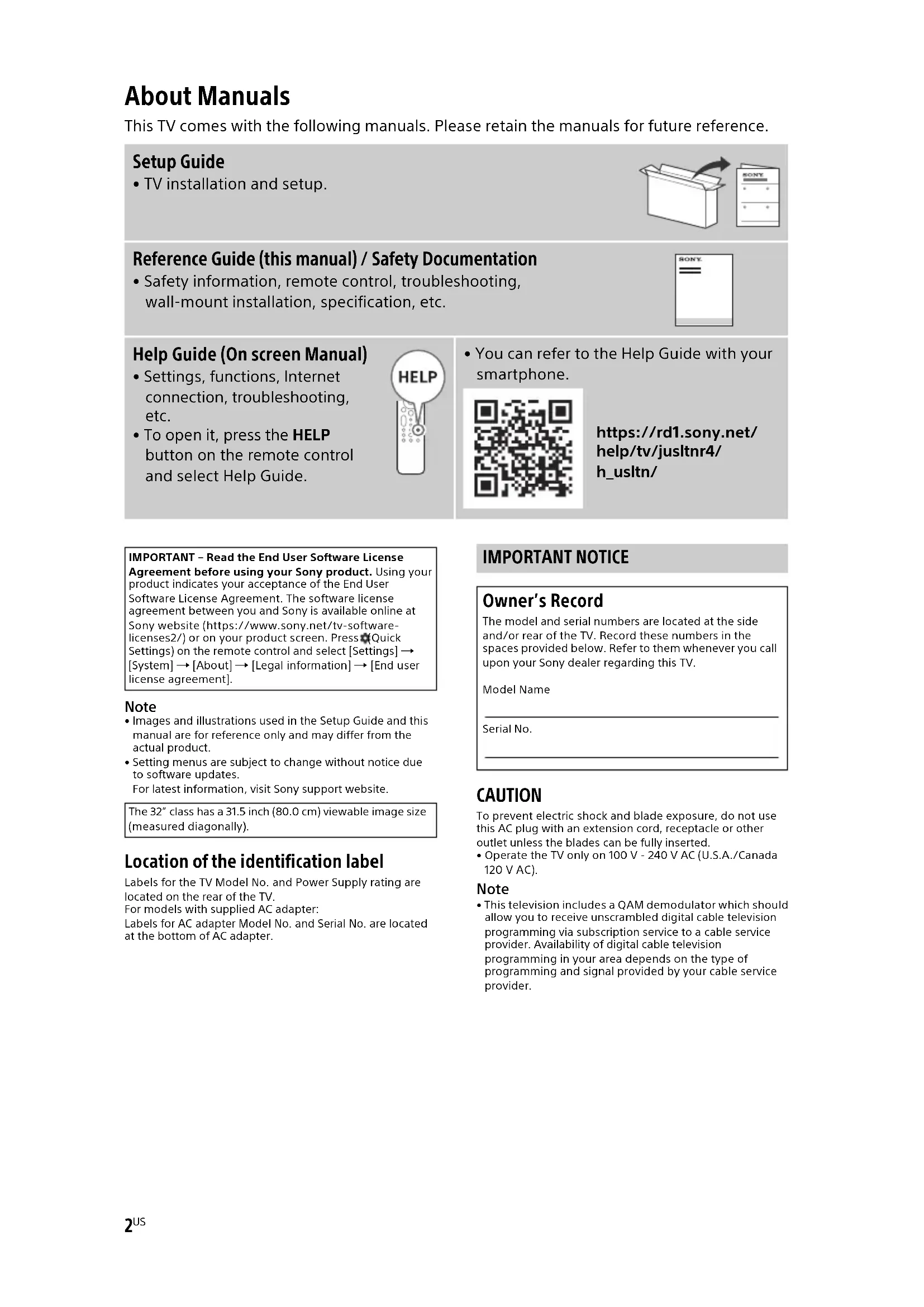
About Manuals This TV comes with the following manuals. Please retain the manuals for future reference. Note
- Images and illustrations used in the Setup Guide and this manual are for reference only and may differ from the actual product.
- Setting menus are subject to change without notice due to software updates. For latest information, visit Sony support website. Location of the identification label Labels for the TV Model No. and Power Supply rating are located on the rear of the TV. For models with supplied AC adapter: Labels for AC adapter Model No. and Serial No. are located at the bottom of AC adapter. CAUTION To prevent electric shock and blade exposure, do not use this AC plug with an extension cord, receptacle or other outlet unless the blades can be fully inserted.
- Operate the TV only on 100 V - 240 V AC (U.S.A./Canada 120 V AC). Note
- This television includes a QAM demodulator which should allow you to receive unscrambled digital cable television programming via subscription service to a cable service provider. Availability of digital cable television programming in your area depends on the type of programming and signal provided by your cable service provider. Setup Guide
- TV installation and setup. Reference Guide (this manual) / Safety Documentation
- Safety information, remote control, troubleshooting, wall-mount installation, specification, etc. Help Guide (On screen Manual)
- Settings, functions, Internet connection, troubleshooting, etc.
- To open it, press the HELP button on the remote control and select Help Guide.
- You can refer to the Help Guide with your smartphone. https://rd1.sony.net/ help/tv/jusltnr4/ h_usltn/ IMPORTANT – Read the End User Software License Agreement before using your Sony product. Using your product indicates your acceptance of the End User Software License Agreement. The software license agreement between you and Sony is available online at Sony website (https://www.sony.net/tv-software- licenses2/) or on your product screen. Press (Quick Settings) on the remote control and select [Settings] [System] [About] [Legal information] [End user license agreement]. The 32” class has a 31.5 inch (80.0 cm) viewable image size (measured diagonally). IMPORTANT NOTICE Owner’s Record The model and serial numbers are located at the side and/or rear of the TV. Record these numbers in the spaces provided below. Refer to them whenever you call upon your Sony dealer regarding this TV. Model Name Serial No.3
Notice for customers in the United States of America FCC Related Information This equipment has been tested and found to comply with the limits for a Class B digital device, pursuant to Part 15 of the FCC Rules. These limits are designed to provide reasonable protection against harmful interference in a residential installation. This equipment generates, uses and can radiate radio frequency energy and, if not installed and used in accordance with the instructions, may cause harmful interference to radio communications. However, there is no guarantee that interference will not occur in a particular installation. If this equipment does cause harmful interference to radio or television reception, which can be determined by turning the equipment off and on, the user is encouraged to try to correct the interference by one or more of the following measures:
- Reorient or relocate the receiving antenna.
- Increase the separation between the equipment and receiver.
- Connect the equipment into an outlet on a circuit different from that to which the receiver is connected.
- Consult the dealer or an experienced radio/TV technician for help. Safety and Regulatory FCC regulations restrict operation of this device to indoor use only. Notice for customers in Canada This device contains licence-exempt transmitter(s)/ receiver(s) that comply with Innovation, Science and Economic Development Canada’s licence-exempt RSS(s). Operation is subject to the following two conditions: (1) This device may not cause interference. (2) This device must accept any interference, including interference that may cause undesired operation of the device. To prevent radio interference to the licensed service, this device is intended to be operated indoors and away from windows to provide maximum shielding. Equipment (or its transmit antenna) that is installed outdoors is subject to licensing. High-power radars are allocated as primary users (i.e. priority users) of the bands 5250-5350 MHz and 5650-5850 MHz and that these radars could cause interference and/or damage to LE-LAN devices. Notice for customers in the United States of America and Canada This equipment complies with FCC/IC radiation exposure limits set forth for an uncontrolled environment and meets the FCC radio frequency (RF) Exposure Guidelines and RSS-102 of the IC radio frequency (RF) Exposure rules. This equipment should be installed and operated keeping the radiator at least 20 cm or more away from person’s body (excluding extremities: hands, wrists, feet and ankles). This device and its antenna(s) must not be co-located or operating with any other antenna or transmitter except Grant condition. Before setting up your TV Some TV models are packaged with a detached Table-Top Stand so you can mount your TV to a wall right away. See “Installing the TV to the Wall” if you want to mount the TV to a wall. If you are not mounting the TV to a wall, you will need to attach the Table-Top Stand (refer to the Setup Guide). Be sure to consider the following while setting up your TV:
- Disconnect all cables when carrying the TV.
- Two or more persons are needed to transport a large TV set.
- Correct hand placement while carrying the TV is very important for safety and to avoid damage.
- Ensure your TV has adequate ventilation, refer to the safety documentation.
- For best picture quality, do not expose the screen to direct illumination or sunlight.
- Avoid installing the TV in a room with reflective wall and floor materials.
- Avoid moving the TV from a cold area to a warm area. Sudden room temperature changes may cause moisture condensation. This may cause the TV to show poor picture and/or poor color. Should this occur, allow moisture to evaporate completely before powering the TV on. Securing the TV Sony strongly recommends taking measures to prevent the TV from toppling over. Unsecured TVs may topple and result in property damage, serious bodily injury or even death. Preventing the TV from Toppling
- Secure the TV to a wall and/or Stand.
- Do not allow children to play or climb on furniture and TV sets.
- Avoid placing or hanging items on the TV.
- Never install the TV on: — slippery, unstable and/or uneven surfaces. — furniture that can easily be used as steps, such as a chest of drawers.
- Install the TV where it cannot be pulled, pushed, or knocked over.
- Install the TV so that the TV’s Table-Top Stand does not protrude out from the Stand (not supplied). If the Table-Top Stand protrudes out from the Stand, it may cause TV set to topple over, fall down, and cause personal injury or damage to the TV.
- Route all AC power cords and connecting cables so that they are not accessible to curious children. Safety Information Supplier’s Declaration of Conformity Trade Name: SONY Model: KD-32W830K Responsible Party: Sony Electronics Inc. Address: 16535 Via Esprillo, San Diego, CA 92127 U.S.A. Telephone Number: 858-942-2230 Pursuant to FCC regulations, you are cautioned that any changes or modifications not expressly approved in this manual could void your authority to operate this equipment.4
Topple prevention (Models with supplied support belt kit) Refer to the Setup Guide on top of the cushion.The supplied wood screw is only for affixing to a solid object made of wood. (Except models with supplied support belt kit) Remote Control and TV The remote control shape, layout, availability and function of remote control buttons may vary depending on your region/country/TV model/TV settings.
. For hints on how to control your TV, press the microphone button on the remote control and say “voice hints”.*
////: On screen menu navigation and selection. TV: Switch to a TV channel or input.
(Power) Number buttons (dot) APPS: Display a list of installed apps.
/ Disney + / Prime Video / Colour buttons 8 mm – 11 mmM4 screw (not supplied)1.2 N·m/{12 kgf·cm}Screw (not supplied) Cord (not supplied)5
REC: Record the currently viewed program on DVR*
DISPLAY: Display information.
(Power) Remote Control sensor / LED *1 Only for limited region/country/model/language.*2 Google Assistant or voice search requires an Internet connection.*3 [Cable/Satellite box setup] setting is required.*4 Accessibility shortcut is available by pressing and holding AUDIO. Guidelines for IR Remote Control
- Point your remote control directly at the IR sensor located on your TV.
- Make sure that no objects are blocking the path between the remote control and the IR sensor on your TV.
- Fluorescent lamps can interfere with your remote control; try turning off the fluorescent lamps.
- If you are having problems with the remote control, reinsert or replace your batteries and make sure that they are correctly inserted. For more information, refer to the Help Guide.6
Installing the TV to the Wall This TV’s instruction manual only provides the steps to prepare the TV for Wall-Mount installation before it is installed on the wall. Your TV can be mounted to a wall using a suitable Wall-Mount Bracket (not supplied). If the Table-Top Stand is attached to the TV, the TV may require detaching the Table-Top Stand; see “Detaching the Table-Top Stand from the TV”. Prepare the TV for the Wall-Mount Bracket before making cable connections. For product protection and safety reasons, Sony strongly recommends that installation of your TV on the wall be performed by qualified professionals. Do not attempt to install it yourself.
- Follow the instruction guide provided with the Wall-Mount Bracket for your model. Sufficient expertise is required in installing this TV, especially to determine the strength of the wall for withstanding the TV’s weight.
- The screws for installing the Wall-Mount Bracket to the TV are not supplied.
- The length of the screw for Wall-Mount Bracket differs depending on the Wall-Mount Bracket thickness. Please refer to below illustration.
- Refer to the following table for wall-mount hole pattern.
- Be sure to store the unused screws and Table-Top Stand in a safe place until you are ready to attach the Table-Top Stand. Keep the screws away from small children. Note
- Read the supplied safety documentation for additional safety information.• For more detailed information, visit Sony Customer Support website.** Only for limited region/country/model. 1 Detaching the Table-Top Stand from the TV. 8 mm – 11 mm Screw (M4) TV’s rear cover Wall-Mount Bracket Model Name Wall-mount hole pattern
2 Attach the Wall-Mount Bracket (not supplied) using the screws (not supplied). Note
- If using an electric screwdriver, set the torque at approximately 1.2 N·m {12 kgf·cm}.• Be sure to fasten the Wall-Mount Attachment when attaching them to the TV. Use only a flat head screwdriver to install the Wall-Mount Attachment. Use of another tool might result in over torqueing the Wall-Mount Attachment and damaging the TV. Troubleshooting General troubleshooting for issues like: black screen, no sound, frozen picture, TV does not respond, or network is lost, do the following steps. 1 Restart your TV by pressing the power button on the remote control until a menu appears. Select Restart to restart the TV. If the TV does not recover, try unplugging the AC power cord then press the power button on the TV and release it. Wait for two minutes, and plug in the AC power cord. Or, press the power button on the TV for about 40 seconds until the TV turns off. 2 Refer to the Help menu shown below. 3 Connect your TV to the Internet and perform a software update. Sony recommends you to keep your TV software updated. Software updates provide new features and performance improvements. 4 Visit Sony support website (information provided at the end of this manual). 5 Perform the factory data reset. When you plug in the TV, the TV may not be able to turn on for a while even if you press the power button on the remote control or the TV. It takes time to initialize the system. Wait for about one minute, then operate it again. How to reset the TV to factory settings WARNING: The reset will clear all of your customized settings including the parental lock setting.• You can reset the TV to factory settings by selecting [Factory data reset]. How to select [Factory data reset], refer to the online Help Guide.• To force factory data reset, unplug the AC power cord. Press and hold button on the TV, then plug in the AC power cord.• For security purposes, be sure to remove all personal and account information before discarding, selling or passing your TV to someone else by: unlinking/unregistering, signing out of and deactivating all network services as well as factory reset the TV. The remote control does not function.
- Replace the batteries. The parental lock password has been forgotten.
- Enter 4357 for the PIN and enter the new PIN. Wall-Mount Bracket (not supplied)Screw (not supplied)Soft cloth For more information on troubleshooting, refer to the Help Guide.8
Specifications System TV system: Depend on your country/area selection/TV model NTSC: American TV Standard ATSC (8VSB Terrestrial): ATSC compliant 8VSB QAM on cable: ANSI/SCTE 07 2000 (Does not include CableCARD functionality) Channel coverage: Depend on your country/area selection/TV model Analog terrestrial: 2 - 69 / Digital terrestrial: 2 - 69 Analog Cable: 1 - 135 / Digital Cable:
Audio: Two channel linear PCM: 32/44.1/48 kHz 16/20/24 bits, Dolby Audio ARC (Audio Return Channel) (HDMI IN 3 only)*
Two channel linear PCM: 48 kHz 16 bits, Dolby Audio, Dolby Atmos DIGITAL AUDIO OUT (OPTICAL) Digital optical jack (Two channel linear PCM: 48 kHz 16 bits, Dolby Audio) (Stereo mini jack) Headphone 1, 2 USB port 1 and 2 support High Speed USB (USB 2.0) LAN 10BASE-T/100BASE-TX connector (Depending on the operating environment of the network, connection speed may differ. The communication rate and quality are not guaranteed.) Home Network supported files and formats*
DC IN 19.5 V AC adapter input Power and others Power requirements
19.5 V DC with AC adapter
Less than 0.5 W with 120 V AC and less than 0.5 W with 240 V AC Screen size (measured diagonally) (Approx.) KD-32W830K: 80.0 cm / 31.5 inches (32” class) Display resolution (horizontal × vertical) (pixels) 1366 x 768 Output rating USB 1/2 5 V , 500 mA MAX Dimensions (Approx.) (w × h × d) (mm) / (inches) with stand KD-32W830K: 730 × 465 × 188 / 28
× 3 wall-mount hole pattern KD-32W830K: 100 × 100 mm wall-mount screw size (mm) M4 (length: see “Installing the TV to the Wall”.) Mass (Approx.) (kg) / (lb.) with stand KD-32W830K: 5.0 / 11.1 without stand KD-32W830K: 4.8 / 10.69
ºF - 104 ºF *1 Refer to the online Help Guide for details. *2 Connect your audio system to the HDMI IN 3 to route TV audio to your audio system. *3 Specified standby power is reached after the TV finishes necessary internal processes. *4 Standby power consumption will increase when your TV is connected to the network. Note
- Optional accessories availability depends on countries/region/TV model/stock.
- Design and specifications are subject to change without notice.
- Subscriptions for services and applications may be required and additional terms, conditions and/or charges may apply when using Google Assistant. Licensing Information
- The terms HDMI, HDMI High-Definition Multimedia Interface, and the HDMI Logo are trademarks or registered trademarks of HDMI Licensing Administrator, Inc.
- Manufactured under license from Dolby Laboratories. Dolby, Dolby Audio, and the double-D symbol are trademarks of Dolby Laboratories Licensing Corporation.
- Google, Google TV and related logos are trademarks of Google LLC.
- Netflix is a registered trademark of Netflix, Inc.
- All other trademarks are the property of their respective owners.2