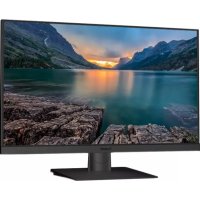
PXN2490MW - Monitor Planar - Free user manual and instructions
Find the device manual for free PXN2490MW Planar in PDF.


| Product Type | LED Touch Monitor |
| Brand | Planar |
| Model | PXN2490MW |
| Screen Size | 24 inches |
| Panel Type | LCD LED |
| Native Resolution | 1920 x 1080 (Full HD) |
| Aspect Ratio | 16:9 |
| Brightness | 250 cd/m² |
| Contrast Ratio | 1000:1 |
| Response Time | 5 ms |
| Viewing Angle (H/V) | 178° / 178° |
| Connectivity | HDMI, VGA |
| Power Supply | Direct plug-in power adapter |
| Power Consumption | ≤ 30 W (typical) |
| Weight (approx.) | 5 kg |
| Dimensions (with stand, approx.) | 55 x 40 x 20 cm |
| VESA Mounting | Yes (100 x 100 mm) |
| Touch Function | Yes (touch screen) |
| Screen Cleaning | Soft cloth with glass cleaner or 50/50 isopropyl alcohol/water |
| Safety Instructions | Do not remove cover; refer to qualified service personnel |
| Certification | FCC Class B |
| Included Accessories | Power cable, VGA cable, user manual |
Frequently Asked Questions - PXN2490MW Planar
User questions about PXN2490MW Planar
0 question about this device. Answer the ones you know or ask your own.
Ask a new question about this device
Download the instructions for your Monitor in PDF format for free! Find your manual PXN2490MW - Planar and take your electronic device back in hand. On this page are published all the documents necessary for the use of your device. PXN2490MW by Planar.
USER MANUAL PXN2490MW Planar
text_image
PLANAR® ALEYARD CompanyPXN2490MW
LED LCD Monitor
USER'S GUIDE
www.planar.com
Content
Operation Instructions ....1
Unpacking Instructions 3
Safety Precautions 3
Front View of the Product....7
Rear View of the Product 8
Quick Installation....9
Basic Operation 10
OSD Menu 12
Supporting Timing Modes 16
Technical Information 17
Wall Mount Instructions 18
Troubleshooting 19
Planar Support 20
Operation Instructions
Thank you for purchasing the PXN2490MW LED LCD monitor. Please read this guide thoroughly before installation.
FCC RADIO FREQUENCY INTERFERENCE STATEMENT WARNING: (FOR FCC CERTIFIED MODELS)
This LED LCD Monitor has been tested and found compliant with the limits for a Class B digital device, pursuant to part 15 of the FCC Rules. These limits are designed to provide proper protection against harmful interference to a residential installation. This LED LCD Monitor generates, uses, and can radiate radio frequency energy. Harmful interference to radio communication may be the result if it's not properly installed and used. However, there is no guarantee that interference will not occur in a particular installation. If this LED LCD Monitor does cause serious interference to radio or television reception, resetting may correct it. Moreover, users are encouraged to reduce interference by doing one or more of the following:
● Reorient or relocate the receiving antenna.
- Move the LED LCD Monitor and the receiver further away from each other.
- Connect the LED LCD Monitor into an outlet on a circuit different from that to which the receiver is connected.
- Consult your local dealer or a qualified technician.
FCC Warning:
To assure a continued FCC compliance, a user must use a grounded power supply cord and the provided shielded video interface cable with bonded ferrite cores. Also, any unauthorized changes or modifications to this LED LCD Monitor would void the user's authority to operate this device.
Note: If necessary, shielded interface cables and AC power cord must be used to meet the emission level limits.
Shielded cables must be used with this unit to ensure compliance with the Class B FCC limits.
According to WEEE regulation, this LED LCD Monitor can't be handled as normal trash in Europe when it is out of usage. Please refer to the recycle information on Planar's website to handle it.
For more information on how to recycle your product, please visit http://www.planar.com/about/green/
COMMUNIQUE D'AVERTISSEMENT DE LA FCC CONCERNANT LES INTERFERENCE DE FREQUENCE RADIO: (SEULEMENT POUR MODELES CERTIFIE PAR LA FCC)
Unpacking Instructions
- Remove the LED LCD Monitor out of the package and take off EPE Foam.
- Remove base from EPE Foam and attach to base.
- Adjust the display between -5^ and 15^ .
Safety Precautions
Follow all warnings, precautions and maintenance as recommended in this user's manual to maximize the life of your unit.
DO :
● Turn off the product before cleaning.
- Surface may be cleaned using a soft clean cloth moistened with mild window glass commercial cleaners or 50/50 mixture of water and isopropyl alcohol.
- Use a soft cloth moistened with mild detergent to clean the display housing.
- Disconnect the power plug from AC outlet if the product is not going to be used for an extended period of time.
Don't :
- Do not touch the LED display screen surface with sharp or hard objects.
- Do not use abrasive cleaners, waxes or solvents for your cleaning.
- Do not operate the product under the following conditions:
○ Over 16 hours per day.
○ Extremely hot, cold or humid environment.
○ Areas susceptible to excessive dust and dirt.
○ Near any appliance generating a strong magnetic field.
○ In direct sunlight.
- If smoke, abnormal noise or odor emits from your LED LCD Monitor, remove the power cord immediately and call your service center.
- Never remove the rear cover of your LED LCD Monitor. The display unit inside contains high-voltage parts and may cause electric shock.
- Never try to repair your LED LCD Monitor yourself. Always call your service center or a qualified technician to fix it.
- Due to safety concerns, if the VESA mounting kit is purchased separately, please make sure the mounting kit is UL-listed, and replaceable only by service personnel.
natural_image
Front view of a flat-screen monitor with a small circular button at the bottom (no text or symbols visible)LED LCD Monitor
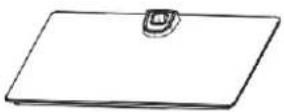
Base
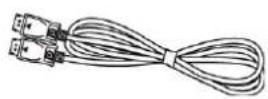
DisplayPort Cable
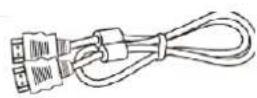
HDMI Cable
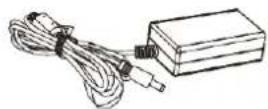
Adaptor
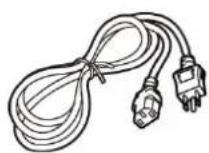
Power Cord
text_image
PLAQUIN RICHENNA 1997-2003 COPPO BHAJIUser's Guide
First Setup
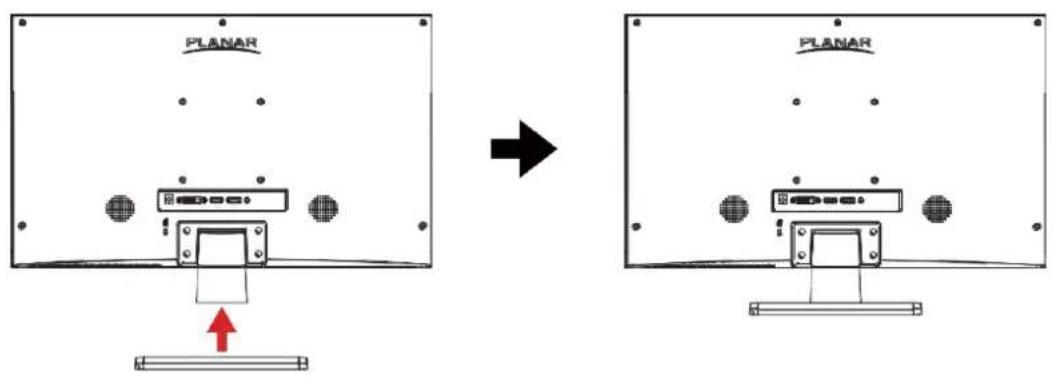
Install the Stand Base
- Lay the LED LCD Monitor flat on a table with the LED screen face down. To prevent the LED LCD Monitor from being scratched, put a piece of soft cloth on the table on which the screen will be set.
- Insert Base into the monitor as shown below.
- Stand the LED LCD Monitor up
text_image
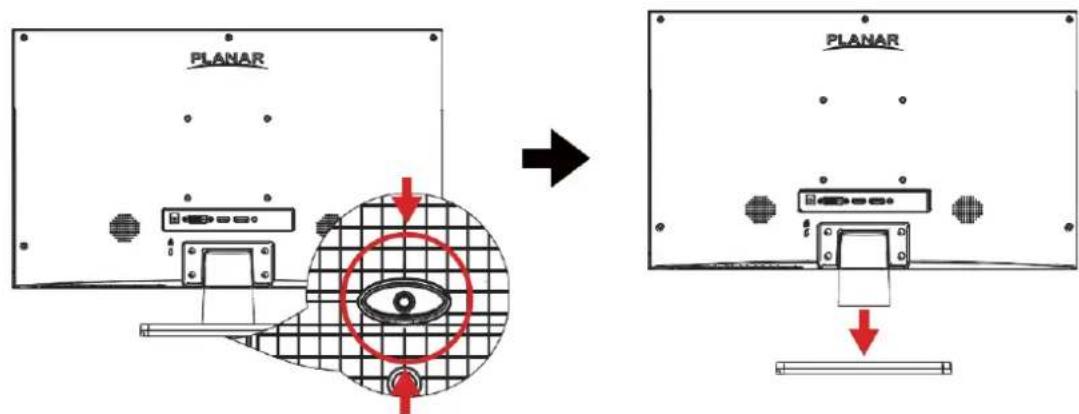
PLANAR PLANARDisconnecting the Stand Base
- Lay the LED LCD Monitor flat on a table with the LED screen face down. To prevent the LED LCD Monitor from being scratched, put a piece of soft cloth on the table on which the screen will be set.
- Press the tenons inward and pull the base from stand to remove.
text_image
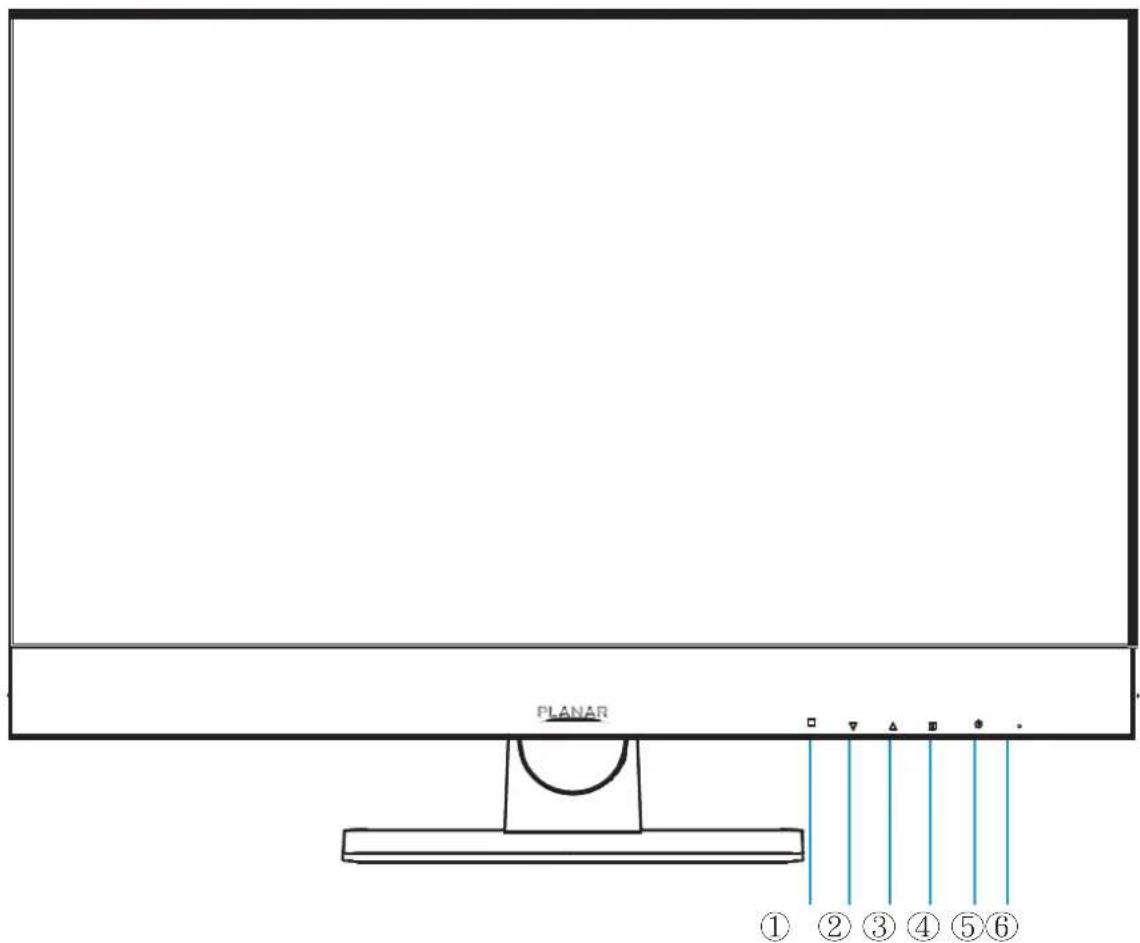
PLANAR PLANARFront View of the Product
text_image
PLANAR ① ② ③ ④ ⑤ ⑥| 1 | Menu / Exit |
| 2 | Blue Light Reducer / Down |
| 3 | Brightness / Up |
| 4 | Input select / Enter |
| 5 | Power On / Off |
| 6 | LED Indicator |
*Hot keys Instructions please see "Basic Operation" on page10.
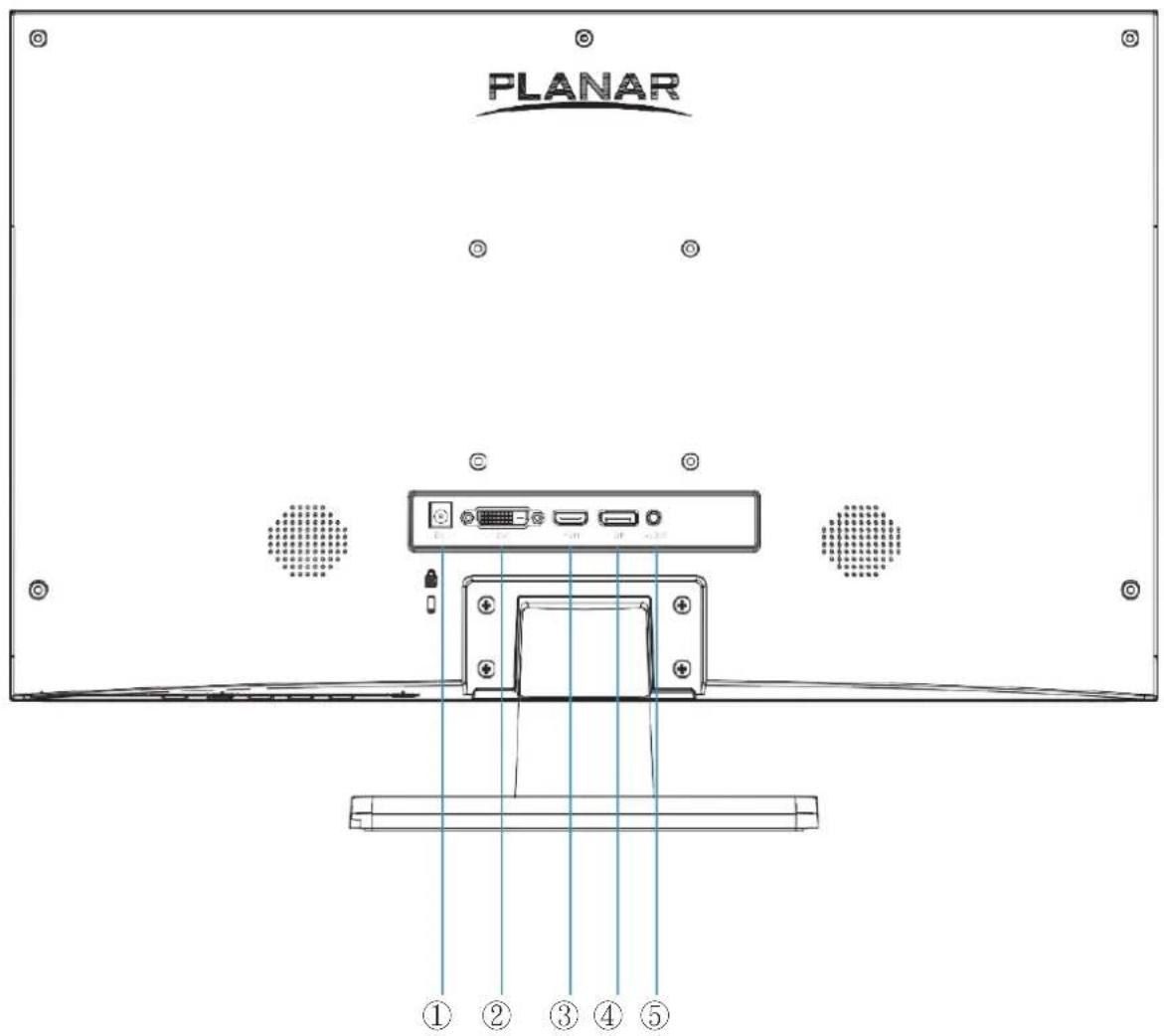
Rear View of the Product
text_image
PLANAR ① ② ③ ④ ⑤| 1 | Power Input (DC input) |
| 2 | DVI Input (DVI 24 + 1 PIN) |
| 3 | HDMI input (HDMI 19 pin) |
| 4 | DisplayPort Input (DisplayPort 20 pin) |
| 5 | Audio Input |
Quick Installation
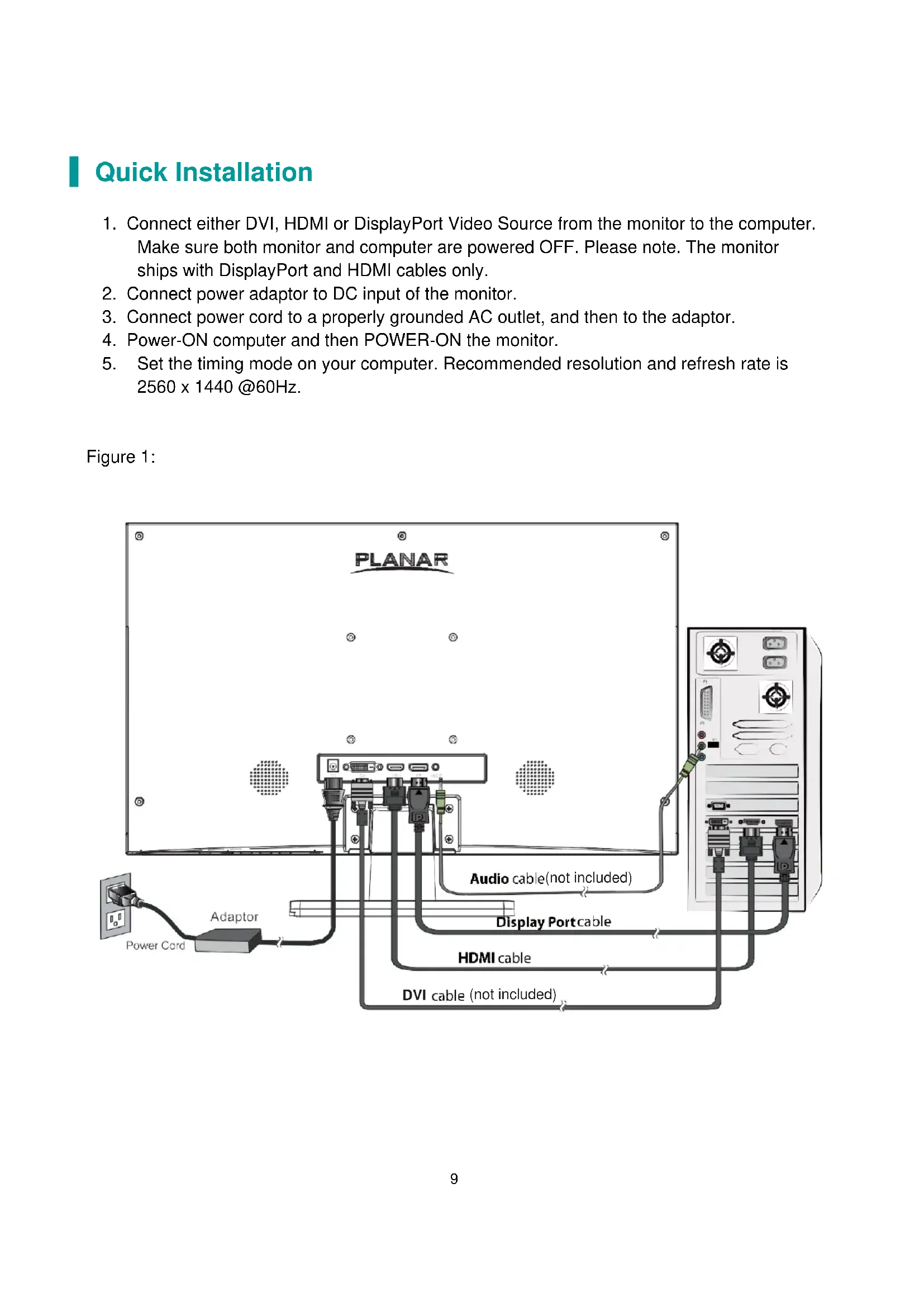
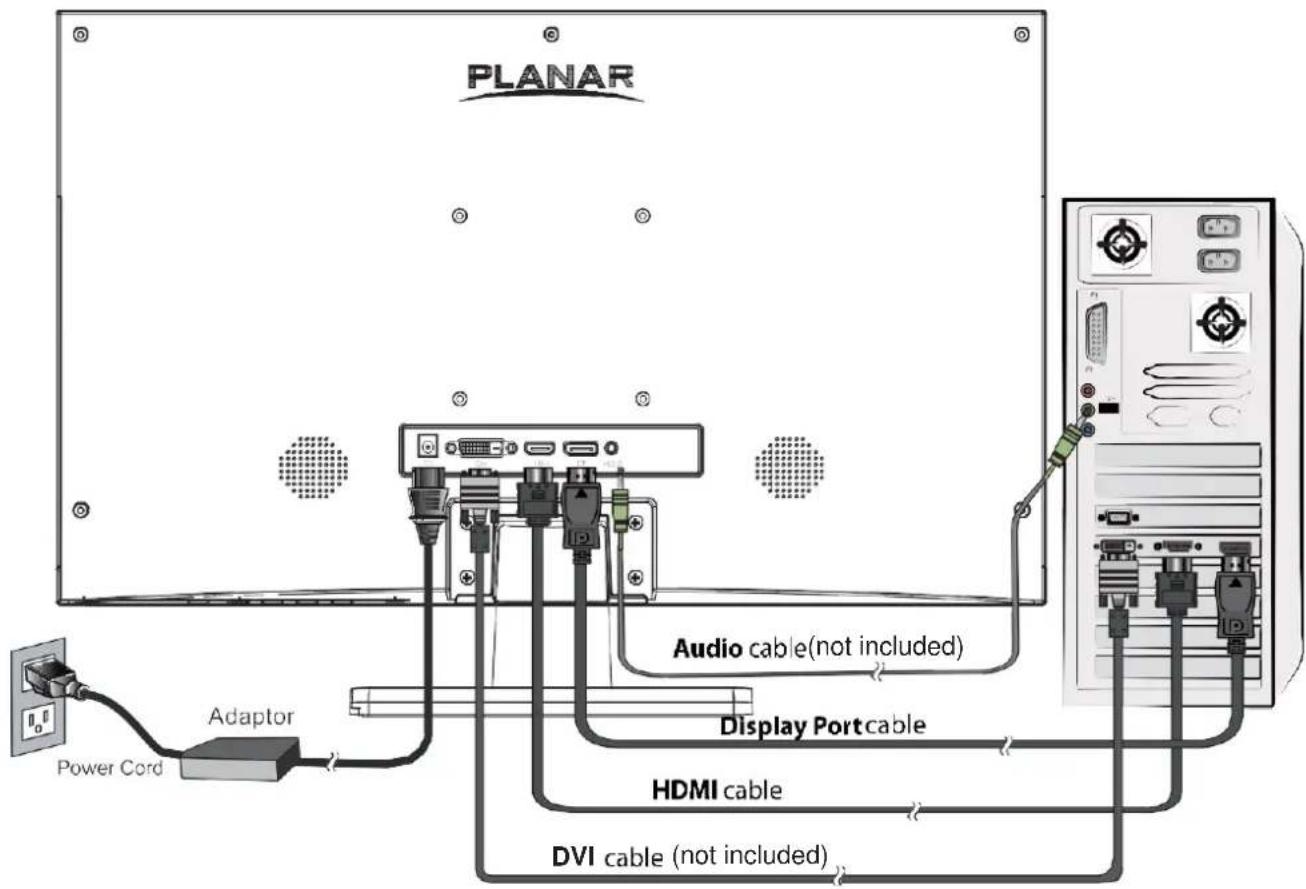
- Connect either DVI, HDMI or DisplayPort Video Source from the monitor to the computer. Make sure both monitor and computer are powered OFF. Please note. The monitor ships with DisplayPort and HDMI cables only.
- Connect power adaptor to DC input of the monitor.
- Connect power cord to a properly grounded AC outlet, and then to the adaptor.
- Power-ON computer and then POWER-ON the monitor.
- Set the timing mode on your computer. Recommended resolution and refresh rate is 2560 x 1440 @60Hz.
Figure 1:
text_image
PLANAR Adaptor Power Cord Audio cable(not included) Display Port cable HDMI cable DVI cable (not included)Basic Operation
Before using the LED LCD Monitor:
- Connect external equipment properly.
- Insert the power plug, and the power LED indicator will light orange.
Power On/Off
To turn the LED LCD Monitor on/off:
Press ⏻ button on the front. The power LED indicator light will be blue when the LED LCD Monitor is on.
Using the OSD Menu
Use OSD menus to adjust settings by using the menu button on the front of the LED LCD Monitor.
| 1 | Displays main menu |
| Exits from OSD menu | |
| 2 | Selects between DVI,HDMI ,DP OR AUTO Mode |
| ▼ | Select the desired item when in OSD menu |
| When not in OSD menu, directly enters Blue Light Reducer Menu | |
| ▲ | Select the desired item when in OSD menu |
| When not in OSD menu, directly enters Brightness Menu |
OSD lock Out Function
When LED LCD Monitor is in normal mode, the "OSD Lock Out" function can be enabled.
Option 1: OSD lock-all 4 buttons are locked except the "POWER" button.
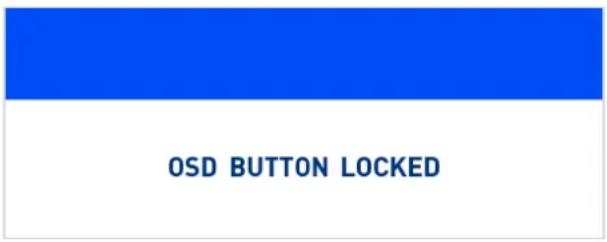
Press and hold the button for 5 seconds to lock the OSD buttons.
The LED LCD Monitor will show an "OSD button locked" message for 5 seconds and the message will disappear automatically.
text_image
OSD BUTTON LOCKEDRepeat this step to unlock.
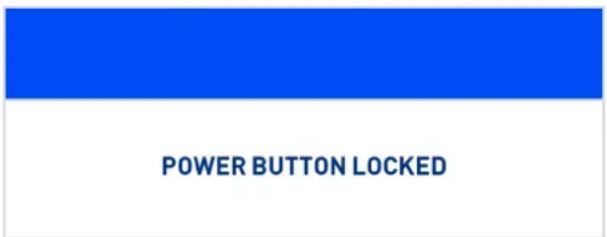
Option 2: OSD & Power button lock-all 5 buttons including the "POWER" button are locked. Press and hold the ▽ button for 5 seconds to lock all 5 buttons.
The LED LCD Monitor will show a “Power button locked” message for 5 seconds and the Message will disappear automatically.
text_image
POWER BUTTON LOCKEDRepeat this step to unlock.
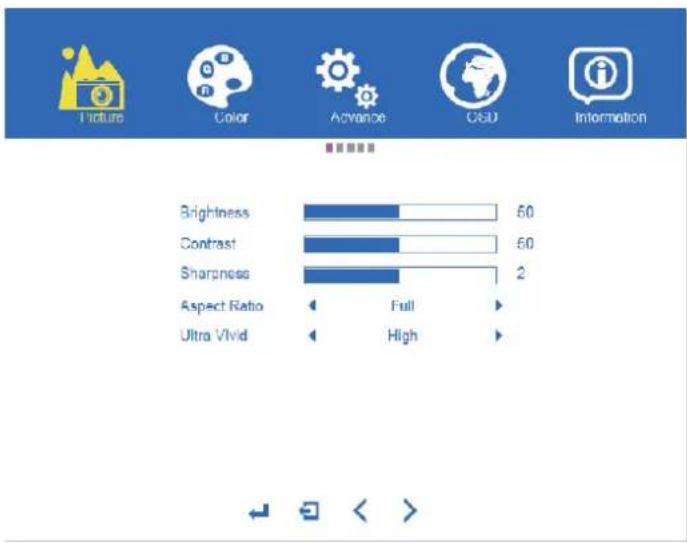
text_image
Picture Color Advance CSD Information Brightness 60 Contrast 60 Sharpness 2 Aspect Ratio Full Ultra Vivid HighPICTURE
- BRIGHTNESS
Adjust between 0-100.
- CONTRAST
Adjust between 0-100.
- SHARPNESS
Adjust between 1-4.
- ASPECT RATIO
Between full, 4:3, 1:1.
- ULTRA VIVID
Between Off, Low, Middle, High
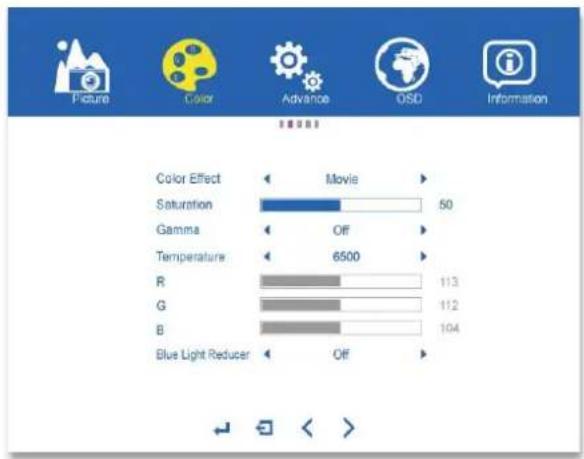
text_image
Picture Color Advance OSD Information Color Effect Movie Saturation 50 Gamma Off Temperature 6500 R 113 G 112 B 104 Blue Light Reducer OffCOLOR
• COLOR EFFECT
Select between Standard, Game, Movie, Photo, Vivid.
• SATURATION
Select Adjust between 0-100.
• GAMMA
Select between Off, 1.8, 2.0, 2.2, 2.4.
• TEMPERATURE
Select between 6500, 5400, SRGB, User, 9300.
Under user, the following colors can be adjusted.
• R
0-255
• G
0-255
• B
0-255
- Blue Light Reducer
Select between Off, Video (15% reduction), Web Browsing (30% reduction), Reading (50% reduction), Low light (70% reduction).
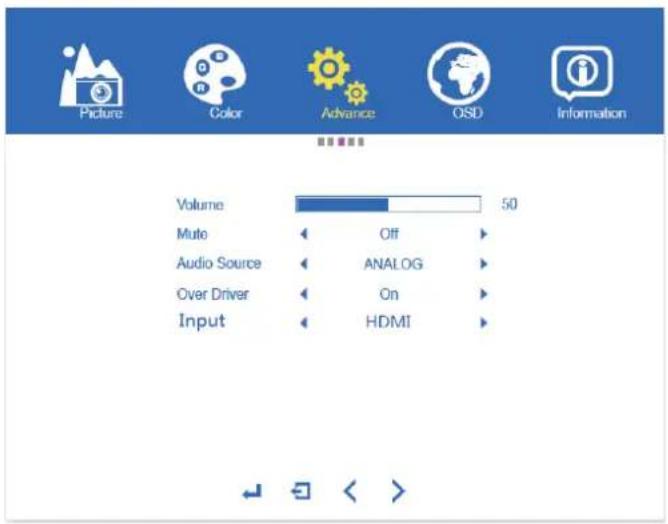
text_image
Picture Color Advance OSD Information Volume 50 Muto Off Audio Source ANALOG Over Driver On Input HDMIADVANCE
VOLUME
Select between 0\~100.
MUTE
Turn On or Off
AUDIO SOURCE
Select between Analog, Digital.
• OVER DRIVER
Turn On or Off.
• INPUT
Select between DVI, HDMI, DP.
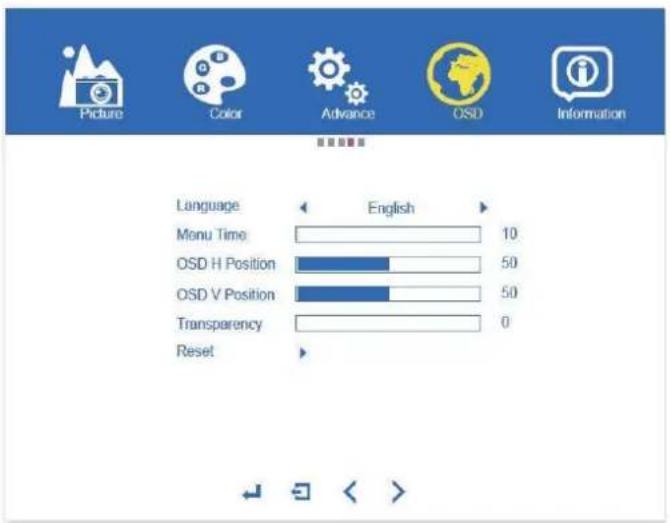
text_image
Picture Color Advance OSD Information Language English 10 Language Monu Time OSD H Position OSD V Position Transparency 0 ResetOSD
- LANGUAGE
Select between English, French, German, Italian, Spanish, Finnish, Japanese, Simplified Chinese, Traditional Chinese.
- MENU TIME
Adjust between 10 - 60 secs.
- OSD H POSITION
Adjust between 0 (Left) to 100 (Right).
- OSD V POSITION
Adjust between 0 (Up) to 100 (Down).
• TRANSPARENCY
Adjust between 0 (Solid) to 100 (Transparent).
- RESET
Press 2 to reset.
Supporting Timing Modes
| STANDARD | RESOLUTION |
| VGA | 720 x 400 @ 70Hz |
| VGA | 640 x 480 @ 60Hz |
| MAC | 640 x 480 @ 67Hz |
| VESA | 640 x 480 @ 72Hz |
| VESA | 640 x 480 @ 75Hz |
| VESA | 800 x 600 @ 56Hz |
| VESA | 800 x 600 @ 60Hz |
| VESA | 800 x 600 @ 72Hz |
| VESA | 800 x 600 @ 75Hz |
| MAC | 832 x 624 @ 75Hz |
| VESA | 1024 x 768 @ 60Hz |
| VESA | 1024 x 768 @ 70Hz |
| VESA | 1024 x 768 @ 75Hz |
| VESA | 1280 x 720 @ 60Hz |
| VESA | 1280 x 800 @ 60Hz |
| VESA | 1280 x 1024 @ 60Hz |
| VESA | 1280 x 1024 @ 75Hz |
| VESA | 1440 x 900 @ 60Hz |
| VESA | 1440 x 900 @ 75Hz |
| VESA | 1680 x 1050 @ 60Hz |
| VESA | 1920 x 1080 @ 60Hz |
| VESA | 1920 x 1200 @ 60Hz |
| VESA | 1920 x 1440 @ 60Hz |
| VESA | 2560 x 1440 @ 60Hz |
Note:
HDMI supports 480i, 480p, 576i, 576p, 720p, 1080i, and 1080p.
Warning 1.: The direct plug-in adapter is used as disconnect device, the disconnect device shall remain readily operable.
Warning 2.: The equipment is only suitable for mounting at heights ≤ 2 m.
| Panel | 23.8" TFT (with LED backlight) | |
| Power Management | Normal | On: 22 Watts (typical), 27 Watts (maximum) |
| Standby Mode: < 0.5WattOff: < 0.5 Watt | ||
| Displayable Resolution | WQHD 2560x1440 max | |
| Pixel Dimension | 0.2058(H)x0.2058(V)mm | |
| Display Color | 16.7M | |
| Tilt | -5° ~ 15° | |
| Active Display Area | 526.85mm x 296.35mm | |
| Temperature | Operating: 5° ~ +40°Storage: -20° ~ +60° | |
| Compliance | FCC PART 15B class B, CE, UL/cUL | |
| Power | DC 12V 3.33A | |
| Audio Output | 1W x 2 | |
Wall-Mount Installation Instructions
Preparing to Install the Optional Wall Mount Arm (not included)
This LED LCD Monitor can be attached to a wall mounting arm purchased separately.
Turn the power OFF then disconnect the cables from the LED LCD Monitor before performing the procedure below.
- Lay LED LCD Monitor face down on a soft surface.
- Remove the 4 screws and pull stand away from monitor.
- Remove the stand base.
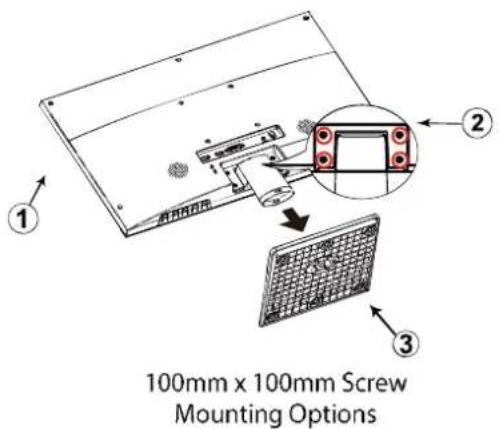
text_image
100mm x 100mm Screw Mounting OptionsAttaching The Optional Wall Mount Arm (not supplied)
Follow these steps to finish installing the wall mounting arm:
- Place the wall mounting arm onto the back of the LED LCD Monitor. Line up the holes of the arm with the holes in the back of the monitor.
- Insert the 4 screws into the holes and tighten.
- Reconnect the cables. Refer to the User's Guide that came with the optional wall mounting arm for instructions on attaching it to the wall.
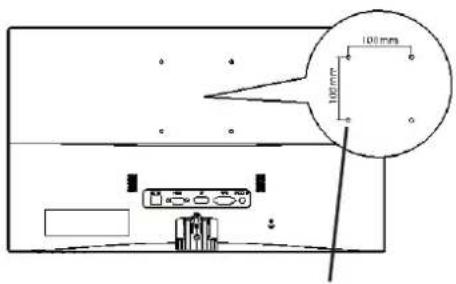
text_image
100 mm 100 mm4mm, 0.7 pitch threaded holes x 4
NOTE
100 mm×100 mm VESA high hole (n=4), M4, pitch =0.7 mm screw mounting kit not included.
Care and Maintenance
Care
- Avoid exposing your LED LCD monitor directly to sunlight or other heat source. Place your LED LCD monitor away from the sun to reduce glare.
- Put your LED LCD monitor in a well ventilated area.
- Do not place any heavy things on top of your LED LCD monitor.
- Make certain your LED LCD monitor is installed in a clean and moisture-free area.
- Keep your LED LCD monitor away from magnets, motors, transformers, speakers and TV sets.
Note
- Move the LED out of the package and take off the plastic bag and Polystyrene Foam.
- Pull the base from Parallel versus Panel to Vertical.
- Adjust the Panel within -5^ leaning forward and 15^ leaning backward.
Safety Tips
- If smoke, abnormal noise or odor came out from your LED LCD monitor, caution you should remove the power cord immediately and call your service center.
- Si de fumée, un bruit anormal ou une odeur s'échappait de votre moniteur, débranchez immédiatement le cordon d'alimentation et appelez votre centre de service.
- Never remove the rear cover of your LED LCD monitor cabinet. The display unit inside contains high-voltage parts and may cause electric shock to human bodies.
- Never try to repair your LED LCD monitor yourself. Always call your service center or a qualified technician to fix it.
Troubleshooting
No power
- Make sure A/C power cord is securely connected to the power adapter and the power supply if firmly connected to the LED LCD Monitor.
- Plug another electrical device into the power outlet to verify that the outlet is supplying proper voltage.
- Make sure all signal cables are installed.
Power on but no screen image
- Make sure the video cable supplied with the LED LCD Monitor is tightly secured to the video output port on back of the computer. If not, tightly secure it.
- Adjust brightness.
Wrong or abnormal colors
- If any colors (red, green, blue) are missing, check the video cable to make sure it is securely connected. Loose or broken pins in the cable connector could cause an improper connection.
- Connect the LED LCD Monitor to another computer.
Planar Support
Cables and Accessories
To find cables and accessories for your Planar monitor, touch screen or other Planar products visit our online store at www.PlanarOnline.com.
Technical Support
Visit Planar at http://www.planar.com/support for operations manuals, touchscreen drivers, warranty information and access to Planar's Technical Library for online trouble shooting.
To speak with Planar Customer Support please have your model and serial number available and dial:
Planar Support
Tel: 1-866-PLANAR1 (866-752-6271) or + 1 503-748-5799 outside the US.
Hours: 24 hours a day, 7 days a week.
Toll or long distance charges may apply.
Planar Systems, Inc.
Customer Service
24x7 Online Technical Support: http://www.planar.com/support
1195 NE Compton Drive, Hillsboro, OR 97006
Tel: 1-866-PLANAR1 (866-752-6271), or + 1 503-748-5799 outside the United States,
Hours: 24 hours a day, 7 days a week
© 2018 Planar Systems, Inc.
Planar is a registered trademark of Planar Systems, Inc. Other brands and names are the property of their respective owners. Technical information in this document is subject to change without notice.