
G903 Lightspeed Wireless - Mouse LOGITECH - Free user manual and instructions
Find the device manual for free G903 Lightspeed Wireless LOGITECH in PDF.
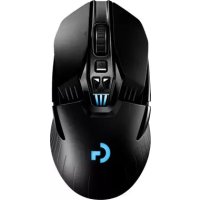



| Product type | Wireless gaming mouse |
| Brand | Logitech |
| Model | G903 Lightspeed Wireless |
| Wireless technology | LIGHTSPEED 2.4 GHz |
| Sensor | Optical |
| Resolution (DPI) | 400 / 800 / 1600 / 3200 / 6400 (5 levels) |
| Report rate | 1 ms (gaming mode) |
| Number of buttons | 11 programmable + scroll wheel + profile button + on/off switch |
| Removable buttons | Yes (magnetic attachment, left/right hand configurations) |
| Scroll wheel | Dual mode (free-spin and notched) with left/right tilt |
| RGB lighting | Programmable (G logo and DPI indicators), synchable via Logitech G HUB |
| Battery | Rechargeable Li-Po 720 mAh |
| Battery life | Up to 32 h (lighting off) / 24 h (RGB lighting) |
| Wireless range | 10 m (recommended < 20 cm from receiver) |
| Built-in profiles | 5 customizable profiles via Logitech G HUB |
| Included accessories | USB receiver, USB adapter, charging cable, 10 g weight, replacement buttons |
| Wireless charging | Compatible with POWERPLAY (sold separately) |
| Compatibility | Windows, macOS (USB port) |
| Maintenance | Remove the protective film before use. Clean with a soft, dry cloth. |
| Warranty | 2 years (standard Logitech) |
Frequently Asked Questions - G903 Lightspeed Wireless LOGITECH
User questions about G903 Lightspeed Wireless LOGITECH
0 question about this device. Answer the ones you know or ask your own.
Ask a new question about this device
Download the instructions for your Mouse in PDF format for free! Find your manual G903 Lightspeed Wireless - LOGITECH and take your electronic device back in hand. On this page are published all the documents necessary for the use of your device. G903 Lightspeed Wireless by LOGITECH.
USER MANUAL G903 Lightspeed Wireless LOGITECH
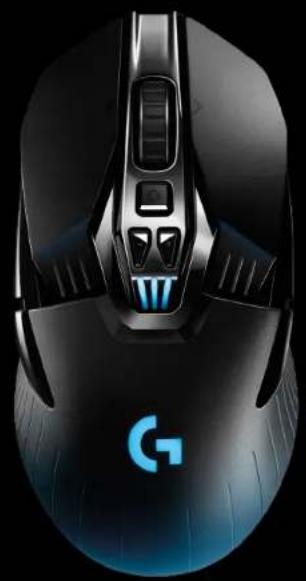
LIGHTSPEED Wireless Gaming Mouse
Souris gaming sans fil LIGHTSPEED
SETUP GUIDEGUIDED INSTALLATION
logitech


ENGLISH 3
FRANCAIS 10
ESPANOL 17
PORTUGUES 24


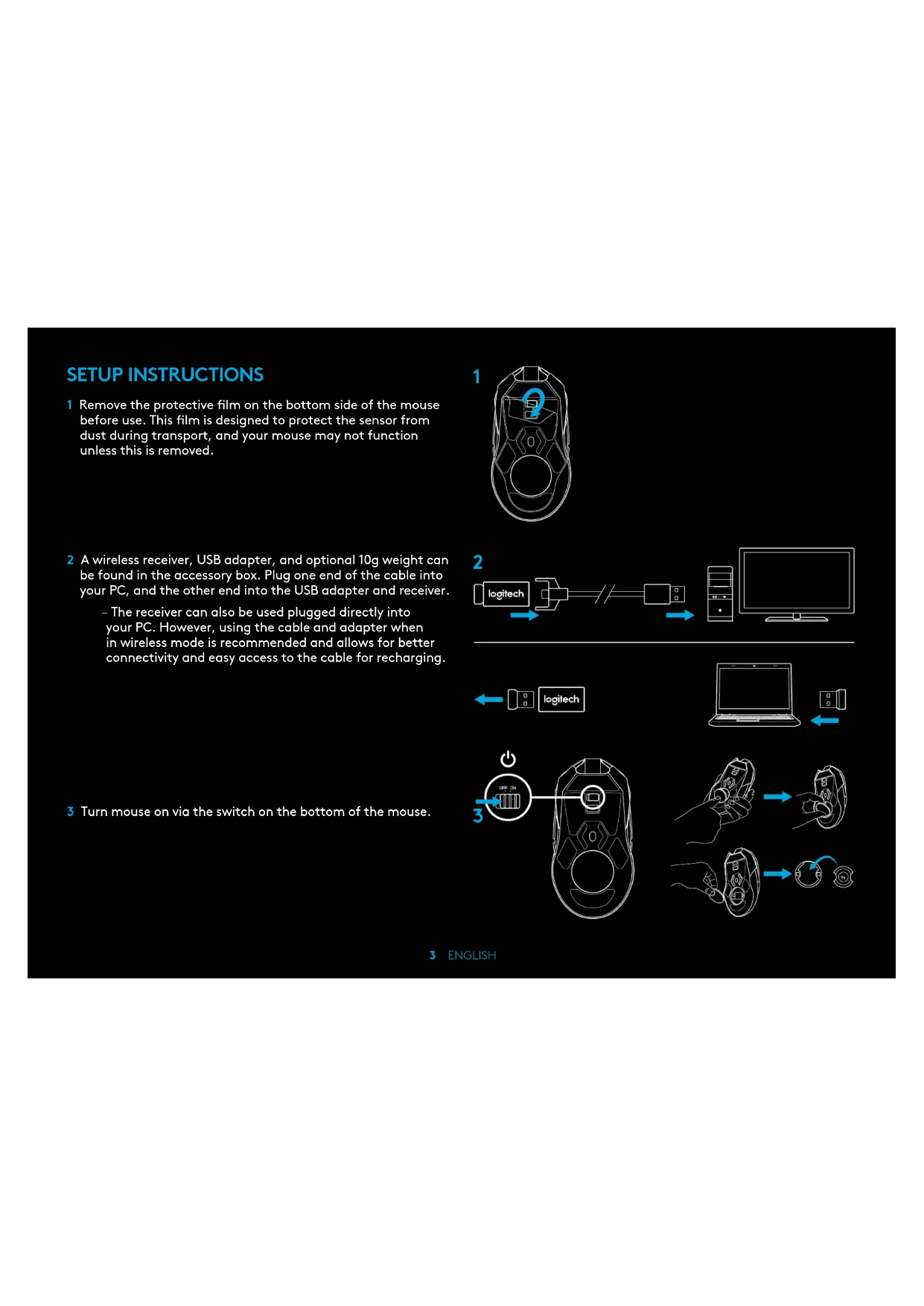
SETUP INSTRUCTIONS
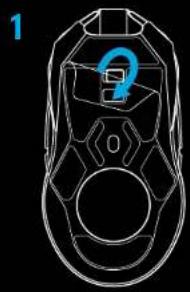
1 Remove the protective film on the bottom side of the mouse before use. This film is designed to protect the sensor from dust during transport, and your mouse may not function unless this is removed.
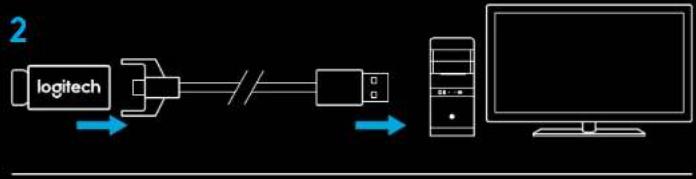
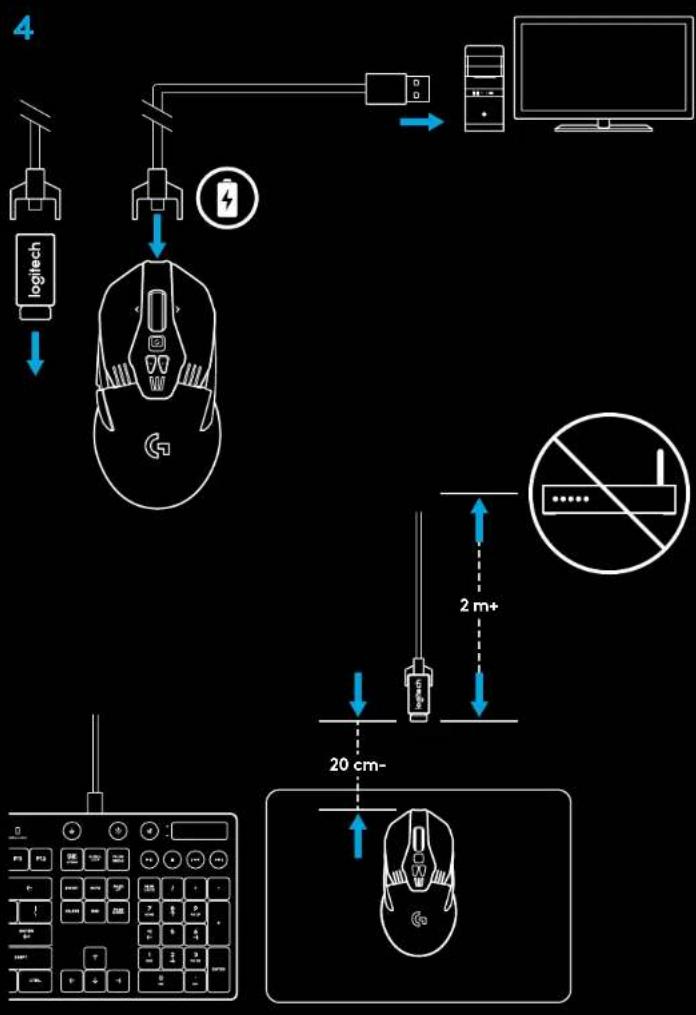
2 A wireless receiver, USB adapter, and optional 10g weight can be found in the accessory box. Plug one end of the cable into your PC, and the other end into the USB adapter and receiver.
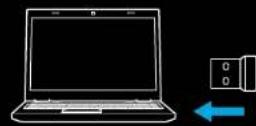
- The receiver can also be used plugged directly into your PC. However, using the cable and adapter when in wireless mode is recommended and allows for better connectivity and easy access to the cable for recharging.
3 Turn mouse on via the switch on the bottom of the mouse.

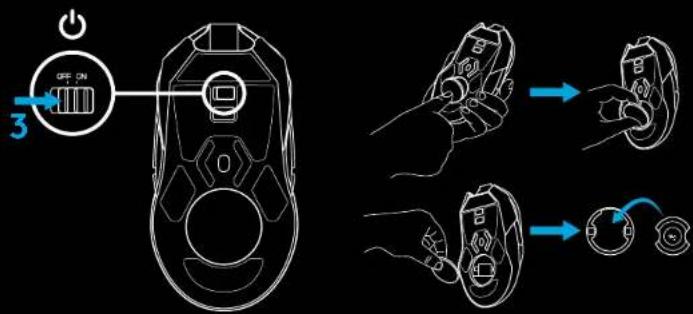
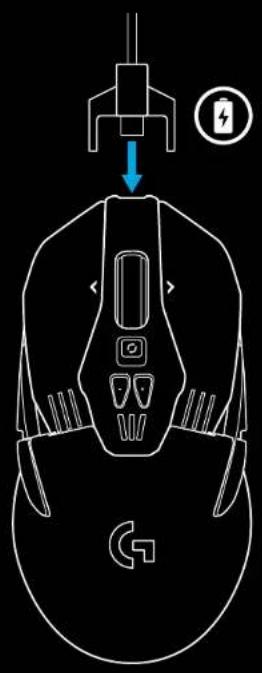
4 To charge, disconnect the cable from the adapter and plug into the front of the mouse. Your mouse will operate in data-over-cable mode whenever it is plugged in directly to a PC. Full charge from empty requires approximately two hours plugged in to a PC USB port.
Tips:
- Keep the mouse and receiver 2m+ away from wireless routers or other 2.4GHz wireless devices to minimize environmental noise.
- G903 has a wireless range of up to 10 meters. To ensure optimal performance in noisy wireless environments, and to keep the charging cable easily accessible, it is recommended to keep the receiver within 20 cm of the mouse.
BUTTON CONFIGURATIONS
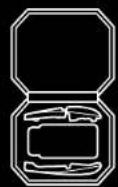
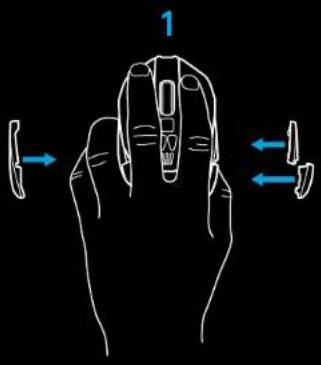
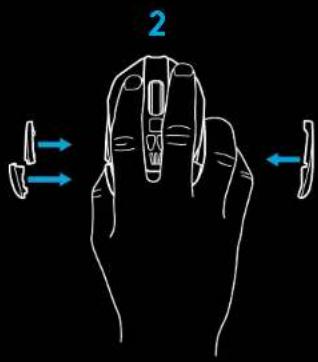
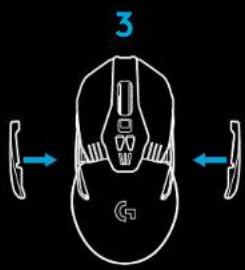
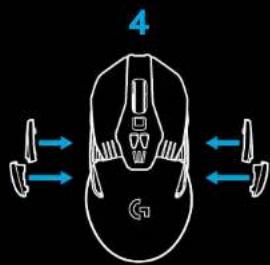
G903 comes with replaceable buttons and button caps, which are held onto the mouse magnetically. These should be stored in box when not in use. These replaceable buttons support conversion to the following configurations:
1 Left handed
2 Right handed
3 No buttons
4 Full buttons
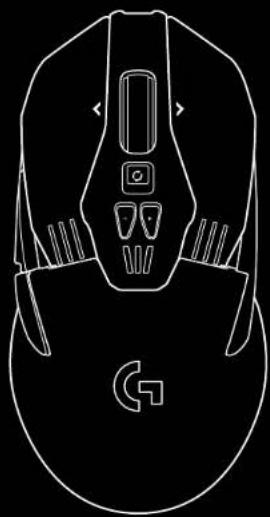
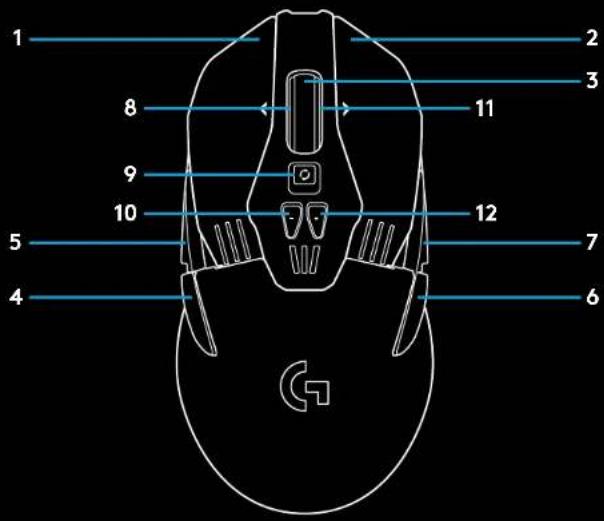
11 FULLY PROGRAMMABLE BUTTONS
1 Left (Button 1)
2 Right (Button 2)
3 Wheel click (Button 3)
4 Back (Button 4)
5 Forward (Button 5)
6 Back (Button 6)
7 Forward (Button 7)
8 Scroll left (wheel tilt left)
9 Wheel mode shift (not programmable)
10 DPI Down (Button-)
11 Scroll right (wheel tilt right)
12 DPIUp (Button+)
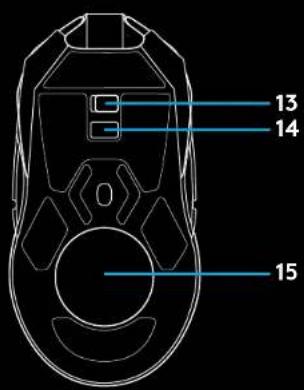
13 On/Off switch (bottom of mouse, not programmable)
14 Profile Select (bottom of mouse, not programmable)
15 Weight door
WIRELESS BATTERY LIFE
G903 has a rechargeable 720mAh LiPol battery which provides it with up to 32 hours non-stop gaming at 1ms report rate with lights off, or 24 hours non-stop gaming at 1ms report rate with RGB color cycling on.*
- Charge level can be checked when the mouse is powered on or using Logitech Gaming Software to assign a button to check charge level.
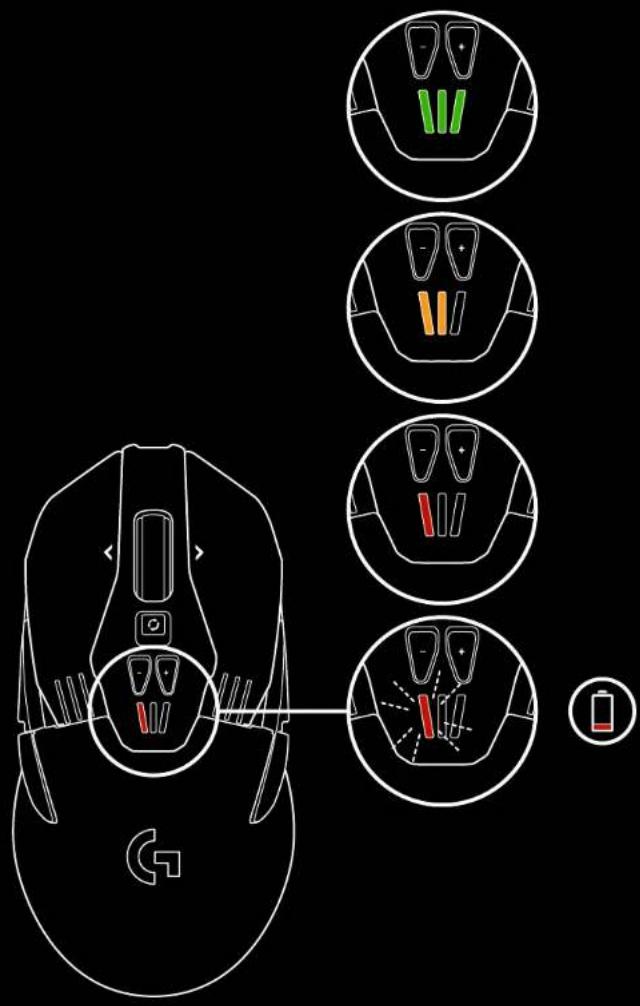
- Charge level is displayed for seven seconds at mouse power-on using the color and number of bars illuminated on the DPI indicator:
-3green bars = 50 - 100%
-2orange bars = 30 - 50%
-1redbar = 15 - 30%
-1 flashing red bar = <15%
Tip: You can program a button to show charge level using LGS.
- The left DPI LED will flash red when battery is at 15% or less. When this happens, plug in your mouse to charge.
- Charge level, power draw, and estimated remaining battery life can be checked in Logitech Gaming Software
*Battery life and capacity may vary with age and use. Rechargeable batteries have a limited number of charge cycles.
CHARGING/DATA OVER CABLE
Plug your mouse in via the provided USB charging cable when the battery is low. G903 is also compatible with the Logitech G POWERPLAY wireless charging system, sold separately.
RGB PROGRAMMABLE LIGHTING
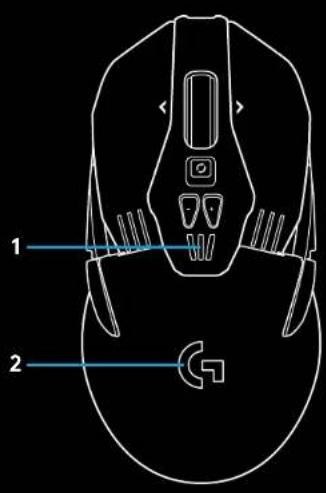
G903 has two lighting zones
1 DPI indicators
2 G logo
These colors can be customized using Logitech Gaming Software to a variety of breathing, color cycling, or solid color modes. Lighting patterns can also be synchronized with other supported Logitech G devices using this software.
LOGITECH GAMING SOFTWARE
You can customize the 5 onboard profiles of the G903 using the Logitech Gaming Software. These settings include surface tuning, button programming, lighting color, lighting effects, report rate, and tracking behavior. G903 allows up to 5 DPI settings per profile.
By default, G903 has 1 active onboard profile with the following settings:
-DPI:400/800/1600/3200/6400
RGB lighting: color cycle
Report rate: 1ms
DPI/ONBOARD PROFILE INDICATORS
DPI/Onboard profiles are shown using three LEDs under the -/+ buttons. The image below shows which values are being indicated by the LED panel.

DPI/Profile 1 DPI/Profile 2


DPI/Profile 3

DPI/Profile 4 DPI/Profile 5

HYPERFAST SCROLL WHEEL
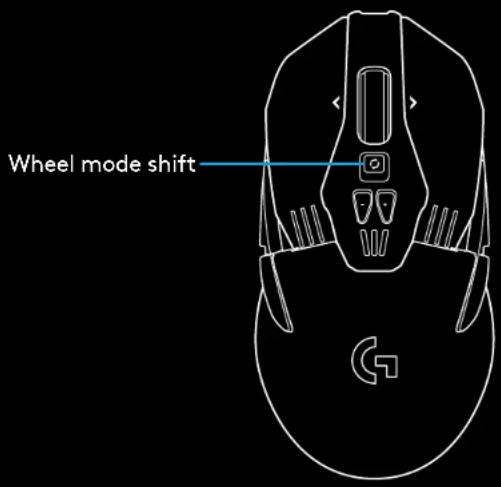
G903 features Logitech's exclusive dual-mode Hyperfast scroll wheel. Click the button right below the wheel to switch between the two modes.
QUESTIONS
http://support.logitech.com/product/g903
INSTRUCTIONS D'INSTALLATION
LOGITECH GAMING SOFTWARE
LOGITECH GAMING SOFTWARE
© 2017 Logitech. All rights reserved. Logitech, Logi and other Logitech marks are owned by Logitech and may be registered. All other trademarks are the property of their respective owners. Logitech assumes no responsibility for any errors that may appear in this manual. Information contained herein is subject to change without notice.


Brand : LOGITECH
Model : G903 Lightspeed Wireless
Category : Mouse