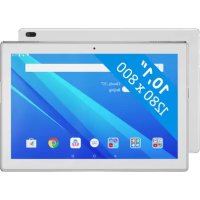
Tab4 10 - Tablet LENOVO - Free user manual and instructions
Find the device manual for free Tab4 10 LENOVO in PDF.



| Product Type | Tablet |
| Brand | Lenovo |
| Model | Tab4 10 (TB-X304F / TB-X304L) |
| Screen | 10-inch touchscreen |
| Wireless connectivity | WLAN 802.11b/g/n, Bluetooth 2.4 GHz |
| Mobile connectivity (LTE model) | GSM 900/1800, UMTS B1/B8, LTE B1/3/7/8/20/38/40 |
| Front camera | Integrated |
| Rear camera | Integrated |
| Speakers | Stereo (built-in) |
| Battery | Built-in rechargeable lithium-ion |
| Power | Charging via micro USB connector with power adapter |
| Memory card slot | microSD (sold separately) |
| SIM card slot (LTE model) | Nano SIM |
| Headphone jack | 3.5 mm jack |
| Maintenance and cleaning | Clean with a soft, dry cloth. Do not use abrasive products or solvents. |
| Safety | Do not expose to moisture; keep plastic bags away from children; do not replace the battery yourself. |
| Spare parts and repairability | Battery not user-replaceable. For replacement, contact Lenovo support. microSD and nano SIM cards are replaceable. |
| General information | Lenovo limited warranty. Online support: http://support.lenovo.com. |
Frequently Asked Questions - Tab4 10 LENOVO
User questions about Tab4 10 LENOVO
0 question about this device. Answer the ones you know or ask your own.
Ask a new question about this device
Download the instructions for your Tablet in PDF format for free! Find your manual Tab4 10 - LENOVO and take your electronic device back in hand. On this page are published all the documents necessary for the use of your device. Tab4 10 by LENOVO.
USER MANUAL Tab4 10 LENOVO
Safety, Warranty & Quick Start Guide
Lenovo TB-X304F
Lenovo TB-X304L
Contents
English 1
François. 14
Espanol 27
English

Read this guide carefully before using your device.
All information labeled with * in this guide only refers to the WLAN ^+ LTE model (Lenovo TB-X304L).
Reading first - regulatory information
Device models equipped with wireless communications comply with the radio frequency and safety standards of any country or region in which it has been approved for wireless use. In addition, if your product contains a telecom modem, it complies with the requirements for connection to the telephone network in your country.
Be sure to read the Regulatory Notice for your country or region before using the wireless devices contained in your device. To obtain a PDF version of the Regulatory Notice, refer to the "Downloading publications" section below.
Getting support
To get support on network services and billing, contact your wireless network operator.
To learn how to use your tablet and view its technical specifications, go to
http://support.lenovo.com.
Downloading publications
Electronic versions of your publications are available from http://support.lenovo.com. To download the publications for your tablet, go to http://support.lenovo.com and follow the instructions on the screen.
Accessing your User Guide
Your User Guide contains detailed information about your tablet. To access your User Guide, go to http://support.lenovo.com and follow the instructions on the screen.
Legal notices
Lenovo and the Lenovo logo are trademarks of Lenovo in the United States, other countries, or both.
Other company, product, or service names may be trademarks or service marks of others.
Manufactured under license from Dolby Laboratories. Dolby, Dolby Atmos, and the double-D symbol are trademarks of Dolby Laboratories.
LIMITED AND RESTRICTED RIGHTS NOTICE: If data or software is delivered pursuant to a General Services Administration "GSA" contract, use, reproduction, or disclosure is subject to restrictions set forth in Contract No. GS-35F-05925.
Device overview
| Model Version | |
| Lenovo TB-X304F WLAN | |
| Lenovo TB-X304L WLAN + LTE |
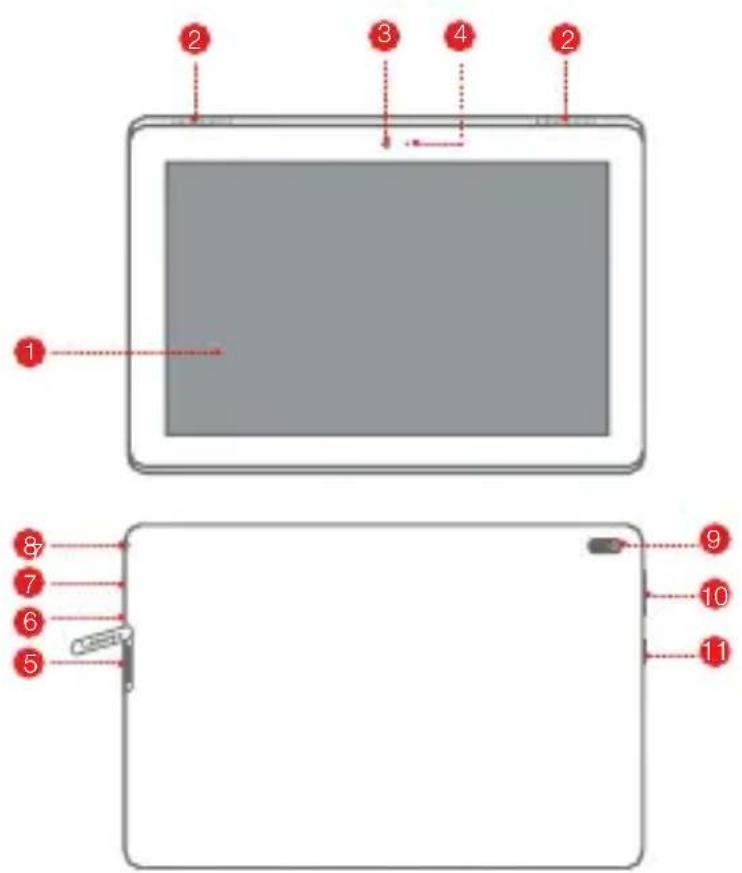
Touch screen
2 Speakers
3 Front camera
4 Indicator
5 Card tray
6 Microphone
7 Micro USB connector
Headset connector
9 Rear camera
10 Volume buttons
11 Power button
The WLAN version (Lenovo TB-X304F) does not have a card tray.
All pictures and illustrations in this document are for your reference only and may differ from the final product.
Preparing your device
Use a microSD card (sold separately) for extra storage.
- To access cellular networks with your device (WLAN + LTE version only - model number Lenovo TB-X304L), insert a Nano-SIM card provided by your carrier into the slot as shown below.
Step 1. Open the card slot cover.
Step 2. Insert the *Nano-SIM and microSD cards as shown.
Step 3. Replace the card slot cover.
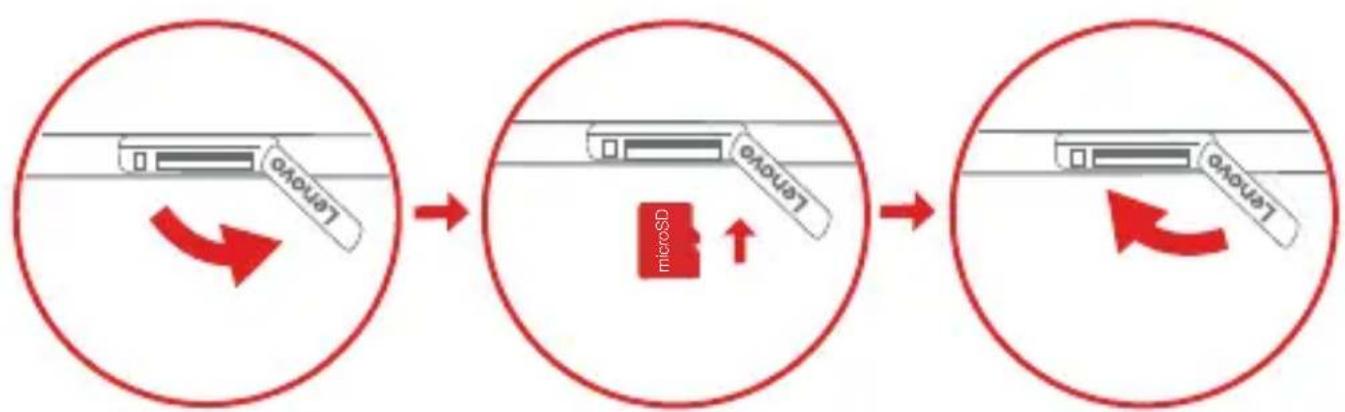
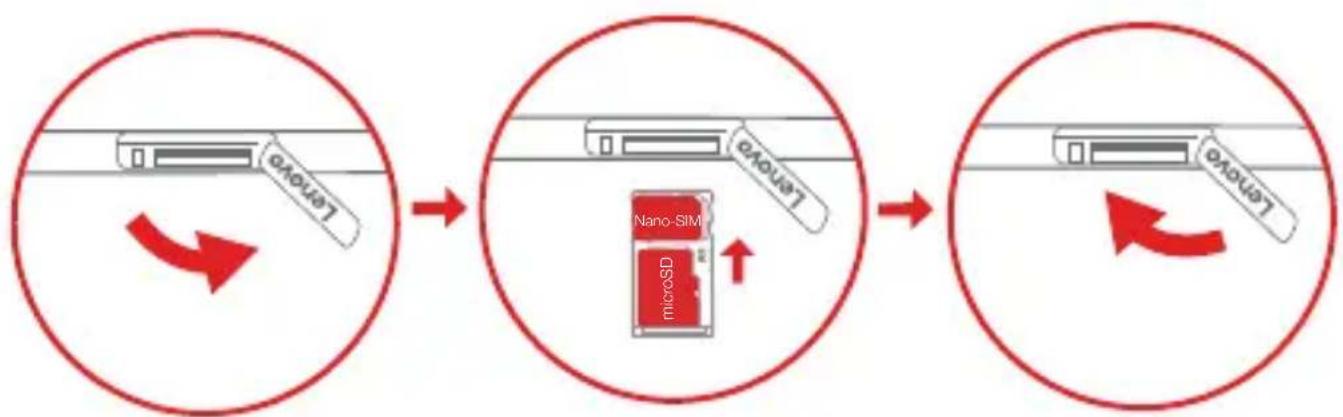
Figure 1: WLAN
Figure 2: WLAN + LTE
Only Nano-SIM cards work with your device.
Do not insert or remove the Nano-SIM card while your device is powered on. Doing so may cause permanent damage to your Nano-SIM card or device.
Using your device for the first time
You might need to charge the battery before using your device. Insert the charger into the charging port as shown below.
Connect your tablet to a power outlet using the cable and USB power adapter provided.
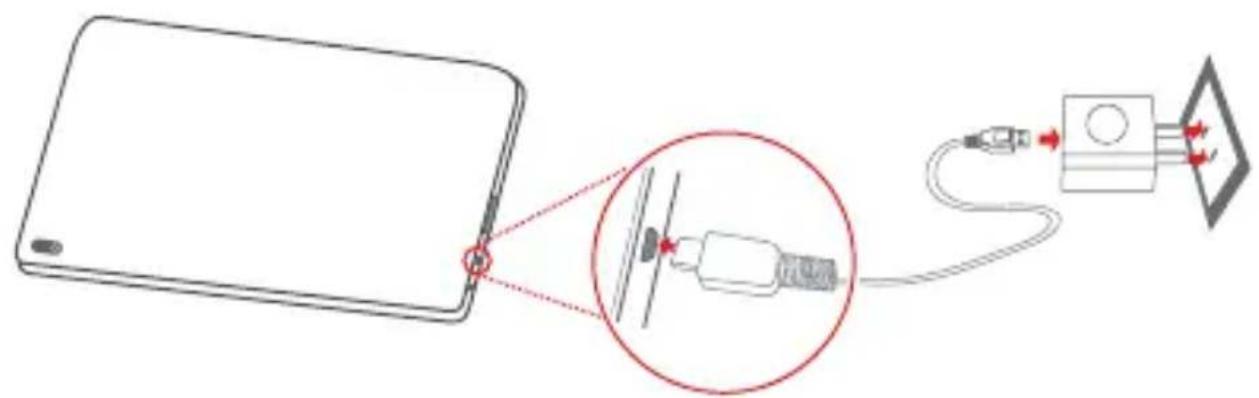

Low battery Fully charged Charging

Turning on/off
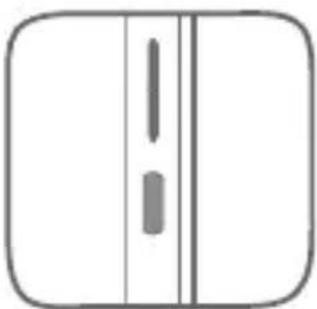
Turn on: Press and hold the Power button until the Lenovo logo appears.
Turn off: Press and hold the Power button for a few seconds, then tap Power off.
Restart: Press and hold the Power button for about 10 seconds to restart.
Important safety and handling information
Plastic bag notice
Danger: Plastic bags can be dangerous. Keep plastic bags away from babies and children to avoid danger of suffocation.
Built-in rechargeable battery notice
Danger: Do not attempt to replace the internal rechargeable lithium ion battery. Risk of explosion if the battery is replaced with an incorrect type. Contact Lenovo Support for factory replacement. Dispose of used batteries according to the instructions.
Caution about high volume usage
Warning: Exposure to loud noise from any source for extended periods of time may affect your hearing. The louder the sound, the less time is required before your hearing could be affected. To protect your hearing:
- Limit the amount of time you use headsets or headphones at high volume.
- Avoid turning up the volume to block out noisy surroundings.
- Turn the volume down if you can't hear people speaking near you.
If you experience hearing discomfort, including the sensation of pressure or fullness in your ears, ringing in your ears or muffled speech, you should stop listening to the device through your headset or headphones and have your hearing checked.
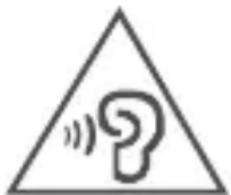
To prevent possible hearing damage, do not listen at high volume levels for long periods.
Safety instructions for parents and adult supervisors
Your mobile device is not a toy. Not recommended for children under 3 years of age to play with it. As with all electrical products, precautions should be observed during handling and using of electrical products to reduce the risk of electric shock. If parents choose to allow children 3 or older to use the device, they should caution his or her child about the potential hazard while using and handling the mobile device.
Parental should inspect the mobile device (including the ac power adapter and the small part, as applicable) periodically for damage. Routinely check this mobile device to ensure that the device is working properly and is safe for children to use.
Service and support information
The following information describes the technical support that is available for your product, during the warranty period or throughout the life of your product. Refer to the Lenovo Limited Warranty (LLW) for a full explanation of Lenovo warranty terms. See "Lenovo Limited Warranty notice" later in this document for details on accessing the full warranty.
Online technical support
Online technical support is available during the lifetime of a product at: http://www.lenovo.com/support
Telephone technical support
You can get help and information from the Customer Support Center by telephone. Before contacting a Lenovo technical support representative, please have the following information available: model and serial number, the exact wording of any error message, and a description of the problem.
Your technical support representative might want to walk you through the problem while you are at your device during the call.
Worldwide Lenovo Support telephone list
Important: Telephone numbers are subject to change without notice. The most up-to-date telephone list for the Customer Support Center is always available at:
http://www.lenovo.com/support/phone
If the telephone number for your country or region is not listed, contact your Lenovo reseller or Lenovo marketing representative.
Warranty information
Lenovo Limited Warranty notice
This product is covered by the terms of the LLW, version L505-0010-02 08/2011. Read the LLW at http://www.lenovo.com/warranty/lw_02. You can read the LLW in a number of languages from this Web site. If you cannot view the LLW from the Web site, contact your local Lenovo office or reseller to obtain a printed version of the LLW.
Warranty period and type of warranty service
| Country or region Warranty period | Type of warranty service | |
| Germany, Italy, Austria, United Kingdom, Israel, Australia, New Zealand | Parts and Labor - 1 year Battery Pack - 1 year | 1,3 |
| Guatemala, Costa Rica, Venezuela, Peru, Uruguay, Ecuador, Colombia, Chile, Argentina, Indonesia, Vietnam, India, Malaysia, Thailand, Philippines, Singapore, Hong Kong, El Salvador, Taiwan, South Korea | Parts and Labor - 1 year Battery Pack - 1 year | 1,4 |
| Russia, Ukraine, Egypt, Lebanon, Morocco, South Africa, Tunisia, Mauritius, Mozambique, United Arab Emirates, Jordan, Kenya, Nigeria, Uganda, Ghana, Oman, Tanzania, Namibia | Parts and Labor - 1 year Battery Pack - 1 year | 4 |
| United States of America, Canada, Mexico, Japan | Parts and Labor - 1 year Battery Pack - 1 year | 1,5 |
| Panama | Parts and Labor - 1 year Battery Pack - 1 year | 2,4 |
| Brazil | Parts and Labor - 1 year Battery Pack - 1 year | 2,5 |
| Spain, Switzerland, Portugal, Netherlands, Belgium, Sweden, Denmark, Norway, Finland, Estonia, Latvia, Lithuania, Iceland, France | Parts and Labor - 2 years Battery Pack - 1 year | 1,3 |
| Czech Republic, Hungary, Romania, Bulgaria, Greece, Croatia, Slovenia, Slovakia, Cyprus, Poland | Parts and Labor - 2 years Battery Pack - 1 year | 1,5 |
| Turkey | Parts and Labor - 2 years Battery Pack - 2 years | 3,4 |
| Saudi Arabia | Parts and Labor - 2 years Battery Pack - 2 years | 4 |
| Serbia | Parts and Labor - 2 years Battery Pack - 1 year | 1,4 |
- Excludes some components. 90-day limited warranty for power adapters, keyboards, plastics, and hinges.
Type of warranty service
- Customer Replaceable Unit ("CRU") Service
- On-site Service
- Courier or Depot Service
- Customer Carry-In Service
- Mail-in Service
- Customer Two-Way Mail-in Service
- Product Exchange Service
For a full explanation of the types of warranty service, refer to the full warranty. See "Lenovo Limited Warranty notice" for details on accessing the full warranty.
EurAsia compliance mark
EAC
Environmental, recycling, and disposal information
General recycling statement
Lenovo encourages owners of information technology (IT) equipment to responsibly recycle their equipment when it is no longer needed. Lenovo offers a variety of programs and services to assist equipment owners in recycling their IT products. For information on recycling Lenovo products, go to http://www.lenovo.com/recycling.
Important battery and WEEE information
Batteries and electrical and electronic equipment marked with the symbol of a crossed-out wheeled bin may not be disposed as unsorted municipal waste. Batteries and waste of electrical and electronic equipment (WEEE) shall be treated separately using the collection framework available to customers for the return, recycling, and treatment of batteries and WEEE. When possible, remove and isolate batteries from WEEE prior to placing WEEE in the waste collection stream. Batteries are to be collected separately using the framework available for the return, recycling, and treatment of batteries and accumulators. Country-specific information is available at: http://www.lenovo.com/recycling
Recycling information for Japan
Recycling and disposal information for Japan is available at: http://www.lenovo.com/recycling/japan
Additional recycling statements
Additional information about recycling device components and batteries is in your User Guide. See "Accessing your User Guide" for details.
Battery recycling marks
Battery recycling information for Taiwan

廢電池請回收
Battery recycling information for the United States and Canada
US & Canada Only
Battery recycling information for the European Union
Energy efficiency mark

Restriction of Hazardous Substances Directive (RoHS)
Turkey
The Lenovo product meets the requirements of the Republic of Turkey Directive on the Restriction of the Use of Certain Hazardous Substances in Waste Electrical and Electronic Equipment (WEEE).
RoHS compliant as per E-Waste (Management) Rules.
Vietnam
Lenovo products sold in Vietnam, on or after September 23, 2011, meet the requirements of the Vietnam Circular 30/2011/TT-BCT ("Vietnam RoHS").
European Union
Lenovo products sold in the European Union, on or after 3 January 2013 meet the requirements of Directive 2011/65/EU on the restriction of the use of certain hazardous substances in electrical and electronic equipment ("RoHS recast" or "RoHS 2"). For more information about Lenovo progress on RoHS, go to:
http://www.lenovo.com/social Responsibility/us/en/RoHS_Communication.pdf
European Union compliance statement
European Union conformity
EU contact: Lenovo, Einsteinova 21, 851 01 Bratislava, Slovakia
Compliance with the RE Directive
Lenovo PC HK Limited declares that the radio equipment type Lenovo TB-X304F, Lenovo TB-X304L is in compliance with Directive 2014/53/EU.
The full text of the EU declaration of conformity is available at the following internet address:
https://download.lenovo.com/consumer/mobiles_pub/lenovo_tb_x304f_doc.pdf
https://download.lenovo.com/consumer/mobiles_pub/lenovo_tb_x304l_doc.pdf
This radio equipment operates with the following frequency bands and maximum radiofrequency power:
| Model Name Frequency Bands | Maximum Conducted Power (dBm) |
| Lenovo TB-X304L | GSM 900 34 |
| GSM 1800 31 | |
| UMTS B1/B8 24 | |
| LTE B1/3/7/8/20/38/40 23 | |
| 802.11b/g/n 2.4GHz <20 | |
| Bluetooth 2.4GHz <20 | |
| Lenovo TB-X304F | 802.11b/g/n 2.4GHz <20 |
| Bluetooth 2.4GHz <20 |
The above information is for EU countries only. Please refer to the actual product for supported frequency bands in other countries.
Specific Absorption Rate information
YOUR MOBILE DEVICE MEETS INTERNATIONAL GUIDELINES FOR EXPOSURE TO RADIO WAVES.
Your mobile device is a radio transmitter and receiver. It is designed not to exceed the limits for exposure to radio waves (radio frequency electromagnetic fields) recommended by international guidelines. The guidelines were developed by an independent scientific organization (ICNIRP) and include a substantial safety margin designed to assure the safety of all persons, regardless of age and health.
The radio wave exposure guidelines use a unit of measurement known as the Specific Absorption Rate, or SAR. The SAR limit for mobile devices is 2.0W / kg . Tests for SAR are conducted using standard operating positions with the device transmitting at its highest certified power level in all tested frequency bands. The highest SAR values under the ICNIRP guidelines for your device model are listed below:
| Maximum SAR for this model and conditions under which it was recorded. | ||||
| Europe 10g SAR Limit (2.0 W/kg) | Lenovo TB-X304F | Body-worn WLAN, Bluetooth 1.14 | ||
During use, the actual SAR values for your device are usually well below the values stated. This is because, for purposes of system efficiency and to minimize interference on the network, the operating power of your mobile device is automatically decreased when full power is not needed for the data connection.
The lower the power output of the device, the lower its SAR value.
If you are interested in further reducing your RF exposure then you can easily do so by limiting your usage or simply using a hands-free kit to keep the device away from the body.
Wireless-radio compliance information
Tablet models equipped with wireless communications comply with the radio frequency and safety standards of any country or region in which it has been approved for wireless use.
Mexico wireless-radio compliance information
Select models conform to ENERGY STAR requirements. Additional ENERGY STAR information is in the User Guide. Refer to "Accessing your User Guide" in this publication.
Français
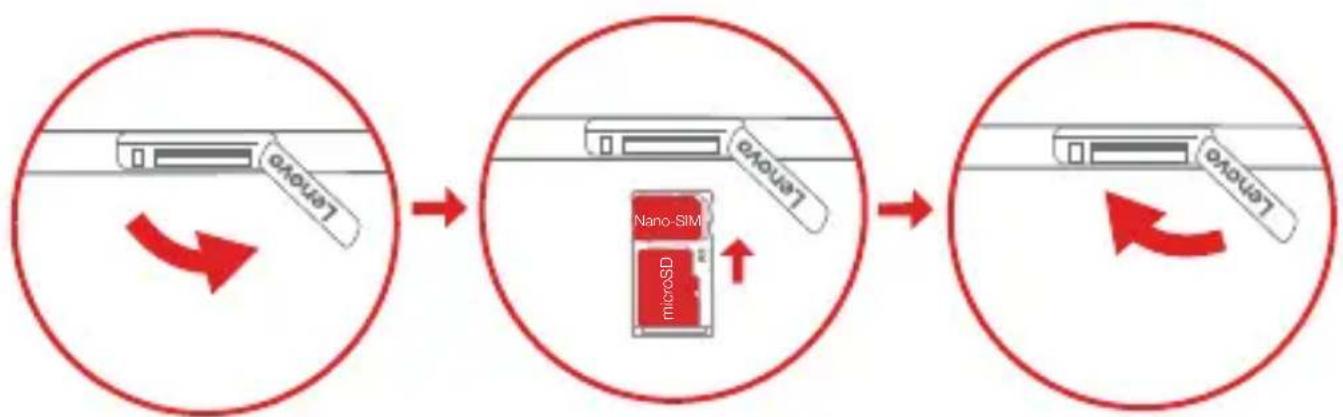
Figure 1: WLAN
Figure 2:WLAN+LTE
Directive européen RoHS (Restriction of Hazardous Substances)
Turquie
RoHS compliant as per E-Waste (Management) Rules.
Viet Nam
23/F, Lincoln House, Taikoo Place 979 King's Road, Quarry Bay, Hong Kong
http://www.lenovo.com/recycling/japan
RoHS compliant as per E-Waste (Management) Rules.
Vietnam
© Copyright Lenovo 2017.
Reduna | Rouna | Recycle

V1.0_20170414
HQ60113136000 MC
Printed in China