SL73 Studio - MIDI Keyboard Studiologic - Free user manual and instructions
Find the device manual for free SL73 Studio Studiologic in PDF.



| Product Type | Master MIDI Keyboard |
| Brand | Studiologic |
| Model | SL73 Studio |
| Number of keys | 73 keys |
| Keyboard action | TP/100, progressive hammer action, white wooden keys with ivory coating, 3 contacts per key |
| Aftertouch | Yes, built-in |
| Display | TFT color LCD 320 x 240 pixels |
| Programmable zones | 4 independent zones with keyboard range, MIDI channel, velocity curve, etc. |
| Real-time controllers | 3 programmable sticks (1 spring-loaded on both axes, 1 spring-loaded on horizontal axis, 1 free) |
| MIDI connectivity | MIDI In, MIDI Out (5-pin DIN connectors) |
| USB connectivity | USB type B for computer connection (MIDI and firmware update) |
| Pedal inputs | 4 jacks: 2 for switch pedal, 1 for continuous pedal, 1 universal (compatible with switch and continuous) |
| Power supply | Power adapter 9 V DC, 1 A, center positive (included) |
| Dimensions (approx.) | 1230 x 310 x 90 mm (W x D x H) |
| Weight (approx.) | 16.5 kg |
| Included accessories | Power adapter, VFP1-10 / PS100 pedal, user manual on CD-ROM |
| Dedicated software | SL Editor (free, for advanced settings from a computer) |
| Program management | Programs and groups (up to 12 groups) |
| Maintenance | Slightly damp microfiber cloth, no abrasive detergent |
| Safety | Do not open the chassis, use only the supplied adapter, avoid moisture |
Frequently Asked Questions - SL73 Studio Studiologic
User questions about SL73 Studio Studiologic
0 question about this device. Answer the ones you know or ask your own.
Ask a new question about this device
Download the instructions for your MIDI Keyboard in PDF format for free! Find your manual SL73 Studio - Studiologic and take your electronic device back in hand. On this page are published all the documents necessary for the use of your device. SL73 Studio by Studiologic.
USER MANUAL SL73 Studio Studiologic
Important Safety Instructions

Please read the entire manual. It contains all the information you need to use this unit.
Please follow the instructions in this manual. The warranty will be void if unauthorized work is carried out on the instrument. Only accessories specified by the manufacturer should be used with this unit. Use the unit only as specified in this manual.

DANGER!
Risk of electric shock. Do not open the chassis. There are no user serviceable parts inside.
The unit should only be serviced by qualified service staff.

Humidity
To reduce the risk of fire or electric shock, do not expose the unit to rain or moisture. Never place containers with liquid on the unit. Do not use the unit near water, swimming pool, bathtub or wet basement. If the unit is moved from a cold place to a warm room, condensation may occur inside. To avoid damage please allow the unit to reach room temperature before switching on.

Installation
Always use a stable rack or surface to place the keyboard on. Please be aware of its size and weight.
Cleaning / Maintenance
Never use any abrasive detergent, which may damage the surface. We recommend a slightly moist micro-fibre cloth.
Packaging
Please keep all packaging and use it to protect the instrument when transporting or if servicing is required.

Mains
Before connecting the unit to the main power supply, please check if the power supply is suitable for the instrument. The unit can be powered with 100 - 240VAC, using the included power supply/adapter.
Safety Instructions 4
Your new SL 6 Keyboard
6 Zones
6 Delivery includes
7 Working explanation
Power-Input&Connection 8
8 Power connections
8 Inputs
8 MIDIN/OUT
8 USB
Control Panel 9
9 Control panel
9 Programmable Sticks
Setup parameters 10
10 HOME Display
10 Program Selection & Edit
12 Programmable Groups
13 Zone Edit
14 Programmable Sticks
Global settings 15
15 GLOBAL/SYSTEM
Firmware management 17
17 Firmware upgrade
17 SL Editor
Declarations 18
18
Appendix 67
69 Specifications
69 Dimension
Thank you very much for choosing the SL. You have obtained a state-of-the-art professional instrument made by the renowned manufacturer Studiologic. The SL is easy to operate, thanks to the large colour display, the main Encoder with navigation controls plus built in click and it offers a perfect keyboard touch. We recommend that you read the entire manual carefully to take full advantage of all the functions of your SL. This manual is intended to be an easy, fast, Quick Guide that should help the user to understand the instrument and all mind related controls, rather than a general description of the complete structure and detailed editing, also made more flexible and user's friendly by the computer Editor that will be downloadable from our official sites.
Let us start with an overview of the functions of the SL.
Keyboard The SL Controllers offer the latest innovative technology by Fatar: the sophisticated Hammer Action Keyboard with 3 contacts per key and Aftertouch. Therefore the SL Controllers are very portable, yet it offers the realistic grand piano touch for which Fatar is famous.
Zones The keyboard can be divided into 4 programmable zones. You can define each zone's keyboard range and select at which velocity level it will send its MIDI data, together with a wide range of settings and controls.
Each zone can be assigned to a different port and the new programmable Sticks can control different MIDI parameters for each zone.
Delivery includes SL88 Grand / SL88 Studio / SL73 Studio
AC power adaptor
VFP1-10/PS100 pedal
Operation Manual (CD Rom)
YOUR PROJECTS
| Library | Groups |
| PROGRAM 001 | GROUP 01 |
| PROGRAM 002 | GROUP 02 |
| PROGRAM 003 | GROUP ... |
| PROGRAM ... | GROUP 12 |
| PROGRAM xxx |
Power - Inputs & Connections
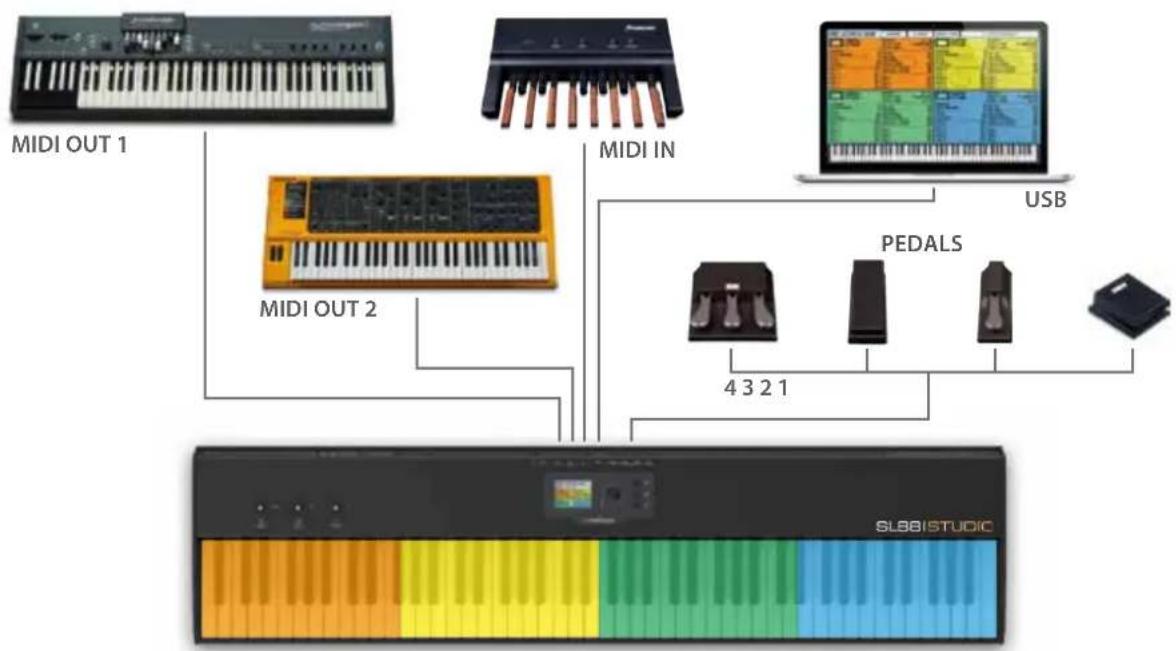
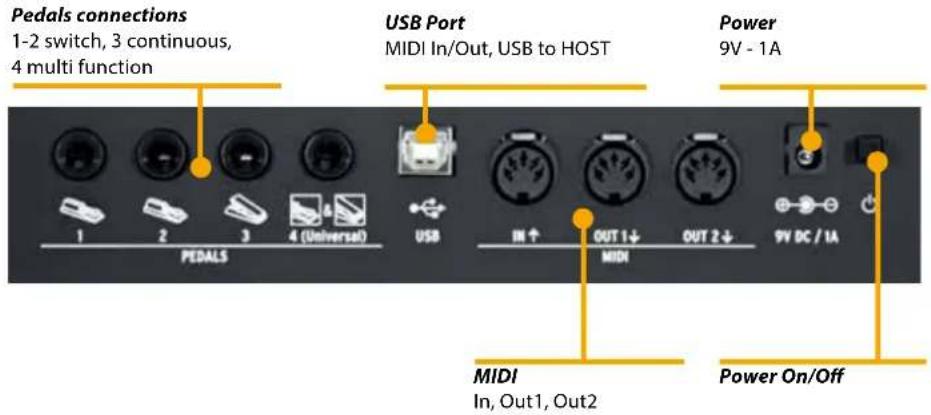
All connections are placed in the back of the instrumen, for an easier access and protection:
Power connection
Insert the adapter plug into the back socket of the instrument and turn the instrument on, by moving the related switch to the 1 position (1=ON, 0=OFF).

CAUTION:
Be sure that the adapter is the original one (included in the box) or a suitable/compatible one with the correct voltage and power (9V - 1A, positive pin + at centre).
Inputs
Assignable pedals connections:
2 switches
1 continuous
1 multi functions
You can connect compatible Switch pedals (for the related functions) to Pedal 1 and 2, a dedicated Volume/Expression Pedal to the Pedal 3 input and one of the compatible pedals in the special multi plug 4.
Midi IN/OUT
The MIDI connections allow to control any external Midi Device and/or connect the SL to other external MIDI devices, for all related data transmission (notes, program changes etc.)
USB
The USB (Universal Serial Buss) also allows the connection to external devices (i.e. Computers) to updates the firmware or establish a MIDI connection (IN/OUT).
When the SL is connected to a computer via USB, you can also use the SL Editor to set all SL parameters in a very fast and direct way, including controls not available in the internal SL editing structure (i.e.: the Keyboard Balance function, that allows to change the velocity sensitivity of each individual key and balance black and white keys, with a single control.
Control Panel
Programmable Sticks
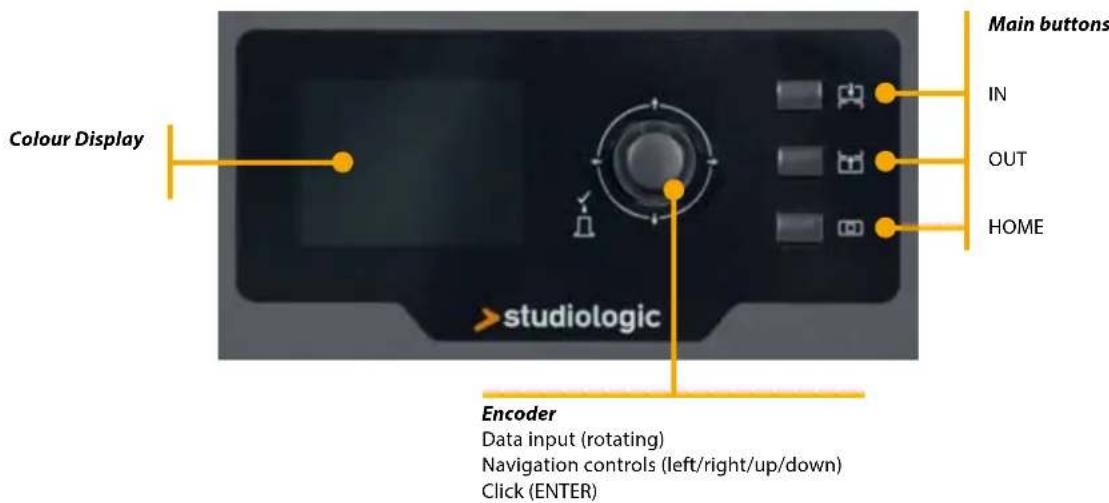
The new SL Control Panel is a concentrate of technology and user's friendly layout; it consists of:
1 Large colour display (TFT-LCD 320 x 240);
- 1 Rotating encoder with 1 built in click (enter) and 4 positional switches (up/down/left/right);
- 3 Main buttons: Home (back to main view) - In & Out buttons (to navigate within all pages);
- 3 Programmable Sticks.
All Edit Pages can be selected in the same way (up/down with the Encoder's positional switches, IN or OUT) you can use one hand to select all available pages and parameters, with instant access to all features; ones the selected function is reached, you can change its value by rotating the Encoder (to the left = decrease / to the right = increase).
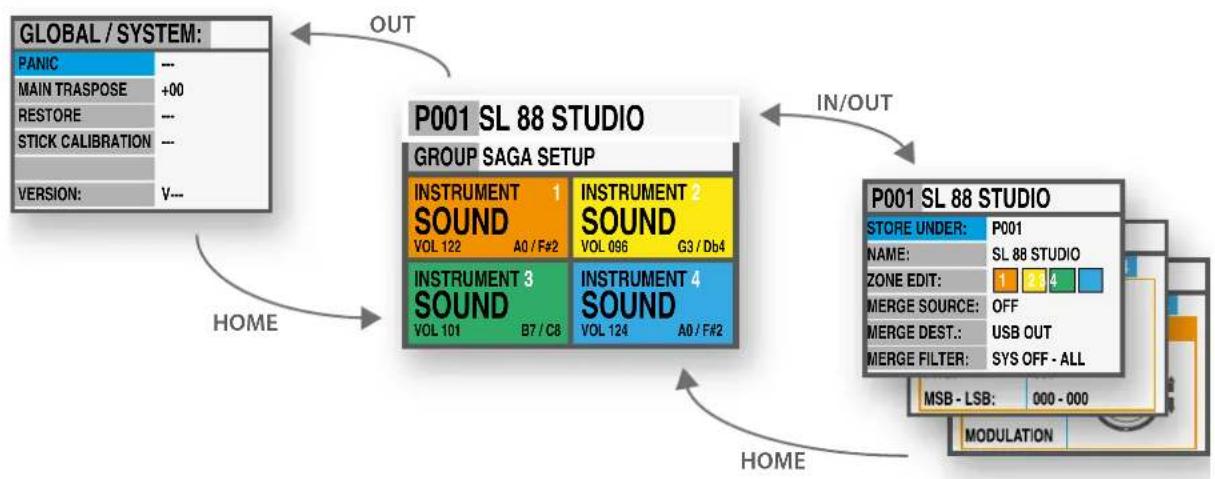
HOME Display
The SL main page (HOME) is a very clear and complete picture of the main functions, as it follows:
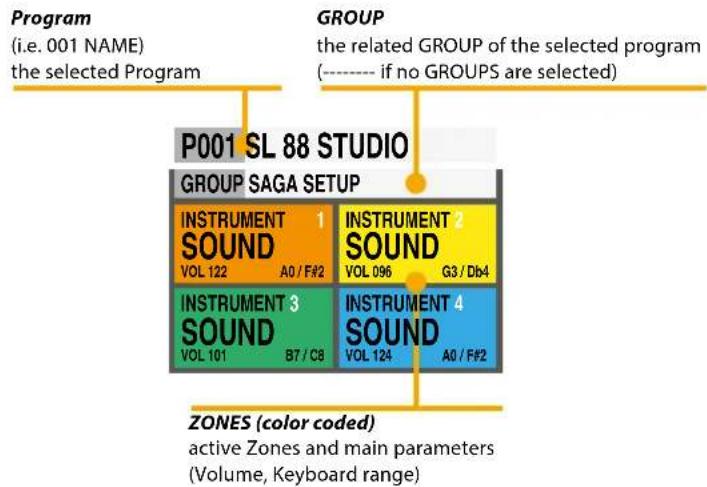

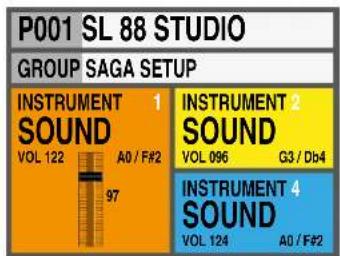
By rotating the encoder, when a ZONE is selected, you can immediately control the Volume (000-127).
Program Selection & Edit
To select a Program, you can either rotate the Encoder (direct selection) or Click the Encoder, rotate to select and Click to confirm.
When a Program is selected (by moving the cursor to the top area of the display) pressing IN you enter in Program Edit.
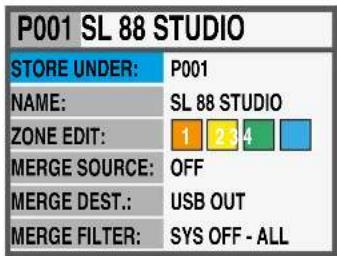
The following parameters are available:
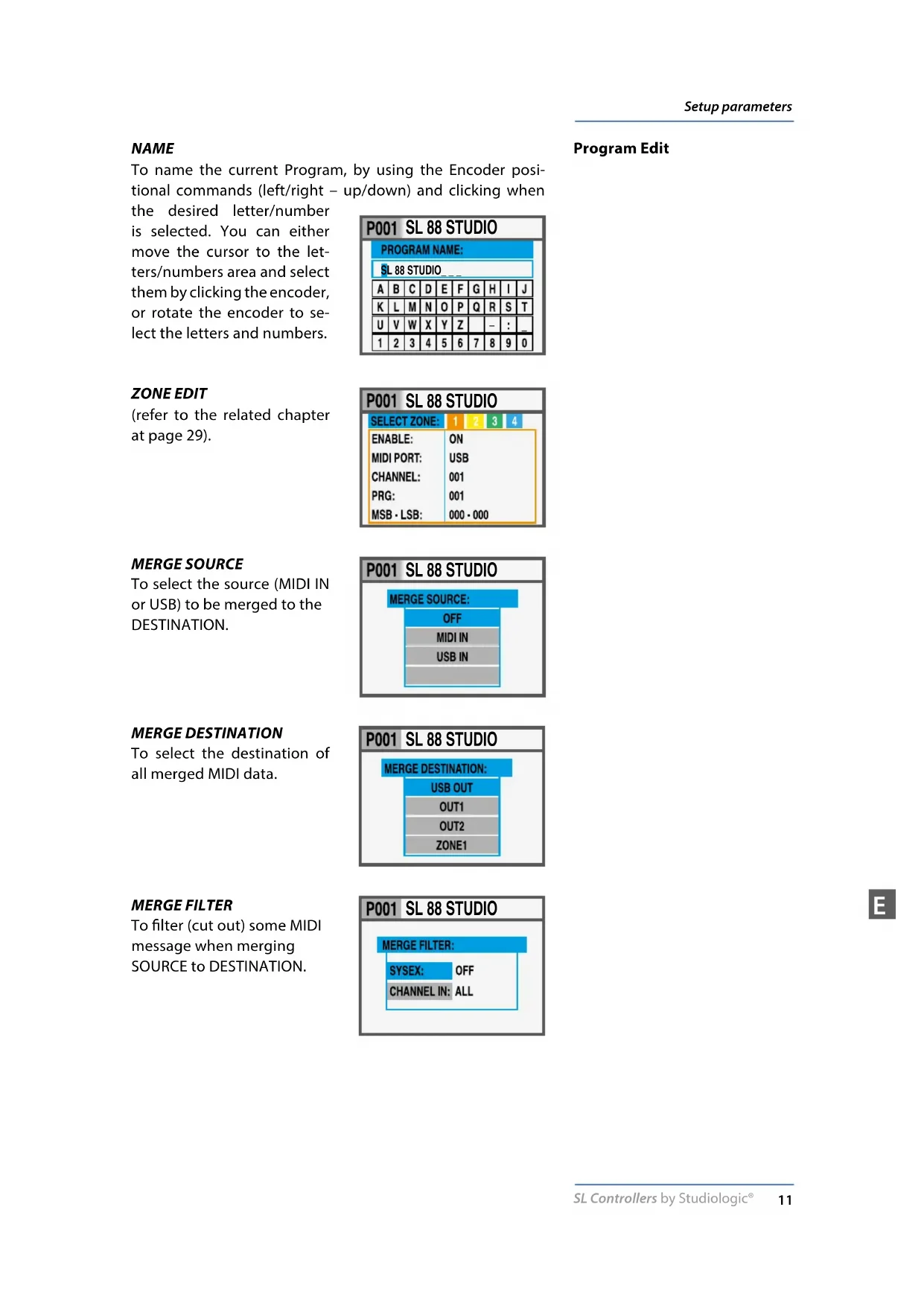
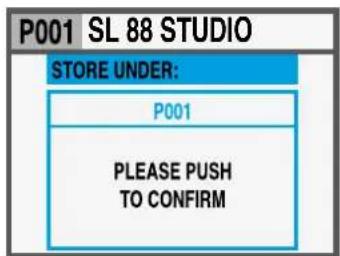
STORE UNDER
To select the position where you want to store the current Program.
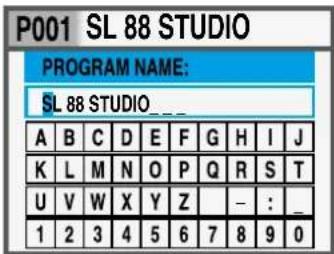
NAME
To name the current Program, by using the Encoder positional commands (left/right - up/down) and clicking when
the desired letter/number is selected. You can either move the cursor to the letters/numbers area and select them by clicking the encoder, or rotate the encoder to select the letters and numbers.
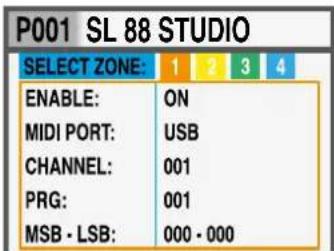
ZONEEDIT
(refer to the related chapter at page 29).
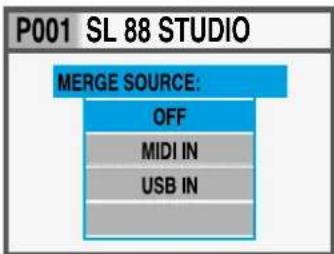
MERGE SOURCE
To select the source (MIDI IN or USB) to be merged to the DESTINATION.
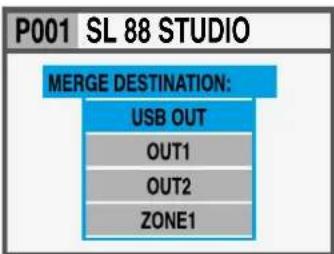
MERGE DESTINATION
To select the destination of all merged MIDI data.
MERGE FILTER
To filter (cut out) some MIDI message when merging SOURCE to DESTINATION.
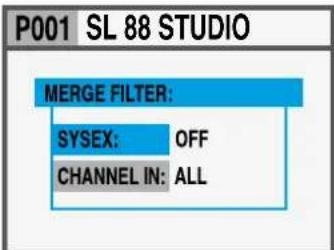
Program Edit
Programmable GROUPS
The SL offers a special function to organize your Programs in Groups, in order to list in the same Group various Programs, corresponding to a specific task, song or project. The same Program can be associated to more Groups, allowing to optimize the internal memory and avoid duplicating Programs, if they can be used for more projects.
To select or program a Group, wivthin the 12 available ones, press the main Encoder down or up until the Group section is selected, then scroll the various Groups with the Encoder; when a Group is selected, only the Programs of the selected Group will be shown, in the sequence stored in the Group.
NOTE
It is always possible to skip the Groups selection, by setting the Groups to the empty position, shown on the display as GROUP
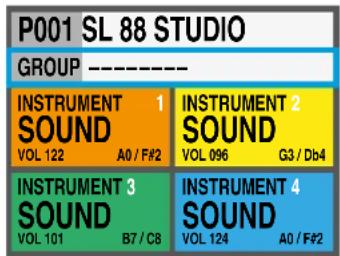
How to create a new Group or edit existing one
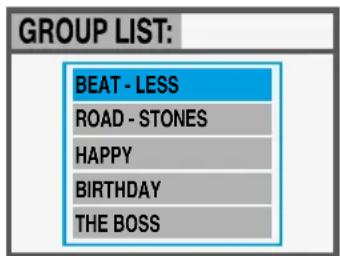
Press the IN button when the Group section is selected and then choose a Group within the list, moving the Encoder down or up.
Press IN to enter in the GROUP EDIT page.
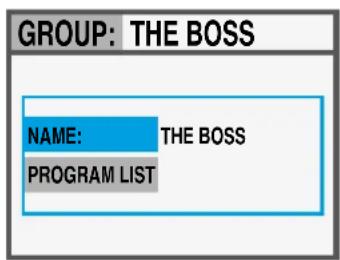
Now you can edit the Group name and the associated Programs.
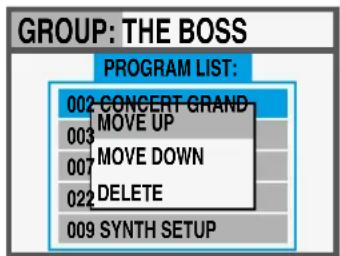
To edit the associated Programs, select PROGRAM LIST and press IN.
To add or change a Program to the Group, scroll them with the Encoder and click on it to open the popup menu that allows to MOVE UP, MOVE DOWN or DELETE a Program within the 30 assignable ones.
To enter in Zone Edit, press the IN button when one of the Zones is selected; you can still select another Zone by using the left/right Encoder's controls. From the list of parameters, you can either press IN, rotate the Encoder or move the cursor to the right to enable the parameter's modification.
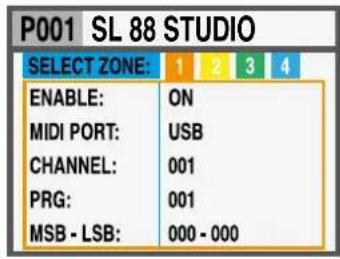
| Page 1 | ENABLE | to enable or disable the selected zone |
| MIDI PORT | to select the related OUT port within the available ones (USB, MIDI 1, MIDI 2) | |
| CHANNEL | 001 - 016 | |
| PROGRAM | 001 - 128 | |
| MSB - LSB | 000 - 127 (for both) | |
| Page 2 | VOLUME | 000 - 127 |
| KEY RANGE1 | A0 - C8 | |
| VELOCITY RANGE2 | 000 - 127 | |
| VELOCITY CURVE3 | SOFT/NORMAL/HARD, USER(1-6), FIXED (VALUE 001-127) | |
| AFTERTOUCH | OFF/ON | |
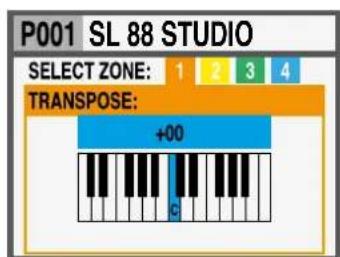
| Page 3 | TRANSPOSE4 | -12 / +12 SEMITONES |
| OCTAVE | -3 / +3 | |
| PEDAL 1 | (selectable functions) | |
| PEDAL 2 | (selectable functions) | |
| PEDAL 3 | (selectable functions) | |
| Page 4 | PEDAL 4* | (special functions) |
| STICK 1 X | (selectable functions) | |
| STICK 1 Y | (selectable functions) | |
| STICK 2 X | (selectable functions) | |
| STICK 2 Y | (selectable functions) | |
| Page 5 | STICK 3 X | (selectable functions) |
| STICK 3 Y | (selectable functions) | |
| INSTRUMENT NAME | ||
| SOUND NAME |
*Pedal 4 can be programmed to control all available parameters (switch and continuous) but it can also be set to be connected with special multi-pedals (SLP3-D, NTP, etc.) allowing to have up to three pedals in one plug. A typical application is a triple piano pedal, where two pedals can control the Soft and Sostenuto functions, while the third pedal can control a half-pedaling Damper function.
Zone Edit
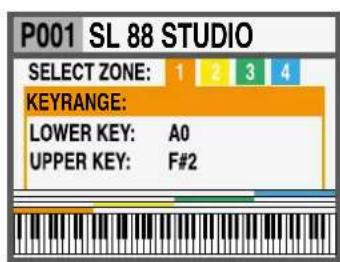
1 KEY RANGE
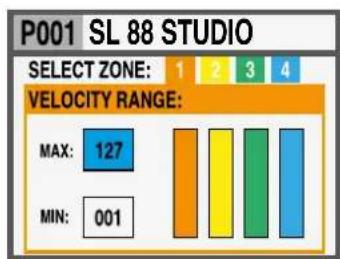
2VELOCITY RANGE
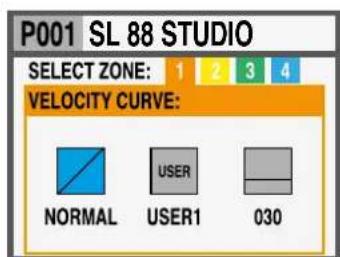
3VELOCITYCURVE
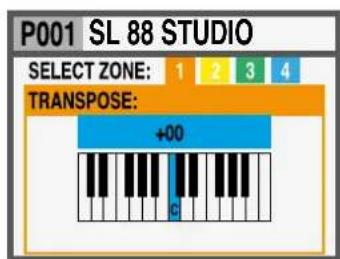
4 TRANSPOSE
Zone Edit If you assign one of the special multi-pedals to a Zone, the other Zones can only be set to OFF or to the same kind of pedal (all other functions are shown in grey).
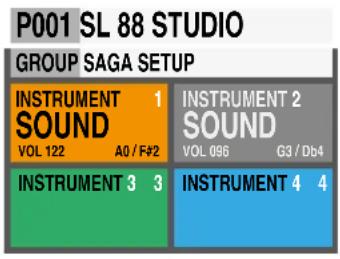
A Zone can be have 3 states: ON/OFF/Standby. To enable or disable a Zone press IN and set it ON or OFF; if a Zone is OFF the display will only show a colored background. Clicking the Encoder, you can set the Zone in Standby and the display will show it in grey. (The picture shows Zone 1 ON, Zone 2 Standby, Zones 3 and 4 OFF).
Please note that you can also set all parameters of a disabled Zone (in the Program) in order to be ready to enable it at any time, with all pre-programmed parameters for that particular Program.
Programmable Sticks
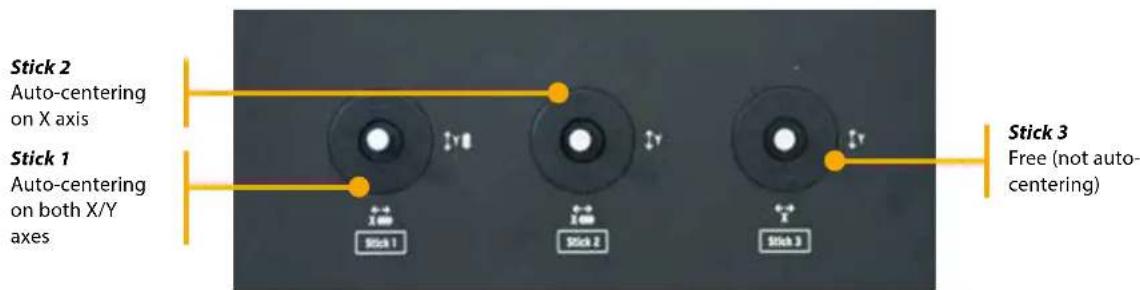
The 3 Sticks on the left side of the instruments are programmable real-time controls:
- Stick 1 has springs in both the vertical and horizontal axes and it goes back to zero automatically; a typical setting for such kind of control is for Pitch Bending functions;
- Stick 2 has a spring only on the horizontal axis and it goes back to center on that side; a typical setting for such king of control is for Modulation or Filter cutoff, when controlling any kind of virtual Synthesizer;
- Stick 3 is totally free and it keeps the position where you move it, on both X and Y axes, allowing to control any parameter that needs to stay stable where it is set.
How to program the sticks
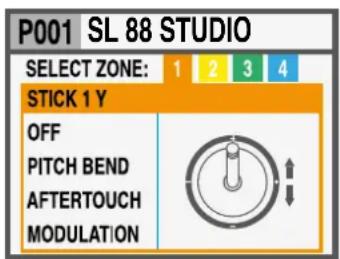
Once you have selected a Zone, by clicking the IN button you enter in EDIT MODE and you can scroll with the Encoder's vertical switches thru all the programming pages, until you find the page related to the Sticks programming.
Select one of the sticks, press IN again and enter in the programming page, where all available Stick's functions are listed, for both the horizontal and vertical axes.
SYSTEM page. (NOTE: to go back to the main display press HOME).
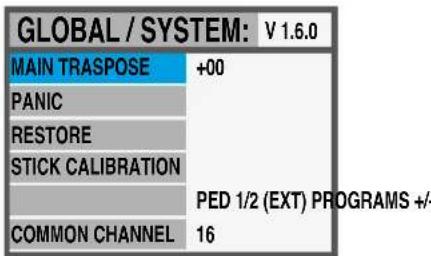
The following controls are available:
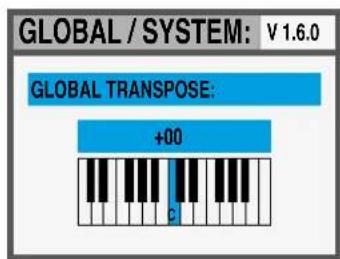
MAIN TRANSPOSE
Selecting this function and rotating the ENCODER, all enabled ZONES can be transposed in a range or -12 and +12 semitones, with a single control.
PANIC
In case of pending notes or controls (coming from the external devices, connected to the instrument) pressing this command the "ALL NOTES OFF" message is sent to all devices, to restore the normal function;
RESTORE
This function restores all initial settings of the instrument; please note that all your programming will be restored and consequently this function should be activated only in case of real need, saving all your programs before restoring the unit.
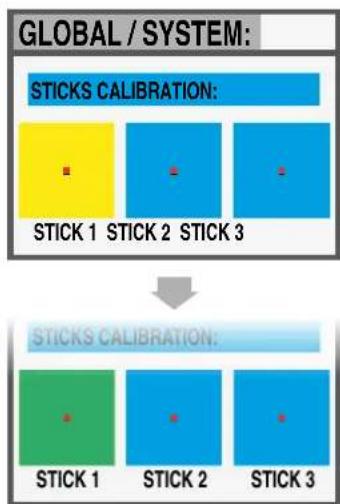
STICKS CALIBRATION
In the first page the 3 sticks icons are blue and you can verify the actual range by moving them all the way along the four sides, reaching to the edges of the related area.
To calibrate a stick, press it (click): the area will become yellow; now move the stick along the four sides, reaching accurately the four edges of the control area, repeating the movement at least 2-3 times
Once the point 2 is made, click again on the stick: the area will become green, to confirm that the calibration is done.
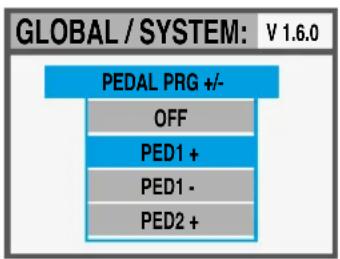
PROGRAM + / -
This function allows to increment or decrement the current SL Program, using single-switch pedals connected to the Ped 1 or Ped 2 sockets; the available settings are:
- OFF: function disabled
- PED1 + pressing a pedal connected to PED1 will increment the current Program a step ahead (i.e from Program 001 to 002 and so on);
- PED1 - pressing a pedal connected to PED1 will decrement the current Program a step below (i.e from Program 002 to 001 and so on);
- PED2 + pressing a pedal connected to PED2 will increment the current Program a step ahead (i.e from Program 001 to 002 and so on);
- PED2 - pressing a pedal connected to PED2 will decrement the current Program a step below (i.e from Program 002 to 001 and so on);
- PED1/2 +/- two pedals connected to PED1 and PED2 will allow to increment or decrement the current Program;
- PED1/2 EXT with this setting the SL will send and receive the Data Increment and Data Decrement controls via USB in, allowing to control the main Programs from computer software applications enabled to make this function.
NOTE: when one of the PED 1/2 Global functions are activated, the related pedal setting of each Program are overwritten by the Program - / + function and the ZONE programming will be shown in a grey color; setting to OFF the related Global pedal functions will re-enable the original Zone setting of the pedals.
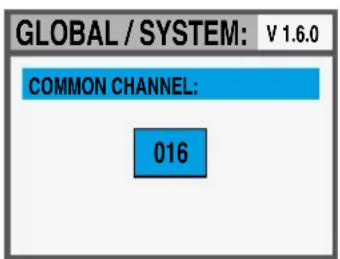
COMMON CHANNEL
As COMMON is intended a MIDI channel that allows to send or receive generic controls from and to the SL, not directly related to a single Zone; the function that needs a Common Channel (set to one of the available 16 MIDI channels) is the Program + / -
The COMMON Channel selection includes the these values:
- OFF: no Common channel messages enabled;
- 01/16: selected Common Channel (the most used setting is the MIDI CH 16);
Firmware upgradeThe SL firmware does not no
new official Firmware Version will be made available by Studiologic. The procedure to update the firmware (intended as the main features, parameters and/or improvements of the operating system) and the dedicated software to update your SL will be published on our Sites with all related descriptions and instructions.
To enter in Upgrade Mode, turn the instrument ON keeping the IN button pressed.
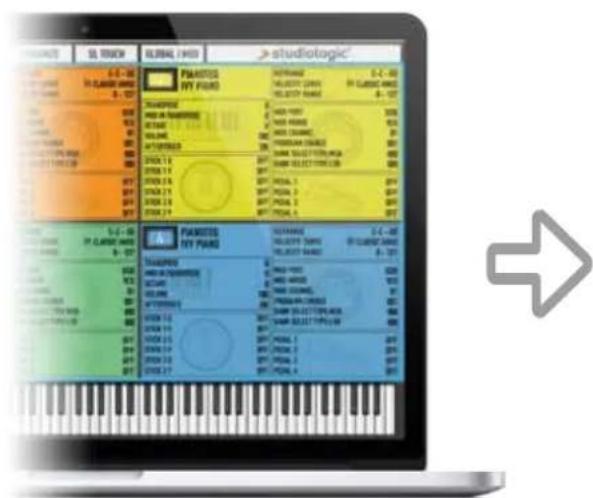
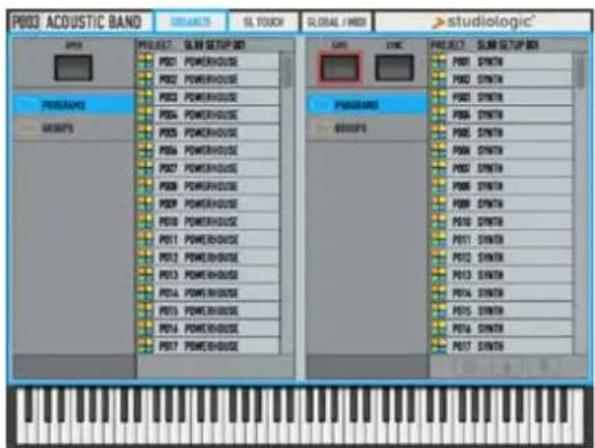
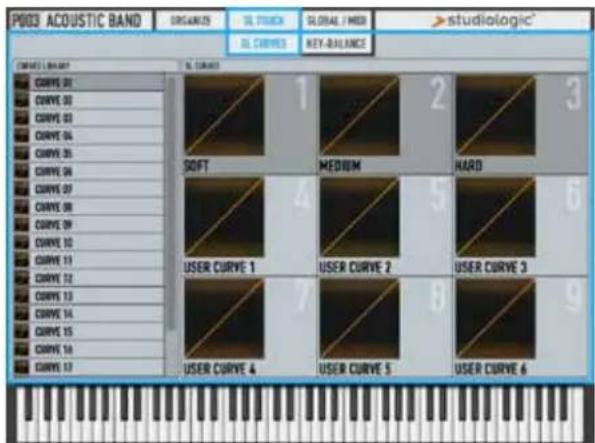
be downloadable from our Official Sites; it will allow to edit all available SL parameters with a very intuitive and interactive user's interface. When the SL is connected to the computer (via USB) and the SL Editor is open, the communication is set in real time and all editorings are transmitted to the SL directly, with no need of any offline action.
SL EditorThe SL Editor is a dedicated Software
The images below are examples of the many available features.
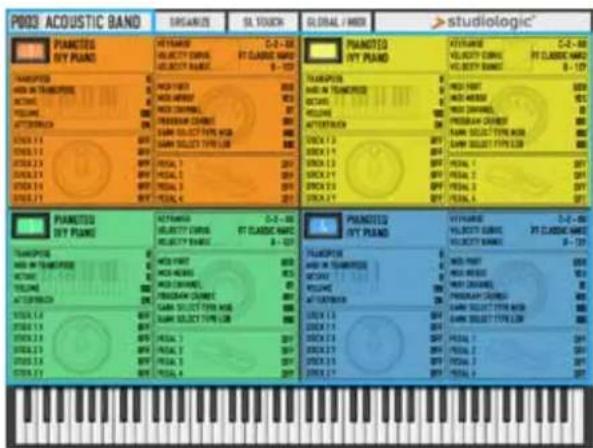
MAIN PAGE ORGANIZE
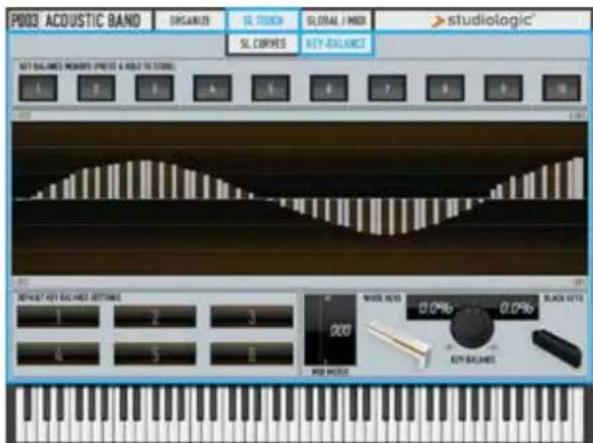
KEY BALANCE SL CURVES
Warranty
Every product from Studiologic by Fatar has been carefully manufactured, calibrated and tested, and carries a warranty. Damage caused by incorrect transport, mounting or handling is not covered by this warranty. Compensation amounting to more than the price of the device is excluded. For any further informations please refer exclusively to your dealer and/or local distributor. This is based on general terms and condition of the local distributor / FATAR srl, Italy.

FATAR srl
Zona Ind.le Squartabue
62019 Recanati MC Italy
declares that this product complies with the European Directives:
2004/108//EC EMC Directive
DIN EN 55013 EMC radio disturbance of sound, TV and associated equipment
DIN EN 55020 EMC immunity of sound, TV and associated equipment
Recanati, 20.05.2015 Marco Ragni, Chief Executive Officer
This declaration becomes invalid if the device is modified without approval.
RoHS-Conformity

This product is manufactured according to the 2002/95/EC directive.
Disposal/WEEE

The purpose of this EC Directive 2003/108/EC is, as a first priority, the prevention of waste electrical and electronic equipment (WEEE), and in addition, the reuse, recycling and other forms of recovery of such wastes so as to reduce the disposal of waste. Please help to keep our environment clean.
State of the art
To ensure maximum quality all Studiologic by Fatar devices are always engineered to be state-of-the-art products, therefore updates, modifications and improvements are made without prior notice. Technical specification and product appearance may vary from this manual.
Trademarks
All trademarks used in this manual belong to their respective owners.
Copyright
No part of this manual may be reproduced or transmitted in any form or by any means without prior consent of the copyright owner:
FATAR Srl
Zona Ind.le Squartabue
62019 Recanati, Italia
SL88 GRAND
SL88 STUDIO
SL73 STUDIO
26 Program Selection & Edit
28 Group programmabili
29 Zone Edit
30 Stick programabili
Program Selection & Edit
Recanati, 20.05. 2015 Marco Ragni, Chief Executive Officer
2 Switch (Sustain)
1 Continuous (Expression)
1 Universal (Sustain, Expression)
MAIN TRANSPOSE (Transposition)
Recanati, 20.05.2015 Marco Ragni, Chief Executive Officer
compliant 2002/95/EC
Altgeräteentsorgung


Stand der Technik
4 TRANSPOSE(transposition)
Édition de zone
Design and Specifications are subject to change without notice.