PureBoom - Earphones PureGear - Free user manual and instructions
Find the device manual for free PureBoom PureGear in PDF.


| Product Type | Wireless Earbuds |
| Brand | PureGear |
| Model | PureBoom |
| Connectivity | Bluetooth |
| Bluetooth Range | Approximately 10 meters (32 feet) |
| Power Supply | Rechargeable via Micro USB cable |
| LED Indicators | Blue and red depending on status |
| Main Functions | Music, calls, Siri/Google Now activation |
| Controls | Multifunction button, volume buttons, up/down arrows |
| Magnetic Ends | Yes, for sleep/pairing |
| Ear Tips and Hooks | 3 sizes (small, medium, large) |
| Ear Identification | L and R markings |
| Compatibility | Bluetooth devices (iOS, Android, etc.) |
| Compliance | FCC Part 15, IC RSS |
| Care and Cleaning | Wipe with a dry cloth; do not immerse |
| Spare Parts | Ear tips and hooks available |
| Repairability | Not specified; contact manufacturer |
| General Information | Applicant: Superior Communications (PureGear) |
Frequently Asked Questions - PureBoom PureGear
User questions about PureBoom PureGear
0 question about this device. Answer the ones you know or ask your own.
Ask a new question about this device
Download the instructions for your Earphones in PDF format for free! Find your manual PureBoom - PureGear and take your electronic device back in hand. On this page are published all the documents necessary for the use of your device. PureBoom by PureGear.
USER MANUAL PureBoom PureGear
Charge your PureBoom Wireless Earbuds
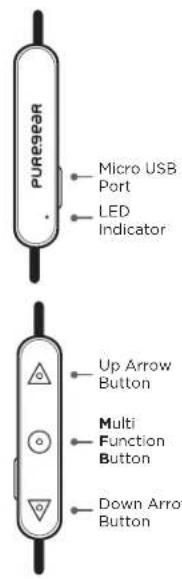
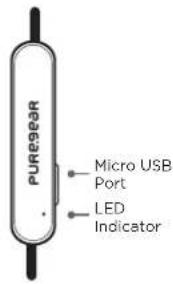
Prior to use, charge your PureBoom Earbuds. Use the supplied Micro USB charging cable, plug the cable into the Micro USB port which is located on the control box above the LED light. When your PureBoom has finished charging the blue LED light goes out.
Selecting the Right Fit
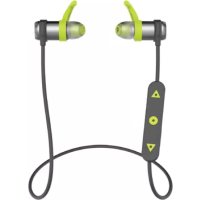
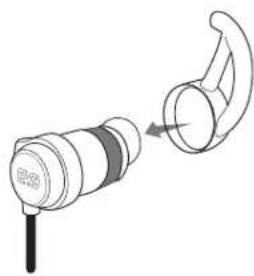
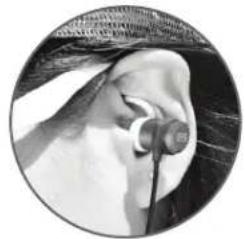
To ensure your comfort, your PureBoom kit includes three sizes each of earbud caps and ear hooks. (They are pre-assembled with medium size, and include a set each of small and large). Determine which one provides the best fit to achieve the optimal listening experience. Note that the earbuds are identified as left or right by an L or R.
- If the medium size earbud does not feel comfortable, pull them off and replace with another size.
- Next, slide the ear hook onto the earbud; it will fit snugly on the hook groove.
- Identify the left and right earbuds, and insert the ear hook into the crevice of your inner ear.
- A small green clip is connected to the cable, move this up or down to adjust the cable length.
Connecting / Bluetooth Pairing
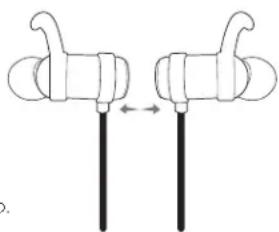
- TURN ON the PureBoom Earbuds by simply separating the magnetic ends.
- Make sure the PureBoom Earbuds are within 2-3 feet/.6-.9 meters of the device you will be connecting to.
- Turn on your device's Bluetooth. Most devices will automatically detect your PureBoom earbuds. Locate and select "PureBoom". It will indicate that your earbuds are now connected or paired.
If your device does not automatically detect your PureBoom earbuds, make sure Bluetooth is turned on, do a SEARCH for PureBoom and then click Connect.
Notes:
To shut down, press the MFB for 5 seconds. (Or simply connect the earbuds on the magnetic ends.)
Once paired, the range is approximately 32 feet/10 meters.
Your PureBoom will automatically connect to the last paired and connected device when it is turned on again.
Pairing Troubleshooting
- When performing the pairing on a Bluetooth device to detect the earbuds, enter 0000 if your device prompts you for a password during the pairing process.
- If the pairing is not successful, turn off the earbuds. Reattach the earbuds and perform the pairing connection according to the Bluetooth Pairing steps.
Pairing with a Second Device
Lets say you're using your phone and your laptop and don't want to use the speaker for sound. When you pair both those devices to your PureBoom, you experience the following situation: If a call comes in on your phone while you're watching a movie on your laptop, the PureBoom Bluetooth connection will pause the movie and connect to the phone call automatically.
-
To connect your earbuds with a second device, turn off Bluetooth on the first device.
-
Connect and disconnect magnetic ends to re-activate Bluetooth Pairing Mode.
- Repeat the original Connecting/Bluetooth Pairing - #3 from the User Manual for the second device.
- Reconnect the first device by selecting PureBoom from the Bluetooth list of devices.
Troubleshooting Pairing a Second Device
If going back to the first device isn't working after pairing the second device, you may need to adjust your Bluetooth settings for the first device.
- Open Bluetooth and make sure it is turned ON.
- Select PureBoom.
- FOR ANDROID USERS, make sure the Call Audio and Media Audio buttons are ON.
Operating PureBoom
When playing music:
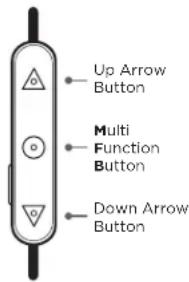
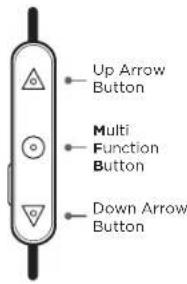
To skip to the next song, press the Up Arrow button for 1 second.
To restart the current song, press the Down Arrow button for 1 second.
To Pause/Play, press the MFB.
When on a call:
To answer/hang up a call, press the MFB.
To increase volume, press the Up Arrow button.
To decrease volume, press the Down Arrow button.
To reject an incoming call, press the MFB for 3-4 seconds.
Activate Siri or Google Now:
Double click the MFB.
Low Battery
- You'll hear a voice prompt of "Low battery, please charge" when the battery level is less than 10% .
The red LED will flash every 5 seconds when the battery level is less than 10% .
Note: iOS users will see the PureBoom battery life indicator on your home screen when connected to your device.

LED Indicators
- When your PureBoom is charging the blue LED light is on.
- When your PureBoom has finished charging - the blue LED light goes out.
- When your Bluetooth is on, is being paired or disconnected - the red LED light and blue LED light flash quickly.
- When your PureBoom is connected to your Bluetooth and in use - the blue LED light flashes every 5 seconds.
FCC Compliance
This device complies with Part 15 of the FCC rules and Industry Canada license-exempt RSS standard(s). Operation is subject to the following two conditions: (1) this device may not cause harmful interference, and (2) this device must accept any interference received, including interference that may cause undesired operation.
The manufacturer is not responsible for any radio or TV interference caused by unauthorized modifications or change to this equipment. Such modifications or change could void the user's authority to operate the equipment.
This radio transmitter (identify the device by certification number or model number if Category II) has been approved by Industry Canada to operate with the antenna types listed below with the maximum permissible gain indicated. Antenna types not included in this list, having a gain greater than the maximum gain indicated for that type, are strictly prohibited for use with this device.
This equipment has been tested and found to comply with the limits for a Class B digital device, pursuant to part 15 of the FCC Rules. These limits are designed to provide reasonable protection against harmful interference in a residential installation. This equipment generates, uses and can radiate radio frequency energy and, if not installed and used in accordance with the instructions, may cause harmful interference to radio communications. However, there is no guarantee that interference will not occur in a particular installation.
If this equipment does cause harmful interference to radio or television reception, which can be determined by turning the equipment off and on, the user is encouraged to try to correct the interference by one or more of the following measures:
- Reorient or relocate the receiving antenna.
- Increase the separation between the equipment and receiver.
- Connect the equipment into an outlet on a circuit different from that to which the receiver is connected.
- Consult the dealer or an experienced radio/TV technician for help.
The device has been evaluated to meet general RF exposure requirement.
To maintain compliance with FCC's RF exposure guidelines, this equipment should be installed and operated with a minimum distance of 5cm between the radiator and your body.
This device complies with Industry Canada licence-exempt RSS standard(s). Operation is subject to the following two conditions: (1) this device may not cause interference, and (2) this device must accept any interference, including interference that may cause undesired operation of the device.
This equipment complies with Industry Canada radiation exposure limits set forth for an uncontrolled environment.
Applicant - Superior Communications, dba PureGear. 06787PG

PURE.98aR