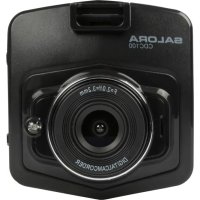
CDC100 - Dashcam SALORA - Free user manual and instructions
Find the device manual for free CDC100 SALORA in PDF.


| Product type | Dashcam |
| Brand | Salora |
| Model | CDC100 |
| Video resolution | 1080FHD (1920x1080), 1080P (1440x1080), 720P (1280x720), WVGA (848x480), VGA (640x480) |
| Photo resolution | 12M (4032x3024), 10M (3648x2736), 8M (3264x2448), 5M (2592x1944), 3M (2048x1536), 2MHD (1920x1080) |
| Loop recording | 1, 2, 3, 5, 10 minutes or off |
| Motion detection | Yes (enable/disable) |
| G-sensor (gravity) | 2G, 4G, 8G or off |
| Parking mode | Yes, with automatic trigger (P icon) |
| Power supply | USB 5V (cigarette lighter or computer) |
| Battery | Built-in rechargeable |
| Storage | microSD (TF) card up to 32 GB, class 7 or higher |
| Ports | USB, AV, HDMI, TF card slot |
| Screen | Built-in (icon and menu display) |
| Languages | French, English, German, Italian, Spanish, etc. |
| Maintenance and cleaning | Clean with a soft, dry cloth. Avoid liquids. |
| Safety | Do not use while driving to avoid distractions. Respect local laws. |
| General information | Manual available as PDF at notice-facile.com |
Frequently Asked Questions - CDC100 SALORA
User questions about CDC100 SALORA
0 question about this device. Answer the ones you know or ask your own.
Ask a new question about this device
Download the instructions for your Dashcam in PDF format for free! Find your manual CDC100 - SALORA and take your electronic device back in hand. On this page are published all the documents necessary for the use of your device. CDC100 by SALORA.
USER MANUAL CDC100 SALORA
Turn on or turn the camera, press this button to turn on the camera and enter in Standby. Hold the button, the recording and or settings will be saved before the camera will turn off again.
- OK button (7)
Video mode: Start and stop recording.
- Photo mode: Take a photo.
-Playback mode: Start or stop the playback of a file.
- Menu: Confirm operation and setting in Video menu, Setting menu, Photo menu and Playback menu.
-
Menu button (6)
-
Enter the Video menu, press again to enter the setting of the Video menu. If you press the Menu button again you will exit the Menu.
-
Playback mode: Enter the file menu, you can select to delete or save the file. Press again to enter the setting menu.
-
Mode button (10)
-
You can enter the Video, Photo or Playback mode.
During recording, you can lock the recording with this button.
5.Up button (9)
-
Menu: Go up to select the previous option.
-Playback mode:Go up to select a file. -
Down button (8)
-
Menu: Go up to select the next option.
- Playback mode: Go down to select a file.
7. Parking monitoring button (11)
Before turning off the camera, press this button to enter into Parking Monitoring mode. The "P" icon will appear in the middle of the screen. When the camera is turned off and this function is activated, as soon as something hits the car, the camera will automatically turn on and make a recording of about one minute. The recording will be automatically saved. If you would like to deactivate the function, press the "P" button again, the icon will disappear.
8. Charging the battery
- Connect the DVR to the computer with a USB cable.
- Connect the DVR to the car.
When the battery is being charged the battery icon will flash on the screen and the indicator light will turn red. When fully charged, the icon will stop flashing and the indicator will go out.
9. Install the memory (TF) card
Note: For this device you will need a memory card Class 7 or higher. To install the card:
- Slide the card into the card slot (5) until it clicks, make sure that the card is inserted with the right way up.
- To take out the card, press gently onto the card, it will be ejected automatically.
- Make sure that the card is inserted in the right way, otherwise you could damage the card.
If the TF card is not compatible you could try again or try another card.
Maximum support is 32GB
10. Setting Date and Time
You can set the date and time in the Setup menu. By using the Up and Down buttons you can select the date you wish to set. When you have reached the right digit, press OK to confirm and the cursor will switch automatically to the next field. You can set the time in the same way.
Note: When the camera indicates that there is low power, it will automatically save the last recording and turn off.
Recording mode:
| Resolution | 1080FHD 1920x1080, 1080P 1440x1080, 720P 1280x720, WVGA 848x480, VGA 640x480 |
| Loop recording | Off, 1min, 2min, 3min, 5min, 10min. |
| Exposure | +2/3, +1/3, +0.0, -1/3, -2/3, -1.0, -4/3, -5/3, -2.0 |
| Motion detection | Off/On |
| Recording audio | Off/On |
| Date stamp | Off/On |
| G-sensor | Of, 2G, 4G, 8G |
| LDW | On/Off, Car type, Sensitivity, Area Choice, Start Speed, On/Off Sound |
Photo Mode:
| Resolution | 12M 4032x3024, 10M3648x2736, 8M 3264x2448, 5M2592x1944, 3M2048x1536, 2MHD 1920x1080 |
| Sequence | Off, On |
| Quality | Fine, Normal, Economy |
| Sharpness | Soft, Normal, Strong |
| White Balance | Auto, Daylight, Cloudy, Tungsten, Fluorescent |
| ISO | Auto, 100, 200, 400 |
| Exposure | +2/3, +1/3, +0.0, -1/3, -2/3, -1.0, -4/3, -5/3, -2.0 |
| Anti-Shaking | Off, On |
| Quick Review | Off, 2 sec., 5 sec. |
| Date Stamp | Off, Date, Date & Time |
Playback mode:
In this mode you can view a file recorded by the camera. By pressing the Up and Down button you can scroll up and down, until you have reached the file you would like to view. Press the OK button to view the file.
You can save or delete the files on the camera. If you would like to delete a file, go to the option "Delete the current" or "Delete all" and press OK to confirm. If you have a file which has been locked it cannot be deleted. You will have to unlock the file first, before you can delete it. Press the Mode button to exit the menu.
Setup Menu
| Park Mode | Off, 2G, 4G, 8G |
| Date and Time | YY/MM/DD, MM/DD/YY, DD/MM/YY |
| Auto Power off | Off, 1min, 3min. |
| Screen Saver | Off, 3min, 5min, 10min. |
| Beep Sound | Off, On |
| Language | English, Traditional Chinese, Simplified Chinese, Japanese, French, German, Korean, Italian, Portuguese, Russian, Spanish, Thai |
| TV Mode | NTSC, PAL |
| Frequency | 50Hz, 60Hz |
| Flash | Off, On |
| Format | Cancel, OK |
| Default Setting | Cancel, OK |
| Version | 20160812 V1.0 |
Using the camera in the car
Place the suction cup onto the camera.
Connect the car charger to the camera and put this in the power supply.
Once you start the car, the camera will automatically start recording.
When you stop the engine of the car, the camera will stop the recording.
Brand : SALORA
Model : CDC100
Category : Dashcam