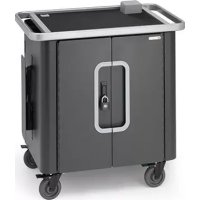
HE405BG2 - Electronic accessory Bretford - Free user manual and instructions
Find the device manual for free HE405BG2 Bretford in PDF.


| Product Type | iPad Charging and Sync Cart |
| Brand | Bretford |
| Model | HE405BG2 |
| Capacity | 40 iPad or iPad mini devices |
| Weight (without devices) | 69.9 kg |
| Power Supply | 100-240 VAC, 8 A max, 60 Hz |
| Maximum Charging Current | 2.4 A per device |
| Power Cord | Certified cord with IEC C13 plug |
| Key Features | Simultaneous charging, USB sync, status LED indicators, remote monitoring via PowerSync+ app, Wi-Fi configuration via Bluetooth |
| LED Indicators | Off: device not connected; Amber: charging; Green: fully charged; Flashing Orange: charging + connected to Apple Configurator; Flashing Green: fully charged + connected to Apple Configurator |
| Network Configuration | Wi-Fi sharing via Bluetooth from an iOS device |
| Monitoring App | PowerSync+ (available at powersyncplus.com) |
| Software Compatibility | Apple Configurator (Mac App Store) |
| Maintenance and Cleaning | Wipe with a soft, dry cloth. Do not use water or abrasive products. |
| Safety | Approved for USA and Canada. Use only with properly grounded outlets. |
| Assembly | Delivered fully assembled |
| Warranty | 12 years on the cart, 2 years on electrical components |
Frequently Asked Questions - HE405BG2 Bretford
User questions about HE405BG2 Bretford
0 question about this device. Answer the ones you know or ask your own.
Ask a new question about this device
Download the instructions for your Electronic accessory in PDF format for free! Find your manual HE405BG2 - Bretford and take your electronic device back in hand. On this page are published all the documents necessary for the use of your device. HE405BG2 by Bretford.
USER MANUAL HE405BG2 Bretford
Charge your devices 6
Charge your Mac 6
Configure your Devices 7
Status LEDs 8
View Charge Status Remotely 9
Configure the Cart to Join a Wi-Fi Network 10
Technical Specifications 11
Français 13
Rechargez vos appareils 14
- Place one iPad in each slot of the PowerSync Cart, and attach the included Lightning cable.
- Unwind the power cord for the PowerSync Cart and plug it into a power outlet.
- Turn the PowerSync Cart ON.
Your iPad and iPad mini devices will begin charging.
Charge your Mac
To use the courtesy outlet for powering your Mac:
- Turn the cart power switch to OFF.
- Plug the PowerSync Cart into an available power outlet.
- Remove the "duck head" portion of your Mac's power adapter.
- Plug the figure eight end of the provided whip in to the power adapter.
- Turn the PowerSync Cart ON.
Configure your Devices
To configure multiple iPad devices, we recommend using Apple Configurator (available free on the Mac App Store). Apple Configurator works with apps from the App store, and allows you to install those apps, along with settings specific for your organization, to multiple devices simultaneously.
- Connect your devices to the PowerSync Cart.
- Connect your PowerSync Cart to your Mac using the included USB cable.
- Launch Apple Configurator
- In Apple Configurator, enter your settings, configure your profiles, and import your apps.
- Click "Prepare"
For additional details about Apple Configurator, download our ebook, iOS Deployment: A guide for managing iPad, iPhone, and iPod touch in your organization at bretford.com/apple/deployment.
Status LEDs
The PowerSync Cart features LED status indicators above each slot to let you know when your devices are ready:
| Light | Description |
| Off | Device is not connected. |
| Amber | Device is charging.OK to disconnect. |
| Green | Device is fully charged.OK to disconnect |
| Flashing Amber | Device is charging and connected to Apple Configurator |
| Flashing Green | Device is fully charged and connected to Apple Configurator |
View Charge Status Remotely
This PowerSync Cart allows you to remotely view the status of the iOS devices connected to your cart. With the PowerSync+ app, you can:
• View which connected devices are charging and fully charged.
- View summary information about each of your PowerSync+ enabled carts and stations.
- Receive notifications when devices are fully charged.
- Receive notifications when a device is removed during off-hours.
• Receive monthly charge usage reports.
Get started at powersyncplus.com.

Available on the
App Store
Configure the Cart to Join a Wi-Fi Network
To configure the PowerSync Cart to join a Wi-Fi network, you'll use your iOS device's Bluetooth connection to share it's Wi-Fi network information with the cart.
- Make sure your iOS device is connected to the Wi-Fi network you want to share with your cart.
- Turn the cart power switch to OFF, then back to ON.
After turning on, if you haven't already configured your cart, your cart will be discoverable via Bluetooth for one minute.
-
On your iOS device, open the Settings app, and navigate to Bluetooth.
-
Choose to pair with "PowerSync+"
-
When prompted to "Share Wi-Fi Settings", tap the "Allow" button.
Your PowerSync cart will join your Wi-Fi Network. Use the PowerSync+ app to complete the setup and view your cart status remotely.
Technical Specifications
Model Number: HE405LL/A
Dimensions: 36.3 in wide x 21.8 in deep x 38.2 in high
Capacity: 40 iPad or iPad mini devices
Weight without devices: 154 lbs
Rating: 100-240 VAC, 8A Max. 60Hz
Max Charge Current: 2.4A for each device
Cord: Certified Power Supply Input Cord with IEC plug C13
Approval: USA and Canada
Assembly: Ships fully assembled
Warranty: 12 years on cart, 2 years on electrical
Français
Rechargez vos appareils
Dimensions: 92.2 cm × 53.3 cm × 97.0 cm