ManualGo.com
WJSW208E - TV PANASONIC - Free user manual and instructions
Find the device manual for free WJSW208E PANASONIC in PDF.



Download the instructions for your TV in PDF format for free! Find your manual WJSW208E - PANASONIC and take your electronic device back in hand. On this page are published all the documents necessary for the use of your device. WJSW208E by PANASONIC.
USER MANUAL WJSW208E PANASONIC
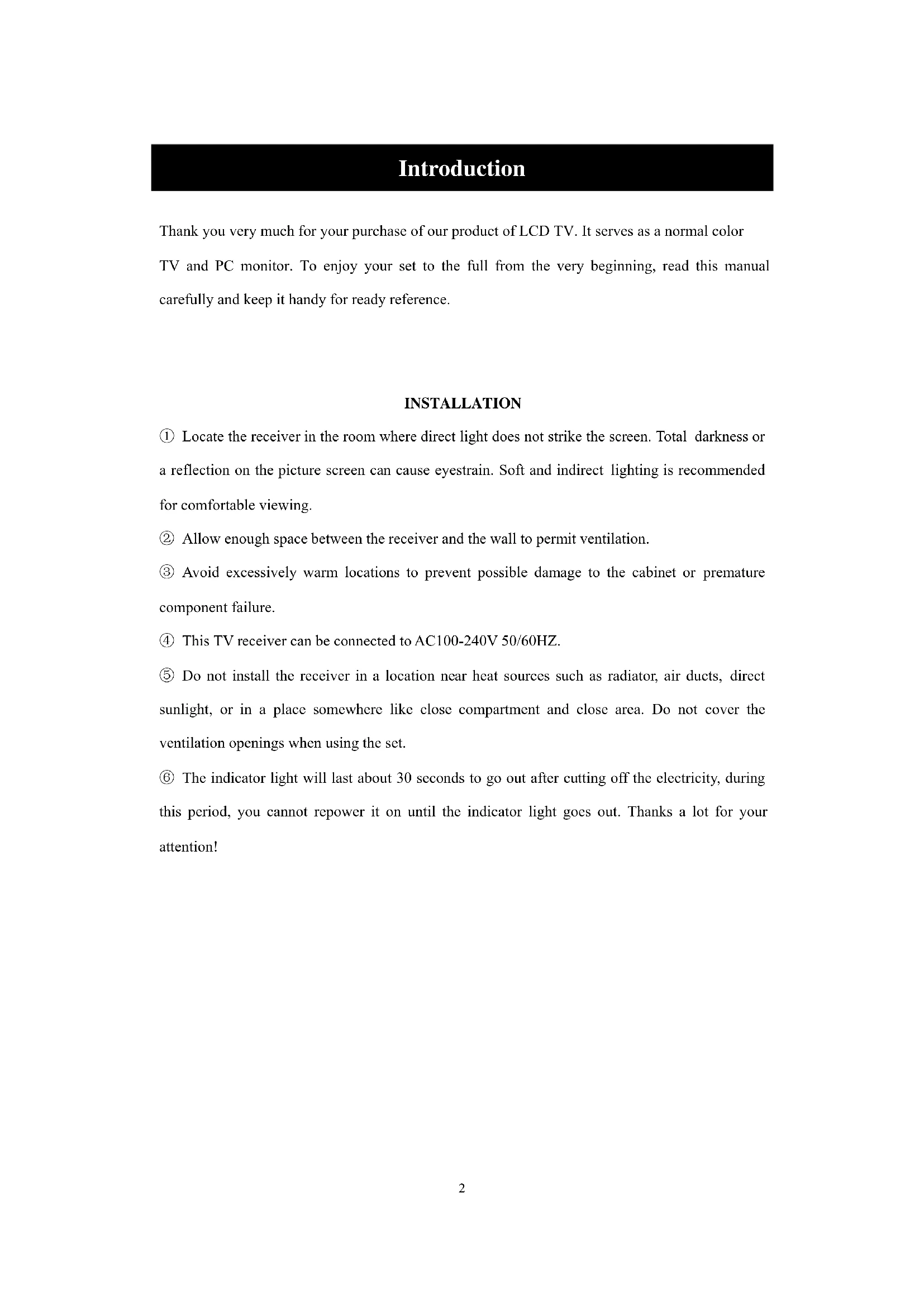
z Introduction z Warning z Caution z Main Unit Description z Remote Control z OSD basic adjustment z DVD manual z Specifications z Trouble Shooting2 Introduction Thank you very much for your purchase of our product of LCD TV. It serves as a normal color TV and PC monitor. To enjoy your set to the full from the very beginning, read this manual carefully and keep it handy for ready reference.
INSTALLATION ① Locate the receiver in the room where direct light does not strike the screen. Total darkness or a reflection on the picture screen can cause eyestrain. Soft and indirect lighting is recommended for comfortable viewing. ② Allow enough space between the receiver and the wall to permit ventilation. ③ Avoid excessively warm locations to prevent possible damage to the cabinet or premature component failure. ④ This TV receiver can be connected to AC100-240V 50/60HZ. ⑤ Do not install the receiver in a location near heat sources such as radiator, air ducts, direct sunlight, or in a place somewhere like close compartment and close area. Do not cover the ventilation openings when using the set. ⑥ The indicator light will last about 30 seconds to go out after cutting off the electricity, during this period, you cannot repower it on until the indicator light goes out. Thanks a lot for your attention!3 Warning
This symbol is intended to alert the user to avoid the risk of electric shock, do not disassemble this equipment by anyone except a qualified service personnel.
This symbol is intended to alert the user to the presence of important operation and maintenance instructions in the literature accompanying the equipment.
Caution Caution High voltages are used in the operation of this product. - Do not remove the back cabinet from your set. Refer servicing to qualified service personnel.
Caution Do not drop or push objects into the television cabinet slots or openings. Never spill any kind of liquid on the television receiver.
Caution Avoid exposing the main unit to direct sunlight and other source of the heat. Do not stand the television receiver directly on other produces which give off heat. E. g. video cassette players, Audio amplifiers. Do not block the ventilation holes in the back cover. Ventilation is essential to prevent failure of electrical component. Do not squash power supply cord under the main unit.5 Caution
Caution Never stand on, lean on, push suddenly the product or its stand. You should pay special attention to children.
Caution Do not place the main unit on an unstable cart stand, shelf or table. Serious injury to an individual, and damage to the television, may result if it should fall.
Caution When the product is not used for an extended period of time, it is advisable to disconnect the AC power cord from the AC outlet.
Caution The LCD panel used in this product is made of glass. Therefore, it can break when the product is dropped or applied with impact. Be careful not to be injured by broken glass pieces in case the LCD panel breaks.6 Main unit description Control Panel Button Function
TV Terminal Connections
2. VGA input terminal of simulation signal of PC.
VOL+ : Volume up. VOL- : Volume down. CH+ : TV channel up. CH- : TV channel down. MENU : Press to select the main menu. TV/AV : Select the input signal. POWER : Switch on when at standby mode or enter the standby mode.7 Remote control
POWER: Power on/off button, press once to turn the TV on and press again to turn the TV off. MUTE: Press this button to mute or restore sound. DVD SETUP: Press this button to enter the DVD main menu and press again to exit the main menu. (Used for models with DVD function only) TITLE: Press this button to return the title menu. (Used for models with DVD function only) MENU(BLUE): Press this button to return the root menu or exit the DVD main menu. (Used for models with DVD function only) USB/CR: Press to select the MEDIA signal source. (Used for models with USB/CR function only) NICAM/A2: In the TV condition, press this key to select the stereo effects. SLEEP: Set the sleep timer. ASPECT: Press to select the different picture size. EJECT : press to eject the DVD-disc in DVD mode. (Used for models with DVD function only) DISPLAY: Display TV information. AUTO: Press to adjust the picture automatically in PC mode. PMODE: Select picture mode. SMODE: Select sound mode. DTV: This button is not available. SOURCE: Press to change signal source. ENTER: Enter the selected option or perform the selected operation. MENU: Press this button to enter the main menu for various optional adjustable setting. EXIT: Exit the OSD (On-screen display). 0-9: Select and switch to a channel using 0 - 9. -/--: Switch the program digit. : Switch back and front between the current and previous channels.8
CHc/CHd: Change the channel up and down. VOLc/VOLd : Adjust the volume. TEXT: Press to enter the Teletext mode. HOLD: Freeze a multi-page passage on screen in Teletext mode. INDEX: Press this button to go to the index page. REVEAL: Press this button to reveal the hidden information in Teletext page. Press again to hide the information. SIZE: Display the top, bottom or all of page to read easily in Teletext mode. SUBPAGE: Carry out the function of SUBCODE in the text while enter the text display mode. PLAY/PAUSE :Press to start playing the disc or Media, or to pause playing. (Used for models with DVD or USB/CR function only) STOP :Stop playing the disc or Media. (Used for models with DVD or USB/CR function only) REV :Press to play backward. (Used for models with DVD or USB/CR function only) FWD :Press to play forward. (Used for models with DVD or USB/CR function only) PREV : Skip to previous chapter (Used for models with DVD or USB/CR function only) NEXT :Skip to next chapter (Used for models with DVD or USB/CR function only) ZOOMǖSelect the zoom picture. (Used for models with DVD function only) GOTOǖJump to the appointed chapter or title. (Used for models with DVD function only) SUBTITLE(BLUE)ǖSelect the disc caption. (Used for models with DVD function only) ANGLEǖSelect the angle. (Used for models with DVD function only)9
Used for models with DVD function) INTROǖPress the button to display the time of chapter remain or elapsed.
Used for models with DVD function) REPEATǖSelect the repeat mode.
Used for models with DVD function) ABǖSelect the segment to repeat.
Used for models with DVD function) RED, GREEN, YELLOW, BLUE: Correspond to the different colored subjects.
Used for models with european region function)10 OSD basic adjustment PICTURE You can select the type of picture, which best corresponds to your viewing.
1. Press the “MENU” button to enter the
OSD menu. Then press “c/d” button to select the “PICTURE” menu. Enter the “PICTURE” menu by pressing “f” button.
2. Press “c/d” button to select
“PICTURE MODE” and press the “e/f” button to select the picture mode .
3. Press “c/d” button to select “BRIGHTNESS” and press the “e/f” button to enter brightness
adjustment menu to adjust brightness.
4. Press “c/d” button to select “CONTRAST” and press the “e/f” button to enter contrast
adjustment menu to adjust contrast.
5. Press “c/d” button to select “SATURATION” and press the “e/f” button to enter color
adjustment menu to adjust saturation.
6. Press “c/d” button to select “SHARPNESS” and press the “e/f” button to enter sharpness
adjustment menu to adjust sharpness.
7. Press “c/d” button to select “HUE” and press the “e/f” button to enter hue adjustment
menu to adjust hue. Note: The item hue is only for NTSC
8. Press “c/d” button to select “COLOUR TEMP” menu and press the “e/f” button to select
SOUND You can select the type of sound, which best corresponds to your listening.
1. Press the “MENU” button to enter the
OSD menu. Then press “c/d” button to select the “SOUND” menu. Enter the “SOUND” menu by pressing “f” button .
2. Press “c/d” button to select “SOUND
MODE” and press the “e/f” button to select the sound mode.
3. Press “c/d” button to select “BASS” and press the “e/f” button to enter bass adjustment
menu to adjust bass.11
4. Press “c/d” button to select “TREBLE”
and press the “e/f” button to enter treble adjustment menu to adjust treble.
5. Press “c/d” button to select
“BALANCE” and press the “e/f” button to enter balance adjustment menu to adjust balance.
6. Press “c/d” button to select “AVL” and
press the “e/f”button to select the avl function on or off.
7. Press “c/d” button to select “EQ” and press the “ENTER” button to enter. Press “e/f”
button to select the frequency of wave band and press the “c/d” button to adjust .
1. Press the “MENU” button to enter the
OSD menu. Then press “c/d” button to select the “FUNCTION” menu. Enter the “FUNCTION” menu by pressing “f” button .
2. Press “c/d” button to select
“LANGUAGE” menu and press the “e/f” button to select the OSD language which you desire.
3. Press “c/d” button to select “OSD DURATION” and press the “e/f” button to select the
OSD duration which you desire.
4. Press “c/d” button to select “ASPECT RATIO” and press the “e/f” button to select the
aspect ratio which you desire.
5. Press “c/d” button to select “TT LANGUAGE” menu and press the “e/f” button to select
local teletext language.
6. Press “c/d” button to select “RESET”
and press the “ENTER” button to enter. Press the “e/f” button to select “YES” or “NO” and press “ENTER” button to confirm. Select “YES” to reset the function and select “NO” to return the previous menu.12
You can make the desired adjustment in the TV mode.
1. Press “c/d” button to select “CHANNEL”
and press the “e/f” button to select the different channel.
2. Press “c/d” button to select “AUTO
SEARCH” and press the “ENTER” button to enter. Press the “e/f” button to select “YES” or “NO” and press “ENTER” button to confirm . Select “YES” to do auto search and select “NO” to return the previous menu. 3.Press“c/d” button to select “MANU.SEARCH” and press the “e/f” button to enter. Press the “e/f” button to select “YES” or “NO” and press “ENTER” button to confirm . Select “YES” to do manual search and select “NO” to return the previous menu.
4. Press “c/d” button to select “FINE TUNE”
and press the “e/f” button to select the frequency which you want to fine tune.
5. Press “c/d” button to select “COLOR
SYSTEM” and press the “e/f” button to select the local color system .
6. Press “c/d” button to select “SOUND
SYSTEM” and press the “e/f” button to select the local sound system.
7. Press “c/d” button to select “CHANNEL EDIT” and press the “ENTER” button to enter.
a. Press “c/d” button to select one channel and press “RED” button to pitch on. Press “c/d” button to select another channel which you want to swap . Press “ENTER” button to confirm. b. Press “c/d” button to select one channel and press “GREEN” button to pitch on. Press “c/d” button to select another channel which you want to insert . Press “ENTER” button to confirm. c. Press “c/d” button to select one channel and press “YELLOW” button to pitch on.. Press “c/d” button to select another channel which you want to copy. Press “ENTER” button to confirm.13 d. Press “c/d” button to select the channel which you want to delete and press “BLUE” button to pitch on. Press “ENTER” button to confirm. e. Press “c/d” button to select the channel in the list, press “ENTER” button to enter the “EDIT SUB” menu. f. Press “c/d” button to select“CHANNEL EDIT NAME”menu and press “ENTER” button to enter the rename channel’s window. Input channel name at “____”, press “c/de/f” button to select “letter”, “number”, “_”, “〔”, “〕”, “EMPTY” or “BAK SPC”, and press “ENTER” button to confirm. Press “c/de/f” button to select “OK” to save and return to the previous menu. Press “c/de/f” button to select “CANCEL” to exit and return to the previous menu.
8. Press “c/d” button to select “SKIP” and press the “e/f”button to select skip the channel on
1. Press the “MENU” button to enter the
OSD menu. Then press “c/d” button to select the “PC” menu. Enter the “PC” menu by pressing “f” button.
2. Press “c/d” button to select
“H POSITION” menu and press the “e/f” button to enter “H Position” adjustment menu to adjust “H Position”.
3. Press “c/d” button to select
“V POSITION” and press the “e/f” button to enter “V Position” adjustment menu to adjust “V Position”.
4. Press “c/d” button to select “PHASE” and press the “e/f” button to enter phase adjustment
menu to adjust phase.
5. Press “c/d” button to select “CLOCK” and press the “e/f” button to enter clock adjustment
menu to adjust clock.
6. Press “c/d” button to select “AUTO ADJUST” menu and press the “ENTER” button to do
IMPORTANT NOTE; Preparations Press the TV/AV button on the front panel or SOURCE button to select the DVD source.
Place a disc on the disc tray,.(If there is no disc placed on the disc tray in DVD mode, OPEN will display on the screen all the times ) There is only one disc size. Place the disc in the correct guide on the disc tray. If the disc is out of the guide, it may damage the disc and cause the DVD player to malfunction Do not place a disc Which is unplayable in this DVD player.
2. Press EJECT to close the disc tray. The
playback will automatically start. Some disc may not playback automatically, you can press PLAY/PAUSE or ENTER button to start playback. Some disc may start playback with a menu .use the cursor button on the remote control to select menu options and press PLAY/PAUSE or ENTER to start, or press digits to select a menu options directly. Pause playback Press PLAY/PAUSE or ENTER to pause playback (still mode).The sound will be muted during still mode. Press PLAY/PAUSE or ENTER to resume normal playback. Basic playback Stop playback
1. Press STOP button to go to stop mode,
the TV screen will show the start-up logo, For some disc the player can recall the location where stopped, such as DVDs and audio CDs,. Press PLAY/PAUSE or ENTER to resume playback from the location where playback is stopped,
3. Press STOP twice to stop completely
Previous and Next During play back, press PREV key can go back to the beginning of this chapter , then each press of this key will skip a chapter till the start of the disc .( note; Disc function may vary depending on disc format) Each press of NEXT key during playback will skip the current chapter and play the next one,. Fast forward and Fast reverse Press F.FWD to fast forward through the disc. Each time the F.FWD button is pressed , the fast forward motion speed changes . it would cycle through 2x, 4x, 8x, 16x, 32x, and normal. press PLAY/ENTER to resume normal playback, press F.REV to fast reverse through the disc. Each time the F.REV button is pressed, the fast reverse motion speed changes, it would cycle through 2X, 4X, 8X, 16X, 32X and normal. press PLAY/ENTER to resume normal playback. ZOOM Press this button can zoom enlarge or lessen the picture . Each time pressed the picture times will be change, in zoom mode press navigation buttons to move the picture displayed on the screen15
ALL DESCRIBING FUNCTION IS FOR DVD DISCS. IF YOU PLAY OTHER FORMAT DISC, THE OPERATION AND DISPLAY ON SCREEN MAY DIFFERENT. SUBTITLE Press “ SUBTITLE ”, the screen will display “ SUBTI-TLE 01/XX XXXXX “, “01” indicates the ordinal number of this language; “XX” indicates total number of language; “XXXXX” indicates the language of country, (the number of language depends on disc). This function can select up to 32 languages display-ed on screen. REPEAT Press REPEAT button multiple times to reach desired play mode; DVD Chapter repeat, title repeat, all repeat
Track repeat, all repeat MP3 Single, Repeat one, Repeat folder, Folder, Shuffle, random REPEAT A-B Press A-B to mark the start-point, press again to set an end point to complete setting, The selected section A-B will be repeated immediately., Press the repeat A-B again to cancel this function. ANGLE When enjoying sports, concert or theatre, press this key to watch same actions in different angles. (Valid for discs possessing this function , Using a disc recorded in multi-angle you can view the scene from different angles, for example, front, side, whole view and exterior scene, )
MEUN Press this key to display foot menu, select item according to your preference. (This function will work with a DVD having a multi-layer menu.).
When playing discs, press “PROGRAM” to enter program mode. Press the digit buttons to select the program number that you want , when finished, move the cursor to select “START”. This will start the program playback . if you want to cancel this function, press “STOP”, then press PLAY/PAUSE or ENTER NOTE; This function is invalid for MP3
You can view Kodak picture CD and JPEG picture CD on this TV. Playback Insert a Kodak picture CD or JPEG picture CD into the tray and the disc will be loaded Automatically. If the disc type can be identified, the player will start showing the pictures one by one (slide show mode).if a navigation menu will be displayed use the navigation buttons to select a file, then press the ENTER button. Each picture in the CD will be displayed consecutively in a slide-show fashion and will be scaled to fit in the whole TV screen. Some slide show transition modes are provided use “PROGRAM” key to select. Customer can set transition effects for each picture. TO display an image indefinitely, press the “PAUSE” key .To view the next or previous picture press “NEXT” or “PREV” key. To resume the slide show press the “ENTER” key. Press the STOP button to preview the photos in a folder, press navigation buttons to rotate a picture. ZOOM We provide zoom in/out function for the pictures, press the ZOOM key to execute zoom function and select the zoom enlarging scale by pressing and buttons.
SCREEN SAVER FUNCTION
If this unit is not working by 3 minutes, it will go to sleep mode with screen saver on. In this mode, you can press any key on remote control or on front panel to activate the unit. You can set SCREEN SAVER function to OFF in GENERAL SETUP PAGE of DVD SYSTEM SETUP. MP3 PLAYBACK When playing an MP3 disc. a navigation menu will be displayed automatically. In the menu. Use up or DOMN navigation buttons to choose the folder. Then PLAY/PAUSE or ENTER to enter the folder. Use UP or DOMN navigation buttons to choose the file and press PLAY/PAUSE or. ENTER Pressing the left navigation button will take you to the previous screen menu.
MPEG4 DISC FUNCTION INTRODUCTION
MPEG-4 is the forth video and audio encoding standard released by MPEG (The abbreviation of “moving pictures Experts Group”).VCD is based on MPEG-1 technology and DVD is based on MPEG-2 MPEG-4 takes advantage of narrow bandwidth, purser the best picture quality by compress and transmit the data in frame reconstruct technology.The audio data is compressed by WMA or MP3 standard.MPEG-4 is the most advanced compression technology standard In AV field. It has the highest compression rate. By MPEG-4 Technology, we can encode and compress a DVD film into one Or two CD-R disc with pretty good picture quality, or can burn Several films that has same quality as VCD into one CD-R disc, Or can burn several films that has similar quality to DVD into DVD-ROM disc. Note: 1.The MPEG-4 discs in market now have many different formats, such as XVID,AVI,RM etc. But some discs with “MPEG4” logo in market are not encoded by MPEG technology. It is normal that some of the discs can’t be played well in this player because of the incorrect encoding standard.17
4:3 /PS (PS=Pan and Scan) You may select if you have a normal aspect ratio (4:3) TV, although the NORMAL/LB (letter box) is a more common (letter box) choice. In PS mode, widescreen material will fill the screen, but at the expense of chopping off extreme left and right edges of the original film picture. For this feature to work, the disc must be specially coded. Such discs are uncommon. 4:3/LB (LB=Letter Box) You may select this if you have a normal aspect ratio (4:3) TV. Widescreen material will be shown in pure unaltered form, allowing the entire picture area of the original film to be viewed without any side cropping. Black bars will appear above and below the picture, 16:9 You may select this if you have a widescreen (16:9)TV, back bars may still appear above and below the picture even if using a widescreen TV, this is because some film directors prefer to use ultra widescreen aspect ratios e.. g . 2.35:1. This will normally be indicated on the DVD packaging. General Setup Process press the DVD-SETUP button, the general setup page, preference page will be displayed in turn, press or to select, the item, then press to enter the submenu. press or to select, then press PLAY/PAUSE or ENTER to confirm. press DVD SETUP repeatedly to exit the set-up menus. General setup page
ASPECT RATIO DESCRIPTION
When using the DVD with the internal TV, select 4:3/LB. The following information applies only when the DVD output is connected to an external TV.18
DVD SYSTEM SETUP(CONTINUED) General Setup Page TV Display: user can select different display wide model such as 4:3 PS, 4:3 LB, 16:9 WIDE.
On Screen Display (OSD) Language: Users can select on-screen display Language.
Screen Saver: if the screen saver is on, then there will be an animated picture of DVD on the screen whenever the DVD player is idle for more than 3 minutes.
Last memory: memorize the chapter you have just watched. When last memory is on , if you turn on the DVD again after off it will display from the chapter you watched when you turn off the DVD.19
Preference page The preference page is only available when there is no disc in the player . these settings are applied consistently to all discs which are inserted and played.
TV Type: this player Supports different TV output, including Auto, NTSC, and PAL systems. Usually please set to Auto
Parental:the parental control function works in conjunction with the different censorship classes assigned to DVDs. These classes help to control the types of DVDs that the family watches, there are up to 8 censorship classes for DVDs.
Note; To change this setting you must enter your password. (initial password is 8888)
Password change; You can change your password. by entering 4 digits. Your must confirm the 4 digits before the new password can be accepted
NOTE: If you forget your password or a password is accidentally set enter 8888 as the password, this will enable you to regain control.20
Default: resets all settings (except password and parental lock status) for this DVD player back to the manufacturers original settings, press ENTER to perform the reset,
Note1: If the DVD have the USB and CARD terminal, you can use the function with these operation as below. When the current source is DVD, press “USB/CR” button to display the threshold. Press “c/d” button to select “USB” or “CARD” and press “ENTER” button to confirm. Press “c/d” button to select the item which you want to play and press the “ENTER” button to play . Press “e” button to return back the previous catalogue when you have enter one subdirectories at least . Press “ ” button to start playing or pause playing . Press “ ” button to stop . Press “ ” to play backward . Press “ ” button to play forward . Press “ ” button to skip the previous chapter . Press “ ” button to skip the next chapter . Note2:The DVD's work temperature is 0℃ to 40℃.21 PLAYABLE DISCS The following discs can be played; DISCS LABEL CONTENTS DIMENSION DVD VIDEO Audio + video (moving picture) 12cm AUDIO CD
Video(picture) 12cm CD-R Audio or video (moving picture) 12cm CD-RW Audio or video (moving picture) 12cm CD+G
Video(picture) 12cm MPEG4 Audio or video (moving picture) 12cm Support discs DVD, VCD, CD-R, CD-RW, SVCD, DVCD, HDCD, JPEG, CD+G, MPEG-4 Kodak CD , W MA. You cannot play discs other than those listed above, You cannot play non-standardized discs, even if they may be labeled as above, The performance of CD-R or CD-RW disc is depend on the way of disc-burning. In a few Cases, their performance may not be very well or even not playable.22
DICS PROTECTION AND DVD CHARACTERSTICS
Compare DVD disc with other discs;
minutes Single-side 60 minutes Double-side 120 minutes
Do not touch the playback side of the disc. . Do not attach paper or tape to disc.
Fingerprints and dust on the disc cause picture and sound deterioration. Wipe the disc from the centre outwards with a soft cloth. Always keep the disc clean. If you can not wipe off the dust with a soft cloth, wipe the disc lightly with a slightly moistened soft cloth and finish with a dry cloth. Do not use any type of solvent such as thinner, benzene, commercially available cleaners or anti-static spray for vinyl Lps. It may damage the disc.
Do not store discs in a place subject to direct sunlight or near heat source, Do not store discs in place subject to moisture and dust such as a bathroom or near a humidifier. Store discs vertically in a case. Stacking or placing object on discs outside of their case may cause warping.
STRUCTURE OF DISC CONTENTS
Normally, DVD discs are divided into titles, and the titles are sub-divided into chapters. Audio CD are divided into tracks. Each title, chapter, or track is assigned a number, which is called title number, chapter number or track number respectively. There may be discs that do not have these number .23 Specifications RGB INPUT Model Resolution Horizontal Frequency (KHz) Vertical Frequency (HZ) DOS 720x400 31.5 70 VGA 640x480 31.5 60 SVGA 800x600 37.9 60 XGA 1024x768 48.4 60 WXGA 1360x768 47.7 60 WXGA+ 1440x900 55.9 60 *1360x768 is only used for 22〞and 23〞LCD TV. *1440x900 is only used for 19〞 LCD TV.
59.94/6024 Trouble Shooting Before consulting service personnel, check the following chart for a possible cause of the trouble you are experiencing and for a solution. PROBLEM SOLUTION TV will not turn on ●Make sure the power cord is plugged in. ●The batteries in the remote control may be exhausted replace the batteries.
●Check the interface cable between TV and antenna/cable TV. ●Press the power button on the remote. ●Press the SOURCE button the remote, then press the “▲/▼”button repeatedly to select the TV source.
Poor picture, sound OK
●Check the interface cable between TV and antenna/cable TV. ●Try another channel, the station may have broadcast difficulties. ●Adjust the brightness/contrast in the Video menu. Audio noise ●Move any infrared equipment away from the TV. The TFT LCD panel uses a panel consisting of sub pixels which requires sophisticated technology to produce. However, there may be few bright or dark pixels on the screen. These pixels will have no impact on the performance of the product.If at any time in the future you should need to dispose of this product please note that: Waste electrical products should not be disposed of with household waste. Please recycle where facilities exist. Check with your Local Authority or retailer for recycling advice. (Waste Electrical and Electronic Equipment Directive)1 Inhalt
TV Terminal Connections