ManualGo.com
PVDF2702 - TV PANASONIC - Free user manual and instructions
Find the device manual for free PVDF2702 PANASONIC in PDF.


Download the instructions for your TV in PDF format for free! Find your manual PVDF2702 - PANASONIC and take your electronic device back in hand. On this page are published all the documents necessary for the use of your device. PVDF2702 by PANASONIC.
USER MANUAL PVDF2702 PANASONIC
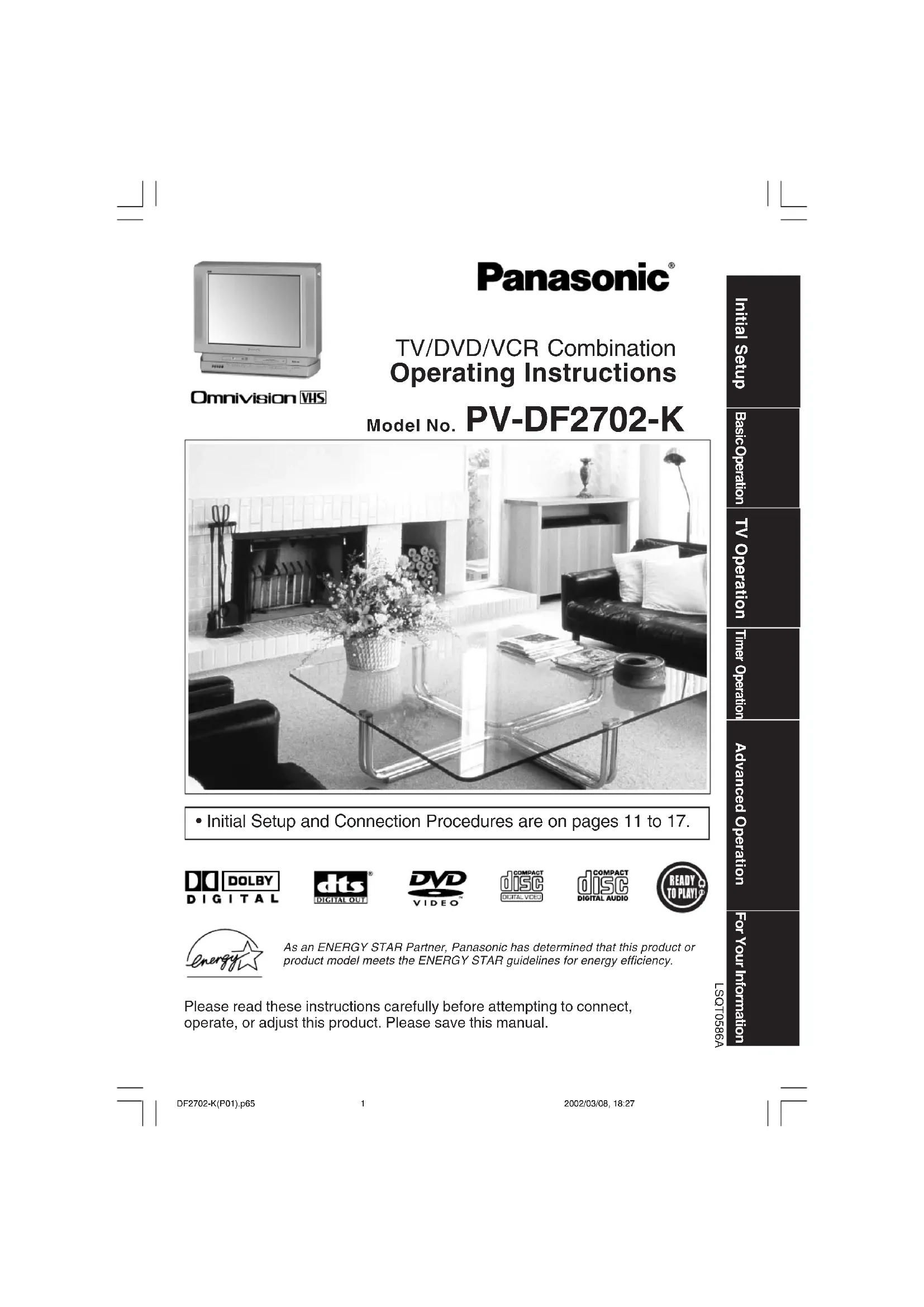
Please read these instructions carefully before attempting to connect,operate, or adjust this product. Please save this manual.LSQT0586A
VCR Combination Operating Instructions Model No. PV-DF2702-K
- Initial Setup and Connection Procedures are on pages 11 to 17. As an ENERGY STAR Partner, Panasonic has determined that this product orproduct model meets the ENERGY STAR guidelines for energy efficiency.Initial SetupTV OperationBasic Operation Timer Operation For Your InformationAdvanced Operation DF2702-K(P01).p65 2002/03/08, 18:271Important Safeguards and Precautions
Operate only from power source indicated on unit or in this manual. If uncertain, have your Electric Utility Service Company or Video Products Dealer verify your home power source.
For safety, this unit has a polarized type plug (one wide blade), or a three-wire grounding type plug. Always hold the plug firmly and make sure your hands are dry when plugging in or unplugging the AC power cord. Regularly remove dust, dirt, etc. on the plug. POLARIZED PLUG CAUTION: The plug fits into outlet only one way. If it cannot be fully inserted, try reversing it. If it still will not fit, have an electrician install the proper wall outlet. Do not tamper with the plug. GROUNDING PLUG CAUTION: The plug requires a three-hole grounding outlet. If necessary, have an electrician install the proper outlet. Do not tamper with the plug. 3 POWER CORD To avoid unit malfunction, and to protect against electrical shock, fire or personal injury: - Keep power cord away from heating appliances and walking traffic. Do not rest heavy objects on, or roll such objects over the power cord. - Do not tamper with the cord in any way. - An extension cord should have the same type plug (polarized or grounding) and must be securely connected. - Overloaded wall outlets or extension cords are fire hazards. - Frayed cords, damaged plugs, and damaged or cracked wire insulation are hazardous and should be replaced by a qualified electrician.
4 DO NOT BLOCK VENTILATION HOLES
Ventilation openings in the cabinet release heat generated during operation. If blocked, heat build-up may result in a fire hazard or heat damage to cassettes or discs. For your protection: a. Never cover ventilation slots while unit is ON, or operate unit while placed on a bed, sofa, rug, or other soft surface. b. Avoid built-in installation, such as a book case or rack, unless properly ventilated.
Do not place unit over or near a heater or radiator, in direct sunlight, inside closed vehicles, in high temperature [over 95 °F (35 °C)], or in over 75% humidity. If unit is suddenly moved from a cold place to a warm one, moisture may condense in unit and on the tape causing damage. Never subject unit to vibration, impact, or place it so that the surface is tilted as internal parts may be seriously damaged.
6 TO AVOID PERSONAL INJURY
- Never place unit on support or stand that is not firm, level, and adequately strong. The unit could fall causing serious injury to a child or adult and damage to the unit.
- Move any appliance and cart combination with care. Quick stops, excessive force, and uneven surfaces may cause objects to overturn.
- Carefully follow all operating instructions.
Before unit is brought out of storage or moved to a new location, refer again to the INSTALLATION section of these safeguards. 1 KEEP UNIT WELL AWAY FROM WATER OR MOISTURE, such as vases, sinks, tubs, etc.
2 IF EXPOSED TO RAIN, MOISTURE, OR
STRONG IMPACT, unplug unit and have it inspected by a qualified service technician before use. 3 ELECTRICAL STORMS During a lightning storm, or before leaving unit unused for extended periods of time, disconnect all equipment from the power source as well as the antenna and cable system.
4 WHEN UNIT IS PLUGGED IN
- DO NOT OPERATE IF: - liquid has spilled into unit. - unit was dropped or otherwise damaged. - unit emits smoke, odours, or noises. Immediately unplug unit, and have it inspected by a service technician to avoid potential fire and shock hazards.
Never drop or push any object through openings in unit. Touching internal parts may cause electric shock or fire hazard. Do not put any foreign object on the tray.
- Keep magnetic objects, such as speakers, away from unit to avoid electrical interference. 5 USING ACCESSORIES Use only accessories recommended by the manufacturer to avoid risk of fire, shock, or other hazards. 6 CLEANING UNIT Unplug unit. Use a clean, dry, chemically untreated cloth to gently remove dust or debris. DO NOT USE cleaning fluids, aerosols, or forced air that could over-spray, or seep into unit and cause electrical shock. Any substance, such as wax, adhesive tape, etc. may mar the cabinet surface. Exposure to greasy, humid, or dusty areas may adversely affect internal parts.
READ AND RETAIN ALL SAFETY AND
OPERATING INSTRUCTIONS. HEED ALL
WARNINGS IN THE MANUAL AND ON UNIT SERVICE
1 DO NOT SERVICE PRODUCT YOURSELF
If, after carefully following detailed operating instructions, the unit does not operate properly, do not attempt to open or remove covers, or make any adjustments not described in the manual. Unplug unit and contact a qualified service technician.
2 REPLACEMENT OF PARTS
Make sure the service technician uses only parts specified by the manufacturer, or have equal safety characteristics as original parts. The use of unauthorized substitutes may result in fire, electric shock, or other hazards.
3 SAFETY CHECK AFTER SERVICING
After unit is serviced or repaired, request that a thorough safety check be done as described in the manufacturer’s service literature to ensure video unit is in safe operating condition.
GROUND CLAMPELECTRICSERVICEEQUIPMENTANTENNALEAD IN
An outside antenna or cable system must be properly grounded to provide some protection against built up static charges and voltage. Section 810 of the National Electrical Code, ANSI/NFPA 70 (in Canada, part 1 of the Canadian Electrical Code) provides information regarding proper grounding of the mast and supporting structure, grounding of the lead-in wire to an antenna discharge unit, size of grounding conductors, location of antenna discharge unit, connection to grounding electrodes, and requirements for the grounding electrode.
2 KEEP ANTENNA CLEAR OF HIGH VOLTAGE
POWER LINES OR CIRCUITS
Locate an outside antenna system well away from power lines and electric light or power circuits so it will never touch these power sources should it ever fall. When installing antenna, absolutely never touch power lines, circuits or other power sources as this could be fatal. DF2702-K(P02-3).p65 2002/03/08, 18:2723 Safety Precautions
To prevent fire or shock hazard, do not expose this equipment to rain or moisture. CAUTION : To prevent electric shock, match wide blade of plug to wide slot, fully insert. This video recorder, equipped with the HQ (High Quality) System, is compatible with existing VHS equipment. Only use those tapes with the mark. It is recommended that only cassette tapes that have been tested and inspected for use in 2, 4, 6, and 8 hour VCR machines be used. This television receiver provides display of television closed captioning. CAUTION: UNIT IS A CLASS I LASER PRODUCT.HOWEVER THIS UNIT USES A VISIBLE LASER BEAM WHICH COULDCAUSE HAZARDOUS RADIATION EXPOSURE IF DIRECTED. BESURE TO OPERATE THE UNIT CORRECTLY AS INSTRUCTED.WHEN THIS UNIT IS PLUGGED TO THE WALL OUTLET, DO NOTPLACE YOUR EYES CLOSE TO THE OPENING OF THE DISC TRAYAND OTHER OPENINGS TO LOOK INTO THE INSIDE OF THIS UNIT.USE OF CONTROLS OR ADJUSTMENTS OR PERFORMANCE OFPROCEDURES OTHER THAN THOSE SPECIFIED HEREIN MAYRESULT IN HAZARDOUS RADIATION EXPOSURE.DO NOT OPEN COVERS AND DO NOT ATTEMPT TO REPAIR THEUNIT YOURSELF. REFER SERVICING TO QUALIFIED PERSONNEL. CAUTION: LASER RADIATION WHENOPEN. DO NOT STAREINTO BEAM. (Inside of product) This symbol warns the user that uninsulated voltagewithin the unit may have sufficient magnitude to causeelectric shock. Therefore, it is dangerous to make anykind of contact with any inside part of this unit.This symbol alerts the user that important literatureconcerning the operation and maintenance of this unithas been included. Therefore, it should be read carefullyin order to avoid any problems.CAUTION: TO REDUCE THE RISK OF ELECTRIC SHOCK, DO NOT REMOVE COVER (OR BACK) NO USER-SERVICEABLE PARTS INSIDE REFER SERVICING TO QUALIFIED SERVICE PERSONNELRISK OF ELECTRIC SHOCKDO NOT OPENCAUTION Region Management Information Region Management Information: This unit is designed and manufactured to respond to the Region Management Information that is recorded on a DVD disc. If the Region number described on the DVD disc does not correspond to the Region number of this unit, this unit cannot play this disc. The Region number for this unit is 1.
Playing older or damaged tapes may eventually cause video heads to become clogged. Head Clog Sensor DisplayPicture Tube: 27 inch diagonal pure flatPicture Tube VCR Video Recording System:4 rotary heads helicalscanning systemAudio Track: 1 track (Normal)2 channel(Hi-Fi Audio Sound)TunerBroadcast Channels: VHF 2 ~ 13, UHF 14 ~ 69CABLE Channels: Midband A through I (14 ~ 22)Superband J through W (23 ~ 36)Hyperband AA ~ EEE (37 ~ 64)Lowband A-5 ~ A-1 (95 ~ 99)Special CABLE channel 5A (01)Ultraband 65 ~ 94, 100 ~ 125FM RadioBand range: 87.5 ~ 108.1 MHzGeneralPower Source: 120V AC, 60 HzPower Consumption: Power OnApprox. 174 wattsPower OffApprox. 3.5 wattsTelevision System: EIA Standard NTSC colourSpeaker: 2 pieces Operating Temperature: 5 °C ~ 35 °C (41 °F ~ 95 °F) Operating Humidity: 10 % ~ 75%Weight: 52 kg (114.4 lbs.)Dimensions: 760(W) x 651 (H) x 503 (D) mm29-15
(12 cm) single-sided,double-layer
(12 cm) double-sided,double-layer(one layer per side)3” (8 cm) single-sided,single-layer3” (8 cm) single-sided,double-layer3” (8 cm) double-sided,double-layer(one layer per side) (2) Compact disc 5” (12 cm) disc (CD-DA, VIDEO CD) 3” (8 cm) disc Digital audio output:Optical digital output: Optical connectorPickup: Wave length:655 nm (DVD)790 nm (Video CD/CD)Laser power: CLASS IINote : Designs and specifications are subject to changewithout notice. SpecificationsHead Cleaning Unit auto adjusts clock for DST (Daylight Saving Time.) DST (Daylight Saving Time)
■ Spring (First Sunday in April) DST : ON
➛ Sets clock ahead one hour.
■ Autumn (Last Sunday in October) DST : ON
➛ Turns clock back one hour.
- If your area does not observe Daylight Saving Time, select DST : OFF (see “Clock” on pages 16 and 17).• Keep these time changes in mind whenprogramming the unit for timer recordings. Features for a Quality Picture Digital Auto TrackingContinuously analyzes the signal and adjusts foroptimum picture quality.Manual Tracking Control (to reduce picture noise)Use during Playback and Slow Motion mode toreduce picture noise. Press the 3 or 6 number keyon the remote control or CH on the unit until thepicture clears up. To return to Auto Tracking, pressPOWER off, then on again a few seconds later.V-Lock ControlIn Still mode, the 3 or 6 number key on the remotecontrol or CH on the unit operate as a V-Lockcontrol to reduce jitter.Pure Flat Picture TubeThis unit is equipped with Pure Flat picture tube.• Use “dry” type head cleaning cassette only.(Part No. NV-TCL30PT is recommended.)• Follow cleaning tape directions carefully.Excessive use of head cleaning tape can shortenthe video head life.• If head clog symptoms persist, contact yournearest Factory Servicentre or authorizedServicentre. (See Page 67.) During playback this screen appears if clogging is detected. To remove screen, press PLAY on the remote or unit. DF2702-K(P06-7 Information).p65 2002/03/08, 18:2767 Initial Setup Definition of Terms AngleSome DVD discs feature scenes simultaneouslyshot from different angles. The ANGLE button can beused to view the scene from different angles.(ANGLE Indicator lights up on the unit when a scenerecorded at different angles is detected.) Chapter Number Titles are subdivided into numbered sections. You canquickly search for a favourite scene using these numbers. DVD A high-density optical disc on which high-qualitypictures and sound have been digitally recorded.DVD incorporates new video compression technology(MPEG II) and high-density recording technologywhich allow entire movies to be recorded withincredible playback quality. Playback Control With Video CD (version 2.0), scenes or informationmay be selected for viewing or listening from aninteractive menu that appears on the TV screen. Subtitles Written dialogue which appears at the bottom of the screen. Time Number The elapsed play time from the start of a disc or title.Use to quickly find scenes. (May not work with some discs.) Title Number For DVD discs with two or more titles, the title isnumbered as title 1, title 2, etc. Track Number Numbers assigned to tracks on Video CDs and CDsto allow specific tracks to be quickly located. Video CD CD containing picture and sound with same qualitylevel as video tape. This unit also supports VideoCDs with playback control (version 2.0).Apparatus Claims of U.S. Patent Nos. 4,631,603, 4,577,216,and 4,819,098, licensed for limited viewing uses only. If disc is brought from a cold to a warm environment, moisture may form on the disc Wipe away moisture with a soft, dry, lint-free clothbefore using disc. (See above.) Improper disc storage Discs could be damaged if stored or left in areas:• exposed to direct sunlight.• that are humid or dusty.• near heat (i.e. heater, radiator, etc.). Disc Handling Disc tray Disc Disc formats supported by this unit The unit can play back discs bearing any ofthe following marks: Discs which cannot be played with this unit
- DVD with Region No. other than “1” or “ALL”
3” (8 cm) disc / 5” (12 cm) disc is a registered trademark. Handling precautions
- Only hold disc by edges as shown.Fingerprints, dirt, and scratchescan cause skipping and distortion.• Do not write on labelside of disc.• Never use recordcleaning sprays, benzine,thinner, static electricityprevention liquids, or anyother solvent.• Be careful not to drop orbend disc.• Do not place more than1 disc on disc tray.• Do not try to close disctray when disc is notproperly placed.• Always store discs in theirproper cases whennot in use. To clean disc surface With a soft, damp (water only) cloth, gently wipe fromthe centre hole to the outer edge as shown below.(Wiping in a circular pattern will scratch the surface.)This product incorporates copyright protection technologythat is protected by method claims of certain U.S. Patentsand other intellectual property rights owned by MacrovisionCorporation and other rights owners. Use of this copyrightprotection technology must be authorized by MacrovisionCorporation, and is intended for home and other limitedviewing uses only unless otherwise authorized byMacrovision Corporation. Reverse engineering ordisassembly is prohibited.DF2702-K(P06-7 Information).p65 2002/03/08, 18:2778 Location of Controls Remote Control Buttons SKIP STILL/PAUSE MENU Displays DVD menu.screen. In Stop mode, goes to the counter3 minutes of tape.“0:00:00”. In Play mode, skips over 1 to DVD Sets to DVD mode. LIGHT See next page. DSS/CABLE Sets the remote to control somebasic DDS or Cable box functions. Receives FM radio signal.
Adjusts volume. RAPID TUNE Displays the last channelyou were watching.
Adds or deletes a channel.Cancels an item on the screen. SUB TITLE Selects a different subtitle language. DISPLAY/ENTER Displays the TV status and clock.In DVD mode, displays disc andunit information.In DSS or CABLE mode, it may benecessary after channel selection. PROGRAM Displays SET PROGRAM screen.You can set Timer Program andOn-Timer. FF/SLOW+ Fast forwards tape and forward visual search. Increases slowmotion speed in Still mode.
Enlarges specific portions of DVDpicture. Resets to “0:00:00” atdesired portion of tape. REC Records a program. STOP Stops recording or playback. RETURN/SPEED Returns to DVD menu screen.Selects recording speed of tape.
See next page. POWER Turn the unit on or off. TV/VCR Sets to TV/VCR mode. MUTE Mutes the sound instantly.
Selects a channel. SURROUND Creates a deeper, 3-D sound effect. NUMBER Keys Selects a channel directly. ANGLE Selects the desired anglein DVD mode. AUDIO Selects the desired audio mode. TITLE Selects the desired title by numberon some DVDs. SELECT Control navigation aroundon-screen menu. ACTION Displays Main Menu. SET Sets a selected menu. REW/SLOW- Rewinds tape and searches reversescene. Decreases slow motionspeed in Still mode.Pauses picture in Play mode andframe advance picture in Still mode. PLAY Begins
/CM SKIP/ZERO SEARCH
Skips one chapter or track. Goes to nextplayback. SKIP /SEARCH Skips back one chapter or track. Goes toprevious menu screen. Goes directlyto the desired recording. Locates endpoint of recording.DF2702-K(P08-11 Location).p65 2002/03/08, 18:2789 Universal Light Tower
Illuminated Remote Control LIGHT button: When LIGHT is pressed, (DVD, , DSS/CABLE, CH UP/DOWN, VOL UP/DOWN) buttons will light for 5 seconds for easy button location. If no button is pressed in 5 seconds, the light goes out to conserve the battery. EJECT/OPEN/CLOSE button: When this button is pressed in TV-VCR mode, the tape is ejected. This button is inoperative if pressed during recording. If pressed in DVD mode, the disc tray opens or closes. Indicators on the Front Panel Initial Setup Remote SensorANGLE IndicatorLights up when a scenerecorded at differentangles is detected.(DVD only).PROG TIMER Indicatorset for Timer Recording.It flashes when a TimerRecording has been set withno tape inserted, the clockis not set, or the tape is inmotion.Pg. 26REC IndicatorLights up during recording.In Rec Pause or OTRPause mode, the Indicatorflashes.Pg. 18ON-TIMER IndicatorLights up when the On Timeris setPg. 26Lights up when the unit isPg. 51DF2702-K(P08-11 Location).p65 2002/03/08, 18:27910 Location of Controls (continued) Front View of the unit Built In Speaker (✕ 2) Disc Tray Cassette Compartment TV/FM (See page 8.) STOP/EJECT (See page 8.) PLAY/REPEAT (See page 8.)
from ANT./CABLE Cable TV Converter Box VHF/UHF VHF/UHF For ANT./Cable Connect the cable from Antenna/Cable to the VHF/UHF terminal on the unit. For DSS/Cable Box Connect the OUT jack on your cable box to the VHF/UHF terminal on the unit with a RF cable. WARNING Overtightening “Nut type” RF coaxial cables may damage jacks. Finger tighten only. See below. electric power in OFF condition. AC Power Plug When plugged into an AC outlet, this unit consumes 3.5 W of VHF/UHF Antenna Input Terminal Audio Output Connector (L/R) Pg. 12 Optical digital audio output connector Pg. 13 Audio/Video Input Connector 1 (LINE 1) Connect from other component. S-Video Input Connector Connect from other component with S-Video. DF2702-K(P08-11 Location).p65 2002/03/08, 18:271112 Connections (continued) Amplifier Unit SpeakerSpeakerAUDIO OUT R LR LAUDIO INNotes on audio output from the optical digitalaudio output connectorEnjoying digital audio output from thedigital audio output connector*1 The type of audio output from the connector can beselected by the Settings for DVD Operation. (Seepage 61.)*2 Sound having 96 kHz sampling is converted into 48 kHz sampling when it is output from the unit’s optical digital audio output connector.For your reference:• Dolby Digital is a digital sound compression techniquedeveloped by the Dolby Laboratories LicensingCorporation. Supporting 5.1-channel surround sound,as well as stereo (2-channel) sound, this techniqueenables a large quantity of sound data to be efficientlyrecorded on a disc.• Linear PCM is a signal recording format used in CDs.While CDs are recorded in 44.1 kHz/16 bit, DVDs arerecorded in 48 kHz/16 bit up to 96 kHz/24 bit.• If you have a Dolby Pro Logic Surround decoder, youwill obtain the full benefit of Pro Logic from the sameDVD movies that provide full 5.1 channel Dolby Digitalsoundtracks, as well as from titles with the DolbySurround mark. For information on Panasonic orTechnics Dolby Pro Logic Surround Sound Decodersplease contact your local dealer. Ready Checklist Turn down the volume, then turn this unit, as well asother equipment to be connected, off beforeproceeding with connection.Do not block ventilation holes of any of theequipment and arrange them so that air cancirculate freely.Read through the instructions before connectingother equipment.Ensure that you observe the colour coding whenconnecting audio and video cables. Disc DVD Video
PCM (44.1 kHz sampling)Linear PCM(44.1 kHz sampling)Linear PCM(It depends on the MP3 file) ■ Unit
➛ Speaker Audio connections Manufactured under license from Dolby Laboratories. “Dolby”, “Pro Logic” and the double-D symbol are trademarks of DolbyLaboratories. Confidential Unpublished Works.© 1992-1997 Dolby Laboratories, Inc. All rightsreserved.DF2702-K(P12-13) connect.p65 2002/03/08, 18:271213 Initial Setup Unit Optical digital audiocable (optional)Decoder with Dolby Digital/dts processing (optional)AmplifierCentre speakerFrontSpeakerFrontSpeakerSubwooferSurroundspeakerSurroundspeaker ■ Unit
➛ dts (digital theatre systems) Decoder
➛ Speaker When DVDs recorded in Dolby Digital or dts are played, Dolby Digital bitstream or dtsbitstream is output from the unit Optical digital audio output connector. When the unit isconnected to a Dolby Digital decoder or dts decoder, you can enjoy theatre-quality audio inyour home. [An optical digital audio cable (optional) is required when an optional DolbyDigital decoder or dts decoder is used.]Notes on connecting an Opticaldigital audio cable (optional)• Firmly connect the cable to theconnector. IMPORTANT NOTE: Caution for optical digital audiooutput connector:• When connecting an amplifier (withan Optical digital input connector)which does not contain the DolbyDigital or dts decoder, be sure to select “OFF” at “Dolby Digital” and “OFF” at “dts” of the Settings for DVD Operation “AUDIO OUTPUT”(see page 61). Otherwise, anyattempt to play DVDs may causesuch a high level of noise that it maybe harmful to your ears and damageyour speakers.• When a dts decoder is connected, please select “Bitstream” at “dts” of the Settings for DVD Operation “AUDIO OUTPUT”. If “OFF” is selected, there will be no sound.(See page 61).• Video CDs and CDs can be playedas normal.Note:• Some dts decoders which do notsupport DVD-dts interface may notwork properly with the unit.DF2702-K(P12-13) connect.p65 2002/03/08, 18:271314 Plug the unit power cord into an AC wall outlet. Initial Setup (Ready to Play)
Press on the remote for TV-VCR mode.
- If you use a cable box, turn it on and set it to the PublicBroadcasting Service (PBS) channel in your time zone.If you use a DSS receiver, it must be turned off.ACTIONTV-VCRSELECT SET POWER Initial Setup (Ready to Play) Please make all cable or antenna connections before powering on. Press POWER* on the remote or unit. The unitcomes on and auto channel and clock set starts.CH AUTO SET PROCEEDINGSettings are made automatically.When setup is done, this screen appears. PROCEEDING AUTO CLOCK SET CANCEL : PRESS STOP KEYIf AUTO CLOCK SET IS INCOMPLETEscreen appears, set the clock using MANUALCLOCK SET procedure on next page. PLEASE SET CLOCK BY
Important:If a remote control button does not work when pressed, press the button on the remoteand try the button again. Manual Clock Set If AUTO CLOCK SET was incomplete, manuallyset the clock as follows. Press ACTION on the Remote to display SET CLOCK Menu screen.
Press to select the month and press SET to set. In the same manner, select and set the date, year, time, and DST. (Daylight Saving Time)
Press ACTION twice to start CLOCK and exit.
Reset all unit Memory Functions When moving unit to a new location, or if amistake was made in the Initial Setup section.• Make sure a tape is not inserted in the unit. Turn the unit Power on.
Press and hold both PLAY and FF on the unit for more than 5 seconds.
- The power will shut off.
- Please ignore “NO CASSETTE” warning.
Perform “Initial Setup” on the 14.
Note to CABLE system installer: This reminder is provided to call the CABLE (Cable TV) SystemInstallers attention to Article 820-40 of the NEC that providesguidelines for proper grounding and, in particular, specifies thatthe cable ground shall be connected to the grounding system ofthe building, as close to the point of cable entry as practical. DF2702-K(P14-15)Initial setup.p65 2002/03/08, 18:271516 Reset Language, Channels, Clock, Time Z
3) Press to select“MANUAL,” thenpress SET.(For Auto Clock Set,select “AUTO CLOCK
SET,” and press SET.)
3) Press to select“ANTENNA,” thenpress SET to setyour antenna system
(“TV” or “CABLE”). 4) Press to select“AUTO SET,” thenpress SET.• After Channel AutoSet is finished, ClockAuto Set will beperformed.(If clock is setmanually, Clock AutoSet will not beperformed.)(“TIME ZONE ADJUST”appears only whenauto clock is set.)1) Press toselect languageicon.2) Press SETrepeatedly. Language Channels Clock Press ACTION*to display MAIN MENU.3) Press ACTION toexit.1) Press toselect “CH.”2) Press SET.1) Press toselect “CLOCK.”2) Press SET.SET
For EnglishFor SpanishFor French
<Example MANUALCLOCK SET screen>Continued on thenext page. DF2702-K(P16-17 lang ch clk).p65 2002/03/08, 18:271617 Initial Setup 4)Press and press SET to select and set the month, date, year, time, and DST (Daylight Saving Time)
To Make Corrections, repeatedly press to move to error, then correct. 5)Press ACTION twice to start the clock and exit this mode. 3)Press to select “TIME ZONE ADJUST” and press or to subtract or add hour(s) as necessary. 4)Press ACTION twice to exit.
- “TIME ZONE ADJUST” returns to “0” if clock is set manually. (Only when Auto Clock is set.) Add or Delete a Channel Time Zone Adjust
ADDED To add channel: Select channel with number keys and press ADD/DLT.
Important:If a remote control button does not workwhen pressed, press the button onthe remote and try the button again.
ADD/DLT SELECT SET ACTION NUMBER keys
Insert a tape. Press PLAY* to play a tape.
➛ Press again or PLAY to release. ■ Still (Freeze) picture
➛ Press PLAY to release. ■ Slow Motion picture
➛ Press FF/SLOW+ (increases speed) or REW/SLOW- (decreases speed) in Still mode.
➛ Press PLAY to release. ■ Frame by Frame picture
➛ Press PLAY to release. Record tab ■ Stop
➛ Press REW/SLOW- in Stop mode ■ Fast forward tape
➛ Press EJECT on the remote or STOP/EJECT on the unit
- These features work best in SP or SLP mode.
- After the unit is in Still or Slow mode for 3 minutes, it will switch to Stop mode automatically to protect the tape and the video head. Ready Checklist All connections are made.Your unit is plugged in. Press CH or number keys to Select Channel.
Press SPEED to select recording speed (see page 4). SP = Standard Play LP = Long Play SLP = Super Long Play
- Selected speed is displayed. Press REC to start recording.
- To edit out unwanted portions, pressSTILL/PAUSE to pause and resumerecording.• You cannot view another channel duringrecording.
- After the unit has been in Rec Pause mode for 5 minutes, it will stop automatically to protect the tape and the video head.
- The remaining recording time of an OTR can be displayed by pressing DISPLAY. ■ Stop
➛ Press STOP ■ One Touch Recording (OTR) Press REC repeatedly to set the recording length (30 min - 4 hours.)
- The unit stops recording at a preset time.
- PROG TIMER Indicator lights on the unit. Normal Rec0:30 1:001:302:003:004:00
Insert a tape with record tab.
- The unit power comes on automatically. Notes
- It is not possible to record from DVD/ Video CD/CD to VHS tape using this unit. PLAY NUMBER keys
- If tape has no record tab (see page 4),auto play begins.DF2702-K(P18-19) play_rec_copy.p65 2002/03/08, 18:271819 Basic Operation Copy Your Tapes (Dubbing)
- Unauthorized exchanging and/orcopying of copyrighted recordingsmay be copyright infringement.• Please note that some tapescannot be dubbed on this unit.Also, it is not possible to dubDVD/Video CD/CD to VHS tapeusing this unit. Playback (Source)
Recording (Editing) unit Insert pre- recorded tape. Insert blank tape with record tab.
- Dubbing tapes protectedwith Copy Guard will havepoor quality results.
Press PLAY thenPAUSE at startingpoint to put in Standby mode. Press PLAY to start dubbing. Press STOP to stop dubbing. Select “LINE” mode. See “Selecting Input Mode” below. Press REC, thenPress STILL/PAUSEimmediately to put in Standby mode. Press STILL/PAUSE to start dubbing. Press STOP to stop dubbing. Selecting Input Mode Method 1:Press CH . The display will change as follows.Method 2:a Press ACTION for MAIN MENU. b Press to select “TV”, then press SET for SET UP TV screen. c Press to select “INPUT SELECT,” and then press SET to select “TUNER”, “LINE1” or “LINE2.” d Press ACTION twice to exit this mode.• LINE1 : For rear Audio/Video connection.LINE2 : For front Audio/Video connection.
LINE 2 Caution STOP Connections you’ll need to make (Perform operation of steps 4 and 5 on both units at same time.)
Important:If a remote control button does not workwhen pressed, press the button onthe remote and try the button again.
Playing (Source) VCR Recording (Editing) unit Rear
Press ornumber key(s) (seebelow) to select titleand press SET toplay. Basic DVD Operation Ready Checklist All connections are made. (See pages 11-13.)Your unit is plugged in.If unit is connected to an audio amplifier,turn the stereo system’s power on.
Press POWER* on the remote or unit. Press DVD to select DVD mode. Insert a disc.
1) Press OPEN/CLOSE.
2) Place disc into disc tray.
- If a disc is already inserted, go to step 4.(Depending on the disc, playback may startautomatically.) Press PLAY to start play. Disc tray closes automatically.
If an interactive DVD* or aVideo CD with playbackcontrol* is used and a TITLEMENU appears, go to step 5.• You may also close the trayby pressing OPEN/CLOSE.• Data reading time differs witheach disc.
- Hold disc by its edges only(page 7) with printed side up and use guides to place intotray. Use 3”(8 cm) or5” (12 cm) disc.
Interactive DVD...May include multiple camera angles,stories, etc.
Video CD with playback control...Particular scenes or information can beinteractively selected from a menu thatappears on the screen. Operation using unit buttons Press PLAY.Insert disc.PressOPEN/CLOSE.
- Please read the disc jacket for operationinformation.• If a single sided disc is placed in upside down,“PLEASE CHECK THE DISC,AND FOR STAINS OR SCRATCHES ONDISC” is displayed.• Remove disc and press unit POWER off whennot in use.• Disc continues to rotate with menu displayedeven after play is done. Press STOP to clearmenu display when finished with menu. ■ Forward/Reverse rapid scene search
➛ Press FF/SLOW+ or REW/SLOW- during play.
➛ Press PLAY to release.
- Starting forward/reverse search during playstarted from menu on Video CDs may recallmenu.• Search speed, slow at first, increases witheach additional press of the button up to 5levels. ■ Forward/Reverse Chapter/Track Skip
during play. Each press skips a chapter (DVD) or track (Video CD/CD). Pressing SKIP once midway through achapter/track returns to start of that chapter/track.Each additional press skips back one chapter/track.• Pressing SKIP
during play startedfrom menu on Video CDs may recall menu. ■ Still (Pause) Picture
➛ Press STILL/PAUSE during play.
➛ Press PLAY to release.
➛ Press PLAY to release.
- Each press advances picture one frame.• Hold down for consecutive frame advance.
- Whether pictures are advanced by “FRAME” or “FIELD” is selected automatically (see page 62). ■ Slow Motion picture (DVD/Video CD)
Press FF/SLOW+ or REW/SLOW- (DVD only) in Still mode.
➛ Press PLAY to release.
- Slow motion speed, slow at first, is increasedwith each additional press of the button up to 5levels.• Reverse slow motion is not available for video CDs.
- When appears on the screen while a buttonis being operated, it means that thecorresponding operation is prohibited by theunit or the disc.The unit memorizes the point where STOPis pressed ( flashes on screen).Press PLAY to resume play from this point.Pressing STOP again or opening the traycancels RESUME, however, RESUME is notcancelled when power is turned off and on.• RESUME works only with discs for whichelapsed play time is displayed during play. RESUME function Notes Power turns off after unit has been in Stopmode (DVD) for about 5 minutes. Auto-Power Off function 1.Do steps 1-4 (previous page).When menu appears, press STOP.2.Press number key(s) to select desiredtrack (play begins).• Check disc for track numbers.
- Press “1” to start at beginning of disc. To Resume Menu use, Press STOP, and press PLAY, then the menu appears. Now, go to step 5 (previous page). Enjoy Video CDs featuring playback control without using menus (Video CDs only)
Important: f a remote control button does not work when pressed, press the DVD button on the remoteand try the button again.Chapter/Track Chapter/Track Chapter/ rackChapter/
Press POWER* on the remote or unit. ■ Using the 100 key When selecting CABLE channels 100 to 125with the number keys, first press the 100 key,and then enter the remaining two digits. ■ Rapid Tune Press R-TUNE to display the last channel youwere watching. ■ Audio Mute Press MUTE to instantly mute the sound.Press again to restore the previous sound level. ■ Phones Connect an earphone (not supplied) orheadphones (not supplied) to the Phones Jack. Ready Checklist All connections are made. (See page 11).Your unit is plugged in.PHONES Jack POWERVOL + / VOL -
Important:If a remote control button does not workwhen pressed, press the button onthe remote and try the button again. Use CH or number keys to select a channel.
DF2702-K(P22 TV).p65 2002/03/08, 18:282223 TV Operation Receivable Broadcast Types The following are possible audio broadcast types andon-screen displays. The signal being received is indicated with an “ ” mark while the selected audio mode is indicated with an arrow. To change the audio mode for thesebroadcasts, see the “Select Audio Mode for TV Viewing”section (below.)Press DISPLAY to display the broadcast signal being received. MTS Stereo and SAP broadcastMulti-channel Television Sound Stereo(main language) and Secondary AudioProgram (sub language) broadcasts arebeing received simultaneously.Select the STEREO or SAP audio mode.MTS Stereo broadcastMulti-channel Television Sound Stereobroadcast. Select STEREO audio mode.• If stereo broadcast is weak and thedisplay flickers, select MONO audiomode for possible improvement.SAP broadcastSecondary Audio Program(sub language).Select SAP audio mode for the sublanguage. Audio Mode for TV Viewing Press AUDIO to select the desired audio mode as described above. (Arrow shows selection.)• Each press of AUDIO will change the audio mode as shownbelow.
- “SAP” is selected with first press of AUDIO. MTS Broadcast
TV Stereo System MONO broadcastNormal monaural sound broadcast. STOP
ONO Press AUDIOPress AUDIOPress AUDIOEquipped with -TV NoiseReduction for true MTSreproduction. -TV NoiseReduction is required for goodstereo separation and audio fidelity. is a registered trademark, andis licensed by TechnologyLicensing. STOP
Closed Caption System Closed Caption is ... This multi-use system not only allows the hearing impaired to enjoy selected programs,but also makes useful information from TV stations available to everyone.Press ACTION*to display MAIN MENU.Closed Caption Mode SelectionsCaption Mode: CAP C1 or C2A narration of selected TV programs isdisplayed.Check TV program listings for CC(Closed Caption) broadcasts.Caption Mode: TEXT C1 or C2The lower half of the screen will beblocked out. When the TV stationbroadcasts information, such as programlistings, it will appear in this space.Caption Mode: OFFClosed Caption /Text narration will not bedisplayed.NOTE :The closed caption or text signal may bebroadcast over C1, C2, or both.Also, text contents can vary so you maywish to try different settings.Recording and Playing Back a Closed Caption/Text ProgramRecord : Record normally. Closed Caption/Textsignal, if present, is recordedautomatically.Playback : Start playback. Perform above steps toselect desired caption mode. Press ACTION three timesto return to the normal screen. 1)Press toselect “TV.”2)Press SET todisplay SET UPTV screen.
1) Press toselect CAPTIONMODE.2) Press SETrepeatedly to selectmode. (See left.)
Caption On Mute Feature Closed Caption narration, if available, is displayedwhen MUTE button is pressed for silence. Press ACTION to display MAIN MENU.
- When a disc supporting closed captionis used, the subtitle and the closedcaption may overlap. In this case, turnthe subtitle or caption on mute mode off.(See page 50.)
Press ACTION three times to return to the normal screen.
Press MUTE to mute the sound and display closed captioning.
- To cancel, press MUTE again.
1)Press to select CAPTION MODE. 2)Press SET repeatedly to select “OFF.”
repeatedly to select desired mode.
ON-TIMER with Alarm TV Timer Features Ready ChecklistThe clock is set to correct time.This unit can be set to automatically power on in one of4 modes (TV, VCR Playback, FM radio, or DVD/VideoCD/CD.) You can also combine the On-Timer with aone minute alarm that gradually increases in volume.If no button on the remote or unit(including a button used to turn offthe alarm) is pressed within 60minutes after unit turns itself on, itwill turn itself back off.Press PROG* to display SET PROGRAMscreen.To Cancel ON-TIMER set, Repeat steps 1 and 2. Then, press ADD/DLT to clear the time in step 3. Now, press PROG to end. “ON TIMER END” briefly appears on-screen.
PROG SET PROGRAMT I MER PROGRAMM
- ON-TIMER modeselection order1) Press to selectdesired settings.2) Press SET to set theON-TIMER TIME orON-TIMER mode.• Make sure a tape is insertedif Playback mode is selected.• Make sure a disc is insertedif DVD (DVD/Video CD/CD)mode is selected.
- See “FM Radio” on pages 28 and 29 for instructions onhow to preset FM stations. FM1 VCR
Press to select ALARM “ON” or “OFF.” When “ON” is selected,an alarm will gradually increase in volume for oneminute or until cancelled by pressing any button(including VOL + -).To Make Corrections, use and to move back and correct.
Press PROG to set ON TIMER.
- “ON TIMER SET” is displayed.
- ON TIMER Indicator lights up on the unit. Sleep Timer This unit can be set for auto power off.Press PROG to display SETPROGRAM screen.
SLEEP TIMER 30 60 90 00 To cancel,press SET repeatedly until 00 appears.
1) Press to selectSLEEPTIMER.2) Press SETrepeatedlyto selectthe desiredtime.
Press PROG to return to thenormal screen.• Pressing DISPLAY with sleeptimer set displays remaining time.ON TIMER Indicator Note DF2702-K(P26 TV timer).p65 2002/03/08, 18:282627 TV Operation On-Screen Display (OSD) TV/VCR Status & Clock Display Press DISPLAYto display or remove the overlay. Blue Screen Display When a function button is pressed (PLAY, FF, etc.)or you change channels, the unit mode or channelnumber will be displayed. (Some station namesmay also appear if Channel Caption is set. Seepage 38.)
Channel & Function Display PLAY Whenever a blank section of a tape comes up inPlay mode, or when the selected channel has nobroadcast signal with the Weak Signal Display Feature set to “OFF” (see page 39), the screen will turn solid blue. Important:If a remote control button does not workwhen pressed, press the button onthe remote and try the button again. REC
Press a numberkey* (1~9) toselect the FMpreset number. To Make Corrections,select station with anumber key, then dostep 3 again.To exit FM mode,press or DVD on theremote or TV/FM on theunit.1) Press CH to select thedesired radiostation. (Eachpress changesfrequency by 200KHz.)2) Press ADD/DLTto set the radiostation.Hold down CH or for a few seconds,then release toquickly scan for FMstations in your area.• To cancel, pressCH or while insearch mode.
Press FM on the remote orpress TV/FM on the unit to displayFM radio mode. FM Radio is ... This unit has an FM radio with built-in antenna, 9 station preset, and a band range of87.5 ~ 108.1 MHz. You can even set the On-Timer (page 26) to wake up to your favouriteradio station. FM Antenna Setup
Make sure FM tuning is done correctly (see FM Radio Setup). Press ACTIONto display MAIN MENU.1)Press to select “TV.”2)Press SETto display SETUP TV screen.
To exit FM mode,press or DVD on the remote or TV/FM on the unit. Press a number key (1~9) to select a preset FM number (see FM RadioSetup on page 28). Using FM Radio
Press ACTION twice to end setup. Press FM on the remote or press TV/FM on the unit to display FM radio mode.
- FM radio cannot be recorded on a Video cassette.• You may get better reception by repositioning the unit.• You cannot select FM Radio mode during playback or record, or whilea blue back screen (PROG, ACTION, MENU) is displayed.• Once stations are set, the selected station and current time aredisplayed when FM Radio mode is entered.To remove time, press DISPLAY. If DISPLAY is pressed again, the unitstatus screen appears. Important: f a remote control button does not work when pressed, press the FM button on the remoteand try the button again. SELE
Notes Audio Mode for FM Radio Press AUDIO repeatedly to select “STEREO” or “MONO” in FM Radio mode. STERE
1)Press to select FM ANTENNA. 2)Press SET to select “INT (INTERNAL)” or “EXT (EXTERNAL)” to determine which one sounds best. DF2702-K(P28-29 FM).p65 2002/03/08, 18:282930 Press PROG to end the program. To Enter More Programs, press to select and SET to set a blank program number, and then repeat step 3. Press PROG twice to exit this mode.
- If you’re using a cable box, make sure that it is tuned to the desired channel and the poweris left on for timer recording.• PROG TIMER Indicator lights up on the unit. Timer Recording You can set up to 8 programs to be recorded whileyou are away.
Ready Checklist All connections are made.Your unit is plugged in.The clock is set to correct time.The tape is long enough.The record tab is in place. Press PROG* to display SET PROGRAM screen.
- If a program is already inmemory, press , andSET to select an unusedprogram number. Press to select and SET or to set the recording DATE.
- 1~31 = One time• DAILY = MON~FRI• WEEKLY SUN~SAT= Same time once a weekRepeat step 3 to set:• Start time, stop time• Channel (or LINE for outside source)• Speed (SP, LP, SLP)Today’s Date ExampleDAILY
PROG SET PROGRAMT I MER PROGRAMM
Press PROG twice to exit this mode.
Press to selectthe desired program.1) Press SET to display. Press to selectand press SET or to set newprogram contents.3) Press PROG. Cancel a Timer Recording: (Recording is in progress) Hold down STOP for a few secondsto cancel the Timer Recording.• Any future daily or weekly recordingswill be performed as programmed.Press ADD/DLT. Review, Replace or Clear Program Contents : ( Recording is not in progress
- 2 minutes before Timer recording is performed,“PLEASE PREPARE FOR TIMER REC” appearsand/or the PROG TIMER Indicator flashes.Be sure a cassette with record tab is loaded and theunit is in Stop mode.• If the start times of two programs overlap, the lowernumbered program will have priority.• If the start time for a Timer Recording comes upduring a normal recording or One Touch Recording(page 18), the Timer Recording will not be performed.• If there is a power interruption of more than oneminute, the recording may not be performed orcontinued.
- If “INCOMPLETE” appears after all items have been set, check all entries and make necessarycorrections.Notes Important: f a remote control button does not work when pressed, press the button on the remoteand try the button again.
Cable Box Universal Remote Control Feature Press , FM, DVD or DSS CABLE on theremote control to select the desired mode. (See belowfor buttons available in each mode.)Once the remote control has been properly set up,you can select TV-VCR, FM, DVD, DSS or CABLEmode depending on which functions you wish tocontrol. Find your DSS box or Cable box Brand Code Number from one of the charts on the next page.
Confirm code entry. Press POWER* to turn selected unitON or OFF.• See below for controllable functions in eachmode.• Please repeat the Universal Remote Control Setupafter replacing remote control batteries.• The remote control will not operate all DSS receiversor Cable Boxes made by the manufacturers listed.If you get no results, your particular brand cannot becontrolled.Notes
Setup remote. Hold down DSS CABLE and pressnumber keys to enter code.• If code number is 100 or greater,e.g., press 1 - 0 - 2 for 102. Using the Universal Remote Control (Available Buttons / Functions) Set to , FM, DVD:All TV functions, as well as functions of TV-VCR, FM,or DVD.Set to DSS CABLE:• Basic VCR functions, e.g. PLAY, REC, etc.• CABLE/DSS function, e.g. POWER, ENTER,NUMBER keys (except 100 key), CH UP/DOWN.DF2702-K(P32-33 Univ rem).p65 2002/03/08, 18:283233 Advanced Operation
- In DSS or CABLE mode, it may be necessary to press ENTER after pressing number keys for channel selection.
- In DSS or CABLE mode, POWER, CH Up/Down, Number Keys, ACTION, PROG, DISPLAY/ENTER, SEARCH/SKIP-, R-TUNE, SELECT, SET, CM SKIP/ZERO/SKIP+, COUNTER RESET/ZOOM, ANGLE, AUDIO, TITLE, SUB TITLE, MENU, or ADD/DLT are not available. Press , FM, DVD to use these functions.
- Depending on your DSS receiver or Cable box brand, some of the functions listed may not be remote controllable.
- Some DSS receiver or Cable box brands require you to turn on the power manually.
- Due to changes in infra-red commands used by manufacturers, some brands have several codes. If your unit does not respond to the first code, please try the next one. Notes
Press SEARCH*in Playback orStop mode todisplay INDEXSEARCH screen,and then pressnumber keysto select therecording number.• To calculatenumber, see below. Press FF or REW to start search. Index Search Go directly to the desired recording.• Make each entry within 5 minutes,or the Index Search mode will becancelled.• If Index Search is started very closeto an index mark, that index markmay not be counted in the search. Play begins atsearch end.To search forwardor back 1 index,press FF or REWwhile screen left isdisplayed (10seconds).NOTE: indicates start points of each recording.61572 34
■ To calculate the Index Number Example 1:To go to rec. 2 from rec. 4, enter 3 and press REW. Example 2:To go to rec. 6 from rec. 2, enter 4 and press FF. ENTER
End Point End PointUpon locating end point...The unit searches slightly past end point,reverse searches, and plays the last fewseconds of the program, then stops. Press SEARCH button
- If Program End Search is started very closeto an index mark, that mark may beskipped over.End Point Note
Important: If a remote control button does not work when pressed, press the button on the remote and try the button again. To cancel,press PLAY or STOP. DF2702-K(P34-37 tape OP).p65 2002/03/08, 18:283536 Tape Operation (continued) Repeat Play Set to see a recording over and over. Zero Search To quickly return to a specific tape counter location.
Continue playback, rewind, or fast forward. Press COUNTERRESET at thedesired position toreset to “0:00:00.”Press DISPLAY* during playbackto display the Counter.Press CM/ZERO in stop mode tostart ZERO SEARCH.
PLAY REPEAT ONTo turn “ON,”press PLAY/REPEAT on the unitrepeatedly in Play mode to select“REPEAT ON”.To turn “OFF,”repeat above to select “REPEAT OFF.”• Playback repeats when tape end isreached or unrecorded portion over 30seconds is detected.• For repeat play in DVD mode, see page 57. Note
- Unit goes into FF or REW mode andstops at the last point the Counter wasset to 0:00:00.PLAY/REPEATDF2702-K(P34-37 tape OP).p65 2002/03/08, 18:283637 Advanced Operation Press CM/ZERO repeatedly to select skip time in Playback mode. Commercial Skip By pressing the CM/ZERO button in Playback mode you can skip over 1 to 3 minutes of recorded tape in just a few seconds.
- No indication appears.
■ Auto Shut Off No broadcast signal in TV mode (Only when Weak Signal Display is set to OFF.), DVD stop, or blank tape is played for 5 minutes ➛ Power turns off
- This feature is cancelled if any button is pressed during above conditions.
- Playback begins if tape has no record tab.
■ Auto Rewind (except for Recording) Tape reaches its end ➛ Rewind, ➛ Stop
■ Playback Auto Eject (Repeat Play is “OFF”) Tape with no record tab reaches its end ➛ Rewind, ➛ Stop, ➛ Eject Auto Operation Functions
Press ACTION three times to end setup. Special VCR Features
to select a station.
2) Press SET (or ) to
move cursor to the right.
- Repeat step 4 until the Caption List is complete.
ABC CBS FOX NBC CLEA
To Make Corrections Press , then SET (or ) to select channel number. Press to change, or ADD/DLT to delete. Channel Caption is ... Station names, e.g. ABC, CNN, etc. are set so they will appear when a channel is selected. Choose 24 preset names. Ready Checklist You need a list of stations and the channel numbers you receive them on.
Press ACTION twice to return to normal screen. When Universal Remote Control (page 32) is used, and this feature is set to “ON,” a warning appears whenever an invalid key is pressed inDSS or Cable mode.
display SET UP TV screen. 1)Press to select REMOTE WARNING. 2)Press SET to set “ON” or “OFF.”
- “REMOTE WARNING : OFF”➛ Remote warning will not appear even ifinvalid key is pressed. When “ON” is selected, the picture is displayed even when a broadcast signal is weak or non-existent. Weak Signal Display Feature
- “ON” = Picture is displayed regardless of signal condition, and may notalways be clearly visible.“OFF”= Screen turns solid blue whensignal is absent or weak.• If unit is connected to equipment which has blue back feature, selecting “ON” will have no effect on the other equipment. VCR Lock All operations are prohibited except Timerrecording and tape eject. Useful for familieswith small children.
display SET UP CHANNEL screen. Press ACTION twice to return to the normal screen.
set “ON” or “OFF.” NotesIn Stop mode, holddown REC on theunit without acassette insertedfor 7 seconds toturn “ON.”(Please ignore “NOCASSETTE”warning.)Repeat above withor without cassetteto turn “OFF.”• VCR Lock is cancelled automaticallyafter about 24 hours if clock is set. REC
Ready Checklist It is necessary to enter TV mode by pressing before selecting “CH” on the MAIN MENU.
- Step 2) not necessarywhen changing rating orsecret code.• Take care that you arenot observed enteringthe secret code.To Make CorrectionsPress repeatedly tomove the cursor.Press number keys tomake the correction.1) Press toselect “LOCK.”2) Press SET to displayLOCK screen.
V-Chip Control Feature is...This unit has a built-in V-Chip Control which allowsyou to block unwanted TV usage based on USMOVIES, US TV PROGRAMS, Canadian EnglishLanguage and Canadian French Language Ratings. DF2702-K(P40 V-chip).p65 2002/03/08, 18:284041 Advanced Operation
1)Press to select US MOVIES. 2)Press SET to set “ON” or “OFF.” If LOCK menu is not displayed, perform “Enter Secret Code” steps on page 40. ■ “ON”
➛ V-Chip Control is activated.■ “OFF”
➛ V-Chip Control is deactivated. US MOVIES Ratings Process of V-Chip Control Feature Blocking Enter Code Setup
PG-13 NC-17 GENERAL AUDIENCE:All ages admitted.PARENTAL GUIDANCE:Some material may not be suitablefor children.PARENTS CAUTIONED:Some material may beinappropriate for children under 13.RESTRICTED:Children under 17 must beaccompanied by a parent or adult.OVER AGE 17 ONLY:No one 17 and under admitted.ADULTS ONLY:US MOVIES RATINGS Important:If a remote control button does not work when pressed, press the button on the remoteand try the button again.US MOV
1)Press to select VIEW NR PROGRAMS?. 2)Press SET to set “YES” or “NO.” NR (Not Rated) PROGRAMSSome movies, such as old moviesor foreign movies usually have no ratings.
and SET to set ratings to be blocked. (See ratings chart on this page.)
Fantasy ViolenceViolenceSexual SituationsAdult LanguageSexually Suggestive Dialogue TV-Y TV-Y7 TV-G TV-PGTV-14TV-MAFOR ALL CHILDREN:Content specifically geared to youngviewers ages 2-6.FOR AGE 7 AND OLDER:May contain mild physical or comedicviolence which may frighten childrenunder 7.GENERAL AUDIENCE:Contains little or no violence, stronglanguage, or sexual dialogue orsituations.PARENTAL GUIDANCE:May contain infrequent coarselanguage, limited violence, somesuggestive sexual dialogue andsituations.PARENTS CAUTIONED:May contain sophisticated themes,sexual situations, strong language,and more intense violence.MATURE AUDIENCE:May contain mature themes, profanelanguage, graphic violence, andsexual situations.US TV PROGRAMS RATINGS:Chart 1US TV PROGRAMS RATINGS:Chart 2
1) Press * toselect US TVPROGRAMS.2) Press SET to set“ON” or “OFF.”
US TV PROGRAMS Ratings Process of V-Chip Control FeatureBlockingEnter CodeSetup ■ “ON”
➛ V-Chip Control is activated.■ “OFF”
➛ V-Chip Control is deactivated. V-Chip Control Feature (continued) If LOCK menu is not displayed, do “Enter Secret Code” steps on page 40. US MOV
NGS NR (Not Rated) PROGRAMSSome TV shows, such as news, sports,weather, bulletins, emergency informationusually have no ratings. 1)Press toselect VIEW NRPROGRAMS?.2)Press SET to set“YES” or “NO.”
Press ACTION four timesto exit this mode. Note DF2702-K(P41-45 V-chip).p65 2002/03/08, 18:284243 Advanced Operation Important:If a remote control button does not work when pressed, press the button on the remoteand try the button again. If LOCK menu is not displayed, do “Enter Secret Code” steps on page 40. Canadian English Language Ratings
1)Press to select CANADIAN ENGLISH. 2)Press SET to set “ON” or “OFF.” ■ “ON”
➛ V-Chip Control is activated.■ “OFF”
➛ V-Chip Control is deactivated. LOCK
E (Exempt) PROGRAMSSome TV shows, such as news, sports,weather, bulletins, and emergencyinformation usually have no ratings.
Press to select and SET to set ratings to be blocked. (See ratings chart on this page.)
Press ACTION to redisplay LOCK menu and continue with Canadian French Language Ratings Setup (next page). Or, press ACTION four times to exit. 1)Press to select VIEW E PROGRAMS?. 2)Press SET to set “YES” or “NO.”
14+ 18+ Children Children 8 years and older General Audience Parental Guidance Viewers 14 years and older Adult Programming Canadian English Language RATINGS
1)Press to selectCANADIANFRENCH.2)Press SET to set“ON” or “OFF.” Canadian French Language Ratings
E (Exempt) PROGRAMSSome TV shows, such as news, sports,weather, bulletins, and emergencyinformation usually have no ratings.■ “ON”
➛ V-Chip Control is activated.■ “OFF”
➛ V-Chip Control is deactivated. 1)Press to selectCHANGESETTINGS.2)Press SET todisplay screen. 1)Press to selectVIEW EPROGRAMS?.2)Press SET to set“YES” or “NO.” Repeatedly press to select and SET toset ratings to beblocked. (See ratingschart on this page.)Press ACTION four times to exit thismode. If LOCK menu is not displayed, do “Enter Secret Code” steps on page 40.
1)Press * to selectNEXT PAGE.2)Press SET todisplay screen.Canadian French Language RATINGS 8 ANS +13 ANS +16 ANS +18 ANS +GeneralNot recommended foryoung childrenProgramming may notbe suitable for childrenunder the age of 13Programming is notsuitable for childrenunder the age of 16Programmingrestricted to adultsUS MOV
V-Chip Control Feature (continued)
Important: If a remote control button does not work when pressed, press the button on the remoteand try the button again. Blocking Message ABC RAT
<When V-Chip Control is activated>
- If a program or movie exceeds the ratings you have set, a message will appear on a black background and sound is muted. <Canadian Rating> <US Rating> ABC RAT
- V-Chip Control is reactivated when power is turned off or power failure occurs. [Deactivate V-Chip Control] Enter your secret code (steps 1-4 page 40). Then, set US MOVIES and/or US TV PROGRAMS and/or CANADIAN ENGLISH LANGUAGE and/or CANADIAN FRENCH LANGUAGE to “OFF” using and SET. (Ratings set on pages 41-44 are retained and will be in effect when V-Chip Control is activated again.) DF2702-K(P41-45 V-chip).p65 2002/03/08, 18:284546 With the proper audio mode setting, your unit can:
- record and playback MTS stereobroadcast (main language) instereo Hi-Fi. Stereo sound isrecorded on the left and rightaudio tracks and on the videoportion of a tape.• record and playback a monauralbroadcast (main language) orSAP (Secondary Audio Program,usually in a second language) onthe Hi-Fi tracks for better qualitymonaural sound.• playback non-Hi-Fi tapes inmonaural. Audio Mode for Playback Audio Features Choose the type of sound track for playback.Choose audio mode to match recording type.
See the “Playback a Tape” section on page 18 to playback the tape.
- Only tapes recorded in Hi-Fi stereo will playback withtrue stereo sound. Standard stereo tapes will playbackwith monaural sound.• To listen to Hi-Fi stereo playback, the unit AUDIO (L/R)jacks must be connected to a stereo amp and speakers.• There may be a difference in audio level between Hi-Fiand normal audio playback.Notes
- This screen appears whenyou press AUDIO duringplayback. Press AUDIO repeatedly (each press within 5 seconds) to select desired mode.
- Select “HIFI (L/R)”, “HIFI (L)” or “HIFI (R)” to listen to stereo recordings in stereo sound. Select “NORMAL” for monaural sound.
Press AUDIO repeatedly to select the audio mode according to the type of broadcast to be recorded.
- The Audio mode selected stays in effect until it ischanged. See the “Record On a Tape” section on page 18 to do a recording.
Audio recorded on a DVD or Video CD oftenincorporates a dynamic range of sound.This means that, when compared to a music CD,etc., the average volume is generally lower and thepeaks may be higher. This unit can be set so thatthe volume is increased automatically. Press ACTION* to display MAIN MENU.
Important:If a remote control button does not work when pressed, press the button on the remoteand try the button again.
1)Press to select “TV.” 2)Press SET to display SET UP TV screen.
Press ACTION twice to return to normal screen. You can hear a deeper, 3-D sound effect using justthe unit’s two front speakers. Press SURROUND.
Do steps 1 - 3 left. This feature allows easy setting of picture and sound suitable for each program source.1) Press toselect “AUDIOMENU.”2) Press SET toselect desiredmode.(See below.) SELE
Press ACTION three times to end setup.
- The effects of this feature on the signal is notoutput to the Audio/Video Output Connector.
- When AUDIO MENU mode is “AUTO,” the AUDIO ADJUST setting will be “STANDARD.”
- AUDIO MENU settings remain in memory.• VIDEO MENU settings do not remain in memory.Notes1) Press select “VIDEOMENU.”2) Press SETrepeatedly toselect desiredmode. (Seebelow.)
Press ACTION three times to end setup.
■ AUTO[Audio AGC (Auto Gain Control)]The sound level is automatically adjusted tosuit the program source (see below left).
■ MOVIESound suited to movies.
■ MUSICSound suited to music. (Factory setting)
■ SPEECHSound suited to dialogue. Important:If a remote control button does not workwhen pressed, press the button onthe remote and try the button again. [Video Menu]
■ NORMALFactory setting.
■ MOVIEPicture is adjusted for a Movie-like feel.
■ NIGHTColour and picture intensity are adjustedto be easier on the eyes for nightviewing. Low Standard High Volume level TV TV
Volume level Low Standard High TV TV
Press ACTION to display MAIN MENU. Audio Adjustment Video Adjustment
Press ACTION four times to end setup.
UST To Reset VIDEO Controls.Press and SET to select and set“STANDARD.” All controls return to theirfactory settings.
■ COLOR ControlAdjust colour intensity.
■ PICTURE ControlAdjust picture intensity by adjusting bothcontrast and colour level in the properbalance.
■ SHARPNESS ControlAdjust picture sharpness.
Press ACTION four times to end setup.
AUDIO ADJUST [AUDIO Adjustment]
■ BASS ControlTo adjust the intensity of low frequencysound.
■ TREBLE ControlTo adjust the intensity of high frequencysound.
■ BALANCE ControlTo adjust the (L/R) unit speaker outputlevel.• The levels set here do not affect otheraudio equipment when connected to theAudio Output L/R Connector. Video / Audio Adjustment SELE
- When closed captioning is used along with subtitles, they may overlap. If so, turn one function off. (See pages 24 and 25.)
- If after several presses of the button the language does not change, language selection is not offered on the disc.
- Subtitles may not change to the selected language immediately.
- When power is turned on again or disc is removed, subtitles revert to initial setting language. If the initial language is not recorded on the disc, the disc’s priority language will appear. You can select a different subtitle language (if offered) than the one set at the Settings for DVD Operation. (See page 60.)
2) Press (or ) to set.
select “ON” or “OFF.” Subtitle Language (DVD only)
- Display disappears after 5 seconds.
- When no subtitles are offered, “-” will be displayed instead of the language number. Press SUB TITLE* in Play mode to display the subtitle selection on-screen. ENG FRA DEU ITA ESP NLD English French German Italian Spanish Dutch SVE NOR DAN POR RUS JPN Swedish Norwegian Danish Portuguese Russian Japanese CHI KOR MAL VIE THA
Chinese Korean Malay Vietnamese Thai Other [Subtitle language (No.)] [Audio soundtrack language (No.)]
- Change the No. by pressing , and press SET. Ready Checklist Please read “Basic DVD Operation” on page 20. You can change the audio soundtrack language, selected at the Settings for DVD Operation, to a different language if available. (See page 60.) (This operation works only with discs on which multiple audio soundtrack languages are recorded.) Press AUDIO in Play mode to display the audio selection on-screen. Audio Soundtrack Language (DVD only) Audio attribute 1 type, sampling frequency, bit No. of the disc. [Audio attribute 1 type, sampling frequency, bit No. of the disc (see page 61)
Number of subtitle language being played back.
desired language. Number of the audio soundtrack language being played back.
- If, after several presses of the AUDIO button the language does not change, language selection is not offered on the disc.
- When power is turned on again or disc is removed, language reverts to initial setting. If this language is not recorded on the disc, the language recorded will be heard. LPCM Dolby Digital DTS 96KHz
- Display disappears after 5 seconds. DF2702-K(P50-52)Disc OP.p65 2002/03/08, 18:285051 Advanced Operation When appears on the screenwhile a button is being operated,it means that the correspondingoperation is prohibited by the unitor the disc.• ANGLE Indicator lights up on the unitwhen a scene recorded at differentangles is detected.• The angle number can be setbeforehand so that the angle isswitched whenever ANGLE Indicatorlights up.ANGLE Indicator
Press AUDIO in Play mode to display the audio screen. Vocal selection for Karaoke discs (DVD/Video CD) DVDs may contain scenes shot from multiple cameraangles allowing the same scene to be viewed atdifferent angles. You can view these angles,if available, using the ANGLE button.
Press ANGLE in Play mode to display the angle selection on-screen. Multiple Angle Viewing (DVD only)
1) Press to select the
select as shown below.
2) Press (or ) to set.
(DVD only) Number of angle being played back.You can enlarge specific portions of a picture andselect the zoom ratio using the ZOOM button on theremote during DVD playback. Set Zoom size. Press ZOOM repeatedly to change display as follows. Picture Zoom (DVD only)
- You can enlarge the centre portion of the image to one of 2magnifications.• Closed captioning will not bedisplayed while Picture Zoom isused. To see subtitles, set thesubtitle feature to ON (see page 50).• The subtitle cannot be enlarged norcan it’s position be changed.• The picture zoom feature does notwork with a Video CD.
- During picture zoom, “ZOOM1” or “ZOOM2” is displayed on-screen.• Zooming, on some discs, may resultin poor picture quality, or may notoperate at all.X 1.0 (ORIGINAL) 1st press 2nd press 3rd press X 1.5 (ZOOM 1) X 2.0 (ZOOM 2) Hello! Hello! Hello! ZOOM 1 ZOOM 2 ■ Use the , , and buttons to move the position up, down, left and right. Important: If a remote control button does not work when pressed, press the DVD button on the remote and try the button again. NotesNotes• Display disappears after 5seconds. DF2702-K(P50-52)Disc OP.p65 2002/03/08, 18:285152 Some DVDs have more than one title, e.g.movies. If the disc offers a title menu, you canselect the desired title number. (Operation mayvary according to the disc.) Press TITLE* inPlay mode todisplay title screen. Title menu (DVD only)
- Pressing TITLE againresumes play from thescene when TITLE wasfirst pressed.DVDs may offer a special menu. This menu mayinclude guides to unique contents, audio/subtitlelanguages, etc. Although contents and operationmay vary, the following steps show basic stepsfor using the menu.
- Pressing MENU againresumes play from thescene when MENUwas first pressed.
1) Press ornumber Key(s)to select a title.2) Press SET orPLAY to startplay.
Disc Operation (continued)
rds of the world<Example>• Step 2) not necessarywhen using numberkey(s).Repeat step “b” if there ismore than one menu.DF2702-K(P50-52)Disc OP.p65 2002/03/08, 18:285253 Advanced Operation
- Up to 15 tracks can be programmed.
- “ ” or “ ” (depending on disc) indicates additional PROGRAM PLAY screen. Press for next or previous screen.• To clear the last program one by one, Press to move to “CLEAR LAST” and press SET. (Pressing CLEAR also clears last program.)
- To clear all programs, Press to move to “CLEAR ALL” and press SET. (Programs are also cleared when the power is turned off orthe disc is removed.)You can program specific tracks and order of play. Program Play (Video CD/CD) Ready Checklist Unit is in TV-VCR mode, press .Video CD or CD is inserted.
Press ACTION in Stop mode to display MAIN MENU.
2) Press SET to start
play of programs in the sequence selected.
- To cancel, press STOPduring play, then pressCLEAR. Program Repeat Play (Video CD/CD)
Press SET to enter Select mode. (“REPEAT OFF” will flash.)
Press to select “DISC REPEAT.” (Unit Information Screen)(Unit Information Screen)
Do steps 1 through 6 on this page.
Press SET to set mode. (“DISC REPEAT” stops flashing.) To cancel, select “REPEAT OFF” in step e, then press SET.
select a track number. (Track numbers on disc are displayed.)
2) Press SET to set.
- Repeat step 5 to select another track.• The selected track is added on the right side.PROGRAM PLAYSELECT : SET : SETEND : ACTIOND I SC PROGRAM
DF2702-K(P53-57)Disc OP2.p65 2002/03/08, 18:285354 Tracks are played in a random order. Random Play (Video CD/CD) Press ACTION* in Stop mode to displayMAIN MENU.
Disc Operation (continued)
Press DISPLAY in Play or Stop mode to display “On-Screen Display.” When DISPLAY is pressed, On-Screen Displaysshow disc information (title/chapter/track number,elapsed playing time) and unit information (repeatplay, Play mode).
- Each press of DISPLAY changes the on-screen display as follows. (Please refer to page 56 or 57.) DVD Operation using On-Screen Displays Ready Checklist Unit is in DVD mode, press DVD.DISPLAY button does not function while DVDTITLE MENU is displayed. Note
1) Press to select the setting.
2) Press SET to set.
To make corrections,press and SETrepeatedly to move toerror, then correct.• Pressing is effectivefor elapsing timeinstead of the abovebuttons. Press repeatedly to deletethe error, then correct.• For some functions thesetting will beregistered immediatelywithout pressing SET.• When numbers aredisplayed (e.g. titlenumber), the NUMBERkeys are also available.To return to thenormal screen,press CLEAR orDISPLAY repeatedly.<Example of DVD>SELECT :
SET : SET NEXT : DI SPLAY
1) Press (or ) to select an item.
2) Press SET to set.
- When DISPLAY is pressed during playback of a VideoCD with Playback control, theNUMBER keys are notavailable on the displayedscreen. In this case, pressDISPLAY again to removethe displayed screen.• When appears on thescreen while a button is beingoperated, it means that thecorresponding operation isprohibited by the unit or thedisc.Selected disc informationSelected unit informationNormal Screen➛➛➛➛
- Change the No. by pressing * or the NUMBER keys, and press SET.
- Change the No. by pressing or the NUMBER keys, and press SET.
3. Disc currently being played
4. Elapsed playing time
The screen may be changed by selecting the elapsed time.
- Change the elapsed time by pressing NUMBERkeys, and press SET. (e.g.) 01 : 23 : 45 0 ➛ 1 ➛ 2 ➛ 3 ➛ 4 ➛ 5
- This function does not work with some discs. Disc information screen (for DVD)
- Track No. and elapsed playing time are notdisplayed during play started from menu of VideoCDs with playback control.• When appears on the screen while a button isbeing operated, it means that the correspondingoperation is prohibited by the unit or the disc. Disc information screen (for Video CD/ CD) A. Track No.
- Change the No. by pressing or the NUMBER keys, and press SET. B. Playback control ON/OFF [Video CD with playback control only] C. Disc currently being played D. Elapsed playing time Notes OFF Video CD menu play is cleared. ON Video CD menu play is displayed. Video CD CDSELECT : SET : SET NEXT : DISPLAYT I TLE : 1 DVDCHAPTER : 12 1 : 12 : 55
- Change the desired mode during play by pressing , and press SET. Video CD/CD TRACK REPEAT DISC REPEAT REPEAT OFF DVD CHAPTER REPEAT TITLE REPEAT REPEAT OFF
f a remote control button does not work when pressed, press the DVD button on the remote and try the button again.
Press POWER* on the remote or unit. Press OPEN/CLOSE, and then place a MP3 disc into the disc tray. Press OPEN/CLOSE to close.
MP3 Playback You can use this unit to play MP3 format audio recorded forpersonal use with a computer etc. onto a CD-R or CD-RW.Play may not be possible in some cases due to thecondition of the recording.
MP3 MENU is displayed and playback is started automatically. (The MP3 CD directory isdisplayed.) ROOT
<Example> FunctionStatusCounterPLAY MODEFolder areaFile areaParentfolder(The currentlydisplayed folderturns green)(The selectedMP3 file/folderis displayedwith a cursor.)(The MP3 CD directory structuredisplayed in the above example OSD isshown in the diagram at left.) <Example> : MP3 file: Folder: Parent folder ■ Forward/Reverse Search Press FF/SLOW+ or REW/SLOW- during play. Press PLAY to release.• Search speed, slow at first, increases with eachadditional press of the button up to 4 levels.■ Forward/Reverse Track Skip Press SKIP | or | SKIP during play. Each press skips a track.• If pressed within first 3 seconds of playback, skips tothe previous track. If over 3 seconds, returns to first of that track. (| SKIP only.)
- Only the SKIP | or | SKIP button can be used for track skip selection during playback.Place unit into Stop mode before performing folder/file selection (see above right.) Press STOP to stop playing.
Press OPEN/CLOSE to eject the disc. The MP3 MENU is closed automatically. ■ MP3 playback (During STOP mode)
2) Press SET or PLAY to start playback.
■ Select folder (During STOP mode)
2) Press SET to display files/folders
contained in the folder. ■ Select parent folder (During STOP mode)
2) Press SET to make changes to
the previous directory display. ■ Select PLAY MODE (During STOP mode)
to move cursor to PLAY MODE.
2) Press to select the desired
PLAY MODE (see below).
- Folder area operation cannot be done.Only file area operation is possible. Note [PLAY MODE] NORMAL: All MP3 files are selected and played back one time only. SINGLE REPEAT: The selected MP3 file is played back repeatedly. FOLDER REPEAT: The MP3 files contained in the selected folder are played back repeatedly. However, folders below the selected folder are not played back. DISC REPEAT: All MP3 files are played back repeatedly. DF2702-K(P58-62 DVD).p65 2002/03/08, 18:295859
“ON” or “OFF.” DVD Lock Ratings (DVD only) ■ “ON”
➛ DVD Lock is activated.■ “OFF”
➛ DVD Lock is deactivated.LEVEL 1 : LOCK ALL:Playback of all DVDs, CDs and Video CDs isprohibited. (Use to prohibit play of mature themeDVDs not encoded with rating a level.)LEVEL 2 : DVDs expressly for children can be played back.LEVEL 3 to 7 :DVDs for general audiences/children can beplayed back. (DVDs with mature content areprohibited.)LEVEL 8 : NO LIMIT: (Factory preset)All DVDs can be played back.You can prevent playback of DVDs with a specific rating level which may be unsuitablefor children.
- Some DVDs are encoded with a rating level. If the disc rating is higher (stricter) than the one you preset, playback will be prohibited.<When DVD Lock is activated>After DVD Lock is set and ablocked DVD is played, thismessage will appear. Themessage may differ dependingon the disc.To continue viewing a blockedprogram for now,Press to select “YES” andSET. Then, enter your 4-digitsecret code. When “NO” isselected, blocked programscannot be viewed. DVD Lock Feature
- Ratings which are highlighted in Green will be blocked;those not highlighted (white letters) will not be blocked. Perform DVD Lock setting in TV mode. Enter your secret code to display LOCK menu. (Perform “Enter Secret Code” steps on page 40.) US MOV
Discs not encoded with a rating level will play even if the jacket states it is formature audiences. For these discs, the DVD Lock Ratings will not work. Caution
select rating level.
2) Press SET to select
“LOCKED” or “UNLOCKED.” LOCK ALL
Press ACTION three times to end setup. To change DVD LOCK settingsAfter entering your secret code instep 3 on page 40, select “OFF”to deactivate DVD Lock orchange the rating level. Important: If a remote control button does not work when pressed, press the , DVD button on the remote and try the button again. Advanced Operation DF2702-K(P58-62 DVD).p65 2002/03/08, 18:295960 DISC LANGUAGES (DVD only) To select and set the language of the audio soundtrack,subtitles, or title/DVD menus for all discs to be played. “AUDIO” selections To select the audio soundtrack language.(factory preset: English)English/Spanish/FrenchOriginal: Original disc language OTHER ✱✱✱✱: Other language selection*
“SUBTITLE” selections To select the subtitle language.(Factory preset: AUTO)AUTO: Same language selected for“AUDIO”• If language set for “AUDIO”is used in playback, subtitleswill not appear.• If another language is usedduring playback, the subtitleswill appear in the languageselected at “AUDIO” setup.English/Spanish/French OTHER ✱✱✱✱: Other language selection*
“MENUS” selections (factory preset: English)To select the language used in titlemenus or DVD menus.English/Spanish/French OTHER ✱✱✱✱: Other language selection*
code number,Press number keys (Please refer tolanguage codes on page 66).To make corrections, press repeatedly to delete language codenumber, and correct. Settings for DVD Operation
Once initial settings are done, theyremain in memory (even after thepower is off) until changed.This means the unit will alwaysoperate under the same conditions(especially DVDs) each time.DISC LANGUAGES (See below.)Any languages offered on the disc can be set. If alanguage not offered is set, the original disc language willbe selected.AUDIO OUTPUT (See page 61.)You can set the audio output that comes from the digitalaudio output terminal.STILL MODE (See page 62.) To select “FIELD” or “FRAME” to prevent jitter or to make small text or fine patterns clearly visible in a still picture. When “AUTO” is set, “FIELD” or “FRAME” is selected automatically.TV MODE (See page 62.)To select whether the video material for a wide-screen willbe played back in Pan & Scan style or in Letterbox style. Ready Checklist Unit is in TV-VCR mode, press .
screen. Press ACTION* in Stop mode to display MAIN MENU.
2) Press SET to set.
repeatedly for desired language. (Please refer right.)
DISC LANGUAGESSELECT : SET : SETEND : ACTI ONAUDIO : EnglishSUBT I TLE : AUTOMENUS : English
Press ACTION to redisplay DVD menu and go to step 3 to setup another item. Or, press ACTION three times to exit.
If the selected language is not offered,the original disc language is selected. DF2702-K(P58-62 DVD).p65 2002/03/08, 18:296061
- Make settings according to amplifierconnected to optical audio output as shown inabove table.• When a dts decoder is not connected, to enjoydts DVD, please select audio output other thandts at the dts DVD menu screen. Otherwise,there will be no sound from the unit speakers.*1 Audio output from unit is converted to 48kHz/16 bit in addition to audio from digitalaudio output.To enjoy high quality sound at 48 kHz/20 bit /24 bit or 96 kHz, connect the amplifier ordecoder directly to the audio outputconnectors, not to the digital audio outputconnector. [Select “OFF” at the “LPCM (DVD)”.]*2 When connecting an amplifier (with anoptical digital input connector) which doesnot contain the Dolby Digital or dts decoder,be sure to select “OFF”. If “Bitstream” is selected, starting DVD play may cause such a high level of noise as to beharmful to your ears and damage thespeakers.*3 When a dts decoder is connected, please select “Bitstream” in “dts”. If “OFF” is selected, there will be no sound. AUDIO OUTPUT Select the digital output to be output from theoptical digital audio output connector of the unit. Do steps 1 and 2 on page 60.
■ “LPCM (DVD)” selections OFF: Linear PCM of less than 48 kHz/16 bit is output.When playing DVDs recorded in linear PCM ofover 48 kHz/20 bit or 96 kHz, no digital audio isoutput. (Factory preset)PCM: When playing DVDs recorded in linear PCM of48 kHz/20 bit/24 bit or 96 kHz, digital audioconverted to 48 kHz/16 bit is output.(Digital output of PCM audio is restricted to48 kHz/16 bit or below for copyright protection.)
■ “dts” selections Bitstream: dts bitstream is output. (Factory preset)OFF: No output.
“DRC (Dynamic Range Compression)” selections OFF: Normal audio range is selected. (Factory preset)ON: For dynamic sound even at low volume, this isuseful for late-night listening. [Dolby Digital DVDsonly].
■ “SURROUND” selections Surround Sound creates the effect of sound coming fromnon-existent rear speakers even when only connected toa 2-channel stereo system.OFF: No Surround Sound effect. (Factory preset)ON: Surround Sound effect.
repeatedly for output. (See below.)
- Turn off other surround effects whenusing this surround effect.• For optimum effect, the distance betweenthe unit and the listener should be about3 or 4 times the distance between theright and left front speakers.NotesRecommended setting LPCM (DVD) OFF PCM*
Type of amplifier to be connected Press ACTION to redisplay DVD menu and go to step 2 to setup another item. Or, press ACTION three times to exit. For Your Information
“STILL MODE.”2) Press SETrepeatedly for mode.(See below)
Do steps 1 and 2 on page 60. AUTO: “FIELD” (Field still) or “FRAME” (Frame still) is automatically selected during the still mode.(Factory preset) FIELD: “FIELD” (Field still) is always selected. This setting will reduce jitter when compared with “AUTO” on some discs. FRAME: “FRAME” (Frame still) is always selected. Some texts and fine patterns will be seen clearly when compared with “AUTO” on some discs. Selecting TV MODE
“TV MODE.”2) Press SETrepeatedly for mode.(See below.)
Do steps 1 and 2 on page 60. Pan & Scan : Widescreen video data is played in Pan& Scan style (left and right of screen istrimmed.)• Video data not formatted in Pan & Scanwill play in letterbox style.Letterbox : Widescreen video data is played inLetterbox style (top and bottom of screenhas black margin).Set the screen display style for widescreen videomaterial playback.• Pan & Scan (Factory preset)• LetterboxSet to reduce jitter in a displayed still picture or amotion picture.DVD MAIN MENUSELECT : SET : SETEND : ACTI ONDI SC LANGUAGESAUDIO OUTPUTST I LL MODE : F
LED TV MODE : Letterbox Press ACTION twice to exit this mode.Press ACTION twice to exit this mode. Example(Factory preset) Settings for DVD Operation (continued)
Important: If a remote control button does not work when pressed, press the DVD button on the remote and try the button again. DF2702-K(P58-62 DVD).p65 2002/03/08, 18:296263 For Your Information Warning and Instruction Displays These displays will alert you of a missed operation or provide further instructions. OSD PLEASE SET CLOCK BEFOREPROGRAMMINGCHECK CASSETTE RECORD TABTO CANCEL TIMER REC HOLD DOWNSTOP KEY FOR APPROX 3 SECNO CASSETTEPLEASE INSERT A CASSETTEPLEASE PREPARE FOR TIMER RECVIDEO HEADS MAY NEED CLEANINGPLEASE INSERT HEAD CLEANINGCASSETTE OR REFER TO MANUALEND: PLAYVCR LOCK ACTIVATEDPLEASE CHECK THE DISC, AND FORSTAINS OR SCRATCHES ON DISCIT IS PROHIBITED TO COPY DVD/VIDEO CD/CD TO VHS Caution If you attempt to set or review a TimerRecording or set the On-Timer and theClock is not set...If you press REC, and a cassette isinserted with no record tab...If you press STOP during a TimerRecording...If you press PLAY, FF, REW, or RECwithout a cassette inserted...If the unit is not in Stop mode or acassette with record tab is not insertedtwo minutes before a Timer Recordingis about to begin...If head cleaning becomes necessarywhile playing back a tape...If you press a function button otherthan STOP/EJECT or POWER whilethe unit is in VCR Lock mode...If you press PLAY, or the unit readsdata from a stained or scratched discin DVD mode. Also, if the type of discis other than DVD, Video CD or CD...If you press REC in DVD mode... Page 16, 17 4, 18
ACTION, PLAY, SELECT, SET
POWER, etc. buttons cannot be selected... Correction
- Aim Remote directly at the remote sensor on the unit. (P. 10)
- Avoid any object blocking signal path.
- Inspect the remote batteries. (P. 4)
- Make sure VCR LOCK is set to off. (P. 39)
- Exposing unit remote sensor to direct fluorescent or outdoor light may cause signal interference.
- Press FM for FM mode. (P. 32)
- Check remote batteries. Check the following points once again if you are having trouble with your unit. Power No power… Power turns itself off... Monitor No picture or sound... Poor picture with normal sound... Poor sound with normal picture... Poor TV reception... No colour or poor colour... Ghost (multiple) images... TV programs cannot be watched... Channel cannot be selected... Correction
- Make sure your antenna system (TV or CABLE), is correctly set. (P. 11)
- Completely insert Power Plug into an AC outlet.
- Set POWER button to ON.
- Adjust BRIGHTNESS, SHARPNESS, and PICTURE controls in the SET UP Video Adjustment. (P. 49)
- Adjust VOLUME control. (P. 22)
- Adjust SHARPNESS and PICTURE controls in the SET UP Video Adjustment. (P. 49)
- Adjust TINT and COLOR controls in the SET UP Video Adjustment. (P. 49)
- Install a directional antenna.
- Make sure the selected channel is in unit’s memory. (P. 16)
- Only the channel begin recorded can be viewed on this unit. Correction
- Completely insert Power Plug into an AC outlet.
- Set POWER button to ON.
- Auto power-off (shut off) occurs after about 5 min. in DVD mode with no operation, or if there is no broadcast signal in TV or Playback mode. Turn the power back on. (P. 21, 37) VCR TV program cannot be recorded... Timer recording cannot be performed… No playback picture, or the playback picture is noisy or contains streaks... VCR cannot be controlled... Correction
- Make sure your antenna system (TV or CABLE), is correctly set. (P. 11)
- Make sure cassette record tab is intact. (P. 4)
- Check that clock is set to current time and date.
- Make sure DSS/CABLE box (if used) is left on and tuned to channel to be recorded.
- Set recording Start/Stop times correctly. (P. 30, 31)
- Timer recording may not be performed or continued if a power interruption of more than 1 minute occurs before or during a Timer Recording, even after power is restored.
- Adjust TRACKING control in either direction. (P. 6)
- Try Head Cleaning. (P. 6)
- Make sure VCR LOCK is set to off. (P. 39) DF2702-K(P63-65 BEFORE REQ).p65 2002/03/08, 18:296465 For Your Information DVD/Video CD/CD Play fails to start even when PLAY is pressed... Play starts but then stops immediately... Picture is distorted during rapid advance or rapid reverse... No Forward/Reverse search play... Play does not start even when title is selected... Audio soundtrack and/or subtitle language is not the one selected at the initial settings... No subtitles... Alternative audio soundtrack (or subtitle) language cannot be selected... Angle cannot be changed... Correction
- This unit cannot play discs other than DVDs, Video CDs and CDs.
- The disc may be dirty and require cleaning.
- Be sure disc is installed with label side up.
- The picture will be somewhat distorted at times: this is normal.
- Some discs may have sections which prohibit Forward/ Reverse search. (P. 21)
- Confirm the “DVD LOCK” setting. (P. 59)
- If the audio soundtrack and/or subtitle language selected at DVD initial settings does not exist on the disc, it will not be accessible.
- Subtitles appear only when available on disc.
- Select “ON” at the “Subtitle language” section (P. 50) to display subtitles.
- Alternative language cannot be selected with discs which do not contain more than one language.
- For some discs, alternative language cannot be selected with the AUDIO or SUB TITLE button. Try selecting it from the DVD menu if available.
- This function is dependent on software availability. Even if disc has multiple angles, they may be recorded for specific scenes only (ANGLE Indicator on unit lights up). (P. 51) Correction
- Insert the cassette window side up; record tab facing you.
- Completely insert Power Plug into an AC outlet.
- Turn the POWER off and then on, and try ejecting or inserting the tape again.
- Make sure cassette record tab is intact. (P. 4)
- First, unplug unit. Then, prepare a rigid wire (e.g. an extended paper clip, etc.) and, applying moderate force, insert it straight into the hole at the base of the tray. The tray will eject a little. Now, pull the tray all the way out and remove the disc. (P. 9)
- To enable Quick Play mechanism, the VCR cylinder will rotate for about 3 minutes. This reduces response time from Stop to Play mode and from Play to Rewind Search mode. Miscellaneous Video cassette cannot be inserted... Video cassette cannot be removed... Eject does not function or insertion cannot be done... Video cassette ejects when a recording is started, or the power is turned off for timer recording... The disc cannot be removed... In Stop mode, the VCR motor (CYLINDER) continues to rotate... DF2702-K(P63-65 BEFORE REQ).p65 2002/03/08, 18:296566 Language Code List Enter the appropriate code number for the initial settings “AUDIO”, “SUBTITLE” and/or “MENUS” (see page 60). Code Language 7079 Faroese 7082 French 7089 Frisian 7165 Irish 7168 Scots Gaelic 7176 Galician 7178 Guarani 7185 Gujarati 7265 Hausa 7273 Hindi 7282 Croatian 7285 Hungarian 7289 Armenian 7365 Interlingua 7378 Indonesian 7383 Icelandic 7384 Italian 7387 Hebrew 7465 Japanese 7473 Yiddish 7487 Javanese 7565 Georgian 7575 Kazakh 7576 Greenlandic 7577 Cambodian 7578 Kannada 7579 Korean 7583 Kashmiri 7585 Kurdish 7589 Kirghiz 7665 Latin Code Language 7678 Lingala 7679 Laothian 7684 Lithuanian
- Your Dealer who will inform you of an authorized Servicentre nearest you.
- Our Customer Care Centre at (905) 624-5505 or www.panasonic.ca
- A Panasonic Factory Servicentre listed below: Richmond, British Columbia Calgary, Alberta Mississauga, Ontario Lachine, Québec Panasonic Canada Inc. Panasonic Canada Inc. Panasonic Canada Inc. Panasonic Canada Inc.12111 Riverside Way 6835-8 St. N. E. 5770 Ambler Dr. 3075, rue Louis A. AmosRichmond, BC V6W 1K8 Calgary, AB T2E 7H7 Mississauga, ON L4W 2T3 Lachine, QC H8T 1C4 Tel: (604) 278-4211 Tel: (403) 295-3955 Tel: (905) 624-8447 Tel: (514) 633-8684 Fax: (604) 278-5627 Fax: (403) 274-5493 Fax: (905) 238-2418 Fax: (514) 633-8020 IF YOU SHIP THE PRODUCT TO A SERVICENTRE Carefully pack and send prepaid, adequately insured and preferably in the original carton.Include details of the defect claimed, and proof of date of original purchase. Warranty/Servicentre List Panasonic Canada Inc. 5770 Ambler Drive, Mississauga, Ontario L4W 2T3
PANASONIC PRODUCT – LIMITED WARRANTY
Panasonic Canada Inc. warrants this product to be free from defects in material and workmanship and agrees to remedy any such defect for a period as stated below from the date of original purchase. COMBINATION VHS VCR TV / VCR DVD TV: 21” and under Carry-in Service Only Two (2) years, parts (including Picture Tube) and labour 22” and over In-home Service Two (2) years, parts (including Picture Tube) and labour