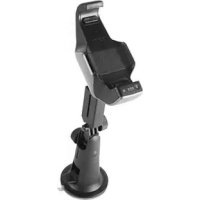
3262NA - Gps PALM - Free user manual and instructions
Find the device manual for free 3262NA PALM in PDF.



| Product Type | GPS Navigation Kit for Automobile |
| Brand | Palm |
| Model | 3262NA |
| Included Components | GPS receiver in docking station, TomTom NAVIGATOR expansion card with maps and software |
| Compatible Smartphones | Treo 700p, Treo 680 and other compatible Palm models (list at www.palm.com) |
| Power Supply | Cigarette lighter socket (12 V) via docking station |
| Main Functions | GPS navigation with voice guidance, automatic call answering, TomTom mapping |
| Navigation Software | TomTom NAVIGATOR (pre-installed on expansion card) |
| Activation | Automatic (via data connection) or manual (via www.ttcode.com) |
| Available Languages | French, English, German, Spanish, Italian, Dutch, etc. |
| Guidance Voices | Several voices available (female, male) - selectable during setup |
| Maps Provided | TomTom road maps on expansion card |
| Installation | See included installation poster; mount on windshield or dashboard |
| Maintenance | Clean with a dry cloth; avoid excessive heat, extreme cold, dust, and liquids |
| Safety | Do not obstruct field of vision; do not operate while driving; obey traffic laws |
| Standards | FCC Class B, ICES-003, CE |
| Warranty | Limited warranty included (see provided documents) |
| Support | Palm website: www.palm.com/support |
| Spare Parts and Repairability | Do not open or repair yourself; contact Palm for replacement |
Frequently Asked Questions - 3262NA PALM
User questions about 3262NA PALM
0 question about this device. Answer the ones you know or ask your own.
Ask a new question about this device
Download the instructions for your Gps in PDF format for free! Find your manual 3262NA - PALM and take your electronic device back in hand. On this page are published all the documents necessary for the use of your device. 3262NA by PALM.
USER MANUAL 3262NA PALM
© 2006 Palm, Inc. All rights reserved.
Palm, Palm OS, Treo, and the Palm logo are among the trademarks or registered trademarks owned by or licensed to Palm, Inc. All other brand and product names are or may be trademarks of, and are used to identify products or services of, their respective owners.
The TREO trademark is used by Palm in Sweden and Denmark with the express consent of Pfizer and its affiliated companies. The products marketed and/or sold by Palm under the TREO trademark are in no way affiliated with Pfizer or its business.
© 2006 TomTom International B.V., The Netherlands. Patents Pending. All rights reserved.
TomTom and the TomTom logo are registered trademarks of TomTom International B.V., The Netherlands. All other trademarks are the property of their respective owners. Our end user license agreement and a limited warranty apply to this product; they are included in this package. You can also review both at www.tomtom.com/legal.
Disclaimer and limitation of liability
Palm, Inc. assumes no responsibility for any loss or claims by third parties which may arise through the use of this device and any accompanying or associated software provided by Palm, Inc.
Palm, Inc. assumes no responsibility for any damage or loss caused by deletion of data as a result of malfunction, dead battery, or repairs. Be sure to make backup copies of all important data on other media to protect against data loss.
Palm, Inc. assumes no responsibility for any damage or loss resulting from the use of this manual. Palm, Inc. assumes no responsibility for any loss or claims by third parties that may arise through the use of this product. Palm, Inc. assumes no responsibility for any damage or loss caused by deletion of data as a result of malfunction, dead battery, or repairs of this product.
v 1.0
Getting started
The Palm ^® GPS Navigator Car Kit is a GPS navigation system that consists of the following:
- A GPS receiver located within a cradle that you install in your car
- A TomTom NAVIGATOR expansion card containing maps and software that you set up on your smartphone
It is compatible with various Palm® smartphones, including the following:
- Treo ^TM 700p smartphones
- Treo ^TM 680 smartphones
NOTE For a complete list of compatible smartphones, go to the Palm website at www.palm.com.
This guide explains how to set up the TomTom NAVIGATOR software on your smartphone. For information on installing the cradle into your car, refer to the Palm® GPS Navigator Car Kit Setup poster included in this package. For instructions on using the TomTom NAVIGATOR software or adding and removing maps on
the TomTom NAVIGATOR expansion card, refer to the included TomTom NAVIGATOR Quick Start Guide.
DID YOU KNOW? You can move your GPS Navigator Car Kit from car to car, as needed.
Installation requirements
• One of the compatible smartphones listed above. For information on other supported smartphones, visit the Palm website at www.palm.com
- A TomTom NAVIGATOR expansion card (included).
- A TomTom NAVIGATOR product code (included).
• One of the following:
- A data plan with your wireless service provider.
• A computer with Internet access.
Setting up TomTom NAVIGATOR software on your smartphone
To set up the TomTom NAVIGATOR software on your smartphone, complete all of the steps included in this section.
Install TomTom NAVIGATOR software
1 Insert the TomTom NAVIGATOR expansion card included in this package into the expansion card slot on your smartphone.
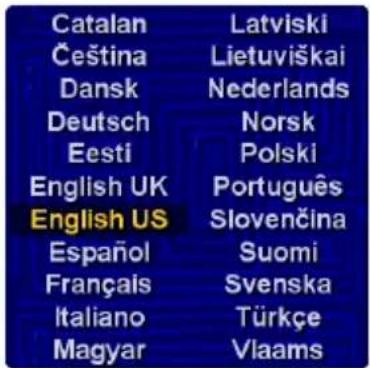
2 Select the language you want, and then select Yes.
3 When prompted, tap the screen to begin preference selection.
4 Select right- or left-handed operation, and then select Done.
5 Select how distances are displayed, and then select Done.
6 Select how time is displayed, and then select Done.
7 Using the left and right arrows, select a voice, and then select Select.
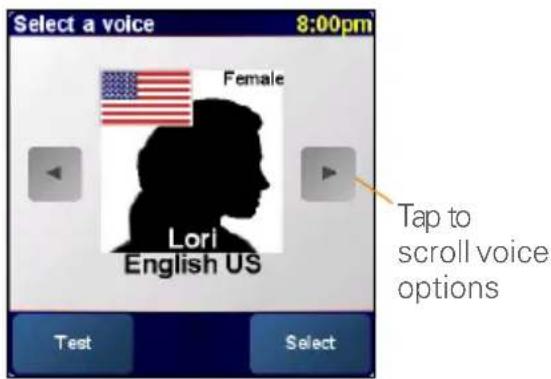
NOTE For a complete list of voice options, go to www.tomtom.com.
8 If prompted, select the map that you want, and then select Done.
Activate TomTom NAVIGATOR software
How you activate the TomTom NAVIGATOR software depends on whether or not you have a data plan with your wireless service provider.
If you have a data plan with your wireless service provider, do the following:
1 Select Automatic.
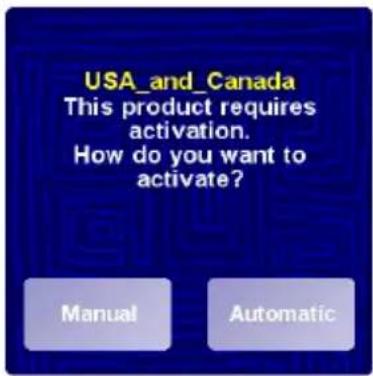
2 Select Activate.
3 Enter the 15-character code printed on the product code label, and then select Done.
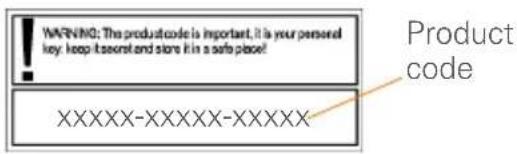
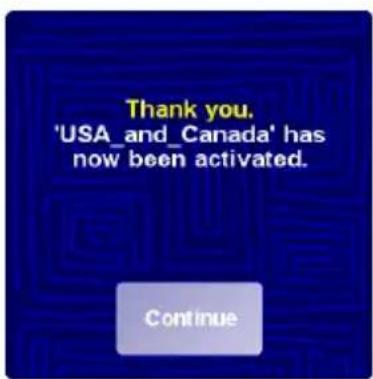
4 When the TomTom NAVIGATOR software is activated, select Continue.

If you don't have a data plan with your wireless service provider or aren't sure, do the following:
1 Tap Manual.
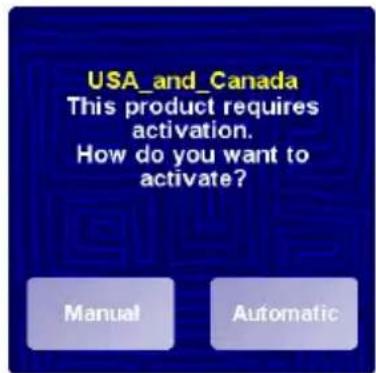
2 On your computer, go to www.ttcode.com and select the Product Activation option for your country.
3 On your computer, enter the 15-character code printed on the product code label, and then click Next.
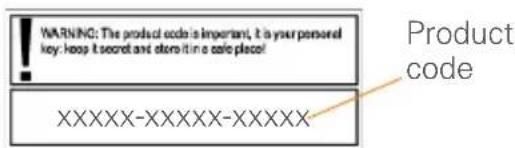
4 On your computer, enter the device code displayed on your smartphone screen, and then click Next.
5 On your smartphone, select Activate.
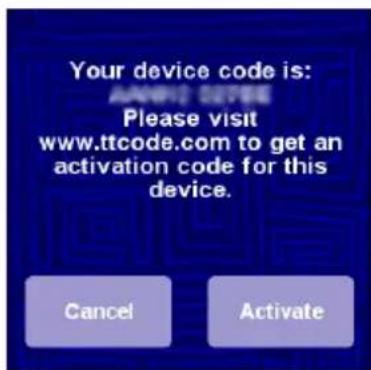
6 On your smartphone, enter the activation code displayed on your computer screen, and then select Done.
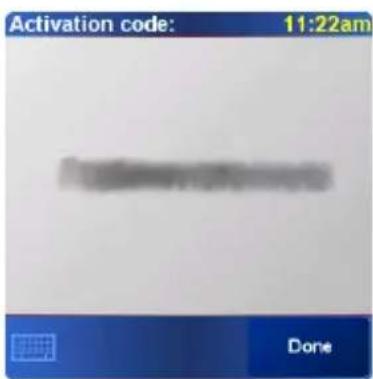
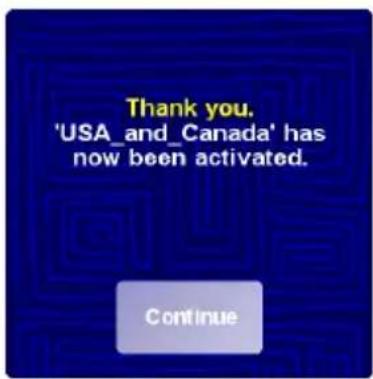
7 When the TomTom NAVIGATOR software is activated, select Continue.
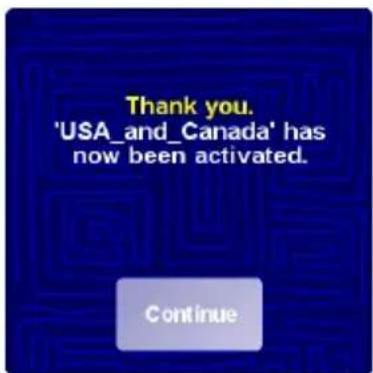
Complete TomTom NAVIGATOR software setup
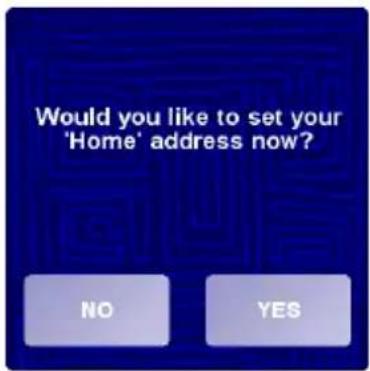
1 To set your home address, select Yes.
2 Enter or scroll to your zip code or city, and then select it when it is displayed.
3 Enter or scroll to your street name, and then select it when it is displayed.
4 Enter your house number, and then select Done.
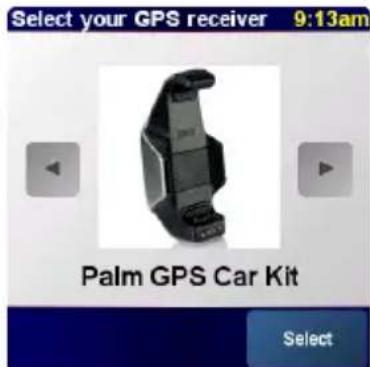
5 On the Select your GPS receiver screen, select Palm GPS Car Kit, and then select Select.
6 Repeatedly tap the screen to take a tour of the TomTom NAVIGATOR software.
7 On the Legal notice screen, read the information, and then select I agree if you agree.
NOTE You must select I agree to use the software.
You are now ready to use the TomTom NAVIGATOR software on your smartphone.
Exiting TomTom NAVIGATOR software
1 On the TomTom NAVIGATOR navigation screen, tap the top portion of the screen to open the Main Menu.
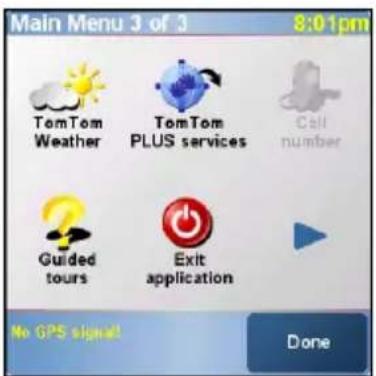
2 Repeatedly select the blue arrow until the Main Menu 3 of 3 screen is displayed.
3 Select Exit application.
Setting your GPS Navigator Car Kit to automatically answer calls
1 Set up the TomTom NAVIGATOR software on your smartphone. See "Setting up TomTom NAVIGATOR software on your smartphone" on page 5.
2 In Applications View, select GPS Car Kit 📋.
3 If prompted, read the information on the GPS Car Kit screen, and then select OK.
4 Select the Auto Answer pick list, and then select how quickly you want your GPS Navigator Car Kit to automatically answer incoming calls.
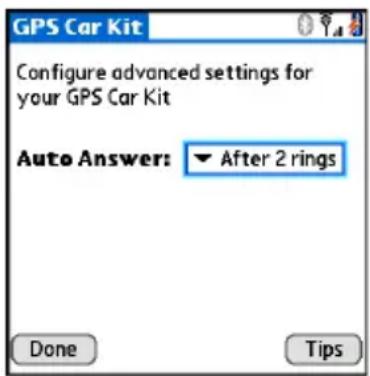
NOTE Each ring lasts approximately five seconds, regardless of the length of your ring tone. For example, if you select After 2 rings, the GPS Navigator Car Kit automatically answers your calls after approximately ten seconds.
5 Select Done.
NOTE Auto Answer is disabled during active calls, when the GPS Navigator Car Kit is not powered, and when your smartphone is not in the cradle.
Common questions
What can I do to improve the amount of time it takes for my GPS Navigator Car Kit to locate a satellite signal?
- Ensure your GPS Navigator Car Kit has an open view of the sky. This is important because obstructions, such as large trees or tall buildings, may block its reception.
- Don't drive your car until your GPS Navigator Car Kit has located a satellite signal. If your car is moving, more data must be downloaded.
- Use your GPS Navigator Car Kit often. Downloaded data is retained for two to three days. You can reduce data download time by frequently using your GPS Navigator Car Kit.
NOTE The first time you use your GPS Navigator Car Kit, it may take up to 15 minutes to locate a satellite signal. This is because so much data must be downloaded.
Where can I get customer support if I need it?
Go to the Palm website at www.palm.com/support.
Important safety and legal information
Please read the following information to ensure safe use of your GPS Navigator Car Kit.
Global Positioning System
The Global Positioning System (GPS) is a satellite-based system that provides location and timing information around the globe. GPS is operated and controlled under the sole responsibility of the Government of the United States of America, which is responsible for its availability and accuracy. Any changes in GPS availability and accuracy may impact the operation of your GPS Navigator Car Kit. Environmental conditions will affect the operation of your GPS Navigator Car Kit. TomTom B.V. and Palm cannot accept any liability for the availability and accuracy of GPS.
Use With Care
Use of the GPS Navigator Car Kit does not by any means substitute for the need to drive with due care and attention.
IMPORTANT Do not mount the GPS Navigator Car Kit where the driver's field of vision is obscured or where airbags may deploy, and do not place it on the dashboard without securing it reliably. Do not mount the unit or route the cables in such a way as to interfere with control of the vehicle. Failure to follow these guidelines could result in an accident or collision resulting in serious injury or death.
Drive safely using information from street signs and landmarks in addition to the GPS Navigator Car Kit. Do not become distracted by the GPS Navigator Car Kit while operating the vehicle. Use voice prompts to minimize the need to look at the display. Do not input destinations or access other functions that take time to complete unless the vehicle is safely stopped. Make all settings before departing or pull off the road in a safe and legal manner if changes need to be made.
IMPORTANT Use the GPS Navigator Car Kit only as an aid to navigation. It is not designed for any use requiring precise measurements. The Global Positioning System (GPS) is operated by the government of the United States of America and is subject to changes which could affect the accuracy and performance of this GPS equipment.
NOTICE TO DRIVERS When using this product you must obey your local vehicle codes. Some vehicle codes restrict any object or material from being placed, displayed, installed, affixed, or applied upon the windshield or side or rear windows. Where such codes exist, when using this product, the suction cup mount pad should be used instead of attaching the mount directly to the vehicle windshield or side or rear windows. Palm is not responsible for any damages, fines, or penalties that may result from disregarding this notice.
Aircraft and Hospitals
Use of devices with an antenna is prohibited on most aircraft, in many hospitals, and in many other locations. The GPS Navigator Car Kit must not be used in these environments.
Heat-Reflective Shields
Some newer-model vehicles may have a heat-reflective shield embedded in the windshield, which may prevent proper GPS signal reception if the GPS Navigator Car Kit is placed behind the windshield. To enable proper reception:
- Place the GPS Navigator Car Kit in a different position, or
- Place the GPS Navigator Car Kit behind the rearview mirror, where many vehicles have an opening in the heat reflective shield, as indicated by a black outline.
Installation, Use, and Maintenance
IMPORTANT Do not attempt to service this product yourself. Do not open, puncture, or disassemble the product.
In order for the GPS Navigator Car Kit to work properly, make sure that the receiver has an unobstructed view of the sky. Protect the GPS Navigator Car Kit from excessive heat, extreme cold, dust, liquids, and direct sunlight. Do not use in a humid environment or on an unstable surface. Make sure the GPS Navigator Car Kit is always securely mounted to prevent accidental movement. Handle all parts, cables, and connectors with care. Use only supplied and recommended accessories and power supplies. Ensure that any power supply is cooled by placing it in a ventilated area. The power supply and the GPS Navigator Car Kit may become warm or hot during operation. Unplug the product from any external power source before cleaning. Only clean the product with a dry cloth. Follow the instructions in this manual carefully.
FCC statement
This device complies with part 15 of the FCC rules. Operation is subject to the following two conditions: (1) This device may not cause harmful interference, and (2) this device must accept any interference received, including interference that may cause undesired operation.
This equipment has been tested and found to comply with the limits for a Class B digital device, pursuant to Part 15 of the FCC rules. These limits are designed to provide reasonable protection against harmful interference in a residential installation. This equipment generates, uses, and can radiate radio frequency energy and, if not installed and used in accordance with the instructions, may cause harmful interference to radio communications. However, there is no guarantee that interference will not occur in a particular installation. If this equipment does cause harmful interference to radio or television reception, which can be determined by turning the equipment off and on, the user is encouraged to try to correct the interference by one or more of the following measures:
- Reorient or relocate the GPS Navigator Car Kit.
-
Increase the separation between the equipment and receiver.
-
Connect the equipment into an outlet on a circuit different from that to which the receiver is connected.
- Consult the dealer or an experienced radio/TV technician for help.
The use of shielded I/O cables is required when connecting this equipment to any and all optional peripheral or host devices. Failure to do so may violate FCC rules.
IMPORTANT Changes or modifications not covered in this manual must be approved in writing by the manufacturer's Regulatory Engineering Department. Changes or modifications made without written approval may void the user's authority to operate this equipment.
Responsible Party
Palm, Inc.
950 W. Maude Avenue
Sunnyvale, CA 94085-2801
United States of America
(408) 617-7000
www.palm.com

Palm GPS Navigator Car Kit Tested to Comply With FCC Standard
FOR HOME OR OFFICE USE
Canadian ICES-003 Statement
This Class B digital apparatus meets all requirements of the Canadian Interference-Causing Equipment Regulations. Operation is subject to the following two conditions: (1) This device may not cause harmful interference, and (2) this device must accept any interference received, including interference that may cause undesired operation.
CE Compliance Statement
This product was tested by Palm, Inc. and found to comply with all the requirements of the EMC Directive 89/336/EEC as amended.
Static Electricity, ESD, and Your Palm Device
Electrostatic discharge (ESD) can cause damage to electronic devices if discharged into the device, so you should take steps to avoid such an occurrence.
Description of ESD Static electricity is an electrical charge caused by the buildup of excess electrons on the surface of a material. To most people, static electricity and ESD are nothing more than annoyances. For example, after walking over a carpet while scuffing your feet, building up electrons on your body, you may get a shock-the discharge event-when you touch a metal doorknob. This little shock discharges the built-up static electricity.
ESD-susceptible equipment Even a small amount of ESD can harm circuitry, so when working with electronic devices, take measures to help protect your electronic devices, including your Palm® device, from ESD harm. While Palm has built protections against ESD into its products, ESD unfortunately exists and, unless neutralized, could build up to levels that could harm your equipment. Any electronic device that contains an external entry point for plugging in anything from cables to docking stations is susceptible to entry of ESD. Devices that you carry with you, such as your Palm device, build up ESD in a unique way because the static electricity that may have built up on your body is automatically passed to the device. Then, when the device is connected to another device such as a docking station, a discharge event can occur.
Precautions against ESD Make sure to discharge any built-up static electricity from yourself and your electronic devices before touching an electronic device or connecting one device to another. The recommendation from Palm is that you take this precaution before connecting your Palm device to your computer, placing a device in a cradle, or connecting it to any other device. You can do this in many ways, including the following:
- Ground yourself when you're holding your device by simultaneously touching a metal surface that is at earth ground. For example, if your computer has a metal case and is plugged into a standard three-prong grounded outlet, touching the case should discharge the ESD on your body.
- Increase the relative humidity of your environment.
• Install ESD-specific prevention items, such as grounding mats.
Conditions that enhance ESD occurrences Conditions that can contribute to the buildup of static electricity in the environment include the following:
- Low relative humidity.
- Material type. (The type of material gathering the charge. For example, synthetics are more prone to static buildup than natural fibers like cotton.
• The rapidity with which you touch, connect, or disconnect electronic devices.
While you should always take appropriate precautions to discharge static electricity, if you are in an environment where you notice ESD events, you may want to take extra precautions to protect your electronic equipment against ESD.

For information on environmental programs, visit www.palm.com/environment.
Terminez la configuration du logiciel TomTom NAVIGATOR
This Class B digital apparatus meets all requirements of the Canadian Interference Causing Equipment Regulations. Operation is subject to the following two conditions: (1) This device may not cause harmful interference, and (2) this device must accept any interference received, including interference that may cause undesired operation.
Palm, Inc. 950 W. Maude Avenue
Sunnyvale, CA 94085-2801
4 Wanneer de TomTom NAVIGATOR-software is geactiveerd, selecteert u Continue (Doorgaan).
7 Wanneer de TomTom NAVIGATOR-software is geactiveerd, selecteert u Continue (Doorgaan).
De installatie van de TomTom NAVIGATOR-software voltooien
5 Selecteer Done (OK).
Palm, Inc. 950 W. Maude Avenue
Sunnyvale, CA 94085-2801
Verenigde Staten
+1 (408) 617-7000
www.palm.com

2 选择 Activate (激活)。
United States of America
(408) 617-7000
www.palm.com

www.palm.com/support
重要的安全與法律 資訊
United States of America
(408) 617-7000
www.palm.com

Palm GPS 導航器車用套件
經測試符合
FCC 標準
家庭或辦公使用
加拿大 ICES-003 聲明
United States of America p/n: 406-10563-00

- Disclaimer and limitation of liability
- Getting started
- Installation requirements
- Setting up TomTom NAVIGATOR software on your smartphone
- Install TomTom NAVIGATOR software
- Activate TomTom NAVIGATOR software
- Complete TomTom NAVIGATOR software setup
- Exiting TomTom NAVIGATOR software
- Setting your GPS Navigator Car Kit to automatically answer calls
- Select Done.
- Common questions
- What can I do to improve the amount of time it takes for my GPS Navigator Car Kit to locate a satellite signal?
- Where can I get customer support if I need it?
- Important safety and legal information
- Global Positioning System
- Use With Care
- Aircraft and Hospitals
- Heat-Reflective Shields
- Installation, Use, and Maintenance
- FCC statement
- Responsible Party
- Palm GPS Navigator Car Kit Tested to Comply With FCC Standard
- FOR HOME OR OFFICE USE
- Canadian ICES-003 Statement
- CE Compliance Statement
- Static Electricity, ESD, and Your Palm Device
- Terminez la configuration du logiciel TomTom NAVIGATOR
- De installatie van de TomTom NAVIGATOR-software voltooien
- 重要的安全與法律 資訊
- Palm GPS 導航器車用套件
- 加拿大 ICES-003 聲明
Brand : PALM
Model : 3262NA
Category : Gps