Cool LX1200 - Laminating machine BROTHER - Free user manual and instructions
Find the device manual for free Cool LX1200 BROTHER in PDF.


| Brand | Brother |
| Model | Cool LX1200 |
| Product type | Cold laminating machine |
| Dimensions (W x D x H) | 468 x 387 x 273 mm |
| Weight | 8.3 kg (without consumables) |
| Power supply | AC adapter 18 V DC, 700 mA |
| Lamination method | Cold pressure, no heat |
| Document width | 50 mm to 297 mm (max A3) |
| Document length (min) | 90 mm |
| Document thickness | 0.1 mm to 0.2 mm |
| Film type | Replaceable cartridge (A3, A4, A6) – double-sided, adhesive or magnetic |
| Main functions | Lamination, automatic cut (with or without margin), continuous mode, corner rounder, manual feed |
| Lamination speed | 25 mm/s |
| Automatic feeder capacity | 1 sheet at a time |
| Film end indicator | Visible red band |
| Maintenance and cleaning | Soft dry cloth or lightly mild detergent – no volatile products |
| Safety | Do not open, do not touch blades, unplug during storms, do not use unattended |
| Spare parts and repairability | Vertical cutting blades (SC-2) and corner rounding tray (CC-3) replaceable by user |
| Noise level | 35 dB standby |
Frequently Asked Questions - Cool LX1200 BROTHER
User questions about Cool LX1200 BROTHER
0 question about this device. Answer the ones you know or ask your own.
Ask a new question about this device
Download the instructions for your Laminating machine in PDF format for free! Find your manual Cool LX1200 - BROTHER and take your electronic device back in hand. On this page are published all the documents necessary for the use of your device. Cool LX1200 by BROTHER.
USER MANUAL Cool LX1200 BROTHER
natural_image
Pure geometric lines and shapes without any text, numbers, or symbolsBrother Cool Laminator LX-1200
Fax-Back System
Brother Customer Service has installed an easy-to-use Fax-Back System, so you can get instant answers to common technical questions and product information for all Brother products. This system is available 24 hours a day, 7 days a week. You can use the system to send faxes to any fax machine, not just the one from which you are calling.
If you can't resolve a difficulty with your laminator using this manual, call our Fax-Back System, and follow the voice prompts to receive faxed instructions about using the system and an index of Fax-Back subjects.
Canada:
1-800-681-9838
Brother on the World Wide Web
You can find more information about Brother products, from product specification sheets to Frequently Asked Questions (FAQs), on the World Wide Web. Visit us at
http://www.brother.com
For Customer Service
In Canada: 1-800-853-6660 (voice)
In Montreal: 1-514-685-6464 (voice)
Corporate Headquarters
Ordering Accessories and Supplies
For best quality results use only genuine Brother accessories, available at most Brother retailers. If you cannot find the accessory you need and you have a Visa or MasterCard credit card, you can order accessories directly from Brother.
In Canada: 1-800-668-2768 (voice)
| Description Model Number Price | ||
| Double-side Laminate | ||
| 12" wide film cartridge (40m/131.2ft. long) LC-D12 179.99 | ||
| 12" wide refill roll (40m/131.2ft. long) LC-D12R119.99 | ||
| 9" wide film cartridge (20m/65.6ft. long) LC-D9 59.99 | ||
| 9" wide refill roll (20m/65.6ft. long) LC-D9R44.99 | ||
| 4.8" wide film cartridge (20m/65.6ft. long) LC-D5 46.99 | ||
| 4.8" wide refill roll (20m/65.6ft. long) LC-D5R36.99 | ||
| Adhesive Back Laminate | ||
| 12" wide film cartridge (10m/32.8ft. long) | LC-A12 | 154.99 |
| 12" wide refill roll (10m/32.8ft. long) | LC-A12R | 119.99 |
| 9" wide film cartridge (20m/65.6ft. long) | LC-A9 | 104.99 |
| 9" wide refill roll (20m/65.6ft. long) | LC-A9R | 79.99 |
| 4.8" wide film cartridge (20m/65.6ft. long) | LC-A5 | 69.99 |
| 4.8" wide refill roll (20m/65.6ft. long) | LC-A5R | 59.99 |
| Magnetic Back Laminate | ||
| 9" wide film cartridge (4m/13.1ft. long) | LC-M9 | 179.99 |
| 9" wide refill roll (10m/32.8ft. long) | LC-M9R | 249.99 |
| 4.8" wide film cartridge (4m/13.1ft. long) | LC-M5 | 119.99 |
| 4.8" wide refill roll (10m/32.8ft. long) | LC-M5R | 159.99 |
| Other Accessories | ||
| Replacement Ceramic Side Cutters (2 blades) | SC-2 | 24.99 |
| Replacement Corner Cutter Tray | CC-3 | 24.99 |
Table of Contents
Getting started....4
Features 4
Precautions....5
Package list 6
Part names 7
Outside of the machine 7
Inside of the machine 7
Control Panel....8
Film Cartridge....8
Setup 9
Turning the machine on/off....9
About Auto Power Saver....9
Operating the machine 10
Document Size 13
The Auto Sheet Feeder....14
The Auto Cross Cutting System....14
How to define the cutting position (creating borders)....15
Auto Cutter Mode - Border 15
Auto Cutter Mode - No Border....15
Auto Cutter Mode - Cutter Off (for sensitive documents)....15
Auto Cutter Mode - Extra Border 16
How to use Continuous mode....17
Manual feeding and manual cutting....19
Corner cutting 20
Corner cutter dust box....21
About film rolls 22
Film-supply maintenance 22
Replacing the film cartridge 23
Installing/replacing the film roll in the cartridge 25
Using 9" (A4) or 4.8" (A6) film cartridges....29
Regular maintenance and troubleshooting....32
Regular maintenance 32
Paper jams 32
Replacing the side cutter units 35
Replacing the corner cutter trimmer tray 37
Troubleshooting 38
Specifications 39
Index....40
Getting started
Thank you for purchasing a Brother Cool Laminator. This machine has been designed to be easy to use, but can be utilized to its fullest potential by taking some time to read this owner's manual.
Features
- Depending upon the type of film used, this machine turns a variety of documents into professional, self-adhesive stickers, dual-sided, coated lamination sheets, magnetic signs etc.
- In addition to output from computers and word processors, you can laminate hand-written sheets, clippings from magazines, photographs or any other type of document.
- Your documents are perfectly coated to protect them from water, dust, tearing, yellowing, and to create a professional, high quality finish.
- No heat is used. The unique cold pressure method and specially formulated adhesives make the operation safe, easy and fast.
- You can start laminating immediately after turning the power on (no warm-up time is necessary).
- This machine has an auto sheet feeder and auto cross cutting mechanism. It automatically detects the width and length of your document and precisely trims the excess laminate from your square or rectangular finished documents.
• The film is easily installed and replaced.
• The LX-1200 supports document widths of up to 11.7" (A3 - 297mm).
Precautions
To avoid personal injury or damage to the machine, please pay close attention to the CAUTION and WARNING notices in this manual. They are here for your safety, as well as to point out actions that might cause damage to your machine.
WARNING:

- Do not attempt to repair or disassemble this equipment yourself. The warranty will be voided if this machine is not repaired by authorized service personnel.
- Do not touch the blades inside of the machine.
- Use only the AC adapter that was supplied with the machine. Using the wrong AC adapter may damage the machine and will void the warranty.
CAUTION:

- Do not pull the power cord. To disconnect it, always grasp the plug itself.
- Do not place the machine under direct exposure to sunlight and other sources of heat, excessive moisture, or dust.
If any liquid is spilled onto the machine, immediately unplug the machine from its power source and consult with authorized service personnel. - Unplug the machine during a lightning storm.
- Do not place heavy objects on the machine.
- Keep the back and sides of the machine clear of obstructions to prevent overheating.
- Use only a soft, dry cloth to clean the machine (do not use chemicals, solvents, or detergents).
- To avoid electrical interference, do not place the machine close to a radio receiver or television.
- Do not turn the machine off while operating except in the event of a malfunction.
- Turn the machine off in the event of a malfunction.
If you use adhesive laminate film, do not attach the laminated output to one's skin, or the sensitive surface of objects.
The laminated documents are not easily digested. Great care should be taken to prevent accidental ingestion by infants or the elderly.
The laminate film contains UV resistance materials. However, the color of the documents may fade if the documents are printed with liquid type ink. Solid type ink is recommended to prevent the document from fading.
The laminated document may be wrinkled or damaged if it is placed under a heavy object. - Do not place the magnetic back laminate output close to floppy disks or audio tapes. The data on the disks or tapes may be damaged.
- Brother can not be held liable for loss or damage of items used in the laminator machine.
- Under the terms of an agreement with Xyron, Inc., the purchase or other acquisition of this product confers no right or license to use the product in the Retroreflective Field.
- Laminating thermal paper may cause the print to fade.
- When a document is first laminated it may feel sticky to the touch. This stickiness is caused by silicone that is used in processing the film.
- Discard the machine or laminated output according to local regulations. If you are not sure of them, call your local Sanitation Department.

IMPORTANT OPERATIONAL PRECAUTIONS:
- Select Cutter Off Mode when laminating sensitive or irregularly shaped documents.
- Do not insert your precious and valuable items into the machine.
- Do not laminate any photograph which cannot be replaced.
Package list
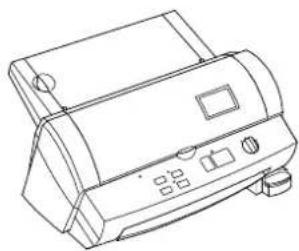
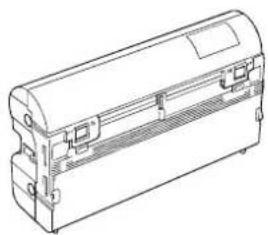
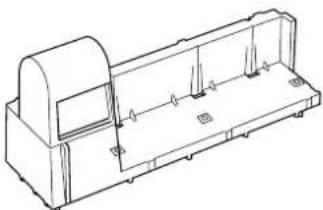
① Machine 1
② Film cartridge 1 (Double side laminate type) (Starter cartridge includes 13.1' or 4m of film)*
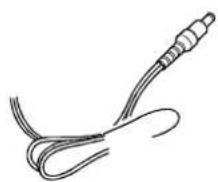
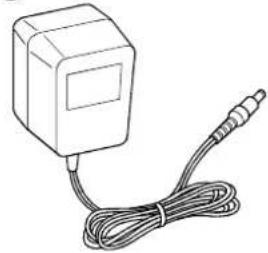
③ AC adapter 1
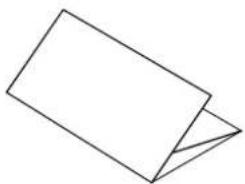
④ Owner's manual 1
⑤ Compatible accessory list 1
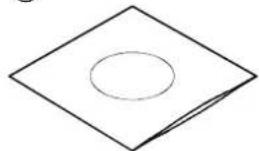
⑥ Supplemental PC software (CD-ROM) 1
⑦ Cartridge adapter 1
* The film cartridge is already installed into the machine.
①
natural_image
Line drawing of a printer with control panel and buttons (no text or symbols)②
natural_image
Line drawing of a cylindrical electronic device casing with mounting brackets and internal compartments (no text or symbols)③
natural_image
Simple line drawing of a medical or laboratory probe with a coiled cable (no text or symbols)④
⑤
natural_image
Simple line drawing of a folded paper or document (no text or symbols)⑥
natural_image
Simple geometric diagram of a diamond shape with an oval inside, no text or symbols present.⑦
natural_image
Technical line drawing of a mechanical housing or enclosure component (no text or symbols)Part names
Outside of the machine
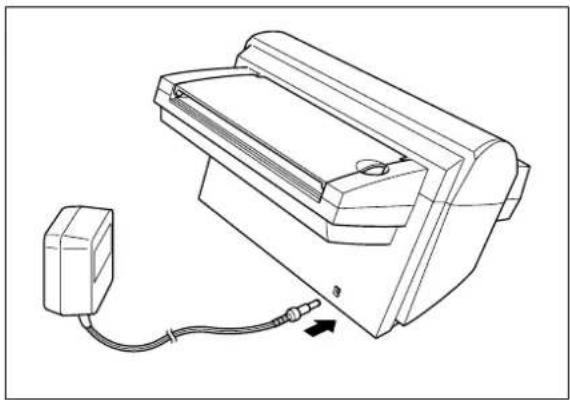
DC connector Located on the left, backside of the machine. Aperture for the AC adapter.
Top cover For replacing the film cartridge and cutter units.
Viewing window Located on the top cover. Allows you to make sure that the correct type of film cartridge is loaded into the machine.
Document tray Where documents to be laminated are placed.
Document supporter Supports the document being laminated.
Document guide Aligns the left edge of the paper for proper document insertion.
Document tray cover Easily lifts for the removal small sized documents.
Control panel Power switch and function button area.
Document output Location where the document exits the machine.
Corner cutter slot Allows you to trim the corners of your document after laminating.
Corners of a document are automatically trimmed after insertion into the corner cutter slot.
Corner cutter trimmer tray The corner of your laminated document is placed on this tray to position it into the corner cutter slot.
Corner cutter dust box Collects trimmings from the corner cutter.
AC adapter Plugs into an electrical outlet and the DC connector on the machine.
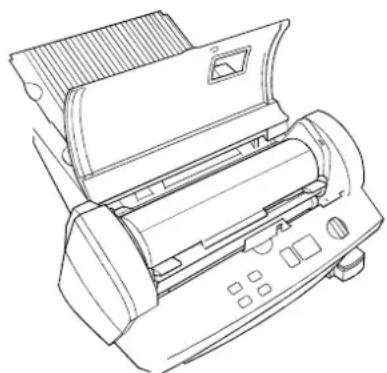
Inside of the machine
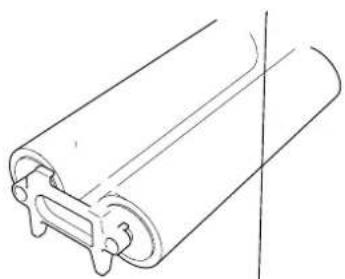
Film cartridge Contains the roll film. The label on the cartridge identifies the film type.
You can use 12.0 inch (A3), 9.0 inch (A4) or 4.8 inch (A6) width LC cartridges with this machine.
Roller holder lever Locks/releases the roller holder.
Roller holder Holds the roller unit.
Side cutter arm Arm for the side (vertical) cutter unit.
Side cutter units Blades for side (vertical) cutting.
Top/bottom cutter units Blades for top/bottom (horizontal) cutting.
Roller Feeds the document into the unit.
natural_image
Line drawing of a printer with paper filter and control panel (no text or symbols)Control Panel
POWER DIAL ON/OFF Turns the machine on/off.
Cut Cuts the document in the current position.
Feed Manually feeds the laminate and/or the document.
Continuous Use this feature to laminate multiple documents.
Extra Border Use this feature to create an extra border on one-side of your document (i.e. area for 3-hole punch).
Start Starts an operation.
Stop Stops an operation.
Border
The machine will trim the film with about a 0.18" (4.5mm) margin from each edge of the document. - Leaves a margin of laminate.
No Border The machine will trim the film with a margin that is approximately 0.06" (1.5mm) from each edge of the document. - Trims the laminate close to the document.
Cutter Off Turns the cutting mode off.
Error Indicates a malfunction of machine.
natural_image
Technical line drawing of a cylindrical mechanical component with mounting flanges (no text or symbols)Setup
Turning the machine on/off
natural_image
Line drawing of a printer with cable and connector, no text or symbols present(1) Connect the plug of the AC adapter into the DC connector.
(2) Plug the AC adapter into an electrical outlet.
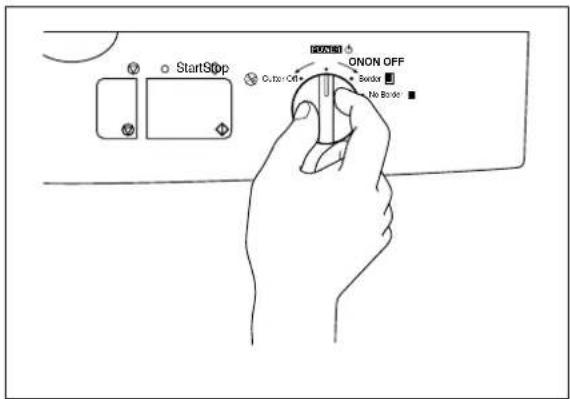
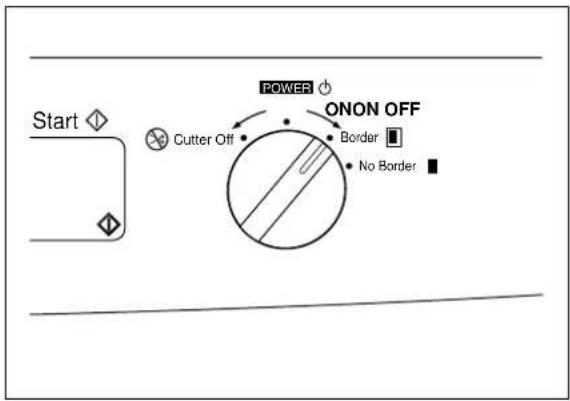
(3) Turn the power dial on the control panel to Cutter Off, Border or No Border. The green light on top of the Start button will light up. If the machine does not respond, check the connection of the AC adapter.
To turn the machine off, turn the power dial to POWER OFF.
(4) Press the Feed button until you can see the edge of the film to remove any slack from the film.
WARNING:
Do not plug your machine into an electrical outlet until it has been completely assembled.
Do not try to disassemble or repair this equipment yourself. Service should be performed by authorized personnel only. Warranties will be voided if the unit is repaired by unauthorized technicians.
Never touch the surface of the blades when installing the film cartridge.
CAUTION:
Do not turn the machine off during the laminating process. The machine should be turned off during operation only in the event of a malfunction.
About Auto Power Saver
This machine has an Auto Power Off function. If the machine is left idle for approx. 5 minutes, the machine will automatically turn off. In order to turn the machine back on, please turn the POWER dial to POWER OFF, and then turn the machine on by selecting the cutter mode: Cutter Off, Border or No Border.
Operating the machine
Laminate documents, create magnetic signs, and create adhesive stickers:
natural_image
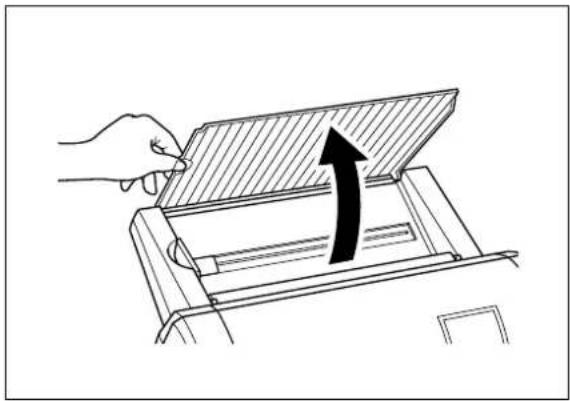
Line drawing of a hand pressing down on a mechanical device with an arrow indicating upward motion (no text or symbols)(1) Open the document supporter.
natural_image
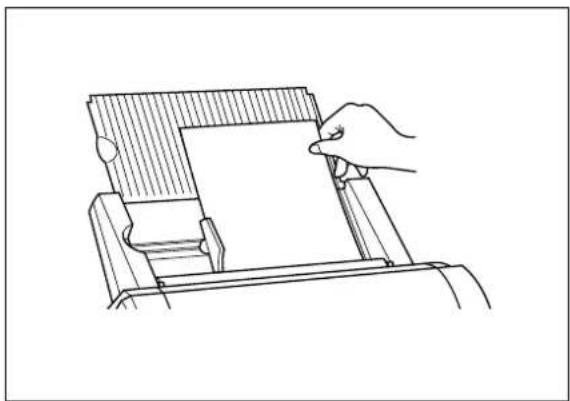
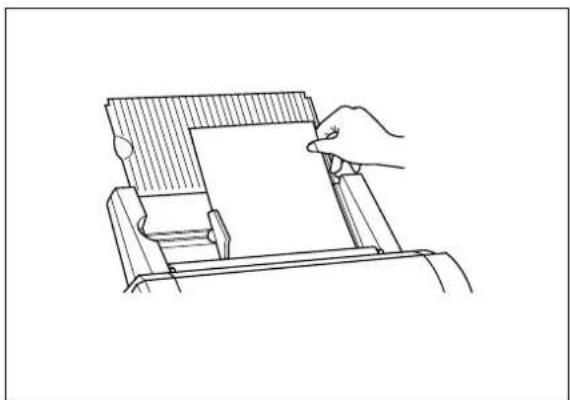
Line drawing of a hand using a cutting machine to cut a sheet of paper (no text or symbols present)(2) Load the document to be laminated onto the document tray. Insert the document face up.
TIP
When using the adhesive laminating film, documents can be placed face down on the document tray to apply the adhesive to the front of the document (Great for Window Stickers).
natural_image
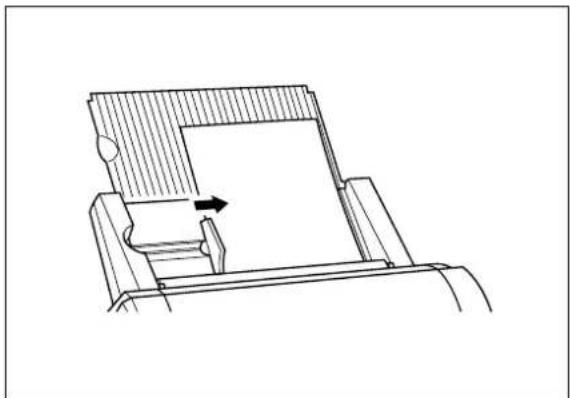
Technical line drawing of a mechanical assembly with an arrow indicating direction (no text or symbols)(3) Align the paper with the tab on the right and slide the document guide until it touches the left edge of the document. When laminating an irregularly shaped document, always position the longest edge of the document to the right.
flowchart
graph TD
    A["Start"] --> B["Cutter Off"]
    B --> C["POWER"]
    C --> D["ONON OFF"]
    D --> E["Border"]
    D --> F["No Border"]
natural_image
Line drawing of two hands holding a curved object, no text or symbols presentNote
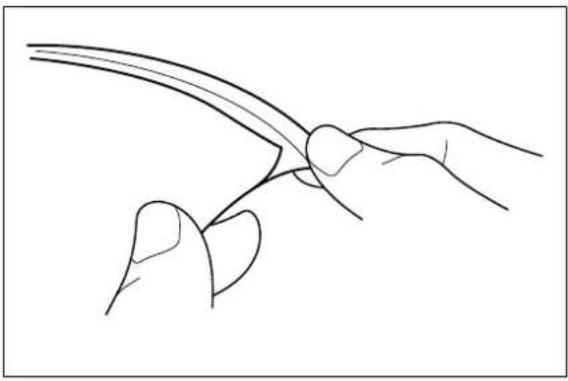
If you use the adhesive laminate film, the back surface of the laminated output is a liner which will need to be peeled off. To mount the laminated document on a surface for display, peel off the liner as illustrated. For easy peeling, there is a crack in the liner approx. 1" from the right side.
natural_image
Illustration of a hand holding a piece of paper or tape, poised to write on a surface (no text or symbols present)Note
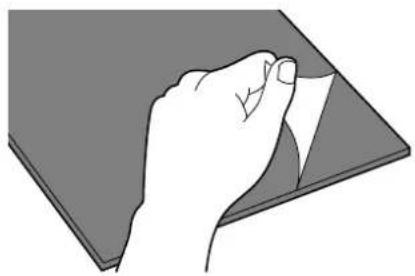
If you use the magnetic back laminate film, you can place the output on metal surfaces. There is a liner on the back surface of the laminated output (magnet side). Please peel the liner off gently as illustrated before placing the output sheet on a metal surface.
Document Size
The size of the document that you wish to laminate should not be larger (or smaller) than the width that your machine can accommodate. The document should be between 2.0 and 11.7 inches (50 and 297 mm) wide. The minimum paper length should be 3.5 inches (90 mm). The paper thickness should be between 17 lbs. to 40 lbs. (0.004" and 0.008"). Only one document at a time can be loaded onto the document tray.
| Type of cartridge | 12.0 inch cartridge | 9.0 inch cartridge | 4.8 inch cartridge | |
| Paper width | Maximum | 11.7" (297 mm) | 8.5" (216 mm) | 4.3" (108 mm) |
| Minimum | 2.0" (50 mm) | 2.0" (50 mm) | 2.0" (50 mm) | |
| Paper length | Minimum | 3.5" (90 mm) | 3.5" (90 mm) | 3.5" (90 mm) |
| Paper thickness | 0.004" - 0.008" | 0.004" - 0.008" | 0.004" - 0.008" | |
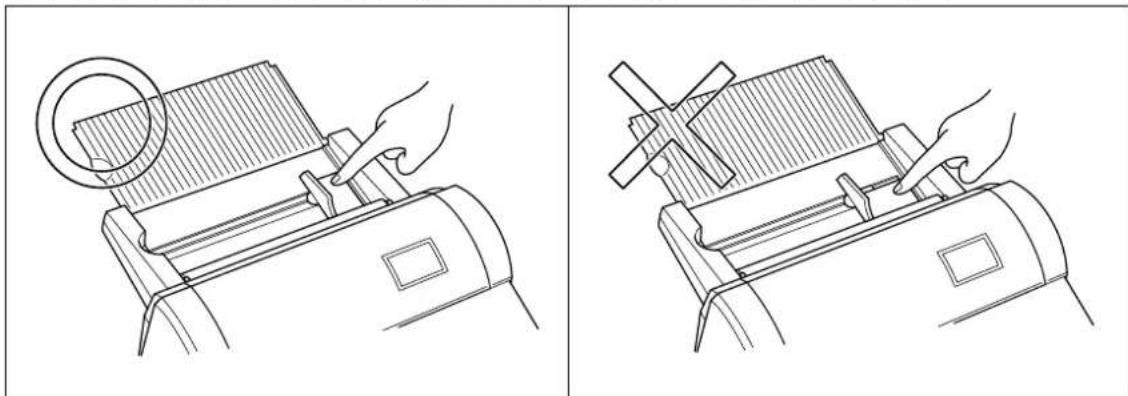
Business card-size paper should be inserted vertically into the machine as illustrated below.
natural_image
Two technical line drawings showing hands operating a mechanical device with a circular component on top (no text or symbols)Note If you place a small document into the machine incorrectly, it can be removed by lifting the document tray cover as illustrated.
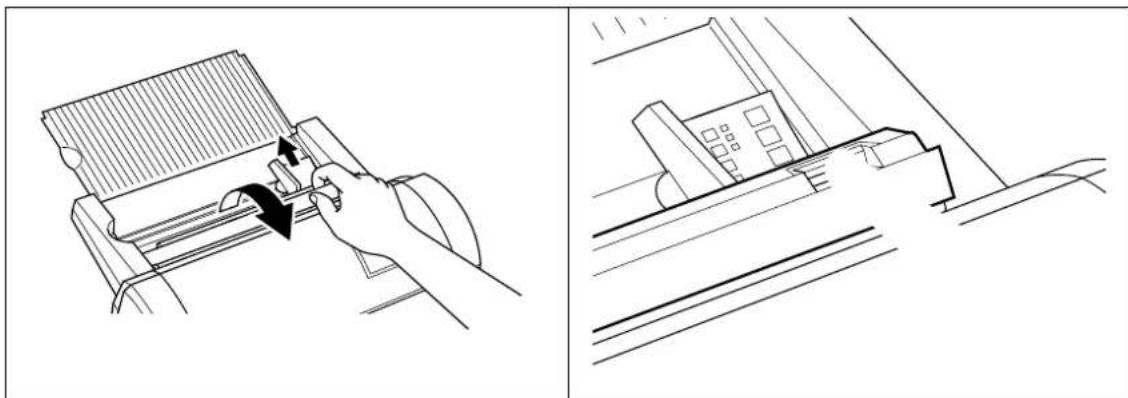
natural_image
Technical line drawing showing a hand operating a mechanical component with an arrow indicating motion (no text or symbols present)When laminating a document longer than 18.5" (470 mm), the machine will pause after laminating 18.5". To continue the process just press the Start button.

CAUTION:
Do not insert documents that are curled, wrinkled, folded or ripped into the machine. Documents must be free of staples, paper clips, glue, correction fluid and sticky tape. Do not insert fabric material into the machine.
The Auto Sheet Feeder
The Auto Sheet Feeder automatically feeds your document into the machine, one sheet at a time. Load only a single document at a time onto the document tray.
The Auto Cross Cutting System
The Auto Cross Cutting System automatically detects the width and length of the inserted document. The built-in mechanism precisely trims each side of the square or rectangular document.

IMPORTANT INFORMATION:
- Select Cutter Off Mode when laminating sensitive or irregularly shaped documents.
How to define the cutting position (creating borders)
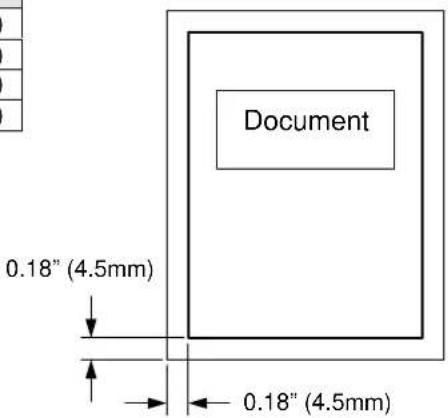
The Auto Cross Cutting System automatically detects the size of your document and trims each edge of your square or rectangular document. The cutting position can be adjusted to create a margin on each edge of the laminated document.
Auto Cutter Mode - Border
This mode is ideal for protecting documents from water or dust.
To create a margin on each edge of your square or rectangular document...
(1) Change the position of the Power dial to Border.
(2) Place the document in the document tray and press Start. The document will be cut with about a 0.18" (4.5 mm) margin of laminate on each edge of the paper.
| Cutting Position | ||
| Top | Top of paper | 0.18"± 0.06"(4.5mm ±1.5mm) |
| Bottom | Bottom of paper | 0.18"± 0.06"(4.5mm ±1.5mm) |
| Right | Right edge of paper | 0.18"± 0.06"(4.5mm ±1.5mm) |
| Left | Left edge of paper | 0.18"± 0.06"(4.5mm ±1.5mm) |
Auto Cutter Mode - No Border
This mode is ideal for making stickers.
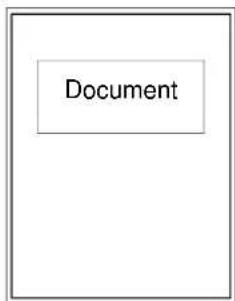
To generate a document without a margin of laminate on each edge...
(1) Change the position of the Power Dial to No Border.
(2) Place the document in the document tray and press Start. The document will be trimmed with a very small margin of laminate (approximately 0.04" - 0.06" (1 - 1.5mm) from each edge of the document).
| Cutting Position | ||
| Top | Top of paper | 0.06" ± 0.06" (1.5mm ± 1.5 mm) |
| Bottom | Bottom of paper | 0.06" ± 0.06" (1.5mm ± 1.5 mm) |
| Right | Right edge of paper | 0.04" ± 0.06" (1.0mm ± 1.5 mm) |
| Left | Left edge of paper | 0.04" ± 0.06" (1.0mm ± 1.5 mm) |
Auto Cutter Mode - Cutter Off (for sensitive documents)
Use this mode to prevent any part of the document from being cut away during the finishing process. Cutter Mode will sense the beginning and the end of your document and automatically leave a wide margin of extra laminate, which you may manually trim.
(1) When Cutter Off Mode is selected, the machine will laminate the document without trimming the edges. The document is processed and ejected from the machine.
(2) Press Cut to manually cut the laminate and remove the document from the machine.
Auto Cutter Mode - Extra Border
This mode is ideal for making documents for filing purposes.
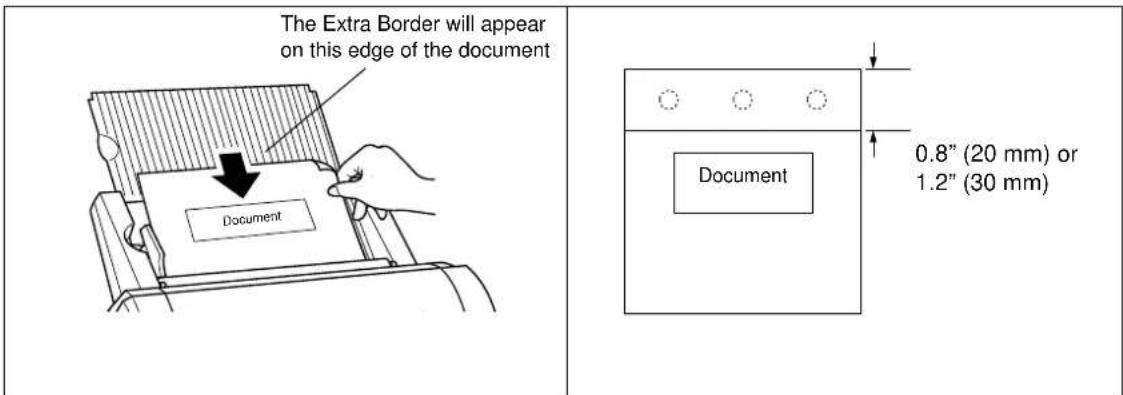
The Extra Border will always be generated on the last part of the document to be fed through the machine. You can choose 0.8" (20 mm) or 1.2" (30 mm) extra margin.
Change the width of the Extra Border by pressing the Extra Border button. The first time it is pressed, the extra border will be set to 0.8" (20 mm), the next time 1.2" (30 mm) and the next time the extra border mode will be turned off (as well as the Extra Border LED).
Off → 0.8" (20 mm) → 1.2" (30 mm) → Off
To create an extra 0.8" (20 mm) margin on your document...
(1) Place the document in the document tray and press the Extra Border button once. The Extra Border green LED will light.
(2) Press Start. The document will be laminated with a 0.8" (20 mm) Extra Border.
To create an extra 1.2" (30 mm) margin on your document...
(1) Place the document in the document tray and press Extra Border button twice. The Extra Border green LED will blink.
(2) Press Start. The document will be laminated with a 1.2" (30 mm) Extra Border.
Note
Selected Extra Border mode will remain on until the power is turned off or the Extra Border mode is turned off. To turn the Extra Border mode off, press the Extra Border button until the Extra Border LED is no longer lit.
To create an extra border for hole punching an 8.5" × 11" document, place the document in the tray landscape with the side to have the extra border on the top (see illustration).
How to use Continuous mode
Continuous mode can reduce the wasted film between documents when laminating multiple documents.
natural_image
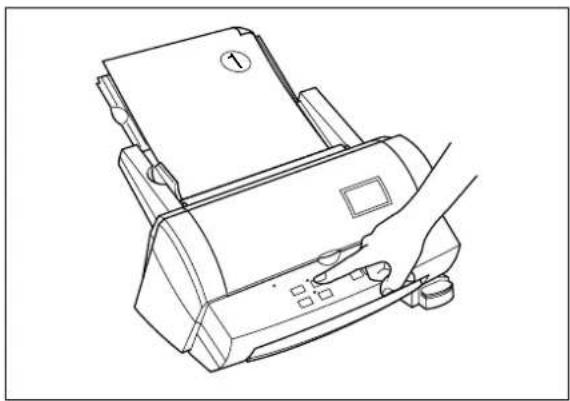
Line drawing of a printer with paper and control panel, no text or symbols present(1) Set the first document on the document tray and press the Continuous button. The green Continuous LED will light.
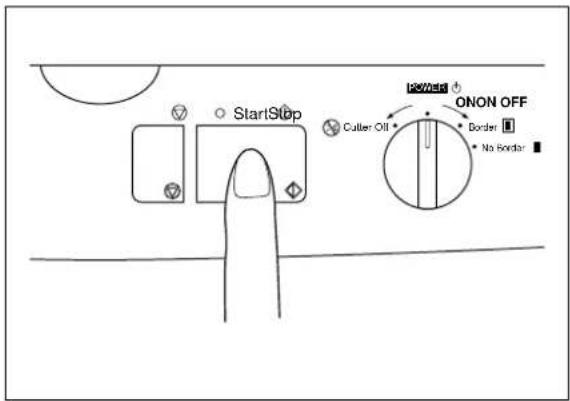
(2) Press Start. The machine will start to laminate your document. When the end of the document is detected the laminating process pauses and the buzzer sounds.
natural_image
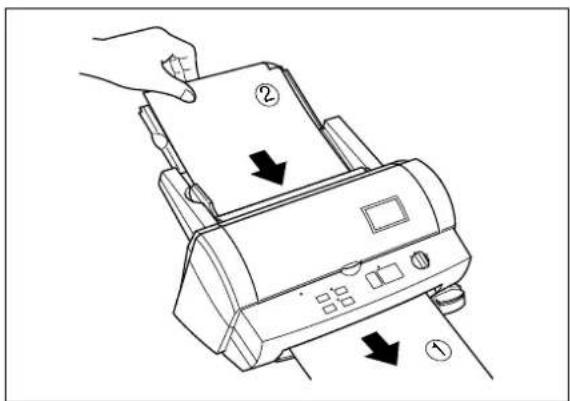
Line drawing of a printer being inserted into a paper, showing hand placement and page number (no text or symbols)(3) Place the next document in the document tray. The next document will automatically be fed after approximately 7 seconds.
Note
If a new document is not placed in the feeder within 7 seconds, the machine will restart and finish the current document.
If Start button is pressed after placing the next document in the feeder, the laminating process will restart without waiting 7 seconds.
If Stop button is pressed before placing next document in the feeder, the Continuous mode is paused.
Press Start to restart the operation.
(4) Continue with step (3) until you are finished laminating documents. If a document is not placed in the feeder within 7 seconds, the machine will finish laminating the document in the machine and then return to normal mode.
Note
The Feed and Extra Border buttons will not work while the machine is in Continuous mode.
Do not change the setting of the Cutter Mode during Continuous mode.
To create an extra border with continuous mode, select the extra border mode before turning on the continuous mode. All documents laminated will have an extra border. To turn off the extra border, turn off continuous mode first and then turn off the extra border mode.
Manual feeding and manual cutting
You can manually feed and cut the document using the Cool Laminator.
natural_image
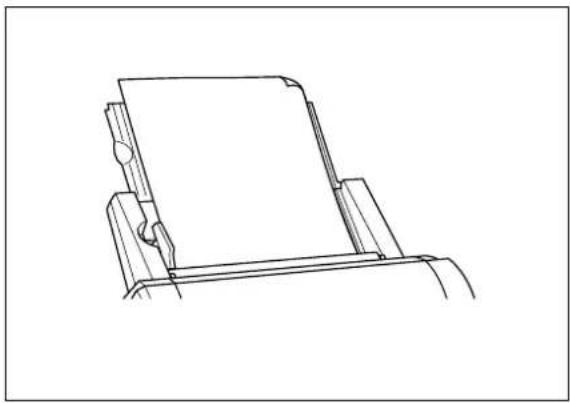
Line drawing of a mechanical assembly or holder with no visible text or symbols(1) Place the document in the document tray.
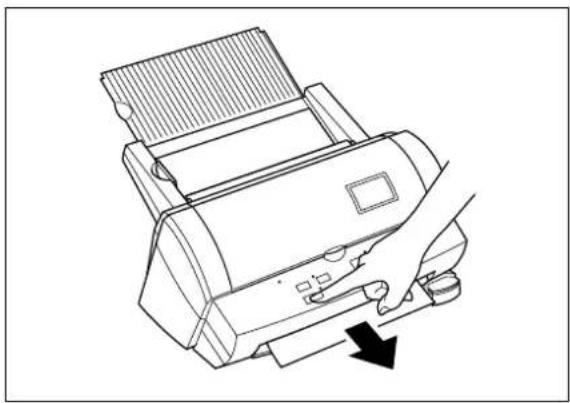
natural_image
Line drawing of a printer with a hand operating it, showing no text or symbols(2) Press the Feed button to feed the document manually. The Feed button is a self-repeating key. The document will continue to be fed until the Feed button is released. Keep pressing the Feed button until you see the end of the document.
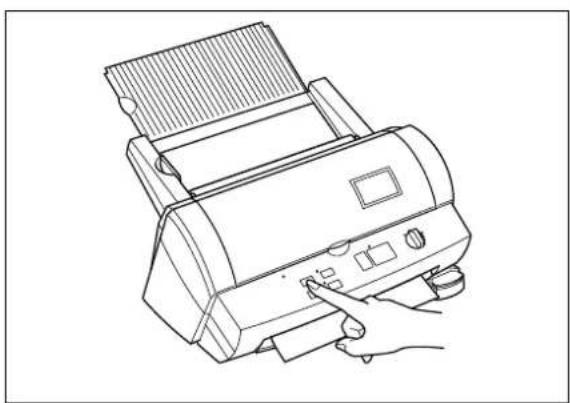
natural_image
Line drawing of a printer with a hand operating the button (no text or symbols)(3) Press the Cut button. The document will be cut at its current position.
Note
-For safety, the exact cutting position is not visible from outside of the machine.
-To avoid accidentally cutting through your document, it is recommended that you press the Cut button only after the document has been completely ejected from the machine.
- Never remove a document from the machine by force. If necessary, use scissors.
Corner cutting
After laminating, you can round each corner of the document.
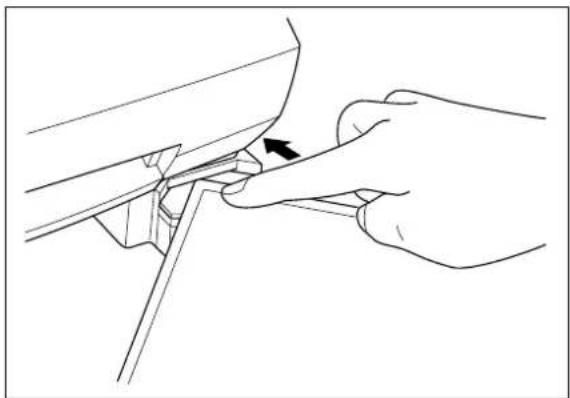
natural_image
Line drawing of a hand using a tool to adjust or install a component, with no visible text or symbols.(1) Carefully insert a corner of the document all the way into the corner-cutter slot so that the corner of the laminated document is flush with the sides of the corner cutter.
(2) The machine will automatically trim the corner of the document.
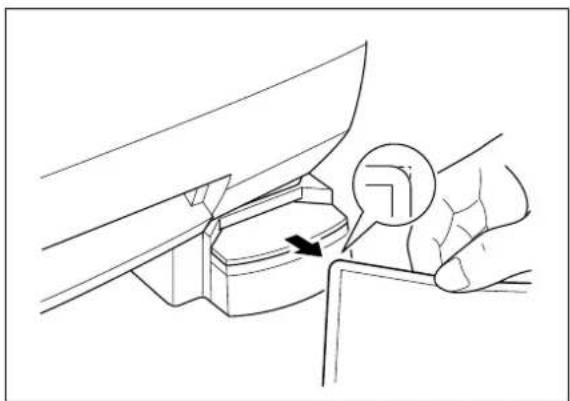
natural_image
Line drawing of a hand holding a mechanical component with an arrow indicating rotation (no text or symbols)(3) Remove the document from the slot.
Note
The maximum thickness of the original document (before lamination) that the corner cutter unit can cut is 0.008" (30 lbs. paper).
Do not use the corner cutter to trim magnetic back output.
natural_image
Line drawing of a hand holding a mechanical component with an arrow indicating rotation (no text or symbols)Corner cutter dust box
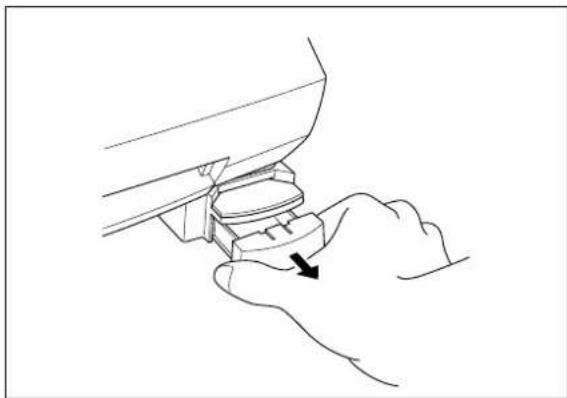
The trimmings from the corner cutter are collected in the corner cutter dust box located just below the corner cutter slot. Pull the dust box towards you to discard the trimmings and place the box back into its original position.
Note
The trimmings created during the inspection process at the factory may still be in the corner cutter dust box.
About film rolls
There are a variety of different types of film rolls that have been designed to meet your needs.

This machine supports 12.0 inch (A3), 9.0 inch (A4) or 4.8 inch (A6) width cartridges.
Use only Brother authorized film cartridges or film refills. The above mark appears on all packages of authorized film cartridges or film refills that are compatible with the machine. Brother cannot be held responsible for any problem arising from the use of unauthorized supplies.
Depending upon the type of film used, this machine turns a variety of documents into professional, double-sided lamination sheets, adhesive stickers or magnetic signs. Please refer to the compatible accessory list packaged with this machine for details.
This machine is supplied with a Double Sided Lamination Film Cartridge. For other types of film rolls, please contact your local Brother dealer.
Note
To use a 9.0" or 4.8" cartridge with this machine, first install the cartridge adapter into the machine. Please refer to page 29.
Film-supply maintenance
A red marker appears when the film supply is running out. Please replace the film roll as soon as you notice this red marker. The red tape will appear approximately 39.4" (1000 mm) from the end of the roll. If the red marker appears, replace the film immediately. Please refer to 'Replacing the film cartridge' on page 23 or 'Installing/replacing the film roll in the cartridge on page 25 to refill the film cartridge.
The starter cartridge produces about 11 US letter size sheets (landscape direction) in continuous mode. A regular roll double-sided laminate film produces about 168 US letter size sheets (landscape direction) in continuous mode.
Please refer to the compatible accessory list on page 1 for other supply information.
Note
A red tape will appear when the laminate film is reaching the end.
If this red tape appears, replace the film immediately. This red tape can simply be peeled off your original document without causing damage.
Attempting to laminate another document after the red marker appears may result in a damaged and/or cut document.
Replacing the film cartridge

WARNING:
Never touch the surface of the blades when installing/replacing the film cartridge.
natural_image
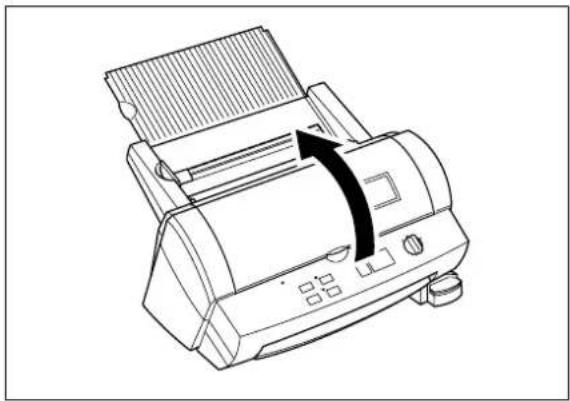
Line drawing of a printer with a paper feed and a scroll wheel, showing no text or symbols.(1) Turn the POWER dial to Off and open the top cover.
natural_image
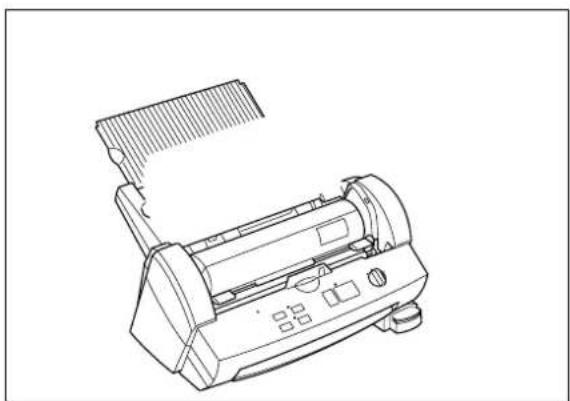
Line drawing of a printer with a rack and control panel (no text or symbols)(2) Pull the roller holder levers up and lift the roller holder upwards.
natural_image
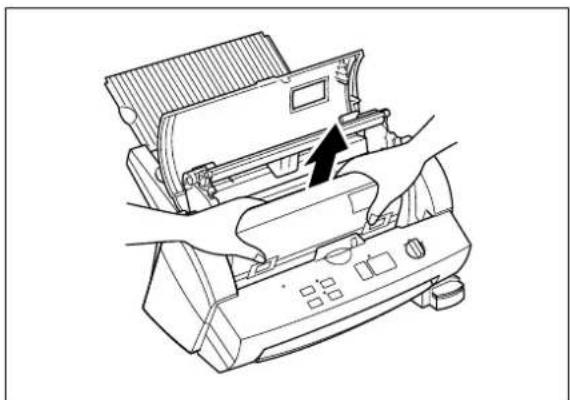
Line drawing of a device with hands operating it, showing a button and control panel (no text or symbols)(3) Remove the film cartridge taking care not to grab the cartridge by the shutter.
natural_image
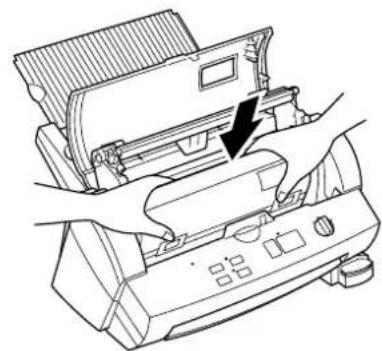
Diagram of hands operating a device with a black arrow pointing to a component (no text or symbols present)(4) Carefully install the new film cartridge, square end down, film slit facing towards the front of the machine.
Note
-Make sure that the shutter of the cartridge is completely closed before installing the cartridge.
-Check the position of the top edge of the film before installing cartridge. It should be aligned with the cutting line of the cartridge. If necessary, cut away any excess film.
-Make sure that the top edge of the film lays across the lower roller.
natural_image
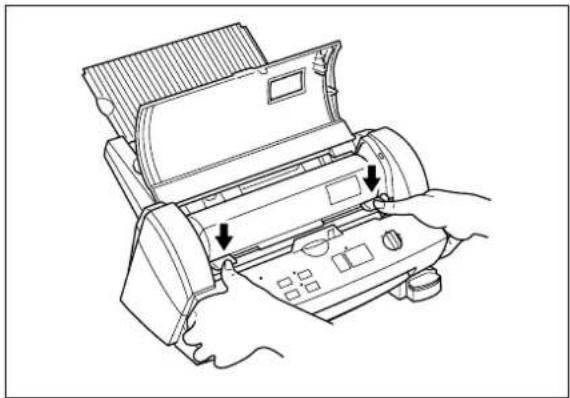
Line drawing of hands operating a printer with buttons and a keypad (no text or symbols)(5) Return the roller holder to its original position and press the roller holder levers as illustrated until it is secured into position. You will hear the roller holder click into place.
natural_image
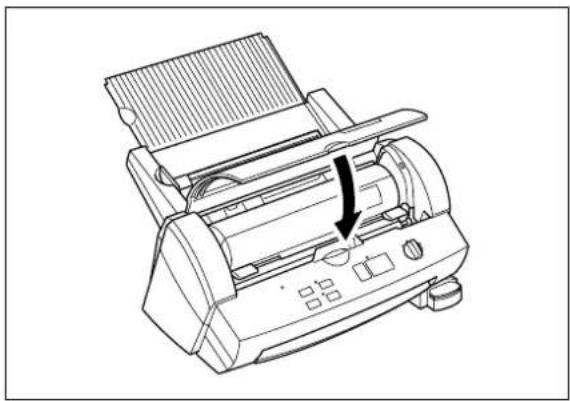
Line drawing of a printer with a paper feed and control panel, showing no text or symbols(6) Close the top cover.
(7) Turn the POWER dial to Cutter Off, Border or No Border. Press the Feed button until you can see the edge of the film to remove any slack from the film.
Note
-The type of the currently installed cartridge can be viewed through the window in the top cover.
-Store the film cartridge at below 113°F (45°C).
Installing/replacing the film roll in the cartridge
Cartridges can be recycled by replacing the film roll. Be sure to use Brother-authorized LC film refills only. Refill cartridges using the following instructions:
natural_image
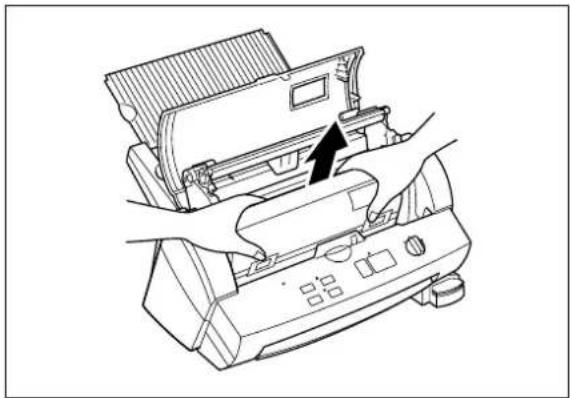
Line drawing of a device being opened into a control panel, showing hand placement and control buttons (no text or symbols)(1) Remove the film cartridge from the machine being careful not to grab the cartridge by the shutter.
Note If the film is stuck, turn on the machine and press the Cut button to remove the excess film.
natural_image
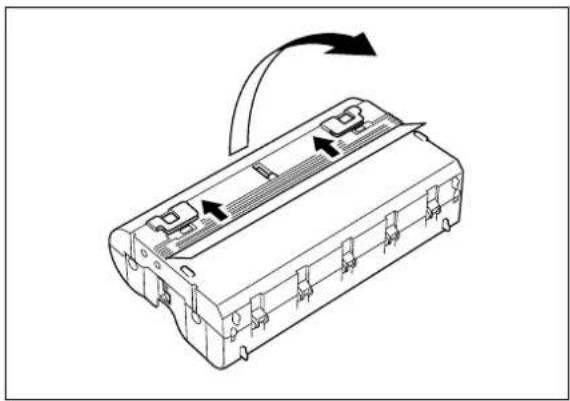
Diagram of a mechanical device with directional arrows indicating motion or movement (no text or symbols)(2) Open the film cartridge by sliding the shutter in the direction of the arrows until it locks into place. Open the film cartridge by gently separating the clear top cover from the gray bottom cover.
natural_image
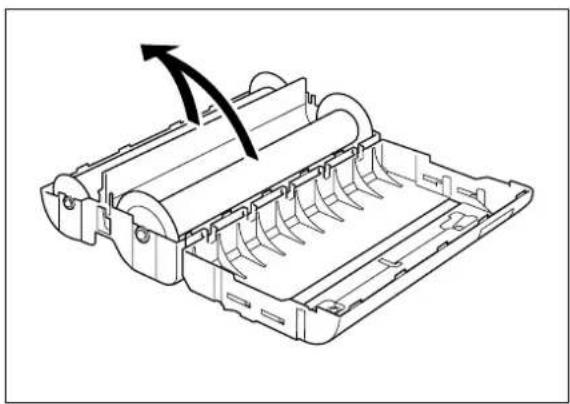
Technical line drawing of a mechanical component with rollers and housing (no text or symbols)(3) Remove the old film roll from the cartridge.
natural_image
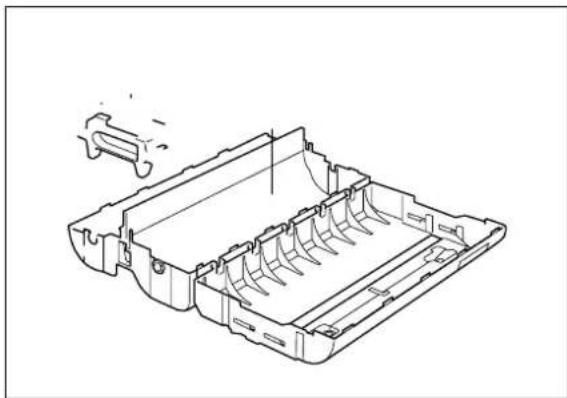
Technical line drawing of a mechanical component with internal channels and mounting brackets (no text or symbols)(4) Take the new refill roll of film from the sealed package. Remove the separator sheet. Holding the yellow colored plastic side holders of the film roll. Place the film into the cartridge as illustrated. The film can only be placed into the cartridge in the correct direction.
Note
Remove the separator sheet between film rolls before placing the rolls into the cartridge.
Do not grasp the rolls when installing.
9" and 4.8" refill rolls may have different side holders. Please refer to the directions that are packed with the refill roll.
(5) Remove the side holders (yellow color) of the film roll.
(6) Close the film cartridge. Making sure that the leading edge of the film sticks out of the film slit.
natural_image
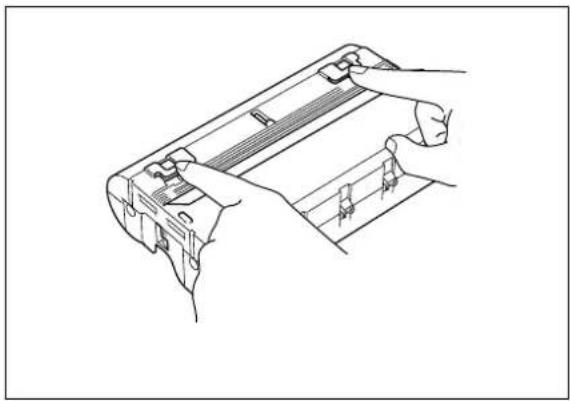
Line drawing of a mechanical device with hands operating it (no text or symbols)(7) Press on the two shutter buttons marked "PUSH" to release the shutter.
natural_image
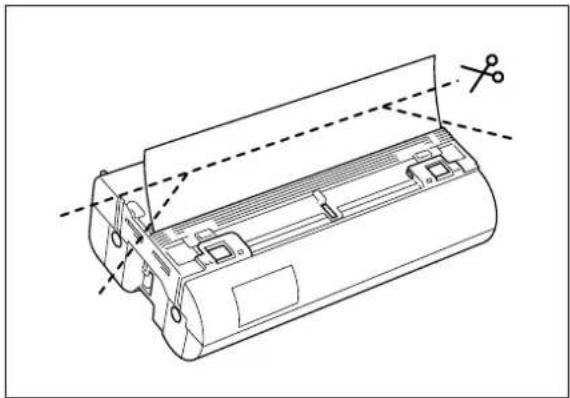
Technical line drawing of a mechanical device with cutouts and dimension lines (no text or symbols)(8) The top edge of film should be aligned with the cutting line of the cartridge. If any film extends beyond the cutting line, cut away the excess film as illustrated before installing the cartridge into the machine.
natural_image
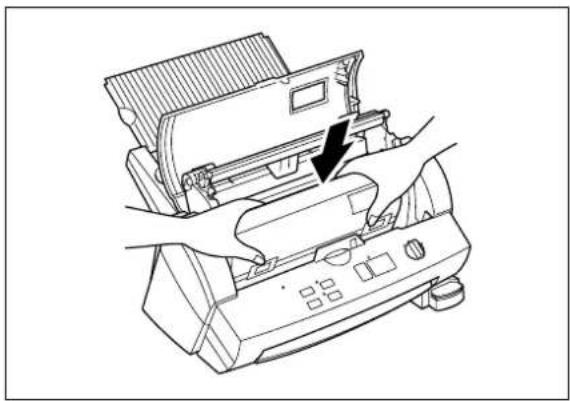
Line drawing of a device with hands operating it, showing a button and control panel (no text or symbols)(9) Install the cartridge into the machine.
natural_image
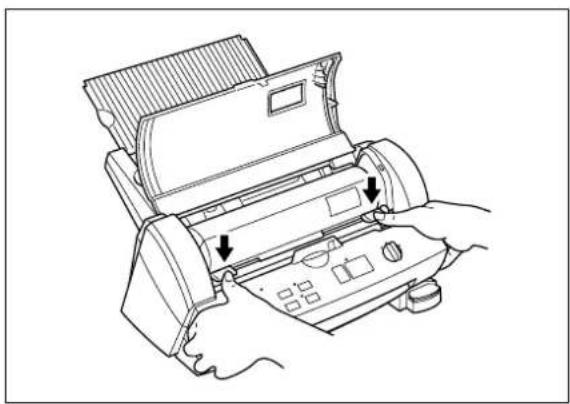
Line drawing of a printer being inserted into a slot, with arrows indicating the process (no text or symbols present)(10) Return the roller holder to its original position and press the roller holder levers as illustrated. You will hear the roller holder click into place.
natural_image
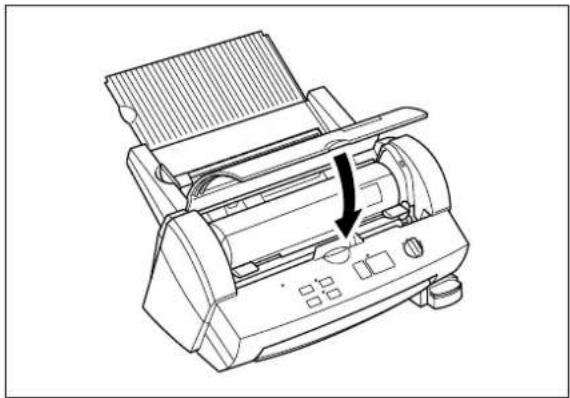
Line drawing of a printer with a paper feed and control panel, showing no text or symbols(11) Close the top cover.
(12) Turn the POWER dial to Cutter Off, Border or No Border. Press the Feed button until you can see the edge of the film to remove any slack from the film.

CAUTION:
To prevent the film from drying out, never open the sealed pack until you are ready to install the cartridge.
Using 9" (A4) or 4.8" (A6) film cartridges
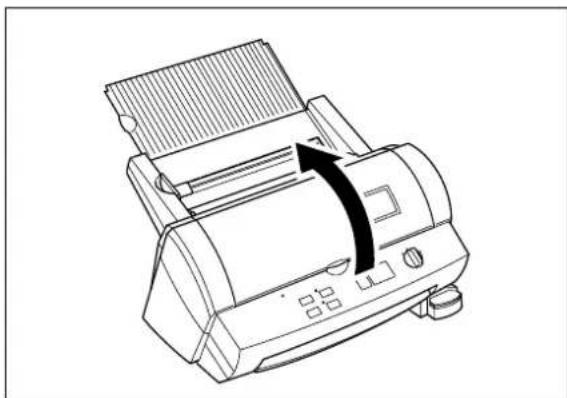
natural_image
Line drawing of a printer with a paper feed and a black arrow indicating rotation (no text or symbols)(1) Turn the POWER dial to OFF and open the top cover.
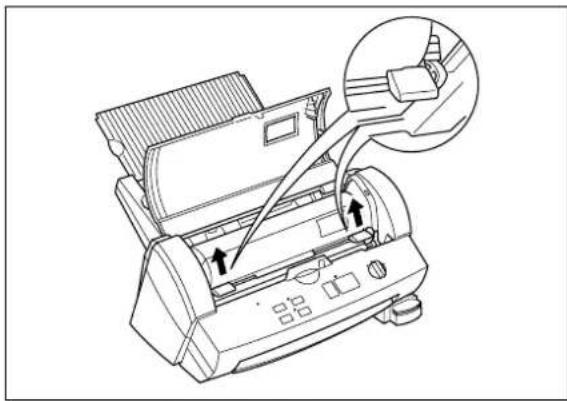
natural_image
Line drawing of a printer with arrows indicating process, showing internal components and a magnified inset (no text or symbols)(2) Pull the roller holder levers up and lift the roller holder upwards.
(3) Remove the film cartridge carefully.
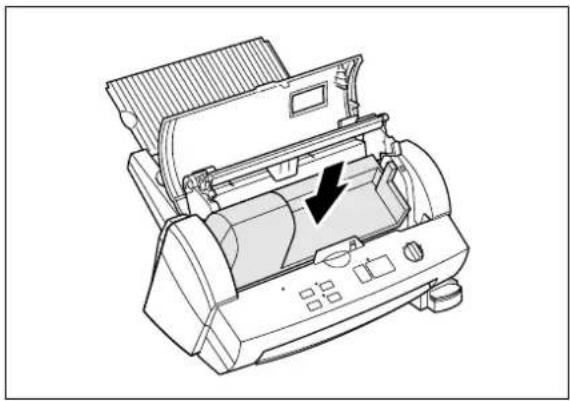
natural_image
Technical line drawing of a printer with internal components and a black arrow indicating a component (no text or symbols present)(4) Place the cartridge adapter into the machine as illustrated.
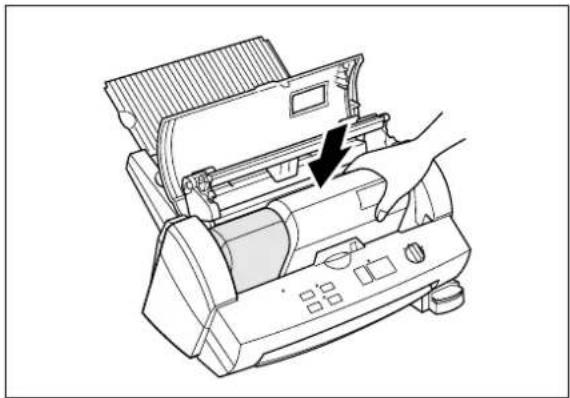
natural_image
Illustration of a printer presser with a hand inserting a paper into it (no text or symbols visible)(5) Place the 9.0 inch or 4.8 inch cartridge into the machine. When using the 4.8 inch cartridge, align the cartridge to the right side of the machine.
natural_image
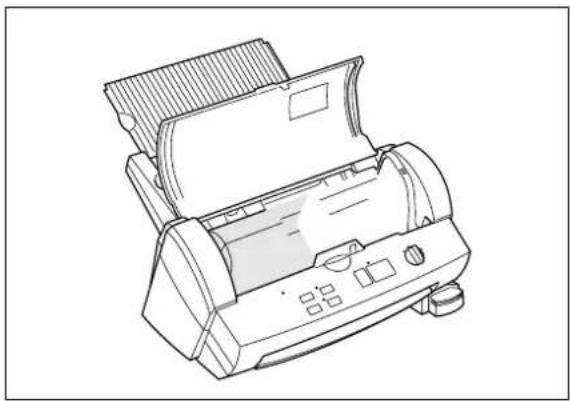
Line drawing of a printer with paper feed and control panel (no text or symbols)(6) Return the roller holder to its original position and press the roller holder levers as illustrated. You will hear the roller holder click into place.
natural_image
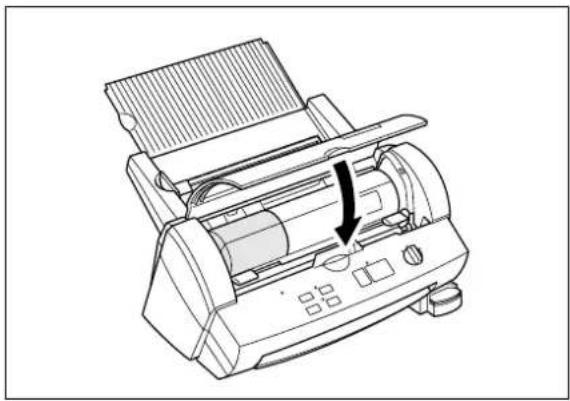
Line drawing of a printer with a paper feed and a downward arrow indicating the process (no text or symbols present)(7) Close the top cover.
(8) Turn the POWER dial to Cutter Off, Border or No Border. Press the Feed button until you can see the edge of the film to remove any slack from the film.
Regular maintenance and troubleshooting
You can keep your machine in optimum condition by cleaning it on a regular basis.
Regular maintenance
Avoid small debris and objects
Be careful not to let anything slip into the machine, especially metal objects such as paper clips and staples.
For optimum lamination results, do not place the machine and cartridges in a dusty environment.
Cleaning
Never use volatile liquids such as thinner or benzene to clean the exterior surface of the machine. Use only a soft cloth dampened with a diluted mild detergent solution for the exterior. Use ONLY a soft, dry cloth for cleaning the interior.
Paper jams
The machine will sound an alarm if a document jams while going through the feeder.
The Error indicator will blink and the buzzer will sound.
Clearing a document jam
(1) Turn the machine off.
natural_image
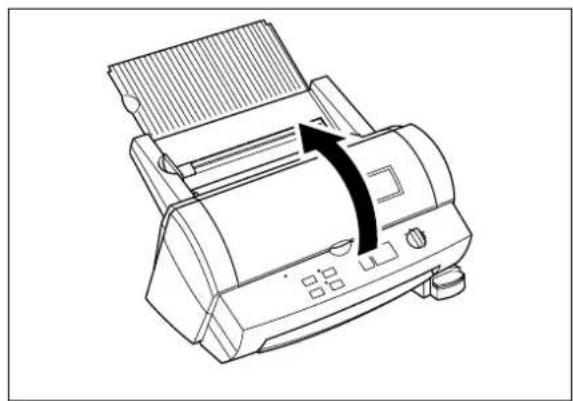
Line drawing of a printer with a black arrow indicating rotation or movement (no text or symbols)(2) Open the top cover.
natural_image
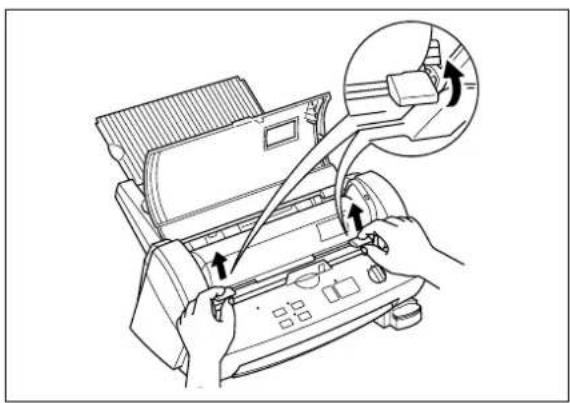
Line drawing of hands operating a printer with an inset showing the printer's handle (no text or symbols present)(3) Pull the roller holder levers up and lift the roller holder upwards.
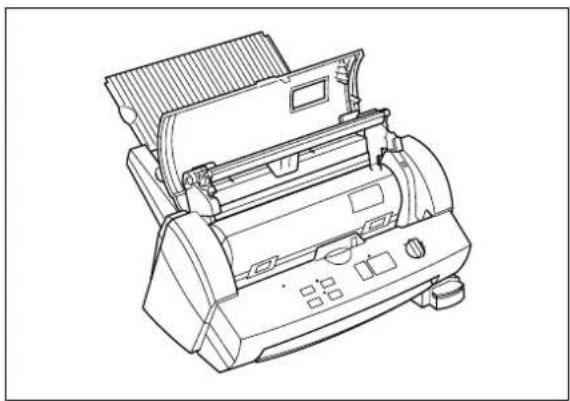
natural_image
Line drawing of a printer with control panel and buttons (no text or symbols)(4) Remove the film cartridge from the machine.
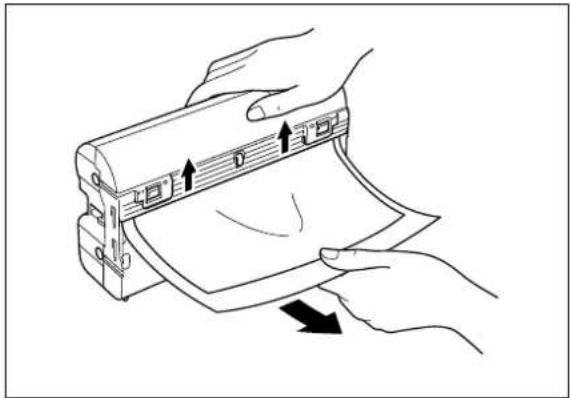
natural_image
Illustration of hands holding a device with arrows indicating movement or change (no text or symbols)(5) Open the cartridge shutter and remove the document from the film slit of the cartridge.
Note
Do not pull the document from the opposite side.
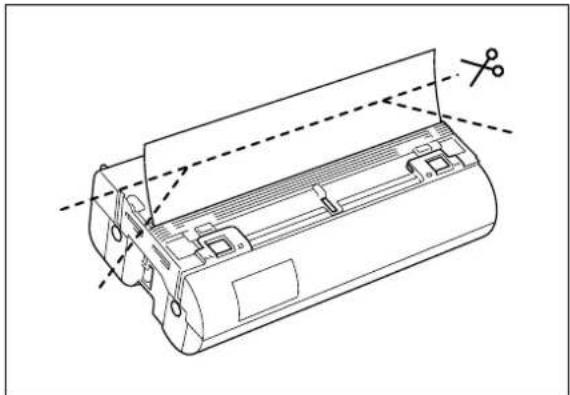
natural_image
Technical line drawing of a cylindrical device with internal components and a pair of scissors, no text or symbols present(6) Remove any excess laminating film by cutting along the engraved "cutting line" on the cartridge before reinserting the cartridge.
Note
Make sure that the shutter of the cartridge is closed. If open, push the shutter buttons to close the shutter.
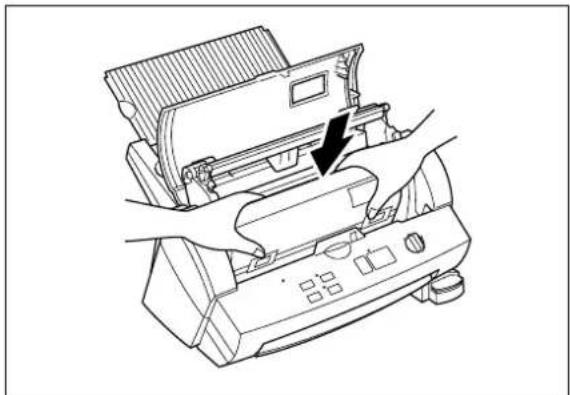
natural_image
Line drawing of a printer's front panel with hands operating it, showing no text or symbols(7) Place the film cartridge into the machine.
Note
Make sure that the film is installed correctly.
natural_image
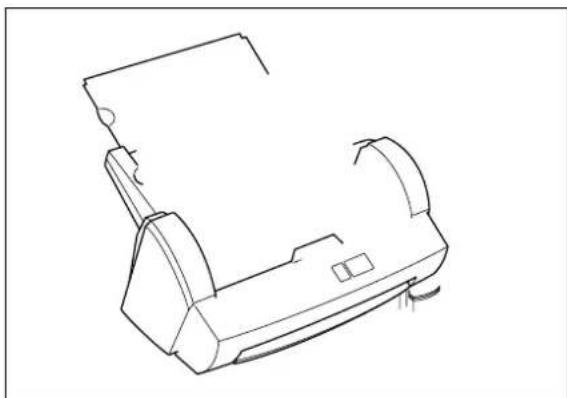
Line drawing of a printer or printer component (no text or symbols)(8) Return the roller holder levers to its original position. Push until it clicks into place.
(9) Close the top cover.
(10) Press the Feed button until you can see the edge of the film to remove any slack from the film.
CAUTION:
Do not touch the surface of the blade when removing a jammed document. This procedure must be done with great care to avoid personal injury.
Replacing the side cutter units
Cutter performance will decline as blades become dull through use or become coated with adhesives. Follow these steps to replace the side cutter units.

CAUTION:
Do not touch the surface of the blade when replacing the cutter units. Handle the blades with great care to avoid personal injury.
Side cutter units (SC-2)
(1) Turn the machine off.
natural_image
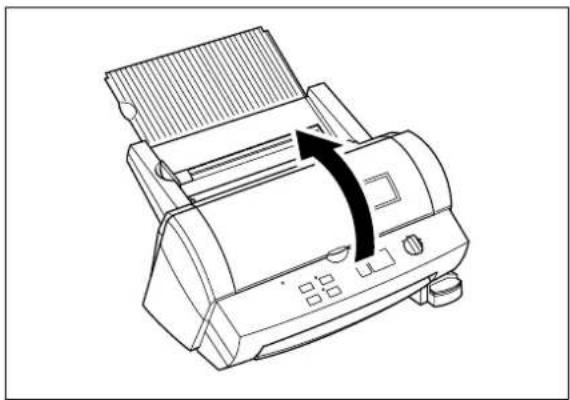
Line drawing of a printer with a paper feed and control panel, showing no text or symbols(2) Open the top cover.
natural_image
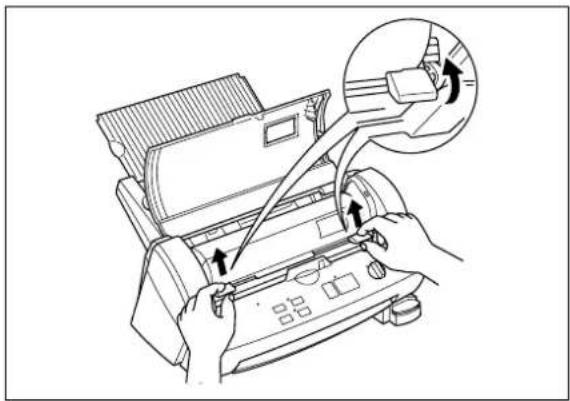
Line drawing of hands operating a printer with an inset showing a close-up of the printer's handle (no text or symbols present)(3) Pull the roller holder levers up and lift the roller holder upwards.
natural_image
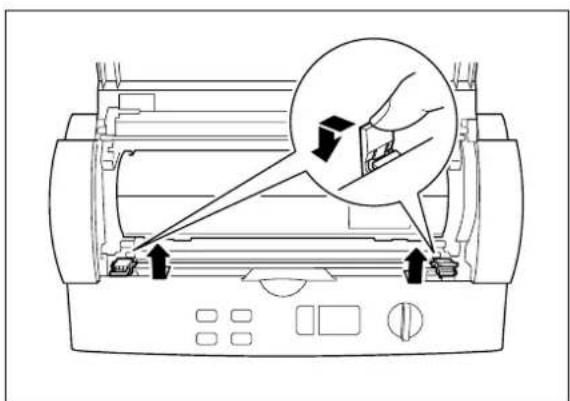
Diagram of a printer with arrows indicating process, showing internal components and a magnified view of the printer's handle (no text or symbols present)(4) Push the yellow colored tab of side cutter unit to release the lock as illustrated.
natural_image
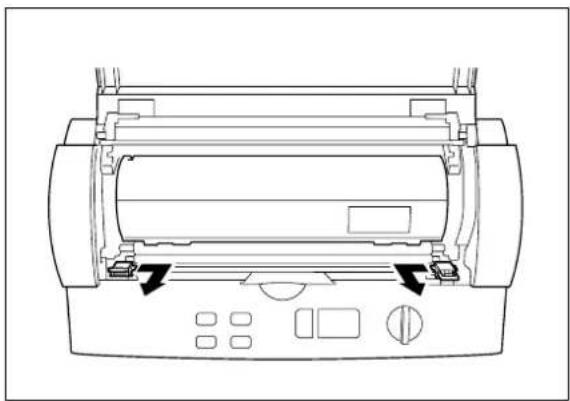
Line drawing of a printer with internal components and control buttons (no text or symbols)(5) Slide the old side cutter towards the center of the machine. Remove the side cutter.
natural_image
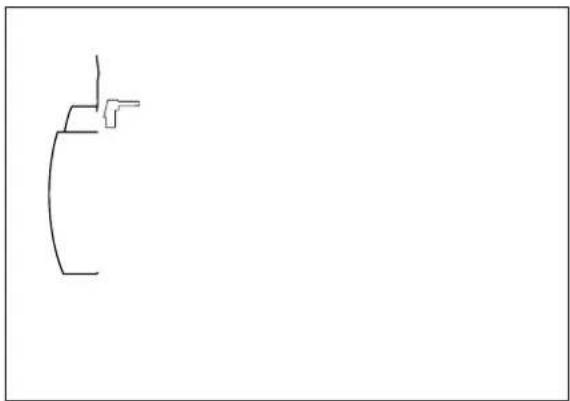
Simple line drawing of a curved shape with a small protrusion on the right side (no text or symbols)(6) Place the new side cutter on the metal bar and slide it towards the side of the machine.
(7) When the cutter is in the correct position lift the tab and bring it upwards towards the front of the machine to lock the side cutter into place. Repeat this procedure for both cutters.
natural_image
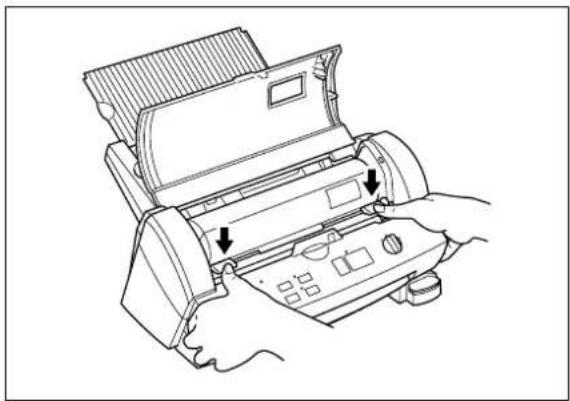
Line drawing of hands operating a printer with buttons and a door (no text or symbols)(8) Return the roller holder levers to its original position.
Note
If side cutter units are not installed properly, the roller holder will not return to its original position.
Make sure that film cartridge is installed properly after returning the roller holder to its original position.
natural_image
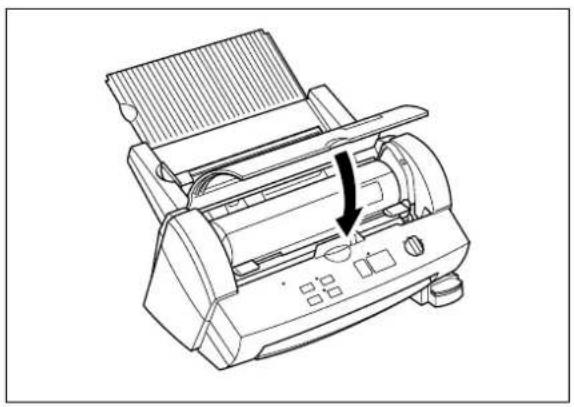
Line drawing of a printer with a paper feed and a black arrow indicating the paper's edge (no text or symbols present)(9) Close the top cover.
(10) Press the Feed button until you can see the edge of the film to remove any slack from the film.
Replacing the corner cutter trimmer tray
The cutter performance will decline as the blade becomes dull.
You can improve the performance of the blade by replacing the corner cutter trimmer tray.
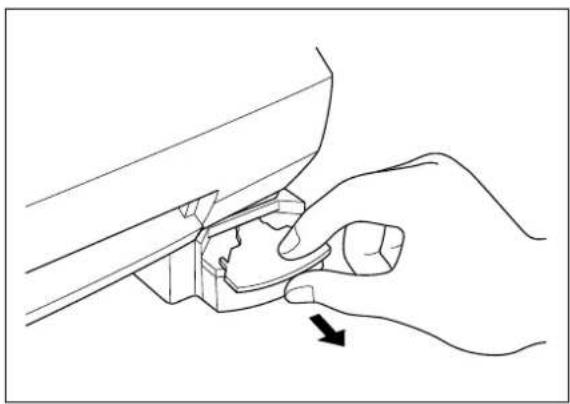
You can use both sides of the corner cutter trimmer tray. To use the other side simply remove the corner cutter trimmer tray as shown below and reinsert it with the other side up. Install a new corner cutter trimmer tray after both sides are worn.
Use the following operation to replace the corner cutter trimmer tray when necessary.
natural_image
Line drawing of a hand holding a tool or bracket with an arrow indicating direction (no text or symbols present)Corner Cutter Trimmer Tray (CC-3)
(1) Remove the corner cutter trimmer tray as illustrated.
(2) Install the new corner cutter trimmer tray.
Note
Use Brother authorized cutter units (SC-2 or CC-3) only.
Other cutter units, (top/bottom cutter unit and the upper blade of the corner cutter) are not user replaceable. Please consult your dealer if these cutter units become dull or damaged.
Troubleshooting
| Problem Cause | Solution | |
| Nothing happens after the machine has been turned on. | The AC adapter is not connected properly. | Check that the machine is plugged into a power source. |
| The top cover is not completely closed. Close the top cover. | ||
| The document will not feed into the machine and the alert buzzer sounds (two times). | The document was not properly placed into the machine. | Remove the document and place it correctly in the document tray. Press Start again. |
| The document is too thick or too thin. The minimum and maximum thickness of paper that can be used with this machine are 0.004" (17 lbs.) - 0.008" (40 lbs.). | ||
| The document is wrinkled or curled. Curled, wrinkled documents cannot be laminated. | ||
| The width of the document is too narrow or too wide. | The width of the document must be between 2.0" (50mm) and 11.7" (297mm). | |
| The document is too small. | Documents must be at least 3.5" (90mm) long. | |
| The width of film cartridge is narrower than inserted document. | Install the proper film cartridge. | |
| The laminator stops while laminating a document, the Error indicator is blinking and the alert buzzer sounds | There is no more film in the cartridge. | Change the film cartridge. |
| The document is jammed. Remove the jammed document. | ||
| The laminator stops while laminating a document, the Start LED is blinking. | The document length is more than 18.5" (470mm) long. | Press the Start button to continue the process. |
| Output quality is poor. | The document is too thick or too thin. The minimum and maximum thickness of paper that can be used with this machine are 0.004" (17 lbs.) - 0.008" (40 lbs.). | |
| The document is wrinkled or curled. Curled, wrinkled documents cannot be laminated. | ||
| The document is too small. | Documents must be at least 2.0" (50mm) wide and 3.5" (90mm) long. | |
| The document will not feed straight. | The document is not set properly. | Set the document properly. |
| The extra laminate around the document is not trimmed after processing. | The cutter units are not installed properly. | Check to see if the cutter units are installed in the machine properly. |
| The cutter units have been damaged. | Replace the cutter units. You can replace the side cutter units and Corner Cutter Trimmer Tray.It is not possible to replace the top/bottom cutters. If these cutter units do not work properly, please consult your dealer. | |
| Cutter Off Mode is selected. | Change the setting of the POWER switch. | |
| The cutting position is not accurate (top/bottom) | The paper sensor is damaged. | Please consult your dealer. |
| Documents made with the Adhesive Lamination will not stick. | Adhesive film has not been loaded into the machine. | Use Brother Adhesive Film Roll LC-A12, LC-A9 or LC-A5. |
| The liner of the adhesive film has not been peeled away. | Remove the liner using the crack and peel on the back of the document. | |
| You are trying to place the adhesive document on a surface that is dirty or rough. | Wipe the surface clean or try a different surface. | |
| The Error indicator blinks and the alert buzzer sounds when the machine is turned on. | The film cartridge is not installed properly or an incompatible film cartridge is installed. | Install the film cartridge properly.Use Brother authorized film cartridges and film refills only. |
| The proper AC adapter is not being used. | Use a Brother authorized AC adapter. | |
| The Error indicator blinks and the alert buzzer sounds when the top cover is closed | The film cartridge is not installed properly or an incompatible film cartridge is installed. | Install the film cartridge properly.Use Brother authorized film cartridge and film refills only. |
| The power dial cannot be turned. | The side cutter units are not installed properly. | Check the side cutter units and install them properly. |
| The film has creases or bubbles. | The refill is not installed correctly in the cartridge. | Check to make sure the refill is installed correctly and press the Feed button until the creases and bubbles disappear (should be okay after a few inches of film have been fed). |
Specifications
Model number: LX-1200
Processing method: Cold pressure method
Power supply: AC adapter (included)
| USA 120V±10% (60Hz)Output DC 18V 700mA | ||
| Min./max. width of document: | 2.0" - 11.7" (50mm - 297mm) | |
| Min. length of document: | 3.54" (90 mm) | |
| Min./max. thickness of document: | 0.004" - 0.008" (0.1mm/3.9MIL - 0.2mm/7.9MIL) | |
| Film: Refillable cartridge film | ||
| Film type: | LC-D12/D12R (12.0"/A3 width double-side laminate)LC-A12/A12R (12.0"/A3 width adhesive laminate)LC-D9/D9R (9.0"/A4 width double-side laminate)LC-A9/A9R (9.0"/A4 width adhesive laminate)LC-M9/M9R (9.0"/A4 width magnetic-back laminate)LC-D5/D5R (4.8"/A6 width double-side laminate)LC-A5/A5R (4.8"/A6 width adhesive laminate)LC-M5/M5R (4.8"/A6 width magnetic-back laminate) | |
| Max number of output/cartridge:(continuous mode) | LC-D12: | About 86 sheets/11" × 17" paper |
| LC-D12R: | About 86 sheets/11" × 17" paper | |
| LC-A12/A12R: | About 20 sheets/11" × 17" paper | |
| LC-D9/A9: | About 68 sheets/Letter paper | |
| LC-D5/A5 | About 121 sheets/4" × 6" paper | |
| LC-M9 | About 13 sheets/Letter paper | |
| LC-M5 | About 21 sheets/4" × 6" paper | |
| Document feed speed: | 0.98"/sec. (25mm/sec.) | |
| Cutting system: | Built-in cutting system with paper size detection | |
| Side cutter units | (replaceable) | |
| Top/bottom cutter unit | (non-replaceable) | |
| Corner cutter unit | (replaceable - cutter trimmer tray only) | |
| Life of the cutter: | Side cutter units | About 984 feet (300m) |
| Top/Bottom cutter unit | About 5000 sheets (used with adhesive with laminate film) | |
| Corner cutter unit (Upper) | 20,000 times | |
| Corner cutter trimmer tray | 3,000 times | |
| Noise level: | 35 dB (stand-by mode) | |
| Unit dimensions: | 468mm (W) * 387mm (D) * 273mm (H) (18.3" * 15.2" * 10.8") | |
| Unit weight (not including film cartridge and AC adapter) | 8.3kg (18.3lbs.) | |
Index
A
AC adapter 6,9,38
Adhesive back laminate film....12
Adhesive sticker 22
Alert buzzer 38
Auto Cross Cutting System.... 14,15
Auto Cut Mode Border....15
Auto Cut Mode Cutter Off 5,15,38
Auto Cut Mode No Border 15
B
Border......8.15
Business card-size paper 13
Buzzer 11
C
Cartridge....8
Cartridge cover....25
Compatible accessory list....6
Control panel 7,8
Corner cutter 20
Corner cutter dust box....7,21
Corner cutter slot....7,20
Corner Cutter Trimmer Tray 7.3
Corner cutter unit.... 20
Cut button....8
Cutter unit....35,38
Cutting line....8,27
Cutting Position 15
D
DC connector....7,9
Dial 15
Document guide 7,10
Document jam 32
Document output 7
Document supporter.... 7,10
Document tray 7,10,11,16
Dust box 21
E
Electrical outlet 9
F
Feed button....8,19,24,34,37
Film cartridge 6,22,23,24,25,26,33,38
Film cartridge cover....8
Film refill....22
Film roll 22,25,26
Film slit....8,33
Function button 7
M
Margin....15
N
No Border....8
0
Owner's manual....6
P
Paper jam....32
Paper length....13
Paper thickness....13
Paper width....13
Plastic side holder....8,26
Power dial 8,9
Professional, self-adhesive stickers....22
R
Roll film 7.26
Roller....7
Roller holder....7,24,32,35,36
Roller holder lever....7,23,24,32,34,35,36
Roller unit....7,24
S
Setup 9
Shutter....8,24,25,27,33
Shutter button....8,27,33
Side cutter 36
Side cutter arm 7
Side cutter unit....7,35,36
Side holder....26
Start button....9,11,38
Start/Stop button....8
Stickers....38
Supplemental PC software (CD-ROM) ......6
T
The Auto Cross Cutting System....14
The Auto Sheet Feeder 14
Top cover....7,23,24,32,34,37,38
Top/bottom cutter units....5
Type of paper....13
V
Viewing window....5
Table of Contents
Appendix (About PrintMaster Gold Software) 43
Getting Started 45
System Requirements 45
Starting PrintMaster Gold in Windows 95/98....45
Starting PrintMaster Gold in Windows 3.1x or Windows for Workgroups....45
Installing PrintMaster Gold 46
Launching PrintMaster Gold after installing....46
Removing PrintMaster Gold 46
Reinstalling PrintMaster Gold 47
Viewing/Printing PrintMaster Gold user's manual 48
How to install the Adobe Acrobat Reader....48
How to open the manual 48
The World of PrintMaster Gold 49
THE HUB SCREEN....49
The workspace....50
Menu Bar....50
The Global Toolbar....51
Text Toolbar 51
Add Toolbar 52
Modify Toolbar 53
Place Toolbar....53
Status bar....54
Appendix (About PrintMaster Gold Software)
Mindscape and PrintMaster are registered trademarks and the Mindscape logo is a trademark of The Learning Company all logos abd trademarks are the property of Mattel Interactive.
Adobe and Acrobat are trademarks of Adobe system Incorporated.
Windows is a registered trademark of Microsoft corp. in the U.S. and other countries.
IBM is a registered trademark of International Business Machine, Inc.
You don't need a computer to use the Cool Laminator. However, if you have a computer and printer, the bundled PC software, PrintMaster Gold makes it easy to produce beautiful projects you'll love to show around. Simply choose from PrintMaster Gold's selection of beautiful, ready-to-print designs, make any changes you want, and you're ready to print. It's really that easy!
Note:
Each time when you use PrintMaster, you will have to insert the PrintMaster Gold CD-ROM to your PC.
If you have any technical problems with this software, please contact the technical service department of the software company The Learning Company.
The list of Technical Support is as follows.
Country Location
| USA Online Support Request | Form: www.expressit.comTechnical Support Email:help@tlcsupport.com____(Note : the web site is spelled: TLCSUPPORT.COM)Online Technical Library:www.support.expressit.com24 Hour Fax:319-395-9600Technical Support Call Center:319-247-3333Business Hours:8:00 AM - 6:00 PM (CST)Mailing AddressMattel Interactive1700 Progress DrivePO Box 100-TSHiawatha,IA 52233-0100 USAAttn: Printmaster 4 Publishing Suite |
| UK Tech Support e-mail:uksupport@learningco.comPhone:09062165432 (Calls cost 25p/min & may be monitored/recorded. Correct at Apr 1999)Facsimile:09062165433 (All calls cost 25p/min.Correct at Apr 1999)Mail:The Learning CompanyPO Box 121CrawleyRH11 9YPENGLANDAttn: Printmaster 4 Publishing Suite | |
| AUSTRALIA Phone:61-2-9899-2277Facsimile:61-2-9899-2348Mail:Unit 6372 Eastern Valley WayChatswoodNSW 2067Australia | |
| GERMANY Keltenring 12 | 82041 OberhachingGermanyTel: ++49 89/613 092 35Fax: ++49 89/14827-411E-mail:hotline@learningco.com |
| FRANCE 122, avenue de General Leclerc92514 Boulonge CedexFranceTel: +33 1 55 38 48 58E-mail: supportfr@learningco.comWeb: http://www.tlc-edusoft.fr | |
| NETHERLAND PO Box 94791 | 1090 GT AmsterdamThe NetherlandsTel: 0900 8524357E-mail: nsupport@learningco.com |
Getting Started
Before installing, check the system requirements listed below to make sure your computer is able to work with PrintMaster Gold.
System Requirements
PrintMaster Gold performs on any computer with the following features:
- IBM PC with a 486DX2 66 MHz (or higher)
- Windows 95, Windows 98, Windows 3.1x/Windows for Workgroups (running in 386 Enhanced Mode)
- 8Mb or more of RAM (16Mb recommended)
- 30Mb or more of free hard disk space
• Double-speed or better CD-ROM drive - Microsoft mouse or 100% compatible
• Sound Blaster or 100% compatible sound card (recommended)
• Hayes or 100% compatible modem (optional)
Print Support: PrintMaster Gold provides the highest resolution output possible on all back & white or color printers supported by Windows. Be sure you have enough color ink cartridges before printing. We suggest you print out your projects on the best paper (usually glossy) your printer will support.
Graphics Support: PrintMaster Gold provides a large selection of spectacular full color CGM, TIFF, PSD, and JPG images and works with all other popular graphic formats: PCX, TIF, GIF, WMF, BMP, and Kodak Photo CD.
Font Support: PrintMaster Gold will work with any other True Type fonts that are installed in Windows.
Starting PrintMaster Gold in Windows 95/98
Follow these step-by-step instructions to install PrintMaster Gold onto your hard disk.
When running under Windows 95 or 98, the PrintMaster Gold CD-ROM provides support for the autorun feature as described below:
- Insert the PrintMaster Gold CD-ROM into your CD-ROM drive and the installation program will automatically start.
- Proceed to the next section entitled, Installing PrintMaster Gold.
If the Windows 95 or 98 autorun is not currently enabled on your system, then begin the PrintMaster Gold installation as follows:
- From the Start menu click Run.
- At the command line specify the drive letter where the PrintMaster Gold CD-ROM is located and type INSTALL (Example: D:INSTALL). Press ENTER or click OK to proceed.
- Proceed to the next section entitled, Starting PrintMaster Gold.
Starting PrintMaster Gold in Windows 3.1x or Windows for Workgroups
Follow these step-by-step instructions to install PrintMaster Gold onto your hard disk.
- Open the Program Manager's File menu and select Run.
- Specify the drive where the CD-ROM is located and type INSTALL (Example: D:INSTALL) for the Command Line and press ENTER or click OK to proceed.
- Proceed to the next section entitled, Installing PrintMaster Gold.
Installing PrintMaster Gold
- Click the Install button or press ENTER to continue the installation.
The PrintMaster Gold Installation screen appears with the default drive and directory, which you may change or accept as shown. - Click Continue or press ENTER to install PrintMaster Gold into the default directory, C:\PMW. or Click the Custom button to install PrintMaster Gold into the drive and directory of your choice.
Launching PrintMaster Gold after installing:
In Windows 95/98:
- Start Windows in the usual manner. The installation process creates a new menu group for PrintMaster Gold in the Program section of the Start menu.
- Click Start on the bottom left side of the window.
- Click Programs, then open the PrintMaster Gold group and click the PrintMaster Gold icon.
NOTE:
You can also double-click the PrintMaster Gold icon in the PrintMaster Gold group window.
To use the autorun feature in Windows 95/98:
- Start windows in the usual manner.
- Insert the PrintMaster Gold CD-ROM. The autorun feature in Windows 95/98 will automatically start the program.
- Click Run to proceed past the title screen.
In Windows 3.1x
- Open the Program Manager and double-click the PrintMaster Gold subdirectory.
- Double-click the PrintMaster Gold icon.
Removing PrintMaster Gold
To remove an existing version of PrintMaster Gold from your computer, use the Uninstall feature. If you have a previous version of PrintMaster Gold, we suggest you remove it first.
NOTE:
Removing PrintMaster Gold will also remove any previous projects and address books you have created in the PMW directory. If you would like to save these, please save the files into another directory.
In Windows 95/98
- Click the Start button at the bottom left of the screen. A popup menu will appear.
- Find your PrintMaster Gold group submenu. In it, click the Remove PrintMaster Gold icon.
- Follow the on-screen instructions. PrintMaster Gold will be removed from your hard drive.
- Start Windows 95/98.
- Insert the PrintMaster Gold CD-ROM.
- When the PrintMaster Gold opening screen appears, click Remove. Then, follow the on screen directions.
Or,
In Windows 3.1x
- Find the PrintMaster Gold group on the Program Manager.
- Double-click the group to open its contents.
- Double-click the Uninstall icon.
- Follow the on-screen instruction. PrintMaster Gold will be removed from your hard drive.
Reinstalling PrintMaster Gold
Though unlikely, PrintMaster Gold files may become corrupted and the program may not run properly. If so, you can reinstall PrintMaster Gold, which cleans out all old files and restores original functionality.
In Windows 95/98
-
Start Windows 95/98.
-
Insert the PrintMaster Gold CD-ROM.
-
When the PrintMaster Gold opening screen appears, click Reinstall, then follow the on-screen instructions.
NOTE:
Reinstalling will delete all of your stored projects in Your Own file.
In Windows 3.1
-
In the PrintMaster Program group, click Install.
-
Follow the onscreen directions. PrintMaster Gold will reinstall all programs and art files over the old files.
NOTE:
Reinstalling will delete all of your stored projects in Your Own file.
Viewing/Printing PrintMaster Gold user's manual
The full contents of user's manual is stored in the PrintMaster Gold CD-ROM. Please install the Adobe Acrobat Reader to see the online manual.
How to install the Adobe Acrobat Reader
- Double click the file Ar32e301 in the Acrobat 3 folder on the CD-ROM.
- Please proceed the operation.
System Requirements.
X86- based personal computer (386 minimum 486, pentium, or pentium pro recommended) Microsoft Windows 3.1x, 95, 98 4MB application RAM 5MB hard disk space plus 7MB additional temporary disk space available during installation.
How to open the manual
- Double click the file manual.pdf in the PrintMaster Gold CD-ROM. The full contents of manual will be displayed on the screen.
Note The program Acrobat Reader should in installed on your PC to open the file. Please refer to the above section.
The World of PrintMaster Gold
This section introduces you to the PrintMaster Gold environment. As soon as you open the program, you'll notice PrintMaster Gold has several interrelated areas, each with it's own individual purpose and look. Each area-including the Hub, Art Gallery, Sentiments Gallery, With Help Designer, and Workspace-offers you different tools to help create a unique card, calendar, or newsletter. If you are a new user, we suggest you first browse through the features in each area to get a basic understanding of the creative possibilities in PrintMaster Gold.
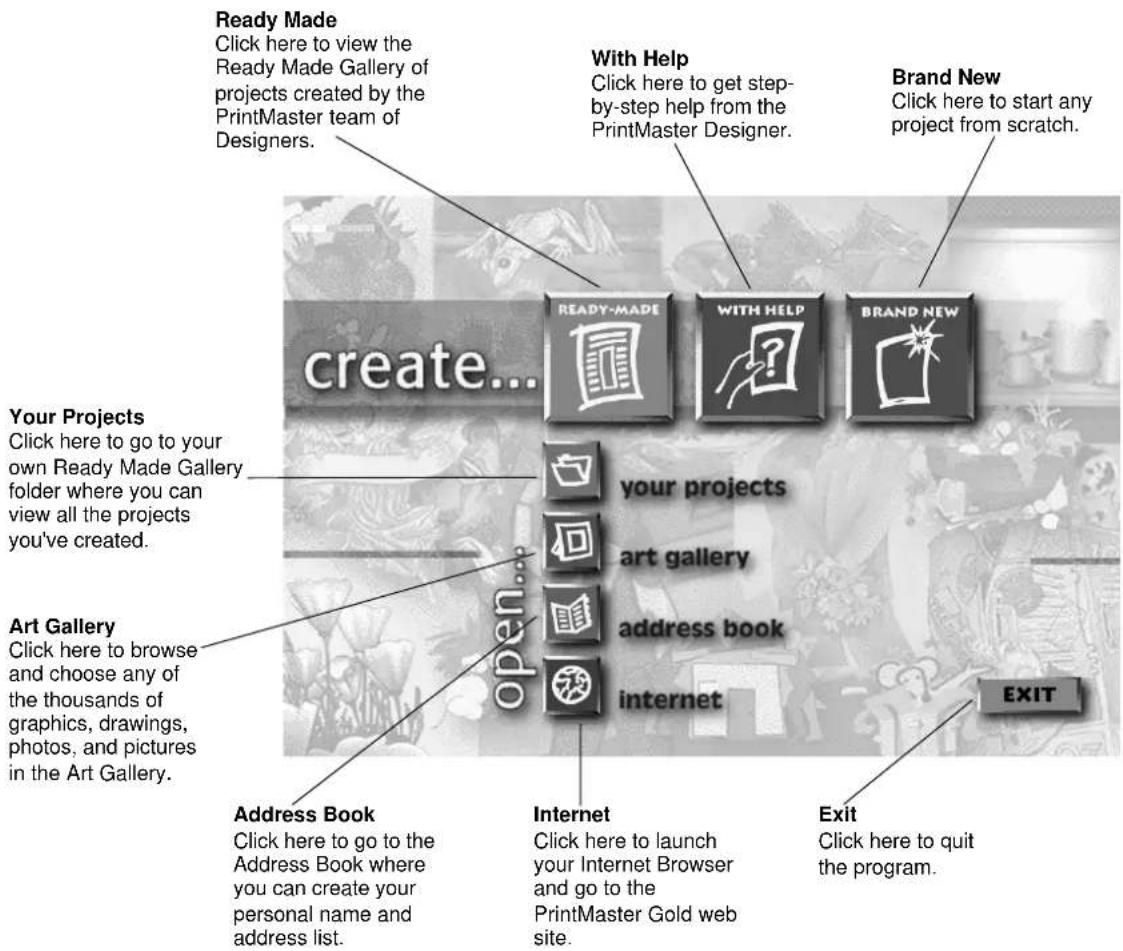
THE HUB SCREEN
After you launch PrintMaster Gold, the first thing you will see is the Hub screen. The Hub is where you can choose the kind of help you want creating a project, choose to work on a Ready Made, view art in the Art Gallery, or launch your Internet browser and go to the PrintMaster Gold Web site.
Once you have decided on the type of project you would like to work on, click one of the buttons above to go there. You can always return to the Hub by closing the project you are working on, or clicking Back in the With Help windows.
flowchart
graph TD
    A["create..."] --> B["readyMade"]
    B --> C["with Help"]
    C --> D["Brand New"]
    D --> E["EXIT"]
    A --> F["create..."]
    F --> G["create..."]
    G --> H["create..."]
    H --> I["create..."]
    I --> J["create..."]
    J --> K["create..."]
    K --> L["create..."]
    L --> M["create..."]
    M --> N["create..."]
    N --> O["create..."]
    O --> P["create..."]
    P --> Q["create..."]
    Q --> R["create..."]
    R --> S["create..."]
    S --> T["create..."]
    T --> U["create..."]
    U --> V["create..."]
    V --> W["create..."]
    W --> X["create..."]
    X --> Y["create..."]
    Y --> Z["create..."]
    Z --> AA["create..."]
    AA --> AB["create..."]
    AB --> AC["create..."]
    AC --> AD["create..."]
    AD --> AE["create..."]
    AE --> AF["create..."]
    AF --> AG["create..."]
    AG --> AH["create..."]
    AH --> AI["create..."]
    AI --> AJ["create..."]
    AJ --> AK["create..."]
    AK --> AL["create..."]
    AL --> AM["create..."]
    AM --> AN["create..."]
    AN --> AO["create..."]
    AO --> AP["create..."]
    AP --> AQ["create..."]
    AQ --> AR["create..."]
    AR --> AS["create..."]
    AS --> AT["create..."]
    AT --> AU["create..."]
    AU --> AV["create..."]
    AV --> AW["create..."]
    AW --> AX["create..."]
    AX --> AY["create..."]
The workspace
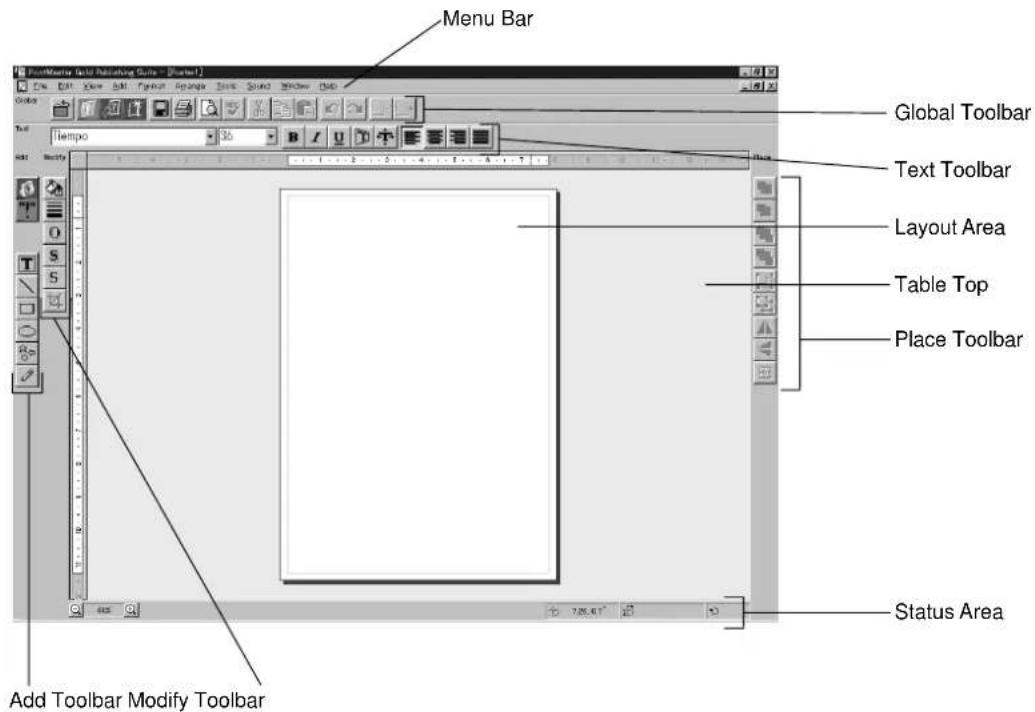
The Workspace is your own personal drafting board, with all the text, drawing, and editing tools you'll need to make a beautiful project. Here, you can put the finishing touches on your project, add new pictures, type in your personal message, and print.
Below, we will introduce you to the main menu bar and the five toolbars in the Workspace. We suggest you browse through them to get an idea of the possibilities, then jump right in and start designing.
Menu Bar:

File
Edit
View
Add
Format
Arrange
Tools
Sound
Window
Help
Like most Windows applications, PrintMaster Gold has a menu bar at the top of the screen. The menu bar provides access to all PrintMaster Gold command features, including File, Edit, View, Format, and Sound functions.
Use your mouse (or the ALT key) to pull down these menus to see their contents. (See the section entitled: Mouse and Keyboard Conventions later on in this guide for more details).
The Global Toolbar
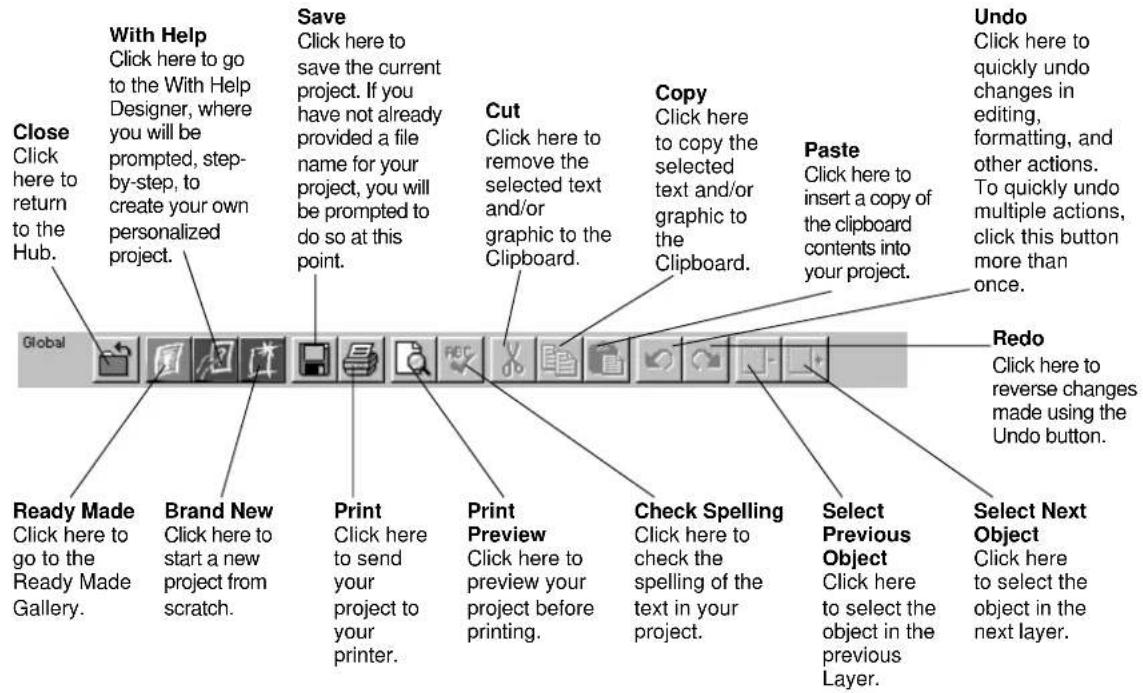
The Global Toolbar, which is displayed across the top of the Workspace, provides quick mouse access to some of the most commonly used PrintMaster Gold actions such as closing the current project, going to the Ready Made Gallery, starting a With Help project, and starting a Brand New project. These buttons are also one-step alternatives to using the menu bar for saving, printing, viewing Print Preview, cutting, Pasting, and others. To hide or display the Global toolbar, access the View menu, then Toolbars/Global Bar.
Text Toolbar
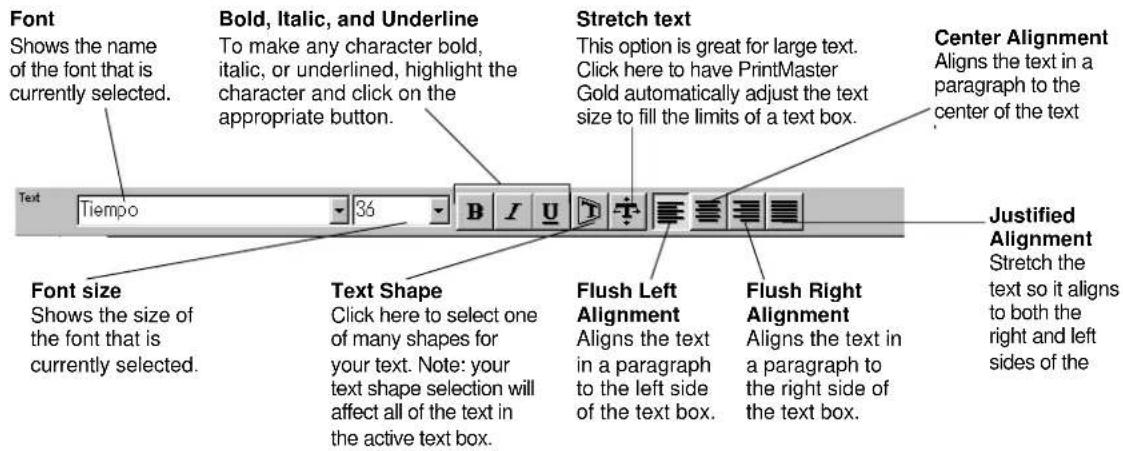
The Text toolbar is where you can make adjustments to the text in your project. Notice that whenever you click on text in your project, the Text toolbar will be immediately updated. You can also use this toolbar to bold, italicize, stretch, bend, or align your text.
To hide or display the Text toolbar, access the View menu, then Toolbars/Text Bar.
Add Toolbar
The Add toolbar holds all the tools you need to add graphics, sentiments, and your own art to your project. To hide or display the Add toolbar, access the View menu, the Toolbar/Add Bar.
Add a picture Click here to go to the PrintMaster Art Gallery. In the Art Gallery, you can choose from thousands of graphics, pictures, photos, and borders for your project. Select or Double-click a picture preview in the Art Gallery and your selection will be placed on your project in the Workspace.
Add a Sentiment Click here to view the thousands of fun, sentimental, warm, and serious sentiments we've gathered in the Sentiments Gallery. Search by type or keyword for the sentiment you want, then select the sentiment and it will be inserted into your project automatically.
Text Box Click here to add text to your project. After clicking this button, your cursor will turn into a 'text' crosshair. You can then either drag (with the mouse button down) across the project to create a text box, or just click once on the project and start typing.
Line Click this tool to draw a straight line on your project. To keep your line horizontal, perpendicular, or at a 45-degree angle, hold down the shift key while you drag the cursor across your project.
Rectangle Use this tool to create a rectangle on your project. by holding down the shift key, your box will be held to a perfect square.
Ellipse Use this tool to create an ellipse. By holding down the shift key, your drawing will be held to a perfect circle.
Shape Click on this tool to view a wide selection of shapes you can place on your
Modify Toolbar
Use the Modify toolbar to make adjustments to your art and text. With these tools, you can easily change the color of text and pictures, change line widths, add shadows, and crop pictures. To hide or display the Modify toolbar, access the View menu, then Toolbars/Modify Bar.
Color Use the tool to add color to your pictures and text. First select the picture or text you want to color, then select this tool. You will then see a selection of colors to choose from.
Line Width Use this tool to change the line width of your drawing or the outside border of a shape.
Line Color Use this tool to change color of the border line of a picture.
Shadow Use this tool to add a shadow to your text or shapes.
Shadow Color Use this tool to choose the color of the shadow behind your text or shapes.
Crop Use this tool to crop out the part of a picture or shape you do not want to see. Just select the picture you want to crop, click on this tool, and then move the handles on the picture to only show the part you want to see. Or, you can move the picture within its 'window'. The picture will still be intact, but you will only be able to see a portion of it.

Place Toolbar
The Place toolbar is a selection of automatic tools for working with all objects in PrintMaster Gold. With these tools, you can easily select pictures partially hidden behind another, group together objects you want to move as one, or flip pictures horizontally and vertically. To hide or display the Place toolbar, access the View menu, then Toolbars/Place Bar.
Forward One Click this tool once to bring the active object up one level.
Backward One Click this tool once to push the active object back one level.
Send to Front Click this tool to bring the active object to the top of a stack of overlapping objects.
Send to Back Click this tool to send the active object to the bottom of a stack of overlapping objects.
Group Use this tool to group several objects together. First select all the pieces you want to _group by clicking on them one by one while holding down the shift key, then click on group. The grouped objects will now act as one.
Ungroup Click this tool to ungroup several objects you have previously grouped.
Mirror This tool flips the active object horizontally.
Flip This tool flips the active object vertically.
Center on Page This tool centers the active object in the middle (half way between the top and bottom and left and right sides) of the project.

Status bar
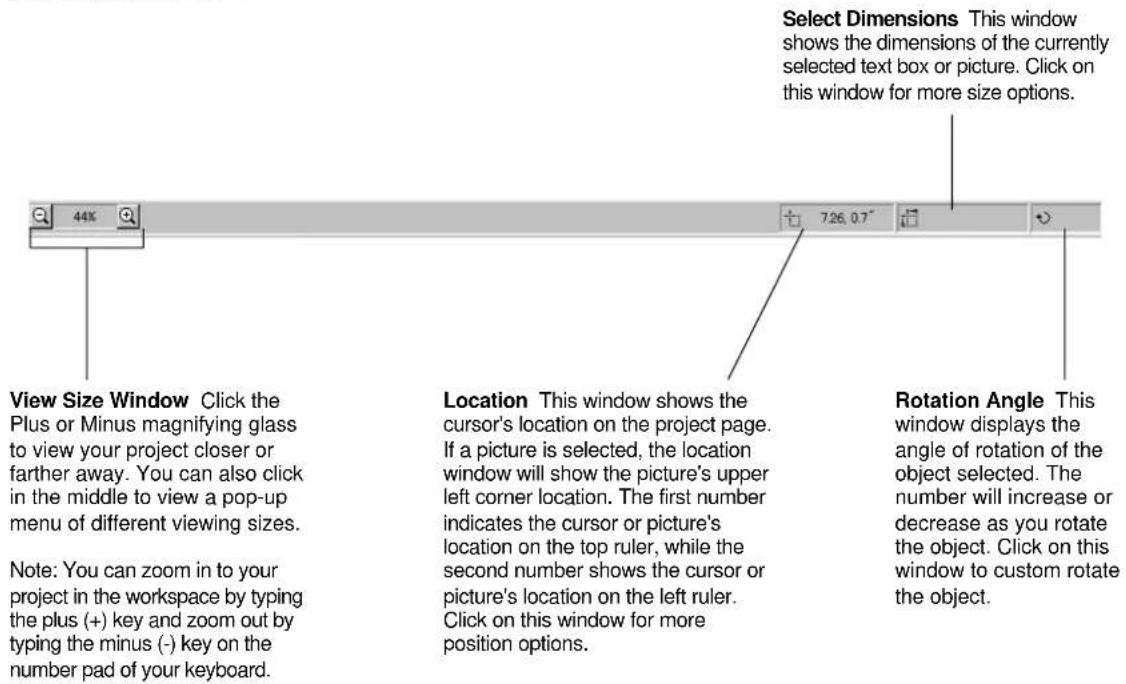
The Status toolbar is displayed at the bottom of the PrintMaster Gold window. Use this area to change your view of your project or to check the accuracy of your measurements. To hide or display the Status toolbar, access the View menu, then Toolbars/Status Bar.
View Side Window Click either the left arrow or the right arrow to see the different sides of your project. You can also click directly in the middle of the View Side window to see a pop-up menu of different views.
Note: only available in cards, brochures, and newsletters.
Zoom to Area - This option changes the cursor into a magnifying glass, allowing you to drag across just the area you want to view close-up.
- Select this option and position the magnifying glass to the left and above of the object you want to magnify.
- Hold down the left mouse button and drag the magnifying glass across and down the layout screen until the item of focus is enclosed in a box. Then release the mouse button.
FRANÇAIS

natural_image
Pure geometric lines and shapes without any text, numbers, or symbolsTable des matières
Prise en main....2
natural_image
Line drawing of a portable printer with control panel and buttons (no text or symbols)②
natural_image
Line drawing of a mechanical device casing with internal compartments and mounting brackets (no text or symbols)③
natural_image
Line drawing of a small electronic device with a coiled cable and connector (no text or symbols)④
⑤
natural_image
Simple line drawing of a folded paper or document (no text or symbols)⑥
natural_image
Simple geometric diagram with a diamond shape containing an oval (no text or symbols)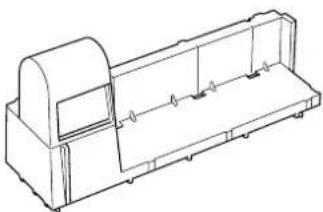
natural_image
Technical line drawing of a mechanical housing or enclosure component (no text or symbols)Cartouche de film
Ligne de coupe
natural_image
Line drawing of a portable electronic device with cable and connector (no text or symbols)natural_image
Line drawing of a hand pressing down on a mechanical device with an arrow indicating motion (no text or symbols)(1) Ouvrez le support de document.
natural_image
Line drawing of a hand holding a sheet of paper over a cutting machine (no text or symbols)natural_image
Simple line drawing of a door with hatched shading and a small sun icon, no text or symbols presentnatural_image
Line drawing of two hands holding a curved blade or blade, no text or symbols presentnatural_image
Illustration of a hand holding a piece of paper or paper on a flat surface (no text or symbols)natural_image
Two technical line drawings showing hands operating a mechanical device, one with a circular component and the other with a cross-shaped tool (no text or symbols)natural_image
Two technical line drawings showing hands operating a mechanical device with a scroll wheel (no text or symbols present)natural_image
Line drawing of a printer with paper and control panel (no text or symbols)natural_image
Line drawing of a printer being inserted into a paper, showing two arrows indicating the process (no text or symbols present)natural_image
Technical line drawing of a mechanical assembly or holder component (no text or symbols)natural_image
Line drawing of a printer with a hand operating it, showing no text or symbolsnatural_image
Line drawing of a printer with a hand operating the button (no text or symbols)natural_image
Line drawing of a hand holding a tool near a mechanical component (no text or symbols)natural_image
Line drawing of a hand using a tool to adjust or install a mechanical component, with no visible text or symbols.(3) Retirez le document de la fente.
Nota
natural_image
Line drawing of a hand holding a mechanical component with an arrow indicating rotation (no text or symbols)natural_image
Line drawing of a printer with a paper feed and a scroll wheel, showing no text or symbols.natural_image
Illustration of a printer with arrows indicating process, showing internal components and a magnified view of the printer's cable (no text or symbols present)natural_image
Line drawing of hands operating a printer with a black arrow indicating the process (no text or symbols present)natural_image
Line drawing of hands operating a printer with a black arrow indicating the process (no text or symbols present)natural_image
Line drawing of hands operating a printer with arrows indicating process (no text or symbols)natural_image
Line drawing of a printer with a paper feed and control panel, showing no text or symbolsnatural_image
Line drawing of a device with hands operating it, showing a button and control panel (no text or symbols)natural_image
Line drawing of a mechanical component with an arrow indicating rotation or movement (no text or symbols)natural_image
Line drawing of a hand operating a printer into a plastic tray (no text or symbols)natural_image
Technical line drawing of a mechanical assembly with a downward arrow indicating motion (no text or symbols)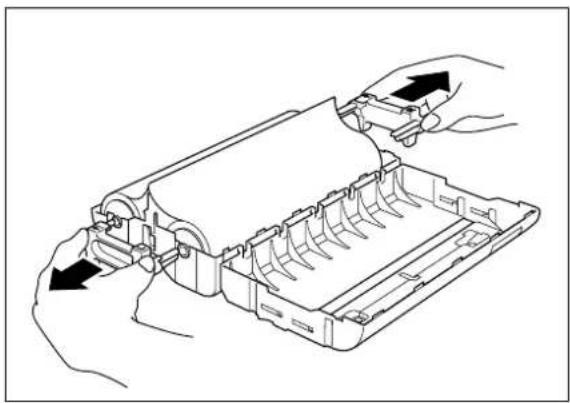
natural_image
Line drawing of hands operating a mechanical device with internal components (no text or symbols)natural_image
Line drawing of a hand holding a mechanical component with a black arrow indicating direction (no text or symbols)natural_image
Line drawing of a printer with a paper feed and control panel, showing no text or symbolsnatural_image
Abstract black shape with white triangular cutout and a small white arrow symbol (no text or symbols present)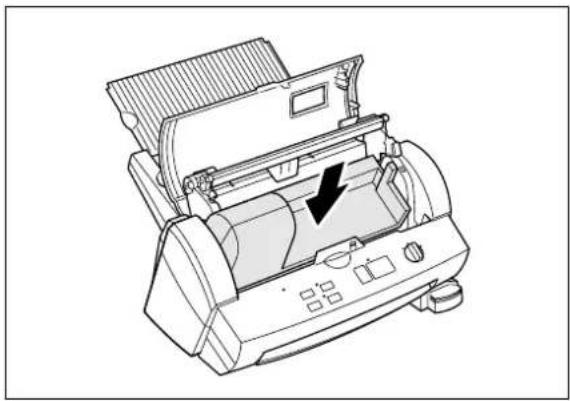
natural_image
Technical line drawing of a printer with internal components and a black arrow indicating a component (no text or symbols present)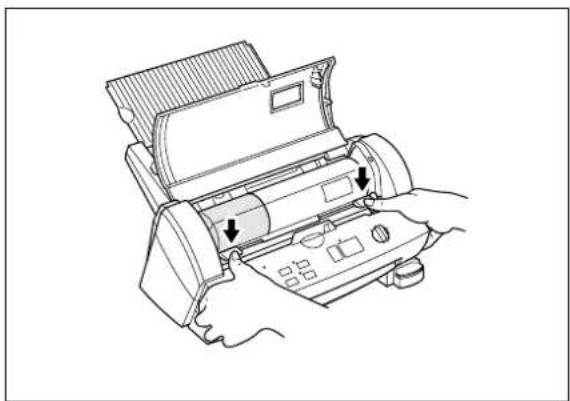
natural_image
Line drawing of a printer with arrows indicating process flow (no text or symbols)natural_image
Line drawing of a printer with lid and control panel (no text or symbols)natural_image
Line drawing of a printer with a black arrow indicating rotation or movement (no text or symbols)natural_image
Illustration of hands operating a printer with an inset showing a close-up of the printer's cable (no text or symbols present)natural_image
Line drawing of hands operating a computer monitor with an arrow indicating the process (no text or symbols present)(4) Retirez la cartouche de film de la machine.
Nota
natural_image
Illustration of hands holding a mechanical device with arrows indicating movement or force (no text or symbols)natural_image
Technical line drawing of a cylindrical device with internal components and a pair of scissors (no text or symbols)natural_image
Line drawing of hands operating a printer with a black arrow indicating the process (no text or symbols present)natural_image
Line drawing of a printer with hands operating it, showing internal components and arrows indicating motion (no text or symbols)natural_image
Line drawing of a printer with a paper feed and control panel, showing no text or symbolsnatural_image
Line drawing of a printer with a paper feed and a scroll wheel, showing no text or symbols.natural_image
Illustration of hands operating a printer with an inset showing a close-up of the printer's cable (no text or symbols present)natural_image
Diagram of a printer with a hand inserting a component into the paper (no text or symbols present)natural_image
Line drawing of a printer with control panel and scroll arrows indicating ports (no text or symbols)natural_image
Line drawing of a printer internal structure with control buttons and arrows indicating motion (no text or symbols)natural_image
Diagram of a printer with a hand inserting a spring into the cover, showing no text or symbols.natural_image
Line drawing of a printer with paper inside (no text or symbols)natural_image
Line drawing of a printer with a paper feed and a black arrow indicating the paper's edge (no text or symbols present)natural_image
Line drawing of a hand using a tool to adjust or install a mechanical component (no text or symbols present)- Brother Cool Laminator LX-1200
- Fax-Back System
- Brother on the World Wide Web
- For Customer Service
- Corporate Headquarters
- Ordering Accessories and Supplies
- Table of Contents
- Getting started
- Features
- Precautions
- WARNING:
- CAUTION:
- IMPORTANT OPERATIONAL PRECAUTIONS:
- Package list
- Part names
- Outside of the machine
- Inside of the machine
- Control Panel
- Setup
- Turning the machine on/off
- About Auto Power Saver
- Operating the machine
- TIP
- Note
- Document Size
- The Auto Sheet Feeder
- The Auto Cross Cutting System
- IMPORTANT INFORMATION:
- How to define the cutting position (creating borders)
- Auto Cutter Mode - Border
- Auto Cutter Mode - No Border
- Auto Cutter Mode - Cutter Off (for sensitive documents)
- Auto Cutter Mode - Extra Border
- How to use Continuous mode
- Manual feeding and manual cutting
- Corner cutting
- Corner cutter dust box
- About film rolls
- Film-supply maintenance
- Replacing the film cartridge
- Installing/replacing the film roll in the cartridge
- Using 9" (A4) or 4.8" (A6) film cartridges
- Regular maintenance and troubleshooting
- Regular maintenance
- Avoid small debris and objects
- Cleaning
- Paper jams
- Clearing a document jam
- Replacing the side cutter units
- Side cutter units (SC-2)
- Replacing the corner cutter trimmer tray
- Corner Cutter Trimmer Tray (CC-3)
- Specifications
- Index
- A
- B
- C
- D
- E
- F
- M
- N
- 0
- P
- R
- S
- T
- V
- Appendix (About PrintMaster Gold Software)
- System Requirements
- Starting PrintMaster Gold in Windows 95/98
- Follow these step-by-step instructions to install PrintMaster Gold onto your hard disk.
- Starting PrintMaster Gold in Windows 3.1x or Windows for Workgroups
- Installing PrintMaster Gold
- Launching PrintMaster Gold after installing:
- In Windows 95/98:
- To use the autorun feature in Windows 95/98:
- In Windows 3.1x
- Removing PrintMaster Gold
- In Windows 95/98
- Or,
- Reinstalling PrintMaster Gold
- In Windows 3.1
- Viewing/Printing PrintMaster Gold user's manual
- How to install the Adobe Acrobat Reader
- System Requirements.
- How to open the manual
- The World of PrintMaster Gold
- THE HUB SCREEN
- The workspace
- Menu Bar:
- The Global Toolbar
- Text Toolbar
- Add Toolbar
- Modify Toolbar
- Place Toolbar
- Status bar
- FRANÇAIS
- Table des matières
- Cartouche de film
- Nota
Brand : BROTHER
Model : Cool LX1200
Category : Laminating machine