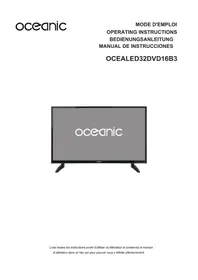
OCEALED32DVD16B3 - Television OCEANIC - Free user manual and instructions
Find the device manual for free OCEALED32DVD16B3 OCEANIC in PDF.

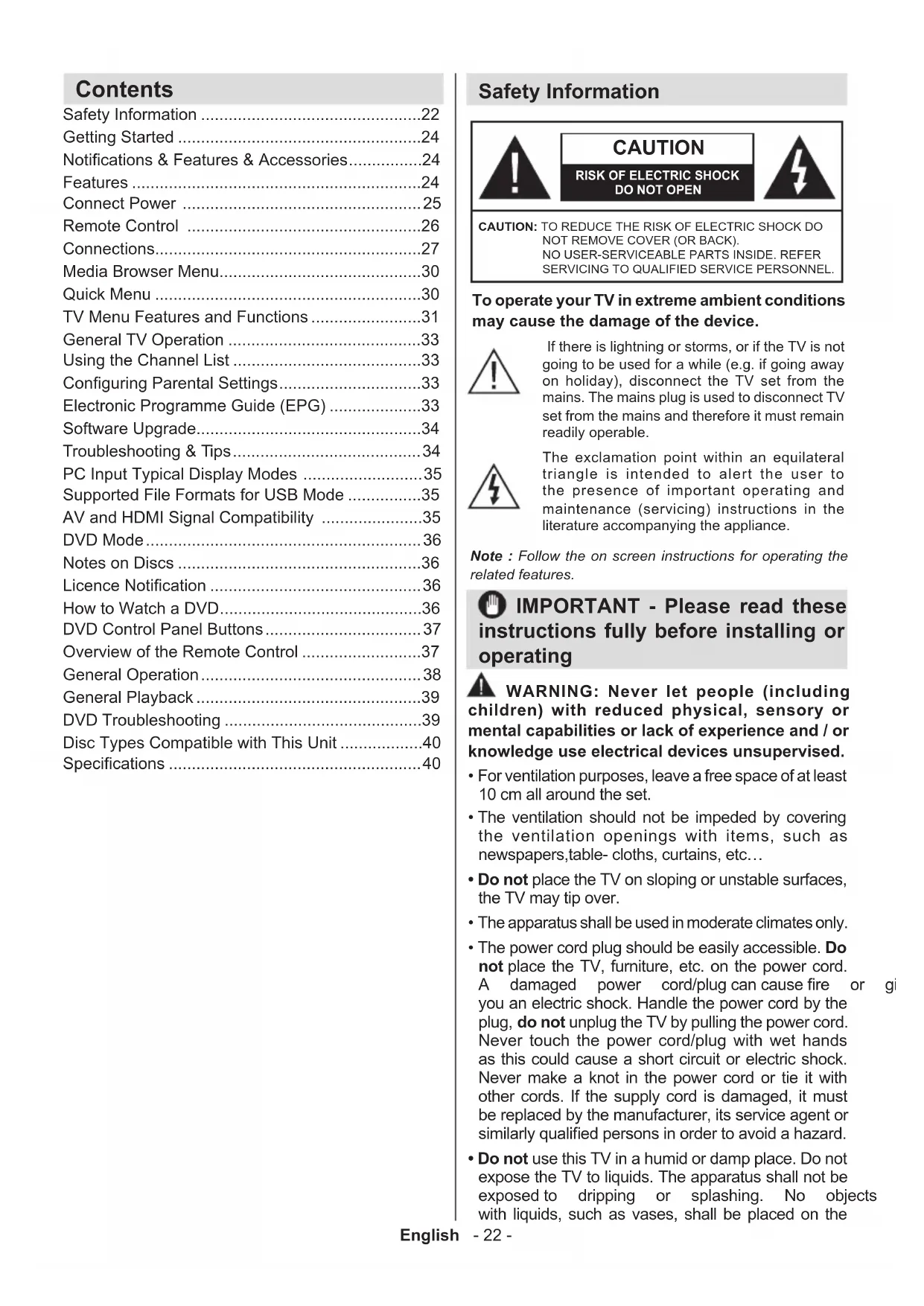


| Brand | Oceanic |
| Model | OCEALED32DVD16B3 |
| Product type | LED TV with built-in DVD player |
| Screen size | 32 inches (approx. 81 cm) |
| Dimensions (with stand) | 185 x 735 x 478 mm (Depth x Width x Height) |
| Dimensions (without stand) | 77-97 x 735 x 438 mm |
| Power supply | 220-240 V AC, 50 Hz |
| Power consumption | 65 W |
| Audio power | 2 x 6 W RMS |
| TV tuner | DVB-T (terrestrial) and DVB-C (cable) |
| Video standard | PAL B/G D/K, NTSC (playback) |
| Antenna input | 75 ohms, unbalanced |
| Connectivity | 2 x HDMI, 1 x SCART, 1 x VGA, 1 x YPbPr, 1 x USB, 1 x SPDIF, 1 x Headphone, 1 x Peritel |
| DVD playback | DVD, CD, CD-R/RW, MP3, JPEG |
| Supported USB formats (video) | MPEG1/2, MP4, MKV, AVI, FLV, 3GP; max resolution 1920x1080 |
| Supported USB formats (audio) | MP3 (32-320 kbps, 8-48 kHz) |
| Supported USB formats (photo) | JPEG, BMP |
| Main functions | USB Recording (PVR), Timeshift, EPG, Parental control, Game mode, Energy saving, Teletext |
| Spare parts availability | 5 years from manufacturing date |
| Laser class (DVD player) | Class 1 |
| Maintenance and cleaning | Unplug before cleaning; use a soft dry cloth |
Frequently Asked Questions - OCEALED32DVD16B3 OCEANIC
User questions about OCEALED32DVD16B3 OCEANIC
0 question about this device. Answer the ones you know or ask your own.
Ask a new question about this device
Download the instructions for your Television in PDF format for free! Find your manual OCEALED32DVD16B3 - OCEANIC and take your electronic device back in hand. On this page are published all the documents necessary for the use of your device. OCEALED32DVD16B3 by OCEANIC.
USER MANUAL OCEALED32DVD16B3 OCEANIC
HOTLINE CONSOMMATEURS
0800.801.512
Connexions (Connections) 7
RISQUE D'LECTROCUTION NE PAS OUVRIR

ATTENTION: TPOUR EVITER TOUT RISQUE
D' ELECTROCUTION, NE RETIREZ PAS LE COUVERCLE. (OU LE ARRIÈRE).
L'ENTRETIEN DES PIEÇES INTERNES EST
INTERDIT AUX UTILISATEURS. VEUILLEZ CONFIER
L'ENTRETIEN A UN PERSONNEL QUALIFIE.
Connexions (Connections)
PRODUIT LASER DE CLASSE 1
RISQUE D'ELECTROCUTION
Notifications & Features & Accessories. 24
Features 24
Connect Power 25
Remote Control 26
Connections. 27
Media Browser Menu. 30
Quick Menu 30
TV Menu Features and Functions 31
General TV Operation 33
Using the Channel List 33
Configuring Parental Settings 33
Electronic Programme Guide (EPG) 33
Software Upgrade 34
Troubleshooting & Tips 34
PC Input Typical Display Modes 35
Supported File Formats for USB Mode 35
AV and HDMI Signal Compatibility 35
DVD Mode 36
Notes on Discs 36
Licence Notification 36
How to Watch a DVD. 36
DVD Control Panel Buttons 37
Overview of the Remote Control 37
General Operation 38
GeneralPlayback 39
DVD Troubleshooting 39
Disc Types Compatible with This Unit 40
Specifications 40
Safety Information


CAUTION
RISK OF ELECTRIC SHOCK DO NOT OPEN
CAUTION: TO REDUCE THE RISK OF ELECTRIC SHOCK DO NOT REMOVE COVER (OR BACK). NO USER-SERVICEABLE PARTS INSIDE. REFER SERVICING TO QUALIFIED SERVICE PERSONNE
To operate your TV in extreme ambient conditions may cause the damage of the device.

If there is lightning or storms, or if the TV is not going to be used for a while (e.g. if going away on holiday), disconnect the TV set from the mains. The mains plug is used to disconnect TV set from the mains and therefore it must remain readily operable.

The exclamation point within an equilateral triangle is intended to alert the user to the presence of important operating and maintenance (servicing) instructions in the literature accompanying the appliance.
Note : Follow the on screen instructions for operating the related features.

IMPORTANT - Please read these instructions fully before installing or operating
WARNING: Never let people (including children) with reduced physical, sensory or mental capabilities or lack of experience and / or knowledge use electrical devices unsupervised.
- For ventilation purposes, leave a free space of at least 10cm all around the set.
- The ventilation should not be impeded by covering the ventilation openings with items, such as newspapers, tablecloths, curtains, etc...
- Do not place the TV on sloping or unstable surfaces, the TV may tip over.
- The apparatus shall be used in moderate climates only.
- The power cord plug should be easily accessible. Do not place the TV, furniture, etc. on the power cord. A damaged power cord/plug can cause fire you an electric shock. Handle the power cord by the plug, do not unplug the TV by pulling the power cord. Never touch the power cord/plug with wet hands as this could cause a short circuit or electric shock. Never make a knot in the power cord or tie it with other cords. If the supply cord is damaged, it must be replaced by the manufacturer, its service agent or similarly qualified persons in order to avoid a hazard.
- Do not use this TV in a humid or damp place. Do not expose the TV to liquids. The apparatus shall not be exposed to dripping or splashing. No objects with liquids, such as vases, shall be placed on the
apparatus. If any liquid falls into the cabinet unplug the TV and have it checked by qualified personnel before operating it any further.
- Do not expose the TV to direct sunlight or other heat sources.
- The TV should not be placed near to open flames or sources of intense heat such as an electric heater.
- Excessive sound pressure from earphones and headphones can cause hearing loss.
- Ensure that no open flame sources, such as lit candles, are placed on top of the TV.
- To prevent injury, this TV must be securely attached to the wall in accordance with the installation instructions (if the option is available).
- Occasionally, a few non-active pixels may appear on the screen as a fixed blue, green or red point. Please note that this does not affect the performance of your product. Take care not to scratch the screen with fingernails or other hard objects.
- Before cleaning, unplug the TV from the wall socket. Only use a soft, dry cloth while cleaning.
CAUTION: Danger of explosion if battery is incorrectly replaced. Replace only with the same or equivalent type. Different types of batteries or new and used batteries are not to be mixed. Batteries are to be inserted with the correct polarity. Exhausted batteries are to be removed from the product. Batteries shall be disposed off in a safe way. Only dispose off batteries in specific collection containers (contact your retailer for more information) in order to protect the environment
| Warning | Serious injury or death risk |
| Risk of electric shock | Dangerous voltage risk |
| Caution | Injury or property damage risk |
| Important | Correctly the system operate |
| Notice | Additional notes marked |
Markings on the Product
The following symbols are used on the product as a marker for restrictions and precautions and safety instructions. Each explanation shall be considered where the product bears related marking only. Note such information for security reasons.

Class II Equipment: This appliance is designed in such a way that it does not require a safety connection to electrical earth.

Class II Equipment With Functional Earthing: This appliance is designed in such a way that it does not require a safety
connection to electrical earth, the earth connection is used for functional purposes.

Protective Earth Connection: The marked terminal is intended for connection of the protective earthing conductor associated with supply wiring.

Hazardous Live Terminal: The marked terminal(s) is/are hazardous live under normal operating conditions.

Caution, See Operating Instructions: The marked area(s) contain(s) user replaceable coin or button cell batteries.

Class 1 Laser Product: This product contains Class 1 laser source that is safe under reasonably foreseeable conditions of operation.
WARNING
Do not ingest the battery, Chemical Burn Hazard (The accessories supplied with or) This product may contain a coin/button cell battery. If the coin/ button cell battery is swallowed, it can cause severe internal burns in just 2 hours and can lead to death.
Keep new and used batteries away from children. If the battery compartment does not close securely, stop using the product and keep it away from children.
If you think batteries might have been swallowed or placed inside any part of the body, seek immediate medical attention.
WARNING
Never place a television set in an unstable location. A television set may fall, causing serious personal injury or death. Many injuries, particularly to children, can be avoided by taking simple precautions such as;
- Using cabinets or stands recommended by the manufacturer of the television set.
- Only using furniture that can safely support the television set.
- Ensuring the television set is not overhanging the edge of the supporting furniture.
- Not placing the television set on all furniture (for example, cupboards or bookcases) without acnoring both the furniture and the television set to a suitable support.
- Educating children about the dangers of climbing on furniture to reach the television set or its controls.
If your existing television set is being retained and relocated, the same considerations as above should be applied.
Getting Started
Notifications & Features & Accessories
Environmental Information
This television is designed to consume less energy to help save the environment. To reduce energy consumption, you should take the following steps:
If you set the Power Save Mode as Eco, the TV will switch to energy-saving mode. The Power Save Mode settings can be found in the 'Picture' section of the Main Menu. Note that some picture settings will be unavailable to be changed.
If Picture Off is selected, "Screen will be off in 3 seconds." message will be displayed. Select PROCEED and press OK to continue. The screen will be off immediately.
When the TV is not in use, please switch off or disconnect the TV from the mains plug. This will also reduce energy consumption.
Standby Notifications
- If the TV does not receive any input signal (e.g. from an aerial or HDMI source) for 5 minutes, the TV will go into standby. When you next switch-on, the following message will be displayed: "Standby Cause No Signal" Press OK to continue.
- If the TV has been left on and not been operated for a while, the TV will go into standby. When you next switch-on, the following message will be displayed. "Standby Cause No Operation" Press OK to continue.
Features
Remote controlled colour TV.
Fully integrated digital/cable TV (DVB-T/C)
- HDMI inputs are for connecting a device that has a HDMI socket.
- USB input.
- OSD menu system.
- Scart socket for external devices (such as DVD Players, PVR, video games, etc.)
- Stereo sound system.
- Teletext.
- Headphone connection.
Automatic programming system.
- Manual tuning.
Automatic power down after up to six hours.
- Sleep timer.
Child lock.
Automatic sound mute when no transmission.
- NTSC playback.
AVL (Automatic Volume Limiting).
- PLL (Frequency Search).
- PC input.
- Plug&Play for Windows 98, ME, 2000, XP, Vista, Windows 7.
Game Mode (Optional).
Accessories Included
Remote Control
- Batteries not included
- Instruction Book
TV Control Switch & Operation
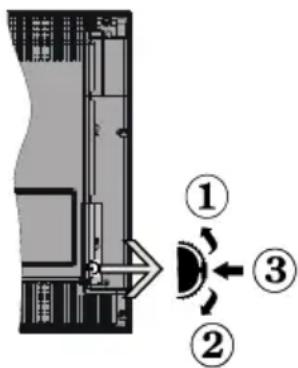
1.Up direction
2. Down direction
3. Programme/Volume / AV / Standby-On selection switch
The Control button allows you to control the Volume/Programme/Source and Standby-On functions of the TV.
To change volume: Increase the volume by pushing the button up. Decrease the volume by pushing the button down.
To change channel: Press the middle of the button, the channel information banner will appear on screen. Scroll through the stored channels by pushing the button up or down
To change source: Press the middle of the button twice, the source list will appear on screen. Scroll through the available sources by pushing the button up or down.
To turn the TV off: Press the middle of the button down and hold it down for a few seconds, the TV will turn into standby mode.
Inserting the Batteries into the Remote
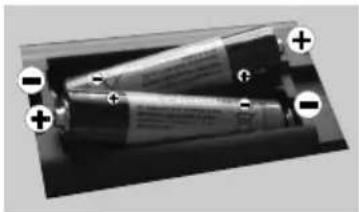
Lift the cover on the back of the remote upward gently. Install two AAA batteries. Make sure to match the + and - ends of the batteries in the battery compartment (observe the correct polarity) Replace the cover.
Don't mix different type of batteries or new and used batteries.
Connect Power
IMPORTANT: The TV set is designed to operate on 220-240V AC, 50Hz socket. After unpacking, allow the TV set to reach the ambient room temperature before you connect the set to the mains. Plug the power cable to the mains socket outlet.
Antenna/Cable Connection
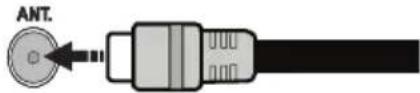
Connect the "aerial" or "cable TV" plug to the AERIAL INPUT (ANT) socket located on the back of the TV.
Notification
Manufactured under license from Dolby Laboratories.
TRADEMARK ACKNOWLEDGMENT
"Dolby" and the double-D symbol are trademarks of Dolby Laboratories.

"HDMI, the HDMI logo and High-Definition Multimedia Interface are trademarks or registered trademarks of HDMI Licensing LLC."
Information for Users on Disposal of Old Equipment and Batteries [European Union only]
These symbols indicate that equipment with these symbols should not be disposed of as general household waste. If you want to dispose of the product or battery, please consider the collection systems or facilities for appropriate recycling.
Notice: The sign Pb below the symbol for batteries indicates that this battery contains lead.
![OCEANIC OCEALED32DVD16B3 - Information for Users on Disposal of Old Equipment and Batteries [European Union only] - 1](/content/2026/02/427417/images/480e013106fa1e51337196da852582afb0ae1f4824a7bdca1eb1ed50c48eaebd.jpg)
Products
![OCEANIC OCEALED32DVD16B3 - Information for Users on Disposal of Old Equipment and Batteries [European Union only] - 2](/content/2026/02/427417/images/2d08191e87b722f333a19a5c8d7663cc17a27c358d9dd1b34f9785426fa864a9.jpg)
Battery
Specification
| TV Broadcasting PAL B/G D/K K | |
| Receiving Channels | VHF (BAND I/III) - UHF (BAND U) - HYPERBAND |
| Number of Preset Channels | 1000 |
| Channel Indicator On Screen Display | |
| RF Aerial Input 75 Ohm (unbalanced) | |
| Operating Voltage 220-240V AC, 50Hz. | |
| Audio German+Nicam Stereo | |
| Audio Output Power (WRMS.) (10% THD) | 2 x 6W |
| Power Consumption 65W | |
| TV Dimensions DxLxH (with foot) | 185 x 735 x 478 |
| TV Dimensions DxLxH (without foot) | 77/97 x 735 x 438 |
| Operation temperature and operation humidity: | 0°C up to 40°C, 85% humidity max |
Remote Control
Teletext
Press button to enter. Press again to activate mix mode. Press once more to exit. Follow the instructions displayed on digital teletext screen.
Digital Teletext (for UK only)
Press button to view digital teletext information. Operate it with the coloured buttons, cursor buttons and the OK button. The operation method may differ depending on the contents of the digital teletext. Follow the instructions displayed on the digital teletext screen. When the button is pressed again, the TV returns to television broadcast.
How to use My button 1
Browse to the desired source, channel, or link, press and hold MY BUTTON 1 for five seconds, until this message "MY BUTTON HAS BEEN SET" appears on the screen. This message confirms that the MY BUTTON option selected is now associated to the selected function.
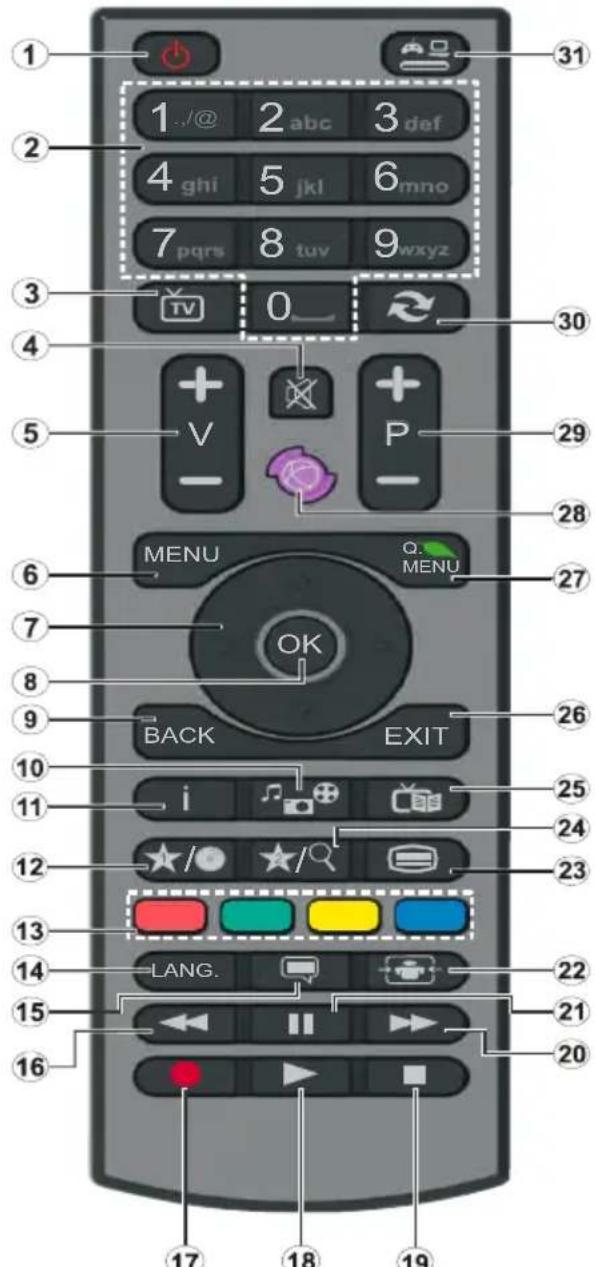
-
Standby: On / Off switch of the TV
-
Numeric buttons: Used to navigate channels and enter passwords, text etc.
-
TV: Displays channel list / Switches among broadcast types
-
Mute: Completely turns off the volume of the TV
-
Volume +/-
-
Menu: Displays TV menu
-
Navigation buttons: Helps navigate menus, content etc. and displays the subpages in TXT mode when pressed Right
-
OK: Confirms user selections, holds the page (in TXT mode), views channel list (DTV mode)
-
Back: Returns to previous screen, opens index page (in TXT mode)
-
Media browser: Opens the media browsing screen
-
Info: Displays information about on-screen content, shows hidden information (reveal - in TXT mode)
-
My button 1 (*)
-
Coloured Buttons
-
Language: Switches between sound modes (analogue TV), displays and changes audio/subtitle language (where available)(digital TV)
-
Subtitles: Turns subtitles on and off (where available)
-
Rapid reverse: Moves frames backwards in media such as movies
-
Record: Records programmes
-
Play: Starts to play selected media
-
Stop: Stops the media being played
-
Rapid advance: Moves frames forward in media such as movies
-
Pause: Pauses the media being played, starts timeshift recording
-
Screen: Changes the aspect ratio of the screen
-
Text: Displays teletext (where available), press again to superimpose the teletext over a normal broadcast picture (mix)
-
My button 2 (^**)
-
EPG (Electronic programme guide): Displays the electronic programme guide
-
Exit: Closes and exits from displayed menus or returns to previous screen
-
Quick Menu: Displays a list of menus for quick access
-
No function
-
Programme +/-
-
Swap: Quickly cycles between previous and current channels
-
Source: Shows all available broadcast and content sources
How to use My button 2
Browse to the desired source, channel, or link, press and hold MY BUTTON 2 for five seconds, until this message "MY BUTTON HAS BEEN SET" appears on the screen. This message confirms that the MY BUTTON option selected is now associated to the selected function.
Connections
| Connector Type | Cables Device | ||
| Scart Connection (back) | |||
| VGA Connection (back) | |||
| SIDE AV | PC/YPbPr Audio Connection (side) | Side Audio YPbPr or PC Connection Cable (Not supplied) | |
| HDMI Connection (back) | |||
| SPDIFF Connection (back) | |||
| SPDIF | Side AV (Audio/Video) Connection (side) | (Not supplied) | |
| HEADPHONE | Headphone Connection (side) | ||
| YPbPr Video Connection (back) | PC to YPbPr Connection Cable (Not supplied) | ||
| USB Connection (side) | |||
| CI Connection (side) |
NOTE: When connecting a device via the YPbPr or Side AV input, you must use the supplied connection cables to enable connection. See the illustrations above. | You can use YPbPr to VGA cable (not supplied) to enable YPbPr signal via VGA input. |You cannot use VGA and YPbPr at the same time. | To enable PC audio, you will need to use the SIDE AV CONNECTION cable's WHITE & RED inputs. | If an external device is connected via the SCART socket, the TV will automatically switch to AV mode. | When receiving DTV channels (Mpeg4 H.264) or while in Media Browser mode, output will not be available via the scart socket. | When using the wall mounting kit (optional), we recommend that you plug all your cables into the back of the TV before mounting on the wall. | Insert or remove the CI module only when the TV is SWITCHED OFF. You should refer to the module instruction manual for details of the settings.
First Time Installation - USB Connections
Switching On/Off
To Switch the TV On
Connect the power cord to the 220-240V AC, 50Hz
To switch on the TV from standby mode either:
Press the "按钮, P + / P - or a numeric button on the remote control.
Press the side function switch until the TV comes on from standby.
To Switch the TV Off
Press the "按钮 on the remote control or press the side function switch until the TV switches into standby mode.
To power down the TV completely, unplug the power cord from the mains socket.
Note: When the TV is switched to standby mode, the standby LED can blink to indicate that features such as Standby Search, Over Air Download or Timer is active. The LED can also blink when you switch on the TV from standby mode.
First Time Installation
IMPORTANT: When you select Country option as France or Italy, you will be asked to set and confirm a PIN number. Selected PIN number cannot be 0000. Enter a PIN number and confirm it by entering once more. Press OK button to continue. If the two PIN numbers match, your master PIN number will be set.
WARNING: When you are required to enter a PIN number for any menu operation you should use the PIN that you have previously defined during the first time installation. If you have forgotten the PIN number you have set during the first time installment should use the master PIN code, 4725.
When turned on for the first time, the language selection screen is displayed. Select the desired language and press OK.
The First Time Installation (FTI) screen will be displayed next. Set your preferences using the navigation buttons and when finished, press OK to continue.
You can activate Store mode option to be available in "Other settings" menu and your TV's features will be illustrated on the top of the screen. A confirmation screen will be displayed. Select YES to proceed.
If Home Mode is selected, Store mode will not be available after the First Time Installation. Press OK button to continue.
Default PIN code can change depending on the selected country.
If you are asked to enter a PIN code for viewing a menu option, use one of the following codes: 4725, 0000 or 1234.
Aerial Installation
If you select AERIAL option from the Search Type screen, the television will search for digital terrestrial TV broadcasts.
NOTE: You can press MENU button to cancel.
After all the available stations are stored, the Channel List will be displayed on the screen. If you like how the channels are sorted according to the LCN (^*) , please select "Yes" and then press OK.
Press MENU button to quit channel list and watch TV. (^*) LCN is the Logical Channel Number system that organizes available broadcasts in accordance with a recognizable channel sequence (if available).
Cable Installation
If you select CABLE option and press OK button on the remote control. To continue, please select YES and press OK. To cancel operation, select NO and press OK. You can select frequency ranges from this screen.
Enter the frequency range manually by using the numeric button.
Note: Searching duration will change depending on the selected search step.
Media playback via USB Input
You can connect a 2.5" and 3.5" inch (hdd with external power supply) external hard disk drives or USB memory stick to your TV by using the USB inputs of the TV.
IMPORTANT! Back up your files before making any connections to the TV. Manufacturer will not be responsible for any file damage or data loss. Certain types of USB devices (e.g. MP3 Players) or USB hard disk drives/memory sticks may not be compatible with this TV. The TV supports FAT32 and NTFS disk formatting but recording will not be available with NTFS formatted disks.
While formatting a USB hard disk that has 1TB (Tera Byte) or more file capacity, you can experience problems with the formatting process. Do not repeatedly quickly plug and unplug the drive. This may cause physical damage to the USB player and USB device itself. Do not pull out USB module while playing a file.
Recording a Programme
IMPORTANT: When using a new USB hard disk drive, it is recommended that you first format the disk using your TV's "Format Disk" option.
Note: To record a programme, you should first connect a USB disk to your TV while the TV is switched off. You should then switch on the TV to enable the recording feature.
To use the recording function, you need to connect a USB disk or an external hard disk drive to the TV and the connected USB disk should have at least 1 GB capacity and should have 2.0 speed compatibility. If the connected USB device does not support 2.0 speed, an error message will be displayed.
Note: Recorded programmes are saved into the connected USB disk. If desired, you can store/copy recordings onto a computer; however, these files will not be available to be played on a computer. You can play the recordings only via your TV.
Note: Lip Sync delay may occur during the timeshifting. Radio record is supported. The TV can record programmes up to ten hours.
Recorded programmes are split into 4GB partitions. If the writing speed of the connected USB disk is not sufficient, the recording may fail and the timeshifting feature may not be available.
It is recommended to use USB hard disk drives for recording HD programmes.
Do not plug out the USB/HDD during a recording. This may harm the connected USB/HDD.
Multiparition support is available. The maximum of two different partitions are supported. The first partition of the USB disk is used for PVR ready features. It also must be formatted as the primary partition to be used for the PVR ready features.
Some stream packets may not be recorded because of signal problems, so sometimes video may freezes during playback.
Record, Play, Pause, Display (for PlayDialog) keys can not be used when teletext is ON. If a recording starts from timer when teletext is ON, teletext is automatically turned off. Also teletext usage is disabled when there is an ongoing recording or playback.
Timeshift Recording
Press PAUSE) button while watching a broadcast to activate timeshifting mode. In timeshifting mode, the programme is paused and simultaneously recorded to the connected USB disk.
Press▶(PLAY) button again to resume the paused programme from where you stopped. Press the STOP button to stop timeshift recording and return to the live broadcast.
Note: Timeshift cannot be used while in radio mode.
Note: You cannot use the timeshift fast reverse feature before advancing the playback with the fast forward option.
Instant Recording
Press (RECORD) button to start recording an event instantly while watching a programme. You can press (RECORD) button on the remote control again to record the next event on the EPG. In this case, an OSD will be displayed, indicating the programmed events for recording. Press STOP) button to cancel instant recording.
Note: You can not switch broadcasts or view the Media Browser during the recording mode. While recording a programme or during the timeshifting, a warning message appears on the screen if your USB device speed is not sufficient.
Watching Recorded Programmes
Select the Recordings Library from the Media Browser menu. Select a recorded item from the list (if previously recorded). Press the OK button to view the Play Options. Select an option then press OK button.
Note: Viewing main menu and menu items will not be available during the playback.
Press the STOP) button to stop a playback and return to the Recordings Library.
Slow Forward
If you press (PAUSE) button while watching recorded programmes, the slow forward feature will be available. You can use button to slow forward. Pressing button consecutively will change slow forwarding speed.
Recording Configuration
Select the Recording Configuration item in the Settings menu to configure the recording settings.
Format Disk: You can use Format Disk feature for formatting the connected USB disk. Your pin is required to use the Format Disk feature (default pin is 0000).
Default PIN code can change depending on the selected country.
If you are asked to enter a PIN code for viewing a menu option, use one of the following codes: 4725, 0000 or 1234.
IMPORTANT: Note that ALL the data stored on the USB disk will be lost and the disk format will be converted to FAT32 if you activate this feature. If your USB disk malfunctions, you can try formatting the USB disk. In most cases formatting the USB disk will restore normal operation; however, ALL the data stored on the USB disk will be lost in such a case.
Note: If "USB is too slow" message is displayed on the screen while starting a recording, try restarting the recording. If you still get the same error, it is possible that your USB disk does not meet the speed requirements. Try connecting another USB disk.
Media Browser Menu
You can play photo, music, and movie files stored on USB disk by connecting it to your TV. Connect a USB disk to one of the USB inputs located on the side of the TV. Pressing the MENU button while in the Media Browser mode will access the Picture, Sound and Settings menu options. Pressing the MENU button again will exit from this screen. You can set your Media Browser preferences by using the Settings Menu.
| Loop/Shuffle Mode Operation | |
| Start playback with ▷ and activate | TV plays next file and loop the list. |
| Start playback with OK and activate | the same file will be played in a loop (repeat). |
| Start playback with OK ▷ and activate | the file will be played in a shuffle. |
Quick Menu
Quick Settings menu allows you to access some options quickly. This menu includes Power Save Mode, Picture Mode, Favourites and Sleep Timer options. Press Q.MENU button on the remote control to view quick menu. See the following chapters for the details of the listed features
TV Menu Features and Functions
| Picture Menu Contents | |
| Mode | You can change the picture mode to suit your preference or requirements. Picture mode can be set to one of these options: Cinema, Game, Dynamic and Natural. |
| Contrast | Sets the lightness and darkness values of the screen. |
| Brightness | Sets the brightness value for the screen. |
| Sharpness | Sets the sharpness value for the objects displayed on the screen. |
| Colour | Sets the colour value, adjusting the colors. |
| Power Save Mode | To set the Power Save Mode as Eco, Picture Off and Disabled. (When the Mode is Dynamic, Power Save mode is automatically set as disabled.) |
| Backlight (Optional) | This setting controls the backlight level. The backlight function will be inactive if the Power Save Mode is set to Eco. The backlight cannot be activated in VGA, Media Browser mode or while the picture mode is set to Game. |
| Noise Reduction | If the broadcast signal is weak and the picture is noisy, use the Noise Reduction setting to reduce the amount of noise. |
| Advanced Settings | |
| Dynamic Contrast | You can change the Dynamic Contrast ratio to desired value. |
| Colour Temp | Sets the desired colour tone. |
| Picture Zoom | Sets the desired picture size from picture zoom menu. Note: Auto (Only available in Scart mode with SCART PIN8 high voltage/low voltage switching) |
| HDMI True Black(optional) | While watching from HDMI source, this feature will be visible in the Picture Settings menu. You can use this feature to enhance blackness in the picture |
| Film Mode | Films are recorded at a different number of frames per second to normal television programmes. Turn this feature on when you are watching films to see the fast motion scenes clearly. |
| Skin Tone | Skin tone can be changed between -5 and 5. |
| Colour Shift | Adjust the desired colour tone. |
| RGB Gain | You can configure the colour temperature values using the RGB Gain feature. |
| Reset | Reset the picture settings to factory default settings.(Except Game Mode) |
| Autoposition (in PC mode) | Automatically optimizes the display. Press OK to optimize. |
| H Position (in PC mode) | This item shifts the image horizontally to the right hand side or left hand side of the screen. |
| V Position (in PC mode) | This item shifts the image vertically towards the top or bottom of the screen. |
| Dot Clock (in PC mode) | Dot Clock adjustments correct the interference that appear as vertical banding in dot intensive presentations like spreadsheets or paragraphs or text in smaller fonts. |
| Phase (in PC mode) | Depending on the resolution and scan frequency that you input to the TV set, you may see a hazy or noisy picture on the screen. In such a case you can use this item to get a clear picture by trial and error method. |
| While in VGA (PC) mode, some items in Picture menu will be unavailable. Instead, VGA mode settings will be added to the Picture Settings while in PC mode. | |
TV Menu Features and Functions
| Sound Menu Contents | |
| Volume | Adjusts the volume level. |
| Equalizer | Selects the equalizer mode. Custom settings can be made only when in user mode. |
| Balance | This setting is used for emphasizing left or right speaker balance. |
| Headphone | Sets headphone volume. |
| Sound Mode | You can select a sound mode. (If the selected channel supports). |
| AVL (Automatic Volume Limiting) | Function sets the sound to obtain fixed output level between programmes. |
| Digital Out | Sets digital out audio type. |
| Settings Menu Contents | |
| Conditional Access | Controls conditional access modules when available. |
| Language | Configs language settings (may change depending on the country selected) Preferred and current settings will be available. Current settings can be changed only if the broadcaster supports. |
| Parental | Enter correct password to change parental settings. You can easily adjust menu lock, maturity lock (may change depending on the country selected) and child lock in this menu. You can also set new pin number. |
| Timers | Sets sleep timer to turn off the TV after a certain time. Sets timers for selected programmes. (USB Record) |
| Recording Configuration | Displays the recording configuration menu (Usb connection required) |
| Date/Time | Sets date and time. |
| Sources | Enables or disables selected source options. |
| Other Settings: Displays other setting options of the TV set: | |
| Menu Timeout | Changes timeout duration for menu screens. |
| Scan Encrypted Channels | When this setting is on, the search process will locate the encrypted channels as well. |
| Blue Background | Activates or deactivates the blue background system when the signal is weak or absent. |
| Software Upgrade | To ensure that your TV always has the most up to date firmware. |
| Application Version | Displays application version. |
| Hard of Hearing | Enables any special feature sent from the broadcaster. |
| Audio Description | Audio description refers to an additional narration track for blind and visually impaired viewers of visual media, including television and movies. You can use this feature, only if the broadcaster supports that additional narration track. Note: Audio description sound feature cannot be available in recording or time shifting mode. |
| Auto TV Off | You can set the timeout value of auto off feature. When the timeout value is reached and the TV has not been operated for a selected time, the TV will go into standby mode. |
| Standby Search (Optional) | If the Standby Search is set to On, when the TV is in standby mode, available broadcasts will be searched. If the TV locates any new or missing broadcasts, a menu screen will be displayed, asking you whether or not to execute these changes. Channel list will be updated and changed after this process. |
TV Menu Features and Functions
| Store Mode (Optional) | If you are displaying the TV in a store, you can activate this mode. Whilst Store Mode is enabled, some items in the TV menu may not be available. |
| Power Up Mode | This setting configures the power up mode preference. |
| Install and Retune Menu Contents | |
| Automatic Channel Scan (Retune)(If available) | Displays automatic tuning options. Digital Aerial: Searches and stores aerial DVB stations. Digital Cable: Searches and stores cable DVB stations. Analogue: Searches and stores analogue stations. Digital Aerial & Analogue: Searches and stores aerial DVB and analogue stations. Digital Cable & Analogue: Searches and stores cable DVB and analogue stations. |
| Manual Channel Scan | This feature can be used for direct broadcast entry. |
| Network Channel Scan | Searches for the linked channels in the broadcast system. |
| Analogue Fine Tune | You can use this setting for fine tuning analogue channels. This feature is not available if no analogue channels are stored. |
| First Time Installation | Deletes all stored channels and settings, resets TV to factory settings. |
General TV Operation
Using the Channel List
The TV sorts all stored stations in the Channel List. You can edit this channel list, set favourites or set active stations to be listed by using the Channel List options.
Configuring Parental Settings
To prohibit viewing of certain programmes, channels and menus can be locked by using the parental control system.
To display parental lock menu options, the PIN number should be entered. The factory default PIN number is 0000. After coding the correct PIN number, parental settings menu will be displayed.
Menu Lock: Menu lock setting enables or disables the menu access.
Maturity Lock: When set, this option gets the maturity information from the broadcast and if this maturity level is disabled, disables access to the broadcast.
Child Lock: When Child Lock is set, the TV can only be controlled by the remote control. In this case the control panel buttons will not work.
Set PIN: Defines a new PIN number.
Default PIN code can change depending on the selected country.
If you are asked to enter a PIN code for viewing a menu option, use one of the following codes: 4725, 0000 or 1234.
Electronic Programme Guide (EPG)
Some, but not all channels send information about the current and next programmes. Press the button to view the EPG menu.
Red button (Prev Day): Displays the programmes of previous day.
Green button (Next day): Displays the programmes of the next day.
Yellow button (Zoom): Expands programme information.
Blue button (Filter): Views filtering options.
SUBTTL: Press button to view Select Genre menu. Using this feature, you can search the programme guide database in accordance with the genre. Info available in the programme guide will be searched and results matching your criteria will be listed.
INFO: Displays, in detailed, information on the programme selected.
Numeric buttons (Jump): Jumps to the preferred channel directly via numeric buttons.
OK: Displays programme options.
Text (Search): Displays "Guide Search" menu.
SWAP (Now) : Shows the current programme.
(RECORD): The TV will start to record the selected programme. You can press again to stop the recording.
P + P - : More event info
IMPORTANT: Connect a USB disk to your TV while the TV is switched off. You should then switch on the TV to enable the recording feature.
Note: Switching to a different broadcast or source is not available during a recording.
Programme Options
In EPG menu, press the OK button to enter the Event Options menu.
Select Channel
In EPG menu, using this option, you can switch to the selected channel.
Record/Delete Record Timer
After you have selected a programme in the EPG menu, press the OK button. Select the Record option and press the OK button. After this operation, a recording will be scheduled for the selected programme.
To cancel an already set recording, highlight that programme and press the OK button and select the option Delete Rec. Timer. The recording will be cancelled.
Set Timer/DeleteTimer
After you have selected a programme in the EPG menu, press the OK button. Select the Set Timer on Event option and press the OK button. You can set a timer for future programmes. To cancel an already set timer, highlight that programme and press the OK button. Then select "Delete Timer" option. The timer will be cancelled.
Note: It is not possible to record two channels at the same time.
Software Upgrade
Your TV is capable of finding and updating automatically via the Aerial/Cable signal.
Software upgrade search via user interface
Simply navigate on your main menu. Choose Settings and select Other Settings menu. In Other Settings menu navigate on to the Software for Upgrade item and press OK button to check for a new software upgrade.
3 AM search and upgrade mode
While the TV is connected to an aerial signal. If Automatic scanning in the Upgrade Options menu is enabled, the TV wakes up at 03:00 and searches broadcast channels for new software upgrades. If new software is found and downloaded successfully, the next time the TV powers up, it will have the new software version.
Note: If the TV fails to come on after the upgrade unplug the TV for 2 minutes and plug in again.
Troubleshooting & Tips
Tv will not turn on
Make sure the power cord is plugged in securely to wall outlet. The batteries in the remote control may be exhausted. Press the Power button on the TV.
Poor picture
- Have you selected the correct TV system?
- Low signal level can cause picture distortion. Please check antenna access.
- Check if you have entered the correct channel frequency if you have done manual tuning.
- The picture quality may degrade when two devices are connected to the TV at the same time. In such a case, disconnect one of the devices.
No picture
- No Picture means that your TV is not receiving a transmission. Have you selected the correct button on the remote control? Try once more. Also make sure the correct input source has been selected.
- Is the antenna connected properly?
- Is the antenna cable damaged?
- Are suitable plugs used to connect the antenna?
If you are in doubt, consult your dealer.
No sound
- Has the TV been set to mute? To cancel mute, press the "D" button, or increase the volume level.
- Sound is coming from only one speaker. Is the balance set to one extreme? See Sound Menu section.
Remote control - does not operate
- The batteries may be exhausted. Replace the batteries.
Input sources - can not be selected
If you cannot select an input source, it is possible that no device is connected. if not
- Check the AV cables and connections if you have tried to connect a device.
Recording unavailable
To record a programme, you should first connect a USB disk to your TV while the TV is switched off. You should then switch on the TV to enable recording feature. If you cannot record, try switching off the TV and then re-inserting the USB device.
USB is too slow
If a "USB is too slow" message is displayed on the screen while starting a recording, try restarting the recording. If you still get the same error, it is possible that your USB disk does not meet the speed requirements. Try connecting another USB disk.
PC Input Typical Display Modes
The following table is an illustration of some of the typical video display modes. Your TV may not support all resolutions. Your TV supports up to 1920x1080.
| Index Resolution Frequency | ||
| 1640x4 | 80 | 60 Hz |
| 2800x6 | 00 | 56 Hz |
| 3800x6 | 00 | 60 Hz |
| 4 | 1024x768 | 60 Hz |
| 5 | 1024x768 | 66 Hz |
| 6 | 1280x768 | 60 Hz |
| 7 | 1280x960 | 60 Hz |
| 8 | 1280x1024 | 60 Hz |
| 9 | 1360x768 | 60 Hz |
| 10 | 1400x1050 | 60 Hz |
| 11 | 1600x1200 | 60 Hz |
| 12 | 1920x1080 | 60 Hz |
AV and HDMI Signal Compatibility
| Source | Supported Signals | Available | |
| EXT(SCART) | PAL 50/60 O | ||
| NTSC 60 O | |||
| RGB 50 O | |||
| RGB 60 O | |||
| Side AV | PAL 50/60 O | ||
| NTSC 60 O | |||
| PC/YPbPr | 480I, 480P 60Hz O | ||
| 576I, 576P 50Hz O | |||
| 720P 50Hz,60Hz O | |||
| 1080I 50Hz,60Hz O | |||
| 1080P 50Hz,60Hz O | |||
| HDMI1HDMI2 | 480I 60Hz O | ||
| 480P 60Hz O | |||
| 576I, 576P 50Hz O | |||
| 720P 50Hz,60Hz O | |||
| 1080I 50Hz,60Hz O | |||
| 1080P | 24Hz, 25Hz30Hz, 50Hz,60Hz | O | |
(X: Not Available, O: Available)
In some cases a signal on the TV may not be displayed properly. The problem may be an inconsistency with standards from the source equipment (DVD, Set-top box, etc.). If you do experience such a problem please contact your dealer and also the manufacturer of the source equipment.
Supported File Formats for USB Mode
| Media F | le Extension | Format | Remarks | |
| Video | Audio | (Maximum resolution/Bit rate etc.) | ||
| Movie | mpg, mpeg | MPEG1, MPEG2 | MPEG1: 768x576 @30PMPEG2:1920x1080 @ 30P | |
| vob | MPEG2 | 1920x1080 @ 30P | ||
| mp4 | MPEG4, Xvid, H.264 | |||
| mkv | H.264, MPEG4,VC-1 | |||
| avi MPEG2, | MPEG4, Xvid, H.264 | |||
| flv H.264/VP6/Sorenson | H.264/VP6:1920x1080 @ 30PSorenson: 352x288 @30P | |||
| 3gp | MPEG4, H.264 | 1920x1080 @ 30P | ||
| Music | .mp3 | - | MPEG 1 Layer 1/2 (MP3) | 32Kbps ~ 320Kbps(Bit rate)32K, 44.1k, 48k Hz,16K, 22.05K, 24KHz,8K, 11.025K, 12K Hz(Sampling rate) |
| Photo | .jpg .jpeg | Baseline JPEG | - | max WxH = 17000x10000 4147200bytes |
| . | Progressive JPEG | - | max WxH = 4000x4000 3840000bytes | |
| .bmp | - | - | max WxH = 5760x4096 3840000bytes | |
| Subtitle | .sub .srt | - | - | - |
DVD Mode
Safety Information CAUTION
DVD Player is a class 1 laser product. This product use a visible laser. This laser could harm when pointed direct to eyes. Be sure to operate the player correctly as instructed.
CLASS 1 LASER PRODUCT
RISK OF ELECTRIC SHOCK
The lightning flash with arrowhead symbol, an equilateral triangle, is intended to alert the user to the presence of uninsulated "dangerous voltage" within the product's enclosure that may be of sufficient magnitude to constitute a risk of electric shock of persons.
The exclamation point within an equilateral triangle is intended to alert the user to the presence of important operating and maintenance (servicing) instructions in the literature accompanying the appliance.
Notes on Discs
On handling discs
To keep the disc clean, handle the disc by its edge. Do not touch the surface.
- Do not stick paper or tape on the disc.
- If the disc is contaminated with any substance like glue remove before using it.

- Do not expose the disc to direct sunlight or heat sources such as hot air ducts, or leave it in a car parked in direct sunlight as the temperature can rise quickly and damage the disc.
After playing, store the disc in its case.
On cleaning
- Before playing, clean the disc with a cleaning cloth. Wipe the disc from the center out.
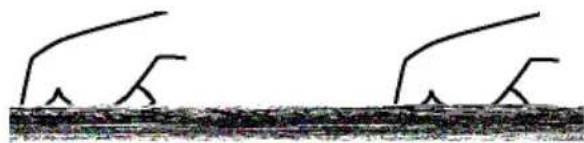
- Do not use solvents such as benzine, t commercially available cleaners or anti-static spray intended for vinyl LPs.
Licence Notification
- This product incorporates copyright protection technology that is protected by U.S. patents and other intellectual property rights. Use of this copyright protection technology must be authorized by Rovi Corporation, and is intended for home and other limited viewing uses only unless otherwise authorized by Rovi Corporation. Reverse engineering and disassembly are prohibited.
How to Watch a DVD
When placing a disc into the loader, labeled side of the disc should be on the front:
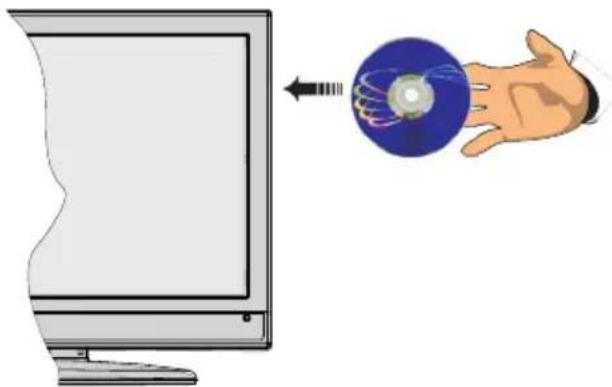
When TV set is turned on, first switch to DVD source by using the SOURCE button on the remote control. Press play on the remote control, or directly press play button at the front panel. If there is no disc inside the loader, place a DVD first and press play.
Note: If you switch to another source by pressing SOURCE, SWAP or P + / P- buttons on the remote control, DVD playback will be paused automatically. You should press PLAY and resume the playback manually when you switch to DVD mode.
DVD Control Panel Buttons
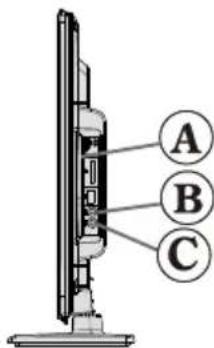
A. Disc loader
B. Play / Pause
Plays/pauses the disc. When DVD menu (root menu) is active, this button functions as "button select" (selects the highlighted item in menu) if this is not prohibited by the disc.
C. Stop / Eject
Stop playing disc / Eject or Load the disc Note:
- You cannot eject the disc via the remote control.
While playing a file, you should press STOP button three times to eject.
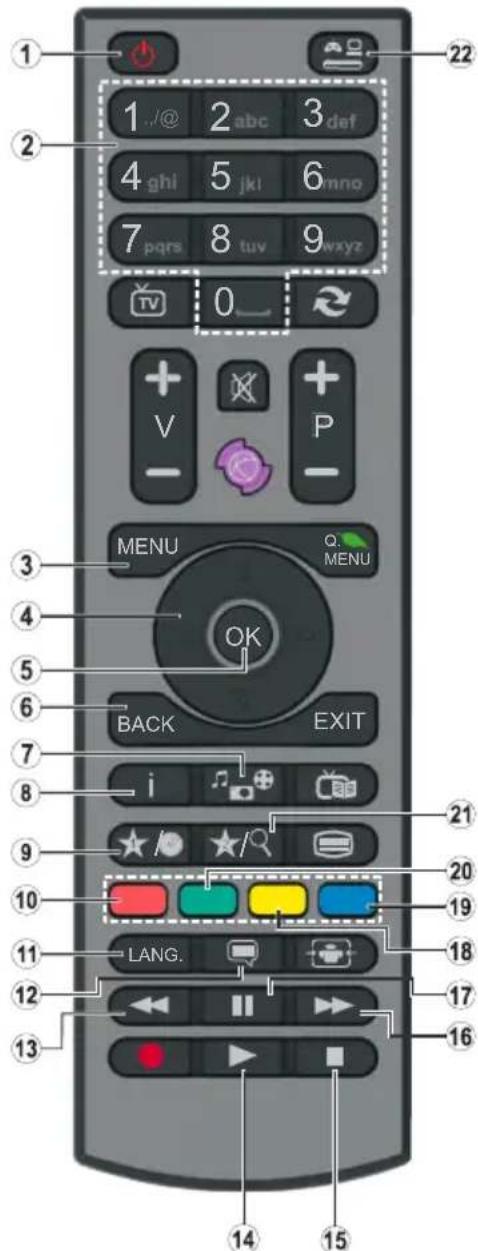
Overview of the Remote Control
- Standby
- Numeric buttons
- TV Menu
- Navigation buttons
- OK/Select
- Back
- Angle
- Info
- Display / DVD Menu
- Zoom
- Language selection
- Subtitle
- Rapid reverse
- Play
- Stop
- Rapid advance
- Pause
- Root
- Title
- Repeat
- Search mode
- Source
Note: Buttons not indicated with a number are not functional in DVD mode.
General Operation
You can operate DVD, movie CD, music or picture CD's content by using the proper buttons on your remote control. Below are main functions of commonly used remote control buttons.
| Buttons on the Remote Control | DVDPlayback | MoviePlayback | PicturePlayback | Music Playback |
| ▶ | Play Play Play Play | |||
| II | Pause Pause Pause Pause | |||
| ■ | Stop Stop Stop Stop | |||
| ▲/▲ | Skip backward/forward | Skip backward/forward | Rotate Skip backward | forward |
| ▲/▼ | Highlights a menu item / Shifts the zoomed picture up or down (if available). | |||
| ▲/▲ | Fast reverse / Fast forward | |||
| Views the scene from different angles (if available) | Changes slide effect (depends on the content) | X | ||
| MY BUTTON1 | Displays time / Views main setup menu | |||
| INFO | Time counter mode selection (during playback). Press repeatedly to switch between modes. | |||
| LANG. | Audio language. X X | |||
| MENU | Displays TV menu. | |||
| OK / SELECT | Enter / View / Play | |||
| GREEN | Displays repeat options. | |||
| RETURN | Returns back to the previous menu (if available). | |||
| YELLOW | Goes back to the root folder (if available). | |||
| MY BUTTON2 | Direct selection of scenes or time. | Selects the desired file. | Selects the desired file. | |
| SUBTITLE | Subtitle on-off. Press repeatedly to switch between subtitle options. | X | X | |
| SWAP | Media source selection. | |||
| BLUE | Displays disc menu (if available). | Displays disc menu (if available). | X | X |
| RED | Zooms picture. Press repeatedly to switch between zoom options. | |||
| Other Functions – Button Combinations (During playback) | |
| III >> | Slow forward. |
| [III] >> [A] >> | Sets slow forward speed. |
| >> >> | Sets fast forward speed. |
| A >> A | Sets fast reverse speed. |
| ■ ■ | Confirms stop command. |
(*) You can switch to title by pressing numeric keys directly. You need to press 0 and then digit key to switch one digit titles (example: to select 5, press 0 and 5).
GeneralPlayback
Basic Play
- Press on the power button
- Please insert a disc to the loader.
The disc will be automatically loaded and play commences if the disc does not have any menus recorded on it.
A menu may appear on the TV screen after a few moments or the film may start immediately after the introduction of the Film Company. This behaviour depends on the disc content and may change.
Note: Step 3 and 4 is available only when a menu is recorded on the disc.
- Press "▼" /▲/ the number button (s) to select the preferred title.
- Press OK.
Play of the selected items now starts. The played item may be a motion picture, a still picture or another submenu depending on the disc.
For your reference:
If an action corresponding to a button is prohibited the symbol appears.

Notes on Playback:
- No sound will be heard during Rapid advance or Rapid reverse.
- No sound will be heard during Slow motion play.
- Reverse slow motion play is not available.
- In some cases, the subtitle language is not changed immediately to the selected one.
- When the preferred language is not selected even after pressing the button several times, it means that the language is not available on the disc.
- When the player is restarted or the disc is changed, the subtitle selection is automatically changed back to the initial settings.
- If a language is selected, not supported by the disc, the subtitle language will automatically be set to the disc's priority language.
- Usually a circulation will happen while switching to another language, that is you can cancel the subtitle by pressing this button a number of times until "Subtitle Off" appears on the screen.
- When the power is turned on or the disc is removed, the language heard is the one selected at the initial settings. If this language is not recorded on the disc, only the available language on the disc will be heard.
- Some DVDs may not contain root and/or title menus.
- Reverse stepping is not available.
- For your convenience:
If you attempt to enter a number greater than the total time of the current title, the time search box disappears
and "input Invalid" message appears on up-left corner of screen.
- Slide Show is disabled when the ZOOM mode is on.
DVD Troubleshooting
The picture quality is poor (DVD)
- Make sure the DVD disc surface is not damaged. (Scratch, fingerprint etc.)
Clean the DVD disc and try again.
See instructions described in "Notes on Disks" to clean your disc properly.
- Ensure that the DVD disc is in the drawer with the label uppermost.
- A damp DVD disc or condensation may effect the equipment. Wait for 1 to 2 hours in Stand-by to dry the equipment.
Disc does not play
- No disc in the machine. Place a disc into the loader.
- Disc incorrectly loaded.
Ensure that the DVD disc is in the drawer with the label uppermost.
- Wrong type of disc. The machine cannot play CD-ROMS etc. The region code of the DVD must match the player.
Wrong OSD language
- Select the language in the set-up menu.
- The language for the sound or subtitles on a DVD cannot be changed.
- Multilingual sound and/or subtitles not recorded on the DVD.
- Try to change the sound or subtitles using DVD's title menu. Some DVD's do not allow the user to change these settings without using the disc's menu
These functions are not available on the DVD.
No picture
- Have you pressed the correct buttons on the remote control? Try once more.
No sound
- Check the volume is set to an audible level.
Make sure you have not switched the sound off accidentally.
Distorted sound
- Check that the appropriate listening mode setting is correct.
If nothing works
If you have tried the above solutions and none seem to work, try switching your TV-DVD off and on again. If this does not work, contact your supplier or TV-DVD repair technician. Never attempt to repair a defective TV-DVD yourself.
Disc Types Compatible with This Unit
| Disc Types (Logos) | Recording Types | Disc Size | Max. Playing Time | Characteristics |
| DVD DVD VIDEO | Audio + Video | 12 cm | Single-sided; 240 min. Double-sided; 480 min. | ·DVD contains excellent sound and video due to Dolby Digital and MPEG-2 System. ·Various screen and audio functions can be easily selected through the on screen menu. |
| AUDIO-CD COMPACT DISC DIGITAL AUDIO | Audio 12 cm 74 min. | ·An LP is recorded as an analog signal with more distortion. CD is recorded as a Digital Signal with better audio quality, less distortion and less deterioration of audio quality over time. | ||
| MP3-CD MP3 READABLE | Audio (xxxx.mp3) | 12 cm | It depends on MP3 quality. | ·MP3 is recorded as a Digital Signal with better audio quality, less distortion and less deterioration of audio quality over time. |
| PICTURE-CD J P E G READABLE | Video (still picture) | 12 cm | It depends on JPEG quality. | ·JPEG is recorded as a Digital Signal with better picture quality over time. |
For proper operation, only 12cm discs must be used.
Specifications
| Types of Discs Supported | DVD: SS/SL 4.7" (DVD-5) SS/DL 4.7" (DVD-9) DS/SL 4.7" (DVD-10) DS/DL 4.7" (DVD-18) | CD-DA CD-R CD-RW MP-3/JPEG |
| Video Type | MPEG-2 Video Standard Decoding (MPEG-1 supported) Full-Screen Video Display of 720 x 576 (PAL) & 720 x 480 (NTSC) pixels 50 and 60 Hz frame refresh rates (PAL & NTSC) Digital bit-stream processing rate up to 108Mbits/sec Line resolution more than 500 lines | |
| Audio Type | MPEG Multichannel Decoding LPCM | |
| Audio Output | Analog Outputs: 24 bit /48, 44.1kHz down-sampling DAC | |
Indices
Characteristicas techniques
CLASS 1 LASER PRODUCT
Overview of the Remote Control
Disc Types Compatible with This Unit
For proper operation, only 12cm discs must be used.
Specifications
| Types of Discs Supported | DVD: SS/SL 4.7" (DVD-5) SS/DL 4.7" (DVD-9) DS/SL 4.7" (DVD-10) DS/DL 4.7" (DVD-18) | CD-DA CD-R CD-RW MP-3/JPEG |
| Video Type | MPEG-2 Video Standard Decoding (MPEG-1 supported) Full-Screen Video Display of 720 x 576 (PAL) & 720 x 480 (NTSC) pixels 50 and 60 Hz frame refresh rates (PAL & NTSC) Digital bit-stream processing rate up to 108Mbits/sec Line resolution more than 500 lines | |
| Audio Type | MPEG Multichannel Decoding LPCM | |
| Audio Output | Analog Outputs: 24 bit /48, 44.1kHz down-sampling DAC | |
| FICHE PRODUIT | ||
| MARQUE oceanic | ||
| REFERENCE OCEALED32DVD16B3 | ||
| CLASSE D'EFFICACITE ENERGETIQUE | A+ | |
| DIAGONALE VISIBLE ECRAN 80 CM 31,5 POUCES | ||
| CONSOMMATION ELECTRIQUE EN MODE MARCHE | 31 Watt | |
| CONSOMMATION D'ENERGIE ANNUELLE | 45 kWh/an | |
| CONSOMMATION ELECTRIQUE EN MODE VEILLE | 0,5 Watt | |
| CONSOMMATION ELECTRIQUE EN MODE ARRET | - | |
| RESOLUTION DE L'ECRAN | 1366x768 | |
- HOTLINE CONSOMMATEURS
- 0800.801.512
- RISQUE D'LECTROCUTION NE PAS OUVRIR
- Connexions (Connections)
- PRODUIT LASER DE CLASSE 1
- RISQUE D'ELECTROCUTION
- Safety Information
- To operate your TV in extreme ambient conditions may cause the damage of the device.
- IMPORTANT - Please read these instructions fully before installing or operating
- WARNING: Never let people (including children) with reduced physical, sensory or mental capabilities or lack of experience and / or knowledge use electrical devices unsupervised.
- Markings on the Product
- WARNING
- Getting Started
- Notifications & Features & Accessories
- Environmental Information
- Standby Notifications
- Features
- Accessories Included
- TV Control Switch & Operation
- Inserting the Batteries into the Remote
- Connect Power
- Antenna/Cable Connection
- Notification
- TRADEMARK ACKNOWLEDGMENT
- Information for Users on Disposal of Old Equipment and Batteries [European Union only]
- Remote Control
- Teletext
- Digital Teletext (for UK only)
- How to use My button 1
- How to use My button 2
- Connections
- First Time Installation - USB Connections
- Switching On/Off
- To Switch the TV On
- To Switch the TV Off
- To power down the TV completely, unplug the power cord from the mains socket.
- First Time Installation
- Default PIN code can change depending on the selected country.
- Aerial Installation
- Cable Installation
- Media playback via USB Input
- Recording a Programme
- Timeshift Recording
- Instant Recording
- Watching Recorded Programmes
- Slow Forward
- Recording Configuration
- Media Browser Menu
- Quick Menu
- TV Menu Features and Functions
- General TV Operation
- Using the Channel List
- Configuring Parental Settings
- Electronic Programme Guide (EPG)
- Programme Options
- Select Channel
- Record/Delete Record Timer
- Set Timer/DeleteTimer
- Software Upgrade
- Software upgrade search via user interface
- AM search and upgrade mode
- Troubleshooting & Tips
- Tv will not turn on
- Poor picture
- No picture
- No sound
- Remote control - does not operate
- Input sources - can not be selected
- Recording unavailable
- USB is too slow
- PC Input Typical Display Modes
- DVD Mode
- Safety Information CAUTION
- CLASS 1 LASER PRODUCT
- RISK OF ELECTRIC SHOCK
- Notes on Discs
- On handling discs
- On cleaning
- Licence Notification
- How to Watch a DVD
- DVD Control Panel Buttons
- Overview of the Remote Control
- General Operation
- GeneralPlayback
- Basic Play
- For your reference:
- Notes on Playback:
- DVD Troubleshooting
- The picture quality is poor (DVD)
- Disc does not play
- Wrong OSD language
- Distorted sound
- If nothing works
- Indices
Brand : OCEANIC
Model : OCEALED32DVD16B3
Category : Television