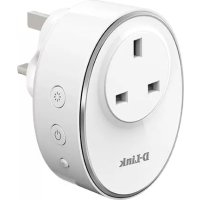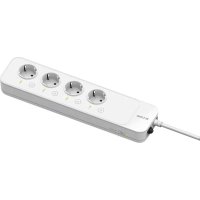
DSPW245 - Smart Home D-LINK - Free user manual and instructions
Find the device manual for free DSPW245 D-LINK in PDF.



Frequently Asked Questions - DSPW245 D-LINK
User questions about DSPW245 D-LINK
0 question about this device. Answer the ones you know or ask your own.
Ask a new question about this device
Download the instructions for your Smart Home in PDF format for free! Find your manual DSPW245 - D-LINK and take your electronic device back in hand. On this page are published all the documents necessary for the use of your device. DSPW245 by D-LINK.
USER MANUAL DSPW245 D-LINK
Wi-Fi Smart Power Strip
DSP-W245
Quick Start Guide
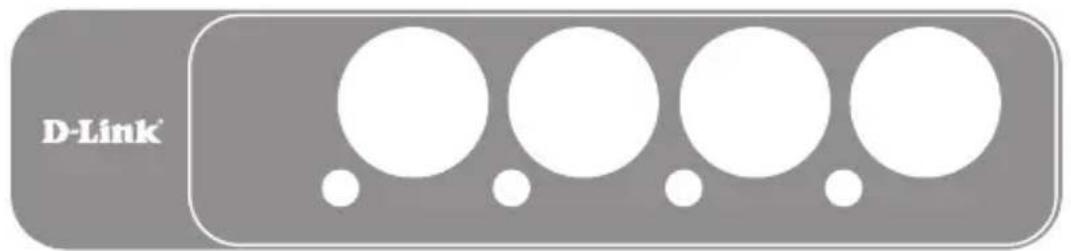
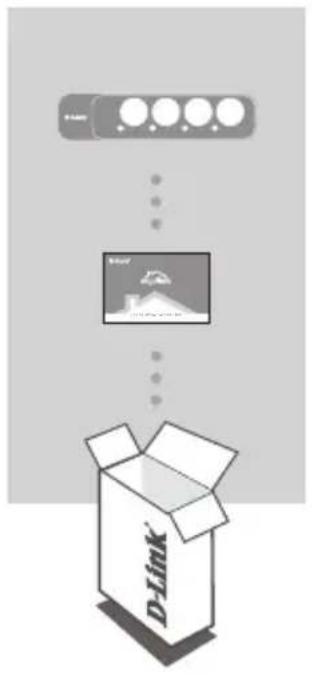
CONTENTS OF PACKAGING
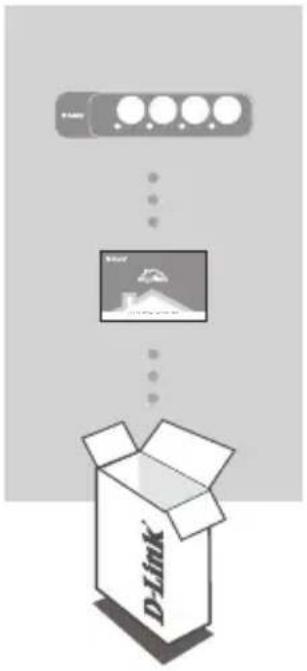
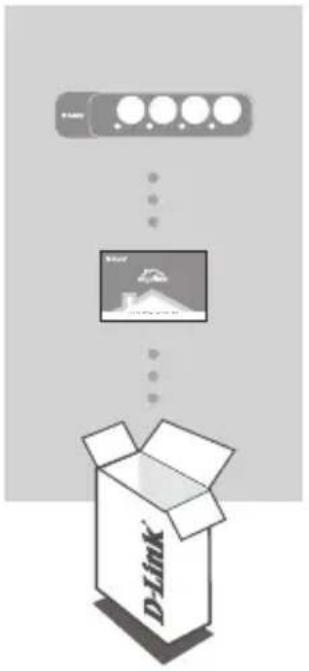
Wi-Fi Smart Power Strip DSP-W245
QUICK INSTALL CARD
If any of these items are missing from your packaging, please contact your reseller.
For the full product manual, please go to http://www.dlink.com
SYSTEM REQUIREMENTS
- A router (a router with a WPS button is recommended)
- A broadband Internet connection
An e-mail account (required to register for mydlink service)
Note: The mydlink™ app is available for iPhone®, iPad®, and iPod® touch and Android™ devices. Please refer to the mobile app's store page to check whether your device is compatible.
SETUP EXAMPLE
The DSP-W245 Wi-Fi Smart Power Strip allows you to monitor and control multiple electrical appliances in your home from wherever you are. The following diagram shows how you can set up your Smart Home for use with the DSP-W245.
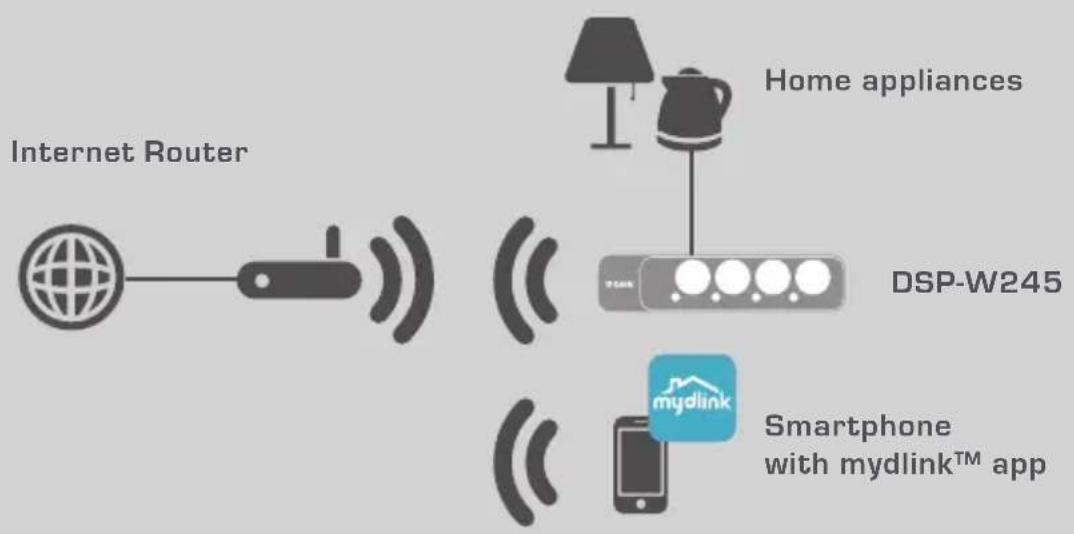
SAFETY
For your safety, please read the following precautions before installing or using your DSP-W245:
- Do not open the device or attempt to repair or service it.
- Use the device in a dry location, and avoid placing it in a humid environment.
- Do not submerge the device in liquid or attempt to clean it with liquids or solvents. To clean the device, disconnect it from the power outlet and use a damp towel.
- This device should only be used indoors.
PRODUCT SETUP
USING THE MOBILE APP FOR SETUP
Please refer to the steps below to quickly get your DSP-W245 up and running.
Step 1:
On your mobile device, download and install the mydlink app from the App Store or Google Play.
Step 2:
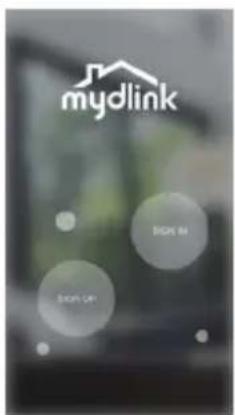
Launch the app and log into your mydlink account.
New users: Tap SIGN UP to register for a new mydlink account. Existing users: Tap SIGN IN to log in with your mydlink email and password.
Step 3:
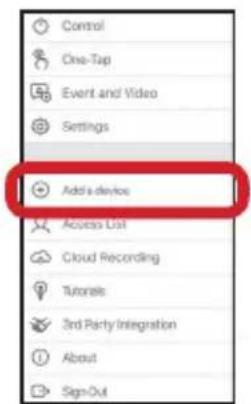
After signing in, tap the icon in the top-left corner, tap Add Device, and follow the instructions.
When you are asked to scan a QR code, use the code on the label attached to your device, or on the Quick Install Card in your package.
Once the configuration process is complete, use the mydlink™ app to automate your home and stay updated with instant push notifications to your mobile device while you're away from home.
TROUBLESHOOTING
SETUP AND CONFIGURATION PROBLEMS
1. HOW DO I RESET THE DSP-W245?
When you reset your DSP-W245, it will change your settings back to the factory default settings. To reset the device to factory defaults, use an unfolded paperclip to press and hold the RESET button for at least 10 seconds. The status LED will turn red after you release the paperclip to indicate that the device is resetting.
2. WHY ISN'T THE POWER/STATUS LED TURNING ON WHEN I PLUG IN MY DSP-W245?
If the Power LED is not turning on:
- Make sure the outlet you are using is working properly. Try plugging in another device to see if it works.
- Make sure that if the outlet is controlled by a light switch, it is in the ON position.
- Try a different outlet to see if the Smart Power Strip works there.
3. WHY CAN'T I CONNECT TO MY WIRELESS ROUTER?
If you are having trouble connecting to your wireless router, try plugging the DSP-W245 into a location that is closer to your router. After the System Status LED turns solid green, you can unplug the Smart Power Strip and move it to the desired location.
4. WHAT APP DOES THE DSP-W245 WORK WITH?
The DSP-W245 works with the mydlink™ app. You may download the free app from the App Store (for Apple devices) or Google Play (for Android devices). Type "mydlink" to search for the app.
5. HOW DOES THE DSP-W245 WORK WHILE I AM AWAY FROM HOME?
Remote access of the DSP-W245 is enabled once you have connected it to your home Wi-Fi network and registered it with mydlink. You will be able to control it from anywhere using your iPhone, iPad, and iPod touch or Android device.
TECHNICAL SUPPORT
dlink.com/support
PACKUNGSHALT
Wi-Fi Smarte Steckdosenleiste DSP-W245
CONFIGURATION DU PRODUIT
UTILISATION DE L'APPLICATION MOBILE POUR LA CONFIGURATION
PRODUKTKONFIGURERING
BRUKEMOBILAPPENTILKONFIGURASJON
Se trinnene nedenfor fora komme i gang raskt med DSP-W245.
INSTALLATIONSEXEMPEL
TEHNIČKA PODRŠKA dlink.com/support
VSEBINA PAKETA
Wi-Fi pametni elektrini razdelilec DSP-W245
KARTICA ZA HITRO NAMESTITEV
Če kateri koli izmed teh predmetov manjka, kontaktirajte svojega trgovca.