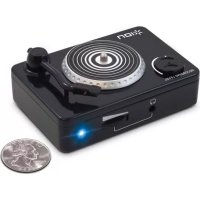
Vinyl Forever - Turntable ION - Free user manual and instructions
Find the device manual for free Vinyl Forever ION in PDF.

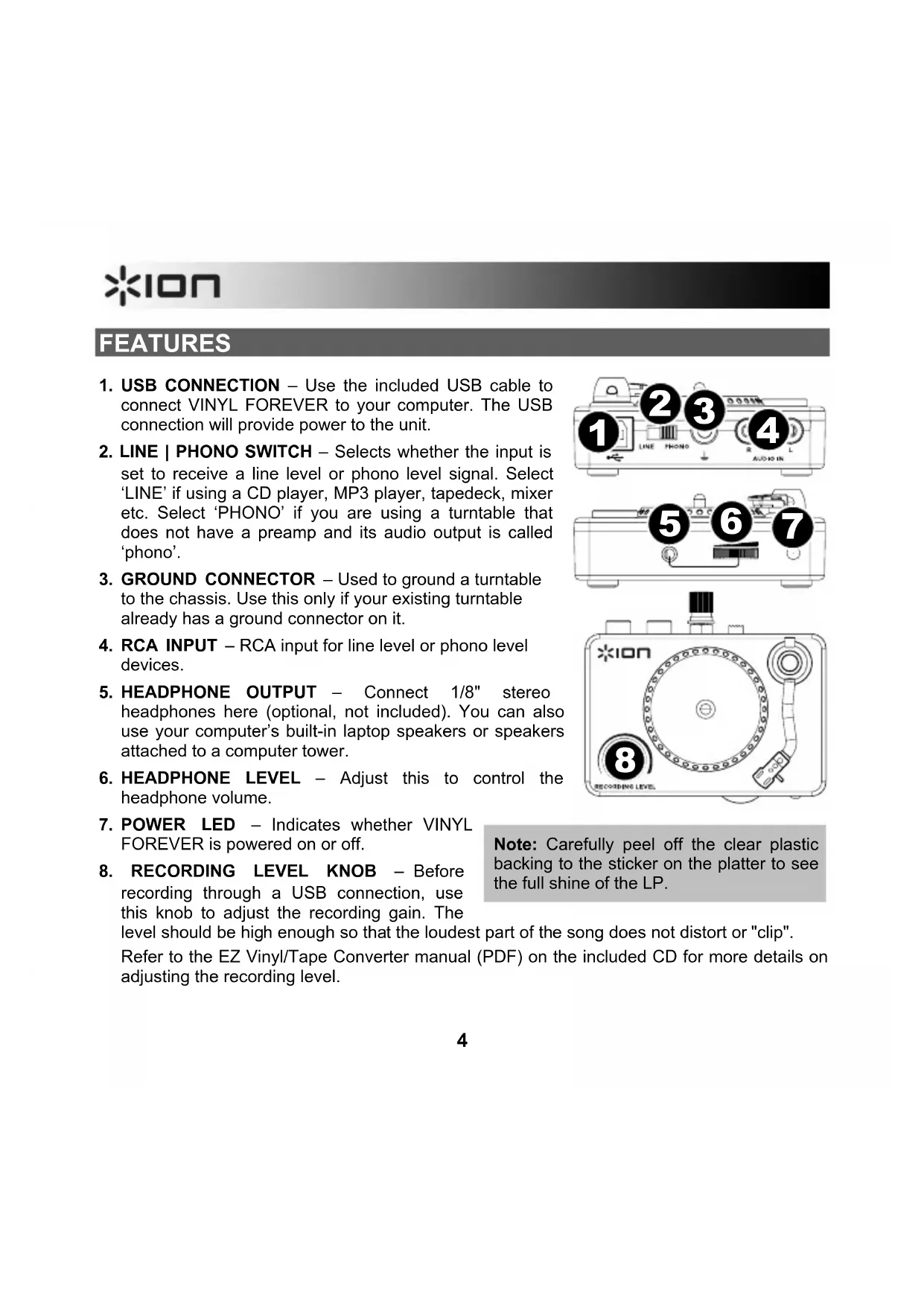


| Product type | Turntable with USB converter |
| Brand | ION |
| Model | Vinyl Forever |
| Power | Via USB port (USB cable included) |
| Connections | USB, RCA, 3.5mm headphone output |
| Input selector | LINE/PHONO |
| Gain adjustment | Yes, to adjust recording level |
| Headphone output | Yes, 1/8" (3.5mm) jack |
| Ground terminal | Yes, for turntable |
| LED indicator | Indicates operating status |
| Included software | EZ Vinyl/Tape Converter on CD-ROM |
| Box contents | USB cable, RCA cable, software CD, quick start guide, safety booklet |
| Compatibility | Computer with USB port, iTunes compatible |
| Care and cleaning | Clean with a soft, dry cloth; remove protective plastic from platter |
| Safety | Read safety instructions booklet before use |
| Technical support | Contact ION Audio or retailer before returning product |
| Product registration | At www.ionaudio.com |
| Software update | Download latest version from www.ionaudio.com/ezvc |
Frequently Asked Questions - Vinyl Forever ION
User questions about Vinyl Forever ION
0 question about this device. Answer the ones you know or ask your own.
Ask a new question about this device
Download the instructions for your Turntable in PDF format for free! Find your manual Vinyl Forever - ION and take your electronic device back in hand. On this page are published all the documents necessary for the use of your device. Vinyl Forever by ION.
USER MANUAL Vinyl Forever ION
Go to www.ionaudio.com for product registration.
Note: Carefully peel off the clear plastic backing to the sticker on the platter to see the full shine of the LP.
Please see the EZ Vinyl/Tape Converter manual (PDF) on the included CD for more information about recording with the software.
INTRODUCTION
You should install EZ Vinyl/Tape Converter to take advantage of computer recording. EZ Vinyl/Tape Converter is the quickest and easiest way to turn your recordings into digital media. EZ Vinyl/Tape Converter conveniently saves your recordings in your iTunes* library.
To install the software: simply insert the included CD into your computer and follow the on-screen instructions. After can then burn to CD or load onto portable media devices.
Visit www.ionaudio.com/ezvc to download the latest version of EZ Vinyl/Tape Converter software or for helpful troubleshooting guides and additional support.
Visit www.ionaudio.com/computer-optimization for more information on optimizing your computer for audio.
- iTunes is a trademark of Apple, Inc., registered in the U.S.A. and other countries.
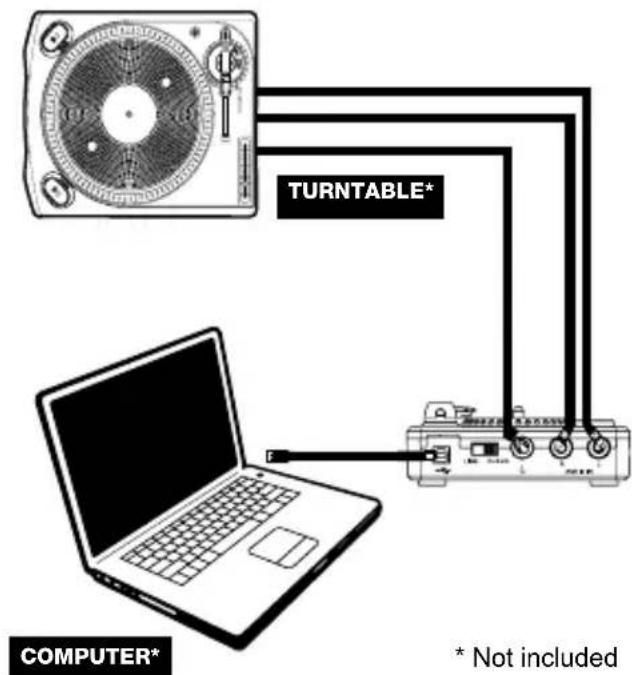
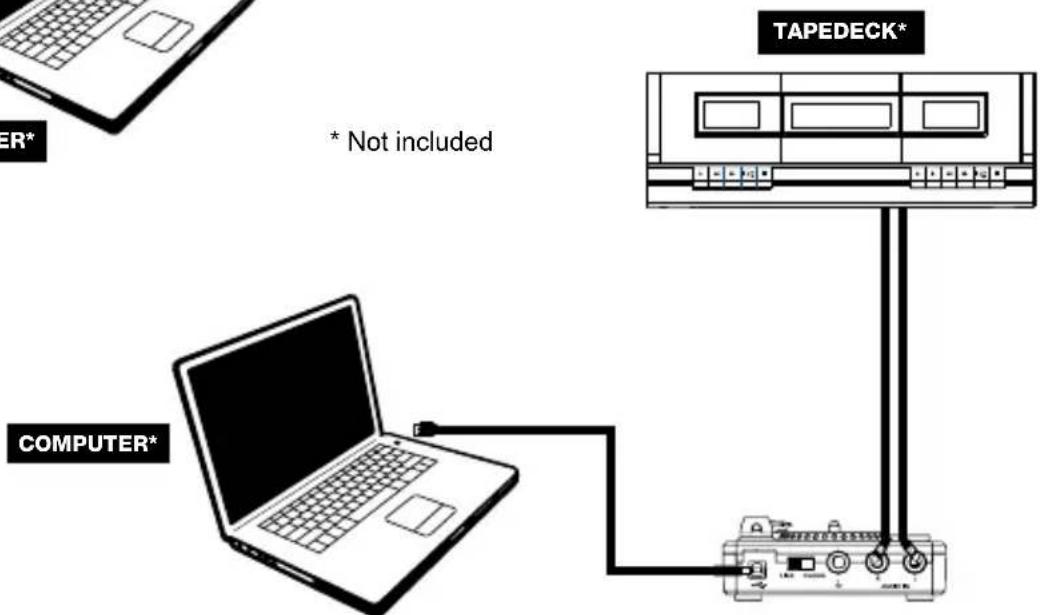
CONNECTION DIAGRAM
FEATURES
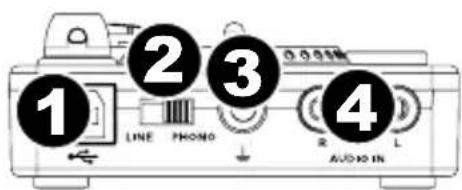
- USB CONNECTION - Use the included USB cable to connect VINYL FOREVER to your computer. The USB connection will provide power to the unit.
- LINE | PHONO SWITCH - Selects whether the input is set to receive a line level or phono level signal. Select 'LINE' if using a CD player, MP3 player, tapedeck, mixer etc. Select 'PHONO' if you are using a turntable that does not have a preamp and its audio output is called 'phono'.
- GROUND CONNECTOR - Used to ground a turntable to the chassis. Use this only if your existing turntable already has a ground connector on it.
- RCA INPUT - RCA input for line level or phono level devices.
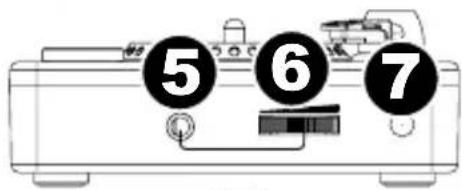
- HEADPHONE OUTPUT - Connect 1/8" stereo headphones here (optional, not included). You can also use your computer's built-in laptop speakers or speakers attached to a computer tower.
- HEADPHONE LEVEL - Adjust this to control the headphone volume.
- POWER LED - Indicates whether VINYL FOREVER is powered on or off.
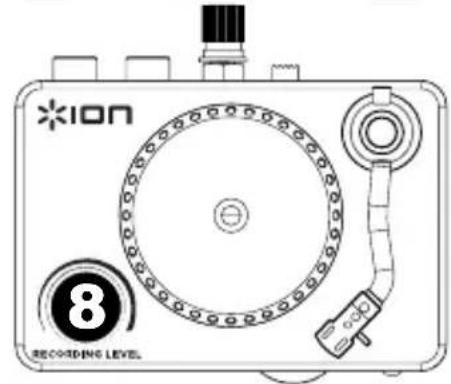
- RECORDING LEVEL KNOB - Before recording through a USB connection, use this knob to adjust the recording gain. The
Note: Carefully peel off the clear plastic backing to the sticker on the platter to see the full shine of the LP.
level should be high enough so that the loudest part of the song does not distort or "clip". Refer to the EZ Vinyl/Tape Converter manual (PDF) on the included CD for more details on adjusting the recording level.
TROUBLESHOOTING
See below for the answers to common questions. Consult the EZ Vinyl/Tape Converter Quickstart Guide (PDF) on the included CD or at www.ionaudio.com/ezvc.
| PROBLEM CAUSE SOLUTION | ||
| I am experiencing poor sound quality. | VINYL FOREVER's input switch is set to LINE when it should be set to PHONO or vice versa. | If your turntable has a preamp and calls its output "Line Out", set VINYL FOREVER to LINE. If your turntable does not have a preamp and calls it's output "PHONO", set VINYL FOREVER to PHONO. If you are using a cassette player, CD player, or TV as your source, set VINYL FOREVER to LINE. |
| The recordings are very quiet. | The turntable is outputting audio from a phono-level output and VINYL FOREVER is set to 'LINE'. | If using a turntable with a phono-level output, set VINYL FOREVER to "PHONO". |
| I do not hear any audio when I play music from my record player. | VINYL FOREVER is not connected to your computer. | Use the included USB cable to connect VINYL FOREVER to your computer's USB port. |
| Bad USB computer port. | Try connecting VINYL FOREVER to an alternate USB port on your computer, if possible to one on the rear of the computer. | |
| Bad USB cable. Try using a different USB cable. | ||
| Problem is caused by use of a USB hub. | Some hubs do not provide sufficient power to properly power USB devices. If you experience problems when using a hub, unplug the hub and then connect VINYL FOREVER directly to your computer's USB port. | |
| I am experiencing a hum or high-pitched tone when recording and listening to my vinyl on my laptop computer. | Certain models of laptop computers generate large amounts of ground noise. This noise can leak into your USB audio device and cause noise in the audio outputs. | Try plugging your laptop into a different power outlet. |
| Run the laptop on batteries (not viable for long periods of time). | ||
| Use a 3-to-2 prong adapter for your laptop's power supply so that the laptop ground is not connected to the mains outlet. Contact your computer manufacturer for any safety concerns before doing this. | ||
| Plug your laptop into a power outlet which has a separate ground (like an earth ground) from the other audio devices. | ||
BEFORE RETURNING THE PRODUCT, please contact ION Audio or your retailer for technical support. Contact information can be found in the Safety Instruction Booklet included with this product.
www.ionaudio.com/vinylforever
GUIA DE INICIO RAPIDO (ESPANOL)
VINYL FOREVER
Cable USB
RCA cable
CD de software

Brand : ION
Model : Vinyl Forever
Category : Turntable