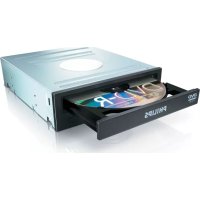
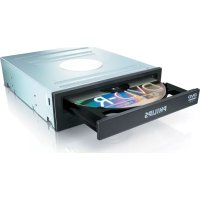
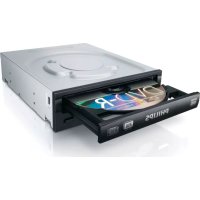
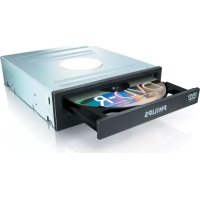
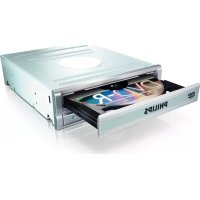
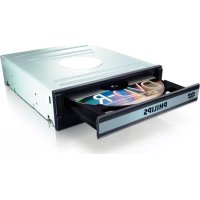
SPD2520BD - DVD Recorder PHILIPS - Free user manual and instructions
Find the device manual for free SPD2520BD PHILIPS in PDF.

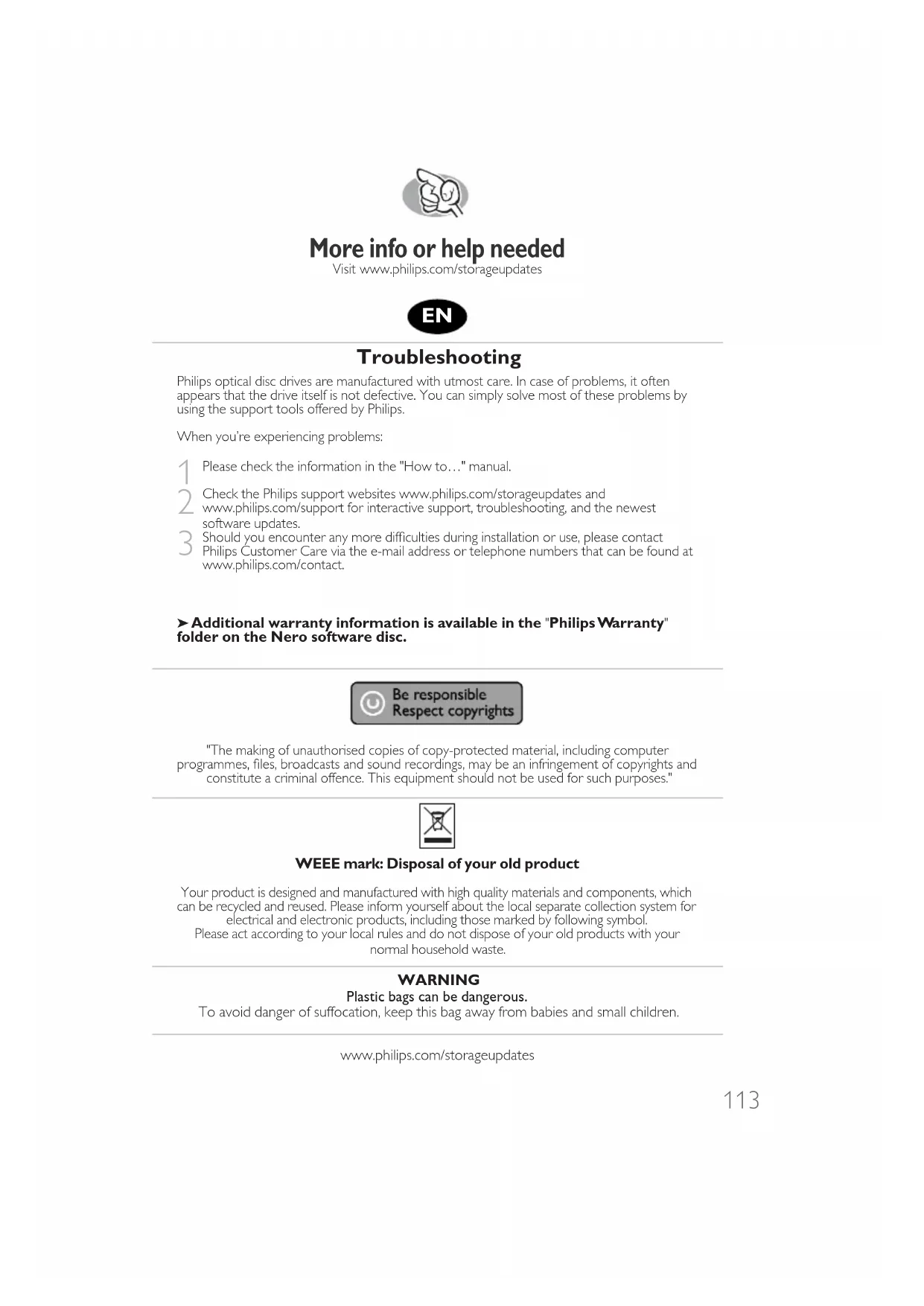

| Product Type | DVD Recorder |
| Brand | Philips |
| Model | SPD2520BD |
| Interface | ATA/ATAPI |
| DVD Read Speed | 16x |
| DVD-R Write Speed | 16x |
| DVD+R Write Speed | 16x |
| DVD-RW Write Speed | 8x |
| DVD+RW Write Speed | 8x |
| CD-R Write Speed | 48x |
| CD-RW Write Speed | 32x |
| CD Read Speed | 48x |
| Buffer Size | 2 MB |
| Supported Operating Systems | Windows 2000, Windows XP |
| Included Software | Nero |
| Power Supply | Via internal power cable |
| Dimensions (W x H x D) | 146 x 42 x 190 mm |
| Weight | 0.5 kg |
| Warranty | 1 year |
| Online Support | www.philips.com/storageupdates |
| Maintenance | Clean with a soft, dry cloth |
| Safety | Do not obstruct openings, avoid shocks |
| Spare Parts | Contact Philips customer service |
| Recycling | Follow local regulations (WEEE symbol) |
Frequently Asked Questions - SPD2520BD PHILIPS
User questions about SPD2520BD PHILIPS
0 question about this device. Answer the ones you know or ask your own.
Ask a new question about this device
Download the instructions for your DVD Recorder in PDF format for free! Find your manual SPD2520BD - PHILIPS and take your electronic device back in hand. On this page are published all the documents necessary for the use of your device. SPD2520BD by PHILIPS.
USER MANUAL SPD2520BD PHILIPS
How to... for Internal S-ATA ReWriters using Nero 8
EN Install Guide
DE Installationsanleitung
FR Guide d'installation
IT Guida d'installazione
NL Installatiegids
ES Guia de instalacion
PT Guia de Instalação
TR Kurulum Kilavuzu
PL Instrukcja montazu
SV Installationsguide
SC 安装指南
RU INHCTpyKUIN NO IHCTaAIAUIN
DK Installationsvejledning
安装指南
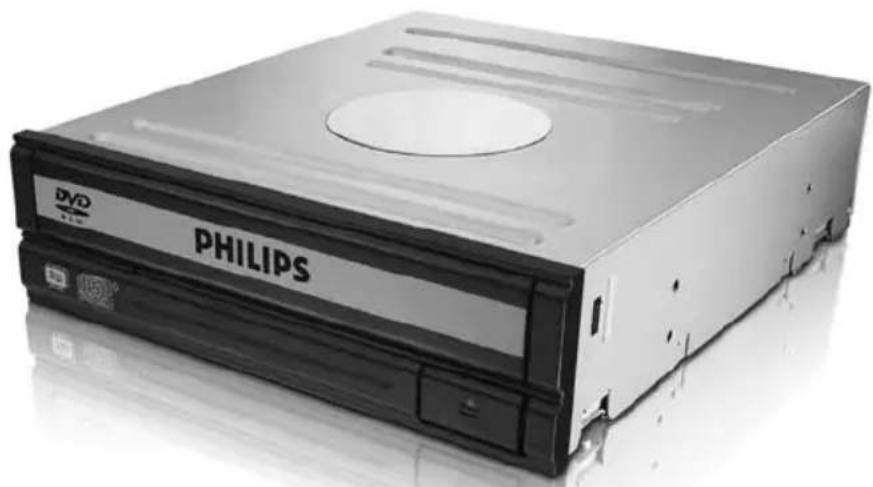
PHILIPS
EN
Contents
How to install? 6
Up to date? 14
How to make a video disc? 16
How to make a data disc? 24
How to make an audio disc? 28
How to copy a disc? 32
More info or help needed 36
DE
Inhalt
How to install? 78
Up to date? 86
How to make a video disc? 88
How to make a data disc? 96
How to make a audio disc? 100
How to copy a disc? 104
More info or help needed 113
EN How to install?
DE Einbau des Laufwerks
FR Comment installer?
IT Come installment
NL Hoe installeren?

Be responsible Respect copyrights
1
EN This can be found in the box:
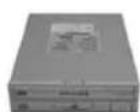
A:Your new drive
B: This manual
C: The Nero software disc
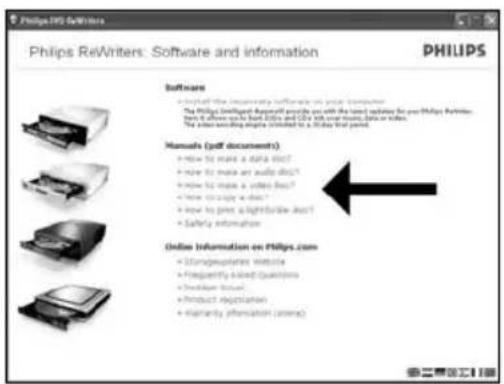
19 EN Not familiar with Nero 8? Click here to read the manuals and safety information.
DE Kennen Sie Nero 8 nicht? Klicken Sie hier, um die Handbucher und Sicherheitsinformationen zu lessen.
FR Voues n'etes pas familier avec Nero 8? Cliquez ici pour dire les manuels et les consignes de sécurité.
Non si sa bene come usare Nero 8? Fare cliq qui per leggere i manuali e le informazioni relative alla sicurezza.
Nietbekend met Nero 8? Klik hier om de handleidingen en veiligheidsinformatatie te lezen.
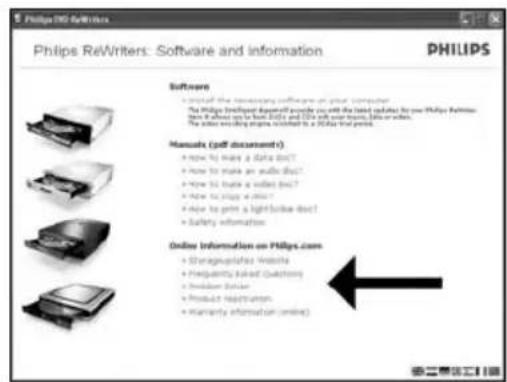
EN Click here to read the warranty details and online information.
20
Klichen Sie hier, um die Garantietetails und Online-Informationen zu lesen.
FR Cliquez ici pour dire les details de la garantie et les informations en ligne.
Fare cliq qui per leggere la garanzia e le informazioni online.
Klik hier om de garantiebepalingen en online informatatie te lezen.

Be responsible Respect copyrights
1
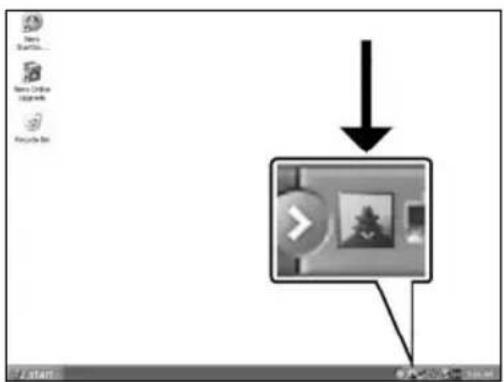
EN Start the Philips Intelligent Agent. If not available, choose "Start", "(All) Programs", "Philips Intelligent Agent", "Philips Intelligent Agent".
DE Starten Sie den Philips Intelligent Agent. Wenn er auf dem Desktop nicht zur Verfugung steht, wahlen Sie "Start", "(Alle) Programme", "Philips Intelligent Agent", "Philips Intelligent Agent".
FR Lancez Philips Intelligent Agent. S'il n'est pas directement disponible, selectionnez "Demarrer", (Tous les) Programmes", "Philips Intelligent Agent", "Philips Intelligent Agent".
Avviare Philips Intelligent Agent. Se non fosse disponibile, selezionare "Start", (Tutti i) Programmi", "Philips Intelligent Agent", "Philips Intelligent Agent".
Start Philips Intelligent Agent.
Indien nicht beschikbaar, kies "Start", "(Alle)programma's,"Philips Intelligent Agent", "Philips Intelligent Agent".
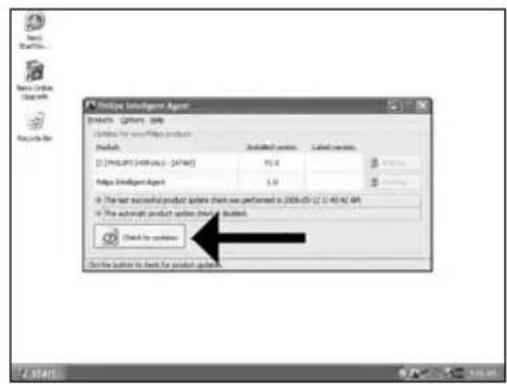
EN Click"Check for updates".
2
DE Klichen Sie auf "Nach Updates suchen".
FR Cliquez sur "Recherche les mises-à-jour logiciels".
Fare cli "Controlla gli aggiornamenti".
Klik op "Zoek waar updates".
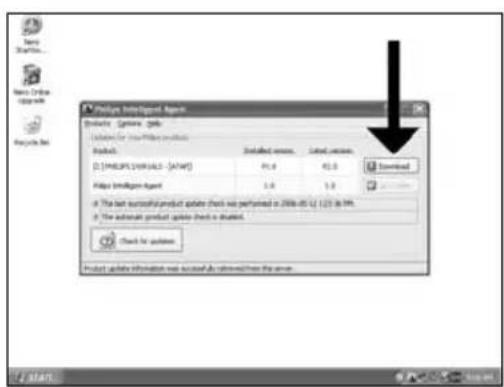
EN Download the updates and install them.
3
Laden Sie die Updates herunter und installieren Sie sie.
FR Telechargez les mises a jour et installez-les.
Effettuare il Download degli aggiornamenti e installari.
NL Download de updates en installer ze.
EN How to make a video disc?
DE Erstellen einer Video-Disc
FR Comment creer un disque video?
IT Guida alla creazione di un video disc
NL Hoe maak ik een video-disc?

Be responsible Respect copyrights
1
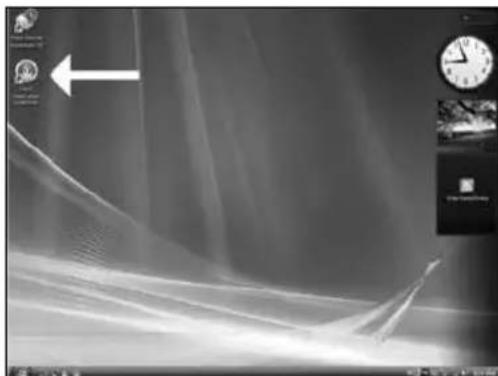
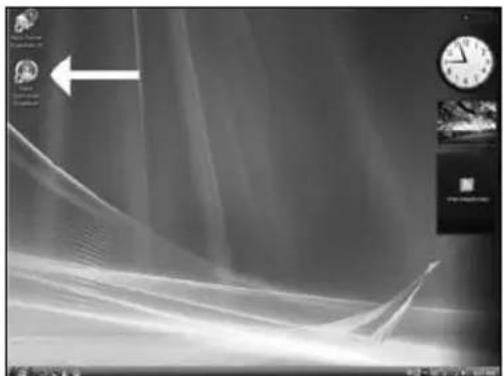
EN Start "Nero StartSmart Essentials".
DE Starten Sie "Nero StartSmart Essentials".
FR Lancez "Nero StartSmart Essentials".
Awiare "Nero StartSmart Essentials".
NL Start "Nero StartSmart Essentials".
EN After editing all files,choose "Next".
14
EN You can change the layout, the background, add titles,... here. When done, choose "Next".
16
If you are not logged on as Administrator in Windows XP or Windows 2000, you are not authorised to burn a disc. You can still burn a disc by using the programme Nero BurnRights. For details, please check http://www.Storageupdates.philips.com/en/problemsolver.html
DE
Be responsible Respect copyrights
EN Start "Nero StartSmart Essentials".
DE Starten Sie "Nero StartSmart Essentials".
FR Lancez "Nero StartSmart Essentials".
Awwiare "Nero StartSmart Essentials".
NL Start "Nero StartSmart Essentials".
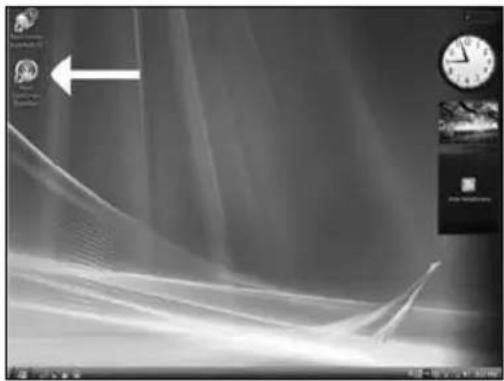
EN Click "Data Burning".
DE Klichen Sie auf"Datengrennen".
FR Cliquez sur "Gravure de données".
Fare clic su "Masterizzazione dati".
Klik op "Gegevens branden".
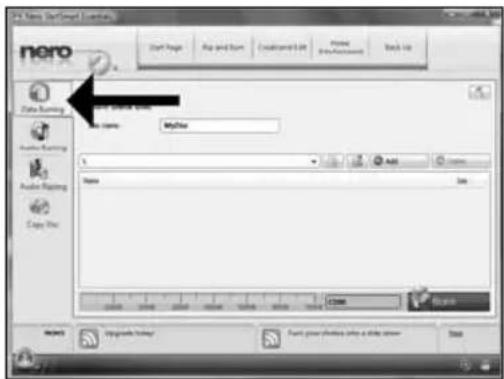
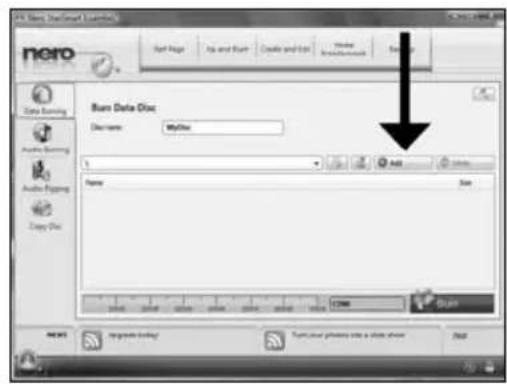
This message will appear when you do not have Administrator rights. You can still burn a disc by using the programme Nero BurnRights. For details, please check http://www.Storageupdates.philips.com/en/problemsolver.html
DE
Be responsible Respect copyrights
EN Start "Nero StartSmart Essentials".
DE Starten Sie "Nero StartSmart Essentials".
FR Lancez "Nero StartSmart Essentials".
Awwiare "Nero StartSmart Essentials".
NL Start "Nero StartSmart Essentials".
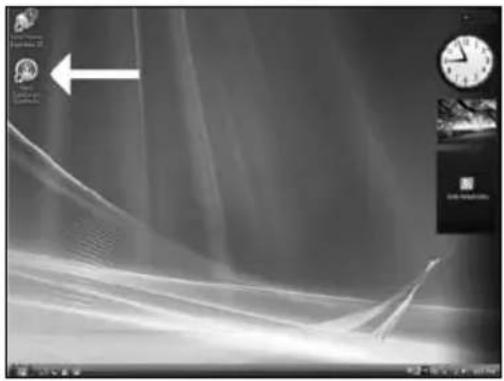
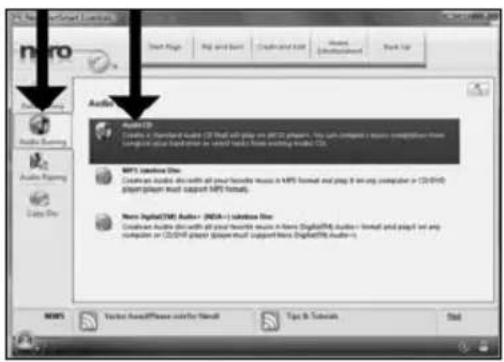
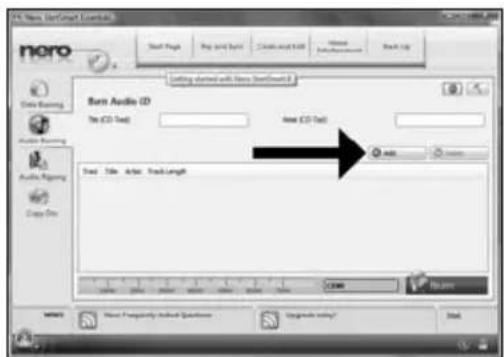
EN Click"Audio Burning"and"Audio CD".
DE Klichen Sie auf "Audio brennen" und "AudioCD".
FR Cliquez sur "Gravure audio" et "CD audio".
Fare clic su "Masterizzazione audio" e "CD audio".
Klik op "Audio branden" en "Audio-cd".
Be responsible Respect copyrights
1
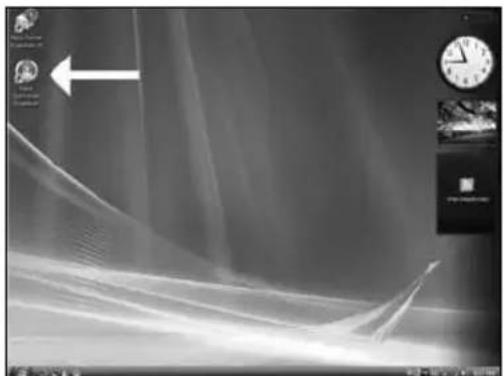
EN Start "Nero StartSmart Essentials".
DE Starten Sie "Nero StartSmart Essentials".
FR Lancez "Nero StartSmart Essentials".
n Aviare "Nero StartSmart Essentials".
NL Start "Nero StartSmart Essentials".
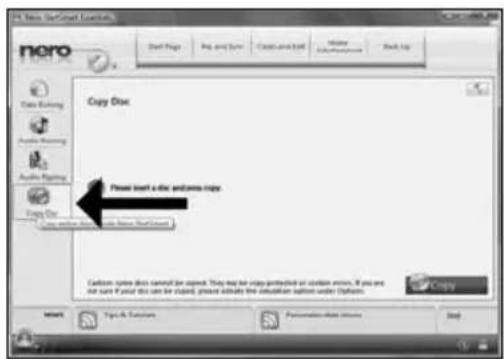
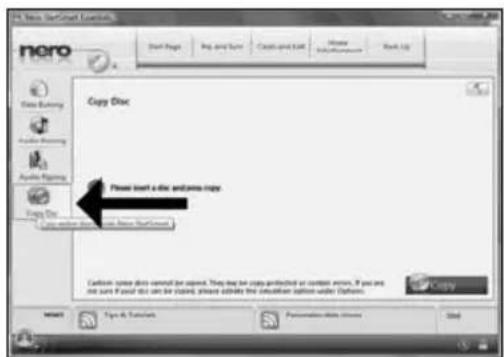
EN Click"CopyDisc".
2
DE Klichen Sie auf "Disk kopieren".
FR Clique "Copier un disque".
IT Fare clc su "Copia disco".
Klik op "Schijf kopieren".
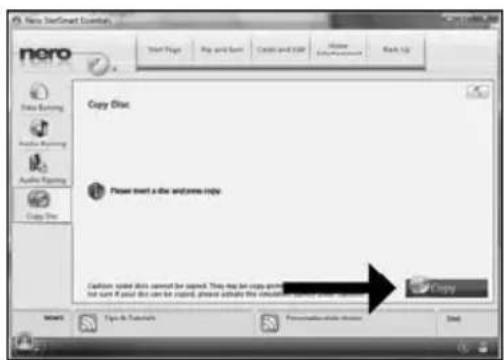
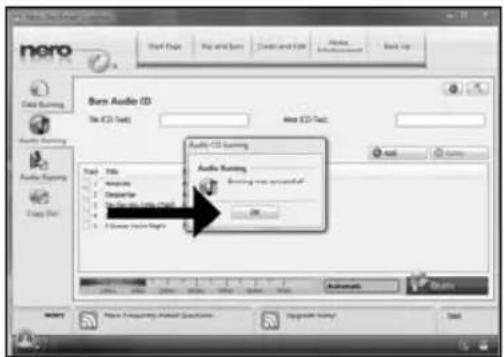
EN Congratulations, your disc has been written successfully. You may exit the application now.
7
DE Glückwunsch, ihre Disc wurde erfolgreich beschrieben. Sie konnen jetzt die Anwendung verlassen.
FR Felicitations, le disque a ete grave avec succes. Vous pouvez maintainant quitter l'application.
IT Congratulazioni, è stata completata la scrittura del disco. Ora è possibile uscire dall'applicazione.
NL Gefeliciteerd, uw disc is met succes geschreveen. U kunt de toepassing nu sluiten.

More info or help needed
Visit www.philips.com/storageupdates
EN
Troubleshooting
Philips optical disc drives are manufactured with utmost care. In case of problems, it often appears that the drive itself is not defective. You can simply solve most of these problems by using the support tools offered by Philips.
When you're experiencing problems:
1 Please check the information in the "How to..." manual.
2 Check the Philips support websites www.philips.com/storageupdates and www.philips.com/support for interactive support, troubleshooting, and the newest software updates.
3 Should you encounter any more difficulties during installation or use, please contact Philips Customer Care via the e-mail address or telephone numbers that can be found at
www.philips.com/contact.
Additional warranty information is available in the "Philips Warranty" folder on the Nero software disc.

Be responsible Respect copyrights
"The making of unauthorised copies of copy-protected material, including computer programmes, files, broadcasts and sound recordings, may be an infringement of copyrights and constitute a criminal offence. This equipment should not be used for such purposes."
WEEE mark: Disposal of your old product
Your product is designed and manufactured with high quality materials and components, which can be recycled and reused. Please inform yourself about the local separate collection system for electrical and electronic products, including those marked by following symbol.

Please act according to your local rules and do not dispose of your old products with your normal household waste.
WARNING
Plastic bags can be dangerous.
To avoid danger of suffocation, keep this bag away from babies and small children.
www.philips.com/storageupdates
Be responsible Respect copyrights
Be responsible Respect copyrights
Be responsible Respect copyrights
1
Be responsible Respect copyrights
1
ES Inieie Philips Intelligent Agent.
Si no está disponible, elija "Inicio", "Programas", "Philips Intelligent Agent", "Philips Intelligent Agent".
PT Iniciar o Philips Intelligent Agent.
Be responsible Respect copyrights
1
ES Inicie "Nero StartSmart Essentials".
PT Inicie o "Nero StartSmart Essentials".
TR "Nero StartSmart Essentials" I baslat.
PL Uruchom program "Nero StartSmart Essentials".
SV Starta "Nero StartSmart Essentials".
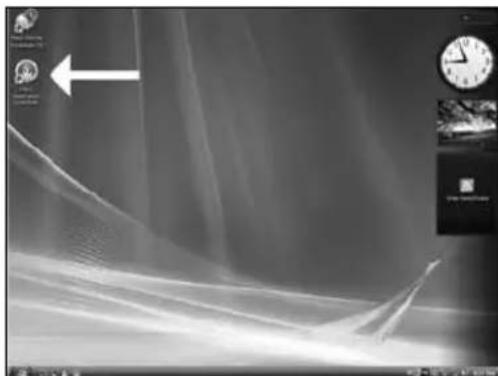
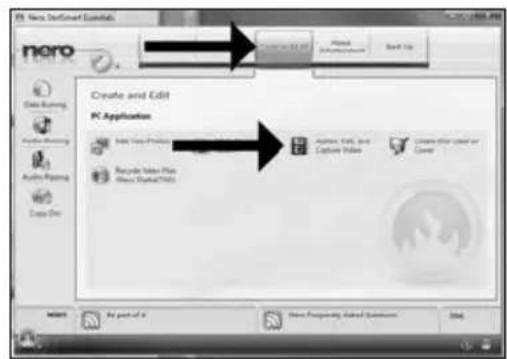
ES Clic "Creary editor" y "Crear, editory capturar video".
2
PT Clique em "Criar e editor" e "Criar, editor e capturar video".
TR "Olustur ve Düzenle"y et tiklayin ve "Yazar, Düzenleme ve Yakalama Videosu".
PL Kliknj "Tworz i edytuj" i "Tworz, edytuj | przechwytuj video".
SV Klicka "Skapa och redigera" och "Skapa, redigera och spel a in video".
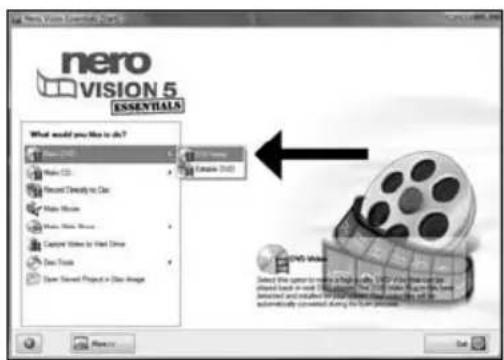
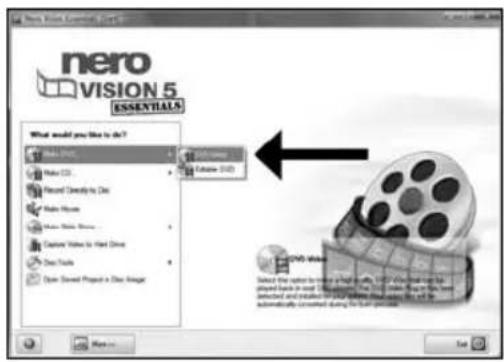
E Elija "Crear DVD" y "DVD Video".
3
PT Selezione "Criar DVD" e "DVD-video".
TR "DVD Yap"ve "DVD-Vidyo"yu sec.
PL Kliknj "Utworz DVD" i "DVD-Video".
SV Valj "SkapaDVD" och "Dvd-video".
Be responsible Respect copyrights
1 ES Inie "Nero StartSmart Essentials".
PT Iniee o "Nero StartSmart Essentials".
TR "Nero StartSmart Essentials" baslatin.
PL Uruchom program "Nero StartSmart Essentials".
SV Starta "Nero StartSmart Essentials".
Be responsible Respect copyrights
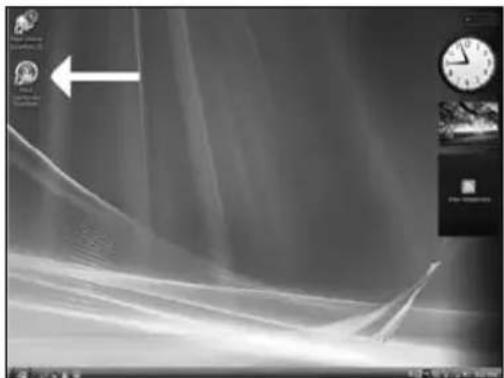
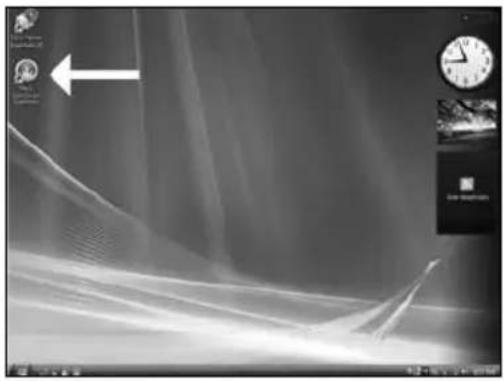
ES Inicie "Nero StartSmart Essentials".
PT Inicie o "Nero StartSmart Essentials".
TR "Nero StartSmart Essentials" baslatin.
PL Uruchom program "Nero StartSmart Essentials".
Starta "Nero StartSmart Essentials".
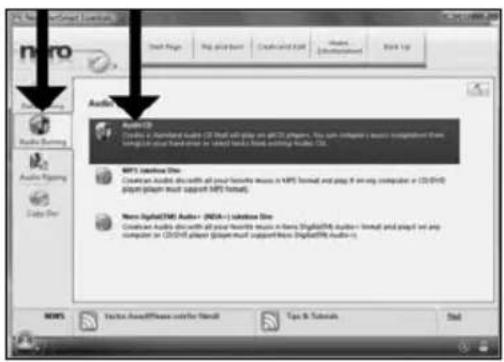
ES Haga clic en "Grabacion audio" y "Audio-CD".
PT Clique em "Gravacao de audio" e "CD de audio".
"Sez Yaziliyor"ya ve "Ses CD'si"ne tiklayin.
PL Kliknij "Nagrywanie audio" i "Audio CD".
SV Klicka pa "Branna Ijud" och "Ljud-cd".
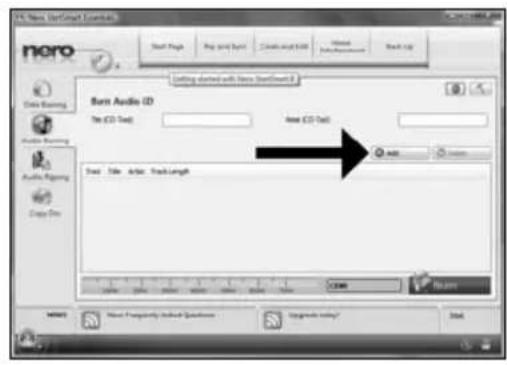
ES Haga tic en "Añadir".
PT Clique em "Adicionar".
"Ekle"yi segin.
PL Kliknij "Dodaj".
SV Klicka pà "Lagg till".
3
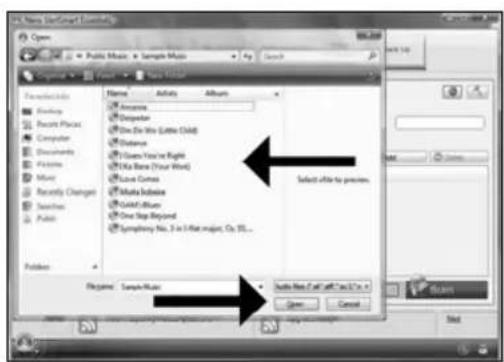
Selectione todos los ARCHivos a grabar y hacer en "Abrir". Haga hacer en "Cancelar" cuando temine.
PT Selecionetodososarquivosareserem gravados e clique em"Abrir".Clique em "Cancelar" quando tiver terminado.
TR Yakacaginiz tum dosyalan segin ve"Ac"ye tiklayin. Bittiginde "Iptal"a tiklayin.
PL Wybierz wszystkie pliki do nagrania i kliknj "Otworz". Po zakonceniu kliknj "Anuluj".
SV Markera alla filer som sha brannas och klicka pa "Oppna". Klicka pa "Avbryt" nár du ar klar.
4
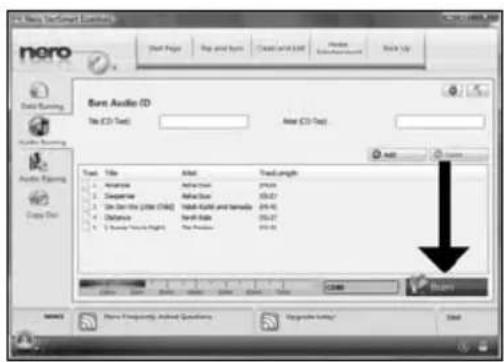
Haga tic en "Grabar" y ponga un disco grabable. Si aparecije el mensaje "Por favor ponga un disco grabable", por favor lea el texto de la ultima pagina.
PT Clique em "Gravar" e insira um disco gravavel. Se aparecer "Insira um disco gravavel", feia o texto da ultima pagina.
TR "Yazdir" a tuklayin ve yazilabilir bir disk takin. Lüfden yazilabilir bir disk takin" yazisi görünürse, lüfden son sayfadaki metni okuyun.
PL Kliknj "Nagraj" i wloz dysk z moziwość zapisu. Jeźeli pojawi sie komunikat "Wloz dysk z moziwość zapisu", przyeczytaj tekst na ostatnej stronie.
SV Klicka pa "Brann" och satt i en skivbar skiva. Om "Var vänlig och satt i en skivbar skiva" syns, var vänlig las texten pa sista sidan.
5
6
ES Nero está ahora copiando su disco.
PT Agora o Nero copiará seu disco.
TR Nero artik diskinizi kopyalayacaktir.
PL Program Nero Rozpocznie kopiowanie pfly.
Nero kopierar din skiva.
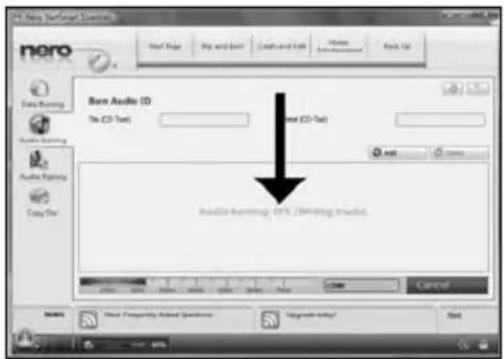
7
Felicitaciones, su disco se ha grabado con exito. Ahora peute salir de la aplicacion.
PT Parabens, seu disco foi gravado com successo. Voce pode sair do aplicativo ahora.
Tribetrikler, diskiniz basanyla yazildi. Uygulamadan simdi sikabilirsiniz.
PL Gratulacj! Zapis plyty zakonczyi sie pomyslnie. Mozesz zakonczyc pracr programu.
Grattis, du har brant en skiva. Du kan stanga programmet nu.
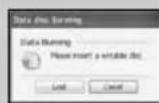
Es Este mensaje aparecerá si noienearethos de Adminstrador. Aún asi podra grabar un disco utilizing el programa Nero BumRights. Para consultar les detalles, por favor visite: http://www storingupdates.philips.com/es/problemsolver.html
PT Este mensagem sera aparecido quando não possuţr privilegios de Administador, Pode ainda gravar um disco'utilizando o programa Nero BurnRights. Para mais informações consulte http://www.Storageupdates.philips.com/en/problemsolver.html
TR Yonetici hakanna sahip olmadiginizda bu mesaj gurunecktir. Yine de, Nero BurnRights programini kullanarak bir disk yazabilirsiniz. Aynntilar icin, lutfen http://www storingupdates.philips.com/en/problemsolver.html
PL Ten komunikat pojawia sie, jezeli uzytkownik nie posiada uprawnien administratora. Nadal mozna\
jednak nagrać plyte przy pomocy programu NeroBurnRights. Szegółowe informacja na ten\
temat znalezec mozza na stronie internetowej\
http://www.storageupdates.philips.com/pl/problemsolver.html
SV Detta meddelandekommen att synas om du inte har administratorsrattigheter. Du kan anda branna en skiva genom att anvanda programmet Nero BurnRights.For detaljer, var vanlig och kontrullera http://www.Storageupdates.philips.com/en/problemsolver.html

ES C Como copiar un disco?
PT Como copiar um disco?
TR Bir disk{nasil kopyalanir?
PL Kopiowanie pty
Hur går det till att kopiera en skiva?

Be responsible Respect copyrights
1
ES Inicie "Nero StartSmart Essentials".
PT Inicie o "Nero StartSmart Essentials".
TR "Nero StartSmart Essentials" I baslatin.
PL Uruchom program "Nero StartSmart Essentials".
SV Starta "Nero StartSmart Essentials".
Be responsible Respect copyrights
Be responsible Respect copyrights
Be responsible Respect copyrights
Be responsible Respect copyrights
Be responsible Respect copyrights
sc可在包装盒中找到以下物件:
A: 新驱动器
B:本手册
C: Nero软件光盘
RU TO MOXHO HAMTN BOKHE:
A:BaaHOBbIaNCKOBOa
B:△aHHoe pyKOBOaCTBO
C:Nero nporpaMMhBn Dnck
DK Dettefindesikassen:
A: Dit nye drev
B: Denne manual
C: En disc med Nero-software
A
B
C
在包装盒裏可以找到:
EN This can be found in the box:
A: Your new drive
B: This manual
C: The Nero software disc
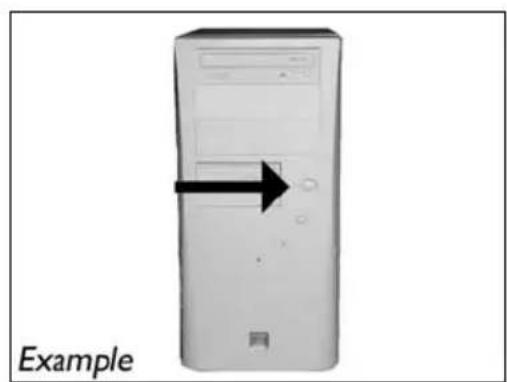
SC 关闭计算机。
2
RU BbIKAOHTe BaU KOMIbIOTep.
DK Sluk for din computer.
將您的電腦關機。
EN Switch your computer off.
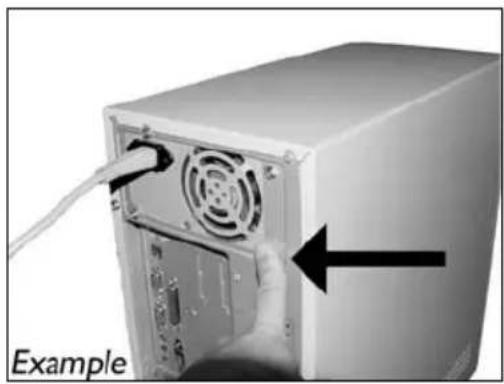
触摸未喷漆金属部件
Be responsible Respect copyrights
1
Be responsible Respect copyrights
1
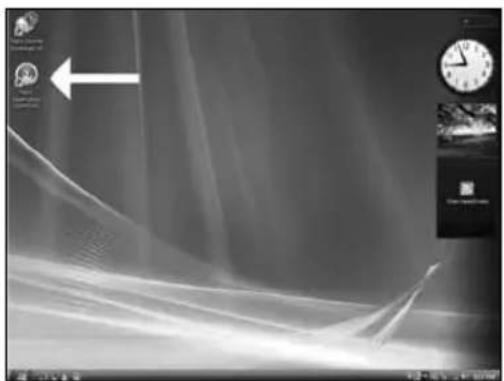
启动“Nero StartSmart Essentials”。
RU 3anycTnTe "Nero StartSmart Essentials".
DK Start "Nero StartSmart Essentials".
Tc 創動“Nero StartSmart Essentials”。
EN Start "Nero StartSmart Essentials".
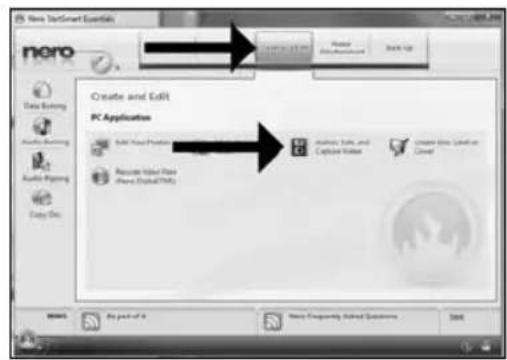
单击“创建和编辑”再单击“创作、编辑和采集视频”。
RU HaKMITE KHOHNIky "Co3aHne n N3MeHeHne" IN KHOHNIky "Co3aHne, peaKTIPOBaHne n...
DK Klik "Opret og rediger" og "Indtal commentarer til, rediger og...
按一下「製作與編輯」以及「製作、編輯和攝取視訊」。
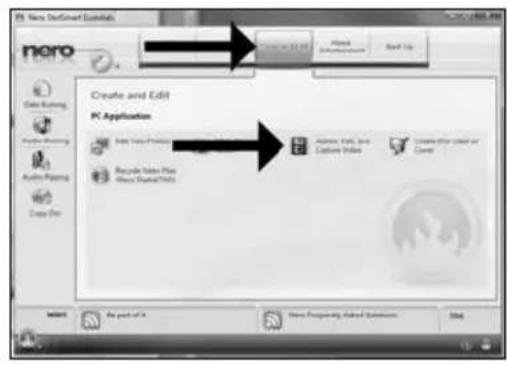
EN Click"Create and Edit"and "Author,Edit and Capture Video".
2
If you are not logged on as Administrator in Windows XP or Windows 2000, you are not authorised to burn a disc. You can still burn a disc by using the programme Nero BurnRights. For details, please check http://www.storageupdates.philips.com/en/problemsolver.html
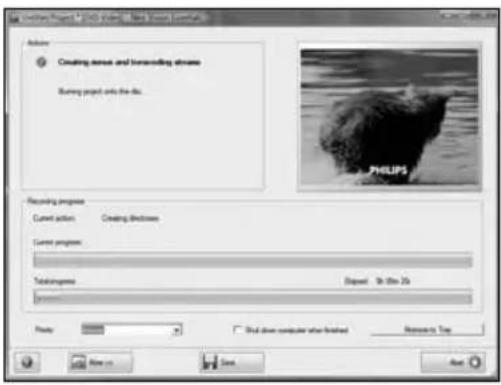
NeroVisionExpress将转换代码并刻录到您的光盘。
19
RNeOvisionExpressBbnoAHHeT nepekoanpoBkynpoKnIraeBTBaWAnck.
DK NeroVision Express kodeomsætter og brænder din disc.
NeroVision Express 正進行光碟的轉碼和燒錄。
EN NeroVision Express is transcoding and burning your disc.
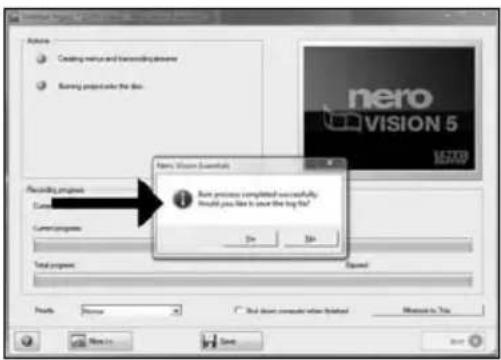
祝贺您,您的光盘已成功写入。现在可以退出应用程序了。
RU No34paBAAEM, BAA DICK 6bIA YCNEUHO 3aIINCAH. Tenepb Bbl MOKeTe BblTN I3 IpORpaMMbl.
DK Tillykke - din disc er blevet brandt. Du kan nu afslutte programmet.
恭喜,您的光碟已成功寫入。您現在可以離開應用程式。
EN Congratulations, your disc has been written successfully. You may exit the application now.
sc 如何制作数据光盘?
RU KaK co3aTb AnCK C aHHbIMN?
DK Sadan laves en datadisc?
如何製作資料光碟?
EN How to make a data disc?

Be responsible Respect copyrights
1
RU 3aynctte "Nero StartSmart Essentials".
DK Start "Nero StartSmart Essentials".
TC 敦動"Nero StartSmart Essentials"
EN Start "Nero StartSmart Essentials".
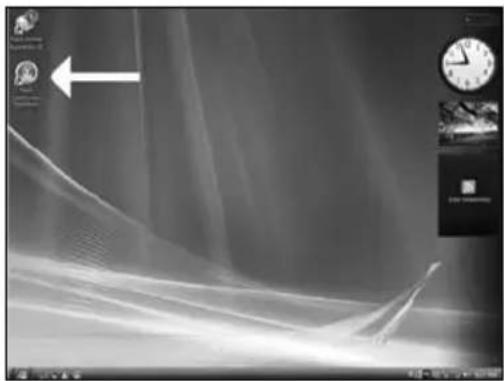
SC单击“数据刻录”。
Be responsible Respect copyrights
1 sc 动 "Nero StartSmart Essentials"
RU 3aynctte "Nero StartSmart Essentials".
DK Start "Nero StartSmart Essentials".
Tc 敦動"Nero StartSmart Essentials"
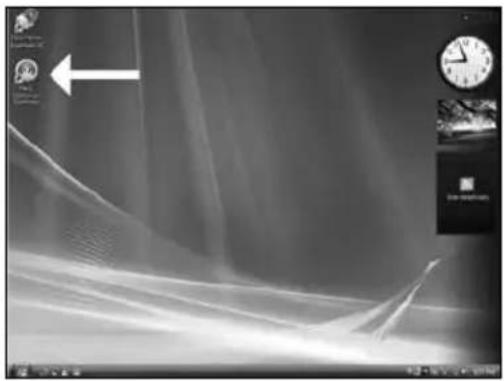
EN Start "Nero StartSmart Essentials".
Be responsible Respect copyrights
1
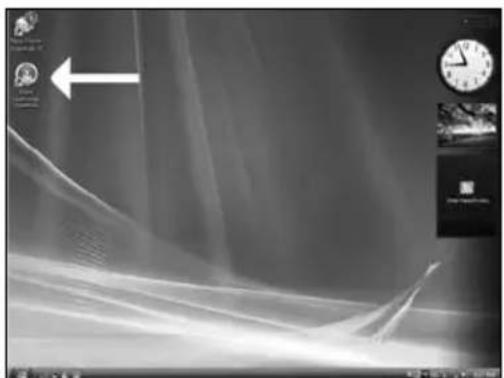
启动“Nero StartSmart Essentials”。
RU 3anycTnTe "Nero StartSmart Essentials".
DK Start "Nero StartSmart Essentials".
啟動“Nero StartSmart Essentials”。
EN Start "Nero StartSmart Essentials".
sc 单击“复制光盘”。
2
Ru HauKmTe KhoNky "KonipoBaHne Anka".
DK Klik på "Kopier disk".
按一下「複製光碟」。
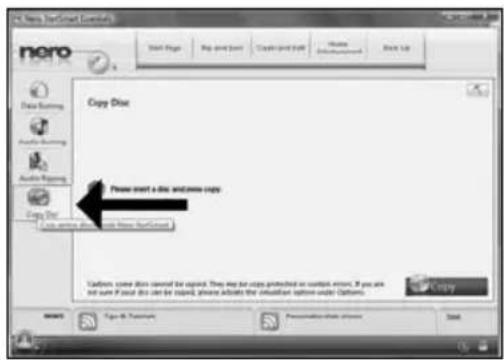
EN Click"CopyDisc".
SC 插入您的源光盘并单击“复制”。
3
RU BCTaBbTe B DACKOBDA DICK, KOTOpbH Heo6XoAMMO CKONINPOBaTb, HHaKMNTe KHONKY"KOnNPOBaTb".
DK Indsæt din kildedisc, og klik pa "Kopier".
置入來源光碟,然後按一下「複製」。
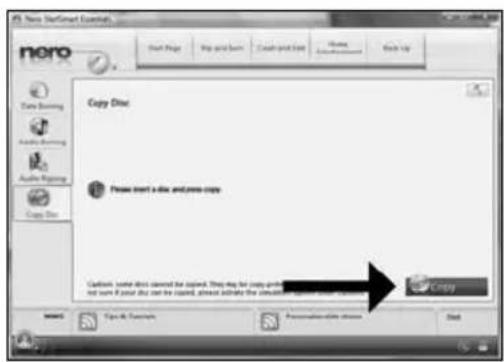
EN Insert your source disc and click "Copy".

If you are not logged on as Administrator in Windows XP or Windows 2000, you are not authorised to bum a disc. You can still burn a disc by using the programme Nero BurnRights. For details, please check http://www.Storageupdates.phillips.com/en/problemsolver.html
4
Be responsible Respect copyrights
标准规定的限量要以下。
O: Indicates that this toxic or hazardous substance contained in all of the homogeneous materials for this part is below the limit requirement in SJ/T11363 - 2006.
X: Indicates that this toxic or hazardous substance contained in at least one of the homogeneous materials used for this part is above the limit requirement in SJ/T11363 - 2006.

环使用期限 Environmental Protection Use Period
This logo refers to the period (10 years)
This logo refers to the period ( 10 years ) during which the toxic or hazardous substances or elements contained in electronic information products will not leak or mutate so that the use of these substances or elements will not result in any severe environmental pollution, any bodily injury or damage to any assets.

HyxHa OonoAHHTeAhbHnHΦOpMaun Hn NOMOuB
Pocetute www.philips.com/storageupdates
BbIaHHe HeHcnpaBHocTei
AICKOBoBIOIOTTneckxDyCKOB Philips n3roTabnBaIOCTC COCO60 TtateABHOCTBO. PnB O3HNKHOBEHIN pO6aEM qACTO OKa3bEaTe, YTO AICKOBOD cAM NO ce6e HcnpaBeH. Boauyo Yactb 3TNX np6aEM Bb MOKeTe pOCTO peuNTb C NOMoukIO INHCTpyMeHTaHBix CpeAcTB NOAepKKN, npedaeraMbx fmpmO Philips
Ean y Bac Bo3HkAn npo6Aembl.
PonHtAte HOPMaIIO,COAepKaIIyIOB B COOTBeTCTBYIOeM pa3Ae pyKOB0CTBa "Ka
2 O6paTnTeCb K Be6-caTAM NOAepKKn Philips www.philips.com/storageupdates n www.philips.com/support: AAR INTEpakTNBHOI NOAepKKn, BbIBBAEHN HcnpaBHOCTeH NocAeDHx akTyAAH3aLIM.
3 ECAM BO BPEMA INCTAMALIN NAN 3KNTAYATALIN BBI CTOAKHYANCB C DNOAOHTAEBHIMN TPyADOCTAMN, BAM CAeayet ObaPATABCH Philips Customer Care no 3AekTPOHHO NOCTE HNN NO TEAEFOHy, KOtOpBE MOXHO HAITB VHTEPHE Tno aDpecy www.philips.com/contact.
AnoHnTeaBHa HOpMaun No rapaHTn IpeAcTaBaHe B nAnKe "Philips Warranty" kataora Ha nporpaMMHom dncke Nero.

Be responsible Respect copyrights
"He3aKOHHe N3ROBHeHne KOni MaTePnaA08, 3aUuIeHHbIX OT KOnPiPOBaHnR, BkIOoAH KOMIbOtePHe IporpaMMbI, PaNl, TeAE-, paNIOTpHaCIAUIN I3ByKO3aIHC MOKET paccMaTpNbTaBCaK HApUWeHne ABTOPCKNX IIpAB INIpeCAeOBA TbCB NOYTOAOBHOMy 3aKHOaTeAbCTBy. Hactouee O6OpdyObaHne He DOxKHO INIOA3OBaTcB C B IOAObHix cEx."
PPEAOCTEPEXKEHNE
IaactIKOBbIe McIKN MOrT PcAdTaBArTb OAnCHOCTb AByKINHBo I36exHHe OnaCHOCTn YdyuHEnH He dOpyckaTe HaxOXdEHn 3TNX MeIKOB prAOM CMaADeHuaMn N MaLeHbKIMn DeTbMn.
www.philips.com/storageupdates

Be responsible Respect copyrights
Be responsible Respect copyrights
More info or help needed
Visit www.philips.com/storageupdates
Troubleshooting
Philips optical disc drives are manufactured with utmost care. In case of problems, it often appears that the drive itself is not defective. You can simply solve most of these problems by using the support tools offered by Philips.
When you're experiencing problems:
1 Please check the information in the "How to..." manual.
2 Check the Philips support websites www.philips.com/storageupdates and www.philips.com/support for interactive support, troubleshooting, and the newest software updates.
3 Should you encounter any more difficulties during installation or use, please contact Philips Customer Care via the e-mail address or telephone numbers that can be found at www.philips.com/contact.
Additional warranty information is available in the "Philips Warranty" folder on the Nero software disc.
"The making of unauthorised copies of copy-protected material, including computer programmes, files, broadcasts and sound recordings, may be an infringement of copyrights and constitute a criminal offence. This equipment should not be used for such purposes."

WEEE mark: Disposal of your old product
Your product is designed and manufactured with high quality materials and components, which can be recycled and reused. Please inform yourself about the local separate collection system for electrical and electronic products, including those marked by following symbol.
Please act according to your local rules and do not dispose of your old products with your normal household waste.
WARNING
Plastic bags can be dangerous.
To avoid danger of suffocation, keep this bag away from babies and small children.

FCC Compliance
FCC 15.105 rule:
This equipment has been tested and found to comply with the limits for a Class B digital device, pursuant to Part 15 of the FCC Rules. These limits are designed to provide reasonable protection against harmful interference in a residential installation. This equipment generates, uses and can radiate radio frequency energy and, if not installed and used in accordance with the instructions, may cause harmful interference to radio communications. However, there is no guarantee that interference will not occur in a particular installation. If this equipment does cause harmful interference to radio or television reception, which can be determined by turning the equipment off and on, the user is encouraged to try to correct the interference by one or more of the following measures:
- Reorient or relocate the receiving antenna.
- Increase the separation between the equipment and receiver.
- Connect the equipment into an outlet on a circuit different from that to which the receiver is connected.
- Consult the dealer or an experienced radio/TV technician for help.
Warning: Changes or modifications made to this equipment not expressly approved by Philips may void the FCC authorization to operate this equipment.
FCC 15.19 rule:
This device complies with Part 15 of the FCC Rules and with RSS-210 of Industry Canada. Operation is subject to the following two conditions:
(1) this device my not cause harmful interference, and
(2) this device must accept any interference received, including interference that may cause undesired operation.
CE
Electric-, Magnetic- and Electromagnetic Fields ("EMF")
- Philips Royal Electronics manufactures and sells many products targeted at consumers, which, like any electronic apparatus, in general have the ability to emit and receive electro magnetic signals.
- One of Philips' leading Business Principles is to take all necessary health and safety measures for our products, to comply with all applicable legal requirements and to stay well within the EMF standards applicable at the time of producing the products.
- Philips is committed to develop, produce and market products that cause no adverse health effects.
- Philips confirms that if its products are handled properly for their intended use, they are safe to use according to scientific evidence available today.
- Philips plays an active role in the development of international EMF and safety standards, enabling Philips to anticipate further developments in standardization for early integration in its products.
Safety Precautions
USA/Canada: This player is for use only with IBM compatible UL listed Personal Computers or Macintosh UL listed workstations, weighing less than 18kg .
LASER SAFETY
This unit employs a laser. Do not remove the cover or attempt to service this device when connected due to the possibility of eye damage.
LASER-SICHERHEIT
USE OF CONTROLS OR ADJUSTMENTS OR PERFORMANCE OF PROCEDURES OTHER THAN THOSE SPECIFIED HEREIN MAY RESULT IN HAZARDOUS LASER RADIATION EXPOSURE.
WARNING
Output power (measured above the objective lens)
Read: 1,4 mW - 2,5 mW
Write: 90 mW (CD) - 27 mW (DVD)
Beam divergence 60 degree
Additional information available at our website:
www.philips.com/storageupdates
www.philips.com/storage
Specifications subject to change without notice.
All dimensions shown are approximate.
All rights reserved.
Reproduction, copying, usage, modifying, hiring, renting, public performance, transmission and/or broadcasting in whole or part is prohibited without the written consent of Philips Electronics N.V.
- How to... for Internal S-ATA ReWriters using Nero 8
- PHILIPS
- EN
- Contents
- DE
- Inhalt
- Be responsible Respect copyrights
- More info or help needed
- Troubleshooting
- WEEE mark: Disposal of your old product
- WARNING
- 4
- 环使用期限 Environmental Protection Use Period
- HyxHa OonoAHHTeAhbHnHΦOpMaun Hn NOMOuB
- BbIaHHe HeHcnpaBHocTei
- PPEAOCTEPEXKEHNE
- FCC Compliance
- FCC 15.105 rule:
- FCC 15.19 rule:
- Electric-, Magnetic- and Electromagnetic Fields ("EMF")
- Safety Precautions
- LASER SAFETY
- LASER-SICHERHEIT
Brand : PHILIPS
Model : SPD2520BD
Category : DVD Recorder