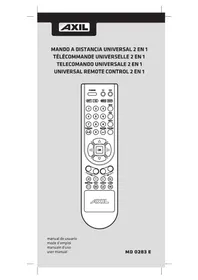
MD 0283 E - Remote control AXIL - Free user manual and instructions
Find the device manual for free MD 0283 E AXIL in PDF.



| Product type | Universal programmable remote control |
| Brand | AXIL |
| Model | MD 0283 E |
| Category | Remote control |
| Dimensions (L x W x H) | Approximately 20 x 5 x 2 cm |
| Weight | Approximately 100 g |
| Power supply | 2 AAA batteries (1.5 V) |
| Display type | LED (light-emitting diode) |
| Peripheral keys | TV, DTT (Digital Terrestrial Television) |
| Operating modes | Code setting, Manual search, Automatic search |
| Main functions | Code programming, code search, volume/mute lock, peripheral lock, favorite channel, reset |
| Security memory | Yes, retains settings |
| Compatibility | Universal (TV, DTT, etc.) |
| Maintenance and cleaning | Clean with a soft, dry cloth. Do not use abrasive products. |
| Safety | No particular safety function mentioned |
| Spare parts | Not available |
| Repairability | Not user repairable |
| General information | Compliant with European directive 2002/96/EC (WEEE). Recycling. |
Frequently Asked Questions - MD 0283 E AXIL
User questions about MD 0283 E AXIL
0 question about this device. Answer the ones you know or ask your own.
Ask a new question about this device
Download the instructions for your Remote control in PDF format for free! Find your manual MD 0283 E - AXIL and take your electronic device back in hand. On this page are published all the documents necessary for the use of your device. MD 0283 E by AXIL.
USER MANUAL MD 0283 E AXIL
General Description:
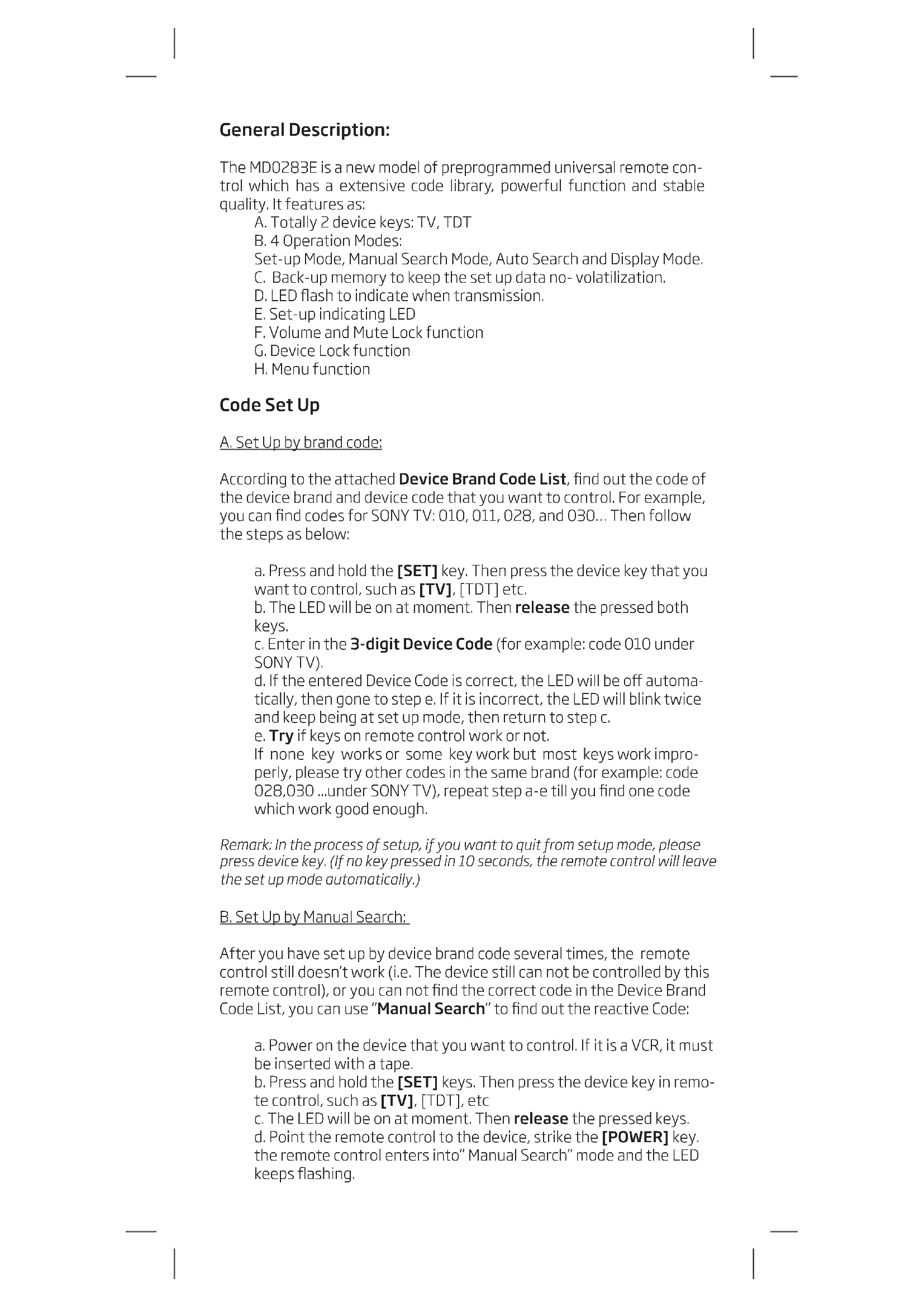
The MD0283E is a new model of preprogrammed universal remote control which has a extensive code library, powerful function and stable quality. It features as:
A. Totally 2 device keys: TV, TDT
B. 4 Operation Modes:
Set-up Mode, Manual Search Mode, Auto Search and Display Mode.
C. Back-up memory to keep the set up data no- volatilization.
D. LED flash to indicate when transmission.
E. Set-up indicating LED
F. Volume and Mute Lock function
G. Device Lock function
H. Menu function
Code Set Up
A. Set Up by brand code:
According to the attached Device Brand Code List, find out the code of the device brand and device code that you want to control. For example, you can find codes for SONY TV: 010, 011, 028, and 030... Then follow the steps as below:
a. Press and hold the [SET] key. Then press the device key that you want to control, such as [TV], [TDT] etc.
b. The LED will be on at moment. Then release the pressed both keys.
c. Enter in the 3-digit Device Code (for example: code 010 under SONY TV).
d. If the entered Device Code is correct, the LED will be off automatically, then gone to step e. If it is incorrect, the LED will blink twice and keep being at set up mode, then return to step c.
e. Try if keys on remote control work or not.
If none key works or some key work but most keys work improperly, please try other codes in the same brand (for example: code 028,030 ...under SONY TV), repeat step a-e till you find one code which work good enough.
Remark: In the process of setup, if you want to quit from setup mode, please press device key. (If no key pressed in 10 seconds, the remote control will leave the set up mode automatically.)
B. Set Up by Manual Search:
After you have set up by device brand code several times, the remote control still doesn't work (i.e. The device still can not be controlled by this remote control), or you can not find the correct code in the Device Brand Code List, you can use "Manual Search" to find out the reactive Code:
a. Power on the device that you want to control. If it is a VCR, it must be inserted with a tape.
b. Press and hold the [SET] keys. Then press the device key in remote control, such as [TV], [TDT], etc
c. The LED will be on at moment. Then release the pressed keys.
d. Point the remote control to the device, strike the [POWER] key. the remote control enters into "Manual Search" mode and the LED keeps flashing.
e. See if device reacts or not. If it works, turn to step f; If not, repeat step d every 1 second.
f. Test other keys. If keys work well enough, press the device key to quit from the search mode. If most keys don't work well enough, repeat step d-f to find the best code.
Remarks:
a. Whenever you want to leave or change search mode, press the device key to quit, and the LED will turn off.
b. You may use the SET key to change the search direction from forward to backward or from backward to forward.
C. Set up by Auto Search:
This search is similar to Manuel Search except it transmits power signal automatically instead of manually pressing the power key during the search:
a. Power on the device you want to control.
b. Press and hold [SET] key, in the meantime, press and hold the Device key that you want to control. (for example: TV) for more than
3 seconds and then release them, the auto search begins. The remote control enters into Auto Search, LED flash, and remote control transmit power signal every 2.0 second automatically.
c. See if device react or not, once the device reacts, press any key (except SET key) to stop the search.
d. Test if other keys work well enough. If most keys work not good enough, Auto Search again to find next reactive code and try until you find the best code.
Remark:
a. You must point your remote control to the device that you want to control during Auto Search.
b. Whenever you want to leave Auto Search mode, press any key (except SET key) to quit, and the LED will be
Off. The search is over.
c. When remote control search through all codes (about 10 minutes), then the remote control will quit from Auto Search process automatically.
d. In case of you did not stop the search on time when device reacted, you may use the Manual Search to search back to find the passed code.
Volume and Mute Lock/Unlock:
a. Strike the device key that the volume and mute key you want to fix such as [TV], [TDT]etc
b. Press and hold the [SET] key, then press the [5] key, then release the both pressed keys, the LED will blink twice then off, the volume and mute key of the current device are locked.
c. If you want unlock the current volume and mute key, press and hold the [SET] key, Then press the [6] key, then release the pressed keys, the LED will blink twice and then off, the current volume key and mute key are unlocked.
Device Lock/Unlock
You can use "Device Lock" function to fix current device code and this device code cannot be changed by code set up or code search. You can use the "Unlock" to quit from this function.
a. Strike the device key that you want to fix such as [TV], [TDT], etc. b. Press and hold the [SET] key, then press the [7] key, then release the both pressed keys, the LED will blink twice then off, the code of the current device are locked.
c. If you want unlock the current code, press and hold the [SET] key, Then press the [8] key, then release the pressed keys, the LED will blink twice and then off, the current code unlocked.
Remark:
Only one device can be fixed.
Favorite channel (must be with memorizer)
A, set favorite channels:
1, Press SET + FAV buttons, the current LED button keep lighting, then enter into the favorite channel setting state;
- Input favorite channels (press the number buttons, for example: If you want to set 128 channel to favorite channels, then pressing the number 1,2,8 button one by one). The LED goes out when press the button each time which shows off what operating effectively.
3, then press the "FAV" button to confirm channel, LED flashing, then that channel 128 has been deposited.
4, Repeat the second step to set the next favorite channel, you can enter a total of 8 favorite channels, when the 8 favorite channel entry is full, press the "FAV" button after the LED goes out and save and exit automatically; if the settling favorite channel less than 8 channels, you must press the device button to save and exit;
5, if mistake the input, press the Exit button to cancel the current favorite channels, you can re-enter the new favorite channel;
6, Enter button can only be entered before you enter the number button, and can only be set up to 3 months; a favorite channel with up to five buttons, if you finish entering the five buttons, then it will save the current input automatically; you can continue to have a new favorite channel
7 In favorite channel, only the number button, Enter button, Exit button, FAV button and device button are the effective buttons, the other buttons are invalid;
B, view favorite channel:
- Press the "FAV" button to browse all setting favorite channels one time; the interval of sending codes will be 2 seconds, every time sending code, the LED will
Flashes correspondly; every 4 seconds apart between the favorite channels;
2, in the process of sending codes, press any button to exit the view state;
3, after a favorite channel effectively overrides the previous setting of the channel;
Device Code Display
The device code is a 3-digit number and any one of the 3 digits can be indicated:
- Strike the device key which code no. You want to display.
- Press and hold the [SET] key, in the mean time press the digit that you want to display, such as 1,2,or3.
- Release the both pressed keys
- Count the times the LED blinks, and the blinking time is the digit. If there is no blink, the digit is zero.
For example: for code 138
SET+1 (first digit): LED blinks 1 time
SET+2 (second digit): LED blinks 3 times
SET+3 (third digit): LED blinks 8 times
Reset
Use the Reset function to erase all the set up data.
- Press and hold the [SET] key.
- Then press and hold the [0] key for more than 3 seconds.
- Then release the both pressed keys, the LED will blink three then off, your remote control got reset.
Others
After you have finished set-up, first please press the device key (TV or TDT...) on remote control that you want to use, and then operate your remote control normally.
TV
| BRANDCODES | |
| Accent 023,332,376,993 | |
| Acme 004,010,313 | |
| Acura 010,309 | |
| Action 3/6 | |
| ADA 015 | |
| ADC 009,006 | |
| Aicom 360 | |
| Add son 350 | |
| Admiral | 001,002,003,020,050,054,109,187,195,197,234,308,378,408,426,454,485 |
| Adyson 004,196,210,213,296 | |
| ATA 332 | |
| AEG 276 | |
| Agashi 185,187,217,214,286,377,381 | |
| Agazi 003,308 | |
| Agh 121 | |
| Agef 234 | |
| Aikn 004,006,010,073,296,309,337,376,389,392 | |
| Aim 023,332,381,391 | 400,416,430 |
| Alwa 088,213,318,339,367 | |
| Arns 500 | |
| Akni | 007,009,010,011,012,023,052,062,064,069,070,071,134,142,170,185,221,261,269,295,309,311,314,317,332,333,340,376,377,378,381,382,391,392,400,401,405,407,414,433,434,449,453,471,506 |
| AKI 185,382 | |
| Akiba 012,023,101,212,332 | |
| Aito 023,026,332 | |
| Akura | 003,012,016,023,072,101,185,191,212,308,311,332,376,393 |
| Alba 309,311,317,326,332,376 | |
| Alba | 004,010,012,023,028,029,054,063,069,067,163,170,184,185,187,195,196,215,217,256 |
| Albirol | 034,185,707,377,378,381,393,415,416,417,418,469,469,470 |
| Alcyan 209 | |
| Alkos 165 | |
| Alhori 382 | |
| Allorgan 021,027,195 | 212,219,302 |
| Allstar 023,052,337 | |
| Amplivision | 004,198,207,214,228,302,416 |
| Amstad | 003,010,017,014,073,031,089,070,077,075,109,124,226,308,309,317,332,341,376,393,454 |
| Anam 010,066,110,332,309,356 | |
| Anam National | 332,356 |
| Angio 010,309,393 | |
| Antoch | 003,010,016,023,044,110,183,184,709,731,756,309,309,332,376,377,380,391 |
| Ansonic 010,015,023 | 198,275,309,332 |
| Antecno 392 | |
| Aoc 281 | |
| Arcam 296 | |
| Arcam delta | 004 |
| Arcelix 377,378,387,388,399,451 | |
| Arc en piel | 046,127,140,204,207 |
| Ardom 098,311,451 | |
| Aristona 018,023,052 | 170,195,332 |
| AR Systems | 023,332,377,415,416 |
| Arthur Martin | 198 |
| Art-tech 212,377 | |
| ASA | 001,017,018,019,050,111,234,407,438,440,441,442,465,506 |
| Asberg | 023,044,052,182,187,195,209,337,377,380,381,401 |
| ASDA 504 | |
| Asira 010,309,332,375,377 | |
| Astro sound | 207,212,377,378,416 |
| Asuka | 003,004,012,101,212,214,218,296,308,378,392 |
| Ataki 411 | |
| ATD 430 | |
| Atlantic | 004,021,027,023,052,170,182,197,296,337,377 |
| Atori | 010,309 |
| Atoro 378 | |
| Audiosonic | 004,010,012,021,023,052,140,170,193,309,311,332,376,377,382,392,393,399,415,419,451,481 |
| Audio Star | 392,411 |
| Audoton | 004,182,196,231,233,376,382,392,411 |
| Audwworld | 430 |
| Aurora 376,382,400,426 | |
| Ausind 044,208,212 | |
| Autovox | 001,003,004,021,044,058,102,126,209,234,308,378,377,387,396,400,453 |
| Avlex 508 | |
| AWA 023,296,332,376 | 6,377,381,382,400,446,453 |
| Axxon | 311 |
| Baito | 345 |
| Baird 140,185,186,200 | 2,232,409,453 |
| Bang&olufsen | 001,234,377,381,476 |
| Barco 409,417,418,426 | |
| Barcom | 210 |
| Basic line | 010,012,023,052,101,184,186,212,309,332,377,388,392,395,396 |
| Bastide | 004 |
| Baur | 073,077,098,119,133,142,170,337,367,376,377,381,385,386,395,396,404,405,410,433,437,444 |
| Bazin 183,185,201,217,382,403 | |
| BBK | 474,475,476,477,486,487,488 |
| Beaumark 261 | |
| Beijing 263,345 | |
| Bokmcknik | 228 |
| Beko | 008,023,035,064,198,214,228,311,332,342,377,378,387,388,389,403,451,471,483 |
| Belson 503 | |
| Bennett | 332 |
| Beon | 073,052,170,332,401 |
| Bost 114,115,198 | |
| Bestar 023,052,116,198,228,321,332 | |
| Bifonic 376,382 | |
| Bigston | 376,393,400 |
| Binatone | 004 |
| Black diamond | 326,332 |
| Black star 130 | |
| Blacktron | 101,212 |
| Blackway | 101,212 |
| Blau-punkt 009,113,120,136,179,385,386,415,433,446 | |
| Blausonic | 207,382 |
| Blue sky 012,023,101 | 212,228,311,332,377,483,503 |
| Blue Star | 101,171,378 |
| Bondstec | 130 |
| Boons 004,026 | |
| Boston 208,218 | |
| BPL 023,096,101,121,278,332,436 | |
| Brandt 037,046,047,127,128,140,204,360 | |
| Bravo 50b | |
| Brendstar | 376 |
| Brinkmann | 073,332 |
| Brion vaga | 001,023,052,058,170,208,234,332,343,377,391,408,426,454 |
| Bristol 208 | |
| Britannia | 004,296,377,382,406 |
| Bruns 001,008,040,227,234,405,426,427,469,470 | |
| BSI | 027,132,197,210,212,215,403 |
| BTC 012 | |
| Bush | 010,012,020,023,025,026,028,029,030,052,063,069,101,116,121,132,133,140,168,170,276,309,311,317,320,371,376,337,333,337,378,404,411,430 |
| California | 195 |
| Caosonic | 003,214,308,377,393 |
| Carad 023,332 | |
| Carena 023,212,214,332 | |
| Carrotour | 028,332 |
| Cascade 010,023,309,332 | |
| Casio 023,701,337,377 | |
| Cathey 023,052,170,332 | |
| CBM | 380 |
| CCE 023,332 | |
| Colostial | 471 |
| Centrum 325,326 | |
| Centunion | 073,057,170,332 |
| Century | 001,191,234,426,468 |
| CGE | 044,054,130,132,187,198,204,208,376,377,378,380,381,392,399,401,403,468 |
| CGM 226,233,376,377,393,399,411,451 | |
| Changcheng | 345 |
| Changhong | 185,241,242,245,246,247,248,264,276,279,288,471 |
| CIE | 196,212,226,376,392,400 |
| Cihan 214,377,378,381,403 | |
| Cimline | 010,029,212,213,309 |
| Cinem 276 | |
| City 010,309 | |
| Clarivox | 038,040,170,332,377,381,415,416,419,424,425,426,427,468 |
| Classic 505 | |
| Clatronic | 003,004,010,012,023,031,044,052,084,130,185,196,209,212,214,308,309,311,332 |
| CMF b0b | |
| Cofaclol | 204 |
| Colombia | 228 |
| Colombus 182 | |
| COM 505 | |
| Computron | 376,377,381 |
| Concarde | 010,309,376 |
| Condor | 004,077,023,052,084,101,182,184,187,198,211,296,332,376,377,380,381,393,401,468,470 |
| Conel 505 | |
| Conrac 483 | |
| Conrad 332 | |
| Conrowa | 765,430 |
| Contec | 004,010,028,030,031,211,212,217,296,309,332,376,382,393,416 |
| Conlediso | 204 |
| Conti 377,381 | |
| Continental edison | 037,046,047,112,127,140 |
| Cosmol 010,309,332,378,419 | |
| Cosmos/Toka | 376,377 |
TV
| Crezar 182,226 | |
| Cresley 001,044,130, | 37,709,734,360,397,476,468 |
| Crown/Onwsaky | 010,023,044,052,054,084,096,115,122,170,198,209,228,309,311,332,350,371,376,377,380,392,393,399,401,411,434,451 |
| Crystal 377 | |
| Cs electronics 004,017,130,296,392 | |
| CTC 130 | |
| Ctr Clarinic. | 015,187,198,207,210,212,226,377,380,382,392,393,399,401,469,469,470 |
| Curtis 381 | |
| Cybercom | 308,309,310,311,312,313,314,315,316,317,318,319,320,321,322,323,324,325,326,327,328,329,330,331,332,333,334,335,336,337,338 |
| Cybermaxx | 308,309,310,311,312,313,314,315,316,317,318,319,320,321,322,323,324,325,326,327,328,329,330,331,331,332,333,334,335,336,337,338 |
| Cybertron 012 | |
| Cymatic 378,382,415 | |
| Cytron | 308,309,310,311,312,313,314,315,316,317,318,319,320,321,322,323,324,325,326,327,328,329,330,331,333,334,335,336,337,338 |
| D-Vision 337 | |
| Daewoo | 004,010,023,052,059,095,116,195,261,296,309,321,332,345,376,377,381,382,381,392,400,453,468 |
| Dainichi 012,212,296 | |
| Dansai 003,023,052,170,212,296,308,332,393 | |
| Dantax 035,149,162,198,213,311,326 | |
| Darwin 505 | |
| Datronic 198,211 | |
| Datsura 096,172 | |
| Dawa 023,195,332,377,361 | |
| Daytex 430 | |
| Dayton 010,309 | |
| Daytron 023,196,332 | |
| Dayu 345 | |
| Deawon 023 | |
| Decca | 004,011,023,026,031,052,124,170,332,377,381,382,415,453,468 |
| Decca(uk) 229 | |
| Do Graft 007,020,034,404 | |
| Deitron 023,332 | |
| Denko 185,214 | |
| Denver 211,212,332,376,377 | |
| Desmet 023,052,170,187,332,376,377,381,415 | |
| Diamant 023,332 | |
| Diamond 376,400,430 | |
| Dick smith 511 | |
| Digatron 332 | |
| Digiline 023,213,332 | |
| Digil opic 332 | |
| Digital | 212 |
| Digitor | 332 |
| Dik | 332 |
| Dixi 010,023,010,052,170,309,332,376 | |
| Domeos 377 | |
| Domland 219 | |
| Domon 182,377 | |
| Doric | 397 |
| Droan 023 | |
| DSL | 276 |
| DTS | 010,309 |
| Dual | 004,023,064,090,126,127,132,140,161,185,195,197,207,211,219,308,309,310,311,312,313,314,315,316,317,318,319,320,321,322,323,324,325,326,327,328,329,330,332,333,334,335,338,376,377,378,381,382,395,396,405,437,440,454,459,468 |
| Dual-Tec | 004,010,137,197,309 |
| Dumont | 001,004,015,018,019,234,377,380,381,401,426,438,440,441,442,469,470 |
| Durabrand 261,332 | |
| Dux 023,170,195,332 | |
| Dynamic | 376 |
| Dynisty 377,400 | |
| Dynatron 073,052,170,332 | |
| Easy Living | 333 |
| Edan Line 377,409 | |
| Elbe | 023,038,109,158,180,198,275,332,378,382,397,408,415,416,446,454 |
| Elcit | 001,234 |
| Flocta | 121 |
| Electro Tech | 010,309,376 |
| Elekla | 101,332 |
| Elektronska | 207,376,415 |
| Elfunk | 007 |
| ELG 023,332 | |
| Llin | 004,017,019,023,057,170,181,186,197,733,796,332,376,377,381,382,405,407,440 |
| Llite | 012,022,023,052,179,184,197,332 |
| Elman | 015,132,207,213,378,469,470 |
| Elsay | 184,229 |
| Elta | 010,296,309 |
| Emerson | 001,023,101,178,142,234,261,311,332,377,378,380,381,382,393,426,441,468,469,470 |
| Emperor 101 | |
| Engel | 207,777,378,427 |
| Erae | 503 |
| Erres 016,023,052,170,332 | |
| ESC 023,332 | |
| Essentiel 509,510 | |
| Essentiel B | 035,169,172,224,257,280,322,340,509,510 |
| Fstel | 207 |
| Eltron | 010,023,309,332,376,434 |
| Eurocorn | 207,212,378 |
| Euro-fuel 003,308 | |
| Euroline 089,170,505 | |
| Euroman | 023,185,196,198,212,214,296,332,377,381,382 |
| Furomann | 003,004,057,115,308 |
| Europa 023,228,332 | |
| Europhon | 034,015,073,076,052,073,174,137,207,276,332,378,392,415,468,469,470 |
| Lurotronic | 228 |
| Evesham 333 | |
| Excel | 337 |
| Expert 021,186,180,197,395,450 | |
| Exclusit 023,337 | |
| Fagor | 332,378,379 |
| Fair toc 503 | |
| Falcon 376 | |
| Family life 337 | |
| Ferner | 010,116,184,191,195,212,309,321,376,377,381,400 |
| Ferguson | 036,037,038,051,053,082,112,128,164,170,232,332,350,380 |
| Fidelis 182,211,376,377,381,382 | |
| Fidelity | 034,020,023,069,097,098,296,317,332,376,382,388,392,395,396,406,421,434,467,468 |
| Filsai | 217,376,382 |
| Finlandia 007,020,111,129,181,186,200,403,404 | |
| Finlux | 001,004,011,015,017,018,019,023,044,052,064,111,174,137,158,168,170,181,209,275,234,276,311,314,315,337,376,397,401,407,413,414,415,438,440,441,442,453,469,470,483,506 |
| First Line | 004,010,023,027,052,063,130,183,296,309,311,332,376,377,381,382,395,396,468,483,503 |
| Fisher | 001,004,007,019,028,030,040,041,084,132,195,198,200,211,277,234,387,395,396,397,476,477,440,446,447 |
| Hirt | 023,052,149,189,184,197,196,214,332,377 |
| Formenti | 001,002,004,022,044,126,132,134,170,182,209,234,296,332,376,377,378,380,381,382,393,397,399,401,403,415,426,469,470 |
| Fortress 001,002,234,426 | |
| Traba | 023,198,332 |
| France Concept | 184 |
| Triac | 023,332 |
| Frontiech | 003,010,020,050,069,119,130,183,184,191,213,308,309,317,376,404 |
| Fujitec | 377 |
| Fujitsu | 011,021,197,207,212,332,392,442,454 |
| Fujitsu Siemens | 333,483 |
| Furai | 003,077,211,217,308,346,376,383,446 |
| Future 332 | |
| G-Luxon 500 | |
| Gaactex | 382,393 |
| Gaaxl 023,054,084,332 | |
| Gaaxls 023,198,332,377 | |
| Gaaxy | 380,387,399,401,433,438 |
| Gaenia | 196,376 |
| Ga way 184 | |
| CBC | 010,028,132,226,233,309,376,377,378,381,392,397,400,411,434,446,453,465,468 |
| GBS | 505,506 |
| GCM | 195,212 |
| GE | 261,360,389 |
| Geber | 389,395,396 |
| GIC | 004,011,023,042,050,052,124,133,142,170,332,392,395,397,403,404,415,446,453 |
| GIC(UKI 186,279,231,256 | |
| Ge eso 376,378,392,397,400,415,468,465 | |
| Ge nso 010,070,137,381,309 | |
| General Technic | 010,309,376 |
| Gcnosis 332 | |
| Genexxa | 012,023,050,052,212,332 |
| Germanvox | 276 |
| Gevalt | 503 |
| Giant | 377,381,382,383,384 |
| Gilem | 377,381,385,386,387,388,389,390 |
| GM | 378,377,393 |
| GMG | 376,377,383,401 |
| Goldhand | 231,796 |
| Goldstar | 004,010,013,020,023,052,085,094,130,132,170,198,206,210,273,261,296,309,311,376,337,344,376,378,377,381,382,404,485 |
| Goodmans | 003,010,011,023,028,029,052,069,094,112,116,128,154,170,206,230,308,309,311,317,321,326,332,333,337,345,376,377,378,381,400,481 |
| Goranjc 084,115,198,877,395,396,389 | |
| GPIV 012,210,212,376,392 |
TV
| Graciente 023,332,350 | |
| Gractz 050,147,143,188,311,337 | |
| Granada | 004,007,011,020,023,026,032,041,044,052,055,065,124,128,129,134,135,139,170,209,332,377,381,382,383,384,397,403,404,406,415,417,420,424,429,446,457 |
| Grandin | 010,017,023,101,121,170,184,309,311,337,378,395,450,503 |
| Great Wall 393,719 | |
| Grunic 180,191,212,377,378,381,382 | |
| Grundig | 009,018,023,044,092,102,117,118,136,137,165,179,185,708,761,337,347,377,381,385,386,391,424,433,479,481,503 |
| STT 187,211,401 | |
| H-150a 276 | |
| H&B 483 | |
| Haaz 330 | |
| Itacer 430 | |
| Halifax 003,004,296,300 | |
| Hallmark 261 | |
| Hamerstein 382,393,448 | |
| Hampton 004,183,728,796,382 | |
| Hanmex 392 | |
| Hankook 261 | |
| Hanseatic | 004,008,010,022,023,027,028,052,074,056,101,119,132,142,170,198,234,275,309,311,332,345,375,377,382,385,396,395,396,397,404,405,415,437,448,483 |
| Hantarex 010,023,124,309,337,376,377,415 | |
| Hantor 023,332 | |
| Harwood 023,186,328,332 | |
| Hauppauge 023,332 | |
| HCM | 003,004,010,023,075,101,121,200,211,276,308,309,332,376,378,382,411 |
| Icdzon 332 | |
| Hemmermann 183,201,382,395,396 | |
| Icxa 378,425 | |
| Hilvox 140,204 | |
| Higashi | 185,382 |
| Highline | 023,332 |
| Hilline | 376,393,434 |
| Hinari | 007,010,012,023,028,044,052,138,170,200,212,213,227,230,308,326,332,376,377 |
| Hisawa | 012,101,121,149,212,311 |
| Hisense | 007,185,332,404,409 |
| Hit | 234 |
| Hitachi | 004,011,017,020,023,024,028,034,042,045,046,047,048,049,050,086,098,119,124,132,133,139,140,141,142,143,145,155,186,256,258,261,313,332,345,348,376,382,391,395,396,397,403,404,407,414,448,449,461,464,506 |
| Hitsu 105,212 | |
| Iohor | 276,311 |
| Horizont | 306,307 |
| Hornyphon | 023,052,332 |
| Hoshai 012,212,233,411 | |
| Huanyu | 004,116,796,371 |
| Hunter 432 | |
| Hygashi | 004,296 |
| Hyper | 004,010,130,132,226,233,296,309,375,377,378,382,392,403,411,434,461 |
| Hypson | 003,004,023,057,101,121,170,217,214,308,311,332,376,377,381,393 |
| Hyundai | 276,332 |
| Iboria | 023,332 |
| Ibervisao 188,207,378,395,396 | |
| Iboico 196 | |
| ICE | 003,004,010,012,023,052,069,187,210,212,296,309,309,317,332,392,393,434 |
| ICES 298 | |
| Ici | 332 |
| IEG | 382 |
| Imper | 376,377,381,391,392,393,394 |
| Imperial | 023,044,050,057,054,084,130,132,187,198,209,332,377,380,381,393,399,401,403,468,378 |
| Imperial Crown | 345 |
| Indesit 025,102 | |
| Indiana 023,052,170,332 | |
| Int. Rem.Contr | 413 |
| Ingelen 050,198,311 | |
| Ingersol | 010,309 |
| Inno Hit | 004,010,011,012,023,052,094,124,170,206,209,211,222,309,332,376,377,381,382,382,397,411,415,434,453,469 |
| Innovation | 003,010,067,068,089,088,104,108,117,116,155,157,169,176,177,178,308,309,314,316,317,318,319,320,321,322,324,325,326,327,328,329,332 |
| Interactive | 098,337 |
| Interbuy | 010,098,110,130,309,332 |
| Interdiscount | 377,387,388,444,449 |
| Interfunk | 001,018,023,050,052,098,130,140,142,170,198,234,332,376,377,381,382,387,387,382,385,386,397,401,405,415,417,434,437,453,468 |
| Internal | 023,332 |
| Interspund | 182 |
| Intervision | 003,004,015,023,101,110,198,300,332,377,378,382,468,469,470 |
| IPC | 505 |
| Iradic | 010,012,023,052,069,170,208,209,212,309,317,332,376,377,378,381,392,393,424,434 |
| IRT | 430 |
| Iskra 183,231,3/8,382 | 415,451,469,470 |
| Isukai | 012,023,101,212,332 |
| ITC | 004,132,184,204,233,378,382 |
| IIE | 207 |
| ITL | 196,376 |
| ITS | 012,023,052,069,101,121,212,296,317,332 |
| ITT | 010,050,062,133,134,135,142,143,144,188,270,309,314,349,376,377,378,381,389,392,395,396,397,389,400,401,402,403,404,405,406,407,408,409,410,411,412,413,414,506 |
| Itt nokia | 064 |
| Itt Schaub Lorenz | 3/6,377,378,395,396,397,398 |
| ITV | 023,309,326,332 |
| JLC | 165 |
| Jet Point 199,377,478 | |
| Jinlipu 376 | |
| Jinxing 430 | |
| JMB 337,345 | |
| John Lewis 507 | |
| Johnson | 382 |
| Jubiloc 332 | |
| JVC | 028,052,069,082,165,189,317,350,356,421,434,446,448,463 |
| Kaiser | 377 |
| Kaisui | 004,010,012,023,121,212,296,309,332,376,377,382,392,401,411 |
| Kambrock | 377,382,393,449 |
| Kamosonic 004,382 | |
| Kamp | 004,296 |
| Kanghua 436 | |
| Kangli | 345 |
| Kapsch 021,050,188,197 | 200,397,440 |
| Karcher | 004,010,017,023,098,101,170,198,276,309,311,332,376,377,381,382,399,404,411,416,442 |
| Kasai | 212 |
| Kathrein | 332 |
| Kauason c | 432 |
| Kendo | 015,020,023,029,088,109,180,183,186,196,197,198,207,213,332,376,397,382,408,454,465,468,469,470 |
| Kennedy 021,137,187 | 197,231,387,397,454,468 |
| Kennex | 182,226,233 |
| Korion 182,212,377,381 | |
| KIC | 382 |
| Kingsley | 004,296 |
| Kiota 393 | |
| Kinto 337 | |
| Kiton 332 | |
| Kitt | 212,382,393 |
| Kiyogin 377 | |
| Kiarmax | 378,382,415,416,417,418 |
| Kneissel | 023,175,180,182,196,198,212,275,332 |
| Kobic | 376 |
| Koenig 397,505 | |
| Koorting | 377,395,396,476 |
| Kolster | 023,052,191,210,214,332,377,378,381,382,416,486,489,470 |
| Konko | 012,023,185,238,242,243,244,248,249,254,255,260,281,285,297,289,303,311,313,332,373 |
| Kontact | 204 |
| Korpel 023,052,170,332 | |
| Korting 001,022,198,234 | |
| Kosmos | 023,332 |
| Katron 226,393 | |
| Koyoda 010,309 | |
| Kronne | 180,378,382 |
| KTV 004,210 | |
| Kuba 186,195 | |
| Kunlun 345 | |
| Kuro 096,122,200 | |
| Kyoto | 038,217,376,382,415 |
| L&S electronic | 311 |
| Lavis 211,415 | |
| Lrader 376 | |
| Lacson | 332 |
| Legend 376,377,381,382,393,419 | |
| Lenco | 010,023,226,233,309,332,400,405,469,470 |
| Lonoir | 004,010,196,199,208,211,309,376,377,381,382,395,396,400,411 |
| Losa 130,191 | |
| Levis Austria | 332 |
| Leyco | 003,011,023,027,052,170,214,308,332,377,393,453 |
| LG | 004,010,013,020,023,052,085,089,094,130,132,150,170,198,206,210,273,261,296,304,309,311,326,332,430,485,503 |
| Liesenk | 170 |
| Liesenk&Tier | 332 |
TV
| Liesenkotter 023,179 | 195,332,377 |
| Life | 003,010,062,068,069,088,104,108,112,118,155,157,169,176,177,178,308,309,314,316,317,318,319,320,321,322,324,325,326,327,328,329,376 |
| Lifotes | 003,010,023,052,058,059,088,098,104,108,112,118,155,157,169,176,177,178,211,214,308,309,310,311,312,313,314,315,316,317,318,319,320,321,322,323,324,325,326,327,328,329,330,331,332,333,334,335,336,337,338 |
| Listo 035,177,257 | |
| Lloyd'S 376,362,393 | 97,424 |
| Local Calcutta TV 278 | |
| Local Chennai TV 50 | |
| Local Delhi TV 269 | |
| Loewe 023,099,099,1 | 100,234,275,332,351,395 |
| Loewe Dota 001,057 | 170,190,377,382,415,437,440 |
| Logik 091,421,430,448 | |
| Luma 070,071,073,052 | 142,170,186,197,337,454,465 |
| Lumatron 020,021,029 | 052,142,170,308,332 |
| Lux May 023,057,337 | |
| Luxor | 004,020,048,064,078,094,102,133,139,142,147,706,313,387,390,397,403,404,405,407,409,422,506 |
| Lxi 261 | |
| Maaz 417,418 | |
| Mach-Italia 377 | |
| Madison 023,182,212 | 332 |
| Magnadyna | 001,015,124,130,132,170,191,234,376,377,378,381,395,396,397,401,415,476,433,465,469,469,470 |
| Magnafon | 004,015,041,073,124,181,182,183,195,207,709,796 |
| Magnavox 023,332 | |
| Magnex 377 | |
| Magnifon | 377,397,392,415,438,469,470 |
| Magnum | 003,010,062,068,069,088,104,108,112,116,155,157,169,176,177,178,306,309,311,312,314,316,317,318,318,320,321,322,324,325,326,327,328,329,330,331,332,333,334,335,336,337,338 |
| Mandor | 003,306 |
| Manesth | 003,004,022,023,029,052,170,182,184,188,213,308,332,377,389 |
| Manhattan | 029,332 |
| Marantz | 023,052,170,187,195,332,377,381 |
| Maroch | 182 |
| Marelli 001,234 | |
| Mark 023,052,170,296 | 311,332,451 |
| Marshall | 212 |
| Masoci | 468 |
| Masuda 332 | |
| Matsui | 004,005,010,011,014,020,023,026,027,028,029,031,052,063,069,092,124,148,149,165,170,174,213,215,308,311,317,332,376,377,378,382,386,393,395,396,397,404,405 |
| Matsuka 392,393 | |
| Matsushita | 066,356 |
| Maxem | 376,392,393 |
| Maxcll | 376 |
| Maxim | 276 |
| Maxwell 377,415,418 | 417,469,470 |
| MICE 376 | |
| Memichael | 042 |
| Mediascreen | 214 |
| Mediator | 016,023,052,170,195,332 |
| Median | 003,010,023,052,058,069,088,098,104,108,112,116,155,157,169,176,177,178,211,308,309,310,311,312,313,314,315,316,317,318,319,320,321,322,323,324,325,326,327,328,329,330,331,331,332,333,334,335,336,337,338,337,338,430,483 |
| MEGA 377,391 | |
| Megatron | 261 |
| MEI | 332 |
| Mi-Dlachronic | 004,010,017,019,037,050,052,069,088,110,111,116,140,170,309,317,321,376,377,378,381,395,396,397,400,401,407,415,426,438,440,441,442,469,468,469,470 |
| Meletronic 073,098 | 298,311,337,345,386,506 |
| Micromax | 010,261,309,356 |
| Memphis 010,011,114 | 309,419 |
| Mercury 023,332,376 | 382,393,420,430 |
| Meltronic | 360 |
| Metz | 001,076,081,136,152,153,218,234,337,385,386,433 |
| MGA 261,332,392,398 | 400,437 |
| Micromaxx | 003,010,023,052,058,069,088,104,108,112,116,155,157,169,176,177,178,308,309,310,311,312,313,314,315,316,317,318,319,320,321,322,323,324,325,326,327,328,329,330,331,337,338,339,334,335,336,337,338,493 |
| Micron 382 | |
| Microstar | 003,010,062,058,069,088,104,108,112,116,155,157,169,176,177,178,306,309,310,311,312,313,314,315,316,317,318,319,320,321,322,323,324,325,326,327,328,329,330,331,337,339,339,339,339,339,339,339,339,339,339,339,339,339,339,339,339,339,339,339,339,339,339,339,339,339,33 |
| Minerva | 018,102,136,185,209,385,386,424,433 |
| Minaka | 073,052,337 |
| Mincor | 337 |
| Mitsubishi | 001,023,028,031,052,055,058,061,098,099,102,136,155,171,192,234,261,276,278,279,326,332,352,385,376,383,384,400,433,437,446 |
| Mivar | 004,044,074,094,124,193,198,206,209,275,290,291,292,283,294,295,374,375,382,415,505 |
| Morgans | 023,332 |
| Moli 505 | |
| Motion 044,209 | |
| M&S 488,490,491,492 | |
| MTC 098,133,198,378 | 399 |
| Mtlogic | 311,481 |
| Multi System | 170 |
| Multitec 023,276,332 | |
| Multitech | 004,010,015,020,023,028,044,046,130,132,170,190,207,212,233,296,309,332,376,377,378,382,392,415,437,446,468,469,470 |
| Murphy | 004,019,134,298,397 |
| Musikland 332 | |
| Mycom | 261 |
| Myriad | 332 |
| NAD 142,261 | |
| Nagota 403 | |
| Nagoya | 207 |
| Naiko | 023,332 |
| Nakashii 377 | |
| Nakimura | 023,332 |
| Namsunc 376 | |
| Nannis | 070,109 |
| Narita | 400 |
| Notional 065,102,135 | 191,284 |
| NTC | 023,028,057,165,261,331,332,345,350,376,400,416,446 |
| Neckermann | 001,004,009,070,073,057,084,098,119,133,170,198,332,367,377,381,382,385,396,391,399,403,404,444,465 |
| Neostar | 432 |
| NEI | 023,052,069,114,170,183,199,212,317,332,377,378,381,419 |
| Neovia | 503 |
| Nosco | 130 |
| Netsat | 332 |
| Neufunk 023,311,332 | |
| Newave | 261 |
| Newmar 182,183,207 | 378,387 |
| Newtech | 010,023,052,309,332,377,382 |
| New World | 017 |
| Nicarnagic | 004,296 |
| Nikki | 003,004,011,012,023,052,114,165,170,196,205,211,212,296,308,332,382,393 |
| Nikki' | 226,733,311,377 |
| Nikku | 261,419 |
| Nohlox | 073,184,199,200,376,400,448,447 |
| Nohliko | 004,015,018,044,203,295,380,382,424,438,468,469,470 |
| Nogamatic | 140,204 |
| Nokia | 050,062,064,133,134,135,142,143,144,186,220,314,315,353,376,377,378,381,389,397,395,396,397,399,400,401,402,403,404,405,406,407,408,409,410,411,412,413,414,506 |
| Nordic 212,213 | |
| Nordimondo | 023,025,037,046,047,050,052,050,112,127,128,140,204,311,332,333,354,386,387,388,397,449,467 |
| Nordvision | 170 |
| Nordway | 217 |
| Nomeral 332 | |
| Nortek | 233 |
| Nortox | 377 |
| Novak | 332 |
| Novatronic | 023,183,187,212,226,332,376,377,393,400 |
| Nu lec | 332,430 |
| Oceanic | 050,147,143,389,390,395,397,407,403,404,405,407,408,414,450,506 |
| Oceanic(F) 108,220 | |
| Octal 382 | |
| Octan | 195 |
| O. General | 376,446 |
| Okano | 023,084,187,199,233,332,399 |
| Olympic 376 | |
| Omni 430 | |
| Onceas | 004,196,211,376,382,458 |
| Onda | 350,381 |
| Omva | 070,196,212,393,401,434 |
| Opera | 023,332 |
| Optimus 356 | |
| Crava Slov | 377,378,426 |
| Crava/OTF | 376,377 |
| Orbit | 023,052,332 |
| Orient | 376,377 |
| Orion | 010,014,022,023,027,029,031,052,063,076,100,124,143,148,160,170,713,309,311,326,332,340,355,376,377,391,393,395,396,402,403 |
TV
| Orion Hungary 377,381 | 1,402,403,421,422,423 |
| Orlina 023,332 | |
| Ormond 326,332,377 | 415 |
| OR-CN 411 | |
| Orsowe 207,377,381 | 893,415 |
| Osaki | 003,004,005,011,012,023,075,166,308,332,377,381,393 |
| Osin 023,332 | |
| OSO 012 | |
| Osume 011,030,332 | |
| Other Line 415 | |
| Otto Versand | 002,004,008,022,023,028,052,077,088,112,119,121,122,132,133,140,142,170,332,367,376,437,377,381,382,385,396,398,391,395,397,404,405,433,444,446,451 |
| Pacific 311,332 | |
| Pael 004,181,185,298 | 382,424 |
| Pallacium 004,013,023 | 0,084,198,311,332,367,399 |
| Palsonic 023,332,377 | 381,382,382,393,430 |
| Panama | 003,004,010,023,156,296,308,309,332,377,381,393,468 |
| Panashiba 376 | |
| Panasonic | 023,050,065,066,067,068,102,125,142,143,152,153,165,194,261,266,286,316,332,358,385,385,397,436 |
| Panavision 023,332 | |
| Panavox 376,377,397 | |
| Panavision 393 | |
| Panda 165,267,430 | |
| Panorama 376,387,397 | |
| Panoramic 387 | |
| Papow 332 | |
| Pathe Cinema | 004,022,038,074,132,182,207,211,228,275,296,378,382,399,415,416,425 |
| Pathe Marcari 038,046 | 6,047,127,140,204 |
| Pausa 010,309,376 | |
| PCM 211,377,381 | |
| Pennoy 281 | |
| Perdio 005,011,022,023 | 3,182,207,213,332 |
| Portokt 023,332 | |
| Pershin | 424,475 |
| Phllarmonic | 185,382 |
| Philco | 001,023,044,054,130,132,141,187,198,209,254,261,332,376,377,378,380,381,395,395,397,399,401,403,416,426,446,468 |
| Philharmonic | 004,156 |
| Philips | 001,004,016,023,039,042,044,052,089,080,117,116,132,142,156,170,195,219,234,261,321,323,332,357,377,381,382,385,386,381,401,416,417,428,449,456,472,496,512 |
| Phocus 311,312,481 | |
| Phoenix 001,023,052 | 70,187,195,198,234,296,332 |
| Phonola 001,016,023 | 052,170,195,219,234,296,332 |
| Pilot 332,505 | |
| Plonocr | 037,050,052,098,140,146,170,198,215,332,358,377,381,405,449 |
| Pomer 198 | |
| Plantron 003,023,052 | 308,332,376,397,403,415,455,468 |
| Playsonic | 311 |
| Polar | 305 |
| Puppy 010,211,309 | |
| Portland 377 | |
| Powerpoint | 332,430 |
| Prendoni-Prince | 020,124,142,182,197,207,209,212,397,403,415,465,468,469,470 |
| Precision | 004,166 |
| Premier | 394,432,435 |
| Prima | 010,050,309,376,382,393 |
| Princess 3/6,430 | |
| Prinz 048,165,195,217 | 230,313 |
| PRO2 | 308,309,310,311,317,313,314,315,316,317,318,319,320,321,322,323,324,325,326,327,328,329,330,331,332,333,334,335,336,337,338 |
| Profix 010,044,142,309 | 9,376,380,405 |
| Profile 326,377,378,381 | 381,388,415 |
| Profi-Tronic | 023,052,332 |
| Proline 011,016,029,052 | 62,063,184,213,214,332,345,360 |
| Prosonic | 023,043,108,162,170,198,296,311,320,326,332 |
| Protech | 003,004,010,015,023,052,114,130,132,133,166,170,308,309,337,377,381,4b1 |
| Proton 261 | |
| Provision | 023,170,311,376,332 |
| Pvision 503 | |
| Pye | 018,023,052,069,170,195,234,317,332,377,381,391,400,417 |
| Pygmy 208 | |
| Pymi 010,309 | |
| Dual Craft 382,489,470 | |
| Quasar 130,356,397,469 | 470 |
| Quasla | 003,004,017,018,019,023,027,031,052,077,098,130,132,136,142,151,170,206,308,326,332,367,377,381,382,386,393,395,396,405,424,433,437,438,440,441,442,444,447 |
| Questa 028 | |
| Hadialva | 023,332 |
| Radiola | 016,023,039,052,170,195,332,377,381,391,417 |
| Radinmarelli | 001,073,174,130,191,332 |
| Radionette | 017,019,181,188,395,397,440,442 |
| Radio Shack | 023,261,332 |
| Hadlton | 105,211,451 |
| Radionone 008,023,032 | 2,198,332 |
| Raduga | 307 |
| Rank | 018,078,397,404 |
| RDVI | 019,397,404 |
| Rc | 259 |
| HCA 032,261,356,350 | |
| Realistic | 261 |
| Hocor | 023,332,377,381,393,437 |
| Record 30/ | |
| Rectiligne 023,332 | |
| Rediffusion | 142,397,405 |
| Rodstar | 023,332 |
| Reflex 023,332 | |
| Rogonco 376 | |
| Reoc | 311,345 |
| Revox 023,052,170,190 | 0,198,332 |
| REX | 003,020,021,050,108,158,197,308 |
| HI I | 001,008,040,198,227,234,275,332,426,451 |
| Ricoh | 332 |
| HI/ | 378 |
| R-Line 023,052,170,332 | |
| Rm-d | 268 |
| Roadstar | 003,010,012,023,226,233,308,309,311,332,337,359,376,377,381,392,411 |
| Rob. Lioctr | 476,427 |
| Robotron | 001,227,234 |
| Rodex 332 | |
| Rowa | 332,376,382,393,430 |
| Rowsonic 382 | |
| Royal | 376,381,382,392,393,401 |
| Royal Lux | 198 |
| HII | 001 |
| Hutin | 304,305,307 |
| Rukopir | 332 |
| Saba | 001,037,046,047,050,059,112,124,127,128,140,142,143,204,311,356,360,376,377,378,383,387,388,389,397,400,403,415,448,467 |
| Saccs 038 | |
| Sadoc 212 | |
| Sadko 307 | |
| Sagem 101,104 | |
| Saisho | 003,004,010,014,029,031,124,183,213,215,308,309,382,392,400,416 |
| Saito | 207 |
| Salvod | 332 |
| Sakura 3/6 | |
| Salora | 020,048,050,064,066,108,109,119,122,129,132,133,135,139,142,196,206,313,314,320,361,377,389,403,404,405,406,407,408,413,414,441,465,506 |
| Sambers | 015,044,073,124,181,207,209,211,380,398,415,416,474,438,469,470 |
| Sampo 356 | |
| Samsung | 003,004,010,011,023,031,052,084,091,094,105,106,151,166,170,173,198,199,206,261,296,308,309,332,360,362,376,377,381,382,398,448,453 |
| Sandra 004,296 | |
| Sandra Color | 195,231,382,415 |
| Sankyo | 428,429 |
| Sansui | 023,052,183,196,212,332,378,377,408,411,430,434,500,501,503 |
| Sanwa 108 | |
| Sanyn | 004,007,011,017,019,023,028,030,031,032,040,041,044,074,096,128,132,135,161,165,198,200,244,252,275,278,296,332,363,376,382,397,409,410,476,477,479,440,446,447,453,457,458,461 |
| SAR 377,378,382 | |
| Save | 023,332 |
| SBN 016,023,042,170 | 332 |
| Schaub Ioronz | 050,142,143,188,270,311,503,506 |
| Schneider | 004,012,023,039,052,069,072,126,130,132,140,161,170,311,317,329,332,372,376,377,381,382,378,391,392,395,396,397,403,404,417,434,454 |
| Schneider France | 195,212,219 |
| Scotch | 261 |
| Scott | 102,261,377 |
| Seaway 345 | |
| Sears | 261 |
| Sedra 505 | |
| Seelver | 332 |
| SEG | 003,004,015,023,078,040,044,089,130,132,170,296,308,311,326,332,345,377,378,380,381,382,488,489,470 |
| SEI | 023,201,234,332,367 |
| SEI-sinudyne | 332,367 |
| SEI-synudyne | 001,014,015,027,050,076,124 |
| Seleco | 020,021,028,050,109,132,158,197,364,377,378,381,398,391,408,446,454,465 |
| Semp | 471 |
| Senona 010,308 | |
| Senday | 102 |
TV
| Sentra 165,205,212,420 | |
| Sarina 184,212 | |
| Set 377,378 | |
| Sharp | 002,008,028,030,030,202,243,350,358,365,420,421,446 |
| Shintoshi 332 | |
| Shivaki 195,196,261,3 | 32,377 |
| Shiwan 212 | |
| Shorai 027,212 | |
| Show 376,377,381,39 | 383,430 |
| Show 431,432 | |
| Siem 023 | |
| Siarem | 001,015,124,132,180,191,234,397,415,426,469,470 |
| Sicatele 038,207,378,416 | |
| Sicc 433 | |
| Siclec 378 | |
| Stiel 300 | |
| Slomens | 009,023,030,136,179,332,366,385,389,415,424,429,433,447 |
| Sierra 023,332 | |
| Sierra 016,052 | |
| Siesta 161,198 | |
| Stima 377 | |
| Silva 029,211,217,256,295,337,378 | |
| Silva Schneider 276 | |
| Silver 078,337,397,393 | |
| Silvercrest 332 | |
| Simtel 377,392,393,411 | |
| Singer | 001,015,023,130,132,190,198,191,204,211,234,337,338,376,377,381,387,397,415,434,476,450,468,469,470 |
| Sirudyne | 001,014,015,023,027,029,076,132,170,201,332,367,377,391,392,395,396,397,425,454,469,470 |
| Sirel | 415 |
| Skantic 050,139,147 | |
| Skay 411 | |
| Sky | 761,337 |
| Skyworth 239,271,279 | 273,301,332,338,430 |
| Slava 382 | |
| S. Lorenz | 376,377,392,395,396,397,399,400,405,407,409,411 |
| Sogera 022 | |
| Sokni 308,307 | |
| Solavux | 050,093,186,332,395,405,407 |
| song | 251,269,283 |
| Soniko 214,217,233,332 | |
| Sonitron | 007,135,196,382 |
| Someclair 023,332 | |
| Sonoko | 003,004,010,023,052,101,170,211,217,214,308,309,332,376,377,381,382,392,393,411 |
| Sonolor 007,050,188,367 | |
| Sontec 023,052,161,4 | 70,196,188,210,220,332,377,398 |
| Sony | 010,011,028,030,031,077,107,128,131,168,203,237,307,309,337,356,367,444,449,449,460 |
| Soundcolor | 211,212,214,215 |
| Sounddesign | 261 |
| Soundmaster | 226,376 |
| Sound&Vision | 012,015,332 |
| Soundwave | 023,052,170,332 |
| Sowce 261 | |
| Sowtech | 437 |
| Standard | 004,010,012,022,023,052,166,182,183,191,196,309,332,376,382,392,458 |
| Star 381 | |
| Starlight | 170 |
| Starline | 278 |
| Starlite 023,212,332,376 | |
| Starlux 188,228,376 | |
| Sterway | 101,121,185,212 |
| Stem 020,021,050,197 | 367,408,454,465 |
| Stevision 276 | |
| STM 221 | |
| Strato | 023,332 |
| Strong 332 | |
| Stvi 378,382 | |
| Sonic Line | 182,332 |
| Sunkei | 010,023,027,063,169,211,212,213,309,332,377,411 |
| Sunny | 432,434,435,436 |
| Sunstar | 023,332 |
| Sunwall | 377,381 |
| Sunwave 502 | |
| Sunwood 010,029,059 | 309,332 |
| Superla 004,296,378 | 15 |
| Supersonic | 332,409,411,430,434,437 |
| Suportoc | 378,377,381,392 |
| Supertech | 023,119,212,226,233,296,332 |
| Suportone | 185,207 |
| Supra 010,184,214,261 | 1,309,376,377,400 |
| Suprome | 438 |
| Susumu | 012 |
| Sutron 010,309 | |
| Syc Line | 376 |
| Sydney 004,166,296,45 | |
| Synco 761 | |
| Sysline 170,332 | |
| Sytong 212,296 | |
| Iacico | 261 |
| Tadistar | 401 |
| Iainho 207,213 | |
| Talant | 433 |
| Tamashi | 212 |
| Tancberg | 081,158,387,415,454 |
| Iandy 002,004,011,012 | 2,049,050,166,403,404,450 |
| Targa 493,494,495,503 | |
| Tashku | 004,020,028,042,057,129,168,296,356,382,404,479 |
| Tatung | 004,011,023,026,052,124,166,170,229,276,332,333,382,415,433,453,466,503 |
| TCI | 196,240,241,250,253,274,277,297,298,299,300,430,478 |
| ICM | 003,010,087,068,069,088,104,108,117,116,155,157,159,176,177,178,309,309,310,311,312,313,314,315,316,317,318,319,320,321,322,323,324,325,326,327,328,329,330,331,337,339,339,334,335,336,337,338,403,405 |
| Toac | 023,098,261,311,337,378,377,381,387,430,437 |
| Teak | 190 |
| TEC | 004,010,049,130,132,168,309,332,376,377,378,382,468 |
| Ioch Line 029,332 | |
| Technama | 187 |
| Technica | 392 |
| Technics | 066,194,356 |
| Iochnisat 040,332 | |
| Technisson | 311,312 |
| Iochniol 376,382,393 | 400,437 |
| Technosonic | 337 |
| Tecnema | 022 |
| Techinagen | 332 |
| Ioco | 261,350 |
| Tedelex 332,376,377,378,381,382,430 | |
| Iocinoi 377,378 | |
| Teinelsa | 187,207 |
| Teknant | 211,376,377 |
| Tele+ | 376,377,439 |
| Iolaavia | 037,046,112,127,140,204 |
| Telechrum | 392,411 |
| Iolacor 023,332 | |
| Telefac 376 | |
| Telefunken | 023,036,037,051,052,053,079,080,102,103,112,177,178,140,164,204,276,311,332,360,368,376,377,378,383,387,388,400,415,430,436,443,449,462,468 |
| Telefusion | 023,337 |
| Telagazi | 023,332 |
| Telemeister | 022,023,332 |
| Iolocepta | 226,376 |
| Telepoint | 377 |
| Iolesonic 023,332 | |
| Ielaslar | 023,332,376,393 |
| Ielatech | 010,023,069,114,130,170,309,332,468 |
| Teleton 004,021,081,19 | 19,133,166,197 |
| Ilowidcon 022,182,296,377,381,382,397,403 | |
| Teleview | 332 |
| Iolko | 505 |
| Telkom 377,378 | |
| Ioltra 377,378,388 | |
| Tempest | 023,332,376,362,392 |
| Iomosco 233,332 | |
| Ionsai | 010,012,019,022,023,027,052,184,185,207,211,213,217,325,332,376,377,378,381,382,392,400,440,442,488,489,470 |
| Tenson 182 | |
| Iosla | 180,207,418 |
| Teslaslov | 377,378,417,426 |
| Tosmet 057 | |
| Tetran | 182,197,378 |
| Tevion | 003,010,073,067,068,069,088,104,108,112,116,155,157,169,176,177,179,276,308,309,310,311,312,313,314,315,316,317,318,319,320,321,322,323,324,325,326,327,328,329,330,331,332,333,334,335,336,337,338,471,480,483 |
| Texnet | 004,166 |
| Thomson | 004,023,037,046,047,051,052,053,058,102,103,112,127,128,140,164,167,204,331,332,360,369,387,388,417,423,424,449,467 |
| Thorn | 011,019,023,036,038,055,082,090,112,128,142,165,170,232,332,367,413 |
| Thorn I. | 377,381,387,384,385,388,387,388,388,391,393,395,396,397,403,405,406,409,410,413,415,416,421,424,433,437,440,441,442,443,444,445,446,447,448,449,450,452,453,454,455,456,457,458,459,460,461,462,463,464,465 |
| Tibishi 378,382,382,383 | |
| TMK 261 | |
| Tobo | 376 |
| Tokai | 011,023,052,183,184,210,212,226,332,376,377,381,383 |
TV
| Tokyo 004,296,411 | |
| Tomashi 101,121,212 | |
| Tomita 382 | |
| Top Vision 210 | |
| Topvision 378 | |
| Ioshiba | 018,028,083,165,205,245,261,270,276,279,281,311,312,356,370,386,430,437,446,455,471 |
| Invada 150,132 | |
| Trans Continens 023,332,377,415,465 | |
| Trans Continents 332 | |
| Transonic 023,098,332,377,381,393,401,430 | |
| Transtoc 296 | |
| Trevi 199,226,239,376,392,411 | |
| Triad 332,377,381,416 | |
| Trident 166,432 | |
| Triux 377,451 | |
| Tristar 421 | |
| Triumph 014,023,083 | 121,181,211,226,332,436 |
| Trivision 376 | |
| Tsoshi 717 | |
| Tvtext95 332 | |
| Uner | 021,027,023,044,050,052,181,184,190,195,197,198,203,332,403 |
| Ultravision | 416,467 |
| Ultravox | 001,004,015,023,130,132,134,182,183,186,191,201,234,296,332,377,381,382,397,426,433,437,465,468,468,470,471,472 |
| Unic Line 023,182,183 | 212,332 |
| Unic Radio | 180,188,226,378,382,405,415 |
| Uniden | 212 |
| United 023,089,1/0,381 | 1,326,332 |
| United 311,332 | |
| Satellite 728 | |
| Universal 311,332 | |
| Universum | 003,017,019,023,052,064,084,088,103,111,115,123,130,132,170,198,206,209,308,314,332,367,378,377,378,381,382,385,386,389,393,395,398,405,407,424,429,433,437,438,440,441,442,444,445,447 |
| Univox | 023,038,188,191,195,207,234,332,377,378,381,385,416,426,468 |
| Uranya | 182,191,211,376,377,415,469,470 |
| Utax 711,387 | |
| V7 Vidcosovon | 261 |
| Vanguard 186,212,376 | 6,382,404 |
| Veco | 376,377,381 |
| Venus 262 | |
| Vestel | 023,035,050,052,170,193,199,311,319,325,326,332,377,378,380,381,381,389,404,421,428,468 |
| Vexa | 010,023,170,212,231,309,332,376,377,382,391,392,404,411 |
| Viceroy | 382,393 |
| Victor | 020,052,066,350,356 |
| Videocon 165,247,269 | 381 |
| Vicico Logic | 185 |
| Vicolelogic | 382,392 |
| Vicologique | 004,012,286 |
| Vicecomac | 382,393 |
| Videosat 130 | |
| Video System | 023,052,332 |
| Vicootcnnic | 296 |
| Vicielcn | 184,217,377,378,382,401,402,403,404,415,422 |
| Vicion 196,376 | |
| Viciech | 261 |
| Visaelect 378,380,382 | |
| Visa electr. | 505 |
| Visola 004,180,286 | |
| Vision 022,023,052,182 | 2,332,376,377 |
| Visorcx | 097,415 |
| Vistar | 049,198,389,407 |
| Vityaz | 308,307 |
| Vivanco 489,497,498 | |
| Vortoc | 023,052,170,332 |
| Voxson | 001,020,023,044,050,052,109,189,197,208,209,234,261,332,426,465,489,470 |
| Walkie | 197 |
| Wacham 004,023,038 | 049,139,166,217,332 |
| Wards 261 | |
| Warumala | 345 |
| Watson 027,023,052 | 170,337,333,377,381,393,397,485 |
| Watt Radio | 004,015,038,132,187,201,210,231,286 |
| Wallradio 382,395,396 | 6,397,401,416,468,470 |
| Wega | 001,023,028,234,332 |
| Wega Color | 446 |
| Wega Vision | 446 |
| Wegavox 337,376,401 | 1,468 |
| Welfund 233 | |
| Welltech | 311 |
| Weltolick 023,052,170 | 1,182,332,377 |
| Weston 132,332,378 | |
| Whartodale | 023,276,332,436 |
| White 182 | |
| White | 004,015,022,023,044,170,182,296,332,377,378,380,382,399,401,437,469 |
| Westinghouse |
| Windstar 101 | |
| Windy sam | 332 |
| Winston 376,377,411 | |
| Wintel 311 | |
| Winternitz | 376,400,461 |
| World of vision | 312 |
| World tech | 377 |
| Xview | 503 |
| Xenius 345 | |
| Xiahua | 430 |
| Xlogic 430 | |
| Xoceco | 235,236,242,260 |
| Xrypton 023 182,332 | |
| Yamaha 356 | |
| Yamishi 023,101,104 | 212,332 |
| Yoken 023.332 | |
| Yoko | 000,004,010,012,023,052,168,170,180,198,212,256,286,308,309,332,376,377,382,387,393 |
| Yoix | 012,105,196,392 |
| Yumatu | 3/8,377,393,401,473 |
| Zanussi 020,021,109 | 97 |
| Zapping 505 | |
| Zinwalat 376 | |
| Zonca 430 | |
| Zoppas | 197 |
| Tel | 756 |
| Others 282 |
TDT / TNT / DVB-T
| BRAND | CODES |
| @SAT 362,982,430 | |
| @sky 79b,303 | |
| Adb | 184,191 |
| AGS | 749 |
| Aitech | 438 |
| Akai | 003,125,242 |
| Akena 249 | |
| Aloa | 003,004,005,006,007,008,009,102,133,328,365,435,439,441 |
| Aldos 007,010,011 | |
| Allentice | 015 |
| Allsat | 012,014,05b,125,242,372 |
| Allsonic 010,029,309 | |
| Alltech | 441 |
| Allvision 307 | |
| Alpha | 242,249 |
| Amitronica | 433 |
| Ampere 024 | |
| Amstrad 017,018,019 | 021,023,154,313,431,435,441 |
| Analog | 433 |
| Andover cablevision | 258 |
| Ankarn | 010,028,243,244,309,432,436,441 |
| Antsat 284 | |
| Antitron | 004,009,014,247,439 |
| AmySat | 301 |
| Apollo | 004,439 |
| Arcon | 017,024,025,027,056,243,306,325,436 |
| Ariasat | 437 |
| Aion 436 | |
| Armstrong | 021,242 |
| Arrion 352,392 | |
| Asa | 320 |
| Asat 125,242 | |
| Asci | 795,303 |
| Asscom 140 | |
| AST | 036 |
| Astacom | 249,250 |
| Aston | 164 |
| Astra 003,021,030,031 | 1,032,033,034,083,284 |
| Astro | 009,011,079,040,041,042,173,175,137,170,241,247,306,309,313,432 |
| Astrx 788 | |
| Athena | 249 |
| Atlanta | 380,400,433,448,457,458,459 |
| Atianthia 433 | |
| Atlantic telephone | 172,374 |
| Audioton | 009,055,247 |
| Aura | 034 |
| Aurora | 172,184,324 |
| Austar 076,172,184,324 | |
| Autovox 435 | |
| Auxster 436 | |
| Avion 436 | |
| Axiel | 749 |
| Axil | 035,197,295,351,365,399,433,435,457,458,459,460 |
| Axis | 017,029,033,050,309 |
| Axitronic | 433,435 |
| Axosat | 441 |
| b@ytmonic 314,320 | |
| Bafi | 434 |
TDT / TNT / DVB-T
| Baimet 430 | |
| Barcom 075,243,375 | |
| Bauckhage 308 | |
| Beku 381 | |
| Benjamin 342,343,344 | 1,345,346,347,348,349 |
| Beon 375 | |
| Best 025,029,309,325 | 1,428,436 |
| Black diamond 435 | |
| Bleupunkt 040,241 | |
| Bluesky 435,441 | |
| Boca 021,090,216,307 | 1,431,432,448 |
| Boitec 350 | |
| Boston 448 | |
| Botach 351,357,353 | |
| Brain wave 044,123,330 | |
| Brandt 136,137,138,145,316 | |
| Bravo 433,435,436,437,441 | |
| Broadcast 043 | |
| Brunor 126 | |
| Bruns 441 | |
| BT 249,250,327 | |
| BT cable 260 | |
| BT satolito 003,022,415 | |
| Bush 005,006,012,045 | 1,102,133,328 |
| Cablotme 261,262,263,264 | |
| Caliber 354,355,356,357,358,359 | |
| Cambridge 003,046 | |
| Camex 434 | |
| Camundosat 047 | |
| Canal digital 140 | |
| Canal Satolito | 132,140,245 |
| Canal 132,140,174,222 | |
| Century 279 | |
| Channel master | 007 |
| Chaparral | 098 |
| Cherosee 433 | |
| Chess | 295,303,318,437,433,435,441 |
| Citizen | 438 |
| Citycom | 095,052,076,253,306,307,320,438 |
| Clark | 247 |
| Classic 435,439 | |
| Cletronic | 044 |
| Clayton 435 | |
| Clemens kemphus | 015,093 |
| Clydo cablevision | 265 |
| CM remotes 431,433 | 434,435,437,439,441,448 |
| CME 434,435,436,437 | 443,444 |
| CMT | 441 |
| CNT | 011 |
| Colombia 249 | |
| Colorado | 441 |
| Columbus 069,433 | |
| COM | 439 |
| Comag 307,314,431,432 | |
| Commander | 244 |
| Commlink 010 | |
| Comtech | 050,051 |
| Condor 029,304,309 | |
| Condor 435 | |
| Connexions | 039,047,048 |
| Conrad 246, | |
| Contec 050,052,246 | |
| Cosat 055 | |
| Crea 436 | |
| Crown 021 | |
| Cryptovision 266 | |
| Cybercom | 308,307,308,309,310,311,312,313,314,315,316,317,318,319,320,321 |
| Cybermaxx | 308,307,308,309,310,311,312,313,314,315,316,317,318,319,320,321 |
| Cytron | 308,307,308,309,310,311,312,313,314,315,316,317,318,319,320,321 |
| Deeryung | 039 |
| Deewon | 327,439,441 |
| Densat 012,014 | |
| Dantax 435 | |
| Darwin | 438,441 |
| Daytona | 431,448 |
| DCE | 433,435 |
| DOC 007,439 | |
| Decca | 053 |
| Dologa 007 | |
| Deltasat 306 | |
| DEW | 050 |
| Diamond | 054 |
| Digenius | 370 |
| Digi | 432 |
| Digitomo | 435,436 |
| Digitat 307 | |
| Digitstream 418 | |
| Digicuest | 362,302 |
| Digital | 432,435,436 |
| Digital- | 140 |
| Digitronic | 429,436,440,444,445,448 |
| Dijturk | 380,381 |
| Discovery | 249 |
| Disegc 250,433,441 | |
| Dish TV 305 | |
| Disk Express | 243 |
| Diskexpress 025,048,325 | |
| Distratel | 434,443 |
| Distrisat 242 | |
| Ditristrad 055 | |
| Dmt | 306 |
| DMT(Xcruiser) | 423 |
| DNI 039,125,242 | |
| Cong Wco | 082 |
| Drake | 056,120 |
| Dreambox 430 | |
| DSN | 434 |
| DSR 436 | |
| Dstv | 172,184,324 |
| DTM | 436 |
| Dual | 306,307,308,309,311,312,313,316,317,318,319,320,321 |
| Dugi | 408 |
| Dynasat | 031,438,439 |
| Fchostar | 026,039,057,058,060,073,140,149,150,151,156,249,295,303,318,391,440,441 |
| EEC | 015 |
| Lincoli | 004,010,015,019,021,439,441 |
| Elap | 434,441 |
| Elbo | 435 |
| Electron | 436 |
| Flekta | 011 |
| Elsat 441 | |
| Eta | 004,008,029,055,125,242,309,365,439 |
| Eta Sat | 372 |
| Lmanon | 004,439 |
| Emme Esse | 029,031,045,083,309,438 |
| Emtech | 330 |
| Engel | 035,350,435,439,458 |
| Enterprise 441 | |
| Eo Sat 005 | |
| LSI* | 439 |
| E-space | 436 |
| Essentiel B | 399,427,429 |
| Eurodec | 062,063,337 |
| Eurograff 368 | |
| Euroline | 350,441 |
| Europa 022,242,244,246 | |
| Europhon 320,432,433,437,441 | |
| Eurosat 021,372 | |
| Eurosky | 021,029,031,309,320,435 |
| Eurospace 061 | |
| Eurostar | 008,021,080,253 |
| Euroisat | 441 |
| Exeter | 003,004,009,247 |
| Exper | 389 |
| Eycos 436 | |
| Fair mate 441 | |
| Fait | 439,441 |
| Farmer | 249,435,439,441 |
| Ferguson | 005,012,014,045,062,064,065,066,337,436,442 |
| Fidelity | 017,019 |
| Filmnet Cablecrypt | 267 |
| Filmnet Comcrypt | 267 |
| Finlandia | 005 |
| Finlux 003,005,030,037,077,079,335 | |
| Finnsat | 050,062,337 |
| First line | 435 |
| FM | 372 |
| FMD 350,433 | |
| Fobem | 384,386 |
| Force | 148 |
| Formenti | 435 |
| Fortec Star | 284,785,786 |
| Foxtel | 076,132,172,324 |
| Fracarro | 133,249,435,438,439,440,441 |
| France Satellite/TV | 069 |
| Freecom 004,088,439 | |
| Freesat | 435 |
| Frigor electronic | 433 |
| FIE | 022,024,051,087,246 |
| FTE maximal | 438,441 |
| Fuba | 004,025,029,032,039,040,068,072,122,125,241,243,309,320,325,350,433,435,439,448 |
| Fuji onkyo 432,440,427,449 | |
| Galaxi | 025,243 |
| Galaxis | 010,029,033,050,055,070,076,140,152,153,172,309,317,324,372 |
| Galaxy 325 | |
| Galaxy-galaxis 434,437,441 | |
| Gardetech | 431 |
| Gardner | 253 |
| Garnet 305 |
TDT / TNT / DVB-T
| Gaspel 304 | |
| SRS 436,438,439,440 | 441 |
| Gosat 330 | |
| SEC 265 | |
| Secco 437 | |
| Secko 314 | |
| Geima 344 | |
| General satellite 076 | |
| Globo 295,303,314,350 | 0,432,435 |
| SMI 021,390,432 | |
| Gold 366 | |
| Goldbox 132,140,245 | 322 |
| Goldbox-D+ 222,233 | |
| Golden Cable 400,403 | |
| Golden interstar 434 | |
| Goldmaster 362,363 | |
| Goldstar 068 | |
| Goldvision 435 | |
| Gooding 075 | |
| Goodmans 005,074,378,435 | |
| Graciente 191 | |
| Granada 030 | |
| Grardin | 435 |
| Gruthusen 004,008,439 | |
| Grundig | 005,009,040,045,075,077,086,124,140,154,172,235,241,251,252,324,441 |
| G-Sat 014,015 | |
| H&R 435 | |
| Hansealic | 095,125,312 |
| Hantor 004,019,044,082,439 | |
| Hanuri 011 | |
| Harting Unc Helling | 015 |
| HB | 330,433 |
| HDT 376,413,414,421 | |
| HE3D 436 | |
| HIT DY 277 | |
| Holiocom | 021 |
| High Performance | 082 |
| Hills 307 | |
| Hinari 007,008,014,439 | |
| Hirschmann | 015,039,040,078,079,080,083,122,129,178,179,180,191,241,250,307,313,314,320,335,432,438,440 |
| Hisawa | 041 |
| Hitachi | 005,045,115,435 |
| Hne | 307 |
| Holter 435 | |
| Homocast | 304,330,415,416,417,420,437 |
| Houston | 055,244,249,443 |
| Humax | 076,152,192,193,234,281,412 |
| Huth | 010,013,021,043,044,050,055,083,244,246,306 |
| Hyundai 306,326 | |
| Hyundai 326,435 | |
| ICX | 364 |
| Ic digital | 076 |
| Imperial 102,125,132 | 133,242,295,300 |
| Ingelen | 433 |
| Inno hit | 435 |
| Innovation | 029,085,095,153,156,157,309,311,312,313,317,318,319,320,321 |
| International | 441 |
| Intersat | 377 |
| Interstar 330,434 | |
| Interzonic 021 | |
| Intervision 05a | |
| Itaitol-Stream | 223,224 |
| Itc | 441 |
| ITT/Nokia 005,030,076,078,079,115,122,335,435,441 | |
| Jadeworld 184 | |
| Jaeger 295,300 | |
| Jeemon | 372 |
| Jopsson | 330 |
| Jerrold | 257,270,354 |
| Johansson 041 | |
| Jok | 250 |
| Jsr | 055,372 |
| JVC | 003,075,236 |
| Kathrein | 015,040,042,052,097,086,089,090,098,123,125,177,741,747,747,748,753,754,433,438 |
| Kabel Deutschland | 132 |
| Kaon | 352,382 |
| Kennex | 435,440 |
| Kenwood | 140 |
| Kiton | 433 |
| Kneissel 435 | |
| Koomoc tb 172,324 | |
| Koenig 439 | |
| Kongque | 362,382 |
| Konig | 436 |
| KONKA | 465 |
| Kosmos | 098,083,087,088 |
| KR | 009,247 |
| Kreihing | 123,433,435 |
| Kreiselmeyer | 040,241 |
| Kyinstar | 004,747,431,437,435,438,445,448,449 |
| Kyoto | 353 |
| L&S electronic | 295,303 |
| Labgear | 327 |
| Lamex 436 | |
| Lasat | 011,029,091,092,093,136,137,138,309,316,320 |
| TALISON | 451,453,454,455,456,457,458,459,480,461,467 |
| Legend | 441 |
| Leiku | 435 |
| Lonco 004,022,068,09 | 1,244,439 |
| Lang | 044 |
| Lannox | 055 |
| Lanson | 336,433,435 |
| Lexus | 242 |
| Leyco | 003 |
| LG | 068,306 |
| Lidcurn | 328 |
| Lite | 137,153,317 |
| Lifesat | 029,085,095,137,153,156,157,306,307,308,309,310,311,312,313,314,315,316,317,318,319,320,321 |
| Lifetoc | 029,085,095,137,153,156,157,306,307,308,309,310,311,312,313,314,315,316,317,318,319,320,321 |
| Lion 015,061 | |
| Logix | 306 |
| Lorenzen | 244,320,432,437 |
| Loronzon Inc. | 401,355 |
| Lorraine 060 | |
| ITC | 454 |
| Lupus 029,309 | |
| Luxor | 019,030,115,127 |
| Luxorit 412 | |
| Lyonnaise | 337 |
| M&S | 404,405,406,426 |
| Macab 062,140,337 | |
| Madritel | 184 |
| Maestro 433 | |
| Magnex 441 | |
| Monota | 279,250 |
| Manhattan | 005,011,045,055,248,250,284,372,435,441 |
| Marentz | 125,242 |
| Mascom | 011,030 |
| Maspro | 005,045,054,075,098,179,235,241,251,441 |
| Matav 007,400,403 | |
| Matsui | 003,075,145,235,241,250,435 |
| Maximum | 295,303,306 |
| Mo | 095,312 |
| Mediabox | 132,140,245 |
| Mediacom 437 | |
| Mediamarkt | 021 |
| Mediasat | 033,132,140,245 |
| Modion | 029,085,095,137,153,156,157,214,215,216,217,218,219,295,303,306,307,308,309,310,311,312,313,314,315,316,317,318,319,320,321,432,435 |
| Mega 125,242 | |
| Melchioni | 436 |
| Molocratic | 253 |
| Meliconi | 435,442 |
| Metabox | 430 |
| Metaware 430 | |
| Meteor | 439 |
| Metronic | 004,009,010,141,171,247,253,325,434,435,436,439,441,443,448 |
| Meiz | 040,241 |
| Micro 247 | |
| Micro Technology | 015,034,061 |
| Micromaxx | 029,085,095,137,153,156,157,306,307,308,309,310,311,312,313,314,315,316,317,318,319,320,321 |
| Microstar | 029,085,095,137,153,156,157,306,307,308,309,310,311,312,313,314,315,316,317,318,319,320,321 |
| Mimtech | 086 |
| Minerva | 040,075,235 |
| Mitsubishi 005,040,145 | |
| Mitsumi 093 | |
| MKE | 432 |
| Mondeal | 306 |
| Monterrey 433 | |
| Morgan sydney | 338 |
| Morgan's | 295,303 |
| Morgans | 021,093,097,125,242,246,432 |
| Moti | 438,441 |
| Motorola | 190 |
| Movie Time 769 | |
| Multichoice 172,104,324 | |
| Multistar | 067,092 |
| Multtec 318,319 | |
| Muratto | 038,068 |
| Mix Onca | 365 |
| Mysat 441 | |
| Navex 044 |
TDT / TNT / DVB-T
| Neahausat 441 | |
| MFC 100,101 | |
| Neom 435 | |
| Neolun 295,303 | |
| Network 014 | |
| Neurunk 435 | |
| Neuhaus 033,056,071 | 244,246,336,441 |
| Neuling 307,431,437,437 | |
| Neusat 308,441 | |
| Nevir 365 | |
| Newsar 434,441 | |
| Newstar 436 | |
| Newyork 389 | |
| Next 364,365,365,367 | 368,369,370,371,475,434 |
| Nextstar 434 | |
| Nextvision 436 | |
| Noxtwave 016,155,364 | |
| Nikko 021 | |
| Nimbus 096 | |
| NIMO 456 | |
| Nokia | 005,030,045,048,079,110,111,122,194,135,140,194,195,196,197,198,199,200,201,202,203,204,222,223,227,230,236,280,292,335,435,441 |
| Nomex 339 | |
| Nordmende 034,005,007,011,062,065,123,337,435,439 | |
| Nova 177,374 | |
| Nova(Yenicag) | 395,397,398 |
| NOVALAUSON | 451,452,453,454,455,457,458,464,468,469 |
| Novis 044 | |
| OAK | 271 |
| Oceanic 015,054,051 | |
| Octagon 004,008,009 | 050,744,747,439 |
| Okano | 021,093,097,236,237,238,239 |
| Olympus 441 | |
| Ondal | 448 |
| Ondigital | 186,229,230 |
| Openbox 436 | |
| Opentel 307,314 | |
| Optex 052,055,372,430 | 0,433,434,435,436,437,441 |
| Optus 137,140,177,374 | |
| Orbis 295,303,314 | |
| Orhit | 015,036 |
| Orbitech 004,103,125 | 132,242,246,439 |
| Orda 434 | |
| Origo 105 | |
| Osat 009 | |
| Otto Versand | 040 |
| Oxford | 003,749 |
| o/sat 307 | |
| Pace | 005,012,014,040,045,064,074,089,107,112,130,132,140,154,186,188,191,195,204,205,206,207,208,209,210,211,212,213,361 |
| Pacific | 054,435,444 |
| Packsat 250 | |
| Palcom 007,032,069,071 | 295,303,308,320,336,436 |
| Palacium | 021,075,077,235 |
| Pallec 032 | |
| Panasat 172,324 | |
| Panasonic 005,045,194,183 | |
| Panda 005,012,241 | |
| Pansal | 329 |
| Patriot | 249,448 |
| Patriot Worldsat | 003,249,250 |
| Philips | 005,014,028,037,045,049,059,075,086,099,104,121,124,125,137,140,188,170,272,274,275,276,237,238,241,242,243,244,245,246,247,248,249,250,251,252,253,254,311,322,360 |
| Phoenix 014,050,074 | |
| Phonotrend | 010,055,083 |
| Pilot | 433,435,438,441 |
| Pilot Sat 372,373,374 | |
| Pino 295,303 | |
| Pioneer | 132,140,245,272,273,275 |
| Pk Sat | 015 |
| Planet | 380 |
| Playsonic | 435 |
| PMB 441 | |
| Pollin 432 | |
| Polsat 173,337 | |
| Polyoun | 052 |
| Portland | 327 |
| Power sky 436 | |
| Precki 044 | |
| Preisner | 246,313,432 |
| Premier 132 | |
| Premiere | 055,076,123,125,132,140,245 |
| PremiumX 408 | |
| Priesner | 021 |
| Prinz 435 | |
| PRO BASIC | 451,453,454,456,457,458 |
| PRO2 | 303,307,308,309,310,311,312,313,314,315,316,317,318,319,320,321 |
| Profi | 094 |
| Profile | 249 |
| Proline | 435 |
| Promax | 005 |
| Prusat | 006,007,010,102,133 |
| Protek | 015,054 |
| Proton | 015 |
| Provision | 011 |
| Pit Talenam 047 | |
| Pye | 235, |
| Quadral 007,010,029 | 246,249,250,309 |
| Quadro 733,735,741 | |
| Cuelle | 019,040,320 |
| Quiero | 173,337 |
| Radinia | 175,742 |
| Radix 039,313 | |
| Rainbow 009,247 | |
| HC | 364 |
| RE | 096 |
| Hobox 330 | |
| Red flower 434 | |
| Rediffusion | 101 |
| Redpoint 033 | |
| Rodstar 029,308 | |
| Regal 350,433,435 | |
| Homoshack | 296 |
| Revox 096 | |
| RFI | 010,103,125,242,244 |
| Ritar 441 | |
| Roadmaster | 355,375,376,377,378,441 |
| Roadstar | 140,435,436,441 |
| Rover 435 | |
| Ruebach | 094 |
| S-ZWO 332 | |
| Sab | 350,435 |
| Saba | 006,011,014,045,061,064,065,120,127,133,136,142,143,144,146,250 |
| Sabro 005 | |
| Sagem | 062,141,173,175,337,409,411,435 |
| Sakura | 050,074 |
| Salora | 030,100,101,107,274 |
| Samsung | 004,027,078,087,140,272,304,353,437 |
| Sanyn 435 | |
| Saso | 434 |
| Sat | 007,017,036,038 |
| Sat industries | 441 |
| Sat | 295,303,435 |
| Satbox | 276 |
| Satcom | 043,095,106,317,438 |
| Sat control 362,382 | |
| Satec 014,045 | |
| Satoco | 372,439 |
| Satellite 390 | |
| Sattord | 043 |
| Satmaster | 043 |
| Satpartner 004,009,01 | 1,044,088,083,247,439 |
| Satplus | 435 |
| Sat-star | 438 |
| Satstation | 284 |
| Schöcko 247 | |
| Schaub Lorenz | 330,430,435,441 |
| Schneider | 049,248,250,252,254,309,313,317,318,319,320,350,435,437,438,441 |
| Schwaiger | 013,014,052,054,069,095,137,144,146,147,152,155,157,168,246,264,295,303,306,312,313,314,316,317,319,431,432,435,449 |
| Scientific Atlanta Sits | 255,256,268 |
| Scs | 320 |
| Sodco | 478,430,431,432,433,434,435,436,437,438,439,440,441,442,443,444,445,446,447,448,449,450 |
| Sedca electronique | 434 |
| Seemann | 003,021,033,039 |
| SEG | 004,008,029,034,044,055,119,306,308,312,350,433,435,439,441 |
| Seleco | 055,435,439,441 |
| Senyu 438 | |
| Septimo 434 | |
| Servimal | 435,441 |
| Servisat | 350,435,441 |
| Sezam | 437 |
| Shadowchne | 435 |
| Siemens 040,241,295 | 303 |
| Silva | 068,320 |
| SilveCrest 432 | |
| Silvorocrest 432 | |
| Skardin | 033 |
| SKH 441 | |
| Sky | 154,182,190,191,270,271,278,282,283,323 |
| Sky Digital 154 | |
| Sky xl 314,350 | |
| Skymaster | 010,095,148,156,158,159,160,161,162,290,291,295,297,298,299,300,301,302,303,304,305,306,312,315,318,319,441 |
TDT / TNT / DVB-T
| Skymax 015,125,242 | |
| Skypex 320 | |
| Skyplus 295,303,306 | 807,314,431,432,435,441 |
| Skysat 433 | |
| Skyvision 055 | |
| SL 431 | |
| Sm electronic 306 | |
| SM electronics 441 | |
| Smart 307,313,320,448 | |
| SmartVision 463,464 | 467,468 |
| Solaris 436,449 | |
| Sonashi 430 | |
| Sony 020,132,140,154 | |
| SR 021,065,093 | |
| Stab usual 436 | |
| Stabo 430 | |
| Star com 433 | |
| Star sat 436,441 | |
| Star track | 436 |
| Star Trak 004 | |
| Starion 034 | |
| Starland | 156,318,441 |
| Starring 044 | |
| Stella 047 | |
| Strong | 004,009,029,048,051,081,133,140,141,172,222,228,247,268,296,303,309,324,326,362,371,382,400,435,438,439,440,441 |
| STYLUS 453 | |
| Sumida | 021 |
| Sun/Moon/Star | 130 |
| Sunkai 435,436 | |
| Sunny 355,367,376,39 | 9,380,381,382,434 |
| Sunset 441 | |
| Sunstar 021,083,107 | 164,448 |
| Supermax | 434 |
| Systoc 295,303 | |
| T.V.E. | 435 |
| Tae young | 439 |
| Tandberg | 062,337 |
| Tandy 009 | |
| Tantec 005,045,064,069 | 0,071,336 |
| Targa | 407 |
| Talung 053,105 | |
| Tboston 187,351,365 | 441,448,457,458,459 |
| TCM | 029,085,095,137,153,156,157,305,307,308,309,310,311,312,313,314,315,316,317,318,319,320,321 |
| Icaac/toak | 435 |
| Tecatel 424 | |
| Technica | 435 |
| Technical 435 | |
| Techniand 043 | |
| Techni sat 039,071,108 | 108,109,125,126,137,247,336,372 |
| Icchno 435 | |
| Technomale 434 | |
| Technosat | 437 |
| Techwood | 433,435 |
| Teco | 021,093 |
| Tecsat | 441 |
| Iccsonic | 435 |
| Telencr | 007 |
| Telasat | 095,312 |
| Telca | 435 |
| Telcar 412 | |
| Tele-1 777,778,787 | |
| Iclocicl 247 | |
| Telecom | 047,372 |
| Icotfunkon | 004,045,131,136,137,138,145,250,316,439 |
| Teleka | 009,021,027,039,088,247,251 |
| Iclemaster | 011 |
| Telemax | 091 |
| Telcsat | 095,125,312 |
| Telestar 071,132,242 | 295,303,336,350,433,435 |
| Iclosystem | 295,303,350,435,438,441 |
| Teletech | 433,435 |
| Teleyes | 005,185,187,188,295,303,330,338,340,362,382,444,448 |
| Telewire | 055,307 |
| Telko | 441 |
| Iclkom 350,383,433 | |
| Tempo 375,384,385,386,387 | |
| Tensal | 441 |
| Termal 350,375,388,389,390,391,392,441 | |
| Tesla | 435 |
| Trvebox 412 | |
| Tevion | 029,085,095,137,153,156,157,218,219,295,303,305,307,308,309,310,311,312,313,314,315,316,317,318,319,320,321 |
| Thomson | 005,065,084,131,132,139,140,141,145,173,175,245,249,250,337,441 |
| Thorons 051 | |
| Thorn | 005,012,014,045,064,066,436 |
| Tioko | 052 |
| TMIX 437 | |
| Toch bo 368 | |
| Tofild | 350 |
| Tokai | 242,398 |
| Ionbury 301,444 | |
| Tomna 005,043,055,249 | |
| Tomna electr. | 434,441 |
| Topfield 331,337,333,419,437 | |
| Toshiha 239 | |
| TPS | 141,175 |
| Traxis 432 | |
| Triad 015,036,038,068,113 | |
| Iriasat 072 | |
| Iriax | 040,071,175,136,140,747,313,377,336,350,433,435,441,448 |
| Trin | 306 |
| Tristar | 051 |
| Iudi | 259 |
| TV max | 432 |
| Twinner 338,340,431,441 | |
| Twinsat 433 | |
| Unc | 137,177,374 |
| Ultravux | 372 |
| Union 114,287 | |
| Unsat | 021,050,242 |
| United 350,435 | |
| Union 025,044,243 | |
| Universal 040,067,05,079,175,235,241,320,335 | |
| Van Iunen 320 | |
| Variosat | 241 |
| Variostat | 040 |
| Vector | 015,061 |
| Ventana | 125,242 |
| Vestel | 350,383,393,384,472,479,433,435,447 |
| VH-sat | 320 |
| Via Digital 135,139,231,232 | |
| Viasat | 110,141 |
| Victory 436 | |
| Videoton 435 | |
| Visa electr. | 440,441 |
| Visionic | 429,430,431,432,434,435,437,440,443,444,445,446,447,449 |
| Visiopass 335 | |
| Visiosat | 044,055,156,163,164,165,166,167,318,432,433,440,441 |
| Viva | 244 |
| Vivanco 334,341 | |
| Vortoc | 004,027,078,438 |
| VTech 253 | |
| V-loch 006,038,104,115 | |
| Walkvision | 435 |
| Wallis | 441 |
| Wavelength 307,435 | |
| Way | 291 |
| Weiss | 431,441 |
| Wola | 246 |
| Wella 441 | |
| Wellington | 435 |
| Weltstar | 435 |
| Westminster Cabin | 260 |
| Westwood | 435 |
| Wovosat 005,015 | |
| Wewa 005 | |
| Windsor | 435 |
| Winer 290 | |
| Winersat | 044 |
| Wisi | 005,036,038,039,340,113,116,117,118,241,246,320,441,444,446 |
| Witlenberg | 017 |
| Wolsey | 002 |
| Wooprisat | 011 |
| Worldsat | 330,350,433,435,448 |
| Xms | 306 |
| Xsat | 176,249,330 |
| Xtreme | 362,382 |
| Yenticag 395,396,397,398 | |
| YES | 191 |
| Yonsat 300 | |
| Yunsun | 410 |
| Yumatu | 087,355,389,400,401,402,403 |
| Zehndor | 011,029,038,087,089,119,243,253,295,303,306,307,309,314,325,350,433,435 |
| Zenith | 190 |
| Zeta Technology | 242 |
| Zinwell 0/6 | |
| Zirwatei | 351 |
| Zodiac 009,247,436 |
| |
- | - |
AXIL

Note on environmental protection:
After the implementation of the European Directive 2002/96/EU in the national legal system, the following applies: Electrical and electronic devices may not be disposed of with domestic waste. Consumers are obliged by law to return electrical and electronic devices at the end of their service lives to the public collecting points set up for this purpose or point of sale. Details to this are defined by the national law of the respective country. This symbol on the product, the instruction manual or the package indicates that a product is subject to these regulations. By recycling, reusing the materials or other forms of utilising old devices, you are making an important contribution to protecting our environment.

France Tel. Call Center:
01 60 63 76 50


www.engelaxil.com
ENGEL AXIL, S.L.