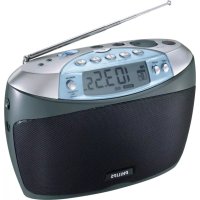
PSS210 - Radio PHILIPS - Free user manual and instructions
Find the device manual for free PSS210 PHILIPS in PDF.


User questions about PSS210 PHILIPS
0 question about this device. Answer the ones you know or ask your own.
Ask a new question about this device
Download the instructions for your Radio in PDF format for free! Find your manual PSS210 - PHILIPS and take your electronic device back in hand. On this page are published all the documents necessary for the use of your device. PSS210 by PHILIPS.
USER MANUAL PSS210 PHILIPS
4 About your new player
5 Accessories
5 Optional accessories
6 Registration
6 More information
7 GETTING STARTED
7 Overview of controls and connections
9 Basic first steps
9 Charging
10 Installing software
11 Connecting your ShoBox to the PC via the USB port
11 Transferring music
11 Powering on / off
12 Selecting a music track to play
12 Look at the demo mode to see key features
13 ORGANIZE AND TRANSFER MUSIC WITH WINDOWS MEDIA PLAYER 10
13 Adding songs to the Windows Media Player Library
15 Ripping songs from a CD
16 Synchronizing content to your device
16 Automatic synchronization:
16 Manual synchronization:
16 To set up automatic synchronization
17 Manual synchronization
20 Creating a playlist
20 Transferring a playlist
21 Managing your tracks and playlists
23 SHOQBOX MAIN ROOT MENU
24 SHOQBOX BASIC OPERATIONS
25 Playing music on ShoqBox
26 ShoBox display icons
26 Battery level indications
27 Customizing settings
30 DETAILED OPERATIONS
30 Music mode
32 Line-in mode
33 ShoQBox time and date
33 Alarm mode5
35 Setting Alarm Time - for users with 12 hour / AM PM settings
35 Setting Alarm Time - for users with 24 hour settings
35 Setting Alarm Repeat
36 Setting Alarm Source - Music
38 Setting Alarm Source - Buzzer
38 Alarm Auto Snooze
38 Disabling Auto Snooze
38 Disabling Alarm during Alarm sound
39 UPDATING YOUR PLAYER
40 To manually check whether your firmware is up to date
41 TROUBLE SHOOTING
41 There is no Music on my player after transfer
41 My ShogBox player is frozen
41 To repair your ShoqBox using Philips Device Manager
42 My player is full and I have less songs on my player than I expected
44 SAFETY AND MAINTENANCE
44 General maintenance
44 About operating and storage temperatures
45 Hearing safety
45 Traffic safety
46 Copyright information
47 Disposal of your old product
47 Environmental information
47 Modifications
48 TECHNICAL DATA
Welcome About your new player
With your newly purchased ShoBox, you can enjoy the following:
- Music playback of MP3 and WMA digital audio tracks from the built-in memory
- Line-in mode to play your favorite external audio sources, like music from your laptop or other digital audio player
- Alarm function to wake up your way to buzzer, music
For more information on any of these functionalities see their dedicated chapters.
Accessories
The following accessories are included with your player
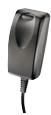
multi-voltage 5V AC/DC power adapter / charger

travel case to protect your ShogBox
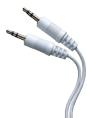
line-in cable to connect ShoQBox to any audio source, like your laptop
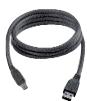
USB cable to connect ShoBox to your PC

CD-ROM with Windows Media Player, Philips Device Manager and user manuals
Optional accessories
These accessories are not included with your player but can be bought separately.
The following accessories are not included with your ShoBox, but can be bought separately.
You can find them at www.philips.com/GoGearshop (Europe) or www/store.philips.com (US).
- Protective ShoqBox neoprene travel pouch with carry strap
Registration
Since it is possible for you to upgrade your product, we recommend that you register your product on www.philips.com/register so we can inform you as soon as new free upgrades become available.
More information
Please visit www.philips.com/support or www.usasupport.philips.com (for U.S. residents)
Enter your product model number to view:
- FAQ, Frequently Asked Questions
- Latest user manuals
- Tutorials
- Latest PC software downloads
- Device Manager / Firmware upgrade files
The model and production numbers can be found on a label at the back of your product under the ShoBox back cover.
Getting started
Overview of controls and connections

| 1 | Navigation | ▲▼▲ | Scroll up / Previous / Fast rewindScroll down / Next / Fast forwardBack to previous levelGo to next level |
| 2 | Volume controls | + - | Increase volumeDecrease volume |
| 3 | Bass boost | DBB | Enable or disable Dynamic Bass Boost to enhance bass tones |
| 4 | MENU | ||
| 5 | POWER / PLAY / PAUSE | ▶II | Press and hold for 2 seconds to power on / off ShoBox,Play / Pause |
| 6 | VIEW | VIEW | Toggle between Root menu and music playback screen / current navigation screen |
| 7 | Connections cover | ||
| 8 | 5V DC | Charger /adapter connection for power supply | |
| 9 | Reset opening | Press here using a pin if the ShoBox "hangs" or "freezes".Note: your music content will not disappear. | |
| 10 | USB | USB connector for USB2.0 transfers from the PC to ShoBox | |
| 11 | Line in | 3.5mm socket for line-in audio cable: connects to LINE OUT / headphone socket of your laptop or auxiliary equipment | |
| 12 | Headphone socket | ◎/Y | 3.5mm jack for headphones (not included)FM antenna socket (Not applicable to PSS231) |
Basic first steps
1
Charging
① Connect the supplied multi-voltage adaptor/charger to your ShoBox by plugging it into the 5V DC connector at the back of your product under the ShoBox back cover and then plug the other end into a standard mains power outlet.
The battery will be fully charged in 4 hours when charging it for the first time and 70% charged in 1 hour for quick charge.
The player is fully charged when the charging animation stops and the battery icon shows a full battery.
④ When fully charged, your ShoBox will supply up to 10 hours* playback of music.
Note: * Rechargeable battery has a limited number of charge cycles and may eventually need to be replaced. Battery life and number of charge cycles vary by use and settings.


When the battery is nearly empty, you will hear beep sounds and see the battery low screen.
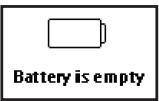
If you do not charge your ShoBox at this point, the player will automatically switch off.
2
Installing software
What you need before software installation:
- PC with Windows® XP (SP1 or above)
- Internet connection with Microsoft Internet Explorer 6.0 or higher
- CD-ROM drive
- USB port
- 500 MB hard disk space recommended
IMPORTANT!
Always install the software from the CD even if you may have Windows Media Player. Any additional utility applications (for example to upgrade and repair your player) will otherwise not be installed.
① Insert the CD supplied with your product into the CD ROM drive of your PC.
② Follow the onscreen instructions to complete the installation of Windows Media Player and Philips Device Manager.
3 You may need to restart your PC after software installation.
If the installation program does not start automatically, browse the CD contents via Windows Explorer and run the program by double clicking on the file ending with .exe.
Lost your CD? Don't worry, you can download the CD contents from www.philips.com/support or www.usasupport.philips.com (for U.S. residents).
3
Connecting your ShoBox to the PC via the USB port
Open the connections cover at the back of your ShoBox. Connect the included adapter to your ShoBox and to the main power supply. Connect the smaller end of your USB cable to your ShoBox and the bigger end to your computer's USB port.
Your ShoQBox will be recognized by your computer and is ready for music transfer.
Transferring music
You can transfer music and pictures to your player using Windows Media Player 10. See "Organise and synchronise music with Windows Media Player 10" in this user manual for more details.
5
Powering on / off
Power on: Press and hold until the PHILIPS screen appears.

Power off: Press and hold again.
Note: Your device automatically powers down if there is no operation and no music played for 10 minutes.
Select a music track to play
Use the navigation keys to the left of the display to select a song for playback.
Play a song by pressing Press the same key to pause the music.
As with most digital audio players, there is no stop key.
Look at the demo mode to see key features
The demo mode can be started from any mode by pressing MENU key.
Go to:
Settings > Demo mode > Start Demo > Yes
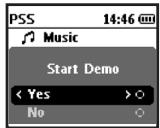
Start Demo in ROOT menu
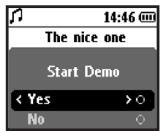
Start Demo in MUSIC mode
To turn off the demo, simply press and hold in Demo mode.
Organize and transfer music with Windows Media Player 10
Note: Windows XP operating system is required for Windows Media Player 10.
This chapter describes the basic operations and steps that you need to follow to successfully transfer music to your ShogBox.
For more information, please refer to Windows Media Player Help on your computer.
Adding songs to the Windows Media Player Library
Adding songs that are already on your computer
① Start Windows Media Player by clicking the following icon on your desktop.

② Select Library tab to access media library.
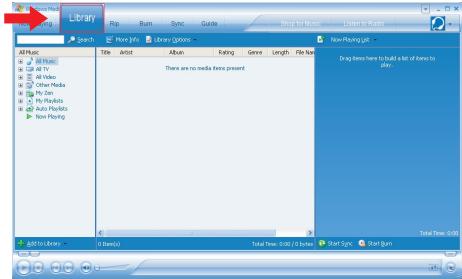
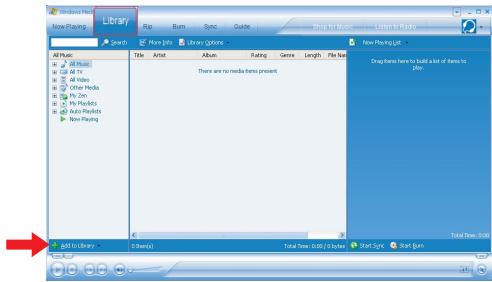
3 Click Add to Library on the bottom left of the screen.
4 You can choose to add files from folder, URL, by searching your computer, etc.
Ripping songs from a CD
If you want to transfer music from a CD to your player, you need to create a digital copy of the music on your PC first. This is called ripping.
① Start Windows Media Player.
② Insert the Audio CD.
③ Select Rip tab to display a list of music tracks on your CD.
If your computer is connected to the Internet, the album information will be automatically obtained so that you don't have to enter the song titles and other information manually.
⑤ If this does not happen, check that you are connected to the Internet and click Find Album Info.
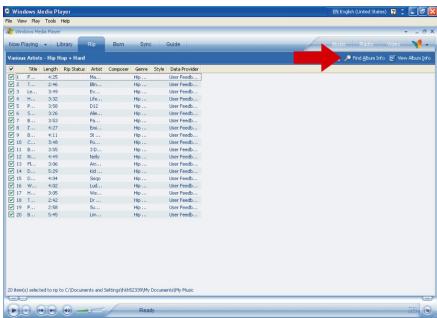
⑥ Select the music tracks you would like to rip and click Rip Music on the top menu bar.
The music tracks will be converted into digital copies and added to Windows Media Player library.
Synchronizing content to your device
When you connect your player to your computer for the first time, Windows Media Player starts the Device Setup Wizard. You can choose to synchronize your player with the library automatically or manually.
Automatic synchronization:
Every time you connect your player to your computer and start Windows Media Player, the content on your device will be updated automatically according to the sync settings you specified.
Manual synchronization:
When you connect your device to your computer, content update will not start until you select the content and specify the order in which it is synchronized.
To set up automatic synchronization
Connect your device to your computer using the USB cable.
Launch Windows Media Player.
Select Sync tab. Click "set up" sync button.
A screen will pop up asking "How do you want to synchronize this device?" Choose "Automatic".
Select "customize the playlists that will be synchronized".
Click "next".
Select those items that you want to be auto synchronized. Click "Finish".
Automatic synchronization has been enabled.
Manual synchronization
① Start Windows Media Player.
② Connect the player to your computer using the supplied USB cable.
③ Select Sync tab.
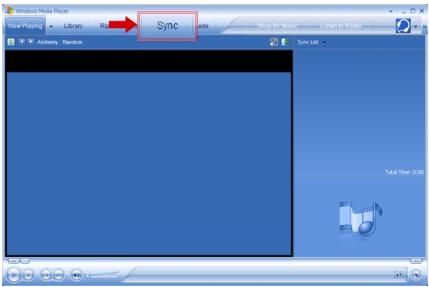
In the pull down menu on the right pane, select Philips or Philips ShoqBox as the destination.
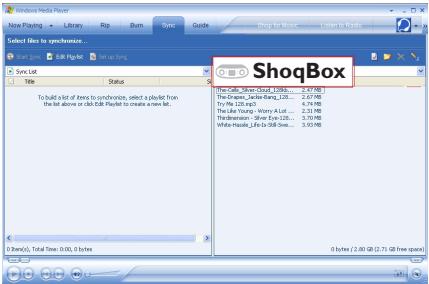
If they are not in the list, click F5 to refresh and try again.
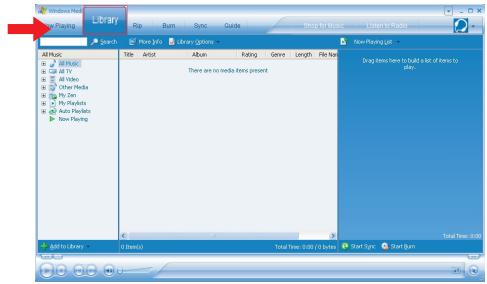
Select Library tab to access media library.
⑦ Click to highlight the song you want to copy.
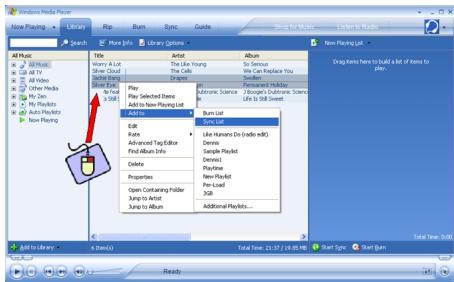
Right click on the song and select Add to > Sync List.
Or drag and drop the song into the Sync List on the right pane.
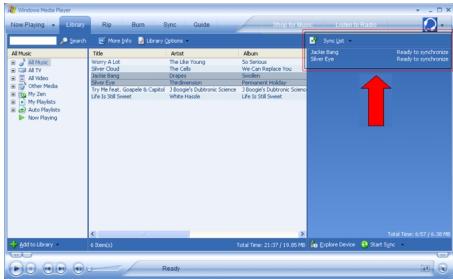
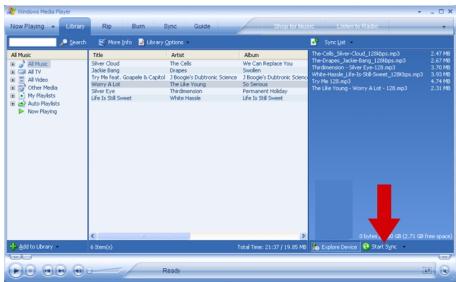
10 Click Start Sync button at the bottom of the screen to start synchronization. The progress will be displayed just above the Start Sync button.

TIP
We recommend that you always use Windows Media Player to transfer music to your player. However, if you prefer to use Window Explorer, always make sure to copy your music into the Media/Music folder, otherwise the songs will neither show nor play on your player.
Creating a playlist
① Start Windows Media Player.
② Select Library tab to access media library.
③ Click to highlight a track.
Right click on the track and select Add to > Additional Playlist...
In the Add to Playlist dialog box, select an existing playlist or click New to add a new playlist.
The track you have selected will be added to the playlist.

TIP
To Select more than one track, press and hold the
To select consecutive tracks in a list, click the first track, then press and hold the
Transferring a playlist
You can transfer playlists to your player via the automatic synchronization option of Windows Media Player.
(See "Setting up automatic synchronization" on page 16 for step by step instructions)
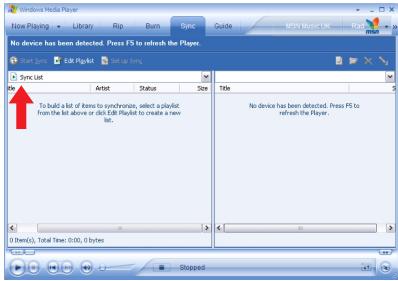
① Select Sync tab.
② Click Sync settings or Setup Sync, select Synchronize device automatically check box and select the playlists to be synchronized with the player.
Managing your tracks and playlists
Delete Tracks and Playlists from Windows Media Player library
① Click to highlight an item.
② Right click and select Delete to delete the item.

TIP
It is not possible to delete playlists that are on your ShoBox player via Windows Media Player. You can only delete the playlist via the device itself or via Windows Explorer.
Delete playlists via Windows Explorer
① Connect the player to your computer.
② Open Windows Explorer.
③ Select Philips ShogBox > Media > Music.
4 Highlight the playlist you want to delete, right click and select Delete.
Edit Track Information via Windows Media Player
① Select Library tab.
② Highlight the track you want to edit, right click and select Edit.
③ Edit on the text box directly.
Search for Tracks via Windows Media Player
① Select Library tab.
② Type a search string in the search field.
3 Click Search to start searching.
A list of tracks containing the search string will be displayed.
You can play, transfer, delete, add to sync list, etc.

TIP
For further details of music transfer on Windows Media Player 10, go to the Help section of Windows Media Player and click Help > Synchronizing content to devices.
ShoqBox main root menu
When your ShoqBox powers up, you will see the main root menu, it contains the following items:
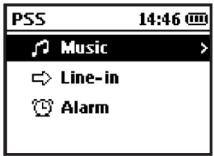
Music to play your digital music tracks
Line-in to use the ShoqBox speakers to listen to music from any external source such as your laptop or other digital audio player
Alarm to enter the alarm function
For more information on any of these functionalities see their dedicated chapters.
ShoqBox basic operations
| Basic Operation | Controls to press |
| Switch ShoBox on / off | Press and hold ▲ |
| Select Music / Line-in | Press VIEW to highlight and select |
| Enter/ exit the menu display | Press MENU |
| Scrolling and browsing | ▲, ▼, □, ▲ for up, down, left, right |
| Go to different levels of menu | Press ▷ for next and ▲ for previous |
| Play music | Highlight selection and press ▲ |
| Pause music playback | Press ▲ during playback |
| Change volume | Press VOLUME + / - |
| Fast forward in a track | Press and hold ▼ |
| Rewind in a track | Press and hold ▲ |
| Play next or previous track | Press down ▼ for next and ▲ for previous |
| View more information about track | Press ▷ from playscreen |
Playing music on ShoqBox
From the root menu, press to enter the music selection options.
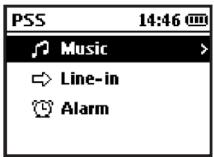
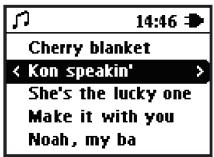
You can search your ShoBox music library via the following options, see screen example
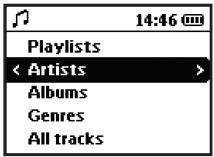
When you find a song you wish to play, ensure it is highlighted and press
ShoqBox display icons
| The ShoBox display will use the following icons, which are explained in the table below: | ||
| Music mode | Line-in mode | |
| Alarm clock | Equalizer | |
| < Previous menu / library level available | > Next menu / library level available | |
| Option available for selection | Option selected | |
| Repeat 1 | Repeat all | |
| Shuffle | DBB Dynamic Bass Boost selected | |
Battery level indications

Low battery warning: appears when battery power is very low. Please use the 5V adapter to recharge/ operate your ShoqBox, otherwise ShoqBox enters the power shutdown mode within a minute.

Battery one-third full

Battery two-thirds full

Battery full

appears when charging battery

appears when operating on adapter fully charged
Customizing settings
① Press MENU for menu options. Press ▲ to scroll up or ▼ to scroll down for your option. Press ▷ for next or □ for previous levels of menu.
② Press to confirm your selection by checking
③ Press MENU or to exit the menu display. Options for each setting are shown on ShoqBox's display.
Bold means default setting.
| Mode | Level 1 | Level 2 | Level 3 | Level 4 Default setting in bold. |
| Music | Shuffle / Repeat | Repeat 1 | ||
| Repeat all | ||||
| Shuffle & Repeat | ||||
| Shuffle | ||||
| Off | ||||
| Playscreen info | Show next track | |||
| Show track number | ||||
| Common | Sleep timer | Off | ||
| 15 mins | ||||
| 30 mins | ||||
| 60 mins | ||||
| Mode | Level 1 | Level 2 | Level 3 | Level 4 |
| Equalizer | Rock | |||
| HipHop | ||||
| Jazz | ||||
| Dance | ||||
| Funk | ||||
| Off | ||||
| Settings | Display | Backlight | 5 sec | |
| 10 sec | ||||
| 30 sec | ||||
| Off | ||||
| Contrast | Level 6 - 1 | |||
| Screen saver | Off | |||
| 30 sec | ||||
| 1 min | ||||
| 2 mins | ||||
| Auto Shutdown | 30 sec | |||
| 2 mins | ||||
| 5 mins | ||||
| 10 mins | ||||
| Clock | Time and Day | Day / Hour / Minute | ||
| 12 / 24 hour | 12-hour | |||
| 24-hour | ||||
| Language | English | |||
| Français | ||||
| Italiano | ||||
| Deutsch | ||||
| Espaniol | ||||
| Português | ||||
| 简体中文 | ||||
| 繁體中文 | ||||
| 日本語 | ||||
| 한국어 | ||||
| Nederlandis | ||||
| Svenska | ||||
| Information | ||||
| Restore factory settings | No | |||
| Yes | ||||
| Demo mode | Yes | |||
| No | ||||
Detailed operations Music mode
Your device is preloaded with some music tracks. You can also transfer your digital music collection from your computer to your device through Windows Media Player 10.
More information about music transfer can be found in the above sections of the manual.
Once you have downloaded MP3/ WMA tracks from your computer to the ShoqBox, you can access your music in 5 different ways on the ShoqBox.
① Press VIEW and select MUSIC to enter the music mode.
② Press the navigation keys to the left of the display to scroll up or down for your option
③ Press to select an option / to go to the next, or to go to the previous levels of library.
④ Press to play your selection.
You will see the music playback screen.
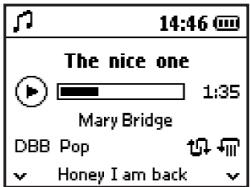
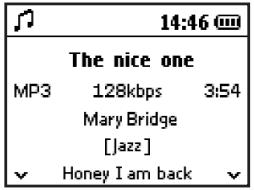
From this screen, you can click to see more information about the song, including the next song scheduled for playback.
Music mode settings
It is possible to change the play screen default to show number of tracks in the selection instead of the next track title.
Go to
MENU - PLAYSCREEN INFO - Show next track (default)
or
MENU - PLAYSCREEN INFO - Show track number
Line-in mode
You can use your ShoqBox to act as a powerful mini speaker:
① Connect the included audio cable between LINE IN on ShogBox to the LINE OUT / connection on your auxiliary equipment.
②. On ShogBox, press VIEW and select line-in to enter the Line in mode.
③. Operate the controls on your auxiliary equipment to playback.
④ Adjust the volume on both ShoqBox and your device.
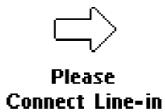
If you activate the Line-in mode without turning on your auxiliary equipment, laptop or other digital audio player, then you will see this error message.
ShoqBox time and date
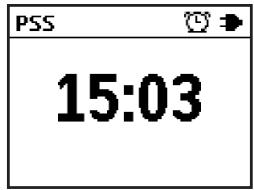
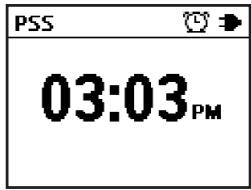
The time is displayed using the 12-hour and 24-hour clock. 12-hour clock is the default option.
You will need to set both the clock time and date before you can use the alarm options.
① In any mode, enter the menu: Settings > Clock > Day and Time > ....
② Highlight the menu option you want to adjust.
③ Press ▲ and ▼ to adjust the day / hours / minutes.
When the ShoqBox is connected to mains power, you will see the time on the display.
Example 24 hour settings
Example 12 hour settings
Alarm mode
You can use ShoQBox as an alarm clock. Before you activate the alarm, ensure that you have set the time and date correctly.
Note: During the alarm call, the current ShoBox mode (for example Music / Line-in) will be interrupted.
- To activate the alarm, enter Alarm from the root menu screen.
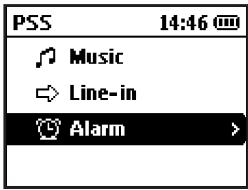
- Select ON or OFF
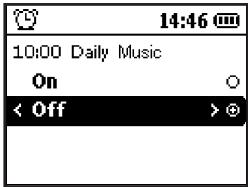
- If you select ON, you will be brought to the Alarm main settings screen. In the screen below, the Alarm is set for 10:00.
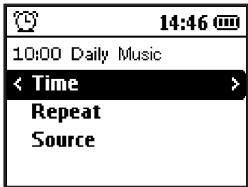
| Settings | Function | Screen example |
| Time | Set Alarm time | Screen example is 10:00 |
| Repeat | Set Alarm frequency | Screen example is Daily |
| Source | Set Alarm sound | Screen example is Music |
Setting Alarm Time - for users with 12 hour / AM PM settings

You need to select the alarm hour, minute and AM / PM separately.
Setting Alarm Time - for users with 24 hour settings
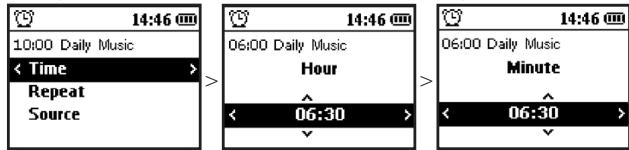
You need to set the alarm hour and minute separately.
Setting Alarm Repeat
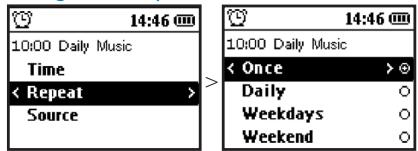
You can set the Repeat settings of your Alarm according to the table below:
| Daily | Alarm will be activated every day |
| Weekdays | Alarm will be activated every day between Monday to Friday |
| Weekend | Alarm will be activated every Saturday and Sunday |
The alarm will sound for 2 minutes in your selected alarm source mode and then enter the "Auto snooze" mode. The "Auto snooze" alarm remains active and repeats the call at 10-minute intervals, until you choose to cancel the alarm.
After one hour, the Auto snooze will no longer be active.
Setting Alarm Source - Music
You can select which type of Music source you wish to use for your Alarm.
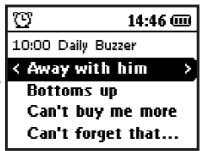
Use the navigation keys to the left of the display to select alarm source by following the example screens below.
If you select Music, you can select a specific music track, you can select it by going one level deeper in the menu after Artists / Albums (see screens 4 and 5 below).
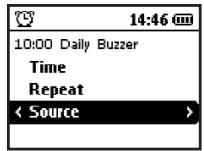
Screen 1
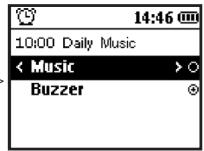
Screen 2
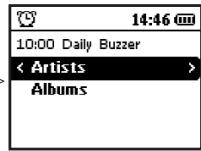
Screen 3
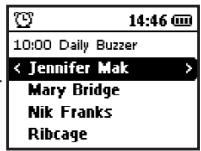
Screen 4
Screen 5
Setting Alarm Source - Buzzer
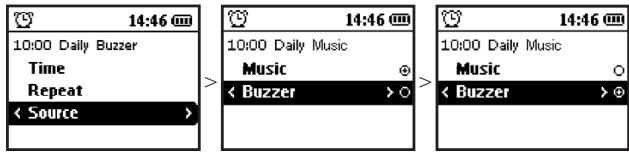
You can select Buzzer for your Alarm.
Use the navigation keys to the left of the display to select buzzer by following the example screens below.
Alarm Auto Snooze
When you alarm is activated, it will sound for 2 minutes. If you do not press a key during this minute, the ShoBox will Auto Snooze. During Auto Snooze, your alarm will sound every 10 minutes for 2 minutes.
Disabling Auto Snooze
Auto Snooze will automatically stop after 1 hour.
Disabling Alarm during Alarm sound
During the alarm sound, any key will bring up the message below
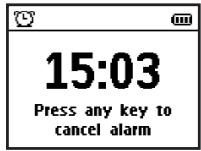
If you then press any key, the alarm will be cancelled.
Updating your player
Your player is controlled by an internal software program called firmware. New versions of the firmware may be released after you have purchased your player.
A software program called Philips Device Manager will monitor the firmware status of your player and notify you if a new firmware is available. You need an Internet connection for this.
Install Philips Device Manager from the supplied CD or download the latest version from www.philips.com/support or www.usasupport.philips.com (for U.S. residents)
Every time you connect your player to your computer, Philips Device Manager will automatically connect to the Internet and check for updates.
To manually check whether your firmware is up to date
① Power your player with the supplied AC/DC adapter.
② Connect your player to the computer.
③ Launch Philips Device Manager from Start > Programs > Philips Device Manager. Alternatively, you can launch Philips Device Manager from the computer desktop by double clicking on the icon below.

④ Select your device.
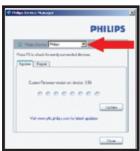
⑤ Click Update.
Troubleshooting
There is no Music on my player after transfer
If you cannot find the songs that you transferred on your player, check the following:
- Did your transfer with Windows Media Player? Files transferred via other means will only be recognized as data files - they will neither appear nor play in the music library of your device.
- Are your songs in MP3 or WMA format? Other formats will not playback on the ShoqBox.
My ShoQBox player is frozen
In rare cases your player can "FREEZE". Don't panic, just insert a pin into the RESET hole located on the back of ShoqBox and press and hold the pin until the device shuts down. Then press power to restart.
The available content on your player will not be erased.
If nothing happens, recharge the battery for at least 4 hours and try to switch on or reset again. If this does not work, you might have to repair your player with Philips Device Manager.
To repair your ShoBox using Philips Device Manager
1 Connect your device to your computer. Launch Philips Device Manager from Start > Program > Philips Device Manager.
Select your product from the drop down menu.
2 In the main window, click Repair.
Press OK to confirm your selection. You will be prompted to disconnect your device from your computer as soon as Philips Device Manager finishes interacting with your device.
3 Once the USB cable is disconnected, firmware restore will start automatically. The process is complete when the device restarts and displays the power up splash screen.

During repair all content and music will be erased!
Please back up all your files before device restore/repair.
My player is full and I have less songs on my player than I expect
Your device has built-in memory to store songs. Check your model number to see the actual memory size. You will be able to store more songs on your device if you use WMA formatted songs in 64 kbps with variable bitrate.
Note:
This equipment has been tested and found to comply with the limits for a Class B digital device, pursuant to part 15 of the FCC Rules. These limits are designed to provide reasonable protection against harmful interference in a residential installation. This equipment generates, uses, and can radiate radio frequency energy and, if not installed and used in accordance with the instruction manual, may cause harmful interference to radio communications.
However, there is no guarantee that interference will not occur in a particular installation. If this equipment does cause harmful interference to radio or television reception, which can be determined by turning the equipment off and on, the user is encouraged to try to correct the interference by one or more of the following measures:
- Relocate the receiving antenna.
- Increase the separation between the equipment and receiver.
- Connect the equipment into an outlet on a circuit different from that to which the receiver is connected.
- Consult the dealer or an experienced radio/ TV technician for help.
Notice for Canada:
This Class B digital apparatus complies with Canadian ICES-003.
The set complies with the FCC-Rules, Part 15 and with 21 CFR 1040.10. Operation is subject to the following two conditions:
- This device may not cause harmful interference, and
- This device must accept any interference received, including interference that may cause undesired operation.
Notice for the European Union
This product complies with the radio interference requirements of the European Union.
Safety and Maintenance
General maintenance
To avoid damage or malfunction:
- Do not expose to excessive heat caused by heating equipment or direct sunlight.
- Do not drop your player or allow objects to fall on your player.
- Do not allow your player to be submersed in water. Do not expose the earphone socket or battery compartment to water as water entering the set may cause major damage.
- Do not use any cleaning agents containing alcohol, ammonia, benzene, or abrasives as these may harm the set.
Active mobile phones in the vicinity may cause interference. - Backup your files. Please ensure that you retain the original files that you have downloaded to your device. Philips is not responsible for any loss of content if the product becomes damaged or not readable / legible.
- Manage (transfer, delete, etc.) your music files only through included music software to avoid problems!
About operating and storage temperatures
- Operate in a place where the temperature is always between 0 and 35^ C( 32to95^ F) .
- Store in a place where the temperature is always between -20 and 45^ C (-4 to 113^ F ).
Battery life may shorten in low temperature conditions.
Take care when using headphones (not included with ShoqBox).
Hearing safety
Listen at a moderate volume. Using headphones at high volume can impair your hearing. We recommend Philips headphones (sold separately) for this product.
Important (only for models with by-packed headphones):
Philips guarantees compliance with the maximum sound power of its audio players as determined by relevant regulatory bodies only with the original model of provided headphones. In case this one needs replacement, we recommend that you contact your retailer to order a model identical to that of the original provided by Philips.
Traffic safety
Do not use headphones while driving or cycling as you may cause an accident.
Copyright information
- All other brand and product names are trademarks of their respective companies or organizations.
- Unauthorized duplication of any recordings downloaded from the internet or made from audio CDs is a violation of copyright laws and international treaties.
- The making of unauthorized copies of copy-protected material, including computer programmes, files, broadcasts and sound recordings, may be an infringement of copyrights and constitute a criminal offence. This equipment should not be used for such purposes.
- Windows Media and the Windows logo are trademarks, or registered trademarks of Microsoft Corporation in the United States and/or other countries.
Important
This product is protected by certain intellectual property rights of Microsoft Corporation.
Use or distribution of such technology outside this product is prohibited without a license from Microsoft or an authorized Microsoft subsidiary.
Content providers are using the digital rights management technology for Windows Media contained in this device ("WM-DRM") to protect the integrity of their content ("Secure Content") so that their intellectual property, including copyright, in such content is not misappropriated.
This device uses WM-DRM software to play Secure Content ("WM-DRM Software").
If the security of the WM-DRM Software in this device has been compromised, owners of Secure Content ("Secure Content Owners") may request that Microsoft revoke the WM-DRM Software's right to acquire new licenses to copy, display and/or play Secure Content.
Revocation does not alter the WM-DRM Software's ability to play unprotected content.
A list of revoked WM-DRM Software is sent to your device whenever you download a license for Secure Content from the Internet or from a PC.
Microsoft may, in conjunction with such licenses, also download revocations lists onto your device on behalf of Secure Content Owners.
Disposal of your old product
Your product is designed and manufactured with high quality materials and components, which can be recycled and reused.
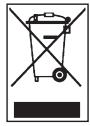
When this crossed-out wheeled bin symbol is attached to a product, it means the product is covered by the European Directive 2002/96/EC.
Please inform yourself about the local separate collection system for electrical and electronic products.
Please act according to your local rules and do not dispose of your old products with your normal household waste. The correct disposal of your old product will help prevent potential negative consequences for the environment and human health.
Environmental information
We have reduced the packaging to its minimum and made it easy to separate into materials: cardboard, PS, PE, PET.
Your set consists of material which can be recycled if disassembled by a specialized company. Please observe the local regulations to dispose of packaging, exhausted batteries and old equipment.
Modifications
Modifications not authorized by the manufacturer may void user authority to operate this device.
Technical data
| Picture / Display | Display Type: | LCD |
| Backlight: | White superbright LED | |
| Line of text: | 5 | |
| Resolution: | 128 x 96 pixels | |
| Indication: | Battery status, time, alarm, DBB | |
| Language support: | English, French, Spanish, German, Dutch, Swedish, Italian, Portuguese, Chinese (simplified), Chinese (traditional), Japanese, Korean | |
| Sound | Output power: | 2 x 2 W RMS (4 ohm, speaker) |
| 2 x 3 mW RMS (16 ohm, earphone) | ||
| Amplifier: | 2 ch x 2 W Class-D amplifier | |
| Sound enhancement technology: | ||
| Dynamic Bass Boost (DBB) | ||
| Equalizer: | 6 bands | |
| Equalizer settings: | Rock, Pop, Jazz, Hiphop, Classic, Normal | |
| Volume control: | Digital | |
| Signal to noise ratio: | >80 dB (earphone), >50 dB (speaker) | |
| Frequency response: | 20 Hz-20 KHz | |
| Audio Playback | Compression format:MP3, WMA | |
| ID3 Tag support: | Track title, artist name, album name, file name | |
| MP3 bit rates: | 8-320 kbps and VBR | |
| MP3 sample rates: | 8, 11.025, 16, 22.050, 32, 44.1, 48 KHz | |
| WMA bit rates: | 5-192 kbps | |
| WMA sample rates: | 8, 11.025, 16, 22.050, 32, 44.1, 48 KHz | |
Storage Media
Built-in memory capacity:
PSS231 - 1GB** (holds and plays up to 1000 songs)
Built-in memory type: NAND Flash
Connectivity
Line in (Aux in): 3.5 mm
Power
Adaptor type: multi-voltage (AC: 100-240 V, 50-60 HZ)
Battery type: built-in Li-ion rechargeable battery
Battery capacity: 1600 mAh
Battery playback time: 10 hours*
Charging time: 4 hours
Battery replaceable: by Philips service only
System requirements
PC with Windows® XP (SP1 or above)
Internet connection with Microsoft Internet Explorer 6.0 or higher
CD-ROM drive
USB port
500 MB hard disk space recommended
- Rechargeable batteries has a limited number of charge cycles and may eventually need to be replaced. Battery life and number of charge cycles vary by use and settings.
** 1GB = 1 billion bytes; available storage capacity will be less.
1MB = 1 million bytes; available storage capacity will be less.
Full memory capacity may not be available as some memory will be reserved for the player.
Storage capacity based on 4 minutes per song and 64 kbps WMA or 128 kbps MP3 encoding.
- Actual transfer speed may vary based on your operating system and software configuration.
PHILIPS reserves the right to make design and specification changes for product improvement without prior notice.
All rights reserved.


Be responsible. Respect copyrights
Printed in China
Specifications are subject to change without notice.
Trademarks are the property of Koninklijke Philips Electronics N.V.
or their respective owners
2005 © Koninklijke Philips Electronics N.V. All rights reserved.
www.philips.com