Time Crisis Razing Storm (Playstation 3) - Game SONY - Free user manual and instructions
Find the device manual for free Time Crisis Razing Storm (Playstation 3) SONY in PDF.


| Product type | PlayStation 3 video game |
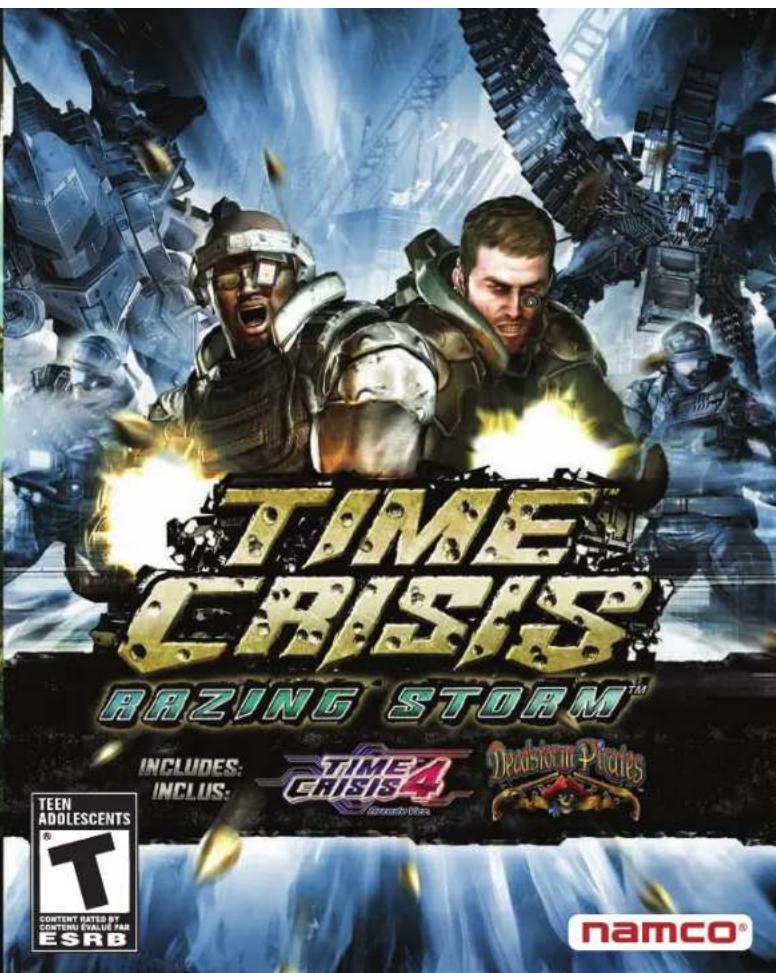
| Title | Time Crisis Razing Storm |
| Publisher | SONY (NAMCO BANDAI Games America Inc.) |
| Platform | PlayStation 3 |
| Genre | Shooting game (light gun) with Time Crisis 4 and Deadstorm Pirates |
| Number of players | 1 to 4 depending on mode |
| Manual language | French |
| Case dimensions | 13.5 × 1.5 × 17 cm (estimated) |
| Case weight | Approximately 100 g |
| Power supply | None (game on disc) |
| Main features | Arcade, Sentinel, Story, and Online Battle modes; PlayStation Move and Guncon3 compatibility; three games included |
| Maintenance and cleaning | Clean the disc with a soft, dry cloth in straight lines from center to edge; do not use solvents |
| Safety | Read warnings about epilepsy and projection; use motion controllers with caution |
| Spare parts and repairability | Limited 90-day warranty; contact customer service (support@namicobandaigames.com) for returns |
| General information | Contains three games: Time Crisis Razing Storm, Deadstorm Pirates, Time Crisis 4; requires an HDTV |
Frequently Asked Questions - Time Crisis Razing Storm (Playstation 3) SONY
User questions about Time Crisis Razing Storm (Playstation 3) SONY
0 question about this device. Answer the ones you know or ask your own.
Ask a new question about this device
Download the instructions for your Game in PDF format for free! Find your manual Time Crisis Razing Storm (Playstation 3) - SONY and take your electronic device back in hand. On this page are published all the documents necessary for the use of your device. Time Crisis Razing Storm (Playstation 3) by SONY.
USER MANUAL Time Crisis Razing Storm (Playstation 3) SONY
WARNING: PHOTOSENSITIVITY/EPILEPSY/SEIZURES
A very small percentage of individuals may experience epileptic seizures or blackouts when exposed to certain light patterns or flashing lights. Exposure to certain patterns or backgrounds on a television screen or when playing video games may trigger epileptic seizures or blackouts in these individuals. These conditions may trigger previously undetected epileptic symptoms or seizures in persons who have no history of prior seizures or epilepsy. If you, or anyone in your family, has an epileptic condition or has had seizures of any kind, consult your physician before playing. IMMEDIATELY DISCONTINUE use and consult your physician before resuming gameplay if you or your child experience any of the following health problems or symptoms:
- dizziness - eye or muscle twitches - disorientation - any involuntary movement
- altered vision - loss of awareness - seizures or convulsion.
RESUME GAMEPLAY ONLY ON APPROVAL OF YOUR PHYSICIAN.
Use and handling of video games to reduce the likelihood of a seizure
- Use in a well-lit area and keep as far away as possible from the television screen.
- Avoid large screen televisions. Use the smallest television screen available.
- Avoid prolonged use of the PlayStation 3 system. Take a 15-minute break during each hour of play.
- Avoid playing when you are tired or need sleep
Stop using the system immediately if you experience any of the following symptoms: lightheadedness, nausea, or a sensation similar to motion sickness; discomfort or pain in the eyes, ears, hands, arms, or any other part of the body. If the condition persists, consult a doctor.
NOTICE:
Use caution when using the DUALSHOCK *3 wireless controller and the PlayStation Move motion controller motion sensor function. When using the DUALSHOCK *3 wireless controller or the PlayStation Move motion controller motion sensor function, be cautious of the following points. If the controller hits a person or object, this may cause accidental injury or damage. Before using, check that there is plenty of space around you. When using the controller, grip it firmly to make sure it cannot slip out of your hand. If using a controller that is connected to the PS3TM system with a USB cable, make sure there is enough space for the cable so that the cable will not hit a person or object. Also, take care to avoid pulling the cable out of the PS3TM system while using the controller.
WARNING TO OWNERS OF PROJECTION TELEVISIONS:
Do not connect your PS3™ system to a projection TV without first consulting the user manual for your projection TV, unless it is of the LCD type. Otherwise, it may permanently damage your TV screen.
HANDLING YOUR PS3™ FORMAT DISC:
- Do not bend it, crush it or submerge it in liquids. - Do not leave it in direct sunlight or near a radiator or other source of heat. - Be sure to take an occasional rest break during extended play. - Keep this disc clean. Always hold the disc by the edges and keep it in its protective case when not in use. Clean the disc with a lint-free, soft, dry cloth, wiping in straight lines from center to outer edge. Never use solvents or abrasive cleaners.
NOTICES:
Video output in HD requires cables and an HD-compatible display, both sold separately. Voice chat requires a headset, sold separately. Compatible with most Bluetooth and USB wired headsets. Some limitations apply.
GETTING STARTED
PlayStation ^® 3 system
Starting a game: Before use, carefully read the instructions supplied with the PS3™ computer entertainment system. The documentation contains information on setting up and using your system as well as important safety information.
Check that the MAIN POWER switch (located on the system rear) is turned on. Insert the TIME CRISIS™: RAZING STORM™ disc with the label facing up into the disc slot. Select the icon for the software title under [Game] in the PS3™ system's home menu, and then press ✗. Refer to this manual for information on using the software.
Quitting a game: During gameplay, press and hold down the PS button on the wireless controller for at least 2 seconds. Then select "Quit Game" from the screen that is displayed.
Hint
To remove a disc, touch the eject button after quitting the game.

Trophies: Earn, compare and share trophies that you earn by making specific in-game accomplishments. Trophies access requires a PlayStation ^® Network account.
Saved data for PS3™ format software
Saved data for PS3™ format software is saved on the system's hard disk. The data is displayed under "Saved Game Utility" in the Game menu.
Controls
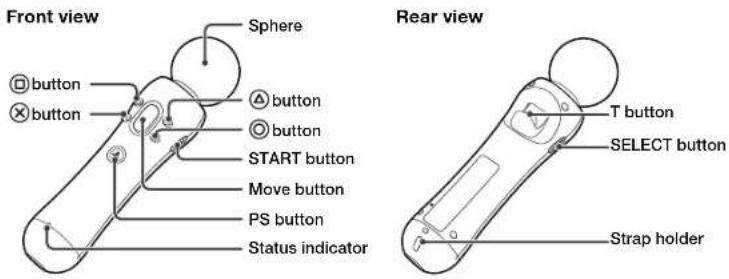
Using the PlayStation ^® Move motion controller
Using the PlayStation ^® Move navigation controller
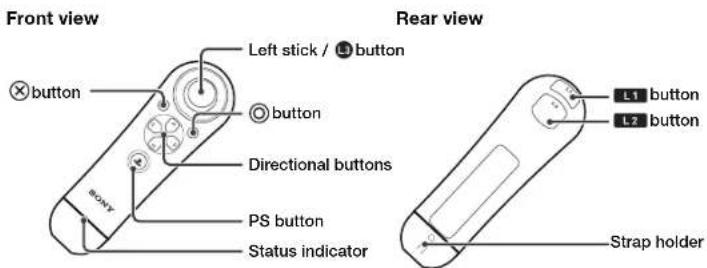
Note: Always wear the included wrist strap with the PlayStation *Move motion controller. To use the controller, you must first register or "pair" the controller with the PlayStation *3 system and assign a number to the controller. For details, refer to the instructions supplied with the system.
CALIBRATING CONTROLLERS
If you have a PlayStation®Move motion controller or Guncon3 connected to your PlayStation®3, please calibrate the controller before playing. Please follow the instructions on-screen when you receive a calibration prompt before starting any game.
*After calibrating the controller, please do not drastically change your distance or direction from the television. You may have to re-calibrate the controller if you move too far from your original calibration point.
PlayStation®Move motion controller
In Crosshair Settings, aim the motion controller at the PlayStation®Eye and press the Move button. A target will then appear on screen. Please aim the sphere at the target and press the T button (or Move button when playing Time Crisis: Razing Storm or Time Crisis 4).
Calibrating mid-game: When you feel like the calibration needs readjustment in the middle of gameplay, please aim the sphere at the PlayStation®Eye and hold the SELECT button. The controller will perform a simple auto-calibration.
Guncon3
You can select from the following two calibration methods for the Guncon3. This can be accessed at the start of each game or in Crosshair Settings.
Basic Calibration: Perform the default calibration.
Precise Calibration: Aim at more targets and perform a finer calibration.
TIME CRISIS: RAZING STORM
Say yes at the sign-in prompt at the start of the game to sign into the PlayStation®Network. If you do not sign in, you will not be able to access certain modes.
*You can also sign into the PlayStation®Network via the XMB™.
ARCADE MODE AND SENTRY MODE CONTROLS
One or two players can play Arcade Mode simultaneously. Up to four people can play Sentry Mode together by sharing one controller. The following are Type I controls for the PlayStation®Move motion controller.
*Please confirm the controls for the Guncon3 and wireless controller in Control Settings.
Cursor Movement....sphere
Shoot ....T button
*Hold down the button to continuously fire in Arcade Mode
Shield (Arcade Only)......Move button, Ⓞ, ✕, △, ☐
*Raising the shield also reloads ammo. Holding the button will leave the shield up for defense.
Zoom (Sentry Only)......Move button, Ⓞ, ⚗, △, ☐
*Press the button again to zoom out. Players can still move the camera zoomed in by aiming the crosshair at the edge of the screen.
Pause Menu ....START button
TIME CRISIS: RAZING STORM
STORY MODE CONTROLS
Freely move around different environments with an array of weapons to fulfill your mission objectives. The following are Type I controls for the PlayStation®Move motion controller.
*Please confirm the controls for the Guncon3 and wireless controller in Control Settings.
Camera and Crosshair Movement: sphere
Zoom (weapon specific): left button / Ⓞ
Auto-Look: L1 / R1
Move: left stick / right stick
Run: Move while holding down L2 / R2
Shoot: T button
Grenade: down button / ✗
Punch or Special Action: L3 button / R3 button
Change Weapons: up button /
Pick Up Weapon: hold up button / hold Ⓐ
Reload: right button /
G Action (Hide): Raise the sphere above the screen at a G Action Point
G Action (Step Out): Aim the sphere back at the screen at a G Action Point
Pause Menu: START button
*These controls also apply to Online Battle Mode.
TIME CRISIS: RAZING STORM
Camera and Crosshair Movement: sphere
Zoom (weapon specific): left button / ◎
Auto-Look: L1
Move: left stick
Run: Move while holding down L2
Shoot: T button
Grenade: down button / ✗
Punch or Special Action: L3 button
Change Weapons: up button /
Pick Up Weapon: hold up button / hold
Reload: right button /
G Action (Hide): Raise the sphere above the screen at a G Action Point
G Action (Step Out): Aim the sphere back at the screen at a G Action Point
Pause Menu: START button
*These controls also apply to Online Battle Mode.
DEADSTORM PIRATES
Say yes at the sign-in prompt at the start of the game to sign into the PlayStation®Network. If you do not sign in, you will not be able to access certain modes.
*You can also sign into the PlayStation®Network via the XMB™
CONTROLS
The following are controls for the PlayStation®Move motion controller.
*Please confirm the controls for the Guncon3 and wireless controller in Control Settings.
Crosshair Movement .....sphere
Shoot ....T button
Pause Menu ....START button
TIME CRISIS 4
Say yes at the sign-in prompt at the start of the game to sign into the PlayStation®Network. If you do not sign in, you will not be able to access certain modes.
*You can also sign into the PlayStation®Network via the XMB™.
CONTROLS
The following are controls for the PlayStation®Move motion controller.
*Please confirm the controls for the Guncon3 and wireless controller in Control Settings.
Crosshair Movement .....sphere
Shoot ....T button
Change Weapon....T button (while taking cover)
Reload (Taking Cover).....Move button, Ⓞ, ✗, ▲, ☐
*Holding the button keeps you in cover
Pause Menu ....START button
Ever get stuck and just need that extra edge to beat the level? Having problems getting your game to work properly? Now you can get one-on-one help from NAMCO BANDAI Games America Inc. using your web browser! Simply go to livehelp.namco.com for more details. Live Counselors available from 5am-5pm Monday-Friday Pacific Time.
NAMCO BANDAI Games America Inc.
ATTN: Customer Service
4555 Great America Parkway, Suite 201
Santa Clara, CA 95054
Before returning any defective materials to us, please contact us for a Return Merchandise Authorization (RMA) number. You can reach us at the address above, via e-mail at support@namcobandeigames.com or contact us at (408) 235-2222. Please note that any materials sent to us without an RMA number will be refused and returned. We highly recommend that you use a traceable and / or insured method of shipping the materials to us.
NAMCO BANDAI Games America Inc. Online: www.namcobandaigames.com
Visit our Website to get information about our new titles.
LIMITED WARRANTY: NAMCO BANDAI Games America Inc. warrants to the original purchaser that this NAMCO BANDAI Games America Inc. game pack shall be free from defects in material and workmanship for a period of ninety (90) days from the date of purchase. If a defect covered by this limited warranty occurs during this 90-day limited warranty period, NAMCO BANDAI Games America Inc. will repair or replace the defective game pack or component part, at its option, free of charge. This limited warranty does not apply if the defects have been caused by negligence, accident, unreasonable use, modification, tampering, or any other cause not related to defective material or workmanship.
LIMITATIONS ON WARRANTY: Any applicable implied warranties of merchantability and fitness for a particular purpose, are hereby limited to ninety (90) days from the date of purchase and are subject to the conditions set forth herein. In no event shall NAMCO BANDAI Games America Inc. be liable for consequential or incidental damages resulting from the possession or use of this product. The provisions of the limited warranty are valid in the United States only. Some states do not allow limitations on how long an implied warranty lasts, or exclusion of consequential or incidental damages, so the above limitation or exclusion may not apply to you. This limited warranty provides you with specific legal rights. You may have other rights which vary from state to state.
"PlayStation", "DLALSHOCK" and "SOAXIS" are registered trademarks and "PS3" and the PlayStation Network logo are trademarks of Sony Computer Entertainment Inc.
To register product online go to
WWW.NAMCOREG.COM
⚠ AVERTISSEMENT : PHOTOSENSIBILITÉ/ÉPILEPSIE/CONVULSIONS
Acquisition auto: L1 / R1
Sr. Localization Manager TAKASHI AKIYAMA
Localization Manager RYOTA TOYAMA
Localization Producer TED TSUNG
Localization Specialist KATHERINE SCHILLING
SALES
Vice President of Sales SUSAN HUGHES-TAIGEN
National Sales Manager TERRY CARLSON
MARKETING & PR
Senior Brand Manager DENNIS LEE
Brand Manager LAILI BOSMA
Senior PR Manager ARNE CUAL-PEDROSO
PR Manager TIM NG
Channel Marketing JUSTIN LUCAS
Senior Video Editor KEISUKE KUMIJI
Creative Services Manager MICHIKO WANG
PRODUCT SERVICES
Director of Operations TAD HIRABAYASHI
Senior Operations Manager JENNIFER TERSIGNI
Operations Analyst CHARMAINE MORENA
QUALITY ASSURANCE
QA Manager MIKE PETERSON
CQC Supervisor DAMON BERNAL
Project Coordinator JESSE MEJIA
Department Coordinator TEREZA SIEGEL
QA Lead MATT PETERSON
Assistant QA Lead DAN TRAN
CQC Testers JOSHUA GRAVES DAVID MOYA JOHNNY MOYA SHARON MARMIT
QA Testers JOSHUA HELM MICHAEL MOK DREW STEWART ANDY YI ARJANG TAIBY ANDY CAMERON
DES CONSEILS MAINTENANT OFFERTS EN LIGNE!
4555 Great America Parkway, Suite 201
Santa Clara, CA 95054 U.S.A.
"PlayStation", "DUALSHOCK" and "SIXAXIS" are registered trademarks and "PS3" and the PlayStation Network logo are trademarks of Sony Computer Entertainment Inc.
To register product online go to
WWW.NAMCOREG.COM

- WARNING: PHOTOSENSITIVITY/EPILEPSY/SEIZURES
- Use and handling of video games to reduce the likelihood of a seizure
- NOTICE:
- WARNING TO OWNERS OF PROJECTION TELEVISIONS:
- HANDLING YOUR PS3™ FORMAT DISC:
- NOTICES:
- GETTING STARTED
- PlayStation ® 3 system
- Hint
- Saved data for PS3™ format software
- Controls
- CALIBRATING CONTROLLERS
- PlayStation®Move motion controller
- Guncon3
- TIME CRISIS: RAZING STORM
- ARCADE MODE AND SENTRY MODE CONTROLS
- STORY MODE CONTROLS
- DEADSTORM PIRATES
- TIME CRISIS 4
- ⚠ AVERTISSEMENT : PHOTOSENSIBILITÉ/ÉPILEPSIE/CONVULSIONS
- SALES
- MARKETING & PR
- PRODUCT SERVICES
- QUALITY ASSURANCE
- DES CONSEILS MAINTENANT OFFERTS EN LIGNE!
Brand : SONY
Model : Time Crisis Razing Storm (Playstation 3)
Category : Game