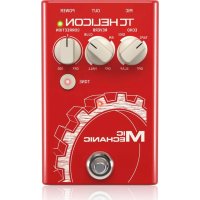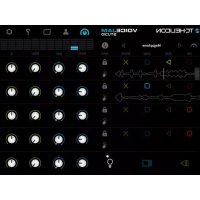
Voice Jam Studio - Hi-fi system TC HELICON - Free user manual and instructions
Find the device manual for free Voice Jam Studio TC HELICON in PDF.


| Product type | Vocal processor with looping and real-time effects |
| Brand | TC Helicon |
| Model | Voice Jam Studio |
| Dimensions | Approximately 150 x 80 x 25 mm |
| Weight | Approximately 200 g |
| Power supply | USB 5V (via AC adapter or computer USB port) |
| Built-in microphone | Yes, with automatic feedback suppression |
| External microphone input | 3.5 mm jack or XLR via adapter (not included) |
| Headphone output | 3.5 mm jack |
| Connectivity | USB, Lightning (via Apple Camera Connection Kit), AudioBus |
| Vocal effects | Reverb, echo, chorus, pitch correction, pitch shift, etc. |
| Looping | 4 tracks with unlimited overdubbing, tempo synced |
| Metronome | Built-in, adjustable BPM, with sound and visual modes |
| Performance recording | Capture audio, video (front camera) and screen, export to YouTube or SoundCloud |
| Safety | Built-in anti-feedback protection |
| Maintenance and cleaning | Clean with a soft dry cloth; avoid moisture and extreme temperatures |
| Spare parts and repairability | Spare parts not provided; repair by a professional recommended |
| General information | Compatible with iOS (iPad/iPhone); requires iOS 9 or later |
Frequently Asked Questions - Voice Jam Studio TC HELICON
User questions about Voice Jam Studio TC HELICON
0 question about this device. Answer the ones you know or ask your own.
Ask a new question about this device
Download the instructions for your Hi-fi system in PDF format for free! Find your manual Voice Jam Studio - TC HELICON and take your electronic device back in hand. On this page are published all the documents necessary for the use of your device. Voice Jam Studio by TC HELICON.
USER MANUAL Voice Jam Studio TC HELICON
Ultimate Portable Looping, Vocal Effects and Audio/Video Performance Recording Mobile App
VOICE,AMSTJDIO Use Manual
Terms marled with this symbol carry electrical current of sufficient magnitude to constitute risk of electrical shock. the only high quality professional speaker cables with S-Tan tool, lacking plug per installed. All other installation or modification should be performed only by qualified persons.
This symbol, wherever it appears, always to the presence of unscriptulated.
cangrous voltage inside the
enclosure-voltage that may be sufficient to constitute a
risk of shock.
This symbol, therefore it appears, shows you to important operating and maintenance instructions in the accompanying literature. Please read the manual. Caution To reduce the risk of electric shock, do not remove the top cover (or the outer section) No user servitable parts inside. Refer servicing to qualified personnel.
Caution To reduce the risk of fire or electric shock, do not expose this appliance to radiant and moisture. The apparatus shall not be exposed to dropping or splashing injuries and no objects filled with liquids such as eggs, shall be placed on the apparatus.
Caution These source instructions are for use by qualified service personnel only. To reduce the risk of electric shock do not perform any servicing other than that contained in the operation instructions. Repairs have to be performed by qualified service personnel. 1. Read these instructions. 2. Keep these instructions. 3. Herd all warnings. 4. Follow all instructions. 5. Do not use this apparatus near water. 6. Cleanely with dry cloth. 7. Do not block any ventilation openings. Install in accordance with the manufacturer's instructions. 8. Do not install near any heat sources such as radiators, heat registers, stores, or other apparatus (including amplifiers) that produce heat.
- Do not defeat the safety purpose of the polarized or grounding type plug. A polarized plug has two blades with one wire than the other. A grounding-type plug has two blades and a third grounding plug. The wide blade or the short plug are provided for your safety. If the protected plug does not fit into your outlet, consult an electrician for replacement of the obsolete outlet. 10. Protect the power cord from being soaked on or pinched particularly at plugs, convergence receptacles, and the point where they exit from the apparatus. 11. Use only attachments/accessories specified by the manufacturer.

- Use only with the cart, stand, tripod, bracket, or table specified by the manufacturer, or sold with the apparatus. When a cart is used, use caution when moving the cart/apparatus combination to avoid
Injury from lip-over. 13. Unplug the apparatus during lightning storms or when unfasted for long periods of time. 14. Refer all sending to qualified service personnel. Servicing is required when the apparatus has been damaged in any way, such as power supply cord or plug. Is damaged, liquid has been spilled or objects have fallen into the apparatus, the apparatus has been exposed to rain or moisture, does not operate normally, or has been dropped.
-
The apparatus shall be cremented to a MAHNS socket outlet with a protective matching connection. 16. Where the MAHNS plug or an appliance outlet is used as the disconnect device, the disconnected device shall remain readily operable.
-
Current disposal of this product: This symbol indicates that this product must not be disposed of with household waste, according to the WEEE Directive (2012/PEB) and your national law. This product should be taken to a collection center from where for the recycling of waste electrical and electronic equipment (EEI). The misappropriing of this type of waste could have a possible negative impact on the environment and human health due to potentially hazardous substances that are generally associated with ESI, at the same time, your cooperation in the correct disposal of this product will contribute to the efficient use of natural resources. For more information about where you can take your waste equipment for recycling, please contact your local city office, or your household waste collection service. 18. Do not install in a confined space, such as a book case or similar unit. 19. Do not place placed flame sources, such as lighted candles, on the apparatus.
-
Please keep the environmental aspects of battery disposal in mind. Batteries must be disposed of at a battery collection point. 21. This apparatus may be used in tropical and moderate climates up to 45^ .
LEGAL DISCLAIMER
Music剧表折扣我与能力从何等,而你是否能
be suffered by any person who relies either wholly or in
part upon any description, photograph, or statement
contained herein. Technical specifications, appearances
and other information are subject to change without notice. All trademarks are the property of their respective owners. Alk, Kulk Tchini, Lab Guopin, Latex, Tanney, Turbobound, IC Electronic, IC Eikon, Schmertig, Buger, Siati Kipochikos, and Coudia are trademarks
or registered trademarks of Music剧表Global Brand Ltd. © Music Inbet Global Brand Ltd. 2021 All rights reserved.
LIMITED WARRANTY
For the applicable warranty terms and conditions and additional information regarding Music Tribe's Limited Warranty, please see complete details online at muskfitc.com/Warranty.
3 VOICEJAMSTUDIO User Manual

Instrucciones de
seguridad

CAUTION
KSRCPLECTRICSHOCKDO NOT OPER
ATTENTION B. SQUEELE ELECTRODUTY
- Uvowat
jellyine ariacide
pasta productosa
bue jajacid
se yacarola
window, window,
stovering, wrothery
portuguese is wileychem oleyl hexaene:carboglia
tuberculosa w/ tique preneulite cemel, yhwhi ng
metepeptizoa wan puthica v / 1312016
- W, 204kowny uzyu no zaschady zuzhichnyu nuzhychnyu uzhachnya naizy wjgki yzuchnyi zuzhichnyu zuzhichnyu.
- Wyzhynska zuzhichny uzuzhichnye zuzhichnye zuzhichnye zuzhichnye zuzhichnye zuzhichnye zuzhichnye zuzhichnye.
- Proprazovskiy prazopiny zuzhichnye zuzhichnye zuzhichnye zuzhichnye zuzhichnye.
- Izhuruk, jel'zhiyarnaya uzuzhichnye zuzhichnye.
- Jil'zhukhak spochni (davny) Izuzhichnye zuzhichnye.
- hub yzochy, jel'zhiyarnaya uzuzhichnye dasko.
- prazovskiy prazopiny (davny) Izuzhichnye.
- prazovskiy prazopiny (davny) Izuzhichnye.
- prazovskiy prazopiny (davny) Izuzhichnye.
- prazovskiy prazopiny (davny) Izuzhichnye.
- prazovskiy prazopiny (davny) Izuzhichnye.

- Prakritiya: uytarzic production: Ten gamed vaskarika, be he prepaia nate natey uytarzic ariana ne yozilnyi ododami dromyam, tels oya zaya dyasawa
diketzegy#n o k##t#k## (VILL) 127(19) 136
nae proponi#n iangwyn, hinegy#n producty s#y#ny
prod#ny on a#r#y#ny#nyng yaku nmuu bhu#h ny#nyg#ny #ekiy#ny #ekiy#ny #ekiy#ny #ekiy#ny #ekiy#ny m#a#y w#y#ny #ekiy#ny m#a#y w#y#ny
alrchio chrooia a corpoi pohyrihrytis submici
mehlozopcic zolzokoi zhe zuo zyupi snye
destrayoz yichikomniz, jnoemocne, fajwic waiw
pramodny ikykig nizsko prudutu pryaznosye
de escherehny cyooyrastya zashenak nauryah.
Saozhiyochiy oinfarmi miokpich, wotkiyred mce
odovar zzyo sprye de recyclina, uusluya uzydny
meykei, pridnckhorodov uykoyi cadyanlub
nipinyi zekil izyukiy cadyanl.
-
He install us organized zesemizent, sakakj koko na kajibik hob podzort zohwi.
-
Hui-tao niu zhuangmei mokoutuangnai, taishikai zaphane zhe
-
harey panmec a sodostossoaepiakch utyzacai batiri. Batrte harey utyzaoow tpukce thir huteri.
-
To unrecognise noise by using Wireshell troposphere 11.1000000053°C
ZASTRZEZENIA PRAWNE
Kishti:Trbe no. pognovodostinizne z
jphokosn sstry, kheia mogao pocho, kheia,
palegajn tshaih lab w cngie jekimskhenqe qyip
fugilatih lab ochidzhi zem, zvaym y iminejym
dokamitec. Speciyka TECHnicniz, wagl hind
information meq uo anime hry prouddernian.
Vyskiiye multi coumaru spolnykh i
opodwadishkiy dildi. Mlad, Kark Teknik.
Lab-Sugor, Lase, Tarnoy, Tursound, TC Electronic, TC Helkon, Rhinger, Bugun, Aster Micropiones i
Conduzoi s quanemti coumoyi lab arzabarynni
zukani tshayaroyi firmy Mok. Trbe Gbeli
Bandei Ltd., KsMkt:Trbe:Global Brands Ltd. 2021
Vyskiciya pravt zrestrzeon.
OGRANICZONA GWARANCJA
gwmjz 2.00000000000000000000000000000000000000000000000000000000000000000000000000000
11 VOICEJAVSTUCIOUserManual
12 VOICE.AM.STJDIO Use Manual

Contents
Introduction 14
Quick Start 14
Contents Making Connections 16
Connection Options.. 76
Headphones with the built-in Mic 16
Headset (Headphones with integrated mic) 16
M:/Instrument Adapter Device
with ^n Connector. 16
Lightning Enlated Audio Device.. 16
TC Helicon Product with USB Audio Support
via Camera Connection Kit 16
USB Sound Cards
Setting levels.. 16
The Controls. 17
Vocal Effects 17
Presel fannrtes. 77
Vocal Effect List. 17
Spatial Simulation 17
Subtle Chromatic Pitch Correction 17
Extreme Pitch Correction. 17
Doubling 17
Distortion 17
Echos. 17
Extreme Shifting. 17
Special Effects 17
Looping 18
What Is Looping? 18
Metronome 18
Loop Action Synchronization
Creating Loops 18
Destroying Loops 19
Starting and Stopping Loops 19
Overdubbing Loos 19
Overdu Sessi 19
13 VOICEJAVSTUCIOUserManual
Waveform Touch Modes 19
UndoRedo. 19
Scrub (Tape Stretch). 19
Stutter 19
Rees
Loop Sync Modes 20
Best Sync 20
Loop Sync. 70
Best Sync 20
Loop Sync 20
Serial 20
free 20
AudioBus. 23
Basic Connection. 23
Routing external apps
through the metronome track 23
Loop Transfer: 24
Audio Copy 24
Send and receive loops from iTunes App Documents.. 24
h Manipulation.... 20
Mixer 20
Sessions 21
The Default Session 21
14 VOICE.AM ST JDIO Use Manual
15 VOICE JAM STUDIC User Manual

Introduction
Voice Jam Studio combines real time vocal effect processing taken directly from IC Helican's bestselling professional vocal processors, the most innovative four-track stereo looper app on the market today, and a music video recorder with direct to social media sharing capabilities.
Quick Start
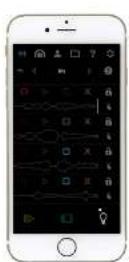
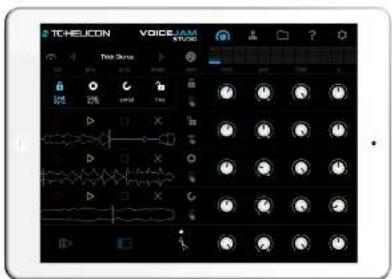
The best way to get familiar with Voice Jam Studio is to attach a pair of headphones, fine up the app, and run through the built-in tutorial. The second best way is to watch the tutorial videos found on http://www.voicejamstud.com.
16 VOICEJAMSTJDIOUscManul

Making Connections
Voice Jam Studio is a realtime vocal effects processor, meaning you hear the results of the effect algorithms applied to your voice as you are singing with almost no perceptible delay (refer to the latency section for more information). This presents an incredibly liberating experience for singers. Singing through live effects in real-time is like playing a new musical instrument.
Carbon
When singing through low latency professional music processors, whether it be on stage or in the studio, one has to be careful to avoid creating audio feedback loops.
A feedback loop occurs when the sound coming into a microphone is amplified out through speakers and is picked up again in the same microphone, which goes back through the speakers again and again. This often creates a high pitched squealing sound.
Feedback can be avoided by reducing the gain or by making sure the microphone is pointed away from the speakers.
Note: All PCs & Pads have a built in microphone and speakers. At minimum, Voice Jam Studio should be used with a pair of headphones in combination with the built-in microphone. Voice Jam Studio automatically prevents your fire voice from passing directly through to the internal speakers as the metal shell of the device would start vibrating and would feedback into the internal microphone causing a feedback loop.
Connection Options
Headphones with the built-in Mlc
The simplest option. Make sure you don't cover up the microphone port with your finger. Attach any set of compatible headphones (earbud, over the ear, etc.) to the 3~s^2 headphone port.
Headset (Headphones with Integrated mic)
Connect a headset with a built in microphone to the ^2 port audio port. Your device's internal microphone will automatically be disabled.
Mic/Instrument Adapter Device with % Connector
There are devices on the market which make it possible to connect an XLR microphone with a microphone adapter through the ^ port. This setup is similar to using a headset. Some devices provide an output to a PA system instead of headphones. In this case there always the possibility of audio feedback if the speakers are pointing at the microphone.
Lightning Enabled Audio Device
Modern audio interfaces (external hardware devices) connect directly through the lightning port and can provide multiple input and output channels from the audio interface to your device. Sound quality with these types of devices is generally much higher than using the N^+ jack. The common configuration of these devices is to have a microphone going to the first input (mono vocal channel) and an instrument like a guitar going to the second input channel (mono input channel). Voxo Jam Studio will feed the vocal channel through the vocal effects path and into the booper.
Note: It's also possible to record more Instrument channel into your performances. See the AudioBus section for more information
TC-Hellcon Product with USB Audio Support via Camera Connection Kit
Many of TC Helicon's world class visual effect processors support USB audio streaming. Any of these products can be connected to your device using Apple's camera connection kit and a USB cable. Plug your KL, microphone into the TC Helicon device, as well as headphones or a connection to your PA system where applicable. Using TC Helicon products will offer enhanced visual effect processing.
USB Sound Cards via Apple Camera Connection Kit
Any USB sound card supported by Apple can be connected via the camera connection kit. Voice Jam Studio will take the first channel and send it through the vocal effects and into the cooper.
Note: It's also possible to record more instrument channels into your performances. See the AudioBus section for more information.
Setting Levels
To matter what connection method you use to get audio into Voiz June Studio, it's important that it receives the ideal signal level. Depending on the device you are using, there may be a microphone sensitivity control, or an input level control. Adjusting this level in combination with controlling your distance from the microphone and how loudly you sing will enable you to find the perfect input level for optimum sound quality.
While you are singing, the level meters in the top right corner of Voice Jam Studios's interface should be constantly rising to show green, often yellow, sometimes orange, but never red. If the ice meters only show blue, you don't have enough input level for the vocal effects to sound their best. Bars rising on the left indicate lower frequencies while bars to the right show higher frequencies.
17 VOICEJAMSTUDICUserManual
The Controls
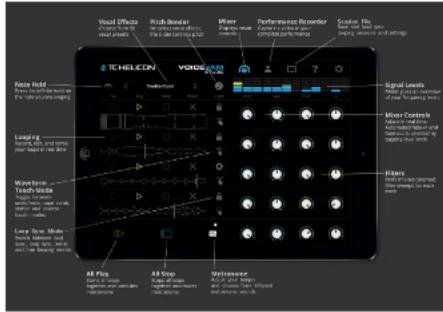
Before we get into detail, take a quick glance at the layout of the user interface. It's worth diminishing through the brief descriptions of each of the controls, refer back to them when reading through subsequent sections.
Vocal Effects
The name at the top left (between the left and right arrows) describes the current vocal effect, "Dry" means no effect and is useful in situations where you are speaking to the audience or where you want to rely 100% on the natural sound of your voice. In Dry mode the "Hiote Hold" and "Pitch Binder" controls have no effect as Dry operates as a "true bypass" in the sense that no effect processing occurs.
Voice Jam Studio offers many different vocal effects. You can step through them one by one using the left and right arrows. You can tap on the vocal effect name to see the complete list, which you can scroll through. You can try out each effect by touching the name of the effect and singing through the microphone. To scroll through the list touch and drag the list with your finger up or down. Double tapping on an effect name selects and collapses the effect list, or you can tap the preset name at the top to collapse the list.
Preset Favorites
You can instantly recall your favorite 5 presses (A, B, C, D & E) by tapping on the blue circles when the preset list is dropped down. To store a favourite, select it in the list and then hold one of the blue circles for 2 seconds, just as you would store a radio station in your car.
Vocal Effect List
| Spatial Simulation | Doubling |
| Dry | Stereo Wide |
| Bright Room Reverb | Double Room |
| Ballad Roven | Double You |
| Super Bright | Double Fall |
| Subtle Chromatic Pitch Correction | Trick Chans |
| Pitch Assist | Deep Double |
| Pitch Asset Room | High Double |
| Pitch Asset Hall | Deep Double |
| Extreme Pitch Correction | Distorted |
| Hardtune | Megaphone |
| Hardtune Filtered | Distorted |
| Hardtune Echoes | Distorted Me |
| Echoes |
| Echo Echo |
| Rockstallity Stap |
| Dotted Eighth Echo |
| Runaway Echo |
| Psychotic Echoes |
| Echothel |
| Extreme Shifting |
| Pepoc |
| Blue Oil |
| Deep Voice |
| Deeper Voice |
| Deep Deform |
| Female to Male |
| Male to Female |
| Thicker |
| Timmer |
| Deep C |
| Fixed Major Harmony |
| Church Marks |
| Special Effects |
| Cyclon |
| Rotary Speaker |
| Falling Fever |
| Synth Bass Drum |
| 60's Sol II |
| Hangar |
| Takin Tube |
| Bass Distort |
| Sing Guitar Solo |
18 VOICEJAMSTJDIOUscManul

Looping
What is Looping?
All music is layered. For example, a band has various members, each adding something to the fabric of their music, while a solo artist often relies on a guitar or keyboard to accompany their singing. Looper offers an innovative alternative for layering and augmenting the music making process. A looper takes advantage of the cyclical nature of all popular music by first allowing you to record a small chunk of audio quality 4 to 15 beats and then plays it back in a repeating loop. As the loop repeats, you can overhut and continuously layer new sound on top of it each pass. The real time and nonstop nature of looper make them instruments in their own right and have become essential in today's music industry. Every finger of the design of Voice Jam Studio is based on the notion that to loop is to perform. Voice Jam Studio is an instrument. Through an innovative set of industry first looping features, Voice Jam Studio allows you to break through the boundaries of monotonous single bar looping to create compelling fully expressed performances.
Metronome
The easiest way to create great loops is to construct them around an existing groove. Before you record your first loop, you'll want to establish your session tempo. The metronome lets you specify a tempo by either tapping a rhythm directly on the BPM indicator text, or by tapping the left and right metronome arrows to increment or document the tempo by 0.5 BPM in either direction. Optionally you can sync to an external MTDI tempo by using Apple's Virtual MTDI system. Refer to the Virtual MTDI section for more details. Voice Jam Studio has several built-in Metronome Sounds, as well as a muted mode where the metronome boats can be seen visually by a flashing light bulb icon. Touch the pulsating metronome icon to select from the various metronome sounds. Note: it's possible to use an external drum machine via Audiobus to replace the built-in metronome sound. Refer to the Audiobus section for more details.
Note: Once you're recorded at least one loop at a given tempo, the tempo of the session becomes locked so that loops can be synchronized to each other for the remainder of the session. To select a new tempo simply erase all of the loops. Besides selecting the tempo made for the metronome sound, the metronome is also temporarily muted when you touch All Stop. Keep pressing All Stop and you can toggle the metronome On and Off. The metronome also unmutes when you touch All Start. The level and stereo planning of the metronome can be edited from the Mixer controls. It can also be filtered through a lowpass filter. Refer to the Mixer section for more details.
Loop Action Synchronization
Once a methane beat is established, it's important to understand how all looping actions including creating, starting, and stopping loops are synchronized/quantized to the beats. Any time you initiate an action, Voice Jam Studio determines whether you are closer to the beat that just happened (if you press slightly late), or if a beat is about to occur (you press slightly early). If you press early, the event won't take place until the imminent beat occurs. If you press just slightly late, Voice Jam Studio will make an intelligent decision based on the situation. In general it's better to be slightly early as if you are slightly late the looper may have to fade in the beginning of your loop to keep it on time missing any transient you might have had to start the loop. Also if you are too late, Voice Jam Studio may decide that you are intending to start on the next beat which might throw your entire loop off by one beat (of course this could lead to an interesting musical effect).
Creating Loops
Vooi Jam Studio doesn't place limits on when you can start recording a loop. The process of creating a new loop requires two touches. The first touch to the record icon begins the loop recording (synchronized in the closest beat), and the second touch to the record icon "doses the loop". The time between the two touches dictates the length of the loop. If you capture four complete beats the loop will be exactly four beats long. After pressing the record button the second time the loop will begin to repeat until you stop it.
Note: the most common loop is a multiple of 4 beats. If you want to record a 4 beat loop you would touch record at the beginning of beat 1 and at the end of beat 4 (actually the start of beat 5). You want to capture four complete beats. If you pressed the record for the second time at the beginning of beat four you would have only captured three complete beats. There are two alternate methods of dosing, or "setting" a loop. Instead of pressing the recording icon for the second time, you can set the loop by pressing the play button or the stop button. The stop button will set the loop and stop it from passing back until you again press the play button. The play button will set the loop but keep it in "record mode" or overwhelming, such that you can immediately begin to layer on top of it as it repeats.
Note: once you create at least one loop you will see a lock icon appear beside the metronome 8^th M. This indicates that the tempo is locked. See the metronome section for more details.
19 VOICEJAMSTUDIOUserManual
Destroying Loops
To prevent accidentally leaving a loop, you simply have to hold your finger on any of the 'X' icons for a short time. You'll see an orange halo shrink to nothing before the erase occurs. This gives you a split second to change your mind. Destroying loops is final, unless you've saved your session in which case as long as you don't save again, you can always reload the current session. See the Sessions section for more information.
Starting and Stopping Loops
Each loop has an individual stop and play button. At the bottom there is also "All Start" and "All Stop". They start and stop all existing loops simultaneously, as well as mute and unmute the metroweats.
Note. If you want to unmutate the metronome without starting all loops you can tap the metronome icon.
Over dubbing Loops
To oversub means to layer on top of a loop track. While voice Jam Studio allows you to record and play loops on 4 separate tracks simultaneously, it also allows you to add unlimited layers onto each loop. For example you could record a loop of a simple melody, then on each progressive cycle through the loop you could oversub a new vocal harmony part. You can add as many layers as you want without taking up the other loop tracks. To toggle overcrobbing, simply press the record icon on an existing loop.
Overdub Sessions
Each time you start overblurring, you start a new overdb session. You might notice a grey box containing the old audio data shows up on the left side of the loop waveform. This represents the course of the loop just prior to starting your new overdb session. You can continue to overdb as long as you want for as many cycles around the loop as you choose during an overdb session. Once you end the overdb session by pressing the record icon again, you can then create a new overdb session, or you can go back into the past by undoing the last overdb session and everything you layered over however many cycles your last overdb session was. Voice Jam Studio remembers the last 4 overdb sessions you recorded and you can swipe back and forth between them at will. See Undo/Redo from Waveform Touch Modes below.
Waveform Touch Modes
There is a control to the right of each loop waveform showing a finger pointing at an icon. This determines the current waveform touch mode for the track. Waveform touch modes can be changed at anytime during your performance. To switch waveform touch modes you hold your finger on the control until a three segment overlay pops up, and you slide your finger towards one of three icons depicting the available modes:

Undo/Redo
Every time you create a new overab session, the state of the loop just prior to your new session is frozen in time. Much like an image editor or word processor leb you undo/redo through historical changes, Voice Jam Studio lets you swap between the last four overab sessions. You can only swipe through the previous overab sessions
when the 'Waveform Touch Mode' [Undo:Red] has been selected. Swiping to the right will bring back past overdb session and swiping left will move back into the present. For example, you might create an initial loop with a simple melody, start a first overdb session and add a third above harmony, start a second overdb session and add a fifth above harmony, and finally start a third overdb session and add an octave up harmony. At that point you would see 3 grey boxes to the left of the waveform. If your stripped to the right once, the most recent overdb would go away (the octave harmony would be gone) and you would now see one grey box to the right of the waveform and two to the left of it. Slope to the right again and you would only have the original melody and the 3^rd above harmony. Swiping to the left and the 5th harmony returns.
Note: You cannot sepe to undyred while overduing. You must end the current oventub session first.
Note: Voice Jam Studio only remembers four sessions, so if you start new overduh session with four existing, the oldest are will fail out of existence.
Note: If you swipe to the right to move to older overdb sessions such that grey boxes are showing to the right of the waveform, starting a new overdb session will start a new branch of history and any of the more recent sessions to the right will be lost. From the example above, if you swiped left so that you were only hearing the original melody and the 3^rd above, you could start a new overdb session with an octave down and the 5th and octave up sessions would be lost forever.

Scrub (Tape Stretch)
In scrub mode you can tap or drag your finger directly across the waveform to alter the playback position as if scratching a record. When you let go the groove will be restored because Voice Jam Studio calculates where playback would have been if you hadn't started to scrub in the first place.

Stutter
Stutter triggers a rapid fire pattern at the next best mimicking what you might have heard on several top 40 billiard recordings.

VOICE/AM STJDIO Use Manual

Swipe left to play backwards and right to play forwards.

Loop Sync Modes
Sync modes determine how loops are synchronized to each other. Each loop can be set to a different sync mode and only loops with matching sync modes will synchronize with each other.

Beat Sync
All loops set to the beat sync will have all actions quantified to the nearest beat (create, set, start, stop, outfit). This means loops won't necessarily be synchronized to each other's boundaries but will always stay in sync with respect to beats.

Loop Sync
All loops in the Loop Sync group will act on loop boundaries. For example if you recorded a loop and wanted to record a second loop, the recording and setting of the second loop would both occur on the boundaries of the first. This means the second loop will be guaranteed to be a multiple of the first.

Serial
Only one loop within a serial group can play/record at a time. This is great for building music structure. For example you could start recording on one track and pressing record on the other would set the first and record the second. From then on playing 1 will automatically stop the other (queed to the loop boundaries). It's really easy to achieve a chorus/verse type structure.

Free
Most of the time you'll want all loops to be synchronized with the methemone. The reason you might want to do so is because it's a way to keep the loop in place if you like to play it rapidly like a sampler, or synth, or record a loop that lasts to the beat of its own drum.

Time and Pitch Manipulation
If while singing a sustained note you press and hold the clock icon at the top left, your voice will be frozen in time until you release your finger. It's a great special effect. The musical rule control opens up a vertical slider control that can be used for either gender bending or pitch bending depending on the selected vocal effect. Drag the control higher or lower to adjust the pitch. Some vocal effects snap the pitch back to center like a traditional pitch bend control while others allow you to shift the pitch and keep it there when you let go.
Mixer
The mixer lets you set level, pan, and filter for each track and for the metronome independently.
It's very useful to independently control these parameters during your performance. Turn the filter down to get that electronic looppass cutoff effect, increase the Q^ to increase resonance in the lowpass filter which accentuates the dissimilarity between the two filters.
You can control the various knoBs by holding your finger on them and either moving up and down, or left to right.
Tip: Avoid moving diagonally. Up, or right means turn the knob clockwise, while left or down means turn it counter-clockwise. Bisexual movements will not turn the knobs as you would expect.
Tip: If tap on a knob, it will slowly change from where you had it set to Off or PanCentre. Once at Off or PanCentre, tapping it again will slowly change them back. Tapping again while it's moving will cause the automation to complete immediately. You can initiate this type of automation for multiple knobs simultaneously; for example to fade out all tracks at once. You can set the fade out time by going to the settings menu.
Note: With AudioBus connected you can route the microphone through the loop tracks and an external app through the meconome track. That way you could use a 3^rd party drum machine instead of the ballinum meconome sounds. Refer to the section on AudioBus for more details.

VOICEJAWSTUDIOUserManual
Sessions
Although a loopingist might argue that every performance you give should be "from scratch" with no preceding material. Voice Jam Shadla left you save your work anyway. When you save a session you are storing the content of all 4 loop tracks plus the state of their four independent undo/recess sessions. Sessions also store the master tempo. Use the position of all dials in the mixer, whether syn is on or off for each loop, the waveform touch mode for each hop, and of course the active vocal effect.
The folder icon at the top allows you to load and save sessions.
The Default Session
Sometimes you want to start from scratch, or create a new blank session. In that case you should load the default session. Use the file menu, select load, and choose "Load Default Session".
Performance Recorder
One of the most exciting things about Voce Jam Studio is that you can record the audio result of everything you do, whether it be singing through live vocal effects, creating, destroying, triggering and retargeting loops, mixing, remixing, filtering and panicking playback; the video result of everything the front facing camera captures; and the video screen capture of all the activity you create on the Voice Jam Studio interface. All of that media is seamlessly combined and compressed and prepared for instant upload to Facebook or YouTube or to be exported to your camera roll for processing in your favourite 3^rd party app. You can also upload the audio portion of your performances directly to SoundCloud with one click.

To operate the performance recorder, first tap the film projector icon at the top center of the user interface.

Starts and Stops recording
Enters the performance library
Performance Library
Managing Past Performances
As long as the library is not empty, you will see a grid of your past performances, their take number and short description.
If you want to share or export a past performance, touch it to select it.
If you want to delete old performances to save space on your device you can select "Edit" from the top right, touch the performances you'd like to remove, and then press "Delete Selected" at the bottom.
Performance Detail Editing
Once you select a performance from your library for editing, you can view or share it by clicking on one of the sharing icons
App Settings
The gear icon at the top right is where you set global app settings (applying to all sessions).
Slave To External Tempo
You can choose to isolate to external MIDI devices (hardware connected via the camera connection kit, lightning port, or to other apps supporting virtual master docks).
Overdub Decay
When you interrupt a new layer onto a loop, you can specify what happens to the underlying layers. If the overhub Decay was set in 109%, the new layer would be mixed with the old layer and the overall volume of the loop would get louder and louder until it starts clipping. Set at around 99% the older layer will gradually fade away such that the overall level remains fairly constant. At 0% the old layers would be completely replaced by the new overhub layer. This is actually a very useful effect if you want to completely replace the contents of a loop without erasing it. You can change the overhub decay in real time during a performance.
22 VOICEJAMSTJDIOUserManual

Knob Automation Time
When you carefully tap a mixer knob without dragging it will initiate loop automation. Automation will gradually change the knob from its current value to zero (or centre pan far knob), or if already at zero, the knob will change to the last value it had been set at before being folded to zero. This allows you to fade in and out by single tapping on the knob. You can start and stop several knobs simultaneously in this way, for example, you could gradually fade out all four knobs at once. The knob Automation Time specifies how long it takes a knob to automatic between the two values.
Record Count In
If recording a loop when no other loops are playing, the number of beats you select will be "counted in" before recording starts.
Audio Latency
Low latency is perfect for any performance and is fully compatible when using AudioBus. If you have an older device and you are using lots of CPU intensive 3^rd party apps in the background, you may need to set audio latency to High (Slow Devices) to avoid audio clicks due to limited shared CPU resources. The latest and greatest iOS devices generally have no problem managing several audio processing apps simultaneously.
Performance Recording
If you are shy and you would rather not record the front facing camera video into your performances, you can disable face recording and select "screen only". You will still end up with a compelling video as your audience will be able to see all screen activity that went into creating your masterpiece.
Stop Audio When In the Background
When using AudioBus you generally want Voice Jam Studio to stop audio when you move to the background since AudioBus will maintain the streaming connection on its own. The case where you might want it to play in the background is when you are not using AudioBus but you are MIDISyncing to a 3^ party app and you want to switch to that app without Voice Jam Studio stopping.
MIDI Sync
Syncing to an App
One or more apps can communicate together using Apples's virtual MIDl protocol. Voice Jam Studio can silvessync with any app capable of generating MIDl clock output and capable of following the industry standards MIDl standards when it comes to MIDlSyncing behaviours. Open the 3^th party app and select Voice Jam Studio as an output. In Voice Jam Studio settings, enable MIDlSync and select "virtual input" as the source.
Syncing to external MIDI
Voice Jam Studio has been extensively tested with Albeton Live and can draw sync very effectively during performance. Connect your computer via a MIDI connector to a MIDI input exposed by a 3^rd party lighting device or USB soundcard or MIDI device connected to the Apple camera connection kit. Direct Albeton Live to output MIDI sync clock to the MIDI device. In Voice Jam Studio settings, enable "Slave to External Tempo" and choose the 3^rd party MIDI Device. When you start Albeton playing the download will synchronize and you'll be able to create new loops in sync with Albeton. The loops will stop in sync thanks to Voice Jam Studio'synthadl MIDI sync feature.
23 VOICEJAMSTUDICUscr Manual
AudioBus
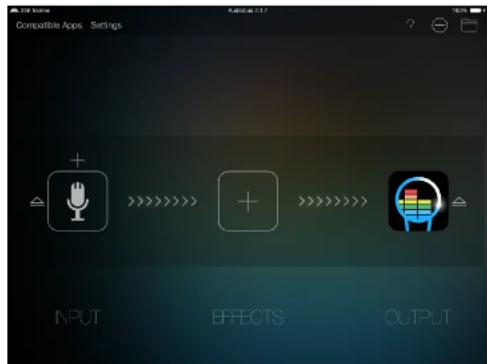
Voice Jam Studio can receive and send audio from 2 and to other apps using AudioJob. For information on how to use AudioJob, visit the AudioJob webpage at www.audiojob.com. A third party app may be necessary to get the most out of AudioJob.
Basic Connection
Voice Jam Studio should generally be on the output with an Internal Media set as the input. This allows you to add third party effects in between.
Routing external apps through the metronome track
Voice Jam Studio exposes a "backing track" input to Audiobus. Anything connected to it will be muted through the metronome channel. This means you can applying level, pan, and filtering within the app to an external drum machine or sequencer etc. It also means the external sound source will be recorded into your performance recordings. You might want to set the metronome to mute in this case.
Note: iOS devices currently terminates video recording when an app moves into the background. This means that while you are recording a performance tape, you must not leave the app to visit other AudioBus apps. You can however control them using the AudioBus slide out control panel if the external apps you are using provide controls. It's best to configure your external apps before you start recording your tape.
24 VOICE.AM STJDIO Use Manual
25 VOICEJAMSTUDIOUserManual

Loop Transfer:
If a loop is empty, click on the waveform touch mode icon to expose the loop import icon just above it. Once a loop has audio in it, the loop import icon will change to a loop export icon.

Audio Copy
There are times when you are not using AudioBus but you'd still like to transfer your loans to and from external apps. Audio Copy and Audio Paste is a third party standard which many apps work with. From the menu select "Loop Transfer". Selecting Audio Copy from a loop will copy its current audio data into an external "clip board". When you first click Audio Copy you must wait for Voice Jam Studio to export the loop audio. Then you must select "Copy Audio" from the AudioCopy dialog to begin the transfer process.
Audio Paste
You can only paste to an empty loop. Select the Audio Paste icon and then "AudioPaste From Postbeard". Note: if the external loop tempe is not compatible with the current session tempe Voice Jam Studio will do its best to accommodate the conflicting tempe assuming it's in 4/4 time. Voice Jam Studio will not attempt to limit stretch your external loops.
Send and receive loops from iTunes App Documents
Using iTunes you can access an app's document folder. If you select "Send to Documents" Voice Jam Studio will export a loop's audio and create an audio file in the documents folder which you can copy onto your computer using iTunes.
VOICEJAM STJDIO Use Manual
Hacer conexiones
Sah is an individual at time
Pitch Assist Hall
Correction
de tono extrema
Hardtune
Hardtune filtrado
Ecos de Hardtune
Doble profundo
Doble alto
In this article, we present a new method to obtain the rate of time dependence of the transmission and transmission power in a 2D supercell. The method is based on the following two main steps: (1) the generation of a supercell with n nodes and (2) the generation of a supercell with m nodes. The generation of a supercell with m nodes and the generation of a supercell with n nodes are possible.
Clague Rockability
Proof Method
Pointe nuclene enfeurfui
chongkong
fei hou psychoteliques
Changement de
vitesse extremi.
Papeye Huaedao
Vox preord
Voix plus profonde
Desacccord profund
Femme à Homme
Homme a fonne 12
Pusepas Pusine
P
Harmonie majore fles
Moines de l'eglise
Effets speciaux
Cyan
Haut-parneur rotatb
Chute Seven
Symplet Grosse Calle
BHTF 100%
1
Pollen fly
Charter en solde de q
Bouclage
LorsqueyoupuopuscnpauauoucauoucuouuoucuauoucuauucuauuuauauauauauauauauauauauauauauauauauauauauauauauauauauauauauauauauauauauauauauauauauauauauauauauauauauauauauauauauauauauauauuuuuuuuuuuuuuuuuuuuuuuuuuuuuuuuuuuuuuuuuuuuuuuuuuuuuuuuuuuuuuuuuuuuuuuuuuuuuuuuuuuuuuuuuuuuuuuuuuuuuuuuuuuuuuuuuuuuuuuuuuuuuuuuuuuuuuuuuuuuuuuuuuuuuuuuuuuuuuuuuuuuuuuuuuuuuuuuuuuuuuuuuUUUUUUUUUUUUUUUUUUUUUUUUUUUUUUUUUUUUUUUUUUUUUUUUUUUUUUUUUUUUUUUUUUUUUUUUUUUUUUUUUUUUUUUUUUUUUUUUUUUUUUUUUUUUUUUUUUUUUUUUUUUUUUUUUUUUUUUUUUUUUUUUUUUUUUUUUUUUUUUUUUUUUUUUUUUUUUUUUUUUUUUUUUUUUUUUUUUUUUUU
Belle hair.
Sunny bell.
Superkm
Subtile
Tanhohenkou
Pitch-Assistant
Pitch-Assist-Raum
Pitch Assist Halle
Extreme
Tonhohenkorrektur
Handtune
Handtune generator
Handtune-Borcs
Verdoppelung
Stereo-Venture
Uoppelzimmme
Verdoppin St. Dommelstrad
Doppler Deterior
Tiefes Doppel
Hohes Doppel
fieid doppelt breit
Hoch Doppel Brett
Verzerrung
Kaufraufqepss!
Negapot
Verzert
Verzertes MEGApon
W
Kirchenmingne
Spezialeffekte
Zytoe
Drehautsprecher
Fallen Never
Synth B850
608 SfH6
Range:
1
C
Looping
WasistLooping?
High Double Pitch Assist Open Rehab
Sal de assistencia de Deep Blue White High Double Wide
ArgUMENTO DE VENDA Insga o la: Pach Assist Kall Distancia
Dinl
Correcao Extremas Pecarone de Bitch Negalone
Hantunu Disturido
Handtune Filtrado Negatone disterrida
Handtune Echoes
Echos
EcoEco
Sackability Slip
Ollaro e do pontihade 560cm Eucr.
Ercospcoditions
Echewerb
Mudanca Extrema
Fupcye
24
Wu qiuwei Yous Masi Profundia
Deep Time
Mulher para Fomeem
Ficab Cnmbica 60s and 60s Finaes
Fangye
Famil fale Dataricde hain
SinoGuitar Sdn.
518 color 340
Looping
O que é Looping?
Routing external apps through the metronome track
If feedback can be evolved via the quadrupole angular momentum, then the microfibre can actively punctuate the light and noise components of the system.
Annotation: Ane possible registration plus consult instrumental role for performance. Vedi to sestate Audiobus permacation informazioni.
Bright Room Riverbore
Baltata Riverbrem
Super luminoso
Setttle corn
the cor
cromatica
Microloon/Instrument Adapter Apparaat met" Connector
Performance Recorder
En de ame temspimande skarmeda Vece Jam Studio utd kam plng in Juslukstutat av utld g, aesent met det at unag ngom levende rstekefter, skata, forsta, ulisca utregeri loop, remia, filhira o pancrea upuppicking; vissulcrtalat ut al den hamilami kameran fangzirde zwer stimmung ut all aktifliet. u skap da Vece Jam Studio, gansmitten. All der mir direct in sllnienkombiniat und compeminalit and hibertie for omteselar upuppading t t Fecith eor youture ut fer axt expersas tlin kamaranare for hebetaring 1in Favot tredepaspero. Du oncks laddu upjcklen ut dina fristinlingar direcht till SoudCloud mt ed ktcik.

For att. vanda, prantstandbandgelaren, ryk first pa filmprojetcritionen higt upp mit andandaryassmittelt.

Startatoh stoppur inspeltingen

Oppar prestandabiblistek
Prestandabibliotek
Assistive Prick
Pakori paojoo
Sala asyustuca na boisu
Ekstremala koreksja.unkrekar
Stereotonicity and the Dystonic system
Proximity [pək]
Proximitying to
Podovslyia
Sala Podovslya
Goby chor
Glockle Pochwajne
Wysoki Podwanyi
Kurashii Deka
Globke Podovjsky Szekeres
Stamki Predominu Sanci
Wysio1 50
Znleksztalcenie
omega kubjaycny:
Vonafn
Zielstätigkeit
Zniekstalcony mecafon
Echos
Echo Ech
Rockability Step
Ultimate Endurance
Osmie echo 200kathn
Ulickiace echn
Psychadelizmeedha
Echoweb
Ekstremalne
przess
Popeye Olinar
Glockiims
Gktsy qhs