TEL1707 - Smartphone Manta - Free user manual and instructions
Find the device manual for free TEL1707 Manta in PDF.


| Product type | Smartphone (keypad mobile phone) |
| Brand | Manta |
| Model | TEL1707 |
| Dimensions | Approximately 110 x 50 x 15 mm |
| Weight | Approximately 80 g |
| Power supply | Rechargeable lithium-ion battery, unspecified capacity |
| Screen | Unspecified color LCD screen (feature phone type) |
| Storage | Limited internal memory, expandable via microSD card |
| Network | GSM (2G) - compatible with SIM cards |
| Connectivity | Headphone jack, proprietary charging port (likely micro-USB) |
| Main functions | Calls, SMS, contacts, alarm, calculator, flashlight, SOS button |
| Maintenance and cleaning | Clean with a soft, dry cloth. Do not use abrasive products or solvents. |
| Safety | Keypad lock by pressing the right key then '#'. SOS button for programmable emergency calls. |
| Spare parts and repairability | Removable battery, access to SIM and microSD card under the back cover |
| General information | User manual available in multiple languages. First charge recommended for at least 4 hours. |
Frequently Asked Questions - TEL1707 Manta
User questions about TEL1707 Manta
0 question about this device. Answer the ones you know or ask your own.
Ask a new question about this device
Download the instructions for your Smartphone in PDF format for free! Find your manual TEL1707 - Manta and take your electronic device back in hand. On this page are published all the documents necessary for the use of your device. TEL1707 by Manta.
USER MANUAL TEL1707 Manta
INSTRUKCJA OBSŁUGI / MANUAL GUIDE / MANUAL DE USUARIO / INSTRUCTION DE SERVICE
Mobile Phone Senior Easy
TEL1707
PRZYCISKI / BUTTONS /
BOTONES / BOUTONS
PRZYCISKI
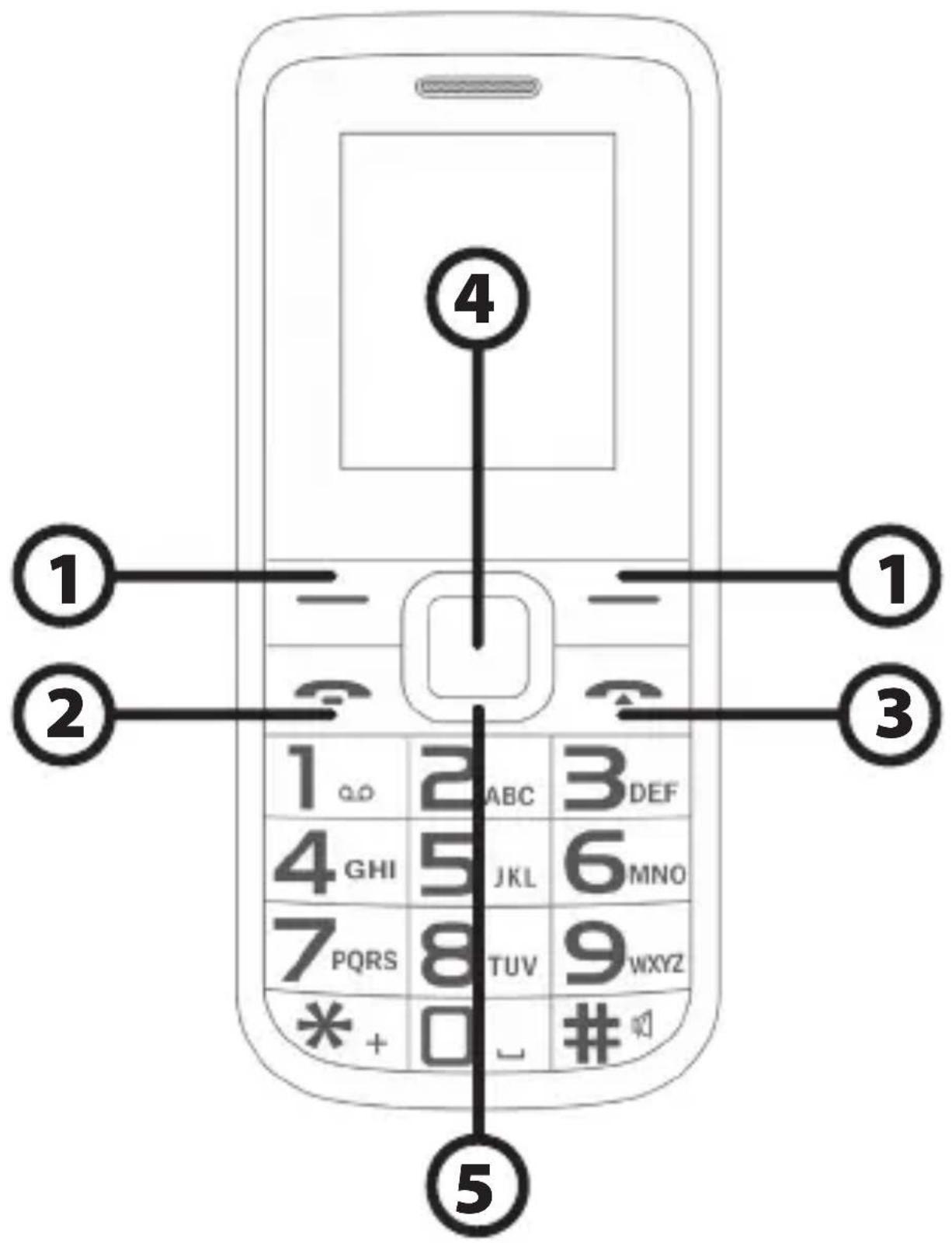
- Left soft key / right soft key: Functions as shown in the left / bottom right-hand corner of the screen.
- Call / Answer: Press after dialing a number to call. Press to answer an incoming call. Press in standby mode to enter the call history.
- End / Power button: press and hold to turn on / off the phone. Press to reject a call or exit the menu.
- OK: Confirmation or accept the selection on the menu. Press in standby mode to enter into a hash function.
- Navigation keys: Press the up / down / left / right on the menu to scroll, browse or edit. In standby mode, press the up / down / left / right to select the shortcut.
- 0-9 alphanumeric keys: Press the keys to enter numbers when dialing numbers or numbers and characters during editing. In standby mode: Long press "0" to turn on / off the flashlight.
* (Asterisk): Press to enter the symbol **. Press and hold ** to enter symbol +
(Pound): Press to enter # sign. A long press enables or disables silent mode.
PREPARING YOUR PHONE
1. Install the SIM card
Before installing or removing the SIM card, make sure the phone is turned off. Remove the back cover and remove the battery.
NOTE: During installation, make sure that the SIM card contacts are facing down and pay attention to the markings towards the slot.
2. Installing a memory card
This phone supports a memory card. Please make sure that the memory card is inserted correctly before use.
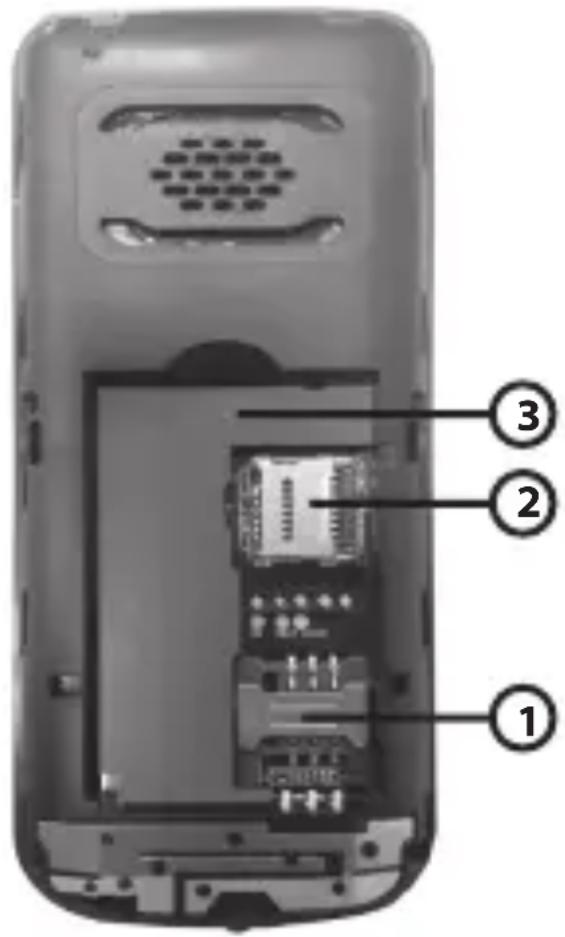
When installing the microSD card, pay attention to the direction of the outlet, tilt the memory card slot cover, insert the memory card until it is fully inserted and close the cover. The phone supports microSD cards.
3. Inserting the battery
Insert the battery according to the markings, the battery contacts in the contacts on your phone and press the top of the battery down until it is inserted into the battery slot.
- Remove the battery - First, turn off the phone, put him face down and slide the battery cover, remove the cover and remove the battery.
EN
- Charging the battery
Insert one end of the adapter into the jack and the other end into the charging socket. If the phone is switched on the battery icon is displayed in the upper right corner of the screen. If the indicator is full and stop change, the battery is fully charged. If the phone is off during charging, a charging icon appears on the screen. After charging, disconnect the plug.
NOTE: Before first use charge for at least 4 hours. It will reach its maximum capacity after several cycles of charging and discharging.
USING YOUR PHONE
1. Turn on / off
Press and hold the power button to turn on or turn off the phone.
2. Unlocking the keypad
To unlock the keyboard, press the right soft key, then press ^# .
3.Make calls
In standby mode, press the numeric buttons to enter a phone number, press the right soft key to remove invalid entries. Press the left soft key or key combination to make a call.
4. Receiving a call
During an incoming call, if your network supports Caller ID, the screen will display the name or number of the caller (depending on whether there is information about the caller in the phone book).
- Press the call button or press the left soft key to answer an incoming call.
- During a call, you can press up / down to adjust the volume.
MENUFUNCTIONS
1. People (Phonebook)
It stores and manages the contacts you frequently use. There are two places where you can store names and numbers that regularly in the SIM card memory and the phone memory. The number of contacts that can be stored on the SIM card depends on the capacity of the SIM card.
- Adding a new contact
To add a new contact, select Options, then New, then select the location of entry (SIM or phone memory). Then enter the contact name, phone number. To save, select Save.
- Other menu options People
Copy - to copy contacts from SIM to phone or from phone to SIM. Others - View the memory status, service number, caller ID Remove as many - to delete multiple contacts
2. Message
It allows you to send and receive text messages (SMS).
Send e-mail - Allows you to write a new SMS.
Inbox - Stores received SMS messages.
Outbox - Stores messages to send.
Drafts - Stores draft.
Sent - Stores sent messages.
Sent and saved - Stores sent and stored messages.
Templates - Inserts a template message.
SMS settings - SMS settings.
EN
3. Call logs
Displays the records of received / missed calls.
Missed Calls - Displays a list of missed calls.
Call History - Call History.
Received - The list of received calls.
Rejected - Displays a list of rejected calls.
Delete all - to remove the call list.
Call meter - shows meter connections.
4. Settings
Allows configuration of the phone. It enables the configuration of connections among other things, change phone settings, change the display settings, enable / disable security. It allows you to configure the SOS button. You can change the sound profile of the phone.
5. Multimedia
It allows the use of multimedia. It allows you to view photos. Playing back audio files, record audio - recorder.
6. Tools
Allows the use of additional phone features, such as:
Alarm - You can set the alarm at a specific time, given the repetition like.
Calendar - The calendar
Calculator - a simple calculator function
Flashlight - enables / disables the flashlight. A flashlight can also be set in standby mode by holding down the 0'' key.
SOS BUTTON
SOS button can establish an automatic connection to preprogrammed emergency numbers. Enabling SOS is performed by pressing and holding the button.

In order to program emergency numbers SOS button, select Menu, Settings, SOS. SOS numbers menu, enter numbers to which the phone will automatically call after pressing the SOS button. You can set up to 5 numbers that will be automatically dialed in sequence.
In the menu, speed dial numbers, enter the numbers that will be assigned to the speed dial keys. I mean, the phone dials the number after a long hold keys 1 - 6.
The SOS SMS numbers menu, type in the numbers that the phone automatically sends an SMS message asking for help.
SOS SMS content menu lets you enter the SMS alarm message.
Menu Delay connection allows you to select the time after which the phone before dialing an SOS.
BOTONES


- INSTRUKCJA OBSŁUGI / MANUAL GUIDE / MANUAL DE USUARIO / INSTRUCTION DE SERVICE
- PRZYCISKI / BUTTONS
- BOTONES / BOUTONS
- PRZYCISKI
- PREPARING YOUR PHONE
- INSTALL THE SIM CARD
- INSTALLING A MEMORY CARD
- INSERTING THE BATTERY
- EN
- CHARGING THE BATTERY
- USING YOUR PHONE
- TURN ON / OFF
- UNLOCKING THE KEYPAD
- 3.MAKE CALLS
- RECEIVING A CALL
- MENUFUNCTIONS
- PEOPLE (PHONEBOOK)
- MESSAGE
- CALL LOGS
- SETTINGS
- MULTIMEDIA
- TOOLS
- SOS BUTTON
- BOTONES
Brand : Manta
Model : TEL1707
Category : Smartphone