L22D980 - TV SABA - Free user manual and instructions
Find the device manual for free L22D980 SABA in PDF.


| Product Type | LED Television |
| Brand | SABA |
| Model | L22D980 |
| Screen Size | 22 inches (approx. 55 cm) |
| Power Supply | 220-240 V AC, 50 Hz |
| Power Consumption (max) | Approximately 30 W |
| Weight (approx.) | 3.5 kg |
| Dimensions (without stand, approx.) | 508 x 315 x 80 mm |
| Display Technology | LED |
| Tuner | DVB-T (MPEG2/MPEG4) |
| Number of Channels | 1000 (analog + digital) |
| Connectors | HDMI, USB, SCART, VGA (PC), Side AV Input, S/PDIF Output, Headphone Jack, RF Antenna |
| Main Functions | USB Recording, Timeshift, TV Guide, Teletext, Parental Control, Sleep Timer, Game Mode, AVL, PLL |
| Audio | Stereo (Nicam + German) |
| Picture Formats | Auto, 16:9, 4:3, Zoom 14:9, Cinema, Panoramic, Subtitle |
| Maintenance and Cleaning | Unplug before cleaning, use a soft dry cloth |
| Safety | Leave at least 10 cm ventilation space; do not expose to humidity |
| Spare Parts and Repairability | Contact a qualified technician; use manufacturer-recommended parts |
| Included Accessories | Remote control, side AV cable, user manual |
| Remote Control Batteries | 2 AAA batteries (not included) |
| Environmental Information | Energy Saving mode available; unplug if not used for a long time |
Frequently Asked Questions - L22D980 SABA
User questions about L22D980 SABA
0 question about this device. Answer the ones you know or ask your own.
Ask a new question about this device
Download the instructions for your TV in PDF format for free! Find your manual L22D980 - SABA and take your electronic device back in hand. On this page are published all the documents necessary for the use of your device. L22D980 by SABA.
USER MANUAL L22D980 SABA
PAL/SECAM B/G D/K K' I/I' L/L'
RéCEPTION DE CANAUX
VHF (BANDE I/III)
UHF (BANDE U)
HYPERBANDE
NOMBRE DE CANAUX PRÉRÉGLÉS
1000
INDICATEUR DE CHÂINE
Affichage à l'écran
ENTREE D'ANTENNE RF
German + Nicam Stereó
PUISSANCE DE SORTIE AUDIO (W_RMS.) (10% THD)
2× 2,5
CONSOMMATION ÉLECTRIQUE (W)
45 W (max)
PANNEAU
CLASS 1 LASER PRODUCT
RISQUE D'ELECTROCUTION
Safety Precautions 51
Connection to a Television Distribution System (Cable TV etc.) from Tuner 53
Package Contents 53
Environmental Information 54
Repair Information 54
Remote Control Buttons 55
LED TV and Operating Buttons 56
Viewing the Back side Connections 56
Viewing the Connections - Side Connectors 57
Power Connection 57
Aerial Connection 57
Using USB Input 58
Connecting the LED TV to a PC 59
Using Side AV Connectors 59
Connecting to a DVD Player via HDMI 59
Connecting to a DVD Player 60
Remote Control Handset 60
Inserting Batteries 60
Switching On/Off 60
To Switch the TV On 60
To Switch the TV Off 60
Input Selection 61
Basic Operations 61
Operation with the Buttons on the TV 61
Volume Setting 61
Programme Selection 61
Viewing Main Menu 61
AV Mode 61
Operation with the Remote Control 61
Volume Setting 61
Programme Selection (Previous or Next Programme) 61
Programme Selection (Direct Access) 61
Viewing Electronic Programme Guide (EPG) 61
Recording via EPG Screen 62
Programme Options 62
Digital Teletext (^** for UK only) 63
Analogue Teletext 63
First Time Installation 63
Installation 64
Auto Channel Scan (Retune) Menu Operation.64
Manual Tuning 64
Manual Search 65
Analogue Manual Search 65
Analogue Fine Tune 65
Clear Service List (*) 65
Managing Stations: Channel List 65
Operating the Channel List 65
Moving a Channel 66
Deleting a Channel 66
Renaming a Channel 66
Locking a Channel 66
Managing Stations: Favourites 66
Button Functions 66
Managing Stations: Sorting Channel List 66
On-Screen Information 67
MediaPlaybackUsingMediaBrowser 67
Viewing Videos via USB 67
Viewing Photos via USB 68
Timeshift Recording 69
Instant Recording 70
Watching Recorded Programmes 70
Changing Image Size: Picture Formats 71
Configuring Picture Settings 72
Operating Picture Settings Menu Items 72
Picture Settings Menu Items 72
Power Save Mode 72
PC Picture Settings 72
Configuring Sound Settings 73
Operating Sound Settings Menu Items 73
Sound Settings Menu Items. 73
Configuring Your TV's Settings 74
Operating Settings Menu Items 74
Settings Menu Items 74
Using a Conditional Access Module 74
Viewing Conditional Access Menu (*) 74
Configuring Language Preferences 75
Language Settings 75
Parental Control. 75
Parental Settings Menu Operation 76
Timers 76
Setting Sleep Timer 76
SettingProgramme Timers 76
Recording Configuration 77
Configuring Date/Time Settings 77
Configuring Source Settings 78
Configuring Other Settings 78
Operation 78
Other Features 79
Teletext 79
Tips 80
Appendix A: PC Input Typical Display Modes 81
Appendix B: AV and HDMI Signal Compatibility (Input Signal Types) 81
Appendix C: Supported DVI Resolutions. 82
Appendix D: Software Upgrade 82
Appendix E:Supported File Formats for USB
Mode 83
Specifications 84
Features
Remote controlled colour LED TV.
Fully integrated Terrestrial digital TV (DVB-T MPEG2) (DVB-T MPEG4)
HDMI connectors for digital video and audio. This connection is also designed to accept high definition signals.
USB input.
Programme recording
Programme timeshifting
1000 programmes (analogue+digital).
OSD menu system.
- Integrated tuner DVB-T, MPEG 2, MPEG 4. compatible.
Scart socket for external devices (such as video, video games, audio set, etc.).
Stereo sound system. (German+Nicam)
Teletext,fastext,TOP text.
Headphone connection.
Automatic programming system.
- Forward or backward manual tuning.
- Sleep timer / Child lock.
Automatic sound mute when no transmission.
- NTSC playback.
- AVL (Automatic Volume Limiting).
- Auto power down.
- PLL (Frequency Search).
- PC input.
Plug&Play for Windows 98, ME, 2000, XP, Vista, Windows 7.
Game Mode
Introduction
Please read the corresponding instructions of this handbook prior to the first usage of the device, even when the usage of electronic devices is familiar to you. Notice especially the chapter SAFETY PRECAUTIONS. Carefully keep the handbook as future reference. When selling the device or giving it away, absolutely give these direction for use.
Thank you for choosing this product. This manual will guide you for the proper operation of your TV. Before operating the TV, please read this manual thoroughly. Please do keep this manual in a safe place for future references.
This device is intended to receive and display TV programs. The different connection options make an additional expansion of the reception and display sources possible (receiver, DVD player, DVD recorder,
VCR, PC etc.). This device is only suitable for the operation in dry interiors. This appliance is intended solely for private domestic use and may not be used for industrial and commercial purposes. We exclude liability in principle, if the device is not used as intended, or unauthorized modifications have been made. To operate your LED TV in extreme ambient conditions may cause the damage of the device.
Preparation
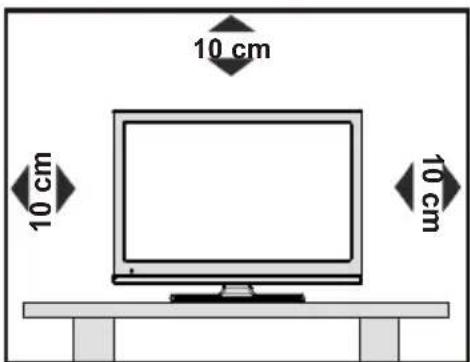
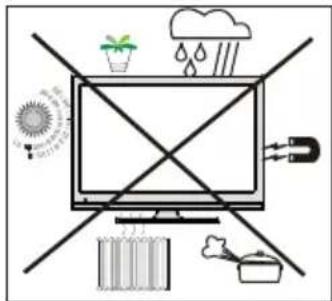
For ventilation, leave a free space of at least 10cm all around the set. To prevent any fault and unsafe situations, please do not place any objects on top of the set. Use this device in moderate climates.
Safety Precautions
Read the following recommended safety precautions carefully for your safety.
Power Source
The TV set should be operated only from a 220-240 V AC, 50Hz outlet. Ensure that you select the correct voltage setting for your convenience.
Power Cord
Do not place the set, a piece of furniture, etc. on the power cord (mains lead) or pinch the cord. Handle the power cord by the plug. Do not unplug the appliance pulling from the power cord and never touch the power cord with wet hands as this could cause a short circuit electric shock. Never make a knot in the cord or tie it to other cords. The power cords should be placed in such way that they are not likely to be stepped on. A damper power cord can cause fire or give you an electric shock. When it is damaged and needs to be replaced, it should be done by qualified personnel.
Moisture and Water
Do not use this device in a humid and damp place (avoid the bathroom, the sink in the kitchen, and near the washing machine). Do not expose this device to rain or water, as this may be dangerous and do not place objects filled with liquids, such as flower vases, on top. Avoid from dripping or splashing.

If any solid object or liquid falls into the cabinet, unplug the TV and have it checked by qualified personnel before operating it any further.
Cleaning
Before cleaning, unplug the TV set from the wall outlet. Do not use liquid or aerosol cleaners. Use soft and dry cloth.
Ventilation
The slots and openings on the TV set are intended for ventilation and to ensure reliable operation. To prevent overheating, these openings must not be blocked or covered in anyway.
Heat and Flames

The set should not be placed near to open flames and sources of intense heat such as an electric heater. Ensure that no open flame sources, such as lighted candles, are placed on top of the TV. Batteries should not be exposed to excessive heat such as sunshine, fire or the like.
Lightning
In case of storm and lightning or when going on holiday, disconnect the power cord from the wall outlet.
Replacement Parts
When replacement parts are required, make sure that the service technician has used replacement parts, which are specified by the manufacturer or have the same specifications as the original one. Unauthorized substitutions may result in fire, electrical shock or other hazards.
Servicing
Please refer all servicing to qualified personnel. Do not remove the cover yourself as this may result in an electric shock.

Waste Disposal
Instructions for waste disposal:
Packaging and packaging aids are recyclable and should principally be recycled. Packaging materials, such as foil bag, must be kept away from children.
Batteries, including those which are heavy metal-free, should not be disposed of with household waste. Please dispose of used battery in an environment friendly manner. Find out about the legal regulations which apply in your area.
Don't try to recharge batteries. Danger of explosion. Replace batteries only with the same or equivalent type.
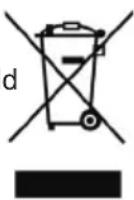
This symbol on the product or on its packaging means
that your electrical and electronic device should be disposed at the end of its service life separately from your househ wastes. There are separate collection systems for recycling in EU. For more information, please contact the local authority or the dealer where you purchased the product.
Disconnecting the Device
The mains plug is used to disconnect TV set from the mains and therefore it must remain readily operable.
Headphone Volume
Excessive sound pressure from earphones and headphones can cause hearing loss.

Installation
To prevent injury, this device must be securely attached to the wall in accordance with the installation instructions when mounted to the wall (if the option is available).
LED Screen
The LED panel is a very high technology product with about a million thin film transistors, giving you fine picture details. Occasionally, a few non-active pixels may appear on the screen as a fixed blue, green or red point. Please note that this does not affect the performance of your product.
Warning! Do not leave your TV in standby or operating mode when you leave your house.
Connection to a Television Distribution System (Cable TV etc.) from Tuner
Device connected to the protective earthing of the building installation through the mains connection or through other apparatus with a connection to protective earthing-and to a television distribution system using coaxial cable, may in some circumstances create a fire hazard.
Connection to a cable distribution system has therefore to be provided through a device providing electrical isolation below a certain frequency range (galvanic isolator, see EN 60728-11).
TRADEMARK ACKNOWLEDGMENT
"Dolby" and the double-D symbol are trademarks of Dolby Laboratories.
DOLBY
DIGITAL PLUS
Licence Notification (Optional)
Manu fact ur ed under lic en se fr om Do Ib y Laboratories.
Electrical device not in the hands of children
Never let children use electrical device unsupervised. Children can't always recognize properly the possible dangers. Batteries / accumulators can be life threatening when swallowed. Store batteries unreachable for small children. In case of swallowing a battery medical aid has to be sought immediately. Also keep the packaging foils away from children. There is danger of suffocation.
Note:The HDMI connection between PC and TV may cause radio interference in which case it is recommended to use VGA(DSUB-15) connection. The Standby Off/On button doesn't separate this device completely from mains. Moreover the device consumes power in the standby operation. In order to separate the device completely from mains, the mains plug has to be pulled from the mains socket. Because of that the device should be set up in a way, that an unobstructed access to mains socket is guaranteed, so that in case of emergency the mains plug can be pulled immediately. To exclude the danger of fire, the power cord should principally be separated from the mains socket prior to a longer period of non-usage, i.e. during vacations.
Package Contents
Remote Control
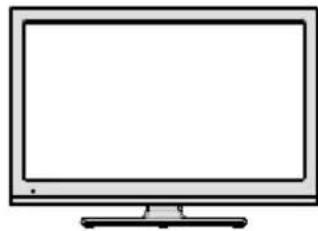
LED TV

Instruction Book
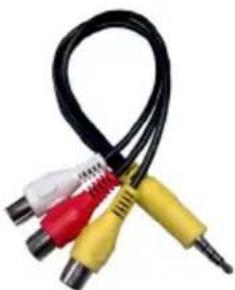
1X Video & Audio Connection Cable
Note: You should check the accessories after purchasing. Make sure that each accessory is included.
Environmental Information
- This television is designed to consume less energy to save environment.
You not only help to save the environment but also you can save money by reducing electricity bills thanks to the energy efficiency feaiture of this TV. To reduce energy consumption, you should take the following steps:
- You can use Power Save Mode setting, located in the Feature menu. If you set Power Save Mode as On, the TV will switch to energy-saving mode and luminance level of TV set will be decreased to optimum level. Note that some picture settings will be unavailable to be changed when the TV is in Power Save Mode.

- When the TV is not in use, please switch off or disconnect the TV from the mains plug. This will also reduce energy consumption.
- Disconnect power when going away for longer time.
- Note that annually, using the TV set in Power Save Mode has more power efficiency than disconnecting the TV from the mains plug instead of keeping stand-by mode. Therefore it is highly recommended to activate Power Save Mode setting to reduce your annual power consumption. And also it is recommended to disconnect the TV from the mains plug to save energy more when you do not use.
- Please helps us to save environment by following these steps.
Repair Information
Please refer all servicing to qualified personnel. Only qualified personnel must repair the TV. Please contact your local dealer, where you have purchased this TV for further information.
Remote Control Buttons
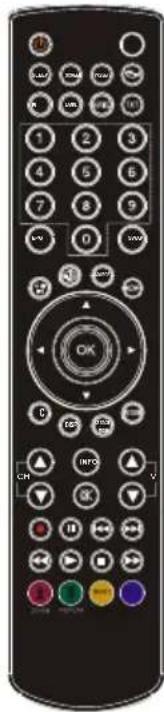
Standby1.
Image size / Zooms videos (in Media Browser 2. video mode)
Sleep Timer3.
Mono/Stereo - Dual I-II / Current Language (*) 4 (in DVB channels)
Favourite channels5.
Numeric buttons6.
Electronic programme guide(in DVB channels)7.
No function8.
Media Browser9.
Navigation buttons (Up/Down/Left/Right)10.
No function11.
Recordings library12.
Programme Down / Page up - Programme Up / 13.
Page down
Mute14.
Programme recording15.
Pause (in Media Browser mode) / Timeshift 16. recording
- Rapid reverse (in Media Browser mode)
- Play (in Media Browser mode)
- Red button/Stop(in Media Browser)
- Green button / List Schedule (in EPG) / Tag/ Untag All(in favourite list) / Play-Slideshow(in Media Browser)
- Picture mode selection. / Changes picture mode (in Media Browser video mode)
No function22. - Teletext / Mix (in TXT mode)
- Subtitle on-off (in DVB channels)
- Previous programme
- AV / Source selection Menu on-off27.
- Okay (Confirm) / Hold (in TXT mode)/ Edit Channel List Exit/Return/Index page(in TXT mode)29. No function30.
- Info / Reveal (in TXT mode)
- Volume Up / Down No function 33. No function 34.
- Rapid advance (in Media Browser mode)
- Stop (in Media Browser mode)
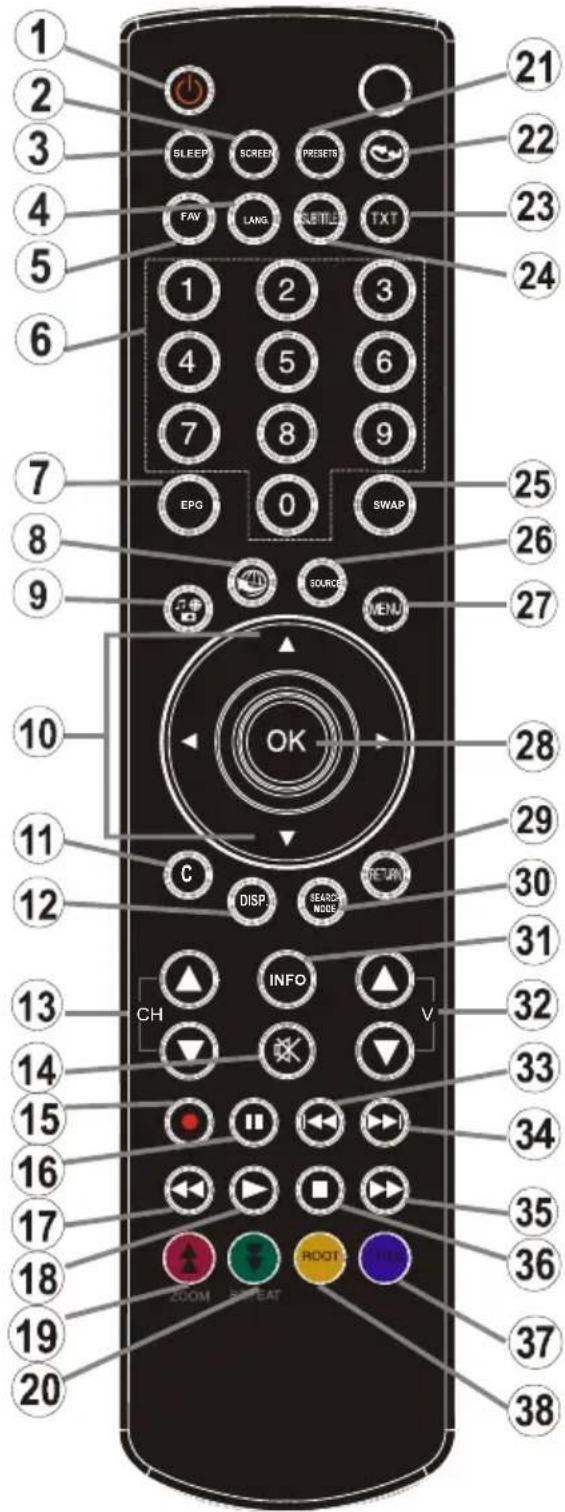
- Blue button/Edit Channel List/Filter (in Favourite List&EPG)/Loop-Shuffle (in Media Browser)
- Yellow button/Pause (in Media Browser)/Timeline Schedule(in EPG)
LED TV and Operating Buttons
| FRONT and REAR VIEW | Control switch VIEW | Control Switch |
| Up direction1. Down direction2. Programme/Volume / AV 3. / Standby-On selection switch Note:You can move the switch, upward or downward to change the volume. If you want to change channels, press the middle of the switch once (Position 3) and then move upward or downward. If you press the middle of the switch once more, source OSD will be displayed. If you press the middle of the switch and hold about a few seconds, the TV will switch to standby mode. Main menu OSD cannot be displayed via control buttons. |
Viewing the Back side Connections
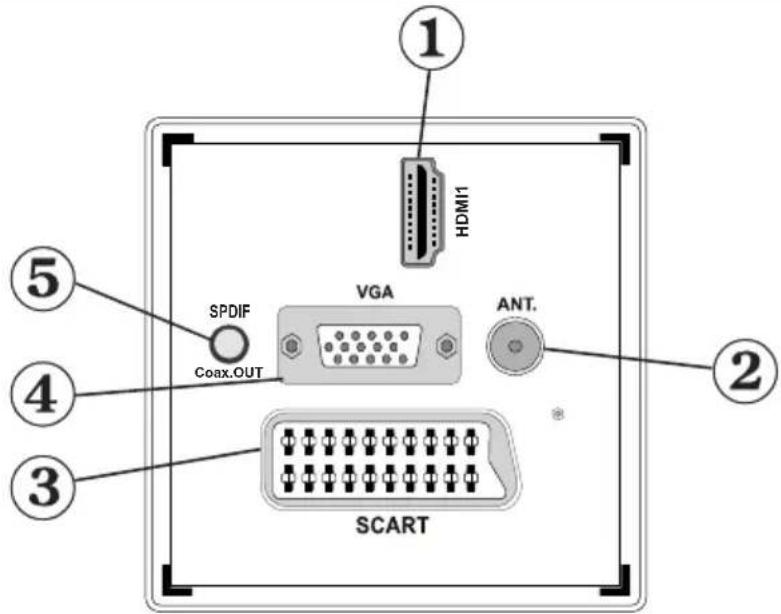
HDMI 1: HDMI Input 1.
HDMI Inputs are for connecting a device that has an HDMI socket. Your LED TV is capable of displaying High Definition pictures from devices such as a High Definition Satellite Receiver or DVD Player. These devices must be connected via the HDMI sockets or Component Socket. These sockets can accept either 720p or 1080i signals. No sound connection is needed for an HDMI to HDMI connection.
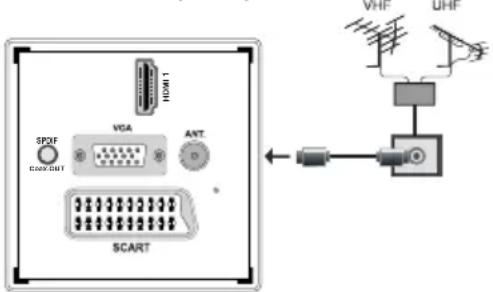
RF Input2. connects to an aerial antenna system.
Note that if you use a decoder or a media recorder, you should connect the aerial cable through the device to the television with an appropriate antenna cable, as shown in the illustration in the following pages.
- SCART input or output for external devices. Connect the SCART cable between SCART socket on TV and SCART socket on your external device (such as a decoder, a VCR or a DVD player).
Note: If an external device is connected via the SCART socket, the TV will automatically switch to AV mode.
Note: S-VHS signal is supported via the scart socket(optional).
VGA Input4. is for connecting a personal computer to the TV set.
Connect the PC cable between the PC INPUT on the TV and the PC output on your PC.
Note: You can use YPbPr to VGA cable (not supplied) to enable YPbPr signal via VGA input.
WARNING: You cannot use VGA and YPbPr at the same time.
SPDIF Out5. outputs audio signals of the currently watched source.
Use an SPDIF cable to transfer audio signals to a device that has SPDIF input
Viewing the Connections - Side Connectors
CI Slot is used for inserting a CI card. A CI card allows you to view all the 1. channels that you subscribe to. For more information, see "Conditional Access" section.
Side USB input. 2.
Note that programme recording feature is available via this USB input. You can connect external hard disk drives to this input.
Side audio-video connection3. input is used for connecting video and audio signals of external devices. To make a video connection, you must use the supplied AV connection cable for enabling connection. First, plug singular jack of the cable to the TV's Side AV socket. Afterwards, insert your video cable's (not supplied) connector into the YELLOW input (located on the plural side) of the supplied AV connection cable. Colours of the connected jacks should match.
To enable audio connection, you must use RED and WHITE inputs of the side AV connection cable. Afterwards, insert your device's audio cable's connectors into the RED and WHITE jack of the supplied side AV connection cable. Colours of the connected jacks should match.
Note: You should use audio inputs of side AV connection cable (RED & WHITE) to enable sound connection when connecting a device to your TV by using PC or COMPONENT VIDEO input.
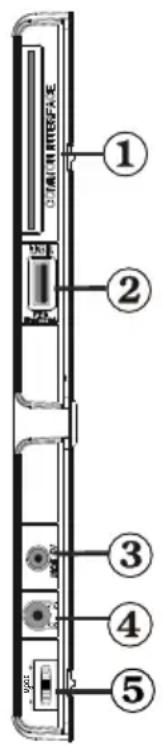
Headphone jack is used for connecting an external headphone to the system. Connect to the 4. HEADPHONE jack to listen to the TV from headphones (optional).
Volume/Programme/Source and Standby-On switch.5.
Power Connection
IMPORTANT: The TV set is designed to operate on 220-240V AC, 50 Hz.
After unpacking, allow the TV set to reach the ambient room temperature before you connect the set to the mains. Plug the power cable to the mains socket outlet.
Aerial Connection
- Connect the aerial plug to the AERIAL INPUT (ANT) socket located at the rear of the TV.
Using USB Input
USB Connection
You can connect a USB hard disk drive or USB memory stick to your TV by using the USB inputs of the TV. This feature allows you to play files stored in a USB drive or record programmes.
2.5" and 3.5" inch (hdd with external power supply) external hard disk drives are supported.
To record a programme, you should first connect a USB disk to your TV while the TV is switched off. You should then switch on the TV to enable recording feature. Otherwise, recording feature will not be available.
IMPORTANT!
You may back up your files before making any connections to the TV set in order to avoid any possible data loss. Note that manufacturer will not be responsible for any file damage or dataloss.
It is possible that certain types of USB devices (e.g. MP3 Players) or USB hard disk drives/memory sticks may not be compatible with this TV.
IMPORTANT: The TV supports only FAT32 disk formatting. NTFS format is not supported. If you connect a USB disk with NTFS format, the TV will ask you to format the content. See the section, "Format Disk" in the following pages for more information on disk formatting.
Note that ALL the data stored on the USB disk will be lost and then the disk format will be converted to FAT32 in such a case.
USB Disk Connection
- Plug your USB device to the USB input of the TV.
Note: Plug or unplug your USB disk while the TV is switched off.
Note: If you are going to connect a USB hard disk drive to the TV set, USB connection cable used between the disk drive and the TV should have a USB logo and should be as short as possible.
Note: While formatting a USB hard disk that has 1TB (Tera Byte) or more file capacity, you can experience problems with the formatting process. In such a case, you should format the disk with your personal computer and the formatted disk type should be FAT32.
Quickly plugging and unplugging USB devices, is a very hazardous operation. Especially, do not
- repeatedly quickly plug and unplug the drive. This may cause physical damage to the USB player and especially the USB device itself.
Do not pull out USB module while playing or recording a file.
Programme Recording
To record a programme, you should first connect a USB disk to your TV while the TV is switched off. You should then switch on the TV to enable recording feature.
IMPORTANT: When using a new USB hard disk drive, it is recommended that you first format the disk using your TV's "Format Disk" option.
For using recording function, you should connect a USB disk or an external hard disk drive to the TV and connected USB disk should have at least 1 GB capacity and should have 2.0 speed compatibility. If the connected USB device does not support 2.0 speed, an error message will be displayed.
Note: Recorded programmes are saved into the connected USB disk. If desired, you can store/copy recordings on a computer; however, these files will not be available to be played on a computer. You can play the recordings only via your TV.
For more information on recording programmes, see sections "Instant Recording", "Timeshifting", "Electronic Programme Guide", "Recordings Library" or "Recording Timers" in the following parts.
- Recorded programmes are split into 4GB partitions.
Recorded programmes are stored in the following directory of the connected USB disk: \DVR\RECS. All recordings are indicated with a number. A text (txt) file is created for each recording. This text file includes information such as broadcaster, programme, and recording time.
Timeshifting may be stopped according to USB device write speed. If the USB device speed is not enough for video stream bitrate, timeshifting may be stopped and recording may fail. If HD service bitrate is greater than 13 Mbp/sec, some freeze can be seen during timeshifting on both USB disk and on external HDD.
Recordings of HD programmes can occupy bigger size on the USB disk depending on the broadcast's resolution. For this reason it is recommended to use USB hard disk drives for recording HD programmes.
Do not plug out the USB/HDD during the recording. This may harm the connected USB/HDD.
Multipartiton support is available. Maximum two different partitions are supported. If the disk have more than two partitions, crash may occur. First partition of the usb disk is used for PVR ready features. It also must be formatted as primary partition to be used for PVR ready features.
Some stream packets may not be recorded because of signal problems, so sometimes video may freezes during playback.
Record, Play, Pause, Display (for PlayDialog) keys could not be used when teletext is ON. If a recording starts from timer when teletext is ON, teletext is automatically turned off. Also teletext usage is disabled when there is ongoing recording or playback.
- Radio record is not supported.
- The Tv can record programmes up to ten hours.
Connecting the LED TV to a PC
For displaying your computer's screen image on your LED TV, you can connect your computer to the TV set. Power off both computer and display before making any connections. Use 15-pin D-sub display cable to connect a PC to the LED TV. When the connection is made, switch to PC source. See Input selection section. Set the resolution that suits your viewing requirements. Resolution information can be found in the appendix parts
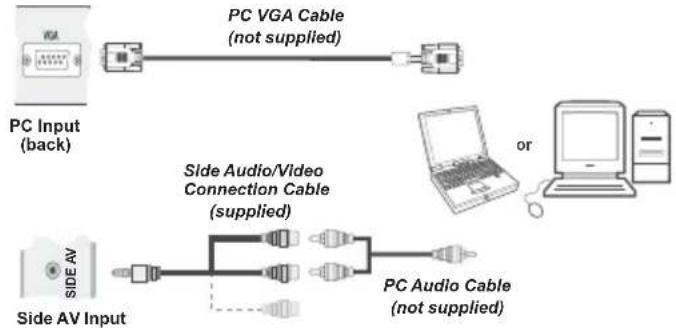
Note: You should use audio inputs of side AV connection cable (RED & WHITE) to enable sound connection when connecting a device to your TV by using PC input.
Note: If you connect a PC to the TV using HDMI connection, radio interference may occur. Therefore this type of connection is not recommended. You should use VGA connection instead.
Using Side AV Connectors
You can connect a range of optional equipment to your TV using the side connectors of the TV.
When connecting a camcorder or camera, you should use the SIDE AV socket. To do this, you must use the
- supplied video/audio connection cable. First, plug single jack of the cable to the TV's AV IN socket (side). Afterwards, insert your camera cable's (not supplied) connectors into the plural part of the video/ audio connection cable. Colours of the connected jacks should match. See illustration below.
Afterwards, you should switch to the - Side AV source. See the section Input selection in the following sections for more information.
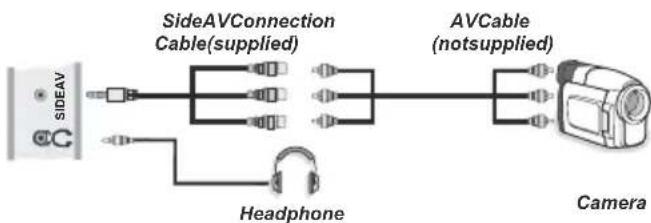
To listen the TV sound from headphones, you should connect headphones to your TV by using the HEADPHONE jack as illustrated above.
Connecting to a DVD Player via HDMI
Please refer to your DVD player's instruction book for additional information. Power off both the TV and the device before making any connections.
Note: Not all cables shown in the illustration are supplied.
- If your DVD player has an HDMI socket, you can connect via HDMI for better video and audio quality.
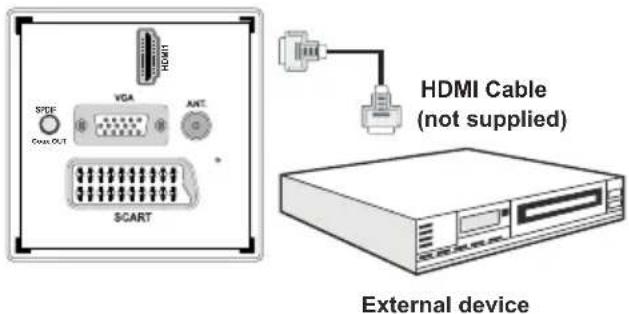
When you connect to DVD player as illustrated above, switch to the connected HDMI source. See, Input Selection section for more information on changing sources.
Connecting to a DVD Player
If you want to connect a DVD player to your TV, you can use the connectors of the TV set. DVD players may have different connectors. Please refer to your DVD player's instruction book for additional information. Power off both the TV and the device before making any connections.
Note: Cables shown in the illustration are not supplied.
- If your DVD player has an HDMI socket, you can connect via HDMI. When you connect to a DVD player as illustrated below, switch to the HDMI source. See "Input Selection" section.
Some DVD players are connected through · COMPONENT SOCKETS (YPbPr). YPbPr can be used only when you connect a device that has a YPbPr output through the PC input with YPbPr to PC cable (YPbPr cable is not supplied).
You may also connect through the SCART sockets. Use a SCART cable as shown below.
VideoConnection
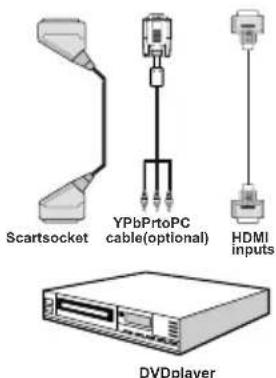
Note: These three methods of connection perform the same function but in different levels of quality. It is not necessary to connect by all three methods.
Remote Control Handset
Inserting Batteries
Remove the battery cover located on the back of the handset by gently pulling backwards from the indicated part.
- Insert two AAA/R3 or equivalent type batteries inside. Observe the correct polarity (+/-) when inserting batteries and replace the battery cover.
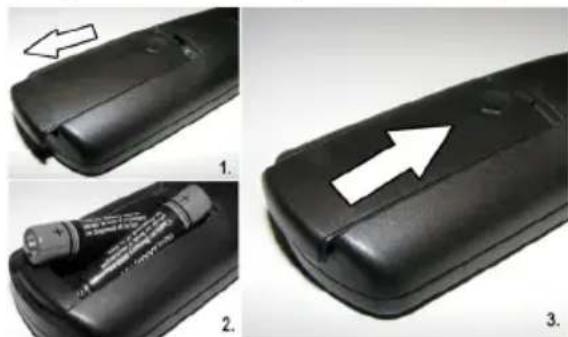
Note: Remove the battery from remote control handset when it is not to be used for a long period. Otherwise it can be damaged due to any leakage of batteries. Remote range is approximately 7m/23ft.
Switching On/Off
To Switch the TV On
Connect the power cord to the 220-240V AC 50 Hz. Then the standby LED lights up (The led will blink during the standby On/Off).
To switch on the TV from standby mode either:
- Press the "O" button, CH▲ or CH▼ or a numeric button on the remote control.
Press the control switch right side of the TV. The TV will then switch on.
Note: If you switch on your TV via CH▲ or CH▼ buttons on the remote control or on the TV set, the programme that you were watching last will be reselected.
By either method the TV will switch on.
To Switch the TV Off
- Press the "O" button on the remote control or hold the control switch on the Tv until shut down, so the TV will switch to standby mode.
To power down the TV completely, unplug the power cord from the mains socket.
Note: When the TV is switched to standby mode, standby LED can blink to indicate that features such as Standby Search, Over Air Download or Timer is active.
Input Selection
Once you have connected external systems to your TV, you can switch to different input sources. Press "SOURCE" button on your remote control consecutively for directly changing sources.
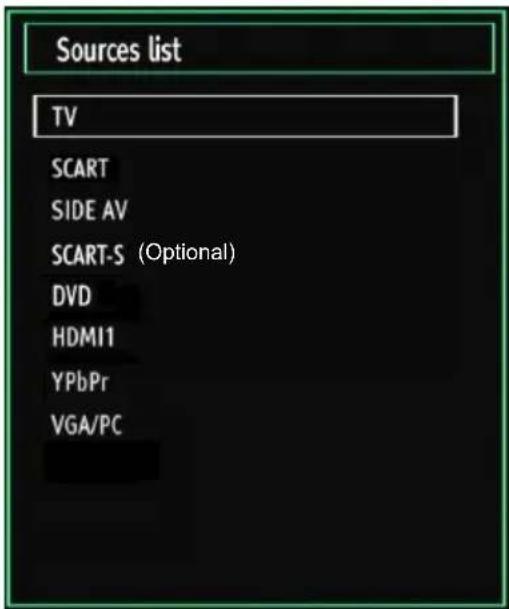
Note: YPbPr mode can be used only when you connect a device that has a YPbPr output through the PC input with YPbPr to PC cable (not supplied).
Basic Operations
You can operate your TV using both the remote control and onset buttons.
Operation with the Buttons on the TV
Volume Setting
You can move the control switch upward or downward for changing the volume. To increase volume, please move the switch upward. Move the switch downward to decrease the volume. A volume level scale (slider) will be displayed on the screen.
Programme Selection
First press the control switch once to change channel. You can move the switch upward to select the next programme or move it downward to select the previous programme.
Viewing Main Menu
Menu screen cannot be displayed by using the control switch.
AV Mode
Press the control switch consecutively until the source OSD is displayed on the screen.
Operation with the Remote Control
The remote control of your TV is designed to control all the functions of the model you selected. The functions will be described in accordance with the menu system of your TV.
Volume Setting
- Press "V▲" button to increase the volume. Press "V▼" button to decrease the volume. A volume level scale (slider) will be displayed on the screen.
Programme Selection (Previous or Next Programme)
- Press CH▼ button to select the previous programme.
- Press CHA button to select the next programme.
Programme Selection (Direct Access)
Press numeric buttons on the remote control to select programs between 0 and 9. The TV will switch to the selected programme. To select programmes between, press the numeric buttons consecutively. When the pressing time is due for the second numeric button, only the first digit programme will be displayed. Press directly the programme number to reselect single digit programmes.
Viewing Electronic Programme Guide (EPG)
You can view the electronic programme guide (EPG) to view information about available programmes. To view the EPG menu please press EPG button on the remote control.
- Press “ ” buttons to navigate through channels.
- Press "▶"/"▶" buttons to navigate through the programme list.
EPG menu displays available information on all channels.
Please note that event information is updated automatically. If there are no event information data available for channels, EPG will be displayed with blanks.
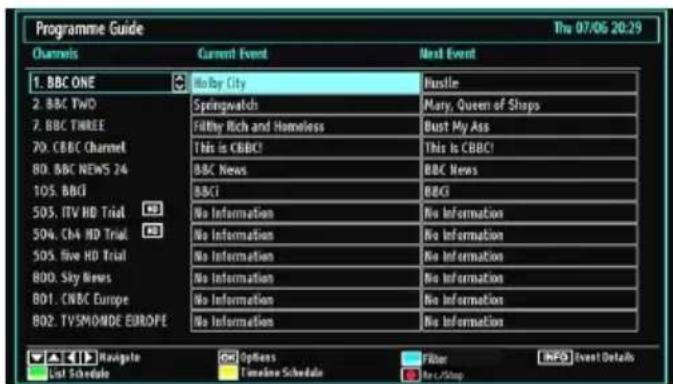
▼▲▼Navigate
OK (Options): Views/records or sets timer for future programmes.
- Blue button (Filter): Views filtering options.
INFO (Event Details): Displays the programmes in detail.
Green button:Programme schedule will be listed
Yellow button: Display EPG data in accordane with timeline schedule
(RECORD): the TV will start to record the selected programme. You can press again to stop the recording.
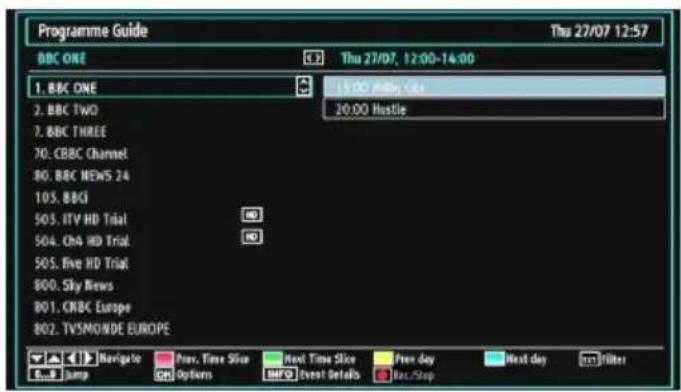
▼▲▼Navigate
Red button (Prev Time Slice): Displays the programmes of previous time slice.
Green button (Next Time Slice): Displays the programmes of the next time slice.
Yellow button (Prev Day): Displays the programmes of previous day.
Blue button (Next day): Displays the programmes of the next day.
TXT button (Filter): Views filtering options.
Numeric buttons (Jump): Jumps to the preferred channel directly via numeric buttons.
OK (Options): Views/records or sets timer for future programmes.
INFO (Details): Displays the programmes in detail.
(RECORD): the TV will start to record the selected programme. You can press again to stop the recording.
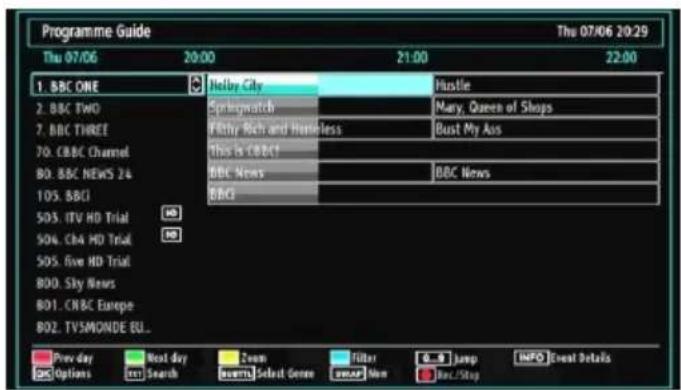
Red button (Prev Day): Displays the programmes of previous day.
Green button (Next day): Displays the programmes of the next day.
Yellow button (Zoom): Expands programme information.
Blue button (Filter): Views filtering options.
Numeric buttons (Jump): Jumps to the preferred channel directly via numeric buttons.
INFO (Details): Displays the programmes in detail.
OK (Options): Views/records or sets timer for future programmes.
Text (Search): Displays "Guide Search" menu.
SUBTTL: Press SUBTITLE button to view Select Genre menu. Using this feature, you can search the programme guide database in accordance with the genre. Info available in the programme guide will be searched and results matching your criteria will be listed.
SWAP(Now) : Shows the current programme.
(RECORD): the TV will start to record the selected programme. You can press again to stop the recording.
Recording via EPG Screen
IMPORTANT: To record a programme, you should first connect a USB disk to your TV while the TV is switched off. You should then switch on the TV to enable recording feature. Otherwise, recording feature will not be available.
(RECORD): the TV will start to record the selected programme. You can press again to stop the recording.
Note: Switching to a different broadcast or source is not available during the recording.
page left / Page right.
Programme Options
In EPG menu, press the OK button to enter the "Event Options" menu.
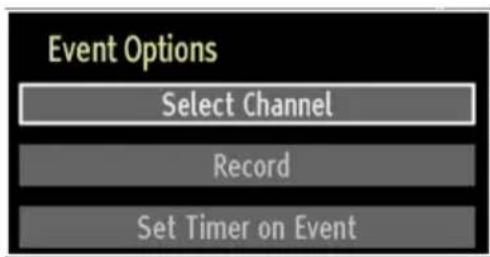
Select Channel
In EPG menu, using this option, you can switch to the selected channel.
Record/Delete Record Timer
IMPORTANT: To record a programme, you should first connect a USB disk to your TV while the TV is switched off. You should then switch on the TV to enable recording feature. Otherwise, recording feature will not be available.
After you have selected a programme in EPG menu, press the OK button and and Options screen will be displayed. Select "Record" option and press the
OK button. After this operation, a recording becomes set to the selected programme.
To cancel an already set recording, highlight that - programme and press the OK button and select the option "Delete Rec. Timer". The recording will be cancelled.
Note: You cannot switch to any other channel or source while there is an active recording on the current channel.
Set Timer/Delete Timer
After you have selected a programme in EPG menu, press the OK button and and Options screen will be displayed. Select "Set Timer on Event" option and press OK button. You can set a timer for future programmes.
To cancel an already set reminder, highlight that programme and press the OK button. Then select "Delete Timer" option. The timer will be cancelled.
Note: It is not possible to record or set timer for two or more individual events at the same time interval.
Digital Teletext (\*\* for UK only)
- Press the "TXT" button.
The digital teletext information appears.
Operate it with the coloured buttons, cursor buttons and OK button.
The operation method may differ depending on the contents of the digital teletext.
Follow the instructions displayed on digital teletex screen.
When the "·" "TXT" button is pressed, the TV returns to television broadcasting.
With digital broadcasting (DVB-T-C), in addition to digital teletext broadcasting together with the normal broadcasting, there are also channels with just digital teletext broadcasting.
The aspect ratio (picture shape) when watching a channel with just digital teletext broadcasting is the same as the aspect ratio of the picture viewed previously.
When you press the "·" button again, the digital teletext screen will be displayed.
Analogue Teletext
Use of teletext and its functions are identical to the analogue text system. Please do refer to the "TELETEXT" explanations
First Time Installation
IMPORTANT: Ensure that the aerial or cable is connected and a Common Interface module is not inserted before switching on the TV for the first time installation.
When the TV is operated for the first time, installation - wizard will guide you through the process. First, language selection screen will be displayed:
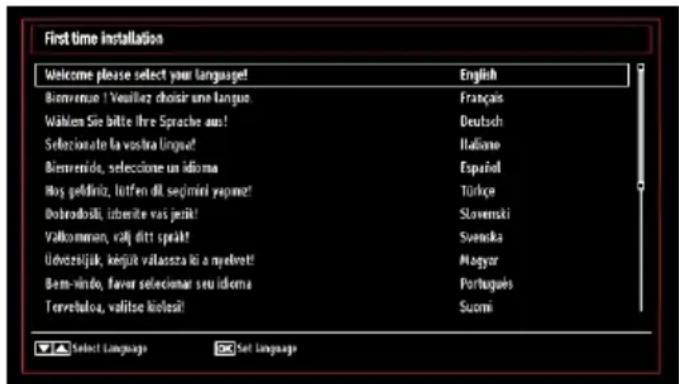
- Use “▼” or “▲” buttons to select your language and press OK button to set selected language and continue.
- After selecting the language, "Welcome!" screen will be displayed, requiring you to set Country, Teletext Language and Scan Encrypted options.
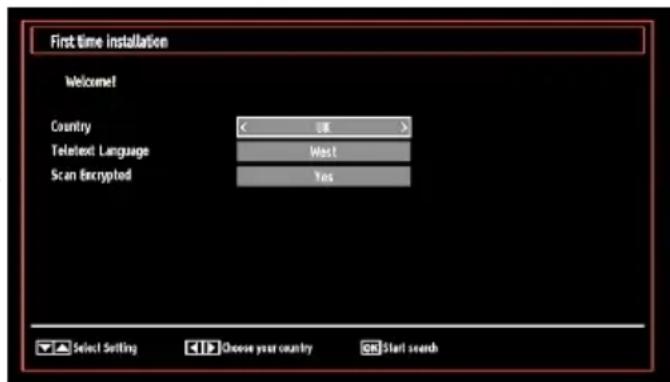
- By pressing “<” or “>” button, select the country you want to set and press “▼” button to highlight Teletext Language option. Use “<” or “>” button to select desired Teletext Language.
a Press "▼" button after setting Teletext Language option. Scan Encrypted will be then highlighted. You can set Scan Encrypted as Yes if you want to scan coded stations. Afterwards select the desired Teletext Language. - Press OK button on the remote control to continue and the following message will be displayed on the screen:
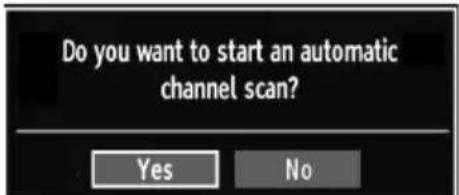
To select the "Yes" or "No" option, highlight the item by using "or buttons and press OK button.
Afterwards the following OSD will be displayed on the screen and the TV will search for both digital and analogue TV broadcasts.
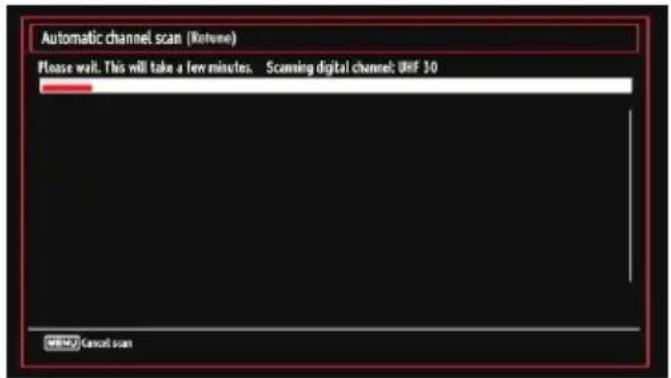
Note: You can press "MENU" button to cancel.
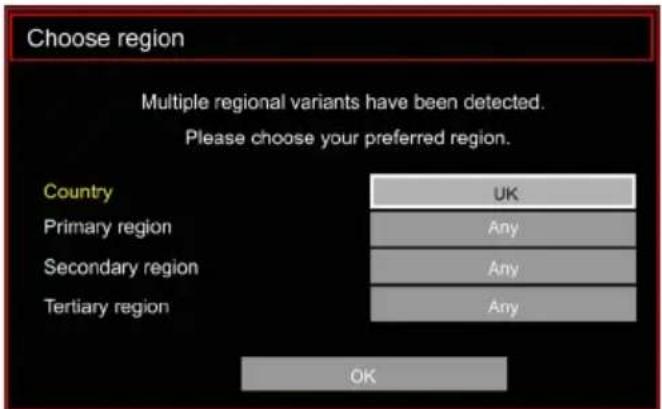
End of the search process, "Choose Region" osd will be displayed on the screen (if any multiple region variants are detected). Please select country and region choice then press OK to continue.
After all the available stations are stored, Channel List will be displayed on the screen. If you like the sort channels, according to the LCN, please select "Yes" and then press "OK".
- Press OK button to quit channel list and watch TV.
Installation
Press MENU button on the remote control and select Installation by using "or" button. Press OK button and the following menu screen will be displayed.
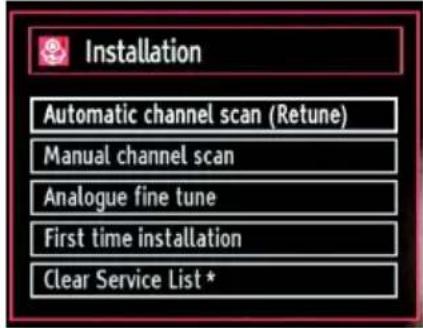
Select Automatic Channel Scan (Retune) by using button and press OK button. Automatic Channel Scan (Retune) options will be displayed. You can select options by using and OK buttons.
Auto Channel Scan (Retune) Menu Operation
Digital Aerial: Searches and stores aerial DVB stations.
Analogue: Searches and stores analogue stations.
Full: Searches and stores both analog and aerial DVB stations.
Whenever you select an automatic search type and press OK button, a confirmation screen will appear on the screen. To start installation process, select Yes, to cancel select No by using .“or”and OK button.
After auto channel scan type is set and selected and confirmed, installation process will start and progress bar will move along. Press "MENU" button to cancel process. In such a case, located channels are not stored.
Manual Tuning
HINT: This feature can be used for direct broadcast entry.
- Select Manual Channel Scan from the Installation menu by using "▼/u" and OK buttons. Manual Scan options screen will be displayed.
- Select the desired Search Type using “<” or “>” button. Manual search options will change accordingly. Use “ / ” button to highlight an item and then press “<” or “>” button to set an option. You can press “MENU” button to cancel.
Manual Search
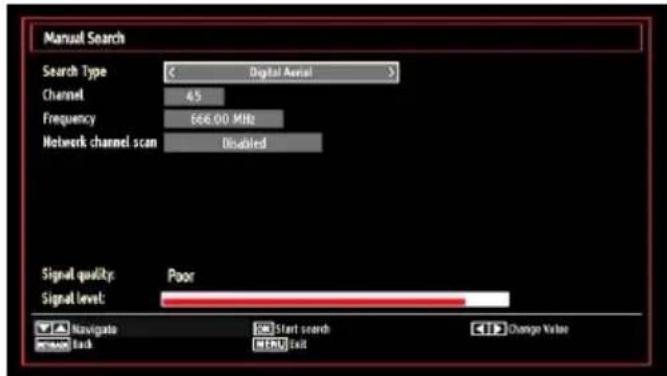
In manual channel scan, the number of the multiplex or frequency are entered manually and only that multiplex or frequency are searched for the channels. After selecting search type as Digital Aerial, you can enter the multiplex or frequency number using the numeric buttons and press OK button to search.
Analogue Manual Search
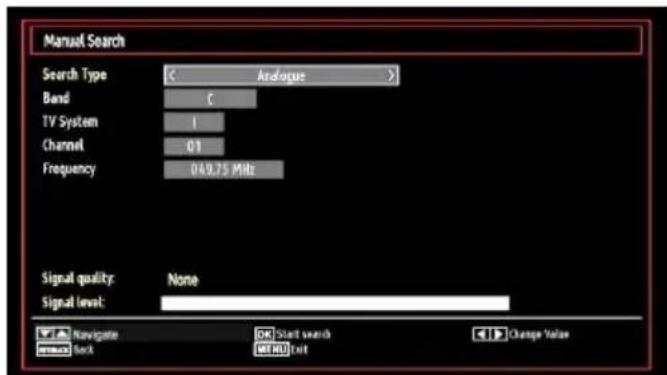
After selecting search type as analogue, you can use "▼" button to highlight an item and then press "▲" or "▶" button to set an option.
Enter the channel number or frequency using the numeric buttons. You can then press OK button to search. When the channel is located, any new channels that are not on the list will be stored.
Analogue Fine Tune
- Select Analogue Fine Tune from the Installation menu by using "▼ or "▲ and OK buttons. Analogue fine tune screen will be displayed. Analogue Fine Tune feature will not be available if there are analog channels, digital channels and external sources stored.
- Press OK button to proceed. Use “<” or “>” button to set Fine Tune. When finished, press OK button again.
Clear Service List (^*)
(*) This setting is visible only when the Country option is set to Denmark, Sweden, Norway or Finland.
Use this setting to clear channels stored. Press or "▲button to select Clear Service List and then press OK. The following OSD message will be displayed on the screen:

Press OK to cancel. Select Yes by pressing or button and press OK to delete all of the channels.
Managing Stations: Channel List
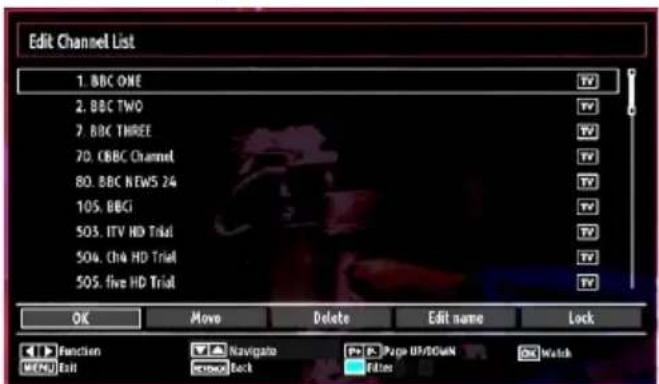
The TV sorts all stored stations in the Channel List. You can edit this channel list, set favourites or set active stations to be listed by using the Channel List options.
- Press MENU button to view main menu. Select Channel List item by using or button. Press OK to view menu contents.
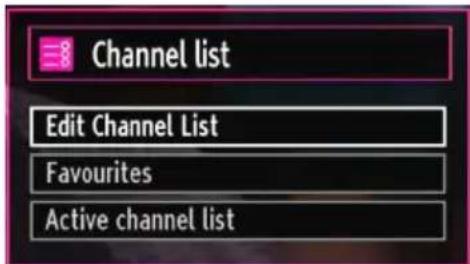
Select Edit Channel List to manage all stored channels. Use "or" and OK buttons to select Edit Channel List.
Operating the Channel List
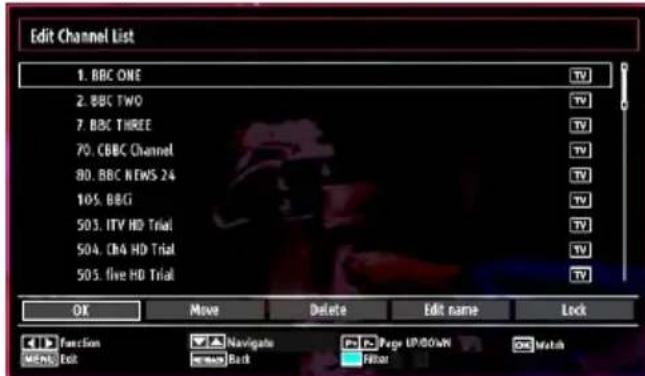
-
Press "▼" or "▲" button to select the channel that will be processed. Press "▶" or "▶" button to select a function on Channel List menu.
-
Use CH▲ or CH▼ buttons to move page up or down.
Press · BLUE button to view filtering options. Press · MENU button to exit.
Moving a Channel
First select the desired channel. Select Move option in the channel list and press OK button.
Edit Number screen will be displayed. Enter the desired channel number by using the numeric buttons on the remote control. If there is a previously stored channel on that number, a warning screen will be displayed. Select Yes if you want to move the channel and press OK.
- Press OK button to process. Selected channel is now moved.
Deleting a Channel
You can press GREEN button to tag/untag all channels; YELLOW button to tag/untag channel.
Select the channel that you want to delete and select Delete option. Press OK button to continue.
- A warning screen will appear. Select YES to delete, select No to cancel. Press OK button to continue.
Renaming a Channel
Select the channel that you want to rename and select Edit Name option. Press OK button to continue.
Pressing "▲" or "▶" button moves to the previous/ next character. Pressing "▼" or "▲" button toggles the current character, i.e., 'b' character becomes 'a' by "▼" and 'c' by "▲". Pressing the numeric buttons '0...9' replaces the highlighted character with the characters printed above the button one by one as the button is pressed.
- When finished, press OK button to save. Press MENU to cancel.
Locking a Channel
You can press GREEN button to tag/untag all channels; YELLOW button to tag/untag a single channel.
Select the channel that you want to lock and select Lock option. Press OK button to continue.
You will be asked to enter parental control PIN. Default PIN is set as 0000. Enter the PIN number.
Note: If the Country option is set to France, you can use 4725 as the default code.
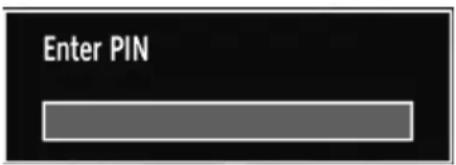
- Press OK button when the desired channel is highlighted to lock/unlock the channel. Lock symbol will be displayed next to the selected channel.
Managing Stations: Favourites
You can create a list of favourite programmes.
- Press MENU button to view main menu. Select Channel List item by using “
- Select Favourites to manage favourite list. Use "▼" and OK buttons to select Favourites.
You can set various channels as favourites so that only the favourite channels are navigated.
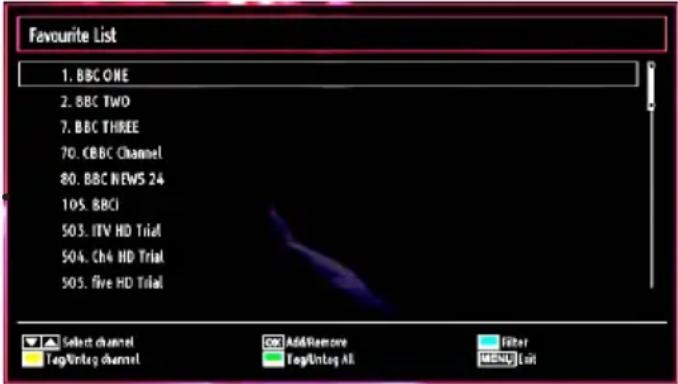
- Select a channel by using “▼” or “▲” button. Press OK button to add selected channel to favourites list. Press OK button again to remove.
Button Functions
- OK: Add/remove a station.
- YELLOW: Tag/untag a channel.
GREEN: Tag/untag all channels. - BLUE: Displays filtering options.
Managing Stations: Sorting Channel List
You can select broadcasts to be listed in the channel list. To display specific types of broadcast, you should use Active channel list setting.
Select Active channel list from the Channel list menu by using "or" button. Press OK button to continue.
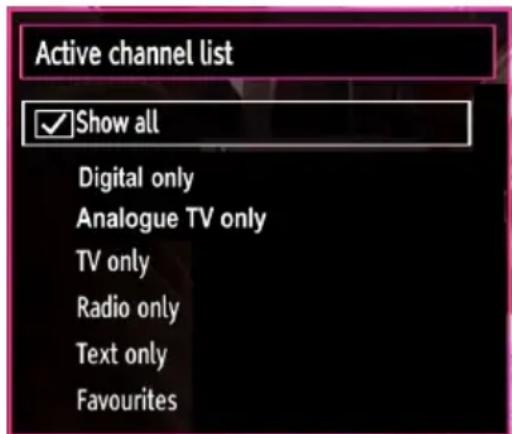
You can select a broadcast type option from the list by using "▼" / "▲" and OK buttons.
On-Screen Information
You can press INFO button to display on-screen information. Details of the station and current programme will be displayed on the information banner.

The information banner gives information on the channel selected and the programmes on it. The name of the channel is displayed, along with its channel list number.
Hint: Not all channels broadcast the programme data. If the name and time of the programme are not available, then information banner will be displayed with blanks.
If the selected channel is locked, you must enter the correct four-digit numeric code to view the channel (default code is 0000). "Enter PIN" will be displayed on the screen.
Note: If the Country option is set to France, you can use 4725 as the default code.
Media Playback Using Media Browser
If the USB stick is not recognized after power off/on or First Time Installation, first, plug the USB device out and power off/on the TV set. Plug the USB device in again.
To display Media Browser window, press either "MENU" button on the remote control and then select Media Browser by pressing "or button. Press OK button to continue. Media Browser menu options will be displayed.
Also, when you plug USB devices, media browser screen will be displayed automatically:
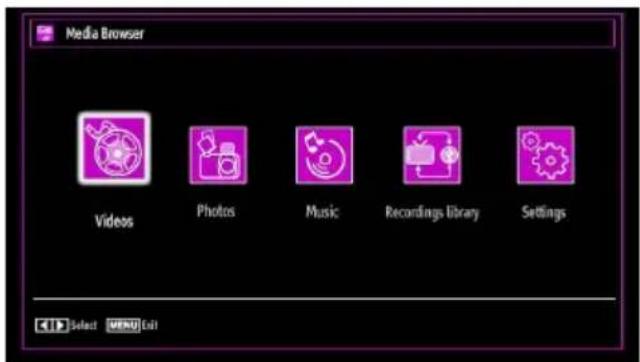
You can play music, picture and video files from the connected USB memory stick. Use or button to select Videos, Photos, Music, Recordings library or Settings.
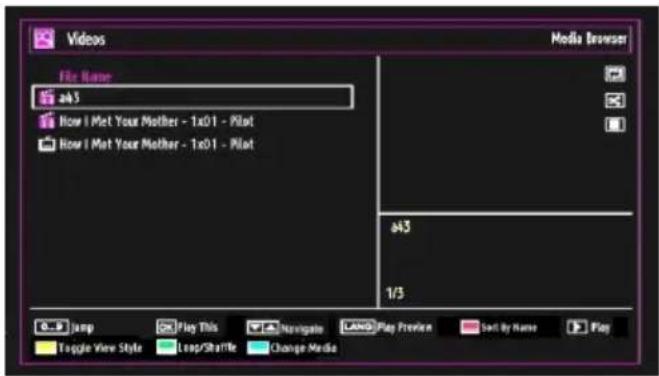
Viewing Videos via USB
When you select Videos from the main options, available video files will be filtered and listed on this screen. You can use or "▲button to select a video file and press OK button to play a video. If you select a subtitle file and press OK button, you can select or deselect that subtitle file. The following menu will be displayed while playing a video file:
Jump (Numeric buttons):The TV will jump to the file starting with the letter you input via the numeric buttons on your remote control.
Play This (OK button) : Plays the selected file.
▶ Navigate menu
Lang (Play Preview): Displays selected file in a small preview screen.
RED: Sorts files by name.
Play (button) : Plays all media files starting with the selected one.
Yellow Button: Change viewing style
Loop/Shuffle (GREEN button): Press once to disable Loop. Press again to disable both Loop and Shuffle. Press once more to enable only Shuffle. Press again to enable all. You can follow the disabled functions with the change of the icons.
BLUE: Changes media options.
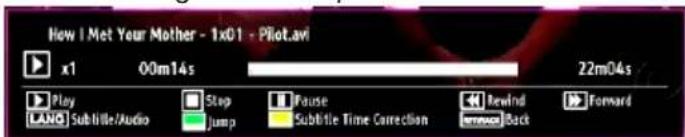
Play button): Starts the video playback.
Stop (button): Stops the video playback.
Pause (I button): Pause the video playback.
Rewind (Button): Goes backward.
Forward (Button): Goes forward.
Subtitle/Audio (LANG. button): Sets subtitle/Audio.
Jump (GREEN button): Jumps to time. Use numeric buttons to type the desired time and press GREEN button again to proceed.
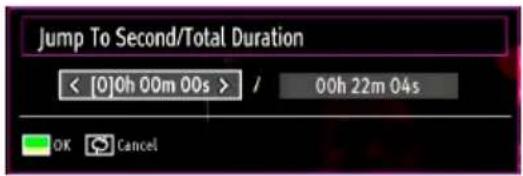
Yellow: Opens subtitle time correction menu.
Ret/Back: Back to previous menu.
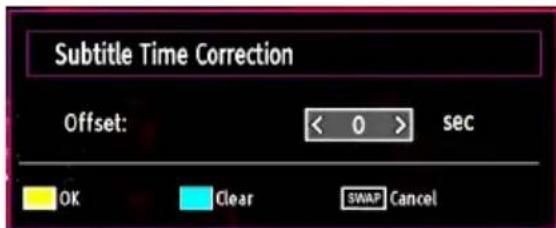
Press OK to confirm
Press BLUE button for clear
Press SWAP (Exit) button to switch back to previous menu.
Viewing Photos via USB
When you select Photos from the main options, available image files will be filtered and listed on this screen.
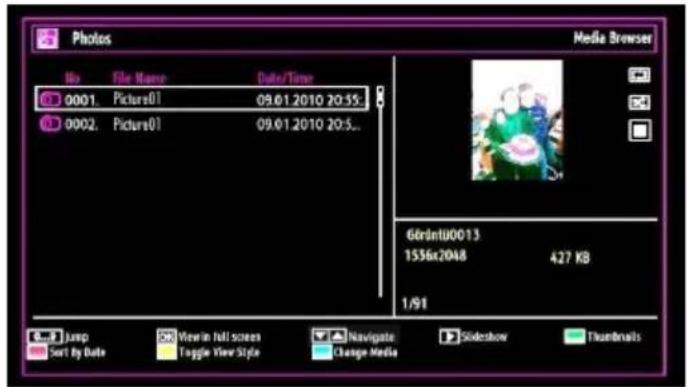
Jump (Numeric buttons): Jump to selected file using the numeric buttons.
OK: Views the selected picture in full screen.
▶▼Navigate menu
Slideshow ( button): Starts the slideshow using all images.
GREEN button: Views images in thumbnails.
RED button: Sorts files by date.
Yellow Button: Change viewing style
BLUE: Changes media options.
Slideshow Options

Pause (lbutton): Pauses the slideshow.
Continue button) : Continues the slideshow.
Loop/Shuffle (GREEN button): Press once to disable Loop. Press again to disable both Loop and Shuffle. Press once more to enable only Shuffle. Press again to enable all. You can follow the disabled functions with the change of the icons.
Previous/Next (Left/Right buttons): Jumps to previous or next file on slideshow.
Rotate (Up/Down buttons): Rotates the image using up/down buttons.
RETURN (Exit): Back to file list.
INFO: Displays help screen.
Playing Music via USB
When you select Music from the main options, available audio files will be filtered and listed on this screen.
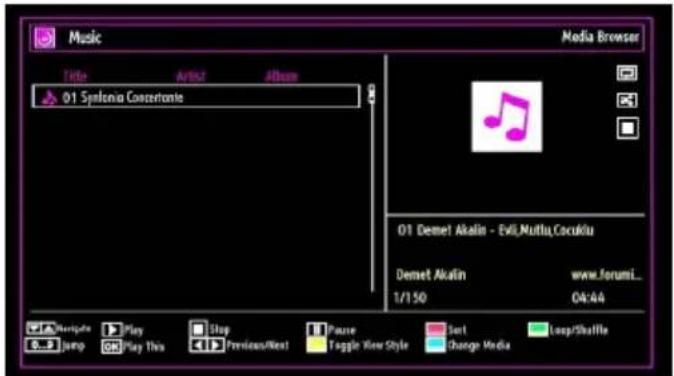
/ Navigate menu
Play button):Starts the playback.
Stop button): Stops playback.
Pause (Ibutton): Pauses the selected playback.
RED button: Sorts files by Title,Artist or Album.
Loop/Shuffle (GREEN button): Press once to disable Loop. Press again to disable both Loop and Shuffle. Press once more to enable only Shuffle. Press again to enable all. You can follow the disabled functions with the change of the icons.
Note:
If you start the playback with the button and activate the symbol, the TV will play the next music/video file. The playback will proceed accordingly and when the end of the list is reached, it will be played again from the beginning (loop function).
If you start the playback with the OK button and activate the symbol, the same music or video file will be played in a loop (repeat function).
If you start the playback with or OK button and activate the symbol, music or video file will be played in a shuffle.
If you start the playback with or OK button and activate symbols, music or video file playback will continue randomly and the random playback will continue.
0..9 (Numeric buttons): The TV will jump to the file starting with the letter you input via the numeric buttons on your remote control.
Play This (OK button) : Plays the selected file.
Previous/Next (Left/Right buttons) : Jumps to previous or next file to play.
Yellow Button: Change viewing style
BLUE: Changes media options.
Note: If the Viewing Style is set to Folder in Media Browser Settings, Music folder will be displayed as sorted and there is no need to sort files again by pressing FAV button.
INFO: Changes filter options.
Recordings Library
IMPORTANT: To view recordings library, you should first connect a USB disk to your TV while the TV is switched off. You should then switch on the TV enable recording feature. Otherwise, recording featur will not be available.
To view the list of recordings, select "Recordings Library" and press the OK button. Recordings Library will then be displayed with available recordings.
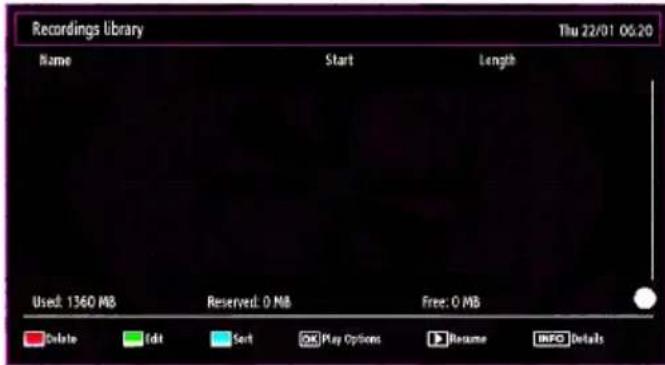
All the recordings are kept in a list in the recordings library.
RED button (Delete):Erases the selected recording.
GREEN button (Edit): Makes changes on the selected recording.
BLUE button (Sort): Changes the order of the recordings. You can select from a wide range of sorting options.
OK button: Activates play options menu:
-
Play from start: Plays the recording from the beginning.
-
Resume: Recommences the recordings.
- Play from offset: Specifies a playing point.
Note: Viewing main menu and menu items will not be available during the playback.
(Resume): Recommences the recordings.
INFO (Details): Displays the short extended programmes in detail.
Media Browser Settings
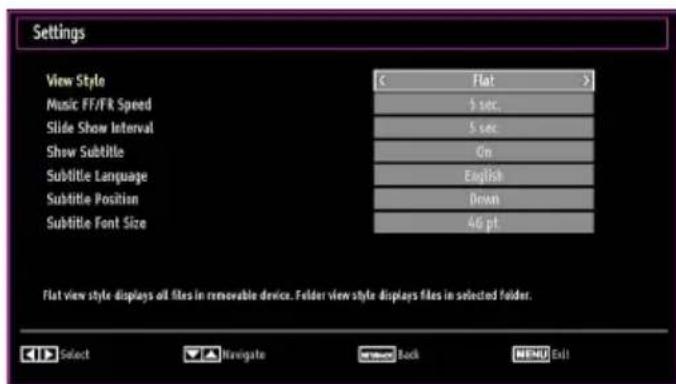
You can set your Media Browser preferences by using the Settings dialog. Press "▼or" button to highlight an item and use "▲or" button to set.
View Style: Sets default browsing mode.
Music FF/FR Speed: Sets forwarding/advancing speed.
Slide Show Interval: Sets slide show interval time.
Show Subtitle: Sets subtitle enabling preference.
Subtitle Language: Sets supported subtitle language.
Subtitle Position: Sets subtitle position as up or down.
Subtitle Font Size: Sets subtitle font size (max. 54pt).
Timeshift Recording
IMPORTANT: To record a programme, you should first connect a USB disk to your TV while the TV is switched off. You should then switch on the TV to enable recording feature. Otherwise, recording feature will not be available.
- Press (PAUSE) button while watching a broadcast for switching to timeshifting mode.
In timeshifting mode, the programme is paused and simultaneously recorded to the connected USB disk () . Press (PLAY) button again to watch the paused programme from the stopped moment. - This playback is performed in x1 playback speed. You will see the timeshift gap between the real and the timeshifted programme in the info bar.
- Use / (PREVIOUS/NEXT) buttons to move forward or backward on timeshift playback. When the timeshift is reached, timeshifting mode will be quitted and you will switch back to watching normal broadcast.
Press (STOP) button to quit timeshifting mode.
(*) Simultaneous timeshifting recording's duration depends on your connected USB disk's file size and defined Max. Timeshift in the Recordings Configuration menu. See the section, "Recordings" for more information on setting Max. Timeshift.
Note: Switching to a different broadcast or source and viewing main menu are not available during the timeshifting.
Lip Sync delay may occur during the timeshifting.
Instant Recording
IMPORTANT: To record a programme, you should first connect a USB disk to your TV while the TV is switched off. You should then switch on the TV to enable recording feature. Otherwise, recording feature will not be available.
Press (RECORD) button to start recording an event instantly while watching a programme. The following OSD appears on the screen:
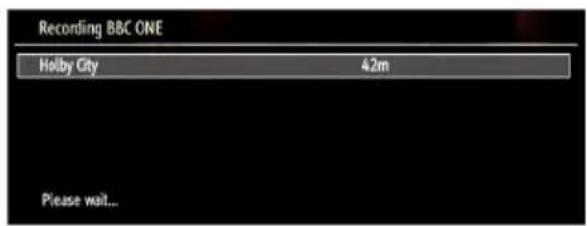
Record OSD will then be displayed for a short time and the current event will be recorded.
You can press (RECORD) button on the remote control again to record the next event on the EPG. In this case, OSD will display the programmed events for recording.
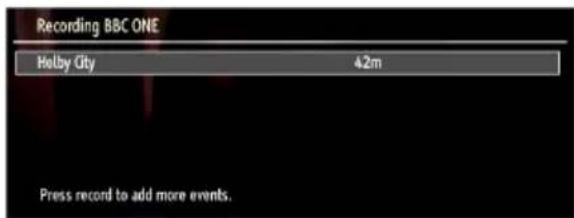
Press STOP) button to cancel instant recording. The following OSD will be displayed:
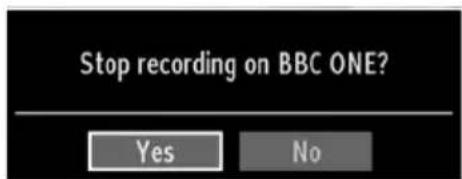
Select Yes by using "or OK buttons to cancel instant recording.
Note: Switching to a different broadcast or source and viewing Media Browser are not available during the recording.
Watching Recorded Programmes
In the main menu, use "or" buttons to select Media Browser. Highlight Recordings Library item by using or button and press OK button to enter.
Recordings Library will then be displayed.
IMPORTANT: To view recordings library, you should first connect a USB disk to your TV while the TV is switched off. You should then switch on the TV to enable recording feature. Otherwise, recording feature will not be available.
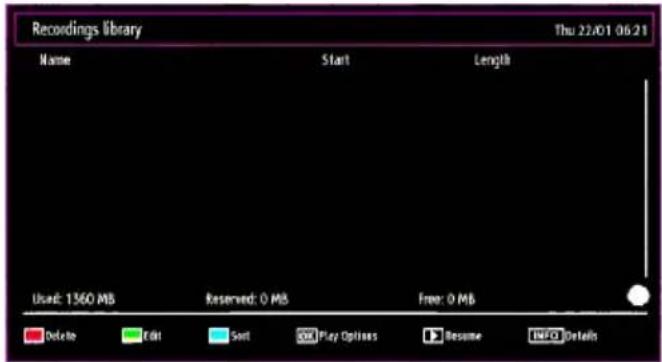
Select a recorded item from the list (if previously recorded) by using “▼”/“▲” button. Press OK button to view Play Options. Select an option by using “▼” /“▲” or OK buttons.
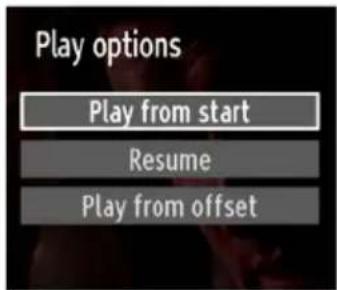
Available playback options:
Play from start: Plays the recording from the beginning.
- Resume: Recommences the recordings.
- Play from offset: Specifies a playing point.
Note: Viewing main menu and menu items will not be available during the playback.
Press (STOP) button to stop a playback and return to return to Recordings Library.
Slow Forward
If you press (PAUSE) button while watching recorded programmes, slow forward feature will be available. You can use button to slow forward. Pressing button consecutively will change slow forwarding speed.
Changing Image Size: Picture Formats
You can change the aspect ratio (image size) of the TV for viewing the picture in different zoom modes.
- Press SCREEN button repeatedly to change the image size. Available zoom modes are listed below.
Auto
When AUTO is selected, the aspect ratio of the screen is adjusted by the information provided by the selected source(if available)
The format being displayed in AUTO mode is completely independent of WSS information which could be included in the broadcast signal or the signal from an external device.
Note: Auto mode only will be available in HDMI, YPbPr and DTV sources.
16:9
This uniformly stretches the left and right sides of a normal picture (4:3 aspect ratio) to fill the wide TV screen.
For 16:9 aspect ratio pictures that have been squeezed into a normal picture (4:3 aspect ratio), use the 16:9 mode to restore the picture to its original shape.
Subtitle
This zooms up the wide picture (16:9 aspect ratio) with subtitles to the full screen.
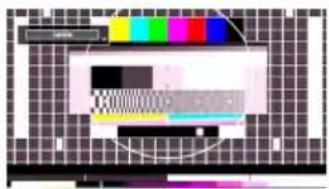
Note: You can shift to screen up or down by pressing “ / ”按钮 while picture zoom is selected as panaromic, 14:9 Zoom, Cinema or Subtitle.
14:9
This zooms up the wide picture (14:9 aspect ratio) to the upper and lower limits of the screen.
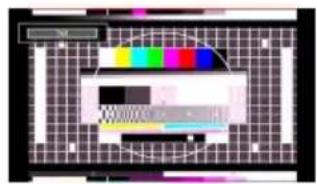
14:9 Zoom
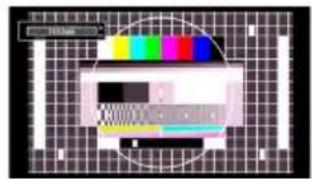
This option zooms to the 14:9 picture.
4:3
Use to view a normal picture (4:3 aspect ratio) as this is its original size.
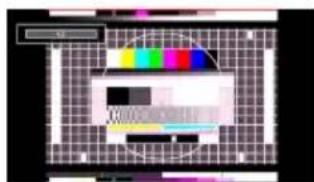
Panoramic
This stretches the left and right sides of a normal picture (4:3 aspect ratio) to fill the screen, without making the picture appear unnatural.
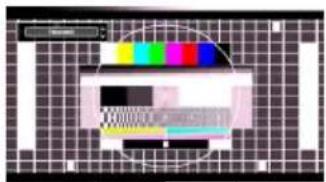
The top and bottom of the picture are slightly cut off.
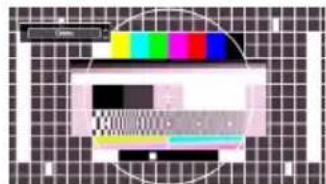
Cinema
This zooms up the wide picture (16:9 aspect ratio) to the full screen.
Configuring Picture Settings
You can use different picture settings in detail.
Press MENU button and select the Picture icon by using “or ” button. Press OK button to view Picture Settings menu.
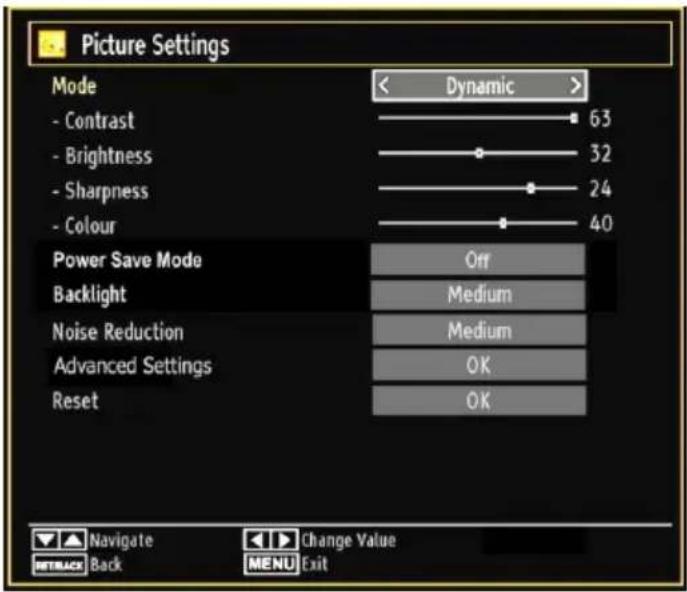
Operating Picture Settings Menu Items
Press " " or " button to highlight a menu item.
Use "▶" or "▶" button to set an item.
Press·MENUButton to exit.
Picture Settings Menu Items
Mode: For your viewing requirements, you can set the related mode option. Picture mode can be set to one of these options: Cinema, Game, Dynamic and Natural.
Contrast: Sets the lightness and darkness values of the screen.
Brightness: Sets the brightness value for the screen.
Sharpness: Sets the sharpness value for the objects displayed on the screen.
Colour: Sets the colour value, adjusting the colors.
Power Save Mode
Use “ ” or “ ” button to select Power Save Mode.
Press "▶" or "▶" button to set Power Save Mode as On or Off.
See the section, "Environmental Information" in this manual for further information on Power Save Mode.
Note: Backlight function will be invisible if Power Save Mode is set to on.
Backlight (optional): This setting controls the backlight level and it can be set to Auto, Maximum, Minimum, Medium and Eco Mode (optional).
Note: Backlight can not be activate in VGA or Media Browser mode or while picture mode is set as Game.
Noise Reduction: If the broadcast signal is weak and the picture is noisy, use Noise Reduction setting to reduce the noise amount. Noise Reduction can be set to one of these options: Low, Medium, High or Off.
Advanced Settings:
- Colour Temp: Sets the desired colour tone. Setting Cool option gives white colours a slight blue stress. For normal colours, select Normal option. Setting Warm option gives white colours a slight red stress.
- Picture Zoom: Sets the picture size to Auto, 16:9, Subtitle, 14:9, 14:9 Zoom, 4:3, Panoramic on Cinema.
- HDMI True Black (optional): While watching from HDMI source, this feature will be visible in the Picture Settings menu. You can use this feature to enhance blackness in the picture. You can set this feature as "On" for activating HDMI True Black mode.
- Film Mode (Optional): Films are recorded at a different number of frames per second to normal television programmes. Press "or" buttons to select Film mode. Press "or" buttons to set this feature Auto or Off. Turn this feature to Auto when you are watching films to see the fast motion scenes clearly.
Colour Shift: Adjust the desired colour tone.
Reset: Resets the picture settings to factory default settings.
While in VGA (PC) mode, some items in Picture menu will be unavailable. Instead, VGA mode settings will be added to the Picture Settings while in PC mode.
PC Picture Settings
For adjusting PC picture items, do the following:
Press "or" button to select Picture icon. Picture menu appears on the screen.
Contrast, Brightness, Colour, Colour Temp and Picture Zoom settings in this menu are identical to settings defined in TV picture menu under "Main Menu System".
Sound, Settings and Source settings are identical to the settings explained in main menu system.
PC Position: Select this to display PC position menu items.
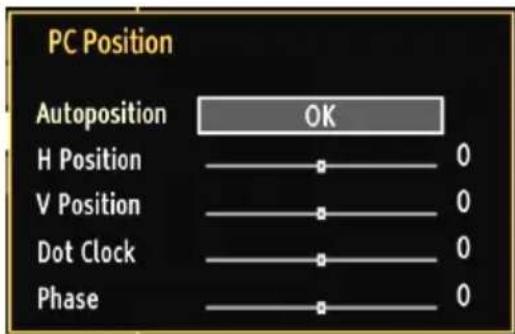
Autoposition: Automatically optimizes the display. Press OK to optimize.
H Position: This item shifts the image horizontally to right hand side or left hand side of the screen.
V Position: This item shifts the image vertically towards the top or bottom of the screen.
Dot Clock: Dot Clock adjustments correct the interference that appear as vertical banding in dot intensive presentations like spreadsheets or paragraphs or text in smaller fonts.
Phase: Depending on the resolution and scan frequency that you input to the TV set, you may see a hazy or noisy picture on the screen. In such a case you can use this item to get a clear picture by trial and error method.
Configuring Sound Settings
Sound settings can be configured according to your personal preferences.
Press MENU button and select the Sound icon by using “or ” button. Press OK button to view Sound Settings menu.
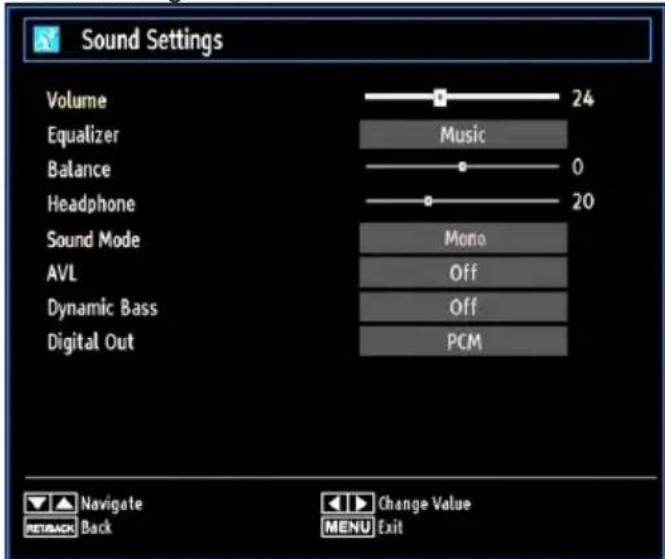
Operating Sound Settings Menu Items
Press "√" or "▲" button to highlight a menu item.
Use " 一 ^ 一 or 一 ^ 一 button to set an item.
Press·MENUButtonetoexit.
Sound Settings Menu Items
Volume: Adjusts volume level.
Equalizer: Press OK button to view equalizer submenu.
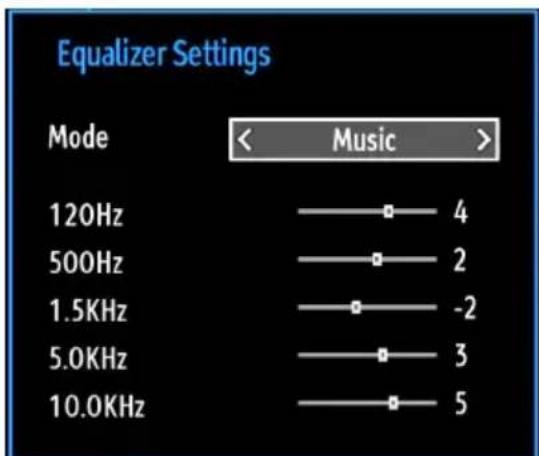
In equalizer menu, the preset can be changed to Music, Movie, Speech, Flat, Classic and User. Press the MENU button to return to the previous menu.
Note: Equalizer menu settings can be changed manually only when the Equalizer Mode is in User.
Balance: This setting is used for emphasizing left or right speaker balance.
Headphone: Sets headphone volume.
Sound Mode: You can select Mono, Stereo, Dual I or Dual II mode, only if the selected channel supports that mode.
AVL: Automatic Volume Limiting (AVL) function sets the sound to obtain fixed output level between programmes (For instance, volume level of advertisements tend to be louder than programmes).
Dynamic Bass: Dynamic Bass is used to increase bass effect of the TV set.
Digital Out: Sets digital out audio type.
Configuring Your TV's Settings
Detailed settings can be configured to suit your personal preferences.
Press MENU button and select Settings icon by using "or" button. Press OK button to view Settings menu.
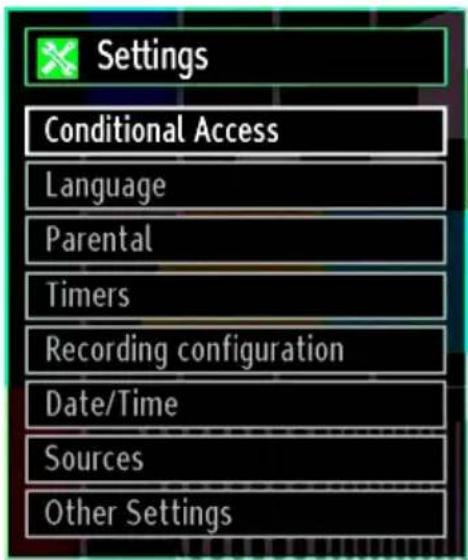
Operating Settings Menu Items
Press " " or "▲button to highlight a menu item.
Press OK button to select an item.
Press·MENUButton to exit.
Settings Menu Items
Conditional Access: Controls conditional access modules when available.
Language: Configures language settings.
Parental: Configures parental settings.
Timers: Sets timers for selected programmes.
Date/Time: Sets date and time.
Sources: Enables or disables selected source options.
Other Settings: Displays other setting options of the TV set.
Using a Conditional Access Module
IMPORTANT: Insert or remove the CI module only when the TV is SWITCHED OFF.
In order to watch certain digital channels, a conditional access module (CAM) can be necessary. This module must be inserted in the CI slot of your TV.
Obtain the Conditional Access Module (CAM) and the viewing card by subscribing to a pay channel company, then insert those to the TV using the following procedure.
Insert the CAM and then the viewing card to the slot that is located in the terminal cover at the rear side of the TV.
The CAM should be correctly inserted, it is impossible to insert fully if reversed. The CAM or the TV terminal may be damaged if the CAM is forcefully inserted.
Connect the TV to the mains supply, switch on and then wait for few moments until the card is activated.
When no module is inserted, "No Common Interface module detected" message appears on the screen.
Refer to the module instruction manual for details of the settings.
Viewing Conditional Access Menu (*)
(*) These menu settings may change depending on the service provider.
Press MENU button and select the icon by using " or " 一 " button. Press OK button to view Settings menu. Use or " 一 " button to highlight Conditional Access and press OK to view menu items.
Configuring Language Preferences
You can operate the TV's language settings using this menu.
Press MENU button and select the Settings icon by using "or" button. Press OK button to view Settings menu. Use "or" button to highlight Language and press OK to continue:
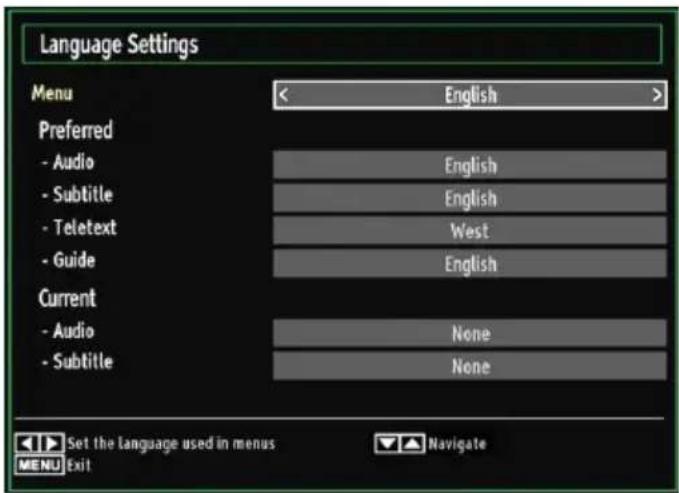
Use "▼or" button to set an item. Settings are stored automatically.
Menu: displays the system language.
Preferred
These settings will be used if available. Otherwise the current settings will be used.
Audio: Sets the preferred audio language.
Subtitle: Sets the subtitle language. Selected language will be seen in subtitles.
Teletext: Sets teletext language.
Guide: Sets the preferred Guide language.
Current (*)
(*) These settings can be changed if only the broadcaster supports. Otherwise, settings will not be available to be changed.
Audio: Changes the audio language for the current channel.
Subtitle: Sets the subtitle language for the current channel.
Note: If the Country option is set to Denmark, Sweden, Norway or Finland, the Language Settings menu will function as described below:
Language Settings
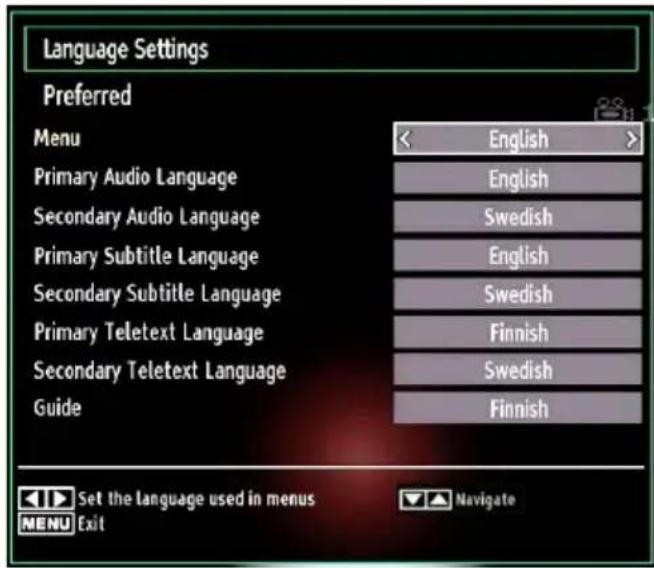
In the configuration menu, highlight the Language Settings item by pressing "▼or" buttons. Press OK and Language Settings submenu will be displayed on the screen:
Use "▼or" buttons to highlight the menu item that will be adjusted and then press "or" button to set.
Notes:
- System Language determines the on-screen menu language.
Audio Language is used for selecting the soundtrack of a channels.
Primary settings are the first priority when multiple choices are available on a broadcast. Secondary settings are the alternatives when the first options are not available.
Parental Control
To prohibit viewing of certain programmes, channels and menus can be locked by using the parental control system.
This function enables or disables the menu protection system and allows the PIN code to be changed.
Press MENU button and select the Settings icon by using “<” or “>” button. Press OK button to view Settings menu. Use “ ” or “ ” button to highlight Parental and press OK to continue:
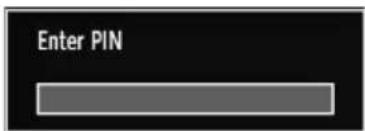
To display parental lock menu options, PIN number should be entered. Factory default PIN number is 0000.
Note: If the Country option is set to France, you can use 4725 as the default code.
After coding the correct PIN number, parental settings menu will be displayed:
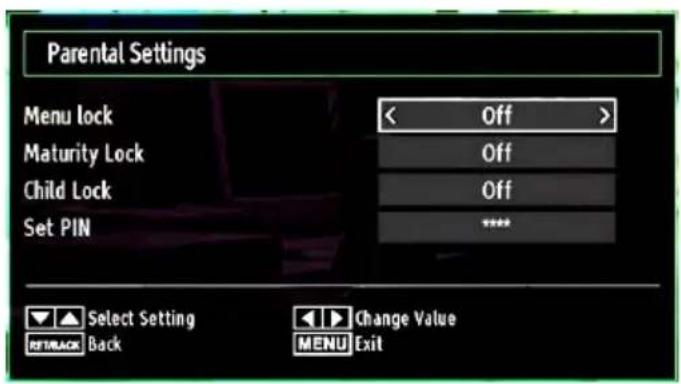
Parental Settings Menu Operation
Select an item by using "▼" or "▲button. Use "▲" or "▼" button to set an item.
Press OK button to view more options.
Menu Lock: Menu lock setting enables or disables the menu access. You can disable access to the installation menu or the whole menu system.
Maturity Lock: When set, this option gets the maturity information from the broadcast and if this maturity level is disabled, disables access to the broadcast.
Child Lock: When Child Lock is set, the TV can only be controlled by the remote control. In this case the control panel buttons will not work. Hence, if one of those buttons is pressed, Child Lock Is On will be displayed on the screen when the menu screen is not visible.
Set PIN: Defines a new PIN number. Use numeric buttons to enter a new pin number. You will need to code your new pin a second time for verification purposes.
IMPORTANT: The factory default pin number is 0000, if you change the pin number make sure you write it down and keep it safe.
Note: If the Country option is set to France, you can use 4725 as the default code.
Timers
To view Timers menu, press MENU button and select Settings icon by using "or" button. Press OK button to view Settings menu. Use "or" button to highlight Timers and press OK to continue:
Setting Sleep Timer
This setting is used for setting the TV to turn off after a certain time.
Highlight Sleep Timer by using "▼" or "▲ button.
- Use " " or " " button to set. The timer can be programmed between Off and 2.00 hours (120 minutes) in steps of 30 minutes.
Setting Programme Timers
You can set programme timers for a particular programme using this feature.
Press button to set timers on an event. Programmetimer function buttons will be displayed on the screen.
Adding a Timer
- Press YELLOW button on the remote control to add a timer. The following menu appears on the screen:
Channel: Changes network type by using "or".
Timer Type: You can select timer type as Record or Timer.
Date: Enter a date using the numeric buttons.
Start: Enter a starting time using the numeric buttons.
End: Enter an ending time using the numeric buttons.
Duration: Displays duration between the starting and ending time.
Repeat: Sets a timer to be repeated as Once, Daily or Weekly. Use "or" buttons to select an option.
Change/Delete: Sets the change/delete permission.
Playback: Sets the playback permission and parental settings.
- Press GREEN button to save the timer. Press RED button to cancel.
Editing a Timer
- Select the timer you want to edit by pressing "▼" or "▲button.
- Press GREEN button. Edit Timer menu screen will be displayed.
- When finished with editing, press GREEN button to save. You can press MENU button to cancel.
Deleting a Timer
- Select the timer you want to delete by pressing "▼" or "▲" button.
- Press RED button.
- Select YES by using “<” or “>” buttons to delete the timer. Select NO to cancel.
Recording Configuration
Select Recording Configuration item in the Settings menu to configure recording settings. The following menu is displayed for recording configuration.
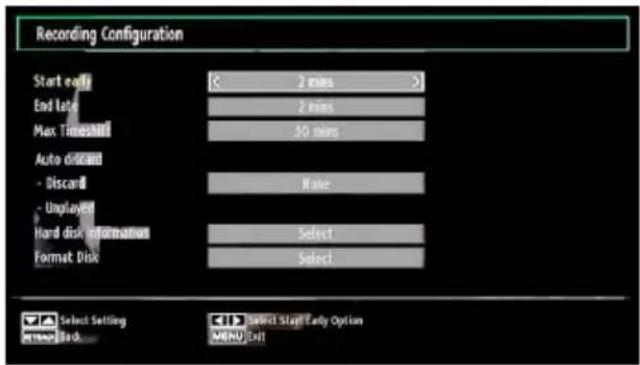
The following options are available for adjustments:
Start Early (*)
You set recording timer's starting time to start earlier by using this setting.
(*) Available only for EU country options.
End Late (^*)
You set recording timer's end time to end later by using this settings.
(*) Available only for EU country options.
Max Timeshift
This setting allows you to set the maximum time allowed for timeshifting. Duration options are approximate and can change accordingly, depending on the broadcast received.
Format Disk
IMPORTANT: Note that ALL the data stored on the USB disk will be lost and then the disk format will be converted to FAT32 if you activate this feature.
-If you want to delete all files on the connected USB hard disk drive or memory stick, you can use Format Disk option.
- Also, if your USB disk malfunctions, you can try formatting the USB disk. In most cases formatting the USB disk will restore normal operation; however, ALL the data stored on the USB disk will be lost in such a case.
- Press OK button while the Format Disk option is highlighted. A menu will appear on the screen, requiring you to enter a pin number. If you have not changed the pin number, the factory default is 0000. After you enter the pin, a pop-up menu appears on the screen to ensure that the hard disk should be formatted, select "YES" and press OK to format the hard disk. Select "NO" and press OK to cancel. Ensure you back up important recordings before you format the USB disk unit.
Hard Disk Info
To view the details about the USB disk, highlight Hard Disk Info by using or *key and press OK. USB disk information will be displayed:
Configuring Date/Time Settings
Select Date/Time in the Settings menu to configure Date/Time settings. Press OK button.
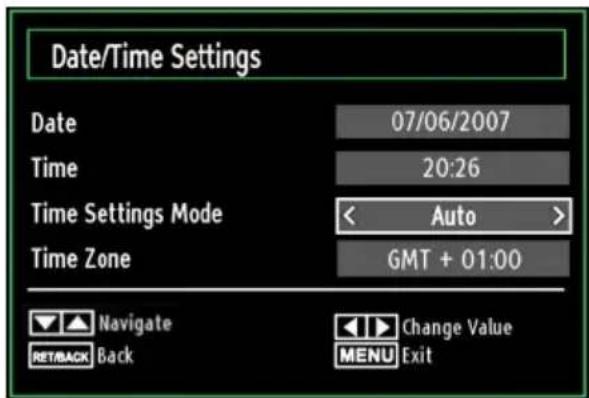
- Use “▼” or “▲” buttons to highlight Date/Time.
Date, Time, Time Settings Mode and Time Zone Setting will be available.
Use "▲or" buttons to highlight the Time Settings Mode. Time Settings Mode is set using "▲or" buttons. It can be set to AUTO or MANUAL.
When AUTO is selected, Date/Time and Time Zone options will not be available to be set. If MANUAL option is selected as the Time Zone can be altered:
- By pressing “▲or “ ” Buttons select Time Zone.
Use "or" buttons to change the Time Zone between GMT-12 or GMT+12. Date/Time on the top of the menu list will then change according to the selected Time Zone. - Changes are automatically stored. Press MENU to exit.
Configuring Source Settings
You can enables or disable selected source options. TV will not switch to the disabled source options when SOURCE button is pressed.
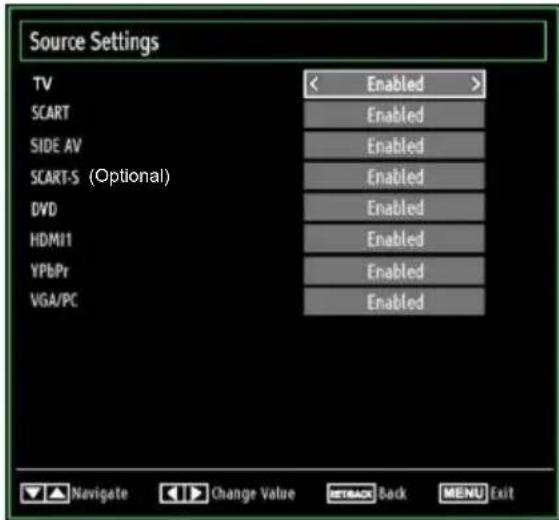
- Select Sources in the Settings menu and press OK button.
Press"”or" buttons to select a source. - Use “ ” or “ ” button to enable or disable the selected source. Changes are automatically stored.
Note: YPbPr mode can be used only when you connect a device that has a YPbPr output through the PC input with YPbPr to PC cable (not supplied).
Configuring Other Settings
To view general configuration preferences, select Other Settings in the Settings menu and press OK button.

Operation
- Press "▼" or "▲" buttons to select an item.
- Use " " or " " button to set an option.
- Press OK button to view a sub-menu.
Menu Timeout: Changes timeout duration for menu screens.
Scan Encrypted: When this setting is on, search process will locate the encrypted channels as well. If it is set as Off, encrypted channels will not be located in automatic search or manual search.
Blue Background (Optional): Activates or deactivates blue background system when the signal is weak or absent.
Software Upgrade: To ensure that your TV always has the most update information, you can use this setting. In order for the proper operation, please ensure that the TV is set to standby mode.
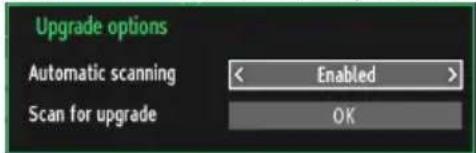
You can enable or disable automatic upgrade by setting Automatic Scanning option.
You can manually search for new software by selecting Scan for upgrade.
Application version: Displays the current application version.
Hard of Hearing: If the broadcaster enables any special signal concerning the audio, you can set this setting as On to receive such signals.
Audio Description: Audio description refers to an additional narration track for blind and visually impaired viewers of visual media, including television and movies. The description narrator talks through the presentation, describing what is happening on the screen during the natural pauses in the audio (and sometimes during dialogue, if deemed necessary). You can use this feature, only if the broadcaster supports that additional narration track.
Auto TV Off: You can set the timeout value of auto off feature. After the timeout value is reached and the Tv is not operated for selected time, the TV will go off.
Standby Search (optional): Use "▼or " " button to select Standby Search and then press " " or "▶" button to set this setting as On or Off. If you change Standby Search to Off, this function will be unavailable. To use Standby search please make sure that you select Standby Search as On.
If the Standby Search is set to On, when the TV is in standby mode, available broadcasts will be searched. If the TV locates any new or missing broadcasts, a menu screen will be displayed, asking you whether or not to execute these changes.
Other Features
Displaying TV Information: Programme Number, Programme Name, Sound Indicator, time, teletext, channel type and resolution information is displayed on the screen when a new programme is entered or "INFO" button is pressed.
Mute Function: Press " button to disable sound. Mute indicator will be displayed in the upper side of the screen. To cancel mute, there are two alternatives: the first one is pressing the button and the second one is increasing the volume level.
Picture Mode Selection: By pressing PRESETS button, you can change Picture Mode settings in accordance with your viewing requirements. Available options are Dynamic, Natural, Cinema and Game.
Displaying Subtitles: You can enable subtitles by pressing the SUBTITLE button of the remote control. Press SUBTITLE button again to disable subtitle function.
If "Subtitle" is On, pressing the "▶" button causes the following warning message display on the screen (** for UK only)
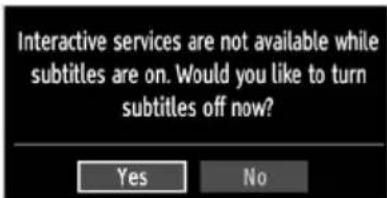
Teletext
Teletext system transmits information such as news, sports and weather on your TV. Note that is the signal degrades, for example in poor/adverse weather conditions, some text errors may occur or the teletext mode may be aborted.
Teletext function buttons are listed below:
"TXT" Teletext / Mix : Activates teletext mode when pressed once. Press again to place the teletext screen over the programme (mix). Pressing again will quit the teletext mode.
"RETURN" Index: Selects the teletext index page.
"INFO"Reveal: Shows hidden information (e.g. solutions of games).
"OK" Hold: Holds a text page when convenient. Press again to resume.
"Subcode Pages: Selects subroutine pages if available when the teletext is activated.
CH or CHV and numbers (0-9): Press to select a page.
Note: Most TV stations use code 100 for their index pages.
Coloured Buttons (RED/GREEN/YELLOW/ BLUE)
Your TV supports both FASTEXT and TOP text systems. When these systems are available, the pages are divided into groups or topics. When FASTEXT system is available, sections in a teletext page will become colour-coded and can be selected by pressing the coloured buttons. Press a coloured button that corresponds to with your needs. The coloured writings will appear, showing you which coloured buttons to use when TOP text transmission is present. Pressing or " commands will request the next or previous page respec tively.
Tips
Screen Care: Clean the screen with a slightly damp, soft cloth. Do not use abrasive solvents as they may damage the coating layer of the TV screen. For your safety, unplug the mains plug when cleaning the set. When moving the TV, hold it properly from the bottom part.
Image Persistence: Please note that ghosting may occur while displaying a persistent image. LED TVs' image persistence may disappear after a short time. Try turning off the TV for a while.
To avoid this, do not leave the screen in still picture for extended periods.
No Power: If your TV system has no power, please check the main power cable and connection to the mains socket outlet.
Poor Picture: Have you selected the correct TV system? Is your TV set or house aerial located too close to a non-earthy audio equipment or neon lights, etc.? Mountains or high buildings can cause double pictures or ghost images. Sometimes you can improve the picture quality by changing the direction of the aerial. Is the picture or teletext unrecognisable? Check if you have entered the correct frequency. Please retune the channels. The picture quality may degrade when two peripherals are connected to the TV at the same time. In such a case, disconnect one of the peripherals.
No Picture: Is the aerial connected properly? Are the plugs connected tightly to the aerial socket? Is the aerial cable damaged? Are suitable plugs used to connect the aerial? If you are in doubt, consult your dealer. No Picture means that your TV is not receiving a transmission. Have you selected the correct button on the remote control? Try once more. Also make sure the correct input source has been selected.
Sound: You can not hear any sound. Did you perhaps interrupt the sound, pressing the button? Sound is coming from only one of the speakers. Is the balance set to one extreme? See Sound Menu.
Remote Control: Your TV no longer responds to the remote control. Perhaps the batteries are exhausted. If so you can still use the local buttons on the TV.
Input Sources: If you cannot select an input source, it is possible that no device is connected. Check the AV cables and connections if you have tried to connect a device.
Recording Unavailable: To record a programme, you should first connect a USB disk to your TV while the TV is switched off. You should then switch on the TV to enable recording feature. Otherwise, recording feature will not be available. If you cannot perform recording, try switching off the TV and then re-inserting the USB device while the TV is switched off.
USB Is too Slow: If "USB is too slow" message is displayed on the screen while starting a recording, try restarting the recording. If you still get the same error, it is possible that your USB disk does not meet the speed requirements. Try connecting another USB disk.
Appendix A: PC Input Typical Display Modes
The display has a maximum resolution of 1920 × 1200 The following table is an illustration of some of the typical video display modes. Your TV may not support different resolutions. Supported resolution modes are listed below. If you switch your PC to an unsupported mode, a warning OSD will appear on the screen.
| Index | Resolution | Frequency |
| 1 | 640x350 85 | Hz |
| 2 | 640x400 70 | Hz |
| 3 | 640x480 | 60Hz-66Hz-72Hz-75Hz-85Hz |
| 4 | 800x600 | 56Hz-60Hz-70Hz-72Hz-75Hz-85Hz |
| 5 | 832x624 75 | Hz |
| 6 | 1024x768 | 60Hz-66Hz-70Hz-72Hz-75Hz |
| 7 | 1152x864 | 60Hz-70Hz-75Hz-85 Hz |
| 8 | 1280x768 60 | HzA |
| 9 | 1280x768 60 | HzB |
| 10 | 1280x768 75 | Hz-85Hz |
| 11 | 1280x960 | 60Hz-75Hz-85Hz |
| 12 | 1280x1024 | 60Hz-75Hz-85Hz |
| 13 | 1360x768 60 | Hz |
| 14 | 1400x1050 60 | HzA |
| 15 | 1400x1050 60 | HzB |
| 16 | 1400x1050 | 75Hz-85Hz |
| 17 | 1400x900 | 65Hz-75Hz |
| 18 | 1600x1200 60 | Hz |
| 19 | 1680x1050 60 | Hz |
| 20 | 1920x1080 60 | HzA |
| 21 | 1920x1080 60 | HzB |
| 22 | 1920x1200 60 | HzA |
| 23 | 1920x1200 60 | Hz |
Appendix B: AV and HDMI Signal Compatibility (Input Signal Types)
| Source | Supported Signals | Available | |
| EXT(SCART) | PAL 50/60 O | ||
| NTSC 60 O | |||
| RGB 50 O | |||
| RGB 60 O | |||
| Side AV | PAL 50/60 O | ||
| NTSC 60 O | |||
| YPbPr | 480I 60Hz | z O | |
| 480P | 60Hz O | ||
| 576I 50Hz | z O | ||
| 576P | 50Hz O | ||
| 720P | 50Hz O | ||
| 720P | 60Hz O | ||
| 1080I | 50Hz O | ||
| 1080I | 60Hz O | ||
| 1080P | 50Hz O | ||
| 1080P | 60Hz O | ||
| HDMI | 480I 60Hz | z O | |
| 480P | 60Hz O | ||
| 576I 50Hz | z O | ||
| 576P | 50Hz O | ||
| 720P | 50Hz O | ||
| 720P | 60Hz O | ||
| 1080I | 50Hz O | ||
| 1080I | 60Hz O | ||
| 1080P | 24Hz O | ||
| 1080P | 25Hz O | ||
| 1080P | 30Hz O | ||
| 1080P | 50Hz O | ||
| 1080P | 60Hz O | ||
(X: Not Available, O: Available)
In some cases a signal on the LED TV may not be displayed properly. The problem may be an inconsistency with standards from the source equipment (DVD, Set-top box, etc.). If you do experience such a problem please contact your dealer and also the manufacturer of the source equipment.
Appendix C: Supported DVI Resolutions
When connecting devices to your TV's connectors by using DVI to HDMI cables (not supplied), you can refer to the following resolution information.
| Index | Resolution | Frequency |
| 1 | 640x400 | 70Hz |
| 2 | 640x480 | 60Hz-66Hz-72Hz -75Hz |
| 3 | 800x600 | 56Hz-60Hz-70Hz-72Hz -75Hz |
| 4 | 832x624 | 75 Hz |
| 5 | 1024x768 | 60Hz-66Hz-70Hz-72Hz -75Hz |
| 6 | 1152x864 | 60Hz-70Hz-75Hz |
| 7 | 1152x870 | 75Hz |
| 8 | 1280x768 | 60 HzA |
| 9 | 1280x768 | 60 HzB |
| 10 | 1280x768 | 75Hz |
| 11 | 1280x960 | 60Hz-75Hz |
| 12 | 1280x1024 | 60Hz-75Hz |
| 13 | 1360x768 | 60 Hz |
| 14 | 1400x1050 | 60 HzA |
| 15 | 1400x1050 | 60 HzB |
| 16 | 1400x1050 | 75Hz |
| 17 | 1400x900 | 65Hz-75Hz |
| 18 | 1600x1200 | 60 Hz |
| 19 | 1680x1050 | 60 Hz |
| 20 | 1920x1080 | 60 HzA |
| 21 | 1920x1080 | 60 HzB |
| 22 | 1920x1200 | 60HzA |
| 23 | 1920x1200 | 60Hz |
| 24 | 480i-480p | 60Hz |
| 25 | 576i-576p | 50Hz |
Appendix D: Software Upgrade
- Your TV is capable of finding and updating new software upgrades over broadcast channels.
- For broadcast channels search, TV looks the available channels stored in your settings. So before software upgrade search, it is advised to auto search and update all available channels.
1) Software upgrade search via user interface
- It is possible manually to check if there is a new software upgrade for your TV set.
- Simply navigate on your main menu. Choose Settings and select Other Settings menu. In Other Settings menu navigate on to the Software Upgrade item and press OK button to open Upgrade Options menu.
- In Upgrade Options menu select Scan for upgrade and press OK button.
- If a new upgrade is found, it starts to download the upgrade. A progress bar indicates the remaining download progress. When download completes with success a message is displayed for reboot to activate new software. Press OK to continue with the reboot operation.
(2) 3.AM search and upgrade mode
- If Automatic scanning in Upgrade Options menu is enabled, TV wakes up at 03:00 and searches broadcast channels for new software upgrade. If new software is found and downloaded successfully, with next power up TV opens with new software version.
Note on reboot operation: Reboot is the last step in software upgrade operation if download of new software is finished successfully. During reboot TV makes final initializations. In reboot sequence panel power is closed and front led indicates the activity with blinking. Around 5 minutes later TV restarts with new software activated.
- If your TV fails to restart in 10 minutes, unplug power for 10 minutes and re-plug again. TV should open with new software safely. If you still can not get TV working, please kindly repeat unplug and plug sequence a few times more. If your set still can not operate, please call the service personnel to fix the problem for you.
Caution: While led is blinking during reboot do not unplug your TV's power. Doing this may cause your TV not to re-open again and can only be fixed by service personnel.
Appendix E : Supported File Formats for USB Mode
| Media | File Extension | Format | Remarks | |
| Video | Audio | (Maximum resolution/Bit rate etc.) | ||
| Movie | .mpg, .mpeg | MPEG1, 2 MPEG Layer | 1/2/3 | MAX 1920x1080 @ 30P 20Mbit/sec |
| .dat MPEG1, 2 | MPEG2 | |||
| .vob MPEG2 | ||||
| .mkv H.264, MPEG1,2,4 EAC3 / AC3 | ||||
| .mp4 | MPEG4, Xvid 1.00, Xvid 1.01, Xvid 1.02, Xvid 1.03, Xvid 1.10-beta1/2 H.264 | PCM/MP3 | ||
| .avi | MPEG2, MPEG4 PCM/MP3 | MAX 1920x1080 @ 30P 20Mbit/sec | ||
| Xvid 1.00, Xvid 1.01, Xvid 1.02, Xvid 1.03, Xvid 1.10-beta1/2 H.264 | PCM | |||
| Music | .mp3 - | MPEG 1 Layer 1 / 2 (MP3) | 32Kbps ~ 320Kbps(Bit rate)32KHz ~ 48KHz(Sampling rate) | |
| Photo | .jpg .jpeg | Baseline JPEG max WxH = 15360x8640 4147200bytes | ||
| Progressive JPEG | max WxH = 1024x768 6291456bytes | |||
| .bmp | - | max WxH = 9600x6400 3840000bytes | ||
| Subtitle | .sub | - | - | |
| .srt | ||||

Products

Battery
Information for Users on Disposal of old Equipment and Batteries
[European Union only]
These symbols indicate that equipment with these symbols should not be disposed of as general household waste. If you want to dispose of the product or battery, please consider the collection systems or facilities for appropriate recycling.
Notice: The sign Pb below the symbol for batteries indicates that this battery contains lead.
Specifications
TV BROADCASTING
PAL/SECAM B/G D/K K' I/I' L/L'
RECEIVING CHANNELS
VHF (BAND I/III)
UHF (BAND U)
HYPERBAND
NUMBER OF PRESET CHANNELS
1000
CHANNEL INDICATOR
On Screen Display
RF AERIAL INPUT
75 Ohm (unbalanced)
OPERATING VOLTAGE
220-240V AC, 50 Hz.
AUDIO
German + Nicam Stereo
AUDIO OUTPUT POWER (W_RMS) (10% THD)
2× 2,5
POWER CONSUMPTION (W)
45 W (max)
PANEL
16:9 display, 22" Screen Size
DIMENSIONS (mm)
DxLxH (With foot): 135 × 530 × 376
Weight (Kg): 5,15
DxLxH (Without foot): 55 × 530 × 340
Weight (Kg): 4,95
| Digital Reception DVB-T | MHEG-5 ENGINE compliant with ISO/IEC 13522-5 UK engine Profile 1 | for UKObject ca |
| Frequency range: 474-850 MHz for UK models | ||
| 170-862 MHz for EU models | ||
| Transmission standard: DVB-T. MPEG-2, MPEG-4 | ||
| Demodulation: COFDM with 2K/8K FFT mode | ||
| FEC: all DVB modes | ||
| Video: MP@ML, PAL, 4:3/16:9 | ||
| Audio: MPEG Layer I&II 32/44.148kHz. | ||
Contents
Features 85
General Properties 85
Safety Information 86
Notes on Discs 86
On handling discs 86
On cleaning. 86
Licence Notification 86
How to Watch a DVD 86
DVD Control Panel Buttons 87
Overview of the Remote Control 87
General Operation 88
GeneralPlayback 89
Basic Play 89
For your reference: 89
Notes onPlayback: 89
Setup Menu Items 89
Video Setup Page 89
TV Type 89
DivX VOD 89
Language Setup 89
OSD LANG 89
AUDIO 89
DISC MENU 89
SUBTITLE 89
Preferences 90
DEFAULT 90
DOWNMIX 90
Password (Change Password): 90
SPDIF OUTPUT 90
Troubleshooting 90
The picture quality is poor (DVD) 90
Disc does not play 90
Wrong OSD language 90
Some functions (Zoom etc) do not work 91
No picture 91
No sound 91
Distorted sound. 91
No response from remote control 91
If nothing works. 91
Definition of Terms 91
Disc Types Compatible with This Unit 92
Specifications 92
Features
General Properties
DVD / CD / CD-R / CD-RW / MP3 / JPEG / MPEG / DivX playback.
- NTSC/PAL playback (according to disc content)
- LPCM audio via coaxial digital audio output. (optional)
- Multi-Audio (up to 8) support (According to disc content)
- Multi-Subtitle (up to 32) support (According to disc content)
8 level parental control
- Fast forward and rewind in 5 different speeds. (2x, 4x, 8x, 16x, 32x)
- Slow motion playback in 4 different speeds. (1/2x, 1/4x, 1/8x, 1/16x forward)
- Frame by frame forward playback.
Search Mode
Repeat
Coaxial audio output (optional)
- Copied disks may be incompatible.
Note
- This DVD player may not support some MP3 recordings due to differences in recording formats or disc type.
- Please read the owner's manual about MP3 playback.
- CD-R/CD-RW discs recorded by CD-DA method can be played. Some CD-R/CD-RW discs may be incompatible due to laser pick-up and disc design.
DVD-R/RW discs recorded by DVD-Video method can be played. Some DVD-R/RW discs may be incompatible due to laser pick-up and disc design. - Some discs may be incompatible with JPEG Viewer function due to different recording format or condition of the discs.
- For proper operation, only 12cm discs must be used.
Safety Information
CAUTION
DVD Player is a class 1 laser product. However this product uses a visible laser beam which could cause hazardous radiation exposure. Be sure to operate the player correctly as instructed.
CLASS 1 LASER PRODUCT
RISK OF ELECTRIC SHOCK
The lightning flash with arrowhead symbol, within an equilateral triangle, is intended to alert the user to the presence of uninsulated "dangerous voltage" within the product's enclosure that may be of sufficient magnitude to constitute a risk of electric shock of persons.

The exclamation point within an equilateral triangle is intended to alert the user to the presence of important operating and maintenance (servicing) instructions in the literature accompanying the appliance.

Notes on Discs
On handling discs
To keep the disc clean, handle the disc by its edge. Do not touch the surface.
- Do not stick paper or tape on the disc.
- If the disc is contaminated with any substance like glue remove before using it.

- Do not expose the disc to direct sunlight or heat sources such as hot air ducts, or leave it in a car parked in direct sunlight as the temperature can rise quickly and damage the disc.
After playing, store the disc in its case.
On cleaning
Before playing, clean the disc with a cleaning cloth. Wipe the disc from the center out.

- Do not use solvents such as benzine, thinner, commercially available cleaners or anti-static spray intended for vinyl LPs.
Licence Notification
- This product incorporates copyright protection technology that is protected by U.S. patents and other intellectual property rights. Use of this copyright protection technology must be authorized by Rovi Corporation, and is intended for home and other limited viewing uses only unless otherwise authorized by Rovi Corporation. Reverse engineering and disassembly are prohibited.
How to Watch a DVD
When placing a disc into the loader, labeled side of the disc should be on the front:
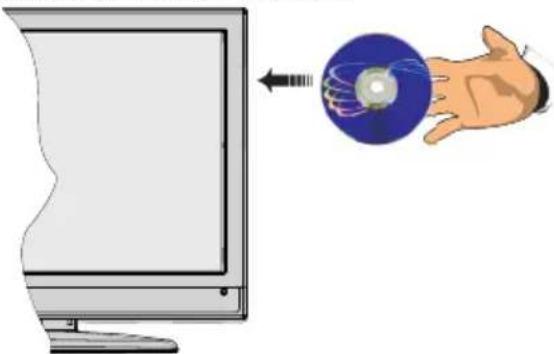
When TV set is turned on, first switch to DVD source by using the SOURCE button on the remote control. Press play on the remote control, or directly press play button at the front panel. If there is no disc inside the loader, place a DVD first and press play.
DVD Control Panel Buttons
A. Disc loader
B. Play / Pause
Plays/pauses the disc. When DVD menu (root menu) is active, this button functions as "button select" (selects the highlighted item in menu) if this is not prohibited by the disc.
C. Stop / Eject
Stop playing disc / Eject or Load the disc Note:
- You cannot eject the disc via the remote control.
- While playing a file, you should press STOP button three times to eject.
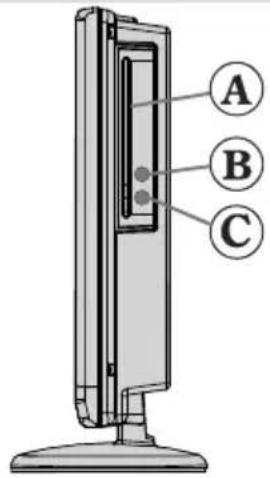
Overview of the Remote Control
Standby1.
Language selection (Set language)2.
Numeric buttons3.
Navigation buttons (Up/Down/Left/Right)4.
Clear 5.
Display time / DVD menu6.
Mute7.
Pause8.
Rapid reverse9.
Play10.
Zoom11.
Repeat12.
Subtitle13.
- AV / Source selection
- Menu
- OK
- Return
- Search Mode
- Info
- Volume Up / Down
- Skip Previous
- Skip Next
- Rapid advance
- Stop
- Title
- Root
Note: Buttons not indicated with a number are not functional in DVD mode.
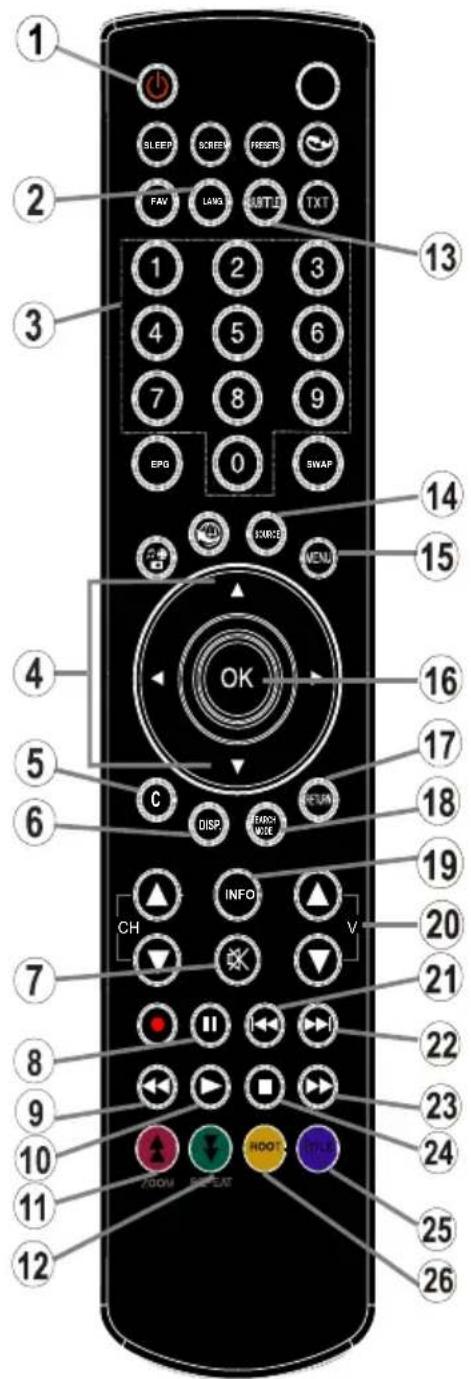
General Operation
You can operate DVD, movie CD, music or picture CD's content by using the proper buttons on your remote control. Below are main functions of commonly used remote control buttons.
| Buttons on the Remote Control | DVDPlayback | MoviePlayback | PicturePlayback | MusicPlayback |
| ▶ | Play Play Play Play | |||
| || | Pause Pause | Pause Pause | ||
| ■ | Stop Stop Stop | |||
| ←/Skip | backward/forward | Skipbackward/forward | Previous / Next | Previous / Next |
| </> | Shifts the zoomed picture left or right (if available). | |||
| </▲ | Highlights a menu item. / Shifts the zoomed picture down or up (if available). | |||
| </Fast reverse / Fast forward | ||||
| C Clears digit (if available). | ||||
| DISPLAY | Displays time / Views main setup menu | |||
| INFO Time counter mode selection (during playback). Press repeatedly to switch between modes. | ||||
| LANG. Audio language. X | X | |||
| MENU | Displays TV menu. | |||
| OK / SELECT | Enter / View / Play | |||
| REPEAT | Displays repeat options. | |||
| RETURN | Returns back to the previous menu (if available). | |||
| ROOT | Goes back to the root folder (if available). | |||
| SEARCH MODE (*) | Direct selection of scenes or time. | Selects the desired file. | Selects the desired file. | |
| SUBTITLE | Subtitle on-off. Press repeatedly to switch between subtitle options. | X | X | |
| TITLE | Displays disc menu(if available). | Displays disc menu(if available). | X | X |
| ZOOM | Zooms picture. Press repeatedly to switch between zoom options. | |||
| Other Functions - Button Combinations (During playback) | |
| II + >> | Slow forward. |
| [II + >>] + << >> | Sets slow forward speed. |
| >> + >> | Sets fast forward speed. |
| << + << | Sets fast reverse speed. |
| ■ + ■ | Confirms stop command. |
| II + >> | Press >> repeatedly to advance manually. |
(*) You can switch to title by pressing numeric keys directly. You need to press 0 and then digit key to switch one digit titles (example: to select 5, press 0 and 5).
GeneralPlayback
Basic Play
Press on the power button1.
Please insert a disc to the loader.2.
The disc will be automatically loaded and play commences if the disc does not have any menus recorded on it.
A menu may appear on the TV screen after a few moments or the film may start immediately after the introduction of the Film Company. This behaviour depends on the disc content and may change.
Note: Step 3 and 4 is available only when a menu is recorded on the disc.
- Press "▼" / "▲" / </▶ or the number button (s) to select the preferred title.
Press OK.4.
Play of the selected items now starts. The played item may be a motion picture, a still picture or another submenu depending on the disc.
For your reference:
If an action corresponding to a button is prohibited the symbol appears.
Notes onPlayback:
No sound will be heard during Rapid advance 1. or Rapid reverse.
No sound will be heard during Slow motion play.2.
-
Reverse slow motion play is not available.
-
In some cases, the subtitle language is not changed immediately to the selected one.
-
When the preferred language is not selected even after pressing the button several times, it means that the language is not available on the disc.
-
When the player is restarted or the disc is changed, the subtitle selection is automatically changed back to the initial settings.
-
If a language is selected, not supported by the disc, the subtitle language will automatically be set to the disc's priority language.
-
Usually a circulation will happen while switching to another language, that is you can cancel the subtitle by pressing this button a number of times until "Subtitle Off" appears on the screen.
-
When the power is turned on or the disc is removed, the language heard is the one selected at the initial settings. If this language is not recorded on the disc, only the available language on the disc will be heard.
-
Some DVDs may not contain root and/or title menus.
-
Reverse stepping is not available.
- For your convenience:
If you attempt to enter a number greater than the total time of the current title, the time search box disappears and "Input Invalid" message appears on up-left corner of screen.
- Slide Show is disabled when the ZOOM mode is on.
Setup Menu Items
Video Setup Page
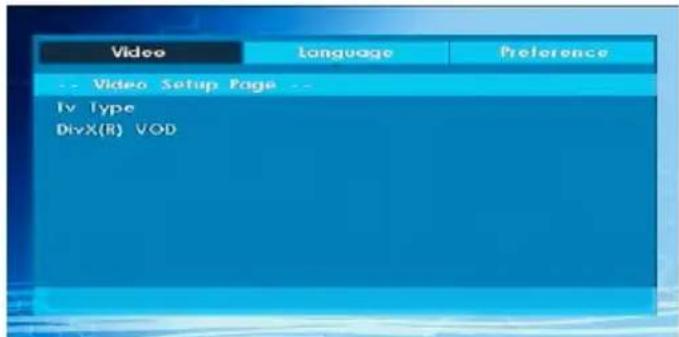
TV Type
TV Type is only available as 'PAL'. The TV set also supports NTSC signal; however, the signal will be converted to PAL when it appears on the screen.
DivX VOD
DivX VOD provides the convenience of streaming video in terms of quality and performance.
Language Setup

OSD LANG
You can select the default OSD language of the player menus
AUDIO
You can select the default audio language if supported by the DVD disc.
DISC MENU
You can select the DVD's disc menu language among these languages. Disc menu appears in the selected language, if supported by the DVD disc.
SUBTITLE
You can select the default subtitle language if supported by the DVD disc.
Preferences
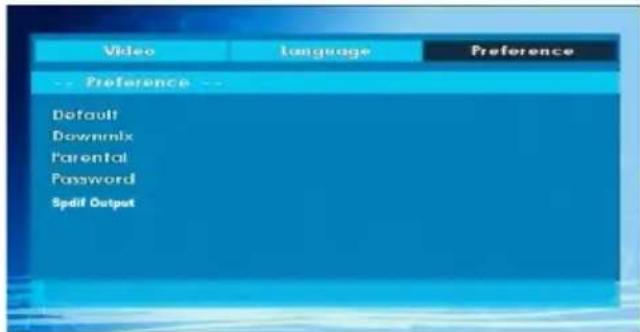
DEFAULT
If you choose RESET and press OK, the factory-presents are loaded. Parental level and parental password does not change.
DOWNMIX
This mode can be selected when the digital audio output of the TV is used.
SURROUND: Surround sound output.
STEREO: Two channels stereo.
PARENTAL (Parental Level)
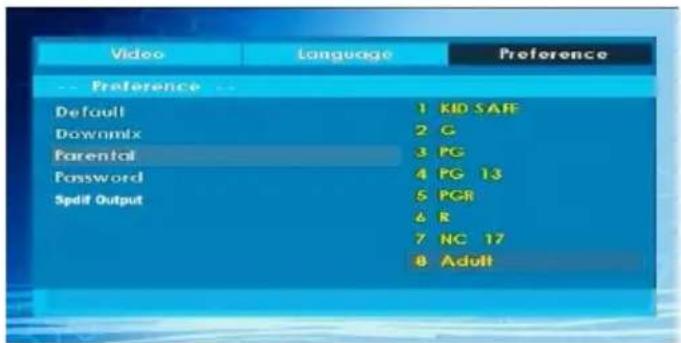
Playing some DVDs can be limited depending on the age of users. The "Parental Control" function allows playback limitation level to be set by the parent.
Parental Level can be adjusted to one of the eight levels. Level "8 ADULT" adjustment let you watch all o the DVD titles ignoring the DVD disc's parental level. You can watch the DVD discs, which has the same or lower parental level than the player's level only.
Password (Change Password):
Using this item you can change the current password.
To change the password you will be prompted to enter your old password. After you have entered your old password, you can now enter the new 4-digit password.
You can use C key to delete the incorrect entry.
Note: Factory preset of the password is "0000". You have to enter XXXX digital password every time you want to change the parental level. If you forget your password please contact technical service.
SPDIF OUTPUT
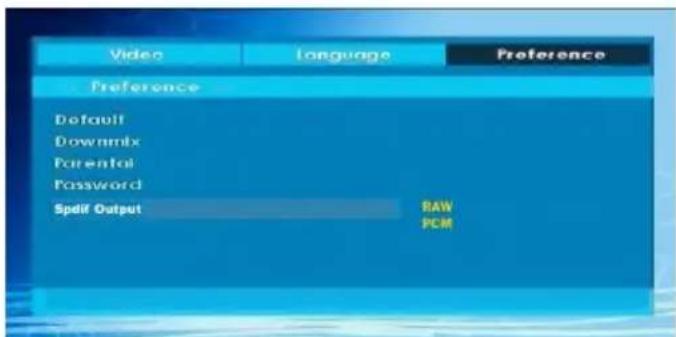
You can set Spdif Output as PCM or RAW. If you select PCM from SPDIF Output in DVD menu and play DVD with Dolby audio, you can get audio output with two channels via the speakers and the SPDIF Out. If you select RAW from SPDIF Output in DVD menu and play DVD with Dolby audio, speakers will be muted and you can get 5+1 Dolby audio via the SPDIF Out.
Troubleshooting
The picture quality is poor (DVD)
- Make sure the DVD disc surface is not damaged. (Scratch, fingerprint etc.)
- Clean the DVD disc and try again.
See instructions described in "Notes on Discs" to clean your disc properly.
- Ensure that the DVD disc is in the drawer with the label uppermost.
- A damp DVD disc or condensation may effect the equipment. Wait for 1 to 2 hours in Stand-by to dry the equipment.
Disc does not play
- No disc in the machine.
Place a disc into the loader. - Disc incorrectly loaded.
Ensure that the DVD disc is in the drawer with the label uppermost.
- Wrong type of disc. The machine cannot play CD-ROMS etc.
- The region code of the DVD must match the player.
Wrong OSD language
- Select the language in the set-up menu.
- The language for the sound or subtitles on a DVD cannot be changed.
- Multilingual sound and/or subtitles not recorded on the DVD.
- Try to change the sound or subtitles using DVD's title menu. Some DVD's do not allow the user to change these settings without using the disc's menu
Some functions (Zoom etc) do not work
These functions are not available on the DVD.
- Angle can only be changed when the angle symbol is displayed.
No picture
- Have you pressed the correct buttons on the remote control? Try once more.
No sound
- Check the volume is set to an audible level.
Make sure you have not switched the sound of accidentally.
Distorted sound
- Check that the appropriate listening mode setting is correct.
No response from remote control
- Make sure the remote control is in the correct mode.
- Check batteries are fitted correctly.
- Change the batteries.
If nothing works
If you have tried the above solutions and none seem to work, try switching your TV-DVD off and on again. If this does not work, contact your supplier or TV-DVD repair technician. Never attempt to repair a defective TV-DVD yourself.
Definition of Terms
Chapter Number
These numbers are recorded on DVD discs. A title is subdivided into many sections, each of which are numbered, and specific parts of video presentations can be searched quickly using these numbers.
DVD
This refers to a high-density optical disc on which high-quality pictures and sound have been recorded by means of digital signals. Incorporating a new video compression technology (MPEG II) and high-density recording technology. DVD enables aesthetically pleasing full-motion video to be recorded over long periods of time (for instance, a whole movie can be recorded).
DVD has a structure consisting of two 0.6-mm thin discs, which are adhered to each other. Since the thinner the disc, the higher the density at which the information can be recorded, a DVD disc has a greater capacity than a single 1.2 mm thick disc. Since the two thin discs are adhered to each other, there is the potential to achieve double-sided play sometime in the future for even longer duration play.
Subtitles
These are printed lines appearing at the bottom of the screen, which translate or transcribe the dialogue. They are recorded on the DVD discs.
Time Number
This indicates the playtime, which has elapsed from the start of a disc or a title. It can be used to find a specific scene quickly. (Not all discs permit the time search feature to be used. Availability is determined by the disc's manufacturer.)
Title Number
These numbers are recorded on DVD discs. When a disc contains two or more movies, these movies are numbered as title 1, title 2, etc.
Track Number
These numbers are assigned to the tracks, which are recorded on AudioCDs. They enable specific tracks to be located quickly.
LPCM
LPCM stands for Pulse Code Modulation and is digital audio.
MPEG
Short for Moving Picture Experts Group. This is an international standard for compression of moving images. On some DVDs digital audio has been compressed and recorded in this format.
DivX
DivX is a digital video compression technology based on MPEG-4 and developed by DivX Networks Inc.
Disc Types Compatible with This Unit
| Disc Types (Logos) | Recording Types | Disc Size | Max. Playing Time | Characteristics |
| DVD VIDEO VIDEO | Audio + Video | 12 cm | Single-sided: 240 min. Double-sided: 480 min | DVD contains excellent sound and video due to Dolby Digital and MPEG-2 System. Various screen and audio functions can be easily selected through the conscreen menu. |
| AUDIO-CD COMPACT DISC DIGITAL AUDIO | Audio | 12 cm | 74 min. | An LP is recorded as an analog signal with more distortion, CD is recorded as a Digital Signal with better audio quality, less distortion and less deterioration of audio quality over time. |
| MP3-CD MP3 READABLE | Audio (xxxx.mp3) | 12 cm | It depends on MP3 quality. | MP3 is recorded as a Digital Signal with better audio quality, less distortion and less deterioration of audio quality over time. |
| PICTURE-CD JPEG READABLE | Video (still picture) | 12 cm | It depends on JPEG quality. | JPEG is recorded as a Digital Signal with better picture quality over time. |
| Div X® DIVX® | Audio + Video | 12 cm | It depends on DivX quality | Video & Audio with MPEG-4 Compression technology. |
Specifications
| Types of Discs Supported | DVD: SS/SL 4.7" (DVD-5) SS/DL 4.7" (DVD-9) DS/SL 4.7" (DVD-10) DS/DL 4.7" (DVD-18) | CD-DA CD-R CD-RW MP-3/JPEG |
| Video Type | MPEG-2 Video Standard Decoding (MPEG-1 supported) Full-Screen Video Display of 720 x 576 (PAL) & 720 x 480 (NTSC) pixels 50 and 60 Hz frame refresh rates (PAL & NTSC) Digital bit-stream processing rate up to 108Mbits/sec Line resolution more than 500 lines | |
| Audio Type | MPEG Multichannel Decoding LPCM | |
| Audio Output | Analog Outputs: 24 bit /48, 44.1kHz down-sampling DAC | |

- RéCEPTION DE CANAUX
- NOMBRE DE CANAUX PRÉRÉGLÉS
- INDICATEUR DE CHÂINE
- ENTREE D'ANTENNE RF
- PUISSANCE DE SORTIE AUDIO (W_RMS.) (10% THD)
- CONSOMMATION ÉLECTRIQUE (W)
- PANNEAU
- CLASS 1 LASER PRODUCT
- RISQUE D'ELECTROCUTION
- Features
- Introduction
- Preparation
- Safety Precautions
- Power Source
- Power Cord
- Moisture and Water
- Cleaning
- Ventilation
- Heat and Flames
- Lightning
- Replacement Parts
- Servicing
- Waste Disposal
- Disconnecting the Device
- Headphone Volume
- Installation
- LED Screen
- Connection to a Television Distribution System (Cable TV etc.) from Tuner
- TRADEMARK ACKNOWLEDGMENT
- DOLBY
- DIGITAL PLUS
- Licence Notification (Optional)
- Electrical device not in the hands of children
- Package Contents
- Environmental Information
- Repair Information
- Remote Control Buttons
- HDMI 1: HDMI Input 1.
- Viewing the Connections - Side Connectors
- Power Connection
- Aerial Connection
- Using USB Input
- USB Connection
- IMPORTANT!
- USB Disk Connection
- Programme Recording
- Connecting the LED TV to a PC
- Using Side AV Connectors
- Connecting to a DVD Player via HDMI
- Connecting to a DVD Player
- VideoConnection
- Remote Control Handset
- Inserting Batteries
- Switching On/Off
- To Switch the TV On
- To Switch the TV Off
- Input Selection
- Basic Operations
- Operation with the Buttons on the TV
- Volume Setting
- Programme Selection
- Viewing Main Menu
- AV Mode
- Operation with the Remote Control
- Programme Selection (Previous or Next Programme)
- Programme Selection (Direct Access)
- Viewing Electronic Programme Guide (EPG)
- ▼▲▼Navigate
- Recording via EPG Screen
- Programme Options
- Select Channel
- Record/Delete Record Timer
- Set Timer/Delete Timer
- Digital Teletext (\*\* for UK only)
- Analogue Teletext
- First Time Installation
- Auto Channel Scan (Retune) Menu Operation
- Manual Tuning
- Manual Search
- Analogue Manual Search
- Analogue Fine Tune
- Clear Service List (*)
- Managing Stations: Channel List
- Operating the Channel List
- Moving a Channel
- Deleting a Channel
- Renaming a Channel
- Locking a Channel
- Managing Stations: Favourites
- Button Functions
- Managing Stations: Sorting Channel List
- On-Screen Information
- Media Playback Using Media Browser
- Viewing Photos via USB
- Slideshow Options
- Playing Music via USB
- Recordings Library
- Media Browser Settings
- Timeshift Recording
- Instant Recording
- Watching Recorded Programmes
- Slow Forward
- Changing Image Size: Picture Formats
- Auto
- 16:9
- Subtitle
- 14:9
- 14:9 Zoom
- 4:3
- Panoramic
- Cinema
- Configuring Picture Settings
- Operating Picture Settings Menu Items
- Picture Settings Menu Items
- Power Save Mode
- Advanced Settings:
- PC Picture Settings
- Configuring Sound Settings
- Operating Sound Settings Menu Items
- Sound Settings Menu Items
- Configuring Your TV's Settings
- Operating Settings Menu Items
- Settings Menu Items
- Using a Conditional Access Module
- Viewing Conditional Access Menu (*)
- Configuring Language Preferences
- Preferred
- Current (*)
- Language Settings
- Notes:
- Parental Control
- Parental Settings Menu Operation
- Timers
- Setting Sleep Timer
- Setting Programme Timers
- Adding a Timer
- Editing a Timer
- Deleting a Timer
- Recording Configuration
- Start Early (*)
- (*) Available only for EU country options.
- End Late (*)
- Max Timeshift
- Format Disk
- Hard Disk Info
- Configuring Date/Time Settings
- Configuring Source Settings
- Configuring Other Settings
- Operation
- Other Features
- Teletext
- Coloured Buttons (RED/GREEN/YELLOW/ BLUE)
- Tips
- Appendix A: PC Input Typical Display Modes
- Appendix B: AV and HDMI Signal Compatibility (Input Signal Types)
- (X: Not Available, O: Available)
- Appendix C: Supported DVI Resolutions
- Appendix D: Software Upgrade
- 1) Software upgrade search via user interface
- 3.AM search and upgrade mode
- Appendix E : Supported File Formats for USB Mode
- Information for Users on Disposal of old Equipment and Batteries
- Specifications
- Contents
- General Properties
- Note
- Safety Information
- CAUTION
- RISK OF ELECTRIC SHOCK
- Notes on Discs
- On handling discs
- On cleaning
- Licence Notification
- How to Watch a DVD
- DVD Control Panel Buttons
- Disc loader
- Play / Pause
- Stop / Eject
- Overview of the Remote Control
- General Operation
- GeneralPlayback
- Basic Play
- For your reference:
- Notes onPlayback:
- Setup Menu Items
- Video Setup Page
- TV Type
- DivX VOD
- Language Setup
- OSD LANG
- AUDIO
- DISC MENU
- Preferences
- DEFAULT
- DOWNMIX
- PARENTAL (Parental Level)
- Password (Change Password):
- SPDIF OUTPUT
- Troubleshooting
- The picture quality is poor (DVD)
- Disc does not play
- Wrong OSD language
- Some functions (Zoom etc) do not work
- No picture
- No sound
- Distorted sound
- No response from remote control
- If nothing works
- Definition of Terms
- Chapter Number
- DVD
- Subtitles
- Time Number
- Title Number
- Track Number
- LPCM
- MPEG
- DivX
Brand : SABA
Model : L22D980
Category : TV