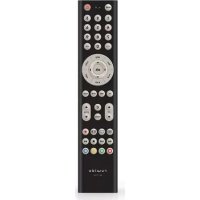
Easytip 2 - Remote control Ruwido - Free user manual and instructions
Find the device manual for free Easytip 2 Ruwido in PDF.


| Product type | Universal infrared remote control |
| Brand | Ruwido |
| Model | Easytip 2 |
| Category | Remote control |
| Power supply | 2 AAA alkaline batteries (LR03) 1.5 V |
| Main functions | TV and VCR control, code programming, automatic search, picture/sound adjustment (brightness, color, contrast, treble, bass, balance), teletext, eurotext, menu, info, AV, shift |
| Compatibility | TV and VCR (code list provided) |
| Infrared range | Approximately 8-10 meters (standard) |
| Dimensions (estimated) | Approximately 200 x 50 x 25 mm |
| Weight (estimated with batteries) | Approximately 100 g |
| Material | Plastic |
| Indicator | Light-emitting diode (LED) for status feedback |
| Memory | Temporary memory retaining settings when changing batteries |
| Care and cleaning | Clean with a soft, dry cloth. Do not use chemicals. |
| Safety | Keep out of reach of children. Do not expose to moisture. |
| Spare parts | Standard AAA batteries. No other spare parts available. |
| Repairability | Not user-repairable. Contact after-sales service. |
Frequently Asked Questions - Easytip 2 Ruwido
User questions about Easytip 2 Ruwido
0 question about this device. Answer the ones you know or ask your own.
Ask a new question about this device
Download the instructions for your Remote control in PDF format for free! Find your manual Easytip 2 - Ruwido and take your electronic device back in hand. On this page are published all the documents necessary for the use of your device. Easytip 2 by Ruwido.
USER MANUAL Easytip 2 Ruwido
natural_image
Close-up of a textured surface with circular indentations and horizontal striations (no visible text or symbols)User Manual
991 418 00

easytip 2
INDEX
English
Contents
Introduction page 4
Inserting and changing the batteries page 5
Description of keys page 5
Programming easytip page 5
Adjusting color, contrast, bass,
treble,... for your TV set page 6
Querying the Code Numbers page 7
Deutsch
Inhaltsverzeichnis
Einleitung Seite 8
The Next Generation of Universal Remote Control
Congratulations purchasing easytip, the universal infrared remote control for your TV set and VCR.
Easytip is a product of high quality
All information on this product is published with no consideration for possible patent rights. Trademarks are mentioned without guarantee of their free use.
Although a lot of care was taken when creating this manual with its text and graphic images, errors can never be completely eliminated.
Therefore, the manufacturer cannot be made liable for faulty statements and their possible consequences.
You are very welcome to contact the manufacturer for report errors and to make suggestions for improvement.
© 1999 by ruwido
All rights reserved, including rights of photomechanical reproduction and electronic storage.
Printed in Austria.
3
ruwido-austria
Köstendorfer Straße 8
A-5202 Neumarkt am Wallersee
tel. +43i0i6216/4571
fax +43(0)6216/4571-26
e-mail: service.easytip@ruwido.com
Internet: http://www.ruwido.com
4

Inserting and changing the batteries
Your easytlp is powered by two (alkaline) 1.5 V batteries (IEC LR 03, AAA)
Insert the batteries following the markings in the battery compartment.
After inserting the batteries, your easytip is adjusted for TV-operation.
If the LED does not blink as usual when pressing the keys or if the device you are controlling fails to respond from the usual distance then the batteries must be changed.
Your easytip includes a intermediate memory which prevents the easytip from losing its memory during the battery changing.
Please dispose batteries carefully.
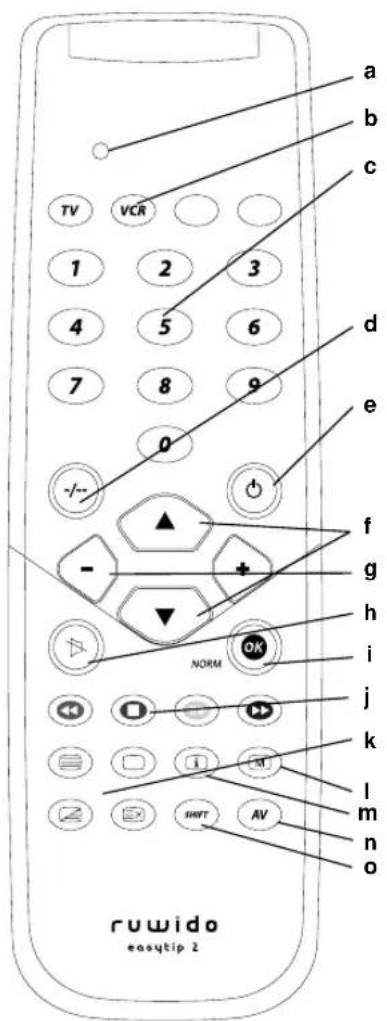
Description of keys
Image
a Light-emitting diode (LED)
b Level key to switch to device level (TV and VCR)
c Number keys: 0-9
d -/---: single/double digit enter, 10, 1-
e Power/Standby on/off
f P+/P-: switch to next or previous channel
g +/- Vol: Volume control
h Mute: Sound on/off
i OK/Norm:
For TV: Reset TV set to basic settings and confirmation-key for TV-menu
J • For TV: Using the teletext-function
k • For TV: Function of the Videotext-keys
I Menu: calls the menu-function for TV
m Info: calls the Info-function, Index, S 100
n AV: switch to the AV-channel (e.g.: VCR)
o Shift: preselection key for adjustment of brightness, color,
contrast, treble, bass, balance.
Programming easytip
Programming by Code entering
- Switch on the device you want to use your easylip with.
- Tum to the TV code list (other manual) and look for the name of your device manufacturer.
- Choose your device by using the Level key (image b) and press the key (for about 5 seconds) until the LED (image a) blinks twice.
- Enter the first 3-digit code from the list with the number keys (image c) on your remote control.
ATTENTION!
The first figure of the 3-digit cod must be entered within 5 seconds of the LED (image a) blinking twice.
Otherwise the LED (image a) will flash once and you will have to repeat the procedure from step 3.
- After the 3-digit code has been entered the LED (Image a) will blink twice to indicate that the code has been accepted.
ATTENTION!
If you entered the first digit within 5 seconds but still see one long flash from the LED (image a) after you have entered the code, this means the code you entered is invalid. In this case, repeat the procedure from step 3.
- Now point your easytip at your device and try to operate your device with your Easytip.
- If your device does not react to the device code number you entered or if it operates incorrectly, enter the next number listed against the device manufacturer's name. The code list shows the most common codes first.

- If none of the code numbers listed in the code list work properly use the Code search function.
English
Make a note of your 3-digit code numbers.
| TV | |||
| VCR |
NOTE: By entering code 000 you can restore the basic settings of your easytip. You can then program easytip newly.
Code Search
If none of the codes listed for your device work or if a previously entered code number no longer works or works unsatisfactorily, use the code search.
- Switch on chosen device.
- Choose your device by using the Level key (image b) and press the key (for about 5 seconds) until the LED (image a) flashes twice.
- Enter code 001 [code search] with the number keys (image c). The LED (image a) blinks twice.
- Manual operation: Keep pressing the Power/Standby-key (image e) at short intervals until your device shows reaction.
Automatic operation: Press the Power/Standby-key (Image e) until your device shows reaction. Every 1.5 seconds the TV code is continued automatically and the appropriate standby command is sent. When your easytip has found the right code your device switches off and you can then release the Power/Standby-key.
-
Now press the Level key (image b) again until the LED (image a) blinks twice. This shows you that your easytip has stored the appropriate code number.
-
Now check the function of your remote control. If your easytip does not react to the code number it has found, repeat steps 1 to 5 until you have found a optimal code number.
ATTENTION!
A new code search begins with the last code number found in the previous search. When the end of the code list is reached the LED (image a) will blink three times. The search is then repeated from the beginning. Please be patient. There may be many codes to search through before the code for your equipment is found.
Changing the direction or the search:
It is possible, particularly in automatic search mode, to skip over the relevant code by mistake. In this case, you can reverse the direction of the search for a maximum of 5 codes by pressing the Vol-key (image g).
ATTENTION!
After 5 codes the search direction changes back automatically. If you want, you can press the Vol+-key (image g) to change back to the original search direction.
Adjusting color, contrast, bass, treble,...for your TV set
- Press the Level key (image b).
- Briefly press the Shift-key (image o).
-
Press the chosen key within 5 seconds.
Numberkey 1 (image c) = Brightness
Numberkey 2 (image c) = Color
Numberkey 3 (image c) = Contrast
Numberkey 4 (image c) = Treble
Numberkey 5 (image c) = Bass
Numberkey 6 (image c) = Balance -
You can adjust your device by using keys Vol- (image b) and Vol+ (image b).
-
After the end of adjusting, wait for about 5 seconds until the keys get back their normal function.
Querying the Code Numbers
You will need this function to query the code found by the automatic code search, so that you can note it down in this operating manual.
- Press the chosen Level key (TV, VCR) (image b) until the LED blinks twice.
- Now enter code 002 for query mode.
ATTENTION!
The first figure of the 3-digit code must be entered within 5 seconds of the LED (image a) blinking twice.
Otherwise the LED (image a) will flash once and you will have to repeat the procedure from step 1.
- Now press key 1 (image c) and count the number of times the LED (image a) blinks. (For example, if the LED (image a) blinks twice the first number in your code is 2).
Now press key 2 (image c) and count the times the times the LED (image a) blinks. (For example, if the LED (image a) does not blink, the second number in your code is 0).
Now press key 3 (image c) and count the times the LED (image a) blinks. (For example, if the LED (image a) blinks seven times, the third number in your code is 7).
Your code number would therefore be 207.
If you made a mistake you can repeat the procedure any number of times.
ATTENTION!
Query mode is terminated if you press any key other than 1, 2 or 3 or if you do not press any of these keys within 5 seconds.
NOTE: If the LED (image a) does not blink when querying one of the digits then the corresponding code number is 0.
English
Einleitung
Köstendorfer Straße 8
A-5202 Neumarkt am Wallersee
tel. +43(0)6216/4571
fax +43(0)6216/457126
e-mail: service.easytip@ruwido.com
Internet: http://www.ruwido.com
Köstendorfer Straße 8
A-5202 Neumarkt am Wallersee
tel. +43(0)6216/4571
fax +43(0)6216/457126
e-mail: service.easytip@ruwido.com
Internet: http://www.ruwido.com
Köstendorfer Straße 8
A-5202 Neumarkt am Wallersee
tel. +43(0)6216/4571
fax +43(0)6216/457126
e-mail: service.easytip@ruwido.com
Internet: http://www.ruwido.com
Köstendorfer Straße 8
A-5202 Neumarkt am Wallersee
tel. +43i0i6216/4571
fax +43(0)6216/457126
e-mail: service.easytip@ruwido.com
Internet: http://www.ruwido.com
22
Köstendorfer Straße 8
A-5202 Neumarkt am Wallersee
tel. +43(0)6216/4571
fax +43(0)6216/457126
e-mail: service.easytip@ruwido.com
Internet: http://www.ruwido.com
26
Köstendorfer Straße 8
A-5202 Neumarkt am Wallersee
tel. +43i0i6216/4571
fax +43(0)6216/4571-26
e-mail: service.easytip@ruwido.com
Internet: http://www.ruwido.com
35