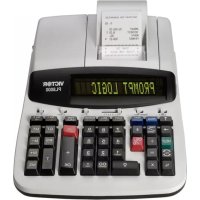
PL8000 - Calculator VICTOR - Free user manual and instructions
Find the device manual for free PL8000 VICTOR in PDF.



| Product Type | Adding machine/desktop calculator with electronic printing and vacuum fluorescent display |
| Brand and Model | Victor PL8000 |
| Dimensions (L x W x H) | 12 1/2 in x 8 1/2 in x 2 5/8 in |
| Weight | 4.1 lb (1.86 kg) |
| Power Supply | 27 watts, AC plug (check local voltage) |
| Display | 14-digit backlit LCD display |
| Input and Result Capacity | 14 digits |
| Decimal System | Add mode (+), floating point (F), fixed point (0, 1, 2, 3, 4, 6) |
| Printer | Thermal printer, paper width 2 1/4 in (57.5 mm) |
| Main Functions | 4 rules, successive calculations, memory, grand total, constants, time calculations, loan calculations, tax calculations, cost/sell/margin calculations, help, text messages, currency conversion, reprint key |
| Mode Switches | Rounding selector (↓ 5/4 ↑), print/reprint, decimals, item count, loan calculation, sigma/grand total |
| Maintenance and Cleaning | Clean the casing with a silicone-treated cloth; do not use water or detergent |
| Safety | Do not cover the device while operating; avoid exposure to sunlight, heat, humidity, and dust; turn off before unplugging |
| Spare Parts | Authentic VICTOR replacement ribbons (order at 800-628-2420) |
| Repairability | Contact VICTOR customer service at 1-800-628-2420 for assistance |
| General Information | Operating temperature: 0°C to 40°C; FCC Class B compliance |
Frequently Asked Questions - PL8000 VICTOR
User questions about PL8000 VICTOR
0 question about this device. Answer the ones you know or ask your own.
Ask a new question about this device
Download the instructions for your Calculator in PDF format for free! Find your manual PL8000 - VICTOR and take your electronic device back in hand. On this page are published all the documents necessary for the use of your device. PL8000 by VICTOR.
USER MANUAL PL8000 VICTOR
text_image
PROMPT LOGIC VICTOR PL8000INTRUCTION
MANUAL
Operations and General Maintenance.... 3
Loading Paper 4
Battery Replacement.... 5
Keyboard Layout....6
Slide Switch Features....7
Key Features....9
Troubleshooting....12
Application Examples
1.PROGfunction
a. Set TAX1, TAX2.... 13
b. Set Currency....13
c. Set Time/Date....14
d. Set Greeting....14
e. Set Language....15
2.Backspace....16
-
Rounding for Addition/ Subtraction....16
-
Addition & Subtraction....17
-
Addition/Subtraction in Add Mode.....17
-
Addition/Subtraction with Item Count in Gross Setting.....17
-
Grand Total Memory....17
-
Repetitive Calculation with Reference to Date....17
-
Multiplication.... 17
-
Sequential (Chain) Multiplication.... 18
-
Constant Multiplication.... 18
-
Constant Multiplication with Accumulation.... 18
-
Division.... 19
-
Constant Division.... 19
-
Division with Accumulation.... 19
-
Units/Price Calculations....20
-
Tax Calculation.... 21
-
Percent Add On.... 22
-
Percent Discount....22
-
Chain Discount with Total Amount of Discount.... 22
-
Gross Profit Margin Calculation COST-SELL-MARGIN...... 23
-
Markdown and Selling Price.... 23
-
Invoice....24
-
Payroll.... 25
-
Memory Calculation.... 26
-
Time Calculation....27
-
Date Calculation.... 28
-
Loan Calculation....29
-
\$ Currency Conversion function.... 29
-
TEXT function.... 30
-
Reprint function....30
-
HELP function....31
-
Technical specification.... 32
-
FCC rules ....33
BEFORE TURNING ON - Please check the rating label on the bottom to see if the rated voltage corresponds to the local voltage before plugging in the AC cord.
CAUTIONS
- The calculator must not be covered when turned on. This will cause the unit to overheat.
- Do not use organic solutions such as alcohol to clean the housing.
- Do not use or leave the calculator in the direct sun light. Areas subject to quick temperature changes, high humidity and dirt should be avoided.
GENERAL MAINTENANCE
- Do not place the machine in hot, dusty or damp locations.
- To clean the housing, use a silicon-treated cloth. Do not use water or detergents.
- Do not place anything on the housing, particularly on the head of the printer mechanism.
- Turn off the power switch before removing the plug from AC wall outlet.
- Turn the power switch off while not in use.
Loading Paper
- Plug in calculator and turn it on.
- Cut or tear evenly the end of the paper roll to get a straight edge.
- Place the paper roll on the dual paper holders.
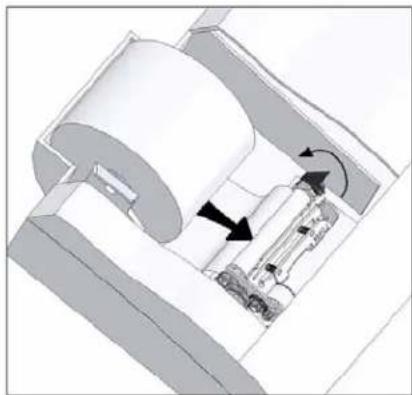
- Push the lever up and Insert the paper as shown in diagram 1.
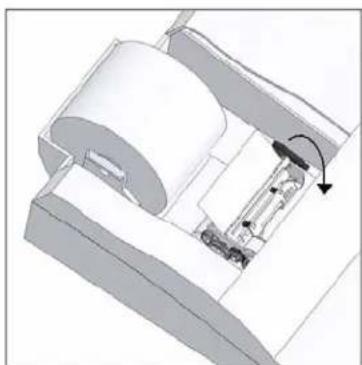
- Push down the lever as shown in diagram 2.
natural_image
Mechanical assembly diagram showing a cylindrical component with internal components and directional arrows (no text or labels)Diagram 1: Turn the lever upwards and insert the paper
natural_image
3D mechanical assembly diagram showing a cylindrical component with internal components and an arrow indicating rotation (no text or symbols)Diagram 2: Turn the lever downwards to lock the paper roll
BATTERY REPLACEMENT
- Turn the AC power switch off
- Remove - the battery compartment cover located on the calculator's bottom case.
- Remove the old battery and install a new CR2025 or equivalent.
- Turn on the AC power switch
- PRESS THE RESET BUTTON
- Replace the battery compartment cover.
- Reprogram the date and time.
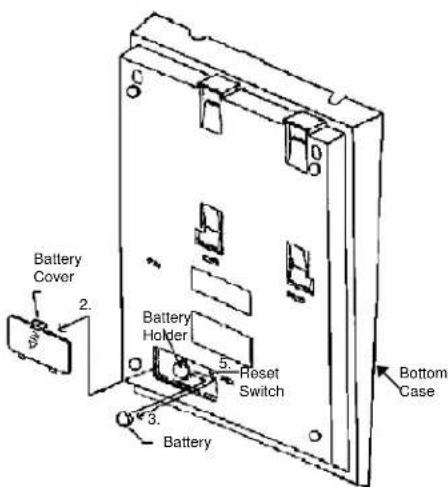
text_image
Battery Cover 2. Battery Holder 5. Reset Switch 3. Battery Bottom CaseCAUTION
There is danger of explosion if the battery is being replaced incorrectly. Only replace with the same or equivalent type of battery which is recommended by the manufacturer.
Dispose of used batteries according to the manufacturers' instructions.
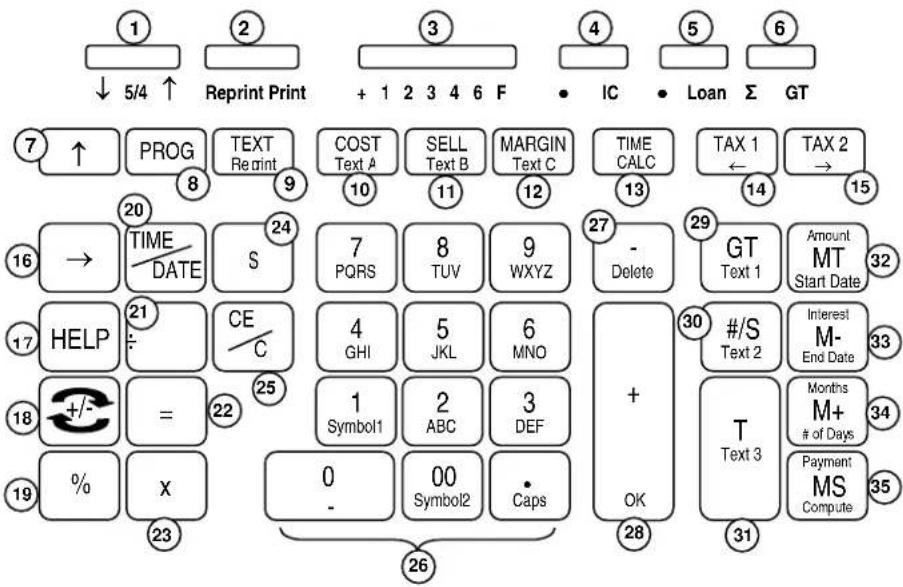
Model PL8000 Keyboard Layout
flowchart
graph TD
    A["1"] --> B["2"]
    B --> C["3"]
    C --> D["4"]
    D --> E["5"]
    E --> F["6"]
    F --> G["7"]
    G --> H["8"]
    H --> I["9"]
    I --> J["10"]
    J --> K["11"]
    K --> L["12"]
    L --> M["13"]
    M --> N["14"]
    N --> O["15"]
    O --> P["20"]
    P --> Q["21"]
    Q --> R["22"]
    R --> S["23"]
    S --> T["24"]
    T --> U["25"]
    U --> V["26"]
    V --> W["27"]
    W --> X["28"]
    X --> Y["30"]
    Y --> Z["31"]
    Z --> AA["32"]
    AA --> AB["33"]
    AB --> AC["34"]
    AC --> AD["35"]
| 1. Rounding Selector 19. Percent key | |
| 2. Print / Reprint Switch | 20. Time / Date display key |
| 3. Decimal Selector 21. Division key | |
| 4. Item Count Switch 22. Equal key | |
| 5. Loan Calculation Switch 23. Multiplication key | |
| 6. Sigma / Grand Total Switch | 24. Currency Conversion key |
| 7. Paper Feed 25. Clear Entry / Clear key | |
| 8. Program key 26. Numeric Key Pad | |
| 9. Text Mode / Reprint key | 27. Subtraction / Delete key |
| 10. Cost / Text A key 28. Addition / OK key | |
| 11. Sell / Text B key | 29. Grand Total / Text 1 key |
| 12. Margin / Text C key | 30. Subtotal / Date / Text 2 key |
| 13. Time / Date Calculation | 31. Total / Text 3 key |
| 14. Tax 1 / ← key | 32. Memory Total/Amount/Start Date key |
| 15. Tax 2 / → key | 33. Memory Subtraction/Interest/End Date key |
| 16. Back Space key | 34. Memory Addition/Months/No.of Days key |
| 17. Help key | 35. Memory Subtotal/Payment/Compute key |
| 18. Sign Change key | |
This section describes the mode switches, data entry keys, and operating keys provided on your calculator. The following terms are used in discussing your calculator's operation:
- The accumulator is the area of the calculator's logic that stores a running total of the results of addition and subtraction operations. It is the "adding machine" portion of the calculator.
- The calculating register is the area of the calculator's logic where the intermediate and final results of multiplication, division and percentage calculations are stored. The contents of the calculating register do not affect the accumulator.
- The keyboard register is the area of the calculator's logic that stores the value that will immediately be used in the next calculation.
- The item count register is the area of the calculator's logic that counts your entries into the accumulator
- The memory register is the area of the calculator's logic that accumulates amounts you add to or subtract from the memory. Because the memory register is independent of the accumulator and the calculating register, it retains its value until you clear it with the Memory Total (MT) key.
SLIDE SWITCH FEATURES
This section illustrates and describes the mode switches you can use to control your calculator's operation.
| 1. ↓ 5/4 ↑ | Rounding Selector |
| ↓ | Round down (truncation) the calculation result. |
5/4 Round off the calculation result, if the last digit of the result is followed by a value of 0 to 4, the digit is unchanged. If the last digit of the result is followed by a value of 5 to 9, the digit will be rounded up.
↑ Round up the calculation result.
2. Reprint Print Print / Reprint Switch
Reprint Non-print mode. Printer is activated when Feed Key, Non-add/Date Key, Help Key, or Reprint Key is pressed.
Print Printer is activated as long as calculator is turned on.
3. +0 1 2 3 4 6 F Decimal Point Selector
+ Monetary Add Mode. At this setting, amounts entered are assumed to be monetary. The calculator automatically supplies a decimal point to the left of the last two digits entered. Use this setting to add, subtract, multiply and divide decimals.
Units/price mode operation:
Multiplication: The first factor will be entered as a whole number and the second factor will have a decimal point supplied to the left of the last two digits.
Division: The first factor will have a decimal point supplied to the left of the last two digits and the second factor will be entered as a whole number.
0,1,2,3, 4, 6 Fixed decimal point mode; these settings specify the number of digits to the right of the decimal point that are shown in the result.
F Floating decimal point mode; this setting specifies that all digits of the result are shown, up to a maximum of 10 on model 1530-6, and 12 on model 1560-6 and 14 on model 1570-6. If the result exceeds these capacities, excess digits to the right of the decimal point are dropped. No rounding takes place.
4. • IC Item Count Switch
• No Item Count Printing Mode, item count will not print, when the Accumulator, Memory, or Grand Total are utilized.
IC Print Item Count, item count will print when the Accumulator, Memory, or Grand Total are recalled or utilized, except when in Text Mode. Item Counter for the Accumulator will always be displayed in the top left corner of the display.
5. • Loan Loan Calculation Switch
• Loan calculation is disabled and memory keys are enabled.
Loan Loan calculation is enabled and the memory keys are disabled.
Note: Time and Date calculation is disabled in this mode.
6. Σ GT Sigma or Grand Total Switch
When the switch is in the “Σ” position, the results of multiplication or division calculations completed by the = or % key are automatically added to the Accumulator. The sum of these accumulations is displayed by depressing the #/S (Subtotal) key and are displayed and cleared by depressing the T (Total key).
GT An y total taken with T key is automatically accumulated to Grand Total memory. The accumulated grand total can be recalled by pressing the GT key.
KEY FEATURES
-
[↑] Paper Feed Key Advance the paper roll.
-
[PROG] Program Key Program Tax Rate, Currency Rate, Time/Date, Greeting message, and Language.
-
[TEXT/Reprint] Text Mode / Reprint Key Print Switch On: Press once to enter Text Mode. Reprint Switch On: Print Entries (Maximum 24lines) since last clear.
-
[COST/Text A] Cost / Text A Key COST Enter the Cost in a Gross Profit Margin calculation.
Text A Under Text Mode, use this key to print or save Text A.
- [SELL/Text B] Sell / Text B Key SELL Enter the Selling in a Gross Profit Margin calculation.
Text B Under Text Mode, use this key to print or save Text B.
-
[MARGIN/Text C] Margin / Text C Key Margin Enter the desired Margin in a Gross Profict Margin calculation. Text C Under Text Mode, use this key to print or save Text C.
-
[TIME CAL] Time Calculation Key Pressing this key once will set the calculator to Time Calculation Model allowing hours and minutes to be added, subtracted, subtotaled, and totaled. Second depression will set the calculator to Date Calculation Mode. In Date mode, MT key operate as Start Date key, M- key operate as End Date key, M+ key operate as Number of Days key MS key operate as Compute key.
-
[TAX1/←] Tax 1 / Left Cursor Key TAX1 Calculate an amount of tax with tax rate preset by PROG key. Use + key for calculating an amount including tax, and - key for calculating an amount excluding tax. ← Work as cursor key, under Program Mode, or Text Mode.
-
[TAX2/→] Tax 2 / Right Cursor Key Calculate an amount of tax with tax rate preset by PROG key. Use + key for calculating an amount including tax, and - key for calculating an amount excluding tax. TAX2 → Works as cursor key, under Program Mode, or Text Mode.
-
[→] Back Space Key Delete the right most character of a live entry.
17. [Help] Help Key
Press Help Key; followed by any function key, to read the help message.
Press [OK] key to print longer message.
18. [+/-] Sign Change Key
Reverse the sign on the display.
19. [%] Percent Key
Completes percent calculation when Multiple or Division key is used.
20. [TIME/DATE] Time / Date Display Key
Recall Date and Time alternatively.
21. [÷] Division Key
The Division key performs division, automatic constant division and intermediate sequential operations. It establishes the next amount as a constant divisor. The ÷ key also causes the calculator to divide when you depress the = ,% , + , - ,M + ,M- ,X or ÷ key. Each divisor entry is retained as a constant (except + , - ,M+ and M- entries) until you depress the x,÷ or Clear.
Square Root function
Depress the [= ] key just after [÷] key, to perform a square root calculation.
22. [=] Equal Key
To calculate multiplication or division.
23. [x] Multiplication Key
The Multiplication key performs multiplication, automatic constant multiplication and intermediate sequential operations. It establishes the amount entered or the printed /displayed amount as a constant multiplicand. The X key also causes the calculator to multiply when you depress the =, %, +, -, M+, M-, X or ÷ key. Each multiplicand entry is retained as a constant (except +, -, M+ and M- entries) until you depress the x, ÷ or Clear.
24. [\$] Currency Conversion Key
Converts the entered/display value to Foreign Currency.
If this key is pressed just after [÷] key, it will converts the entered/display value to Local Currency.
25. [CE/C] Clear Entry / Clear Key
Clears a live entry by pressing this key once. Press twice to clear the accumulator or pending calculation. Does not clear the Memory or Grand total.
26. [0] \~ [9],
[00] & [•]
Numeric keys
The calculator using the conventional 10-key indexing keyboard, and includes the double zero key and decimal point key.
27. [- / Delete] Subtraction / Delete Key
Subtracts an amount from the Accumulator. To subtract the same amount more than one time (repeat subtraction), enter that amount once and depress the Minus key as many times as necessary. If this key is depressed immediately after [%] key, it works as percent minus key.
Delete
This key work as Delete key under TEXT Mode.
28. [+ / OK] Addition / OK Key
+ Adds an amount to the Accumulator. To add the same amount more than one time (repeat addition), enter that amount once and depress the Plus key as many times as necessary. If this key is depressed immediately after [%] key, it works as percent plus key.
OK Under PROG mode or TEXT mode, this key work as OK key, for confirm the selection.
29. [GT / Text 1] Grand Total / Text 1 Key
GT Print and clear the Grand Total Memory or Total Sigma.
Text 1 Under Text Mode, use this key to print or save Text 1.
30. [#/S / Text 2] Date / Subtotal / Text 2 Key
# Print live entry as an identifier, like an invoice number, with “#” mark.
S Prints but does not clear the accumulator.
Text 2 Under Text Mode, use this key to print or save Text 2.
31. [T / Text 3] Total / Text 3 Key
T Prints and clears the accumulator.
Text 3 Under Text Mode, use this key to print or save Text 3.
32. [MT / Amount / Start Date]
Memory Total / Amount / Start Date Key
MT Prints and clears the memory.
Amount Under Loan Mode, press this key to carry out the Calculation of Loan Amount. *Refer to Page 29 for detail operation.
Start Date Under Date Calculation Mode, press this key to enter Start Date. * Entry format : MM-DD-YYYY * Refer to Page 28 for detail operation.
33. [M- / Interest / End Date]
Memory Subtraction / Interest / End Date Key
M- Subtracts an amount from memory. If there is a live calculation pending, the Memory Minus key will complete the calculation and subtract the amount from Memory.
Interest Under Loan Mode, press this key to carry out the Calculation of Loan Interest.
End Date Under Date Calculation, press this key to enter End Date.
* Entry format : MM-DD-YYYY
* Refer to Page 28 for detail operation.
34. [M+ / Months / # of Days]
Memory Plus / Months / # of Days Key
M+ Adds an amount to memory. If there is a live calculation pending, the Memory plus key will complete the calculation and accumulate the result to Memory.
Months Under Loan Mode, press this key to carry out the Calculation of Months.
# of Days Under Date Calculation, press this key to enter # of Days.
35. [MS / Payment / ]
Memory Subtotal / Payment / Compute Key
MS Prints but do not clear the memory.
Payment Under Loan Mode, press this key to carry out the Calculation of Monthly Payment.
Compute Under Date Calculation mode, press this key to calculate days between dates, future date or past date.
Troubleshooting
Many problems, such as no power, no key response, can be resolved by using the RESET button. Please follow these instructions:
- Machine must be plugged in and ON, and in the PRINT mode.
- Turn machine over so you can see the battery compartment.
- Open the battery compartment and locate the RESET button located next to the silver battery.
- Depress the RESET button; you will hear the machine cycle. If you do not hear the machine recycle, push the button a 2^nd time.
- Replace the battery compartment cover and turn the machine right side up.
- Test the machine.
If this procedure has not successfully resolved your problem please call 1-800-628-2420 for further assistance.
Application Examples
1. PROG function
| Rounding5/4 | PrintPrint | DecimalF | IC• | Loan• | Σ/GTΣ |
a. Set TAX1, TAX 2
Set TAX1 Rate to 5.25%, Set TAX1 to GST Set TAX2 Rate to 6.25%.
| Enter | Display | Paper | ||
| [PROG] | SET TAX1? | GST% 5.25 % | ||
| [OK] | TAX1 | 0.% | ||
| 5.25 | TAX1 | 5.25% | TAX2% 6.25 % | |
| [TEXT]DESC A | TAX1 | 5.25% | ||
| (T" is clinking, ready for enter TEXT) | ||||
| 4 | DESC A | GAX1 | 5.25% | |
| 7777 | GSX1 | 5.25% | ||
| 8 | DESC A | GST1 | 5.25% | |
| [Delete]DESC A | GST= | 5.25% | ||
| [OK] | SET GST | |||
| 0. | ||||
| [PROG] | SET TAX1? | |||
| [PROG] | SET TAX2? | |||
| [OK] | TAX2 | 0.% | ||
| 6.25 | TAX2 | 6.25% | ||
| [OK] | SET TAX2 | |||
| 0. | ||||
b. Set Currency
Set Currency Rate to 0.745212, and change the 'CurrB' to 'EURO'.
| Enter | Display | Paper | ||
| [PROG] | SET TAX1? | USD | 0.745212 | |
| [PROG] | SET TAX2? | |||
| [PROG] | SET CURRENCY? | EURO | ||
| [OK] | USD 1. | |||
| 0.745212 | USD 0.745212 | |||
| [OK] | DESC A | CurrB(‘C’ is blinking, and ready for modification) | ||
| 33 | DESC A | EurrB | ||
| 88 | DESC A | EUrrB | ||
| 777 | DESC A | EURfB | ||
| 666 | DESC A | EUROB | ||
| [Delete] | DESC A | EURO_ | ||
| [OK] | SET CURRENCY0. | |||
c. Set Time/Date
Set Time to 5:04pm (Time setting always entry in military format)
Set Date to May-31-2007
Set Time format to 24Hours (Default is 12Hours)
Set Date format to MM-DD-YYYY (Default is MM-DD-YYYY)
| Enter | Display | Paper ____ |
| [PROG] | SET TAX1? | 05:04 PM |
| [PROG] | SET TAX2? | |
| [PROG] | SET CURRENCY? | MAY 31 2007 THU |
| [PROG] | SET TIME / DATE? | |
| [OK] | 00:39(‘0’ is blinking, and ready for modification) | 0. CL |
| 1704(military format) | 17:04 | MAY 31 2007 THU |
| [OK] | 01-01-2007(‘0’ is blinking, and ready for modification) | 17:05 |
| 0531 | 05-31-2007(‘2’ is blinking) | 0. CL |
| [OK] | 12 HOURS | |
| [TAX1/←] (or [TAX2/→] | 24 HOURS | |
| [OK] | MM-DD-YYYY | |
| [OK] | SET TIME / DATE | |
| 0. | ||
| [CE/C] | 0. | |
| [TIME/DATE] | MAY-31-2007 THU | |
| [TIME/DATE] | 17:05:30 | |
| [CE/C] | 0. |
d. Set Greeting
Set Greeting message to 'HAVE A NICE DAY'
| Enter | Display | Paper____ | |
| [PROG] | SET TAX1? | ||
| [PROG] | SET TAX2? | ||
| [PROG] | SET CURRENCY? | ||
| [PROG] | SET TIME / DATE? | ||
| [PROG] | SET GREETING? | ||
| [OK] | DESC A | 15VICTOR PL8000 | |
| Press & hold [Delete](For clear display under TEXT mode) | DESC A | 00_(blinking and ready for entry words) | |
| Enter 'H' : 44 | DESC A | 01H_ | |
| Enter 'A' : 2 | DESC A | 02HA_ | |
| Enter 'V' : 888 | DESC A | 03HAV_ | |
| Enter 'E' : 33 | DESC A | 04HAVE_ | |
| Enter ' ' : 0 | DESC A | 05 HAVE _ | |
| Enter 'A' : 2 | DESC A | 06 HAVE A_ | |
| Enter ' ' : 0 | DESC A | 07 HAVE A _ | |
| Enter 'N' : 66 | DESC A | 08 HAVE A N_ | |
| Enter 'I' : 444 | DESC A | 09 HAVE A NI_ | |
| Enter 'C' : 222 | DESC A | 10 HAVE A NIC_ | |
| Enter 'E' : 33 | DESC A | 11 HAVE A NICE_ | |
| Enter ' ' : 0 | DESC A | 12 HAVE A NICE _ | |
| Enter 'D' : 3 | DESC A | 13 HAVE A NICE D_ | |
| Enter 'A' : 2 | DESC A | 14 HAVE A NICE DA_ | |
| Enter 'Y' : 999 | DESC A | 15 HAVE A NICE DAY_ | |
| [OK] | DESC A | 15 SET GREETING0. | |
e. Set Language
There are 6 kinds of languages to choose, and the default language is English.
Only limited functions will be printed with the desired languages :
i. Calendar
ii. the word 'Rate' for currency conversion
iii. Cost/Sell/Margin
iv. Loan calculation
Enter
| [PROG] |
| [PROG] |
| [PROG] |
| [PROG] |
| [PROG] |
| [OK] |
| [TAX2/- |
| [TAX2/- |
| [TAX2/- |
| [TAX2/- |
| [OK] |
Display
| SET TAX1? |
| SET TAX2? |
| SET CURRENCY? |
| SET TIME / DATE? |
| SET GREETING? |
| SET LANGUAGE? |
| ENGLISH |
| GERMAN |
| FRENCH |
| ESPANOL |
| ITALIAN |
| ENGLISH |
| SET ENGLISH |
Paper
| SET ENGLISH |
2. Backspace
| Rounding5/4 | PrintPrint | Decimal4 | IC● | Loan● | Σ/GTΣ |
| Problem5.4321 + 2.34567= ? 2.3457 [→] | Enter5.4321 [+] | Display5.43212.34577.777777.7778 | Paper5.4321 +2.34567+7.7778TL | ||
| 67 [+] | |||||
| [T] | |||||
3. Rounding for Addition/Subtraction
| Rounding↓ | Print Print | Decimal0 | IC● | Loan● | Σ/GTΣ |
| Problem3.4 + 2.1 = ? | Enter3.4 [+] | Display3.45.55. | Paper3.4+2.1+5. | [IMAGE] |
- Addition & Subtraction
| Rounding5/4 | PrintPrint | DecimalF | IC● | Loan● | Σ/GTΣ |
| Problem2 + 3.1415926 - 6=? | Enter2 [+] | Display2.3.14159264159266 - 0.8584074[T] - 0.8584074 | Paper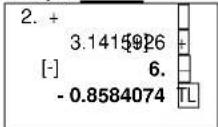 | ||
* The display will in RED color while it is negative transaction or negative result.
- Addition/Subtraction in Add Mode
| Rounding5/4 | PrintPrint | Decimal+ | IC• | Loan• | Σ/GTΣ |
| Problem1.23 - 4.56 + 7.89 =? | Enter | Display | Paper | ||
| 123 [+] | 1.23 | 1.23 | |||
| 456 [-] | -3.33 | 4.56 | |||
| [#/S] | -3.33 | -3.33 ST | |||
| 789 [+] | 4.56 | 7.89 | |||
| [T] | 4.56 | 4.56 TL | |||
- Addition/Subtraction with Item Count in Gross Setting
| Rounding5/4 | PrintPrint | Decimal+ | ICIC | Loan• | Σ/GTΣ |
| Problem11.32 + 7.98-33.33=? | Enter[CE/C] | 00 | Display0. | Paper0. CL | |
| 1132 [+] | 01 | 11.32 | |||
| 798 [+] | 02 | 19.30 | |||
| [#/S] | 02 | 19.30 | |||
| 3333 [-] | 03 | -14.03 | 002 | ||
| [T] | 00 | -14.03 | |||
| [CE/C] | 00 | 0. | |||
| 003 | |||||
* When IC switch is on, Item Counter for Accumulator will always display at the top left of the LCD.
- Grand Total Memory
| Problem | Enter | Display | Paper | |||
| 13.20 | 9.55 | [CE/C] | 0. CL | |||
| 8.30 | 7.36 | 13.2 [+] | 13.20 | |||
| 2.95 | 18.33 | 8.3 [+] | 21.50 | 13.20 + | ||
| 24.45 | + 35.24 | 2.95 [+] | 24.45 | 8.30 + | ||
| GT [T] | 24.45 | 2.95 + | ||||
| 24.45 TL+ | ||||||
| GT 9.55 | 9.55 | [+] | ||||
| GT 7.36 | 16.91 | [+] 9.55 + | ||||
| GT 18.33 | 35.24 | [+] 7.36 + | ||||
| GT [T] | 35.24 | 18.33 + | ||||
| GT [GT] | 35.24 | 35.24 TL+ | ||||
| 59.69 | ||||||
| 59.69 GT | ||||||
- Repetitive Calculation with Reference to Date
Reference date is May 28, 2007
| Rounding5/4 | PrintPrint | Decimal+ | IC• | Loan• | Σ/GTΣ |
| Problem6.54 + 6.54 + 6.54 -7.89 - 7.89 = ? | Enter[CE/C]5.28.2007 [#/ S]654[+] [+]789[-][T] | Display0.5.282007[+] 6.5413.0819.62[-] 11.733.843.84 | Paper0. CL# 5.28.20076.546.546.547.897.893.84TL | ||
- Multiplication
| Rounding↓ | Print Print | Decimal 2 | IC● | Loan● | Σ/GT GT |
| Problem1.238 x 456 =? | Enter1.238 [x] | Display1.238456[=] | 1.238456.564.52 | Paper1.238 456.00564.52 | |
- Sequential (Chain) Multiplication
| Rounding↑ | Print Print | Decimal 3 | IC | Loan●● | Σ/GT GT |
| Problem3.21 X 4.5 X 6.324 = ? | Enter3.21 [x] | Display3.2104.5 14.4456.324 91.351 | Paper3.210 x[x] 4.500[=] 6.32491.351 * | ||
- Constant Multiplication
| Rounding5/4 | PrintPrint | Decimal2 | IC● | Loan● | Σ/GTGT |
| Problem | Enter | Display | Paper | ||
| 2 x 4 = 8, 2 x 5 = 10 | 2 [x] | 2.00 | 2.00 x | ||
| 2 x 6 = 12 | 4 [=] | 8.00 | 4.00 E | ||
| 5 [=] | 10.00 | 8.00 * | |||
| 6 [=] | 12.00 | ||||
| 5.00 E | |||||
| 10.00 * | |||||
| 6.00 E | |||||
| 12.00 * | |||||
- Constant Multiplication with Accumulation
| Rounding5/4 | PrintPrint | Decimal2 | IC• | Loan• | Σ/GTΣ |
| Problem | Enter | Display | Paper | ||
| 1.79 x 167 =298.93 | 1.79 [x] | 1.79 | 1.79 x | ||
| 1.79 x -230 =-411.70 | 167 [=] | 298.93 | 167.00 = | ||
| 1.79 x 104 =186.16 | 230 [+/-] | -230. | 298.93 + | ||
| Total = ? | [=] | -411.70 | |||
| 104 [=] | 186.16 | -230.00 = | |||
| [T] | 73.39 | -411.70 + | |||
| 104.00 = | |||||
| 186.16 + | |||||
| 73.39 TL | |||||
- Division
| Rounding↓ | Print Print | Decimal 3 | IC | Loan • • | Σ/GT GT |
| Problem178 ÷ 6 =? | Enter[CE/C] | Display0.178 | 178.00029.666 | Paper0. CL [÷]178.000÷6.000=29.666* | |
| 6 [=] | |||||
- Constant Division
| Rounding5/4 | PrintPrint | Decimal2 | IC● | Loan● | Σ/GTGT |
| Problem | Enter | Display | Paper | ||
| 755÷4=188.75 | 755[÷] | 755.00 | 755.00 | ||
| 409÷4=102.25 | 4[=] | 188.75 | 4.00 | ||
| 32÷4=8.00 | 409[=] | 102.25 | 188.75 | ||
| 32 | 8.00 | [=] | |||
| 409.00 | |||||
| 102.25 | |||||
| 32.00 | |||||
| 8.00 | |||||
- Division with Accumulation
| Rounding5/4 | PrintPrint | Decimal4 | IC● | Loan● | Σ/GTΣ |
| Problem145÷12.25+15130÷123.50+159.36÷10.25=? | Enter[CE/C] | Display0. | Paper0.CL | ||
| 145 [÷] | 145.0000 | 145.0000÷12.2500=11.8367+ | |||
| 12.25 [=] | 11.8367 | ||||
| 15130 [÷] | 15'130.0000 | ||||
| 123.5 [=] | 122.5101 | ||||
| 159.36 [÷] | 159.3600 | ||||
| 10.25 [=] | 15.5473 | 15,130.0000÷123.5000=122.5101+ | |||
| [T] | 149.8941 | ||||
| 159.3600÷10.2500=15.5473+ | |||||
| 149.8941TL | |||||
- Units/Price Calculations
| Rounding5/4 | PrintPrint | Decimal+ | IC● | Loan● | Σ/GTΣ |
| Problem | Enter | Display | Paper____ | ||
| 132 x 5.67 =748.44 | [CE/C] | 0. | 0. CL | ||
| 146 x 4.45 =649.70 | 132 [x] | 132.00 | |||
| 155 x 3.11 =482.05 | 567 [=] | 748.44 | 132.00 x | ||
| Total = ? | 146 [x] | 146.00 | 5.67 E | ||
| 445 [=] | 649.70 | 748.44 + | |||
| 155 [x] | 155.00 | ||||
| 311 [=] | 482.05 | 146.00 x | |||
| [T] | 1'880.19 | 4.45 E | |||
- Tax Calculation
| Problem | Enter | Display | Paper | |
| TAX1 (GST) = 5.25% | [C/CE] | 0. | 0. CL | |
| Price without TAX1=261.56 | 261.56[TAX1] | TAX1 | 261.56 | |
| [+] | TAX1+ | 275.29 | ||
| Price with TAX 1 = ? | GST% 5.25% | |||
| TAX1[TAX | 275.29 | GST 1] 13.73 | ||
| TAX1[ | 261.56 | GST+ 275.29 * | ||
| TAX2 = 6.25% 300 [TAX 2] | TAX2 | 300. | ||
| Price without TAX 2 =300 | [+] | TAX2+ | 318.75 | GST% 5.25% |
| GST 13.73 | ||||
| Price with TAX 2 = ? [TAX2] | TAX2 | 318.75 | GST- 261.56 | |
| TAX2[ | 300.00 | -] | ||
| Price including TAX 1 and TAX 2 = | 200 [TAX 1] | TAX1 | 200. | TAX2% 6.25% |
| [TAX 2] | TAX1 TAX2 | 200. | TAX2 18.75 | |
| TAX1[+] TAX2+ | 223.00 | TAX2+ 318.75 * | ||
| Price Excluding TAX 1 and TAX 2 | [TAX 1] | TAX1 | 223.00 | |
| [TAX 2] | TAX1 TAX2 | 223.00 TAX2% | TAX2 18.75 | |
| TAX1[TAX2- | 200.00 | TAX2- 300.00 | ||
| 200.00 | ||||
| GST% 5.25% | ||||
| GST 10.50 | ||||
| TAX2% 6.25% | ||||
| TAX2 12.50 | ||||
| TAX TL 23.00 | ||||
| TAX+ TL 223.00 * | ||||
| 223.00 | ||||
| GST% 5.25% | ||||
| GST 10.50 | ||||
| TAX2% 6.25% | ||||
| TAX2 12.50 | ||||
| TAX TL 23.00 | ||||
| TAX- TL 200.00 * | ||||
- Percent Add On
| Rounding↓ | Print Print | Decimal 2 | IC | Loan●● | Σ/GT GT | |
| Problem | Enter | Display | Paper | |||
| Price | 3.95 | [CE/C] | 0. | 0. CL | ||
| Tax | 5% | 3.95 | [x] | 3.95 | ||
| Tax Amount | 0.19 | 5 [%] | 0.19 | 3.95 x | ||
| Net Amount | $ 4.14 | [+] | 4.14 | 5.00 % | ||
| 0.19 * | ||||||
| 4.14 +% | ||||||
- Percent Discount
| Rounding5/4 | PrintPrint | Decimal2 | IC● | Loan● | Σ/GTGT |
| Problem | Enter | Display | Paper | ||
| Price | 169.50 | [CE/C] | 0. | 0. CL | |
| Discount | 14% | 169.5 [x] | 169.50 | ||
| Discount Amount | 23.73 | 14 [%] | 23.73 | 169.50 | |
| Net Amount | $145.77 | [-] | 145.77 | 14.00 | |
| 23.73 | |||||
| 145.77 |
- Chain Discount with Total Amount of Discount
| Rounding5/4 | PrintPrint | Decimal2 | IC● | Loan● | Σ/GTGT | |
| Problem | Enter | Display | Paper | |||
| 23.15 less 15/10/5%=16.82 Net | 23.15 [M+] | M | 23.15 | 23.15 M+ | ||
| [x] | M | 23.15 | 23.15 K | |||
| 15 [%] | M | 3.47 | 15.00 % | |||
| Total Amount of Discount $6.33 | [-] | M | 19.68 | 3.47 * | ||
| [x] | M | 19.68 | ||||
| 10 [%] | M | 1.97 | 19.68 % | |||
| [-] | M | 17.71 | ||||
| [x] | M | 17.71 | 19.68 K | |||
| 5 [%] | M | 0.89 | 10.00 % | |||
| [-] | M | 16.82 | 1.97 * | |||
| [M-] | M | 16.82 | ||||
| [MT] | 6.33 | 17.71 % | ||||
| 17.71 X | ||||||
| 5.00 % | ||||||
| 0.89 * | ||||||
| 16.82 -% | ||||||
| 16.82 M- | ||||||
| 6.33 MT | ||||||
- Gross Profit Margin Calculation COST-SELL-MARGIN
| Rounding5/4 | PrintPrint | Decimal | IC0 | Loan | Σ/GT | |
| • | GT | |||||
| Problem | Enter | Display | Paper | |||
| Cost=100, Margin=20%, Sell=? | 100 [COST] | COST | 100. | COST 100. | ||
| 20 [MARGIN] | SELL | 125. | MARG% | 20. | ||
| [CE/C] | 0. | 25. Δ* | ||||
| Cost=100, Sell=125, Margin=? | 100 [COST] | COST | 100. | SELL | 125. * | |
| 125 [SELL] | MARGIN | 20. | ||||
| [CE/C] | 0. | 0. CL | ||||
| Sell = 125, Margin = 20%, Cost=? | 125 [SELL] | SELL | 125. | |||
| 20 [MARGIN] | COST | 100. | COST | 100. | ||
| SELL | 125. | |||||
| 25. Δ* | ||||||
| MARG% | 20. * | |||||
| 0. CL | ||||||
| SELL | 125. | |||||
| MARG% | 20. | |||||
| 25. Δ* | ||||||
| COST | 100. * | |||||
- Markdown and Selling Price
| Rounding5/4 | PrintPrint | Decimal | IC2 | Loan | Σ/GTGT |
| Problem | Enter[CE/C] | Display | 0. | Paper0. CL | |
| Item Cost | 100.00 | 100 [COST] | COST | 100.00 | |
| Markdown (Percent) | 6.5% | 6.5 [+/-] | -6.5 | COST 100.00 | |
| (Based on to bedetermined selling price) | [MARGIN] | SELL | 93.90 | MARG%-6.50 | |
| Markdown (AMOUNT) | 6.10 | -6.10 Δ* | |||
| Selling Price | $ 93.90 | SELL 93.90 * |
- Invoice
Invoice Number 88901: Date 11/5/07
| Rounding5/4 | PrintPrint | Decimal+ | IC• | Loan• | Σ/GTΣ | |
| Problem | Enter | Display | Paper | |||
| Quantity | Price | Net | 88901 | 88901. | ||
| 16 | 3.29 | 52.64 | [#/S] | 88'901. | # 88901 | |
| 108 | 1.39 | 150.12 | 11.5.07 | 11.507 | ||
| Gross | 202.76 | [#/S] | 11.507 | # 11.5.07 | ||
| Less 10% discount | - 20.28 | 16 [x] | 16.00 | 16.00 x | ||
| 182.48 | 3.29 [=] | 52.64 | 3.29 = | |||
| Tax 5% | + 9.12 | 108 [x] | 108.00 | 52.64 + | ||
| Net | 191.60 | 1.39 [=] | 150.12 | |||
| [T] | 202.76 | 108.00 x | ||||
| [x] | 202.76 | 1.39 = | ||||
| 10 [%] | 20.28 | 150.12 + | ||||
| [-] | 182.48 | |||||
| [x] | 182.48 | 202.76 TL | ||||
| 5 [%] | 9.12 | |||||
| [+] | 191.60 | 202.76 x | ||||
| [CE/C] | 0. | 10.00 % | ||||
| 20.28 + | ||||||
| 182.48 -% | ||||||
| 182.48 x | ||||||
| 5.00 % | ||||||
| 9.12 + | ||||||
| 191.60 +% | ||||||
| 0. CL | ||||||
- Payroll
| Rounding5/4 | PrintPrint | Decimal2 | IC• | Loan• | Σ/GTΣ |
Problem:
Given Find
| 5.75 Hourly Rate Regular Pay 218.50 |
| 38 Hours Worked Total Deductions 44.12 |
| 7.15% FICA Net Pay 174.38 |
\$ 23.75 Withholding
\$ 4.75 Insurance
| Enter | Display | Paper | ||
| [CE/C] | 0. | 0. | CL | |
| 5.75 [x] | 5.75 | |||
| 38 [M+] | M | 218.50 | 5.75 | X |
| [x] | M | 218.50 | 38.00 | = |
| 7.15 [%] | M | 15.62 | 218.50 | M+ |
| 23.75 [+] | M | 39.37 | ||
| 4.75 [+] | M | 44.12 | 218.50 | X |
| [T] | M | 44.12 | 7.15 | % |
| [M-] | M | 44.12 | 15.62 | + |
| [MT] | 174.38 | |||
- Memory Calculation
| Problem | Enter [CE/C] | Display | Paper | ||||
| 100 + 200 | = ? | 0. | CL | ||||
| 900 - 500 | = ? | 100 [+] | 100. | + | |||
| 20 x 7 | = ? | 200 [+] | 300. | 100. | ☐ | + | |
| 12 x 5 | = ? | [T] | 300. | 200. | ☐ | TL | |
| Total | = ? | [M+] | 300. | 300. | ☐ | ||
| M | 900 [+] | 900. | |||||
| M | 500 [-] | 400. | 300. | M+ | |||
| M | [T] | 400. | 900. | + | |||
| M | [M+] | 400. | |||||
| M | 20 [x] | 20. | 400. | TL | |||
| M | 7 [M+] | 140. | |||||
| M | 12 [x] | 12. | 400. | M+ | |||
| M | 5 [M+] | 60. | 20. | = | |||
| M | [MS] | 900. | 7. | M+ | |||
| [MT] | 900. | 140. | |||||
| 12. | = | ||||||
| 5. | = | ||||||
| 60. | MS | ||||||
| 900. | MT | ||||||
26. Time Calculation
The [TIME CALC] key is used to enter and exit the time and date calculation mode.
| Rounding5/4 | PrintPrint | DecimalF | IC | Loan• • | Σ/GTGT |
From normal calculation mode, depress [TIME CALC] key once to enter to Time Calculation Mode.
The following time calculation example shows addition and subtraction of hours and minutes.
| Problem | Enter | Display | Paper | |
| [CE/C] | 0. | 0. CL | ||
| TIME [TIME | 00-00 | CALC] | ||
| TIME 1234 | 12-34 | 00-00+CL | ||
| 12 H 34 M | 0512 [+] | 17-46 | ||
| + 5 H 12 M | [#/S] | TIME | 17-46 | 12-34 |
| ? | 0120 [-] | TIME | 16-26 | 05-12 |
| [T] | TIME | 16-26 | 17-46 ST | |
| - 1 H 20 M | [TIME CALC] | TIME | 00-00-0000 | 01-20 |
| ? | [TIME CALC] | 0. | 16-26 | |
| 00-00-0000 CL | ||||
| 0. CL | ||||
Note: When performing multiplication or division in Time Mode, the minutes will be automatically converted to a decimal value (a percentage of 60 minutes). Afterward, depressing the plus [+] key will convert the answer to hours and minutes.
To exit time calculation functions, depress the [TIME CALC] key.
The following time calculation example shows multiplication and division of hours and minutes.
| Problem5 H 23 M x 4 = ?11 H 54 M ÷ 8 = ?Total = ? | Enter[CE/C] | Display0. | Paper0. CL | |
| [TIME CALC] | TIME | 00-00 | ||
| 0523 [x] | TIME | 5.38333333333333 | 00-00 CL | |
| 4 [=] | TIME | 21.5333333333333 | ||
| [+] | TIME | 21-32 | 5.38333333333333 x | |
| 1154 [÷] | TIME | 11.9 | 4. = | |
| 8 [=] | TIME | 1.4875 | 21.5333333333333 * | |
| [+] | TIME | 23-01 | ||
| [T] | TIME | 23-01 | 21-32 + | |
| [TIME CALC] | TIME | 00-00-0000 | 11.9 ÷ | |
| [TIME CALC] | 0. | 8. = | ||
| 1.4875 * | ||||
| 01-29 + | ||||
| 23-01 TL | ||||
| 00-00-0000 CL | ||||
| 0. CL |
27. Date Calculation
The [TIME CALC] key is used to enter and exit the time and date calculation mode.
| Rounding5/4 | PrintPrint | Decimal | IC2 | Loan• • | Σ/GTGT |
From normal calculation mode, depress [TIME CALC] key twice to enter Date Calculation Mode.
Under Date Calculation Mode: [MT] key work as [Start Date] key
[M-] key work as [End Date] key
[M+] key work as [# of Days] key
[MS] key work as [Compute] key
Problem: Compute the number of days between 25-May-2007 and 30-May-2007
| Enter | Display | Paper | |
| [CE/C] | 0. | 0. CL | |
| [TIME | CALC]TIME | 00-00 | |
| [TIME | CALC]TIME | 00-00-0000 | 00-00 CL |
| 05252007 | [Start] | 05-25-2007ate] | |
| 05302007 | [End] | 05-30-2007ate] | 00-00-0000 CL |
| [Compute] | TIME | 5. | |
| START 05-25-2007END 05-30-2007#OF DAYS 5. |
Problem: Determine the date 5 days after 25-May-2007
| Enter | Display | Paper | |
| 05252007 | [ST#] | 05-25-2007Date] | START 05-25-2007 |
| [# of Days] | TIME | 0. | #OF DAYS 5. |
| 5 | TIME | 5. | END 05-30-2007 |
| [Compute] | TIME | 05-30-2007 |
Problem: Determine the date 5 days prior 30-May-2007
| Enter | Display | Paper | |||
| 05302007[# of Days] | [+]/-] | [ST色性]TIME | 05-30-2007Date]0. | START#OF DAYS | 05-30-2007-5. |
| 5[Compute][TIME] | TIME | -5. | END | 05-25-20070. CL | |
| TIME | 05-25-2007 | ||||
| CALC] | 0. | ||||
Note: Date range 1-1-1900 → 12-31-2999
- Loan Calculation
| Rounding5/4 | PrintPrint | Decimal2 | IC | Loan• • | Σ/GTGT |
Problem:
| Given | Find | |
| Loan Amount = $ 100,000 Payment = ? | ||
| Interest = 6.5 % | ||
| Months = 180 | ||
- Change Payment = \$ 600 Months = ?
| Enter[CE/C] | Display | Paper | |||
| 0. | 0. | CL | |||
| Swith to Loan | LOAN | LOAN MODE | |||
| [Payment] | LOAN | CALC. PAYMENT? | AMOUNT | 100,000.00 | |
| [OK] | LOAN | LOAN AMOUNT? INTEREST | 6.50 % | ||
| 100 000 | LOAN | 100'000. | MONTH | 180. | |
| [OK] | LOAN | INTEREST RATE? | PAYMENT | 871.11 * | |
| 6.5 | LOAN | 6.5 | |||
| [OK] | LOAN | # OF MONTHS? PAYMENT | 600.00 | ||
| 180 | LOAN | 180. | AMOUNT | 100,000.00 | |
| Solve Problem 1 | [OK] | LOAN | 871.11 | INTEREST | 6.50 % |
| [Months] | LOAN | CALC. MONTH? | MONTH | 432. * | |
| [OK] | LOAN | PAYMENT 871.11 | |||
| 600 | LOAN | 600. | |||
| [OK] | LOAN | AMOUNT 100'000.00 | |||
| [OK] | LOAN | INTEREST 6.50 | |||
| Solve Problem 2 | [OK] | LOAN | 432. | ||
- \$ Currency Conversion function
| Rounding5/4 | PrintPrint | Decimal2 | IC | Loan• • | Σ/GTGT |
*Currency Rate = 0.745212
(Please refer to '1. PROG function', for the way of rate setting)
| Problem | Enter[CE/C] | Display0. | Paper | ||
| USD 200 = Euro ? | 200[] | 200.149.04 | USD | 200.00 | |
| EURO 149.04 = USD ? | [÷][$] | 149.04200.00 | RATE | 0.745212 | |
| EURO | 149.04 | ||||
| 149.04 | |||||
| EURO | 149.04 | ||||
| Rate | 0.745212 | ||||
| USD | 200.00 | ||||
30. TEXT function
| Rounding5/4 | PrintPrint | Decimal2 | IC | Loan• • | Σ/GTGT |
There is 48 characters (2 lines) for Text 1 \~ 3
There is 96 characters (4 lines) for Text A \~ C
Both Text 1 \~3 and Text A \~ C are with preset by Victor; The user can overwrite the preset message with a custom message.
| Problem | Enter | Display | Paper |
| Recall Text A [TEXT] | DESC A 00- | VICTOR TECHNOLOGYwww .victortech.com1-800-628-2420 | |
| Recall Text B [Text B] | [TEX T 00] | ********** | |
| Change 1stline [OK] | DESC A 00 | ********** | |
| to / and save to | DESC A 96 | -( ready for modification) | |
| Text B [00] | DESC A 96 | ********** | |
| [TAX26] | / _ | ||
| (DESC A 96 | //////* 23 | ||
| [TEX T] | //////* | ||
| [TEXT96] | SAVE TEXT B B |
0.
31. Reprint function
| Rounding5/4 | PrintReprint | Decimal2 | IC• | Loan• | Σ/GTGT |
*Note: The [TEXT / Reprint] key works as [Reprint] function, with the Print switch in Reprint mode. The machine can store maximum 24 entries (since last Clear function); user can recall and print the transactions under Reprint mode.
| Problem | Enter | Display | Paper |
| 105000 + 125000 + (3300x15) = ? | [CE/C] | 0. | RE-PRINT |
| 105000 [+] | 105'000.00 | 105,000.00 | |
| Recall the transactions under Reprint Mode | 125000 [+] | 230'000.00 | 125,000.00 |
| 3300 [x] | 3'300.00 | 3,300.00 | |
| 15 [=] | 49'500.00 | 15.00 | |
| [+] | 279'500.00 | 49,500.00 | |
| [T] | 279'500.00 | ||
| [GT] | 279'500.00 | 49,500.00 | |
| [Reprint] | 279'500.00 | 279,500.00 | |
| 279,500.00 |
*Note: Once the transactions are over 24 entries, the previous entries will be truncated.
32. HELP function
Rounding 5/4
Print Print
Decimal
2 IC
Loan
Σ/GT
GT
User can get HELP message for all the function keys.
* User can print the HELP message, even under 'Reprint' mode.
| Enter | Display | Paper | |
| *the message is [→]Scrolled on the display and will stop at (OK) TO PRINT | [HERE$S FUNCTION BACKSPACE KEY PRESS (OK) TO PRINT [OK] 0. | PRESS [→] TO REMOVE PREVIOUS KEYSTROKE. |
Technical Specifications
Type: Desktop Adding Machine/Calculator, Electronic Print /VFD
Basic Operations: Addition/subtraction and multiplication/division
Capacity: Input and result 14 Digits
Decimal System: Add Mode (+), Floating (F), Fixed (0, 1, 2, 3, 4, 6)
Functions: 4 rules, successive calculation, memory calculation, grand total calculation, constant calculations, time calculation, loan calculation, tax calculation, cost, sell, margin calculation, help key, text messages, currency conversion, and reprint key.
Printer: Thermal printer
Power Consumption: 27 Watts
Paper Width: 2-1/4", 57.5 ± 0.5mm
Display: 14 digit Backlit LCD Display
Operating Temp: 32^ 104^ F, 0^ 40^ C
Dimensions: 12-1/2" L x 8-1/2" W x 2-5/8" H
Weight: 4.1 lbs, 1.86kg
This information is furnished to comply with FCC requirements
This equipment generates and uses radio frequency energy and if not installed and used properly, that is, in accordance with the manufacturer's instructions, may cause interference to radio and television reception. It has been type tested and found to comply with the limits for a Class B computing device in accordance with the specifications in Subpart j of Part 15 of FCC Rules, which are disigned to provide reasonable protection against such interference in a residential installation. However, there is not guarantee that interference will not occur in a particular installation. If this equipment does cause interference to radio or television reception, which can be determined by turning the equipment off and on, the user is encouraged to try to correct the interference by one or more of the following measures:
- Reorient the receiving antenna.
- Relocate the computing device with respect to the receiver.
- Move the computing device away from the receiver.
- Plug the computing device into a different outlet so that the computing device and receiver are on different branch circuits.
If necessary, the user should consult the dealer or experienced radio/television technician for additional suggestions. The user may find the folwing booklet prepared by the Federal Communications Commission helpful:
How to Identify and Resolve Radio-TV Interference Problems
This booklet is available from the U.S. Government Printing office, Washington, DC 20402, Stock No. 004-000-00345-4.
To assure future optimum performance use genuine VICTOR replacement ribbons. Contact you local VICTOR dealer or call our Customer Service Department at 800-628-2420 to place an order.
PL8000
CALCULATRICE IMPRIMANTE ROBUSTE
M O D E D ' E N
natural_image
Technical diagram of a mechanical assembly with directional arrows indicating motion (no text or symbols)natural_image
Mechanical assembly diagram showing a cylindrical component inserted into a housing with a directional arrow indicating motion (no text or symbols present)28. [+ / OK] Touche Addition/OK
35. [MS / Payment / Compute]
Touche Total partiel en mémoire/paiement/calculer
DESC A 15 SET GREETING
0.
| [PROG] | SET TAX1? |
| [PROG] | SET TAX2? |
| [PROG] | SET CURRENCY? |
| [PROG] | SET TIME / DATE? |
| [PROG] | SET GREETING? |
| [PROG] | SET LANGUAGE? |
| [OK] | ENGLISH |
| [TAX2/→] | GERMAN |
| [TAX2/→] | FRENCH |
| [TAX2/→] | ESPAHOL |
| [TAX2/→] | ITALIAN |
| [TAX2/→] | ENGLISH |
| [OK] | SET ENGLISH |
Affichage
Papier
| SET ENGLISH |
- Multiplication constante
| Arrond.5/4 | Impr.Print | Décimales2 | IC• | Prêt• | Σ/GTGT |
| Problème2 x 4 = 8, 2 x 5 = 102 x 6 = 12 | Saisie | Affichage | Papier | ||
| 2 [x] | 2.00 | 2.00 | |||
| 4 [=] | 8.00 | 4.00 | |||
| 5 [=] | 10.00 | 8.00 | |||
| 6 [=] | 12.00 | ||||
| 5.00 | |||||
| 10.00 | |||||
| 6.00 | |||||
| 12.00 | |||||
natural_image
Technical diagram of a mechanical assembly with directional arrows indicating motion (no text or symbols)natural_image
Mechanical assembly diagram showing a cylindrical component inserted into a housing with a directional arrow indicating motion (no text or symbols present)Interruptor imprimir / reimprimir
35. [MS / Payment / Compute]
| Redondeo5/4 | Impr.Impr. | F | IC● | Préstamo● | Σ/GTΣ |
| Problema100 + 200 = ?- 500 = ? 100 [+]x 7 = ? 200 [+]12 x 5 = ? [T]Total = ? [M+] | Introducir[CE/C]900 [+]500 [-][T][M+]20 [x]7 [M+]12 [x]5 [M+][MS][MT] | PantallaM M M M M M M M M M M M M M M M M M M M M M M M M M M M M M M M M M M M M M M M M M M M M M M M M M M M M M M M M M M M M M M M M M M M M M M M M M M M M M M M M M M M M M M M M M M M M M M M M M M M M m | Papel0.100.100.200.300.TL100.300.900.500.400.TL400.M+20.x7=140.M+12.X5=60.M+900.MS900.MT | ||
text_image
CALC] 8. = 01-29 + 23-01 TL 00-00-0000 C L 0. C L1.4875
"How to Identify and Resolve Radio-TV Interference Problems"