
Pico - Mobile Phone NGM - Free user manual and instructions
Find the device manual for free Pico NGM in PDF.


| Type | Mobile phone |
| Brand | NGM |
| Model | Pico |
| Dimensions (estimation) | 115 x 50 x 12 mm |
| Weight (estimation) | 80 g |
| Battery | Lithium-ion, removable |
| Charging | Via charging dock or micro USB |
| Screen | Touchscreen, color |
| SIM card | Standard, 1 slot |
| Memory card | MicroSD, dedicated slot |
| Main functions | Calls, SMS, SOS, FM Radio, Camera/Video, Bluetooth, Flashlight, Media player |
| Connectivity | Bluetooth, micro USB |
| Safety | Use original NGM chargers, avoid exposure to moisture |
| Maintenance | Clean with a soft, dry cloth |
| Repairability | Battery, SIM card and memory card removable |
Frequently Asked Questions - Pico NGM
User questions about Pico NGM
0 question about this device. Answer the ones you know or ask your own.
Ask a new question about this device
Download the instructions for your Mobile Phone in PDF format for free! Find your manual Pico - NGM and take your electronic device back in hand. On this page are published all the documents necessary for the use of your device. Pico by NGM.
USER MANUAL Pico NGM
Copyright © 2014 NGM Italia
Welcome to the NGM world. Thank you for purchasing NGM Pico, an extraordinary example of perfect balance between simplicity and technology. With this device you can easily make phone calls, send and receive SMS. Thanks to the SOS function you can start an automatic call procedure to a few previously set numbers in case of emergency. The essential features are enclosed in a functionally advanced, dynamic and modern though immediate and intuitive software, thanks to large icons and the touch screen. By visiting the official website www.ngm.eu you can appreciate the whole range of NGM mobile phones, ask for after sales assistance, access the forum for technical assistance and download software updates.
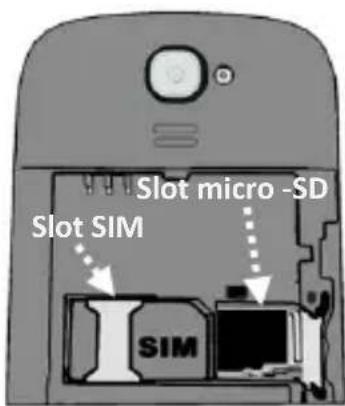
Insert the SIM card: The SIM card contains your phone number, PIN code, links to operator services, contacts and SMS messages. To access the compartment containing the SIM slot, turn off the phone and slide down the cover. Remove the battery. Insert the SIM card into the slot with its gold contacts facing down.
Insert a memory card: In order to use the camera and media player functions of NGM Pico, a micro-SD memory card is required (not
included in the package): place it into the backside of the phone, next to the SIM slot. Unlock the grid by pushing it to the right. Insert the micro SD with its gold contacts facing downwards and close the flap. Lock the grid on the micro-SD by sliding it into the opposite direction.
24ENGLISH
Inserting the Battery: Your device is provided with a lithium-ion battery and is designed to be used exclusively with original NGM batteries and chargers. The battery must be inserted into the backside of the phone. Insert the battery into the battery compartment with the contacts facing up, matching those of the phone. When done, put the hind cover back into position as shown in the following illustrations.
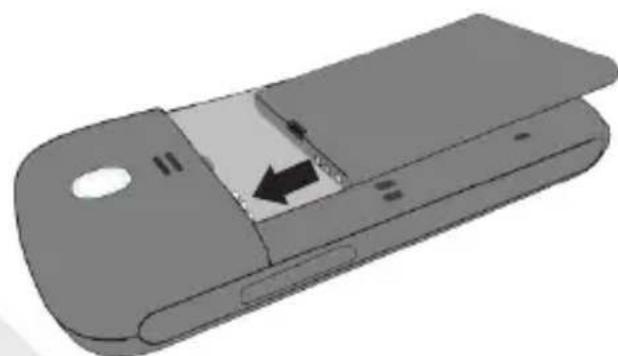
Inserting the battery
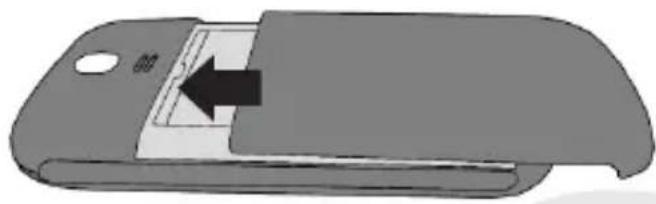
Placement of the cover
Charging the battery: Charge the battery before starting to use the device. Connect the charger to a provided wall socket adaptor and then plug the jack into the charging base or insert it directly into its connector on the lower side of the phone. The charging base can also be connected to a micro USB cable to charge your phone. When the battery is charging, an animated icon on the screen will show the charging progress and the charging base shows a red LED light. Once the battery icon is filled and the charging LED becomes green, it is fully charged and the phone can be disconnected from the grid.
Attention: To preserve the functionality of the product and the integrity of the warranty, we recommend the use of original NGM chargers. Please charge the battery indoors, in a dry and favorable environment. It's normal for the battery to get slightly warm during the charging process. The battery will reach its full capacity when cycled several times.
26ENGLISH
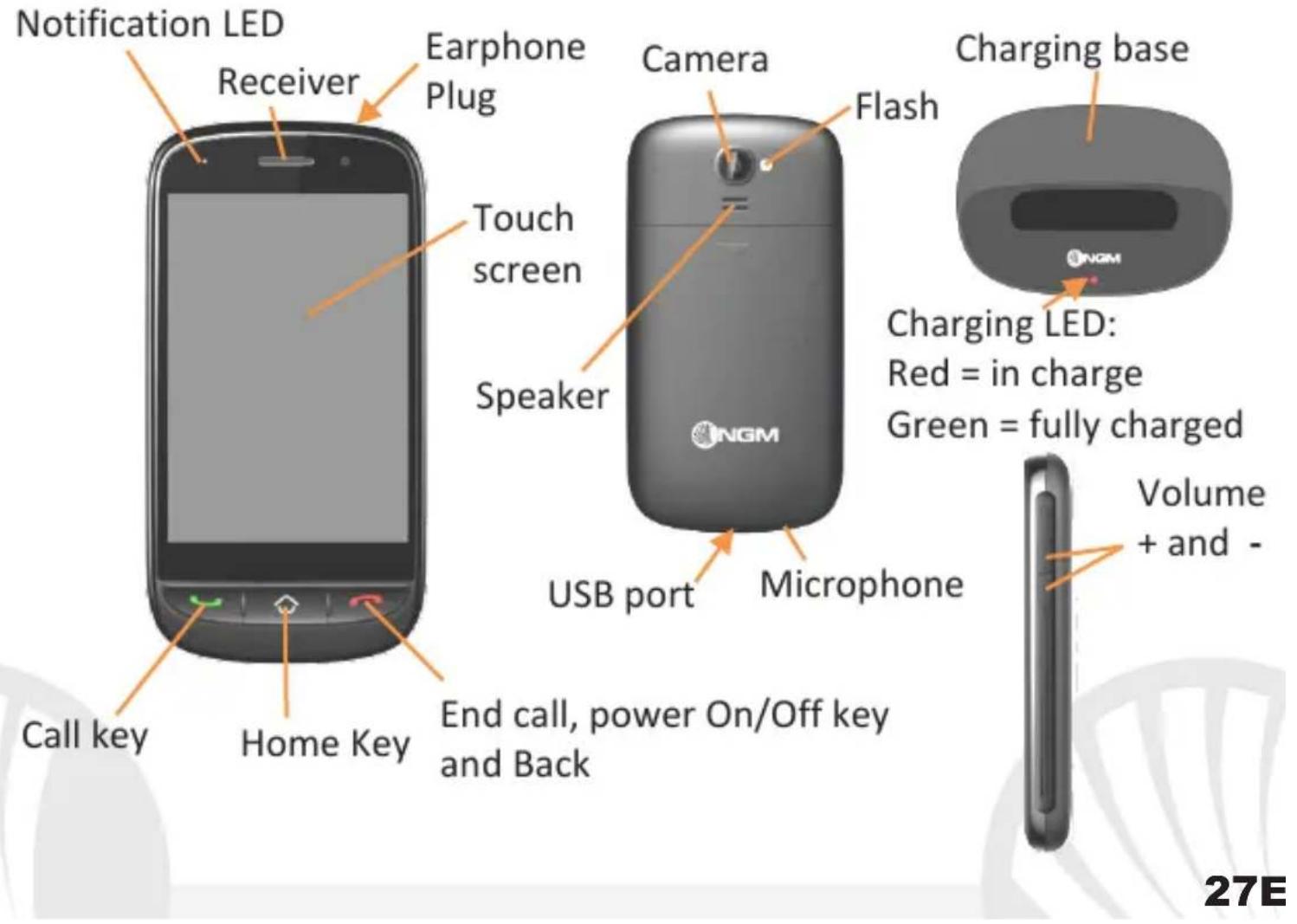
Connecting to a PC: Use the USB cable to connect NGM Pico to a computer. Selected USB memory to copy music files, photos and videos from your computer to your device and vice versa. Remember to always make the safe removal of the device by deactivating the USB storage with the icon on your computer before disconnecting the USB cable, to avoid data loss or damage.
Notification panel: By tapping the top of the screen and scrolling your finger down, you'll open the notifications panel, where you will find any notice regarding the device. At the top, you find the corresponding icons for quick access to the camera and the system settings; moreover the quick settings keys to other functions (Bluetooth, airplane mode, audio profiles) via the quick keys.
28 ENGLISH
Turning the device on and off
To turn on and turn off the phone, press and hold the red end call key.
Lock screen
The screen automatically locks after a period of inactivity configurable in Settings > Screen Lock > Automatic screen lock, where you can choose between different options. Press any key to wake up the screen and scroll upwards to unlock, once the date and time are displayed. You can also choose "sequence" as a method of alternate block in Settings > Screen Lock > Blocking method. In the same menu you can also set a password that will be asked every time the screen is unlocked.
Customize the unlock screen
Under Settings > Theme settings you can set the background to display on your unlock screen, choosing between the backgrounds provided by the system or the pictures in the Gallery.
Main Menu
From the main page scroll from right to left to browse through all 4 menu pages, and from left to right to go back. Press the back key to return to the previous screen and press the Home key to return to the main screen.
Making a call
To make a call, select the Phone icon.
Type the number selected by using the virtual keyboard and start the call by selecting the green handset icon or the green key at the bottom left. To terminate the call, tap the red end call icon or press the red key at the bottom right. During the call, you will have access to call settings by selecting Options.
To answer an incoming call, press the green handset.
Call a number from the phone book: from the main menu, select Contacts. Scroll through the contacts with the touch screen, select the contact you want to call and press the green call key. By selecting Options you will have access to important settings for the Phone Book (import/export, filter contacts...)
Call a number from the call logs: through the green call keyor through the Phoneapp, go to call logs; the missed, received and outgoing calls will be displayed automatically. Scroll the through with the touch screen, select the number to call and press the green call key.
Add contacts in your address book: from the main menu select Contacts > Add new. Enter the name, the new number and other options, if they are supported, and confirmed with Save.
Speed dialing: in Contacts > Options > Settings > Speed Dial, you can assign to keys 2-9 some numbers that will be called automatically if you press and hold down the related key.
32ENGLISH
Send and read SMS
Send SMS: From the main menu, go to Messaging > New msg. Enter the recipient manually or choose it from the address book or from the call logs by selecting the corresponding keys. Write the text in its dedicated space and press Send
Read SMS: When you receive a new SMS, an icon appears in the notification panel. By clicking onto this icon, you can access directly the conversation and read the incoming message. In any case, you can view the incoming messages from the home screen by selecting Messaging.
SOS function: NGM Pico is equipped with a dedicated key for the fast forwarding of emergency calls (*). This feature can be turned on and off from the main menu, within the SOS menu. In case of emergency, use this function to ask for help up to five phone
4-5 sec
numbers previously set in Menu > SOS > SOS
numbers by long pressing the Home key. Then, the phone will call the five SOS numbers, for about 20 seconds each. If at the end of the cycle it will not
have received no response, the phone will wait for about 30
seconds and then will launch a second cycle of calls. This
procedure will be repeated for 5 times. If one of the called
numbers answers, the cycle will be interrupted and the call will
automatically switch to speaker phone (handsfee).
Warning: The SOS calls cycle will be interrupted if the answering machine or voicemail of one of the called SOS numbers takes the call.
34ENGLISH
FM radio: From the main menu select the FM Radio icon and press the Power ON key. No need to connect earphones to listen to the radio, since NGM Pico has a built-in radio antenna. Scroll through the channels through the trackwheel or start the automatic search of channels in Channel List > Search.
View and play media files: In the main menu select Gallery to display photos, videos and Music player to play audio files. The same files can be viewed from the File Manager, in the main menu.
Set Ringtones: from the main menu, select Settings > Sounds Management. Select Ringtone for incoming calls and set the desired tone from those available. In the same menu, you can also set the tone for messages, touch, keypad, and activate the vibration-feedback.
Quickly turn on/off the vibration mode
To quickly turn off the ringtone and turn on the vibration for calls and messages, press the volume key - on the right side of the phone. By pressing volume - again, the phone will enter the silent mode.
Phone Settings: from the Settings menu you can access the Date & Time, Display, language, Messaging, Network and Call settings. Under Settings > Advanced Settings > Restore you can return the device to factory settings by entering the recovery code 1122.
Torch: to turn on and turn off the torch, select the Torch icon from the main menu and press the power key that appears on the screen.
36ENGLISH
Bluetooth: Under Settings > Network > Bluetooth it is possible to activate Bluetooth while in Settings > Network > Bluetooth Settings, in Associated and you can see the associated devices and search for others (headsets, phones...) by selecting Search. Select the device you would like to associate with and confirm it on both devices. Inside the Bluetooth menu you can manage the visibility of your device, change its name and access the advanced settings.
Camera: Open the camera from the main menu or from the notification panel. Move the switch between camera and video and press the center key to capture photos and videos. Select the icon in the top left-hand corner of the screen to display the settings of your camera and video camera.
* Limitation of Liability: this is not a life-saving device but a mobile phone. NGM will not be liable for any indirect, special, incidental or consequential damage arising from, or in connection with the use of this product.
Warning: The manufacturer assumes no responsibility for any failure of the policies set out above, or for any misuse of the phone. NGM reserves the right to modify any of the content in this user guide without previous public announcement. The content of this manual may vary from the actual content displayed in the mobile phone. In that case, the latter shall govern.
Copyright © 2014 NGM Italia
No part of this manual may be reproduced, distributed, translated, or transmitted in any form or by any means, electronic or mechanical, including photocopying, recording, or storing in any information storage and retrieval system, without the prior written permission of NGM Italia.
38 ENGLISH

Copyright © 2014 NGM Italia
Copyright © 2014 NGM Italia
Copyright © 2014 NGM Italia
- Copyright © 2014 NGM Italia
- 24ENGLISH
- Turning the device on and off
- Lock screen
- Customize the unlock screen
- Main Menu
- Making a call
- 32ENGLISH
- Send and read SMS
- 4-5 sec
- 34ENGLISH
- Quickly turn on/off the vibration mode
- 36ENGLISH
- * Limitation of Liability: this is not a life-saving device but a mobile phone. NGM will not be liable for any indirect, special, incidental or consequential damage arising from, or in connection with the use of this product.
- ENGLISH
Brand : NGM
Model : Pico
Category : Mobile Phone