H060ES - Safe Sentry - Free user manual and instructions
Find the device manual for free H060ES Sentry in PDF.



| Product Type | Safe for hotels and residences |
| Brand | Sentry |
| Model | H060ES |
| Power Supply | 4 AA alkaline batteries (LR6), auxiliary external battery pack included |
| Opening Methods | Magnetic card (credit card type), 4-digit custom code, emergency key |
| Security | Automatic lockout after 3 incorrect attempts (15-minute pause) |
| Display | Digital screen with status messages |
| Mounting | Bolting to floor or wall (kit included) |
| Included Accessories | 2 emergency keys, external battery pack, bolting screws, owner's manual |
| Customer Service | 1-800-828-1438, www.sentrysafe.com |
| Warranty | Registration at www.sentrysafe.com/customercare/register_your_product |
Frequently Asked Questions - H060ES Sentry
User questions about H060ES Sentry
0 question about this device. Answer the ones you know or ask your own.
Ask a new question about this device
Download the instructions for your Safe in PDF format for free! Find your manual H060ES - Sentry and take your electronic device back in hand. On this page are published all the documents necessary for the use of your device. H060ES by Sentry.
USER MANUAL H060ES Sentry
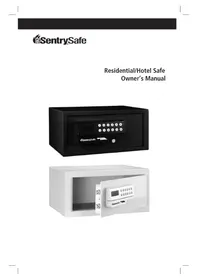
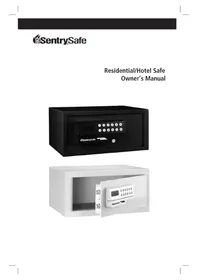
Residential/Hotel Safe Owner's Manual
natural_image
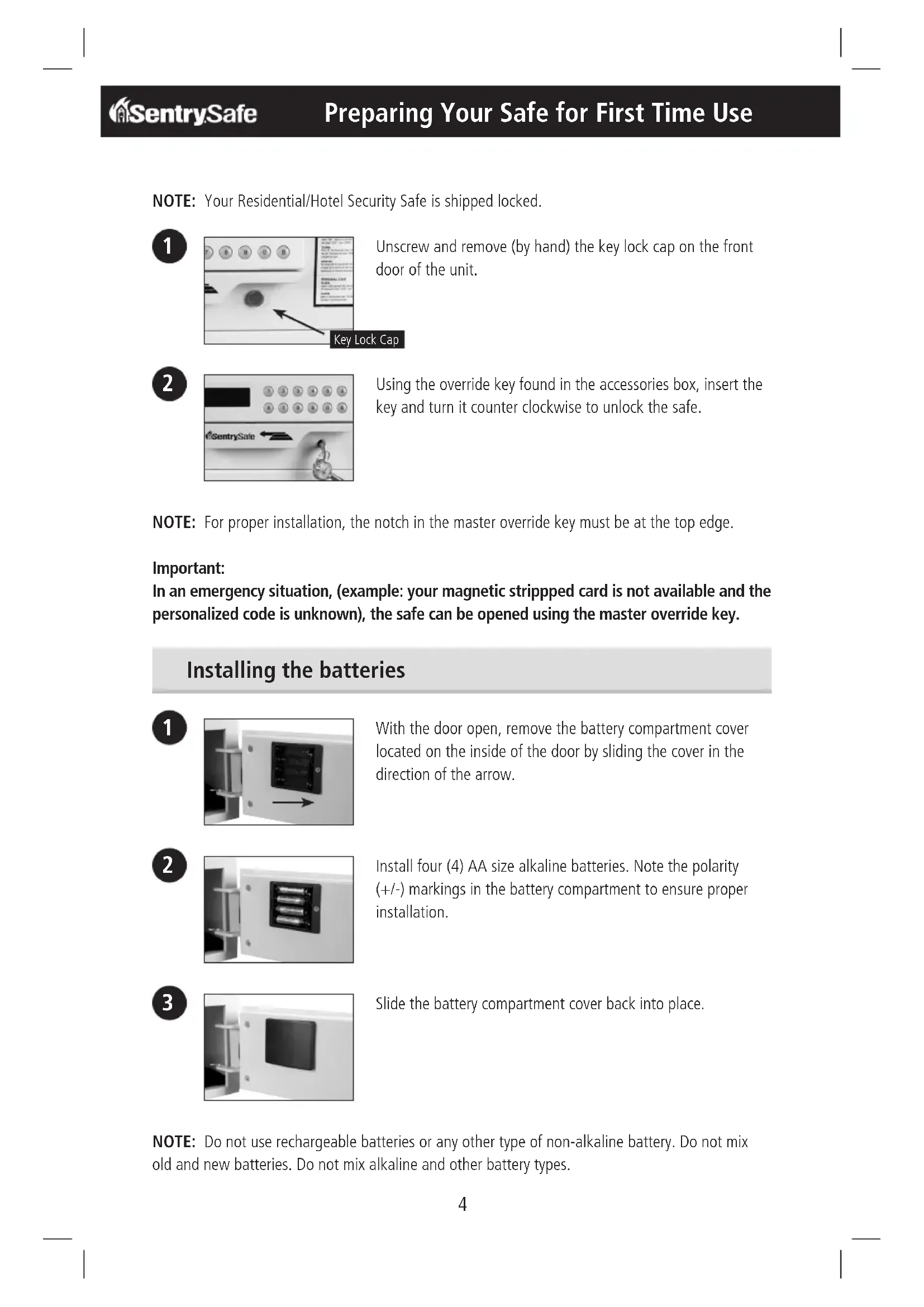
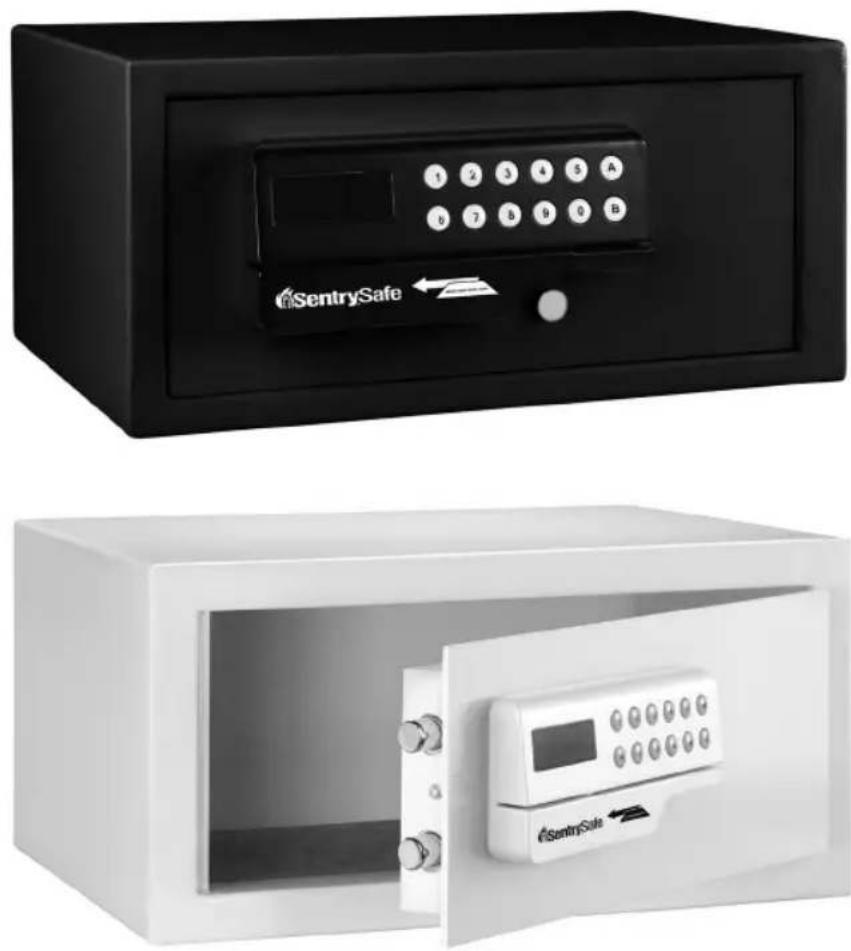
Two different types of security enclosures: a black SentrySafe with a keypad and open door, and a white SentrySafe with a control panel (no visible text or symbols on the main objects).Contents Include:
• Residential/Hotel Security Safe (1)
- Bolt-Down Screws (4)
• Auxiliary Remote Battery Pack (1)
• Master Override Keys (2)
- Owners Manual
- Registration Card
- 4 AA Alkaline Batteries required to operate lock (Batteries may not be included in certain models.)
General Instructions:
Your SentrySafe Residential/Hotel Security Safe can be operated with (1) a magnetic stripped card (example: most major credit cards, card not provided), (2) a personalized four-digit code, or (3) the master override key provided with the unit.
Important:
The method used to lock and unlock the safe must be the same unless using a master override key to unlock the safe.
Table Of Contents
English
Getting Started 2
Table of Contents 3
Preparing Your Safe for First Time Use 4-5
Operating Safe with Magnetic Stripped Card 6-7
Operating Safe with Personal Code 8-9
Operating the Safe if Batteries Die ....10
Bolt Down Instructions....11
Customer Care....12
Troubleshooting....13
IMPORTANT
If you experience problems or challenges with your safe, then please contact our customer care team. Many issues can be quickly resolved without the product being returned.
REGISTRATION
www.sentrysafe.com/customercare/register_your_product
Warranty Coverage Registration:
To aid with warranty coverage please visit www.sentrysafe.com/customercare/register_your_product to register your safe, or complete the enclosed registration card and mail to SentrySafe.
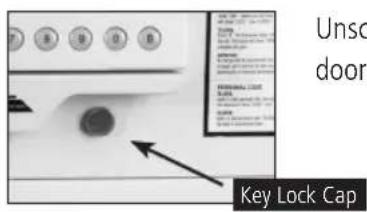
NOTE: Your Residential/Hotel Security Safe is shipped locked.
1
text_image
Unsc door Key Lock CapUnscrew and remove (by hand) the key lock cap on the front door of the unit.
2
text_image
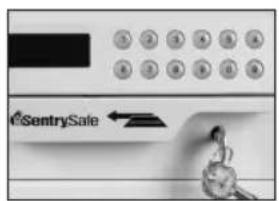
SentrySaleUsing the override key found in the accessories box, insert the key and turn it counter clockwise to unlock the safe.
NOTE: For proper installation, the notch in the master override key must be at the top edge.
Important:
In an emergency situation, (example: your magnetic stripped card is not available and the personalized code is unknown), the safe can be opened using the master override key.
Installing the batteries
1
natural_image
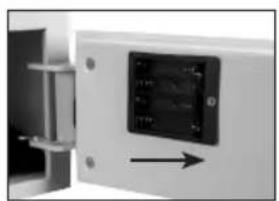
Close-up of a wall-mounted electronic device with a black control panel and an arrow pointing to it (no visible text or symbols)With the door open, remove the battery compartment cover located on the inside of the door by sliding the cover in the direction of the arrow.
2
natural_image
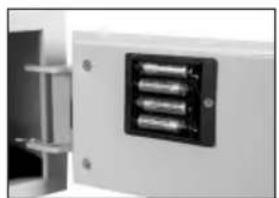
Close-up of a white electronic device with a black rectangular panel and three cylindrical elements, no visible text or symbols.Install four (4) AA size alkaline batteries. Note the polarity (+/-) markings in the battery compartment to ensure proper installation.
3
natural_image
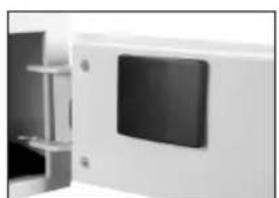
Exterior view of a modern office building (no signage)Slide the battery compartment cover back into place.
NOTE: Do not use rechargeable batteries or any other type of non-alkaline battery. Do not mix old and new batteries. Do not mix alkaline and other battery types.
Preparing Your Safe for First Time Use cont.
Programming The Safe Lock For Initial Use
1
text_image
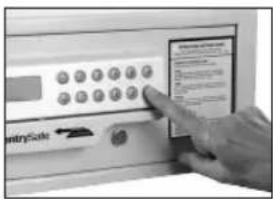
Hand interacting with a bank counter panel showing 'EntrySale' and a list of financial metricsLeave override key in the unlocked position.
Press the "B" button.
The safe lock will beep.
2
text_image
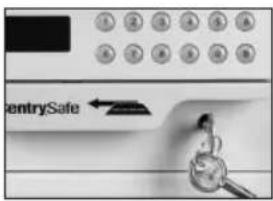
entrySafeClose the door and lock it using the override key and remove the key from door. Punch in the code "1234" to open the safe door. The unit is ready for use with any four-digit code or magnetic stripped card. Reinstall lock cap.
NOTE: The safe can be operated with your personal magnetic stripped card (example: most major credit cards, card not included).
To lock the door
1
text_image
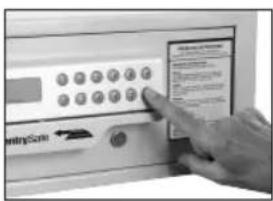
Hand interacting with a touchscreen device labeled 'EntrySum', showing function buttons and a finger pointing to it.Push and hold the door in the closed position.
Press "B" on the keypad.
The display will show “- CARD - ”.
2
text_image
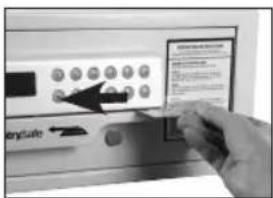
Hand interacting with a touchscreen display showing icons and text, likely for a software interface or app.Swipe the card from right to left.
3
text_image
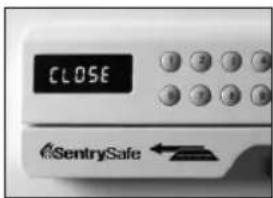
CLOSE SentrySafe ←The display will show "CLOSE", immediately followed by "CLOSED" indicating that the bolts are extended and the door is locked.
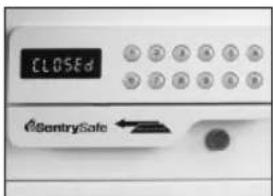
text_image
CLOSEd CountrySafeOperating Safe with Magnetic Stripped Card
To unlock the door
1
text_image
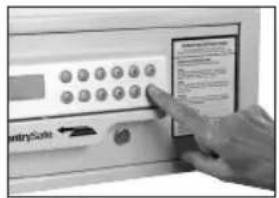
Hand interacting with a touchscreen display showing 'EntryScale' and function buttonsPress "B" on the keypad.
The display will show “- CARD -”.
2
text_image
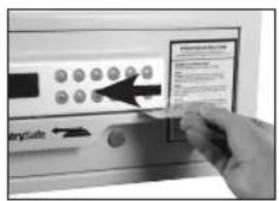
Hand interacting with a touchscreen device showing control buttons and a highlighted 'anyCode' buttonSwipe the card from right to left.
NOTE: The card must be firmly and evenly swiped from right to left.
3
text_image
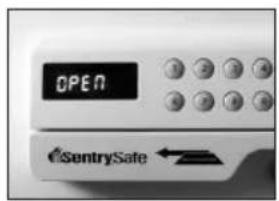
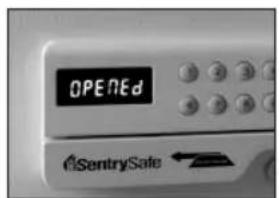
OPEN eSentrySafe ←The display will show "OPEN", immediately followed by "OPENED" indicating that the bolts are retracted into the door.
The spring loaded feature will enable the door to open automatically.
text_image
OPENED SentrySaleNOTE: • If the card was swiped incorrectly (from left to right) or at a pace that is too fast or too slow, the display will show "AGAIN" for two seconds followed by "CARD", indicating that the card must be swiped again.
- The card used to close the safe must be the same as the card used to open the safe. Otherwise the display will show "E-CARD" and beep 3 times.
NOTE: The processes for locking the door with a personalized code and changing the personalized code are the same.
To lock the door
1
natural_image
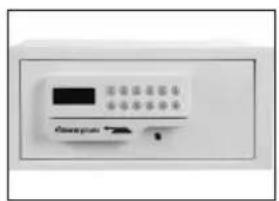
Front view of a white electronic device control panel with buttons and a black screen (no visible text or symbols)Push and hold the door in the closed position.
Input any four-digit, personalized code.
2
text_image
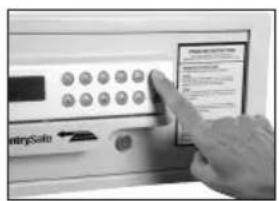
Hand interacting with a touchscreen device labeled 'EntrySafe' and a control panel showing function keys.Press "A" on the keypad.
3
text_image
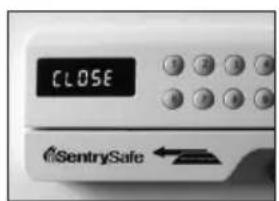
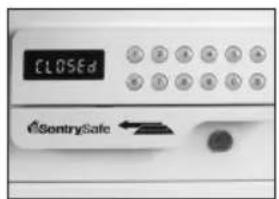
CLOSE SentrySafeThe display will show "CLOSE", immediately followed by "CLOSED" indicating that the bolts are extended and the door is locked.
The four-digit, personalized code will be displayed for two (2) seconds.
text_image
CLOSEd SentrySafeOperating Safe with Personal Code
To unlock the door
1
text_image
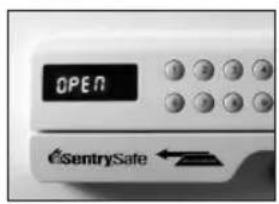
OPEN eSentrySafe ←Input the correct personalized four-digit code.
The display will show "OPEN", immediately followed by "OPENED" indicating that the bolts are retracted into the door.
2
text_image
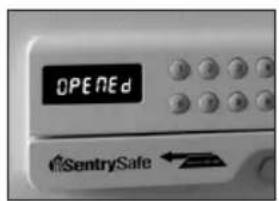
OPENED €SentrySafe ←The spring loaded feature will enable the door to open automatically.
NOTE: • If the code is incorrect, the display will show "E-CODE" and beep 3 times.
- "B" is a deletion key. Pressing it once will delete one character on the reader.
- In a low voltage condition, the display will show "LO-BAT" (in both a door open and door closed state).
- A "b-LOC" message on the display during a closed door or open door indicates that the door is not locked or will not lock. If this situation occurs, (1) unlock the unit; (2) hold the door closed and attempt to re-lock it.
IMPORTANT
Three (3) repeated attempts to open the door using an invalid code will result in the safe being automatically locked for 15 minutes. The safe will not respond to any code and the display will read "HOLD" + "DIGIT" where the "DIGIT" is the amount of minutes you must wait until the safe will respond to your code entry. After 15 minutes, the safe will return to normal operation.
Reprogramming the Safe Lock After Override Use
1
text_image
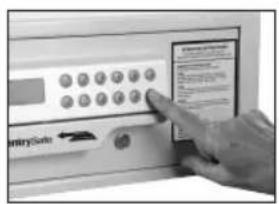
Hand interacting with a touchscreen display showing 'EntrySale' button and control buttonsLeave override key in the unlocked position.
Press the "B" button.
The safe lock will beep twice and read "− CARD −".
2
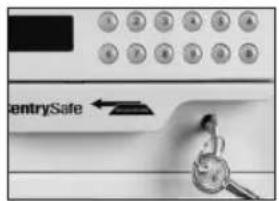
text_image
entrySafeClose the door and lock it using the override key and remove the key from the door.
Punch in the code "1234" to open the safe door. The unit has now been reprogrammed and is ready for use with any four-digit code or magnetic stripped card.
Using Auxiliary Remote Battery Pack
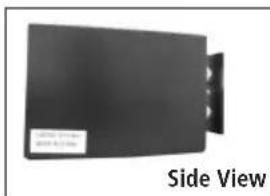
If the four (4) AA alkaline batteries installed in the door are insufficient to operate the card reader, keypad, and locking mechanism, the auxiliary remote battery pack (included) can be utilized as a temporary power source.
1
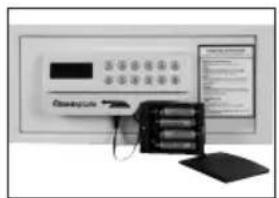
text_image
ClearmarkInstall four (4) AA size batteries in the auxiliary remote battery pack. Note the polarity (+/-) markings in the battery compartment to ensure proper installation.
2
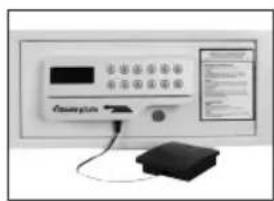
text_image
Medical device panel with Chinese text labels and a small box, likely for diagnostic or testing purposes.Plug the auxiliary remote battery pack on the underside of the keypad unit.
Plug in the auxiliary remote battery pack to enable temporary power using your magnetic stripped card or personal code to unlock the safe.
Replace the 4 AA sized alkaline batteries in the door (as described on page 5).
NOTE: • The auxiliary remote battery pack is not a charger – batteries with insufficient strength must be replaced.
- The master override key can also be used to gain access to the safe.
- Do not use rechargeable batteries or any other type of non-alkaline battery. Do not mix old and new batteries. Do not mix alkaline and other battery types.
Bolt Down Instructions
To help provide maximum security, Sentry strongly recommends this safe be bolted down.
Select a suitable and convenient location for your safe. Set the safe in place and use the holes provided in the bottom or back of the safe to mark the location of the holes to be drilled in the floor or wall. It is not recommended to attempt to bolt to both floor and wall. If bolting to a wall, please ensure that the safe is resting on a supporting surface, i.e. floor, table or shelf.
Move the safe away and drill holes of the appropriate diameter and depth for the type of hardware being used and the mounting surface (2 each — bolts, washers and masonry anchors).
Place the safe back over the holes and install the fasteners as required.
NOTE: For maximum security on models which have feet, remove feet before bolting to floor.
Customer Care
www.sentrysafe.com
Phone Number: 1-800-828-1438
Fax: 1-585-381-2940
882 Linden Avenue / Dept. 200 / Rochester, New York / 14625-2784 USA
How to obtain a replacement key
1 Please go to our website www.sentrysafe.com to find the necessary replacement form. If you are unable to use a computer, please call the number above or fax us for a copy of the replacement form.
2 Safes Serial number is located on left side of safe.
3 Please fill out the form in its entirety.
4 Send the following to Sentry Group: check or money order and replacement form. For current pricing, please go to www.sentrysafe.com/customercare. If you are unable to use a computer, then please call the number above or fax us.
5 Mail to: Sentry Group, 882 Linden Avenue, Dept. 200, Rochester, NY 14625-2784, USA -OR- fax statement (notary seal must be legible) to 1-585-381-2940.
Paying by credit card:
Payment may also be made using your credit card, by phone only.
Call 1-800-828-1438 to make a credit card payment. Do not fax credit card information.
NOTE: Prices subject to change without prior notification.
NOTE: Key orders may be placed on a Saturday or Sunday. However, those orders will not be processed until the following business day. Our Customer Care center is open Monday through Friday, 8:00 a.m. until 6:00 p.m. E.S.T.
natural_image
Side view of a black rectangular electronic device with three pins, labeled 'Side View' (no other text or symbols visible)Troubleshooting
| The Problem: Why It Is Happening: The Solution: | ||
| 1 Display reads “E-code” Incorrect personal code entry Verify personal code and reenter | ||
| Display reads “AGAIN” followed by “CARD” | Card was swiped incorrectly from left to right -Or- Card was swiped too fast or too slow | Evenly re-swipe card from right to left |
| 2 Display reads “E-Card” Not swiping the same card originally used to open safe | Swipe original card used to open safe | |
| Display reads “LO-BAT” when door open or closed | Low battery Replace old batteries with (4) new AA size alkalkine batteries | |
| 3 Display reads “b-LOC” Door is not locked. Bolts are not able to extend. | Unlock the unit then hold the door closed and attempt to re-lock it | |
| Display reads “HOLD” + “DIGIT” | (3) repeated incorrect user attempts | Wait 15 minutes and then input correct user code or correct stripped card |
| Safe will not open when using auxiliary remote battery pack | Batteries in battery pack are insufficient | Replace old batteries with (4) new AA size Alkaline batteries |
SentrySafe
natural_image
Two different types of security enclosures: a black SentrySafe with a keypad and open door, and a white SentrySafe with a control panel (no visible text or symbols on the main devices).Contenu :
www.sentrysafe.com/customercare/register_your_product
text_image
Close-up of a computer control panel with labeled buttons and an arrow pointing to a button, partially visible text includes 'Bouc'.text_image
SentrySalenatural_image
Close-up of a wall-mounted electronic device with a black panel and directional arrow (no visible text or symbols)natural_image
Close-up of a white electronic device with a black panel and three cylindrical elements, no visible text or symbols.natural_image
Exterior view of a modern office building (no signage)text_image
Hand interacting with a control panel labeled 'EntrySale' and buttons, showing a finger pointing at the button.text_image
entrySafetext_image
Hand interacting with a device labeled 'EntrySolve' and displaying a control panel with icons and text.text_image
Hand interacting with a device labeled 'KeyGate' and showing control buttons and text fieldstext_image
CLOSE SentrySafetext_image
Hand interacting with a digital control panel labeled 'EntryScale', showing buttons and a finger pointing to it.text_image
Hand interacting with a touchscreen display showing function buttons and a cursor pointing to a numeric input field.text_image
OPEN eSentrySafe ←text_image
OPENED SentrySaletext_image
Hand interacting with a touchscreen device labeled 'EntrySafe' and a control panel showing buttons and text.text_image
CLOSE SentrySafetext_image
CLOSEd SentrySafetext_image
OPEN eSentrySafetext_image
OPENED €SentrySafetext_image
Hand interacting with a digital display showing 'EntrySale' button and control buttonstext_image
entrySafetext_image
Medical device labeled 'FluencyLink' with control panel and screen interface showing text and datatext_image
Medical device labeled 'Rexenon' with control panel and attached device, likely for diagnostic or testing purposes.natural_image
Two different types of security enclosures: a black SentrySafe with a keypad and open door, and a white SentrySafe with a control panel (no visible text or symbols on the main devices).www.sentrysafe.com/customercare/register_your_product
text_image
Close-up of a kitchen appliance panel with labeled buttons and a pointing arrow, likely from a product or menu.text_image
SentrySafenatural_image
Close-up of a wall-mounted electronic device with a black panel and directional arrow (no visible text or symbols)natural_image
Close-up of a white electronic device with three cylindrical components and a black panel (no visible text or symbols)natural_image
Exterior view of a modern office building (no signage)text_image
Hand interacting with a device labeled 'EntrySafe' and displaying a control interface with buttons and text.text_image
entrySafetext_image
Hand interacting with a touchscreen display showing 'EntrySum' function buttons and text fieldstext_image
Hand interacting with a touchscreen display showing 'KeySafe' and icons, likely for app or system control.La pantalla indicará “— CARD — ”.
text_image
CLOSE SentrySafe ←text_image
CLOSEd CountrySafetext_image
Hand interacting with a digital display control panel showing buttons and text, with 'EntryScale' label visibletext_image
Hand interacting with a touchscreen display showing function buttons and a cursor pointing to a button labeled 'AngiScale'text_image
OPEN eSentrySafetext_image
OPENED SentrySafetext_image
Hand interacting with a touchscreen device labeled 'EntrySafe' and displaying a form or interface panel.text_image
CLOSE SentrySafetext_image
OPEN eSentrySafe ←text_image
OPENED €SentrySafetext_image
Hand interacting with a touchscreen display showing 'EntrySede' and function keystext_image
entrySafetext_image
Image of a medical or electronic device with labeled buttons and a display panel, likely for diagnostic or testing purposes.text_image
Medical device labeled 'Oxytocin' with control panel and attached electronic devicenatural_image
Solid dark gray image with no visible content, text, or symbols.SentrySafe
www.sentrysafe.com
Sentry Group
900 Linden Avenue
Rochester, New York 14625-2784 USA
Telephone: 585-381-4900
Customer Service: 1-800-828-1438
(8:00 a.m. - 6:00 p.m. E.S.T., Mon. - Fri.)
Fax: 585-381-2940