Duo Power MID721QC - Tablet Manta - Free user manual and instructions
Find the device manual for free Duo Power MID721QC Manta in PDF.


| Product type | Tablet |
| Brand | Manta |
| Model | Duo Power MID721QC |
| Dimensions (approx.) | 19 x 12 x 1 cm |
| Weight (approx.) | 350 g |
| Power supply | Built-in rechargeable battery (Li-ion) |
| Battery life (estimated) | Up to 4 hours depending on usage |
| Screen | 7 inches, capacitive touch |
| Operating system | Android (version not specified) |
| Wi-Fi connectivity | Yes, built-in (802.11 b/g/n) |
| Micro USB port | Yes, for data transfer and charging |
| Memory card slot | TF (microSD), up to 32 GB (estimated) |
| Headphone jack | 3.5 mm jack |
| Speakers | Built-in |
| Physical buttons | Power, volume +/-, back |
| Sensors | Accelerometer (estimated) |
| Available languages | French, English, German, etc. (multilingual menu) |
| Care and cleaning | Clean with a soft, dry cloth. Do not use abrasive products. |
| Safety | Do not expose to moisture or extreme temperatures. Use only the provided charger. |
| Spare parts and repairability | Contact Manta customer service for parts. Repair by a professional is recommended. |
| General information - Manufacturer | Manta, customer service: serwis@manta.com.pl |
| General information | Refer to the full manual for details. |
Frequently Asked Questions - Duo Power MID721QC Manta
User questions about Duo Power MID721QC Manta
0 question about this device. Answer the ones you know or ask your own.
Ask a new question about this device
Download the instructions for your Tablet in PDF format for free! Find your manual Duo Power MID721QC - Manta and take your electronic device back in hand. On this page are published all the documents necessary for the use of your device. Duo Power MID721QC by Manta.
USER MANUAL Duo Power MID721QC Manta
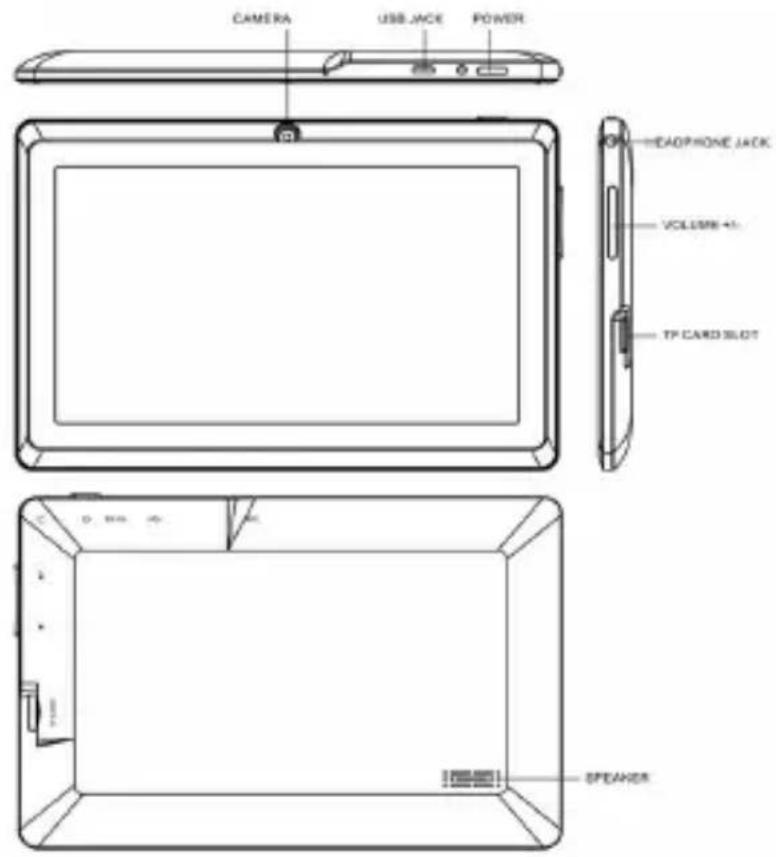
Appearance and button
PPPOOWWWEEERRR
Startup: Long Press and hold the power button, the system will enter the main interface
Shutdown: In the main menu interface, Press the power button about 5 second to shutdown, The system can hint "power off" option, Clike"ok". you can safely shut down.
Lock screen: Short press Power button to lock screen or unlock screen.
Volume + , Volume- :The buttons on top Volume + , Volume-achieve changes in the volume.
Earphone jack: 3.5 mm standard microphone jack
TF card - Slot for MicroSD card
Micro USB - you can use it to connect the computer for data transmission and external connection USB flash drive
USER'S MANUAL EN
Main interface describe
After startup will enter the main interface
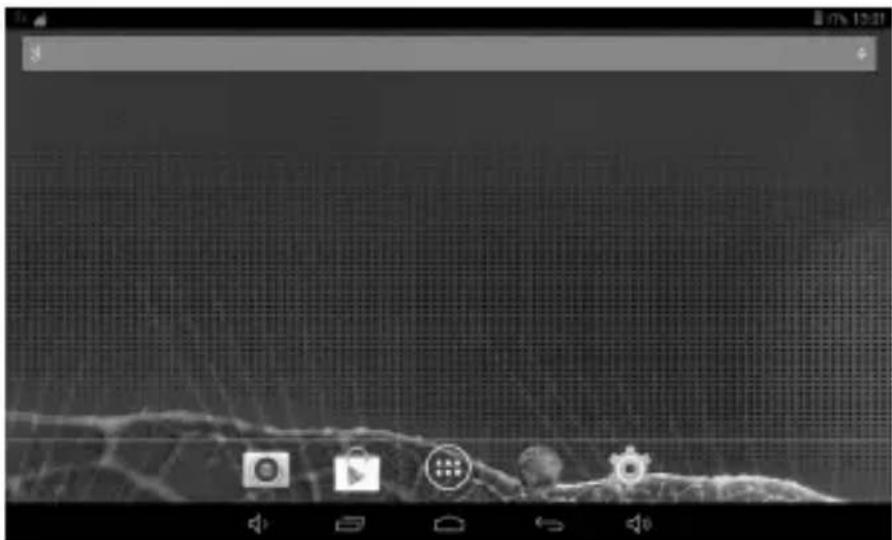
Management main interface software ICONS: long press the icons 3 second, after the icons will bigger, then you can drag anywhere in the interface.
Delete icons: long press the icons 3 second, drag the icons to the Recycle Bin icon, once it become red, Loosen your hand, after that you can delete icon
Status bar describe
The status bar at the bottom of the screen.

From left: VOLUME button, reversing button, return to the main screen, the last open application, volume + button.
The status bar at the top of the screen.

From right to left: the battery status icon, the set time, system icons.
Connection with PC
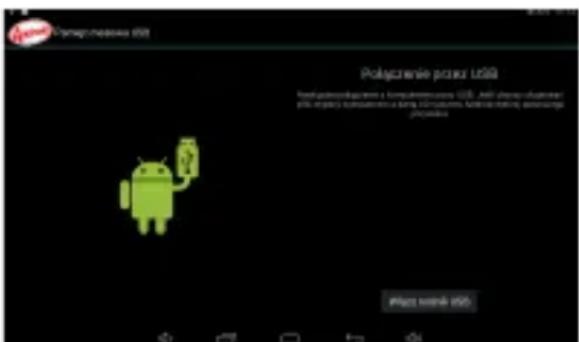
Using the USB port to connect the tablet to the computer. Symbol appears on the USB icon, and drag and drop the status bar, you will see the following screen:
Click "Turn on USB storage"
Settings:
WWWiiiffiii - allows you to configure and connect to a Wi-Fi
SSSooouunnnddd - allows you to configure system sounds and notifications
DDDiissspppllaayyyy - Allows you to configure the display (brightness of the screen, wallpaper, Sleep, etc.)
MMMeeemmooorrryy - shows the amount of free and used memory BBBaaatttttteeerrryy - shows the battery life and the use by applications
Language, keyboard, voice - allows you to select the language, keyboard, voice feature configuration
Copy and delete data - allows you to backup and restore the system to factory settings
+ Add Account - You can add and configure your Google Accounts, Mail, IMAP, and other
Date and time - to set the date and time
Correct information on the device - Displays information about the device, system version, model number, etc.
Brand : Manta
Model : Duo Power MID721QC
Category : Tablet