USER MANUAL TTE24D1814K TOKAI
① MANUEL D'UTILISATION
57 USER MANUAL
natural_image
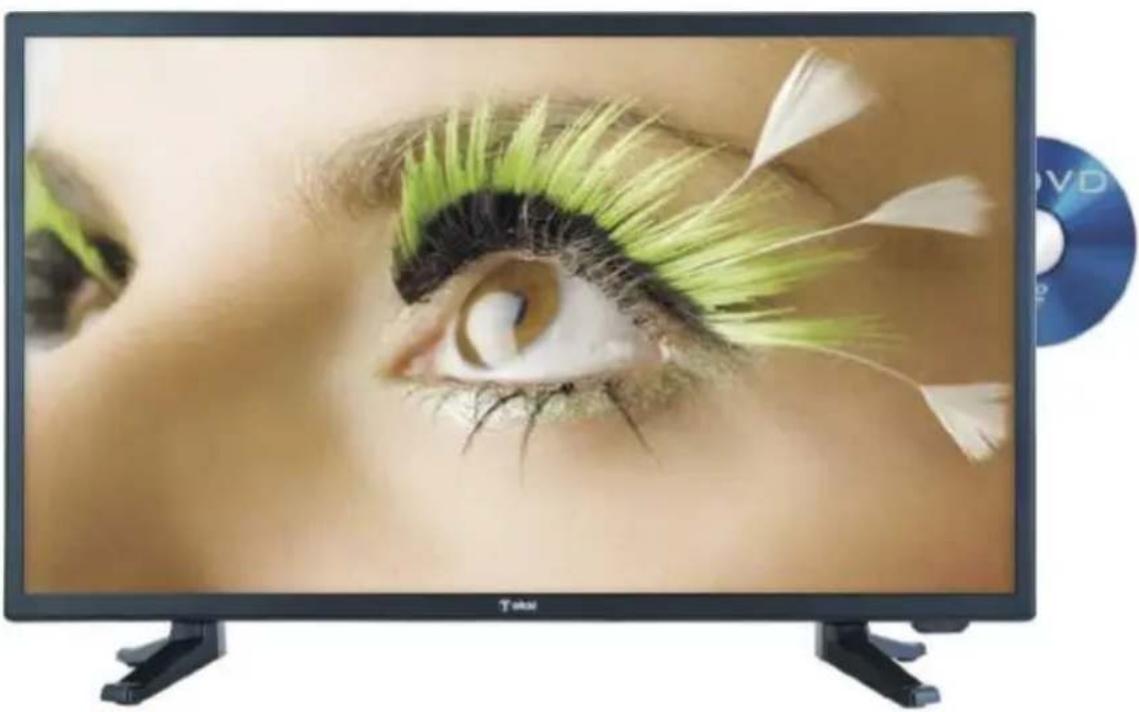
Black TV displaying a stylized eye with green feathered eyelashes and white feather patterns, displayed on a stand with a blue CD nearby (no text or symbols visible on the screen)
Lire attentivement la notice avant d' utiliser l' appareil
Before operating this product, please read user manual completely
AVERTISSEMENTS

Danger! PRODUIT LASER DE CLASSE 1
| AC 100-240V~50/60Hz | EARPHONE | PC AUDIO | VGA | SCART | COAX OUT | RF |
| 1 | 2 | 3 | 4 | 5 | 6 | 7 |
flowchart
graph LR
    A["Input Box"] --> B["Output Box"]
flowchart
graph LR
    A["2X"] --> B["3X"]
    B --> C["4X"]
Figure 2
3.2 Recherche Manuelle
5. Configuration
5.1 Langue OSD
natural_image
Symbol of a trash bin crossed with a diagonal line and a horizontal bar below (no text or labels)
This symbol is intended to alert the user to the presence of uninsulated "dangerous voltage" within the product's enclosure that may be of sufficient magnitude to constitute a risk of electric shock of persons.
To avoid the risk of electric shock, do not disassemble this equipment by anyone except a qualified service personnel.

The exclamation point within an equilateral triangle is intended to alert the user to the presence of important operating and maintenance (servicing) instructions in the literature accompanying the appliance.

This equipment is a Class II or double insulated electrical appliance. It has been designed in such a way that it does not require a safety connection to electrical earth.
Danger!

Invisible laser radiation may occur when the disc chamber is open or if the chamber locking mechanism has failed. In such a situation, avoid direct exposure to the beam. Do not open the unit.
CAUTION!
To prevent direct exposure to the laser radiation, do not open the cabinet. Invisible laser radiation may radiate when the cabinet is opened or interlocks are defeated.
Refer servicing to qualified personnel only.
AS THE LASER BEAM USED IN THIS DVD PLAYER IS HARMFUL TO THE EYES, DO NOT ATTEMPT TO DISASSEMBLE THE CABINET. REFER SERVICING TO QUALIFIED PERSONNEL ONLY.
SAFETY INSTRUCTIONS

WARNING – TO REDUCE THE RISK OF FIRE, ELECTRIC SHOCK, OR SERIOUS PERSONAL INJURY:
- This product shall not be exposed to dripping or splashing and that no objects filled with liquids, such as vases, shall be placed on the apparatus.
- Situate this product away from heat sources such as radiators, heat registers, stoves, or other appliances (including amplifiers) that produce heat.
- Clean the product only as recommended by the manufacturer (see “Maintenance” section for details). Unplug the power plug from the wall outlet before cleaning,
- Unplug the power plug from the wall outlet when left unused for an extended period.
- Prevent objects/liquids from falling or spilled on the product.
- Operate the product only with the supplied power cord. Route power cords so they are not likely to be walked on or pinched by items placed upon or against them, paying particular attention to plugs, convenience receptacles, and the point where they exit from the product.
- Where the MAINS plug or an appliance coupler is used as the disconnect device, the disconnect device shall remain readily operable.
- Do not operate this product under the following conditions.
- When the power-supply cord or plug is damaged.
- If liquid has been spilled into or objects have fallen into the product.
- If the product has been exposed to rain or water.
- If the product does not operate when used according to the operating instructions.
- If the product has been dropped or damaged in any way.
- Do not attempt to service the product; take it to the electronics repair shop of your choice for any servicing or repair.
- Do not overload wall outlets, extension cords, or integral convenience receptacles.
- Connect this product to the power outlet which has protective earth connection.

CAUTION- TO REDUCE THE RISK OR PERSONAL INJURY OR PRODUCT/PROPERTY DAMAGE:
- This product is intended solely for non-commercial, non-industrial, personal use as a television. Do not use this product for any other purpose.
- Do not subject the product to violent shocks, extreme temperatures, or lengthy periods of direct sunlight.
- Keep the product away from magnetic objects, motors, and transformers.
- Do not use outdoors in inclement weather.
- Do not use the TV while driving; this is dangerous and is illegal in some areas.
CAUTION ON HEADPHONE USE:
At full volume, prolonged listening to the portable audio device may damage the user's hearing.
BATTERY HANDLING AND USAGE:
- Keep batteries away from children and pets. Only adults should handle batteries.
- Never throw batteries into a fire or expose them to fire or other heat sources.
- Follow the battery safety and usage instructions.
TABLE OF CONTENTS
GETTING STARTED
WARNING / IMPORTANT INSTRUCTIONS.... 57-59
ACCESSORIES 61
STAND INSTALLATION....62
GENERAL PARTS....63-64
REMOTE CONTROL....65-67
REMOTE CONTROL PREPARATION 68-69
BASIC CONNECTIONS 69-74
OPERATIONS
BASIC OPERATIONS 75-89
DVD....75-81
TV....82-89
MAIN MENU....90-101
FIRST TIME INSTALLATION 90
DTV MODE....91-101
ATV AND OTHER MODES 101
PC MODE 101
TELETEXT 102
FOR REFERENCE
MAINTENANCE 103
WALL MOUNTING 103
SPECIFICATIONS....104
TROUBLESHOOTING 105-106
DISPOSAL OF OLD ELECTRICAL APPLIANCES....107
IMPORTER 108
ACCESSORIES
| User Manual Remote Control |
 |  |
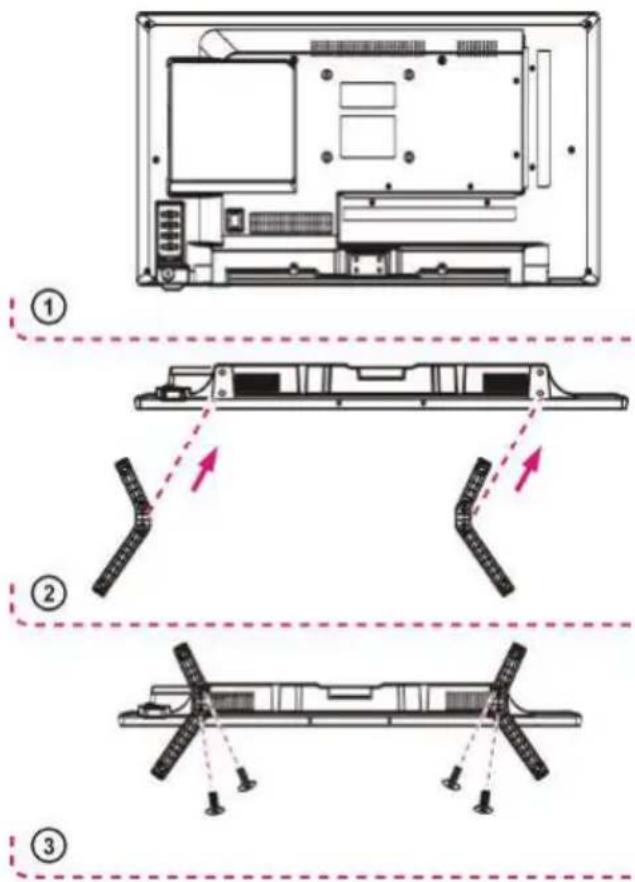
STAND INSTALLATION
Your TV is packaged with the Stand and the Cabinet separated. Before enjoying this TV, please carry out the Stand Installation according to the instructions below.
Step 1
Place the TV faced down on a soft cloth or cushion to prevent the panel from being damaged.
Step 2
Align the Stand with TV bottom and then force the end of stand until the TV is fully seated on the stand.
Step 3
Tighten the included screws with a screw driver.
NOTES:
- Unplug the power plug first when installing or removing the TV Stand.
- To avoid any damage to this TV, contact one or more partner for assistance when installing or removing the TV stand.
GENERAL PARTS
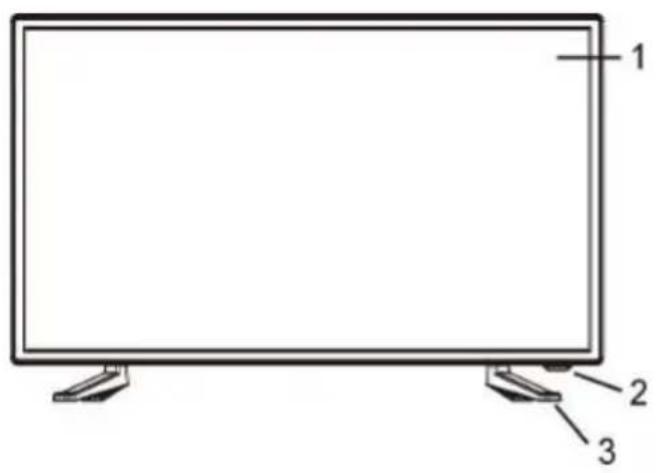
MAIN UNIT
Front View Back View
[NO TEXT]
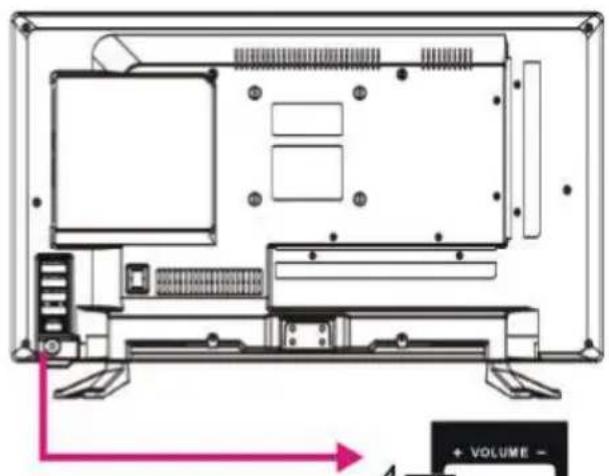
-
LED display screen
-
Remote control sensor \ Power indicator- In standby mode the indicator light is red; when switching on the unit the indicator light is blue color.
-
Stand holder
-
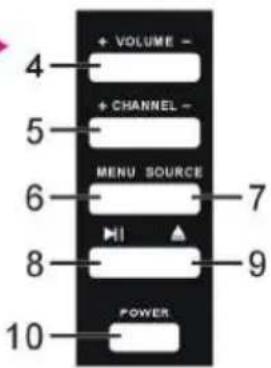
VOLUME +/- button- To increase/decrease the volume level or move left/right.
-
CHANNEL +/- button- To select next/previous channel or move up/down.
-
MENU button- To enter menu setting page.
-
SOURCE button- To select the input source.
-
▶ - To play or pause playing (DVD).
-
▲ To open or close the disc compartment.
-
POWER button- To turn the TV ON/OFF.
-
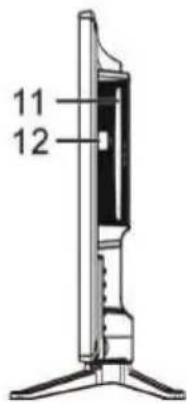
Disc slot- To insert a disc according to the silk screen on the side of this slot.
-
USB2 input terminal (DVD)
GENERAL PARTS
Back View (Connections)
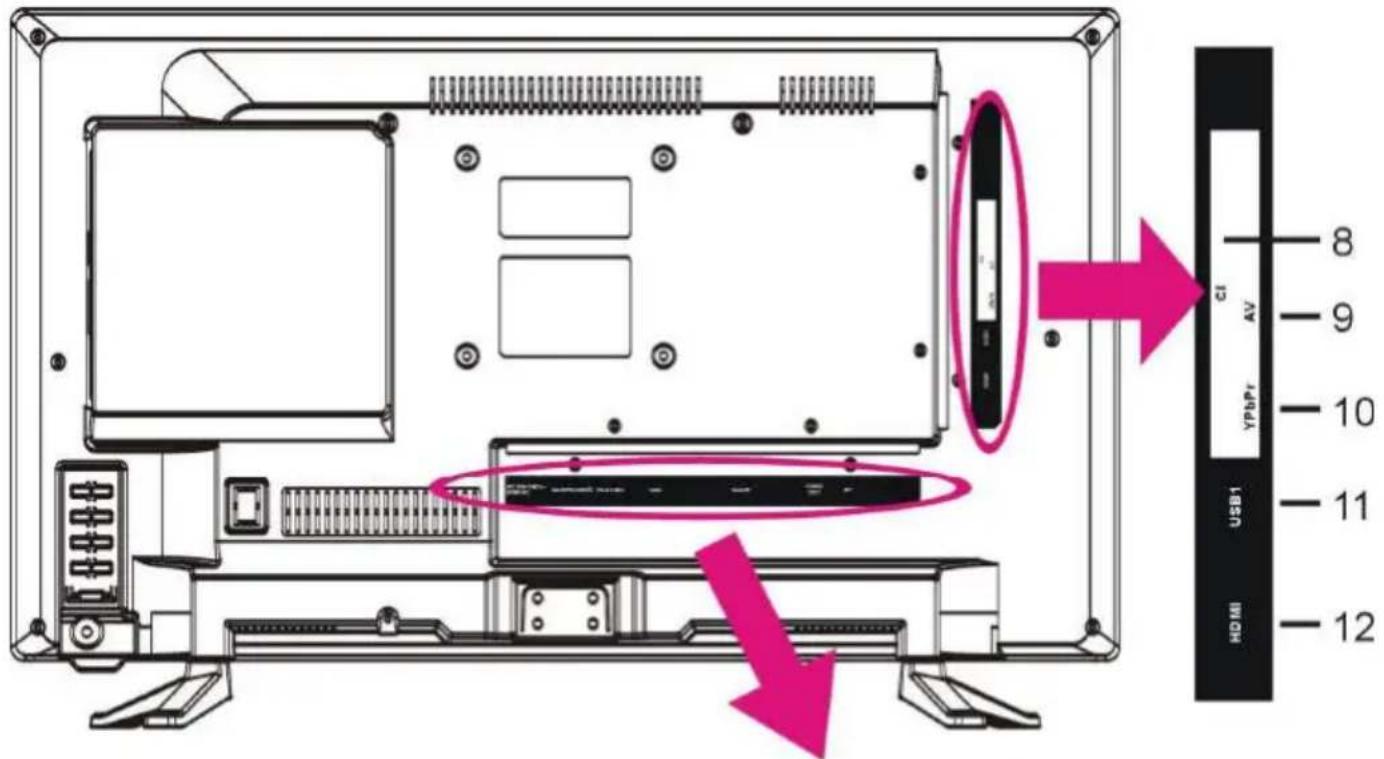
| AC 100-240V~50/60Hz | EARPHONE | PC AUDIO | VGA | SCART | COAX OUT | RF |
| 1 | 2 | 3 | 4 | 5 | 6 | 7 |
- AC Power cord
- EARPHONE output terminal
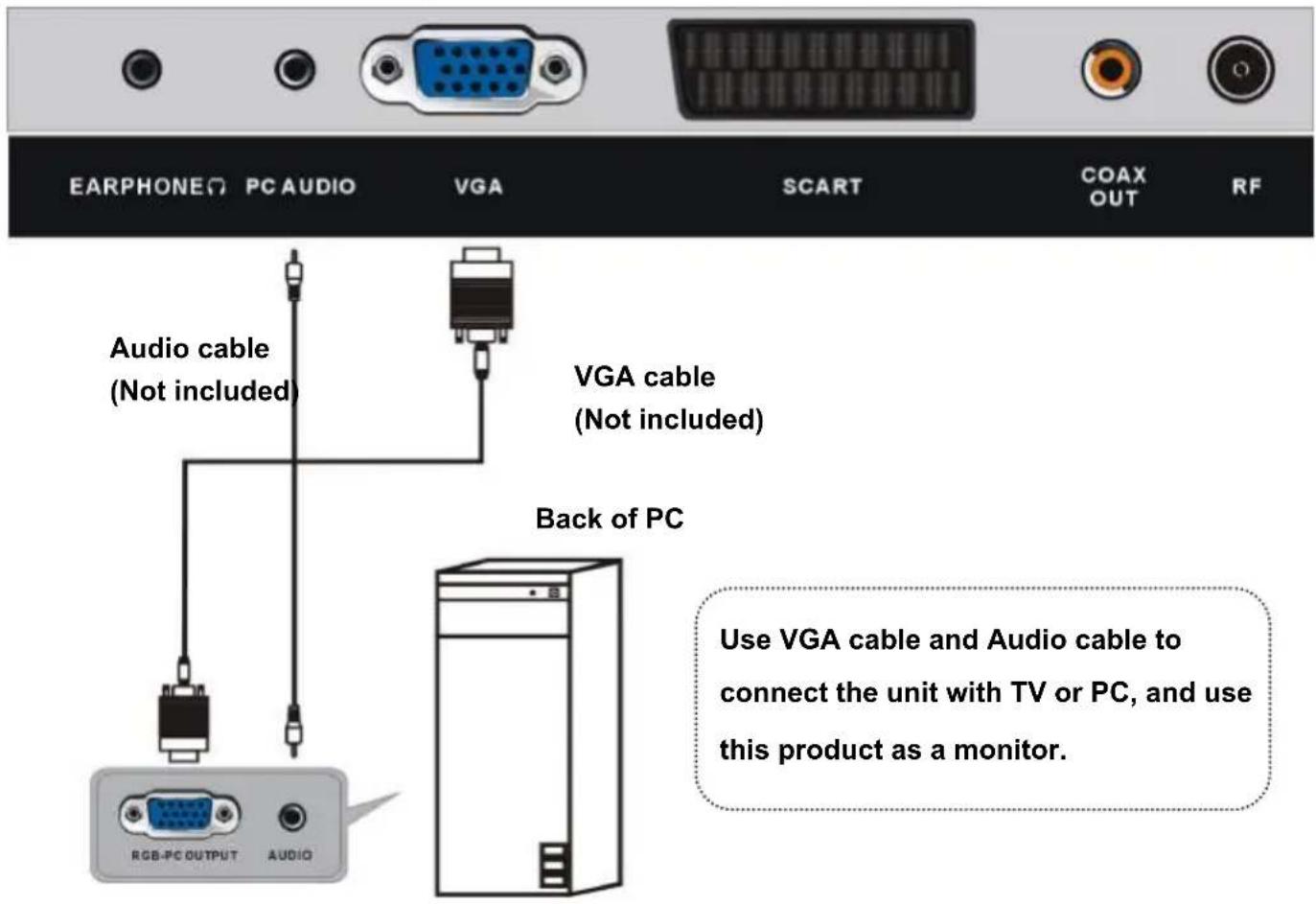
- PC AUDIO input terminal
- VGA input terminal
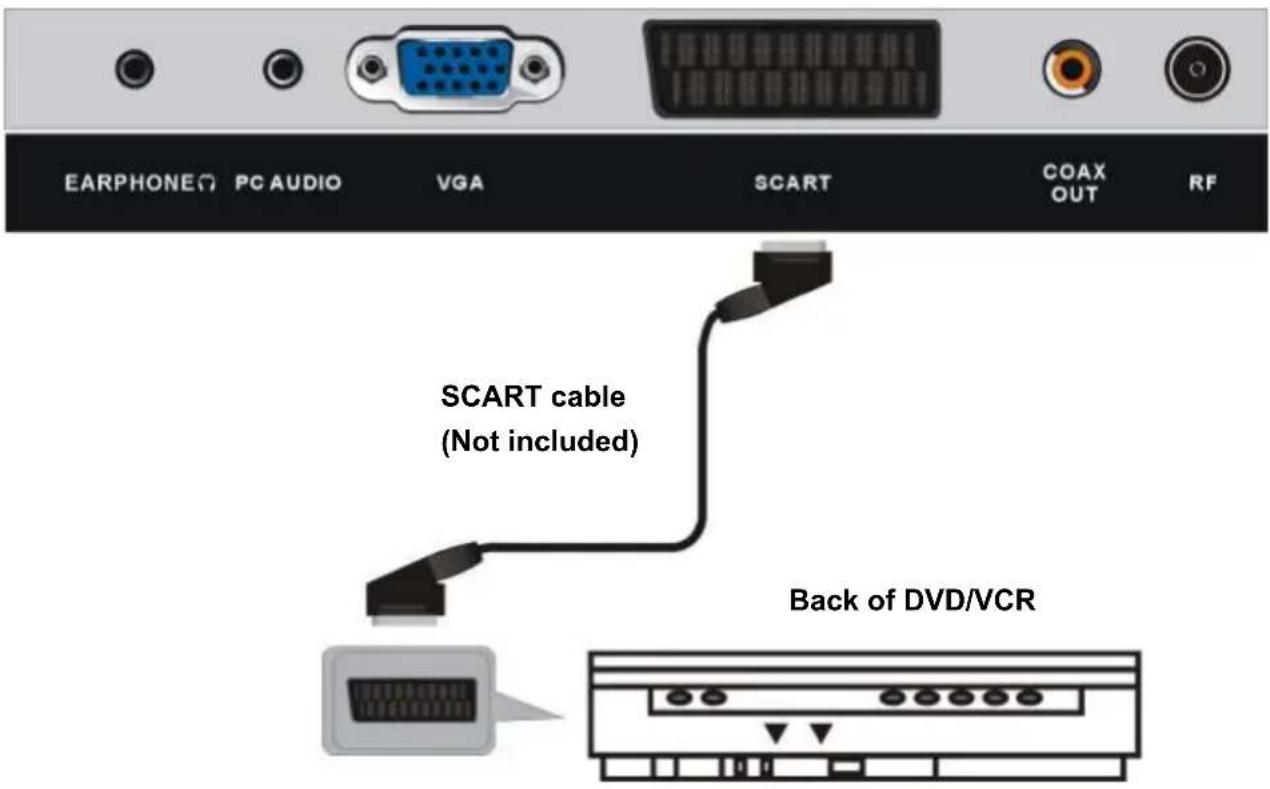
- SCART input terminal
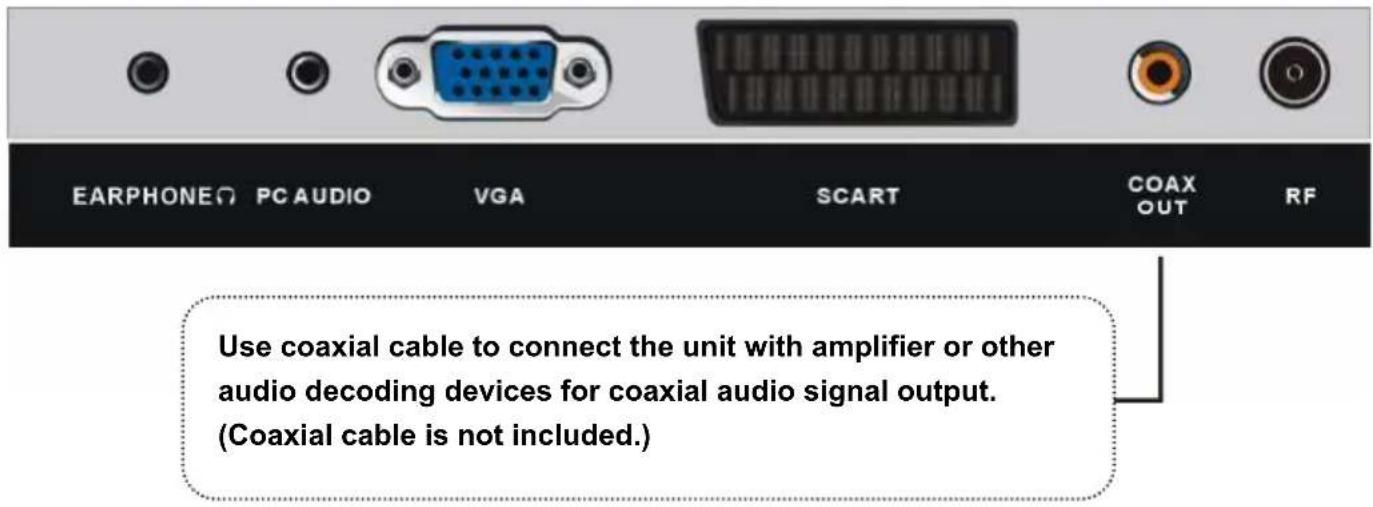
- COAXIAL output terminal
- RF input terminal- To connect the external antenna.
- CI input terminal
- Mini AV input terminal
- Mini YPbPr input terminal
- USB1 input terminal (TV)
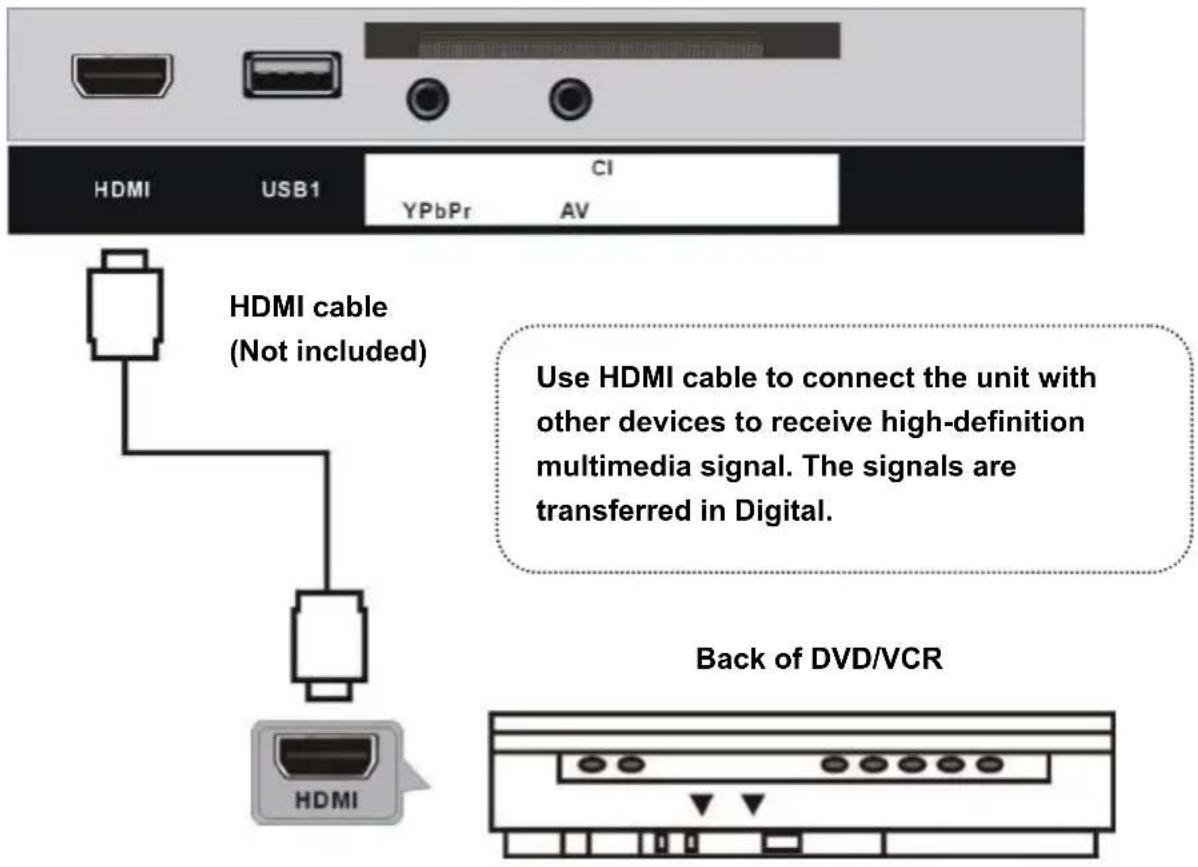
- HDMI input terminal
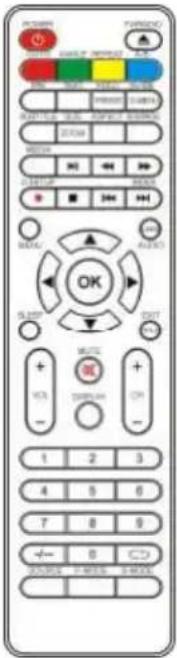
REMOTE CONTROL
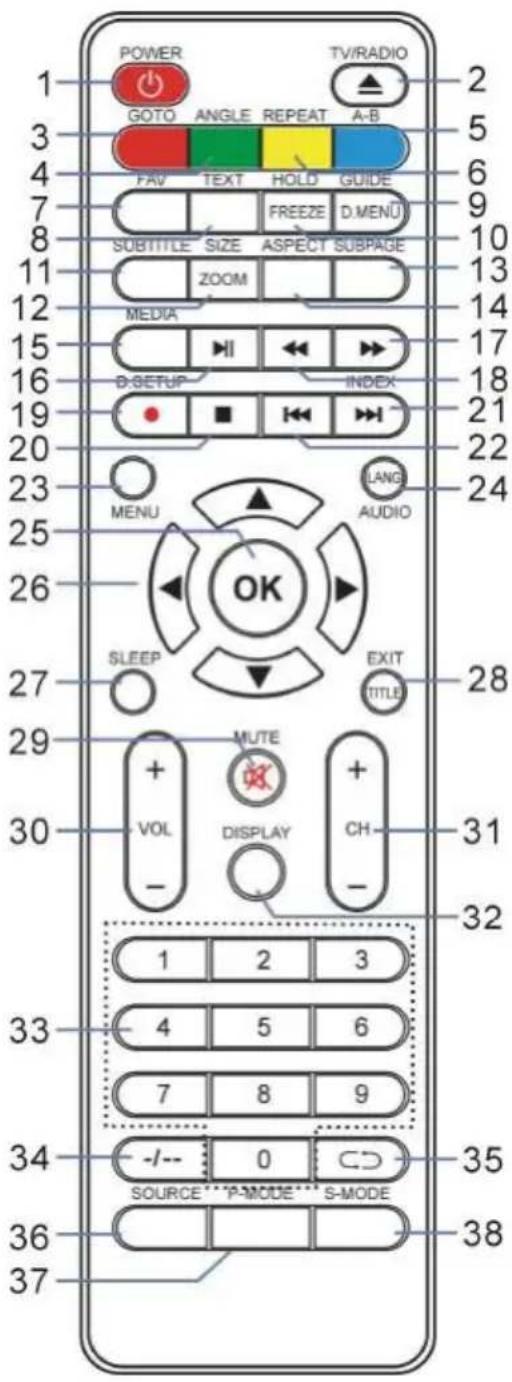
The buttons on the remote control and similarly marked ones on the main unit perform similar functions.
1 POWER
Set the unit in standby mode; press it again to switch it on.
2 TV/RADIO (DTV)
Switch the unit between TV and Radio..
Load/eject an available disc.
GOTO (DVD)
Start playing from a certain point.
ANGLE (DVD)
Change the playing angle, if available.
A-B (DVD)
Repeat playing between A and B.
REPEAT (DVD)
Change repeat mode.
7 FAV
Display the favorite channels list.
8 TEXT\*
Display the available Teletext.
9 GUIDE (DTV)
Display electronic program guide.
D.MENU (DVD)
Display the main disc menu.
10 HOLD\*
Hold the Teletext.
FREEZE
Hold the picture.
11 SUBTITLE
Enable/disable subtitles.
12 SIZE (TV)\*
Switch Teletext size.
ZOOM (DVD)
Shrink/enlarge the picture.
REMOTE CONTROL
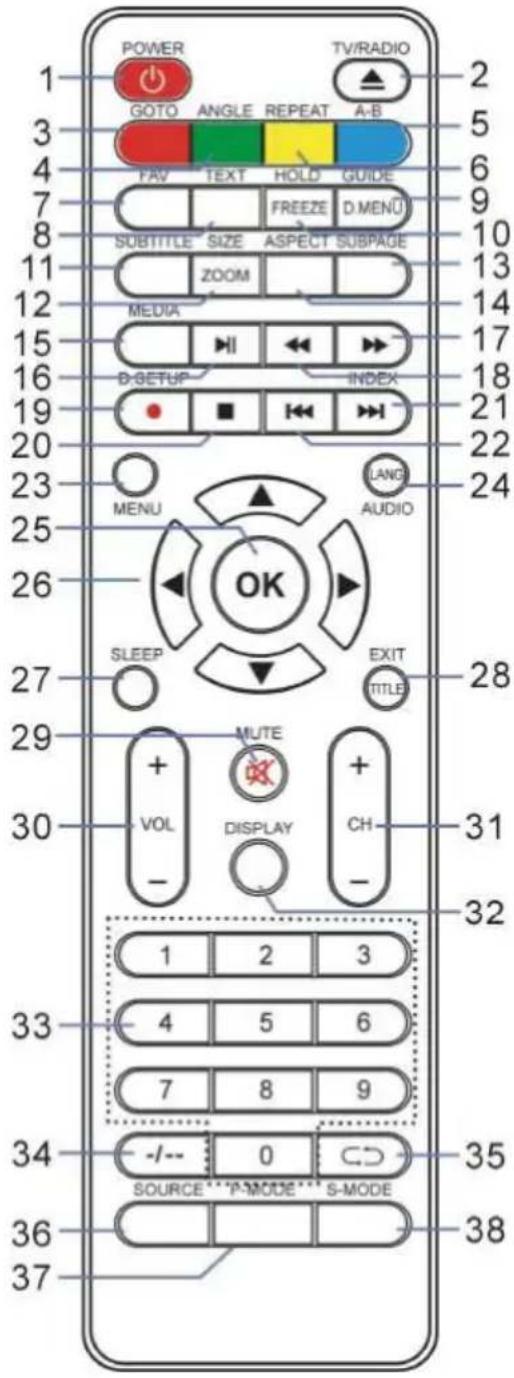
13 SUBPAGE\*
Enter Teletext sub-page.
14 ASPECT
Press it repeatedly to select desired screen size.
Enter Media (USB) mode directly.
16
Start/pause playing.
17
Move fast forward.
18
Move fast backward.
19 • (DTV)
Start RECORDING when watching available digital programs.
D.SETUP (DVD)
Call out the setup menu.
20
Stop playing.
21
Play the next file.
INDEX\* (DTV)
Display the record list or Teletext index.
22
Play the previous file.
Call out the main menu or return to previous menu.
24 AUDIO (TV)
Switch the available sound-track.
LANG (DVD)
Switch the available sound-track language.
25 OK
Confirm selection.
26 ▲/▼/◄/►
Navigation buttons
27 SLEEP
Set desired sleep time.
REMOTE CONTROL
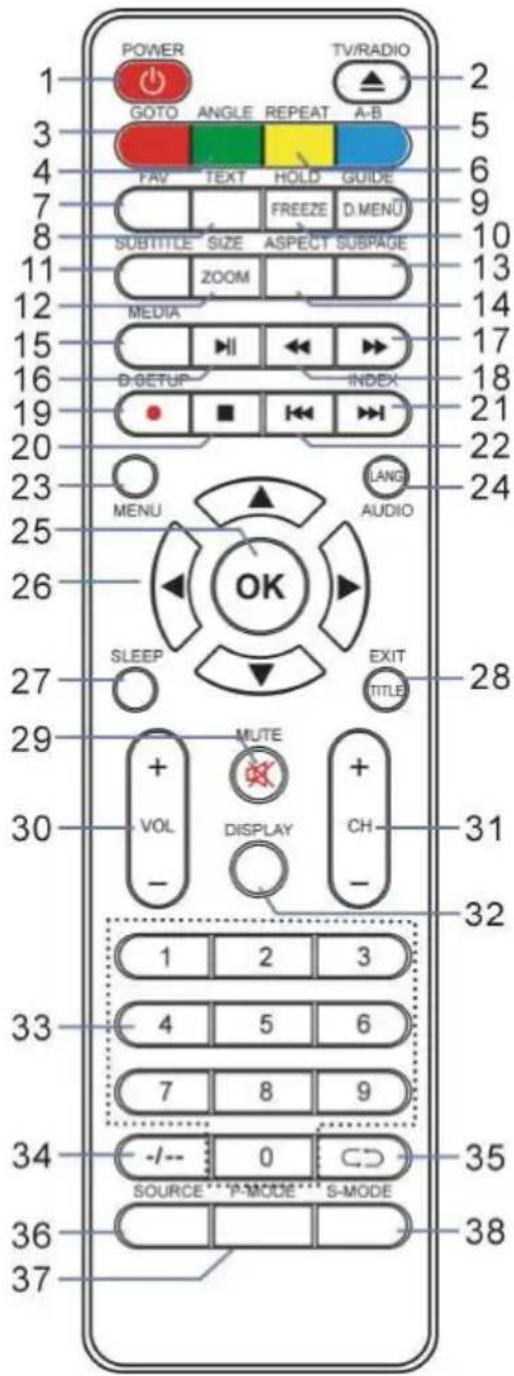
28 EXIT (TV)
Exit the menu page.
TITLE (DVD)
Display the title menu.
29 MUTE
Mute the sound.
30 VOL +/-
Increase/decrease the volume level.
31 CH +/-
Play the next/previous program.
32 DISPLAY
Display the available program information.
Input the number information, such as channel number and so on.
34 -/--
Switch the digit when watching TV programs.
35
Return to previous channel.
36 SOURCE
Select desired input source.
37 P-MODE
Switch the picture mode.
38 S-MODE
Switch the sound mode.
NOTE:
The * marked on some keys means that these buttons are used for teletext.
REMOTE CONTROL PREPARATION
BATTERY INSTALLATION
Install the batteries as the following pictures. Be sure + and – terminals are positioned as indicated in the battery compartment (Fig1).
SERVICE LIFE OF BATTERIES
- The batteries normally last for one year although this depends on how often the remote control is used.
- If the remote control fails to work even when it is operated near the player, replace the batteries.
- Use two size AAA dry batteries.
NOTE:
- Do not drop, step on or otherwise impact the remote control. This may damage the parts or lead to malfunction.
- If the remote control is not going to be used for a long time, remove the batteries.
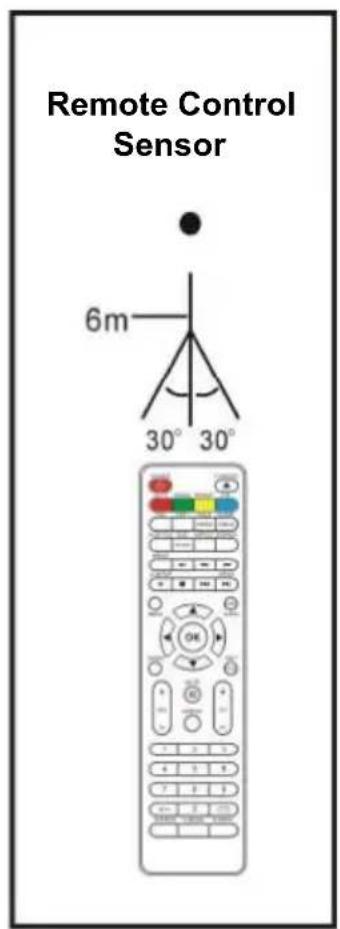
Point the remote control from no more than about 6m from the remote control sensor and within about 60° of the front of the player (Fig2).
NOTES:
- The operating distance may vary according to the brightness of the room.
- Do not point bright light at remote control sensor.
- Do not place objects between the remote control and the remote control sensor.
- Do not use this remote control while simultaneously operating the remote control of any other equipments.
Fig1
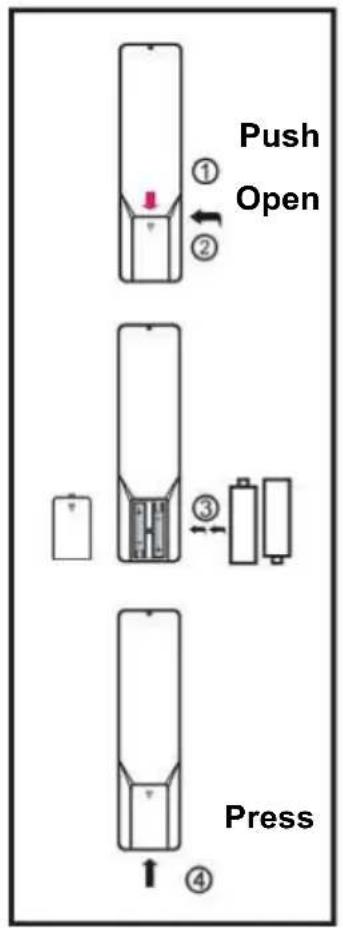
flowchart
graph TD
    A["Press"] --> B["Open"]
    B --> C["Push"]
    C --> D["Lock"]
    style A fill:#f9f,stroke:#333
    style B fill:#ccf,stroke:#333
    style C fill:#cfc,stroke:#333
    style D fill:#fcc,stroke:#333
Fig
Precaution on battery use
Improper use of batteries can result in leakage of chemicals and/or explosion. Be sure to follow the instructions below :
Place batteries with their terminals corresponding to the (+) and (-) indications.
Different types of batteries have different characteristics. Do not mix batteries of different types.
Do not mix old and new batteries. Mixing old and new batteries can shorten the life of new batteries and/or cause old batteries to leak chemicals.
Remove batteries as soon as they are non-operable. Chemicals that leak from batteries can cause a rash.
If chemical leakage is found, wipe with a cloth.
The batteries (battery pack of batteries installed) shall not be exposed to excessive heat such as sunshine, fire or the like.
IMPORTANT NOTE ON BATTERIES :
Please help to protect the environment. It is recommended to dispose of old batteries in collection centers specially designed for that.
BASIC CONNECTIONS
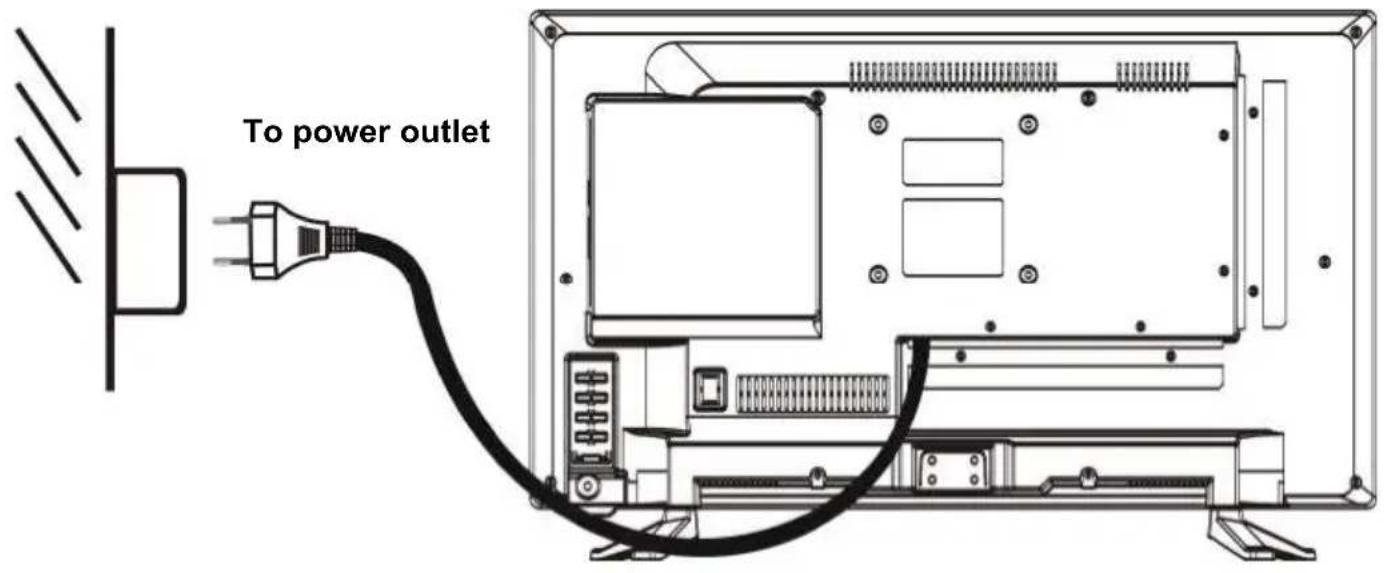
- Ensure all the cables are disconnected from the main unit before connecting to AC power source.
- Read through the instructions before connecting other equipments.
CONNECTING TO AC POWER SOURCE
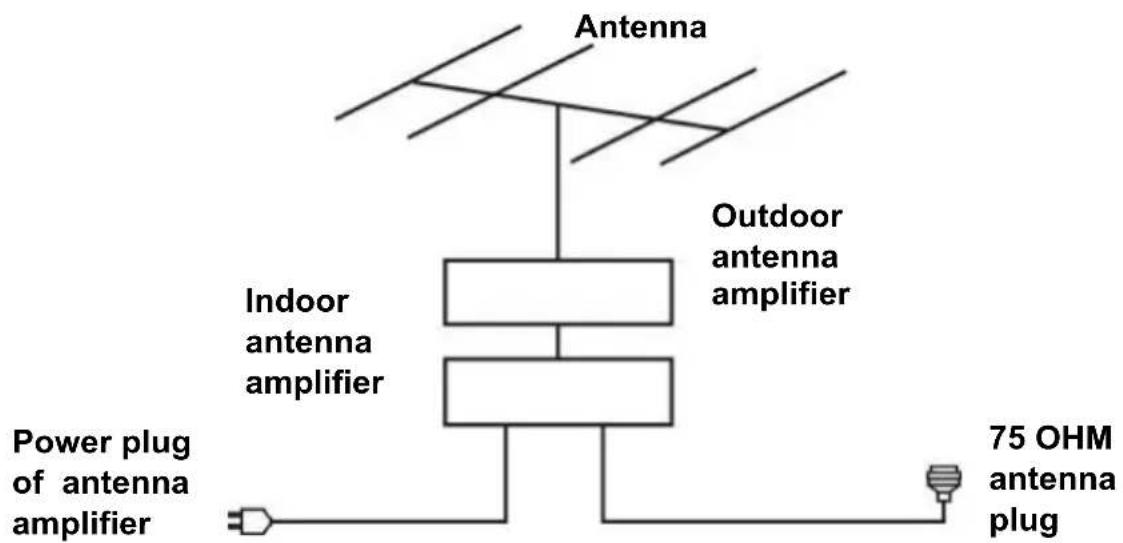
CONNECT EXTERNAL ANTENNA TO UNIT
Install external antenna into antenna jack for best picture.
Connect the TV signal cable (the antenna cable, for example) to the RF Input Jack (9) on the back of the unit.
HDMI CONNECTION
PC/VGA CONNECTION
SCART CONNECTION
COAXIAL CONNECTION
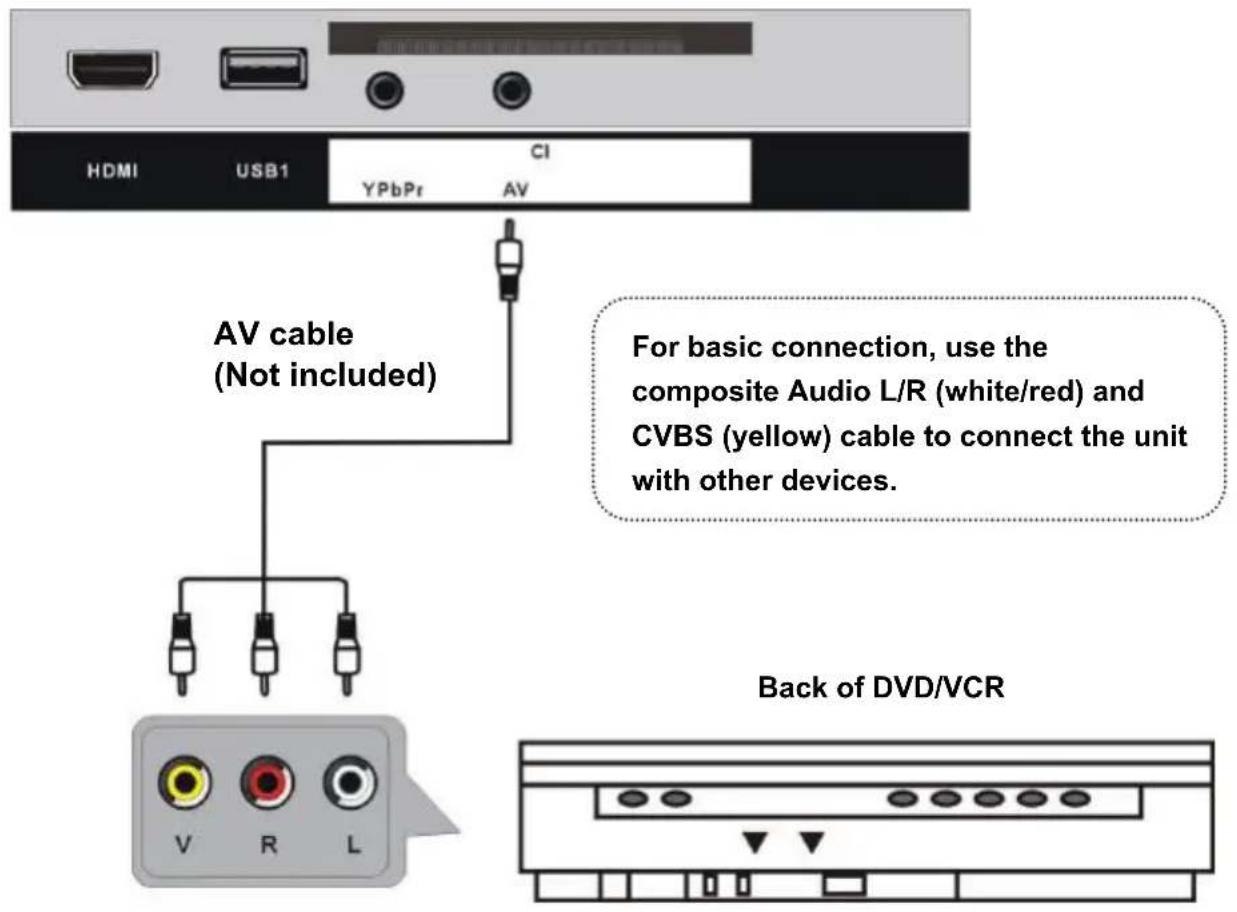
AV (COMPOSITE VIDEO) CONNECTION
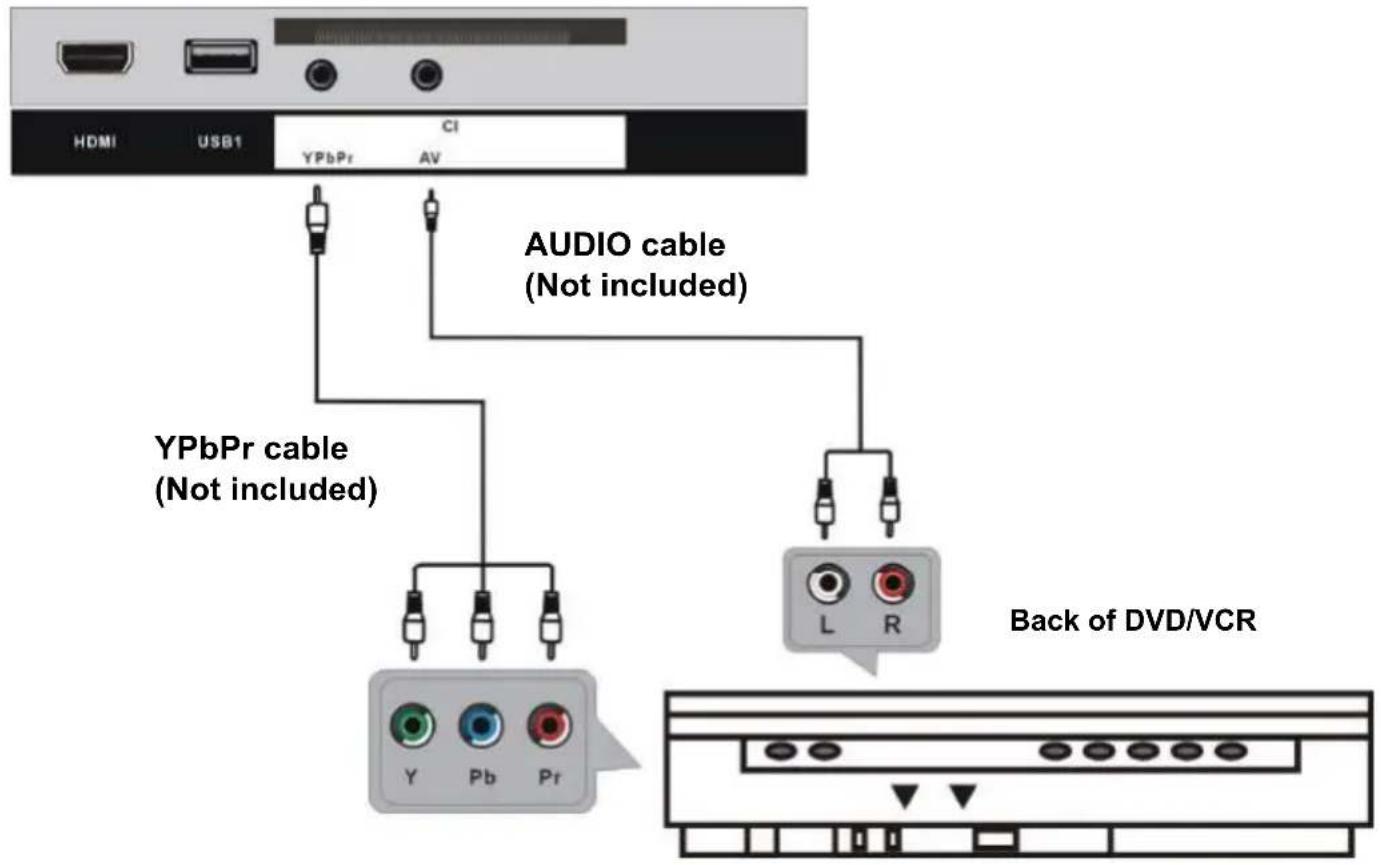
YPBPR CONNECTION
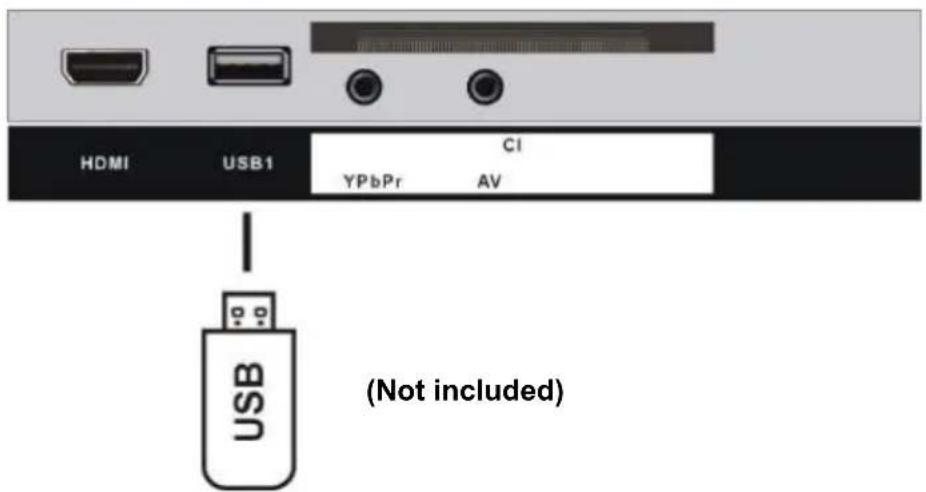
USB CONNECTION (TV)
INSERT A CI CARD
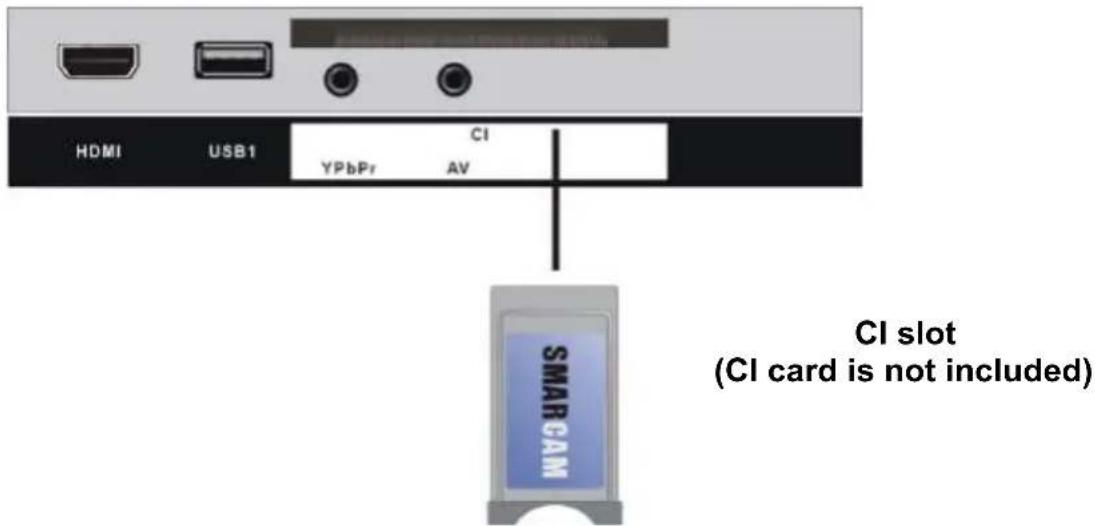
Pay per view services requires a smartcard to be inserted into the TV. If you subscribe to a pay per view service the provider will issue with a CAM card “Smartcard”. The CAM can then be inserted into the COMMON INTERFACE port.
EARPHONE CONNECTION
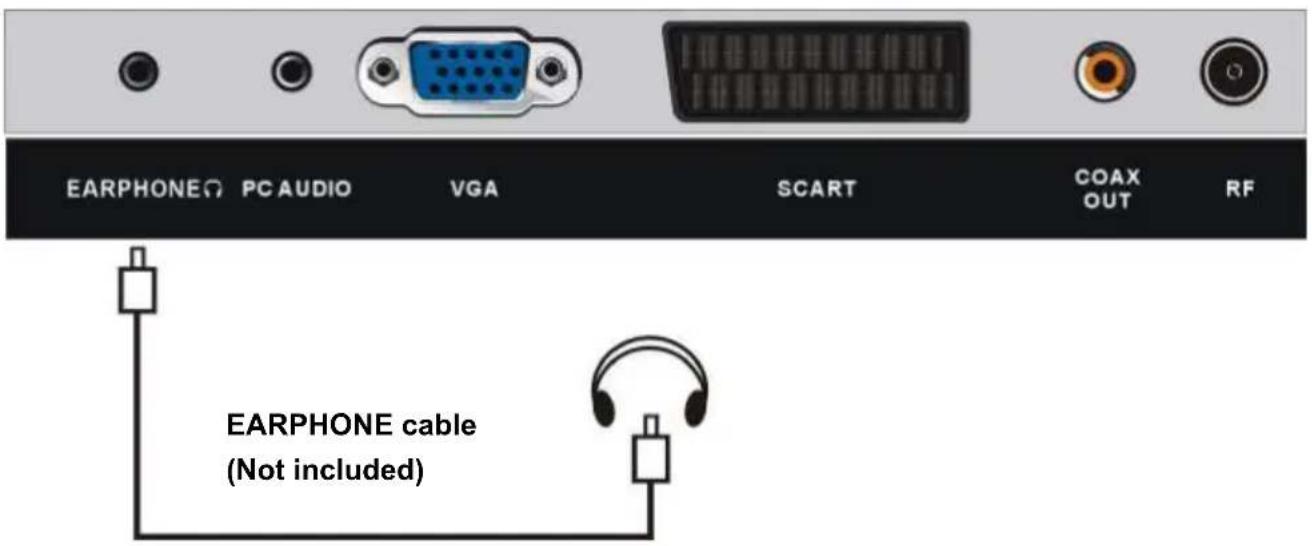
Use the HEADPHONES output of your TV set to listen the audio of the unit through your own stereo headphones. When you connect headphones to the unit, the main speakers will be silenced.
Notes: the headphone is not supplied with the TV set.
When connecting a headphone, please first reduce the volume to the minimum level and then progressively increase it to a comfortable volume level.
Hearing experts advise against exposure to continuous extended play at loud volume levels while using headphone (earphone), possible hearing loss may result.
MAKE SURE ALL THE EQUIPMENTS AND POWER CORD ARE CONNECTED PROPERLY AND THE UNIT IS SET IN CORRECT MODE BEFORE KINDS OF OPERATIONS.
BASIC OPERATIONS
- Press POWER button on the unit or remote control to power ON the unit (indicator will glow blue); press it again to power OFF (standby mode) the unit (indicator will glow red).
DVD
- Press SOURCE button on the unit or remote control to switch the unit to DVD mode.
1. Basic play
a) Make sure the disc compartment has no disc. Place a disc into the disc compartment. Hold the disc without touching either of its surfaces, position it with the readable (mirror) side facing towards you, then the disc will automatically enter into the disc compartment; or you can press button on remote control to enter the disc into the disc compartment.
b) Once the disc is in the disc compartment, the player starts to read the disc immediately.
c) When a menu screen appears on the unit, move the navigation buttons or press the number buttons to select preferred track number, then press OK button to confirm.
d) To stop playing and return to the menu screen, press TITLE or D.MENU button.
2. Stopping play
Press ■ (STOP) button to stop playing.
NOTE: When player is stopped, the player records the point where STOP was pressed (RESUME function). Press▶ (PLAY) button again, playback will resume from this point.
When the tray is taken out or ■ (STOP) is pressed again, the RESUME function will be cleared.
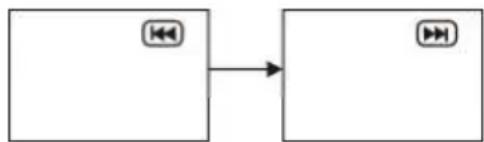
3. Skipping ahead or back
Skipping ahead
During playback, press button to skip the next chapter (DVD) or a track (Video CD/CD).
Skipping back
During playing, press◀ button to skip the previous chapter (DVD) or track (Video CD/CD).
flowchart
graph LR
    A["Input Box 1"] --> B["Output Box 2"]
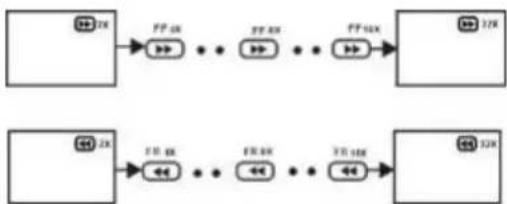
4. Fast forward/Fast backward
During playback, press▶ button or ◀ button to fast forward/backward.
Press ▶(PLAY) button to resume normal play.
flowchart
graph LR
    A["开始"] --> B["PP 2X"]
    B --> C["..."]
    C --> D["PP 3X"]
    D --> E["..."]
    E --> F["PP 4X"]
    F --> G["..."]
    G --> H["12X"]
    I["开始"] --> J["FF 6X"]
    J --> K["..."]
    K --> L["FF 8X"]
    L --> M["..."]
    M --> N["FF 10X"]
    N --> O["..."]
    O --> P["12X"]
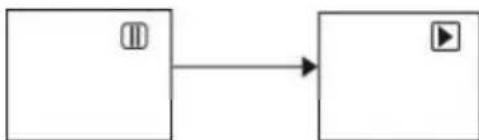
5. Pause/play
During playback, press button to pause playing, press it again to resume normal playback.
flowchart
graph LR
    A["Button"] --> B["Play Button"]
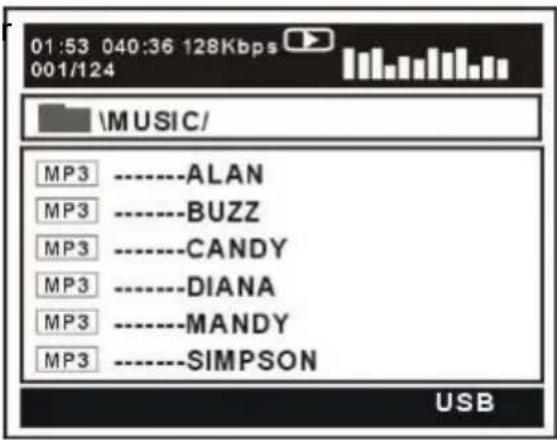
6. MP3 playback
a) Insert the disc containing the files in MP3 format to be played and after a few seconds, the screen of the monitor will show all the folders on the disc.
b) Select the folder you want to play by the navigation buttons and press the OK button to confirm.
c) The files in this folder are displayed and select the desired song by navigation buttons, then press the (PLAY) or OK button to start playback.
d) In file selecting page, press▶ or ◀button to turn the current menu page to the next or previous menu page.
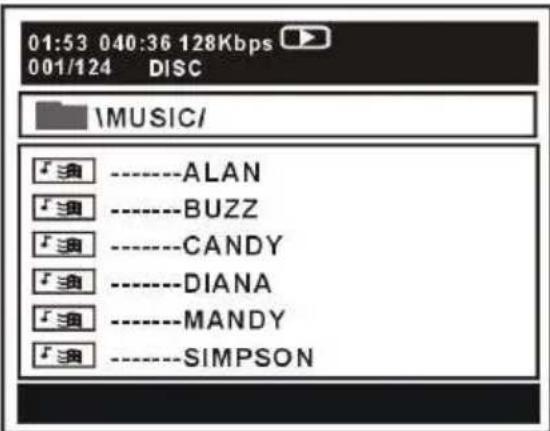
e) Press YELLOW (REPEAT) button on remote control to change play mode.
- SINGLE: play one file only.
- REPEAT ONE: repeat one file.
- REPEAT FOLDER: all the files in the folder will be played repeatedly.
- FOLDER: all the files in the folder will be played.
7. MPEG4 playback
a) Insert the disc containing the files in MPEG4 format to be played and after a few seconds, the screen of the monitor will show all the folders on the disc.
b) Select the folder you want to play by the navigation buttons and press the OK button to confirm.
c) The files in this folder are displayed and select the desired file by navigation buttons, then press the (PLAY) or OK button to start playback.
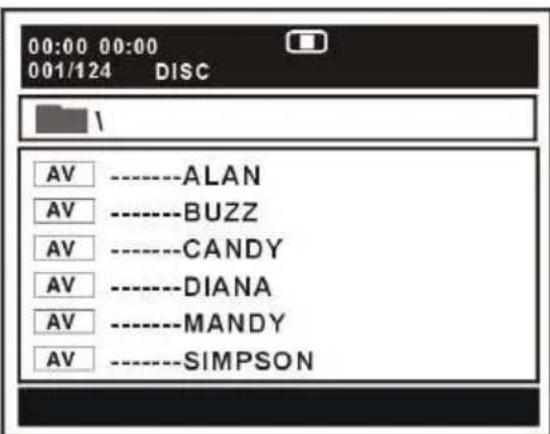
d) During normal playing, press or button, the player will play the next or previous file.
e) Press YELLOW (REPEAT) button to change play mode.
- SINGLE: play one file only.
- REPEAT ONE: repeat one file.
- REPEAT FOLDER: all the files in the folder will be played repeatedly.
- FOLDER: all the files in the folder will be played.
f) Press D.MENU button to return to play list page.
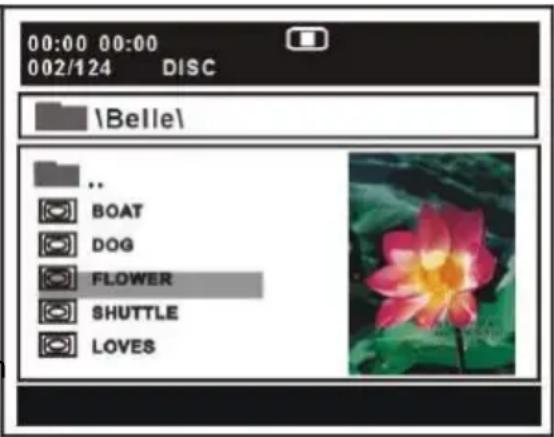
8. JPEG playback
For JPEG picture CD, select the folder you want to play by the navigation buttons and press OK button to confirm. The files in this folder are displayed and select your pictures by using the up/down navigation buttons and press OK button to start playback. Thumbnail of picture will be displayed while you scrolling across the file name.
NOTE: The time to load and display picture depends on the file size of the pictures.
During playback, press D.MENU button to return to file selecting page.
Press YELLOW (REPEAT) button to change play mode:
- SINGLE: play one file only.
- REPEAT ONE: repeat one file.
- REPEAT FOLDER: all the files in the folder will be played repeatedly.
- FOLDER: all the files in the folder will be played.
Skip to next/previous picture
Press ▶button to skip to the next picture or ◀button to skip to the previous picture. If no key is pressed for 3 seconds, it will skip to next picture automatically.
Rotating pictures
- Press RIGHT navigation button to rotate the picture clockwise.
- Press LEFT navigation button to rotate the picture counter-clockwise.
Flipping pictures
Press UP navigation button to flip the picture vertically.
Press DOWN navigation button to flip the picture horizontally.
Picture Shrink/Zoom
Press ZOOM button repeatedly to enlarge or shrink picture to 50%, 75%, 100%, 125%, 150% and 200%.
If the picture is enlarged, you may press navigation buttons to pan across other portions of the picture.
9. Enjoying Video CD with playback control
a) When playing VCD 2.0 with PBC, the player will show the VCD version.
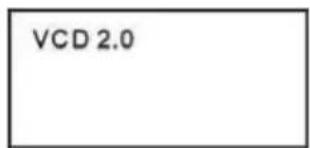
b) Press D.MENU button on remote control repeatedly to set PBC ON or OFF.
c) Press numeric buttons to select corresponding track.
Example: Track 9, press 0 and 9, several seconds later, it will automatically switch to track 9.
Track 15, press -/-- and 5, several seconds later, it will automatically switch to track 15.
d) Press ▶ button or ◀ button, the player will play the next or previous track.
10. USB 2 playback
a) Insert USB containing the files in music, picture o movie format to be played.
b) Press MEDIA button to call out the source menu and press OK when desired source (DVD, USB) is highlighted.
c) After several seconds, all the folders in the USB will display on monitor screen.
d) Select a folder you want to play using the navigation buttons and press the OK button to confirm.
e) The files in this folder are displayed and select the desired file by navigation buttons, then press the OK button to start to play.
f) In file selecting page, press▶ or ◀button to turn the current menu page to the next or previous menu page.
g) Press YELLOW (REPEAT) button to change play mode.
- SINGLE: play one file only.
- REPEAT ONE: repeat one file.
- REPEAT FOLDER: all the files in the folder will be played repeatedly.
- FOLDER: all the files in the folder will be played.
NOTE:
- The USB 2 slot of this unit can not connect to removable hard drive.
11. Viewing from different angle (DVD only)
Some DVDs may contain scenes which have been shot simultaneously from a number of different angles. For these discs, the same scene can be viewed from each of these different angles using the ANGLE button.
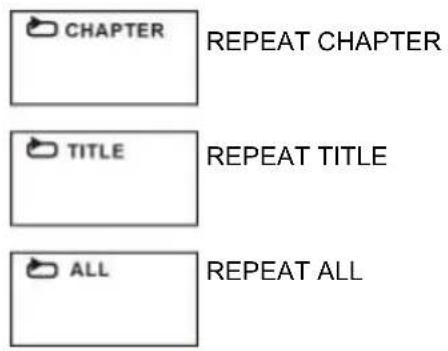
12. Repeat play
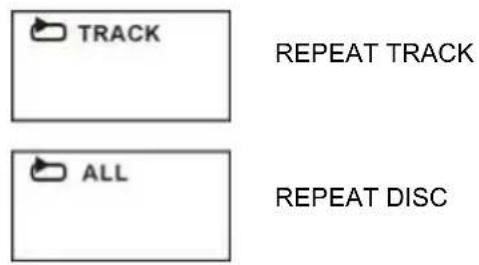
Press YELLOW (REPEAT) button during play, it will repeat play one chapter or one title (for DVD disc), or repeat play track (for VCD/CD).
DVD DISC
VCD/CD DISC (In the PBC OFF mode)
A-B repeat play
Repeating sections between two specific points (A-B repeat)
a) Press BLUE (A-B) button during playing at the point where repeat play is to be started (A).
b) Press BLUE (A-B) button at the point where repeat play is to be ended (B). Repeat play of the selection between points A and B starts.
c) Press BLUE (A-B) button again to return to normal play.
13. GOTO
Press GOTO button continuously to select the item you want to set and enter a time number, chapter number, track number, etc. Accordingly, the disc will be played from the selected point.
Press DISPLAY button to display playing information.
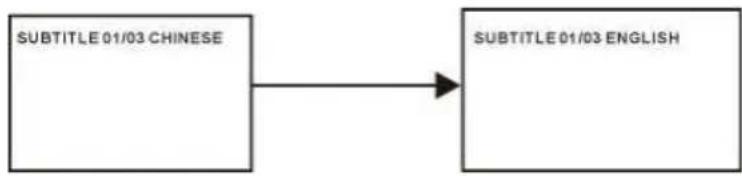
15. Change subtitle language (DVD only)
It is possible to change the subtitle language to a different language from the one selected at the initial settings.( This operation works only with discs on which multiple subtitle languages are recorded)
CHANGING SUBTITLE LANGUAGE
flowchart
graph LR
    A["SUBTITLE 01/03 CHINESE"] --> B["SUBTITLE 01/03 ENGLISH"]
- Press SUBTITLE button during play, the screen will display the current language.
- Press SUBTITLE button again to change language or turn off.
NOTE: When no subtitles are recorded, press this button will not work.
16. ZOOM play
This function allows you to enjoy a motion picture.

flowchart
graph LR
    A["2X"] --> B["3X"]
    B --> C["4X"]
Press ZOOM button when playing, the screen shows:
Press navigation button to scroll across the enlarged picture.
17. Changing audio soundtrack language (DVD/VCD/CD disc)
It is possible to change the audio soundtrack language to a different language from the one selected at the initial settings (This operation works only with discs on which multiple audio soundtrack languages are recorded).
- Press AUDIO button while playing DVD disc the screen will display the number of current soundtrack languages, pressing the button again will change the language.
- Pressing AUDIO button while playing VCD/CD disc will change audio output mode: LEFT MONO, RIGHT MONO, MIX-MONO and STEREO soundtrack.
NOTE: When no soundtrack languages are recorded, pressing this button will not work.
When the power is turned on or the disc is removed, the language heard is the one selected at the initial settings.
18. Initial settings
Once the initial programming is entered it is retained in memory until changed, the player can always be operated under the same conditions.
Common procedure for initial settings
- Press D.SETUP button on remote control.
- Use the navigation buttons to select preferred item, and press OK button, each screen for setting the value is displayed. Then move the navigation buttons to set the item and press OK button to confirm the settings.
- Press D.SETUP button to close setup menu.
- Use LEFT or RIGHT navigation button to switch to another main setup item. Then press RIGHT or OK button to enter submenu page; press LEFT button to return to previous menu page.
1. General
1.1 Tv Display - It is for selecting TV output mode.
Options:
a) PS: 4 :3 Pan & scan mode.
b) LB: 4 :3 Letter box mode.
c) Wide: 16:10 wide screen mode.
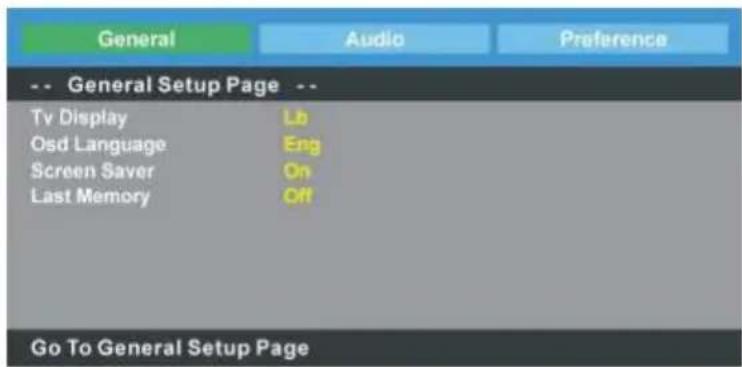
1.2 Osd Language - It is used to choose your desired OSD language.
1.3 Screen Saver - If no operation is carried out for 5 minutes, screen saver will display on the screen when SCREEN SAVER is ON.
1.4 Last Memory - Enter another input source during DISC playback, and then back to DVD input source again, this unit will resume playback from the point where last playback was stopped, if LAST MEMORY is ON.
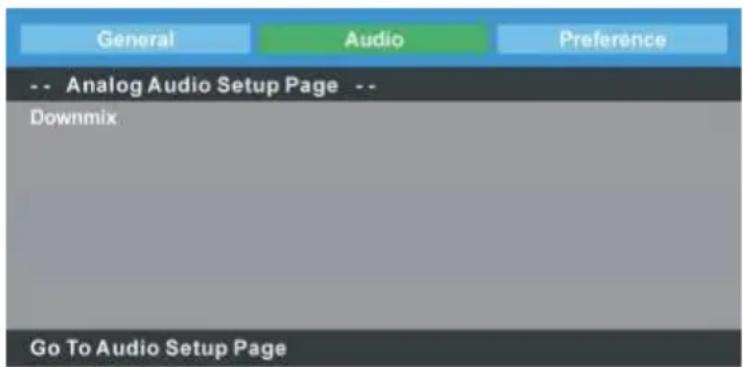
2. Audio
Downmix - It is used to select desired audio output mode.
Options:
a) LT/RT-Left/Right mix mode
b) Stereo
3. Preference
3.1 Tv Type - Select desired TV system.
3.2 Audio - Select desired audio language, if your disc contains multiple audio languages.
3.3 Subtitle - Select desired subtitle
language, if your disc contains multiple subtitle languages.
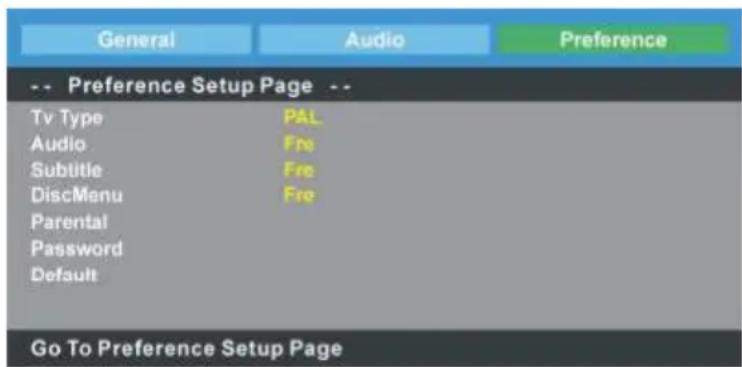
3.4 Disc Menu - Select desired language of your disc menu, if your disc menu contains multiple MENU languages.
3.5 Parental - Select desired program rating.
3.6 Password - Change the password. Input the password using number buttons on remote control.
NOTE: The factory default password is "0000", you can change it, but you should keep it safe.
3.7 Default - It is used to reset to factory settings.
TV
- Press SOURCE button on the unit or remote control to switch the unit to DTV or ATV mode.
SELECT DESIRED PROGRAM
- Press CH+ button to play next channel.
- Press CH- button to play previous channel.
- Press number buttons on remote control directly to select desired program.
NOTE: Press -/-- button repeatedly to switch the digit.
VOLUME CONTROL
- Press VOL+ or VOL- to adjust the level of current volume.
Available range: 0-100.
MUTE CONTROL
- Press MUTE button to mute the sound, press it again to turn on the sound.
SOURCE SETTING
- Press SOURCE button on the unit or remote control to display the sources list.
- Press UP or DOWN navigation button to select desired input source, and then press OK button to confirm selection.
Available options: DTV, ATV, AV, SCART, YPbPr, HDMI, PC, USB (Media), DVD.
PICTURE MODE
- Press P-MODE button on remote control repeatedly to select desired PICTURE mode directly.
Available options: Standard, Mild, Personal, Dynamic.
SOUND MODE
- Press S-MODE button on remote control repeatedly to select SOUND mode directly.
Available options: Standard, Music, Personal, Movie.
SLEEP TIME SETTING
- Press SLEEP button on remote control repeatedly to select SLEEP TIME directly.
Available options: Off, 5/15/30/60/90/120/240 minutes.
VIDEO SIZE SETTING
- Press ASPECT button on remote control repeatedly to select VIDEO SIZE directly.
Available options: Auto, 4:3, 16:9, Zoom1, Zoom2.
NOTE: If there's no signal, pressing ASPECT button will not work. And the available video size may be different for different input source.
MULTIAUDIO SETTING
- Press AUDIO button on remote control repeatedly to select desired audio language.
NOTE: To enable this function, make sure that the channel you are viewing supports multi-audio languages.
- Press DISPLAY button on remote control to display information of current program.
TV GUIDE (FOR DTV MODE ONLY)
- Press GUIDE button on remote control to enter Program Guide menu page.
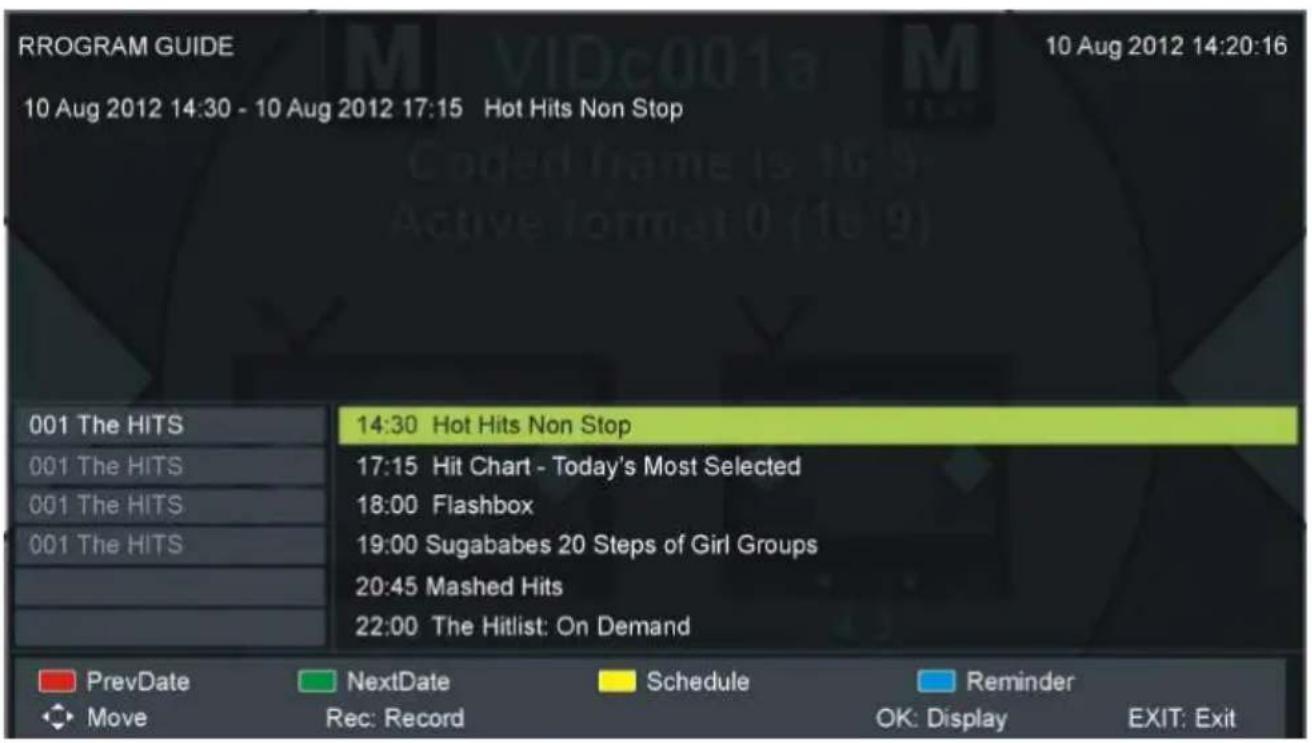
- Press UP/DOWN navigation button to select preferred program
- Press LEFT/RIGHT navigation button to switch between left column and right column.
- Press RED button to display the TV guide of previous day.
- Press GREEN button to display the TV guide of next day.
- Press YELLOW button to enter schedule list page.
- Press BLUE button to enter reminder setting page.
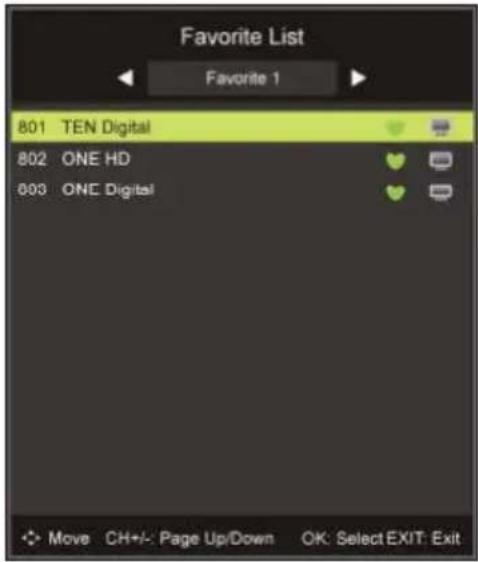
FAVORITE LIST
When viewing an available channel, press FAV button on remote control to enter Favorite List menu page.
- Press UP or DOWN navigation button to select preferred channel.
- Press OK button to confirm selection.
- Press CH+/- button to select page up/down.
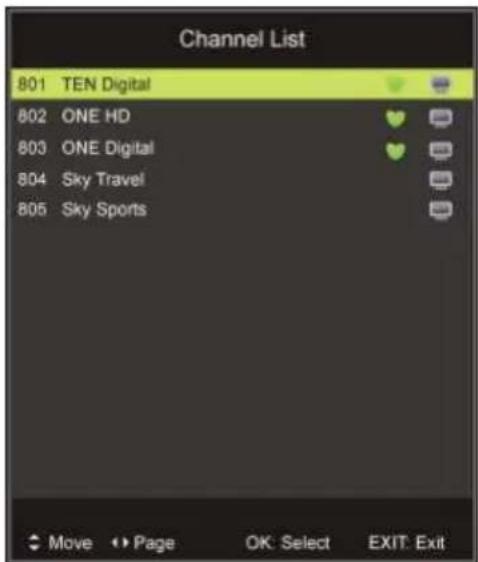
QUICK SELECT
When viewing an available channel, press OK button on remote control to enter Channel List menu page.
- Press UP or DOWN navigation button to select preferred channel.
- Press OK button to confirm selection.
TELETEXT
- Press TEXT button on remote control to display the available teletext information and press it repeatedly to stop playing the teletext.
TV/RADIO (FOR DTV MODE ONLY)
- Press TV/RADIO button on remote control to switch the unit between TV and radio mode.
SUBTITLE
- Press SUBTITLE button on remote control repeatedly to select desired subtitle.
NOTE: To enable this function, make sure that the channel you are viewing supports multi-subtitle.
FREEZE
- During normal playing, press FREEZE button on remote control to hold the picture, and press it again to resume normal playing.
RECORDER (FOR DTV MODE ONLY)
- Insert your USB memory device into USB1 slot first.
When watching a digital program:
- Press ● button on remote control to start recording directly.
- Press ■ button on remote control to call out a dialog box, and select Yes to stop recording; select No to dismiss the dialog box.
To watch recorded programs:
- Press INDEX button on remote control to call out the PVR Settings page.
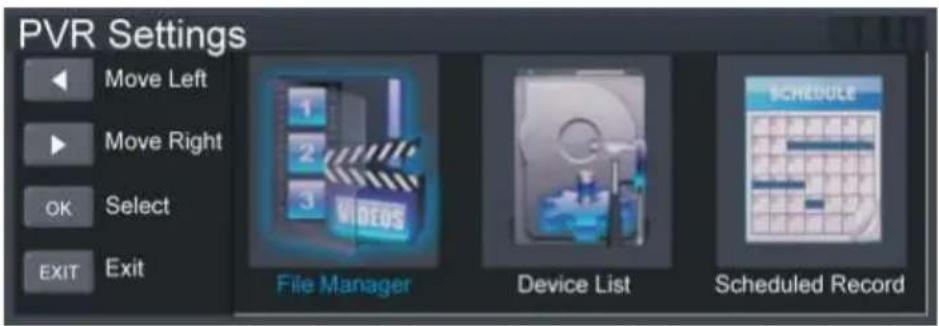
- Highlight File Manager and press OK button to enter it.
- Then press UP/DOWN navigation button to select recorded files and press OK button to start playback.
TIME SHIFT (FOR DTV MODE ONLY)
- Insert your USB memory device into USB1 slot first.
When watching a digital program:
-If you don't want to miss any programs when left, press ▶ button on remote control to enter TIME SHIFT mode.
- Press ▶button again when you're back to display the tool bar.

- Press LEFT/RIGHT navigation button to select "Play" and press OK button to play the program in TIME SHIFT mode.
- To stop TIME SHIFT, press ■ on remote control to call out a dialog box. Select Yes to exit TIME SHIFT mode and select No to dismiss the dialog box.
- Press SOURCE button on the unit or remote control to switch the unit to USB (or Media) mode.
- Insert a USB memory device into USB1 slot before following operations.
- Press UP/DOWN/LEFT/RIGHT navigation button to move the cursor.
- Press EXIT button to return to previous menu page.
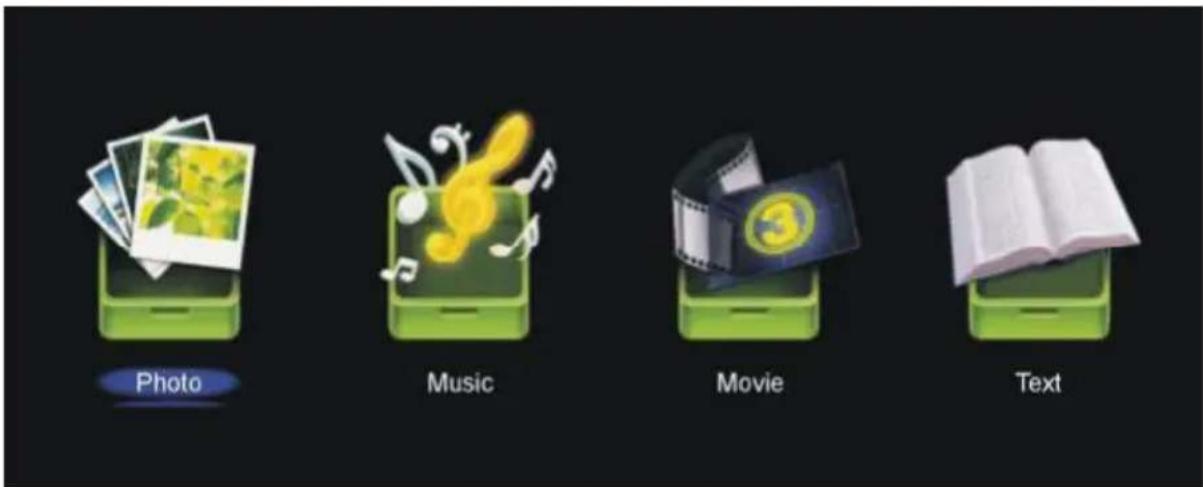
NOTE: Press MEDIA button on remote control to enter multimedia mode directly.
1. Photo
- Press LEFT/RIGHT navigation button to select Photo in the main menu and press OK button to enter it.
- Use navigation buttons to select desired folder or file and press OK button to start playing.

When playing Photo files:
- Press DISPLAY button on remote control to hide/display the indication tool bar.
- Press OK button repeatedly to switch between Slide Show and Single View.
- Press LEFT/RIGHT navigation button to play previous/next file.
- Press UP/DOWN navigation button to rotate a photo clockwise/counter clockwise.
NOTE: You can rotate a photo only when slide show is paused.
- Press BLUE button on remote control to call out Quick Menu and press it again to dismiss the menu.
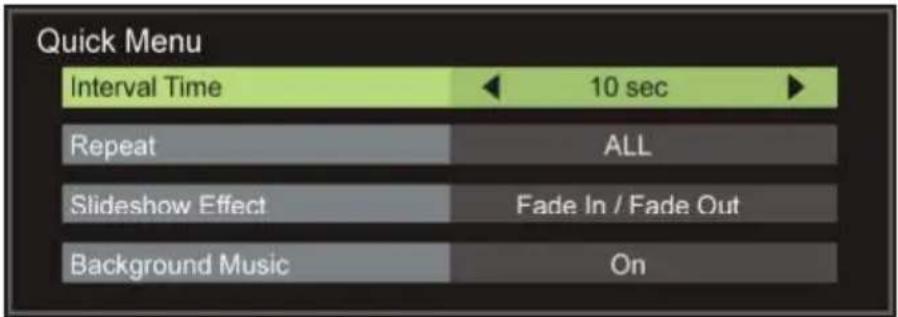
Interval Time: Set the slide show interval time.
Repeat: Select desired repeat mode.
Slideshow Effect: Select desired slide show effect.
Background Music: Turn on/off background music.
2. Music
- Press LEFT/RIGHT navigation button to select Music in the main menu and press OK button to enter it.
- Use navigation buttons to select desired folder or file and press OK button to start playing.
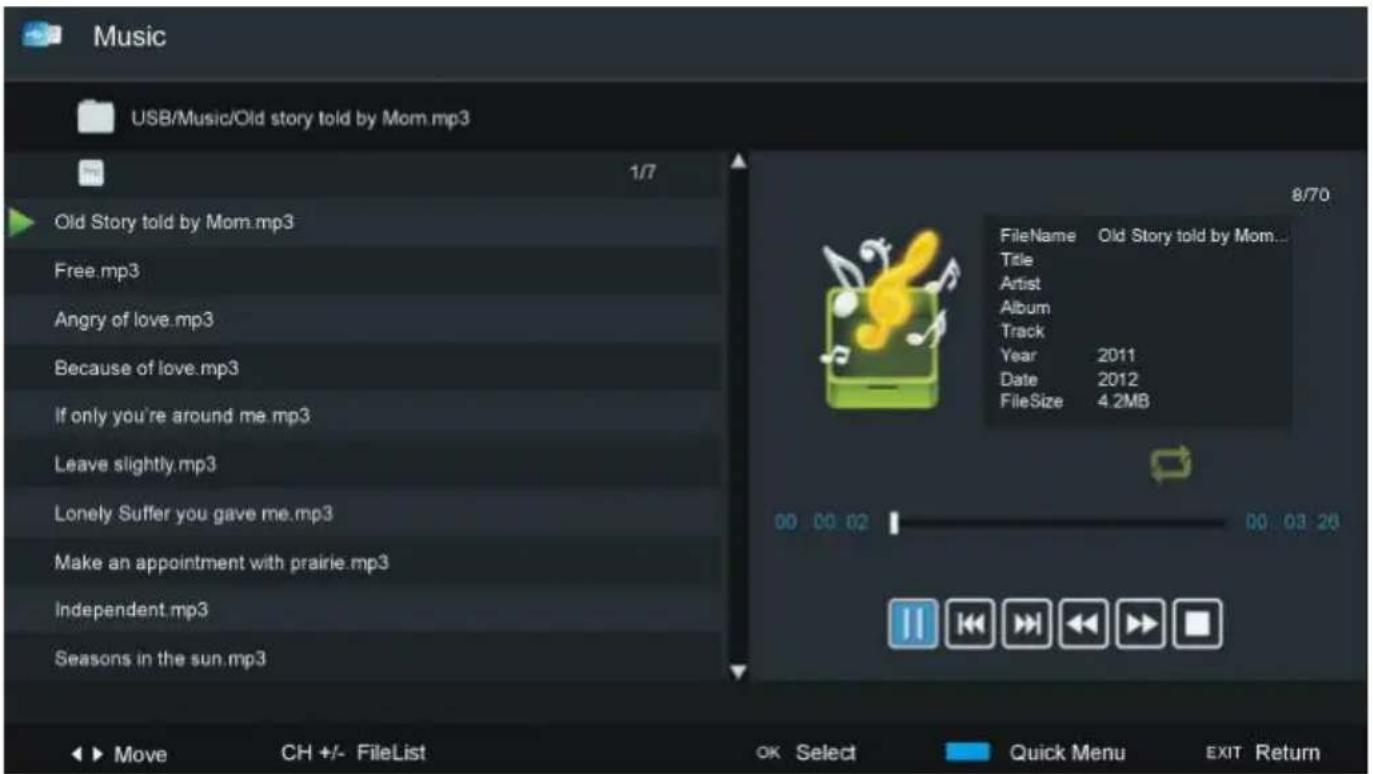
When playing Music files:
- Press CH+/- button on remote control to switch between Player and File List.
- Press BLUE button on remote control to call out Quick Menu and press it again to dismiss the menu.
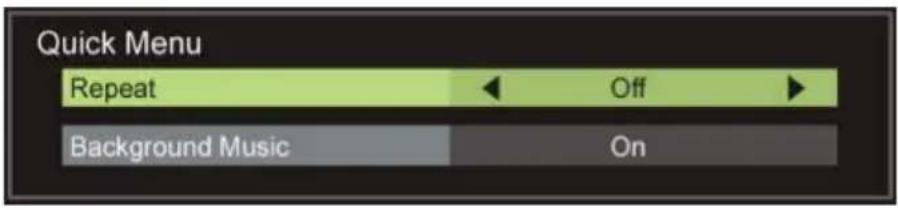
Repeat: Select desired repeat mode.
Background Music: Turn on/off background music.
3. Movie
- Press LEFT/RIGHT navigation button to select Movie in the main menu and press OK button to enter it.
- Use navigation buttons to select desired folder or file and press OK button to start playing

When playing Movie files:
- Press DISPLAY button on remote control to hide/display the indication tool bar.
- Press LEFT/RIGHT navigation button to select preferred option and press OK button to confirm it.
4. Text
- Press LEFT/RIGHT navigation button to select Text in the main menu and press OK button to enter it.
- Use navigation buttons to select desired folder or file and press OK button to start playing.
When playing Text files:
- Press LEFT/RIGHT navigation button to display previous/next page.
- Input your desired page using number buttons and press OK button to go to desired page directly.
- Press BLUE button on remote control to call out Quick Menu and press it again to dismiss the menu.
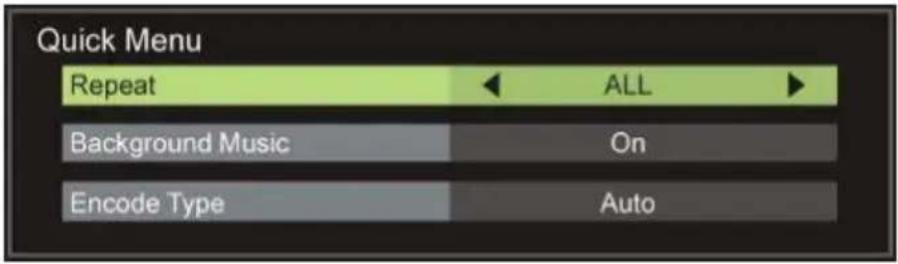
Repeat: Select desired repeat mode.
Background Music: Turn on/off background music.
Encode Type: Select desired encode type.
- Press ▶ button on remote control to play or pause playing.
- Press ■ button on remote control to stop playing.
- Press ◀ button on remote control to move fast backward.
- Press ▶ button on remote control to move fast forward.
- Press ↓ button on remote control to play previous file.
- Press ▶ button on remote control to play next file.
NOTE: To play your multimedia files, make sure you have selected correct icon in the main menu of MEDIA PLAYBACK. That is to say, you can only play Photo files in PHOTO item, Music files in MUSIC item and so on.
MAIN MENU
● The unit contains different setting menus. Once the initial programming is entered, it will be remained in the memory until change, and the unit can always be operated under the same conditions.
● The settings will be remained in the memory until the settings are changed, even after setting the player to standby mode.
Common procedure for initial settings
- Press MENU button on the unit or remote control to display the main menu.
- Press LEFT or RIGHT navigation button to select submenus.
- Press OK or RIGHT navigation button to enter submenu page.
- Press UP or DOWN navigation button to select preferred option.
- Press LEFT or RIGHT navigation button to adjust the value.
- Press MENU button to return to previous menu page.
- Press EXIT button to exit menu page.
First Time Setup
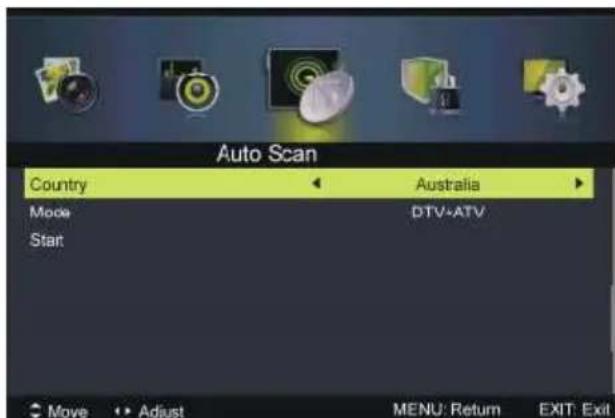
- Connect to power source and turn on this TV, then below setup page will display on the screen:
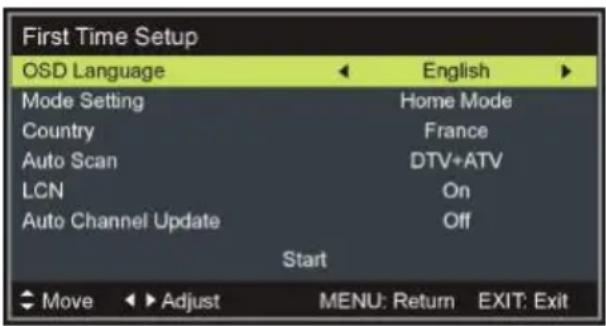
OSD Language: select desired on-screen language.
Mode Setting: select Home or Store mode.
Country: select the country you're living in.
Auto Scan: select desired scanning type.
LCN: turn on/off Logical Channel Number
Auto Channel Update: turn on/off Auto Channel Update.
Once above settings are finished, highlight "Start" and press OK button to scanning available programs automatically.
DTV MODE
- Press SOURCE button on the unit or remote control to select DTV input source.
1. Picture
1.1 Picture Mode
Available options: Standard, Mild, Personal, Dynamic.
1.2 Brightness
The brightness value of picture can be adjusted from 0-100.
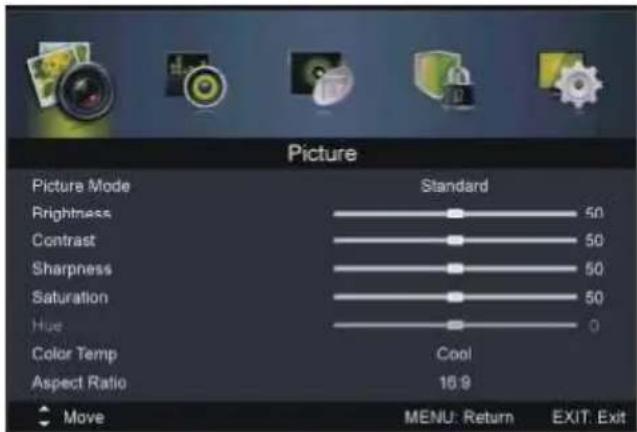
1.3 Contrast
The contrast value of picture can be adjusted from 0-100.
1.4 Sharpness
The sharpness value of picture can be adjusted from 0-100.
1.5 Saturation
The colour saturation value of picture can be adjusted from 0-100.
NOTE: If the value of Brightness, Contrast, Sharpness or Saturation has been changed, Picture Mode will turn to Personal automatically.
1.6 Hue
This item is used to adjust the tone of color in NTSC system from -50 to 50.
1.7 Color Temp
This item is used to adjust the optimum color temperature for suitable viewing.
Available options: Standard, Cool, Warm.
1.8 Aspect Ratio
This item is used to adjust the video size.
Available options: Auto, 4:3, 16:9, Zoom1, Zoom2.
NOTE: If there's no signal, pressing ASPECT button on remote control will not work. And the available video size may be different in different input source.
1.9 Screen Mode (HDMI mode only)
This item is used to adjust the screen mode in HDMI mode.
Available options: Auto, Video, PC.
1.10 Advanced Settings
NR (Noise Reduction)
This item is used to adjust the NR level. Available options: Off, Weak, Medium, Strong.
MPEG NR (MPEG Noise Reduction)
This item is used to adjust the MPEG NR level.
Available options: Off, Weak, Medium, Strong.
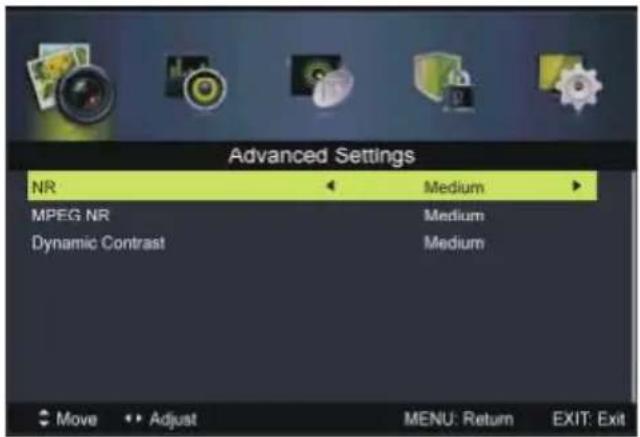
Dynamic Contrast
This item is used to adjust Dynamic Contrast level. Available options: Off, Weak, Medium, Strong.
2. SOUND
2.1 Sound Mode
Available options: Standard, Music, Personal, Movie.
2.2 Treble
This item is used to adjust the level of higher-pitched sounds from -50 to 50.
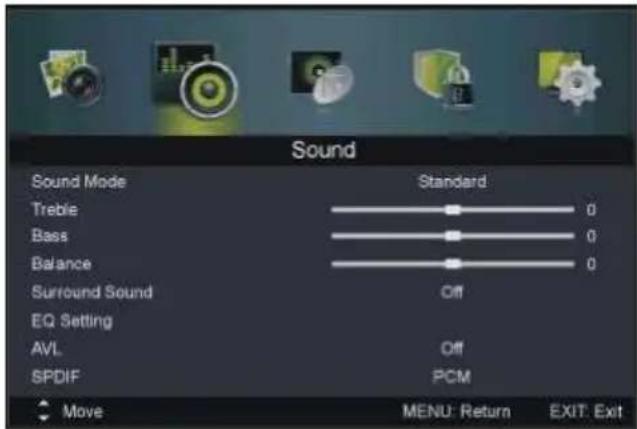
2.3 Bass
This item is used to adjust the level of lower-pitched sounds from -50 to 50.
NOTE: If the value of Treble or Bass has been changed, Sound Mode will turn to Personal automatically.
2.4 Balance
This item is used to adjust the audio output between left and right speaker from -50 to 50.
2.5 Surround Sound
This item is used to turn on/off Surround Sound function.
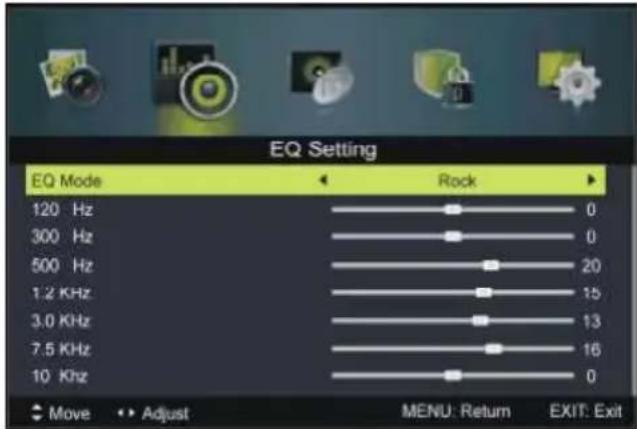
2.6 EQ Setting
This item is used to set the equalizer.
Available EQ Mode: Off, Rock, Pop, Jazz, User.
2.7 AVL (Auto Volume Level)
This item is used to turn on/off AVL function.
2.8 SPDIF
This item is used to select desired SPDIF audio output type.
Available options: Off, PCM, Auto.
2.9 Audio Description
- Press OK or RIGHT navigation button to enter it.
- Then you can turn on/off Mode and adjust the volume when Mode is on.
NOTE: For Visually Impaired users, Audio Description can assist them know a certain scene or action through the narration, instead of see it. However, this function works only when you are viewing programs that contain related narration information.
2.10 Sound Type
This item is used to select desired Sound Type.
Available options: Stereo, Dual I, Dual II, Mixed.
- Press OK or RIGHT navigation button to enter it.
Country: Select your country.
Mode: Select your scanning type.
Start: Start scanning.
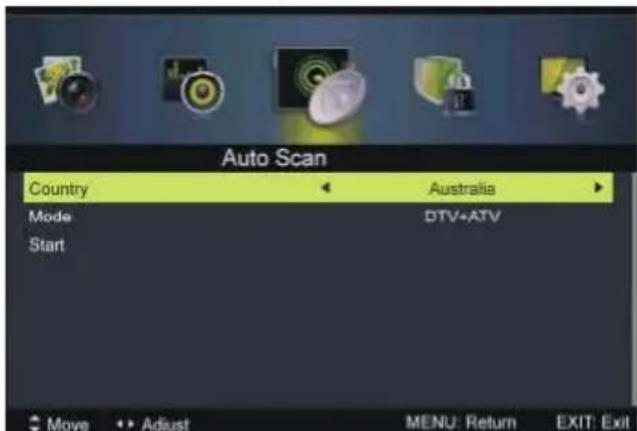
3.2 Manual Scan
- Press OK or RIGHT navigation button to enter it and then you can select digital or analog manual scan.
Figure 1
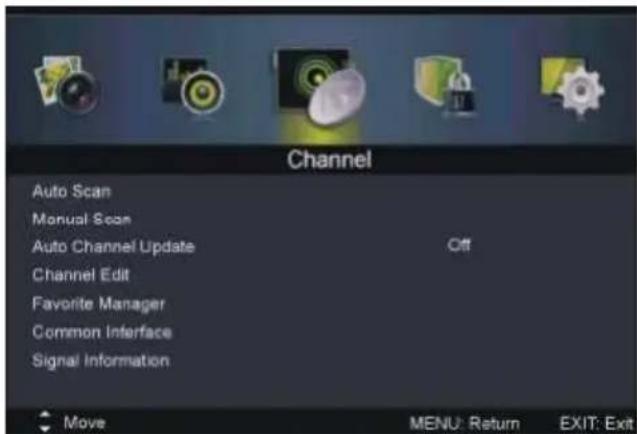
Figure 2
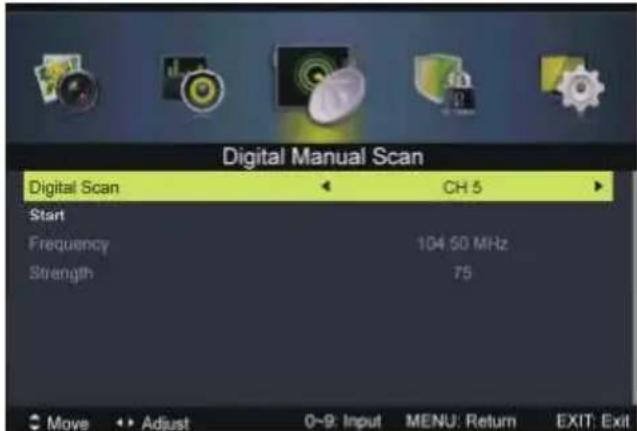
3.21 Digital Manual Scan
- Press OK or RIGHT navigation button to enter it.
Digital Scan: Select the channel.
Start: Start scanning.
Frequency: For this TV, it's not user adjustable.
Strength: Display the signal strength of current program and it's not user adjustable.
3.22 Analog Manual Scan
- Press OK or RIGHT navigation button to enter it.
Analog Scan: Use LEFT/RIGHT navigation button to fine tune it.
Channel to Save: Select the channel number to be saved.
Color System: Select desired color system
Sound System: Select desired sound system.
AFC: Turn on/off automatic fine tune.
Start: Start scanning
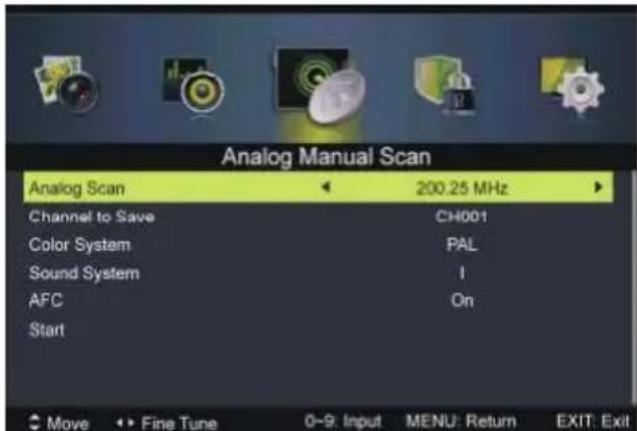
NOTE: Color System, Sound System and AFC will not be adjustable if there's no signal.
3.3 Auto Channel Update
When Auto Channel Update is On, this TV will update the channels automatically if local channel broadcaster has updated programs.
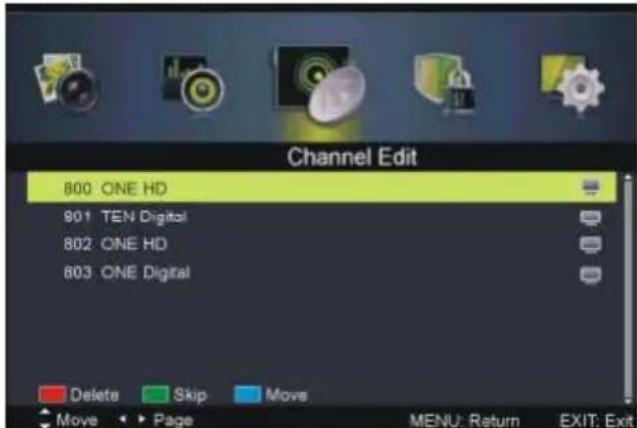
3.4 Channel Edit
- Press OK or RIGHT navigation button to enter it.
- Press UP/DOWN navigation button to highlight desired channel.
- Press RED button on remote control to delete highlighted channel.
- Press GREEN button on remote control to skip highlighted channel.
- Press BLUE button on remote control to enter MOVE mode. Then use UP/DOWN navigation button to select preferred position and press BLUE button again to move it.
3.5 Favorite Manager
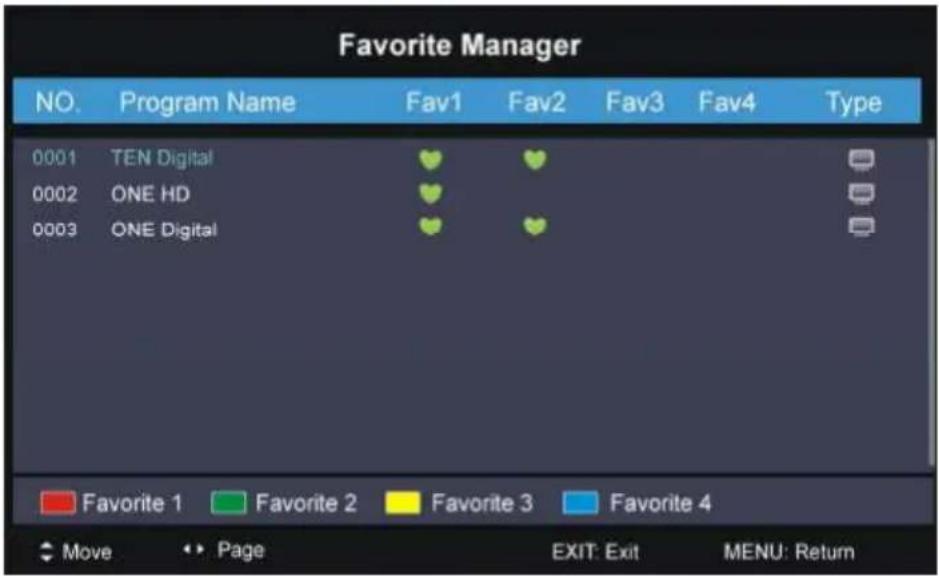
- Press RED / GREEN / YELLOW / BLUE button to add highlighted channel to desired favorite group; press related button again to remove it from favorite group.
3.6 Common Interface
Manage your CAM (Conditional Access Module) when inserted an available card into CI slot.
This item is used to display signal details, for example: Channel Number, Frequency, Quality and Strength.
4. Lock System
- Press OK or RIGHT navigation button to enter it.
- Input the factory default password "0000" using number buttons on remote control.
- Press UP/DOWN navigation button to select preferred item.
NOTE: If you forget the password, please use the universal password "8899".
4.1 Enable
This item is used to enable/disable Lock System.
4.2 Channel Locks
- Press OK or RIGHT navigation button to enter it.
- Press UP/DOWN navigation button to select the channel that you want to lock.
- Press OK button repeatedly to lock/unlock highlighted channel.
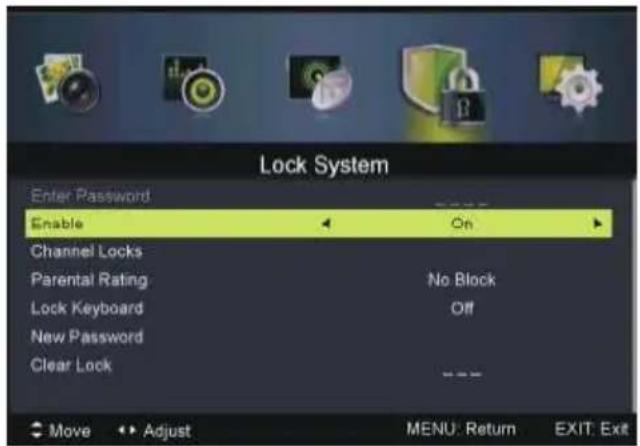
4.3 Parental Rating
This item is used to select desired program rating.
Available options: No Block, Block G+, Block PG+, Block M+, Block MA+, Block AV+, Block R+, Block All+,
4.4 Lock Keyboard
This item is used to turn on/off the lock of buttons on this unit.
4.5 New Password
- Input your new password using number buttons on remote control and confirm it again to own your private password.
4.6 Clear Lock
This item is used to clear your current lock settings.
5. Setup
5.1 OSD Language
This item is used to select desired on-screen display language.
5.2 Audio Languages
- Press OK or RIGHT navigation button to enter it.
- Then you can select desired Audio Primary Language and Audio Secondary Language.
NOTE: Audio Languages will not be adjustable if there's no signal.
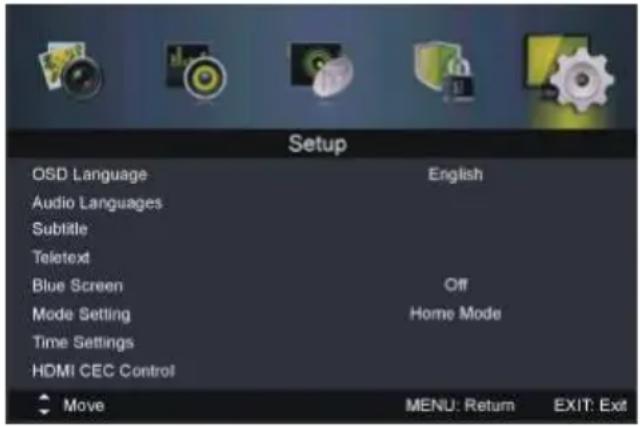
5.3 Subtitle
- Press OK or RIGHT navigation button to enter it.
- Then you can select desired Subtitle Primary/Secondary Language and turn on/off Hearing Impaired function when Mode is on.
NOTE: Subtitle will not be adjustable if there's no signal.
5.4 Teletext
- Press OK or RIGHT navigation button to enter it.
- Then you can select desired Digital TELETEXT Language and Decoding Page Language.
5.5 Blue Screen
This item is used to turn on/off Blue Screen. The screen background will turn blue at very weak or no signal condition, if Blue Screen is ON.
5.6 Mode Setting
This item is used to select Home or Store mode.
5.7 Time Settings
- Press OK or RIGHT navigation button to enter it.
- Press UP/DOWN navigation button to select desired item.
- Press LEFT/RIGHT navigation button to adjust the value.
5.71 OSD Time
This item is used to select desired OSD menu duration.
Available options: Off, 10/20/30/60 seconds.
5.72 Sleep Timer
This item is used to adjust the Sleep Timer.
Available options: Off, 5/15/30/60/90/120/240 minutes.
5.73 Auto Sleep
This item is used to select desired Auto Sleep (standby) duration.
Available options: Off, 3/4/5 hours.
5.74 Time Zone
This item is used to select desired time zone.
5.75 Time
- Press OK or RIGHT navigation button to enter it.
- Press UP/DOWN navigation button to select desired item.
- Press LEFT/RIGHT navigation button to adjust the value.
Auto Sync: Synchronize the time with your channel if Auto Sync is on. And you can adjust the Date and Time when Auto Sync is off.
Power On Timer: Turn on/off auto power on timer.
You can adjust the Time, Power On Source,
Power On Channel when this timer is on.
Power Off Timer: Turn on/off auto power off timer.
You can adjust the Time when this timer is on.
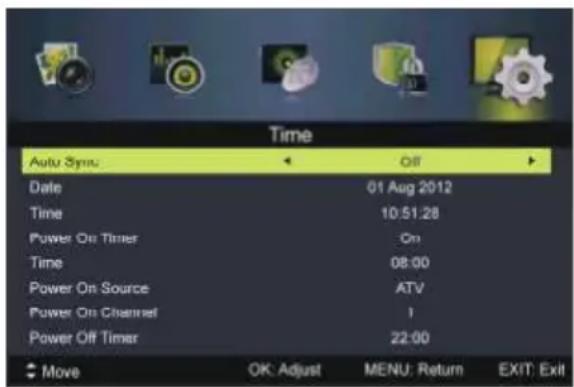
To adjust the date and (or) time:
- Highlight the date and (or) time and press OK button to enter adjusting page.
- Press UP/DOWN navigation button to adjust it.
- Press OK button to confirm setting; press EXIT button to cancel it.
5.8 HDMI CEC Control
To use HDMI CEC function:
- Make sure the HDMI device (Amplifier, etc.) is connected correctly.
- Press SOURCE button on the unit or remote control to select HDMI input source.
5.81 HDMI CEC Control
This item is used to turn on/off HDMI CEC (Consumer Electronic Control).
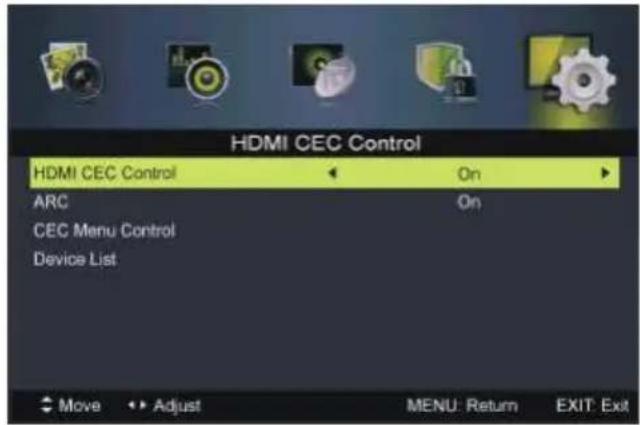
5.82 ARC
This item is used to turn on/off Audio Return Channel. When ARC is on, the TV can return the audio to connected HDMI device (Amplifier, etc.).
Press OK or RIGHT navigation button to enter it.
Home menu: Call out the Home menu of connected CEC device.
Option: Call out the Option menu of connected CEC device.
Content: Call out the Content menu of connected CEC device.
5.84 Device List
This item is used to display the available device that connected.
5.9 PVR Settings
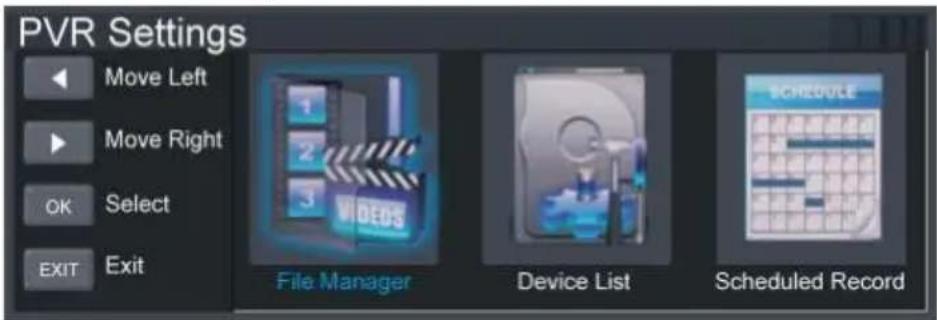
- Press LEFT/RIGHT navigation button to select item and press OK button to enter it.
5.91 File Manager
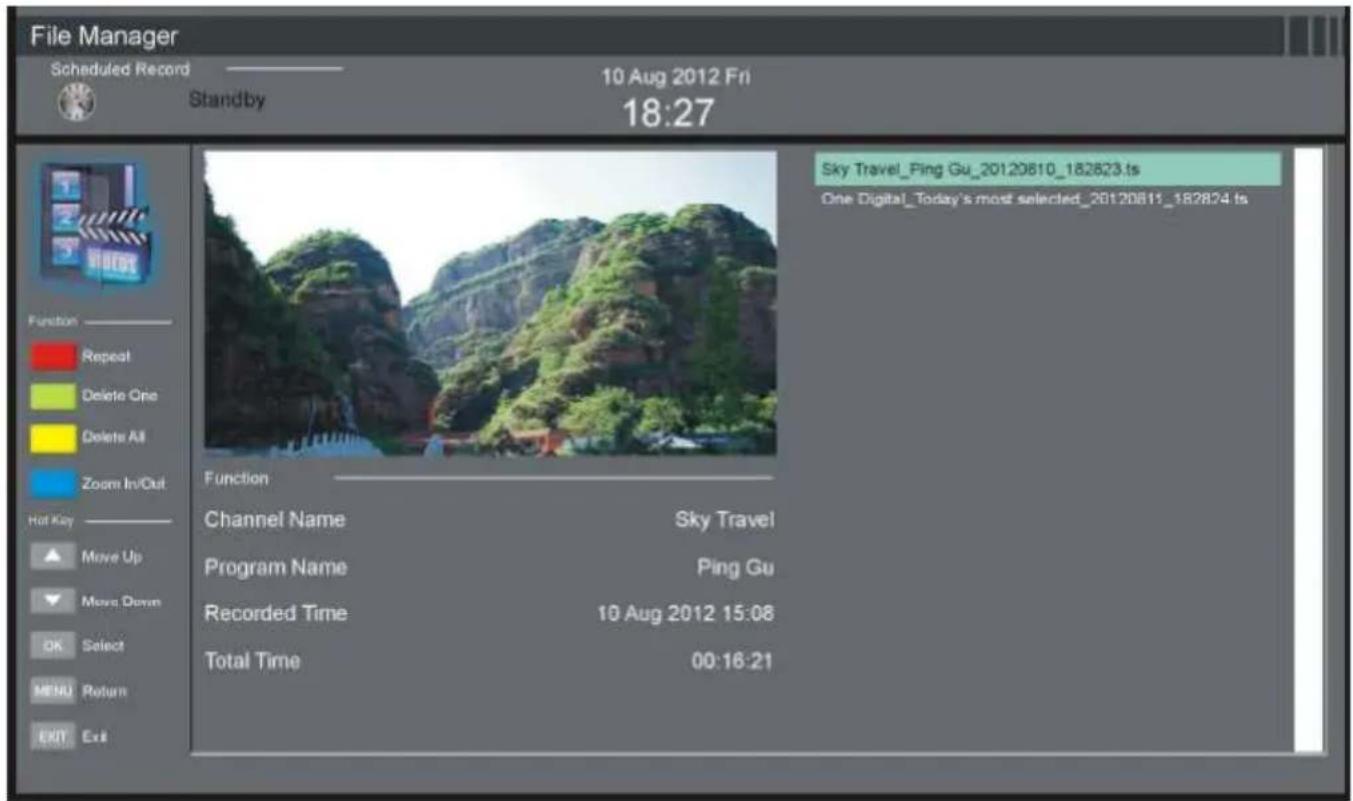
- Press UP/DOWN navigation button to select a recorded file.
- Press RED button on remote control to play highlighted file from the beginning.
- Press GREEN button on remote control to delete highlighted file.
- Press YELLOW button on remote control to delete all recorded files.
- Press BLUE button on remote control to zoom in/out.
5.92 Device List
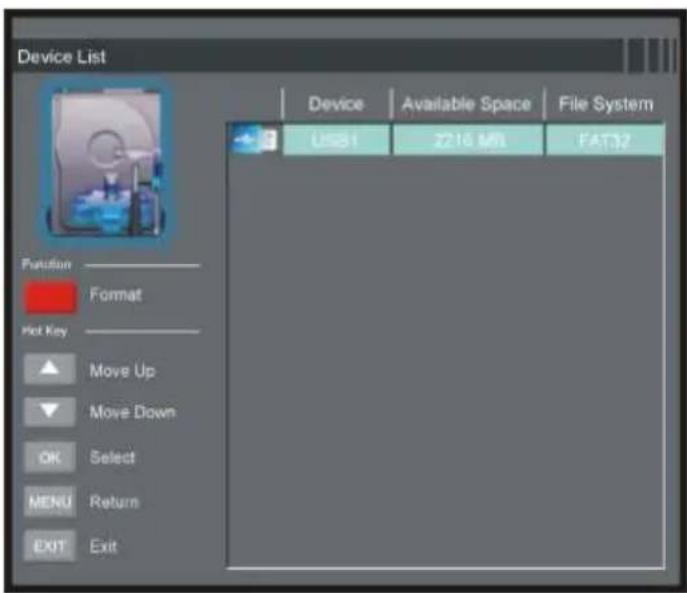
- In this part, you can check the available space and file system of your USB memory device.
- Press RED button on remote control to format your USB memory device.
5.93 Scheduled Record
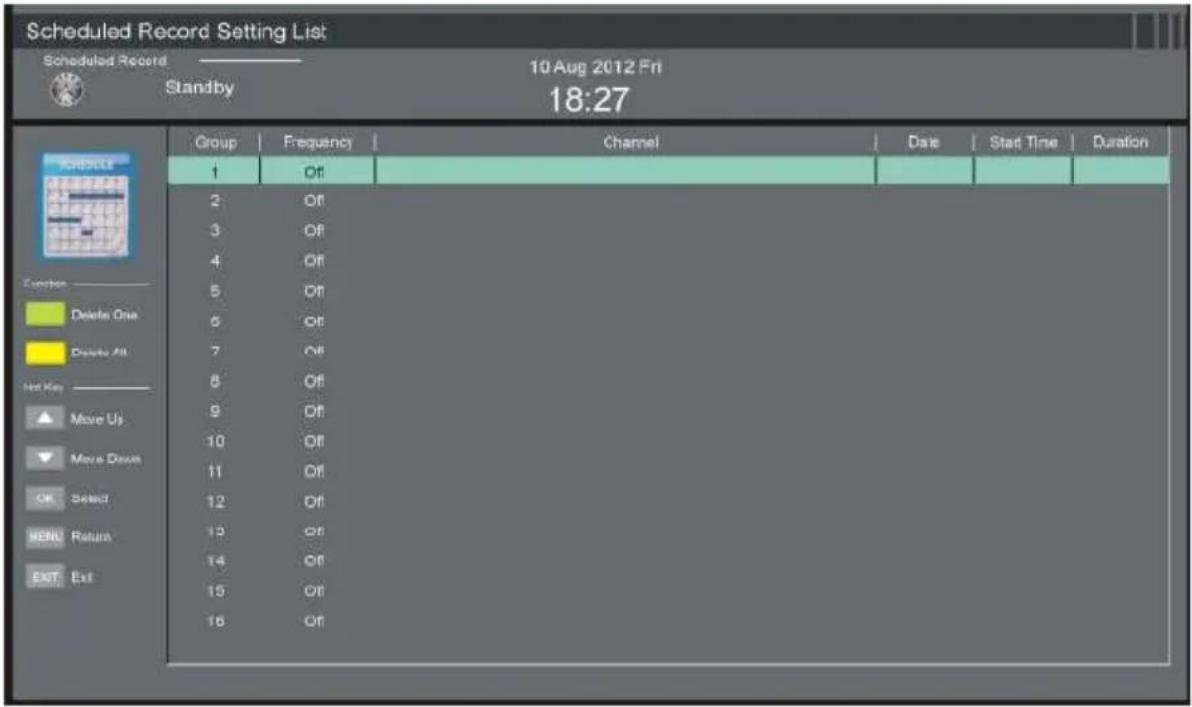
- Press GREEN button on remote control to delete highlighted option.
- Press YELLOW button on remote control to delete all.
- Press UP/DOWN navigation button to select the Group.
- Press OK button to enter Scheduled Record setting page.
Frequency
- Press LEFT/RIGHT navigation button to select desired mode: Off, Once, Daily, Weekly, Weekend.
Channel
- Press LEFT/RIGHT navigation button to select desired channel.
Start Time
- Press navigation buttons to select desired start date and time of your scheduled recording.
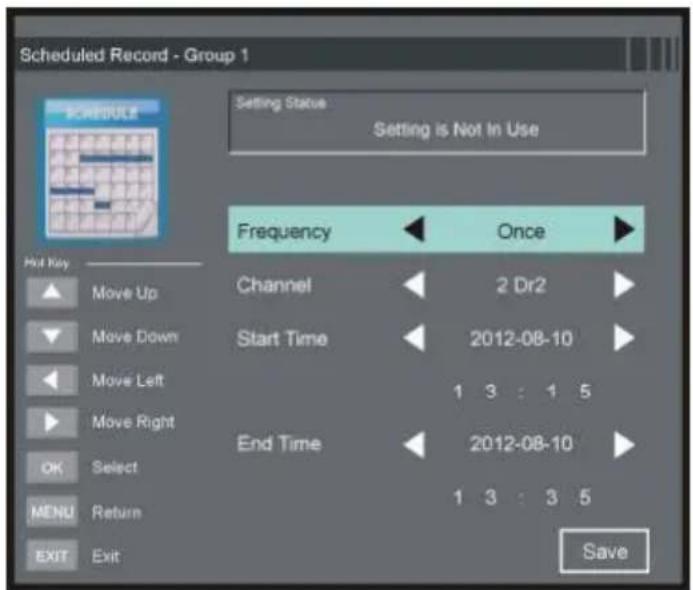
End Time
- Press navigation buttons to select desired end date and time of your scheduled recording.
NOTE: Once above settings are completed successfully, select "Save" to save it.
5.10 First Time Setup
This item is used to recall First Time Setup page.
5.11 Reset
This item is used to reset to factory default settings.
5.12 Software Update (USB)
This item is used to update software through USB memory device.
ATV AND OTHER MODES
- Press SOURCE button on the unit or remote control to select desired input source.
- For menu operations in these modes, please refer to the menu operations of DTV mode.
PC MODE
- Connect a personal computer to this unit.
- Power on your computer and this unit.
- Press SOURCE button on the unit or remote control to select PC input source.
- Press MENU button to display the main menu and select Picture using LEFT/RIGHT navigation button.
- Use UP/DOWN navigation button to highlight PC Setting and press OK or RIGHT navigation button to enter it.
- Press UP/DOWN navigation button to select preferred item.
- Press OK or RIGHT navigation button to enter submenu. Press LEFT/RIGHT navigation button to adjust the value.
1. Auto Adjust
This item is used to adjust the PC screen automatically.
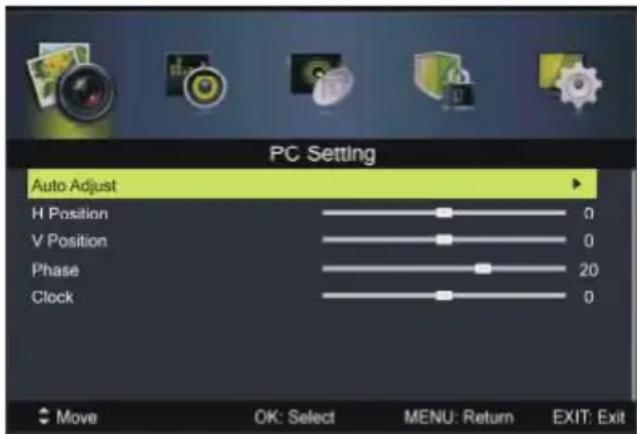
2. H Position
This item is used to adjust the value of horizontal position (available range: -30 to 30).
3. V Position
This item is used to adjust the value of vertical position (available range: -30 to 30).
4. Phase
This item is used to adjust the picture apply to the TV (available range: 0 to 31).
5. Clock
This item is used to adjust the signals transfer speed (available range: -30 to +30).
NOTE: For other menu operations in PC mode, please refer to the menu operations of DTV mode.
TELETEXT
HOW TO USE THE TELETEXT
To bring up Teletext on the screen:
- Select an analogue TV channel with a teletext signal.
- Press the TEXT button to go on the teletext pages.
- Press the TEXT button twice to go back to TV mode.
Choosing a teletext page
Enter the page number you want by using the numeric buttons. Page numbers are always 3 numbers. If you press a wrong number, you must complete the three digit number and then re-enter the correct page number.
Hold
You can press HOLD button to freeze the pages and press it again to unfreeze the page.
INDEX
Press the INDEX button to go to the main index page of your teletext.
Making the text bigger
You can double the size of the text on the teletext pages to make it easier to read.
- Press the SIZE button to make the text on the top half of the page bigger.
- Press the SIZE button again to make the text on the bottom half of the page bigger.
- Press the SIZE button again if you want the text reduced to normal size.
Subpages
Some teletext pages may contain several subpages. To read the subpage, do the following. You can go to a subpage by pressing the SUBPAGE button. You can then select the page number you want using the numeric buttons on your remote control.
For example, if you want the third subpage, you would enter 003.
Press the SUBPAGE button again to exit the subpage menu.
Press TEXT twice to exit TELETEXT.
Press these buttons to go straight to the teletext highlighted in the same color.
MAINTENANCE
- Be sure to press POWER button to set the player to the standby mode and disconnect the power plug before maintaining the player.
- Wipe the player with a dry, soft cloth.
- If the surface is extremely dirty, wipe clean with a cloth which has been dipped in a weak soap-water solution and wrung out thoroughly, and then wipe again with a dry cloth.
- Never use alcohol, benzene, thinner, cleaning fluid or other chemicals. And do not use compressed air to remove dust.
WALL MOUNTING
- Contact a professional for assistance when wall mounting your TV. We are not responsible for any damage to the product or injury to yourself, if you mount the TV on your own.
- Do not wall mount the TV while TV is turned on. It may cause personal injury due to electric shock.
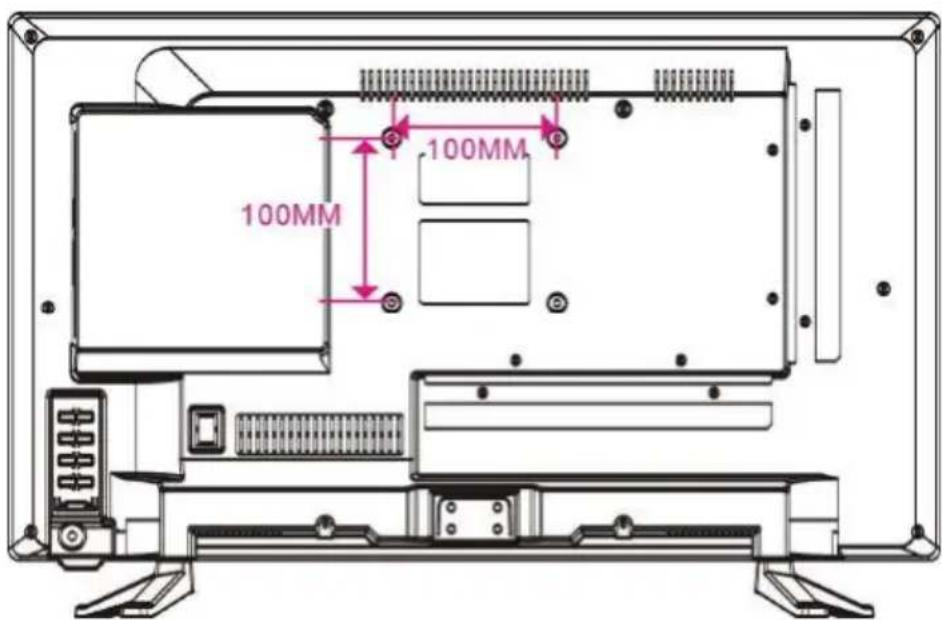
- Use standard M4*10mm screws (4 pieces) to mount this TV.
Back of your TV
SPECIFICATIONS
| Display Device | 24 inch LED TV |
| Resolution 1920×1080 | |
| Pixel Pitch 0.27(H)×0.27(V) mm |
| Luminance 250 cd/m2 | |
| Contrast Ratio 1000:1 | |
| Aspect Ratio 16:9 | |
| Response Time 5 ms | |
| Viewing Angle 170(H)/160(V) |
| Visible Range | 531.4(H)×298.9(V) mm |
| Life Time | 30,000 Hrs |
| USB1 Multimedia Playback Format (TV) | Movie: AVI, MPEG, MKV, RMVB |
| Music: MP3, WAV |
| Photo: JPG / JPEG |
| Text: TXT |
| USB2 Multimedia Playback Format (DVD) | Movie: MPEG-1, MPEG-2, MPEG-4 |
| Music: WMA, MP3 |
| Photo: JPEG |
| Supported Discs | DVD/CD/CDR/CDRW/DVD-R/DVD+R/DVD-RW/DVD+RW/VCD/SVCD |
| Power Source AC 100-240V, 50/60Hz |
| Power Consumption in working mode <48W / in standby mode 0.5 W |
| Operation Temperature | -5 °C to 45°C |
| Measurement 564(W)×165(D)×365(H)mm |
| Weight Approx. 3.7 kg | |
Specifications are subject to change without notice.
Region code setting
Region coding: All DVD discs are coded by the sales territory. Please note the player is set to region 2 coding by the factory which cannot be changed. This is in compliance with the DVD patent requirements.

GENERAL TROUBLESHOOTING
Check the following points before assuming malfunctions of this unit:
| Symptom[COMMON] Remedy |
| No power. Insert the power plug securely into the power outlet. |
| No picture. Ensure that the equipment is connected properly. |
| No sound.Distorted sound. | Ensure that the equipment is connected properly.Ensure that the input setting for the TV and stereo system are correct.Adjust the master volume to a suitable volume by pressing VOL+/VOL- button. |
| No operations can be performed with the remote control unit. | Check the batteries are installed with the correct polarities.The batteries are exhausted: replace them with new ones.Point remote control at the remote control sensor and operate it again.Operate the remote control unit at a distance of no more than 6m from the remote control sensor.Remove the obstacles between the remote control and remote control sensor. |
| No key operation (by the main unit and/or the remote control unit) is effective. | Disconnect the power plug and then reconnect it. (The player may not be operating properly due to lightning, static electricity or some other factors.) |
| Symptom[TV] Remedy |
| No or poor picture. | Adjust antenna or use an external antenna.Relocate the unit near a window (if inside a building).Move units away from this product that causes interference.Do Auto Tuning again.Try another channel. |
| No sound or poor sound. | Check the audio settings.Press MUTE button on remote control to cancel mute function.Unplug the headphone. |
| Noise or other interface. | Electronic equipment near the unit is causing interface. Relocate the unit or move the equipment. |
GENERAL TROUBLESHOOTING
| Symptom [DVD] Remedy |
| Play does not start even when title is selected. | Confirm the region code setting is right. |
| Audio soundtrack and/or subtitle language is not the initial settings. | If the audio soundtrack and/or subtitle language does not exist on the disc, the language selected at the initial settings will not be seen/heard. |
| No subtitles. Subtitles appear only with discs which contain them.Subtitles are cleared from the TV monitor, Perform the steps display the subtitles. |
| Alternative audio soundtrack (or subtitle) languages fail to be selected. | ● An alternative language is not selected with discs which do not contain more than one language.● In the case of some discs, the alternative language can not be selected by operating the LANGUAGE or SUBTITLE button. Try selecting it from the DVD menu if one is available. |
| Angle cannot be changed. | This function is dependent on software availability. Even if a disc has a number of angles recorded, these angles may be recorded for specific scenes only. |
| The password for rating level has been forgotten. | Please contact your local sales dealer. |
| Symptom [Video CD] Remedy |
| No menu play. This function works only for Video CDs with playback control. |
End of Life Disposal
natural_image
Symbol of a trash bin crossed with no text or labels, accompanied by a black rectangular block below (no readable text or symbols)
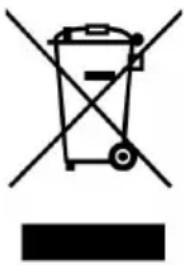
Warning ! This logo set on the product means that the recycling of this apparatus comes within the framework of the Directive 2002/96/CE of January 27, 2003 concerning the Waste of Electrical and Electronic Equipment (WEEE). This symbol means that used electrical and electronic products should not be mixed with general household waste. There is a separate collection system for these products.
If you want to dispose of this equipment, please do not use the ordinary dust bin!
- The presence of dangerous substances in the electrical and electronic equipments can have potential consequences on the environment and human health in the cycle of reprocessing this product.
- Therefore, at the end of its lifetime, this product shall not be disposed with other non-recycled waste. Used electrical and electronic equipment must be treated separately and in accordance with legislation that requires proper treatment, recovery and recycling of used electrical and electronic equipment.
- Local authorities and resellers have set special procedures for the purpose of collecting and recycling this product (please contact your local authority for further details). You have the obligation to use the selective waste collection systems put in place by your local authority.
- If your used electrical or electronic equipment has batteries or accumulators, please dispose of these separately beforehand according to local requirements.
- By disposing of this product correctly you will help ensure that the waste undergoes the necessary treatment, recovery and recycling and thus prevent potential negative effects on the environment and human health which could otherwise arise due to inappropriate waste handling.
IMPORTER
This product was imported by the Company : LEMA S.A.S.
For any questions concerning the conformity of the product, thank you to send your request to :
LEMA S.A.S.
This Product can only play REGION Code 2 DVD

This unit complies with European Council Directive 2006 / 95 CE (Electromagnetic Compatibility & Low Voltage Directives)
natural_image
Digital TV displaying a stylized eye with green feathered eyelashes and a blue CD, mounted on a stand (no text or symbols visible)
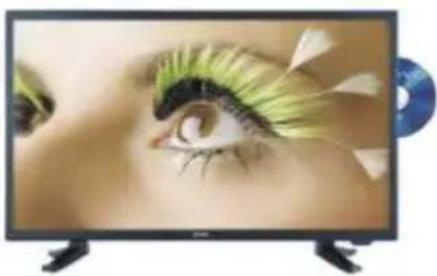
Tokai TTE-24D1814K