USER MANUAL EZee Tab 7Q 13S STOREX
text_image
03:06:29 FILES
You
Tube
TABLE DES MATIÈRES
INFORMATIONS DE SECURITE 3
GENERALITES....3
SECURITE 3
ALIMENTATION ÉLECTRIQUE DU PRODUIT....3
CHOIX DE L'EMPLACEMENT DU PRODUIT ....3
NETTOYAGE 4
DEPANNAGE....4
REMARQUES IMPORTANTES....4
SECURITE - ENVIRONNEMENT 4
INTRODUCTION 5
FONCTIONNEMENT 5
CARACTERISTIQUES PRINCIPALES....5
CONNECTER LA TABLETTE AU PC 6
CONNECTER LA TABLETTE A LA TV (SELON MODELE)....7
COMMENT UTILISER LA TABLETTE 8
• MISE SOUS TENSION // HORS TENSION DE LA TABLETTE 8
• ACTIVER // DÉSACTIVER L'ÉCRAN LCD....8
• FONCTIONNEMENT DE L'ÉCRAN TACTILE ....8
PAGE D'ACCUEIL 9
COMPRENDRE LES IÇÕNES : 9
VISEULISER UNE VIDEO....10
ÉCOUTER DE LA MUSIQUE....11
VISEULISER VOS PHOTOS....12
GESTIONNAIRE DE FICHIERS 13
SURFER SUR INTERNET....14
INSTALLER UNE APPLICATION....15
PARAMETRES....16
CONDITIONS DE GARANTIE 17
SITE WEB STOREX 18
ENREGISTREMENT DE LA GARANTIE....18
CONNECTER LA TABLETTE AU PC
natural_image
Illustration of a laptop connected to a tablet via USB cable (no text or symbols)
natural_image
Illustration of a computer monitor with a blue button and a curved arrow pointing to it (no text or symbols)
text_image
8:38
Thursday, October 20
Charging, 50%
Android
- FONCTIONNEMENT DE L'ECRAN TACTILE
text_image
Google
1
New York
Sunny
Humidity 65%, Winds/WNW 8 MPB
40 °F
2012 Wed Jan 25
Emails
0mails
3 4 5
6
14:42
natural_image
Digital game scene showing a giant bird flying over a cityscape with skyscrapers and a starry sky (no readable text or symbols)
- Mode de reprise de lecture (on, off).
natural_image
Close-up of a metallic door handle with two gold-colored buttons, against a plain gray background (no text or symbols visible)
ÉCOUTER DE LA MUSIQUE
natural_image
Close-up photo of a vibrant, serpentine snake with detailed scales and eye (no text or symbols visible)
natural_image
Grid of 16 diverse images including animals, landscapes, and food items (no text or symbols)
text_image
test/sdcard
android
Video
Screenshots
Ringtones
Recordings
Podcasts
Pictures
Notifications
Music
6 items - drive
0 items - drive
0 items - drive
0 items - drive
0 items - drive
0 items - drive
0 items - drive
0 items - drive
0 items - drive
0 items - drive
0 items - drive
18:02

text_image
1
2
3
4
5
6
7
8
CONDITIONS DE GARANTIE
SECURITY INFORMATION....20
GENERAL....20
SAFETY 20
PRODUCT'S POWER SUPPLY 20
PLACING OF THE PRODUCT 20
CLEANING 21
TROUBLESHOOTING....21
IMPORTANT NOTE 21
SAFETY-ENVIRONMENT 21
INTRODUCTION 22
OPERATION 22
MAIN FEATURES....22
CONNECT THE TABLET TO YOUR PC 23
CONNECT TABLET TO YOUR TV ( ACCORDING TO MODEL) 24
HOW TO USE TABLET 25
• TURN ON/OFF TABLET 25
- ENABLE/ DISABLE LCD 25
VIEWING THE PICTURES 29
FILE MANAGER 30
SURFING ON | INTERNET: 31
INSTALL AN APPLICATION 32
SETTINGS....33
GUARANTEE CONDITIONS 34
STOREX WEBSITE 35
WARRANTY REGISTRATION....35
This device was designed and built in order to guarantee your safety. The safety mechanisms implemented in the product will protect you if you observe the following installation, operation and troubleshooting procedures:
- Please carefully read and follow the following instructions before handling and installing your device,
- Keep these instructions for further reference.
GENERAL
- Don't shake, or it may lead to damage to the product.
- Only use components and accessories (power supply...) recommended by the manufacturer.
- The illustrations of the product may vary from actual product.
SAFETY
- To prevent fire or electric shock, do not put the appliance near objects filled with liquids;
- If a heavy object or liquid is dropped on the device, unplug it immediately and send it to check by qualified personnel before re-use :
- When in operation, the housing surface generates heat; do place the product on a flat and rigid surface and avoid covering it or placing any object on it.
PRODUCT'S POWER SUPPLY
- In case you don't use the product for a long time or during a lightning storm, unplug the unit from the outlet by grabbing the plug itself, without pulling the cable.
- The included power adapter is specific to the product. Using a different adapter may cause damage or accidents.
PLACING OF THE PRODUCT
- Install the appliance away from any equipment with strong attraction such as microwave ovens, big speakers ...
- Place your product in a well-ventilated area and on a hard and flat surface to disperse heat from the device.
CLEANING
- Never open the product to clean, otherwise the warranty will be canceled;
- Unplug the product from the wall outlet before cleaning the product ;
- Clean the outside of the product using a soft, dry cloth. Never use an abrasive pad, scouring powder or solvent such as alcohol or gasoline.
TROUBLESHOOTING
- Refer all troubleshooting to qualified personnel. Troubleshooting is required when the appliance has been damaged in any way: plug or cord is damaged, liquid spilled into the product, introduction of small objects in the product, exposure to rain or moisture, malfunction, drop of the product...
IMPORTANT NOTE
- At full volume, for an extended period of time can damage your hearing.
- It is illegal to download music from the Internet without having bought the rights. STOREX is not responsible for the use of the STOREX product with illegal music downloading.
SAFETY-ENVIRONMENT
Your STOREX product has been laboratory tested; it complies with European guidelines corresponding to the CE labelling in force at the time of its launch.
Your STOREX product's components are traceable; this demonstrates the product's compliance to environmental guidelines (RoHS) in force at the time of its launch.
Once the product has reached the end of its lifespan, don't throw it in a dustbin. Return it to the retailer or bring it to a rubbish heap, to ensure the product is properly disposed of via a waste electrical and electronic equipment (WEEE) channel.
Your STOREX product has been prepared, tested and packaged in a French company, ISO9001: 2008 certified by an annual audit performed by a qualified person from Bureau Veritas Certification.
INTRODUCTION
Your tablet offers all the innovation of Google Android operating system for browsing and applications. Lightweight, ultra-connected, tactile..., the tablet is the answer to all your mobility needs!
On a touch screen evolving under Android 4.0, access the Internet using Wi-Fi and customize your applications through Android Market.
Your tablet is a transportable audio/video system that can play movies and music in high definition.
Your tablet becomes an authentic multimedia gateway once is connected to your TV (according to model).
OPERATION
- Your tablet allow you to watch your HD content with ease.
- Watch your movie or pictures, listen your music everywhere with your tablet.
- Transform your tablet in a multimedia gateway; connect it to your TV with the mini HDMI port.
MAIN FEATURES
- Audio connection: 3.5" output jack.
- High resolution screen.
- Integrated Card Reader (Micro SD).
- Multi-touch capacitive screen.
- PC USB port and USB Host.
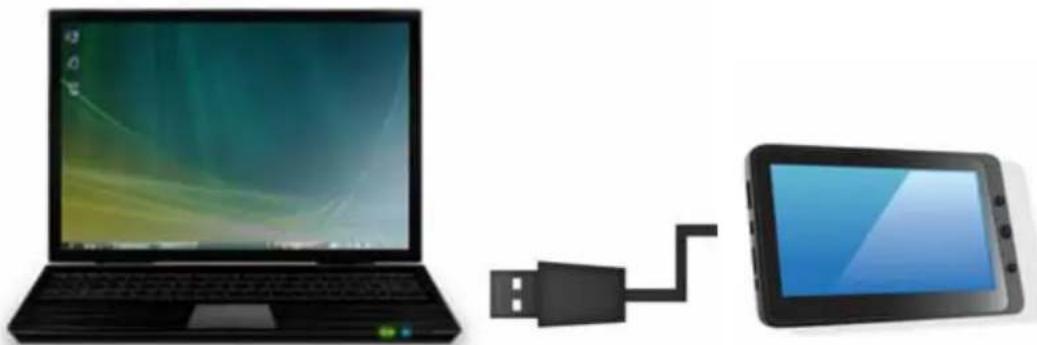
CONNECT THE TABLET TO YOUR PC
- Turn on your tablet by pressing POWER.
- Use the USB cable provided to connect your tablet to the USB PC port.
natural_image
Illustration of a laptop connected to a tablet via USB cable (no text or symbols)
- Verify if the USB cable is well connected on the USB port of the tablet. This one should be connected to the USB PC and not to the USB Host port.
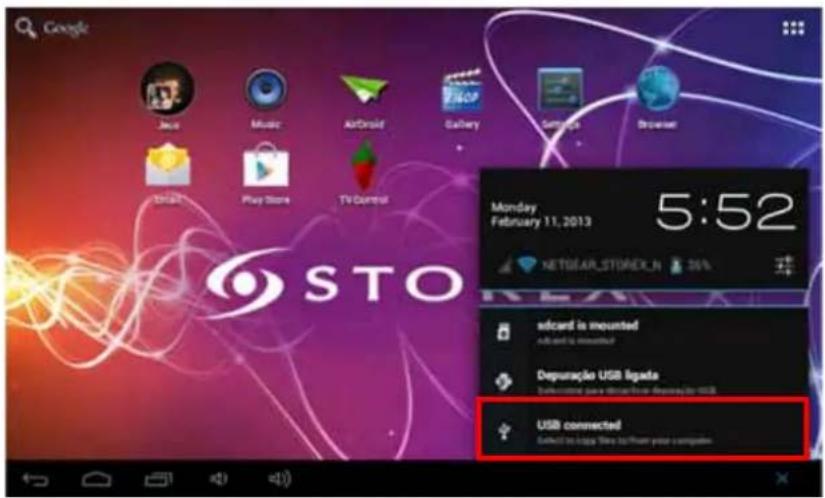
- Press the notification bar then select "USB connected".
text_image
Google
Java
Music
AirDrip
Gallery
Settings
Browser
STO
Monday
February 11, 2013
5:52
NETGEAR_STOREX_N
36%
wicard is mounted
add and is mounted?
Depuração USB ligada
Extending para documentar desturação USB
USB connected
Select to loga file to their your computer
- On the new screen, press "Turn on USB storage". The device should appears on the desktop of your PC.
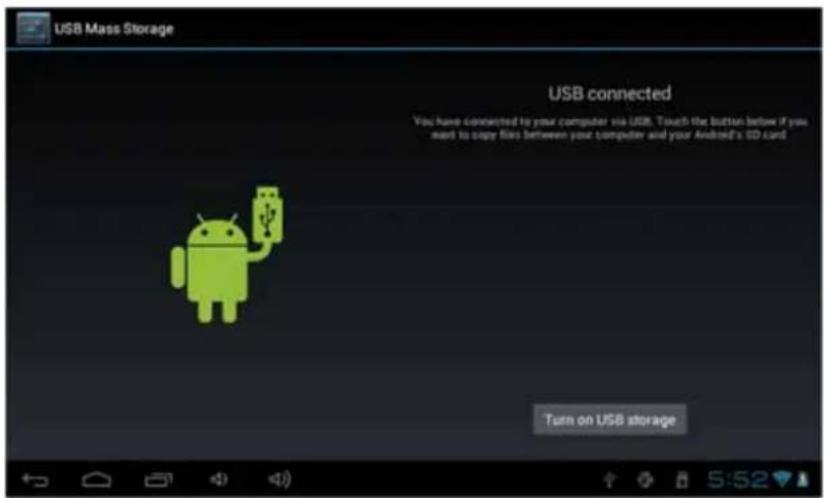
text_image
USB Mass Storage
USB connected
You have connected to your computer via USB. Touch the button below if you want to copy files between your computer and your Android's CD card
Turn on USB storage
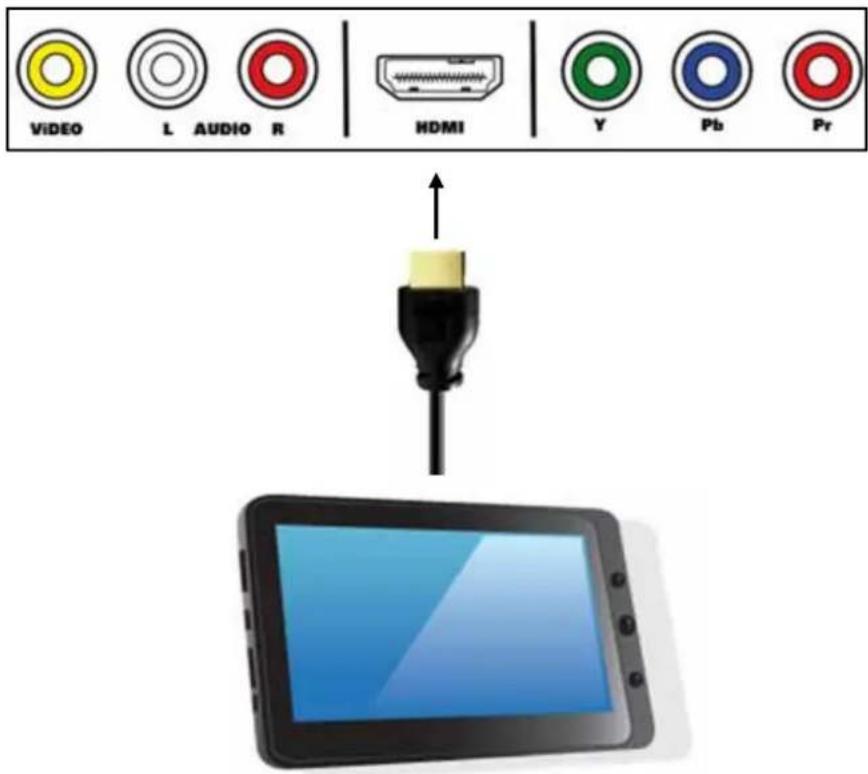
CONNECT TABLET TO YOUR TV ( ACCORDING TO MODEL )
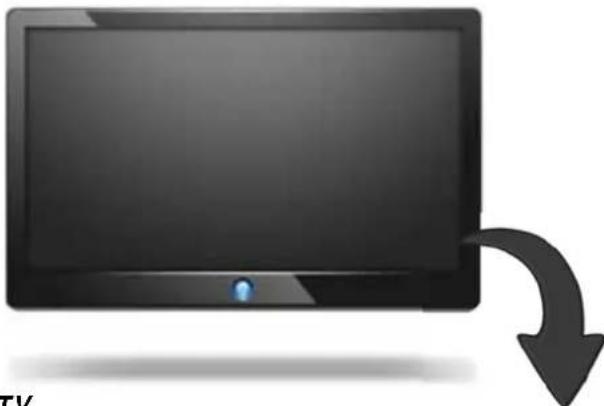
natural_image
Illustration of a black monitor with a blue button and a curved arrow pointing downward (no text or symbols)
Rear view of TV
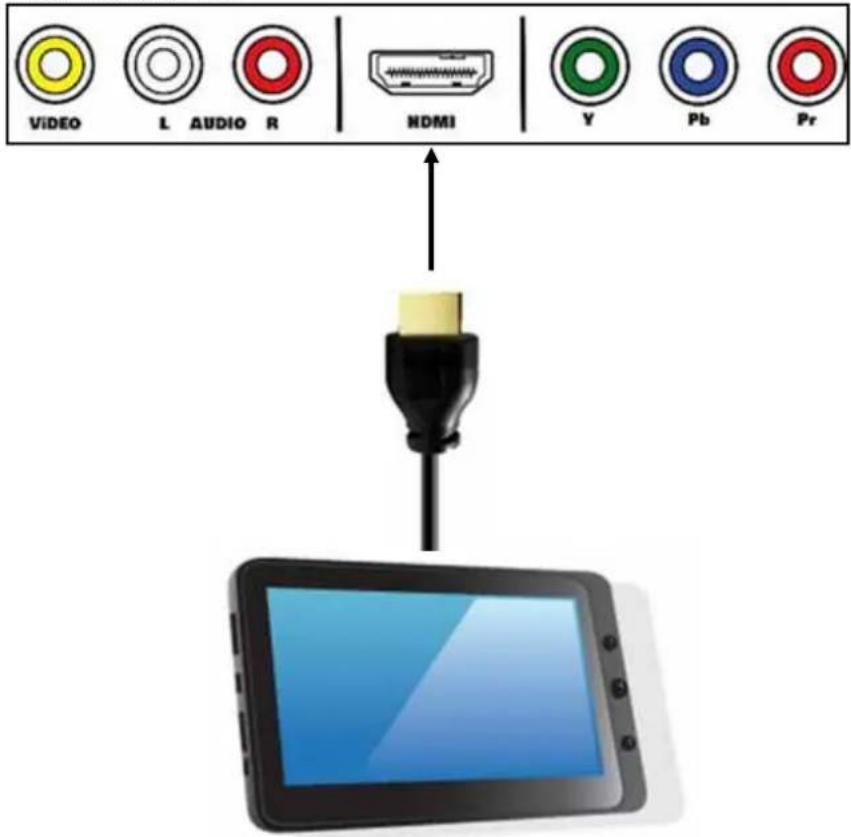
flowchart
graph TD
    A["VIDEO"] --> D["HDII"]
    B["L AUDIO R"] --> D
    C["Pr"] --> D
    D --> E["HDII"]
- Connect the power supply from the wall socket to your tablet DCIN port.
- Turn on the tablet by pressing ON.
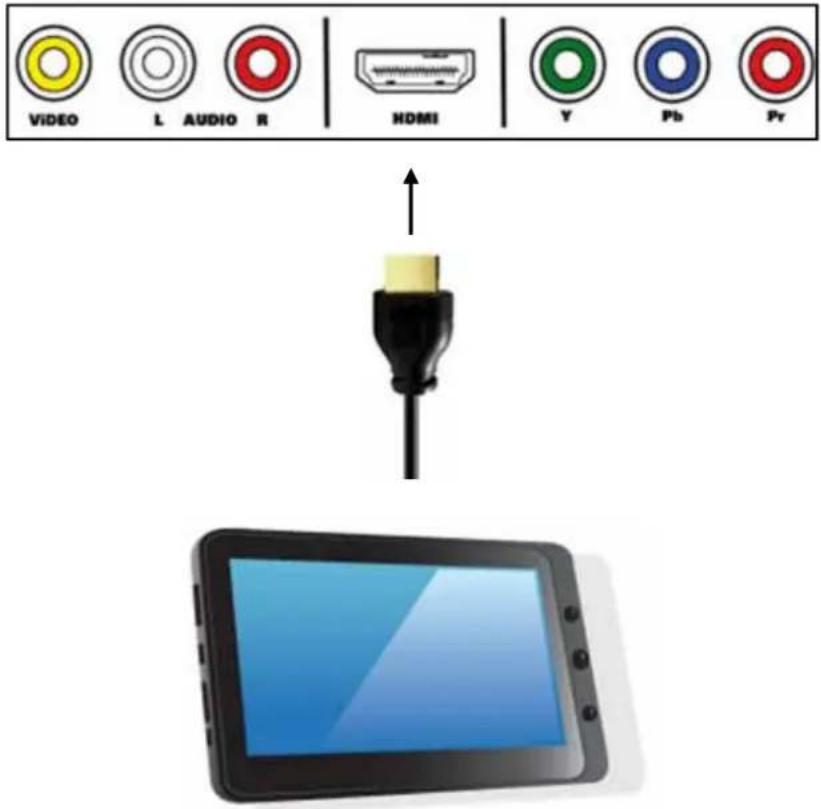
- Connect the HDMI cable from the unit to your TV (see illustration above).
- Check if your TV is on the right channel, normally there is diagram to guide you (AV1, AV2, HDMI1, HDMI2...).
- A notification will appear automatically, select the resolution by pressing it.
How to use TABLET
To turn on / off tablet, press the POWER button for 3 seconds. To turn off select "turn off the MID".
○ ENABLE/DISABLE LCD
Once the tablet is turned on, short press POWER to turn off the LCD screen, and you will save energy. To turn on the LCD screen, press POWER again.
HINT: The screen is locked when the screen is off; to unlock the screen, slide the lock icon from left to right.
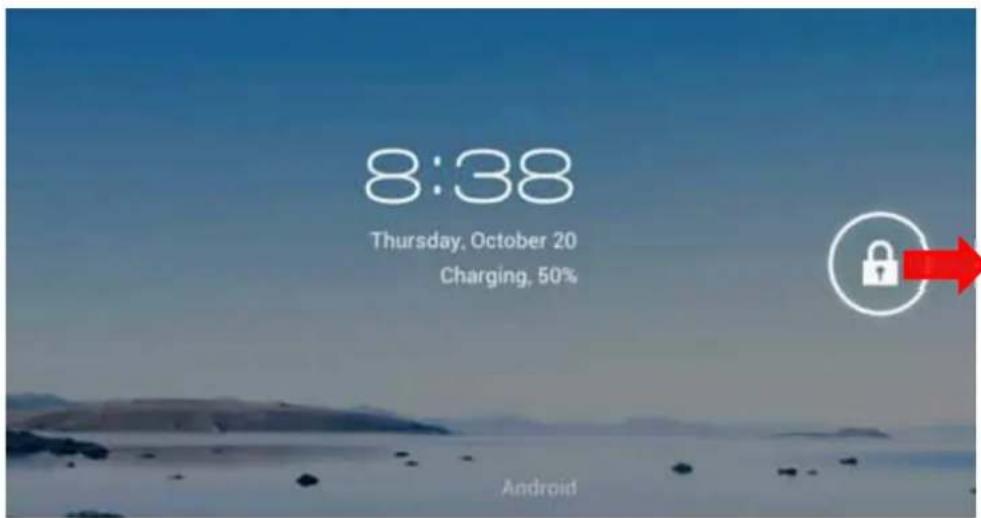
text_image
8:38
Thursday, October 20
Charging, 50%
Android
There are three ways to operate the screen of your tablet:
-
Touch any icon on the screen to launch the application.
-
Hold: touch any icon on the home screen and hold. For example, touch an icon on the home screen and hold, a trash icon (💡) will appear on the right screen; drag the selected icon on the trash to remove the icon from the home screen.
-
Drag: Drag your finger from left to right or vice versa to scroll the screen.
HOME PAGE
Once the tablet is turned on, the following screen will be displayed on your tablet.
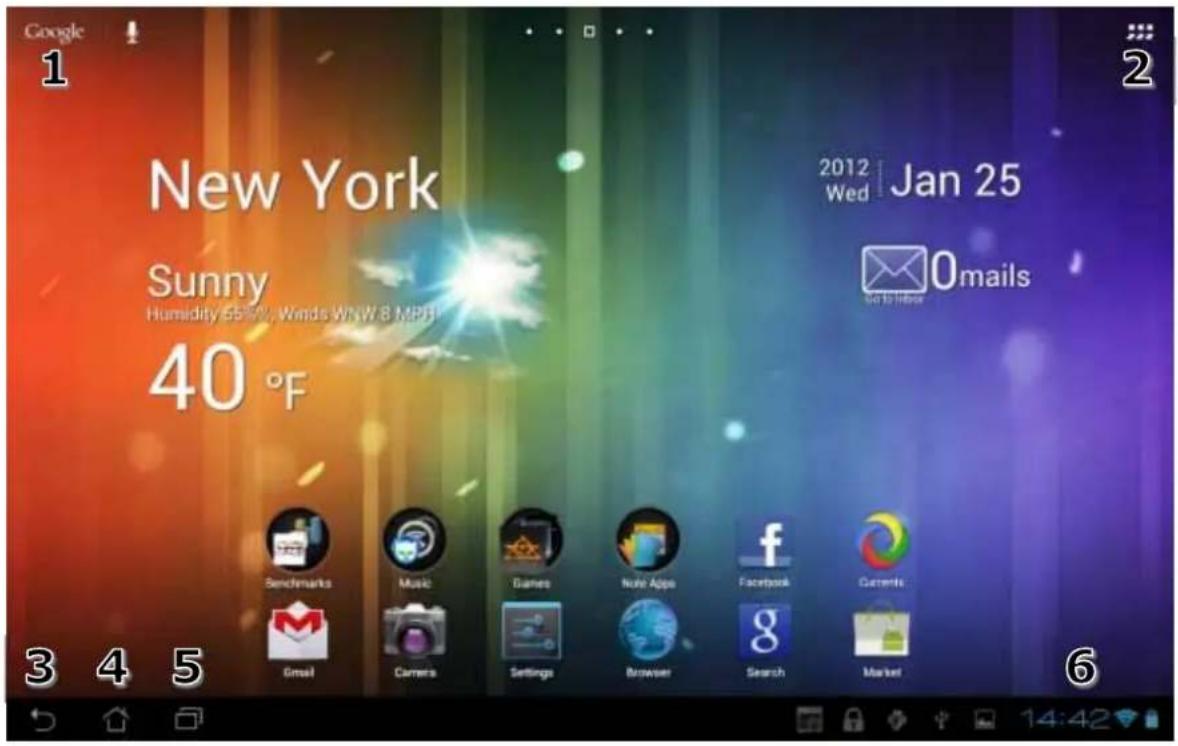
text_image
Google
1
New York
Sunny
Humidity 55.5%, Winds WNW 8 MPH
40 °F
2012 Wed Jan 25
Email 0mails
3 4 5
6
14:42
| 1 | Google Search | | 2 Applications |
| 3 | Back 4 Home | | |
| 5 | Last applications | 6 | Notifications barClock, Battery & Wifi |
* The displayed screen can change according to the applications and the backgrounds that are installed.
Drag up to see the system notifications.
: To show the current state of the network connection, battery and
system time.

: To return to the previous page.

Press to display all the applications installed in your tablet.
WATCH A VIDEO
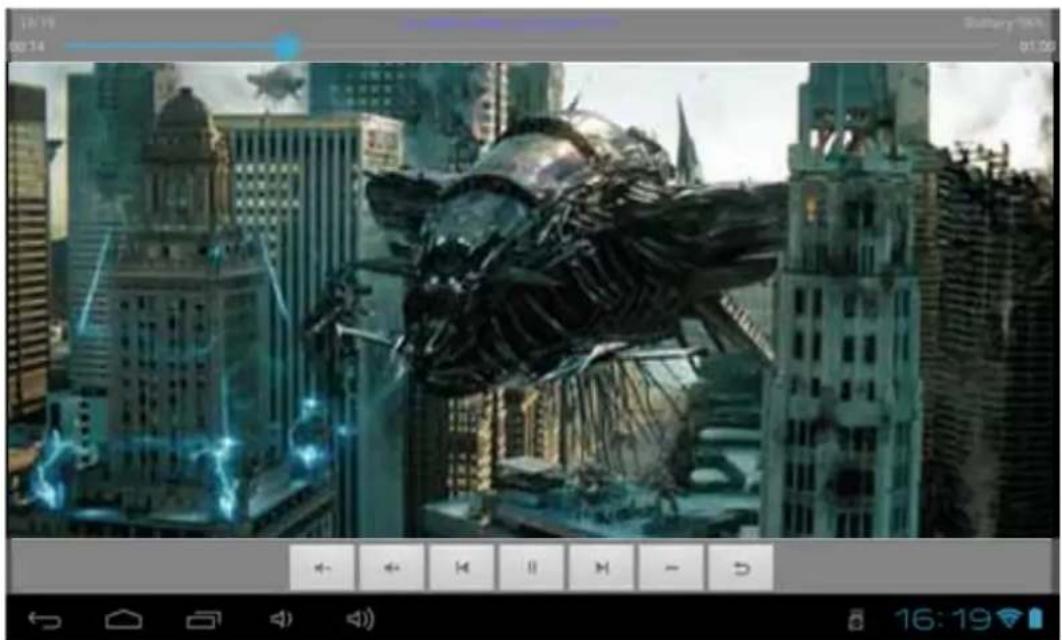
On the applications page, press the icon to access the interface of the video player. Slide your finger across the screen from down to up, to scroll the list of files and press one of the desired files to start playing.
natural_image
Futuristic cityscape with a giant bird flying over skyscrapers, no visible text or symbols
The icons in the toolbar above are the functions of the video playback:
: Press to increase or decrease the volume.

: To visualize the playback time or to move to a specific point
of the video.
ss to play the previous / next video.

: Press to pause / resume playback.

: Press to display the submenu that includes the following options:
- Display mode (normal, full screen, 4:3 and 16:9).
- Resume Play mode (on, off).
- Play mode (repeat all, repeat one).
- Brightness (1, 2, 3, 4).

: Press to display the list of the files.

natural_image
Close-up of a metallic door handle with two yellow buttons, against a plain gray background (no text or symbols visible)
LISTEN TO MUSIC
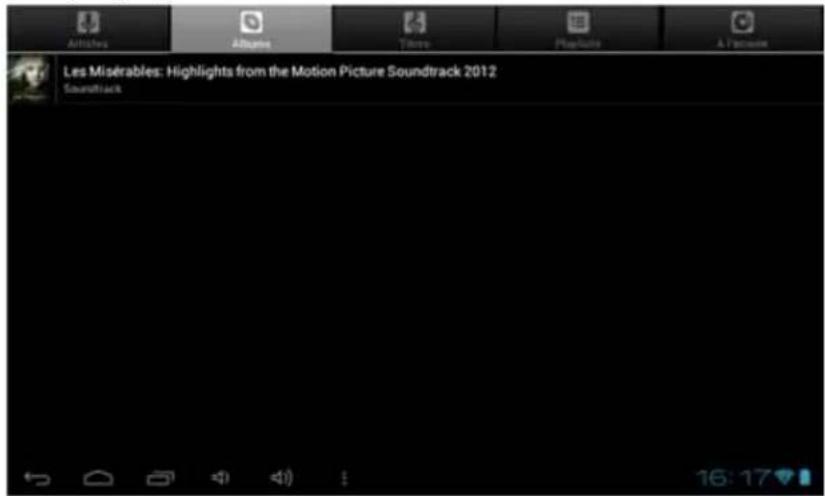
On the applications page, press icon to access the music player interface. Slide your finger across the screen from up to down to scroll the list of files and press one of the files to start playing.
text_image
Les Misérables: Highlights from the Motion Picture Soundtrack 2012
Soundtrack
: Press to sort the songs by singer.
: Press to display all the audio files on the screen.
: Press to sort the songs by album.
: Press to see the recently added titles.
: Press to return to the previous screen.
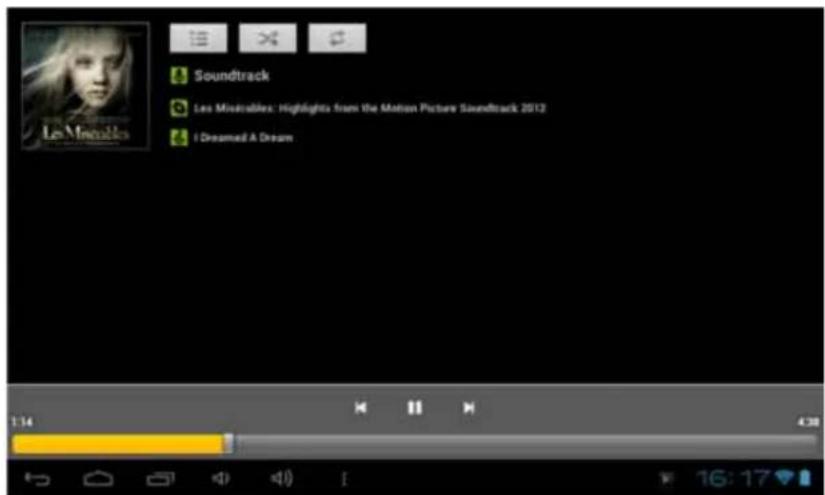
Slide your finger across the screen from top to bottom to display the list and press any to access the audio interface to as follows:
text_image
Soundtrack
Les Misirables: Highlights from the Motion Picture Soundtrack 2012
I Dreamed A Dream
The icons in the toolbar above are functions of the audio playback:
: To visualize the playback time or to move to a specific point of the audio file.
press to play the previous or next music.
■/▶: Press to pause or resume playback.
: Press to display the list of audio files.
: Press to enable / disable the shuffle.
Press to set the repeat mode, repeat all, repeat one or deactivate.
VIEWING THE PICTURES
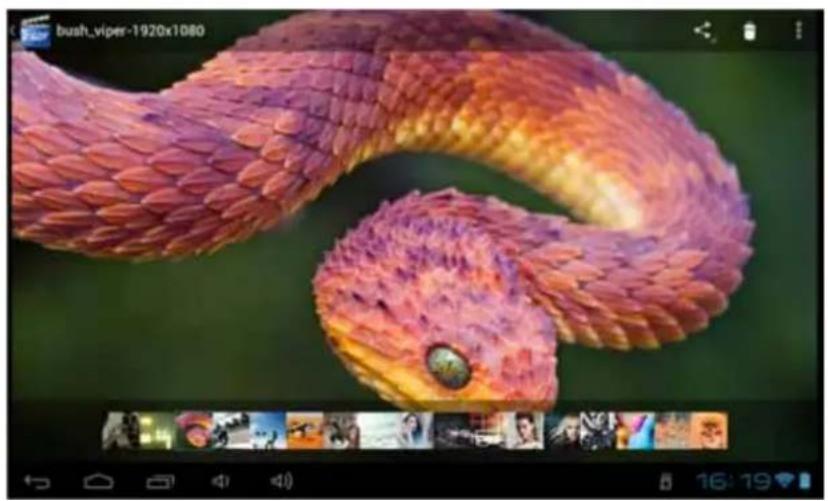
On the applications page, press icon to access the picture player interface. The picture player interface is displayed below:
natural_image
Close-up of a vibrant, serpentine snake with detailed scales and a green eye (no text or symbols visible)
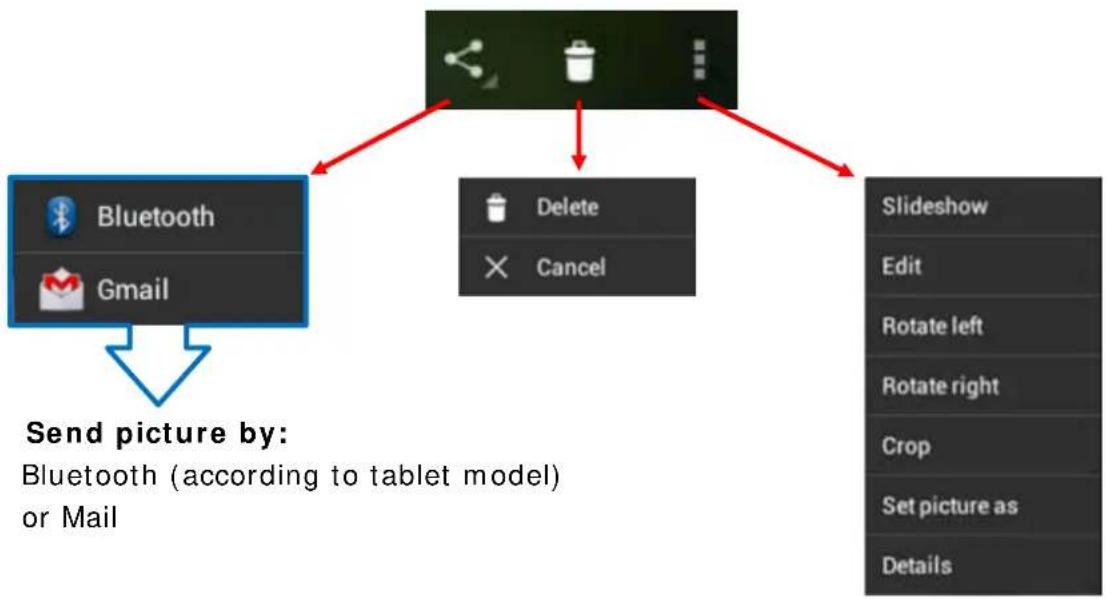
The icons of the toolbar displayed on the interface above have the following functions:
flowchart
graph TD
    A["Bluetooth"] --> B["Send picture by: Bluetooth (according to tablet model) or Mail"]
    C["Gmail"] --> B
    D["Delete"] --> E["Slide list"]
    F["Cancel"] --> E
THUMBNAIL BANNER :

natural_image
Row of 15 diverse images including animals, cars, and food items (no text or symbols visible)
This panel allows you to easily select your photos stored on your tablet. Just press the thumbnail to view it in full screen.
FILE MANAGER
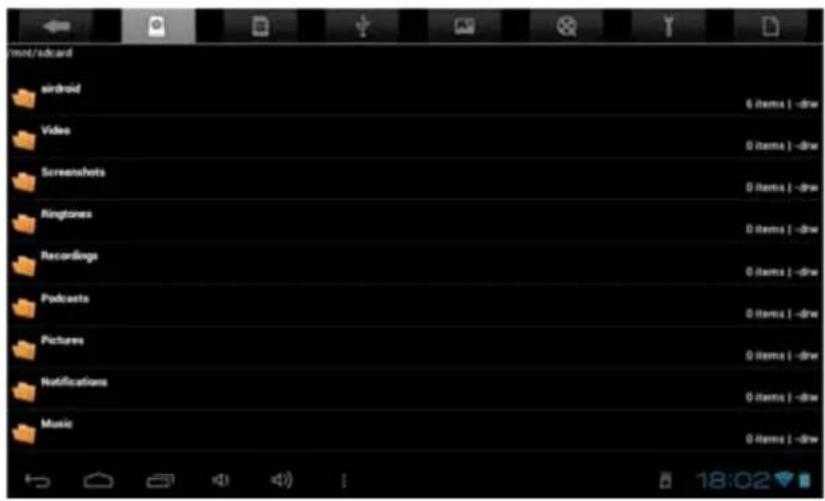
On the applications page, press icon to access the file manager interface. The file manager interface is shown below:
text_image
mct/edcard
android
Video
Screenshots
Ringtones
Recordings
Podcasts
Pictures
Notifications
Music
6 items | drive
0 items | drive
0 items | drive
0 items | drive
0 items | drive
0 items | drive
0 items | drive
0 items | drive
0 items | drive
18:02

text_image
1
2
3
4
5
6
7
8
- To return to the previous page.
- Allows you to select the SD card.
- Select the USB storage.
- To show picture files.
- To show all video files.
- Provides access to the settings of the application.
- To display the copy, paste, and move options.
In order to copy, paste, move, delete, or rename a file/folder, press the file/folder in question, the following window will appear with different options:
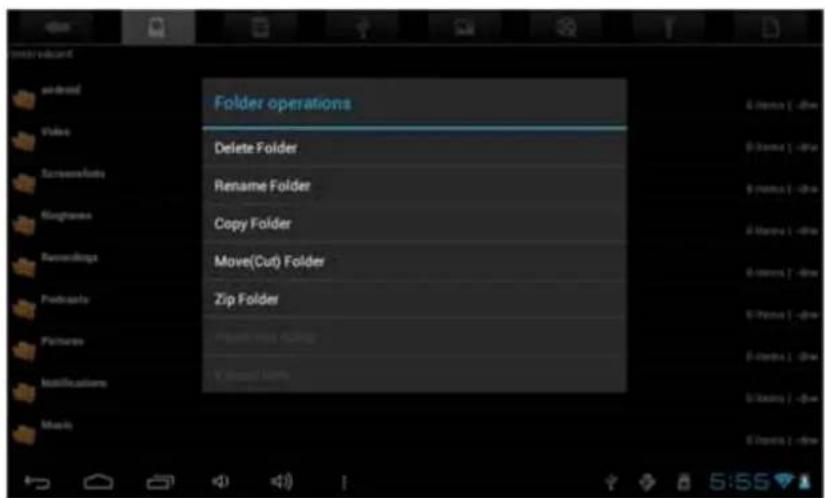
text_image
Folder operations
Delete Folder
Rename Folder
Copy Folder
Move(Cut) Folder
Zip Folder
Properties
Value1 items
Fileaside
Fileaside 2 -divs
5:55
SURFING ON INTERNET:
On the home page, press icon to open the internet browser.
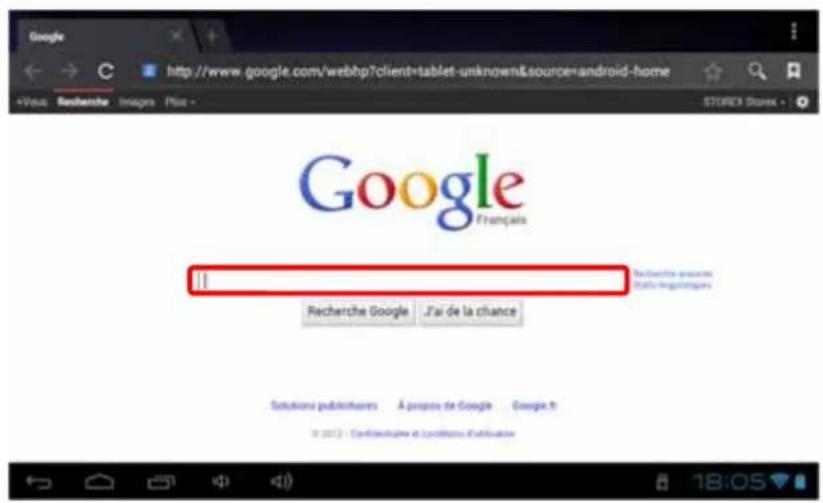
Press the above part to reveal the virtual keyboard. Once the text has been entered, press OK to start the research.
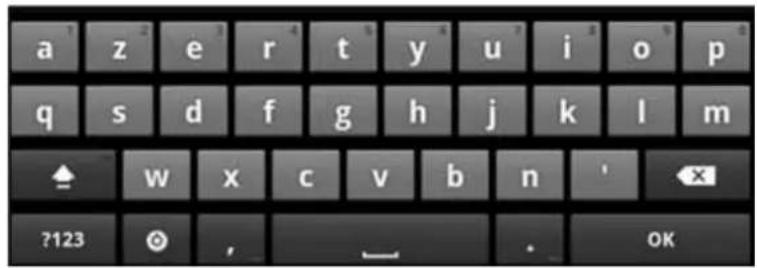
text_image
a z e r t y u i o p
q s d f g h j k l m
w x c v b n
?123 , OK
Press 📄 display the menu below.
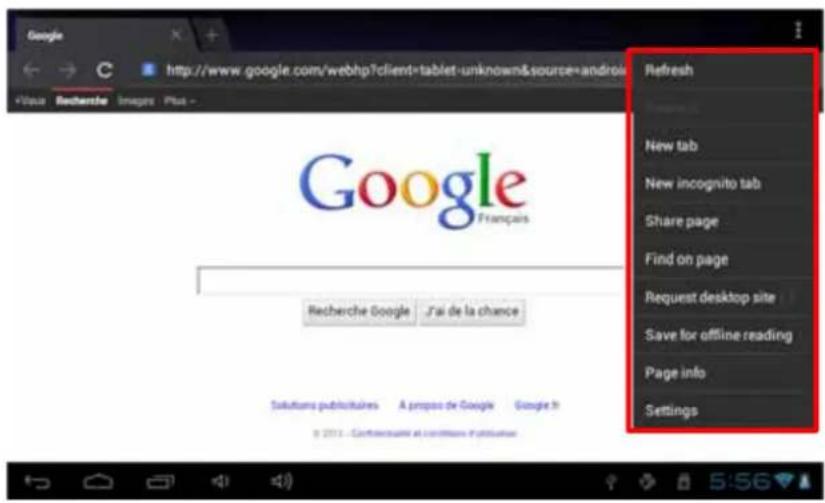
text_image
Google
View Recherche Images Plus -
http://www.google.com/webhp?client=tablet-unknown&source=android
Refresh
New tab
New incognito tab
Share page
Find on page
Request desktop site
Save for offline reading
Page info
Settings
Google
Français
Recherche Google J'ai de la chance
Solutions publiétaires A propos de Google Google in
© 2014 - Combaicaux et comitiques d'investition
INSTALL AN APPLICATION
On the applications page, tap on the icon to access the file manager interface. The manager files interface is shown below:
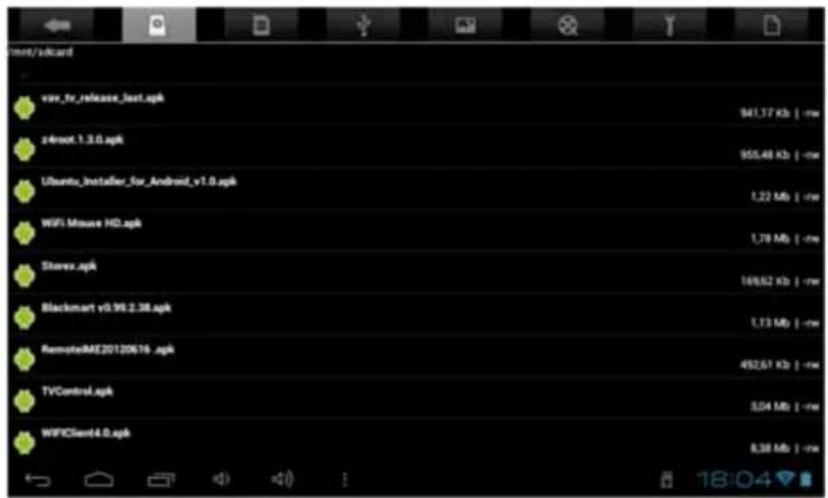
text_image
vare_tr_release_last.apk
s4root.1.3.0.apk
Ubuntu_installer_for_Android_v1.0.apk
WiFi Mouse HD.apk
Stevz.apk
Blackmart v0.96.2.38.apk
RemoteME20120616 .apk
TVControl.apk
WFClient4.0.apk
Select your .apk (installation file) file by pressing on it. The window below should appear.
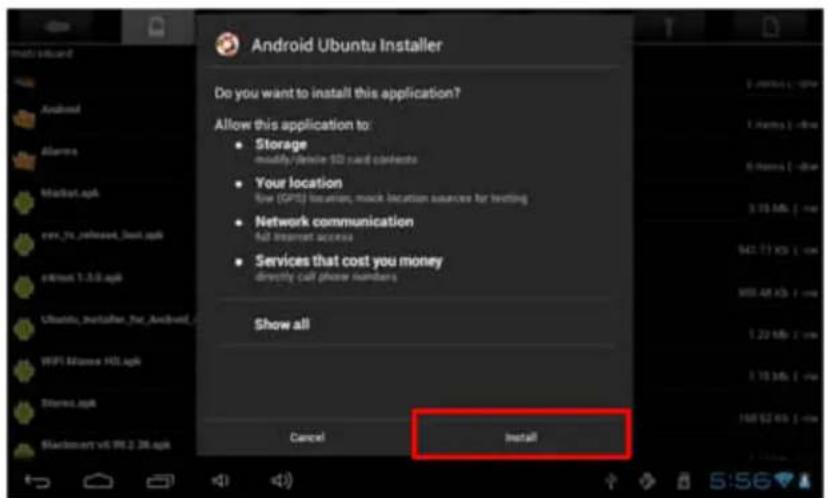
text_image
Android Ubuntu Installer
Do you want to install this application?
Allow this application to:
• Storage
modify/delike SD card contents
• Your location
fire (GPS) locations, music location sources for listening
• Network communication
full internet access
• Services that cost you money
directly call phone numbers
Show all
Cancel Install
Press "Install" to install the application on your device. Press "OK" to complete the installation or "Open" if you want to launch it.
NOTE: Some applications may not compatible with the version of the operating system.
If the installation of the application is refused, go to "Settings" → "Security" and then select "Unknown Sources".
SETTINGS
On the home page, press to enter the system settings. You can then adjust the settings below:
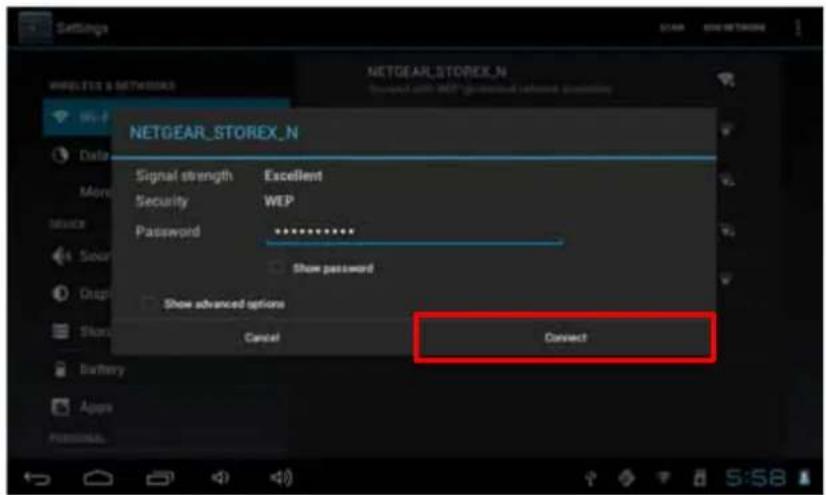
To set up the wireless connection press the "Wi-Fi" option to activate.
Select your Wireless network name (SSID) by pressing on it.
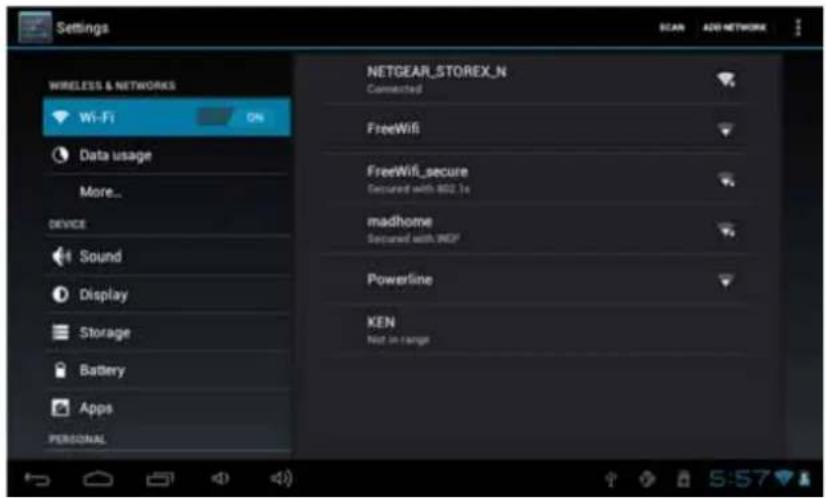
text_image
Settings
WIRELESS & NETWORKS
Wi-Fi
ON
Data usage
More...
DEVICE
Sound
Display
Storage
Battery
Apps
PERSONAL
NETGEAR_STOREX_N
Connected
FreeWifi
FreeWifi_secure
Secured with 802.1s
madhome
Secured with INDF
Powerline
KEN
Not in range
Select the security mode of your network, and then enter the security key. Once the data is entered press "Connect".
text_image
NETGEAR_STOREX_N
Signal strength Excellent
Security WEP
Password statistically**
Show password
Show advanced options
Cancel Cancel
Other options are available in the settings page:
- Sound: To set the volume of notifications and applications.
- Display: Allows you to adjust the brightness of the screen and the rotation of it.
- Storage: To check the status of the internal memory storage, USB or SD card.
- Applications: To manage your applications (uninstall, move, or delete data).
- ...
GUARANTEE CONDITIONS
STOREX's available guarantee is valid for 1 year for tablet and 3 months long for its accessories (remote control, AV cables, power supply ...).
STOREX guarantees your products against any manufacturing or assembling faults. This guarantee only applies to the first purchase of the tablet by the end user and is not transferable if the device is resold. This warranty does not cover any incompatibilities found by end user apart from recommendations specified on the packaging, or any other incompatibility generated by other hardware or software on the computer that is connected to the tablet.
Proof of purchase must be presented to our services to apply STOREX guarantee.
The guarantee doesn't cover failures or defects induced by non-compliance to this manual's instructions, neglect, alteration, improper installation or maintenance, reparation or alteration not authorized by STOREX, improper tests, accident or external factor such as (not exhaustive) excessive heat or dampness, power failures or bad installation / uninstalling of tablet.
The only contractual obligation endorsed by STOREX pertains to the reparation or replacement of a defective product. In no case, STOREX cannot be held responsible for any loss of data, or its consequences induced by operational fault or a product failure. In any case, STOREX won't be bound to any financial responsibility for any amount exceeding the value of the product purchased by the end user.
This guarantee is well defined and cannot be modified, decreased or increased without written consent from STOREX. In addition, STOREX cannot be held responsible for any technical advice or service provided in relation to tablet.
For any request not covered by this guarantee, please contact STOREX support or log on to www.e-storex.com to order accessories.
You are not the grantee of this current warranty. This warranty covers only your tablet and is governed by French law.
Note:
STOREX ^™ reserves the right to modify the user manual without prior notice according to the product's evolutions. You can find the latest version of the manual on our website: http://www.storex.eu
STOREX WEBSITE
Go to http://www.storex.eu.
Select "Multimedia Tablet" and then select tablet. You will be able to download the latest full version of the manual and software updates.
WARRANTY REGISTRATION
In order to facilitate the management of your issue, should you contact our support team, we invite you to register your tablet guarantee on our website at the following address:
http://garantie.storex.eu
For repairing, contact your dealer to repair your tablet under guarantee, or send your request via email to the following address:
support@storex.eu
or by phone at:
France: 01 55 85 82 00 (local call charge to Paris)
Spain: 902 110 572 (soporte.es@storex.eu)
Portugal: 308 800 836 (apoio.pt@support.eu)
England: (support.uk@storex.eu)
Monday to Thursday from 9:30 to 19:30.
Friday from 9:30 to 18:30.
TABLA DE CONTENIDOS
natural_image
Illustration of a laptop connected to a tablet via USB cable (no text or symbols)
natural_image
Illustration of a black monitor with a blue button and a curved arrow pointing downward (no text or symbols)
text_image
8:38
Thursday, October 20
Charging, 50%
Android
text_image
Google
1
New York
Sunny
Humidity 65%, Winds WNW 8 MPH
40 °F
2012 Wed Jan 25
Email 0mails
3 4 5
Email Music Games Note Apps Facebook Currents
Settings Browser Search Market
14:42
natural_image
Futuristic cityscape with a giant bird flying over skyscrapers, no visible text or symbols
natural_image
Close-up of a vibrant, serpentine snake with detailed scales and eye (no text or symbols visible)
natural_image
Row of 15 diverse images including a person, car, and abstract shapes (no text or symbols)
text_image
msv/sdcard
android
6 items | drive
Video
0 items | drive
Screensheets
0 items | drive
Ringtones
0 items | drive
Recordings
0 items | drive
Podcasts
0 items | drive
Pictures
0 items | drive
Notifications
0 items | drive
Music
0 items | drive

text_image
1
2
3
4
5
6
7
8
text_image
Folder operations
Delete Folder
Rename Folder
Copy Folder
Move(Cut) Folder
Zip Folder
NAVEGAR POR INTERNET
natural_image
Illustration of a laptop connected to a tablet via USB cable (no text or symbols)
natural_image
Illustration of a black monitor with a blue dot and a curved arrow pointing downward, symbolizing download or transfer (no text or symbols present)
Traseira TV
text_image
VIDEO
L AUDIO R
HDMI
Y
Pb
Pr
text_image
8:38
Thursday, October 20
Charging, 50%
Android
text_image
Google
1
New York
Sunny
Humidity 65%, Winds WhW 8 MPa
40 °F
2012 Wed Jan 25
Emails
Sendmarks Music Games Note Apps Facebook Currents
Email Cameras Settings Browser Search Market
3 4 5 6
14:42
natural_image
Digital game scene showing a futuristic, winged character amidst a cityscape with skyscrapers (no visible text or symbols)
- Modo de retoma de leitura (on, off).
- Modo de leitura (repetir tudo, repetir um).
natural_image
Close-up of a metallic ring with two gold-colored buttons on a dark surface (no text or symbols visible)
OUVIR MÚSICA
natural_image
Close-up of a vibrant, colorful snake with detailed scales and eye (no text or symbols visible)
natural_image
Row of 15 diverse images including animals, landscapes, and beauty (no text or symbols visible)
text_image
Folder operations
Delete Folder
Rename Folder
Copy Folder
Move(Cut) Folder
Zip Folder
Properties
Properties
Properties
Properties
5 items - drive
6 items - drive
6 items - drive
6 items - drive
6 items - drive
6 items - drive
6 items - drive
5:55
NAVEGAR NA INTERNET:
natural_image
Illustration of a laptop connected to a tablet via USB cable (no text or symbols)
text_image
Google
21 40
10°C
Haute 14°C
Basse 6°C
Intel
4 April
2012
Bry-sur-Marne
Apparel photo
Camera
Navigator
Sabine
clear R
Play Store
Action Video Plus
Documents To
OS Participated
SocialJogger
Facebook
Parametro
Lumifield
YouTube
Email
StoreHound in
NEW
4 AVR.
VSN 5 AVR.
Sunday Friday
Data & IPv3
Easter
LUN 9 AVR.
Samsung 10 Apr 2012
Easter Monday
natural_image
Illustration of a black monitor with a blue dot and a curved arrow pointing downward (no text or symbols)
text_image
VIDEO
L AUDIO R
HDMI
Y
Pb
Pr
text_image
8:38
Thursday, October 20
Charging, 50%
Android
text_image
Google
1
New York
Sunny
Humidity 65.0%, Winds WNW 8 MPI#
40 °F
2012 Wed Jan 25
Go to info
Emails
3 4 5
Senchmarks Music Games New Apps Facebook Currents
Small Cameras Settings Browser Search Market
6
natural_image
Futuristic cityscape with a futuristic, winged creature amidst skyscrapers and blue lighting (no visible text or symbols)
natural_image
Close-up of a vibrant, serpentine snake with detailed scales and vibrant coloration against a green background (no text or symbols visible)
natural_image
Row of 15 diverse images including animals, cars, and food items (no text or symbols visible)
Venerdì 9:30-18:30 p.m.

natural_image
Abstract black and white graphic symbol resembling a stylized eye or swirl (no text or symbols)
STOREX