6313CCB - TV SYLVANIA - Free user manual and instructions
Find the device manual for free 6313CCB SYLVANIA in PDF.

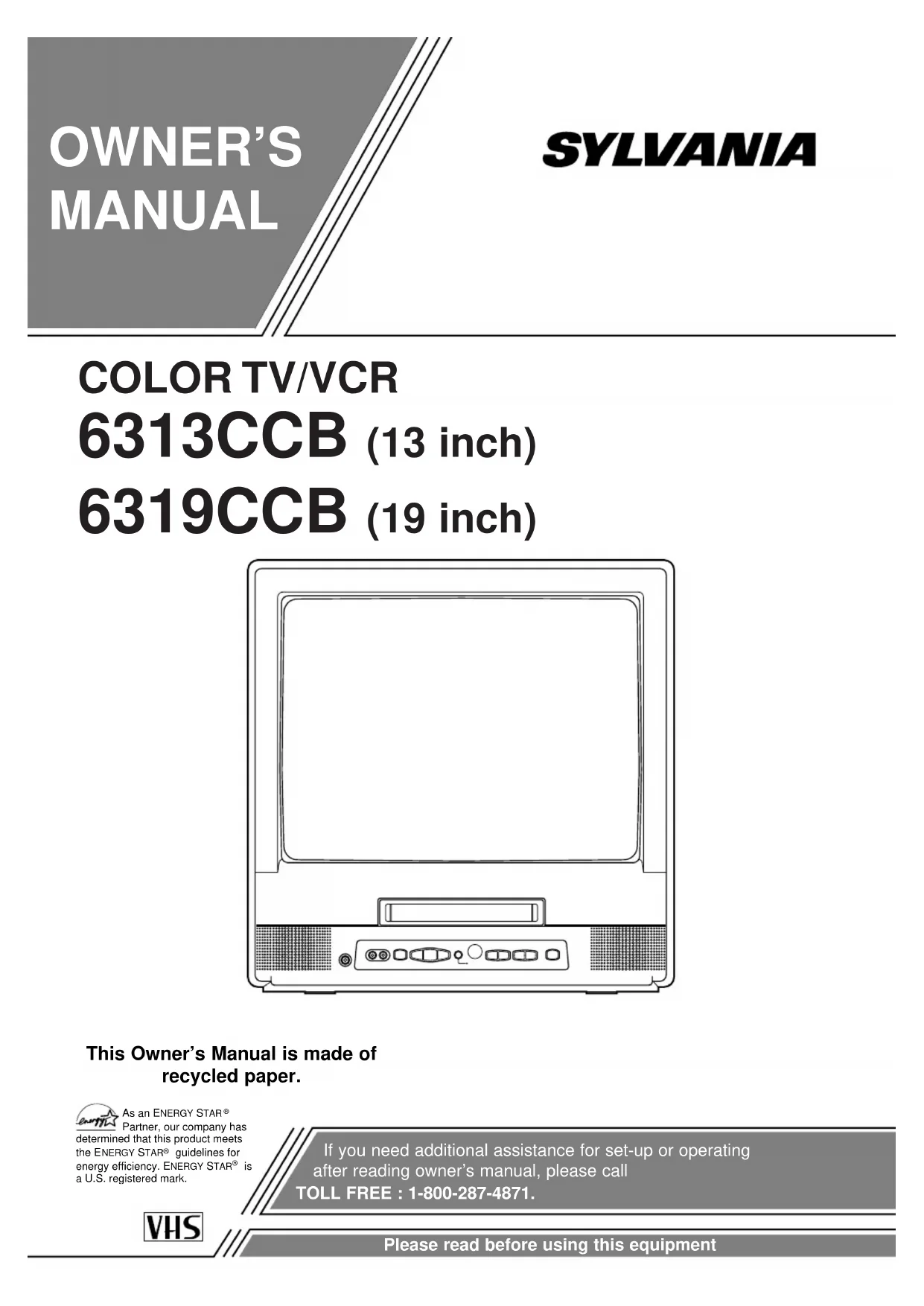

| Product Type | TV/VCR Combo |
| Brand | Sylvania |
| Model | 6313CCB |
| Screen Size | 13 or 19 inches (depending on version) |
| TV System | NTSC |
| Dimensions (13") | 400 x 386 x 377 mm |
| Weight (13") | 11 kg |
| Power Supply | 120 V AC, 60 Hz, 90 W (19" model) |
| Number of Channels | Up to 125 cable channels + VHF/UHF |
| Programming | 8 programs over 1 year, daily/weekly |
| Recording Speeds | SP / SLP (SLP up to 8 h on T160) |
| Special Features | Express Recording (OTR), freeze frame, visual search, auto repeat, rental mode |
| Parental Control | V-Chip with TV and MPAA ratings |
| Closed Captions | Built-in decoder (CC1, CC2, text) |
| Clock | Auto setting via cable or manual |
| Remote Control | Infrared, AA batteries (not included) |
| Inputs | Antenna 75 ohm, Audio/Video (RCA), headphone 3.5 mm |
| Safety | Polarized plug, antenna grounding, auto shutoff on overheating |
| Maintenance | Automatic head cleaning on cassette insertion/ejection |
| Warranty | 1 year parts and labor, picture tube 3 years, video heads 6 months |
Frequently Asked Questions - 6313CCB SYLVANIA
User questions about 6313CCB SYLVANIA
0 question about this device. Answer the ones you know or ask your own.
Ask a new question about this device
Download the instructions for your TV in PDF format for free! Find your manual 6313CCB - SYLVANIA and take your electronic device back in hand. On this page are published all the documents necessary for the use of your device. 6313CCB by SYLVANIA.
USER MANUAL 6313CCB SYLVANIA
This Owner's Manual is made of recycled paper.

As an ENERGY STAR
Partner, our company has
determined that this product meets the ENERGY STAR guidelines for energy efficiency. ENERGY STAR in a U.S. registered mark.
If you need additional assistance for set-up or operating after reading owner's manual, please call
TOLL FREE: 1-800-287-4871.
WARNING: TO REDUCE THE RISK OF FIRE OR ELECTRIC SHOCK, DO NOT EXPOSE THIS APPLIANCE TO RAIN OR MOISTURE.

CAUTION
RISK OF ELECTRIC SHOCK DO NOT OPEN

CAUTION: TO REDUCE THE RISK OF ELECTRIC SHOCK, DO NOT REMOVE COVER (OR BACK). NO USER SERVICEABLE PARTS INSIDE. REFER SERVICING TO QUALIFIED SERVICE PERSONNEL.

THIS SYMBOL INDICATES THAT DANGEROUS VOLTAGE CONSTITUTING A RISK OF ELECTRIC SHOCK IS PRESENT WITHIN THIS UNIT.

THIS SYMBOL INDICATES THAT THERE ARE IMPORTANT OPERATING AND MAINTENANCE INSTRUCTIONS IN THE LITERATURE ACCOMPANYING THE APPLIANCE.
The caution marking is located on the rear of the cabinet.
IMPORTANT SAFEGUARDS
1.Read instructions-All the safety and operating instructions should be read before the appliance is operated.
2.Retain Instructions-The safety and operating instructions should be retained for future reference.
3.HeedWarnings-All warnings on the appliance and in the operating instructions should be adhered to.
4. Follow Instructions-All operating and use instructions should be followed.
5.Cleaning-Unplug TV/VCR from the wall outlet before cleaning. Do not use liquid cleaners or aerosol cleaners. Use a damp cloth for cleaning.
EXCEPTION: A product that is meant for uninterrupted service and, that for some specific reason, such as the possibility of the loss of an authorization code for a CATV converter, is not intended to be unplugged by the user for cleaning or any other purpose, may exclude the reference to unplugging the appliance in the cleaning description otherwise required in item 5.
- Attachments-Do not use attachments not recommended by the TV/VCR manufacturer as they may cause hazards.
7.Water and Moisture-Do not use this TV/VCR near waterfor example, near a bath tub, wash bowl, kitchen sink, or laundry tub, in a wet basement, or near a swimming pool, and the like. - Accessories-Do not place this TV/VCR on an unstable cart, stand, tripod, bracket, or table. The TV/VCR may fall, causing serious injury to someone, and serious damage to the appliance. Use only with a cart, stand, tripod, bracket, or table recommended by the manufac
turer, or sold with the TV/VCR. Any mounting of the appliance should follow the manufacturer's instructions and should use a mounting accessory recommended by the manufacturer. An appliance and cart combination should be moved with care.
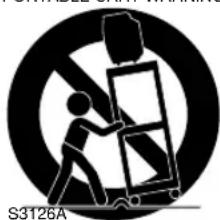
PORTABLE CART WARNING
Quick stops, excessive force, and uneven surfaces may cause the appliance and cart combination to overturn.
- Ventilation-Slots and openings in the cabinet and the back or bottom are provided for ventilation and to ensure reliable operation of the TV/VCR and to protect it from overheating, and these openings must not be blocked or covered. The openings should never be blocked by placing the TV/VCR on a bed, sofa, rug, or other similar surface. This TV/VCR should never be placed near or over a radiator or heat register. This TV/VCR should not be placed in a built-in installation such as a bookcase or rack unless proper ventilation is provided or the manufacturer's instructions have been adhered to.
10.Power Sources-This TV/VCR should be operated only from the type of power source indicated on the marking label. If you are not sure of the type of power supply to your home, consult your appliance dealer or local power company. For TV/VCRs intended to operate from battery power, or other sources, refer to the operating instructions. - Grounding or Polarization-This TV/VCR is equipped with a polarized alternating-current line plug(a plug having one blade wider than the other). This plug will fit into the power outlet only one way. This is a safety feature. If you are unable to insert the plug fully into the outlet, try reversing the plug. If the plug should still fail to fit, contact your electrician to replace your obsolete outlet. Do not defeat the safety purpose of the polarized plug.
12.Power-Cord Protection-Power-supply cords should be routed so that they are not likely to be walked on or pinched by items placed upon or against them, paying particular attention to cords at plugs, convenience receptacles, and the point where they exit from the appliance.
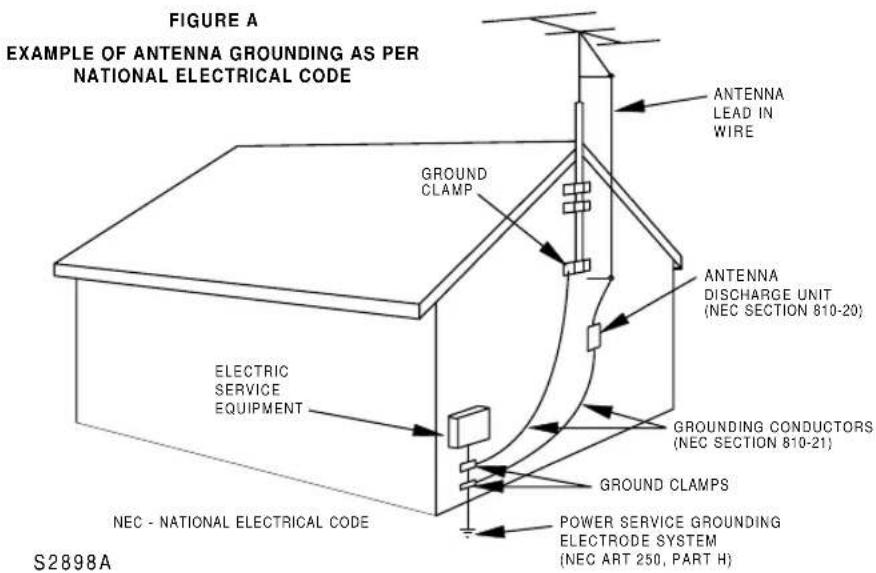
- Outdoor Antenna grounding-If an outside antenna or cable system is connected to the TV/VCR, be sure the antenna or cable system is grounded so as to provide some protection against voltage surges and built-up static charges. Article 810 of the National Electrical Code, ANSI/NFPA No. 70, provides information with respect to proper grounding of the mast and supporting structure, grounding of the lead-in wire to an antenna discharge unit, size of grounding conductors, location of antenna-discharge unit, connection to grounding electrodes, and requirements for the grounding electrode. (Fig. A)
14.Lightning-For added protection for this TV/VCR receiver during a lightning storm, or when it is left unattended and unused for long periods of time, unplug it from the wall outlet and disconnect the antenna or cable system. This will prevent damage to the TV/VCR due to lightning and power-line surges.
15.Power Lines-An outside antenna system should not be located in the vicinity of overhead power lines or other electric light or power circuits, or where it can fall into such power lines or circuits. When installing an outside antenna system, extreme care should be taken to keep from touching such power lines or circuits as contact with them might be fatal.
16.Overloading-Do not overload wall outlets and extension cords as this can result in a risk of fire or electric shock.
17.Object and Liquid Entry-Never push objects of any kind into this TV/VCR through openings as they may touch dangerous voltage points or short out parts that could result in a fire or electric shock. Never spill liquid of any kind on the TV/VCR.
- Servicing-Do not attempt to service this TV/VCR yourself as opening or removing covers may expose you to dangerous voltage or other hazards. Refer all servicing to qualified service personnel.
19.Damage Requiring Service-Unplug this TV/VCR from the wall outlet and refer servicing to qualified service personnel under the following conditions:
a. When the power-supply cord or plug is damaged or frayed.
b. If liquid has been spilled, or objects have fallen into the TV/VCR.
c. If the TV/VCR has been exposed to rain or water.
d. If the TV/VCR does not operate normally by following the operating instructions. Adjust only those controls that are covered by the operating instructions, as improper adjustment of other controls may result in damage and will often require extensive work by a qualified technician to restore the TV/VCR to its normal operation.
e. If the TV/VCR has been dropped or damaged in any way.
f. When the TV/VCR exhibits a distinct change in performance this indicates a need for service.
- Replacement Parts-When replacement parts are required, be sure the service technician has used replacement parts specified by the manufacturer that have the same characteristics as the original part. Unauthorized substitutions may result in fire, electric shock, injury to persons or other hazards.
21.Safety Check-Upon completion of any service or repairs to this TV/VCR, ask the service technician to perform routine safety checks to determine that the TV/VCR is in proper operating condition.
- Heat-This TV/VCR product should be situated away from heat sources such as radiators, heat registers, stoves, or other products (including amplifiers) that produce heat.
LOCATION
For safe operation and satisfactory performance of your TV/VCR, keep the following in mind when selecting a place for its installation:
- Shield it from direct sunlight and keep it away from sources of intense heat.
- Avoid dusty or humid places.
- Avoid places with insufficient ventilation for proper heat dissipation. Do not block the ventilation holes at the top and bottom of the unit. Do not place the unit on a carpet because this will block the ventilation holes.
- Install unit in a horizontal position.
- Avoid locations subject to strong vibration.
- Do not place the TV/VCR near strong magnetic fields.
- Avoid moving TV/VCR to locations where temperature differences are extreme.
AVOID THE HAZARDS OF ELECTRICAL SHOCK AND FIRE
- Do not handle the power cord with wet hands.
- Do not pull on the power cord when disconnecting it from an AC wall outlet. Grasp it by the plug.
- If, by accident, water is spilled on your unit, unplug the power cord immediately and take the unit to our Authorized Service Center for servicing.
- Do not put your fingers or objects into the TV/VCR cassette holder.
- Do not place anything directly on top of the unit.
WARNING
Moisture condensation may occur inside the unit when it is moved from a cold place to a warm place, or after heating a cold room or under conditions of high humidity. If a tape is played in a TV/VCR which has moisture, it may damage the tape and TV/VCR. Therefore when the condensation occurs inside the unit, turn the POWER button on and allow at least 2 hours for the unit to dry out.
CAUTION:TO PREVENT ELECTRIC SHOCK, MATCH WIDE BLADE OF PLUG TO WIDE SLOT, FULLY INSERT.
IMPORTANT COPYRIGHT INFORMATION
Unauthorized recording or use of broadcast television programming, video tape, film or other copyrighted material may violate applicable copyright laws. We assume no responsibility for the unauthorized duplication, use, or other acts which infringe upon the rights of copyright owners.
The serial number of this product may be found on the back of the unit. No other TV/VCR has the same serial number as yours. You should record the number and other vital information here and retain this book as a permanent record of your purchase to aid identification in case of theft. Serial numbers are not kept on file.
| Date of Purchase | |
| Dealer Purchase from | |
| Dealer Address | |
| Dealer Phone No. | |
| Model No. | |
| Serial No. |
TABLE OF CONTENTS
IMPORTANT SAFEGUARDS 2
PRECAUTIONS 4
LOCATION 4
AVOID THE HAZARDS OF ELECTRICAL SHOCK AND FIRE. 4
WARNING 4
FEATURES. 6
SUPPLIED ACCESSORIES 6
VIDEO CASSETTE 7
OPERATING CONTROLS AND FUNCTIONS 8
PREPARATION FOR USE 10
ANTENNA/CABLE CONNECTIONS . . . . . . 10
INSTALLING THE BATTERIES 11
EXTERNAL INPUT MODE 11
SETUPFORUSE 12
CHANNEL SET UP FOR THE FIRST TIME .12
DELETING (OR ADDING) CHANNEL .12
CHANNEL SET UP AGAIN 13
SELECTING THE LANGUAGE 13
DAYLIGHT-SAVING TIME 13
CLOCK SET UP (AUTO/MANUAL) 14
ON SCREEN DISPLAY 16
WATCHING A TV PROGRAM 17
GAME MODE 17
PICTURE CONTROL 17
CLOSED CAPTION SYSTEM 18
V-CHIP SET UP. 19
■PLAYBACK 21
NORMAL PLAYBACK. 21
TRACKING ADJUSTMENT. 21
PICTURE SEARCH 21
STILL PICTURE 21
NOISE CANCEL (in the Still mode) 21
VERTICAL HOLD CONTROL 21
OTR (One Touch Recording) 25
COPYING A VIDEO CASSETTE (Requires a VCR or camcorder) 25
■ TIMER 26
■TROUBLESHOOTING GUIDE 30
■ SPECIFICATIONS 31
■CABLE CHANNEL DESIGNATIONS . . . .31
■WARRANTY 32
A NOTE ABOUT RECYCLING
This product's packaging materials are recyclable and can be reused. Please dispose of any materials in accordance with your local recycling regulations.
Batteries should never be thrown away or incinerated but disposed of in accordance with your local regulations concerning chemical wastes.
Infrared remote control
- Bilingual on screen menu display selectable in English or French
Real time counter-This shows the elapsed recording or playback time in hours, minutes, and seconds. The - indication will appear when the tape is rewound further than the tape counter position 0:00:00
181 channel capability PLL frequency synthesizer tuner with direct station call-A converter may be necessary to view scrambled cable channels.)
- Auto Clock Setting-Allows you to set the clock function from a PBS broadcast station.
- Closed caption system-You may view specially labeled (cc) TV programs, movies, news, prerecorded tapes, etc. with either a dialogue caption or text display added to the program.
- Game mode—Automatically sets external input mode and allows TV/VCR display to be suitable for use with TV games.
- Auto power on and off system—Automatically turns on the TV/VCR when you insert the cassette, turns off after auto-rewind, and ejects when the beginning of the tape is reached.
- Auto rewind when the end of a tape is reached—This function doesn't occur when using timer recording.
- 2 Step picture search operation-You can view a video program at a high speed or super high speed in either a forward or reverse direction in LP and SLP mode. For SP mode only high speed.
- Three different playback tape speeds: SP/LP/SLP
- Two different recording tape speeds: SP/SLP
- Auto Head Cleaner-Automatically cleans video heads as you insert or remove a cassette.
Zero Return- The tape returns to counter of 0:00:00 by rewinding or fast forwarding.
- Still—"Freeze" the picture at any time, for close viewing of a particular scene. Only tapes recorded in SLP mode will show a fairly clear picture.
- Digital Auto Tracking (DTR)-Automatically adjusts the tracking for each tape you play.
- Rental play mode—Improves playback picture quality from worn tapes, such as rental tapes.
- Auto repeat- Allows you to repeat the playing of a tape indefinitely without pressing the PLAY button.
- Time search-Let you set the TV/VCR to advance the tape by entering the desired playback time you want to skip.
- OTR (One Touch Recording)-Instant timed recording from 30 to 480 minutes is possible at the push of the REC/OTR button.
- 1 Year, 8 events (including Daily and Weekly Timer Recording)—The built-in timer allows you to record up to 8 programs at different times on different channels up to 1 year in advance. The Daily timer allows recordings to be made of daily broadcasts, and the Weekly timer allows recording to be made once a week up to the end of the tape.
- Auto return-After timer recording is finished, the TV/VCR can return to the beginning of the recording.
- Wake up/Sleep timer-Allows you to have the TV/VCR automatically turn on or off at a desired time.
- Timer Program Extension-Allow you to shift the time schedule for automatic timer recording.
V-CHIP-Enables parents to prevent their children from watching inappropriate material on TV.
AA Batteries Rod Antenna OEMN01755 or 0EMN01599)
(13 inch model only) PART NO. (0EMN00673 or
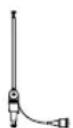
- If you need to replace these accessories, please refer to the PART NO. under the illustrations and call 1-800-287-4871.
- Depending on your antenna system, you may need different types of Combiners (Mixer) or Separators (Splitter). Contact your local electronics store for these items.
- We do not recommend the use of universal remote controls. Not all of the functions may be controlled with a universal remote control. If you decide to use a universal remote control with this unit, please be aware that the code number given may not operate this unit. In this case, please call the manufacturer of the universal remote control.
This TV/VCR will operate with any cassette that has the k. For best results, we recommend the use of high-quality tapes. Do not use poor quality or damaged tapes.
PRECAUTIONS
- Avoid moisture. Moisture condensation may occur on the tape if it is moved from a cold place to a warm place or visa versa. Before using a tape with these conditions, to avoid damage of the tape and your TV/VCR, wait until the tape has warmed to room temperature and the moisture has evaporated.
- Avoid extreme heat, high humidity and magnetic fields.
- Do not tamper with the cassette mechanism.
- Do not touch the tape with your fingers.
TWO DIFFERENT TAPE SPEEDS
Before recording, select the tape speed from: SP mode (Standard Play) or SLP mode (Super Long Play).
The table below shows the maximum recording/playback time using T60, T120 or T160 tapes in each mode.
| Tape Speed | Recording/Playback Time | |||
| Type of tape | T60 T1 | 20 T160 | ||
| SP mode 1 hour | 2 hours 2- | 2/3 hours | ||
| SLP mode 3 hours | ours 6 hours | 8 hours | ||
Note: You can play back a tape recorded in LP mode (Long Play).
INSERTING A CASSETTE
Insert the cassette in the direction as shown. Push in gently, but continuously, on the center-back of the cassette until it is drawn into the TV/VCR. The TV/VCR will automatically turn on.
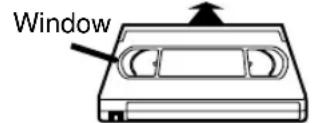
CORRECT
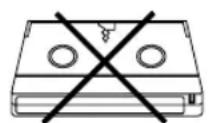
WRONG
REMOVING A CASSETTE
1) In the Stop mode, press the EJECT button on the remote control or press the STOP/EJECT button on the TV/VCR. The cassette will eject.
2)Pull the cassette out of the cassette compartment.
3)Store the cassette in its case as shown.
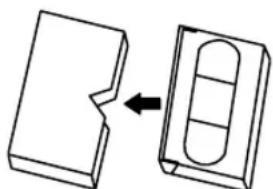
ERASE PREVENTION
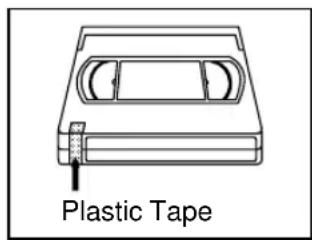
You can prevent accidental erasing of recording by breaking off the tab on the back edge of the cassette.
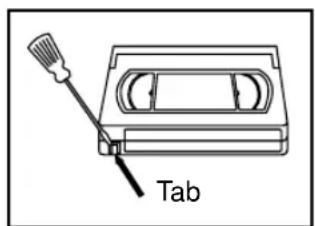
If you decide to record on the tape again, cover the hole with plastic tape.
OPERATING CONTROLS AND FUNCTIONS
This manual covers 13" and 19". The operation of the two models are exactly the same except the appearance. 19" model is illustrated in this manual.
NOTE:
- We do not recommend the use of universal remote controls. Not all of the functions may be controlled with a universal remote control.
If you decide to use a universal remote control with this unit, please be aware that the code number given may not operate this unit. In this case, please call the manufacturer of the universal remote control.
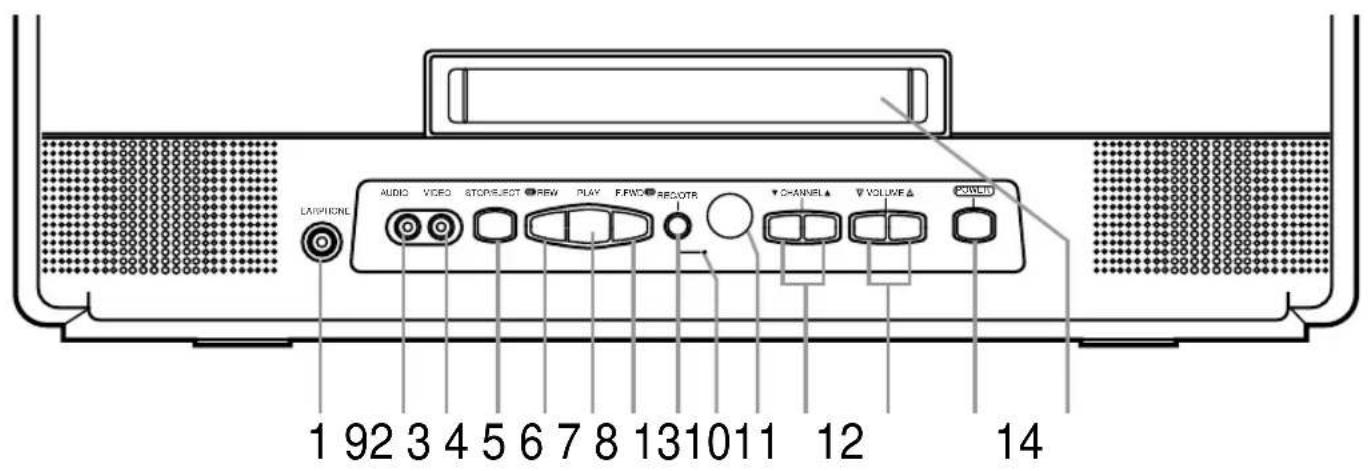
- TV/VCR FRONT PANEL -
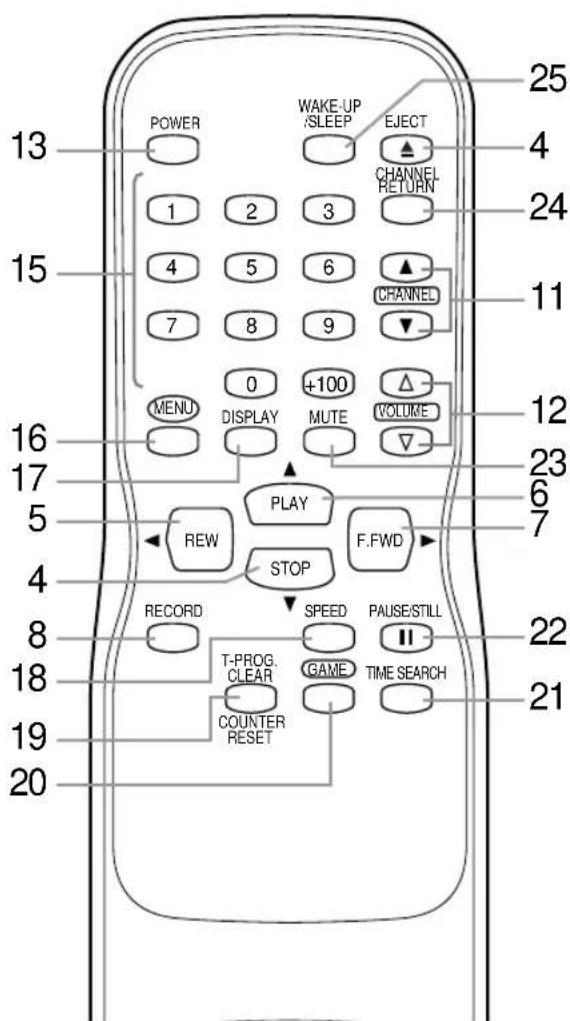
- REMOTE CONTROL -
1 EARPHONE jack- Connects to earphones (not supplied) for personal listening. The size of jack is 1/8 monaural (3.5mm) .
2 AUDIO input jack- Connect to the audio output jack of your audio equipment, video camera or another VCR.
3VIDEO input jack- Connect to the video output jack of your video camera or another VCR.
4 STOP button- Press to stop the tape motion. EJECT button- Press in the Stop mode to remove tape from TV/ VCR.
▼button-
- Press to select setting modes from the on screen menu.
- Press to enter digits when setting program. (for example: setting clock or timer program)
5 REW button- Press to rewind the tape, or to view the picture rapidly in reverse during playback mode. (Rewind Search)
按钮-
- Press to select a mode from a particular menu. (for example: LANGUAGE or USER'S SET UP)
6 PLAY button- Press to begin playback.
▲button-
- Press to select setting modes from the on screen menu.
- Press to enter digits when setting program. (for example: setting clock or timer program)
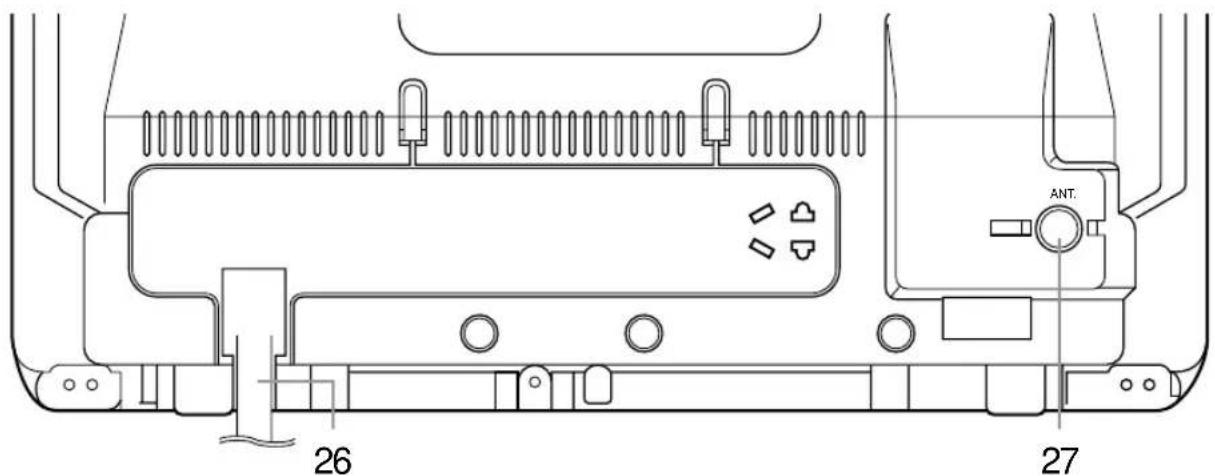
- REAR VIEW -
7 F.FWD button- Press to rapidly advance the tape, or to view the picture rapidly in forward during playback mode. (Forward Search)
▶button-
- When setting program (for example: setting clock or timer program), press to determine your selection and proceed to the next step you want to input.
- Press to determine setting modes from on screen menu.
- Press to select a mode from a particular menu. (for example: LANGUAGE or USER'S SET UP)
8 REC button- Press for manual recording. OTR button- Activates One Touch Recording. (only on the TV/VCR)
9 RECORD indicator- Flashes during recording. Lights up in the Stand-by mode for Timer Recording.
10 Remote Sensor Window- Receives the infrared signals from the remote control.
11 CHANNEL / buttons- Press to select the desired channels for viewing or recording. You may display the main menu on the TV screen by pressing repeatedly this button on the TV/VCR.
TRACKING function- Press to minimize video 'noise' (lines or dots on screen) during playback mode. (See page 21.)
12 VOLUME (\triangle \triangle \triangle \triangle \triangle \triangle \triangle \triangle \triangle \triangle \triangle \triangle \triangle \triangle \triangle \triangle \triangle \triangle \triangle \triangle \triangle \triangle \triangle \triangle \triangle \triangle \triangle \triangle \triangle \triangle \triangle \triangle \triangle \triangle \triangle \triangle \triangle \triangle \triangle \triangle \triangle \triangle \triangle \triangle \triangle \triangle \triangle \triangle \triangle \triangle \triangle
13 POWER button- Press to turn TV/VCR on and off. Press to activate timer recording.
14 Cassette compartment
15 Number buttons- Press to select desired channels for viewing or recording. To select channels from 1 to 9, first press the 0 button and then 1 to 9.
+100 button- When selecting cable channels which are higher than 99, press this button first, then press the last two digits. (To select channel 125, first press the "+" button then press "2" and "5").
16 MENU button- Press to display the main menu on the TV screen.
17 DISPLAY button- Display the counter or the current channel number and current time on the TV screen. (See page 16.)
18 SPEED button- Press to choose the desired recording speed:SP/SLP.
19 T-PROG. CLEAR button- Press to cancel a setting of timer program. (See page 27.) COUNTER RESET button- Press to reset counter to 0:00:00.
20 GAME button- Sets the game mode and external input mode at the same time. (See page 17.)
21 TIME SEARCH button- Press to activate Time Search mode.
22 PAUSE/STILL button- Press to temporarily stop the tape during the recording or to view a still picture during playback.
23 MUTE button- Mutes the sound. Press it again to resume sound.
24 CHANNEL RETURN button- Press to go back to the previously viewed channel. For example, pressing this button once will change channel display from 3 (present channel) to 10 (previously viewed channel), and pressing it a second time will return from 10 to 3.
25 WAKE-UP/SLEEP button- Sets the Wake up or Sleep Timer. (See page 28 and 29.)
26 Power cord- Connect to a standard AC outlet (120V/60Hz).
27 ANT. terminal- Connect to an antenna or cable system.
ANTENNA/CABLE CONNECTIONS
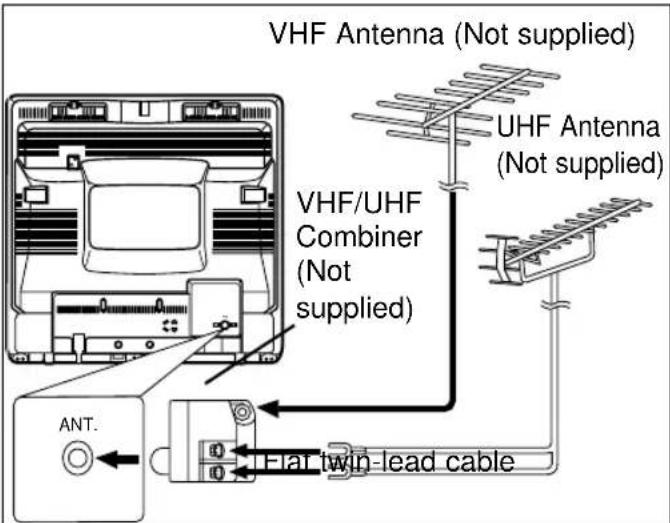
VHF/UHF COMBINED ANTENNA
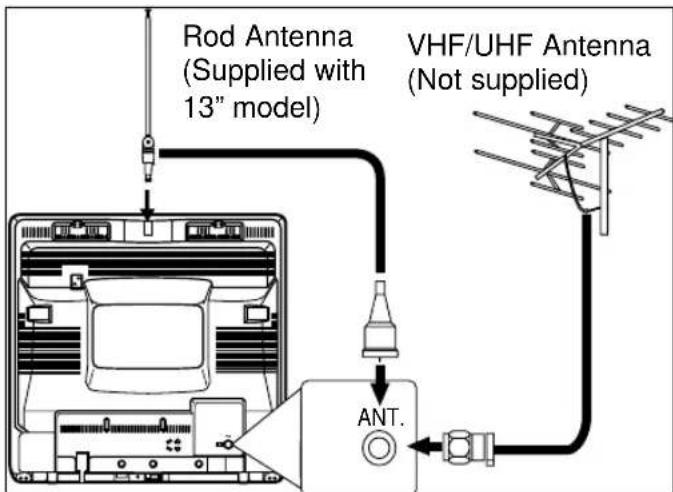
The VHF/UHF Rod Antenna (supplied with 13 inch model only) is detachable. Insert the stem of the antenna into the hole on the upper-back portion of the TV/VCR. Connect the VHF/UHF Rod Antenna or VHF/UHF Combination Antenna to the ANT. Terminal of the TV/VCR as shown in the diagram below.For the best reception, fully extend the VHF/UHF Rod Antenna and make the necessary adjustments. (Avoid touching the top section when adjusting.)
NOTE:
Before plugging the Rod antenna into antenna terminal, check that the pin is not bent. If it is bent, straighten the pin as illustrated, then plug the pin into antenna terminal.
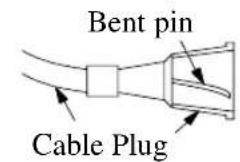
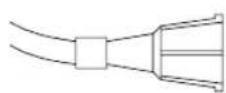
(Needs to be straightened)
(Straight pin)
NOTE:
The connection of an indoor antenna may not always give acceptable TV reception.
VHF/UHF SEPARATE ANTENNAS
In some areas it will be necessary to use an outdoor antenna.
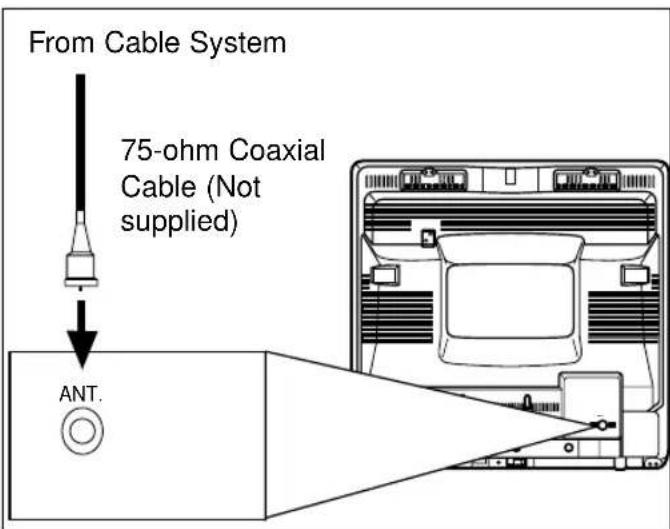
CABLE WITHOUT CONVERTER/DESCRAMBLER BOX
Use this connection if your cable system connects directly to your TV/VCR without a converter box. By using this connection you can:
1) Use the TV/VCR remote to select channels.
2) Program one or more unscrambled channels for Automatic Timer Recording.
NOTE: This unit will ONLY record and view the same channel.
Antenna/Cable Connections Continued on the Next Page.
CABLE WITH CONVERTER/DESCRAMBLER BOX OR SATELLITEBOX
If your cable service supplies you with a converter box or if you use a satellite system, you can use the basic connection shown here.
By using this connection you can also record scrambled channels. However, channel selection must be made with the converter box or satellite box. This means that channels cannot be changed using the TV/VCR Remote Control. Unattended timer recording is limited to one channel at a time.
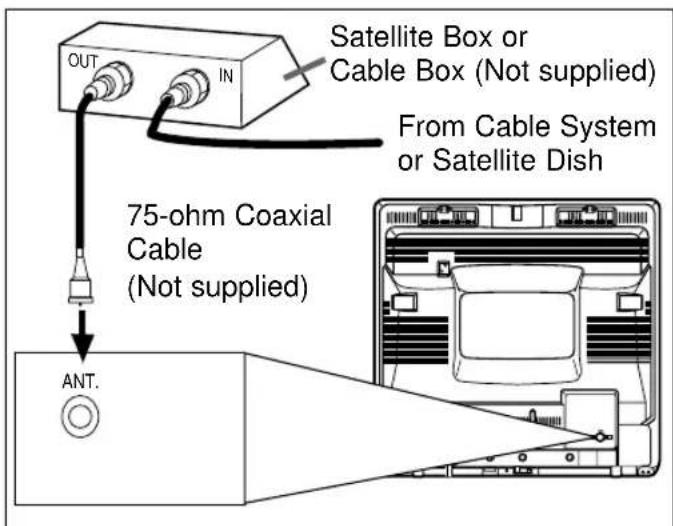
TO RECORD A SCRAMBLED/UNSCRAMBLED CHANNEL
-
Set the TV/VCR channel selector to the output channel of the Cable Converter Box or Satellite Box. (Ex. CH3)
-
Select the channel to record from your Cable Converter Box or Satellite Box.
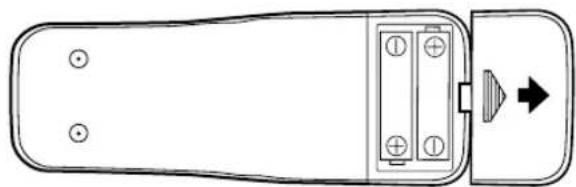
INSTALLING THE BATTERIES
1) Open the battery compartment cover by pressing the cover on the remote unit in the direction of the arrow.
2)Insert 2 "AA" penlight batteries into the battery compartment in the direction indicated by the polarity (+/-) markings.
3)Replace the cover.
EXTERNAL INPUT MODE
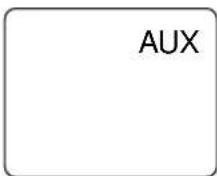
When using an external input signal (another VCR or video camera), connect the player's audio/video output cables to the AUDIO IN/VIDEO IN jacks of your TV/VCR. Then press the CHANNEL or button until "AUX" appears on the screen.
You can program the tuner to scan all the channels you receive in your area.
NOTE: Channel memory programming is NOT needed when connected to a cable box or satellite box. Just select the TV/VCR channel selector to the output channel of the cable box or satellite box (Ex CH3). Then select the channel to be viewed on the Cable Box or Satellite Box.
CHANNEL SET UP FOR THE FIRST TIME
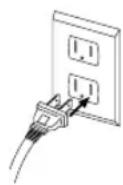
1 Plug in the TV/VCR power cord Plug the TV/VCR power cord into a standard AC outlet.
NOTE:
- If some digits appear in the corner of the screen, press the POWER button without unplugging the power cord.
2 Turn on the TV/VCR
Press the POWER button to turn on the TV/VCR.
3 Select "ENGLISH" or "FRANÇAIS"
Select "ENGLISH" or "FRANÇAIS" = French using the F.FWD/ or REW/ button. "[ ]" indicate the selected language.
-SETUP-
LANGUAGE [ENGLISH] FRANÇAIS AUTO PRESET
4 Begin auto preset
Press the PLAY/ or STOP button to point to "AUTO PRESET". Then press the F.FWD button. The tuner scans and memorizes all active channels in your area.
-SETUP-
LANGUAGE [ENGLISH] FRANÇAIS AUTO PRESET
NOTES:
The TV/VCR distinguishes between standard TV channels and cable channels.
- If you want to play or record a video tape BEFORE presetting the tuner, you must press the MENU button on the remote control. To preset the tuner again, see "CHANNEL SET UP AGAIN" on page 13.
- The TV/VCR may recognize TV channels to be CATV channels by the receiving conditions. In this case, try auto preset again in the fine receiving conditions.
5 After scanning
The tuner stops on the lowest memorized channel. If you want to recall the selected channels, you can select the desired channel directly with the remote control number buttons or CHANNEL or button.
DELETING (OR ADDING) CHANNEL
The channels you no longer receive or seldom watch can be deleted from the memory. (Of course, you can add the deleted channel into the memory again.)
1 Select "CHANNEL SET UP"
Press the MENU button on the remote control.
Press the PLAY/ or STOP button to point to "CHANNEL SET UP".
Then, press the F.FWD/ button.
-MENU-
TIMER PROGRAMMING
PICTURE CONTROL
SETTING CLOCK
CHANNEL SET UP
USER'S SET UP
V-CHIP SET UP
LANGUAGE [ENGLISH]
CAPTION [OFF]
ZERO RETURN
TIME SEARCH
2 Select "ADD/DELETE CH"
Press the PLAY/ or STOP button to point to "ADD/DELETE CH".
Press the F.FWD/ button.
CHANNELSETUP
- ADD / DELETE CH (TV)
AUTO PRESET
3 Enter the desired channel number
Press the PLAY/ or STOP button until your desired channel number appears. (You can also use the number buttons or the CHANNEL / button to enter it.) (Example: CH8)
08
ADD/DELETE
4 Delete (or add) it from (into) memory
Press the F.FWD/ or REW/ button. The channel number changes to light red. The channel is deleted from memory.
- To delete another channel, repeat steps [3] and [4].
- If you press the F.FWD or REW button again, the channel is memorized again.
Added channel: Light blue. Deleted channel: Light red.
5 Exit the channel setup mode
Press the MENU button on the remote control to returns to TV mode.
NOTE: To confirm that channel(s) has been deleted or added, press the CHANNEL or button.
CHANNEL SET UPAGAIN
Make sure ...
- Press the POWER button to turn on the TV/VCR.
1 Select "CHANNEL SET UP"
Press the MENU button on the remote control.
Press the PLAY/ or STOP button to point to "CHANNEL SET UP".
Then, press the F.FWD/ button.
-MENU
TIMER PROGRAMMING
PICTURE CONTROL SETTING:0.00%
CHANNELSETUP
USERSETUP
V-CHIP SET UP
LANGUAGE [ENGLISH]
CPTION OFFT 79005128
TIME SEARCH
2 Begin auto preset
Press the PLAY/▲ or STOP/▼ button to point to "AUTO PRESET".
Then, press the F.FWD/ button.
The tuner scans and memorizes all the active channels in your area.
- CHANNEL SET UP -
ADD:DELETECH(TV)
AUTO PRESET
3 After scanning
The tuner stops on the lowest memorized channel.
SELECTING THE LANGUAGE
Make sure ...
- Press the POWER button to turn on the TV/VCR.
NOTE: This function effects only the language on the screen menu and not the audio source.
1 Select "LANGUAGE"
Press the MENU button on the remote control.
Press the PLAY/ or STOP button to point to "LANGUAGE".
-MENU-
TIMER PROGRAMMING
PICTURE CONTROL
SETTING CLOCK
CHANNEL SETUP
V CHIR SET UB
LANGUAGE [ENGLISH]
CAPTION [OFF]
ZERORETURN
TIME SEARCH
2 Select "ENGLISH" or "FRANÇAIS"
Select "ENGLISH" or "FRANÇAIS" = French using the F.FWD/▶ or REW/< button.
3 Exit the Language mode
Press the MENU button on the remote control to return to TV mode.
NOTE: If for some reason the menu is in French, press the MENU button on the remote control, press the PLAY/▲button to point to "LANGUAGE
[FRANÇAIS]", then press the F.FWD/▶ button, then press the MENU button on the remote control.
Select this feature and the TV/VCR's clock automatically will advance one hour in April, then reverse one hour in October.
When Daylight-Saving Time is ON, the clock will change automatically as follows:
- First Sunday of April: At 2 AM the clock immediately changes to 3 AM. Any timer programming you have set to occur between 2 AM and 3 AM will not record.
- Last Sunday of October: At 2 AM the clock immediately changes to 1 AM.
Make sure ... - Press the POWER button to turn on the TV/VCR.
1 Select "SETTING CLOCK"
Press the MENU button on the remote control.
Press the PLAY/ or STOP button to point to "SETTING CLOCK".
Then, press the F.FWD/ button.
-MENU-
TIMER PROGRAMMING
PICTURE CONTROL
SETTINGCLOCK CHANNELSETUP
CHANNELSEU658665TJUP
V-CHIP SETUP
LANGUAGE [ENGLISH]
CAPTION [OFF]
ZERORETURN
TIME SEARCH
2 Set "D.S.T." (Daylight-Saving Time) to [ON]
Press the PLAY/ or STOP button to point to "D.S.T."
Then, press the F.FWD/ or
REW/ button until [ON] appears.
-SETTING CLOC
AUTO CLOCK[ON]
AUTO CLOCK CH [AUTO]
MANUAL CLOCK SET
D.S.T. [ON]
![SYLVANIA 6313CCB - Set "D.S.T." (Daylight-Saving Time) to [ON] - 1](/content/2026/02/394491/images/978f396f2ccc79342856d051b09644edf974e91fcc7a7cf4710b229d457e7f5d.jpg)
3 Exit the Daylight-Saving Time mode
Press the MENU button on the remote control to return to TV mode.
Repeat steps [1] to [2], select [OFF] using the F.FWD/ or REW/ button. then, press the MENU button on the remote control to return to TV mode.
CLOCK SET UP (AUTO/MANUAL)
Set the clock accurately for proper automatic timer recording. If the Public Broadcasting Station (PBS) is available in your area, follow "AUTO CLOCK SETTING". If it is not, follow "MANUAL CLOCK SETTING".
AUTO CLOCK SETTING
You can have the TV/VCR set the clock automatically by using the Public Broadcasting Station (PBS) channel in your area. Once you have set the clock by using the following procedure, the TV/VCR will automatically monitor the correct time and date being broadcast by the PBS station in your area, using a new service called Extended Data Service (XDS).
Make sure ...
- TV/VCR power must be turned on.
- Confirm that the antenna connections are correct.
The cable converter box must be turned on if your TV/VCR is connected directly to it. (See NOTES:) - The channel is properly set in advance. (See page 13.)
NOTES:
- Auto clock setting only needs to be set once. But it can be done again if the clock's time has become incorrect for some reason.
- If the TV/VCR is connected directly to a cable converter box or satellite box, the local PBS station must be selected on the cable box itself, and the TV/VCR must be set to the output channel of the cable converter box or satellite box (usually channel 3 or 4), to be able to set up or correct the clock automatically.
If you do not know what your local PBS station is, then follow "Manual Clock Settings" on page 15.
The TV/VCR cannot control the channels of the cable converter box or satellite box.
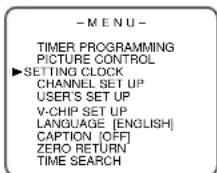
1 Select "SETTING CLOCK"
Press the MENU button on the remote control.
Press the PLAY/ or STOP button to point to "SETTING CLOCK".
Then, press the F.FWD/ button.
2 Set "AUTO CLOCK" to [ON]
Press the F.FWD/ or REW/< button repeatedly until [ON] appears.
- SETTING CLOCK -
AUTO CLOCK[ON]
AUTO CLOCK CH [AUTO]
MANUAL CLOCK SET
D.S.T. [OFF]
3 Enter the channel number for the PBS station
Press the PLAY/ or STOP button to point to "AUTO CLOCK CH".
Then press the F.FWD/or REW/< button until the channel number for your local PBS station appears.
- SETTING CLOCK -
AUTO CLOCK [ON]
AUTO CLOCK CH [AUTO]
MANUAL CLOCK SET
D.S.T. [OFF]
If you do not know the PBS channel number, leave it set to [AUTO] which is located before [2]. The TV/VCR will search automatically all available channels for the local PBS station, and will select that channel.
4 Exit the Auto Clock Setting
Press the MENU button on the remote control to return to TV mode.
5 Turn off the TV/VCR
Turn the TV/VCR off. Because the Auto Clock functions automatically while the TV/VCR is off.
If you choose [AUTO],
- the TV/VCR must search until the PBS channel is found. It must scan each channel for a couple of seconds to determine if that channel is transmitting the XDS signal.
- if the time, that is automatically set by this selected PBS station is incorrect, it may not be your local PBS station, but one from a different time zone. Or there is a case that no channel is broadcasting the XDS signal in your area, as shown by no time. In these cases, you must manually enter the correct local PBS station, or set the clock manually and turn off the Auto Clock Setting feature.
MANUAL CLOCK SETTING
Make sure ...
- TV/VCR power must be turned on.
1 Select "SETTING CLOCK"
Press the MENU button on the remote control.
Press the PLAY/ or STOP button to point to "SETTING CLOCK".
Then, press the F.FWD/ button.
2 Select "MANUAL CLOCK SET"
Press the PLAY/ or STOP button to point to "MANUAL CLOCK SET".
Then, press the F.FWD/ button.
3 Select the month
Press the PLAY/ or STOP button until your desired month appears. (Example: May 05)
Then, press the F.FWD/ button.
4 Select the day
Press the PLAY/ or STOP button until your desired day appears. (Example: 1st → 01)
Then, press the F.FWD/ button.
5 Select the year
Press the PLAY/ or STOP button until your desired year appears. (Example: 2001)
Then, press the F.FWD/ button.
-MENU
TIMER PROGRAMMING
PICTURE CONTROL SETTING CLOCK
CHANNEL SETUP
CREATE TABLE USER'S SET UI
V-CHIP SET UP
LANGUAGE [ENGLISH] CARTON [OPE]
In the example below, the clock is to be set to:
DATE May 1st, 2001
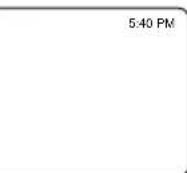
SETTING TIME 5:40PM
6 Select the hour
Press the PLAY/ or STOP button until your desired hour appears.
(Example: 5, PM)
Then, press the F.FWD/ button.
-MANUAL CLOCK SET-
MONTH DAY YEAR
05/01 TUE 2001
HOUR MINUTE
05PM
05
7 Select the minute
Press the PLAY/ or STOP button until the desired minute appears.
(Example: 40)
MANUAL CLOCK SET
MONTH DAY YEAR
05/01 TUE 2001
HOUR MINUTE
0540PM
8 Start the clock
Press the MENU button on the remote control.
Although seconds are not displayed, they begin counting from 00 when you press the MENU button on the
remote control. Use this feature to synchronize the clock with the correct time.
NOTE:
When unplugging the AC cord or if there is a power failure for more than 30 seconds, you may have to reset the clock.
TO CHANGE CLOCK SETTING
If you want to change the clock,
1)Follow steps [1] and [2].
2)Select where you want to change using the F.FWD/ or REW/<button.
3)Enter correct numbers using the PLAY/▲or STOP/▼button.
4)Press the MENU button on the remote control to start the clock.
PLEASE NOTE:
If there is no local PBS station in your area or on your cable system, select "AUTO CLOCK" and press the F.FWD/ or REW/ button to turn [OFF] this function. Then you can manually adjust the clock.
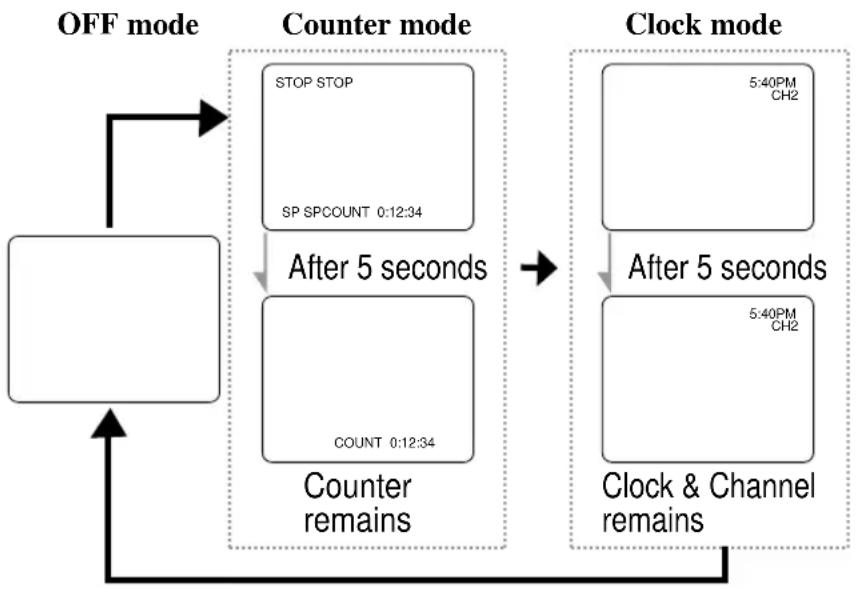
To check the Counter, Clock and Channel number on the TV screen, press the DISPLAY button on the remote control. Each time you press the DISPLAY button on the remote control, the TV screen will change as follows:
When the Closed Caption mode is OFF:
- Counter mode: After 5 seconds, only the counter remains. To clear it, press the DISPLAY button.
- Clock mode: After 5 seconds, only the clock and the channel number remain. To clear them, press the DISPLAY button.
When the Closed Caption mode is ON:
- The On Screen Display disappear after 5 seconds.
- This is true even if the MUTE button is pressed, or the PAUSE/STILL button is pressed while recording.
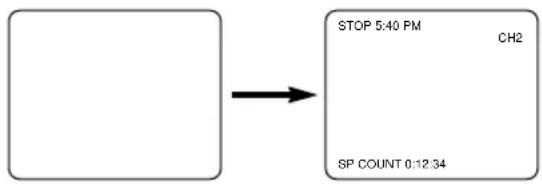
OFF mode Clock/Counter mode
SPECIAL FEATURES
DEGAUSSING
Magnetism from nearby appliances might affect the color of the TV picture.
If this happens, move this unit away from the appliance. If the color is still not correct, disconnect power cord from AC outlet then reconnect it after 30 minutes.
REAL TIME TAPE COUNTER
This shows the elapsed recording or playback time in hours, minutes, and seconds. (The displayed time will not change on a blank tape or blank portions on the tape.) The “-” indication will appear when the tape has rewound further than “0:00:00” on the tape counter.
AUTOREWIND-EJECT
- When the end of a tape is reached during recording, playback, or fast-forward, the tape will automatically rewind to the beginning. After rewinding finishes, the TV/VCR will eject the tape and turn itself to off.
- This function is operative when Repeat Play is set to the [OFF] position.
- The tape will not auto-rewind during timer recording or One Touch Recording.
WATCHING A TV PROGRAM
1 Turn on the TV/VCR
Press the POWER button to turn on the TV/VCR.
2 Select the channel number
Press the CHANNEL or button to select your desired channel number or press the number buttons on the remote control.
Remember: If the TV/VCR is connected to a cable box or satellite box, the TV/VCR must be on CH3 or CH4, then the channel to be viewed must be selected on the cable box or satellite box.
3 Adjust sound
Press the VOLUME or button to adjust the volume.
VOLUME 20
GAME MODE
This function enables you to decrease the TV screen contrast and making it suitable for use with a TV GAME.
NOTE: This function can not be set during recording.
Press the GAME button on the remote control. "GAME" appears on the screen.
GAME
When you press the GAME button;
The TV/VCR comes on automatically if it is off.
The TV/VCR will be in external input mode automatically.
TO CANCEL THE GAME MODE
Press the GAME button or CHANNEL or button on the remote control.
PICTURE CONTROL
The TV/VCR's picture controls - BRIGHT, CONTRAST, COLOR, TINT and SHARPNESS - are preset to factory specifications. Although they are usually the best, you may need to make some further adjustments for a natural looking image.
NOTES:
- Procedures must be followed within 5 seconds or the Picture Control mode will be cancelled.
- When setting the Picture Control, the Game mode will be cancelled.
Make sure ...
- TV/VCR power must be turned on.
1 Select "PICTURE CONTROL"
Press the MENU button on the remote control.
Press the PLAY/ or STOP button to point to "PICTURE CONTROL".
Then, press the F.FWD/ button.
-MENU
TIMER PROGRAMMING
PICTURE CONTROL
SETTING CCLK CHANNEL SETUP
CHANNEL SET OF USER'S SETUP
V-CHIP SET UP
LANGUAGE [ENGLISH]
CAPTION [OFF]
ZERO RETURN TIME SEARCH
2 Select item you want to adjust
Press the PLAY/ or STOP button until desired control is displayed.
BRIGHT
CONTRAST
COLOR
TINT
SHARPNESS
BRIGHT
□□□□□□□□□□□□□□
3 Adjust the picture control
Press the F.FWD/ or REW/< button to adjust to your desired level.
| REW/←F.FWD/→ | ||
| BRIGHT to decrease to increase brightness brightness | ||
| CONTRAST to decrease to increase contrast contrast | ||
| COLOR | to pale | to brilliant |
| TINT | to purple | to green |
| SHARPNESS | to soft | to clear |
- If there is a power failure of any kind, the unit will retain its memory for this feature.
CLOSED CAPTION SYSTEM
You can view specially labeled (cc) TV programs, movies, news, pre-recorded tapes with either a dialogue caption or text display.
CAPTION mode: By choosing the caption mode, you can watch dramas, movies and news while captioning the dialogues and the contents of news.
TEXT mode: By choosing the text mode, you can watch half screen text information if you want.
1-2: You may get these captions or text information by selecting either "1" or "2". Caption "2" is used, usually for a second language if available.
NOTE:
Not all programs are broadcast with closed captions. Your television is designed to provide error free closed captions from high quality antenna, cable and VCR signals. Conversely, poor quality signals are likely to result in caption errors or no captions at all. Common signal conditions which may cause captions errors are listed below:
Automobile ignition noise
Electric motor brush noise
- Weak snowy reception on TV screen
- Multiplex signal reception displaying picture ghosts or airplane flutter.
- Playback of poorly recorded or worn VCR tapes.
NOTE:
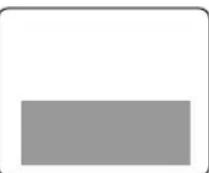
If the TV/VCR displays a black box on the TV screen, this means that the TV/VCR is set to the TEXT mode. To clear screen, select [CAPTION1], [CAPTION2] or [OFF].
Make sure ...
- TV/VCR power must be turned on.
1 Select "CAPTION"
Press the MENU button on the remote control.
Press the PLAY/ or STOP button to point to "CAPTION".
-MENU-
TIMER PROGRAMMING PRACTICE CONTROL
SETTING CCK
CHANNEL SET UP
USER'S SET UP
CHIP SET UP LANGUAGE (ENGLISH)
LANGUAGE [ENGLISH]
CAPTION(OFF)
TIME SEARCH
2 Select your desired caption menu
Press the F.FWD/ or REW/< button until your desired caption menu appears.
([CAPTION1], [CAPTION2], [TEXT1] or [TEXT2])
-MENU
TIMER PROGRAMMING
PICTURE CONTROL
SETTING CCLK
CHANNEL SETUP USER'S SETUP
VCHIPSETUP
LANGUAGE XENGLISH
CATIONCATION1
ZERORETURN
TIME SEARCH
3 Exit the caption setting mode
Press the MENU button on the remote control to return to TV mode.
TO CANCEL THE CLOSED CAPTION SYSTEM
Repeat steps [1] and [2], select [OFF] using the F.FWD or REW button. Press the MENU button on the remote control to return to TV mode.
WHEN THE CLOSED CAPTION MODE IS ON
The On-Screen Display will disappear after 5 seconds.
- This is also true when the MUTE button is pressed, and when the PAUSE/STILL button is pressed while recording.
- If there is a power failure of any kind, the unit will retain its memory for this feature.
V-CHIP SET UP
V-CHIP enables parents to prevent their children from watching inappropriate material on TV.
V-CHIP reads the ratings for programming (except for news and sports programs, unedited movies on premium cable channels, and Emergency Broadcast System signals), then denies access to programming if the program's rating meets the limitations you select. In this case, "PROTECTED PROGRAM by ..." message appears on the TV screen.
To block ratings, follow the steps below.
- Programming may be rated by the Motion Picture Association of America (MPAA) or according to the Television Parental Guidelines. In order to block any inappropriate programming, set your limits in both places (MPAA RATING and TV RATING).
TVRATINGSETUP
Make sure ...
- TV/VCR power must be turned on.
1 Select "V-CHIP SET UP"
Press the MENU button on the remote control.
Press the PLAY/ or STOP/ button to point to "V-CHIP SET UP". Then, press the F.FWD/ button.
-MENU-
TIMER PROGRAMMING
PICTURE CONTROL SETTING DETAILS
SETTING CCK CHANNEL SETUP
CHANNEL SETUP USER'S SET UP
CHIP SET UP
LANGUAGE [ENGLISH]
CAPTION [OFF]
ZERO RETURN
TIME SEARCH
2 Select "TV RATING"
Press the PLAY/ or STOP button to point to "TV RATING".
Then, press the F.FWD/ button.
-V-CHIPSETUP
TV RATING
MPAA RATING
3 Select your desired item
Press the PLAY/ or STOP button to point to your desired item.
Then, press the F.FWD/ button to select [BLOCK] or [VIEW].
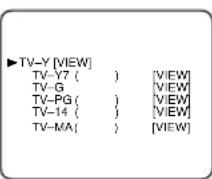
- When you select the rating category and turn it [BLOCK], the higher rating will turn [BLOCK] automatically. Also, the lower rating will turn [VIEW] automatically.
- When you turn "TV-Y" to [VIEW], the all ratings will turn to [VIEW] automatically.
| Selection | Rating Category Explanations |
| TV-Y Appropriate for all children | |
| TV-Y7 Appropriate for children seven and older | |
| TV-G General Audience | |
| TV-PG Parental Guidance suggested. | |
| TV-14 Unsuitable for children under 14 | |
| TV-MA Mature audience only | |
When you select TV-Y7, TV-PG, TV-14, or TV-MA and you press the F.FWD/▶ button, the sub-ratings will appear on the TV screen.
If you select the rating category (example: TV-PG) and turn it [BLOCK] or [VIEW], the sub-ratings (example: V for Violence) will turn [BLOCK] or [VIEW] automatically.
You can set the sub-ratings to [BLOCK] or [VIEW] individually when the rating category is set to [BLOCK].
To set the sub-ratings individually, follow the steps below.
- When you select [TV-Y7]:
Press the STOP/▼ or PLAY/▲ button to select "FV" (Fantasy Violence).
Then, press the F.FWD button to select [BLOCK] or [VIEW].
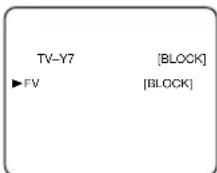
- When you select [TV-PG], [TV-14] or [TV-MA]:
Press the STOP/ or PLAY/ button to select "D" (Suggestive Dialog), "L" (Coarse Language), "S" (Sexual Situation), or "V" (Violence). Then, press the F.FWD/ button to select [BLOCK] or [VIEW].
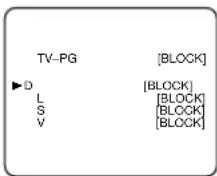
Note: When you select [TV-MA], "D" does not appear on the TV screen.
- The sub-ratings which set to [BLOCK] appears next to the rating category in the TV RATING menu.
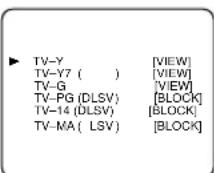
4 Exit the V-Chip setting mode
Press the MENU button on the remote control to return to original mode.
MPAA RATING SET UP
Make sure ...
- TV/VCR power must be turned on.
1 Select "V-CHIP SET UP"
Press the MENU button on the remote control.
Press the PLAY/ or STOP/ button to point to "V-CHIP SET UP". Then, press the F.FWD/ button.
-MENU
TIMER PROGRAMMING
PICTURE CONTROL
CHANNELSETUB
USER'S SET
V-CHIP SET UP
LANGUAGE [ENGLISH]
CAPTION OFF
ZERO RETURN TILLE:548CH
2 Select "MPAA RATING"
Press the PLAY/ or STOP/ button to point to "MPAA RATING". Then, press the F.FWD/ button.
V-CHIPSETUP
TV RATING
MPAA RATING
3 Select your desired item
Press the PLAY/ or STOP button to point to your desired item. Then, press the F.FWD button to select [BLOCK] or [VIEW].
VIEW]
PGVIEW
P5-13 BLOCK
BLOCK
NC=17
VIEW
BLOCK
BLOCK
| Selection | Rating Category Explanations |
| G General | Audience |
| PG Parental | Guidance suggested. |
| PG-13 Unsuitable for children under 13 | |
| R Restricted | ed; under 17 requires accompa-nying parent or adult guardian |
| NC-17 No | one under 17 admitted |
| X Mature | audience only |
-
When you select the rating category and turn it [BLOCK], the higher rating will turn [BLOCK] automatically. Also, the lower rating will turn [VIEW] automatically.
-
When you turn "G" to [VIEW], the all ratings will turn to [VIEW] automatically.
4 Exit the V-Chip setting mode
Press the MENU button on the remote control to return to original mode.
NORMAL PLAYBACK
Make sure ...
- TV/VCR power must be turned on.
1 Insert a prerecorded tape
If the erase-protection tab has been removed, the TV/VCR will start playback automatically.
2 To begin playback
Press the PLAY button.

3 To stop playback
Press the STOP button when playback is completed.

TRACKING ADJUSTMENT
- Tracking adjustment will be set automatically (Digital Tracking function) when you start playback.
However when playing pre-recorded tapes or tapes recorded on units other than your own, noise lines (black and white streaks) may appear on the playback picture. If this occurs, you can adjust the tracking control manually by pressing the CHANNEL or button until the streaks disappear. To return to the DTR function, stop the tape once and start playback again.
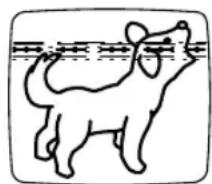
PICTURE SEARCH
This feature is very useful in finding or skipping over a particular scene on a tape. In this mode, the sound will be muted.
1) You may view a video tape at a high speed in either a forward or reverse direction by pressing the F.FWD or REW button. (in the SP / LP / SLP modes)
2)Press it again and the TV/VCR will now search in super high speed. (in the LP / SLP modes only) NOTE: Tapes recorded in the SP or LP mode will display a noise bar on the TV screen and the picture may revert to Black and White. This is normal.
3)Press the PLAY button to return to normal speed.
STILL PICTURE
You can view a still picture on the TV screen during playback (the Still mode). Press the PAUSE/STILL button during playback. Only tapes recorded in the SLP mode will show the least amount of lines. Press the PLAY button to return to playback.
NOTES:
Usually there will be video "noise" lines (black and white streaks or dots) on the screen. This is normal.
If the tape was originally recorded in SP or LP mode, the still picture will be black and white in addition to the "noise" lines.
This is not a fault of the machine, but is a byproduct of the technology involved in producing a TV/VCR with 2 video heads.
- If it is left in the Pause mode for more than five minutes, the TV/VCR will automatically switch to the Stop mode.
NOISE CANCEL (in the Still mode)
This feature allows you to reposition or reduce the noise lines of a still picture. Press the PAUSE/STILL button so that the noise lines change position on the screen so you can see the picture in its entirety without distracting noise lines.
NOTE: This feature can be activated ONLY when viewing a tape recorded in the SLP mode. If the tape was originally recorded in the SP or LP mode, the still picture may revert to black and white in addition to the "noise bars". This is normal.
VERTICAL HOLD CONTROL
In the Pause/Still mode only, when the picture begins to vibrate vertically, stabilize the picture by pressing the CHANNEL or button.
NOTE:
If there are video noise lines on the screen, reposition or reduce them. Refer to "NOISE CANCEL".
Make sure ...
- TV/VCR power must be turned on.
- Insert a prerecorded tape.
- Before playback, follow steps below.
RENTAL PLAYBACK
This function enables you to improve the picture quality when playing back worn cassettes such as rented tapes.
1 Select "USER'S SET UP"
Press the MENU button on the remote control.
Press the PLAY/ or STOP button to point to "USER'S SET UP". Then, press the F.FWD button.
-MENU-
TIMER PROGRAMMING PICTURE CONTROL
FIGURE1 CONTROL SETTING CLOCK
CHANNEL SETUP SER'S SETUP
V-CHIP SET UP
LANGUAGE [ENGLISH]
2 Set "RENTAL" to [ON]
Press the PLAY/ or STOP button to point to "RENTAL".
Press the F.FWD/ or REW/< button until [ON] appears.
USER'S SET UP
![SYLVANIA 6313CCB - Set "RENTAL" to [ON] - 1](/content/2026/02/394491/images/beb3961bb330c9ba4502a671c6d79e317d765d78b62df44d8a177fd47fc39151.jpg)
-USER'S SET UP -
RENTAL[OFF]
3 Exit the Rental setting
Press the MENU button on the remote control to return to the TV mode.
4 Start playback
Press the PLAY button to start playback. "RENTAL PLAY" appears.
- Once you select the Rental mode, it stays in effect even after you turn off the TV/VCR.
TO CANCEL THE RENTAL MODE
Repeat steps [1] and [2], select [OFF] using the F.FWD/ or REW/ button on the remote control. Press the MENU button on the remote control to return to TV mode.
If there is a power failure of any kind, the unit will retain its memory for this feature.
AUTO REPEAT PLAYBACK
The TV/VCR has the auto repeat function that allows you to repeat a tape indefinitely without touching the PLAY button.
ALL REPEAT: Repeat playback from the beginning to the end of the tape.
BLANK REPEAT: Repeat playback from the beginning to a blank part, which is blank for more than 10 seconds.
1 Select "USER'S SET UP"
Press the MENU button on the remote control.
Press the PLAY/ or STOP button to point to "USER'S SET UP". Then, press the F.FWD button.
-MENU
TIMER PROGRAMMING
PICTURE CONTROL
SETTING CCLK CHANNEL SETUP
CHARRNESETUSER'S SET UP
V-CHIP SET UP
LANGUAGE [ENGLISH]
CPTION 047
ZERO RETURN TIME SEARCH
2 Select "ALL" or "BLANK"
Press the PLAY/ or STOP button to point to "REPEAT PLAY".
Press the F.FWD/ or REW/
button repeatedly until your desired selection [ALL] or [BLANK] appears.
REPEAT PLAY[ALL]
AUTORETURN[OFF]
3 Exit the Repeat Play setting
Press the MENU button on the remote control to return to the TV mode.
4 Start playback
Press the PLAY button to start the Repeat Play. "REPEAT PLAY appears.
- Once you select the Repeat Play mode, it stays in effect even after you turn off the TV/VCR.
- If the Rental mode is set [ON], the "RENTAL PLAY▶" display has priority.
TO CANCEL THE REPEAT PLAY MODE
Repeat steps [1] and [2], select [OFF] using the F.FWD or REW button on the remote control. Press the MENU button on the remote control to return to TV mode.
If there is a power failure of any kind, the unit will retain its memory for this feature.
Make sure ...
- TV/VCR power must be turned on.
- Insert a tape.
ZERO RETURN
This function allows you to search easily a beginning point that you want to review by rewinding or fast forwarding.
NOTE:
Zero Return WILL NOT work on a blank tape or a blank portion of a tape.
1 Stop a tape at your desired point
Rewind or fast forward the tape to the beginning point at which you want to review.
2 Reset the counter to 0:00:00
Press the COUNTER RESET button repeatedly.
3 Begin recording or playback
Press the RECORD or PLAY button.
Press the STOP button when recording or playback is completed.
4 To activate "ZERO RETURN" mode
Press the MENU button on the remote control.
Press the PLAY/ or STOP button to point to "ZERO RETURN".
Then, press the F.FWD/ button.
The counter will appear on the TV screen.
The tape will automatically stop when the counter returns to 0:00:00.
TIME SEARCH
The Time Search function makes it possible to quickly advance the tape to your desired position simply by entering the exact amount of playback time you want to skip.
NOTES:
-
Time Search can be set up to a maximum of 9 hours 50 minutes (9:50) by 10 minutes at a time.
-
This function will not operate in recording mode.
- This function is not operative when a cassette tape is not inserted in the TV/VCR.
In the example below: To watch a program after 2 hour 50 minutes from the present position, in either direction.
1 Insert a tape.
2 Select "TIME SEARCH" mode
Press the TIME SEARCH button (with each push it will increase by 10 minute).
OR
Press the MENU button on the remote control.
Press the PLAY/ or STOP button to point to "TIME SEARCH".
Then, press the F.FWD/ button.
-MENU
TIMER PROGRAMMING
PICTURE CONTROL
SETTING CLOCK
CHANNEL SET U
USERSETUP
V-CHIP SET OP
LANGUAGE JENI PARTNOL
CAPTION OFFETEROPTION
ZERO RETO ME 585ARCH
TIME SELECTION
3 Enter your desired time
Press the PLAY/ or STOP button until your desired time appears. (Example: "2:50" stands for 2 hours 50 minutes)
If you wish to cancel the Time
Search at this point, press the MENU button on the remote control.
TIME SEARCH
-2:50
2.1.36
4 Begin Time Search
By pressing the REW / or F.FWD/ button, the TV/VCR will rewind or fast forward to the specified point.
The time counts down as the searching progresses. When 0:00 is reached, the tape will start playback automatically.
TO CANCEL THE TIME SEARCH at this point
Press the STOP/EJECT button on the TV/VCR or the remote control. This will delete the selected time.
Make sure ...
- TV/VCR power must be turned on.
- Insert a cassette tape with its erase prevention tab in place. (If necessary, rewind or fast forward the tape to the point at which you want to begin recording.)
NOTE: This unit will ONLY record and view the same channel.
NORMAL RECORDING
You can ONLY watch the same TV program that is being recorded.
1 Select the channel to be recorded
Press the number buttons on the remote control or the CHANNEL
or button.
Remember: If the TV/VCR is connected to a cable box or satellite
box, the TV/VCR must be on CH3 or CH4, then the channel to be recorded must be selected on the cable box or satellite box.
2 Select the tape speed
Press the SPEED button to select the desired tape speed (SP/ SLP).
3 Begin recording
Press the RECORD button.
4 Stop recording
Press the STOP button when recording is completed.
SKIPPING UNWANTED SCENES DURING RECORDING
Press the PAUSE/STILL button to temporarily stop recording. Press the PAUSE/STILL or RECORD button to resume recording.
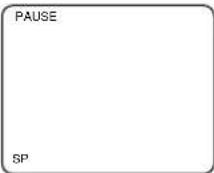
NOTES:
After five minutes, the TV/VCR will automatically switch to the Recording mode to prevent tape damage.
- If "CLOSED CAPTION (ON)" is selected, the OnScreen Display will appear for 5 seconds, then disappear.
OTR (One Touch Recording)
This function enables you to set a recording length simply by pressing the REC/OTR button on the TV/VCR.
Make sure ...
- TV/VCR power must be turned on.
- Insert a cassette tape with its erase prevention tab in place. (If necessary, rewind or fast forward the tape to the point at which you want to begin recording.)
NOTES:
- This function CANNOT be done from the remote control.
- Recording starts immediately when the REC/OTR button is pressed.
- When the REC/OTR button is pressed 18 times, the TV/VCR returns to the Normal Recording mode.
- To stop the OTR operation, press the STOP button on the TV/VCR or on the remote control.
- To show the remaining time, press the DISPLAY button on the remote control so that "OTR" appears on the TV screen. (It will show up momentarily then disappear.)
- Recording stops when 0:00 is reached.
- Please note that in the SLP mode maximum recording time, assuming the tape is started at the beginning, is 8 hours using T-160 (or 6 hours using T-120).
- If the tape runs out before the end time, the TV/VCR will switch to the Stop mode immediately, ejects the tape and turns itself off.
1 Select the channel to be recorded
Press the number buttons on the remote control or the CHANNEL or button.
Remember: If the TV/VCR is connected to a cable box or satellite box, the TV/VCR must be on CH3 or CH4, then the channel to be recorded is selected on the cable box or satellite box.
2 Select the tape speed
Press the SPEED button to select the desired tape speed (SP/ SLP).
3 Begin OTR
Press the REC/OTR button on the TV/VCR as many times as needed.
The recording length will be determined by the number of times you
press the REC/OTR button. Each additional push will increase the recording time by 30 minutes. It is set up to 8 hours.
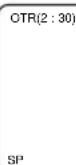
| Push(es) | Display Recording length | |
| 1 push (normal recording) | ||
| 2 pushes | 0:30 30 minutes | |
| 3 pushes | 1:00 60 minutes | |
| ↓ | ↓ | ↓ |
| 17 pushes | 8:00 480 minutes | |
COPYING A VIDEO CASSETTE (Requires a VCR or camcorder)
You can make copies of video tapes made by friends or relatives for your enjoyment.
WARNING: Unauthorized recordings of copyrighted video tapes may be an infringement of copyright laws.
Connect your TV/VCR and a Source (Playing) VCR using the following diagram.
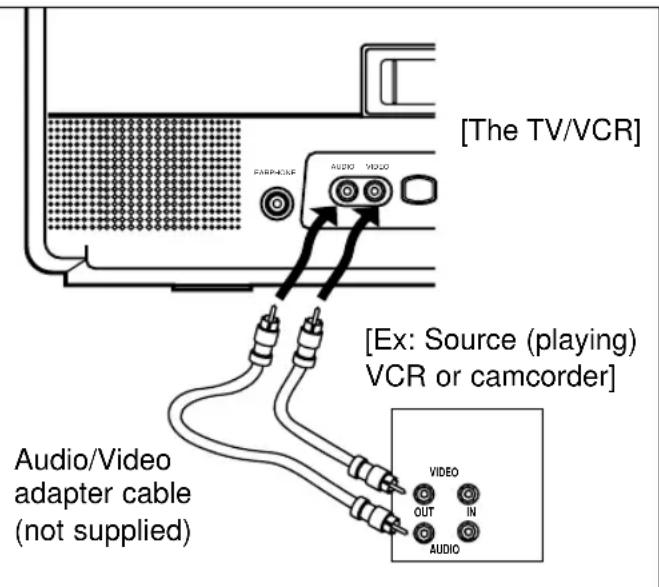
1)Insert a pre-recorded video cassette into the Source (Playing) VCR or camcorder.
2)Insert a blank video cassette, or one you want to record over, into the TV/VCR's cassette compartment.
3)Press the SPEED button on remote control for the TV/VCR to select the desired recording speed (SP/SLP).
4)Press the CHANNEL or button on the TV/VCR until "AUX" appears on the screen.
5)Press the RECORD button on the TV/VCR.
6) Begin playback of the tape in the source (Playing) VCR or camcorder.
NOTE: For best results during dubbing, use the TV/VCR's front panel controls whenever possible. The remote control might affect the source (Playing) VCR's playback operation.
You may set the TV/VCR to start and end a recording while you are away. You can set 8 programs to record on specific days, daily or weekly within a 1 year period.
In the example below, the timer is being set to record:
DATE: July 6th, 2001
SETTING TIME: from 7:30PM to 8:50PM
CHANNEL: CH61
TAPE SPEED: SP
Make sure ...
- If a cable box or satellite box is connected with the TV/VCR you will be limited to record only one channel. And the channel selector on the TV/VCR must be selected to the output channel of the boxes CH 3 or CH 4 and then the actual channel to be recorded must be selected on the boxes.
- Clock must be set to the correct time and date before setting the timer.
- TV/VCR power must be turn on to program it.
- Insert a cassette tape with its erase prevention tab in place. (If necessary, rewind or fast forward the tape to the point at which you want to begin recording.)
- The channel you want to record is properly set in advance. (See page 13.)
Avoid over lap of programs ...
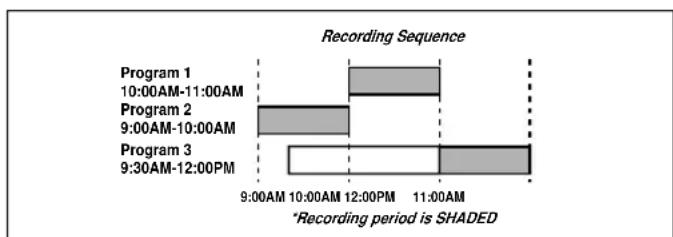
There is a chance that a program will not be recorded. when programs overlap;
The program with an earlier start has priority.
- Once the earliest program finishes, the overlapping programs will begin recording in sequence.
The illustration below demonstrates the sequence of recordings.
Program 1 10:00AM - 11:00AM
Program 2 9:00AM - 10:00AM
Program 3 9:30AM - 12:00PM
1 Select "TIMER PROGRAMMING"
Press the MENU button on the remote control.
Confirm "TIMER PROGRAMMING" is pointed by pressing the PLAY/▲ button.
And press the F.FWD/ button.
- If you have not yet set the clock, "MANUAL CLOCK SET" appears. If so, follow stops [3] to [8] on page 15. Then set the timer recording.
-MENU-
TIMER PROGRAMMING
PICTURE CONTROL
SETTING CLOCK
CHANNEL SET UP
USER'S SET UP
V-CHIP SET UP
LANGUAGE [ENGLISH]
CAPTION [OFF]
ZERO RETURN
TIME SEARCH
2 Select your desired program position (1~8)
Press the PLAY/ or STOP button to select the desired program position.
Then, press the F.FWD/ button.
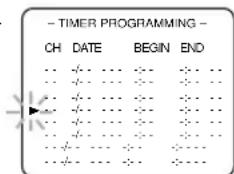
3 Set the channel number
Press the PLAY/ or STOP button until the desired channel number appears.
(Example: CH61)
Then, press the F.FWD/ button.
Remember: If the TV/VCR is connected to a cable box or satellite box, the TV/VCR must be on CH3 or CH4, then the channel to be recorded is selected on the cable box or satellite box.
4 Select once, every day or weekly recording
For once recording :
Press the PLAY/▲(up) button until the desired date appears. (Example: "7/06" for July 6th). Then, press the F.FWD/▶ button.
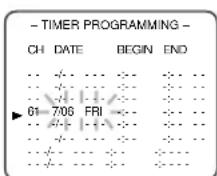
For every day recording : To record a TV program at the same time on the same channel every day.
(Example: Monday through Sunday)
Press the STOP/▼ (down) button until "EVRY DAY" appears.
Then, press the F.FWD/▶ button.
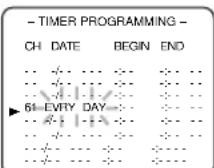
For weekly recording : To record a TV program at the same time on the same channel every week. (Example: every Monday)
Press the STOP/▼ (down) button until "EVRY" and your desired day of the week appear together. Then, press the F.FWD/▶ button.
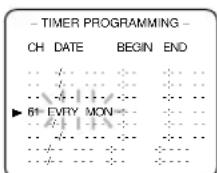
5 Set beginning hour
Press the PLAY/ or STOP button until the desired hour appears. (Example: "7, PM" for 7:30PM) Then, press the F.FWD button.
-TIMER PROGRAMMING- CHDATE-BEGIN END
61706FRI742
6 Set beginning minute
Press the PLAY/ or STOP button until the desired minute appears. (Example: "30" for 7:30PM)
Then, press the F.FWD/ button.
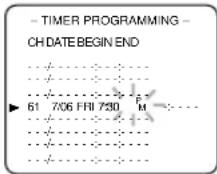
7 Set end hour
Press the PLAY/ or STOP button until the desired hour appears. (Example: "8, PM" for 8:50PM) Then, press the F.FWD button.
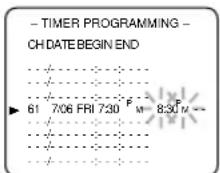
8 Set end minute
Press the PLAY/ or STOP button until the desired minute appears. (Example: "50" for 8:50PM)
Then, press the F.FWD/ button.
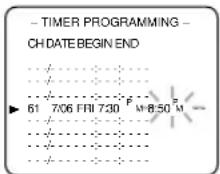
9 Set the tape speed
Press the PLAY/ or STOP button until the desired tape speed appears. (Example: SP)
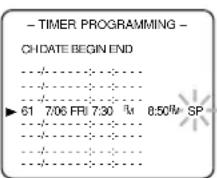
10 Finish setting the program
Press the F.FWD/ or REW/< button. The program is now completed.
- To set another program, repeat steps [2] to [10].
- Press the MENU button on the remote control to return to original mode.
11 Set the timer
Press the POWER button to set automatic timer recording. The TIMER REC indicator lights up.
- You must turn off the TV/VCR to activate automatic timer recording.
If power is not turned off and you continue watching TV, "TIMER REC STANDBY" starts flashing on the TV screen 2 minutes before the programmed start time.
TIMER PROGRAM EXTENSION
To shift the time schedule of an automatic timer recording.
1)Press the POWER button.
2)Repeat step [1] on page 26.
3)Press the RECORD button and select the desired program using the PLAY/▲ or STOP/▼ button.
4)Press the RECORD button again.
Each additional push will shift forward the begin/end time for recording by 10 minutes. When the recording is already in progress, each additional push will shift forward the end time only. If you want to cancel while setting, press the PAUSE/STILL button on the remote control. The recording time returns to the original time.
NOTE: When you shift forward the time schedule during recording, the recording speed will automatically be set to the SLP mode.
5)Press the F.FWD/ or REW/< button to exit the setting menu. Then press the MENU button on the remote control to return to original mode.
TO CORRECT A PROGRAM
- While setting a program; press the REW/ button to go back one step and enter the correct numbers using the PLAY/ or STOP/ button.
After setting a program;
1)Press the POWER button.
2)Repeat steps [1] - [2] on page 26.
3) Press the F.FWD/ button (or press the REW/ button to go back one step) until the part you want to correct begins flashing, then make the changes pressing the PLAY/ or STOP/ button.
4)Press the POWER button to set automatic timer recording.
TO CANCEL AN AUTOMATIC TIMER RECORDING
- After setting a program;
1)Press the POWER button.
2)Repeat steps [1] ~ [2] on page 26 and select a program you want to cancel.
3)Press the T-PROG. CLEAR button.
4)Press the MENU button on the remote control to return to TV mode.
While recording is in progress;
1) Press POWER button.
2)Press the STOP/EJECT button on the TV/VCR.
TO CHECK THE BEGIN/END TIME
1) Press the POWER button so that the REC indicator goes off.
2)Press the MENU button on the remote control.
3)Confirm "TIMER PROGRAMMING" is pointed.
4)Press the F.FWD/ button. The details of programs appear on the TV screen.
5)Press the MENU button on the remote control to return to TV mode.
- Make sure the channel you want to record is properly set in advance.
- It is not necessary to press the RECORD button for timer recording.
- Recording begins automatically at the Start time.
- If you are recording using a Timer mode, you may not operate the unit manually.
- The erase-prevention tab on the cassette must be in place (or you must put tape over the hole).
- If the erase-prevention tab is removed, the cassette will be ejected when the POWER button is pressed to off.
- If the tape runs out before the end time, the TV/VCR will switch to the Stop mode immediately, and the tape will be ejected.
AUTORETURN
With this feature, after timer recording is finished, the beginning of the recorded program(s) can be searched for automatically.
1 Select "USER'S SET UP"
Press the MENU button on the remote control.
Press the PLAY/ or STOP button to point to "USER'S SET UP".
Then, press the F.FWD/ button.
MENU
TIMER PROGRAMMING
PICTURE CONTROL
SETTING CLOCK
CHANNEL SET UP
SER'S SET UP
V-CHIP SET UP
LANGUAGE [ENGLISH]
CAPTION [OFF]
ZERO RETURN
TIME SEARCH
2 Set "AUTO RETURN" to [ON]
Press the PLAY/ or STOP button to point to "AUTO RETURN".
Press the F.FWD/ or REW/ button until [ON] appears. Then, press the MENU button on the
remote control to return to TV mode.
![SYLVANIA 6313CCB - Set "AUTO RETURN" to [ON] - 1](/content/2026/02/394491/images/53693bf075b554617afa4ff8d5855fd7827b9550962ded8386d49ab008def595.jpg)
3 Auto Return will begin
When all the timer recordings are completed, the TV/VCR will rewind to the beginning of the recorded program(s).
NOTE:
- If you press the POWER button while tape is rewinding, the Auto Return will stop.
4 Watch the recorded program
Press the PLAY button.
TO CANCEL THE AUTO RETURN
MODE
Repeat steps [1] and [2], select [OFF] using the F.FWD/ or REW/ button. Then, press the MENU button on the remote control to return to TV mode.
If there is a power failure of any kind, the unit will retain its memory for this feature.
WAKE UP TIMER
The Wake Up Timer function turns on the TV/VCR without using the POWER button after a desired period of time.
NOTES:
- Use the remote control for this procedure.
- Clock must be set to the correct time before setting the timer.
- If you want to select [TAPE], you must insert a cassette tape in the TV/VCR. The tape will start playback automatically on your desired time.
1 Select "WAKE UP TIMER"
Press the WAKE-UP/SLEEP button
on the remote control once, and confirm "ON/OFF" is pointed.
Press the F.FWD/ or REW/ button until [ON] appears.
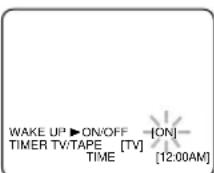
2 Select "TV" or "TAPE"
Press the PLAY/ or STOP/ button until to point to "TV/TAPE".
Press the F.FWD/ or REW/ button, and select [TV] or [TAF
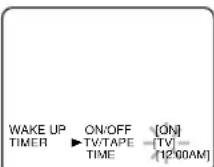
3 Set wake up time
Press the PLAY/ or STOP button until to point to "TIME". Press the F.FWD or REW button until your desired wake up time appears.
Each additional push will increase (or decrease) the time by 10 minutes.
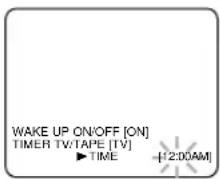
4 Exit the Wake Up Timer setting
Press the MENU button on the remote control to return to TV mode.
Press the WAKE-UP/SLEEP button on the remote control once, and confirm "ON/OFF" is pointed. Press the F.FWD or REW button until [OFF] appears...
SLEEP TIMER
The Sleep Timer function turns off the TV/VCR without using the POWER button after a desired period of time.
NOTE:
- This function does not operate during Recording mode.
1 Select "SLEEP TIMER"
Press the WAKE UP/SLEEP button on the remote control until "SLEEP TIMER" appears.
2 Set sleep time
Press the PLAY/▲, STOP/▼, F.FWD/▶ or REW/< button until your desired sleep time appears. Each additional push will increase the time by 30 minutes up to 120 minutes.
SLEEP TIMER [2:00]
Press the MENU button on the remote control to exit the Sleep Timer setting.
Press the WAKE-UP/SLEEP button on the remote control until "SLEEP TIMER" appears.
To view the time left for sleep timer, press the WAKE-UP/SLEEP button twice, then press the MENU button on the remote control to exit the sleep timer setting.
MAINTENANCE
CABINET CLEANING
- Wipe the front panel and other exterior surfaces of the TV/VCR with a soft cloth immersed in lukewarm water and wrung dry.
- Never use a solvent or alcohol. Do not spray insecticide liquid near the TV/VCR. Such chemicals may cause damage and discoloration to the exposed surfaces.
AUTO HEAD CLEANING
- Automatically cleans video heads as you insert or remove a cassette, so you can see a clear picture.
- Playback picture may become blurred of interrupted while the TV program reception is clear. Dirt accumulated on the video heads after long periods of use, or the usage of rental or worn tapes can cause this problem.
If a streaky or snowy picture appears during playback, the video heads in your TV/VCR may need to be cleaned.
- Please visit your local Audio/Video store and purchase a good quality VHS Video Head Cleaner.
2.If a Video Head Cleaner does not solve the problem, please call our help line at 1-800-287-4871, to locate an Authorized Service Center.
NOTES:
- Remember to read the instructions included with the video head cleaner before use.
- Clean video heads only when problems occur.
SERVICING
- Should your TV/VCR become inoperative, do not try to correct the problem by yourself. There are no user-serviceable parts inside. Turn off, unplug the power cord, and please call our help line at 1-800-287-4871, to locate an Authorized Service Center.
If you have followed the instructions contained in this manual and have difficulty in operating your TV/VCR, locate the PROBLEM in the left column below. Check the corresponding CORRECTIVE ACTION column to remedy the problem.
| PROBLEM CORRECTIVE ACTION | |
| No power. | Make sure the AC cord is connected to an AC outlet. Make sure the power is turned on. |
| No picture and sound. | Make sure the AC cord is connected to an AC outlet. Check antenna connection. Let the TV/VCR program its' tuner memory. |
| No picture or poor picture on TV/VCR. | Adjust direction or replace antenna. Adjust picture controls. |
| No sound or poor sound. | Adjust volume control on remote control or main unit. Press the MUTE button to restore sound. |
| Timer recording is not possible. | Make sure the timer recording is set correctly. Make sure the power is off. Make sure the TV/VCR clock is set correctly. |
| Cannot go into Record mode. | Make sure the tape has an erase-prevention tab. If need, cover the hole with plastic tape. |
| Playback picture is partially noisy. | Adjust tracking control for a better picture using the CHANNEL▲ or▼ button on the TV/VCR. |
| No picture but the audio is OK in playback. | Head cleaning may be necessary. Refer to “AUTO HEAD CLEANING” on page 29. |
| No operation by infrared Remote Control. | Make sure the AC cord is connected to an AC outlet. Check batteries in remote control. |
| Video or color fades in and out when making a copy of a video tape. | You can not copy a copyrighted video tape. You are experiencing copy guard protection. |
| CLOSED CAPTION PROBLEM | POSSIBLE REMEDY |
| My TV/VCR is showing captions that are misspelled. | You are watching a live broadcast and spelling errors made by the closed captioning production company may pass through uncorrected.A prerecorded program will not show any misspelled words because of the normal time available for editing the captions. |
| My TV/VCR will not show the text in its entirety or there is a delay of what is being said. | Captions that are delayed a few seconds behind the actual dialogue are common for live broadcast. Most captioning production companies can display a dialogue to a maximum of 220 words per minute. If a dialogue exceeds that rate, selective editing is used to insure that the captions remain up-to-date with the current TV screen dialogue. |
| My captions are scrambled with white boxes on the TV screen. | Interference caused by building, power lines, thunderstorms, etc. may cause scrambled or incomplete captions to appear. |
| My program guide listed a TV show as being closed captioned but none of the captions were displayed. | Broadcasters may at times use a time compression process to speed up the actual program so that additional advertising time can be given. Since the decoder cannot read the compressed information, captions will be lost. |
| My prerecorded video tape does not show any captions. The tape box mentions it being closed captioned. | The video tape was either an illegal copy or the tape duplicating company accidentally left out the captioning signals during the copying process. |
| My TV screen shows a black box on certain channels. | You are in the TEXT mode. Select CAPTION mode to CAPTION [OFF]. |
GENERAL SPECIFICATIONS
CRT:13/19 inch in-line gun, 90^ deflection tube
Television system: NTSC-M
Closed caption system :§15.119/FCC
Video Heads: Rotary two-head
Tape width : 1/2 inch
Tape speed
SP:33.40mm/sec.
LP: 16.67mm / sec
SLP:11.12mm/sec.
Tuner channel
TV VHF Low : #2~#6
TV VHF High : #7~#13
TV UHF : #14~#69
CATV
VHF: 5A
MID band : A5~A1, A~I
SUPER band : J~W
HYPER band: W + 1 W + 84
Terminals
Antenna input : VHF/UHF 75 ohms unbalanced
Video input : RCA connector × 1
Audio input : RCA connector × 1
Earphone : 1/8” monaural (3.5 mm)
ELECTRICAL SPECIFICATIONS
Video input level : 0.5~2.0Vp-p
Audio input level : -15dBs
Video S/N ratio : More than 46dB
Audio S/N ratio : More than 43dB
OTHER SPECIFICATIONS
[13 inch model]
Power requirement: AC 120V/60Hz
Power consumption: 65W
Dimensions : H:15-3/4” (400mm)
W:15-3/16" (386mm)
D:14-13/16" (377mm)
Weight: 24.3 lbs (11kg)
[19 inch model]
Power requirement: AC 120V/60Hz
Power consumption : 90W
Dimensions : H:19-5/8" (498mm)
W:19-3/8" (492mm)
D:18-11/16" (474mm)
Weight: 44.1 lbs (20kg)
-
Designs and specifications are subject to change without notice and without our legal obligation.
-
If there is a discrepancy between languages, the default language will be English.
CABLE CHANNEL DESIGNATIONS
If you subscribe to cable TV, the channels are displayed as 1-125. Cable companies often designate channels with letters or letter-number combinations. Please check with your local cable company. The following is a chart of common cable channel designations.
| CATV channel | 5A | 2 | 3 | 4 | 5 | 6 | 7 | 8 | 9 | 10 | 11 | 12 | 13 | A | B |
| TV Display | 1 | 2 | 3 | 4 | 5 | 6 | 7 | 8 | 9 | 10 | 11 | 12 | 13 | 14 | 15 |
| CATV channel | C | D | E | F | G | H | I | J | K | L | M | N | O | P | Q |
| TV Display | 16 | 17 | 18 | 19 | 20 | 21 | 22 | 23 | 24 | 25 | 26 | 27 | 28 | 29 | 30 |
| CATV channel | R | S | T | U | V | W | W+1 | W+2 | W+3 | W+4 | W+5 | W+6 | W+7 | W+8 | W+9 |
| TV Display | 31 | 32 | 33 | 34 | 35 | 36 | 37 | 38 | 39 | 40 | 41 | 42 | 43 | 44 | 45 |
| CATV channel | W+10 | W+11 | W+12 | W+13 | W+14 | W+15 | W+16 | W+17 | W+18 | W+19 | W+20 | W+21 | W+22 | W+23 | W+24 |
| TV Display | 46 | 47 | 48 | 49 | 50 | 51 | 52 | 53 | 54 | 55 | 56 | 57 | 58 | 59 | 60 |
| CATV channel | W+25 | W+26 | W+27 | W+28 | W+29 | W+30 | W+31 | W+32 | W+33 | W+34 | W+35 | W+36 | W+37 | W+38 | W+39 |
| TV Display | 61 | 62 | 63 | 64 | 65 | 66 | 67 | 68 | 69 | 70 | 71 | 72 | 73 | 74 | 75 |
| CATV channel | W+40 | W+41 | W+42 | W+43 | W+44 | W+45 | W+46 | W+47 | W+48 | W+49 | W+50 | W+51 | W+52 | W+53 | W+54 |
| TV Display | 76 | 77 | 78 | 79 | 80 | 81 | 82 | 83 | 84 | 85 | 86 | 87 | 88 | 89 | 90 |
| CATV channel | W+55 | W+56 | W+57 | W+58 | A-5 | A-4 | A-3 | A-2 | A-1 | W+59 | W+60 | W+61 | W+62 | W+63 | W+64 |
| TV Display | 91 | 92 | 93 | 94 | 95 | 96 | 97 | 98 | 99 | 100 | 101 | 102 | 103 | 104 | 105 |
| CATV channel | W+65 | W+66 | W+67 | W+68 | W+69 | W+70 | W+71 | W+72 | W+73 | W+74 | W+75 | W+76 | W+77 | W+78 | W+79 |
| TV Display | 106 | 107 | 108 | 109 | 110 | 111 | 112 | 113 | 114 | 115 | 116 | 117 | 118 | 119 | 120 |
| CATV channel | W+80 | W+81 | W+82 | W+83 | W+84 | ||||||||||
| TV Display | 121 | 122 | 123 | 124 | 125 | ||||||||||
SYLVANIA HOME ENTERTAINMENT WARRANTY
We appreciate your purchase of a SYLVANIA Home Entertainment product. We take pride in the quality of our products and have manufactured your new Home Entertainment unit to exacting quality standards. We feel confident that in normal use, it will provide you with satisfactory performance. However, should you experience difficulty, you are protected under the provisions of this warranty.
SYLVANIA Home Entertainment products are warranted against manufacturing defects in materials and workmanship in normal use for the following periods from the date of purchase by the original user, and is conditional upon the unit being installed and used as directed in the instruction manual.
COLOUR MONITOR / VCR COMBO
Parts and Labour 1 Year
Special Parts:
Picture Tube 3 Years Parts / 1 Year Labour
Video Head 6 Months Parts and Labour
Remote Control 90 Days Parts and Labour
SYLVANIA S obligation under this warranty shall be limited to the repair, including all necessary parts and the cost of the labour connected therewith, or at our option the exchange of any Home Entertainment product which shows evidence of a manufacturing defect within the warranty period.
Replacement parts, furnished in connection with this warranty shall be warranted for a period equal to the unexpired portion of the original equipment warranty.
CUSTOMER OBLIGATIONS
This warranty applies to the product from the original date of purchase at retail. Therefore, the owner must provide a copy of the original, dated bill of sale. No warranty service will be performed without a bill of sale. Transportation to and from the service depot is the responsibility of the owner.
WARRANTY EXCLUSIONS
This warranty is extended to SYLVANIA Home Entertainment products purchased and used in Canada. This warranty shall not apply to appearance or accessory items including but not limited to: cabinet, cabinet parts, batteries, connecting cables, tapes. This warranty shall, in addition, not apply to cleaning video/ audio heads, pinch rollers, tape transport system damages due to handling, transportation, unpacking, set-up, installation, customer adjustments that are covered in the instruction book, repair or replacement of parts supplied by other than the SYLVANIA authorized service depot, any malfunction or failure caused by or resulting from abnormal environmental conditions, improper unauthorized service, improper maintenance, modifications or repair by the consumer, abuse, misuse, neglect, accident, fire, flood, or other Acts of God, and incorrect line voltage.
This Home Entertainment product is only warranted to the original retail purchaser. This warranty becomes void in the event of commercial or rental use. This warranty becomes void in the event serial numbers are altered, defaced or removed.
SYLVANIA reserves the right to make changes in design or to make additions to or improvements upon this product without incurring any obligation to install the same on products previously manufactured. The foregoing is in lieu of all other warranties expressed or implied and SYLVANIA neither assumes nor authorizes any person to assume for it any other obligation or liability in connection with the sale or service of this product. In no event shall SYLVANIA or its SYLVANIA dealers be liable for special or consequential damage arising from the use of this product, or for any delay in the performance of this warranty due to cause beyond our control.
The purchaser may have other rights under existing provincial or federal laws, and where any terms of this warranty are prohibited by such laws, they are deemed null and void, but the remainder of the warranty shall remain in effect.
HOW TO OBTAIN SERVICE
Should this product require service, you may obtain specific information on how to obtain service by contacting the SYLVANIA Dealer from whom this product was purchased, or by contacting us directly:
SONIGEM SERVICE
300 Alden Road
Markham, Ontario
L3R 4C1
PHONE: (905) 940-5089 FAX: (905) 940-2303
1-800-287-4871
TÉLEVISEUR COULEUR/MAGNETOSCOPE 6313CCB (13POUCES) 6319CCB (19POUCES)
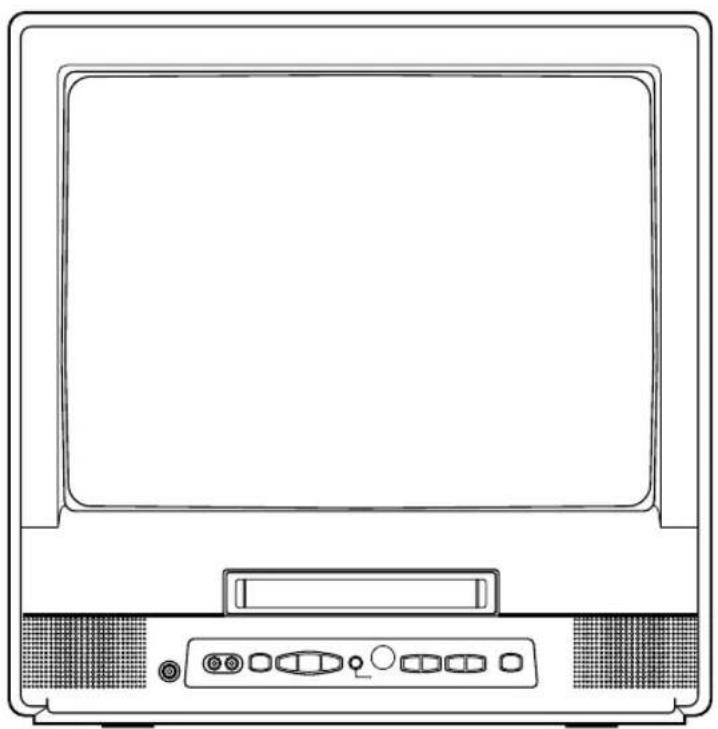
ACCESSIONS AVEC L'APPAREIL
Telekommande
Piece no. (N0111UD)
0EMN
01755 ou
2 piles dc type AA

MN01599)
RÉGLAGE MANUEL HORLOGE HEURE D'ÊTE [HF]
- RÉGLAGE MANUEL HORLOSE -
MOIS JOUR ANNÉE
05 / -- -- -- --
HEURE MINUTE
-- : --
REGLAGE MANUEL HORLOGE
MOIS JOUR ANNEE
05 / 01 - - - - - - - - - - - - - - - - - - - - - - - - - - - - - - - - - - - - - - - - - - - - - - - - - - - - - - - - - - - - - - - - - - - - - - - - - - - - - - - - - - - - - - - - - - - - - - - - - - - -
REGLAGE MANUEL HORLOGE MOIS JOUR ANNEE 05/01 MAR2001 HEURE MINUTE --:--
-
RÉGLAGE MANUEL HORLOGE
MOIS JOUR ANNÉE
05 / 01 MAR 2001
HEURE MINUTE
05 : - PM -
RÉGLAGE MANUEL HORLOGE -
MOIS JOUR ANNÉE
05 01 MAR 2001
HEURE MINUTE
05 :40 PM
- REGIAGE CIRCUIT V - COILTV COTE MPAA
LOCATION [EF] LECT.REPETEE [HF] RETOUR AUTO [HF]
Consommation: 65 watts
Dimensions :
OBLIGATIONS DU CLIENT
EXCLUSIONS DE LA GARANTIE

- CAUTION
- IMPORTANT SAFEGUARDS
- LOCATION
- AVOID THE HAZARDS OF ELECTRICAL SHOCK AND FIRE
- WARNING
- CAUTION:TO PREVENT ELECTRIC SHOCK, MATCH WIDE BLADE OF PLUG TO WIDE SLOT, FULLY INSERT.
- IMPORTANT COPYRIGHT INFORMATION
- TABLE OF CONTENTS
- IMPORTANT SAFEGUARDS 2
- PRECAUTIONS 4
- FEATURES. 6
- SUPPLIED ACCESSORIES 6
- VIDEO CASSETTE 7
- OPERATING CONTROLS AND FUNCTIONS 8
- PREPARATION FOR USE 10
- SETUPFORUSE 12
- ON SCREEN DISPLAY 16
- ■PLAYBACK 21
- ■ TIMER 26
- ■TROUBLESHOOTING GUIDE 30
- ■ SPECIFICATIONS 31
- ■CABLE CHANNEL DESIGNATIONS . . . .31
- ■WARRANTY 32
- A NOTE ABOUT RECYCLING
- PRECAUTIONS
- TWO DIFFERENT TAPE SPEEDS
- INSERTING A CASSETTE
- REMOVING A CASSETTE
- ERASE PREVENTION
- OPERATING CONTROLS AND FUNCTIONS
- NOTE:
- - TV/VCR FRONT PANEL -
- ▼button-
- 按钮-
- ▲button-
- - REAR VIEW -
- ▶button-
- ANTENNA/CABLE CONNECTIONS
- VHF/UHF COMBINED ANTENNA
- VHF/UHF SEPARATE ANTENNAS
- CABLE WITHOUT CONVERTER/DESCRAMBLER BOX
- CABLE WITH CONVERTER/DESCRAMBLER BOX OR SATELLITEBOX
- TO RECORD A SCRAMBLED/UNSCRAMBLED CHANNEL
- INSTALLING THE BATTERIES
- EXTERNAL INPUT MODE
- CHANNEL SET UP FOR THE FIRST TIME
- Turn on the TV/VCR
- Select "ENGLISH" or "FRANÇAIS"
- Begin auto preset
- NOTES:
- After scanning
- DELETING (OR ADDING) CHANNEL
- Select "CHANNEL SET UP"
- Select "ADD/DELETE CH"
- Enter the desired channel number
- Delete (or add) it from (into) memory
- Added channel: Light blue. Deleted channel: Light red.
- Exit the channel setup mode
- CHANNEL SET UPAGAIN
- Make sure ...
- Begin auto preset
- After scanning
- SELECTING THE LANGUAGE
- Select "LANGUAGE"
- Select "ENGLISH" or "FRANÇAIS"
- Exit the Language mode
- Select "SETTING CLOCK"
- Set "D.S.T." (Daylight-Saving Time) to [ON]
- Exit the Daylight-Saving Time mode
- CLOCK SET UP (AUTO/MANUAL)
- AUTO CLOCK SETTING
- Set "AUTO CLOCK" to [ON]
- Enter the channel number for the PBS station
- Exit the Auto Clock Setting
- Turn off the TV/VCR
- If you choose [AUTO],
- MANUAL CLOCK SETTING
- Select "MANUAL CLOCK SET"
- Select the month
- Select the day
- Select the year
- -MENU
- Select the hour
- Select the minute
- Start the clock
- TO CHANGE CLOCK SETTING
- PLEASE NOTE:
- When the Closed Caption mode is OFF:
- When the Closed Caption mode is ON:
- SPECIAL FEATURES
- DEGAUSSING
- REAL TIME TAPE COUNTER
- AUTOREWIND-EJECT
- WATCHING A TV PROGRAM
- Turn on the TV/VCR
- Select the channel number
- Adjust sound
- GAME MODE
- TO CANCEL THE GAME MODE
- PICTURE CONTROL
- Select "PICTURE CONTROL"
- Select item you want to adjust
- BRIGHT
- Adjust the picture control
- CLOSED CAPTION SYSTEM
- Select "CAPTION"
- Select your desired caption menu
- Exit the caption setting mode
- TO CANCEL THE CLOSED CAPTION SYSTEM
- WHEN THE CLOSED CAPTION MODE IS ON
- V-CHIP SET UP
- TVRATINGSETUP
- Select "V-CHIP SET UP"
- Select "TV RATING"
- Select your desired item
- Exit the V-Chip setting mode
- MPAA RATING SET UP
- Select "MPAA RATING"
- NORMAL PLAYBACK
- Insert a prerecorded tape
- To begin playback
- To stop playback
- TRACKING ADJUSTMENT
- PICTURE SEARCH
- STILL PICTURE
- NOISE CANCEL (in the Still mode)
- VERTICAL HOLD CONTROL
- RENTAL PLAYBACK
- Select "USER'S SET UP"
- Set "RENTAL" to [ON]
- Exit the Rental setting
- Start playback
- TO CANCEL THE RENTAL MODE
- AUTO REPEAT PLAYBACK
- Select "ALL" or "BLANK"
- Exit the Repeat Play setting
- TO CANCEL THE REPEAT PLAY MODE
- ZERO RETURN
- TIME SEARCH
- OR
- NORMAL RECORDING
- Select the channel to be recorded
- SKIPPING UNWANTED SCENES DURING RECORDING
- OTR (One Touch Recording)
- Select the tape speed
- Begin OTR
- COPYING A VIDEO CASSETTE (Requires a VCR or camcorder)
- WARNING: Unauthorized recordings of copyrighted video tapes may be an infringement of copyright laws.
- Avoid over lap of programs ...
- Select "TIMER PROGRAMMING"
- Select your desired program position (1~8)
- Set the channel number
- Select once, every day or weekly recording
- For once recording :
- Set beginning hour
- Set beginning minute
- Set end hour
- Set end minute
- Set the tape speed
- Finish setting the program
- Set the timer
- TIMER PROGRAM EXTENSION
- TO CORRECT A PROGRAM
- After setting a program;
- TO CANCEL AN AUTOMATIC TIMER RECORDING
- - After setting a program;
- While recording is in progress;
- TO CHECK THE BEGIN/END TIME
- AUTORETURN
- Set "AUTO RETURN" to [ON]
- Auto Return will begin
- Watch the recorded program
- TO CANCEL THE AUTO RETURN
- MODE
- WAKE UP TIMER
- Select "WAKE UP TIMER"
- Select "TV" or "TAPE"
- Set wake up time
- Exit the Wake Up Timer setting
- SLEEP TIMER
- Select "SLEEP TIMER"
- Set sleep time
- MAINTENANCE
- CABINET CLEANING
- AUTO HEAD CLEANING
- SERVICING
- GENERAL SPECIFICATIONS
- ELECTRICAL SPECIFICATIONS
- OTHER SPECIFICATIONS
- [13 inch model]
- [19 inch model]
- CABLE CHANNEL DESIGNATIONS
- SYLVANIA HOME ENTERTAINMENT WARRANTY
- COLOUR MONITOR / VCR COMBO
- CUSTOMER OBLIGATIONS
- WARRANTY EXCLUSIONS
- HOW TO OBTAIN SERVICE
- SONIGEM SERVICE
- TÉLEVISEUR COULEUR/MAGNETOSCOPE 6313CCB (13POUCES) 6319CCB (19POUCES)
- ACCESSIONS AVEC L'APPAREIL
- OBLIGATIONS DU CLIENT
- EXCLUSIONS DE LA GARANTIE
Brand : SYLVANIA
Model : 6313CCB
Category : TV