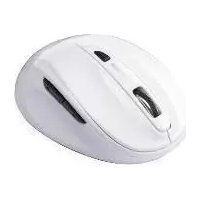
RF1002 - Mouse SILVERCREST - Free user manual and instructions
Find the device manual for free RF1002 SILVERCREST in PDF.



| Product type | Wireless mouse |
| Model | RF1002 |
| Brand | SilverCrest |
| Connection technology | Digital radio (USB receiver) |
| Power supply | 2 AAA (LR03) 1.5 V batteries |
| Estimated battery life | Approx. 6 months (depending on usage) |
| Maximum range | Approx. 10 meters (without obstruction) |
| Buttons | 2 main buttons, scroll wheel |
| Automatic sleep mode | After 20 minutes of inactivity |
| Compatible operating systems | Windows 98/ME/2000/XP, macOS, Linux |
| Dimensions (approx.) | 10 x 6 x 3.5 cm |
| Weight (without batteries) | Approx. 80 g |
| Recommended surface | Light-colored desk or mouse pad (avoid shiny, transparent, or dark surfaces) |
| Cleaning | Soft, dry cloth; do not use chemical products |
| Operating temperature | 0 °C to 40 °C |
| Operating humidity | 20 % to 80 % (without condensation) |
| Warranty | 36 months |
| Hotline number (Belgium) | 02-7001643 |
| Disposal | Compliant with WEEE Directive 2002/96/EC |
Frequently Asked Questions - RF1002 SILVERCREST
User questions about RF1002 SILVERCREST
0 question about this device. Answer the ones you know or ask your own.
Ask a new question about this device
Download the instructions for your Mouse in PDF format for free! Find your manual RF1002 - SILVERCREST and take your electronic device back in hand. On this page are published all the documents necessary for the use of your device. RF1002 by SILVERCREST.
USER MANUAL RF1002 SILVERCREST
Mini RF Optical Mouse
SILVERCREST RF-1002
Benutzerhandbuch
CAUTION: To use this mouse properly, please read the user's guide before installation.
Användarhandledning
natural_image
Diagram showing two views of a computer mouse with internal compartments and a separate open compartment (no text or labels)Achtung!
natural_image
Technical line drawing of a mechanical assembly or bracket (no text or symbols visible)USB Connector
natural_image
Symbol of a trash bin crossed with no text or numbers, representing waste sorting or disposal (no text present)Hotline-Nummer:

01805-043311
Your mouse uses digital radio technology to communicate with your computer.
Safety instructions
- Do not allow children to play with electrical devices when not under supervision. Children may not be able to comprehend the presence of potential risks.
- The equipment must not be splashed by water. Do not place any recipients containing liquids (like vases or beverages) onto or next to the device.
- Do not place any fire (such as candles) onto or next to the device.
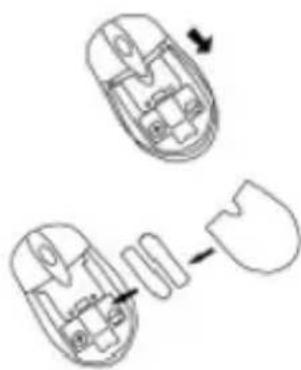
Step 1: Install batteries into the mouse
The wireless mouse uses two AAA Ni-MH or alkaline batteries.
- Open the battery cover at the top of the mouse.
- Insert the two AAA batteries.
- Replace the cover after the batteries are installed.
natural_image
Diagram showing two views of a mechanical component with arrows indicating direction (no text or symbols)Attention!
Do not expose the battery to heat or fire. Do not attempt to short circuit, disassemble or recharge the battery. Batteries can explode and cause severe injury.
Put the battery in a place where young children cannot reach it. Accidental swallowing of the battery can be fatal.
Dispose worn-out batteries not with your domestic waste.
Please contact your local government for disposal practices in your area.
Step 2: Connect the receiver
Information: Turn off your computer before you connect the receiver. If you connect the USB receiver while the PC is powered on, it could be damaged.
- Make sure that your computer is turned off.
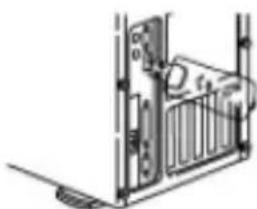
- Connect the receiver to the USB port an the computer.
- Turn on your computer
natural_image
Technical line drawing of a mechanical bracket or enclosure with no visible text or symbolsUSB Connector
When the connection is successful, the indicator light shines.
Step 3: Set up your mouse
Information: If you are using Windows98/ME, follow the on-screen instructions after you have connected and powered on the devices. Under Windows 2000/XP you must wait until the device has been detected and installed.
Note: This is a must to follow the steps in order to set up your mouse successfully!
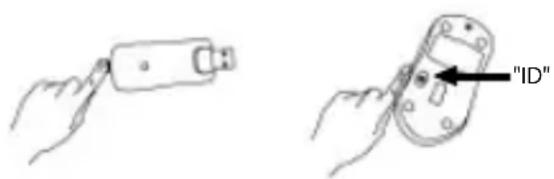
- Press the "ID" button an the top of the receiver.
- To power on, press the "ID" button located at the bottom of the mouse
- Move the mouse freely to make sure the connection is ok. Once the connection between mouse and receiver has been established successfully, the red LED starts blinking quickly. Your mouse has been successfully configured.
STEP 4: Powering the Mouse Off
In order to the reduce power consumption, you can power off the mouse. To do so, press and hold the "ID" button on the bottom of your mouse for about 5 seconds.
Note:
- The products cannot work on highly glossy surfaces and deep dark colour surfaces, such as mirror, glass, marble surface. It can work on light colour surfaces, such as desktop, computer table surfaces and so an.
- The products will go to sleeping mode when you da not operate the product more than 20 minutes, that can reduce the power consumption. You may press any button of the mouse to arouse it to working status.
Trouble Shooting
The mouse cursor does not move properly.
- Change the position of your radio receiver, because it may be too far from the mouse or a large metal object may be interfering with the receiver radio reception. Try moving the receiver and/or mouse to improve the reception.
- The interference may occur from other same products at near distance in office or home, you may change the ID code (see Step 3) several times in order to get optimal performance.

Conformity
This device has been tested and approved for compliance with the basic and other relevant requirements of the EMC Directive 89/336/EEC, the Low-voltage Directive 73/23/EEC and the R&TTE Directive 99/5/EC.
natural_image
Symbol of a trash bin with crossed lines indicating no waste or discharge, enclosed in a rectangle (no text or labels)Disposal
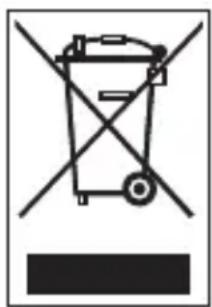
The European Directive 2002/96/EC applies to this product.
All electric and electronic devices must be disposed of separately from household waste at established bodies. Avoid hazards to the environment and dangers to your personal health by disposing of the device properly.
For further information about proper disposal, contact your local government, disposal bodies or the shop where you bought the device.
36 month warranty from date of purchase
Important warranty information

Dear Customer,
Thank you for purchasing a SILVERCREST product.
Please carefully read through the enclosed documentation or online help before putting your SILVERCREST product into service. If you have a problem, which can't be solved in this way, please contact our hotline.
If the problem cannot be solved over the phone, you will be given a reference number (RMA), which you should enclose together with a copy of the proof of purchase. After you have packaged the unit safe for transport and in plain packaging, please send it for warranty processing, with the RMA noted on the outside of the package, to the address given to you by our hotline employee. After receiving the unit we will correct the manufacturing and material defect free of charge.
Up-to-date information and answers to the most frequently asked questions are available on the internet from:
www.silvercrest.cc
This guarantee is valid in the UK.
Your statutory guarantees from the seller are in addition to this warranty and are not limited by it.
36
MONTH WARRANTY
Hotline number: 0207-3650744
(Please have your serial number to hand!)
VÄLKOMMEN
natural_image
Diagram showing two views of a computer mouse with internal compartments and a separate cutaway view (no text or labels)WARNING!
natural_image
Technical line drawing of a mechanical assembly or enclosure with no visible text or symbolsUSB Connector
natural_image
Symbol of a trash bin crossed with no text or numbers, representing waste sorting or restriction (no text present)Avfall
natural_image
Diagram showing two views of a computer mouse with internal components and an external part, no text or symbols present.Oppmerksomhet!
natural_image
Technical line drawing of a mechanical assembly or bracket (no text or symbols visible)USB Connector
natural_image
Symbol of a trash bin crossed with no text or numbers, representing waste sorting or disposal (no text present)Avfallshändtering
Retningslinjene i EU-direktiv 2002/96/EC gjelder for dette produktet.
natural_image
Technical line drawing of a mechanical assembly or bracket (no text or symbols visible)USB Connector
natural_image
Symbol of a trash bin crossed with no text or numbers, representing waste sorting or disposal (no text present)Bortskaffelse
Hotlinenummer: 38-322952
(Vennligst ha ditt serienummer for hånden)
WELKOM
Uw muis benut de digitale radiotechnologie om met de computer te communiceren.
natural_image
Diagram showing two views of a computer mouse with internal compartments and a separate cutaway view (no text or labels)Attentie!
natural_image
Technical line drawing of a mechanical assembly with no visible text or symbolsUSB Connector
natural_image
Symbol of a trash bin crossed with no text or numbers, representing waste sorting or disposal (no text present)Afvalverwijdering
Hotlinenummer: 02-7001643
natural_image
Technical line drawing of a mechanical assembly or bracket (no text or symbols visible)USB Connector
natural_image
Symbol of a trash bin crossed with no text or numbers, representing waste sorting or disposal (no text present)Élimination
natural_image
Two identical grayscale vertical panels with black, white, and gray stripes (no text or symbols)Indications importantes concernant la garantie

Cher client,
natural_image
Diagram showing two views of a computer mouse with internal compartments and a separate open button (no text or symbols)ATTENZIONE!
natural_image
Technical line drawing of a mechanical assembly or bracket (no text or symbols visible)USB Connector
natural_image
Symbol of a trash bin crossed with no text or numbers, representing environmental restriction (no text present)Eliminazione
Numero Hotline: 02-69682859
natural_image
Diagram of a computer mouse showing internal components and a separate outline (no text or labels)Atenção!
natural_image
Technical line drawing of a mechanical assembly or enclosure with no visible text or symbolsUSB Connector
natural_image
Simple line drawing of a hand holding a cylindrical object (no text or symbols)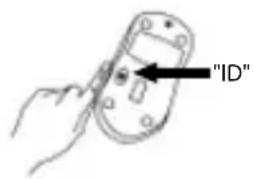
PASSO 4: Desligar o Rato
natural_image
Symbol of a trash bin crossed with a diagonal line, no text or numbers presentDescarte
natural_image
Diagram showing two views of a computer mouse with internal components and an external part, no text or symbols present.UWAGA!
natural_image
Technical line drawing of a mechanical assembly or gate mechanism (no text or symbols visible)USB Connector
natural_image
Symbol of a trash bin crossed with no text or numbers, representing waste sorting or disposal (no text present)CE declaration of conformity: www.silvercrest.cc


- Mini RF Optical Mouse
- SILVERCREST RF-1002
- Benutzerhandbuch
- Användarhandledning
- Achtung!
- Safety instructions
- Step 1: Install batteries into the mouse
- Attention!
- Step 2: Connect the receiver
- Step 3: Set up your mouse
- STEP 4: Powering the Mouse Off
- Note:
- Trouble Shooting
- Conformity
- Disposal
- month warranty from date of purchase
- Important warranty information
- VÄLKOMMEN
- WARNING!
- Avfall
- Oppmerksomhet!
- Avfallshändtering
- Bortskaffelse
- Hotlinenummer: 38-322952
- WELKOM
- Attentie!
- Afvalverwijdering
- Élimination
- Indications importantes concernant la garantie
- ATTENZIONE!
- Eliminazione
- Numero Hotline: 02-69682859
- Atenção!
- PASSO 4: Desligar o Rato
- Descarte
- UWAGA!
Brand : SILVERCREST
Model : RF1002
Category : Mouse