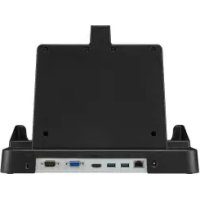
FZVEBG11AU - Other computer accessories PANASONIC - Free user manual and instructions
Find the device manual for free FZVEBG11AU PANASONIC in PDF.


| Product Type | Docking station for Panasonic FZ-G1 series computer |
| Compatible Models | Panasonic FZ-G1 only (incompatible with other products) |
| Dimensions (W × H × D) | 310 mm × 172 mm × 230 mm |
| Weight | Approximately 1.5 kg |
| Power Supply | 16 V DC (specific AC adapter supplied with the computer or sold separately, part number CF-AA6413C) |
| Expansion Bus Connector | 24 pins |
| LAN Ports | IEEE 802.3 10Base-T / IEEE 802.3u 100Base-TX |
| USB Ports | USB 3.0 (9-pin) × 2, max current 900 mA per port |
| Serial Port | Male Dsub 9-pin connector × 1 |
| HDMI Port | Type A × 1 (compatible with standard digital display) |
| VGA Port | Mini female Dsub 15-pin connector × 1 |
| Main Functions | Allows connection of peripherals (displays, LAN, USB, serial) by installing the FZ-G1 computer |
| Usage Precautions | Do not expose to moisture, steam, dust, high temperatures; use only the specific adapter; unplug in case of malfunction |
| Maintenance and Cleaning | Avoid dust and liquids; do not place metal objects on the product |
| Safety | Do not touch the bus connector or pins; unplug during storms; do not connect a telephone line to the LAN port |
| Included Items | User Instructions (1 copy) |
| Repairability | In case of malfunction, contact Panasonic technical support; do not attempt to repair yourself |
| General Information | Compliant with EU directives; do not dispose of with household waste (recycle) |
Frequently Asked Questions - FZVEBG11AU PANASONIC
User questions about FZVEBG11AU PANASONIC
0 question about this device. Answer the ones you know or ask your own.
Ask a new question about this device
Download the instructions for your Other computer accessories in PDF format for free! Find your manual FZVEBG11AU - PANASONIC and take your electronic device back in hand. On this page are published all the documents necessary for the use of your device. FZVEBG11AU by PANASONIC.
USER MANUAL FZVEBG11AU PANASONIC
Names and Functions of Parts 5
Connecting/Disconnecting the computer ....6
Specifications 8
DEUTSCH
BEDIENUNGSANLEITUNG
Einführung 9
Federal Communications Commission Radio Frequency Interference Statement
Note: This equipment has been tested and found to comply with the limits for a Class B digital device, pursuant to Part 15 of the FCC Rules. These limits are designed to provide reasonable protection against harmful interference in a residential installation. This equipment generates, uses and can radiate radio frequency energy and, if not installed and used in accordance with the instructions, may cause harmful interference to radio communications. However, there is no guarantee that interference will not occur in a particular installation. If this equipment does cause harmful interference to radio or television reception, which can be determined by turning the equipment off and on, the user is encouraged to try to correct the interference by one or more of the following measures:
- Reorient or relocate the receiving antenna.
- Increase the separation between the equipment and receiver.
- Connect the equipment into an outlet on a circuit different from that to which the receiver is connected.
- Consult the Panasonic Service Center or an experienced radio/TV technician for help.
Warning
To assure continued compliance, use only shielded interface cables when connecting to a computer or peripheral. Also, any changes or modifications not expressly approved by the party responsible for compliance could void the user's authority to operate this equipment.
This device complies with Part 15 of the FCC Rules.
Operation is subject to the following two conditions:
(1) This device may not cause harmful interference, and
(2) This device must accept any interference received, including interference that may cause undesired operation.
This device is Class B verified to comply with Part 15 of FCC Rules when used with Panasonic Notebook Computer.
Responsible Party: Panasonic Corporation of North America
One Panasonic Way
Secaucus, NJ 07094
Tel No:1-800-LAPTOP5 (1-800-527-8675)
6-M-1
For Canada
Canadian ICES-003
CANICES-003(B)/NMB-003(B)
Thank you for purchasing this Panasonic product.
This is the Cradle for the Panasonic FZ-G1 computer series*. In combination of the computer and Cradle, you can connect variety of devices.
- Not compatible with other products.
- Parts Included
Operating Instructions (This book) 1
: Refer to the on-screen manuals.
Some illustrations are simplified to help your understanding and may look different from the actual unit.
- Names of products, brands, etc., appearing in this manual are trademarks or registered trademarks of their respective own companies.
For Europe

Declaration of Conformity (DoC)
"Hereby, Panasonic declares that this Cradle is in compliance with the essential requirements and other relevant provisions of EU Council Directives."
Authorised Representative:
Panasonic Testing Centre
Panasonic Marketing Europe GmbH
Winsberging 15, 22525 Hamburg, Germany
18-E-0
Information on Disposal for Users of Waste Electrical & Electronic Equipment (private households)

This symbol on the products and/or accompanying documents means that used electrical and electronic products should not be mixed with general household waste.
Please dispose of this item only in designated national waste electronic collection schemes, and not in the ordinary dust bin.
For business users in the European Union
If you wish to discard electrical and electronic equipment, please contact your dealer or supplier for further information.
Information on Disposal in other Countries outside the European Union
This symbol is only valid in the European Union.
If you wish to discard this product, please contact your local authorities or dealer and ask for the
correct method of disposal.
36-E-1
Interface Cable
Use of an interface cable longer than 3m {9.84 feet} is not recommended. 11-E-1
For India

For the purpose of recycling to facilitate effective utilization of resources, please return this product to a nearby authorized collection center, registered dismantler or recycler, or Panasonic service center when disposing of this product.
Please see the Panasonic website for further information on collection centers, etc.
http://www.panasonic.co.in/wps/portal/home
68-M-1
- Do Not Place Containers of Liquid or Metal Objects on Top of This Product
If water or other liquid spills, or if paper clips, coins, or foreign matter get inside this product, fire or electric shock may result.
- If foreign matter has found its way inside, immediately unplug the AC plug and remove the unit from this product. Then contact your technical support office.
- If a Malfunction or Trouble Occurs, Immediately Stop Use
If a Malfunction Occurs, Immediately Unplug the AC Plug and Remove the Unit From This Product
- This product is damaged
- A foreign object is inside this product
Smoke is emitted
An unusual smell is emitted - Unusually hot
Continuing to use this product while any of the above conditions are present may result in fire or electric shock.
- If a malfunction or trouble occurs, immediately unplug the AC plug and remove the unit from this product. Then, contact your technical support office for repair.
- Use Only the Specified AC Adaptor With This Product
Using an AC adaptor other than the one supplied (supplied with the unit or one sold separately as an accessory) may result in a fire.
- Do Not Touch This Product In a Thunderstorm If Connected with the AC Cable or Any Other Cables
Electric shock may result.
- Do Not Place This Product on Unstable Surfaces
If balance is lost, this product may fall over or drop, resulting in an injury.
- Do Not Connect a Telephone Line, or a Network Cable Other Than the One Specified, Into the LAN Port
If the LAN port is connected to a network such as the ones listed below, a fire or electric shock may result.
Networks other than 100BASE-TX or 10BASE-T
- Phone lines (IP phone (Internet Protocol Telephone), Telephone lines, internal phone lines (on-premise switches), digital public phones, etc.)
- Do Not Keep This Product Wherever There is a Lot of Water, Moisture, Steam, Dust, Oily Vapors, etc.
Otherwise, possibly resulting in fire or electric shock. - Do Not Leave This Product in High Temperature Environment for a Long Period of Time Leaving this product where it will be exposed to extremely high temperatures such as near fire or in direct sunlight may deform the cabinet and/or cause trouble in the internal parts. Continued use in such a resulting condition may lead to short circuiting or insulation defects, etc. which may in turn lead to a fire or electric shocks.
- Using this product continuously in a hot environment will shorten the product life. Avoid use in these types of environments.
- When using in hot or cold environment, some peripherals may fail to work properly. Check the operation environment of the peripherals.
Names and Functions of Parts
The cradle allows your peripheral devices to function exactly as if they were connected directly to the computer. (Refer to "Description of Parts" in the "Operating Instructions" accompanying the computer.)
CAUTION
- Do not touch the expansion bus connector or pins of the Cradle.
Rear
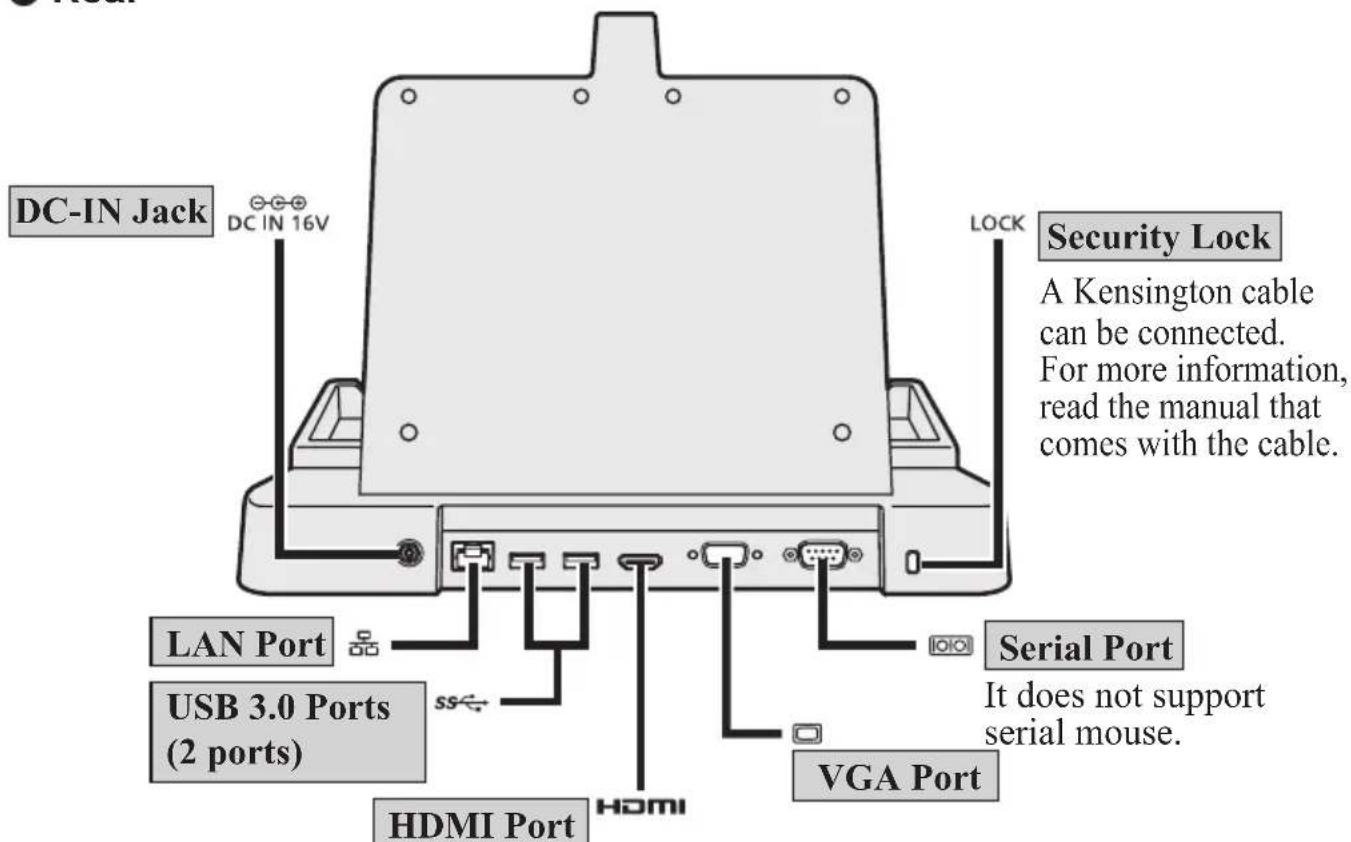
Connector for HDMI compatible digital display. It is not compatible with the analog display.
The display specifications of the maximum resolution, etc. that can be output differ according to the specifications of the device connected.
For details, refer to the specifications of the device connected.
- Front
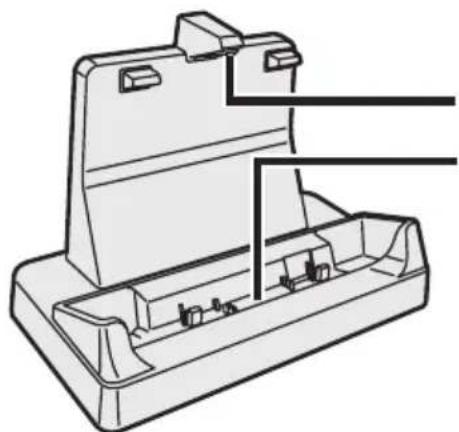
Roller
Expansion Bus Connector
This connects to the expansion bus connector on the bottom of the computer.
Connecting/Disconnecting the Computer
CAUTION
- Make sure to turn the computer off for connection/disconnection.
Do not connect or disconnect the Cradle while the computer is powered on or in the sleep or hibernation mode.
NOTE
- Before using the Cradle, see the following FAQ and download the latest driver and/or BIOS.
http://pc-dl.panasonic.co.jp/itn/drivers/info/VEBG11U.html
Connecting
1 Turn off the computer.
- Disconnect all the devices and cables and close the terminal cover.
2 Connect the AC adaptor to DC-IN jack of the Cradle.
- Connect the AC cord to the AC adaptor, and connect to an AC outlet.
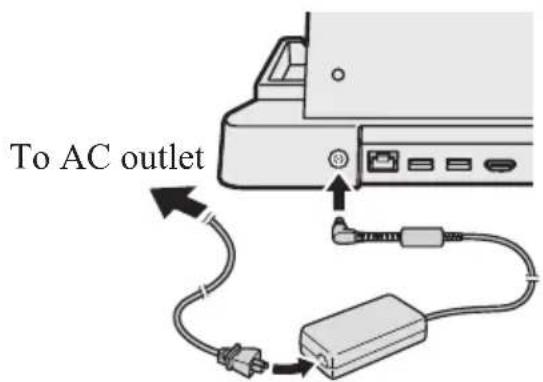
CAUTION
Refer to the "Operating Instructions" accompanying computer for information on proper handling of the AC adaptor and AC cord.
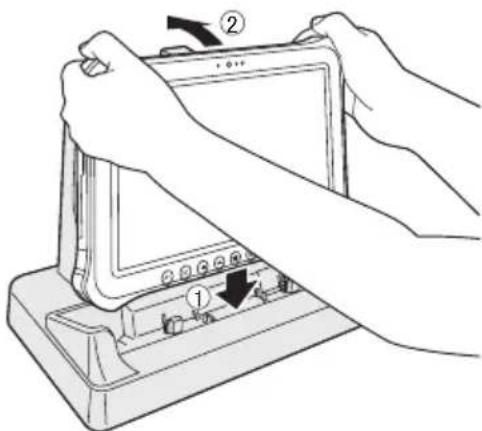
3 Connect the computer to the Cradle.
① Insert the computer to the Cradle from above.
② Push the computer to the back.
CAUTION
- Do not attempt to make connections if there is any object between the computer and the Cradle. Doing so could damage the computer and the Cradle.
NOTE
- See Reference Manual of the computer for connecting and setting USB devices, external displays and LAN.
- When connecting external displays to both HDMI port and VGA port, the screen will not appear on the external display connected to the VGA port.
- If the image of the external display connected to the cradle has stopped, remove the computer from the cradle, and then reconnect it.
CAUTION
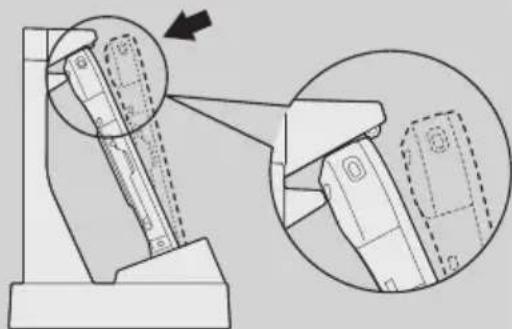
- Push the computer into the back of the roller as shown in the illustration (right) when connecting it to the Cradle.
- Do not attempt to move the Cradle while connecting the computer to the Cradle.
- When connecting USB devices, HDMI compatible display, headset or headphones to the computer connected to the cradle, make sure that the computer does not come off the cradle.
- If the computer malfunctions while the Cradle is attached, disconnect the Cradle ( page 8) and check to see if the computer operates normally. If the computer operates normally, the Cradle may be malfunctioning. Contact Panasonic Technical Support.
Disconnecting
1 Turn off the computer.
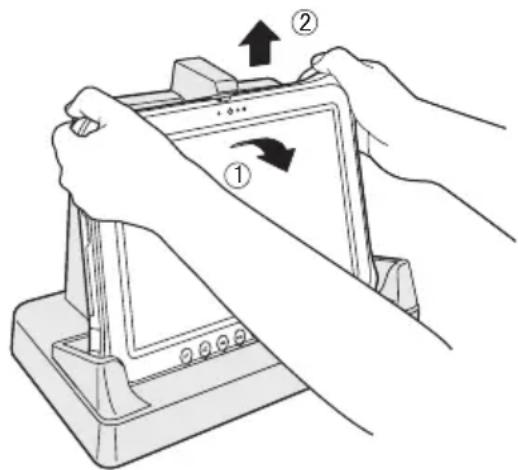
2 Disconnect the computer.
① Pull the computer to the front.
② Hold and lift up the computer.
Specifications
| Item Description | |
| Power Supply Input DC 16 V (Use the speciified AC adaptor supplied with the computer or one sold separately as an accessory. (Model No. CF-AA6413C)) | |
| Expansion Bus Connector 24-pin | |
| LAN Port IEEE 802.3 10Base-T / IEEE 802.3u 100Base-TX | |
| USB Port*1 | (9-pin, USB 3.0) × 2 Allowable current for each port: 900 mA |
| Serial Port (Dsub 9-pin male) | × 1 |
| HDMI Port*2 | Type A × 1 |
| VGA Port (Mini Dsub 15-pin female) | × 1 |
| Dimensions (width × depth × height) | 310 mm × 172 mm × 230 mm {12.2" × 6.8" × 9.1"} |
| Weight Approx. 1.5 kg {3.3 lb.} | |
1 Does not guarantee operation of all USB-compatible peripherals.
2 Does not guarantee operation of all HDMI-compatible peripherals.
Panasonic Testing Centre
Panasonic Marketing Europe GmbH
Winsberging 15, 22525 Hamburg, Bundesrepublik Deutschland 18-G-0
Panasonic Testing Centre
Panasonic Marketing Europe GmbH
Panasonic System Communications Company of North America
3 Panasonic Way, Panzip 2F-5, Secaucus, NJ 07094
Panasonic Canada Inc.
5770 Ambler Drive Mississauga, Ontario L4W 2T3
Importer's name & address pursuant to the EU legislation
Panasonic Computer Products Europe, Panasonic Marketing Europe GmbH
Hagenauer Straße 43
65203 Wiesbaden
Germany
55-E-1
- DEUTSCH
- BEDIENUNGSANLEITUNG
- FEDERAL COMMUNICATIONS COMMISSION RADIO FREQUENCY INTERFERENCE STATEMENT
- WARNING
- FOR CANADA
- PARTS INCLUDED
- OPERATING INSTRUCTIONS (THIS BOOK) 1
- FOR EUROPE
- INFORMATION ON DISPOSAL FOR USERS OF WASTE ELECTRICAL & ELECTRONIC EQUIPMENT (PRIVATE HOUSEHOLDS)
- FOR BUSINESS USERS IN THE EUROPEAN UNION
- INFORMATION ON DISPOSAL IN OTHER COUNTRIES OUTSIDE THE EUROPEAN UNION
- INTERFACE CABLE
- FOR INDIA
- IF A MALFUNCTION OCCURS, IMMEDIATELY UNPLUG THE AC PLUG AND REMOVE THE UNIT FROM THIS PRODUCT
- USE ONLY THE SPECIFIED AC ADAPTOR WITH THIS PRODUCT
- DO NOT TOUCH THIS PRODUCT IN A THUNDERSTORM IF CONNECTED WITH THE AC CABLE OR ANY OTHER CABLES
- DO NOT PLACE THIS PRODUCT ON UNSTABLE SURFACES
- NAMES AND FUNCTIONS OF PARTS
- CAUTION
- REAR
- FRONT
- ROLLER
- EXPANSION BUS CONNECTOR
- CONNECTING/DISCONNECTING THE COMPUTER
- NOTE
- CONNECTING
- 1 TURN OFF THE COMPUTER
- 2 CONNECT THE AC ADAPTOR TO DC-IN JACK OF THE CRADLE
- 3 CONNECT THE COMPUTER TO THE CRADLE
- DISCONNECTING
- 2 DISCONNECT THE COMPUTER
- SPECIFICATIONS
Brand : PANASONIC
Model : FZVEBG11AU
Category : Other computer accessories