BTX1 - Speaker TECHNAXX - Free user manual and instructions
Find the device manual for free BTX1 TECHNAXX in PDF.



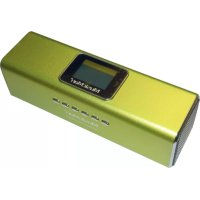
| Product Type | Portable Bluetooth Speaker |
| Brand | Technaxx |
| Model | BTX1 |
| Display | 128 x 64 mm, black and white |
| Power Supply | Rechargeable lithium-ion battery BL-5B (rechargeable and replaceable) |
| Battery Life | Playback: 3-4 hours; Charging: 3-5 hours |
| Supported Audio Formats | MP3, WMA, WAV |
| FM Radio | Yes, bands 87.5-108 MHz (normal) and 76-90 MHz (Japan) |
| Connectivity | Bluetooth, AUX input, USB port, MicroSD card reader, iPod/iPhone docking station |
| Additional Features | Hands-free, clock, alarm, calendar, equalizer (Rock, Pop, Classic, Soft, Jazz, DBB, SRS WOW) |
| Signal-to-Noise Ratio (SNR) | >45 dB |
| Operating Temperature | -5°C to +50°C |
| Maintenance and Cleaning | Clean with a soft, dry cloth. Do not use solvents or harsh cleaners. |
| Safety | Keep batteries out of reach of children. Do not dispose of in fire. Do not open or deform. |
| Spare Parts and Repairability | Replaceable battery (model BL-5B). |
| General Information | Metal casing available in several colors. Ideal for office, home, travel. |
Frequently Asked Questions - BTX1 TECHNAXX
User questions about BTX1 TECHNAXX
0 question about this device. Answer the ones you know or ask your own.
Ask a new question about this device
Download the instructions for your Speaker in PDF format for free! Find your manual BTX1 - TECHNAXX and take your electronic device back in hand. On this page are published all the documents necessary for the use of your device. BTX1 by TECHNAXX.
USER MANUAL BTX1 TECHNAXX
MusicMan Wireless Soundstation BT-X1 User Manual
Please find the Declaration of Conformity for this device under following internet-link:
- Mobile Bluetooth stereo speaker system with handsfree function, built-in MP3 player and FM radio, LCD display, AUX entrance to connect more audio devices, built-in TF MicroSD card slot / USB slot / docking station for iPod and iPhone.
- Connection with all Bluetooth enabled devices (mobile phones, Tablet PC, etc.)
- Aluminium for lightweight but very durable housing in different metallic colours.
- Lithium ion battery built-in/rechargeable/replaceable (playing/charging: 3-4 hrs/3-5 hrs), PC-USB, AC adapter*
- Calendar, clock and alarm function
- This compact travel speaker system is ideal for use at office, at home, in your leisure time. Enjoy music any time any where.
- Package Contents: MusicMan wireless Soundstation BT-X1, USB Power/Audio cable, User manual
Preparation before use
- Make sure the battery has sufficient power or insert DC 5V power as an external power supply (the device requires a minimum supply current of >1A ).
- Use the USB cable to get power supply and external audio source.
- Connect the device with an external 5V power supply. The battery charges automatically. When the battery is fully charged the chart shows "full".
Power button On/Off: to turn the speaker ON or OFF
Play / Pause / Continue playing
VOL+/VOL-: Press for volume adjustment
Press short to move left/right, or choose last/next song
MENU: Press short to enter sub-MENU or confirm
| Action | Basic operations |
| Short press | Key pressing time less than 1.2 sec |
| Long press | Key pressing time more than 1.2 sec |
| Hold | Press the key and keep the key pressed |
Less than 2 seconds More than 3 seconds
Note: Unless otherwise specified, "press" in this manual means "short press".
Time: Turn on to enter MENU. Insert card/USB to enter MUSIC play. Insert audio cable to choose Line-In play.
Main Interface (5 applications):
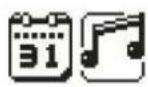

Calendar, Music, Line-In, FM, System Settings
Press and to select the application. Press the MENU key to enter. Insert card/USB to enter MUSIC play. Insert Line-In cable to enter Line-In play.
FUNCTIONAL APPLICATIONS
Calendar: Choose calendar and pess MENU to enter. Press and to adjust date. Press MENU and to return to the main menu.
MUSIC: Insert TF card and choose enter MUSIC play and a long press

in the main interface. Press MENU to
Music Interface
1. WMA & MP3 music's stop and playing interface
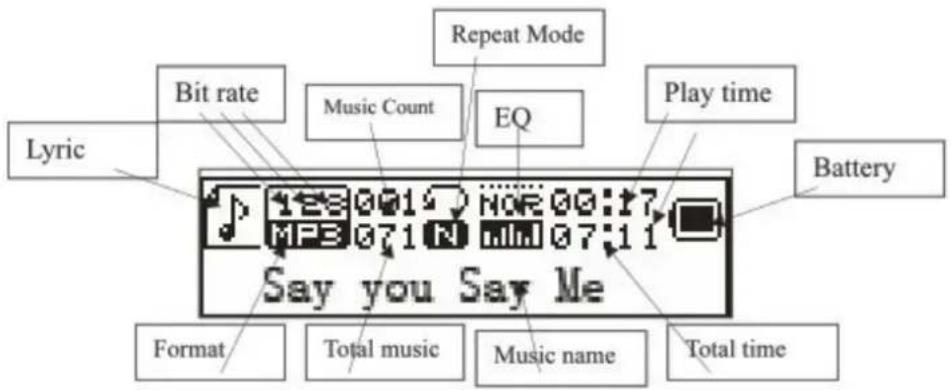
Note:

indicates the current music has lyric, otherwise the icon will be

Submenu 1 and basic operation
In stop status, press MENU to enter the following submenu: USB/Card catalog, Delete file, Delete all, Enter the main menu, Exit.
USB/Card catalog: Select the "USB/Card catalog". Press on to browse the various options. Press MENU to enter the next level directory. Press MENU again to select a file and return to "music player interface". The player supports multi-level directory structure and display. In the process of searching files press to return to "music broadcast".
Play music: press to start playing. Support breakpoint playing.
Pause music: press to switch between pause and continue playing.
Change file / Fast rewind / Fast forward: when playing a file, press / change to the previous/next file. Long press fast rewind/fast forward (during that no voice playback).
Delete file: select "Delete file". Press MENU to enter the next level interface. Press / to select "YES" / "NO", to confirm/not confirm the delete of a file.
Delete all: Delete all the files in the current folder (this operation is the same as for Delete file).
Submenu 2
In the playing status press MENU to enter the following submenu: Repeat, Equalizer, FM Radio, Enter Main Interface, Exit.
Repeat: select "Repeat" and press MENU to enter the desired repeat mode.
| Repeat Mode | Icon | Description |
| Normal | Play all the files by sequence, no repeat. | |
| Repeat one | Repeat the current file. | |
| Folder | Play all the files in the current folder, no repeat. | |
| Repeat folder | Repeat all the files in the current folder. | |
| Repeat all | Repeat all the files. | |
| Random | Play files in random. | |
| Intro | Play the first 10s of all the files by sequence. |
Equalizer: select "Equalizer" and press MENU to enter the desired mode.
| EQ Mode | Icon | Description |
| Normal | NOR | Standard natural sound. |
| Rock | Rock | Music of strong emotion. |
| Pop | POP | For common pop music. |
| Classic | CLAS | Soft sound. |
| Soft | SOFT | Sound quality is very soft. |
| Jazz | JAZZ | Sweet sound full of tender emotion. |
| DBB | D&B | Bass |
| SRS WOW | LAWAL | SRS HD audio |
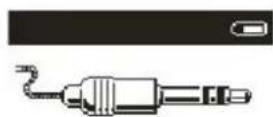
Line-In - function and operation: In the main menu interface insert the Line-In cable to turn into LINE-IN play. Long press MENU to exit.
FM: Select FM in the main interface. Press MENU to enter FM Radio and long press to exit. (User should insert the audio cable as antenna to get a better signal.)
FM Interface: The status will be saved before exit. If re-enter FM, the frequency is the one exited last time. Normal band: 87MHz - 108.0MHz (Japan band: 76.0MHz - 90.0MHz).
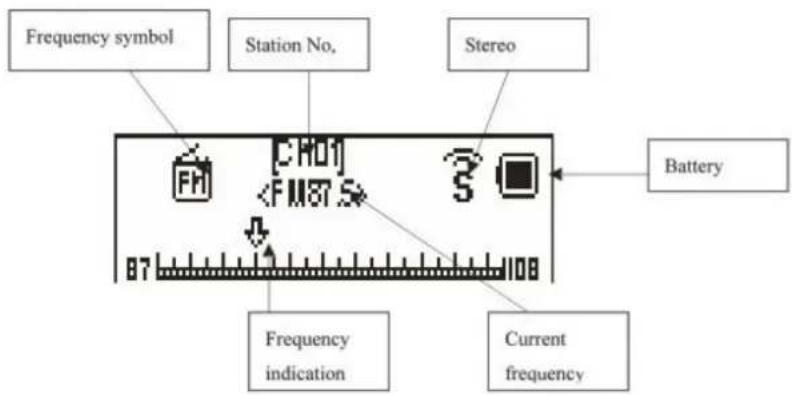
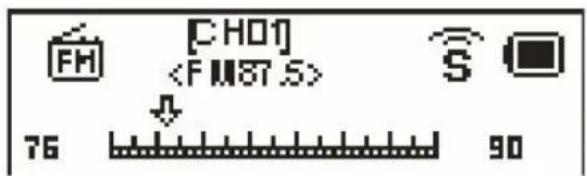
Radio Operation:
1) In the "radio interface": long press search automatically backward or forward stations. It stops after receiving a radio broadcast. When the programme already is saved, the interface shows the serial number stored. If not saved, you need to save the program manually. When saving is finished, press to switch and play among the saved stations. Press to fine-tune the search (frequency steps 100KHz.)
2) Press MENU to enter the radio function sub-menu.
3) Long press MENU to go back to main interface.
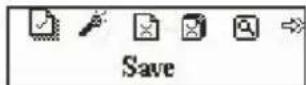
Submenu and Operation: In the FM interface, press MENU to enter this submenu: Auto Search, Return Music, Save Channel, Japan Band, Normal band, Delete Channel, Delete All, Exit.
Save: Search a station desired, press MENU to enter the submenu, select "Save" and press MENU, the system will return to the FM interface and the station is saved. "Save" supports up to 20 stations for each band.
Auto Search: Press MENU in the FM mode to choose "Auto Search". The frequency is searched from low to high. When a station is found it will be saved automatically. Maximum 20 stations can be saved.
Return Music: Press MENU in the FM mode to choose "Return Music". The system changes to USB stick or TF MicroSD card for music playback.
Delete station: Select a station to be deleted, press MENU to enter the submenu and select Delete, press MENU, then the station's serial number (such as CHO2) disappears, indicating the station CHO2 is deleted. User has to re-search this station to listen to it again.
Delete all: Select "Delete all". Press MENU. All the saved stations will be deleted.
iPod / iPhone Mode Operation: Plug in an iPod or an iPhone to play music directly. Press MENU to enter or to exit the iPod / iPhone mode and to go back to the main surface.
Play / Pause / Continue playing
Last song/Next song
VOL+/VOL-: Press for volume adjustment
Bluetooth Mode
Play music via Bluetooth
Turn on the device and press to choose the Bluetooth Mode. Press MENU to enter it. Turn on Bluetooth on your mobile phone and search for the new device. Then choose and connect with "MusicMan". In case the mobile phone version is lower than 2.3, you need to enter with password "0000". When there is no
connection, the display shows and When the connection is done successfully, the icons change to and After connection you can play music through the MusicMan. Press MENU to enter or exit from the Bluetooth mode.
Make a phone call by Bluetooth
When calling out by your mobile phone, the voice comes out directly from the MusicMan. To answer a phone call press . Talk close to the microphone for a good voice effect. Then press again to hang up.
System Setting:
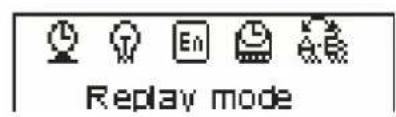
Select SYS in the main interface, press MENU to enter system setting. Press / to choose different setting items. Press MENU to enter setting.
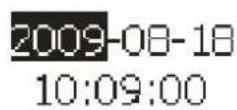
System time: Press or adjust time. Press MENU to choose adjusting item.
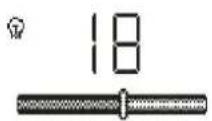
Backlight: Press or to adjust the backlight parameter. Press MENU to confirm and exit.
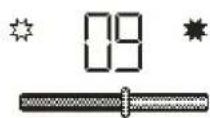
Contrast: Press or to adjust the backlight parameter. Press MENU to confirm and exit.
Language: Press or to choose language. Press MENU to confirm and exit. (14 languages: Simplified Chinese, Traditional Chinese, English, German, French, Italian, Dutch, Spanish, Portuguese, Swedish, Czech, Danish, Russian, Turkish.
TOOL: Press MENU to enter "Tool": Power off set, Alarm, Time FM set, Exit.
Power off set: Press MENU to enter power off time setting. Press on to adjust the time. Press MENU to confirm and exit.
Alarm ON/OFF: Press MENU to turn the alarm on/off.
Alarm Time: Press or to adjust time. Press MENU to choose adjusted item.
Cycle: Press or to choose the desired setting. Press MENU to set: "Every Day", "One Time" [press to set the alarm time] or "Cycle" [press or to choose a day]. Press MENU to choose or cancel.
Alarm with Music: Press or to choose desired setting. Press MENU to set: Rings embedded: Press or to choose rings. Press MENU to confirm. Card Folder: Press MENU to enter. Choose desired ring. Press MENU to confirm and exit.
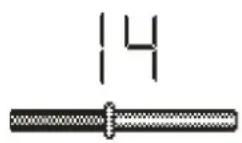
Alarm Volume: Press or to adjust volume. Press MENU to confirm and exit.

2007/06/08
3.1.46.0000
Firmware version: Display version information. Press MENU to exit.
FAQ
Cannot turn on the device: Check the capacity of the battery. Connect USB cable or charger and try to turn on the device again. Check whether the battery is inserted correctly.
Bad FM Radio signal: Adjust the direction and placement of the device. Pull the audio cable longer. Check whether there is interference from electronic equipment nearby.
Display shows garbage: Check whether the correct language is been chosen.
Technical Specifications
| Screen | 128 x 64mm black & white | |
| Power | BL-5B Lithium battery (replaceable) | |
| FM (Line-In play with FM radio) | Receiving frequency range | 87.5MHz – 108MHz (Normal band) 76MHz – 90MHz (Japan band) |
| Station No. 20/20 | ||
| Signal Noise Ratio >45dB | ||
| Music format | MP3 / WMA / WAV | |
| Temperature | -5°C up to +50°C | |
Security and Disposal Hints for Batteries
Hold children off batteries. When a child swallowed a battery by mistake go to a doctor's place or bring the child into a hospital promptly! Look for the right polarity (+) and (一) of batteries! Always change all batteries, never use old and new batteries or batteries of different types together. Do NOT open, deform or load up batteries! There is a risk of injury (battery leakage fluid)! Never short down batteries. NEVER throw batteries into fire! There is a risk of explosion! Take out exhausted batteries from the device and when its not used over a longer period of time also.
Hints for Environment Protection
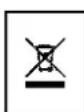
Packages materials are raw materials and can be recycled. Separate the packages by types and put them to an adequate recycling on behalf of the environment. More detailed information you get from your official civil service. Do not disposal old devices into the domestic waste. Disposal old / defective devices professionally Do not disposal batteries into the domestic waste. Disposal old / empty / defective batteries professionally!
Cleaning: Protect the device from contamination and pollution. Only clean the device with soft cloth or drapery, avoid using rough or coarse-grained materials. Do NOT use solvents or other aggressive cleaner. Wipe the device after cleaning accurately. Important Notice: Should battery fluid leak from a battery, wipe the battery-case with a soft cloth dry and put in a new battery!
: Lecture (Play) / Pause / Continuer lecture (Continue playing)
Interface principale (5 applications):

: Lecture (Play) / Pause / Continuer lecture (Continue playing)
Play/Pausa/Continua play
Play/Pausa/Continua play