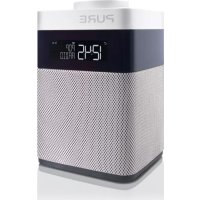
Pop Mini - Radio PURE - Free user manual and instructions
Find the device manual for free Pop Mini PURE in PDF.
| Technical Specifications | DAB/DAB+/FM digital radio, 3-inch speaker, 3W RMS power, Bluetooth connectivity, AUX input. |
|---|---|
| Usage | Easy to use with a backlit LCD screen, intuitive navigation buttons, ability to save stations. |
| Maintenance and Repair | Clean regularly with a soft cloth, avoid exposure to moisture, consult the manual for troubleshooting instructions. |
| Safety | Use only with the supplied power adapter, do not expose to extreme temperatures, unplug during thunderstorms. |
| General Information | Dimensions: 18 x 10 x 10 cm, weight: 0.5 kg, battery life: up to 20 hours, 2-year warranty. |
Frequently Asked Questions - Pop Mini PURE
Download the instructions for your Radio in PDF format for free! Find your manual Pop Mini - PURE and take your electronic device back in hand. On this page are published all the documents necessary for the use of your device. Pop Mini by PURE.
USER MANUAL Pop Mini PURE

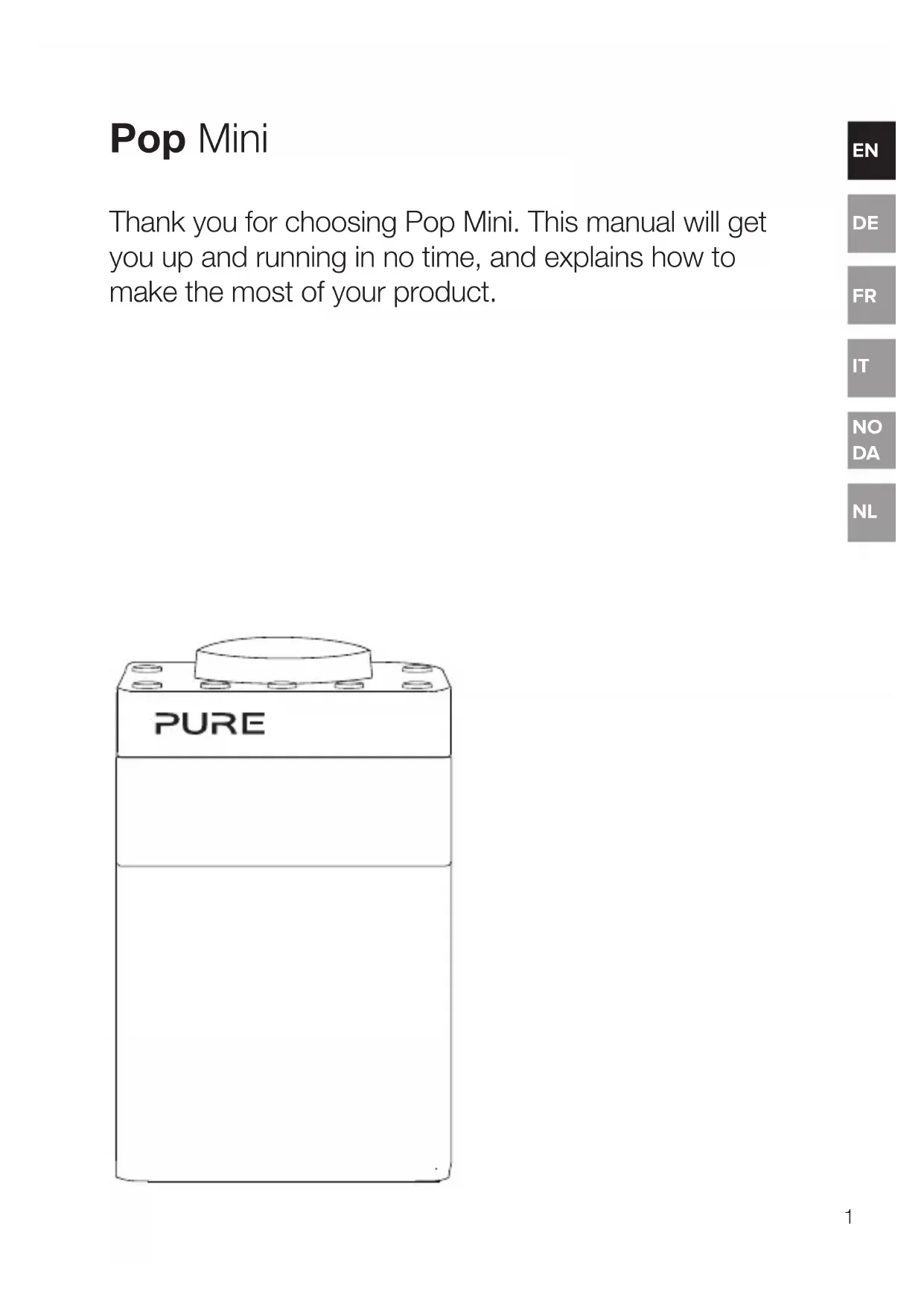
Pop Mini Thank you for choosing Pop Mini. This manual will get you up and running in no time, and explains how to make the most of your product.
NL2 This WARNING symbol is used throughout this manual to indicate a potentially serious risk to your personal safety. Obey all safety notices that accompany this symbol to avoid possible injury or death. This symbol is used on the product to indicate a caution and that instructions should be read before use. This symbol indicates DC.
This symbol indicates a USB socket rated at 2 Amps maximum. Safety 1. Familiarise yourself with all of the safety information and instructions before using the radio. When passing this radio on to others, please include all documents.
2. The apparatus shall not be exposed to dripping or splashing and that no objects filled with liquids, such as vases,
shall be placed on the apparatus. If liquid or water is spilled on to the radio, switch it off at the mains immediately, disconnect the mains plug and contact your dealer. Never touch the plug or the radio itself with wet hands. Never pull the power cable when disconnecting the power adaptor from the power supply. 3. Danger of explosion if the batteries are incorrectly replaced (ensure correct polarity). Replace only with the same or equivalent type (4 x AA). The batteries or battery (ChargePAK D1) shall not be exposed to excessive heat such as sunshine, fire or similar. Keep new and used batteries and ChargePAKs away from children. Attention is drawn to the environmental aspects of battery disposal.
4. Using the radio in rooms or climates with high humidity and temperatures may cause condensation to form inside
the radio, which can damage the radio. Use apparatus in moderate climates only.
5. Avoid extreme degrees of temperature,either hot or cold. Place the device well away from heat sources such as
radiators or gas/electric fires. No naked flame sources, such as lighted candles, should be placed on the apparatus.
6. The mains power adapter is used as the disconnect device, the disconnect device shall remain readily operable. Fit
the mains adaptor to an easily accessible socket located near the radio and only use the mains power adaptor to connect to this product.
7. Use only the mains power adaptor listed in the user instructions (supplied by Pure with model numbers ZDD055200,
ZDD055200BS, SW055200-NM or SW055200-N01).
8. Ensure that the available supply voltage corresponds with the required operational voltage of the radio before use.
9. Disconnect your radio from the power supply if you will not use your radio for a long period of time (e.g. if you are
10. Always unplug your radio from the mains socket before cleaning. When cleaning the radio, do not use any type of
abrasive pad or abrasive cleaning solutions as these may damage the radio’s surface.
11. To reduce the risk of electric shock, do not remove any screws as there are no user-serviceable parts inside. Refer
servicing to qualified personnel.
12. Ensure adequate ventilation around the product particularly when charging.
1. Read the instructions for ChargePAK use in this document.
2. Only use your ChargePAK with original Pure products. Use only the original Pure ChargePAK D1. Caution: Danger of
explosion if battery is incorrectly replaced or another type used.
3. Store ChargePAK in a cool, dry place at normal room temperature. Remove from devices that will be stored unused
for extended periods.
4. Do not puncture, modify, drop, throw, or cause other unnecessary shocks to your ChargePAK. May present a risk of
fire, explosion, or chemical burn if mistreated. 5. Do not dispose of ChargePAK in a fire or incinerator, or leave in hot places such as a motor car under direct sunlight. Do not store near oven, stove, or other heat source.
6. Do not connect ChargePAK directly to an electrical source, such as a building outlet or automobile power-point. Do
not place into a microwave oven, or any other high-pressure container.
7. Do not immerse ChargePAK in water or otherwise expose it to liquids.
8. Do not short circuit ChargePAK.
9. Do not use or charge a ChargePAK that appears to be leaking, discoloured, rusty, deformed; emitting an odour; or
is otherwise abnormal. 10. Do not touch a leaking ChargePAK directly; wear protective material to remove and dispose of it properly immediately.
11. Do not store where children may have access.
12. Dispose of ChargePAK as per normal rechargeable batteries according to the local laws and regulations of your region. ChargePAK D1 safety instructions Symbols on the product and in the user manual3
Contents 4 Introduction 4 Top panel 5 Rear panel 6 Display 7 Getting started 7 Quick set up 9 Using your Pop 9 Listening to digital radio 9 Listening to FM radio 10 Storing and selecting presets 10 To quick-store a station to a preset button (1–5) 10 To recall a preset when listening to a digital or FM radio station 11 Alarms and timers 11 Setting an alarm 12 Cancelling a sounding alarm 12 Snoozing a sounding alarm 12 Disabling an alarm 12 Setting the sleep timer 12 Setting the kitchen timer 13 Options and settings 13 General settings 14 Audio settings 14 Display settings 15 Clock settings 17 FM stereo 18 Appendix 18 Installing a ChargePAK D1 or four AA batteries 19 Changing Pop Mini’s removable sleeve 20 Help and advice 21 Technical specifications4 Top panel Introduction A. Power/Volume dial: Push to switch Pop on/off. Turn to adjust volume. B. Menu button: Press to change various settings on Pop (see page 13 for more information). C. Select buttons: Press to change radio stations (see page 9) or press to scroll and select menu options. D. Source: Press to switch between listening to digital radio and FM radio. E. Presets 1 - 5: Store up to 5 digital or 5 FM radio preset stations (see page 10 for more information).
Pop Mini Rear panel F. Aerial: Rotate the aerial and fully extend it for best reception. G. Stereo headphone socket (3.5mm) H. Autotune button: Press to automatically scan for new digital radio stations and remove inactive ones.
I. Micro-B USB 5.5V power connector: Connect to supplied mains
Quick set up Getting started
Note: If you have a ChargePAK D1 rechargeable battery (sold separately) or AA rechargeable batteries fit them now before plugging Pop in. See page 18 for more information.
- Plug the mains adapter into the mains supply (D).
- Rotate the aerial and fully extend it (steps A and B).
- Insert the jack of the supplied mains adapter into the socket on the rear of the radio (C).8
- Push down and release the power button to switch Pop on.
- Wait for Pop to complete an Autotune for all available digital radio stations.
Using your Pop Listening to digital radio Press the Source button to switch to digital radio.Changing digital stations1. Press the < > buttons to scroll through the list of stations.2. When you have found the station that you want to listen to, press the Select button. DR FM AUX BTDR FM AUX BTDR FM AUX BTDR FM AUX BTDR FM AUX BTDR FM AUX BTDR FM AUX BTDR FM AUX BTDR FM AUX BTDR FM AUX BTDR FM AUX BTDR FM AUX BTDR FM AUX BTDR FM AUX BTDR FM AUX BTDR FM AUX BTDR FM AUX BTDR FM AUX BTDR FM AUX BTDR FM AUX BTDR FM AUX BTDR FM AUX BTDR FM AUX BTDR FM AUX BTDR FM AUX BTDR FM AUX BTDR FM AUX BTDR FM AUX BTDR FM AUX BTDR FM AUX BTDR FM AUX BTDR FM AUX BTDR FM AUX BTDR FM AUX BTDR FM AUX BTDR FM AUX BTDR FM AUX BTDR FM AUX BTDR FM AUX BTDR FM AUX BTDR FM AUX BTDR FM AUX BTDR FM AUX BTDR STATIONSBBC R3 10:00
Listening to FM radio Press the Source button to switch to FM radio.Changing FM stationsManual tuning Press the < > buttons to step up or down 0.05 MHz.Seek tuningPress and hold the < > buttons to seek to the next or previous FM radio station that has a strong signal. DR FM AUX BTDR FM AUX BTDR FM AUX BTDR FM AUX BTDR FM AUX BTDR FM AUX BTDR FM AUX BTDR FM AUX BTDR FM AUX BTDR FM AUX BTDR FM AUX BTDR FM AUX BTDR FM AUX BTDR FM AUX BTDR FM AUX BTDR FM AUX BTDR FM AUX BTDR FM AUX BTDR FM AUX BTDR FM AUX BTDR FM AUX BTDR FM AUX BTDR FM AUX BTDR FM AUX BTDR FM AUX BTDR FM AUX BTDR FM AUX BTDR FM AUX BTDR FM AUX BTDR FM AUX BTDR FM AUX BTDR FM AUX BTDR FM AUX BTDR FM AUX BTDR FM AUX BTDR FM AUX BTDR FM AUX BTDR FM AUX BTDR FM AUX BTDR FM AUX BTDR FM AUX BTDR FM AUX BTDR FM AUX BTDR 10:00
DR FM AUX BTDR FM AUX BTDR FM AUX BTDR FM AUX BTDR FM AUX BTDR FM AUX BTDR FM AUX BTDR FM AUX BTDR FM AUX BTDR FM AUX BTDR FM AUX BTDR FM AUX BTDR FM AUX BTDR FM AUX BTDR FM AUX BTDR FM AUX BTDR FM AUX BTDR FM AUX BTDR FM AUX BTDR FM AUX BTDR FM AUX BTDR FM AUX BTDR FM AUX BTDR FM AUX BTDR FM AUX BTDR FM AUX BTDR FM AUX BTDR FM AUX BTDR FM AUX BTDR FM AUX BTDR FM AUX BTDR FM AUX BTDR FM AUX BTDR FM AUX BTDR FM AUX BTDR FM AUX BTDR FM AUX BTDR FM AUX BTDR FM AUX BTDR FM AUX BTDR FM AUX BTDR FM AUX BTDR FM AUX BTDR FM 107\60 10:00 SCANNING DR10 Storing and selecting presets To quick-store a station to a preset button (1–5) Tune in to the digital or FM radio station that you want to store. Press and hold one of the numbered preset buttons (1–5) for two seconds to save the current station as a preset. You can save over existing presets. To recall a preset when listening to a digital or FM radio station To tune to presets 1 to 5, press the corresponding numbered button on Pop (1 to 5). You can store up to 5 digital and 5 FM radio stations for quick access. DR FM AUX BTDR FM AUX BTDR FM AUX BTDR FM AUX BTDR FM AUX BTDR FM AUX BTDR FM AUX BTDR FM AUX BTDR FM AUX BTDR FM AUX BTDR FM AUX BTDR FM AUX BTDR FM AUX BTDR FM AUX BTDR FM AUX BTDR FM AUX BTDR FM AUX BTDR FM AUX BTDR FM AUX BTDR FM AUX BTDR FM AUX BTDR FM AUX BTDR FM AUX BTDR FM AUX BTDR FM AUX BTDR FM AUX BTDR FM AUX BTDR FM AUX BTDR FM AUX BTDR FM AUX BTDR FM AUX BTDR FM AUX BTDR FM AUX BTDR FM AUX BTDR FM AUX BTDR FM AUX BTDR FM AUX BTDR FM AUX BTDR FM AUX BTDR FM AUX BTDR FM AUX BTDR FM AUX BTDR FM AUX BTDR 10:00
Alarms and timersSetting an alarmPop has two alarms which can switch the radio on and tune to a digital or FM radio station or sound an alarm tone.1. Press the Menu button and scroll < > to ‘Alarm’.2. Scroll < > to ‘Alarm1’ or ‘Alarm2’ and press the Select button.
3. Scroll < > to ‘On’ and press the Select button.
4. Scroll < > to set the hour for the alarm and press
the Select button. Repeat to set the minute for the alarm.
5. Scroll < > to set the duration of the alarm and press
the Select button. Scroll < > to specify ‘FM’, ‘Digital’ or ‘Tone’ and press the Select button to confirm. If you are specifying a tone alarm, skip to step 8.7. Scroll < > to specify which station should be played when the alarm goes off. You have the option of selecting one of your preset stations or you can select ‘Last Used’ to select the station that you were last listening to. Press Select to confirm.
8. Scroll < > to specify one of the following alarm
repeat options: ‘Daily’, ‘Weekdays’, ‘Weekends’ or ‘Once’ and press the Select button to confirm.9. Use < > to set the volume that the radio will play at when the alarm sounds and press the Select button to confirm. . The alarm icon will light steadily on the display to show that the alarm has set.Note: If Pop is running on batteries or a ChargePAK, Pop’s alarm function will not work if you turn Pop off after setting an alarm. 7:00 MENU ALARM
ALARM 1 SAVED 10:00 DR12 Cancelling a sounding alarm To cancel a sounding alarm, press the Source, <Select> or Menu buttons. Snoozing a sounding alarm To snooze a sounding alarm, press one of the Preset buttons. By default, Pop‘s snooze time is set to eight minutes. To change the default snooze time see page 16. Disabling an alarm To disable an alarm after it has been set:
3. Scroll < > to ‘Off’ and press the Select button.
The alarm icon will turn off on Pop’s display to show that the alarm has been disabled. Setting the sleep timer The sleep timer can be set to switch Pop off after a specific period of time. Note: If Pop is running on batteries or a ChargePAK, Pop’s sleep function is disabled.
3. Scroll < > and press the Select button to set the timer for up to 90 minutes or
choose ‘Off’ to cancel. Setting the kitchen timer Pop has a countdown kitchen timer which will sound an alarm after a set time period.
3. Scroll < > to change the hours and press the Select button.
4. Scroll < > again to change the minutes and push to confirm and start the
countdown timer. The alarm will sound after the time period you have set whether the radio is on or in standby. Cancel the beeping alarm tone by pressing either the Source, <Select> or Menu buttons.13
Options and settings General settings Changing the language shown on the display To switch the display language on Pop between English, French, German, Italian and Spanish:
4. Scroll < > and press the Select button to choose the language that you want
Pop to display. Resetting Pop to factory settings Resetting your Pop radio removes all presets, clears the station list and resets all options to defaults. To carry out a factory reset:
Displaying Pop’s software version To display software version that is currently running on Pop:
Updating Pop to the latest version of software Contact Pure technical support (http://support-uk.pure.com) for more information on how to update Pop to the latest software version.14 Audio settings You can use Pop’s audio menu to adjust the bass and treble.
4. Scroll < > to adjust the bass or treble levels. You can choose a level between
5. Press the Select button to confirm the bass or treble level.
Display settings Adjusting the display brightness You can adjust the brightness of the display when Pop is switched on or in standby. To change the brightness of Pop’s display:
4. Scroll < > to ‘Active’ and press the Select button to change the settings that
apply when Pop is switched on, or scroll to < > ‘Standby’ and press the Select button to change settings that apply in standby.
5. Scroll < > to ‘Level’ and press the Select button.
6. Scroll < > to choose a brightness level between ‘1’ and ‘5’.
7. Press the Select button to confirm the brightness setting.
Adjusting how long the display backlight stays on for You can adjust how long Pop’s display backlight stays on for:
4. Scroll < > to ‘Active’ and press the Select button to change the settings that
apply when Pop is switched on, or scroll to < > ‘Standby’ and press the Select button to change settings that apply in standby.
5. Scroll < > to ‘Duration’ and press the Select button.
6. Scroll < > and press the Select button to choose one of the following options:
On: Choose this option if you want the backlight to always stay on. Off: Choose this option if you want the backlight to turn off after 10 seconds15
Changing the information shown on Pop’s display If you are listening to a digital or FM radio station, you can change the information that is shown on Pop’s display:
4. Scroll < > and press the Select button to choose one of the following options:
Text: Choose this option if you want to display the information broadcast by the station you are currently listening to. The information displayed may include song titles, programme details, news, etc. Strength: Choose this option if you want to display the signal strength of the radio station you are currently listening to. The number of asterisks indicate the reliable reception level. Date: Choose this option if you want to display the current date. Clock settings Setting the time and date The time and date on Pop are automatically set by the FM or digital radio signal. If the time/date on Pop is not updating automatically, you can manually set it.
4. Scroll < > to set the hour and press the Select button. Repeat to set the minutes.
5. Scroll < > to set the day and press the Select button. Repeat to set the month
and the year. Changing the time format
1. Press the Menu button.
2. Scroll < > to ‘Clock’
and press the Select button.
3. Scroll < > to ‘12/24 hr’ and press the
4. Scroll < > to choose between ‘12 hour’ and ‘24 hour’ and press the
Select button to confirm.16 Changing the date format
4. Scroll < > to choose between displaying the date in day, month and year
order ‘DD-MM-YYYY’ or in month, day and year order ‘MM-DD-YYYY’ and press the Select button to confirm. Clock synchronization options You can select the radio sources that you want to use for setting the time. By default, Pop uses both the FM and digital radio signals to synchronize the time. To specify the clock synchronization options:
4. Scroll < > to choose the required clock synchronization option and press the
Select button to confirm. Changing the snooze time You can change the amount of time an alarm will snooze for when you press one of Pop’s preset buttons during a sounding alarm. By default, Pop’s snooze time is set to eight minutes. To change Pop’s snooze time:
4. Scroll < > to choose a snooze time between ‘5’ and ‘59’ minutes and press
the Select button to confirm.17
FM stereo You can use the FM stereo menu to switch between stereo and mono reception. You may want to select ‘Mono’ to try and improve weaker reception. Note: The ‘FM stereo’ option is only visible when you have selected ‘FM’ as the radio source. To change Pop’s FM stereo setting:
3. Scroll < > to choose between ‘Stereo’ and ‘Mono’ and press the Select
button to confirm.18 Appendix Installing a ChargePAK D1 or four AA batteries ChargePAK D1 4x AA batteries19
Changing Pop Mini’s removable sleeve20 Help and advice Secondary and inactive stations (</>) Secondary digital radio services Some stations have accompanying secondary services which provide extra information or alternative content and may only be broadcast at certain times. If a station has a secondary service available, the station shows ‘>’ next to its name in the station list and the secondary service appears next to the station in the list. A secondary service has a ‘<’ before its name in the station list. (?) Inactive or unavailable digital radio stations Inactive or unavailable stations appear on the station list preceded by ‘?’ and cannot be tuned to. A station may be inactive or unavailable because the station is not broadcasting at the current time (check programme listings) or has stopped broadcasting altogether. Also, you may not have a strong enough signal to receive the radio station. Hints and tips Display says ‘No stations available’ Press the Autotune button on the back of your Pop to search for digital stations. Try adjusting your aerial or radio position. Receiving new digital radio stations that have started broadcasting Press the Autotune button on the back of your Pop to search for new digital stations. Try adjusting your aerial or radio position.21
Technical specifications Radio Digital and FM radio Frequencies DAB/DAB+, FM radio 87.5-108 MHz Speaker Full-range 3 " drive unit Audio power output 3.2W RMS Input connectors 5.5V DC power adaptor socket (230V supplied) Output connectors 3.5mm stereo headphone socket Presets 5 digital radio and 5 FM radio presets Power supply 230V AC to 5.5V (2.0A) DC external power adapter (supplied), optional ChargePAK D1 rechargeable battery pack or four AA batteries Power consumption Standby with clock display: 0.55W, Active: 0.92W Dimensions 93 mm wide x 143 mm high x 102 mm deep Aerial Telescopic aerial Software version V1.0 Approvals CE marked. Hereby, Pure International Limited declares that this radio model Pop Mini is in compliance with the essential requirements of RED 2014/53/EU. The full text of the EU Declaration of Conformity is available at the following internet address http://www.pure.com/about/red22 Copyright Copyright 2018 by Pure International Limited. All rights reserved. No part of this publication may be copied or distributed, transmitted, transcribed, stored in a retrieval system, or translated into any human or computer language, in any form or by any means, electronic, mechanical, magnetic, manual or otherwise, or disclosed to third parties without the express written permission of Pure International Limited. Trademarks Pop Mini, ChargePAK, Pure and the Pure logo are trademarks or registered trademarks of Pure International Limited. All other product names are trademarks of their respective companies. Warranty Information Pure International Limited warrants to the end user that this product will be free from defects in materials and workmanship in the course of normal use for a period of two years from the date of purchase. This guarantee covers breakdowns due to manufacturing or design faults; it does not apply in cases such as accidental damage, however caused, wear and tear, negligence, adjustment, modification or repair not authorised by us. Should you have a problem with your unit please contact your supplier or contact Pure Support at the address shown on the rear of this manual. Disclaimer Pure International Limited makes no representation or warranties with respect to the content of this document and specifically disclaims any implied warranties of merchantability or fitness for any particular purpose. Further, Pure International Limited reserves the right to revise this publication and to make changes in it from time to time without obligation of Pure International Limited to notify any person or organisation of such revisions or changes. Correct disposal of this product This marking indicates that this product should not be disposed with other household waste throughout the EU. To prevent possible harm to the environment or human health from uncontrolled waste disposal, recycle it responsibly to promote the sustainable reuse of material resources. To return your used device, please use the return and collection system or contact the retailer where the product was purchased. They can take this product for environmental safe recycling.1
ManualGo.com