DH9500 - Cd player/recorder MARANTZ - Free user manual and instructions
Find the device manual for free DH9500 MARANTZ in PDF.



| Product type | CD player/recorder with hard disk audio server |
| Brand | Marantz |
| Model | DH9500 |
| Dimensions (W x H x D) | 440 mm x 98 mm x 375 mm |
| Weight | 7.8 kg |
| Power supply | AC 100-240 V ~ 50/60 Hz, 44 W max |
| Main functions | Playback and recording of audio CDs, storage on hard disk (music server), browsing by album/artist/genre/playlist, downloading information via Gracenote CDDB, playlist creation, shuffle/repeat playback, recording from analog/digital inputs |
| Audio outputs | 4 pairs of analog outputs (RCA), 1 digital optical output (Toslink), 1 digital coaxial output (RCA) |
| Audio inputs | 1 analog input (RCA), 1 digital coaxial input, 1 digital optical input |
| Video outputs | 1 composite output (RCA), 1 S-Video output, 1 VGA output (D-sub 15-pin) |
| Connectivity | RJ11 modem (56 kbit/s), RJ45 Ethernet (10/100 Base-T), 2 USB type A ports, RS-232 controller port |
| Included accessories | Remote control, stereo RCA cable, video cable, modem cable, power cord, warranty card |
| Audio specifications | Frequency response 20 Hz-20 kHz, signal-to-noise ratio 100 dB (A), dynamic range >96 dB, THD 0.003%, channel separation >110 dB |
| Operating temperature | 10 °C to 40 °C |
| Operating humidity | 10% to 90% RH |
| Maintenance and cleaning | Wipe external surfaces with a soft, lint-free cloth; if soiled, use a damp cloth with a little diluted dish soap; do not use alcohol, solvents or abrasive products |
| Safety | Do not expose to rain or moisture; do not open the casing (risk of electric shock and laser exposure); do not obstruct ventilation openings; lithium battery must be replaced with an equivalent model |
| Spare parts and repairability | No user-serviceable parts; contact the dealer or an authorized Marantz service center for any repairs |
| General information | Compliant with standards EN55013, EN55020, EN60950, FCC Part 15 Class B; software update possible via Internet |
Frequently Asked Questions - DH9500 MARANTZ
User questions about DH9500 MARANTZ
0 question about this device. Answer the ones you know or ask your own.
Ask a new question about this device
Download the instructions for your Cd player/recorder in PDF format for free! Find your manual DH9500 - MARANTZ and take your electronic device back in hand. On this page are published all the documents necessary for the use of your device. DH9500 by MARANTZ.
USER MANUAL DH9500 MARANTZ
The DH9500 Music Server software and this documentation are copyright materials. No part of the Music Server software or this documentation may be reproduced, transmitted, transcribed, stored in a retrieval system, or translated into any language, or computer language, in any form or by any means without prior written permission of Marantz.

XIVA LINK
XiVA ^™ is a trademark of lmerge Ltd. All other product names are trademarks or registered trademarks of their respective owners.
Music recognition technology and related data are provided by Gracenote and the Gracenote CDDB ^® Music Recognition Service ^SM . Gracenote is the industry standard in music recognition technology and related content delivery. For more information go to www.gracenote.com

gracenote cddb.
CD and music-related data from Gracenote, Inc., copyright © 2000-2003 Gracenote. Gracenote CDDB® Client Software, copyright 2000-2003 Gracenote. This product and service may practice one or more of the following U.S. Patents: #5,987,525; #6,061,680; #6,154,773, #6,161,132, #6,230,192, #6,230,207, #6,240,459, #6,330,593, and other patents issued or pending.
Gracenote and CDDB are registered trademarks of Gracenote. The Gracenote logo and logotype, the Gracenote CDDB logo, and the "Powered by Gracenote" logo are trademarks of Gracenote.
MPEG Layer-3 audio coding technology licensed from Fraunhofer IIS and THOMSON multimedia.
The information in this guide is believed to be correct as of the date of publication. However our policy is one of continuous development and so the information in this guide is subject to change without notice, and does not represent a commitment on the part of Marantz.
XIVA™ NEW MEDIA BROUGHT TO LIFE
XiVA ^™ is a highly portable software framework that powers next-generation media appliances. XiVA ^™ blends hard disk technology, advanced software design, and embedded Internet technology to provide amazing features; audio, video, text, graphics, and all forms of streaming new media are all brought to life through a wealth of interactive user interface options. The next generation media appliance is powered by XiVA ^™ .
ENGLISH
WARRANTY
For warranty information contact your local Marantz distributor.
RETAIN YOUR PURCHASE RECEIPT
Your purchase receipt is your permanent record of a valuable purchase. It should be kept in a safe place to be referred to as necessary for insurance purposes or when corresponding with Marantz.
IMPORTANT
When seeking warranty service, it is the responsibility of the consumer to establish proof and date of purchase. Your purchase receipt or invoice is adequate for such proof.
FOR U.K. ONLY
This undertaking is in addition to a consumer's statutory rights and does not affect those rights in any way.
FRANÇAIS
GARANTIE
CONGRATULATIONS ON YOUR PURCHASE OF THIS FINE MARANTZ PRODUCT.
MARANTZ is on the leading edge of Hard Disk Music products for the consumer market and this unit incorporates the latest technological developments.
We are sure you will be fully satisfied with the Music Server. Thank you for your support.
WARNING:
TO REDUCE THE RISK OF FIRE OR ELECTRIC SHOCK, DO NOT EXPOSE THIS APPLIANCE TO RAIN OR MOISTURE.
Do not remove the cover from the equipment. There are no user serviceable parts inside, and opening the case will invalidate your warranty.
Do not insert anything into the equipment through the ventilation holes.
Do not handle the mains lead with wet hands.
To avoid overheating do not position the Music Server near heat sources, and ensure that the ventilation holes are not blocked.
CAUTION: This product contains a lithium battery. Danger of explosion if battery is incorrectly replaced. Replace only with the same or equivalent type recommended by Marantz. Dispose of batteries according to the manufacturer's instructions.
IMPORTANT NOTICE
[For U.S. model]
The serial number for this equipment is located on the rear panel. Please write this serial number on your enclosed warranty card and keep it in a secure area. This is for your security.
CAUTION: This product satisfies FCC regulations when shielded cables and connectors are used to connect the unit to other equipment. To prevent electromagnetic interference with electric appliances such as radios and televisions, use shielded cables and connectors for connections.
NOTE: This equipment has been tested and found to comply with the limits for a Class B digital device, pursuant to Subpart J, Part 15 of the FCC rules. These limits are designed to provide reasonable protection against harmful interference in a residential installation. This equipment generates, uses, and can radiate radio frequency energy and, if not installed and used in accordance with the instructions, may cause harmful interference to radio communications. However, there is no guarantee that interference will not occur in a particular installation. If this equipment does cause harmful interference to radio or television reception, which can be determined by turning the equipment off and on, the user is encouraged to try to correct the interference by one or more of the following measures:
– Reorient or relocate the receiving antenna.
– Increase the separation between the equipment and receiver.
- Connect the equipment into an outlet on a circuit different from that to which the receiver is connected.
- Consult the dealer or an experienced radio/TV technician for help.
Changes or modifications may cause this unit to fail to comply with Part 15 of the FCC Rules and may void the user's authority to operate the equipment.
CAUTION
- Use of controls or adjustments or performance of procedures other than those specified herein may result in hazardous radiation exposure.
- The use of optical instruments with this product will increase eye hazard.
Information to User
Alteration or modifications carried out without appropriate authorization may invalidate the user's right to operate the equipment.
[For Canadian model]
NOTE: This Class B digital apparatus complies with Canadian ICES-003.
[For European model]
NOTE: This product has been designed and type-tested to comply with the limits set out in EN55013, EN55020, EN60950, EN55022: 1998 CLASS B4, EN55024: 1998, FCC RULES PART 15 SUBPART B CLASS B. NS/N29 3548:1995 CLASS B
![MARANTZ DH9500 - [For European model] - 1](/content/2026/02/381040/images/6a20e591f720a9a940eac602ff5c488331c2e0e1c1955cc443fcf0e1e65dbe90.jpg)
CAUTION:
LASER SAFETY: This unit employs a LASER. Only a qualified person should remove the cover or attempt to service the device, due to possible eye injury.
"CAUTION-USE OF CONTROLS OR ADJUSTMENTS OR PERFORMANCE OF PROCEDURE OTHER THAN THOSE SPECIFIED HEREIN MAY RESULT IN HAZARDOUS RADIATION EXPOSURE."
COPYRIGHT
This equipment must not be used for unauthorised duplication of CDs or any other works protected by copyright. No license to infringe copyright is granted by the sale of this equipment.
Recording and playback of some material may require permission. For further information refer to the following:
– Copyright Act 1956
– Dramatic and Musical Performers Act 1958
– Performers Protection Acts 1963, and 1972
– Any subsequent statutory enactments and orders.
IMPORTANT SAFETY INSTRUCTIONS
READ INSTRUCTIONS - All the safety and operating instructions should be read before the product is operated.
KEEP INSTRUCTIONS - The safety and operating instructions should be kept for future reference.
HEED WARNINGS - All warnings on the product and in the operating instructions should be adhered to.
FOLLOW INSTRUCTIONS - All operating and use instructions should be followed.
CLEANING - Unplug this product from the wall outlet before cleaning. The product should be cleaned only with a soft dry cloth. Never clean with furniture wax, benzine, insecticides or other volatile liquids since they may corrode the cabinet.
ATTACHMENTS - Do not use attachments not recommended by the product manufacturer as they may cause hazards.
WATER AND MOISTURE - Do not use this product near water - for example near a bathtub, wash bowl, kitchen sink, or laundry tub; in a wet basement; or near a swimming pool; and the like.
ACCESSORIES - Do not place this product on an unstable cart, stand, tripod, bracket, or table. The product may fall, causing serious injury to a child or adult, and serious damage to the product. Use only with a cart, stand, tripod, bracket or table recommended by the manufacturer, or sold with the product. Any mounting of the product should follow the manufacturer's instructions and should use a mounting accessory recommended by the manufacturer.
CART - A product and cart combination should be moved with care. Quick stops, excessive force and uneven surfaces may cause the product and cart combination to overturn:
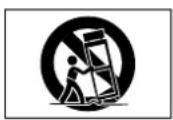
VENTILATION - Slots and openings in the cabinet are provided for ventilation and to ensure reliable operation of the product and to protect it from overheating. Do not block any ventilation openings. The openings should never be blocked by placing the product on a bed, sofa, rug or other similar surface. This product should not be placed in a built-in installation such as a bookcase or rack unless proper ventilation is provided. Install in accordance with the manufacturer's instructions.
POWER SOURCES - This product should be operated only from the type of power source indicated on the marketing label. If you are not sure of the type of power supply to your home, consult your product dealer or local power company.
LOCATION - The appliance should be installed in a stable location.
NONUSE PERIODS - The power cord of the appliance should be unplugged from the outlet when left unused for a long period of time.
GROUNDING OR POLARIZATION - If this product is equipped with a polarized alternating current line plug (a plug having one blade wider than the other), it will fit into the outlet only one way. This is a safety feature. If you are unable to insert the plug fully into the outlet, try reversing the plug. If the plug does not fit into the outlet, contact your electrician to replace your obsolete outlet. Do not defeat the safety purpose of the polarized plug. If this product is equipped with a three-wire grounding type plug, a plug having a third (grounding) pin, it will only work in a grounding type power outlet. This is a safety feature. If you are unable to insert the plug into the outlet, contact your electrician to replace your obsolete outlet. Do not defeat the safety purpose of the grounding type plug.
POWER CORD PROTECTION - Power-supply cords should be protected from being walked on or pinched particularly at plugs, convenience receptacles, and the point where they exit from the product.
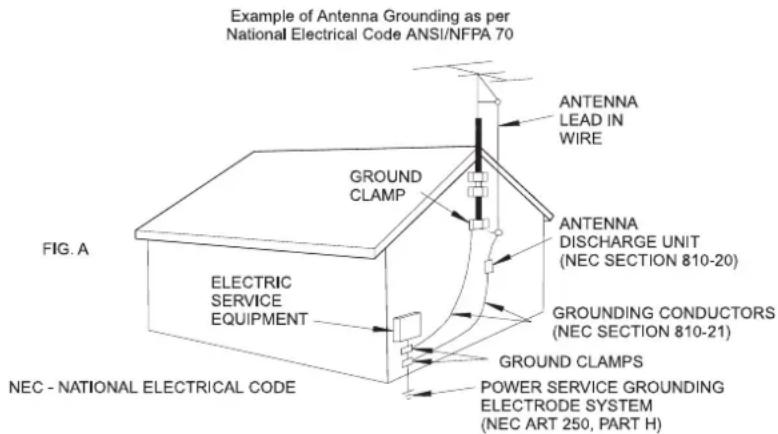
OUTDOOR ANTENNA GROUNDING - If an outside antenna or cable system is connected to the product be sure the antenna or cable system is grounded so as to provide some protection against voltage surges and built-up static charges. Article 810 of the National Electric Code. ANSI/NFPA70 provides information with regard to proper grounding of the mast and supporting structure, grounding of the lead-in wire to an antenna discharge unit, connection to grounding electrodes, and requirements for the grounding electrode. See Figure A.
LIGHTNING - For added protection for this product during a lightning storm, or when it is left unattended and unused for long periods of time, unplug it from the wall outlet and disconnect the antenna or cable system. This will prevent damage to the product due to lightning and power-line surges.
POWER LINES - An outside antenna system should not be located in the vicinity of overhead power lines or other electric light or power circuits, or where it can fall into such power lines or circuits. When installing an outside antenna system, extreme care should be taken to keep from touching such power lines or circuits as contact with them might be fatal.
OVERLOADING - Do not overload wall outlets, extension cords or integral convenience receptacles as this can result in a risk of fire or electric shock.
OBJECT AND LIQUID ENTRY - Never push objects of any kind into this product through openings as they may touch dangerous voltage points or short-out parts that could result in a fire or electric shock. Never spill liquid of any kind on the product.
SERVICING - Do not attempt to service this product yourself as opening or removing covers may expose you to dangerous voltage or other hazards. Refer all servicing to qualified service personnel.
DAMAGE REQUIRING SERVICE - Refer all servicing to qualified service personnel. Servicing is required when the apparatus has been damaged in any way, such as power-supply cord or plug is damaged, liquid has been spilled or objects have fallen into the apparatus, the apparatus has been exposed to rain or moisture, does not operate normally, or has been dropped.
REPLACEMENT PARTS - When replacement parts are required, be sure the service technician has used replacement parts specified by the manufacturer or have the same characteristics as the original part. Unauthorized substitutions may result in fire, electric shock, or other hazards.
SAFETY CHECK - Upon completion of any service or repairs to this product, ask the service technician to perform safety checks to determine that the product is in proper operating condition.
WALL OR CEILING MOUNTING - The product should not be mounted to a wall or ceiling.
HEAT - Do not install near any heat source such as radiators, heat registers, stores, or other apparatus (including amplifiers) that produce heat.
CAUTION

RISK OF ELECTRIC SHOCK DO NOT REMOVE COVER
ATTENTION RISQUE DE CHOC ELECTRIQUE NE PAS OUVRIR



The lightning flash with arrowhead symbol, within an equilateral triangle, is intended to alert the user to the presence of uninsulated "dangerous voltage" within the product's enclosure that may be of sufficient magnitude to constitute a risk of electric shock to persons.
The exclamation point within an equilateral triangle is intended to alert the user to the presence of important operating and maintenance (servicing) instructions in the literature accompanying the appliance.
FOREWORD
This section must be read carefully before any connection is made to the mains supply.
WARNINGS
- Do not expose the equipment to rain or moisture.
- Do not remove the cover from the equipment.
- Do not insert anything into the equipment through the ventilation holes.
- Do not cover the ventilation holes with any items such as tablecloths, newspapers, curtains, etc.
- Do not place naked flame sources, such as lighted candles, on the equipment.
- Do not handle the mains lead with wet hands.
- Allow adequate ventilation. Leave a gap of 0.1m on all sides of the unit.
- Do not splash or spill water on the unit. Do not place objects filled with liquid (such as vases) on the unit.
EQUIPMENT MAINS WORKING SETTING
Your Marantz product complies with the household power and safety requirements in your area.
IMPORTANT: (FOR UK VERSION ONLY)
This apparatus is fitted with an approved moulded 13 Amp plug. To change a fuse in this type of plug proceed as follows:
1 Remove fuse cover and fuse.
2 Fix new fuse which should be a BS1362 5A, A.S.T.A or BSI approved type.
3 Refit the fuse cover.
If the fitted plug is not suitable for your socket outlets, it should be cut off and an appropriate plug fitted in its place.
If the mains plug contains a fuse, this should have a value of 5A. If a plug without a fuse is used, the fuse at the distribution board should not be greater than 5A.
NOTE: The severed plug must be destroyed to avoid a possible shock hazard should it be inserted into a 13A socket elsewhere.
HOW TO CONNECT A PLUG
The wires in the mains lead are coloured in accordance with the following code:
BLUE - "NEUTRAL" ("N")
BROWN - "LIVE" ("L")
1 The BLUE wire must be connected to the terminal which is marked with the letter "N" or coloured BLACK.
2 The BROWN wire must be connected to the terminal which is marked with the letter "L" or coloured RED.
3 The GREEN/YELLOW-GREEN wire must be connected to the terminal which is marked by the letter "E" or by the safety earth symbol or coloured green or green-and-yellow.
Before replacing the plug cover, make certain that the cord grip is clamped over the sheath of the lead - not simply over the two wires.
PRECAUTIONS
The following precautions should be taken when operating the equipment.
GENERAL PRECAUTIONS
When installing the equipment ensure that:
– the ventilation holes are not covered.
– air is allowed to circulate freely around the equipment.
- it is placed on a vibration free surface.
- it will not be exposed to excessive heat, cold, moisture or dust.
- it will not be exposed to direct sunlight.
- it will not be exposed to electrostatic discharges.
In addition, never place heavy objects on the equipment.
If a foreign object or water does enter the equipment, contact your nearest dealer or service center.
Do not pull out the plug by pulling on the mains lead; grasp the plug.
It is advisable when leaving the house, or during a thunderstorm, to disconnect the equipment from the mains supply.
COMPACT DISCS
The glossy side shining like a rainbow is the front side of the disc, and the side on which the label is printed is the back.
Unlike conventional turntables for playing analogue discs, the DH9500 Music Server reads the information recorded on the disc from underneath without contacting it using a beam of laser light. Therefore, the performance of a compact disc will not degrade like conventional analogue records.
Handle discs carefully so as not to damage or scratch the front side.
To protect the disc avoid placing it in the following locations:
– In direct sunlight or near a source of heat like a heater.
– In a place which is damp or dirty.
– In a place which could be exposed to rain, such as near a window.
Always keep the surface of the disc clean.
Up to six billion data units are recorded on the front side of the disc. When cleaning the disc surface always be sure to use a special compact disc cleaner. Do not use a conventional record cleaner for analogue records, as this will adversely affect the disc surface.
Store discs properly by placing them in their disc cases.
Do not attach a piece of paper or sticker on the label side of the disc.
When a disc has a piece of plastic tape or rental CD label with paste protruded from the edge or when a disc has a trace of such a sticky object, do not attempt to play the disc. If such a disc is inserted into the Music Server it may cause extensive damage to the system. It may also be impossible to remove the disc.
Do not use a disc with a special shape.
Do not attempt to use a disc with a special shape such as a heart-shaped disc or octagonal disc. This may cause the system to malfunction.
DTS encoded discs
Caution - when playing DTS encoded CDs excessive noise will be heard on the analogue outputs jacks of the Music Server. To avoid possible damage to the audio system you should ensure that the correct connections are made to your amplification system for replaying this type of disc.
CAUTION
When disposing of used batteries, please comply with governmental regulations or environmental regulations or environmental public instruction's rules that apply in your country or area.
POWER BUTTON
When this button is pressed once, the power turns On and information will appear on the display. When pressed again, press the Off action key or the i key on the remote control to switch to Off mode.
When the unit is in Off mode the "Standby" indicator is lit; the apparatus is not disconnected from the AC mains supply in this mode.
QUICK START GUIDE
CONTROLS
- Output button: Press this button to display information on the music currently playing. Press this button again to switch to the next output on the Music Server.
- Front panel action keys: These four keys correspond to the different actions clearly visible by reading the front panel display. For example, in the display opposite, the √ Play action key will commence playback of the selected album. The √ symbol indicates that you can also press the Keynor the remote control to commence playback.
- Navigation keys: Move up, down, left, and right through the menu system. The button in the centre selects the currently highlighted option.
- Transport keys: Controls the playback of music on the currently selected output. The Record key is an action key used on some menu screens to begin a recording or to modify a playlist.
- HDD Audio button: Press this button to control the Music Server.
- Remote control action keys:
- Press the
key menu display the main
menu at any time.
- Press the X key whenever this symbol is displayed on the TV screen or on the front panel to cancel, exit or delete the current operation according to the information on screen.
- Press the i key whenever this symbol is displayed on the TV screen or on the front panel to edit text information, or confirm a new text entry according to the information on screen.
- Press the key to return to the 'home' page of the current function. For instance when browsing the library press this key to return to the Library menu.
RECORDING FROM A CD
- Press the OPEN/CLOSE key on the front panel to open the CD tray.
- Place a CD in the tray.
- Push the OPEN/CLOSE key on the front panel.
The CD detected prompt is displayed.
• Press the Record action key to proceed.
The Please select Auto or Custom record display then allows you to chose whether to do a quick (one touch) record or specify individual record options.
- Press the√ Auto action key to do a one touch recording.
The display confirms when the recording is finished.
Note: You can play music from your music library while you are recording a CD.
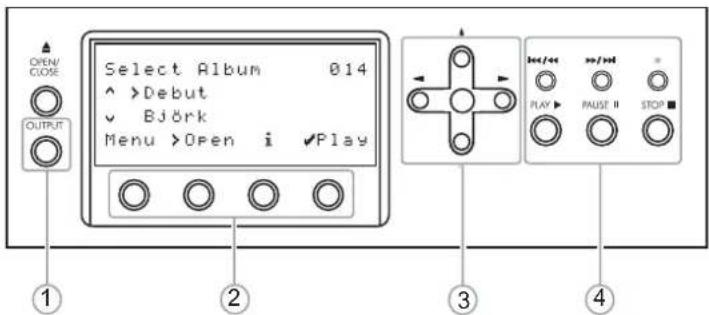
Fig. A - Front panel display
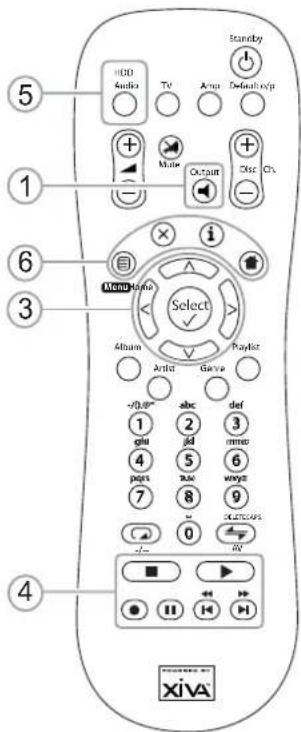
Fig. B - Remote Control
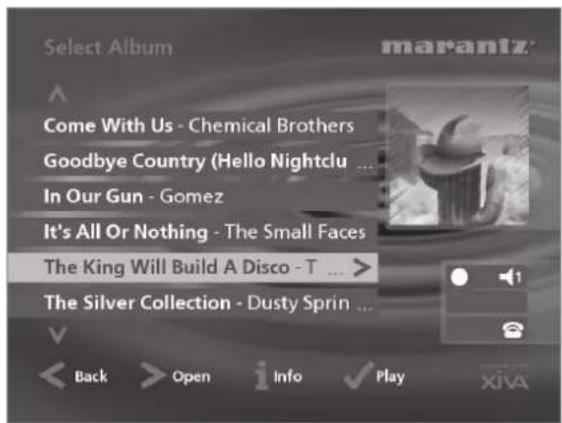
Fig. C - TV User Interface
PLAYING MUSIC
- Display the Main Menu by pressing the ☐ Menu key on your Music Server remote control, or the Menu action key on the front panel.
The Main Menu will be displayed.
- Press the^ and√ keys to highlight Library.
- Press the√ Select action key.
The Library menu lets you choose how you want to browse your music collection. You can browse items by album, artist, genre, or playlist.
- Press the^ andV keys to step between categories.
For example, if you select Albums you will see an alphabetical list of your album titles.
To play music
• Use the∧ and∨ keys to highlight the item you would like to play.
- Press the> key to view the contents of the selected item.
• Press the √ Play action key.
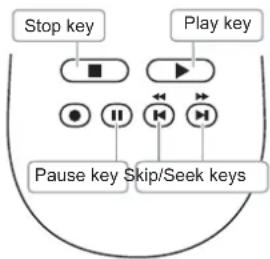
To stop play
- Press the ■ key on the front panel or the Music Server remote control.
To pause play
- Press thell key on the front panel or your Music Server remote control.
flowchart
graph TD
    A["Stop key"] --> B["■"]
    B --> C["▶"]
    C --> D["◀"]
    D --> E["◀"]
    E --> F["◀"]
    F --> G["Pause key Skip/Seek keys"]
    H["Play key"] --> I["◀"]
    I --> J["◀"]
    J --> K["◀"]
    K --> L["◀"]
    L --> M["◀"]
    M --> N["◀"]
    N --> O["◀"]
    O --> P["◀"]
    P --> Q["◀"]
    Q --> R["◀"]
    R --> S["◀"]
    S --> T["◀"]
    T --> U["◀"]
    U --> V["◀"]
    V --> W["◀"]
    W --> X["◀"]
    X --> Y["◀"]
    Y --> Z["◀"]
    Z --> AA["◀"]
    AA --> AB["◀"]
    AB --> AC["◀"]
    AC --> AD["◀"]
    AD --> AE["◀"]
    AE --> AF["◀"]
    AF --> AG["◀"]
    AG --> AH["◀"]
    AH --> AI["◀"]
    AI --> AJ["◀"]
    AJ --> AK["◀"]
    AK --> AL["◀"]
    AL --> AM["◀"]
    AM --> AN["◀"]
    AN --> AO["◀"]
    AO --> AP["◀"]
    AP --> AQ["◀"]
    AQ --> AR["◀"]
    AR --> AS["◀"]
    AS --> AT["◀"]
    AT --> AU["◀"]
    AU --> AV["◀"]
    AV --> AW["◀"]
    AW --> AX["◀"]
    AX --> AY["◀"]
    AY --> AZ["◀"]
    AZ --> BA["◀"]
    BA --> BB["◀"]
    BB --> BC["◀"]
    BC --> BD["◀"]
    BD --> BE["◀"]
    BE --> BF["◀"]
    BF --> BG["◀"]
    BG --> BH["◀"]
    BH --> BI["◀"]
    BI --> BJ["◀"]
    BJ --> BK["◀"]
    BK --> BL["◀"]
    BL --> BM["◀"]
    BM --> BN["◀"]
    BN --> BO["◀"]
    BO --> BP["◀"]
    BP --> BQ["◀"]
    BQ --> BR["◀"]
    BR --> BS["◀"]
    BS --> BT["◀"]
    BT --> BU["◀"]
    BU --> BV["◀"]
    BV --> BW["◀"]
    BW --> BX["◀"]
    BX --> BY["◀"]
    BY --> BZ["◀"]
    BZ --> CA["◀"]
    CA --> CB["◀"]
    CB --> CC["◀"]
    CC --> CD["◀"]
    CD --> CE["◀"]
    CE --> CF["◀"]
    CF --> CG["◀"]
    CG --> CH["◀"]
    CH --> CI["◀"]
    CI --> CJ["◀"]
    CJ --> CK["◀"]
    CK --> CR["◀"]
    CR --> CS["◀"]
    CS --> CT["◀"]
    CT --> CU["◀"]
    CU --> CV["◀"]
    CV --> CW["◀"]
    CW --> CX["◀"]
    CX --> CY["◀"]
    CY --> CZ["◀"]
    CZ --> DA["◀"]
    DA --> DB["◀"]
    DB --> DC["◀"]
    DC --> DD["◀"]
    DD --> DE["◀"]
    DE --> DF["◀"]
    DF --> DG["◀"]
    DG --> DH["◀"]
    DH --> DI["◀"]
    DI --> DJ["◀"]
    DJ --> DK["◀"]
To skip to the next or previous track
- Press the◀ or◀ key on the front panel or your Music Server remote control.
To seek within a track
- Hold down the◀ or▶ key on the front panel or your Music Server remote control.
Play resumes from the new position when you release the key.
ENTERING TEXT
To enter text using the alphanumeric keypad
- Press the> or< keys to move the cursor to the required position.
- Use the keys on the alphanumeric keypad to enter a letter.
For example to enter S press the 7 key four times, because S is the fourth letter on the 7 key.
- Press the DELETE key on your Music Server remote control to delete letters.
- Press the CAPS key on either the front panel or your Music Server remote control to switch between upper-case and lower-case letters.
To select letters from a grid
Alternatively, the Grid provides a convenient way of selecting letters:
- Press theV key to move the cursor into the grid area.
The currently selected letter is highlighted:
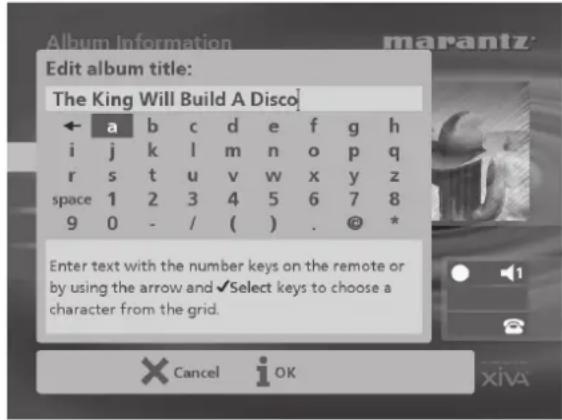
• Use the > < ∧ or ∨ keys to move the cursor and press the √ Select action key to enter each letter.
- Use the CAPS key on either the front panel or the Music Server remote to switch between upper and lower case letters.
If at any time you need to enter text in a different part of the text field, or you want to return to entering text using the alphanumeric keypad:
- Press the^ key repeatedly until the cursor returns to the text field.
Finally, when you have finished entering the name:
- Press thei OK action key.
SWITCHING ON AND OFF
To switch to standby mode
Standby mode should be used when the Music Server is not being used for a short period of time. Do not remove the power from the Music Server in this mode.
- Press the POWER/Standby key on the front panel or the Standby key on the remote control.
- Press the √ Standby action key to enter standby.
To switch to off mode
Off mode should be used when the Music Server is not being used overnight (or for several days). When the unit is in off mode it consumes very little power. You can safely remove the power from the Music Server in this mode.
- Press the POWER/Standby key on the front panel or the Standby key on the remote control.
• Press thei Off action key to enter off mode.
To switch on from standby or off mode
- Press the POWER/Standby key on the front panel or the Standby key on the remote control.
INTRODUCTION
Welcome to the DH9500 Music Server from Marantz. The DH9500 is a revolutionary way of filling your home with music.
Your Music Server stores and catalogues your music collection, allowing you to select any album or track at the press of a key. You can browse through your albums and tracks using convenient on-screen menus displayed on your television, showing full album, track, and artist names downloaded from the Gracenote CDDB Music Reconition Service. Your Music Server also lets you organise your music collection and create selections for different occasions to suit your mood.
Incredible capacity
Your Music Server is a hard disk based audio system which can store hundreds of hours of music, all with the convenience of instant access, at the touch of a key.
Convenient TV screen
Play music, record CDs, or organise your library using convenient on-screen menus which show the full album, artist, and track names, allowing you to select the one you want with a few simple selections.
Internet access for track listings
Your Music Server records the CDs from your music collection at faster than real time. It then automatically connects to the Gracenote CDDB Music Recognition Service via the built-in modem or Ethernet connection. This database provides album and track details for a wide range of CDs. This information can be downloaded and stored with each CD you record, allowing you to select any item in your music collection by album name, artist name, track name, or genre, giving you total flexibility in the way you access and control your music collection.
Create your own playlists
Your Music Server allows you to compile personal playlists and then automatically play tracks from the playlist you have selected. Playlists let you customise your Music Server for each member of the family, or for matching the music to the occasion or mood.
Instant access, irrespective of your music collection
Whether you select a track by title, album, artist, or genre, your Music Server locates it instantly and plays it at the press of a key. All this is achieved with an extremely simple and intuitive user interface, operated using a few keys on the front panel or remote control.
SPECIFICATIONS
- General
System.... Hard Disk Based Audio Server
Power requirements ..... AC 100V-240V \~ 50Hz/60Hz
Power Consumption 44W Max
Weight 8.5Kg
Dimensions ..... 98mm(H) x 440mm(W) x 375mm(D)
Operating temperature 10-40°C
Operating humidity ..... 10-90% RH (non-condensing)
- Video Outputs
- S-Video Output
Output level 1V p-p/75Ω
Connector S-VIDEO jack
- Composite outputs (4 individual outputs)
Output level 1V _p-p /75Ω
Connector ...... RCA jack
• VGA output
Output level 0.75V/75Ω
Connector 15 pin D-type F
Output resolution 800x600
- Audio outputs
- Analogue outputs (4 pairs of outputs)
Output level 2V_RMS
Output impedance 600Ω
Connector.... RCA jack
- Digital outputs
Optical digital output ..... Optical digital jack (Toslink)
Coaxial digital output level 500mV /75Ω
Coaxial digital output connector .... RCA jack
– Audio inputs
- Analogue inputs
Maximum input level 2V_RMS
Input impedance 10kΩ
Connector ...... RCA Jack
- Coaxial Digital input
SRC supported frequency ..... 32kHz, 44.1kHz, 48kHz
Maximum input level 500mV _p-p /75Ω
Coaxial Input Connector .... RCA Jack
Optical Input Connector .. Optical digital jack (Toslink)
- Analogue audio characteristics (typical)
Frequency response .....20Hz to 20kHz ± 0.5dB
S/N ratio (@1KHz).... 100dB (A weight)
Dynamic range ...... better than 96dB
Total harmonic distortion (@1kHz) 0.003%
Channel separation (@1KHz) ...... more than 110dB
- Communications
- Modem
Connector RJ11 (56kbit/s)
- Ethernet
Connector ...... RJ45 (10 Base T/100 Base T)
- Controller
Connector 9 pin D-type M
- USB (2 connectors)
Connector Type A USB socket
- Accessories
Stereo RCA cable 1
Video cable 1
Modem cable 1
Power cord 1
Remote control unit 1
AAA (R03P) dry cell batteries 2
Operating instructions .... 1
Warranty card (U1B model only) 1
Note
The specifications and design of this product is subject to change without notice.
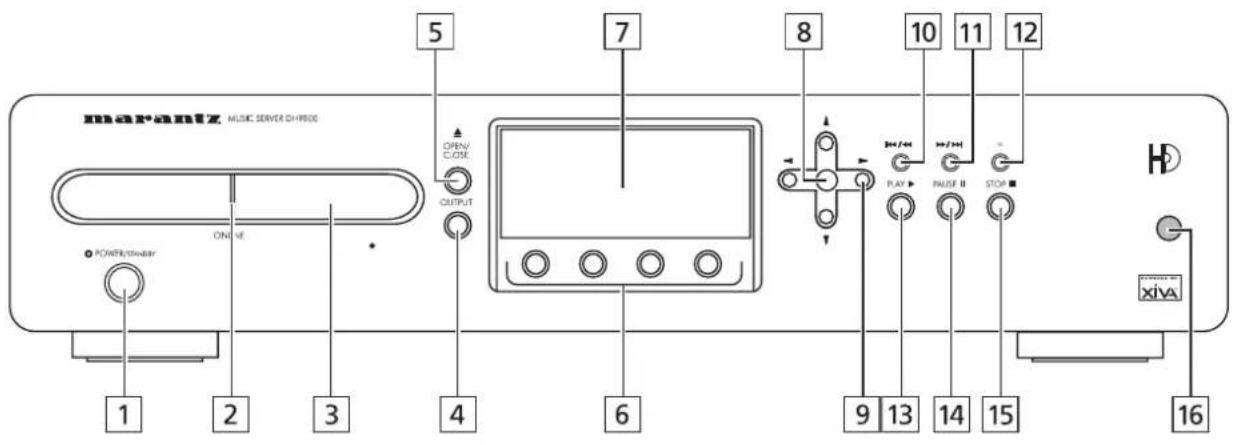
FRONT VIEW
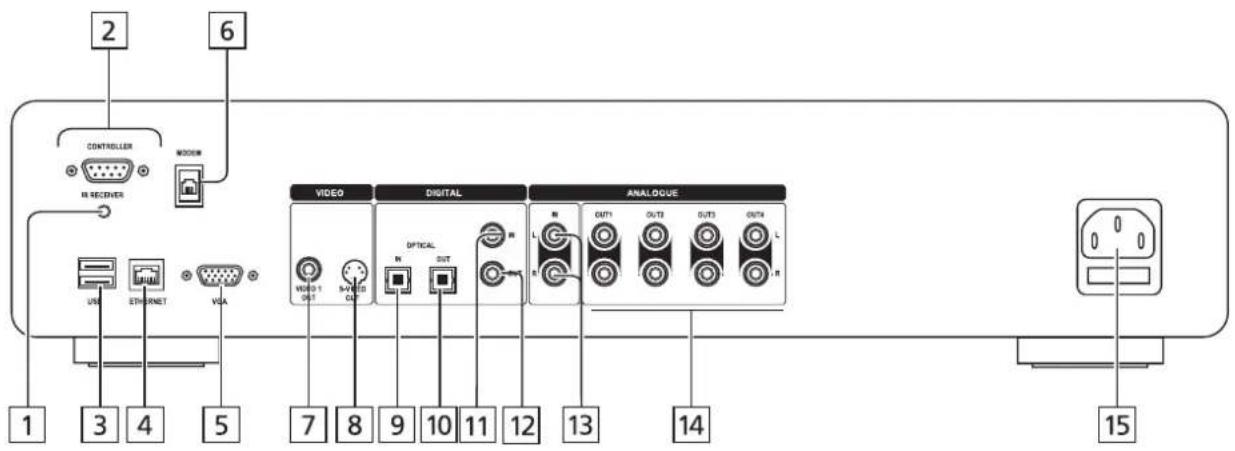
REAR VIEW
flowchart
graph TD
    A["2"] --> B["CONTROLLER"]
    B --> C["WOOD"]
    C --> D["IN RECEIVER"]
    D --> E["3"]
    D --> F["4"]
    D --> G["5"]
    H["6"] --> I["VIDEO"]
    I --> J["S-VIDEO OUT"]
    J --> K["7"]
    J --> L["8"]
    K --> M["N"]
    L --> N["N"]
    M --> O["OPTICAL"]
    N --> P["OUT"]
    O --> Q["R"]
    P --> R["R"]
    Q --> S["L"]
    R --> T["L"]
    S --> U["ANALOGUE"]
    T --> V["OUT1"]
    T --> W["OUT2"]
    T --> X["OUT3"]
    T --> Y["OUT4"]
    T --> Z["L"]
    U --> AA["13"]
    V --> AB["14"]
    W --> AC["15"]
CONTROLS AND CONNECTIONS
This section provides information on the controls and connections available on your DH9500 Music Server.
FRONT
1 POWER/STANDBY
Press to put your Music Server into either standby or off mode, press again to switch your Music Server back on.
2 ONLINE
The online indicator is illuminated when the modem is active.
3 DISC TRAY
Insert a disc with the label side up.
4 OUTPUT button
Press the output button to display what music is playing on the currently selected output. Pressing the output button for a second time will select the next output in sequence.
5 OPEN/CLOSE button
Pressing the open/close button opens the disc tray. Place a compact disc on the tray with the label side facing up. Press the button again to close the tray.
6 ACTION buttons
Action buttons allow you to perform specific operations dependent on the current menu screen. For more information on using the action buttons see the chapter called Using the Music Server action keys p.13.
7 DISPLAY
The display shows information about the music available on the unit, the status of the Music Server (for instance if the unit is currently playing), and the current configuration of the unit.
8 SELECT button
Selects the option currently visible on the display.
9 NAVIGATION buttons
The navigation buttons allow you to move up, down, left or right through the menus shown on the display.
10 / button
When the button is pressed briefly during playback, play restarts at the beginning of the current track. A second brief press moves to the beginning of the previous track. When the button is held for a longer period of time the music will rewind at high speed.
11 ▶ ▶ button
When the button is pressed briefly during playback, play restarts at the beginning of the next track. When the button is held for a longer period of time the music will fast forward at high speed.
12 ● RECORD button
The record button is an action key - on some menu screens you can use this button to begin a recording, either from the CD inside the unit, or from the input connectors. When managing playlists this button is also used to create new playlists or add tracks to an existing playlist.
13 ▶ PLAY button
Press the play button to recommence playback if the music has been stopped or paused.
14 II PAUSE button
Press the pause button to interrupt playback temporarily.
15 ■ STOP button
Press the stop button to halt playback on the current output.
16 REMOTE SENSOR
This window receives signals transmitted from the remote control unit.
REAR
1 IR RECEIVER
The IR Receiver connection allows remote control information to be carried from other devices directly to your Music Server. See the chapter called Using your Music Server in a Multiroom System p.31.
2 CONTROLLER
The Controller port provides serial communication with supported devices. For instance a multiroom control system may communicate with the Music Server using the XiVA-Link protocol.
3 USB
Allows the Music Server to communicate with supported USB devices.
4 ETHERNET
The Ethernet port can be used to connect the Music Server to a high speed internet connection. It may also be used by supported software applications to communicate with the system. A shielded Ethernet cable should be used in conjunction with this connection.
5 VGA
The VGA connector may be used to connect a VGA monitor or a suitable Plasma screen for displaying the TV user interface.
6 MODEM
The Modem port can be used to connect the Music Server to a standard analogue telephone line for internet access (using the supplied cable).
7 VIDEO OUT
Connect the Video Out composite output of the Music Server to the composite input of a suitable PAL/NTSC TV (depending on the supplied configuration) to display the TV user interface. You may also need to switch the TV to the relevant AUX input to display the picture.
8 S-VIDEO OUT
Connect the S-VIDEO output of the Music Server to the S-VIDEO input of a suitable PAL/NTSC TV (depending on the supplied configuration) to display the TV user interface. You may also need to switch the TV to the relevant AUX input to display the picture.
9 DIGITAL OPTICAL IN
High Quality recordings can be made onto the Hard Disk of the Music Server using an optical connection from a suitable device (such as Minidisc or DAT).
10 DIGITAL OPTICAL OUT
The audio output can be transmitted in the form of light through an optical fibre cable and photocoupler. The optical signal transmission features low signal loss due to cables and complete isolation of the ground loop so that a very high quality output can be produced without any digital noise. The audio output of the Digital Out connector is the same as the audio output of the Analogue Audio Out 1 connector.
Connection method
Connect this jack to a D/A convertor, digital sound processor or an amplifier equipped with a Digital Optical input jack. Remove the caps from the Digital Optical Out jack and the optical input jack of the connected component and connect the two jacks through an optical fibre cable. This output may not be used for making a digital copy of your media.
11 DIGITAL AUDIO IN - COAXIAL
High Quality recordings can be made onto the Hard Disk of the Music Server using a coaxial connection from a suitable device (such as Minidisc or DAT).
USING THE REMOTE CONTROL
The remote control supplied with the Music Server is a "Universal" remote control. This means that other devices, such as a television or amplifier, may be controlled using this remote control. When you have selected to control the television the TV device button will light up each time you press a button - similarly when the Music Server is selected the HDD Audio button will light and when the Amp is selected the Amp button will light.
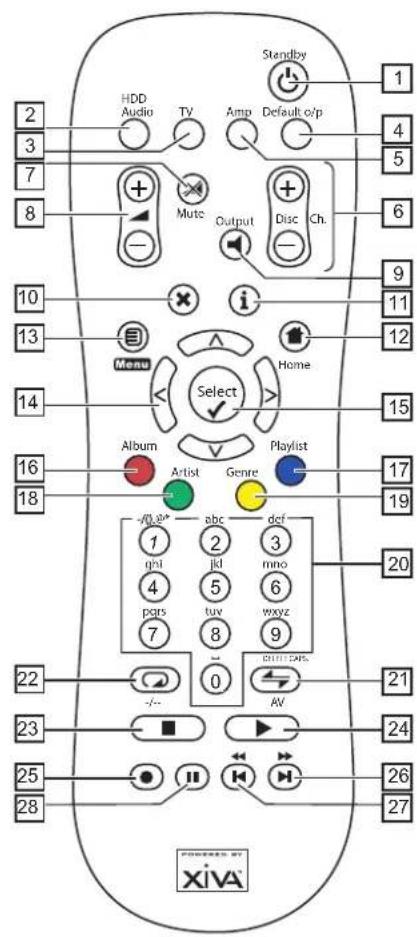
The diagram opposite explains the function of the keys on your Music Server remote control:
1 STANDBY button
Places the Music Server in/out of standby or off mode.
2 HDD Audio button
Selects the Music Server as the device to be controlled.
3 TV button
Selects the TV as the device to be controlled. For more information on configuring this remote to control your television see the chapter called Configuring your remote to control other devices p.11.
4 DEFAULT O/P button
Resets the TV user interface to controlling the default output for the room where you are located. For more information on multiroom use of the Music Server see the chapter called Using your Music Server in a multiroom system p.31. If the TV device is selected this button will show/hide the on-screen clock.
5 AMP button
Selects the Amp as the device to be controlled. For more information on configuring this remote to control your amplifier see the chapter called Configuring your remote to control other devices p.11.
12 DIGITAL AUDIO OUT - COAXIAL
By connecting this jack to a digital audio component (D/A converter, digital sound processor etc.), digital signals from the Music Server can be transmitted directly from the system without first being converted to analogue. The audio output of the Digital Out connector is the same as the audio output of the Analogue Audio Out 1 connector. This output may not be used for making a digital copy of your media.
13 ANALOGUE AUDIO IN
Analogue sources (such as cassette or vinyl LP) may be recorded onto the Hard Disk of the Music Server using this connection.
14 ANALOGUE AUDIO OUT 1,2,3,4
The DH9500 Music Server is a multiroom device allowing you to listen to different music in up to 4 different rooms all at the same time. Each analogue output should be connected to the input jacks of a pre-amplifier. For more information see the chapter called Using your Music Server in a multiroom system p.31.
15 MAINS
Connect the supplied mains lead to this connector to provide power to the unit.
6 DISC/CH. buttons
Selects the next/previous album (or playlist) on your Music Server. If you have the TV device selected these buttons will select the next and previous channels.
7 MUTE button
Provided that the Music Server output volume setting is set to variable this button will mute the output of the Music Server. For more information see the chapter Advanced Settings p.29. If the TV or Amp device is selected the TV/Amp volume is muted.
8 VOLUME buttons
Provided that the Music Server output volume setting is set to variable these buttons will increase/decrease the volume of the Music Server output. For more information see the chapter Advanced Settings p.29. If the TV or Amp device is selected these buttons control the volume of the TV/Amp.
9 OUTPUT button
Press the output button to display what music is playing on the currently selected output. In certain situations pressing the output button for a second time will select the next output in sequence - for more information see the chapter called Using your Music Server in a multiroom system p.31.
10 ✗ CANCEL button
The cancel button is an action key - on some menu screens this is used to cancel an operation which you no longer wish to continue. If the TV device is selected this button will hide text services.
11 i INFO button
The info button is an action key - on some menu screens this is used to display additional information which may not be currently displayed; on other menu screens it may also be used to edit text on the screen. If the TV device is selected this button displays text services.
12 ↑ HOME button
The home key is an action key - it can be used to return to the top page of a particular function. For instance if you are browsing the music library and you wish to look for a different album you may use the Home key to return to the main Library menu
13 Menuitton
The menu key is an action key - pressing this key will always return the TV screen and front panel to the Main Menu. Use this button if you wish to start a new operation.
14 NAVIGATION\ <> buttons
The navigation buttons are used to move up, down, left or right through the menu pages.
15 Select button
Select is used to activate the currently highlighted option. When browsing the library this key will start playback of the selected item.
16 ALBUM button
The album button can be used to jump to the album list in the music library. In TV mode this button selects the red text service option.
17 PLAYLIST button
The playlist button can be used to jump to the playlist list in the music library. In TV mode this button selects the blue text service option.
18 ARTIST button
The artist button can be used to jump to the artist list in the music library. If the TV device is selected this button selects the green text services option.
19 GENRE button
The genre button can be used to jump to the genre list in the music library. If the TV device is selected this button selects the yellow text services option.
20 NUMERIC (0 to 9) buttons
The numeric keys can be used as follows:
- When browsing the track list these buttons allow you specify the track you wish to play.
- When browsing the list of presets these buttons allow you to jump to a preset number.
• In the music library you may jump to an item in the list that begins with one of the letters specified at the top of each key. - In text entry mode these keys can be used as an alphanumeric key pad (similar to a mobile phone).
If the TV device is selected the numeric buttons select which channel you wish to view.
21 ⇔ RANDOM (DELETE) button
The random button has the following functions:
- During playback this button toggles the random play setting on the Music Server.
- In text entry mode this button can be used to delete characters.
If the TV device is selected this button switches the TV channel to the AV input.
22 REPEAT (CAPS) button
The repeat button has the following functions:
- During playback this button toggles the repeat play setting on the Music Server.
- In text entry mode this button can be used to toggle between upper-case and lower-case letters.
If the TV device is selected this button switches the TV between single digit and double digit channel selection.
23 ■ STOP button
During playback the stop button halts playback on the currently selected output of the Music Server.
24 ▶ PLAY button
The play button can be used to recommence playback on the currently selected output of the Music Server.
25 RECORD button
The record button is an action key - on some menu screens you can use this button to begin a recording, either from the CD inside the unit, or from the input connectors. When managing playlists this button is also used to create new playlists or add tracks to an existing playlist.
26 ▶▶▶ button
When the button is pressed briefly during playback, play restarts at the beginning of the next track. When the button is held for a longer period of time the music will fast forward at high speed.
27 button
When the button is pressed briefly during playback, play restarts at the beginning of the current track. A second brief press moves to the beginning of the previous track. When the button is held for a longer period of time the music will rewind at high speed.
28 II PAUSE button
Press the pause button to interrupt playback temporarily.
CONFIGURING YOUR REMOTE TO CONTROL OTHER DEVICES
The TV and Amp devices on the Music Server remote control may be individually configured to control a range of televisions and amplifiers from well known manufacturers.
To configure the remote to control your television
- Press the TV and ☑ Select buttons simultaneously; hold them down for 1 second.
The TV button will remain lit for 20 seconds; the configuration process must be completed during this time.
- Enter the 3 digit numeric code matching the manufacturer of your television from the list in Appendix A.
- Press the TV button again.
The TV button will blink twice to indicate that the configuration has been accepted. If the TV button does not blink begin the process again, taking care to enter the number exactly as printed in the list. If the television is switched on during the configuration process, entering the correct code will cause the television to go into standby.
To configure the remote to control your amplifier.
- Press the Amp and Select buttons simultaneously; hold them down for 1 second.
The Amp button will remain lit for 20 seconds; the configuration process must be completed during this time.
- Enter the 3 digit numeric code matching the manufacturer of your amplifier from the list in Appendix A.
- Press the Amp button again.
The Amp button will blink twice to indicate that the configuration has been accepted. If the Amp button does not blink begin the process again, taking care to enter the number exactly as printed in the list. If the amplifier is switched on during the configuration process, entering the correct code will cause the amplifier to go into standby.
Reassigning volume control when using the Music Server.
If the volume setting of the Music Server is set to fixed the and Mute keys will have no effect (for more information on volume output settings see the chapter called Advanced Settings p.29.). These buttons may therefore be configured to control the volume on your amplifier whilst the HDD Audio device is selected. To re-configure these keys:
- Ensure that the Amp device is correctly configured to control your amplifier (as shown above).
- Press the HDD Audio and ☑ Select buttons simultaneously; hold them down for 1 second.
The HDD Audio button will remain lit for 20 seconds; the configuration process must be completed during this time.
- Press the ✗ Mute
- Press the + key
- Press the Amp device key
The HDD Audio device key will blink twice to indicate that the configuration has been accepted. If the HDD Audio button does not blink begin the process again, taking care to press the buttons in the correct sequence. The and Mute keys should now control the amplifier when the HDD Audio device is selected.
To return the ▲ and ✗ Mute keys to their original configuration repeat the above process, pressing the HDD Audio button instead of the Amp button.
The diagram below illustrates the basic connections required to use your Music Server.
Note: Do not make any connections to the Music Server while the power supply is connected and switched on.
- Connect the supplied telephone lead to a standard analogue telephone socket. Connect the other end of this cable to the socket marked Modem on the back panel of the Music Server.
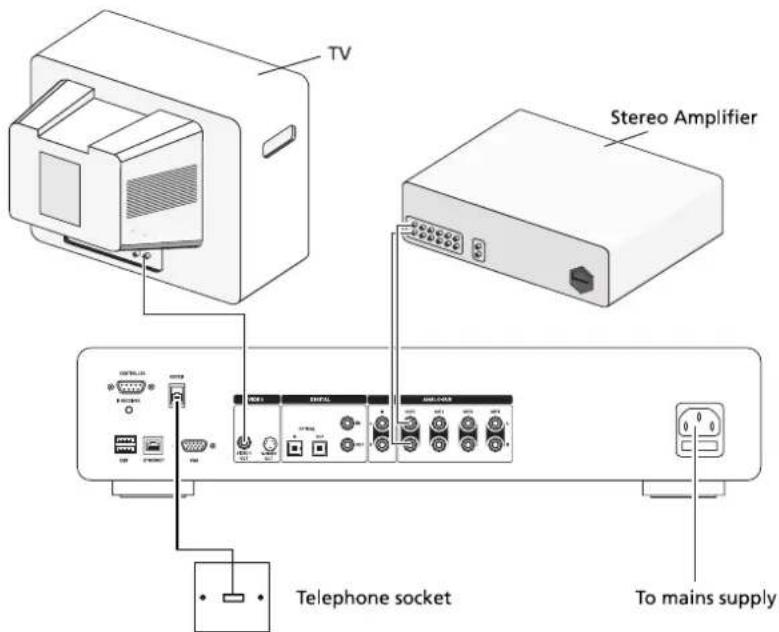
- Connect the red plug of the supplied audio lead to the red Analogue Audio Out 1 socket on the back of the Music Server. Connect the adjacent white plug to the white Analogue Audio Out 1 socket on the Music Server. Connect the other end of this cable to the AUX or CD inputs on your amplifier.
- Connect the yellow plug of the supplied TV lead to the yellow Video Out socket of the Music Server. For the European TV lead* connect the Scart plug to the ext. 1 or 2 socket on the rear of your TV. For the non-European TV lead connect the yellow plug to the video input on the rear of your TV.
- Connect the supplied power cord to your mains power supply.
- Switch on your television. Select the appropriate video channel to view the Music Server TV user interface display.
* For Scart connection, the red and black plugs are not required.
SWITCHING ON AND OFF
There are two power saving modes available from the POWER/Standby button on the Music Server front panel and the button on the remote control.
If you are not using your Music Server it is strongly recommended that you place the unit into one of the two power saving modes.
Standby mode
Standby mode should be used when the Music Server is not being used for a short period of time. Putting the unit into standby takes just a few seconds; switching the unit on from standby also takes just a few seconds. Do not remove the power from the Music Server in this mode.
Off mode
Off mode should be used when the Music Server is not being used overnight (or for several days). There is a short wait whilst the unit is switched to off mode; switching the unit on from off mode may take a few minutes. When the unit is in off mode it consumes very little power. You can safely remove the power from the Music Server in this mode.
To enter standby or off mode
- Press the POWER/Standby key on the front panel or the Standby key on the remote control.
The following prompt is displayed:
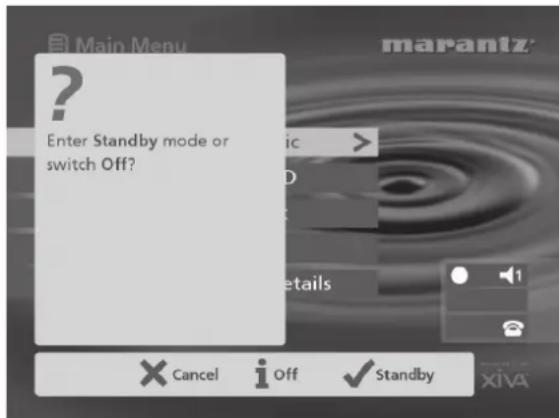
The front panel display shows:
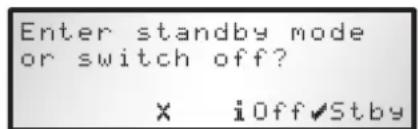
Either:
- Press the body body key on the front panel or the
√ Select key on the remote control to switch to standby.
After a short delay the TV screen shows:
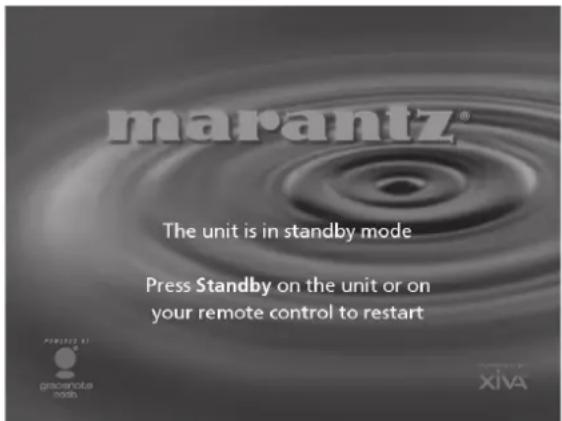
Or:
- Press the Off action key on the front panel or the i key on the remote control to switch to off mode.
After a short period of time the TV display and front panel display will switch off.
To switch on from standby or off mode
- Press the POWER/Standby key on the front panel or the Standby key on the remote control.
TV SCREEN AND FRONT PANEL DISPLAY
The following diagram shows the key features of a typical Music Server TV screen and front panel display:
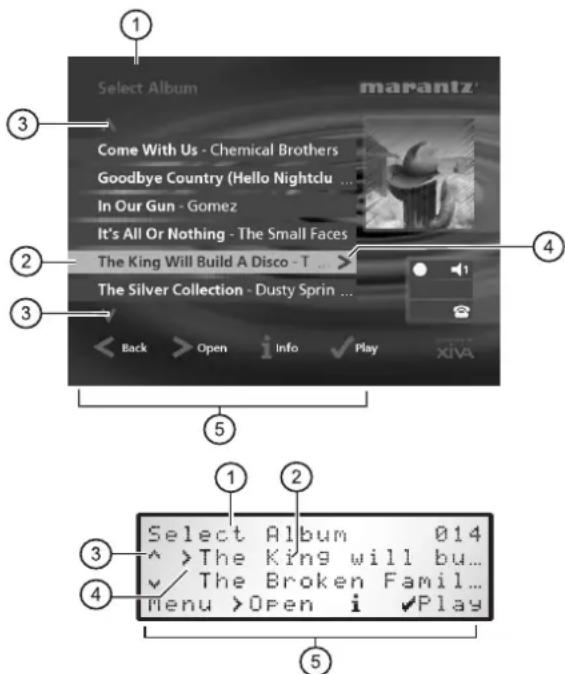
- Indicates the title of the current screen.
- Title of the current selection, shown highlighted on the TV screen.
- Indicates that you can use the ∧ or ∨ keys to browse up and down the current menu list.
- Indicates that you can press the > key to look inside the currently selected item, such as to show the tracks in an album, or the albums by an artist or in a genre.
- Action keys available from the current menu for selection or navigation.
USING THE MUSIC SERVER ACTION KEYS
The front panel of your Music Server has four "action" keys located underneath the main display. The function of these keys changes depending on which menu you are currently viewing. The available actions are shown on the bottom line of the front panel display. For example, in the following menu the functions Menu, Open, Info, and Play are available on the corresponding keys:
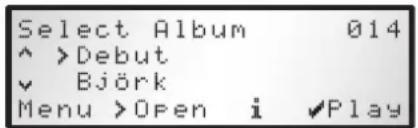
Next to each option is a symbol indicating where a key on the Music Server remote control may be used instead of pressing the action key. By default:
• i corresponds to an information action
• ✗ corresponds to a cancel action
• √ corresponds to a select action
The TV screen also displays these actions as well as other actions available on the Music Server remote control.
MUSIC SERVER STATUS ICONS
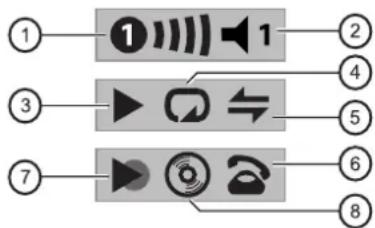
The TV display shows the current status of the Music Server using a series of icons as shown below:
flowchart
graph LR
    1["①"] --> 1a["①"]
    1a --> 1b["①"]
    3["③"] --> 3a["▶"]
    3a --> 3b["↔"]
    3b --> 3c["④"]
    7["⑦"] --> 7a["▶"]
    7a --> 7b["⑤"]
    7a --> 7c["⑥"]
    7a --> 7d["⑧"]
- Indicates which remote location currently has control of the TV user interface. The bar to the right shows how long the user has before the TV interface is available for other users to access. A green circle indicates that infrared is being received from the controlling location. A red circle indicates that infrared is being received from another location and will be rejected until the interface is available again. A yellow circle indicates that infrared is being received and no update is required on the TV user interface. For information on using your Music Server in a multiroom environment see the chapter called Using your Music Server in a multiroom system, p.31.
- Shows which output the user interface is currently controlling.
- Indicates the playback status of the currently selected output (e.g. play, stop, pause etc.)
- Indicates whether repeat is enabled on the current output.
- Indicates whether random is enabled on the current output.
- When the handset is lifted the unit is connected to the internet using the built-in modem; when the handset is on top of the telephone the unit is offline. If your Music Server is set to connect to the internet via a broadband ethernet connection this symbol is not used.
- Indicates that a line-in recording is currently in progress.
- Indicates that an audio CD is inside the CD tray.
REGISTERING YOUR MUSIC SERVER
Before using your Music Server you should spend some time registering your purchase. This enables you to receive technical support as well as software upgrades.
To register your Music Server
- When the welcome screen is first displayed, press the √ Select key on the remote control or the Regstr action key on the front panel.
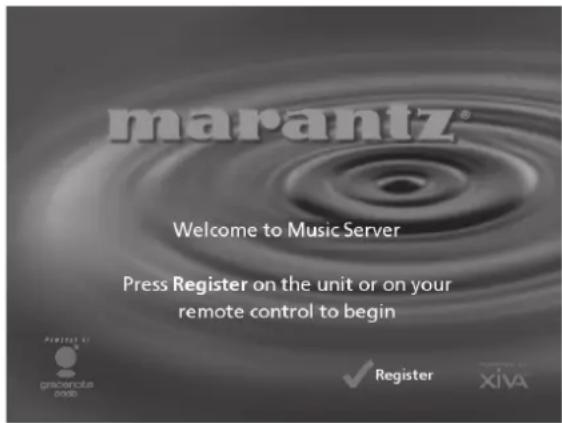
The following registration screen will be displayed:
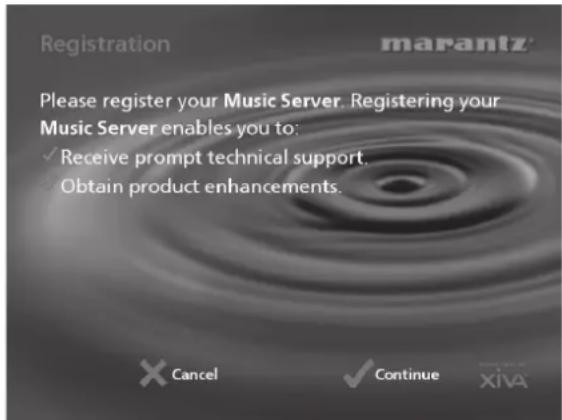
The same information is also shown on the front panel display.
- Press the key on your remote control or the Cont. action key on the front panel to display the first registration screen:
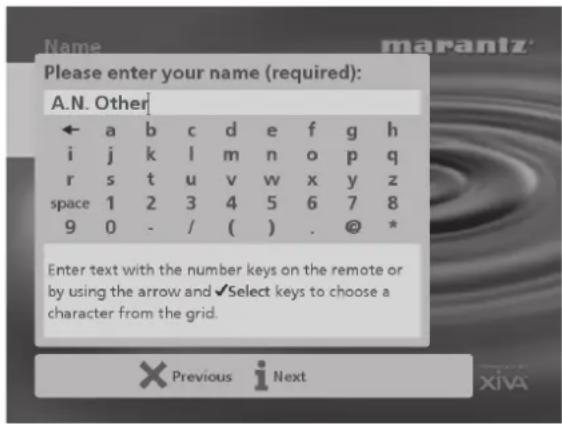
To use the alphanumeric keypad
As part of the registration process you will need to enter your name and address into the Music Server. You can do this using the following keys on the remote control:
Action How
| Enter Text | Use the alphanumeric keys on the remote control. For example, to type an S press the 7 key four times. |
| Switch between entering upper-case or lower-case letters | Press the action key labelled Caps or the CAPS key on the remote control. |
| Enter a space. | Press the 0 key. |
| Delete a mistake | Press the DELETE key on the remote control. |
| Move the cursor within the text | Press the< or> keys. |
Alternatively you can use the built-in alphanumeric grid to enter details:
- Press the √ key to move the cursor onto the grid, then use the < , > , √ , and ∧ keys to highlight characters, and the Key to select them.
- Use the^ key repeatedly to move the cursor back into the text entry box to return to normal text entry mode.
When you have completed each entry:
- Press the Next action key on the front panel or the button on the remote.
When you have entered your name and address details you will be prompted to select your country:
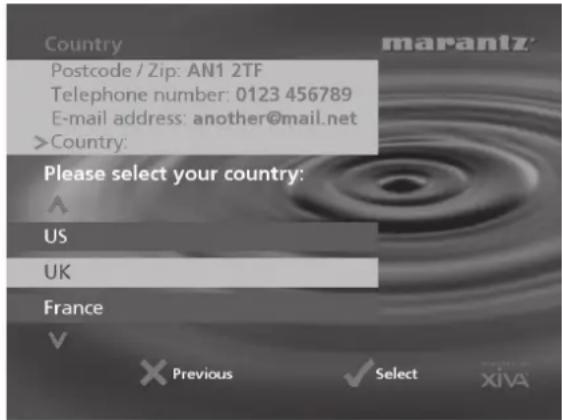
- Press the ∧ or √ keys to highlight your country and press the ⚗ key on the remote control or the √ on the front panel.
To connect your Music Server to an Internet Account
The next sequence of screens helps you connect your Music Server to the Internet.
- Press the Cont. action key on the front panel or the
√ Select key on the remote to begin.
The following screen then allows you to select the options for your Internet connection:
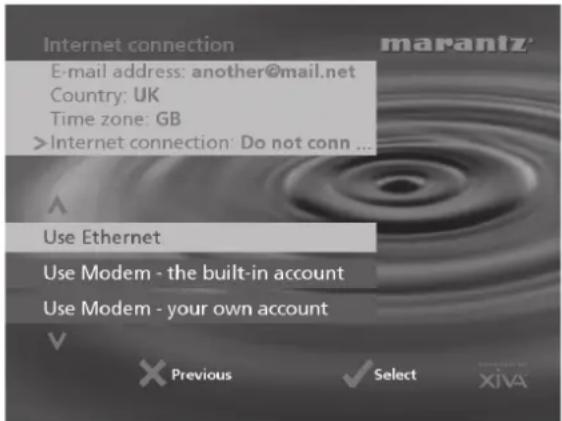
- Press theV orA keys to select between the following options:
1. Use Ethernet.
Use this option to connect to a high speed, broadband internet service via the Ethernet port.
Note: you will require additional networking hardware for this type of connection. Contact your dealer for further information.
2. Use Modem - the built-in account.
Your Music Server will connect using a pre-installed internet account for your country.
Note: The built-in Internet account may not be available for your country.
3. Use Modem - your own account.
If you are already using a computer to connect to the Internet via a telephone line, and you have an existing Internet account, you may prefer to use these account details for your Music Server. If you do not know your username, password, and Internet account telephone number you may be able to read these from your computer's settings; otherwise contact your Internet Service Provider for assistance.
Note: AOL and Compuserve accounts are not currently supported.
4. Do not connect.
You should use this option if you do not presently have access to a telephone line (you may set up a connection later).
- Press the √ action key on the front panel or the
√ Select key on the remote to select the option you have chosen.
If you have selected Use Ethernet follow the on-screen instructions to specify how your Music Server obtains an Ethernet IP address. If you select the Manual option a series of screens will allow you to enter an IP address, IP Mask, Gateway, IP DNS1 and IP DNS2.
If you have selected Use Modem - the built-in Internet Account, read the terms and conditions and press the Accept action key on the front panel or the key or the remote control to continue.
If you have selected Use your existing Internet Account, follow the on-screen instructions to enter your account username, password, and the telephone number of your service provider.
The Music Server will then attempt to connect to the Internet to send your registration details to Marantz.
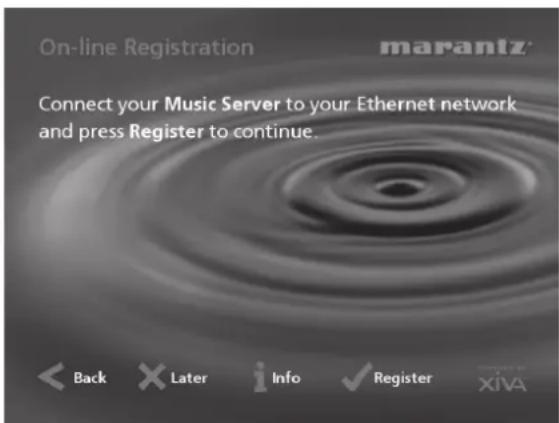
If you are using an Ethernet connection ensure that you have connected your Music Server to the appropriate network device using a shielded Ethernet cable. If you are not using an Ethernet connection check that you have connected your Music Server to a telephone line using the cable supplied.
- Press the Regstr action key on the front panel or the button on the remote control.
The following screen confirms that registration was successful and your Internet account is operating successfully:
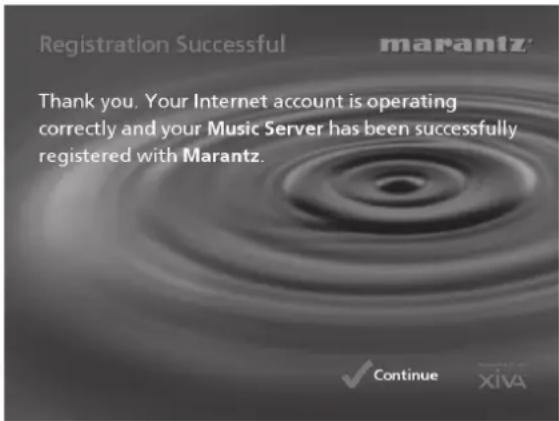
- Press the Cont action key on the front panel or the Select button on the remote control to continue.
Registration is now complete and the Main Menu will be displayed.
If the Music Server is unable to successfully connect to the Internet you will be given further details on how to connect to the Internet later.
THE MUSIC SERVER MAIN MENU
To display the Main Menu at any time during normal operation:
- Press the
Menu action key.
The Main Menu will be displayed on the TV screen and on the front panel display.
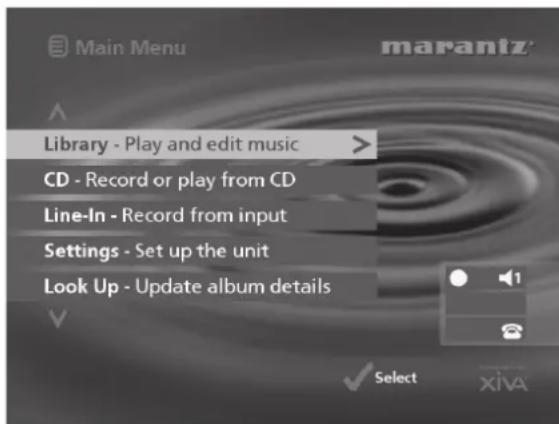
To select an option from the main menu
- Press the^ or^ key on the front panel or Music Server remote control to step between the main menu options.
The current option is shown highlighted.
- Press the√ Select button to select the current option.
The options are as follows:
| Option Description | |
| Register | Connects to the Internet and registers your Music Server with Marantz. This option will only be available if your Music Server has not been registered. |
| Library | Allows you to select the music you want to play by album, artist, genre, preset or playlist. You may also edit the names of the music stored on the hard disk. |
| CD | Allows you to play a CD or record new music to the hard disk. |
| Line-in | Allows you to record music onto the hard disk from the line-in connectors. |
| Settings | Allows you to configure your Music Server settings. |
| Look Up | This option allows you to retrieve any missing CD information from the Internet. |
| Disconnect | Interrupts any on-line processes using the modem connection and releases the telephone line. |
More information about each of these functions is given in the following chapters.
RECORDING MUSIC
Your Music Server can make new recordings onto the hard disk either by recording music directly from an audio CD placed in the CD tray or by recording from another piece of equipment (such as a vinyl record player) using the line-in connectors on the back of the unit.
If you are recording directly from the CD tray your Music Server can access the internet, using either a broadband connection (via the Ethernet port) or using the built-in modem, to automatically retrieve information about the CD including the album name, artist name, track names and music genre from the Gracenote CDDB Music Recognition Service.
If you do not provide an Internet connection you can label the CDs you record manually.
RECORDING FROM A CD
- Press the OPEN/CLOSE key on the front panel to open the CD tray.
- Place a CD in the tray.
- Push the OPEN/CLOSE key on the front panel.
The following prompt is automatically displayed:
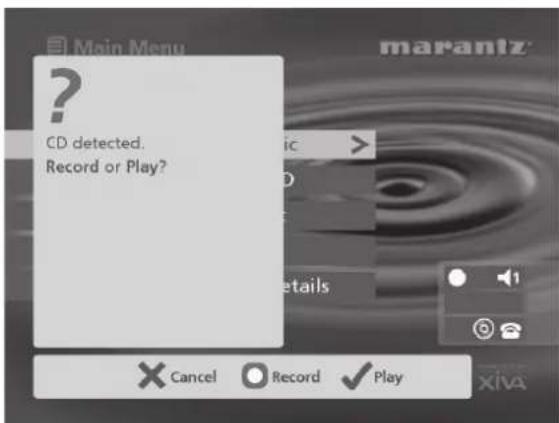
- Press the Record action key to record the album onto the Hard Disk.
Note: If you already have a CD in the tray, select the CD option from the Main Menu to display the contents of the disc; press the ☐ Rec. CD to begin recording.
The following display then allows you to choose whether to do an auto (one-touch) recording of the entire CD, or a custom recording which allows you to select the tracks you want to record and the recording quality:
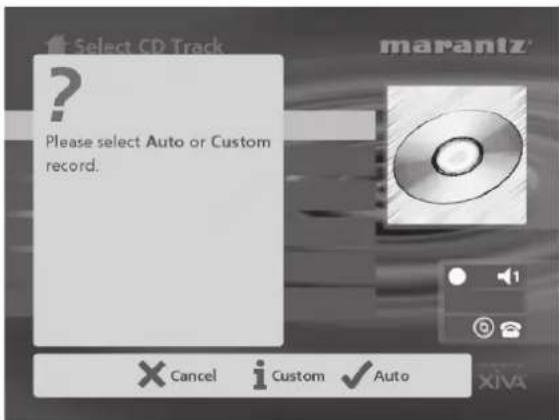
To make an auto (one-touch) recording
- Press the√ Auto key.
An Auto recording will automatically look up the track and artist information from the Gracenote CDDB Music Recognition Service, and then record all the tracks on the album.
The quality of the recording is specified in the Settings menu (under Default Recording Quality). For more information on the settings menu see the chapter called Advanced Settings p.29.
Once recording has begun your Music Server will connect to the Internet to retrieve the CD information:
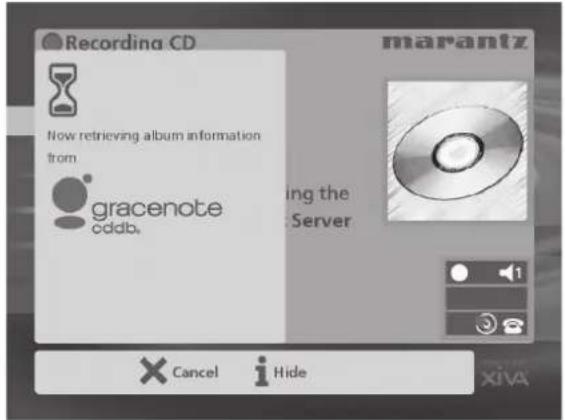
Once the search has been completed you will receive a confirmation to tell you if the CD has been found.
• Press the √ OK key to continue.
The following display shows the approximate progress of the recording:
![Recording CD CD: Greatest Hits [Europe] Remaining: 7 minutes Please note: During recording the TV interface on your Music Server may be slower to respond. marantz × Hide ✓ Stop xiva](/content/2026/02/381040/images/da199e807275e64b26860fab7054fb3954aafe8a65121f028b2f73182548204e.jpg)
Once recording is complete the following screen confirms how many tracks have been successfully recorded.
![Recording CD CD recording finished. 18 tracks recorded. marantz Europe] route ing the Server OK XIVA](/content/2026/02/381040/images/74bc389b203f2c48d3542fd37e4f9d1f96a9a99aea5941efd0a9b0599156746d.jpg)
- Press the Open/Close button to remove the disc.
Making a custom recording
The custom recording option lets you choose which tracks to record, the sound quality of the recording, and allows you to enter album information.
To make a custom recording:
- Choose Custom from the "Please select Auto or Custom record" screen.
A series of screens allow you to specify each of the recording options.
Tracks
The tracks menu lets you specify which tracks you want to record:
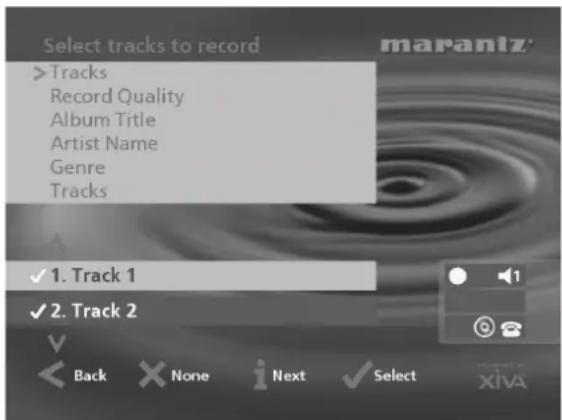
Initially all tracks are selected, as indicated by a √ in front of the track number.
- Press the √ Select key to unselect or select the highlighted track.
- Press the∧ or∨ keys to step between tracks.
- Press the ✗ None/All action key to unselect or select all of the tracks respectively.
When you have specified which tracks you want to record:
- Press thei Next key.
Record Quality
The Record Quality menu allows you to specify the recording quality:
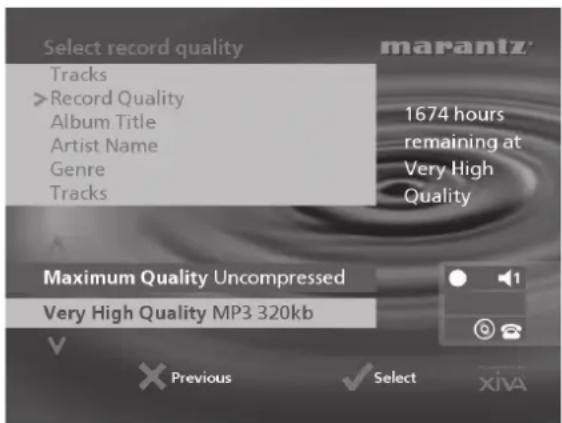
- Use the ∧ or ∨ keys to choose between Maximum (no compression used) or one of the MP3 compression options.
Note: The higher quality options use more space on your Music Server Hard Disk, so you will not be able to record as many CDs.
In each case the display shows the total remaining recording time available at the specified recording quality.
- Press the √ Select key to confirm your selection.
CD information
The CD information screen allows you to choose how to enter the album name, artist name, genre and tracks:
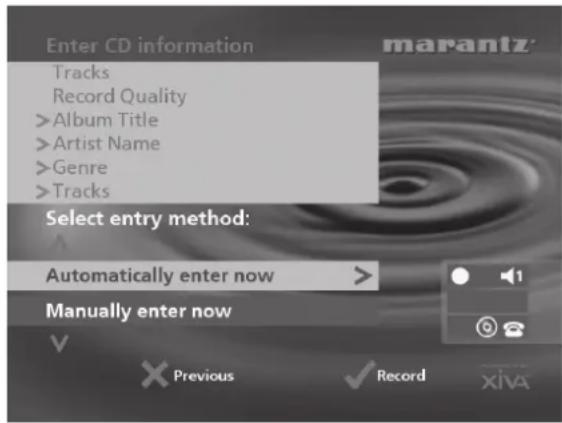
If you select Enter Information Later you can download the CD Information for all the CDs you have recorded by choosing Look Up from the Main Menu menu at a later time.
If you select Manually enter now a series of menus prompts you to enter the album name, artist name, and track titles:
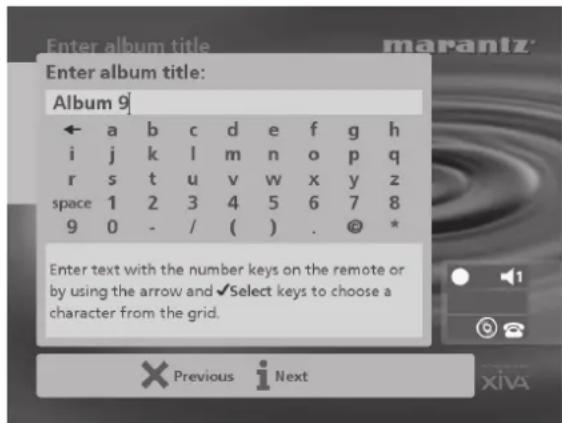
- Edit the album and artist name using the alphanumeric keys on your Music Server remote control or by using the text grid on the front panel.
For more information about entering and editing names see the chapter called Entering and editing names, p.28.
After entering the album name and artist name, you will be prompted to select a genre:
• Select a genre using the∧ and∨ keys.
- Press the √ Select action key to confirm your choice.
You will finally be prompted to enter the track titles.
- Edit each track title in the usual way, and press the i Next key once each title is complete.
- Once all the entries are complete recording will commence automatically.
If you select Automatically enter now your Music Server will attempt to connect to the Gracenote CDDB Service to retrieve the correct CD information. You will receive confirmation if this search has been successful once the connection is complete. For information about setting up the Internet connection see Registering your Music Server p.13.
If you do not have an Internet connection, or the CD is not listed in the database it will be given names such as Album 35, Artist 21, and Track 1, Track 2 etc. and it will be classified in genre Unclassifiable.
CD-Text Support
If the CD you have inserted contains CD-Text information your Music Server will use this information to label the recording appropriately.
Listening to music while recording a CD
You can play music from your music library while you are recording a CD.
- If you are already playing music from the library press the ▶ Output action key to return to displaying information about the track you are playing.
- If you are not already playing music from the library or wish to change the music you are listening to, press the? Okay on the Music Server remote control and select Music as normal.
For more information on selecting music for playback see the chapter called Playing Music p.21.
At any time you can return to see the progress of your recording by selecting CD from the Main Menu.
Note: During the recording process the update of the TV display may be slightly slower.
RECORDING FROM AN ANALOGUE OR DIGITAL INPUT
Using the line-in connectors on the back of your Music Server you can make recordings from sources such as Minidisc, vinyl record and cassette. Before beginning a new recording make sure that the device you wish to record from is connected to one of the following inputs:
- Digital Optical input
- Digital Coaxial input
- Analogue input
For more information on these connectors see the rear panel diagram on p.7.
To create a new line-in recording session
• Display the Main Menu by pressing the ☐ Menu action key on your Music Server remote control.
• If necessary use the ∧ or ∨ keys to highlight Line-In.
- Press the√ Select key.
A series of screens allows you to set up the new recording.
Line-in Source
The Line-in Source menu lets you specify which input connector to use for the new recording:
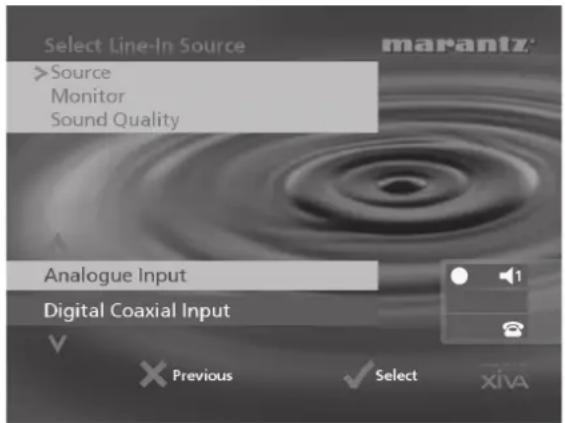
• Use the∧ or∨ keys to choose the input your device is connected to.
- Press the√ Select key to confirm your selection.
Monitor Output
The Monitor Output menu allows you to select which output you would like to use to listen to the line-in recording:
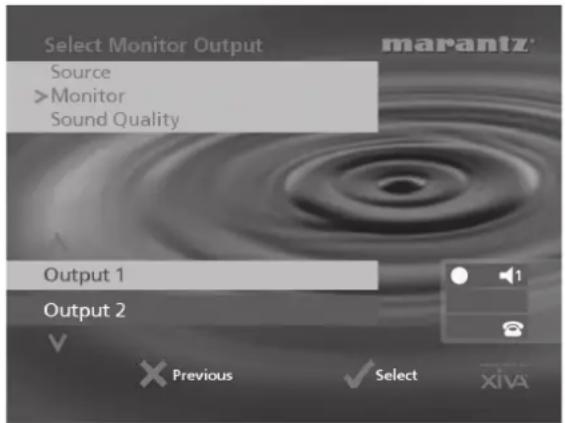
- Select an output using the ∧ or ∨ keys.
- Press the√ Select key to confirm your selection.
Note: Any music currently playing on this output will continue to play but will no longer be audible while while the Line-In Record screen is visible. The None option allows you to make a line-in recording without interrupting playback on any output.
Sound Quality
The Sound Quality menu allows you to specify the recording quality:
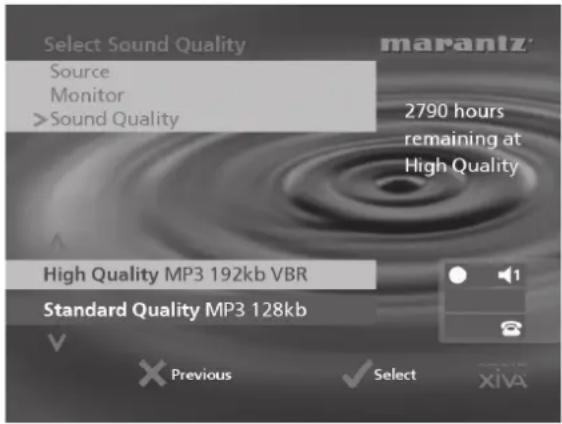
- Use the ∧ or ∨ keys to choose between Maximum (no compression used) or one of the MP3 compression options.
Note: The higher quality options use more space on your Music Server hard disk.
In each case the display shows the total remaining recording time available at the specified recording quality.
- Press the√ Select key to confirm your selection.
To record from the line-in connectors
Once you have created a new session the Line-In Record screen allows you to begin the recording process:
![Line-In Record Source: Analogue Input Monitor: Output 1 Peak Level dB (L, R): -2, -1 Gain (L, R): 38, 38 Album: Album 9 Paused: Session Track 1 Time [Remaining]: 0:00:00 [1:30:00] End Session Start Edit New marantz](/content/2026/02/381040/images/36fb0506f6aee5cd95602bf69f2ff42a032f43215f06203b027a8b5aba03f4ff.jpg)
If your Line-in Source is the analogue input connector, you will need to set the recording Gain to an appropriate level. To achieve the best quality recording try to play the loudest passage from the music you are going to record and set the gain such that the loudest peaks are in the yellow region of the signal level meters. The Peak Level dB indicator shows the maximum level reached so far.
To adjust the recording gain setting
• Use the∧ or∨ keys to highlight the Gain (dB) option and press the i Edit action key.
• Use theA orV keys to highlight the appropriate gain option.
- Use the< or> keys to adjust the gain setting to ensure that the loudest peaks in volume are in the yellow region of the signal level meters. Press the i Clear action key at any time to reset the peak level marker.
- Press the √ Select action key to confirm your settings and return to the Line-In Record screen.
Note: If you have selected either the coaxial or optical digital input as your line-in source the gain setting may not be altered. The signal indicator in this case will show whether a valid digital connection has been made. If the signal indicator shows protected the current digital source has been copy protected and may not be recorded onto your Music Server using the digital inputs.
To edit the album details
All the recordings made in this line-in recording session will be placed in a new album. This album is automatically assigned a name such as Album 4, Artist 7; it will also be placed in the Unclassifiable genre. You can edit these details at any stage in the recording session as follows:
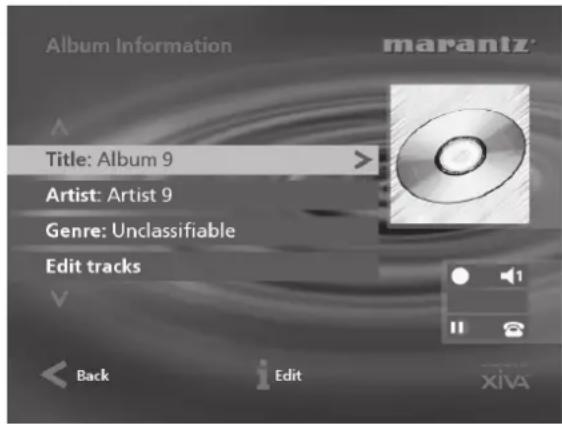
• Use the∧ or∨ keys to highlight the Album option and press thei Edit action key.
To edit the album name and artist name:
• Use theA orV keys to highlight the item you want to edit and press thei Edit action key.
- Edit the album name and artist name using the alphanumeric keys on your Music Server remote control or by using the text grid on the front panel.
• Press thei OK action key to confirm the new name.
To edit the genre:
• Use theA orV keys to highlight the Genre option and press thei Edit action key.
• Select a genre using the ∧ or ∨ keys.
- Press the√ Select key to confirm your choice.
To edit the names of any tracks you have already recorded:
- Use the ∧ or ∨ keys to highlight the Edit tracks option and press the √ Select action key.
• Use the∧ or∨ keys to highlight the track name you wish to edit and press thei Edit action key. - Edit the track name using the alphanumeric keys on your Music Server remote control or by using the text grid on the front panel.
• Press thei OK action key to confirm the new name.
For more information on entering and editing names see the chapter called Entering and editing names, p.28.
To begin recording a new track
• Press the Start action key.
At any time whilst the Line-In Record screen is visible press the Pause action key to pause the recording. You can resume the recording again by pressing the Start action key.
Recording will begin immediately; the track will automatically be named "Session Track 1".
Each recording session is limited to a maximum duration; the [Remaining] indicator shows how much time remains for this session. To change the maximum recording duration:
• Use the∧ or∨ keys to highlight the Time [Remaining] option and press thei Edit action key.
- Use the< or> keys to increase or decrease the duration. The amount of recording time available at the current quality setting is displayed above.
- Press the √ OK action key to confirm the new setting.
Note: the maximum recording length for a single track is approximately 3 hours. If this duration is exceeded a new track will be created automatically and recording will continue.
To change the name of the new track
Whilst the recording is in progress change the name of the new track as follows:
• Use the ∧ or ∨ keys if necessary to highlight the Recording option and press the i Edit action key.
- Edit the track name using the alphanumeric keys on your Music Server remote or by using the text grid on the front panel.
- Press thei OK action key.
To record additional tracks
- Use the^ oV keys if necessary to highlight the track name option and press the√ New action key.
A new track named "Session Track 2" will begin recording. The √ New option will be unavailable for approximately 5 seconds after creating a new track.
Note: If your line-in recording is currently paused you will need to press the □ Start action key to commence recording.
To end a line-in recording session
Once you have finished adding tracks to the recording:
• Use the∧ or∨ keys to highlight the End Session option and press the√ Select action key.
The following prompt is displayed:
![Line-In Record ? Are you sure you wish to end the line-in record session? Once the session is closed you cannot add any more tracks to the album. marantz Monitor: Output 1 dB [1:30:00] End Continue XIVA](/content/2026/02/381040/images/173b902326fdd0091bf290264bd7e0ae8a2390f37f936f5ff82c80b726b4316c.jpg)
- Press the ✗ End action key to confirm your selection.
Note: once a recording session has ended no further tracks may be added to this album.
Listening to music while recording from a line input
You can play music from your library while a line-in recording session is in progress:
- Press the ✗ Hide action key to display the Main Menu.
Any music currently playing on your line-in monitor output will be audible once again. If nothing is currently playing music can be selected from the library as normal.
For more information on selecting music for playback see the following chapter called Playing Music.
At any time you can return to see the progress of your line-in recording session by selecting Line-in from the Main Menu. The monitor output selected at the start of the recording session will return to monitoring the line-in connection.
Note: During the recording process the update of the TV display may be slightly slower.
PLAYING MUSIC
This chapter explains how to play music on your Music Server. It also explains how to search for a track in a number of alternative ways.
• Display the Main Menu by pressing the menu action key on your Music Server remote control.
• If necessary use the ∧ or ∨ keys to highlight Library.
- Press the√ Select key.
The Library menu will be displayed. This lets you choose how you want to browse your music collection:
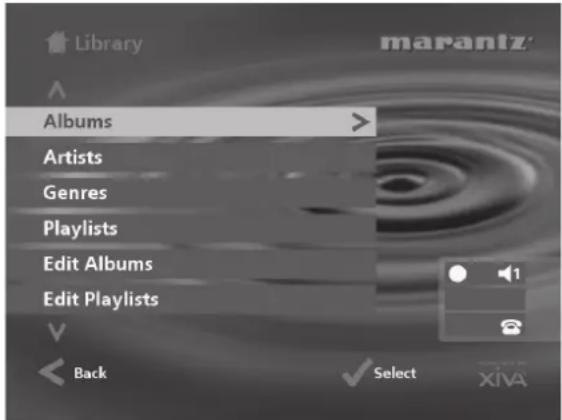
Option Description
| Albums | Display a list of albums in the library sorted alphabetically by album title. |
| Artists | Display your music library grouped by artist name. |
Genres Display your music library grouped by genre.
Playlist Display a complete list of custom playlists.
| Edit Albums | Edit the album title, artist name, genre or track name of existing music in your library. |
| Edit Playlists | Use this option to create and edit custom playlists. |
Presets Display a complete list of preset 'stations'.
Alternatively you can display the contents of a category directly by pressing the ALBUM, ARTIST, GENRE, PLAYLIST keys on your Music Server remote control.
To browse the library by album
Either:
- Use the ∧ or ∨ keys if necessary to highlight the Albums option in the Library Menu.
- Press the√ Select action key to confirm your selection.
or:
- Press the ALBUM key on your Music Server remote control.
The front panel display and TV screen both display the albums available in your library:
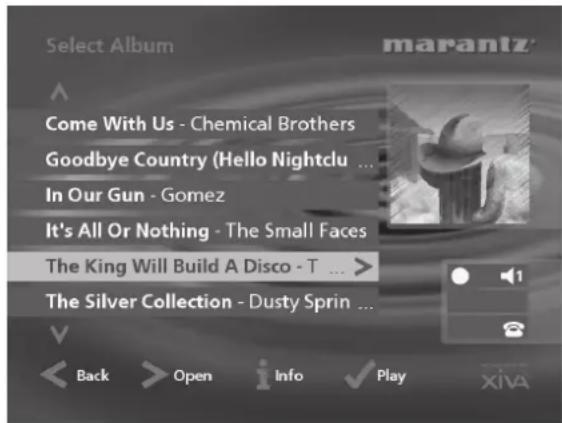
- Press the^ ofV keys to step between albums, or press the appropriate letter on your Music Server remote control to jump directly to that position in the list.
To play the entire album:
- Press the√ Play action key to begin playback.
To select a particular track from this album:
- Press the> Open key to open the album and display the tracks it contains.
• Use the∧ or∨ keys to step between tracks, or press a key on the alphanumeric keypad to jump to that track number. - Press the √ Play action key to play the currently selected track.
- Press the< key to return to browsing by album.
To browse the library by artist
Either:
• Use the∧ or∨ keys if necessary to highlight the Artists option in the Library menu.
- Press the√ Select action key to confirm your selection.
or:
- Press the ARTIST key on your Music Server remote control.
The front panel display and TV screen both display the artists available in your library:
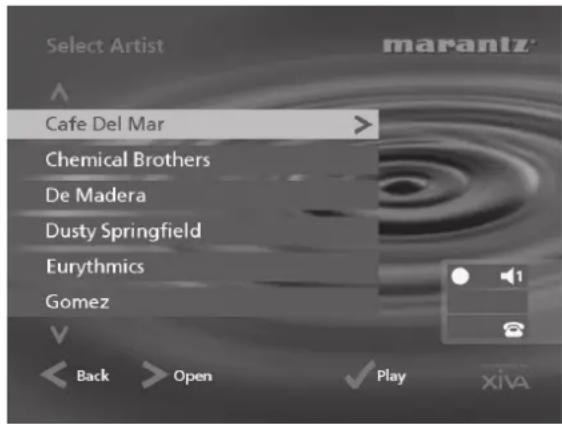
Artists are displayed in alphabetical order.
- Press the^ or√ keys to step between artists, or press the appropriate letter on your remote control to jump directly to the item in the list beginning with that letter.
To play all albums by the selected artist
- Press the √ Play key to begin playback.
To play a particular album by the selected artist
- Press the> Open key to display all the available albums by the selected artist.
• Use the∧ or∨ keys to step between albums.
Either:
- Press the √ Play action key to play the currently selected album.
Or:
- Press the> Open key again to select a track from within this album.
Or:
- Press the< key to return to browsing by artist.
To browse the library by genre
Either:
• Use the∧ or∨ keys if necessary to highlight the Genres option in the Library menu.
- Press the√ Select action key to confirm your selection.
or:
- Press the GENRE key on your Music Server remote control.
The front panel and TV screen both display the genres available in your library:
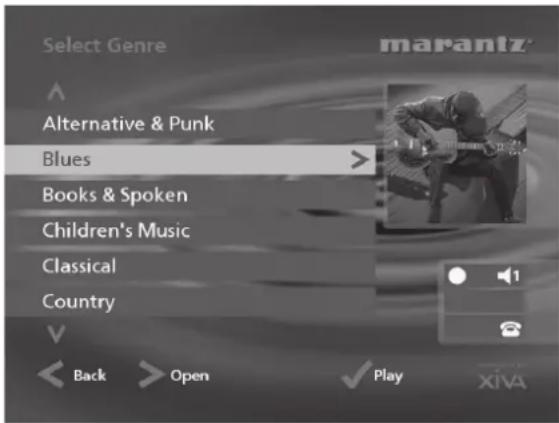
- Press the∧ or∨ keys to step between genres.
To play all albums in a selected genre
- Press the√ Play key to begin playback.
To play a particular album from the selected genre
- Press the> Open key to display all the available albums in the selected genre.
• Use the∧ or∨ keys to step between albums.
Either:
- Press the √ Play action key to play the currently selected album.
Or:
- Press the> Open key again to select a track from within this album.
Or:
- Press the< key to return to browsing by genre.
To Browse the library by playlist
Playlists allow you to create your own selections of tracks and save them with a name of your choice such as Party Music. For more information about creating a playlist see To create a new Playlist p.25.
Either:
• Use the ∧ or ∨ keys if necessary to highlight the Playlists option in the Library menu.
- Press the√ Select action key to confirm your selection.
or:
- Press the PLAYLIST key on your Music Server remote control.
The front panel and TV screen both display the Playlists available in your library:

Note: If you have not yet created any playlists the list will be empty.
- Press the ∧ or √ keys to step between playlists, or press the appropriate letter on your Music Server remote control to jump directly to the item in the list beginning with that letter.
- Press the √ Play key to begin playback.
To browse the library by preset
Presets are simple playlists that can be used in the same way as a preset station on your radio tuner; for example, you may have a preset which plays a random selection from your entire music library. Presets can be programmed into a simple multiroom controller system where browsing of the music library is not possible. For more information on programming presets see the chapter called Storing a preset p.26.
• Use the∧ or∨ keys if necessary to highlight the Presets option in the Library menu.
- Press the√ Select action key to confirm your selection.
The front panel and TV screen both display the presets available in your library:
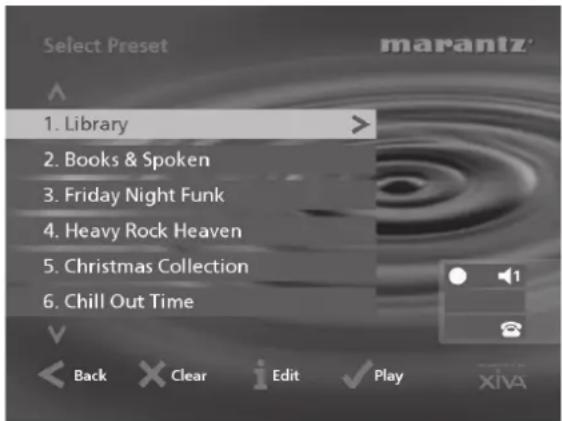
Note: any preset which currently has no program will be labelled [Empty].
- Press the^ or√ keys to step between presets, or press the appropriate number on your Music Server remote control to jump directly to that preset number in the list.
- Press the √ Play key to begin playback. Random and repeat playback will automatically be enabled for this selection.
Selecting items directly using your Music Server remote control.
You can select an album, artist, genre or playlist directly by the first letter of its title using the alphanumeric keypad on your Music Server remote control.
To select an album, artist, genre or playlist by name
- Display the appropriate library menu for the item you want to find (e.g. Select Artist menu).
- Press the alphanumeric keypad key corresponding to the first letter of the item you want to select.
For example to find the artist Santessa press the ARTIST key to display the Select Artist menu, then press the 7 key four times because S is the fourth letter on the 7 key. The front panel and TV screen show the first artist beginning with the letter S.
If there are several artists beginning with the letter S press theV key to step through until you find the artist you are looking for.
To select a track or preset by number
- Display the list of tracks in the album or playlist, or display the list of presets.
- Press the key on the alphanumeric keypad corresponding to the track number you want to select.
Selecting an album by number
Each album you have recorded onto the Hard Disk of your Music Server is allocated a sequence number, from zero upwards. If you know the number of the album you want to listen to you can select it directly by number using the alphanumeric keys on your Music Server remote control.
- Press the ALBUM button to display the albums in your library.
- Press the 0 key followed by the number of the album.
For example, to select album 27 press ALBUM,0,2,7.
The front panel displays:
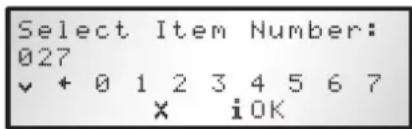
- Press the iOK action key to finish entering the album number.
- Press the √ Play action key once again to begin playing the album.
Your Music Server allows you to play a CD directly without recording it to the hard disk first.
To play a disc:
- Press the OPEN/CLOSE key on the front panel to open the CD tray.
- Place a CD in the tray with the label side facing upwards.
- Push the OPEN/CLOSE key on the front panel.
The following prompt is automatically displayed:
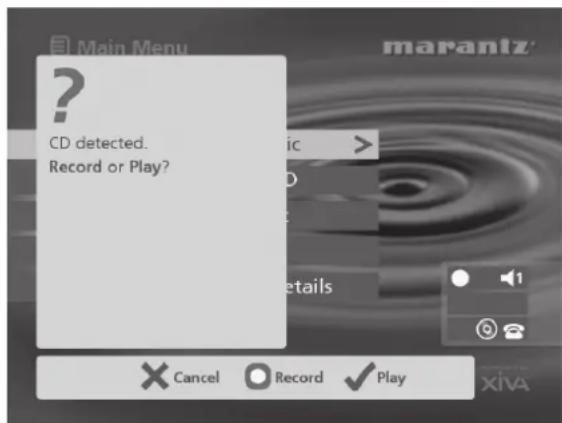
Alternatively if you already have a CD in the tray select the CD option from the Main Menu.
- Press the √ Play action key to begin playing the CD.
PLAYBACK INFORMATION
The output screen
Whenever you select an item for playback the following screen is displayed:
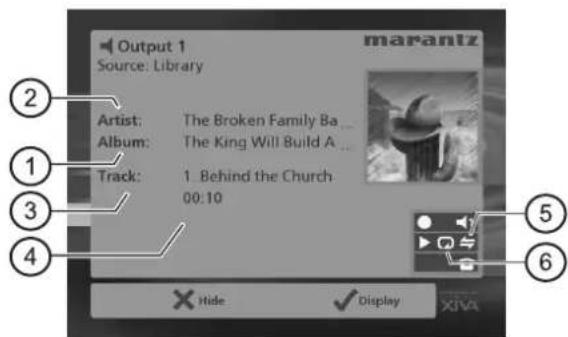
The front panel displays:
![Out. 1 ▶ Playing 0÷ Behind the Church [1] 00:03 Menu XHide ✓Disp](/content/2026/02/381040/images/de2dc3c858efb170f6154a44085541cdede6931407668f7ca787f753eac8a4e4.jpg)
- Indicates the title of the album.
- Indicates the title of the artist.
- Indicates the name of the track currently playing.
- Displays either track time or time remaining for the current track.
- Indicates that random playback is enabled.
- Indicates that repeat playback is enabled.
- Indicates that the unit is playing from an item in the Hard Disk library.
You can display the output screen at any time by pressing the▶ Output key. The output key may also be used to select a different output on the Music Server; for more information see the chapter called Using your Music Server in a multiroom system p.31.
To change the displayed information
You can choose what information is displayed on the TV screen and front panel display whilst playing;
- Press the √ Display action key to step between the following four options:
Track name, track number, and elapsed time for the current track:
![Out. 1 ▶ Playing 0# (Sittin' on)The... [4] 01:26 Menu XHide ✓Disp](/content/2026/02/381040/images/cd4966627834ecd83f245eeff7620941e6d25388df1ba6b2fdcea46bc882e6ce.jpg)
Track name, track number, and time remaining for the current track:
![Out. 1 ▶ Playing 0# (Sittin' on)The... [4] -01:26 Menu XHide ✓Disp](/content/2026/02/381040/images/aa17cf82b7b8a1f3240d9a2b0aa8f9ab540bb4642b2ca507b5d4dac029b15d68.jpg)
Album name and track name:
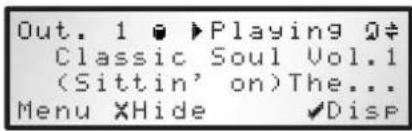
Artist name and track name:
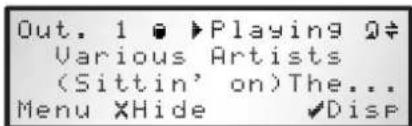
Whether you are playing music from the library or directly from the CD you can pause, stop and resume playback as well as seek and skip tracks at any time.
To pause play
- Press that's key in the front panel or your Music Server remote control.
To stop play
- Press the ■ key on the front panel or your Music Server remote control.
To resume play
- Press the▶ key on the front panel or your Music Server remote control.
To skip to the next or previous track
- Press the◀ or◀ key on the front panel or your Music Server remote control.
The front panel display shows the number of each track as you skip between them.
To seek within a track
- Hold down the◀ or▶ key on the front panel or your Music Server remote control.
Play resumes from the new position when you release the key.
Random and repeat playback
Your Music Server lets you play albums, artists, genres or playlists in a random order to add variety to your music. You can also play a selection repeatedly.
To randomise the current selection
- Press the→ key on your Music Server remote control.
Press the→ key again to disable random playback.
To repeat the current selection
- Press the ➕ key on your Music Server remote control.
Press the 2 key again to disable repeat playback.
The front panel and TV screen indicate that both random and repeat are enabled.
Note: random and repeat mode will both be enabled by default when a preset is selected for playback.
This chapter describes the features built into your Music Server to help you organise the music in your music library, including information about creating playlists of your favourite tracks, deleting albums or tracks you no longer want to store, and naming albums, tracks, and artists.
PLAYLISTS
Your Music Server allows you to create your own selections of tracks, called playlists, and identify them with a name of your choice. For example, you could select your favourite party tracks from a number of different albums and include them in a playlist called Party Music. You can then play your selection simply by choosing the appropriate playlist from the Select Playlist menu.
To create a new playlist
• Display the Main Menu by pressing the key on your Music Server remote control.
- Press the^ orV key to highlight the Library option and press the√ Select action key.
- Press the^ or√ key to highlight the Edit Playlists option and press the√ Select action key.

The existing playlists will be displayed:
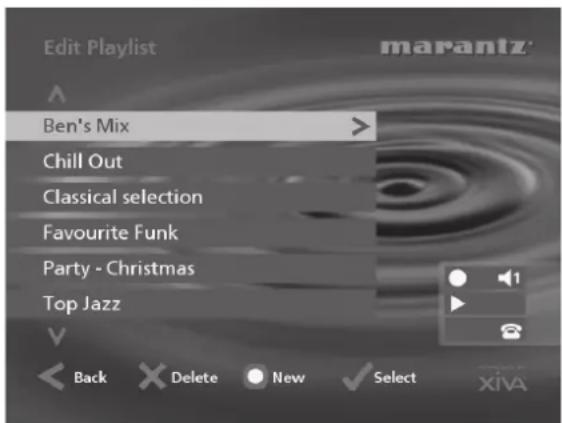
If you have not previously created a playlist this list will be empty.
- Press the ☐ New key to create a new playlist.
- The following menu then allows you to enter a name for the playlist:
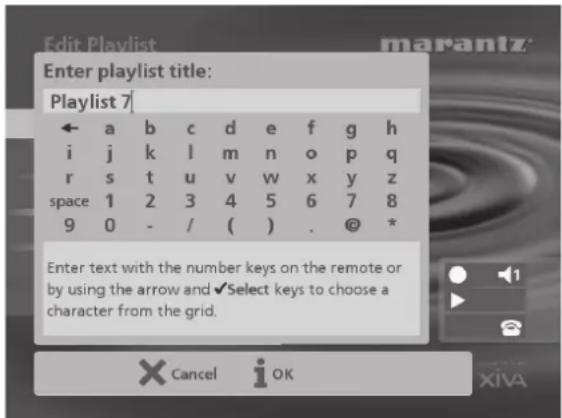
- Enter a name for the playlist using the alphanumeric keys on your Music Server remote control or using the grid.
For more information about entering names see the chapter
called Entering and editing names, p.28.
• Press the i OK action key to confirm the name you have entered.
To select items for a playlist
- Press the^ or▼ key to highlight the Edit Tracks option and press the▼ Select action key.
You will then be prompted to select the items that you want to include in the playlist:
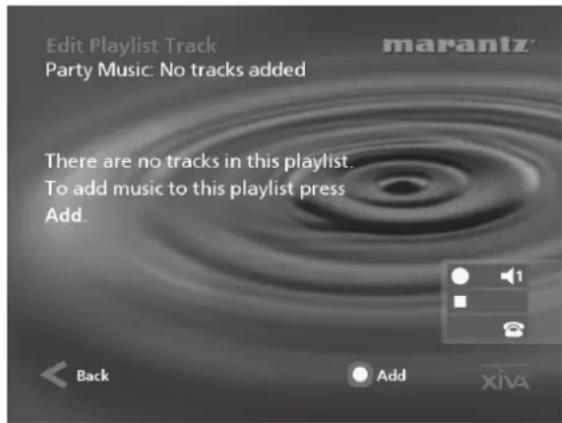
- Press the Add action key.
The Add Music Menu then lets you browse through the music library to select the first item you want to add to the playlist.
You can add whole albums, complete genres, all the albums by a selected artist, another playlist, or individual tracks. For more information on browsing the music library refer to Playing Music from the Library p.21.
When you have located the album, genre, artist, playlist or track you want to add:
- Press the√ Add action key to add it to the playlist.
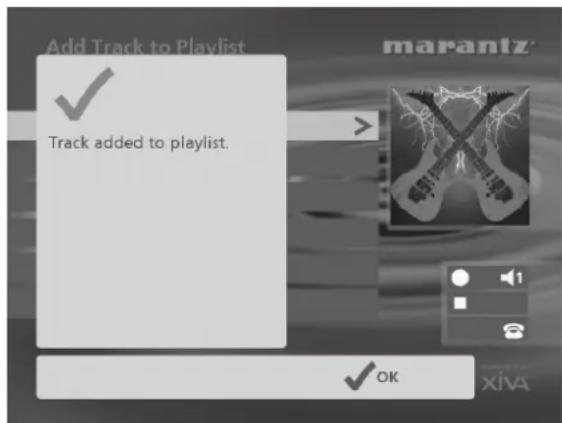
• Press the √ OK action key to continue.
When you have finished compiling the playlist:
- Press the☐ Done action key to finish adding tracks.
- Press√ OK to confirm your action.
- Press the Done action key to finish adding tracks. - Press OK to confirm your action.
The tracks you have added will be shown in the playlist:
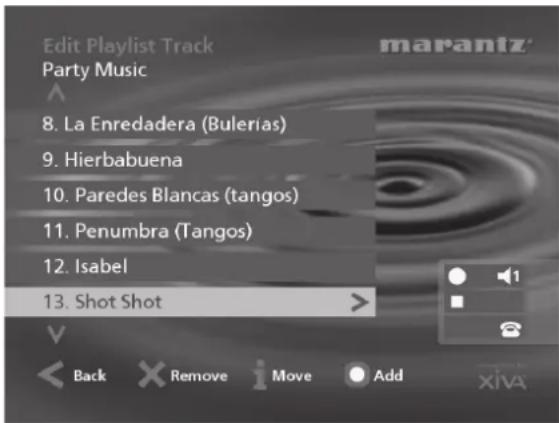
Editing a Playlist
You can change a playlist at any stage by adding items, deleting tracks, or changing position of tracks in the playlist.
To add items to a playlist
Either:
- Select the playlist you want to change from the Select Playlist menu in the library.
• Press the i Info action key to display the Playlist Information menu.
- Use the ∧ or √ keys to highlight the Edit tracks option and press the √ Select action key.
Or:
• Select Edit Playlists from the Library menu and highlight the playlist you want to change.
- Press the√ Select action key to open the playlist for editing.
- Use the ∧ or √ keys to highlight the Edit tracks option and press the √ Select action key.
Once you have selected the appropriate playlist:
- Press the Add action key to add new tracks, and locate the item you want to add by browsing through the music library.
To remove a track from a playlist.
- Open the playlist as previously described.
- Press theA orV keys to highlight the track you want to remove.
- Press the ✗ Remove action key to remove the track.
- Press the√ Remove action key to confirm your choice.
To change the position of a track within a playlist.
- Open the playlist as previously described.
- Press the∧ or∨ keys to highlight the track you want to change.
• Press thei Move action key to move the track. - Press the∧ or∨ keys to move the track up or down as required.
- Press the√ Store key to confirm the new track position.
PRESETS
Presets are simple playlists that can be used in the same way as a preset station on your radio tuner; for example, you may have a preset which plays a random selection from your entire music library. Although you can select a preset for playback using the TV user interface presets are more commonly used by simple multi-room control systems and remote controls to trigger playback without referring to the TV screen. For more information see the chapter called Using your Music Server in a Multiroom System p.31.
Before a preset can be used a selection of music must be assigned to that 'station':
Storing a preset
• Display the Main Menu by pressing the ☐ Menu key on your Music Server remote control.
- Press the^ orV key to highlight the Library option and press the√ Select action key.
- Press the^ or√ key to highlight the Presets option and press the√ Select action key.
The existing presets will be displayed:
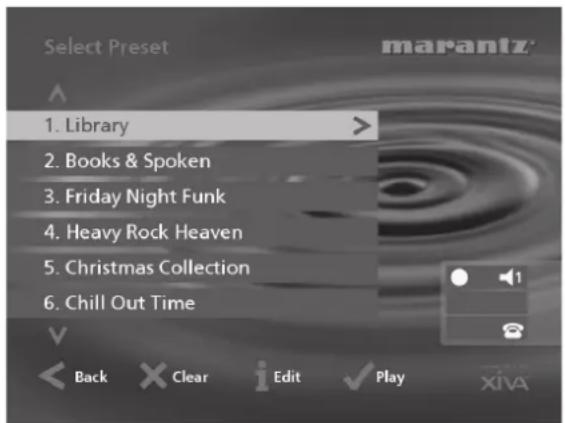
If you have not previously stored a preset all the names will be labelled [Empty].
• Use the∧ or∨ keys to highlight the preset you wish to program and press thei Info action key.
- The following menu allows you to choose whether you wish to rename the preset or re-program it:
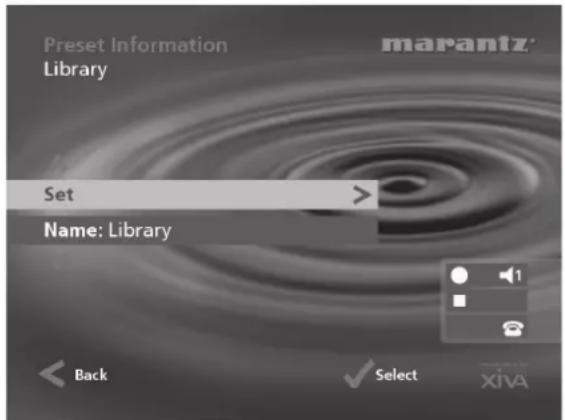
To select the music for a preset:
- Press the^ or√ key to highlight the Set option and press the√ Select action key.
You will be prompted to select an item from the library to store as your preset. This may be a single track, an album, all the tracks by an artist, all the tracks in a genre, a playlist
or all the tracks stored on your Music Server. For more information on browsing the music library refer to Playing Music from the Library p.21.
When you have located the album, genre, artist, playlist or track you want to select:
- Press the√ Set action key to store it as a preset.
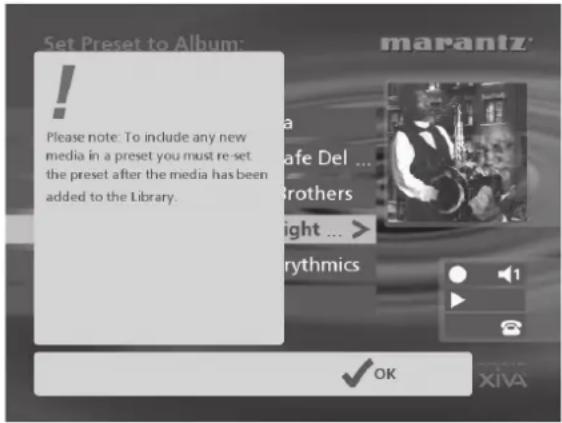
Press the √ OK action key to continue.
Note: presets are not automatically updated when new music is recorded onto your Music Server. For example if you have a preset which plays the Blues genre, when a new Blues album is added the preset will not contain those new tracks.
A name for your preset will be chosen automatically according to the music selection you have made. To change the name of your preset:
- Display the Preset Information screen using the method described previously.
- Press the^ or▼ key if necessary to highlight the preset name and press the i Edit action key to enter a new name.
- Enter a name for the preset using the alphanumeric keys on your Music Server remote control or using the grid.
For more information about entering names see the chapter called Entering and editing names, p.28.
- Press thei OK action key to confirm the name you have entered.
ALBUMS
Your Music Server labels the albums, artists and tracks in your music library with names which identify the track you are listening to, and these help you locate items when you are browsing through the library.
If you have an Internet connection, your Music Server reads the CD information automatically from the Gracenote CDDB Music Recognition Service. You can edit these names at any stage to suit your own preferences.
To edit album information
• Display the Main Menu by pressing the key on your Music Server remote control.
- Press the^ orV key to highlight the Library option and press the√ Select action key.

Either:
- Press the^ or√ key to highlight the Edit albums option and press the√ Select action key.
- Select the album you want to edit and press the √ Select action key.
Or:
- Press the^ or√ key to highlight the Albums option and press the√ Select action key.
- Select the album you want to edit and press the i Info action key.
The following menu allows you to choose information to edit:
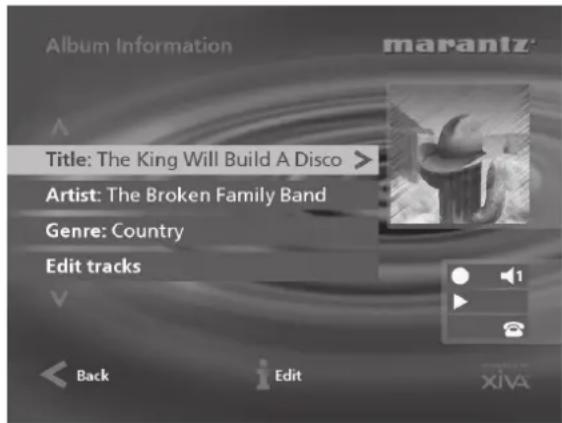
- Select the item you want to edit and press thei Edit action key.
• See the following section called Entering and Editing Names to enter a new name.
Deleting albums, tracks or playlists
You can delete albums, tracks or playlists you no longer want from your Music Server library.
• Display the Main Menu by pressing the ☐ Menu key on your Music Server remote control.
- Press the^ or^ key to highlight the Library option and press the√ Select action key.
- Press the^ or√ key to highlight either the Edit Playlists or Edit Albums option and press the √ Select action key.
- Locate the album, playlist or track you want to delete.
- Press theX Delete action key to delete it.
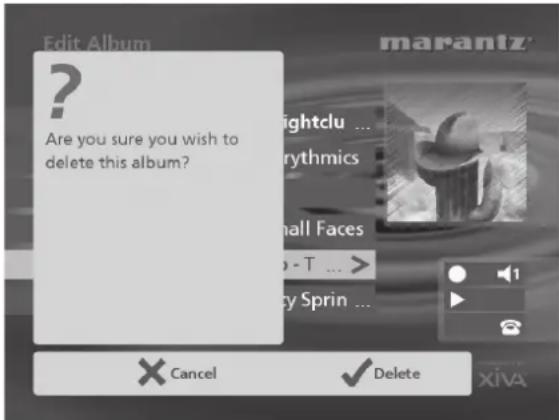
- If you are sure you want to delete the item, press the √ Delete action key again to complete the operation.
Note: This operation will permanently remove information from your Hard Disk; you will need to re-record the album if you delete tracks or albums accidentally. However, deleting a playlist does not remove any music from the Hard Disk - the original albums are unaffected.
CLEARING A PRESET
You can clear the contents of a preset at any time in order to re-program it as follows:
• Display the Main Menu by pressing the ☐ Menu key on your Music Server remote control.
- Press the^ or√ key to highlight the Library option and press the√ Select action key.
- Press the^ or√ key to highlight the Presets option and press the√ Select action key.
- Highlight the preset you wish to clear and press the ✗ Clear action key.
- Press the√ Clear action key to confirm your choice.
- You will receive confirmation once the operation is complete. Press the √ OK action key to continue.
ENTERING AND EDITING NAMES
You can enter a new name or edit an existing name on your Music Server using either of the following methods:
To enter text using the alphanumeric keypad
- Press the> or< keys to move the cursor to the required position.
- Use the keys on the alphanumeric keypad to enter a letter.
For example to enter S press the 7 key four times, because S is the fourth letter on the 7 key.
- Press the DELETE key on your Music Server remote control to delete letters.
- Press the CAPS key on either the front panel or your Music Server remote control to switch between upper-case and lower-case letters.
To select letters from a grid
Alternatively, the Grid option provides a convenient way of selecting letters from a grid:
- Press theV key to move the cursor into the grid area.
The currently selected letter is highlighted:
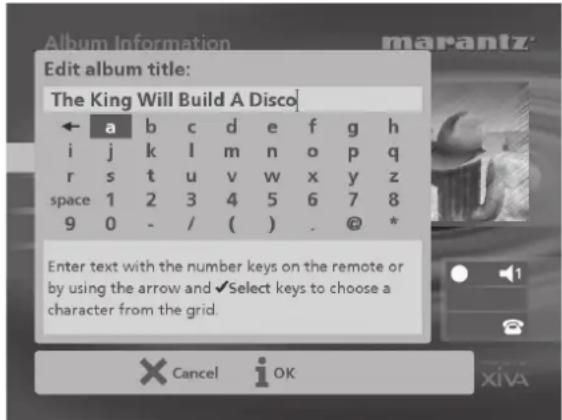
• Use the> < ∧ or ∨ keys to move the cursor and press the √ Select action key to enter each letter.
- Use the CAPS key on either the front panel or the Music Server remote to switch between upper and lower case letters.
If at any time you need to enter text in a different part of the text field, or you want to return to entering text using the alphanumeric keypad:
- Press the^ key repeatedly until the cursor returns to the text field.
Finally, when you have finished entering the name:
- Press the i OK action key.
ADVANCED SETTINGS
This chapter describes the advanced settings that you can access from your Music Server's Settings Menu. Many of these settings were configured automatically for you when you registered your Music Server. The settings should not need to be altered unless you want to change the configuration of your system.
To display the Settings Menu
- Display the Main Menu by pressing the ☐ key on your Music Server remote control.
- Press theA orV key to highlight the Settings option on the Main Menu.
- Press the√ Select action key to display the Settings menu:
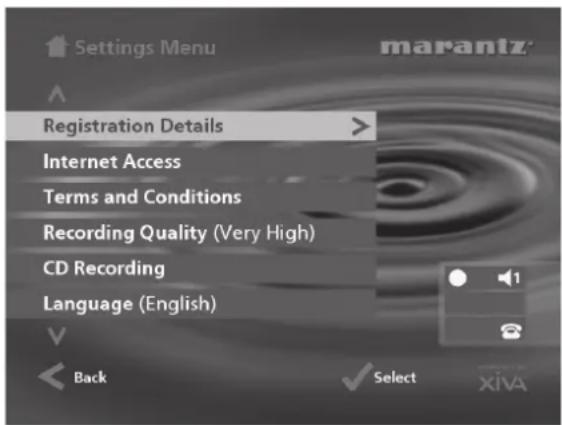
The following sections describes each of the options on the Settings menu.
Registration Details
Displays the registration details you entered when you registered your Music Server, and allows you to edit them:
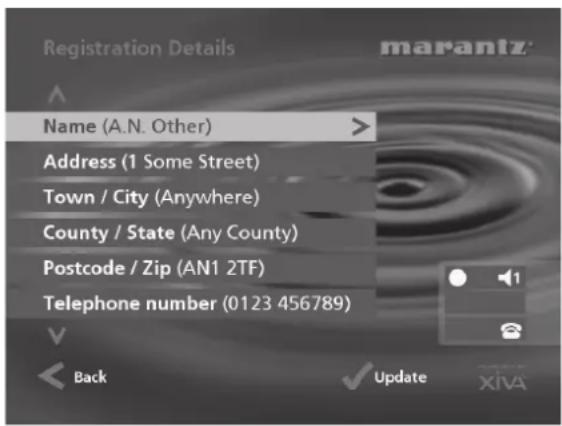
If you change any of these details you will be given the opportunity to re-transmit your updated registration information.
Internet Access
Displays your Internet account details and allows you to edit them:
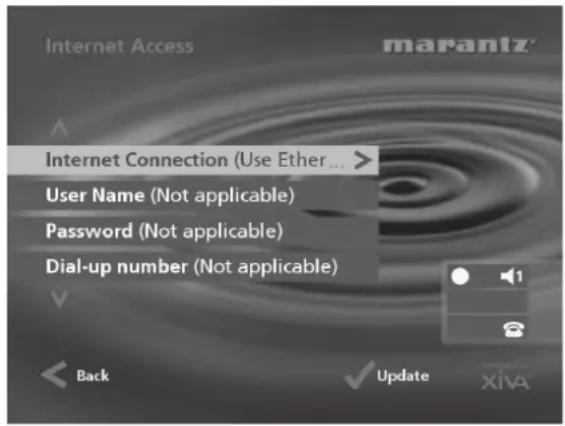
If you chose the Use Built-in Internet Account option when registering your Music Server, the Internet account details were set up automatically for you.
Terms and Conditions
Displays the sequence of terms and conditions screens that were displayed during registration, and allows you to decline or accept the following options:
- Whether you want to receive information on other Marantz products and services.
- Whether you want to receive information about music and other related products from reputable organisations.
If you change your acceptance of any of these options you should re-register to transmit your new preferences.
Default Recording Quality
Allows you to specify the recording quality used when you record music using the Auto record option:
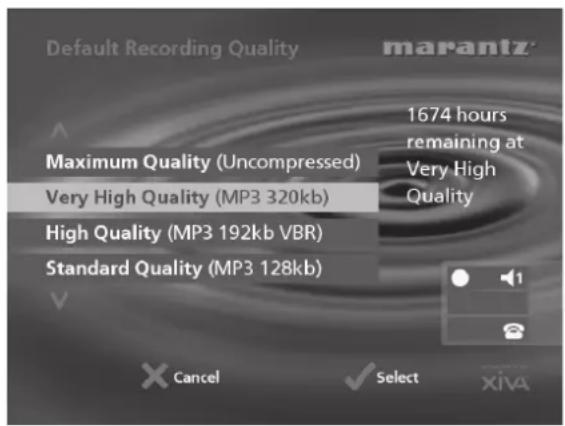
For each quality setting the screen shows the number of hours of recording time available at that setting.
CD Recording
Allows you to configure options for recording from a CD:
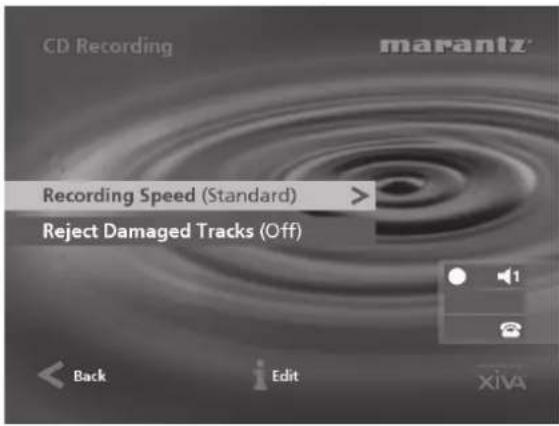
The Recording Speed setting allows you to reduce the speed at which audio is extracted from the CD during the recording process. When the Reject Damaged Tracks option is set to off the maximum recording speed will be increased, however damaged compact discs may produce errors in the recording. Any changes to these settings will take effect the next time a CD is recorded.
Language
Allows you to select the language for the TV user interface - languages available are English, French, German, Italian, and Spanish.
System Information
Shows the serial number, production date, and software version number of your Music Server. You may need to quote these if you contact Marantz for technical support.
System Settings
Provides a series of menus to allow you to change the hardware configuration on your Music Server:
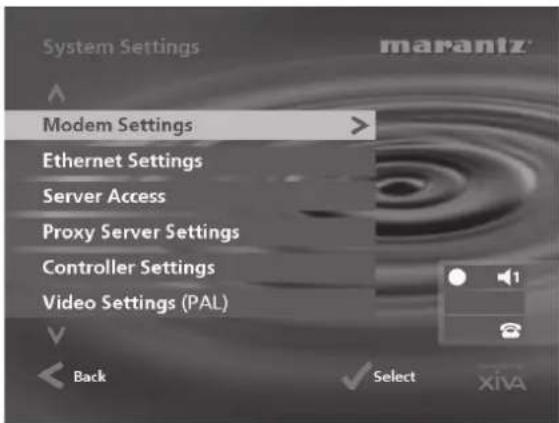
The following table summarises the settings available on each of the System Settings menus:
Option Description
| Modem Settings | Allows you to specify the following settings when connecting to the internet via the built-in modem: number of connection retries, whether to use tone or pulse dialling, and the modem initialisation string. |
| Ethernet Settings | Allows you to specify how your Music Server obtains an IP address when connected to an Ethernet network. The Mode option allows you to select whether the IP address is set Manually, by a DHCP Server on the network, or by a BOOTP Server. If the Manual option is selected, use the Manual Ethernet Settings option to specify an IP Address, IP Mask and Gateway. If DHCP or BOOTP is selected the IP address, IP Mask and Gateway will be set automatically. Once the Mode option has been set correctly the assigned IP address, IP Mask, Gateway, DNS 1, and DNS 2 will be displayed as well as the MAC address of the unit. |
| Server Access | Allows you to configure options for accessing the Music Server music collection from a home computer via the Ethernet connection. For more information see the chapter called Using your Music Server with a Portable Player p.36. |
| Proxy Server Settings | Allows you to specify the IP Address and Port Number for internet access via a proxy server if required. |
| Controller Settings | Specifies the communication speed for the Controller port on the rear of the unit. |
| Video settings | Specifies whether the unit is configured for PAL or NTSC use. |
| Remote Diagnostics | Select this option if instructed to set up your modem to receive incoming calls from technical support staff. |
Output Settings
The volume setting of each individual output of the Music Server may be configured as either variable or fixed. Any changes made to the output settings will only affect the currently selected output (shown on the status icons).
If the volume setting is set to fixed the output level is set to maximum and the balance is set to the central position. In this mode the ▲ and ✗ Mute keys on the Music Server remote control do nothing*.
If the volume setting is set to variable the output level can be altered at any time using the ▶ and ✗ Mute keys on the Music Server remote control. A Balance option is also available from the Volume Settings menu which allows you to adjust the left/right balance.
*Note: The Music Server remote control can be configured so that when the HDD Audio device is selected the and Mute keys operate the volume and mute controls on an amplifier. For more information see the chapter called Configuring your remote to control other devices p.11.
Upgrade Unit
Select this option when supplied with a XiVA software upgrade disk for your Music Server.
USING YOUR MUSIC SERVER IN A MULTIROOM SYSTEM
Your Music Server is capable of playing different music in several rooms simultaneously. This chapter explains how the Music Server can be integrated into a multiroom environment and how users in different rooms can access music from the library.
BASIC CONFIGURATION
When the Music Server is not part of a larger multiroom control system you can access the music library from remote rooms by displaying the TV user interface in the room where you are located. The TV display is able to automatically switch to controlling the output appropriate to your location by configuring the Music Server remote control with a default output. More information about configuring your remote is given in the section below.
The diagram below shows the connections required in a basic multiroom configuration:
• Video Out is connected to an RF Video distribution system to allow the TV user interface to be viewed on all televisions around the home.
- Infrared remote control information is received at a separate receiver eye placed in each room - information from this device is then transmitted via the RF Video distribution system to the IR Receiver connection.
- Analogue Out 1, 2, 3 & 4 are each connected to the stereo input of an amplifier.
Multiroom Remote Control Use - TV Interface
Your Music Server remote control can be configured so that every button press indicates to the system which output is to be controlled. This means that whenever infrared is received by the Music Server the TV display will automatically switch to controlling the appropriate output.
To configure the remote with a default output
- Press the HDD Audio and buttons Select simultaneously; hold them down for 1 second.
The HDD Audio button will remain lit for 20 seconds; the configuration process must be completed during this time.
- Enter the 3 digit code corresponding to the output you would like to control (valid configurations are listed in Appendix A). For example, to set output 2 as your default output press:
0, 0, 2
- Press the HDD Audio button again.
The HDD Audio button will blink twice to indicate that the configuration has been accepted. If the HDD Audio button does not blink twice begin the process again, taking care to enter the number correctly.
If the Music Server is switched on during the configuration process the Enter Standby? prompt will appear once configuration is complete; pressing any navigation key on the remote should now cause the Music Server to switch to the correct output. In the example above the status icons will display the following:
The number inside the circle indicates the default output of your remote. The bar to the right of this indicates how long the user has before the TV user interface is available for other users to access. The number next to the loudspeaker symbol indicates which output this remote is currently controlling.
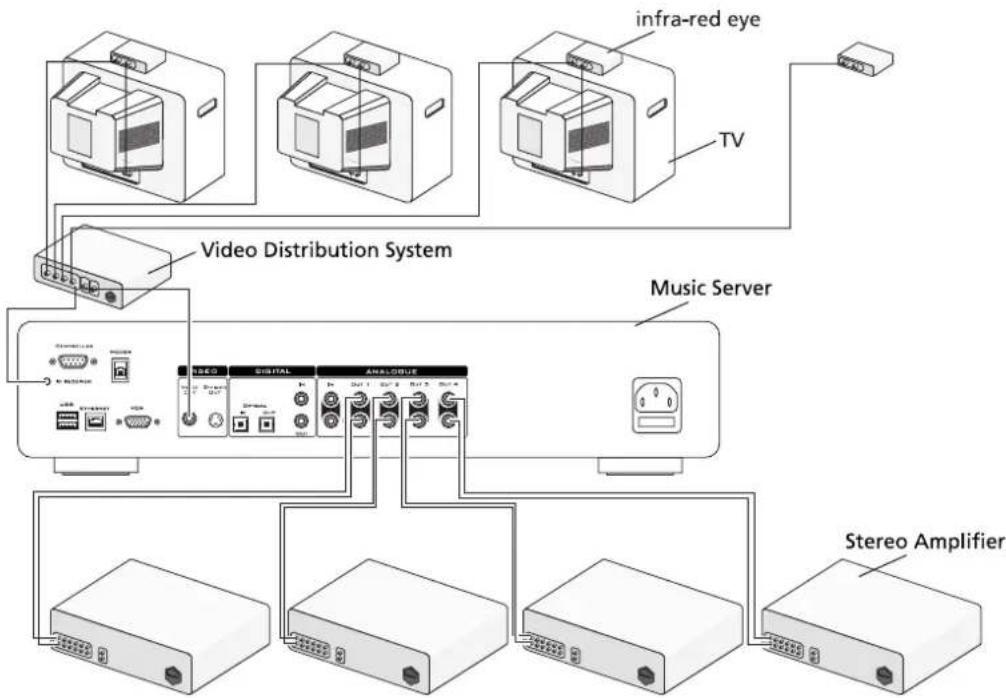
flowchart
graph TD
    A["Video Distribution System"] --> B["TV"]
    A --> C["Music Server"]
    A --> D["Stereo Amplifier"]
    B --> E["Infra-red eye"]
    C --> F["Digital"]
    C --> G["Analog"]
    D --> H["Audio Amplifier"]
    D --> I["Audio Amplifier"]
To change output using the remote control
The Output button on the Music Server remote control allows you to display information about the music you are currently listening to. It can also be used to select another output to control as follows:
- Press the◀ Output button on the Music Server remote control.
The following screen is displayed:
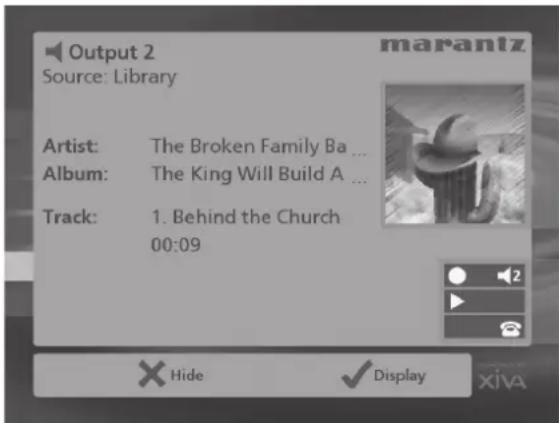
The output screen indicates what is playing on the currently selected output.
- Press the ▶ Output button again to switch to the next output.
- Once the required output number is displayed, press the✗ Hide key to hide the output display.
In the previous example the status icons would now show:
Any subsequent press on this remote will now control output 3.
Press the Default o/p button at any stage to return to controlling your default output. This button will also automatically display the Library menu.
Multiroom Remote Control Use - Direct Media Select
The basic configuration shown above shows one room which does not have access to a television for displaying the TV user interface. In this instance the Music Server remote control may be used in Direct Media Select mode.
This mode may be used to select music from the library and control playback (e.g. play, pause, stop etc.) using simple infrared commands with no effect on the TV user interface. To set your Music Server remote control in Direct Media Select mode follow the instructions in the previous To configure the remote with a default output section selecting a Direct Media Select output from the settings listed in Appendix A.
To select music from the library using Direct Media Select mode
An album, artist, genre or playlist may be selected for playback using a "sequence" number. The following examples show how to select music using this method:
Example 1: selecting an album by the number assigned to it when it was recorded onto the unit:
Album, 5
will play album number five.
Example 2: selecting an artist by its location in an alphabetical list:
Artist, 7, 7
will play all the tracks by artist number seventy-seven.
Example 3: selecting a genre by its location in an alphabetical list:
Genre, 2, 2
will select the 22nd genre (Rock) for playback.
Example 4: selecting a playlist by the number assigned to it when it was created on the unit:
Playlist, 8
will select playlist number eight.
The simple commands used to select your music without reference to the TV User Interface may also be used by other “learning” remote controls such as the Philips Pronto, other compatible remote controls, and simple multiroom control systems. The presets area of your library is ideal for an application such as this, allowing you to select from your current favourites at the touch of a button.
A complete reference guide to programming these controls is available from your local dealer or by referring to the website listed in the following Getting Help section.
Setting the output controlled from the front panel
You can set which output is controlled by the front panel controls as follows:
- Press the◀ Output button on the Music Server front panel.
The following screen is displayed:
![Out. 1 ▶ Playing 0# Behind the Church [1] 00:03 Menu XHide ✓Disp](/content/2026/02/381040/images/80a96f3b11b7ce4baf8a1e0aa5a975d1ce45138e6eadeb67352728d8e410b11a.jpg)
The output screen indicates what is playing on the currently selected output.
- Press the◀ Output button again to switch to the next output.
- Once the required output number is displayed, press the✗ Hide key to hide the output display.
The next time a key is pressed on the front panel the user interface will automatically switch to controlling this output.
MULTIROOM CONTROL SYSTEMS
Your Music Server is also compatible with a number of leading multiroom control systems. The Controller port on the rear of the system uses a versatile protocol called XiVA-Link which allows access to most of the Music Server functions remotely.
Please contact your nearest Marantz representative for the current list of supported multiroom control systems.
USING YOUR MUSIC SERVER WITH AN OPUS MULTIROOM SYSTEM
Your Music Server may be installed with an Opus Multiroom System for a complete multiroom audio solution. Using the Opus wall panels and remote control you can access a simple menu interface that allows you to browse through the music library on your Music Server and listen to individual music selections.
Each output on the Music Server is distinct and independently controlled, enabling more than one person to control audio playback without affecting the playback of others.
CONNECTING YOUR MUSIC SERVER TO THE OPUS MCU
In order to connect your Music Server to an Opus MCU you will need a TXT500 interface unit. The illustration below shows the connections required:
Note: ensure that all units are switched off before making any connections.
- Connect Analogue Outputs 1, 2, 3 and 4 on your Music Server to the AV1, AV2, CD, and DVD connections respectively on the Opus MCU.
- Connect the AV1, AV2, CD, and DVD infrared emitter outputs to the Infrared In 1, 2, 3, and 4 inputs respectively on the Opus TXT500.
- Connect the All IR output from the Opus MCU to the IR receiver connection on the back of the DH9500.
- Connect the CD/DVD Opus text output on the Opus MCU to the Opus Text 2 connection on the TXT500, and the AV1/AV2 Opus text output to Opus Text 1.
- Use a null modem cable to connect the RS232 port on the TXT500 to the Controller port on your Music Server.
Once the connections are complete switch on the Music Server, then the TXT500, then the Opus MCU.
The music collection on your Marantz DH9500 may be accessed through the Opus Multiroom System in one of the following two ways:
- Using the Music Server remote control - the Opus wall panels may be used to send remote control information back to your Music Server for browsing browsing through your music library using the TV user interface. For more information see the chapter Using your Music Server in a Multiroom System on p.31.
- Using the Opus wall panel and remote control - the Opus wall panel comprises an eight character display and seventeen push button keys, of which only a subset are used to access your music library. The following table gives a description of the keys used:
| Key Action | |
| CD | Select output 3. |
| DVD/AV1 | DVD: Select output 4.AV1 (press and hold): Select output 1. |
| SAT/AV2 | SAT: not available to the Music Server.AV2 (press and hold): Select output 2. |
| K, K, K and K | Use these buttons to step backwards and forwards through items in your music library. For more information see the chapter called Playing Music overleaf. |
| ▶ II | Pressing the play button whilst browsing your music collection will play the highlighted album, playlist, or preset. If an artist or genre is highlighted then all the albums in that group are played in turn. |
| FAV-1 | Allows you to select how you will browse through your Music Server library. Pressing this button once will browse byalbum title; press the button again to browse byartist name. Continue pressing the button to browse the library bygenre, playlist or preset. |
| STOP | Stops playback or exits from browse mode. |
An example of how to select music from your library is given in the following Playing Music chapter.
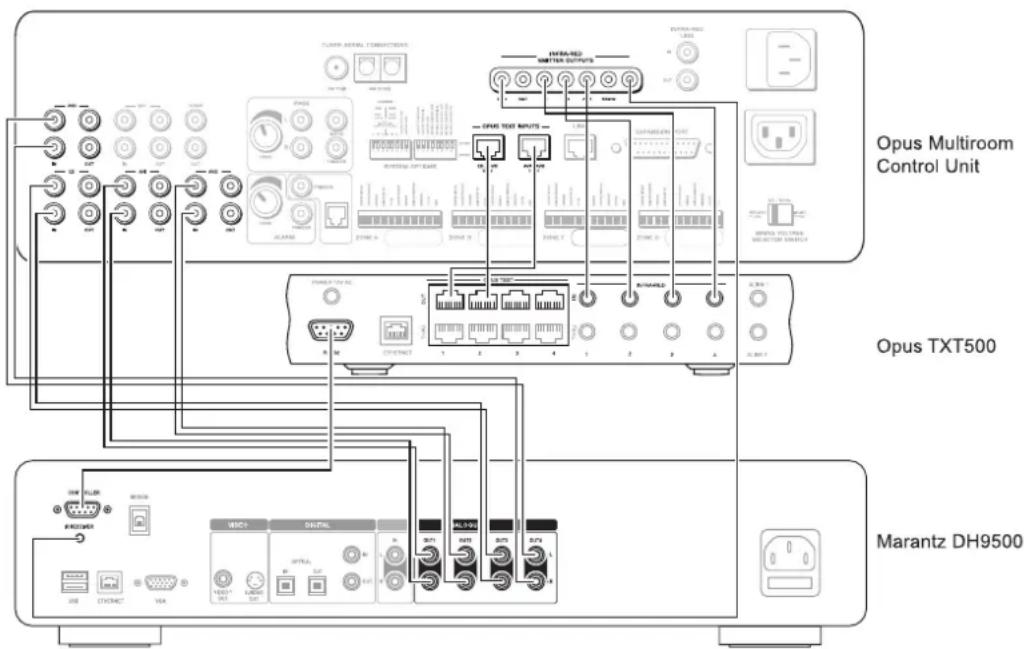
Selecting an output
Your Music Server has four separate outputs, which enable you to play up to four independent music selections around your home. Each room can play any of the four outputs, but to avoid conflicts over controlling your Music Server it is usual to associate an output with a particular room. The table below illustrates one possible arrangement based on the illustration above:
| Music Server output | Room | Wall panel key | Wall panel display |
| Output 1 Lounge AV1 AV1 or H-DISK | |||
| Output 2 | Dining room | AV2 | AV2 or H-DISK2 |
| Output 3 Study CD CD | |||
| Output 4 Bedroom DVD DVD | |||
Using a Marantz touch-screen remote control to choose the audio source
If you have a Marantz touch-screen remote control, the Opus source is automatically selected when you use the touch-screen buttons. Your dealer can provide information relevant to your installation.
PLAYING MUSIC
The music in your music library can be identified according to the following five categories:
- Album
- Artist
- Genre
- Playlist
- Preset
More information on these categories can be found in the Playing Music chapter on p.21. These categories can be accessed using the Opus wall panel and remote control as follows:
- Press the FAV-1 button. The wall panel will display ALBUM indicating that you will browse the music library by album title.
- Press the FAV-1 button again to cycle through the other four categories ARTIST, GENRE, PLAYLIST, and PRESET.
If you are browsing the music library by album title or artist name:
- Press the◀ and◀ buttons to select a letter of the alphabet to narrow your selection to album titles or artist names beginning with that letter.
- Press the◀ and▶ buttons to step through the albums or artists beginning with the selected letter.
- Press the button to commence playing the highlighted album or artist. Alternatively, if you are browsing the music library by artist press the and buttons to browse through a list of albums by the selected artist before pressing the button.
If you are browsing the music library by genre:
- Press the◀ and◀ buttons to step through the genres in alphabetical order.
- Press the button to commence playing the highlighted genre. Alternatively, press the and buttons to step through an alphabetical list of albums in the selected genre before pressing the button.
If you wish to select a playlist or preset for playback:
- Press the◀ and◀ buttons to step through and alphabetical list of playlists or presets.
- Press the▶ button to commence playing the highlighted item.
This is an example of one way to play the "Greatest Hits" album by Faith Hill:
- Press the FAV-1 key on the Opus wall panel or remote control until the displays shows:
- Press the◀ and◀ buttons to step through the alphabet until the letter F is displayed.
- Press the◀ and◀ buttons to step through the list of artists until "Faith Hill" is displayed on the wall panel.

- Press the◀ and◀ buttons to step through the list of albums by Faith Hill until "Greatest" is displayed on the wall panel.
- Press the▶ button to commence playback.
ADJUSTING THE VOLUME
The volume in each individual room is adjusted independently. To adjust the volume, use the ∧ and ∨ keys on the Opus wall panel. The volume level increments and decrements visibly on the display, within the range VOL 0 to VOL 30. When you have set the volume according to your preference, the display reverts to the text previously displayed.
You can also use the Music Server remote control to adjust the volume on the Opus wall panel. For more information refer to the chapter Configuring your remote to control other devices. Configure the Amp button using the code 010 to control the Opus wall panel.
USING YOUR MUSIC SERVER WITH A PORTABLE PLAYER
The recordings on your Music Server can be transferred to a portable player (for example, an Apple ^® iPod ^® ) to allow you to listen to your music collection while you are away from home. This chapter describes how to transfer music from your Music Server to the portable player using a personal computer.
Note: in the UK and certain other countries the copying of material protected by copyright law may require permission of the copyright owners.
The illustration below shows a typical home network:
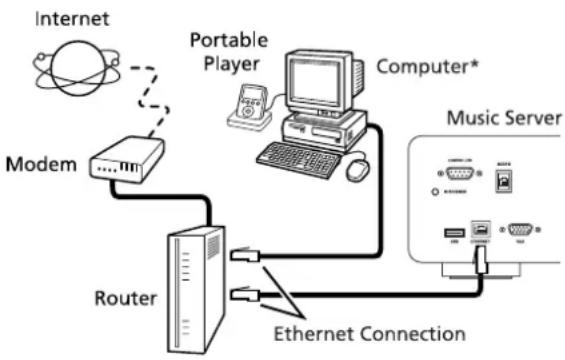
flowchart
graph TD
    A["Internet"] --> B["Modem"]
    B --> C["Router"]
    C --> D["Portable Player"]
    D --> E["Computer*"]
    E --> F["Music Server"]
    C --> G["Ethernet Connection"]
    G --> H["Switch"]
    style A fill:#f9f,stroke:#333
    style B fill:#ccf,stroke:#333
    style C fill:#cfc,stroke:#333
    style D fill:#fcc,stroke:#333
    style E fill:#cff,stroke:#333
    style F fill:#ffc,stroke:#333
    style G fill:#cfc,stroke:#333
    style H fill:#fcc,stroke:#333
* Macintosh computer running OS X 10.3 or higher or PC running Microsoft Windows 98, Me, 2000, or XP.
In order to access the music files on your Music Server from the computer you must first enable Server Access as follows:
• Display the Main Menu by pressing the key on your Music Server remote control.
- Press the^ or√ key to highlight the Settings option and press the√ Select action key.
- Press the^ or V key to highlight the System Settings option and press the √ Select action key.
- Press the^ or√ key to highlight the Server Access option and press the√ Select action key.

The following screen will be displayed:
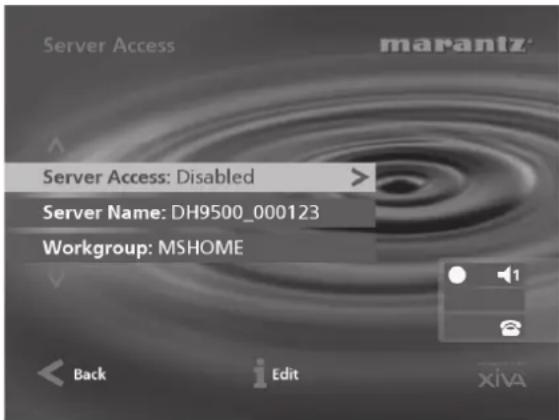
Ensure that the Workgroup item indicates the name of your current network workgroup; for most simple home networks MSHOME (the default entry) should be correct. If this is not the case, highlight this option using theA orV keys then press thei Edit action key to enter a new name.
If required you may also change the name used to identify your Music Server on the network by editing the Server Name option.
- Press theA orV key to highlight the Server Access option and press the i Edit action key.
• Use the∧ or∨ keys if necessary to highlight the Enabled option and press the√ Select action key.
Provided that your Music Server is connected correctly it should now be accessible by browsing the network from your computer.
If you are using a Macintosh computer you can create a new network connection as follows:
- Select Go from the Finder menu and click Connect to Server.
- Click on the Browse button in the Connect to Server window.
- Navigate to your Music Server on the network and double-click the appropriate icon.
- If your Music Server does not appear in the browse window return to the Connect to Server window and enter:
smb://
• In the SMB Mount window click the OK button.
- In the SMB/CIFS Filesystem Authentication window click the OK button.
A window showing the contents of the Music Server hard disk will be displayed.
You can now transfer music directly from your Music Server to a portable player. The following two sections describe how to transfer files using two popular media player applications, iTunes® and Windows® Media Player.
Transferring Music to your Portable Player using iTunes
The iTunes Media Player application is specifically designed to simplify the process of synchronising your music collection with an iPod portable player. Support for other devices is limited; you should check that your portable player is compatible before using this application. iTunes version 4.6 or later is required.
The Library source in iTunes shows all media files stored on the local hard disk as well as media which has been added from other network drives. You can add the music collection from your Music Server to the Library as follows:
- Select the Preferences option. This can be found under the Edit menu on the Windows edition of iTunes and under the iTunes menu on the Macintosh version.
- Select the Advanced tab.
- Ensure that the option labelled Copy files to iTunes Music folder when adding to library is unchecked.
- Click the OK button to confirm any changes.
• From the File menu select the Import... option. -
Select XML Files in the Files of type options (Windows version only).
-
Navigate to the hard disk of your Music Server on the network.
- Double-click on either the Macintosh_Index.xml or Windows_Index.xml file, depending on the type of computer you are using.
Note: the import process may take some time depending on the number of albums and the speed of your computer. If you have recently added new music or updated the details of any of the albums on your Music Server you may wish to wait for a few minutes before opening this file to ensure that it is up to date.
Once the iTunes Library source has been updated with the music from your Music Server you can you can update your iPod as follows:
- Connect your iPod in the normal way.
- Click the Browse button in the top right-hand corner of the iTunes window.
• Drag any item from the Genre, Artist, Album lists onto the iPod icon in the Source area.
The transfer process will begin shortly afterwards.
Updating the iTunes Library
If you have removed music from your Music Server or edited the names of any items in the library you will need to update the iTunes Library to remove any broken links. To do this, you should first delete all the Music Server albums from the iTunes library as follows:
- Select the View Options item from the Edit menu.
- Check the Grouping option, then click the OK button to confirm your changes.
• In the iTunes Library click the new Grouping column heading. The tracks located on your Music Server hard disk will be grouped together using the label <-MUSICSERVER_NAME (e.g. <-DH9500_000123). - Click on the first track in the list with this grouping label then, holding down the Shift key, click the last track.
- Press the Delete key to remove these tracks from the iTunes Library.
- Click Yes to confirm your choice.
Repeat the import process described above to add back the Music Server information.
Transferring Music to your Portable Player using Windows Media Player
The XiVA Media Import plugin for Windows Media Player enables you to update the Media Library with the music collection on your Music Server. Contact your local dealer or visit the web site listed in the Getting Help chapter for more details. Windows Media Player version 9 is required.
Once you have the XiVA Media Import plugin you can install it on your PC by double-clicking on the XiVA WMP Plugin Setup file and following the on-screen instructions.
The albums on your Music Server can then be added as follows:
• From the Tools menu highlight the Plugins option and click XiVA Media Import.
- Navigate the My Network Places area to locate the hard disk of your Music Server.
- Double-click on the Windows_Index.xml option.
Note: the import process may take some time depending on the number of albums and the speed of your computer. If you have recently added new music or updated the details of any of the albums on your Music Server you may wish to wait for a few minutes before opening this file to ensure that it is up to date.
Once your Media Library has been updated with the music from your Music Server you can update your portable player as follows:
- Click the Copy to CD or Device option from the Media Player toolbar.
- Select the Album, Artist, Genre or Playlist you wish to copy from the Items to Copy list.
- Under Items on Device select your portable player.
- Click the Copy button.
The transfer process will begin shortly afterwards.
GETTING HELP
TROUBLESHOOTING
If you think a malfunction has occurred, first check the points listed below. The problem is likely to have been caused by a simple operational error or a connection problem. If the problem cannot be corrected even after carrying out the following checks, consult your dealer or nearest Marantz sales office or service counter.
The front panel display does not light
- Is the mains lead plugged in properly at the wall?
- Is the mains lead plugged in properly at the back of the unit?
- Does another device operate correctly using this same mains outlet?
The system seems to be playing but no sound is heard
•Is the amplifier and speakers connected correctly?
•Is the amplifier switched on?
- Is the amplifier's volume control set at the minimum level?
- Is the amplifier's selector switch set to the correct input (e.g. "CD" or "AUX")?
- Which output is the Music Server currently playing on (this is displayed on the TV screen)? Is this the output you have connected to the amplifier?
- Switch the unit to off mode, disconnect the mains supply and restart the unit.
The Music Server TV interface is not visible
•Is the TV switched on? Can other channels be viewed successfully?
- Is the TV switched to the correct AV input?
- Are you using the correct video cable to connect the TV?
The Music Server TV interface does not appear correctly
• Is the Music Server video type (PAL/NTSC) correctly configured for this TV type?
Remote control operation is not possible
- Is the remote control unit's transmitter pointed correctly at the remote sensor on the front of the Music Server?
- Is there an obstruction between the transmitter and the remote sensor?
- Are the batteries in the remote control exhausted?
- Is there another strong light (from a window etc.) striking the Music Server's remote sensor?
A CD/CD-R disc cannot be played
•Is the disc placed in upside down?
- Is the disc damaged, dirty, scratched or warped?
•Is the disc a valid audio format CD?
Some tracks of the CD cannot be recorded
•Is the disc damaged, dirty, scratched or warped?
- Are the failed tracks valid audio tracks?
OPUS INTERFACE TROUBLESHOOTING
- The Opus wall panel does not respond to key presses.
You must switch on each of the units in your system in a specific order; first, the Music Server, then the Opus MCU. Switch off both units, and switch on again in the correct order.
- Your Music Server TV interface is not displaying information while you are browsing
The music being selected in a room is reflected on the Opus wall panel displays only. When you choose √she TV display updates appropriately.
- Your Music Server TV interface steps through two menu selections at once
This can happen if you have your Music Server located in the same room as an Opus wall panel because both the wall panel and the music server respond to infra-red instructions from the remote control. This results in the Music Server receiving two instructions each time a remote control instruction is issued. If you cannot locate your Music Server in a different room, contact your installer for assistance.
OPERATING PRECAUTIONS
In the winter you may notice that condensation forms on the window of a well heated room.
Condensation may also occur inside the Music Server in the following situations:
- When the listening room is first heated.
- When the humidity in the room is high.
- When the unit is moved from a cold environment to a warm room.
In these situations it is best to leave the Music Server standing for a period of 2 hours, whilst the condensation is dispersed.
During periods of extended use you may notice that a small fan inside the unit starts to operate. This is part of normal operation to maintain a constant operating temperature inside the unit.
CLEANING OF EXTERIOR SURFACES
With proper care and cleaning, the exterior finish of your equipment will last indefinitely. Never use scouring pads, steel wool, scouring powders or harsh chemical agents (e.g. lye solution), alcohol, thinners, benzine, insecticide or other volatile substances, as these will mar the finish of the cabinet. Likewise, never use cloths containing chemical substances. If the equipment becomes dirty, wipe the external surfaces with a soft, lint-free cloth.
If the cabinet becomes heavily soiled:
- Dilute some washing-up liquid in water, in a ratio of one part detergent to six parts water
- Dip a soft, lint-free cloth in the solution and wring the cloth out until it is damp
•Wipe the equipment with the damp cloth - Dry the equipment by wiping it with a dry cloth.
REPAIRS
Only the most competent and qualified service technicians should be allowed to service the equipment. The Marantz company and it's factory trained warranty station personnel have the knowledge and special facilities needed for the repair and calibration of this precision equipment. After the warranty period has expired, repairs will be performed for a charge if the equipment can be restored to normal operation.
In the event of difficulty, consult your dealer or write directly to the nearest location to you that is listed on the Marantz Authorised Service Station list. Please quote the model and serial number of the equipment and give a full description of what you think is abnormal about the equipment's behaviour. Please be aware that although we will endeavour to protect against loss Marantz and it's nominated service agents will not be held responsible for loss of music in any product returned for repair.
INDEX
A
ACCESSORIES 6
ACTION BUTTONS 8, 13
Cancel 10
Home 10
Info 10
Menu 10
Navigation 10
Rec 8
ALBUM BUTTON 10.21
ALBUMS, PLAYING 21
ALPHANUMERIC KEYPAD 28
ANALOGUE INPUT CONNECTION 9
ANALOGUE OUTPUT CONNECTION 9, 12
ARTIST BUTTON 10, 21
ARTISTS, PLAYING 21
AUTO RECORDING 16
B
BROWSING
Albums 21
Artists 21
Genres 22
Playlists 22
C
CANCEL BUTTON 10
CLEARING PRESETS 28
COMPOSITE TV OUTPUT CONNECTION 8, 12
CONFIGURING THE REMOTE 11
CONNECTIONS 7, 11
CONTROLLER CONNECTION 8, 30, 32
CUSTOM RECORDING 17
D
DEFAULT O/P BUTTON 9
DELETING
Albums 28
Playlists 28
Tracks 28
DIGITAL COAXIAL IN CONNECTION 9
DIGITAL COAXIAL OUT CONNECTION 9
DIGITAL OPTICAL IN CONNECTION 9
DIGITAL OPTICAL OUT CONNECTION 9
DISPLAY
Front panel 8, 12
TV 12
E
EDITING
Albums 27
Artists 27
Tracks 27
EDITING NAMES 28
Alphanumeric keypad 14, 28
Grid 14, 28
ENTER TEXT 14, 28
ETHERNET CONNECTION 8, 30
F
FRONT PANEL 7
Controls 8
Display 12
G
GENRE BUTTON 10, 22
GENRES, PLAYING 22
GRID 14,28
H
HDD AUDIO BUTTON 9
HOME BUTTON 10
|
INFO BUTTON 10
INTERNET CONNECTION 14, 29
IPOD COMPATIBILITY 36
L
LANGUAGE 30
LINE SOURCE 18
LINE-IN RECORDING 18
LOOK UP 15
M
MAIN MENU 15
MAINS CONNECTION 9, 12
MENU BUTTON 10
MODEM CONNECTION 8, 11, 30
MONITOR OUTPUT 18
MP3 PLAYERS 36
MULTIROOM 31
Remote control 31
N
NAVIGATION BUTTONS 8, 10
O
OFF MODE 12
OPEN/CLOSE BUTTON 8
OPUS CONNECTION 33
OUTPUT 13, 32
OUTPUT BUTTON 8, 10, 32
OUTPUT SCREEN 24, 32
OUTPUT SETTINGS 30
P
PAUSE BUTTON 8, 10
PLAY BUTTON 8,10
PLAYING MUSIC 21
Browse Albums 21
Browse Artists 21
Browse Genres 22
Browse Playlists 22
Browse Presets 22
From a CD 23
From the library 21
Select a track by number 23
Select a track from an album 21
Select album by number 23
Select by letter 23
PLAYLIST BUTTON 10, 22
PLAYLISTS
Adding items 25, 26
Changing item positions 26
Creating 25
Removing items 26
PLAYLISTS, PLAYING 22
PORTABLE PLAYERS 36
POWER/STANDBY BUTTON 8, 9, 12
PRESETS
Clearing 28
Playing 22
Selecting music 26
Storing 26
R
RANDOM 10, 13, 24
REAR PANEL 7
Connections 8, 11
REC BUTTON
RECORDING FORMATS 29
RECORDING MUSIC 16
Auto record 16
Checking progress 18
Custom record 17
Line-in 18
REGISTERING 13, 29
REMOTE CONTROL 9
Album 10
Amp 9
Artist 10
Cancel 10
Configuring 11
Default o/p 9, 32
Disc/Ch. 10
Genre 10
HDD audio 9
Home 10
Info 10
Multiroom 13, 31
Mute 10, 11
Navigation 10
Numeric keys 10
Output 10
Pause 10
Play 10
Playlist 10
Random (Delete) 10
Record
Repeat (Caps) 10
Skip back 10
Skip forward 10
Standby 9
Stop 10
TV 9
Volume 10, 11
REPEAT 13, 24
REPEAT BUTTON 10
s
Enter information later 17
Manually enter now 17
TRACKS, PLAYING 21
TRANSPORT BUTTONS
Pause 8, 24
Play 8,24
Seek 24
Skip back 8, 24
Skip forward 8, 24
Stop 8, 24
TV DISPLAY 12
VOLUME CONTROL 10, 11, 30
X
XIVA-LINK 8
FELICITATIONS POUR VOTRE ACHAT DE CET EXCELLENT PRODUIT MARANTZ.
Piles LR3 (AAA).... 2
Mode d'emploi.... 1
9 DIGITAL OPTICAL IN
10 DIGITAL OPTICAL OUT
CONTROLE DE LA LECTURE
ANALOGUE IN, CONNEXION 8
ANALOGUE OUT, CONNEXION 8, 11
ARRÊT, MODE 11
ARRÊT, TOUCHE 7, 9
ARTIST, TOUCHE 9, 20
ARTISTES, LECTURE 20
C
COAXIAL DIGITAL IN, CONNEXION 8
COAXIAL DIGITAL OUT, CONNEXION 8
COMPATIBILITÉ IPOD 35
CONFIGURATION DE LA TELECOMMANDE 10
CONNEXION 10
CONNEXION DE SORTIE ANALOGIQUE 11
CONNEXION OPUS 32
CONNEXION POUR L'ALIMENTATION 11
D'ANNULATION, TOUCHE 9
DEFAULT O/P, TOUCHE 8
DIGITAL OPTICAL IN, CONNEXION 7
DIGITAL OPTICAL OUT, CONNEXION 8
E
ECRAN DE SORTIE 31
EFFACEMENT DE PRÉSÉLECTIONS 27
ENREGISTREMENT, AUTO 15
NAVIGATION, TOUCHES 7, 9
0
OBTENIR LES INFORMATIONS SUR LE CD 16
OPEN/CLOSE, TOUCHE 7
OUTPUT, TOUCHE 7
P
PANNEAU AVANT
Affichages 11
PARAMÈTRES 28
PARCOURIR
Albums 20
Artistes 20
Genres 21
Liste de lecture 21
Présélection 21
PAUSE, TOUCHE 7.9
PAVÉ ALPHANUMÉRIQUE 27
PISTES, LECTURE 20
PLAYLIST, TOUCHE 9, 21
POWER/STANDBY, TOUCHE 7, 8, 11
PRÉSÉLECTIONS
Effacement 27
Lecture 21
Conector ...... Conector RCA
- Salida VGA
Nivel de salida 0.75V _p-p /75Ω
Conector ...... Conector RCA
- Salidas digitales
Salida óptica digital.... Toslink
Nivel de salida digital coaxial .... 500mV _p-p /75Ω
Conector de salida digital coaxial..... Conector RCA
- Entradas de audio
Conector ...... Conector RCA
- Entrada digital coaxial
Conector.... RJ45 (10 Base T/100 Base T)
- Controlador
Pilas AAA (R03P)....2
11 COAXIAL DIGITAL IN
12 COAXIAL DIGITAL OUT
O:
9 DIGITAL OPTICAL IN
10 DIGITAL OPTICAL OUT
12 DIGITAL AUDIO OUT - KOAXIAL
15 Select WÄHLEN-TASTE
WIEDERGABESTEUERUNG
WIEDERHOLEN 12, 24, 25
X
XIVA 2
XIVA-LINK 7
Z
ZUBEHÖR 5
ZUFALL 9
ZUFÄLLIG 12, 24
ZURÜCK 7,9
GRAETZ 153,073,081,011,012,121,123,
124, 125
GRANADA 001, 002, 003, 004, 106, 055, 005,
031, 006, 007, 073, 043, 009, 154,
010, 032, 013, 014, 015, 016, 125
GRANDIN 010
GREAT WALL 156
GRUNDIG 085, 087, 091, 022, 073, 093, 094,
096, 076, 113, 130
HANSEATIC 055, 004, 031, 007, 081, 118, 119
HCM 001, 002, 003, 004, 005, 006, 007,
008, 009, 013, 014, 015, 016, 018
HIFI VOX 112, 135, 107, 139, 042, 059
HINARI 098, 055, 111, 008, 017, 018
HIT 146
HITACHI 062, 055, 157, 063, 031, 111, 042,
065, 081, 118, 010, 066, 120, 158,
125, 070, 040, 072
HYPER 031, 151
ICE 001, 002, 003, 004, 005, 006, 007,
008, 009, 017, 013, 014, 015, 016,
018, 151
IMPERIAL 001, 002, 003, 004, 034, 138, 143,
005, 006, 007, 146, 008, 024, 081,
009, 154, 119, 010, 013, 014, 015,
016, 121, 048, 158, 125, 097, 018,
077, 086, 114
INGELEN 153,073,081,011,012,121,123,
124, 125
INNO HIT 004, 031, 111, 027, 018
INTERFUNK 005, 007, 146, 042, 073, 081, 154,
012, 121, 123, 040
IRRADIO 111,021,027,018,116
ITC 158
ITS 008, 017, 018, 309, 151
ПТ 153,073,117,081,011,012,121,
123, 124, 125, 126, 036, 079
JET POINT 152,084
JVC 055, 163, 164, 151
KAIDO 010
KAISUI 017, 156
KAPSCH 109, 081, 010, 121, 125
KARCHER 001, 002, 003, 004, 005, 006, 007,
009, 013, 014, 015, 016, 097
KAWA 151
KENDO 010
KENNEDY 088, 089, 109, 092, 081, 125, 077
KINDO 010
KNEISSEL 001, 002, 003, 004, 005, 006, 007,
009, 013, 014, 016
KOERTING 085, 146, 086
KONKA 151
KORTING 146, 119
KRIESLER 031, 007, 146, 109, 154, 099
KUBA 081
KUBA ELECTRONIC 012
LENCO 001, 002, 003, 004, 005, 006, 007,
008, 009, 013, 014, 015, 016, 079
LENOIR 031
LIESENKOETTER 001, 002, 003, 004, 143, 005, 006,
007, 009, 013, 014, 015, 016
LIFETEC 001, 002, 003, 004, 005, 006, 007,
008, 009, 017, 013, 014, 015, 016,
079
LOEWE OPTA 001, 005, 006, 007, 146, 014
LOGIK 057
LOEWE 001, 002, 003, 004, 005, 006, 007,
146, 009, 032, 013, 014, 015, 016
LUMA 007, 109, 010, 161, 125
LUXOR 146, 073, 118, 010, 120, 161, 011,
012, 123, 126, 036, 049, 132, 114,
116
MAGNADYNE 146,081,158
MAGNAFON 031, 021
MAGNASONIC 001, 002, 003, 004, 005, 006, 007,
009, 013, 014, 015, 016
MARANTZ 001, 002, 003, 004, 103, 104, 005,
031, 006, 007, 146, 109, 009, 154,
013, 014, 015, 016, 099, 072, 155,
129
MARSHAL 017
MATSUI 098, 031, 043, 010, 057, 125, 018,
130
McMICHAEL 072
MEDION 001, 002, 003, 004, 005, 006, 007,
009, 013, 014, 015, 016
MEMOREX 008, 018
METZ 085, 036, 087, 091, 146, 096, 131
MINERVA 085, 087, 022, 073, 096
MITSUBISHI 001, 002, 003, 005, 055, 020, 004,
006, 087, 007, 146, 045, 009, 057,
013, 014, 015, 016
MIVAR 031, 030, 075, 032, 006
MTC 005, 081, 086
MULTITECH 031, 010, 097, 018
MURPHY 125
NAONIS 088, 089, 109, 010, 125
NATIONAL 080, 137, 144, 150, 145, 081, 082, 083
NEC 055, 020, 156
NECKERMANN 060, 166, 053, 001, 002, 003, 004,
085, 143, 056, 005, 031, 006, 091,
007, 146, 081, 118, 009, 119, 010,
096, 161, 013, 068, 014, 015, 016,
097
NEI 001, 002, 003, 004, 005, 006, 007, 009, 017, 047, 013, 014, 015, 016
NIKKAI 111,043,017
NISSAN 084
NOBLEX 127, 128
NOBLIKO 031, 021, 022
NOGAMATIC 135, 139, 042
NOKIA 153,001,002,003,004,005,006,007,149,008,073,117,081,118,009,010,120,011,012,013,014,015,016,121,123,124,125,126,036,079,132,084,114
NORDMENDE 034, 035, 106, 112, 135, 139, 037, 042, 147, 040
NORMN 001, 002, 003, 004, 005, 006, 007, 009, 013, 014, 015, 016
NOVA 095
OCEANIC 081, 118, 010, 012, 036
OKANO 001, 002, 003, 004, 005, 006, 007, 009, 013, 014, 015, 016, 097
ONCEAS 031
ONWA 008, 017, 151
ORAVA 001, 002, 003, 004, 005, 006, 007, 009, 013, 014, 015, 016
ORBITER 086
ORION 098, 001, 002, 003, 004, 005, 036, 006, 007, 111, 008, 009, 010, 017, 012, 013, 014, 015, 016, 018
OSAKI 043
OSIO 027
OSUME 102
OTTO VERSAND 153, 166, 053, 001, 002, 003, 004, 054, 035, 106, 055, 085, 063, 056, 137, 005, 006, 087, 091, 007, 145, 081, 118, 009, 119, 010, 096, 012, 013, 014, 015, 016, 158, 018, 086, 151, 318
P.TACTRON 009
PAEL 031,021
PANASONIC 080, 137, 144, 150, 145, 081, 082, 083, 207, 131
PATHE CINEMA 031, 119, 033, 158
PATHE MARCONI 135, 139, 042
PERDIO 043
PHILCO 001, 002, 003, 004, 080, 138, 005, 006, 146, 024, 081, 009, 010, 013, 014, 015, 016, 048, 158, 097, 077
PHILIPS 001, 002, 003, 004, 103, 104, 005, 031, 006, 091, 007, 146, 042, 109, 009, 154, 013, 014, 015, 016, 099, 072, 155, 129, 115
PHILIPS(F) 001, 002, 003, 004, 005, 006, 007, 009, 154, 013, 014, 015, 016
PHOENIX 031, 021, 081, 119
PHONOLA 031, 007, 146, 109, 154, 099
PIONEER 007, 042
PRANDONI-PRINCE 021, 010, 125
PRIMA 111
PRINCE 021, 125
PROFEX 010, 018
PROTECH 007,008
PYE 031, 007, 146, 109, 154, 099
QUASAR 021, 027
QUELLE 098, 153, 166, 053, 001, 002, 003, 004, 054, 106, 055, 085, 157, 138, 143, 056, 137, 088, 140, 141, 005
QUESTAR 001, 002, 003, 004, 005, 006, 007, 009, 154, 013, 014, 015, 016
RADIOLA 031, 007, 146, 109, 154, 099
RADIOMARELLI 146, 081, 045, 158
RADIOTONE 001, 002, 003, 004, 005, 006, 007, 008, 009, 013, 014, 015, 016, 018, 086
RANK 026
RANK/BUSH/MURPHY 078
RBM 026
REDIFUSION 045, 012, 125
REVOX 005
REX 088, 089, 109, 092, 010, 125
ROADSTAR 001, 002, 003, 004, 005, 006, 007, 009, 013, 014, 015, 016
ROBOTRON 108, 146
ROSITA 018
RTF 108, 146, 010, 017, 086
SABA 034, 035, 106, 112, 135, 107, 139, 146, 042, 081, 010, 032, 161, 125, 040
SAISHO 098, 031, 010, 057, 018, 309
SAKIO 008
SALORA 021, 081, 118, 119, 010, 120, 161, 011, 012, 121, 126, 036, 049, 132, 116
SAMBERS 021, 027
SAMPO 082
SAMSUNG 001, 002, 003, 004, 005, 031, 006, 007, 111, 008, 043, 009, 013, 014, 015, 016, 027, 097, 018, 127, 128, 152, 086, 084, 116
SANY 042
SANYO 153, 100, 101, 061, 055, 064, 108, 043, 095, 057, 058, 036, 102, 097, 086
SAOLRA 011
SBR 007, 154, 072
SCHAUB LORENZ 153, 073, 081, 011, 012, 121, 123, 124, 125
| SCHNEIDER 001, 002, 003, 004, 088, 089, 005,031, 006, 007, 146, 028, 109, 092,081, 009, 154, 010, 017, 011, 012,013, 014, 015, 016, 122, 158, 099,151 |
SCHNEIDER(F) 154
| SEG 058, 002, 003, 004, 005, 006, 108,007, 111, 008, 009, 017, 013, 014,015, 016, 158, 018 |
SEI 098
SEI SINUDYNE 146, 010, 012
| SELECO 055, 088, 089, 041, 109, 092, 081, 010, 058, 125, 077 |
SENTRA 060, 010, 017, 068
SHARP 002, 055, 058, 102
SIAREM 055, 146, 081, 010, 058
SICATEL 033
| SIEMENS 101, 001, 002, 003, 004, 085, 063, |
| 138, 143, 141, 005, 006, 087, 090, |
| 091, 007, 111, 142, 009, 119, 096, |
| 013, 014, 015, 016, 102 |
SIERA 031, 007, 146, 109, 154, 099
SIESTA 086
SILVER 008, 017, 086
| SINGER | 001, 002, 003, 004, 005, 006, 007, 146, 081, 009, 013, 014, 015, 016, 077 |
SINUDYNE 098,003,146,081
SMARAGD 130
SOLAVOX 010
SONOLOR 166,010
SONOKO 007,018
SONTEC 001, 002, 003, 004, 005, 007, 009, 013, 014, 015, 016
SONY 052, 053, 054, 055, 056, 057, 058
SPECTRA 079
STARLITE 018
STERN 088, 089, 041, 109, 010, 125
SUNSTAR 001, 002, 003, 004, 005, 006, 007, 009, 013, 014, 015, 016
SUPERTECH 001, 002, 003, 004, 005, 006, 007, 09, 010, 013, 014, 015, 016, 125, 018
TANDBERG 131
TANDY 031, 043, 017
TASHIKO 100,055
TATUNG 031, 043, 046, 009, 057
| TEC | 001, 002, 003, 004, 089, 005, 031, 006, 007, 009, 010, 013, 014, 015, 016, 158, 079, 018 |
TECHNISAT 001, 002, 003, 004, 005, 006, 007, 009, 013, 014, 015, 016
TECNISON 018
TEKON 018,084
TELEAVIA 135, 107, 139, 042, 040
TELEFUNKEN 034, 035, 106, 138, 136, 140, 037, 042, 040, 050
TELETENT 005
TELETECH 018
TELETON 088, 041, 109, 081, 010
TELEUNKEN 138
TELEVIDEON 031, 021, 081, 119, 206
| TENSAI | 001, 002, 003, 004, 005, 006, 007, 009, 119, 017, 013, 014, 015, 016, 158, 018 |
TENSON 018
TESLA 146
| THOMSON | 034, 035, 106, 112, 135, 107, 139, 042, 081, 040, 059 |
THORN 153, 060, 052, 062, 001, 002, 003,
| 004, 034, 106, 055, 064, 005, 006, 087, 149, 007, 065, 043, 044, 009, 154, 010, 095, 120, 057, 013, 068, 058, 014, 015, 016, 072, 113, 115 |
THORN-FERGUSON 107, 136, 008, 022, 044, 033
TOCOM 110
TOKYO 084
| TOSHIBA | 060, 055, 067, 068, 026, 077, 078 |
TOWADA 158
TRANS CONTINENTS 021, 125
TRISTAR 017
TRIUMPH 098, 111
| UHER | 001, 002, 003, 004, 005, 006, 007, 028, 041, 109, 074, 009, 119, 013, 014, 015, 016 |
ULTRAVOX 001, 002, 003, 004, 005, 031, 006,
| 007, 146, 081, 009, 010, 161, 013, 014, 015, 016 |
UNIVERSUM 157,008,027
UNIVOX 146,033
VEGAVOX 048
| VESTEL | 001, 002, 003, 004, 005, 006, 007, 009, 047, 013, 014, 015, 016 |
VICTOR 163
VIDEOTON 042, 118, 158
| VISION | 001, 002, 003, 004, 005, 006, 007, 009, 119, 013, 014, 015, 016 |
VOXSON 146,010,125
WALTHAM 118
| WATSON | 001, 002, 003, 005, 143, 004, 006, 007, 009, 119, 017, 013, 014, 015, 016, 018 |
WATT RADIO 031, 081, 010, 033, 012
WEGA 055,146
WEGA COLOR 162
| WHITEWESTINGHOUSE | 001, 002, 003, 004, 005, 031, 006, 007, 146, 009, 119, 013, 014, 015, 016 |
WINTERNITZ 059
| YOKO | 001, 002, 003, 004, 005, 031, 006, 007, 008, 009, 010, 017, 013, 014, 015, 016, 158, 097, 079, 018 |
ZANUSSI 088, 089, 041, 109, 010, 125
ZOPPAS 088, 089, 041, 109, 125
AMP
ADC 020
ADCOM 001, 002, 003
AIWA 014, 015, 018, 019, 087, 086
AKAI 033
AMC 016, 080, 081, 083
ANGSTROM 066
ARCAM 058
AUDIO ALCHEMY 027
AUDIO TECHNICA 026
AUDIOFILE 038
B & K 045, 046
CARVER 053, 011, 037, 038, 052, 031, 032, 010, 054
CINEMA SOUND 084, 026
CLARION 090
DENON 083, 084, 085, 095, 096, 091, 092, 097, 089
FISHER 022, 031
FOSGATE 005
GE 036
GOLDSTAR 035
HAFLER 039
HARMAN KAR 005, 125, 127, 103, 104, 098
HITACHI 021
INKEL 123
JVC 119, 120
KENWOOD 090, 099, 128, 105, 094, 121, 123, 122, 129, 106, 124, 031
KRELL 067, 063
KYOCERA 020
LEXICON 006
LINN 057
LUXMAN 042, 028, 008
LXI 036
MAGNAVOX 064
MARANTZ 053, 011, 012, 116, 055, 032, 059
MERIDIAN 060, 061
MITSUBISHI 130, 131
MONDIAL 068, 062
NAKAMICHI 118,034,107
NEC 030
ONKYO 100, 133, 024, 132, 108, 101, 102
OPTIMUS 090, 041
PANASONIC 013
PARASOUND 051
PHILIPS 059, 055
PIONEER 110, 111, 114, 117, 113, 115, 112, 109
RCA 025
REALISTIC 010, 036, 044, 095
SANSUI 116, 048, 056, 043
SANYO 022,023
SCOTT 010
SHARP 090, 093, 094
SHERWOOD 014, 047, 048, 049, 050, 041
SONY 014, 070, 071, 072, 073, 160, 075, 076, 077, 078, 079
TEAC 007, 010, 134, 118
Your next-generation Music Server media appliance is powered by XiVA™ Software brought to you by Imerge Limited ("Imerge"). This agreement explains the terms and conditions that will apply to your use of XiVA™ Software.
Definitions in this Agreement
"Imerge"" or ""we"" means Imerge Limited (company registration number 03360764) whose registered office is at Bar Hill Business Park, Saxon Way, Bar Hill, Cambridge CB3 8SL England, United Kingdom;
"Software" means the XiVA™ Software on your Music Server and related XiVA™ accessory software.
"Service" means the use of XiVA™ Software related services provided to you by lmerge, for example the registration service via the Internet.
"You", "your" and "yourself" means you, the person entering into this agreement with Imerge;
"Registration Data" means your name, address, postcode and telephone number (optional) or email address (optional).
Service Charges
You will be responsible for the interoperability between your XiVA ^™ home media appliance (your Music Server), your TV set and the public telephone service and all related charges.
Registration via the XiVA™ Software Service
In order to transmit your registration data, you must (a) obtain access to the Internet directly from your XIVA™ home media appliance (your Music Server is supplied XIVA™ enabled) via an Internet Service Provider (ISP), and pay any service and/or telephony fees associated with such access.
XIVA Software Privacy Policy
Imerge respects the privacy of your information and will handle any personal information you might supply to us when you register your Music Server in accordance with the XiVA™ Software Privacy Policy. A copy of this Privacy Policy is included as a part of this document and forms part of these terms and conditions. Please read it carefully.
Conditions of Use
You agree not to use the Software and/or Service in a way that may reasonably be expected to interrupt, disturb or impair the working of the XiVA™ Software Service. You will not insert or knowingly or recklessly transmit, distribute, upload or otherwise make available emails, software, data or files that contain a virus or corrupt data; seek unauthorised entry into back office; hack into any aspect of the Software or Service; knowingly corrupt data; circumvent, or attempt to seek to circumvent, any of the security safeguards of Imerge or any of its suppliers; make any business use of the Service; or assist any third party to do any of these things. By registering, you agree to these terms and conditions.
Title to Software and Intellectual Property
Imerge retains title to and ownership of all the XiVA™ Software and intellectual property rights in Imerge authorised products and XiVA™ home media appliances and the Service. Imerge also retains ownership of all Imerge copyrights and trademarks. Except as expressly authorised by Imerge, you agree not to copy, modify, reverse engineer, rent, lease, loan, sell, distribute, sublicense, or create derivative works based on the XiVA™ Software, in whole or in part.
You agree not to access the XiVA™ Software Service by any means other than through the interface that is provided by Marantz for use in accessing the Service.
Indemnity
Neither lmerge nor any of its directors, employees or other representatives will be liable for damages arising out of or in connection with the use of the Software. Save in respect of liability for death or personal injury arising out of negligence, lmerge hereby disclaim and exclude to the fullest extent permitted by law all liability for any loss or damage whatsoever and howsoever incurred including any consequential, special, secondary or indirect loss or damage or any damage to goodwill or profits or any loss of anticipated savings incurred by you, whether arising in tort, contract or otherwise, and arising out of or in relation to or in connection with your access to or use of or inability to use the Service or any software or content supplied to you in connection with the Service, or in connection with any failure of performance, error, omission, interruption, defect, delay in operation or transmission, computer virus or line or system failure even if lmerge or its employees or agents are advised of the possibility of such damages, losses or expenses.
Limitations of Imerge's Liability
In no event will lmerge or its suppliers be liable to you or any third party for any loss of profits, loss of data, loss of revenue, loss of or loss of use of software, loss of or loss of use of equipment, to which the Music Server is connected, business interruption, or other indirect, consequential, special, or incidental damages of any nature arising from or relating to your use of the Software, even if lmerge has been advised of the possibility of such damages. You understand that these limitations of lmerge's and lmerge's suppliers' liability are a fundamental term of this agreement.
Changes to the XiVA™ Software Service
Imerge reserves the right in its absolute discretion at any time and without notice to users of the Software to add, remove, amend or vary features of the Software or Service, temporarily or permanently, or on notice to all users to discontinue the Service altogether at any time in its discretion. You agree that Imerge shall not be liable to you or to any third party for any modification, suspension or discontinuance of the Service.
Imerge also reserves the right to change the terms and conditions of this agreement. Such changes shall be effective upon notification by Imerge. You are responsible for viewing any new terms and continued use after notification will confirm acceptance of such changes.
Invalidity
If any part of these terms and conditions are unenforceable (including any provision in which we exclude our liability to you) the enforceability of any other part of these terms and conditions will not be affected.
Governing Law
These terms and conditions shall be governed by and interpreted in accordance with the laws of England and Wales whose courts shall have jurisdiction to resolve any disputes between us. The official text of this agreement shall be in English. In the event any dispute concerning the construction or meaning of this agreement, reference shall be made only to this agreement as written in English and not to any translation into another language. If any provision of these terms and conditions is held by a court of competent jurisdiction to be contrary to the law then such provisions shall be construed as far as possible to reflect the intention of the parties and the other provisions shall remain in full force and effect.
Entire Agreement
These terms and conditions set out the whole of the agreement relating to our supply of the Software and Service and shall supersede any prior agreements or representations in respect thereof. These terms and conditions cannot be varied except in writing, which can be delivered by electronic mail by lmerge. In particular nothing said by any sales person on behalf of lmerge or Marantz should be understood as a variation of these terms and conditions or an authorised representation about the Service or the nature and quality of items displayed thereon. lmerge shall have no liability for any such representation being untrue or misleading.
No person other than the parties to this agreement shall have the right to enforce any of its terms under the Contracts (Rights of Third Parties) Act, 1999.
These terms do not relate to your purchase of the XiVA™ home media appliance itself, which is governed by a separate warranty agreement from Marantz.
Assignment
You shall not assign any of your rights or obligations under these terms and conditions without lmerge's prior written consent. lmerge shall have the right to assign or otherwise delegate all or any of its rights or obligations under these terms and conditions on notification to you.
Waiver
Imerge's failure to exercise or enforce any of its rights under these terms and conditions shall not constitute a waiver of any such right.
Notices
Any and all notices to be given by either lmerge or you to the other under these terms and conditions shall be deemed sufficiently given when sent by e-mail or facsimile transmission in each case addressed to you at the e-mail address or facsimile number you have given us or to lmerge at the e-mail address or facsimile number displayed at www.xiva.com
BY USING THE SERVICE, I CONFIRM THAT I HAVE READ AND UNDERSTOOD THIS ENTIRE AGREEMENT AND I AGREE TO ALL THE TERMS OF THIS AGREEMENT AS STATED ABOVE.
XiVA™ Software Service Privacy Policy
Please read the following to learn more about our XiVA™ Software Service privacy policy and data-protection practices.
Imerge values the privacy of its registered users. We are strongly committed to protecting the privacy of users of our interactive products and services as well as to respecting the Data Protection Act 1998. Imerge will only collect and use personal information about you as specified below in accordance with this Policy.
The XiVA™ Software Service Privacy Policy discloses our privacy practices and contains detailed information about exactly how your personal information will be treated:
• Who are we?
• What information of yours do we collect?
• What do we do with the information we collect?
- Will Imerge share any of your personal information?
• How you can learn what personal information we have?
• What is the opt-out policy?
- What types of security procedures are in place to protect your information?
- Will Imerge change its policy?
Who are we?
Imerge Limited (Imerge) welcomes you as a XiVA™ Software user. We developed your home media appliance (your Music Server) and it is 'powered' by our XiVA™ Software. Our company headquarters are located in Cambridge, United Kingdom and full details of how you can contact us can be found at the end of this document. The provision of goods, services and information to you may also involve our business partners and other carefully selected third party companies.
What information of yours do we collect?
When you register with lmerge, we need certain information – such as your name, address, postcode, and telephone number or email address - in order to provide service to you. Once you register with lmerge you are not anonymous to us. By submitting your information you agree to the use of that information as set out in this Policy.
We may also use that information to let you know of additional products and services about which you might be interested.
What do we do with the information we collect?
We may use personal information collected about you to let you know about new goods, services or offers that you might find interesting; or functionality changes and enhancements to the Service, i.e. feature upgrades; or changes to our terms and conditions of use.
Will lmerge share any of your personal information?
Personal data will be collected, processed by lmerge and forwarded to Marantz for the purpose of providing related services, as described earlier. However, lmerge will not trade, sell or rent your personal information (such as name, address, phone number, or email address) to third parties worldwide for targeted services or marketing purposes without your consent. And, we also protect your privacy by limiting employee access to the use of customer data. We may provide aggregate statistics about our sales, customers, music tastes, usage patterns and other site information to reputable third parties, but these statistics will not include any information that could personally identify you unless we have your consent.
Imerge reserves the right to access and disclose individually identifiable information to comply with applicable laws and lawful government requests, to operate its systems properly, or to protect itself or its users.
How you can learn what personal information we have?
You may send us email at: data@xiva.com or write to us at our headquarters address given at the end of this document. A nominal fee may apply to this request.
What is the opt-out policy?
You will be given an opportunity to select a level of privacy associated with your use of the Service during the registration process, to determine whether and under what conditions information entered during the registration process or collected subsequently may be shared with third parties. You can modify your selection at a later date by revisiting the relevant page, accessed via the menu screen – your changes will normally take effect within 60 days of your re-registration – alternatively you may send your request in writing to us at the address given at the end of this document.
What types of security procedures are in place to protect your information?
Imerge is committed to protecting the privacy of its customers and we have taken extensive measures to ensure that the information we gather from you will be secure and confidential. Whilst we recognise that the internet is not a completely secure medium of communication, Imerge has taken steps to safeguard the security of any information we collect from your XiVATM home media appliance by using Pretty Good Privacy (PGP) technology which encrypts the information you input on your system before it is transmitted to us. In addition, we have strict security procedures covering the storage and disclosure of your information in order to prevent unauthorised access and to comply with the Data Protection Act 1998. This means that sometimes we may ask you for proof of identity before disclosing any personal information to you.
Will Imerge change its policy?
When you supply your registration data you consent to the collection and use of your information by Imerge as described in this policy. If we alter our Privacy Policy in any way we will notify you and will post those changes on our website: www.xiva-net.com so you can be aware of anything that may affect you in the way we collect, use or share information with others. If you do not agree to the changes in the Policy, in such event you should contact us promptly, in the absence of which the changes will be deemed accepted by you. You will be responsible for viewing any alterations to our Privacy Policy - a written copy can be requested from any of our Imerge offices.
Contacting us
If you have any questions or concerns about this Privacy Policy or the operation of the Service, you can contact us by email at: feedback@xiva.com, or by writing to the: XiVA™ Software Administrator, Imerge Limited, Unit 6, Bar Hill Business Park, Saxon Way, Bar Hill, Cambridge CB3 8SL, England, United Kingdom or your local Marantz office.
Gracenote CDDB Flow-Down License Terms
This product contains technology and data from Gracenote of Berkeley, California (“Gracenote”). The technology from Gracenote (the “Gracenote Embedded Software”) enables this product to do disc identification and obtain music-related information, including name, artist, track, and title information (“Gracenote Data”), which is included on the Gracenote Database (the “Gracenote Database”).
You agree that you will use Gracenote Data, the Gracenote Database, and Embedded Software for your own personal non-commercial use only. You agree that you will access Gracenote Data only by means of the standard end user functions and features of this product. You agree not to assign, copy, transfer or transmit the Embedded Software or any Gracenote Data to any third party. YOU AGREE NOT TO USE OR EXPLOIT GRACENOTE DATA, THE GRACENOTE DATABASE, OR GRACENOTE COMPONENT, EXCEPT AS EXPRESSLY PERMITTED HEREIN.
You agree that your non-exclusive license to use the Gracenote Data, the Gracenote Database, and Embedded Software will terminate if you violate these restrictions. If your license terminates, you agree to cease any and all use of the Gracenote Data, the Gracenote Database, and Gracenote Embedded Software. Gracenote reserves all rights in the Gracenote Data, Gracenote Database, and Gracenote Embedded Software, including all ownership rights. You agree that Gracenote may enforce its rights under this Agreement against you directly in its own name.
The Embedded Software and each item of Gracenote Data are licensed to you "AS IS." Gracenote makes no representations or warranties, express or implied, regarding the accuracy of any Gracenote Data. Gracenote reserves the right to delete data or to change data categories in any Data updates and for any cause that Gracenote deems sufficient. No warranty is made that the Embedded Software is error-free or that functioning of the Embedded Software will be uninterrupted. Gracenote is not obligated to provide you with any new enhanced or additional data types or categories that Gracenote may choose to provide in the future.
GRACENOTE DISCLAIMS ALL WARRANTIES EXPRESS OR IMPLIED, INCLUDING, BUT NOT LIMITED TO, IMPLIED WARRANTIES OF MERCHANTABILITY, FITNESS FOR A PARTICULAR PURPOSE, TITLE, AND NON-INFRINGEMENT. GRACENOTE DOES NOT WARRANT THE RESULTS THAT WILL BE OBTAINED BY YOUR USE OF THE GRACENOTE COMPONENT OR ANY GRACENOTE SERVER. IN NO CASE WILL GRACENOTE BE LIABLE FOR ANY CONSEQUENTIAL OR INCIDENTAL DAMAGES OR FOR ANY LOST PROFITS OR LOST REVENUES.
FRANÇAIS
Clara.net - Terms and Conditions (U.K. Only)
You must read these terms and conditions before accessing Claranet. By accessing Claranet you agree to be bound by the terms and conditions set out below.
1. Definitions
1.1 "You" means the user, "Claranet" means Claranet Limited, "Services" means all services provided by Claranet.
2. Exclusion of Warranties
2.1 Save as expressly set out herein, all conditions or warranties which may be implied or incorporated into these terms and conditions by law or otherwise are hereby expressly excluded to the extent permitted by law. In no circumstances whatsoever will Claranet be liable for economic, indirect or consequential loss.
2.2 Claranet and the Services are provided on an "as is" and "as available" basis and we make no warranties or representations, whether express or implied, in relation to Claranet or the Services, including but not limited to, implied warranties or conditions of completeness, accuracy, satisfactory quality and fitness for a particular purpose.
3. Limitation of Liability
3.1 You acknowledge that Claranet is unable to exercise control over the content of the information passing over the Claranet connection and/or the Claranet network and/or the Service, and Claranet hereby excludes all liability of any kind for the transmission or reception of infringing information of whatever nature.
3.2 You agree that, except for death and personal injury arising from our negligence, we shall not be liable in contract, tort, negligence, statutory duty or otherwise, for any loss or damage whatsoever arising from or in any way connected with these terms and conditions, including, without limitation, damage for loss of business, loss of profits, business interruption, loss of business information, or any other pecuniary loss (even where we have been advised of the possibility of such loss or damage).
3.3 You agree to indemnify and hold Claranet harmless from any claim brought by a third party resulting from your use of the Claranet connection and/or the Claranet network or Services, including but not limited to infringement of any intellectual property right of any kind, legislation or regulation. You shall defend and pay all costs, damages, awards, fees (including reasonable legal fees) and judgements finally awarded against Claranet arising from such claims, and shall provide Claranet with notice of such claims, full authority to defend, compromise or settle such claims and reasonable assistance necessary to defend such claims, at your sole expense. Such actions will be taken in consultation with you.
4. Suspension of Services
4.1 Claranet may at any time suspend provision of any Services in whole or in part until further notice with immediate effect if:
a) Claranet is obliged to comply with an order, instruction or request of Government, an emergency services organisation, or other administrative authority, or
b) Claranet needs to carry out work relating to upgrading or maintenance of the Claranet network but providing that Claranet has given you a reasonable period of notice practicable in the circumstances, or
c) the telephone calling line identification is blocked from the telephone line which you use to access Claranet, or
d) You breach any clause contained in these terms and conditions.
4.2 If Claranet exercises its right of suspension in respect of an event referred to in this Clause, this will not exclude its right to terminate your account later in respect of that or any other event, nor will it prevent Claranet from claiming damages from you resulting from such event if you are in breach of these terms and conditions.
5. Calling Line Identification
5.1 You must make sure that the telephone calling line identification is not blocked from the telephone line which you use to access Claranet.
6. Security
6.1 You are fully responsible for all activities which occur under your Calling Line Identification (CLID). Other users of your CLID shall be bound by these terms and conditions as if they were you. You agree to immediately notify us of any unauthorised use of your CLID or any other breach of security of which you become aware.
7. Termination
7.1 Claranet may deny Internet access to user's CLID forthwith where they are in breach of these terms and conditions or acted inconsistently with the spirit of these terms and conditions.
7.2 In the event of termination you shall immediately cease to make use of Claranet's Services.
8 General
8.1 Each provision of these terms and conditions shall be construed separately, applying and surviving even if for any reason one or other of those provisions is held inapplicable or unenforceable in any circumstance they shall remain in force notwithstanding the termination or expiry of these terms and conditions.
8.2 No waiver by us shall be construed as a waiver of any proceeding or succeeding breach of any provision.
8.3 These terms and conditions constitute the entire agreement between the parties with respect to their subject matter and exclude any representations and warranties previously given or made other than any negligent or fraudulent misrepresentation.
8.4 Claranet reserves the right to modify or amend these terms and conditions at any time giving the customer notice on the Claranet web site's announcements section (www.claranet.net).
8.5 Claranet reserves the right to publish on its web site details of breaches under these terms and conditions and the action taken including the name of the account holder.
8.6 These terms and conditions are governed by and shall be construed in accordance with the laws England and you hereby submit to the exclusive jurisdiction of the English Courts.
FRANÇAIS
BAMnet Internet Terms & Conditions (U.S. Only)
Your Media Appliance comes pre-installed with an option Internet account service from BAMnet Internet. You will need to read and agree to the Conditions of Use if you wish to use this service.
Internet Access calls will be charged at the rate of 6 1/2 cents per minute. Charges will appear on your next local phone bill.
Conditions of Use
- 6-1/2 cents per minute toll charge will appear on your local phone bill. Stated below are the terms associated with the toll costs.
Straight 6-second billing increments.
- No minimum usage required.
- No per call surcharges or hidden charges.
- All calls lasting less than 30-seconds are not billed.
- Charges appear under the title HBS, Inc. for BAMnet Corporation.
- Charges appear with calling code 2154408382 (Philadelphia), as BAMnet's service is headquartered in Philadelphia, Pennsylvania.
-
Each call is individually itemized on your local phone bill. We use a calling card style billing system so your local phone company might list the calls as calling card calls, BAMnet corporation.
-
BAMnet reserves the right to deny any residence, business, or other form of originating telecommunication connection, access to BAMnet's service locations.
-
BAMnet Internet is not available from payphones, cell phones, hotels and prisons.
BAMnet customer service,
1-877-3BAMNET (877-322-6638)
Monday through Friday, 9.00am to 5.00pm EST
send us your comments or questions via email to support@bamnet.com
- service may not be available in all areas.
www.marantz.com
You can find your nearest authorized distributor or dealer on our website.
| JAPAN | Marantz Japan, Inc. | 35-1 Sagami Ohno 7-Chome, Sagamihara-shi, Kanagawa 228-8505, Japan |
| U.S.A. | Marantz America, Inc. | 1100 Maplewood Drive, Itasca, IL 60143, U.S.A. |
| EUROPE | Marantz Europe B.V. | P.O. Box 8744, 5605 LS Eindhoven, The Netherlands |
- XIVA LINK
- gracenote cddb.
- XIVA™ NEW MEDIA BROUGHT TO LIFE
- ENGLISH
- WARRANTY
- RETAIN YOUR PURCHASE RECEIPT
- IMPORTANT
- FOR U.K. ONLY
- FRANÇAIS
- GARANTIE
- CONGRATULATIONS ON YOUR PURCHASE OF THIS FINE MARANTZ PRODUCT.
- WARNING:
- IMPORTANT NOTICE
- [For U.S. model]
- CAUTION
- Information to User
- [For Canadian model]
- [For European model]
- CAUTION:
- COPYRIGHT
- IMPORTANT SAFETY INSTRUCTIONS
- FOREWORD
- WARNINGS
- EQUIPMENT MAINS WORKING SETTING
- IMPORTANT: (FOR UK VERSION ONLY)
- HOW TO CONNECT A PLUG
- PRECAUTIONS
- GENERAL PRECAUTIONS
- COMPACT DISCS
- Handle discs carefully so as not to damage or scratch the front side.
- Do not attach a piece of paper or sticker on the label side of the disc.
- Do not use a disc with a special shape.
- DTS encoded discs
- POWER BUTTON
- QUICK START GUIDE
- CONTROLS
- RECORDING FROM A CD
- PLAYING MUSIC
- To play music
- To stop play
- To pause play
- To skip to the next or previous track
- To seek within a track
- ENTERING TEXT
- To enter text using the alphanumeric keypad
- To select letters from a grid
- SWITCHING ON AND OFF
- To switch to standby mode
- To switch to off mode
- To switch on from standby or off mode
- INTRODUCTION
- Incredible capacity
- Convenient TV screen
- Internet access for track listings
- Create your own playlists
- Instant access, irrespective of your music collection
- SPECIFICATIONS
- - General
- - Video Outputs
- - Audio outputs
- – Audio inputs
- - Analogue audio characteristics (typical)
- - Communications
- - Accessories
- Note
- CONTROLS AND CONNECTIONS
- FRONT
- POWER/STANDBY
- ONLINE
- DISC TRAY
- OUTPUT button
- OPEN/CLOSE button
- ACTION buttons
- DISPLAY
- SELECT button
- NAVIGATION buttons
- / button
- ▶ ▶ button
- ● RECORD button
- ▶ PLAY button
- II PAUSE button
- ■ STOP button
- REMOTE SENSOR
- REAR
- IR RECEIVER
- CONTROLLER
- USB
- ETHERNET
- VGA
- MODEM
- VIDEO OUT
- S-VIDEO OUT
- DIGITAL OPTICAL IN
- DIGITAL OPTICAL OUT
- Connection method
- DIGITAL AUDIO IN - COAXIAL
- USING THE REMOTE CONTROL
- STANDBY button
- HDD Audio button
- TV button
- DEFAULT O/P button
- AMP button
- DIGITAL AUDIO OUT - COAXIAL
- ANALOGUE AUDIO IN
- ANALOGUE AUDIO OUT 1,2,3,4
- MAINS
- DISC/CH. buttons
- MUTE button
- VOLUME buttons
- OUTPUT button
- ✗ CANCEL button
- i INFO button
- ↑ HOME button
- Menuitton
- NAVIGATION\ <> buttons
- Select button
- ALBUM button
- PLAYLIST button
- ARTIST button
- GENRE button
- NUMERIC (0 to 9) buttons
- ⇔ RANDOM (DELETE) button
- REPEAT (CAPS) button
- ■ STOP button
- ▶ PLAY button
- RECORD button
- ▶▶▶ button
- button
- II PAUSE button
- CONFIGURING YOUR REMOTE TO CONTROL OTHER DEVICES
- To configure the remote to control your television
- To configure the remote to control your amplifier.
- Reassigning volume control when using the Music Server.
- Standby mode
- Off mode
- To enter standby or off mode
- Either:
- TV SCREEN AND FRONT PANEL DISPLAY
- USING THE MUSIC SERVER ACTION KEYS
- MUSIC SERVER STATUS ICONS
- REGISTERING YOUR MUSIC SERVER
- To register your Music Server
- To use the alphanumeric keypad
- To connect your Music Server to an Internet Account
- Use Ethernet.
- Use Modem - the built-in account.
- Use Modem - your own account.
- Do not connect.
- THE MUSIC SERVER MAIN MENU
- To select an option from the main menu
- RECORDING MUSIC
- To make an auto (one-touch) recording
- Making a custom recording
- Tracks
- Record Quality
- CD information
- CD-Text Support
- Listening to music while recording a CD
- RECORDING FROM AN ANALOGUE OR DIGITAL INPUT
- To create a new line-in recording session
- Line-in Source
- Monitor Output
- Sound Quality
- To record from the line-in connectors
- To adjust the recording gain setting
- To edit the album details
- To begin recording a new track
- To change the name of the new track
- To record additional tracks
- To end a line-in recording session
- Listening to music while recording from a line input
- To browse the library by album
- To play the entire album:
- To select a particular track from this album:
- To browse the library by artist
- To play all albums by the selected artist
- To play a particular album by the selected artist
- To browse the library by genre
- To play all albums in a selected genre
- To play a particular album from the selected genre
- To Browse the library by playlist
- To browse the library by preset
- Selecting items directly using your Music Server remote control.
- To select an album, artist, genre or playlist by name
- To select a track or preset by number
- Selecting an album by number
- PLAYBACK INFORMATION
- The output screen
- To change the displayed information
- To resume play
- Random and repeat playback
- To randomise the current selection
- To repeat the current selection
- PLAYLISTS
- To create a new playlist
- To select items for a playlist
- Editing a Playlist
- To add items to a playlist
- To remove a track from a playlist.
- To change the position of a track within a playlist.
- PRESETS
- Storing a preset
- To select the music for a preset:
- ALBUMS
- To edit album information
- Or:
- Deleting albums, tracks or playlists
- CLEARING A PRESET
- ENTERING AND EDITING NAMES
- ADVANCED SETTINGS
- To display the Settings Menu
- Registration Details
- Internet Access
- Terms and Conditions
- Default Recording Quality
- CD Recording
- Language
- System Information
- System Settings
- Output Settings
- Upgrade Unit
- USING YOUR MUSIC SERVER IN A MULTIROOM SYSTEM
- BASIC CONFIGURATION
- Multiroom Remote Control Use - TV Interface
- To configure the remote with a default output
- To change output using the remote control
- Multiroom Remote Control Use - Direct Media Select
- To select music from the library using Direct Media Select mode
- Album, 5
- Artist, 7, 7
- Genre, 2, 2
- Playlist, 8
- Setting the output controlled from the front panel
- MULTIROOM CONTROL SYSTEMS
- USING YOUR MUSIC SERVER WITH AN OPUS MULTIROOM SYSTEM
- CONNECTING YOUR MUSIC SERVER TO THE OPUS MCU
- Selecting an output
- Using a Marantz touch-screen remote control to choose the audio source
- ADJUSTING THE VOLUME
- USING YOUR MUSIC SERVER WITH A PORTABLE PLAYER
- Transferring Music to your Portable Player using iTunes
- Updating the iTunes Library
- Transferring Music to your Portable Player using Windows Media Player
- GETTING HELP
- TROUBLESHOOTING
- The front panel display does not light
- The system seems to be playing but no sound is heard
- The Music Server TV interface is not visible
- The Music Server TV interface does not appear correctly
- Remote control operation is not possible
- A CD/CD-R disc cannot be played
- Some tracks of the CD cannot be recorded
- OPUS INTERFACE TROUBLESHOOTING
- OPERATING PRECAUTIONS
- CLEANING OF EXTERIOR SURFACES
- REPAIRS
- INDEX
- A
- B
- C
- D
- E
- F
- G
- H
- |
- L
- M
- N
- O
- P
- R
- s
- X
- FELICITATIONS POUR VOTRE ACHAT DE CET EXCELLENT PRODUIT MARANTZ.
- CONTROLE DE LA LECTURE
- 0
- - Entradas de audio
- COAXIAL DIGITAL IN
- COAXIAL DIGITAL OUT
- O:
- DIGITAL AUDIO OUT - KOAXIAL
- Select WÄHLEN-TASTE
- WIEDERGABESTEUERUNG
- Z
- KENDO 010
- AMP
- Definitions in this Agreement
- Service Charges
- Registration via the XiVA™ Software Service
- XIVA Software Privacy Policy
- Conditions of Use
- Title to Software and Intellectual Property
- Indemnity
- Limitations of Imerge's Liability
- Changes to the XiVA™ Software Service
- Invalidity
- Governing Law
- Entire Agreement
- Assignment
- Waiver
- Notices
- XiVA™ Software Service Privacy Policy
- Who are we?
- What information of yours do we collect?
- What do we do with the information we collect?
- Will lmerge share any of your personal information?
- How you can learn what personal information we have?
- What is the opt-out policy?
- What types of security procedures are in place to protect your information?
- Will Imerge change its policy?
- Contacting us
- Gracenote CDDB Flow-Down License Terms
- Clara.net - Terms and Conditions (U.K. Only)
- Definitions
- Exclusion of Warranties
- Limitation of Liability
- Suspension of Services
- Calling Line Identification
- Security
- Termination
- General
- BAMnet Internet Terms & Conditions (U.S. Only)
- BAMnet customer service,
- www.marantz.com
Brand : MARANTZ
Model : DH9500
Category : Cd player/recorder