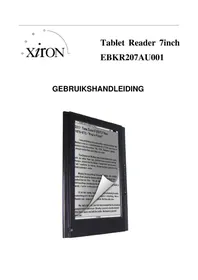
EBKR207AU001 - E-reader Xiron - Free user manual and instructions
Find the device manual for free EBKR207AU001 Xiron in PDF.


| Product type | E-reader |
| Brand | Xiron |
| Model | EBKR207AU001 |
| Display | 7-inch TFT LCD, 800 × 480 pixels, 160,000 colors |
| Operating system | Android 2.1 |
| Processor | RK2818 dual-core ARM600 MHz + DSP550 MHz |
| Internal memory | 2 to 8 GB (depending on version) |
| RAM | 1 GB |
| Memory extension | TF card up to 16 GB |
| Video formats | AVI, 3GP, MP4, RM, RMVB, FLV, WMV |
| Audio formats | MP3, WMA, FLAC, AAC, WAV |
| E-book formats | PDF, EPUB, FB2, TXT, PDB, RTF |
| Connectivity | Wi-Fi 802.11 b/g, USB 2.0, 3.5mm headphone jack |
| Battery | Lithium 3.7V / 2000 mAh |
| Battery life | Up to 2.5 hours of video playback |
| Power supply | AC charger 5V / 2A |
| Languages | Multilingual (French included) |
| Main functions | Media player, web browsing, email, calendar, calculator, alarm clock |
| Sensors | G-Sensor (automatic screen rotation) |
| Speaker | Built-in |
| Microphone | Built-in for voice recording |
| Care and cleaning | Wipe with a soft, dry cloth. Avoid moisture and extreme temperatures. |
| Safety | Keep out of reach of children. Do not expose to open flames or liquids. |
| Spare parts and repairability | Any repairs should be carried out by a qualified professional. Use only compatible accessories. |
Frequently Asked Questions - EBKR207AU001 Xiron
User questions about EBKR207AU001 Xiron
0 question about this device. Answer the ones you know or ask your own.
Ask a new question about this device
Download the instructions for your E-reader in PDF format for free! Find your manual EBKR207AU001 - Xiron and take your electronic device back in hand. On this page are published all the documents necessary for the use of your device. EBKR207AU001 by Xiron.
USER MANUAL EBKR207AU001 Xiron
5.2 aan/uit
f: mijn stapels
F o t o 8 :
natural_image
Abstract graphic with a red circular icon and a triangular pointer, set against a gradient background (no text or symbols)7 WIFI instelling
natural_image
Weather icon showing sun partially covered by clouds, labeled '深圳' and '29°' (no other text or symbols)Foto 2:
natural_image
Close-up of a blue butterfly with black wings perched on a red flower against a yellow background (no text or symbols visible)menu
De basis functies zijn "kopie", "uitwissen", "mobiel", "Plakken", "omdopen"; (zoals foto 15)
9.5.3 wekker:
a Media volume instelling:
b ring-instelling
Stel de standaard kennisgeving ringtone in :
a 【richting】
d 【schem stand-bij】
9.5.5.3 Applicatie-instelling
9.5.5.5 talen-toetsenbord instelling
6 Firmware-update
Safety Precautions
Read these safety instructions before using your device and store them for possible future reference. Always follow these basic safety precautions when using your Mobile device. This reduces the risk of fire, electric shock, and injury.
- Do not expose this product to rain or moisture.
- Keep the device out of direct sunlight and heat sources.
- Protect the power cord. Route power cords so that they are not likely to be walked on or pinched by items placed on or against them. Pay particular attention to the point where the cord attaches to the device.
- Only use the AC adapter included with the device. Using any other power adapter voids your warranty.
- Do not remove the cover. There are no user-serviceable parts inside.
- If the charger cord is damaged, have it repaired by the manufacturer, its service or a similarly qualified person in order to avoid any hazard.
- The charger is not intended for use by persons (including children) with reduced physical, sensory or mental capacity. Persons who have not read the manual, unless they have received explanations by a person responsible for their safety and supervision should not use this unit.
● Children should be monitored to ensure that they do not play with the charger.
● The charger should always be readily accessible.
● The device should not be exposed to dripping or splashing water.
● No objects filled with liquids such as vases shall be placed on the device.
● Always leave a minimum distance of 10 cm around the unit to ensure sufficient ventilation.
● Naked flame sources, such as candles, should not be placed on top of the device.
● The device is intended for use only in a temperate climate.
- CAUTION: Danger of explosion if battery is incorrectly replaced or not replaced by the same type or equivalent.
● The battery should not be exposed to excessive heat such as sunshine, fire or similar.
● Different types of batteries, new and used batteries should not be mixed.
● The battery must be installed according to the polarity.
- If the battery is worn, it must be removed from the product.
- The battery must be disposed of safely. Always use the collection bins provided (check with your dealer) to protect the environment.
Clean your Device
Treat the screen gently. To clean fingerprints or dust from the screen, we recommend using a soft, non-abrasive cloth such as a camera lens cloth.
If the charger cord is damaged, have it repaired by the manufacturer, its service or a similarly qualified person in order to avoid any hazard.
The charger is not intended for use by persons (including children) with reduced physical, sensory or mental capacity. Persons who have not read the manual, unless they have received explanations by a person responsible for their safety and supervision should not use this unit.
Children should be monitored to ensure that they do not play with the charger.
The charger should always be readily accessible.
The device should not be exposed to dripping or splashing water.
No objects filled with liquids such as vases shall be placed on the device.
Always leave a minimum distance of 10 cm around the unit to ensure sufficient ventilation.
Naked flame sources, such as candles, should not be placed on top of the device.
The device is intended for use only in a temperate climate.
CAUTION: Danger of explosion if battery is incorrectly replaced or not replaced by the same type or equivalent.
The battery should not be exposed to excessive heat such as sunshine, fire or similar.
Different types of batteries, new and used batteries should not be mixed.
The battery must be installed according to the polarity.
If the battery is worn, it must be removed from the product.
The battery must be disposed of safely. Always use the collection bins provided (check with your dealer) to protect the environment.
SWITCH OFF IN RESTRICTED AREAS
Turn off the power when the use of the mobile device is not authorized or when it may cause interference or danger, for example; on board an aircraft, near medical equipment, fuel, chemicals or blasting sites.
ROAD SAFETY COMES FIRST
Check the current laws and regulations in the area where you drive, regarding the use of mobile devices such as this mobile device.
- Do not hold this mobile device while driving
• Concentrate fully on the driving - Radio Frequency (RF) can affect certain electronic systems in your car, such as the audio-stereo system or security equipment.
- An airbag inflates with great force. Do not store the mobile device or any of its accessories in the area above the bag or in its deployment area.
INTERFERENCE
All wireless devices are susceptible to interference which can affect their performance.
AUTHORISED PERSONNEL
Only qualified personnel are authorized to install or repair this product
ACCESSORIES
Only use batteries, chargers and other accessories which are compatible for this device. Do not connect incompatible products.
KEEP YOUR DEVICE DRY
Your device is not water proof. Keep it dry.
CHILDREN
Keep the mobile device in a safe place out of the reach of young children. Your mobile device contains small pieces which can present a choking hazard.
Precautions for use
This mobile device conforms to guidelines for exposure to radio frequency.
Your mobile device is a radio transmitter and receiver. It was designed to meet the limits recommended by international guidelines on the exposure to radio-waves. These guidelines were developed by an independent scientific organisation, the ICNIRP, and include safety margins designed to assure the protection of all, regardless of their age or state of health.
The recommendations on exposure guidelines for mobile devices employ a unit of measure, known as the Specific Absorption Rate or SAR. The SAR limit, as defined in the ICNIRP recommendations is 2.0 watts/kilogram (W/Kg) averaged over 10 grams of cellular tissue.
In tests to determine the SAR the device is used in positions of standard operation at its highest certified power level in all tested frequency bands. The actual SAR level of a device in use can be less than the maximum value because the device is designed to only use the power necessary to reach the network. This value changes depending on a number of factors such as the distance from a network base station.
Radio Frequency Interference
Radio frequency emissions from electronic equipment can interfere with other electronic equipment and can cause malfunctions. Although this mobile device has been designed, tested and manufactured in accordance with the EU regulations on radio frequency emissions, the mobile device's wireless transmitter and electrical circuits can cause interference with other electronic equipment. We recommend that you take the following precautions:
Plane : Wireless equipment can cause interference in aircraft.
- Turn off the mobile device before boarding a plane
- Do not use on the runway without the crew's permission.
Vehicles : Telephone radio- frequency emissions can affect a motor vehicle's electronic systems. With regards to your vehicle, check with the manufacturer or dealer.
Medical Implants :
To avoid any interference with the medical device, manufacturers of medical devices recommend a minimum distance of 15cm between wireless equipment and a medical implant such as a pacemaker or defibrillator. The following is recommended to people who have such devices:
- Always keep the wireless device at a distance of over 15cm from the medical device.
- Do not carry the wireless device in a breast pocket.
- Hold the wireless device at the ear opposite the medical device
- Turn off the wireless device if there is any suspicion of interference occurring.
- Follow the instructions provided by the manufacturer of the medical implant.
If you are fitted with a medical implant and have any questions regarding the use of wireless equipment, consult your doctor.
Hearing :
Warning : If you use headphones there is a risk of not being able to hear outside sounds clearly. Do not use headphones if there is a risk of endangering your safety.
Some wireless devices can interfere with the proper functioning of hearing aids.
Other medical devices :
Radio transmitting equipment, including wireless devices such as this mobile device, can interfere with the operation of inadequately protected medical equipment. Consult a doctor or the manufacturer of the medical equipment to see if the equipment is adequately protected from external Radio Frequency energy. Turn your device off in places where regulations apply, especially in hospitals.
Health Facilities :
Hospitals and health facilities may be using equipment that is particularly sensitive to external radio-frequency emissions. Turn your mobile device off when staff or signs tell you to.
Blasting sites and identified areas :
Switch off your equipment in zones where the atmosphere is potentially explosive. Follow all official instructions. Sparks in such areas could cause an explosion or fire, resulting in serious bodily injury or death. Switch off your device in gas stations, especially near the gas pumps. Carefully observe instructions on use in fuel depots, storage and distribution areas, at chemical plants or in areas where explosives are used.
Areas with a potentially explosive atmosphere are often, but not always clearly marked. These include areas where it is normally advisable to switch off engines, the area below deck on boats, facilities where chemicals are transferred or stored and areas where the air contains chemicals or particles such as grain, dust or metallic powder. Check with the manufacturers of vehicles that use LPG (such as butane or propane) if the device can be used safely in their vicinity.
All our mobile devices conform to international standards and regulations, and where appropriate national recognition, to limit the exposure of users to electro magnetic fields. These standards and regulations were adopted after extensive scientific research. This research does not link the use of mobile phones with any adverse effects on health if the equipment is used in accordance to standards and regulations.
However, if you want to reduce the levels of exposure to radio frequency radiation you can limit your time using the mobile device in wireless mode because the length of time is a contributing factor to the exposure received by a person. Similarly, keeping the mobile device away from the body is another factor, as exposure levels lessen dramatically with distance.
1 Outlook Description
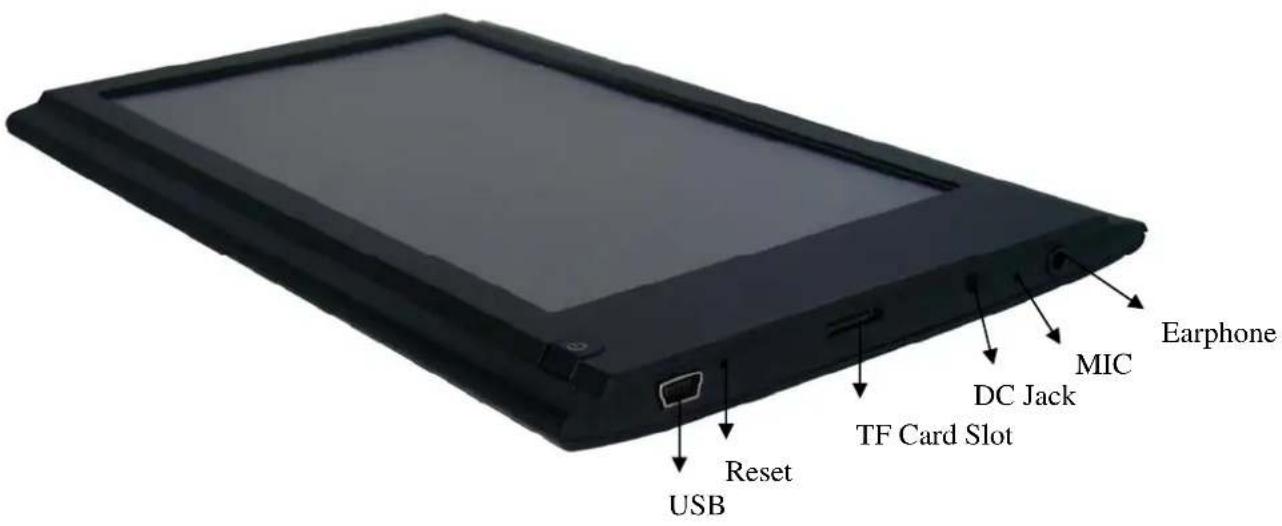
2 Introduction to Key Functions
| Position | Definition of Key | Function |
| A RESET Press it transiently to reset the system in case of dead halt of the tablet reader. | ||
| B POWER Press it transiently for the sleeping or waking up function; press it for long time to start or shut down the tablet reader. | ||
| C MENU Press it transiently to enter the subfunction menu. | ||
| D |  | It is the step-by-step back key if pressing it transiently. |
| E |  | Back to the main interface by pressing this shortcut key transiently. |
| F TF card TF card slot | ||
| G | Earphone holder | Earphone cable port |
| H DC holder External 5 VDC charger port | ||
| I | Mini USBINI_5PIN connection port holder | |
| J | Display screen | High definition display screen |
3 Functions
RK2818 main chip, ARM embedded dual core CPU (ARM600MHZ+DSP550MHZ), ANDROIED2.1 intelligent operation system.
■ 7.0 inches, 800*480-TFT high definition liquid crystal display screen
■ Support 2GB\~8GB built-in FLASH capacity as well as 128M\~16GB capacity for expanded TF card.
■ Be able to display the videos with formats of AVI, 3GP, MP4, RM, RMVB, FLV and WMV. Maximum resolution allowed is 1280*720.
■ Be able to browse the pictures with the formats of JPG, BMP, GIF (static) and PNG.
■ Support the audio formats of MP3, WMA, FLAC, AAC and WAV. Various EQ modes are supported.
E-books with formats of PDF, EPUB, FB2, TXT, PDB and RTF as well as the zoom, bookmark and page turning functions are supported.
■ Support the built-in WIFI to access to the broad band wireless Internet. Different software can be run in the ANDROIED2.1 operation system. Some common software is preset in the system, such as Google browser, on-line MP3, on-line novels, Internet games as well as e-books.
■ G-Sensor screen direction rotation function
■ Stereo earphone and loudspeaker output.
■ Language: Multilanguage
4 Technical Parameters
| Appearance Dimension | ||
| Display Screen | Dimension 7.0 inches, 160,000 color, TFT liquid crystal display screen TFT liquid crystal display screen | |
| Resolution 800*480 | ||
| Computer Port High speed USB2.0 (FS) | ||
| Built-in Capacity Flash Memory: 2GB~8GB | ||
| System Memory ROM: DDRTI 1 MB | ||
| Expanded Capacity TF_Card, capacity: 128MB~16GB | ||
| Power | Built-in 3.7V, 2000MA/Hlithium cell, AC charger:Input:AC110V~240V,Output:DC 5V@2A | |
| The built-in cell can be used to display the videos for 2.5 hours at most (default mode; intermediate volume) | ||
| Music | Playing Format MP3 and WMA | |
| MP3 bit rate 8Kbps ~ 390 Kbps | ||
| WMA bit rate | 5Kbps ~ 192 Kbps | |
| Video | Playing Format AVI, 3GP, MP4, RM and RMVB | |
| Maximum resolution Videos of 1280*720 at most. | ||
| Width-height ratio Three mode: 4:3, 16:9 and full screen | ||
| Picture Browsing | JPG, JPEG, BMP and GIF(static) | |
| E-book | Format | PD, EPUB, FB2, TXT, PDB and RTF |
| Operation Language | Simplified Chinese, traditional Chinese, English, Japanese, French, German and more | |
5 Quick Guidance
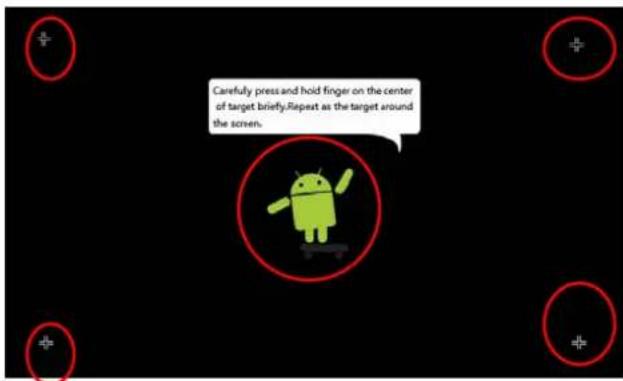
5.1 Correct the Touch Screen
If the touch position shifts or the click is ineffective, please press the ESC key for 3S to enter the touch correction interface. Click the central point of the Cross once according to the positions indicated in the following red circle. After correction, the prompt of Correction is OK will appear on the screen. The details are shown in the following picture:
5.2 ON/OFF
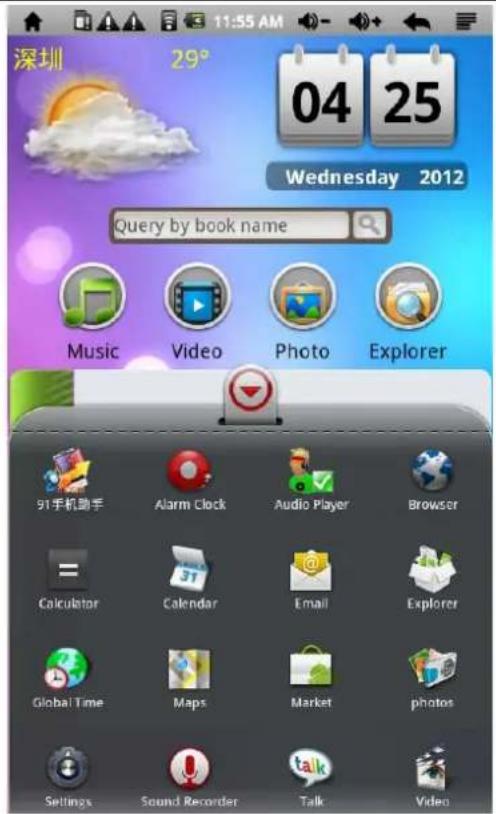
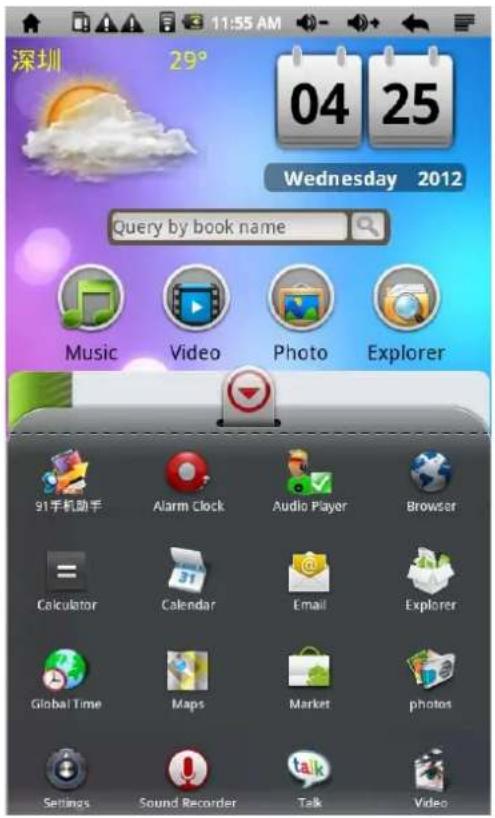
Enter the main interface after start the tablet reader. It is shown as the following picture:
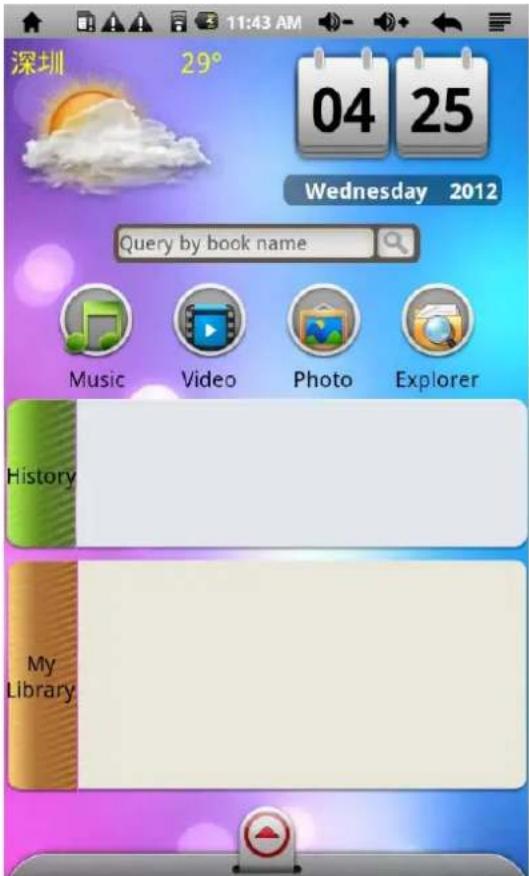
On/Unlock: If the tablet reader is ON, press the POWER key for 3S to display the start progress bar of Android. Enter the desktop picture about 100S later.
Power-saving mode and screen locking: Transiently press the POWER button after the tablet reader is on. Then the system will enter the power-saving mode of SLEEP and the screen is black and locked. Press the POWER button again or click the touch panel for 3S. The system will recover the bright screen within 1S.
Note: In power saving mode, the previous function under operation will not be interrupted and will continue to work, only the screen turns off into the black state. For example: play music, movies, etc.
OFF: When the tablet reader is ON, press the ON/OFF key for 3S. The OFF confirmation interface will appear on the screen and select the OFF option. The system will be off automatically.
Note: If the power is insufficient, the tablet reader will give alarms continuously. The tablet reader will be off automatically without charging. Please check whether the cell is live if the tablet reader cannot be started. Try to start the tablet reader on the condition that there is a certain amount of power.
5.3 Cell Management and Charging
a. Charge the cell for 8\~12 hours when using the cell phone for the first time to ensure the full load of the cell.
b. Insert the mini end of the power adapter into the DC socket of the tablet reader and insert another end into the socket.
The cell is charging if the power indicator light of the tracking ball is highlighted blue and the cell icon of green bar (☐) on the desktop is rolling. Please wait till the cell is fully charged. Don't pull out the charger in midway. After the cell phone is fully charged, the charger indicator light will be dull blue and the cell icon of green bar (☐) on the desktop stops.
If your cell phone is charged when the cell power is used up, please restart the phone at least one minute later.
Note: Please pay attention to the following aspects in order to ensure the best working state of the lithium cell:
- Please don't charge in high temperature (such as in balcony or positions in sunshine).
- Don't discharge the lithium cell. Don't charge after the power is used up. You can charge when the cell still has power.
- If the cell phone is not used for a long time, please fully charge it at least once every two weeks in order to avoid that the excessive discharging affects the performance of the cell.
6 Use of Function Icons
a. Definition of Function Icons on the Desktop (two main interfaces)
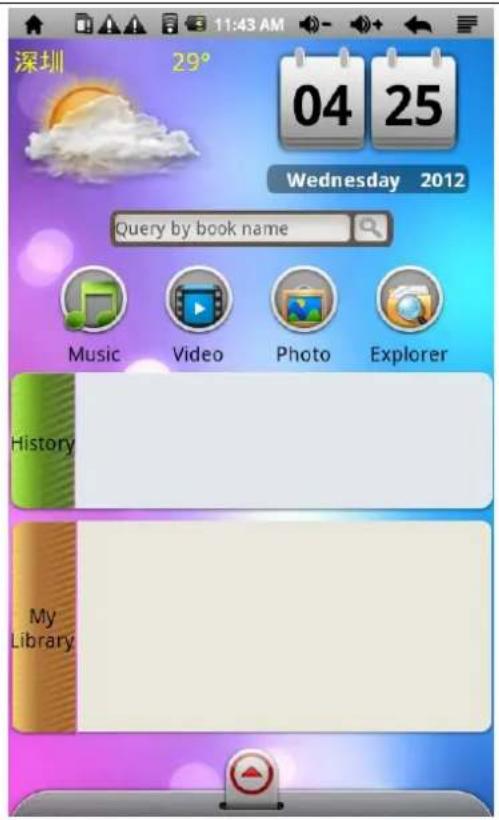
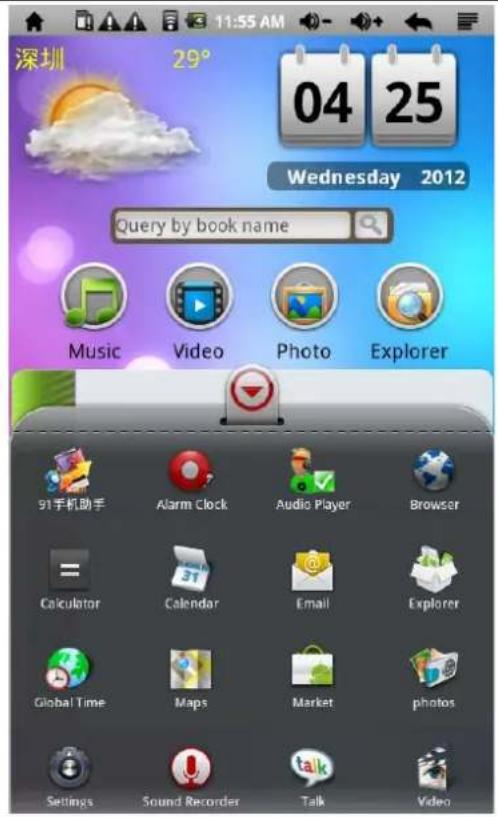
| Icon | Function Introduction | Icon | Function Introduction |
 | Click it to return to the home page; if the icon is in the main interface, click it for the switchover of two interfaces. |  | Notice column indicates that the system has identified new device. |
 | Power icon displays the current remaining power. |  | The icon indicates that the alarm clock has set. |
 | Display the current system time. |  | Volume - |
 | Back |  | Volume + |
 | Menu |  | Function Module Menu |
| [XY6] | Google search; touch it for long time and the input method keyboard will appear. |  | Desktop switchover |
 | System clock to display the time. |  | Tool bar for WIFI start and switch closing. |
 | Music display tool bar Music/video media library update | ||
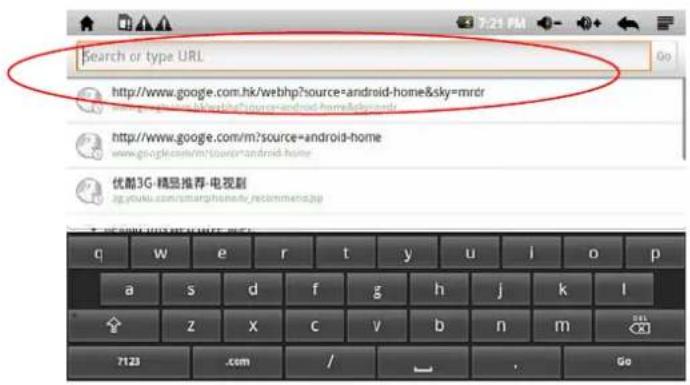
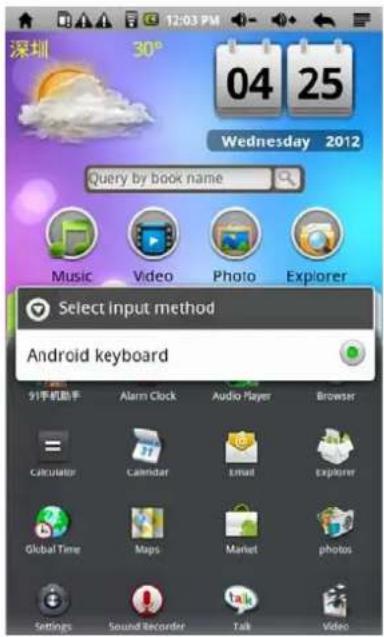
b. Input method setting: Press the search box and display the input method. It is shown in the following picture:
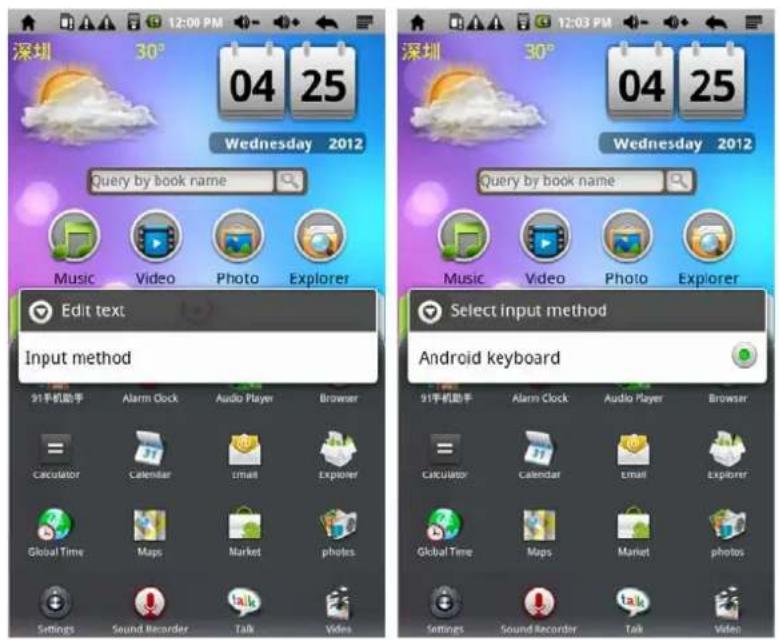
c. Search Function (shown as the following Picture 3)
It is used to search the e-books stored in the local terminal. It is applicable to fuzzy search or full-name search. Click the Search button and then the result will be popped up.
Picture 3

d. Quick Access Toolbar (shown as the following Picture 4)
It is used to quickly access to corresponding functions, such as Music, Videos, Photo and File. It cannot be added by the users randomly.
Picture 4
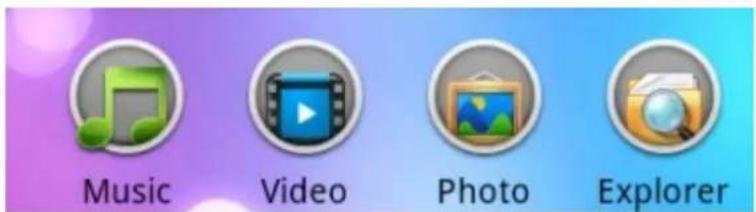
e. History
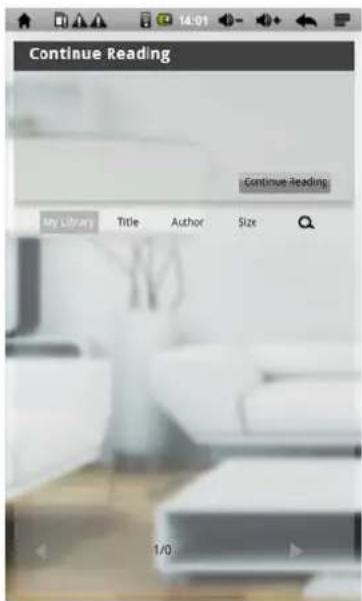
The quick display is only able to show the latest ten browsing histories (shown as the following Picture 5). Click the History to see all the browsing histories. (Picture 6) The system stores histories for a number of pages; therefore you need to use the function of “Continue to read” if you want to open the e-book having been browsed before.
Picture 5
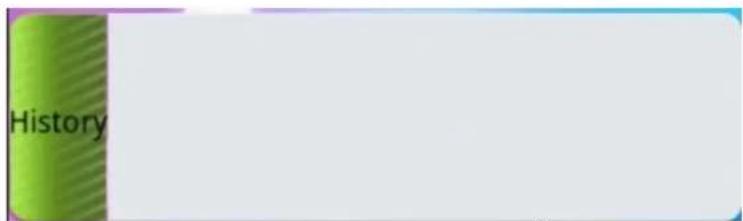
Picture 6
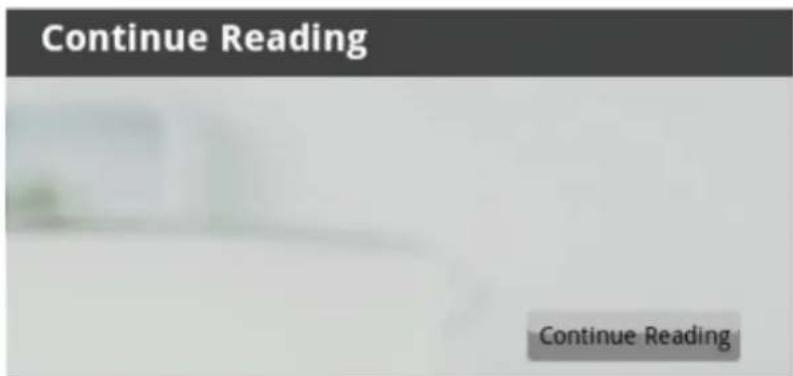
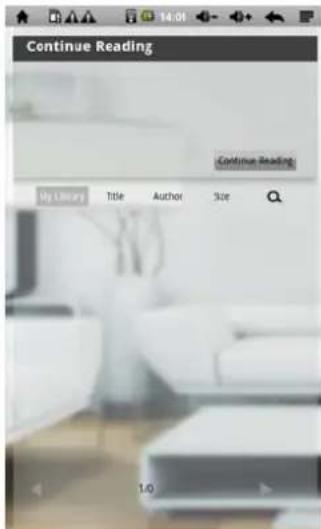
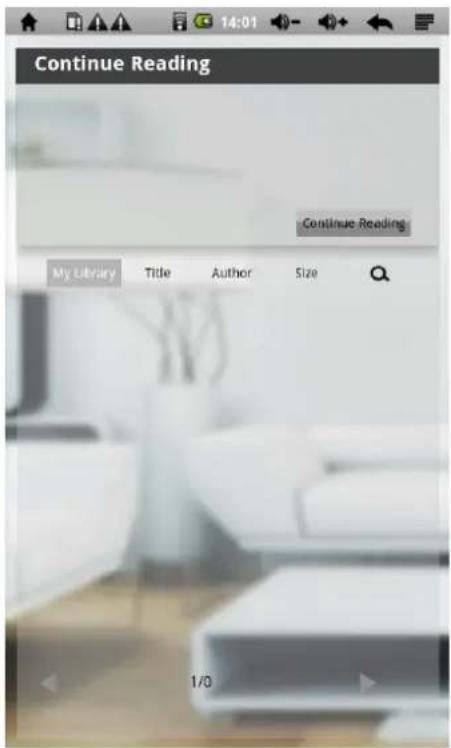
f. My Book Library
The quick display is only able to show 50 e-books stored in the phone. (Shown as the following Picture 7) Click My Book Library to see all the histories. (Picture 8) The system stores a number of pages of local e-books; therefore you need to use the function of “Continue to read” if you want to open the e-book in the list.
Picture 7
Picture 8
g. Menu bar
Drag the arrow upward to display all the application programs installed in the cell phone; while drag the arrow downward to hide all the application programs installed (shown as the following Picture 9).
Picture 9

natural_image
Abstract graphic with a red circular icon and a triangular pointer, set against a gradient background (no text or symbols)7 WIFI Setting
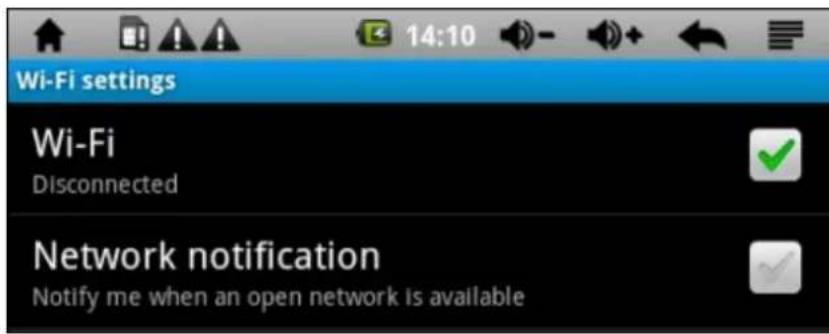
a. Open the WIFI setting: Click (function module menu icon) to enter the function menu list. Click the Setting button to set the page. Click the button of Wireless and Network. Tick the box behind the first Wi-Fi as shown in the red circle in the picture:
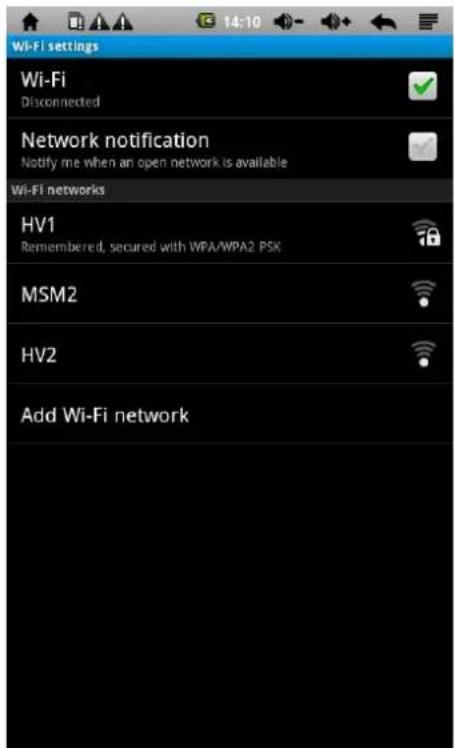
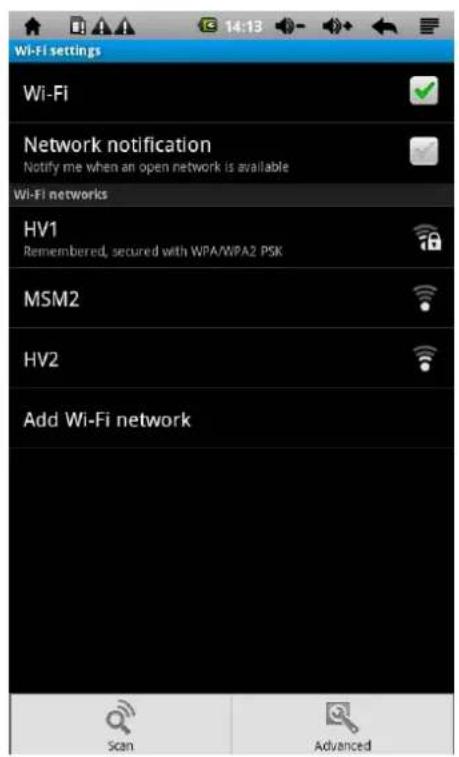
b. Set the WIFI and connection network: Click the Wi-Fi Setting and then the system will automatically search the WIFI network name. Two WIFI network names have been searched shown in the following picture:
c. IP address setting and connection: There are following two ways to set IP address:
- Automatic distribution
Whether the IP address is automatically distributed shall be firstly decided by the WIFI Router. If the
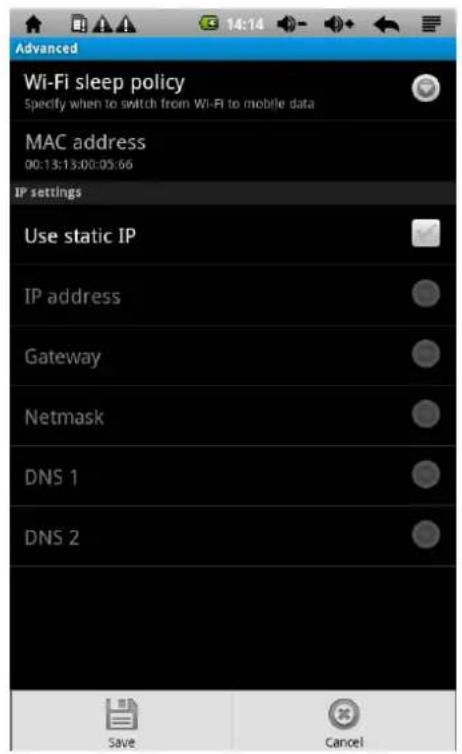
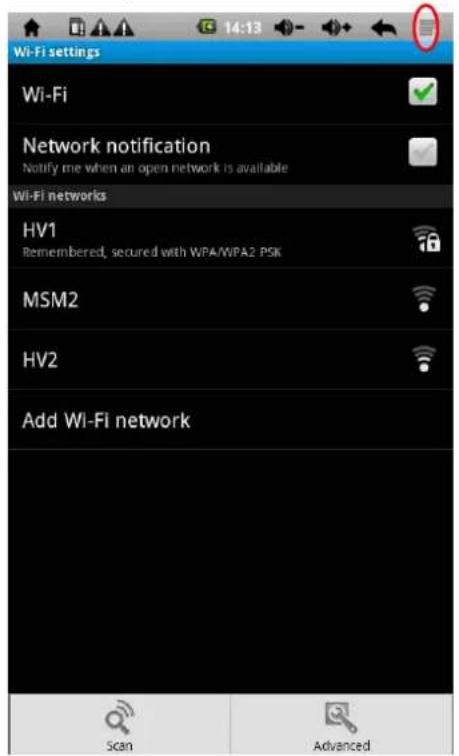
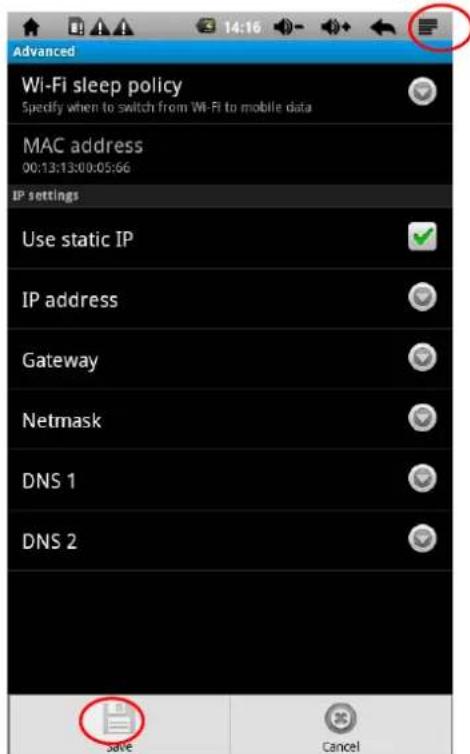
network name is of automatic distribution of IP address, click 📄 on the top right corner on the screen to enter advanced setting. Then cancel the tick in the box behind the option of Use static IP.
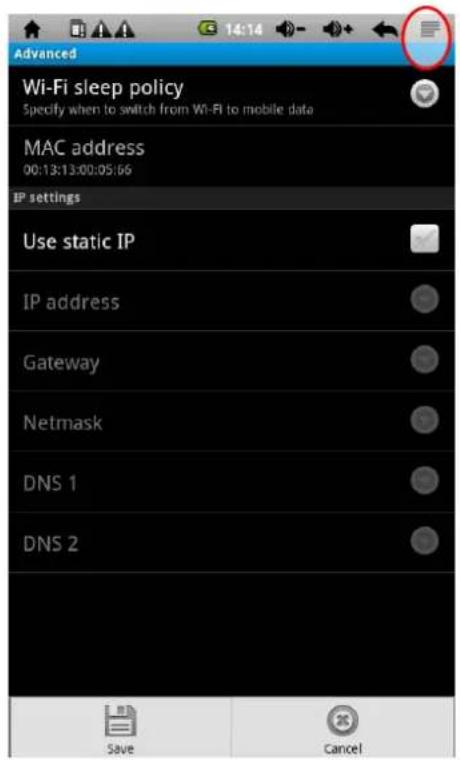
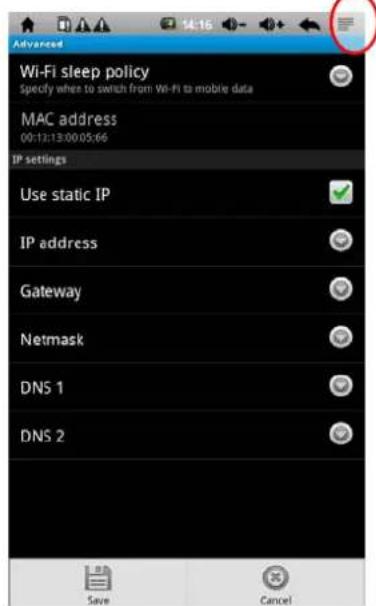
After setting is finished, click 📋 on the top right corner on the screen. And then click the option of Save which is shown as the following picture:
After saving the setting, go back and click the WIFI network name requiring connection. For example, click KW and then display the interface to input the wireless password. Click OK after inputting the correct password and then the system will automatically connect to the distributed IP address. A prompt of Connected will appear if the connection is successful. The connection state can also appear if clicking the network name. Please refer to the following picture:
2. Manual setting
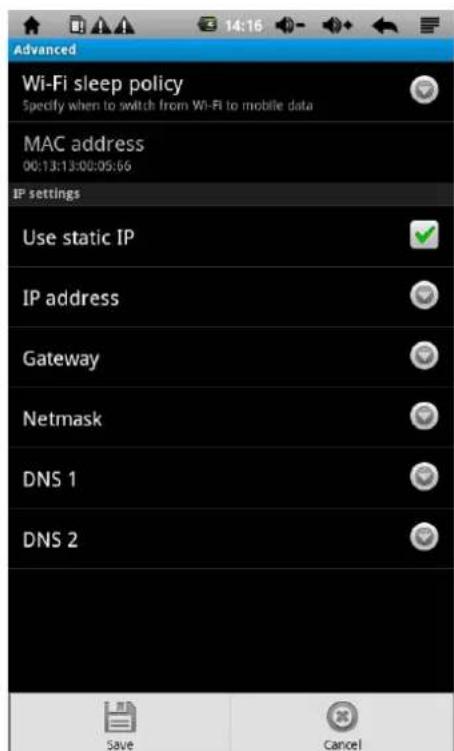
Whether the IP address is manually distributed shall be firstly decided by the WIFI Router. If the network name is of manual distribution of IP address, click 📄 on the top right corner on the screen to enter advanced setting. Tick the box behind the option of Use static IP and set based on the IP address distributed by the Router. Please refer to the following picture:
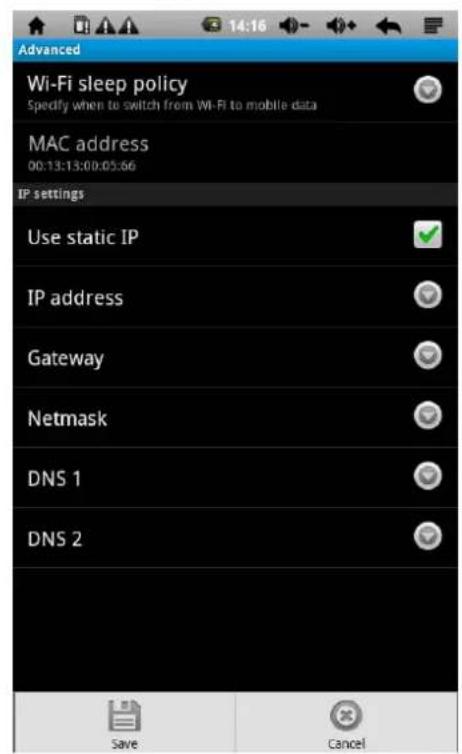
After setting is finished, click 📄 on the top right corner on the screen. And then click the option of Save which is shown as the following picture:
After saving the setting, go back and click the WIFI network name requiring connection. For example, click KW and then display the interface to input the wireless password. Click OK after inputting the correct password and then the system will automatically connect to the distributed IP address. A prompt of Connected will appear if the connection is successful. The connection state can also appear if clicking the network name. The WIFI icon will appear in the desktop. Please refer to the following picture:
3. Weather Function (It shall be operated upon the connection of WIFI.)
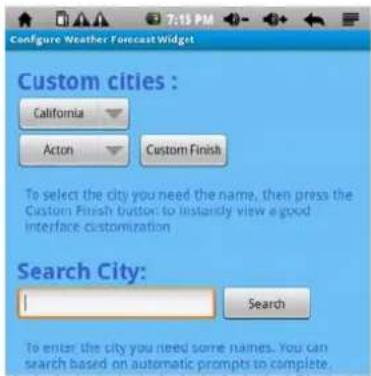
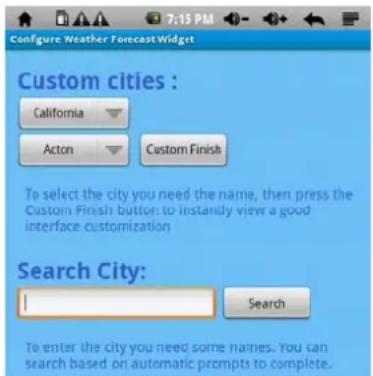
When using for the first time, press the weather display position for long time (shown as Picture 1) and then select corresponding city or input city name in the popped up interface (shown as Picture 2). Click the option of Search and then directly go back to the main interface of the e-book and display the weather as well as temperature of the city.
Picture 1

Picture 2
8 Use TF Memory Card
The cell phone has TF memory card slot to read the multimedia files inside it. Correctly insert the TF card in the slot according to the setting direction. Push the card inward till you hear click. If you want to take it out, please firstly push it inward the slot and then release. The card will be automatically ejected and then take the memory card out.
a. Please correctly insert the card into the slot at right side of the phone.
b. Please don't pull out the memory card in course of operation (such as read and copy); otherwise data error may occur.
c. Avoid using and storing the memory card in high temperature and high humidity.
d. Leave the memory card away from liquid and corrosive materials.
The Internal Memory and SD Card correspond to flash ram disc and T-Flash card memory disc respectively.
Select the APK format in the right box to install the program after entering. Click the option of Install. Return to the main interface after operation and then the installation is OK. There is corresponding software menu.
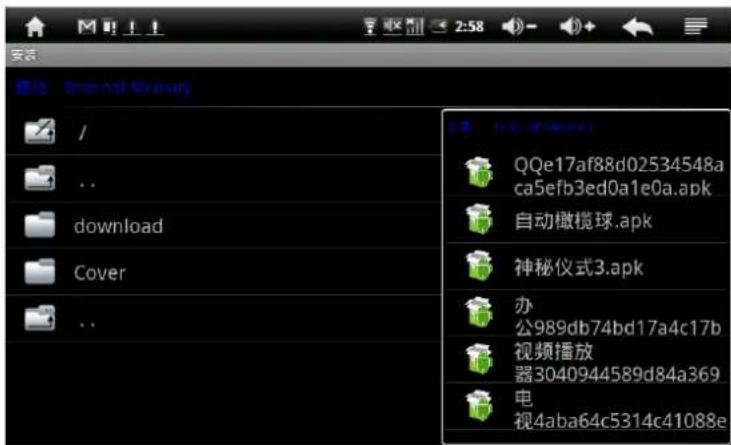
Manage: Click the option of Manage to enter the third party software interface.
-Launch: Run the software.
-Export to SD: Export the software to T-Flash card.
-Uninstall: Unload the software.
-Search at Market: Search the software in software shop.
-Cancel: Cancel the operation.
- Exit: back to the main interface.
9. Operation Details
9.1 System Desktop - (Multimedia music/video/photo/voice function)
9.1.1 Music Player

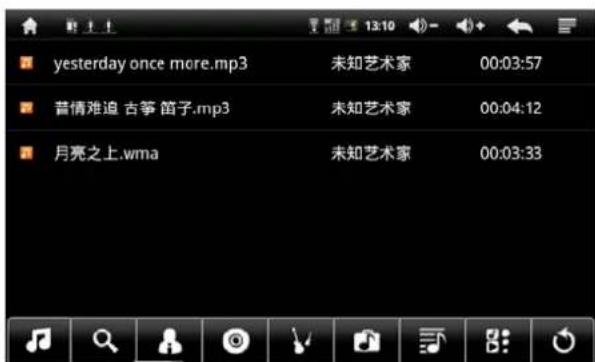
(audio player) in the main menu or in the desktop to play the audio file.
- If there are no musical files in the list of audio player, the system will automatically load the files in the card to the list after opening the audio player. (Formats of audio files of mp3, wav, midi and wma are supported by the cell phone.) The playlist is shown as the above picture.
- If there are a number of songs in the list, turn over the page by sliding the screen upward or downward.
● Double click your favorite song to enter the interface of audio player in order to play the song.
- Click ☐ to enter the audio playing list in the music playing interface.
- Drag the playing progress bar to adjust the audio progress.
● Introductions of audio player buttons:
| Buttons | Introduction Buttons Introduction | |||
 | Check the playlist |  Online search Online search | ||
 | Musician |  Album Album | ||
 | Other audios |  Check the music files in the disc Check the music files in the disc | ||
 | New playlist |  Switch to the audio play Switch to the audio play | ||
 | Exit |  EQ setting (Normal, Rock & Roll, Popular, Classical) EQ setting (Normal, Rock & Roll, Popular, Classical) | ||
 | A-B repeat |  Play order mode Play order mode | ||
 | Add audio to the playlist |  Pause Pause | ||
 | Volume + |  Volume - Volume - | ||
 | Play the previous |  Play the next Play the next | ||
 | Play audio | |||
Note: The audio player is able to play 3GP recording files.
9.1.2 Video

Click in the main menu or in the desktop to enter the video player interface. Open corresponding folder according to your file storage. Double click your favorite video to play.
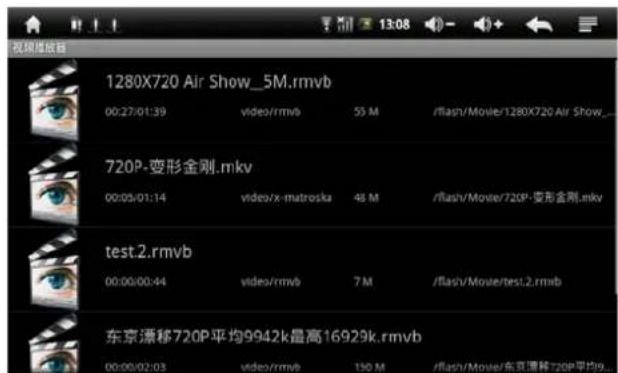
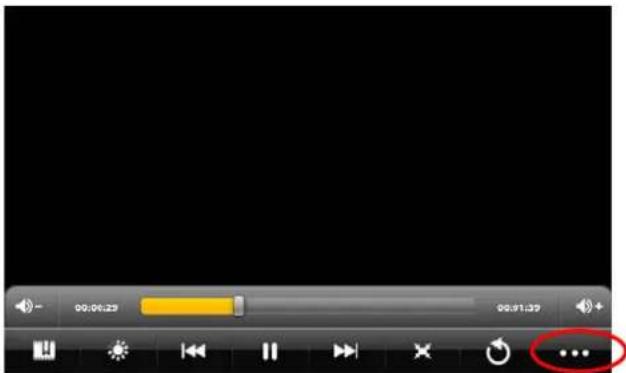
● Video formats of AVI, RM, RMVB, MP4, FLV and 3GP are supported by the cell phone.
- When there is no file in the video player list, the system will automatically load the files in the card to the list after opening the video player.
- Drag the playing progress bar to adjust the video progress.
● Introductions of video player buttons:
| Buttons | Introduction | Buttons | Introduction |
| [0525] | Add video bookmarker |  | Brightness |
 | Play the previous |  | Play the next |
 | Play and pause |  | Video system: 16 : 9 /4 :3/recover |
 | Exit |  | Menu |
 | Volume - |  | Volume + |
9.1.3 Photo Browser
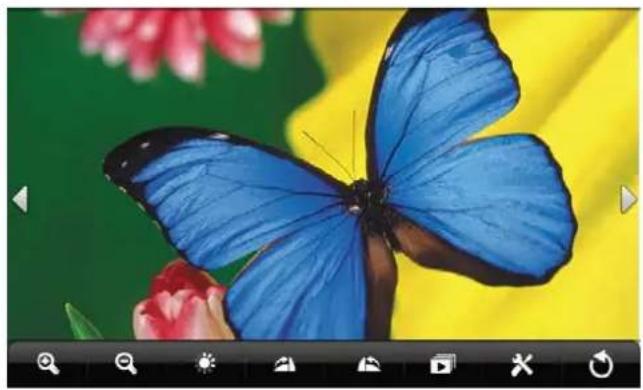
- Click to enter the photo browser interface in the main menu or in the desktop.
natural_image
Close-up of a blue butterfly with black wings perched on a flower, set against a yellow background (no text or symbols visible)Introductions of buttons of photo browser:
| Buttons | Introduction Buttons Introduction | ||
 | Browse the previous | [BKCY] | Zoom |
| [XX6C] | Browse the |  next next | |
| [Z65B] | Brightness |  | Play the photo in slide |
 | Rotate 90° clockwise |  | Rotate 90° counter-clockwise |
 | Setting |  | Exit |
- Add photo (The formats of BMP, JPG, JPEG, PNG and GIF static are supported.)
When there is no file in the video player list, the system will automatically load the files in the card the list after opening the photo browser.
to
Open corresponding folder based on your file storage. Find photos and add.
- Click the button of photo setting and set the current photo as the desktop wallpaper.
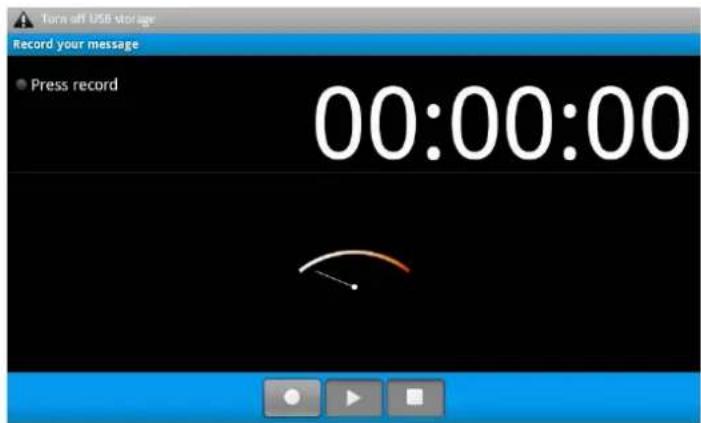
9.1.4 Recording
Click to enter the recording interface in the main menu or in the desktop. Click to start and
to stop .Click to display the recording finished just now. System will automatically prompt
to use the recording or exit. Please select manually.
Play the recording file: Please select audio player to play the recording file. Firstly choose the recording file according to the directory in the Explorer. Click the file to play. For details, please refer to the content mentioned in above Section 5.1.1 about audio player.
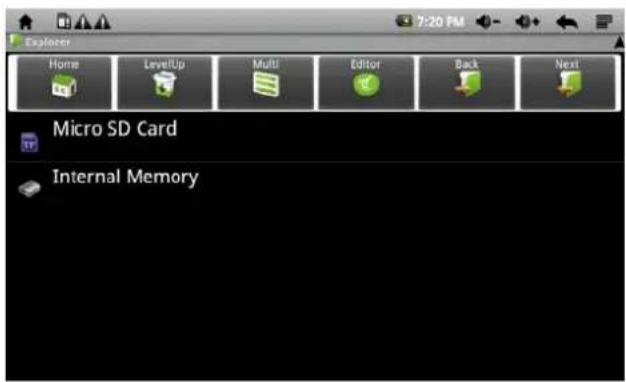
9.1.5 Explorer
Click to enter the interface of Explorer in the main menu or in the desktop. Click SD Card, Internal Memory and U-disc to unfold the drop-down folders and relevant files and carry out the operations of Add, Copy, Paste and Delete. Press a single folder or file for long time and select the Previous, Next or Upper Layer to find the corresponding path. Click Edit button and then select in popup window to paste to corresponding path.
Menu
The basic functions include Copy, Delete, Move, Paste and Rename. Please refer to the following Picture 5.
Picture 15
9.2 System Desktop II (E-book)
The e-book formats of TXT, FB2, PDF and EPUB as well as the functions of font size, bookmarker, page skip and auto page turning are supported.
9.2.1 E-book Reading
- Click the icon of e-book application program in the main menu or in the desktop to read the book.
Open corresponding folder based on your file storage. Find text file and add. - Click the e-book file to open it and read. Click the left or right side of the touch screen or slide the screen
horizontally to turn over the page.
- Click for the operation of font size (S, M, L, XL and XXL), page skip, bookmarker, book info and auto page turning.
9.3 System Desktop III (Network Application)
9.3.1 Browser
In the main menu or in the desktop under the normal WIFI connection to enter the IE interface (For details, please refer to content in Section 4.5 about the setting of WIFI.). Click the address bar to input the website address and then click "Go to" button to enter corresponding web page. You can browse the info in the website.
9.3.2 E-mail
Click the Gmail icon of 📂 in the main menu or in the desktop under the normal WIFI connection (For details, please refer to content in Section 4.5 about the setting of WIFI.) to enter the e-mail login interface.
If you have had Google e-mail account, directly click to input the user name and password.
a. Inbox
Automatically enter the inbox interface after login.
The mails in the inbox are listed in the interface. Double click the mail to Check, Reply or Reply All.
| Buttons | Introduction Buttons | Introduction | |
 | Refresh | Write a new mail | |
 | Account Check | the mark | |
 | Search | Set |
9.5 System Desktop V (Other functions)
9.5.1 Calendar
Click the calendar icon in the main menu or in the desktop to enter the interface.
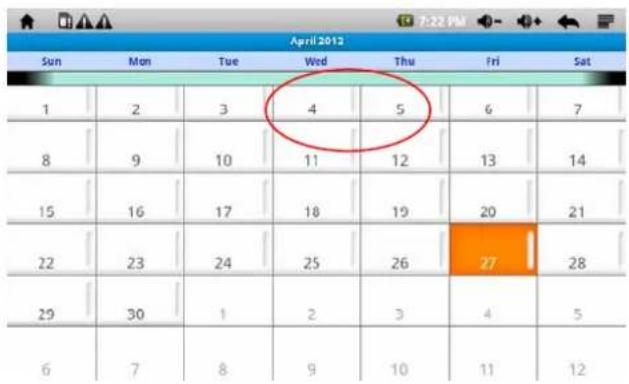
- In the calendar mode, press the screen and drag upward or downward to reduce or increase the month or turn over pages.
- When the month is not in the normal range, automatically adjust the year.
- When entering the interface, the number in the orange box is the current date. If you want to change the date, change it in the set time & date. For details, please refer to the content about setting.
- Click to back to the main interface.
9.5.2 Counter
Click the counter icon of = in the main menu or in the desktop to open the counter.
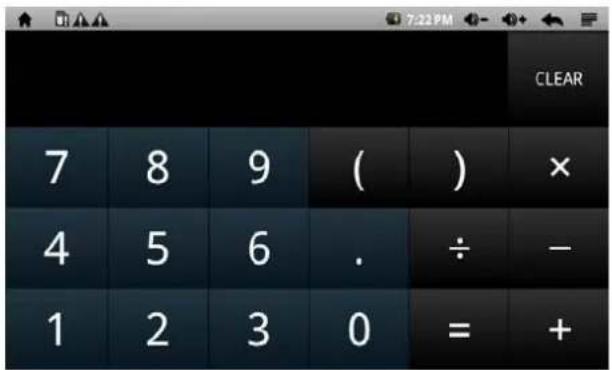
9.5.3 Alarm Clock
Click the alarm clock icon of 📄 in the main menu or in the desktop to enter the alarm clock setting interface. Three different alarm clocks can be supported by the tablet reader. Tick the box behind the alarm clock figure. Please refer to the following red circle.
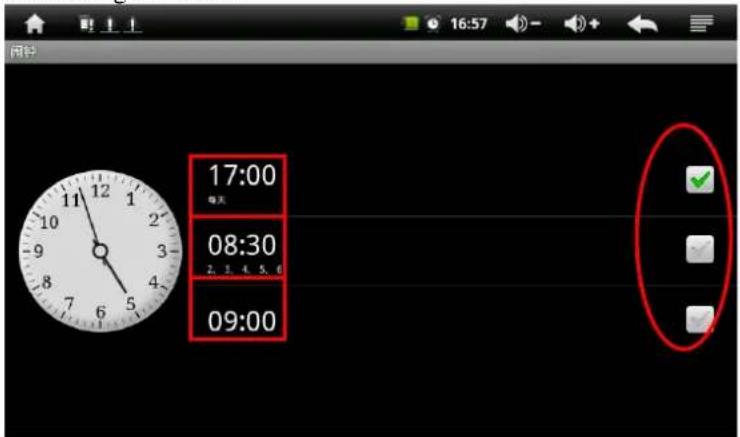
Click the figure on the any of the above alarm clock for relevant setting, such as Time, Sound, Vibrate (Yes or No), alarm repetition, mark setting.
-Every day: the alarm clock sounds at the same time in every day.
-Monday, Tuesday, Wednesday, Thursday, Friday, Saturday and Sunday: tick the one you need. For example, if you want the alarm clock to ring from Monday to Friday, tick the box behind Monday, Tuesday, Wednesday, Thursday and Friday to make the alarm clock repeatedly ring during the period.
-None: The alarm clock rings only once without repetition.
-Click the clock: select the clock mode.
9.5.5 Cell Phone Setting
Click the icon in the main menu or in the desktop for setting wireless & network, sound & backlight display, location & safety as well as application program. Press the screen to drag upward or downward to turn over the page.
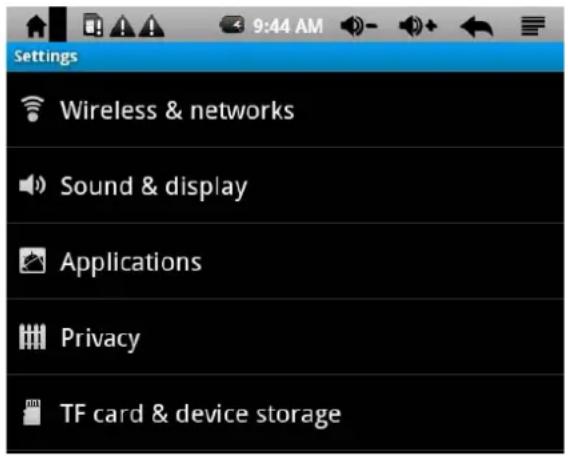
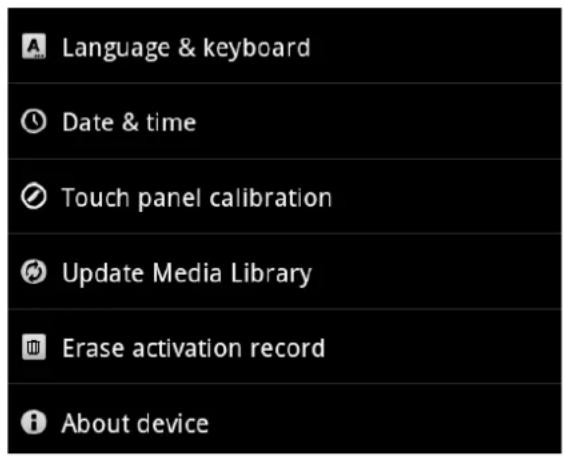
9.5.5.1 Wireless & Network Setting
Please refer to the content of WIFI setting in Section 4.5.
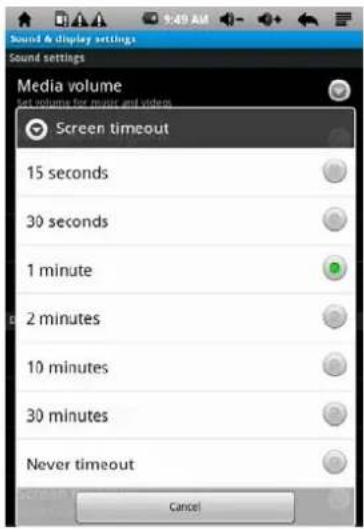
9.5.5.2 Sound & Display Setting
- Click the Sound & Display in the setting menu to enter the setting interface.
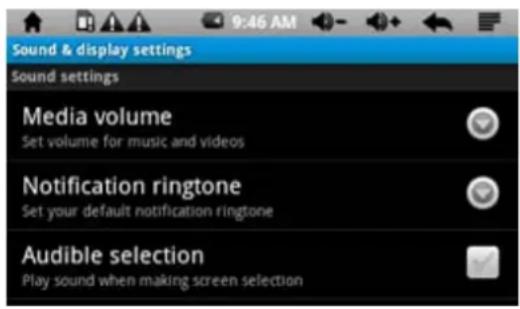
a. Media Volume
Click the button of Media Volume in the setting interface to set volume of music and videos.
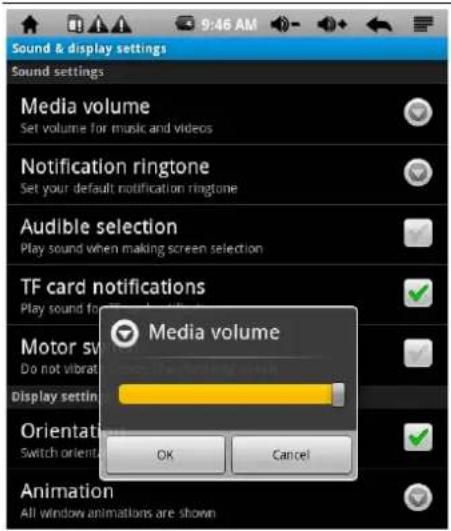
b. Ring Setting
Set the default notification ring.
c. The Operation Sound Selection (There is sound during screen selection.) and SD Card Notification (Play the SD
card notification sound.) are options. Click the highlighted display to finish the setting.
- Display Setting
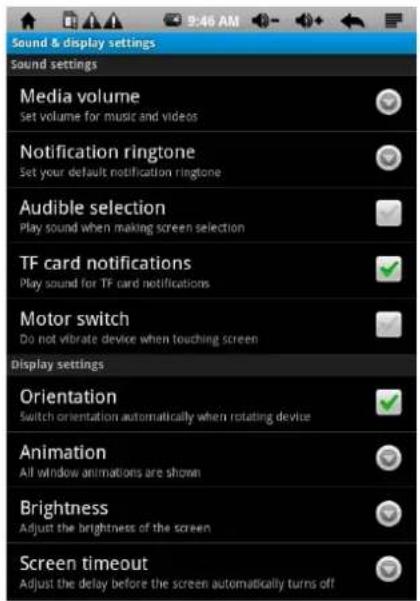
a. Direction
Automatically change the display direction when rotating the tablet reader.
b. Animation
Display the animation of all windows.
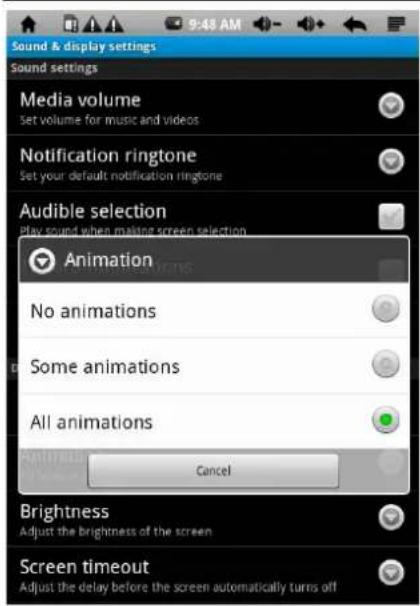
c. Brightness: Drag to tune the brightness of backlight according to your requirement. Click OK and back.
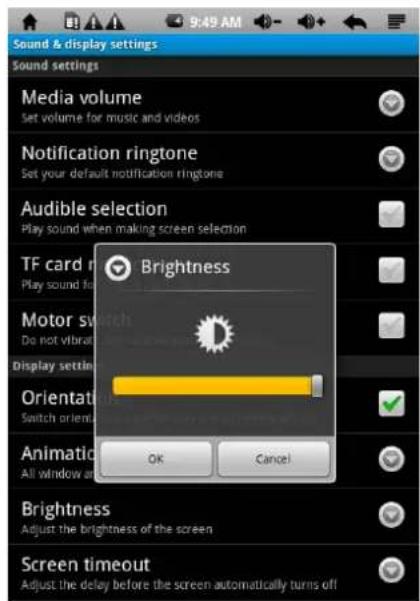
d. Screen standby
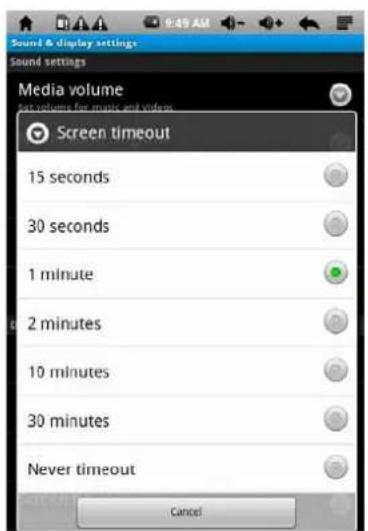
9.5.5.3 Setting of Application Program
Click the Application Program in the menu of Setting to enter relevant setting interface:
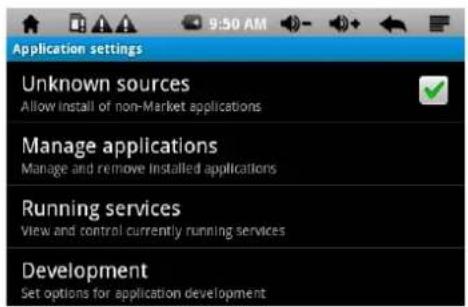
- a. Setting of Manage Application Click the menu of Control of Application Program to control and delete the application programs installed in the tablet reader.
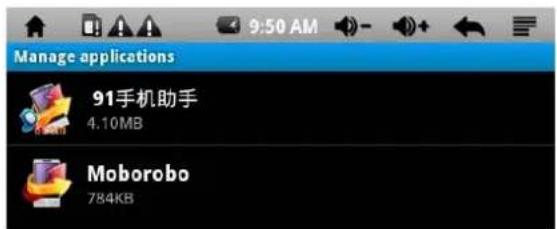
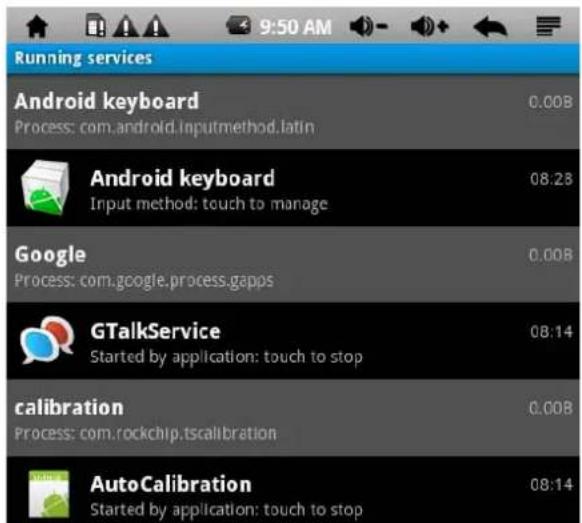
• b. Setting of Running services
Click the menu of Service in Progress to check and control the services in progress currently.
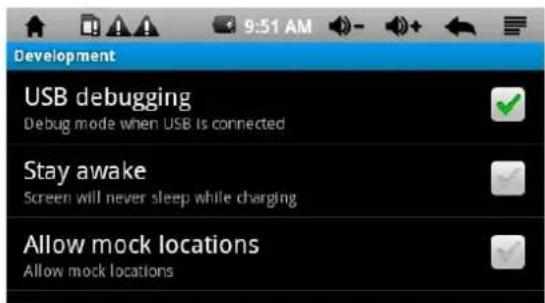
c. Development setting: It is suggested to use the default setting. Don't change it randomly; otherwise part of the functions will be not available.
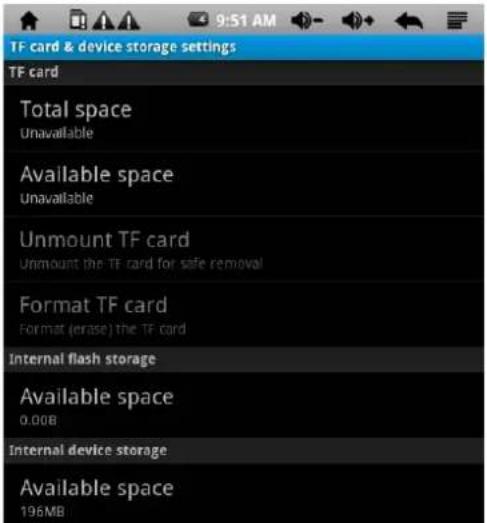
9.5.5.4 SD Card and Memory
Click the SD Card and Memory in the menu of Setting to enter relevant interface.
Check the total SD capacity, available space and formatting.
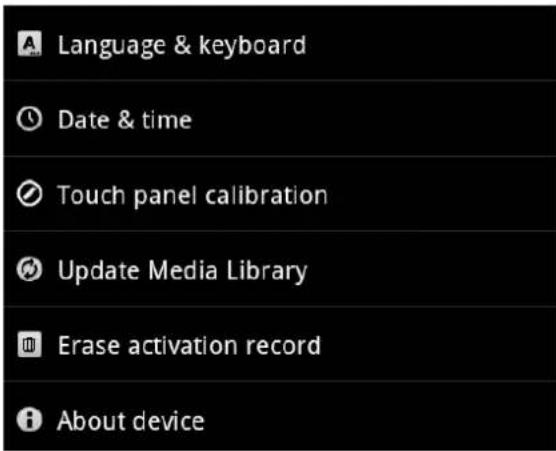
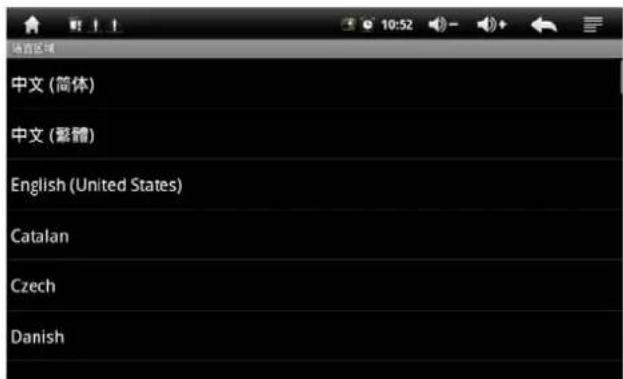
9.5.5.5 Setting of Language Keyboard
Click the Language Keyboard in the menu of Setting to enter relevant interface.
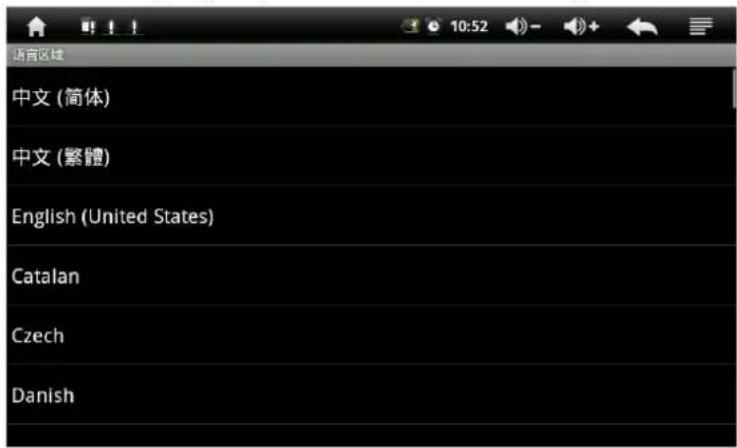
- Setting of Language Selection:
The tablet reader supports multilanguage; therefore you can set the corresponding language operation interface
according to your need. Click corresponding language option. Click ← for confirmation and then back.
● Character setting; Android full screen:
- Setting of Android keyboard:
- Setting of Google Pinyin input:
9.5.5.6 Date & Time
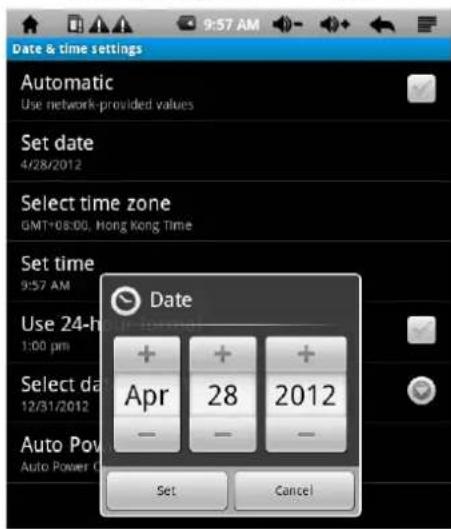
Click Date & Time in the menu of Setting. If you want to cancel the option of Auto, click the tick behind the option of Auto. Modify the date, time zone and time manually.
- Setting of date:
Click the keys of

to select the number indicating the year, month and date.
- Select time zone:
Select the time zone you are in and then click OK.
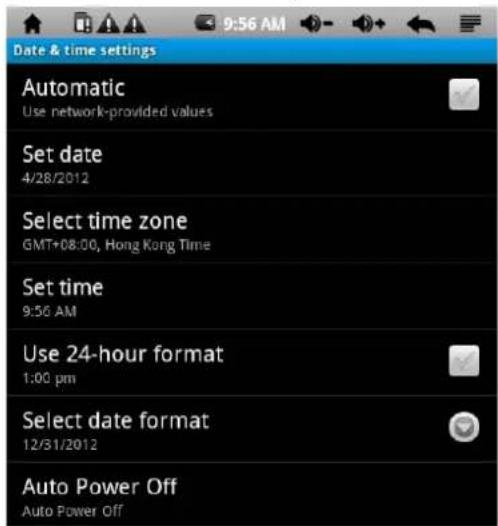
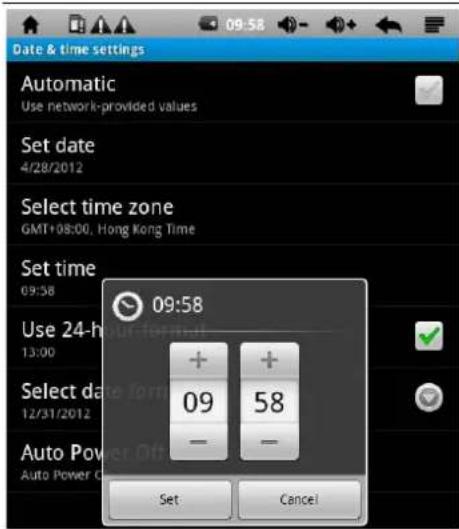
- Setting of time:
Click the keys of
to select numbers indicating hour and minute, for example 09:58.
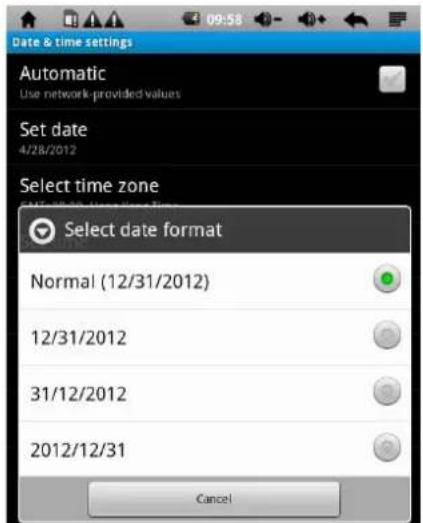
- Select the date format:
9.5.5.7 Correct the Touch Screen
Please refer to the content in Section 4.1.
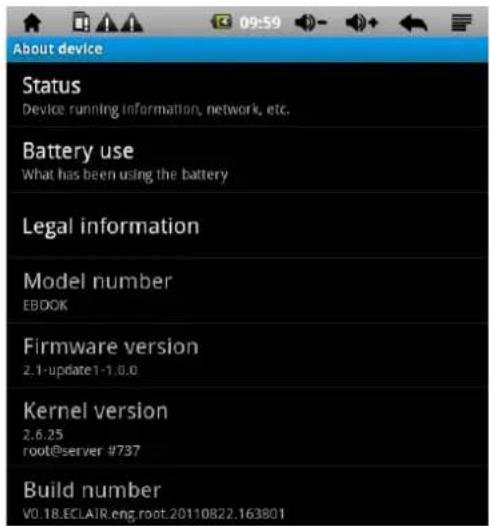
9.5.5.8 About the tablet reader
Check the power consumption, law info, tablet reader state and software version.
10 Firmware Update
Shutdown the tablet reader prior to update. Refer to the instruction of update tool. Free your hand after appearing the prompt of Find a RKAndroid Loader Rock USB Device and then click OK to update. The right info bar displays the current update info. The prompt message of OK indicates a success. Then the updated firmware can be used after the system is run.
Troubleshooting
- The tablet reader cannot be started.
If the cell power is extremely insufficient, the tablet reader cannot be started. Charge the cell by USB computer or power adapter and try to start the tablet reader with sufficient power.
◆ Press the Reset key in the top of the tablet reader and restart it to check whether it is normal.
◆ Check whether the charger is properly connected.
- The MID standby time is excessively short.
The service time of lithium cell varies depending on the temperature and usage. If the temperature is excessively high or low, the service time of the cell will be affected. It is recommended to use the tablet reader in room temperature.
Judging from the service condition, the big screen of the tablet reader consumes large amount of power. In addition the actual service time may vary due to volume increase, starting of sound field special effect and frequent operation.
- The earphone is inaudible.
◆ Check whether the volume is set to 0.
◆ Check whether the music file is damaged. Confirm by playing other music files. If the file is damaged, severe noise or staccato may occur.
- The file cannot be copied.
◆ Confirm whether the connection between the computer and the player is correct.
◆ Confirm whether the memory space of the memorizer is full.
◆ Confirm whether the USB connection is damaged.

Disposal of old electrical appliances
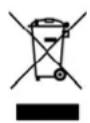
The European directive 2002/96/EC on Waste Electrical and Electronic Equipment (WEEE), requires that old household electrical appliances must not be disposed of in the normal unsorted municipal waste stream. Old appliances must be collected separately in order to optimize the recovery and recycling of the materials they contain, and reduce the impact on human health and the environment.
The crossed out “wheeled bin” symbol on the product reminds you of your obligation, that when you dispose of the appliance, it must be separately collected.
Consumers should contact their local authority or retailer for information concerning the correct disposal of their old appliance.
MAINTENEZ VOTRE APPAREIL AU SEC
5.2 ouvrir / fermer
f: Ma bibliothèque
Figure 8::
natural_image
Abstract graphic with a red circular icon and a triangular pointer, set against a gradient background (no text or symbols)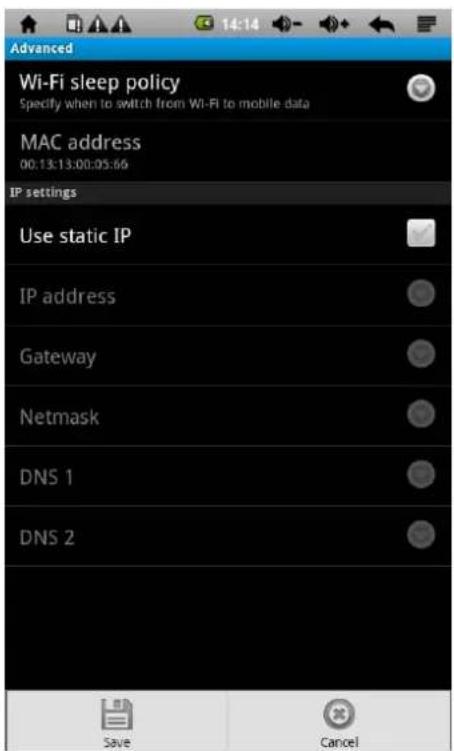

- aan/uit
- f: mijn stapels
- WIFI instelling
- wekker:
- a Media volume instelling:
- b ring-instelling
- Applicatie-instelling
- talen-toetsenbord instelling
- Firmware-update
- Safety Precautions
- Clean your Device
- SWITCH OFF IN RESTRICTED AREAS
- ROAD SAFETY COMES FIRST
- INTERFERENCE
- AUTHORISED PERSONNEL
- ACCESSORIES
- KEEP YOUR DEVICE DRY
- CHILDREN
- Precautions for use
- This mobile device conforms to guidelines for exposure to radio frequency.
- Radio Frequency Interference
- Medical Implants :
- Hearing :
- Other medical devices :
- Health Facilities :
- Blasting sites and identified areas :
- Outlook Description
- Introduction to Key Functions
- Functions
- Technical Parameters
- Quick Guidance
- Correct the Touch Screen
- ON/OFF
- Cell Management and Charging
- Use of Function Icons
- f. My Book Library
- g. Menu bar
- WIFI Setting
- Manual setting
- Weather Function (It shall be operated upon the connection of WIFI.)
- Use TF Memory Card
- Operation Details
- System Desktop - (Multimedia music/video/photo/voice function)
- Music Player
- Video
- Photo Browser
- Recording
- Explorer
- System Desktop II (E-book)
- E-book Reading
- System Desktop III (Network Application)
- Browser
- a. Inbox
- System Desktop V (Other functions)
- Calendar
- Counter
- Alarm Clock
- Cell Phone Setting
- Wireless & Network Setting
- Sound & Display Setting
- a. Media Volume
- b. Ring Setting
- Setting of Application Program
- SD Card and Memory
- Setting of Language Keyboard
- - Setting of Language Selection:
- Date & Time
- Correct the Touch Screen
- About the tablet reader
- Firmware Update
- Troubleshooting
- Disposal of old electrical appliances
- MAINTENEZ VOTRE APPAREIL AU SEC
- ouvrir / fermer
- f: Ma bibliothèque
Brand : Xiron
Model : EBKR207AU001
Category : E-reader