RDPDVD900 - Portable DVD Player Ricatech - Free user manual and instructions
Find the device manual for free RDPDVD900 Ricatech in PDF.



| Product Type | Portable DVD Player |
| Brand | Ricatech |
| Model | RDPDVD900 |
| Main Screen | TFT Screen |
| Secondary Screen | Yes, additional TFT screen with brightness and color adjustments |
| Supported Disc Formats | DVD, DVD-RW, Audio CD, MP3, WMA, MPEG4, JPEG, Kodak Picture CD |
| Memory Card Reader | SD/MMC |
| USB Port | Yes, for playing audio/video files |
| Audio/Video Outputs | Headphone jack (x2), composite audio/video output |
| Playback Functions | Play/Pause, Stop, Fast Forward/Backward, Chapter/Track Skip, Repeat, Program (20 memories), Zoom (2x-4x), Slow Motion (DVD), Time/Title Search, Multi-Angle (DVD) |
| Audio Settings | Volume +/-, Mute, Audio Language Change (DVD), Stereo/L/R Output |
| Video Settings | Brightness, Contrast, Hue, Saturation, Sharpness, TV Display Mode (Normal/PS, Normal LB, Wide), LCD Mode (4:3, 16:9) |
| Power Supply | AC adapter (input 100-240V), car adapter (cigarette lighter), built-in rechargeable battery |
| Remote Control | Yes, with dedicated buttons (Menu, Setup, Subtitles, Audio, Zoom, etc.) |
| Parental Control | Yes, with password (default 1389 for reset) |
| Screen Saver | Yes, animated DVD logo (on/off) |
| Care and Cleaning | Clean with a soft, dry cloth; do not use abrasive liquids; clean the optical lens only by a professional |
| Safety | Do not expose to water or open flames; leave 2 cm space for ventilation; use in temperate/tropical climate |
| Spare Parts and Repairability | Replacement battery (same type), AC adapter, AV cables, remote control; Ricatech after-sales service |
| Customer Service | Email: support@ricatech.com, Tel: +32 3 3265694, Website: www.ricatech.com |
Frequently Asked Questions - RDPDVD900 Ricatech
User questions about RDPDVD900 Ricatech
0 question about this device. Answer the ones you know or ask your own.
Ask a new question about this device
Download the instructions for your Portable DVD Player in PDF format for free! Find your manual RDPDVD900 - Ricatech and take your electronic device back in hand. On this page are published all the documents necessary for the use of your device. RDPDVD900 by Ricatech.
USER MANUAL RDPDVD900 Ricatech
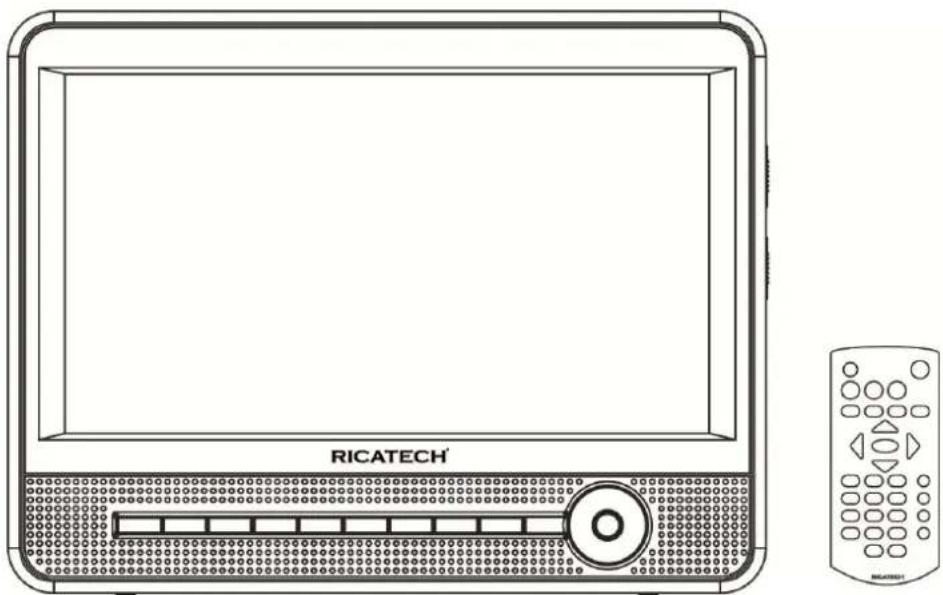
Ricatech RDPDVD900
USER MANUAL
GEBRUIKERSHANDLEIDING
MODE D'EMPLOI
BEDIENUNGSANLEITUN
USER MANUAL
READ THESE INSTRUCTIONS INCLUDED IN THIS IM THOROUGHLY PRIOR TO CONNECTING AND OPERATING.
PLEASE RETAIN THIS MANUAL IN CASE YOU MAY NEED IT FOR FUTURE REFERENCE.
THE ILLUSTRATIONS & GRAPHICS HEREIN ARE FOR REFERENCE ONLY AND SUBJECT TO CHANGE WITHOUT NOTICE.
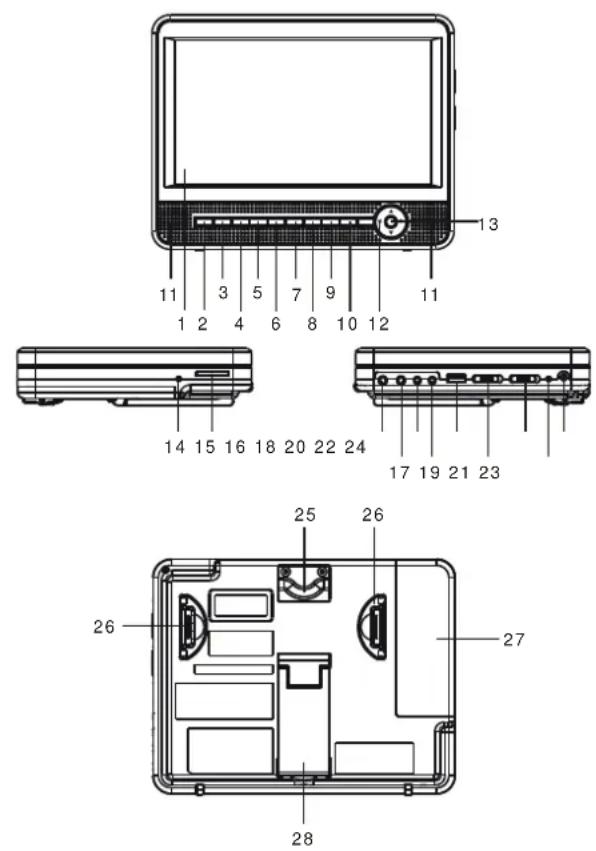
OVERVIEW OF THE DVD PLAYER:
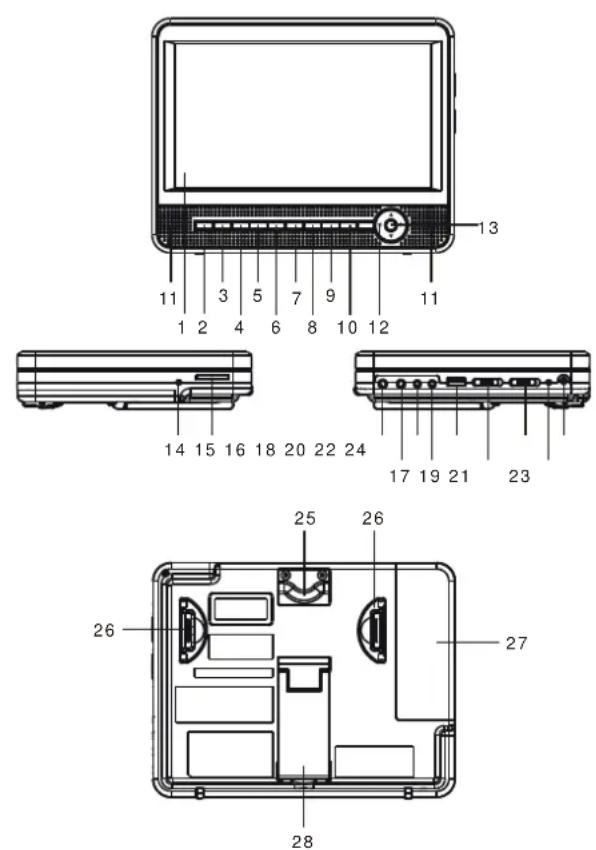
- TFT SCREEN
- REMOTE SENSOR
- PLAY/PAUSE BUTTON
- STOP&USB/SD/MMC CARD BUTTON
- PREVIOUS & FAST BACKWARD BUTTON
- NEXT & FAST FORWARD BUTTON
- SETUP BUTTON
- SUBTITLE BUTTON
- VOLUME - BUTTON
- VOLUME + BUTTON
- SPEAKER
- NAVIGATION BUTTON
- OK BUTTON
- CHARGE INDICATOR
- SD/MMC CARD SLOT
- PHONES JACK
- PHONES JACK
- VIDEO OUT JACK
- AUDIO OUT JACK
- USB PORT
- DISPLAY ON/OFF SWITCH
- POWER ON/OFF SWITCH
- POWER INDICATOR
- DC IN & CAR PLUG IN SOCKET
- HANGING STRING
- BUCKLE
- BATTERY COMPARTMENT
- BRACKET
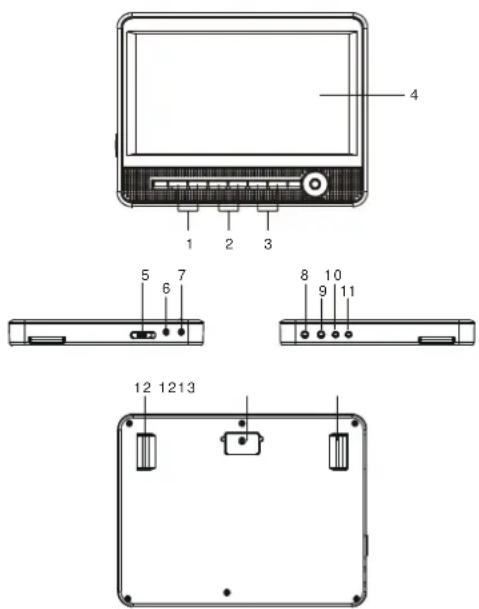
SLAVE SCREEN
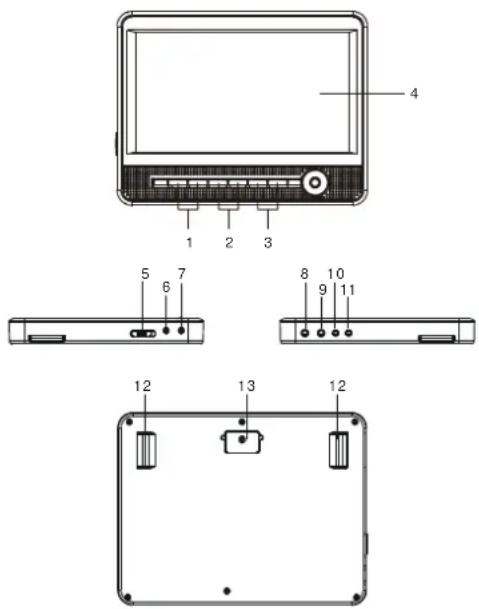
- BRIGHTNESS BUTTONS
- COLOR BUTTONS
- VOL BUTTONS
- TFT SCREEN
- POWER ON/OFF SWITCH
- DC IN SOCKET
- DC OUT SOCKET
- PHONES JACK
- PHONES JACK
- AUDIO IN SOCKET
- VIDEO IN SOCKET
- BUCKLE
- HANGING STRING
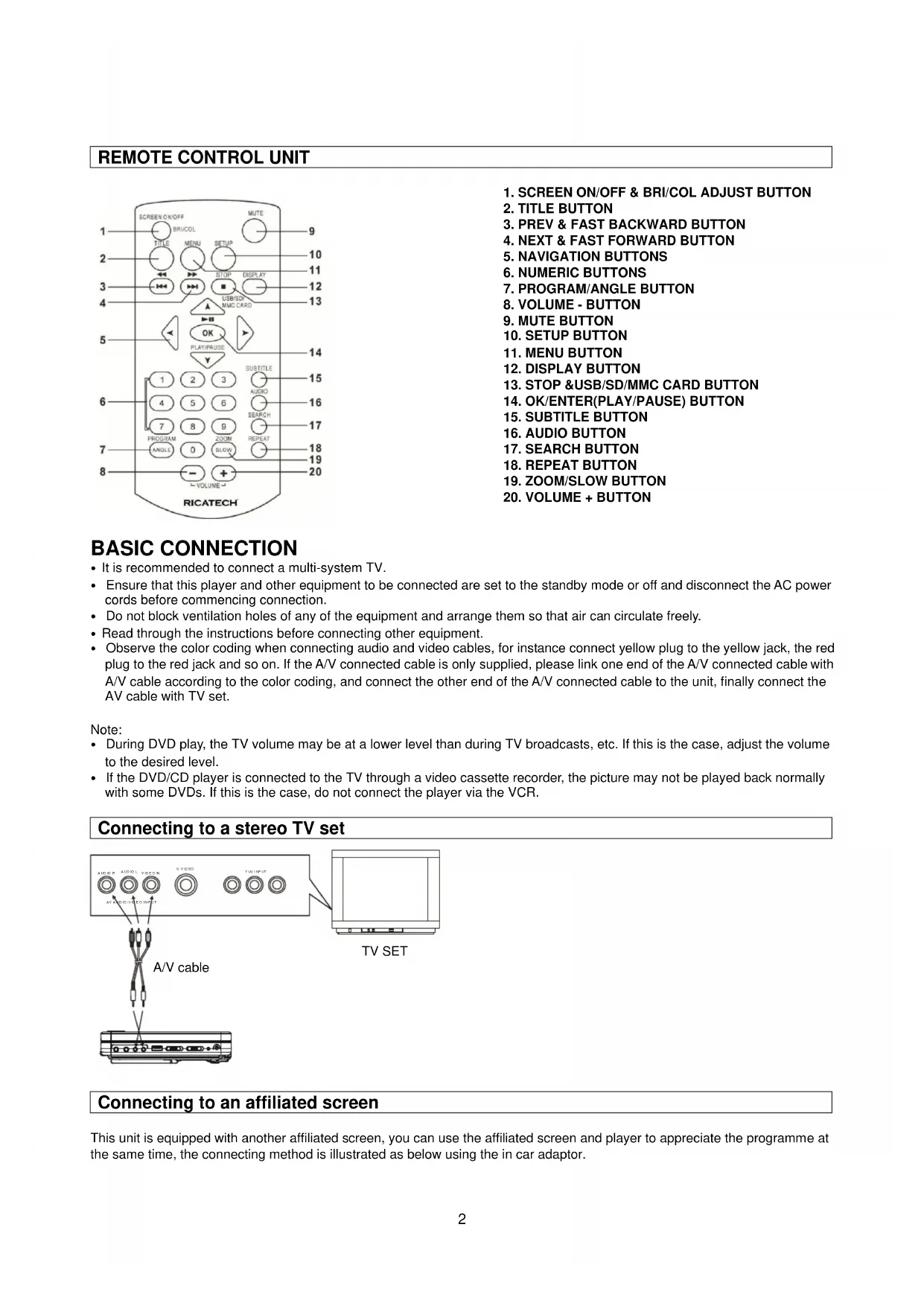
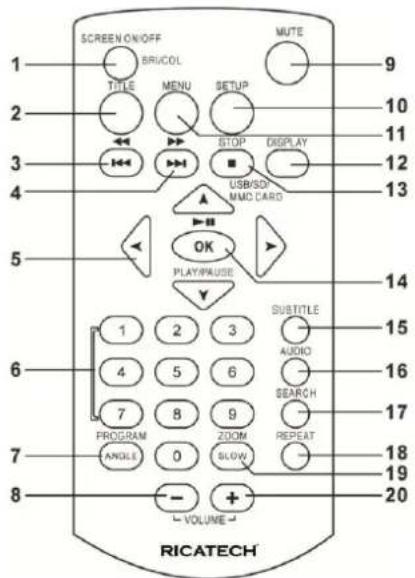
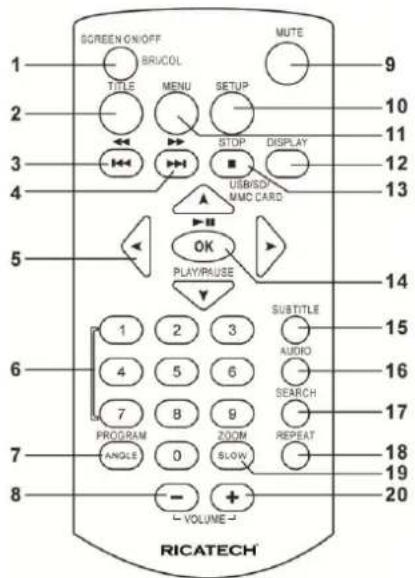
REMOTE CONTROL UNIT
-
SCREEN ON/OFF & BRI/COL ADJUST BUTTON
-
TITLE BUTTON
-
PREV & FAST BACKWARD BUTTON
-
NEXT & FAST FORWARD BUTTON
-
NAVIGATION BUTTONS
-
NUMERIC BUTTONS
-
PROGRAM/ANGLE BUTTON
-
VOLUME - BUTTON
-
MUTE BUTTON
-
SETUP BUTTON
-
MENU BUTTON
-
DISPLAY BUTTON
-
STOP &USB/SD/MMC CARD BUTTON
-
OK/ENTER(PLAY/PAUSE) BUTTON
-
SUBTITLE BUTTON
-
AUDIO BUTTON
-
SEARCH BUTTON
-
REPEAT BUTTON
-
ZOOM/SLOW BUTTON
-
VOLUME + BUTTON
BASIC CONNECTION
- It is recommended to connect a multi-system TV.
- Ensure that this player and other equipment to be connected are set to the standby mode or off and disconnect the AC power cords before commencing connection.
- Do not block ventilation holes of any of the equipment and arrange them so that air can circulate freely.
- Read through the instructions before connecting other equipment.
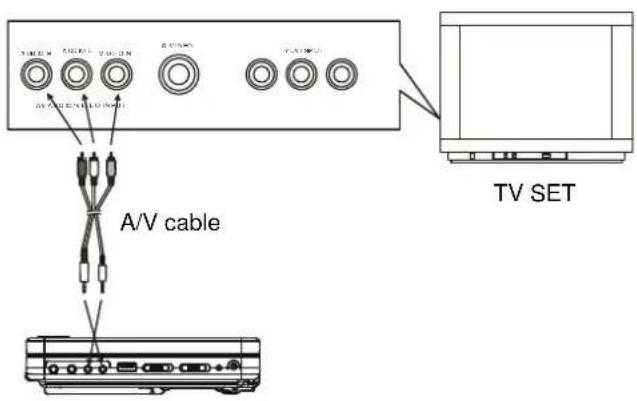
- Observe the color coding when connecting audio and video cables, for instance connect yellow plug to the yellow jack, the red plug to the red jack and so on. If the A/V connected cable is only supplied, please link one end of the A/V connected cable with A/V cable according to the color coding, and connect the other end of the A/V connected cable to the unit, finally connect the AV cable with TV set.
Note:
- During DVD play, the TV volume may be at a lower level than during TV broadcasts, etc. If this is the case, adjust the volume to the desired level.
- If the DVD/CD player is connected to the TV through a video cassette recorder, the picture may not be played back normally with some DVDs. If this is the case, do not connect the player via the VCR.
Connecting to a stereo TV set
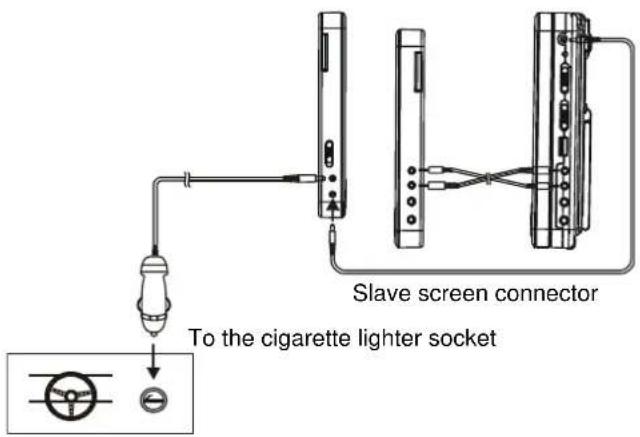
Connecting to an affiliated screen
This unit is equipped with another affiliated screen, you can use the affiliated screen and player to appreciate the programme at the same time, the connecting method is illustrated as below using the in car adaptor.
OPERATIONS
PREPARATION
Power on the TV set and select video input mode.
Power on the audio system which is connected to the player.
GET STARTED
-
Switch POWER ON/OFF button to turn on the player.
-
Lift the CD compartment to place a disc onto the disc tray.
-
Close the disc tray and the playback starts automatically.
-
When a menu screen appears on the TV, move the navigation buttons to select a preferred track number, then press PLAY/PAUSE button to start playback.
ADJUST THE VOLUME
Press VOLUME+/-button to increase or reduce the volume level.
MUTE
Press MUTE button, the audio output of the main unit will be shut off; pressing this button again or VOLUME button will resume the audio output.
SKIP AHEAD OR BACK
Press PREVIOUS or NEXT button once during play to skip a chapter (DVD) or a track (CD) ahead or backwards.
RAPID ADVANCE/REVERSE
During playback, press and hold F.BWD&PREVIOUS or F.FWD&NEXT button several times to scan the disc forward or backward at X2, X4, X8, X16,X32 normal speed.
Press PLAY/PAUSE button to resume normal play.
STOP PLAYBACK
Press STOP button during playback to stop playback; the player activates its resume function when STOP is pressed in STOP mode; press PLAY button again, playback resumes at the point it stopped previously; open the disc tray or press the STOP button one more time to clear the resume function. Press and hold this button on the remote to make change between DVD/CARD and USB.
Press and hold ZOOM/SLOW button on the remote control during playback, the Disc will be played at 1/2 normal speed at first, each time this button is pressed, the play speed becomes slower at 1/4, 1/8 and 1/16 speed.
REPEAT
Press REPEAT button during playback, it will repeat play one chapter/title or repeat all (for DVD disc), or repeat play a track or all tracks (CD), or repeat the sections between two specific points (A-B).
SEARCH FOR PREFERRED SCENE
- Press SEARCH button several times during play for you to input the item to be played.
- Input the desired number or time via the numeric buttons.
- Press OK/ENTER button to confirm and the playback from the located scene starts.
- Search menu will exit automatically no input.
ON SCREEN DISPLAY INFORMATION
When the player is in operation, press DISPLAY button continuously on the remote control, the screen will display parts of information (current disc type, title number, chapter number, playtime, audio language, audio type, subtitle language and multi
angle, etc) in a sequence.
CHANGING AUDIO SOUNDTRACK LANGUAGE (DVD DISC)
It is possible to change the audio soundtrack language to a different language from the one selected at the initial settings (This operation works only with discs on which multiple audio soundtrack languages are recorded).
Press AUDIO button during DVD disc play, the sound track language changes with the current sound track number shown on the TV screen.
NOTE: When no soundtrack languages are recorded, pressing this button will not work.
CHANGING SUBTITLE LANGUAGE (DVD ONLY)
Press SUBTITLE button during playback, the subtitle language shown on the screen will change as a response to each press;
When the desired language appears, release the button to view the subtitle in that language.
Note: this function only works on the DVDs recorded with multi-language subtitles.
RETURNING TO MAIN MENU AND PLAYING THE TITLE (DVD)
During playback, press MENU button to return to main menu. Press TITLE button to play the title.
PROGRAM PLAY (UP TO 20 MEMORIES)
- Press PROGRAM during playback to display the program menu.
- Select location(s) to be memorized via navigation buttons and then enter desired Titles/Chapters/tracks numbers via numeric buttons.
Note: Inputting leading zero is not necessary. If the chapter/title/track number is behind the cardinal 10, press the unit digit key first and then another unit digit. Some figure inputs may be useless, because it's greater figure than total title/chapter/track number on the disc. To programme another ten tracks by pressing NEXT button. Up to 20 tracks can be programmed.
Example: Track 3, press "3"
Track 12, press "1" and then "2"
Track 21, press "2" and then "1"
- To start programmed playback, scroll START on the menu and then press OK(PLAY/PAUSE) button.
- To clear all programmed item, first of all, press PROGRAM button to enter the program menu, by now it will highlight STOP on the menu, press OK(PLAY/PAUSE) button once to confirm, then EXIT on the menu will be highlighted, press OK(PLAY/PAUSE) again to clear all the programmed item.
ZOOM PLAY
Press the ZOOM key continuously to zoom in the picture by 2, 3, and 4 times.
Scroll to view the enlarged picture using Navigation buttons.
MULTI-ANGLE VIEWING (DVD ONLY)
Press and hold ANGLE button during playback to display the number of angles being played and then select a desired angle to view the scene.
Note: only the DVDs shot with multi-angle scenes have this function.
MP3/WMA/MPEG 4 PLAYBACK
- Load the MP3/WMA/MPEG 4 disc onto the disc tray and the TV screen will show all its folders after a few seconds.
- Select the folder you want by the navigation buttons and then OK/ENTER button to confirm.
- The files in this folder are displayed and select your favourable song via navigation buttons and press OK/ENTER button to start playback.
- Press NEXT and PREV button to select track directly.
- Press REPEAT button to change play mode.
KODAK PICTURE CD / JPEG CD PLAYBACK
Slide show of Kodak Picture CD after being loaded begins automatically; Folders of JPEG picture CD after being loaded are displayed on the TV screen; use the navigation buttons to select the desired folder and then press OK/ENTER button to confirm. The files in this folder are displayed and you can select your favourable pictures using the up/down navigation buttons and press OK/ENTER button to start playback. Preview of the picture will be displayed while you scroll across the filenames.
KODAK PICTURE CD/JPEG CD OPERATIONS
1. PLAY MODES
Press REPEAT button to change play mode.
2. SKIP TO NEXT/PREVIOUS PICTURE
Press NEXT button to skip to the next picture or PREV button to the previous picture.
If no key is pressed for a few seconds, it will skip to next picture automatically.
3. PICTURE ROTATIONS
Press RIGHT and LEFT navigation buttons to rotate the picture Clockwise and anti-clockwise respectively.
4. PICTURE FLIPS
Press UP NAVIGATION button to flip the picture vertically.
Press DOWN NAVIGATION button to flip the picture horizontally.
5. PICTURE ZOOM IN/OUT
Press ZOOM button continuously, the picture zooms in by 125%, 150%, 200% or zooms out by 75%, 50% the original size. Press this button once more when the picture getting 50% size to return to the normal play. If the picture is enlarged, you may use the navigation buttons to view blocked parts of the picture.
COLOR AND BRIGHTNESS ADJUSTMENT (FOR THE LCD SCREEN)
Press SCREEN ON/OFF button on the remote control to adjust the color intensity and brightness respectively.
Press and hold this button for a moment to open or close the TFT display.
EXTERNAL MEMORY MEDIA OPERATION (USB&SD/MMC CARD)
Prepare the player for External Memory media operation
-
Slide the POWER switch to ON position, plug a USB data traveller filled with Audio/video files into the USB port or Insert the SD/MMC card into the card slot, the USB or the SD/MMC card is successfully detected and read after a few seconds, at the same time, the TV screen will show all its folders.
-
You may play the files stored in the storage media much in the same way as you do the Mp3 disc.
Note: Press and hold STOP button to make change between USB/SD/MMC card and disc.
CAUTION: To avoid electronic static discharge, don't touch the USB port and card slot during playback.
INITIAL SETTINGS
Initial settings page is for you to make your preferred settings up for your player. Once the initial settings are done they are retained in the CPU of the player until otherwise modified.
COMMON PROCEDURES FOR INITIAL SETTINGS
- Press SETUP button.
- Use the navigation buttons to select the item you want to modify, press PLAY/PAUSE button to confirm, setting page with further setting items displayed shows on the TV screen. Again use navigation buttons to make changes. Press again PLAY/PAUSE button to confirm modifications.
- Use navigation buttons to switch to another setting on the main setting page.
- Press SETUP button to exit main setting page.
1. GENERAL SETUP
| GENERAL SETUP PAGE | |
| TV DIS PLAY | PS |
| LCD M ODE | W ID E |
| OSD LANG | ENG |
| SCREEN SAV ER | ON |
| EXIT SETUP | |
1.1 TV DISPLAY - it is used to select the TV scan mode, please set as per your TV set.
Options: Normal/PS
Normal LB
Wide
1.2 LCD MODE - it is used to select the LCD mode.
Options: 4:3 16:9
1.3 OSD LANG - it is used to select different On Screen Display language for different user.
1.4 SCREEN SAVER - when the player is not in used for several minutes, a running DVD logo will move across the TV screen to protect the TV screen.
Options: On: Screen saver is enabled
Off: Screen saver is disabled
2. AUDIO SETUP
| AUDIOSETUPPAGE | |
| DOWNMIX | STR |
| EXIT SETU P | |
2.1 DOWNMIX
Options: LT/RT- Left/Right mix mode
STEREO- Select this option if you don't have a 5.1 channels amplifier.
3. VIDEO QUALITY SETUP
VIDEO QUALITY SETUP
SHARPNESS
BRIG HTNESS
BRIGITNESS CONTRACT
CONTRAST
HUE
SATURATION
EX IT SETUP
3.1 SHARPNESS - to set the sharpness for display.
Options: HIGH MEDIUM LOW
3.2 BRIGHTNESS - to set the brightness for display.
3.3 CONTRAST - to set the contrast effect for display.
3.4 HUE - to set the hue for display.
3.5 SATURATION - to set the saturation for display.
4. SYSTEM SETUP
SYSTEMPAGE
TV TYPE
AUDIO
SUB TITLE
DIS C. MENU
BIG S MENO PARENTAL
PARENTAL
PA SSW OR D
DEFAULT
EX IT SETUP
4.1 TV TYPE - it is used to select the TV mode.
Please select this option as per your TV set.
4.2 AUDIO - select preferred audio language.
(DVD only - need disc software support)
4.3 SUBTITLE - select preferred subtitle language.
(DVD only - need disc software support)
4.4 DISC MENU - select preferred disc menu language.
(DVD only - need disc software support)
4.5 PARENTAL - select rating levels. You must set PASSWORD MODE ON and then enter password to enable this selection.
(DVD only - need disc software support)
4.6 PASSWORD
Option: Change
Select to change password
Procedure to change password:
1) Enter old password in the OLD PASSWORD row
2) Enter new password in the NEW PASSWORD row
3) Enter the new password again in the CONFIRM PWD row
You may reset the password if you forget the old password by using the supervisor password: 1389
4.7 DEFAULT - Reset to factory settings.
DISC HANDLING PRECAUTIONS


- Hold the disc by the edge so the surface will not be soiled with finger prints. Finger prints, dirt and scratches can cause skipping and distortion.
- Do not write on the label side with a ball-point pen or other writing utensils.
- Do not apply benzine, thinner, and liquid that prevents against static electricity.
- Be careful not to drop or bend the disc.
• Install only one disc on the disc tray. - Do not try to close the disc tray when the disc is not installed properly.
- Be sure to store the disc in its case when not in use.
TROUBLESHOOTING
If your DVD player does not seem to be functioning properly, check the items below before you contact an authorized service center.
| Symptom | Check |
| Power does not turn on or suddenly turns off. | Make sure the AC adapter is securely plugged into an AC outlet.Turn the power off and then back on. |
| No picture or sound | Check that the A/V cables are securely connected.Check that the disc is a DVD, DVD-RW or AUDIO CD.Do not use a disc that has scratches or dirt.Check that the label-side of the disc is facing up.The pick-up lens of the DVD player may be dirty. Contact the service center for lens cleaning.Check that the TV channel is set to VIDEO or AV if viewing with a TV. |
| No picture | Check that the LCD display is turned on. |
| No sound | Check that the display panel is open. If it is closed, audio will not be output to the speakers.Check the volume setting. If set to zero, turn up volume level.Check that the headphones are plugged into the PHONES socket. Speakers cannot be used with the headphones. |
| No picture and sound | Check that the battery is properly installed and AC Adapter is properly connected. |
| Distorted video or sound | Use a disc without scratches or dents. |
IMPORTANT SAFETY INSTRUCTIONS
- The apparatus shall not be exposed to dripping or splashing and that no objects filled with liquids, such as vases, shall be placed on the apparatus.
- When the mains plug or an appliance coupler is used as the disconnect device, the disconnect device shall remain readily operable. To be completely disconnected the power input, the mains plug of the apparatus or the appliance coupler shall be disconnected from the mains completely.
- No naked flame sources, such as lighted candles, should be placed on the apparatus.
- Minimum distances 2.0cm around the apparatus for sufficient ventilation. The ventilation should not be impeded by covering the ventilation openings with items, such as newspapers, table-cloths, curtains, etc.
- The use of apparatus is in tropical and/or moderate climates.
- Attention should be drawn to the environmental aspects of battery disposal.
- CAUTION: Danger of explosion if battery is incorrectly replaced. Replace only with the same or equivalent type.
- Battery shall not be exposed to excessive heat such as sunshine, fire or the like.
- Excessive sound pressure from earphones and headphones can cause hearing loss.
- The marking plate is located at the back of the apparatus.
CUSTOMER SUPPORT
You can contact the Ricatech customer service when you have a question or a problem with your Ricatech product. You can contact us by telephone and email.
For customer support by email, please sent a email to support@ricatech.com Please make sure that you mention the model number and serial number of the product, mention your name & address and describe your question or problem clearly.
Telephone
For customer support by telephone, please dial +32 3 3265694. One of our service staff will be ready to serve you.
For full procedure please visit the website of Ricatech at: www.ricatech.com
GEBRUIKERSHANDLEIDING
VOORDAT HET APPARAAT WORDT AANGESLOTEN OF BEDIEND DIENT U DE INSTRUCTIES IN DEZE
GEBRUIKERSHANDLEIDING AANDACHTIG DOOR TE LEZEN.
BEWAAR DEZE HANDLEIDING VOOR HET GEVAL U DE HANDLEIDING IN DE TOEKOMST ALS NASLAGWERK WILT GEBRUIKEN.
DE ILLUSTRATIES EN GRAPHICS IN DEZE HANDLEIDING DIENEN ALLEEN ALS REFERENTIE EN ZIJN ONDERHEVIG AAN
WIJZIGEN ZONDER VOORAFGAANDE KENNISGEVING.
OVERZICHT VAN DE DVD-SPELER:
- TFT-SCHERM
- AFSTANDSBEDIENINGSENSOR
- AFSPELEN/PAUZE-KNOP
- STOP&USB/SD/MMC KAART-KNOP
- VORIGE & SNEL ACHTERWAARTS-KNOP
- VOLGENDE & SNEL VOORWAARTS-KNOP
- SETUP-KNOP
- ONDERTITELINGKNOP
- VOLUME - KNOP
- VOLUME + KNOP
- LUIDSPREKER
- NAVIGATIEKNOP
- OK-KNOP
- LAADINDICATOR
- SD/MMC KAARTSLEUF
- HOOFD/OORTELEFOONAANSLUITING
- HOOFD/OORTELEFOONAANSLUITING
- VIDEO-OUT-AANSLUITING
- AUDIO-OUT-AANSLUITING
- USB-POORT
- DISPLAY AAN/UIT-SCHAKELAAR
- AAN/UIT-SCHAKELAAR
- AAN/UIT-INDICATOR
- DC-IN & INGANG AUTOSTEKKER
- OPHANGKOORD
- GESP
- BATTERIJVAK
- BEUGEL
SLAVE SCHERM
- HELDERHEIDKNOPPEN
- KLEURKNOPPEN
- VOLUMEKNOPPEN
- TFT-SCHERM
- AAN/UIT-SCHAKELAAR
- DC-IN-INGANG
- DC-OUT-INGANG
- HOOFD/OORTELEFOONAANSLUITING
- HOOFD/OORTELEFOONAANSLUITING
- AUDIO-IN-INGANG
- VIDEO-IN-INGANG
- GESP
- OPHANGKOORD
AFSTANDSBEDIENING
- SCHERM AAN/UIT & HELD/KLR-INSTELKNOP
- TITELKNOP
- VOR & SNEL ACHTERWAARTS KNOP
- VOLG & SNEL VOORWAARTS KNOP
- NAVIGATIEKNOPPEN
- NUMERIEKE KNOPPEN
- PROGRAMMA-/KIKHOEKKNOP
- VOLUME - KNOP
- DEMPEN-KNOP
- SETUP-KNOP
- MENUKNOP
- DISPLAY-KNOP
- STOP &USB/SD/MMC KAART-KNOP
- OK/ENTER(AFSPELEN/PAUZE)-KNOP
- ONDERTITELINGSKNOP
- AUDIOKNOP
- ZOEKEN-KNOP
- HERHALEN-KNOP
- ZOOM/SLOW-KNOP
- VOLUME + KNOP
BASISAANSLUITING
| TV D IS P LAY | PS |
| LCD M ODE | W IDE |
| OSD LAN G | ENG |
| SCREEN S AVER | O N |
| EXIT SETUP |
Opties: Aan: Screensaver is ingeschakeld
2.1 DOWNMIX
Opties: L/R- Links/Rechts mixstand
3.1 SCHERPTE – om de scherpte van de display in te stellen.
Opties: HIGH MEDIUM LOW
3.2 HELDERHEID – om de helderheid van de display in te stellen.
PASSER AU SUIVANT OU AU PRÉCÉDENT
3. ROTATIONS D'IMAGES
| TV DISPLAY | P S |
| LCD M ODE | W IDE |
| OSD LANG | ENG |
| SCRE EN SAVER | O N |
| EXIT SETUP |
| TV DISPLAY | PS |
| LCD M ODE | W IDE |
| OSD LANG | ENG |
| SCREEN SAVER | O N |
| EXIT SETUP |
| SYSTEM PAGE |
| TV TYP E |
| AUDIO |
| SUBTITLE |
| DIS C M ENU |
| PA R ENTAL |
| PA SSW OR D |
| DEFA U LT |
| EXIT SE TUP |




- USER MANUAL
- REMOTE CONTROL UNIT
- BASIC CONNECTION
- NOTE
- CONNECTING TO A STEREO TV SET
- CONNECTING TO AN AFFILIATED SCREEN
- OPERATIONS
- PREPARATION
- GET STARTED
- ADJUST THE VOLUME
- MUTE
- SKIP AHEAD OR BACK
- RAPID ADVANCE/REVERSE
- STOP PLAYBACK
- REPEAT
- SEARCH FOR PREFERRED SCENE
- ON SCREEN DISPLAY INFORMATION
- CHANGING AUDIO SOUNDTRACK LANGUAGE (DVD DISC)
- CHANGING SUBTITLE LANGUAGE (DVD ONLY)
- RETURNING TO MAIN MENU AND PLAYING THE TITLE (DVD)
- PROGRAM PLAY (UP TO 20 MEMORIES)
- ZOOM PLAY
- MULTI-ANGLE VIEWING (DVD ONLY)
- MP3/WMA/MPEG 4 PLAYBACK
- KODAK PICTURE CD / JPEG CD PLAYBACK
- KODAK PICTURE CD/JPEG CD OPERATIONS
- PLAY MODES
- SKIP TO NEXT/PREVIOUS PICTURE
- PICTURE ROTATIONS
- PICTURE FLIPS
- PICTURE ZOOM IN/OUT
- COLOR AND BRIGHTNESS ADJUSTMENT (FOR THE LCD SCREEN)
- EXTERNAL MEMORY MEDIA OPERATION (USB&SD/MMC CARD)
- INITIAL SETTINGS
- COMMON PROCEDURES FOR INITIAL SETTINGS
- GENERAL SETUP
- AUDIO SETUP
- 2.1 DOWNMIX
- VIDEO QUALITY SETUP
- SYSTEM SETUP
- SYSTEMPAGE
- 4.6 PASSWORD
- DISC HANDLING PRECAUTIONS
- TROUBLESHOOTING
- IMPORTANT SAFETY INSTRUCTIONS
- CUSTOMER SUPPORT
- TELEPHONE
- GEBRUIKERSHANDLEIDING
- AFSTANDSBEDIENING
- BASISAANSLUITING
- PASSER AU SUIVANT OU AU PRÉCÉDENT
- ROTATIONS D'IMAGES
Brand : Ricatech
Model : RDPDVD900
Category : Portable DVD Player