HDLCDVD199 - TV SANSUI - Free user manual and instructions
Find the device manual for free HDLCDVD199 SANSUI in PDF.


| Product Type | LCD TV with built-in DVD player |
| Brand | Sansui |
| Model | HDLCDVD199 |
| Screen Size | 47.0 cm (19-inch class, diagonal 18.50 inches) |
| Resolution | 1366 x 768 pixels |
| Panel Type | TFT LCD color |
| Power Supply | 120 V AC, 60 Hz |
| Power Consumption (On) | 38 W |
| Power Consumption (Standby) | 0.8 W |
| Weight | 4.2 kg |
| Dimensions (W x H x D) | 472 x 362 x 174 mm |
| TV Functions | Built-in digital tuner, sleep timer (up to 120 min), V-Chip, closed captioning, adjustable aspect ratio |
| DVD Player Functions | Plays DVD, CD, MP3, WMA, JPEG; fast forward/slow motion, repeat, zoom, program play |
| Inputs | Composite video, S-Video, Component (Y/Pb/Pr), HDMI, PC VGA, RF antenna |
| Outputs | Coaxial digital audio, headphone |
| Speakers | 2 x 1.5 W |
| TV System | NTSC |
| Operating Temperature | 5°C to 40°C |
| Operating Humidity | Less than 80% |
| Cleaning | Dry, clean cloth; do not use liquid or aerosol cleaners |
| Safety | Do not expose to rain or moisture; do not open the cabinet (laser risk); use the supplied power cord |
Frequently Asked Questions - HDLCDVD199 SANSUI
User questions about HDLCDVD199 SANSUI
0 question about this device. Answer the ones you know or ask your own.
Ask a new question about this device
Download the instructions for your TV in PDF format for free! Find your manual HDLCDVD199 - SANSUI and take your electronic device back in hand. On this page are published all the documents necessary for the use of your device. HDLCDVD199 by SANSUI.
USER MANUAL HDLCDVD199 SANSUI
natural_image
Line drawing of a flat-screen computer monitor with a remote control unit beside it (no text or symbols)ATTENTION
ATTENTION
If you purchase a universal remote control from your local retailer, please contact the remote manufacturer for the required programming code.
When shipped from the factory, the Signal Type option is set to the "Cable" (Cable Television) mode.
If not using Cable TV, set this menu option to the "Air" position.
IF CONTACT WITH CUSTOMER SERVICE IS REQUIRED
PLEASE HAVE THE MODEL NUMBER READY PRIOR TO THE CALL
S'IL FAUT CONTACTER LE SERVICE CLIENTÈLE, PRENEZ SOIN D'ÊTRE MUNI
DU NUMÉRO DE MODÈLE AVANT D'APPELER.
CUSTOMER SERVICE - 1-800-289-0980
SERVICE/SERVICE CLIENTÈLE: 1-800-289-0980
ORION WEBSITE
SITE WEB ORION
FOR INFORMATION ON OUR OTHER PRODUCTS, PLEASE VISIT OUR WEBSITE AT
POUR OBTENIR DES INFORMATIONS SUR NOS AUTRES PRODUITS, VEUILLEZ VISITER NOTRE SITE WEB:
www.orionsalesinc.com
ENGLISH
CAUTION
RISK OF ELECTRIC SHOCK
DO NOT OPEN

CAUTION: TO REDUCE THE RISK OF ELECTRIC SHOCK, DO NOT REMOVE COVER (OR BACK). NO USER-SERVICEABLE PARTS INSIDE. REFER SERVICING TO QUALIFIED SERVICE PERSONNEL.
The lightning flash with arrowhead symbol, within an equilateral triangle is intended to alert the user to the presence of uninsulated dangerous voltage within the product's enclosure that may be of sufficient magnitude to constitute a risk of electric shock.

The exclamation point within an equilateral triangle is intended to alert the user to the presence of important operating and maintenance (servicing) instructions in the literature accompanying the appliance.
WARNING: TO PREVENT FIRE OR SHOCK HAZARD, DO NOT EXPOSE THIS APPLIANCE TO RAIN OR MOISTURE.
TO PREVENT THE SPREAD OF FIRE, KEEP CANDLES OR OPEN FLAMES AWAY FROM THIS PRODUCT AT TIMES.
CAUTION: TO PREVENT ELECTRIC SHOCK, DO NOT USE THIS POLARIZED PLUG WITH AN EXTENSION CORD, RECEPTACLE OR OTHER OUTLET UNLESS THE BLADES CAN BE FULLY INSERTED TO PREVENT BLADE EXPOSURE.
WARNING: This equipment has been tested and found to comply with the limits for a Class B digital device, pursuant to Part 15 of the FCC Rules. These limits are designed to provide reasonable protection against harmful interference in a residential installation. This equipment generates, uses and can radiate radio frequency energy and, if not installed and used in accordance with the instructions, may cause harmful interference to radio communications.
However, there is no guarantee that interference will not occur in a particular installation. If this equipment does cause harmful interference to radio or television reception, which can be determined by turning the equipment off and on, the user is encouraged to try to correct the interference by one or more of the following measures:
- Reorient or relocate the receiving antenna.
- Increase the separation between the equipment and receiver.
- Connect the equipment into an outlet on a circuit different from that to which the receiver is connected.
- Consult the dealer or an experienced radio/TV technician for help.
CAUTION: Changes or modifications not expressly approved by the partly responsible for compliance with the FCC Rules could void the user's authority to operate this equipment.
CAUTION:
THIS DIGITAL VIDEO PLAYER EMPLOYS A LASER SYSTEM.
TO ENSURE PROPER USE OF THIS PRODUCT, PLEASE READ THIS OWNER'S MANUAL CAREFULLY AND RETAIN FOR FUTURE REFERENCE. SHOULD THE UNIT REQUIRE MAINTENANCE, CONTACT AN AUTHORIZED SERVICE LOCATION-SEE SERVICE PROCEDURE.
USE OF CONTROLS, ADJUSTMENTS OR THE PERFORMANCE OF PROCEDURES OTHER THAN THOSE SPECIFIED HEREIN MAY RESULT IN HAZARDOUS RADIATION EXPOSURE.
TO PREVENT DIRECT EXPOSURE TO THE LASER BEAM, DO NOT TRY TO OPEN THE ENCLOSURE. RADIATION MAY BE PRESENT WHEN THE ENCLOSURE IS OPENED. DO NOT STARE INTO THE BEAM.
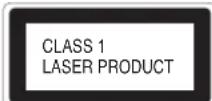
Location of the required Marking
The rating sheet and the safety caution are on the rear of the unit.
CERTIFICATION: COMPLIES WITH FDA RADIATION PERFORMANCE STANDARDS, 21 CFR SUBCHAPTER J.
Complies with FDA performance standards for laser products except for deviations pursuant to Laser Notice No. 50, dated June 24, 2007.
The lamp(s) within this product contain mercury.
Disposal should be in compliance with local, state or federal laws.
Record the model number and serial number.
Model number ____ Serial number ____
1) Read these instructions.
2) Keep these instructions.
3) Heed all warnings.
4) Follow all instructions.
5) Do not use this apparatus near water.
6) Clean only with dry cloth.
7) Do not block any ventilation openings. Install in accordance with the manufacturer's instructions.
8) Do not install near any heat sources such as radiators, heat registers, stoves, or other apparatus (including amplifiers) that produce heat.
9) Do not defeat the safety purpose of the polarized or grounding-type plug. A polarized plug has two blades with one wider than the other. A grounding type plug has two blades and a third grounding prong. The wide blade or the third prong are provided for your safety. If the provided plug does not fit into your outlet, consult an electrician for replacement of the obsolete outlet.
10) Protect the power cord from being walked on or pinched particularly at plugs, convenience receptacles, and the point where they exit from the apparatus.
11) Only use attachments/accessories specified by the manufacturer.
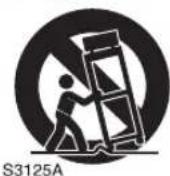
12) Use only with cart, stand, tripod, bracket, or table specified by the manufacturer, or sold with the apparatus. When a cart is used, use caution when moving the cart/apparatus combination to avoid injury from tip-over.
13) Unplug this apparatus during lightning storms or when unused for long periods of time.
14) Refer all servicing to qualified service personnel. Servicing is required when the apparatus has been damaged in any way, such as power-supply cord or plug is damaged, liquid has been spilled or objects have fallen into the apparatus, the apparatus has been exposed to rain or moisture, does not operate normally, or has been dropped.
15) Apparatus should not be exposed to dripping or splashing, and objects filled with liquids, such as vases, should not be placed on the apparatus.
16) An outside antenna system should not be located in the vicinity of overhead power lines or other electric light or power circuits, or where it can fall into such power lines or circuits. When installing an outside antenna system, extreme care should be taken to keep from touching such power lines or circuits, as contact with them might be fatal.
17) Do not overload wall outlets and extension cords, as this can result in a risk of fire or electric shock.
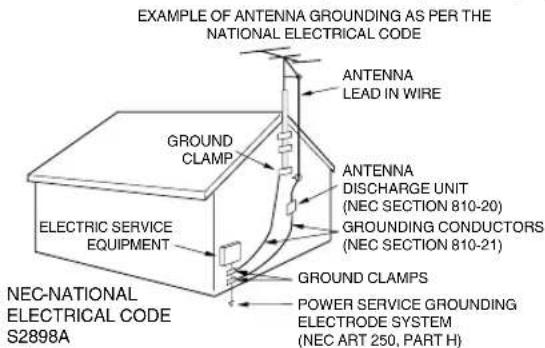
18) Do not push objects through any openings in this unit, as they may touch dangerous voltage points or short out parts that could result in fire or electric shock. Never spill or spray any type of liquid into the unit. EXAMPLE OF ANTENNA GROUNDING AS PER THE
19) If an outside antenna or cable system is connected to the unit, be sure the antenna or cable system is grounded to provide some protection against voltage surges and built-up static charges, Section 810 of the National Electrical Code, ANSI/NFPA 70, provides information with respect to proper grounding of the mast and supporting structure, grounding of the lead-in wire to an antenna discharge unit, size of grounding conductors, location of antenna discharge unit, connection to grounding electrodes, and requirements for the
20) When replacement parts are required, be sure the service technician uses replacement parts specified by the manufacturer or those that have the same characteristics as the original part. Unauthorized substitutions may result in fire, electric shock or other hazards.
21) Upon completion of any service or repairs to this unit, ask the service technician to perform safety checks to determine that the unit is in proper operating condition.
22) Keep your fingers clear of the disc slot as it is closing. It may cause injury.
IMPORTANT SAFETY INSTRUCTIONS (continued)
23) When you connect the product to other equipment, turn off the power and unplug all of the equipment from the wall outlet. Failure to do so may cause an electric shock and serious personal injury. Read the owner's manual of the other equipment carefully and follow the instructions when making any connections.
24) Reduce the volume to the minimum level before you turn on the product. Otherwise, sudden high volume sound may cause hearing or speaker damage.
25) Do not allow the product to output distorted sound for an extended period of time. It may cause speaker overheating and fire.
26) When you use the headphones, keep the volume at a moderate level. If you use the headphones continuously with high volume sound, it may cause hearing damage.
27) Do not look into the opening of the disc slot or ventilation opening of the product to see the source of the laser beam. It may cause eye damage.
28) Do not use a cracked, deformed, or repaired disc. These discs are easily broken and may cause serious personal injury and product malfunction.
29) This reminder is provided to call the cable TV system installer's attention to Article 820-40 of the NEC that provides guidelines for proper grounding and, in particular, specifies that the cable ground shall be connected to the grounding system of the building, as close to the point of cable entry as practical.
30) The socket-outlet must be installed near the unit and easily accessible.
CONDENSATION
Moisture will form in the operating section of the player if the player is brought from cool surroundings into a warm room or if the temperature of the room rises suddenly. When this happens, player's performance will be impaired. To prevent this, let the player stand in its new surroundings for about an hour before switching it on, or make sure that the room temperature rises gradually.
Condensation may also form during the summer if the player is exposed to the breeze from an air conditioner. In such cases, change the location of the player.
HOW TO HANDLE THE LCD PANEL
- Do not press hard or jolt the LCD panel. It may cause the LCD panel glass to break and injury may occur.
- If the LCD panel is broken, make absolutely sure that you do not touch the liquid in the panel. This may cause skin inflammation.
If the liquid gets in your mouth, immediately gargle and consult with your doctor. Also, if the liquid gets in your eyes or touches your skin, consult with your doctor after rinsing for at least 15 minutes or longer in clean water.
CHILD SAFETY:
It Makes A Difference How and Where You Use Your Flat Panel Display
Congratulations on your purchase! As you enjoy your new product, please keep these safety tips in mind:
THE ISSUE
The home theater entertainment experience is a growing trend and larger flat panel displays are popular purchases. However, flat panel displays are not always supported on the proper stands or installed according to the manufacturer's recommendations.
Flat panel displays that are inappropriately situated on dressers, bookcases, shelves, desks, speakers, chests or carts may fall over and cause injury.
THIS MANUFACTURER CARES!
The consumer electronics industry is committed to making home entertainment enjoyable and safe.
TUNE INTO SAFETY
One size does NOT fit all. Follow the manufacturer's recommendations for the safe installation and use of your flat panel display.
Carefully read and understand all enclosed instructions for proper use of this product.
Don't allow children to climb on or play with furniture and television sets.
Don't place flat panel displays on furniture that can easily be used as steps, such as a chest of drawers.
Remember that children can become excited while watching a program, especially on a “larger than life” flat panel display. Care should be taken to place or install the display where it cannot be pushed, pulled over, or knocked down.
Care should be taken to route all cords and cables connected to the flat panel display so that they cannot be pulled or grabbed by curious children.
WALL MOUNTING: IF YOU DECIDE TO WALL MOUNT YOUR FLAT PANEL DISPLAY, ALWAYS:
Use a mount that has been recommended by the display manufacturer and/or listed by an independent laboratory (such as UL, CSA, ETL).
Follow all instructions supplied by the display and wall mount manufacturers.
If you have any doubts about your ability to safely install your flat panel display, contact your retailer about professional installation.
Make sure that the wall where you are mounting the display is appropriate to support the weight of the unit/product and wall mount. If you are unsure, contact a professional installer.
A minimum of two people are required for installation. Flat panel displays can be heavy.
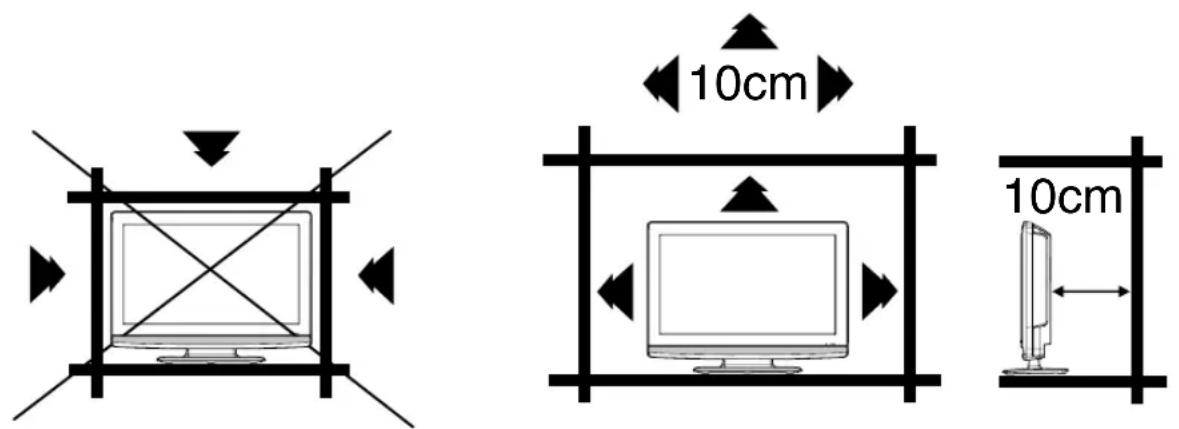
The unit emits heat when in operation. Do not place any covers or blankets on the unit, this may cause overheating. Do not block ventilation holes, or set up near radiators. Do not place in direct sunshine. When placing on a shelf leave 10 cm (4 inches) free space around the entire unit.
Notes when mounting the LCD TV/DVD on a wall
If the unit is to be mounted on the wall, contact the retailer where you purchased the LCD TV/DVD for advice, and have the equipment professionally installed. Incomplete or improper installation may cause injury to you, and/or damage to the LCD TV/DVD.
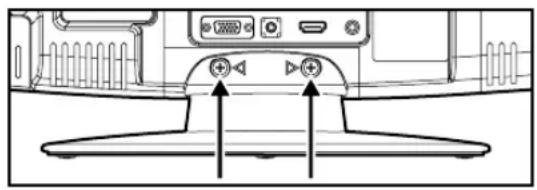
To hang the television on a wall, remove these screws and then remove a stand. Before performing work spread cushioning over the base area to lay the TV on.
natural_image
Diagram of a device rear panel with two directional arrows indicating movement or force (no text or symbols present)IMPORTANT NOTICE
Possible Adverse Effects on LCD Panel: If a fixed (non-moving) pattern remains on the LCD Panel for long periods of time, the image can become permanently engrained in the LCD Panel and cause subtle but permanent ghost images. This type of damage is NOT COVERED BY YOUR WARRANTY. Never leave your LCD Panel on for long periods of time while it is displaying the following formats or images:
- Fixed Images, such as stock tickers, video game patterns, TV station logos, and websites.
- Special Formats that do not use the entire screen. For example, viewing letterbox style (16:9) media on a normal (4:3) display (black bars at top and bottom of screen); or viewing normal style (4:3) media on a widescreen (16:9) display (black bars on left and right sides of screen).
The following symptoms are not signs of malfunction but technical limitation. Therefore we disclaim any responsibility for these symptoms.
- LCD Panels are manufactured using an extremely high level of precision technology, however sometimes parts of the screen may be missing picture elements or have luminous spots.
This is not a sign of a malfunction. - Do not install the LCD Panel near electronic equipment that produces electromagnetic waves. Some equipment placed too near this unit may cause interference.
- Effect on infrared devices – There may be interference while using infrared devices such as infrared cordless headphones.
NOTE:
- Unplug the AC cord from the AC INPUT terminal.
- Before beginning this process, assure that TV is laid on a clean, safe, and cushioned space to avoid any damage to the unit.
- Do not touch or press the TV-screen, glass might break under pressure.
Place the TV on its back onto a table.
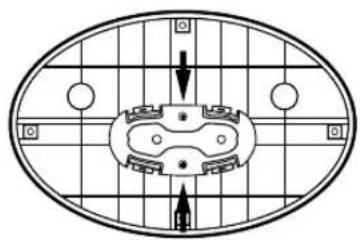
Align the stand's bottom-plate (supplied) as seen here.
It will fit in only one direction.
Press it in direction of arrow until you hear a 'click'.
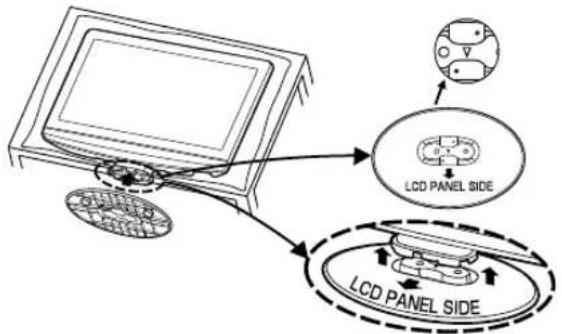
Please assure the “▼” mark on the stand is facing the LCD panel side.
natural_image
Top-down schematic of a vehicle or mechanical component with grid lines and directional arrows (no text or symbols)Finally secure the bottom-plate with 2 screws (supplied).
How to remove the stand
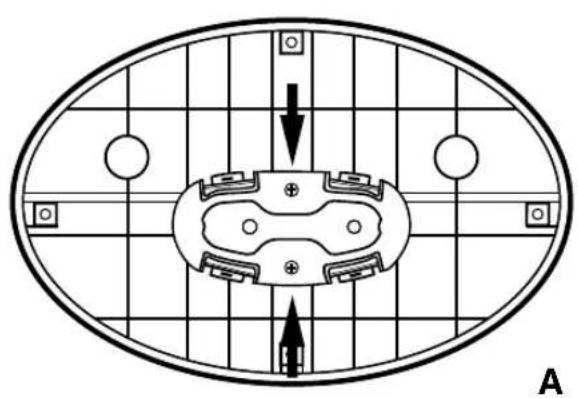
When you transport this product, remove the stand and pack flat against the back of the unit in the carton. To remove the stand, remove the two (2) screws from the bottom (see A), and hold the stand on a fl at surface lifting one side of the unit until stand disconnects (see B).
natural_image
Top-down schematic of a circular device with internal components and directional arrows, no text or symbols present.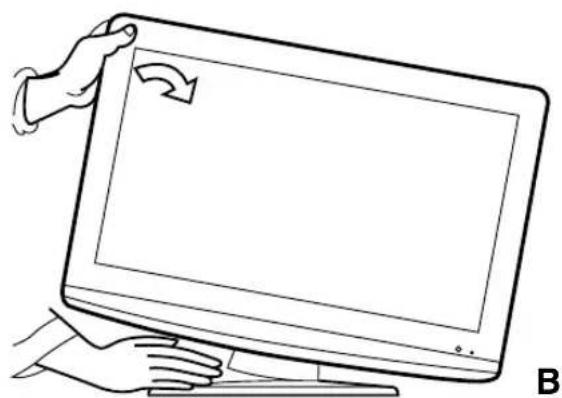
natural_image
Line drawing of a hand holding a computer monitor with a scroll arrow, no text or symbols presentFor wall mounting, the base must be removed. To disconnect the base/stand remove the two (2) screws from the back (see page 5).
LCD color TV With DVD/CD player
Unique space saving design combines a 19" LCD color TV and a DVD/CD player.
A DVD disc has much more capacity, but is the same size as an audio CD disc. The Picture/Audio quality of a DVD exceeds other software. The picture quality is higher than Super VHS video cassettes. The audio quality is higher than an audio CD. The DVD also has special options; audio language selection, subtitle language selection, or multi-angle, etc.
The DVD PLAYER can play back both audio CDs and MP3/WMA/JPEG CDs.
Compatible with a wide range of DVD audio outputs
Digital Audio Jack (Coaxial)
- When a component with a built-in Dolby Digital decoder is connected, Dolby Digital sound can produce the effect of being in a movie theater or a concert hall.
- Surround standard is different from Dolby Digital. This format is already in use in many theaters. By connecting this unit to a DTS decoder or an AV amplifier with a built-in DTS decoder, the DTS audio of DVD discs recorded in this format can be enjoyed. However, audio will not be output from the analog audio output jacks.
- By connecting this unit to an AV amplifier with a built-in MPEG decoder, the MPEG audio of DVD discs recorded in this format can be enjoyed.
- The Linear PCM sound of a 48 kHz/24 bit through 96 kHz/24 bit exceeds audio CD sound.
Convenience Features
Direct selection of your desired scenes using Title/Chapter/Time/Track - You can play back from the desired scene.
Recalling Up to 3 Scenes - You can program up to 3 scenes in memory and recall the marked scenes.
Frame Advance - The PAUSE/ STILL moves one frame at a time.
Slow Motion - The SLOW moves you back and forth through the program by 4 steps of 1/7-1/2 times.
Repeat Playback - You can repeat chapter, track, title, sides or material between two selected points.
Program Playback (Audio CD/MP3/WMA/JPEG CD) - You can play back tracks in programmed sequences.
Zoom - You can zoom in the selected subject on the screen during playback.
Note: Make sure that discs are suitable for the following functions.
Multi-Language - Maximum 32 language subtitles and maximum 8 language soundtracks can be played back for movies or programs.
Multi-Angle - Pictures of Sports or a Live Concert are recorded with many cameras. When you play such a disc, you can change the angles during playback.
Parental Control - You can limit the play back of scenes or sounds of DVD discs that have a rating level encoded on the disc.
Video Aspect Ratio - You can change the aspect ratio of the screen for your monitor.
TV Features
Integrated Digital Tuner - You can view digital broadcasts without using a Digital TV Set-Top Box.
Closed Caption Decoder With Full Text Mode - Displays text captions or full screen text on the screen for hearing impaired viewers.
Picture Adjustments Using The Remote Control - The On-Screen display allows precise remote control adjustment of BRIGHTNESS, CONTRAST, COLOR, TINT and SHARPNESS.
Programmable TV Sleep Timer - Operable from the remote control, the TV can be programmed for up to 120 minutes to turn off automatically.
On-Screen 3 Language Display - You can select one of 3 languages, English, Spanish or French for on-screen programming.
V-Chip - The V-Chip function can read the rating of a TV program or movie content if the program is encoded with this information. V-chip will allow you to set a restriction level.
* trademark of DVD Format/Logo Licensing Corporation.
* Manufactured under license from Dolby Laboratories. Dolby and the double-D symbol are trademarks of Dolby Laboratories.
* Manufactured under license under U.S. Patent #: 5,451,942 & other U.S. and worldwide patents issued & pending. DTS and DTS Digital Out are registered trademarks and the DTS logos and Symbol are trademarks of DTS, Inc.© 1996-2008 DTS, Inc. All Rights Reserved.
* HDMI, the HDMI logo and High-Definition Multimedia Interface are trademarks or registered trademarks of HDMI Licensing LLC.
Before using your unit
IMPORTANT SAFETY INSTRUCTIONS .....3
SAFETY PRECAUTIONS ....5
IMPORTANT NOTICE 5
How to attach the stand 6
How to remove the stand 6
Features......7
Contents 8
Disc....9
Location of controls 10
Remote control 11
Power source 12
Antenna connections ....13
Cable TV connections 14
TV operation
Starting setup ....15
TV operation ....15
Quick guide for menu operation 16
Convenience functions ......17
Memorizing channels 18
Checking the digital signal strength .....19
Labeling channels 19
Labeling video inputs 19
Setting the V-Chip 20
Closed Caption 21
CC advanced ....21
Setting the picture size 22
DVD operation
Preparation....23
Status display of disc 23
Playback procedure 23
Special playback 24
MP3/WMA/JPEG and Audio CD playback .....24
Program playback (CD) 25
Repeat playback (CD)......26
Random playback (CD) 26
Zooming....26
Locating desired scene 26
Repeat playback 27
Marking desired scenes 27
Changing soundtrack language 27
Subtitles....28
Changing angles 28
Title selection 28
DVD menu 28
Quick guide for DVD menu operation 28
Function Setup 29
Parental control 30
Temporary disabling of rating level
by DVD disc 30
Additional information
Language code list 31
Connections to other equipment 32
Reception disturbances 35
Problems and troubleshooting 36
Specifications 38
limited WARRANTY 39
playable discs
| Disc type and logo mark content | ||
| DVD Video |  | Audio+Video(movingpictures) |
 | ||
| CD-DA |  | Audio |
| The following discs are also available.• DVD-R/RW discs of DVD video format.• CD-R/RW discs of MP3/WMA/JPEG. | ||
Region Number
Region number (Regional restriction code) is built-in to the unit and DVD video discs. Region number "1" or "ALL" of DVD video discs can be used on this unit.
CAUTION:
- Only the left types of discs can be played on this unit. DVD-ROM, CD-ROM, SVCD, CVD, VCD, etc. cannot be played.
- 8cm discs can be played directly. If an 8cm disc adapter is used it will cause errors.
- If you insert an irregular shaped disc, it may get stuck and cause a malfunction.
- The use of a ring protector or other disc accessories will cause errors.
- This unit is to be used exclusively with the NTSC color system. PAL and SECAM system discs cannot be used with this unit.
- Some CD-R/RWs and DVD-R/RW cannot be played back depending on the recording conditions.


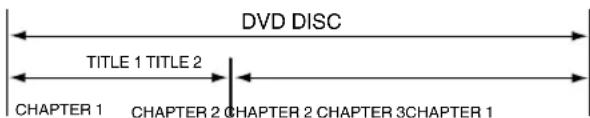
Title
When two or more movies are recorded on a disc, the disc is divided into two or more sections. Each section is called a "TITLE".
Chapter
The titles can be subdivided into many sections. Each section is called a "CHAPTER".
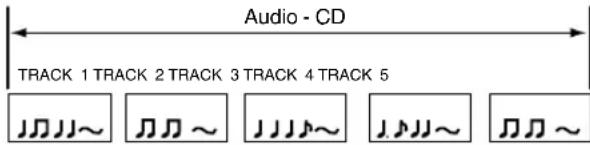
Track
An Audio CD can contain several items. These are assigned to the tracks.
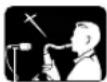
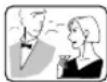
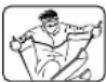
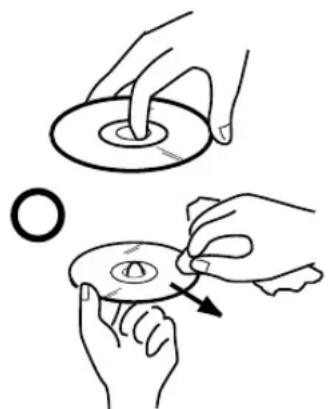
Removing Disc from Case
Be sure to hold the edge of disc. Do not touch the surface of the disc. Pick up the disc gently from the case.
- Do not scratch the disc.
- Do not get dirt on the surface of the disc.
- Do not stick a label or adhesive tape on the disc.
- Do not drop or bend the disc.
Storing Disc
- Store the disc in the case to avoid risk of scratches, dirt or damage.
- Do not leave disc exposed to direct sunlight or in hot or humid places.
Cleaning Disc
Wipe the disc with a clean, dry cloth from center to edge.
- Do not wipe the disc in a circular motion.
- Do not use liquid or aerosol cleaners.
natural_image
Illustration showing two hands performing a circular tool manipulation technique (no text or symbols present)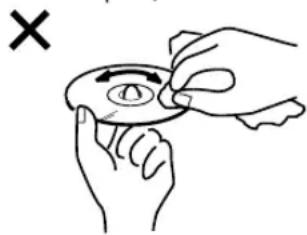
natural_image
Illustration of hands holding a circular object with an arrow and a cross mark, no text or symbols presentLocation of controls
Left side
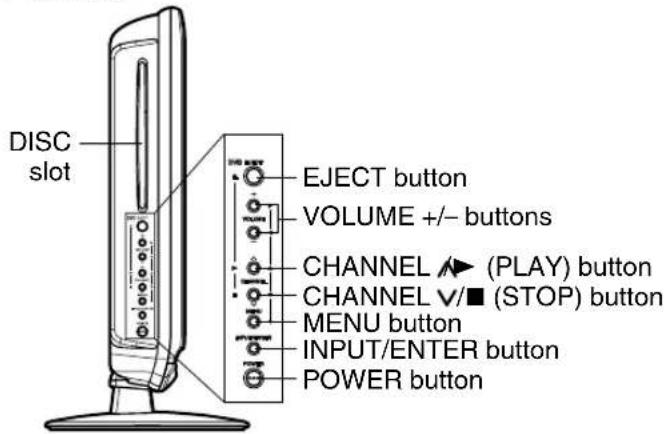
To display the menu screen.
Press MENU button to display the menu screen.
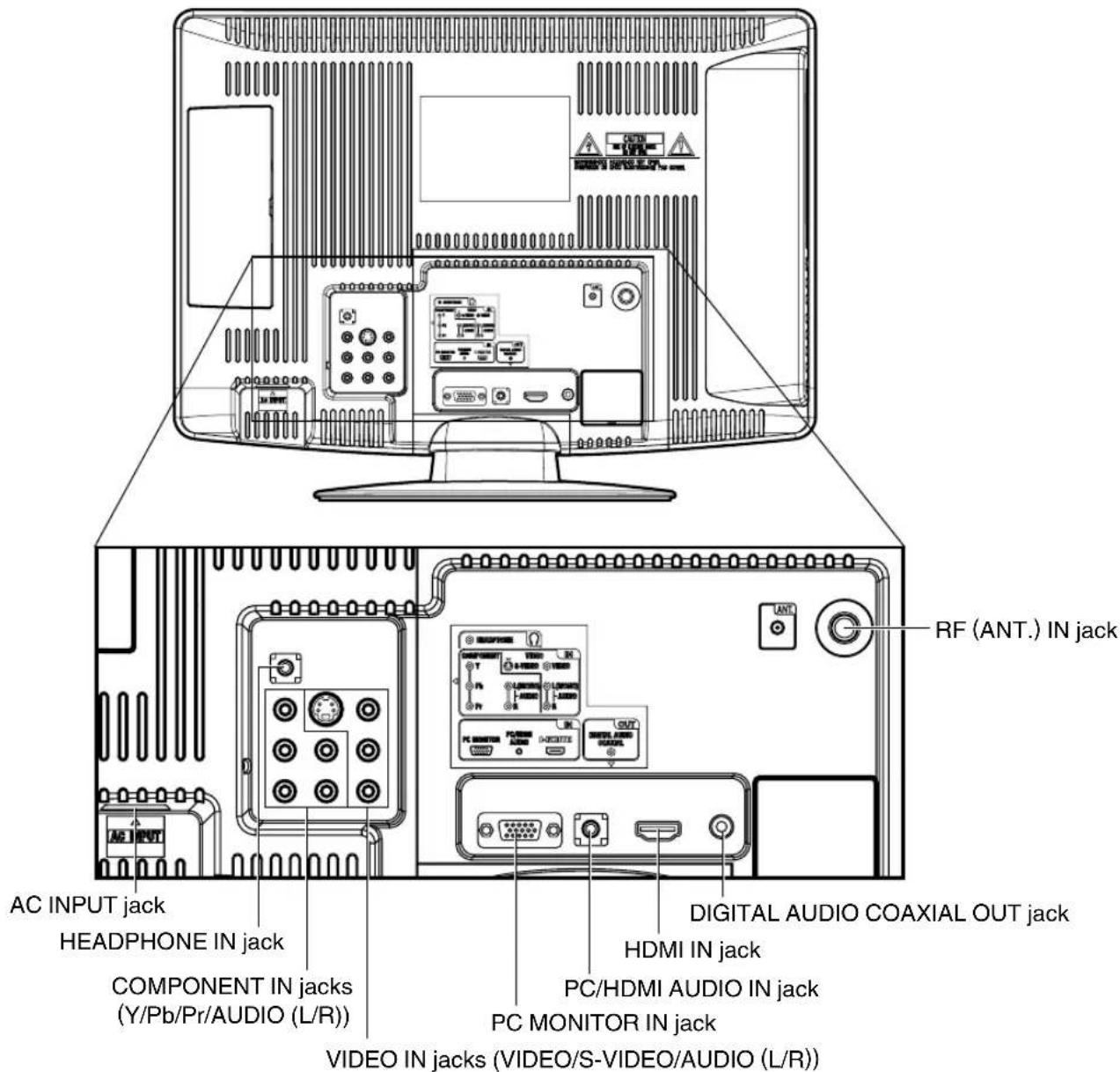
CHANNEL ∧√buttons, VOLUME +/- buttons and
INPUT/ENTER button can be used to select the
desired setting during the menu screen operations.
Front
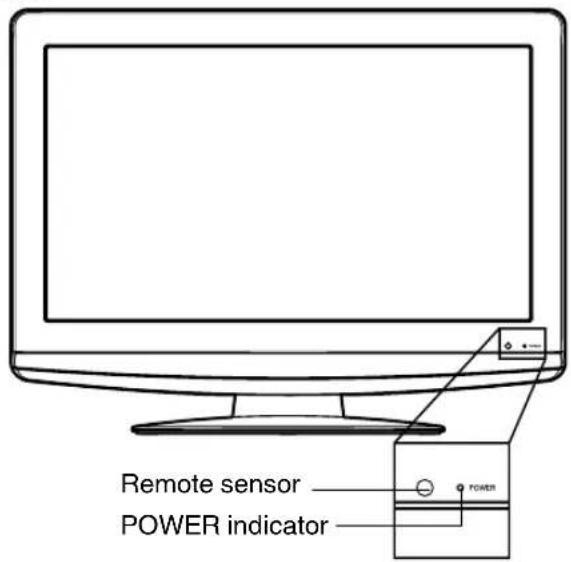
Rear side
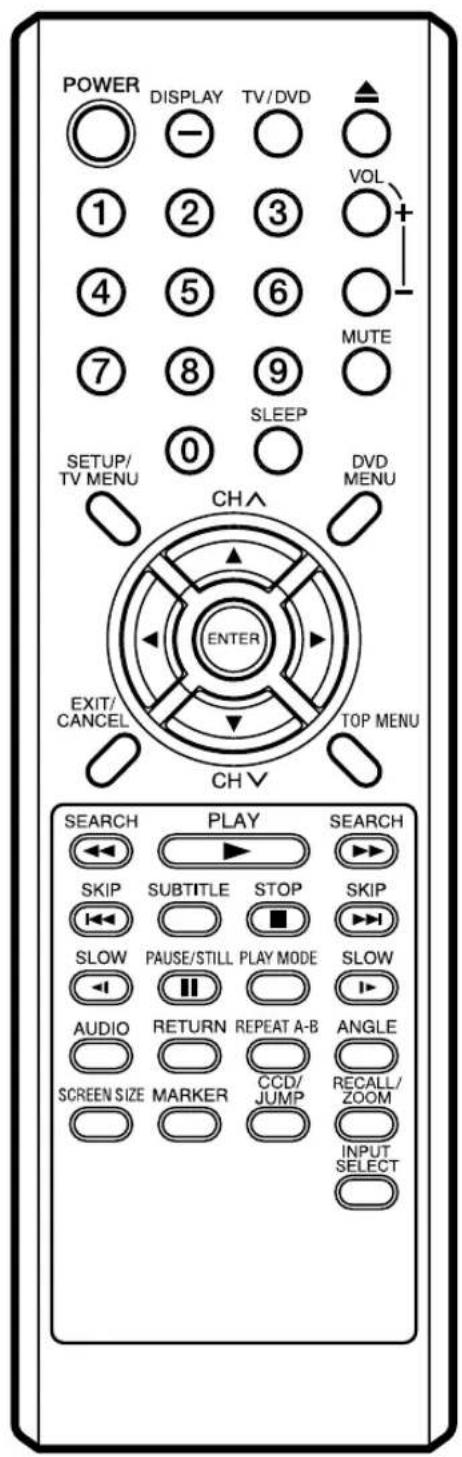
| POWER Power On/Off | |
| DISPLAY/- Call TV informationCall DVD informationInput “-” for digital channels | |
| TV/DVD Switch between TV and DVD | |
| ▲(EJECT) Eject a disc | |
| 0-9 Direct channel selection of TVInput settingEnter a password | |
| VOL +/- Adjust volume of TV | |
| MUTE Switch off the sound | |
| SLEEP Sleep timer | |
| SETUP/ TV mode - Display menu of TVTV MENU DVD mode - Call up initial setup mode | |
| DVD MENU Display DVD menu | |
| CH^/√ Select channel of TV | |
| ▲▼◀▶ Cursor buttons | |
| ENTER Enter information in the menu | |
| EXIT/ Exit from On-Screen menuCANCEL Reset information in the menu | |
| TOP MENU Select title | |
| SEARCH Fast Forward/Review playback | |
| PLAY Playback | |
| SKIP Skip chapter to forward or reverse direction | |
| SUBTITLE Set subtitle | |
| STOP Stop | |
| SLOW Forward/Reverse- slow motion | |
| PAUSE/STILL Pause CD soundStill picture of DVD | |
| PLAY MODE Select playback mode | |
| AUDIO Change sound track language | |
| RETURN Remove DVD setup menu | |
| REPEAT A-B Repeat playback between A and B | |
| ANGLE Change playback angle | |
| SCREEN SIZE Display PICTURE SIZE menu | |
| MARKER Index | |
| CCD/ Closed CaptionJUMP Locating desired scene | |
| RECALL/ Switch between present/last channelZOOM Zoom | |
| INPUT SELECT Display source selection menu |
ATTENTION
If you purchase a universal remote from a local retailer, please contact the remote manufacturer for the correct programming code.
Inserting Batteries
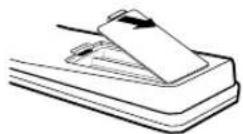
1 Open the battery compartment cover in the direction of the arrow.
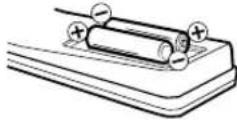
2 Install two "AAA" batteries, paying attention to the polarity diagram in the battery compartment.
3 Replace the compartment cover.
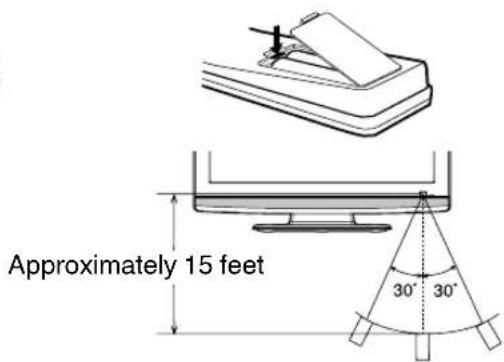
Operation
- Aim the remote control at the remote sensor and press control buttons to operate.
- Operate the remote control within a 30^ angle on either side of the remote sensor, up to a distance of approximately 15 feet.
NOTE:
- Do not leave the remote control unit exposed to direct sunlight or in hot or humid places.
- The remote control unit uses infrared beams to transmit signals, so sunlight or fluorescent light on the remote sensor may shorten operating distance.
- Incorrect use of batteries may cause them to leak or burst. Read the battery warnings and use the batteries properly.
- Do not mix old and new batteries.
- Do not mix alkaline, standard (carbon-zinic), or rechargeable, (ni-cad, ni-mh, etc) batteries.
- Remove batteries if the remote control will not be operated for an extended period of time.
Power source
TO USE AC POWER
- Connect the AC cord plug into this unit's AC IN jack.
- Connect the AC cord into an AC outlet.
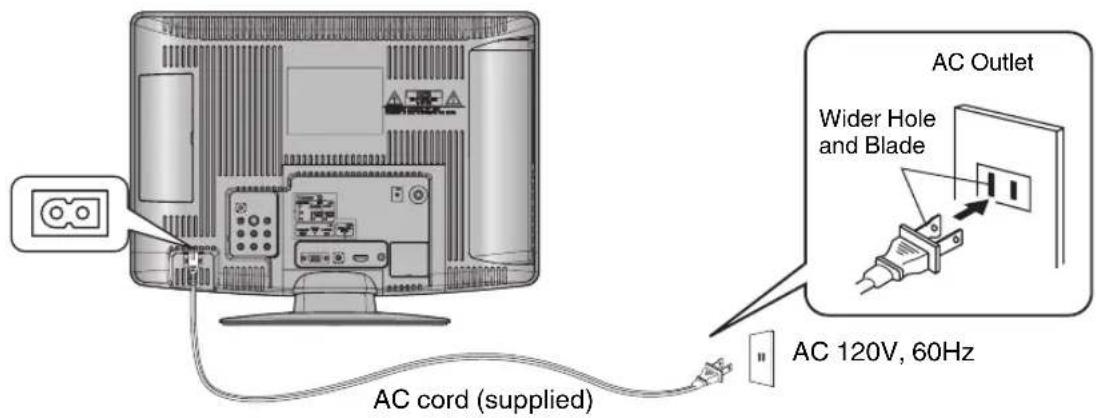
NOTE:
- Please make sure to insert the cord securely at both the LCD TV/DVD and the wall outlet.
- The AC Cord has a polarized type AC line plug. If the supplied AC cord does not match your AC outlet, contact a qualified electrician.
WARNING:
- DO NOT CONNECT THIS UNIT TO THE POWER USING ANY DEVICE OTHER THAN THE SUPPLIED AC CORD. THIS COULD CAUSE FIRE, ELECTRICAL SHOCK, OR DAMAGE.
- DO NOT USE WITH A VOLTAGE OTHER THAN THE POWER VOLTAGE SPECIFIED. THIS COULD CAUSE FIRE, ELECTRICAL SHOCK, OR DAMAGE.
CAUTION:
- WHEN THIS UNIT IS NOT USED FOR A LONG TIME, (E.G., AWAY ON A TRIP) IN THE INTEREST OF SAFETY, BE SURE TO UNPLUG IT FROM THE AC OUTLET.
- DO NOT PLUG/UNPLUG THE AC CORD WHEN YOUR HANDS ARE WET. THIS MAY CAUSE ELECTRICAL SHOCK.
- IF YOU NEED TO REPLACE THE SUPPLIED AC ADAPTER OR AC CORD, THE SPECIFIED ONE IS RECOMMENDED. CONTACT CUSTOMER SERVICE AT 1-800-289-0980.
If you are using an indoor or outdoor antenna, follow the instructions below that correspond to your antenna system. If you are using a Cable TV service, see page 14 for Cable TV connections.
Combination VHF/UHF Antenna (Single 75 ohm cable or 300 ohm twin-lead wire)
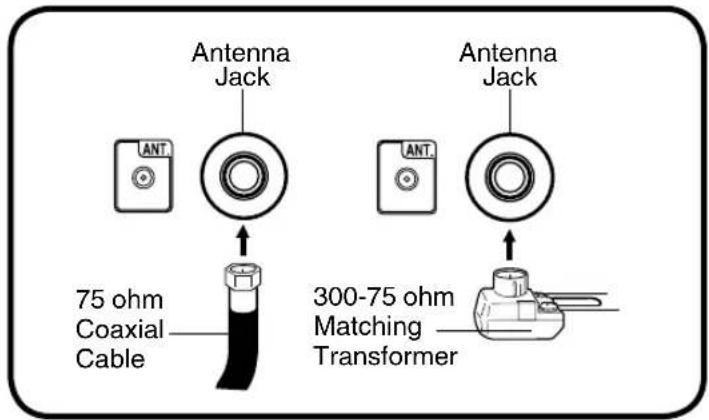
Connect the 75 ohm cable from the combination VHF/UHF antenna to the antenna jack.
If your combination VHF/UHF antenna has a 300 ohm twin-lead wire, the use of the 300-75 ohm matching transformer may be necessary.
Combination VHF/UHF Antenna (Separate VHF and UHF 300 ohm twin-lead wires)
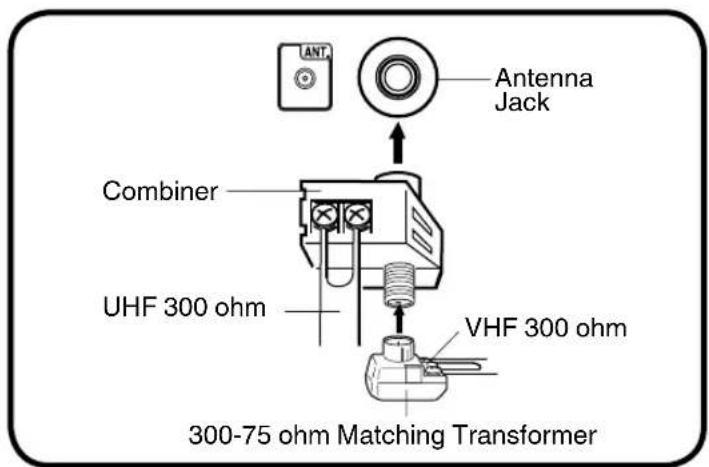
Connect the UHF 300 ohm twin-lead wire to the Combiner (not supplied). Connect the VHF 300 ohm twin-lead wire to the 300-75 ohm Matching Transformer. Attach the Transformer to the Combiner, then attach the Combiner to the Antenna Jack.
Separate VHF/UHF Antennas (75 ohm VHF cable and 300 ohm UHF twin-lead wires)
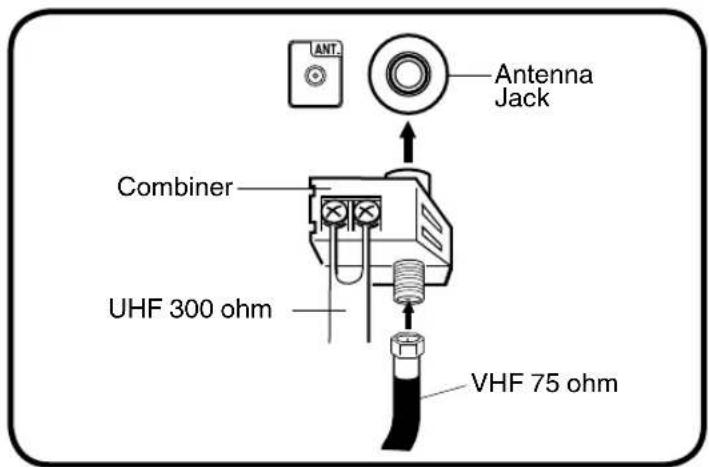
Connect the VHF 75 ohm cable and UHF 300 ohm twin-lead wire to the Combiner (not supplied). Attach the Combiner to the Antenna Jack.
This TV has an extended tuning range and can tune most cable channels without using a Cable TV Converter box. Some cable companies offer “premium pay channels” where the signal is scrambled. Descrambling these signals for normal viewing requires the use of a descrambler device which is generally provided by the Cable TV company.
For subscribers to basic Cable TV service
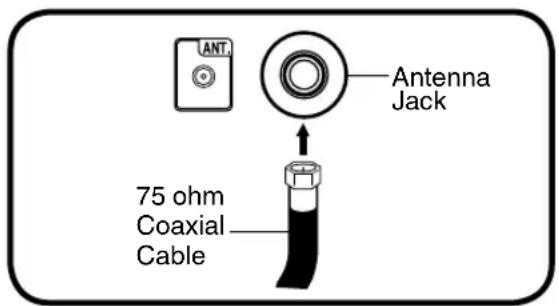
For basic Cable TV service not requiring a Converter/Descrambler box, connect the 75 ohm Coaxial Cable directly to the Antenna Jack on the back of the TV.
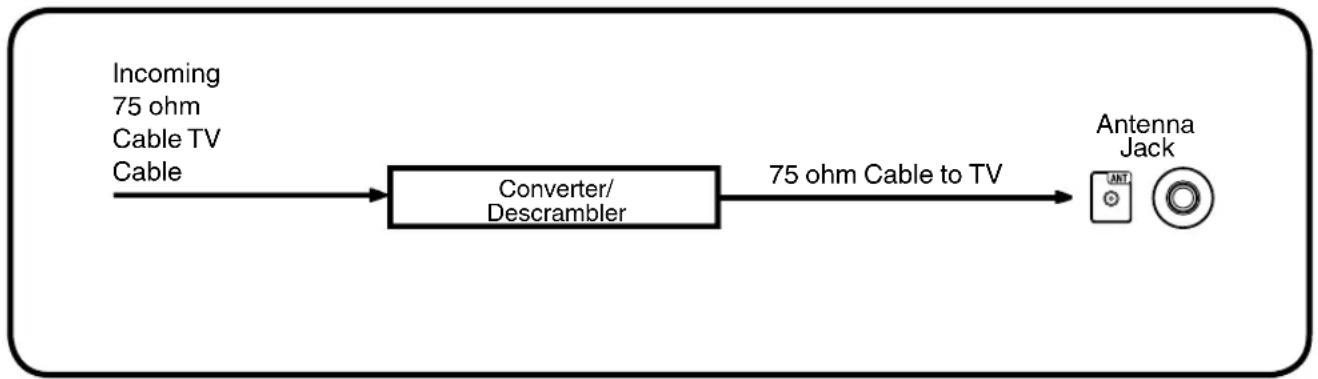
For subscribers to scrambled Cable TV service
If you subscribe to a Cable TV service which requires the use of a Converter/Descrambler box, connect the incoming 75 ohm Coaxial Cable to the Converter/Descrambler box. Using another 75 ohm Coaxial Cable, connect the output jack of the Converter/Descrambler box to the Antenna Jack on the TV. Follow the connections shown below. Set the TV to the output channel of the Converter/Descrambler box (usually channel 3 or 4) and use the Converter/Descrambler box to select channels.
flowchart
graph LR
    A["Incoming 75 ohm Cable TV Cable"] --> B["Converter/Descrambler"]
    B --> C["75 ohm Cable to TV"]
    C --> D["Antenna Jack"]
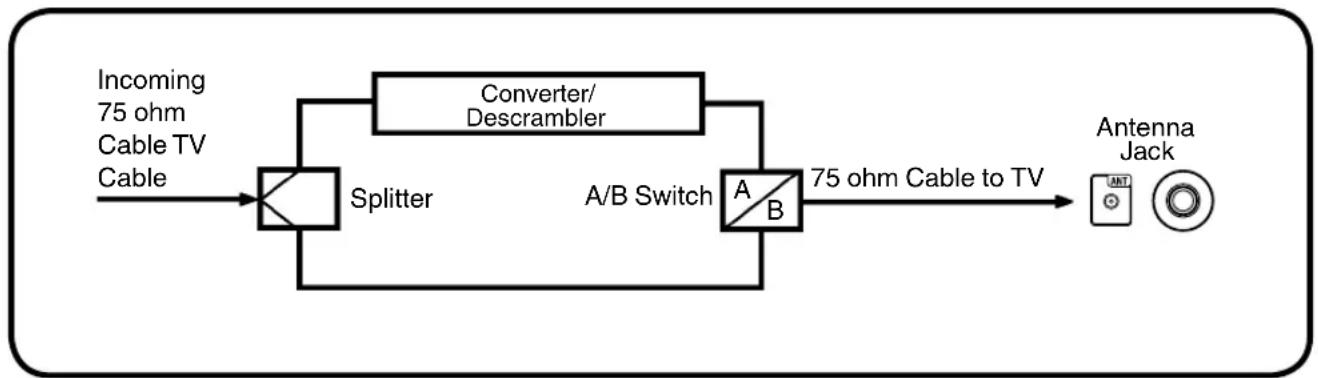
For subscribers to unscrambled Cable TV service with scrambled premium channels
If you subscribe to a Cable TV service in which basic channels are unscrambled and premium channels require the use of a Converter/Descrambler box, you may wish to use a signal Splitter and an A/B Switch box (available from the Cable TV company or an electronics supply store). Follow the connections shown below. With the switch in the "B" position, you can directly tune any nonscrambled channels on your TV. With the switch in the "A" position, tune your TV to the output of the Converter/Descrambler box (usually channel 3 or 4) and use the Converter/Descrambler box to tune scrambled channels.
flowchart
graph LR
    A["Incoming 75 ohm Cable TV Cable"] --> B["Splitter"]
    B --> C["Converter/Descrambler"]
    C --> D["A/B Switch"]
    D --> E["Antenna Jack"]
    D --> F["75 ohm Cable to TV"]
Starting setup
The Starting Setup menu appears the first time you turn on the TV, and assists you to select the menu language, specify the Air/Cable setting, and program your channels automatically.
IMPORTANT: Make sure that the antenna or cable TV system connection is made!
1 To turn on the TV, press POWER (POWER indicator on the front of the unit changes green. It may take approx. 10 seconds for a picture to appear on screen.). The starting setup function begins. Press ◀ or ▶ to select your desired language.
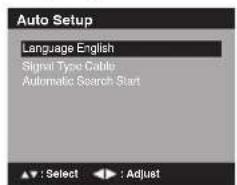
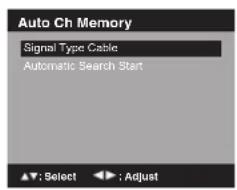
2 Press ▲ or ▼ to select "Signal Type", then press ◀ or ▶ to select "Cable" or "Air".
3 Press ▲ or ▼ to select "Automatic Search", then press ENTER or ▶.
4 Now the "Auto Setup" starts. After the starting setup is completed, the TV channel appears on the screen.
- Depending on the reception condition, it may take from 15 minutes to 30 minutes to complete memorizing digital cable channels. Please be patient.
NOTE:
- If you press EXIT/CANCEL in the process of "Auto Setup", the Starting Setup stops and changes to the normal screen.
- When you make a menu selection, your changes occur immediately. You do not have to press EXIT/CANCEL to see your changes.
- When you are finished programming the menus, press EXIT/CANCEL.
TV operation
1 To turn on the TV, press POWER.
(POWER indicator on the front of the unit changes green. It may take approx. 10 seconds for a picture to appear on screen.)
2 Adjust the volume level by pressing VOL + or -. The volume level will be indicated on the screen by blue bars. As the volume level increases, so do the number of bars. If the volume decreases, the number of blue bars also decreases.
3 Set the Signal Type option to the appropriate position (see "Air/Cable selection" on page 18).
4 Press the Direct Channel Selection (0-9, -) buttons to select the channel. (If you press only channel number, channel selection will be delayed for a few seconds.)
TO SELECT ANALOG CHANNELS
1-9: Press 1-9 as needed. Example, to select channel 2, press 2, then press ENTER.
10-99: Press the 2 digits in order. Example, to select channel 12, press 1, 2, then press ENTER.
100-135: Press the 3 digits in order. Example, to select channel 120, press 1, 2, 0, then press ENTER.
TO SELECT DIGITAL CHANNELS
Press the first 3 digits, then press the - button, followed by the remaining number.
Example, to select channel 015-001, press 0, 1, 5, -, 0, 0, 1, then press ENTER.
- If a channel is selected with only audio content, "Audio only" will be displayed on the screen.
- If a channel is selected with a weak digital signal, "Digital channel signal strength is low" will be displayed on the screen.
The same program may be available on either an analog channel or a digital channel. You may choose to watch either format. - If a channel is selected to which you have not subscribed, "Digital channel is encrypted" will be displayed on the screen.
VHF/UHF/CABLE CHANNELS
| Air Cable | |
| VHF2-13 | VHF2-13 |
| UHF14-69 | STD/HRC/IRC14-36 (A) (W)37-59 (AA) (WW)60-85 (AAA) (ZZZ)86-94 (86) (94)95-99 (A-5) (A-1)100-135 (100) (135)01 (5A) |
NOTE:
- If a channel with no broadcast is selected, the sound will automatically be muted.
- It may take a few seconds for a digital channel picture to appear on screen after being selected.
To select the video input source
To view a signal from another device connected to your LCD TV, such as a VCR player, press INPUT SELECT, then press ▲/▼ or corresponding Number buttons (0-5), then press ENTER. You can select TV, Video, Component, HDMI, PC or DVD depending on which input jacks you used to connect your devices.
![Source Selection 0.TV 1.Video 2.Component 3.HDMI 4.PC 5.DVD [0-5]:Select](/content/2026/02/377695/images/af54aae3bb486a57489536b3b82b98ce2203d16eb831023793f12253a39b380a.jpg)
CHXV
Press and release CH A. The channel automatically stops at the next channel set into memory.
For proper operation, before selecting channels, they should be set into the memory. See "Memorizing channels" on pages 18.
DISPLAY
Press DISPLAY to display the current information on the screen.
When the TV receives a digital signal, the digital information will appear.
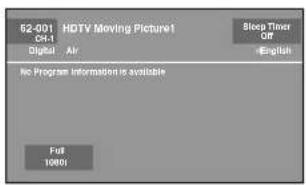
Channel number• Station name•
Channel label (if preset) • Broadcast program name
V-Chip rating• Signal type•
Sleep timer• Audio language•
Program guide• Picture size•
Resolution•
When the TV receives an analog signal, the analog information will appear.
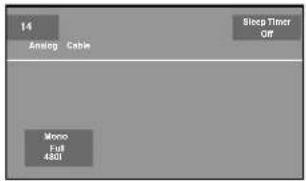
Channel number• Channel label (if preset)•
V-Chip rating• Signal type•
Sleep timer• Picture size•
• Residiofformation
(Stereo, SAP or Mono)
Press DISPLAY again to clear the call display.
NOTE:
- After a few seconds, DISPLAY screen will return to normal TV-operation automatically.
RECALL
This button allows you to go back to the last channel selected by pressing RECALL. Press RECALL again to return to the last channel you were watching.
MUTE
Press MUTE to switch off the sound. The TV's sound will be silenced and "Mute" will appear on the screen. The sound can be switched back on by pressing this button again or the VOL + or -.
SLEEP
To set the TV to turn off after a preset amount of time, press SLEEP on the remote control. The clock will count up 10 minutes for each press of the SLEEP button (Off, 0h 10m, 0h 20m, ..., 2h 0m). After the sleep time is programmed, the display will appear briefly every ten minutes to remind you that the sleep timer is operating. To confirm the sleep timer setting, press SLEEP and the remaining time will be displayed for a few seconds. To cancel the sleep timer, press SLEEP repeatedly until the display turns to Off.
Quick guide for menu operation
Call menu and for example: Select Language.
1 Press INPUT SELECT to select TV mode.
2 Press SETUP/TV MENU. The TV menu screen will appear.
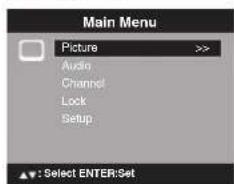
3 Press ▲ or ▼ to select "Setup", then press ▶ or ENTER.
4 Press ▲ or ▼ to select "Language", then press ◀/▶ to select the desired language. ...on the following pages the menu can be called in the same way as here.
5 Press EXIT to return to the normal screen.
NOTE:
- If no buttons are pressed for more than about 60 seconds, the menu screen will return to normal operation automatically.
You can change the default settings by pressing the Menu button on your remote, then select the one of the icons at the top of the menu - follow the On-Screen prompts to set your preferences.
| Icon Selected Items Setup hint | |||
| Picture Picture Setting | Brightness / Contrast / Sharpness / Color / Tint | You can adjust the picture quality to your preference. | |
| Color Temperature | Bluish (Cool) / Neutral (Standard) / Reddish (Warm) | ||
| Backlight The | Backlight feature adjusts the screen brightness for improved picture clarity. | ||
| Sports Bright and dynamic picture (factory-set) | |||
| Standard Standard picture quality (factory-set) | |||
| Movie Movie-like picture setting (factory-set) | |||
| Memory Your personal preferences (set by you; see "Picture Setting"). | |||
| Picture Size See page 22. | |||
| Film Mode On/Off A smoother | motion may be obtained by setting the Film Mode to "On" when you view a DVD from the DVD player connected with the component or HDMI input. | ||
| PC Setting Hor Position / Ver Position | To adjust the horizontal / vertical position of the image on the PC Monitor screen. Each video standard will require a different value for this setting. | ||
| Clock To minimize any vertical bars or stripes visible on the screen background. | |||
| Phase This must be adjusted after the frequency has been set optimize picture quality. | |||
| Auto Adjust To adjust the all PC settings automatically. | |||
| DNR On/Off DNR (Digital Noise Reduction) can reduce the roughness of the picture. | |||
| Audio | Bass / Treble / Balance | You can adjust the sound quality to your preference. | |
| MTS Stereo / SAP / Mono | The multi-channel TV sound (MTS) feature provides high-fidelity stereo sound. MTS also can transmit a second audio program (SAP) containing a second language or other audio information.When the TV receives a stereo or SAP broadcast, the word "Stereo" or "SAP" displays on-screen every time you press DISPLAY. | ||
| Surround | On/Off The dynamic presence and sound created offers a thoroughly enjoyable listening experience. | ||
| Audio Language | When two or more audio languages are included in a digital signal, you can select one of the audio languages. (This function is available only for digital broadcast.) | ||
| HDMI Audio | HDMI | When you connect the HDMI device to the TV, select this setting. | |
| DVI | When you connect the DVI device to the TV with analog audio cords, select this setting. | ||
| Channel | Add / Delete | See page 18. | |
| DTV Signal | See page 19. | ||
| Auto Ch Memory | See page 18. | ||
| Ch Label | See page 19. | ||
| Lock | See page 20. | ||
| Setup | Closed Caption | See page 21. | |
| Language | You can choose from three different languages (English, Français (French) and Español (Spanish)) for the on-screen displays.Select the language you prefer first, then proceed with the other menu options. | ||
| Video Label See page 19. | |||
| Auto Shut Off1 | On/Off If the Auto Shut Off feature is On, a station being viewed stops broadcasting and the TV is not operated, the TV will automatically shut itself off after 15 minutes. | ||
| Reset | The Reset function returns your settings to the factory settings."Picture Size", "MTS", "Audio Language" and "HDMI Audio" cannot be reset by this function. | ||
NOTE:
If there is no input signal in the HDMI or PC mode, after 1 minute Auto Shut Off will be activated.
Memorizing channels
This TV is equipped with a channel memory feature which allows channels to skip up or down to the next channel set into memory, skipping over unwanted channels. Before selecting channels, they must be programmed into the TV's memory. To use this TV with an antenna, set the Signal Type option to the Air mode. When shipped from the factory, this menu option is in the Cable mode.
Air/Cable selection
1 Select "Channel", then press ▶ or ENTER.
2 Press ▲ or ▼ to select "Auto Ch Memory", then press ▶ or ENTER.
3 Press ▲ or ▼ to select "Signal Type".
4 Press ◀ or ▶ to select "Air" or "Cable".
Air - VHF/UHF channels
Cable - CABLE TV channels
CABLE CHART
The chart below is typical of many cable system channel allocations.
| Number on this TVCorresponding CABLE channel | 14A | 15B | 16C | 17D | 18E | 19F | 20G | 21H | 22I | ||||||||
| 23J | 24K | 25L | 26M | 27N | 28O | 29P | 30Q | 31R | 32S | 33T | 34U | 35V | 36W | 37AA | 38BB | 39CC | 40DD |
| 41EE | 42FF | 43GG | 44HH | 45II | 46JJ | 47KK | 48LL | 49MM | 50NN | 51OO | 52PP | 53QQ | 54RR | 55SS | 56TT | 57UU | 58VV |
| 59WW | 60AAA | 61BBB | 62CCC | 63DDD | 64EEE | 65FFF | 66FFF | 67GG | 68III | 69JJ | 70KKK | 71LLL | 72MMM | 73NNN | 74OOO | 75PPP | 76QQQ |
| 77RRR | 78SSS | 79TTT | 80UUU | 81VVV | 82WWW | 83XXX | 84YYY | 85ZZZ | 8686 | 8787 | 8888 | 8989 | 9090 | 9191 | 9292 | 9393 | 9494 |
| 95A-5 | 96A-4 | 97A-3 | 98A-2 | 99A-1 | 100100 | 101101 | 102102 | 103103 | 104104 | 105105 | 106106 | 107107 | 108108 | 109109 | 110110 | 111111 | 112112 |
| 113113 | 114114 | 115115 | 116116 | 117117 | 118118 | 119119 | 120120 | 121121 | 122122 | 123123 | 124124 | 125126 | 126127 | 127128 | 128129 | 129130 | |
| 131131 | 132132 | 133133 | 134134 | 135135 | |||||||||||||
NOTE:
- It may take a few seconds for a digital channel picture to appear on screen after being selected.
Automatic search
1 Select "Channel", then press ▶ or ENTER.
2 Press ▲ or ▼ to select "Auto Ch Memory", then press ▶ or ENTER.
3 Press ▲ or ▼ to select "Automatic Search", then press ▶ or ENTER.
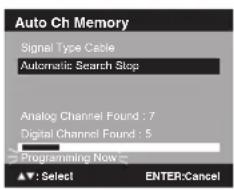
4 The TV will begin memorizing all the channels available in your area.
- It may take from 15 minutes to 30 minutes to complete memorizing digital cable channels. Depending on the reception condition, a bar display may not advance for several minutes, please be patient.
NOTE:
- Memorizing channels is best accomplished during evening “PRIMETIME” hours, as more stations are broadcasting digital signals. Memorizing channels can only be accomplished while a station is broadcasting a digital signal to set that channel into memory.
- If you are unsure of the digital channels available in your area, you may visit www.antennaweb.org to receive a list based on your address or zip code. Should you require further assistance you may call our toll-free customer service line at 1-800-289-0980.
- New digital channels may be added to your area periodically, it is recommended to perform the "Automatic Search" procedure regularly.
Adding Channel
If you find a new digital channel unregistered, you can add the new channel into the channel memory.
1 Tune in the new channel.
2 Select "Channel", then press ▶ or ENTER.
3 Press ▲ or ▼ to select "Add/Delete", then press ▶ or ENTER.
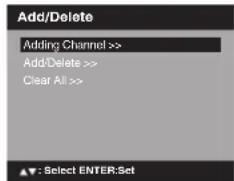
4 Press ▲ or ▼ to select "Adding Channel", then press ▶ or ENTER. The new channel will be added into the channel memory.
Add/Delete channel
You can select the channel that you want to skip.
1 Select "Channel", then press ▶ or ENTER.
2 Press ▲ or ▼ to select "Add/Delete", then press ▶ or ENTER.
3 Press ▲ or ▼ to select "Add/Delete", then press ▶ or ENTER.
4 Press ▲ or ▼ to select the channel that you want to skip.

5 Press ◀ or ▶ to select "Add" or "Delete", whichever function you want to perform.
6 Repeat steps 4 - 5 for other channels you want to add or delete.
Clear All
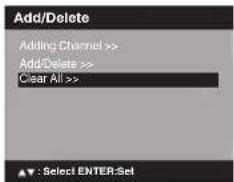
All channels are deleted from the channel memory.
1 Select "Channel", then press ▶ or ENTER.
2 Press ▲ or ▼ to select "Add/Delete", then press ▶ or ENTER.
3 Press ▲ or ▼ to select "Clear All", then press ▶ or ENTER.
Checking the digital- signal strength
This TV will allow you to view the digital signal meter for digital channels.
1 Select "Channel", then press ▶ or ENTER.
2 Press ▲ or ▼ to select "DTV Signal".
3 Press ▶ or ENTER to check the Digital-signal strength. The Digital-Signal strength screen will appear. If necessary, adjust the direction of the antenna to obtain the maximum signal strength.
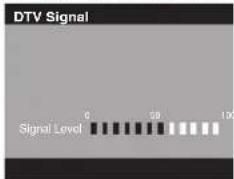
NOTE:
• Signal meter feature is not available for analog channels.
• After 240 seconds, DTV Signal screen will return to normal TV-operation automatically.
Labeling channels
Channel label appear with the channel number display each time you turn on the TV, select a channel, or press DISPLAY.
You can choose any four characters to identify a channel.
To create channel labels
1 Select "Channel", then press ▶ or ENTER.
2 Press ▲ or ▼ to select "Ch Label", then press ▶ or ENTER.
The "Ch Label" menu will appear.
3 Press ◀ or ▶ to select a channel you want to label, then press ▼.
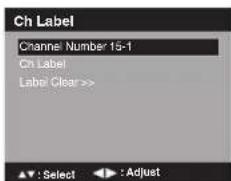
4 Press ◀ or ▶ repeatedly until the character you want appears in the first space.
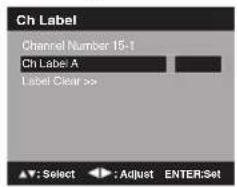
The characters rotation as follows:

If the character which you desire appears, press ENTER.
Repeat this step to enter the rest of the characters. If you would like a blank space in the label name, you must choose the empty space from the list of characters.
5 When you finish inputting the label name, press EXIT to return to the normal screen.
6 Repeat steps 3-4 for other channel. You can assign a label to each channel.
To clear a Ch Label
After step 3 above, press ▲ or ▼ to select "Label Clear", then press ▶ or ENTER.
NOTE:
- The channel labels will be reset after "Automatic Search" on page 18.
Labeling video inputs
The Video Label feature allows you to label each input source for your TV.
1 Select "Setup", then press ▶ or ENTER.
2 Press ▲ or ▼ to select "Video Label", then press ▶ or ENTER.
3 Press ▲ or ▼ to select an input which you want to label.
4 Press ◀ or ▶ to select the desired label for that input source.
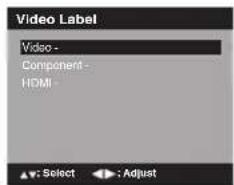
- : Uses the default label name
VCR : Video cassette recorder
DVD : DVD video
DTV : Digital TV set-top box
SAT : Satellite box
CBL : Cable box
HD : HDMI device (only for HDMI inputs)
Setting the V-Chip
An age limitation can be set to restrict children from viewing or hearing violent scenes or pictures that you may choose to exclude. The restriction applies to "TV Rating" and "Movie Rating" if this data is transmitted. You may set this restriction separately. To use the V-Chip function, you must register a password.
To register a password
1 Select "Lock", then press ▶ or ENTER.
2 Select and enter your password (4 digits) using Number buttons (0-9), then press ENTER.
![Lock New Password *** [0-9] : Select ENTER:Set](/content/2026/02/377695/images/24c44c5d81bd5d6b3e6a0e3b7be31b75d74deb239bce4503b2aa932caa679604.jpg)
“*appears instead of the number.
3 Enter the same password again to confirm, then press ENTER. The password is now registered.
NOTE:
- If you forget the password, contact Customer Service at 1-800-289-0980 for assistance. Your original remote control will be required.
- To avoid forgetting the password, write it down and keep in a safe place.
To set the V-Chip
1 Select "Lock" menu, then press ▶ or ENTER.
2 Use Number buttons (0-9) to enter your password, then press ENTER. Then Lock menu will appear.
3 Press ▲ or ▼ to select "V-Chip", then press ◀ or ▶ to select "On".
4 Press ▲ or ▼ to select "V-Chip Set", then press ▶ or ENTER.
The V-Chip Set Menu appears.
5 Press ▲ or ▼ to select which rating will be used, then press ▶ or ENTER. Each rating below will appear.
TV Rating
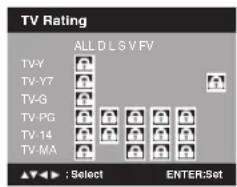
You can set the rating using age level and genre.
Age:
TV-Y : All children
TV-Y7 : 7 years old and above
TV-G : General audience
TV-PG : Parental guidance
TV-14 : 14 years old and above
TV-MA : 17 years old and above
Genre:
ALL : All
D : Dialogue
L : Language
S : Sex
V : Violence
FV : Fantasy Violence
Movie Rating
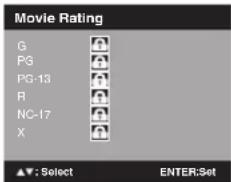
G : All ages
PG : Parental guidance
PG-13 : Parental guidance less than 13 years old R : Under 17 years old parental guidance suggested
NC-17 : 17 years old and above
X : Adult only
6 Press ▲/▼/◄/► to select the desired rating, then press ENTER.
7 Press EXIT to return to the normal screen. V-Chip function is activated now.
To use the TV after the TV is protected.
When a program is received that is blocked by the V-Chip, press MUTE, then enter your password. The protection will be temporarily overridden. If the TV is turned off or the channel is changed, the V-Chip restriction will be reactivated.
NOTE:
- The V-Chip function is activated only on programs and input sources that include a rating signal.
To change the password
1 Select "Lock", then press ▶ or ENTER.
2 Use Number buttons (0-9) to enter your password, then press ENTER. The Lock menu will appear.
3 Press ▲ or ▼ to select "Change Password", then press ▶ or ENTER.
The Change Password screen will appear.
4 Enter a new password using Number buttons (0-9), then press ENTER.
5 Enter the same password again to confirm, then press ENTER.
The password is now registered.
Downloading the additional V-Chip rating system
As a supplement to the standard V-Chip rating system, your television will be able to download an additional rating system, if such a system becomes available in the future.
To download the additional V-Chip rating system (when available)
1 Select "Lock", then press ▶ or ENTER.
2 Use Number buttons (0-9) to enter your password, then press ENTER. The Lock menu will appear.
3 Press ▲ or ▼ to select "V-Chip", then press ◀ or ▶ to set "On".
4 Press ▲ or ▼ to select "V-Chip Set (DTV)", then press ▶ or ENTER.
5 If the TV is not storing the additional rating system, the TV will begin downloading it, which may take some time to be completed.
6 Set your preferred content rating limits for the additional rating system.
7 You also need "Update" procedure to update rating information.
NOTE:
- You can only download the additional V-Chip rating system when your TV is receiving a digital signal.
- When you download the additional rating system, it may take some time for the download to occur.
- The V-Chip rating information and system are not determined or controlled by the TV.
- The standard V-Chip rating system is available whether your TV is receiving a digital signal or not, and will block both analog and digital programs. To set the restriction level using the standard V-Chip rating system, select V-Chip Set in step 4.
- The downloadable V-Chip rating system is an evolving technology, and availability, content, and format may vary.
- You cannot select this feature if the TV is not receiving a digital signal for the current station.
To clear the all V-Chip settings
1 Select "Lock", then press ▶ or ENTER.
2 Use Number buttons (0-9) to enter your password, then press ENTER. The Lock menu will appear.
3 Press ▲ or ▼ to select "V-Chip Clear", then press ▶ or ENTER.
The Password screen will appear.
4 Use Number buttons (0-9) to enter your password, then press ENTER. All your settings return to the factory settings.
Closed Caption
WHAT IS CLOSED CAPTIONING?
This television has the capability to decode and display Closed Captioned television programs. Closed Captioning will display text on the screen for hearing impaired viewers or it will translate and display text in another language.
Captions: This Closed Caption Mode will display text on the screen in English or another language. Generally, Closed Captions in English are transmitted on C1 and Closed Captions in other languages are transmitted on C2.
Text: The Text Closed Caption Mode will usually fill 1/2 of the screen with a programming schedule or other information.
1 Select "Setup", then press ▶ or ENTER.
2 Press ▲ or ▼ to select "Closed Caption", then press ▶ or ENTER. The Closed Caption menu will appear.
3 Press ◀ or ▶ to set "CC Setting" to "On". On: Captions will be displayed on the screen. Off: Captions will not be displayed on the screen.
4 Press ▲ or ▼ to select "Analog Caption" or "Digital Caption". When you select "Analog Caption", you can choose C1, C2, C3, C4, T1, T2, T3 and T4. When you select "Digital Caption", you can choose from CS1, CS2, CS3, CS4, CS5 and CS6.
5 Press ◀ or ▶ to select the desired Closed Caption mode for both Digital and Analog Caption.
6 Press ▲ or ▼ to select "CC Priority", then press ◀ or ▶ to select "Digital CC" or "Analog CC".
NOTE:
- Depending on the broadcast signal, some Analog Captions will function with a Digital broadcast signal. This step prevents two types of captions from overlapping.
NOTE:
- If the program or video you selected is not closed-captioned, no captions will display on-screen.
- If text is not available in your viewing area, a black rectangle may appear on-screen. If this happens, set the CC Setting to "Off".
- When selecting Closed Captions, the captioning will be delayed approx. 10 seconds.
- If no caption signal is received, no captions will appear, but the television will remain in the Caption Mode.
- Misspellings or unusual characters may occasionally appear during Closed Captioning. This is normal with Closed Captioning, especially with live programs. This is because during live programs, captions are also entered live. These transmissions do not allow time for editing.
- When Captions are being displayed, on-screen displays, such as volume and mute may be seen but may interfere with Closed Captions.
- Some cable systems and copy protection systems may interfere with the Closed Captioned signal.
- If using an indoor antenna or if TV reception is very poor, the Closed Caption Decoder may not appear or may appear with strange characters or misspelled words. In this case, adjust the antenna for better reception or use an outdoor antenna.
CC advanced
When you have selected Custom as the display method, you can adjust the various setting listed below as follows:
This feature is designed to customize Digital Captions only.
1 Select "Setup", then press ▶ or ENTER.
2 Press ▲ or ▼ to select "Closed Caption", then press ▶ or ENTER.
The Closed Caption menu will appear.
3 Press ◀ or ▶ to set "CC Setting" to "On".
4 Press ▲ or ▼ to select "Digital CC Preset", then press ◀ or ▶ to select "Custom".
5 Press ▲ or ▼ to select "CC Advanced", then press ▶ or ENTER. The CC Advanced menu will appear.
6 Press ▲ or ▼ to select the desired item, then press ◀ or ▶ to change the setting.
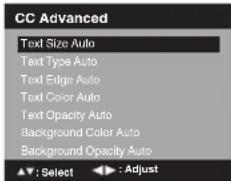
You can select from among the following items and parameters.
Text Size: Auto, Small, Standard, Large
Text Type: Auto, Style1, Style2, Style3, Style4, Style5, Style6, Style7
Text Edge: Auto, None, Raised, Depressed, Uniform, Left Shadow, Right Shadow
Text Color: Auto, Black, White, Red, Green, Blue, Yellow, Magenta, Cyan
Text Opacity: Auto, Solid, Transparent, Translucent, Flashing
Background Auto, Black, White, Red, Green, Color: Blue, Yellow, Magenta, Cyan
Background Auto, Solid, Transparent,
Opacity: Translucent, Flashing
NOTE:
- You cannot set both "Text Color" and "Background Color" as a same color.
- You cannot set both "Text Opacity" and "Background Opacity" to "Transparent".
Setting the picture size
You can view 480i and 480p format programs in a variety of picture sizes—Natural, Cinema Wide1, Cinema Wide2, Cinema Wide 3, Full and Native.
Selecting the picture size
1 Select "Picture", then press ▶ or ENTER.
2 Press ▲ or ▼ to select "Picture Size", then press ▶ or ENTER to display Picture Size menu. Press ▲/▼ or corresponding Number buttons (0-4) to select the desired picture size, as described below.
![Picture Size 0.Natural 1.Cinema Wide1 2.Cinema Wide2 3.Cinema Wide3 4.Full [0-4]:Select](/content/2026/02/377695/images/ba18a754361b02745823282a5cf686e06e207b2d10976e5e8dee5ec7fa523635.jpg)
NOTE:
- Selectable picture sizes may vary depending on the input source or broadcast signal.
- Picture Size menu also can be displayed by pressing SCREEN SIZE on the remote control.
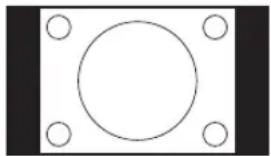
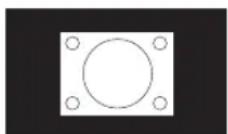
Natural
In some cases, this image will display the size of standard 4:3 with a black side bar.
natural_image
Simple geometric diagram with a circle centered within a square, surrounded by four corner circles (no text or symbols)Cinema Wide1 (for 4:3 format programs)
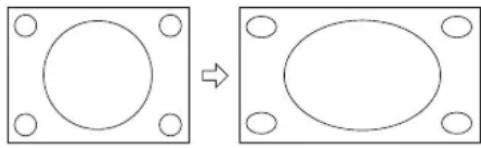
To fill the screen, the right and left edges are extended, however; the center of the picture remains near its former ratio.
The top and bottom edges of the picture may be hidden.
natural_image
Two diagrams showing a square frame with a circle on top and an oval on the right, both with circular holes (no text or symbols)Cinema Wide2 (for letter box programs with subtitles)
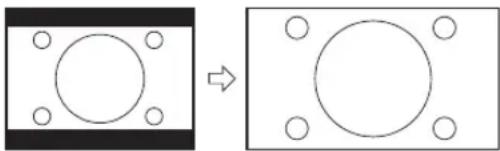
To fill the width of the screen, it is extended horizontally. However; it is only slightly extended at the top and the bottom.
The top and bottom edges of the picture may be hidden.
natural_image
Diagram showing a square with a circle and four surrounding circles, transforming into a rectangular frame (no text or symbols)Cinema Wide3 (for letter box programs with subtitles)
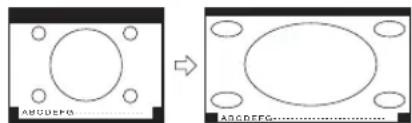
To fill the width of the screen, it is extended horizontally. However; it is only slightly extended at the top and the bottom.
The top and bottom edges of the picture may be hidden.
natural_image
Two technical diagrams showing a circular component before and after transformation, with no visible text or symbols.Full (for 16:9 source programs)
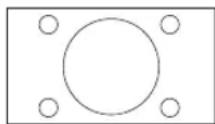
Full will display the picture at the maximum size.
Native (for PC mode only)
Detects the resolution of the signal of the image and it will be shown on the screen with same amount of pixels.
NOTE:
- Some High Definition and/or Digital broadcasts may not allow you to change the picture size.
- In HDMI or COMPONENT mode with a scanning rate of 720p, 1080i or 1080p (only HDMI) only the Cinema Wide2 and Full picture size feature is available.
- In PC Mode, only the Natural, Full and Native picture size features are available. In PC Mode (WXGA), only the Full and Native picture size features are available.
Preparation
The following pages describe the setup/operation in DVD mode.
Preparation
Before DVD/CD operation, please make the following preparations.
1 Insert the AC cord plug into a standard 120V 60Hz polarized AC outlet.
- If the AC cord plug is plugged in for the first time, wait for about 5 seconds before pressing POWER.
- When connecting to other equipment, unplug the unit from the AC outlet.
NOTE:
2 Press POWER on the unit or on the remote control to turn on the unit. The POWER indicator will change to green.
• Each time you turn the unit ON, the TV/DVD starts from the TV mode.
- When using an amplifier, switch on the amplifier.
3 Press TV/DVD to select DVD mode. The DVD startup screen will appear on the screen.
NOTE:
- If the unit does not operate properly: Static electricity, etc., may affect the player's operation. Disconnect the AC power cord once, then connect it again.
- About inserting disc: If the unit is slanted or moved while inserting disc, the disc may get damage.
Status display of disc
Press DISPLAY. The status display of the disc will appear on the screen.
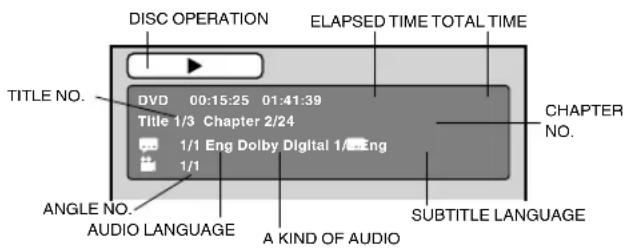
To make the status display screen disappear, press DISPLAY again.
Playback procedure
1 Press TV/DVD to select DVD mode.
2 Place the disc in the disc slot with the label side facing forward. (If the disc has a label.) Hold the disc without touching either of its surfaces, align it with the guides, and place it in position.
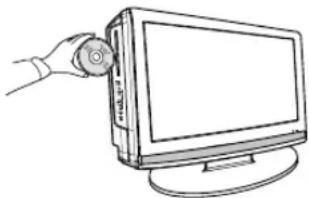
natural_image
Line drawing of a hand inserting a CD into a computer monitor (no text or symbols)3 On the screen, “▲ changes to “Reading” and then playback will commence.
- A menu screen may appear on the TV screen, if the disc has a menu feature. In this case, press ▲, ▼, ◀, ▶ or ENTER to operate a menu feature.

flowchart
graph LR
    A["Input"] --> B["Reading"]
4 Press STOP to end playback.
- The unit memorizes the stopped point, depending on the disc. “☑” appears on the screen. Press PLAY to resume playback (from the scene point).
- If you press STOP again ("■" appears on the screen) or unload the disc, the unit will clear the stopped point.
5 Press ▲ (EJECT).
Remove the disc and then press POWER. The unit turns off. When you eject the disc, you may hear mechanism noise, but it is not malfunction.
NOTE:
- If a non-compatible disc is loaded, "Incorrect Disc", "Region Code Error" or "Parental Error" will appear on the TV screen according to the type of loaded disc. If these appear, check your disc again (see pages 9 and 30).
- Some discs may take a minute or so to start playback.
- If an 8 cm disc is placed into the disc slot and picture playback or menu display does not begin automatically, press PLAY.
- A “Prohibition” symbol “X” may appear at the upper right of the screen. This symbol means either the feature you tried is not available on the disc, or the unit cannot access the feature at this time. This does not indicate a problem with the unit.
- If you place a single-faced disc label backwards (i.e. the wrong way) "Reading" will appear in the display and then "Incorrect Disc" will be displayed.
- Some playback operations of DVDs may be intentionally fixed by software producers. Since this unit plays DVDs according to the disc content recorded, some playback features may not be available. Also refer to the instructions supplied with the DVDs.
Special playback
Fast Forward Playback
Press SEARCH▶ during normal playback.
Each press of SEARCH▶▶ will increase the speed of the
search ▶▶ (x 2), ▶▶(x 4), (x 8)▶▶(x 15).
(CD:▶×2), (▶▶, (×8),▶(▶20))
- To resume normal playback, press PLAY.
Review Playback
Press SEARCH ◀ during normal playback.
Each press of SEARCH ◀ will increase the speed of the search ◀ (x 2), ◀(×4), (x 8), ◀(×15).
(CD: ◀◀ (x 2), ◀◀), (x 8), ◀◀(x 20)) ◀◀◀◀
- To resume normal playback, press PLAY.
Still Playback
Press PAÜSE/ STILL during normal playback to pause playback.
- To resume normal playback, press PLAY.
Frame Advance
Press PAUSE/ STILL during still playback.
One frame is advanced each time you press PAUSE/ STILL.
- To resume normal playback, press PLAY.
Slow-motion Playback
Press SLOW ◀ Reverse or SLOW▶ Forward during normal playback or still playback.
Each press of SLOW will change the speed of the slow x1/2, x1/4, x1/6, x1/7.
• To resume normal playback, press PLAY.
- To resume the still playback, press PAUSE/ STILL.
Locating a chapter or track
Press SKIP ▶Forward or SKIP Reverse during playback to locate a chapter that you want to watch. Each time you press the button, a chapter or track is skipped.
NOTE:
- The unit is capable of holding a still video image or On screen display image on your television screen indefinitely. If you leave the still video image or On screen display image displayed on your TV for an extended period of time, you risk permanent damage to your television screen.
- There may be a slight delay between when you press the button and the function activating.
MP3/WMA/JPEG and Audio CD playback
This player can play back MP3/WMA/JPEG-data which has been recorded on CD-R or CD-RW.
To produce MP3/WMA/JPEG-data, you need a Windows-PC with CD-ROM drive and MP3/WMA/JPEG-encoding software (not supplied).
The Apple-HFS-System cannot be played.
MP3/WMA/JPEG CD information
Limitations on MP3/WMA/JPEG CD playback
- MP3/WMA/JPEG CD is the disc that is standardized by ISO9660, its file name must include 3-digit extension letters, "mp3", "wma", "jpg".
- The directory and file names of MP3/WMA/JPEG CD must correspond to ISO standardized files.
- This unit can read 2000 files per disc. If one directory has more than 2000 files, it reads up to 2000 files, the remaining files will be omitted.
- MP3/WMA CDs cannot be used for playback for the purpose of recording.
- It may take more than one minute for this unit to read MP3/WMA/JPEG files depending on its structure.
- Music recorded by "Joliet Recording Specification" can be played back.
- The music files recorded by "Hierarchical File System" (HFS) cannot be played.
- The unit can play back baseline and progressive JPEG files.
Limitations on display
- The maximum number for display is 15 characters. Long file names will be condensed.
- Available letters for display are the following: capital or lowercase letters A through Z, numbers 0 through 9, and _ (underscore).
- Other letters than those above are replaced by a hyphen.
Notes on MP3/WMA/JPEG files
To play back MP3/WMA/JPEG CD in the recorded order,
- Use MP3/WMA/JPEG software that records data alphabetically or numerically.
- Name each file including a two-digit or three-digit number (e.g. "01" "02" or "001" "002").
- Refrain from making too many sub-folders.
CAUTION:
- Some MP3/WMA/JPEG CDs cannot be played back depending on the recording conditions.
- A CD-R/RW that has no music data or non-MP3/WMA/JPEG files cannot be played back.
MP3/WMA/JPEG CD and Audio CD playback:
1 Load a MP3/WMA/JPEG CD or an Audio CD in the disc slot.
2 "Reading" will appear on the TV screen. Reading time will depend on the number of files on the disc.
3 A file browser screen will appear on the TV screen.
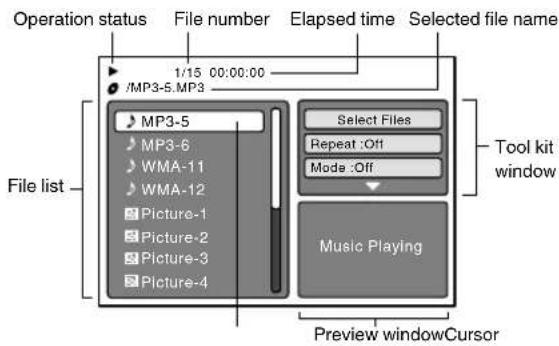
File type
♪ : Indicates Music file (Audio CD/MP3/WMA)
: Indicates Picture file (JPEG)
- In case the current directory includes 9 files or more, press ▲ or ▼ to scroll in the file list.
- To see contents in folder, select the folder and then press ENTER. To return to the parent directory, select 📄 Go Up ...” then press ENTER.
- In case of a CD containing a mixture of MP3, WMA and JPEG files, the files are played back by selecting them from the file browser.
4 Press ▲ or ▼ to select the desired file.
When PLAY is pressed after displaying file browser displayed, playback begins automatically starting from the first file.
In this case, if the first file is an MP3/WMA file, only MP3/WMA files are played back in order. If the first file is a JPEG file, the first JPEG file is played back. If there is no file at a root directory, playback does not begin automatically.
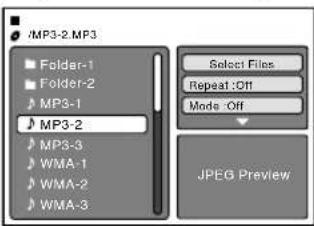
5 Press ENTER.
The selected file starts playing back.
6 Press STOP to end playback.
- The unit records the stopped point. " ", appears on the screen. Press PLAY to resume playback (from the scene point).
- If you press STOP again or unload the disc, the unit will clear the stopped point.
NOTE:
- During MP3/WMA/JPEG-Playback, you cannot use JUMP and A-B Repeat functions.
- You can use Program playback, Repeat (Track or All) and Random functions for MP3/WMA/JPEG and Audio CD Playback (see pages 25 and 26).
JPEG playback:
1 In the file browser, press▲/▼ to select the desired JPEG file.
To display a thumbnail list, press DVD MENU. Press ▲/▼/◄/► to select the desired file. (To return to the file browser, press TOP MENU.)
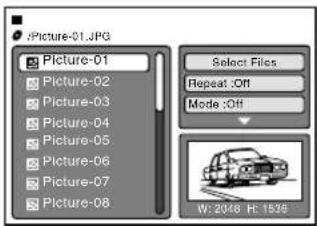
2 Press ENTER or PLAY.
The selected picture appears on the TV screen. Rotating an image
You can rotate an image by 90 degrees. Press ANGLE during playback of the image.
“→”, “,” or” appears on the screen.
Zooming an image
Zoom function also can be used in viewing JPEG files.
Press ZOOM (See "Zooming" on page 26).
3 Press STOP to end playback.
The file browser appears on the TV screen. If you want to watch the other file, repeat steps 1-2.
Select Files
The file type to make it display in the file browser can be chosen.
1 Press ◀/▶ to select "Select Files" at right column in the file browser.
- Press ENTER, then press ▲/▼ to select file type from the list (Music or Picture).
2 Press ENTER to add/remove check mark.
Checked file type will be displayed in the file browser.
3 Press RETURN to save the setting.
Program playback (CD)
You can arrange the order of tracks on the disc.
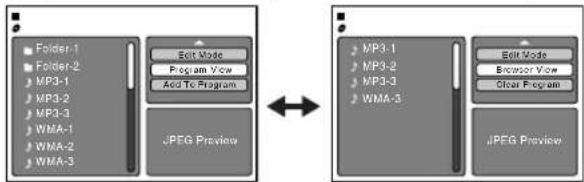
1 In the file browser, press ▲/▼/◄/► to select "Edit Mode", then press ENTER.
When "Edit Mode" is highlighted, you can mark the files which you want to add into Program list.
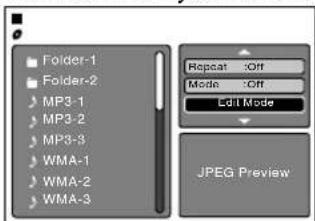
2 Press ▲/▼/◄/► to select the file you want to add into the program list.
Press ENTER. Selected file was marked. Repeat this procedure to select the other files.
3 Press ▲/▼/◄/► to select "Add To Program". Then press ENTER. All marked files are added into the program list.
When you finish storing the files you want into the Program list, select "Edit Mode" again and press ENTER to release edit mode.
4 Press ▲/▼ to select "Program View", then press ENTER. Program View shows only the programmed files that you have added in Step 2.
flowchart
graph LR
    A["Folder-1"] --> B["Edit Mode"]
    C["Folder-2"] --> D["Program View"]
    E["MP3-1"] --> F["Add To Program"]
    G["MP3-2"] --> H["WMA-1"]
    I["MP3-3"] --> J["WMA-2"]
    K["WMA-3"] --> L["WMA-3"]
    M["JPEG Preview"] --> N["Output"]
    O["MP3-1"] --> P["Edit Mode"]
    Q["MP3-2"] --> R["Browser View"]
    S["MP3-3"] --> T["Other Program"]
    U["JPEG Preview"] --> V["Output"]
Browser View Program View
5 In the Program View, press PLAY. The files start to playback in programmed order that were added by you.
To remove file from program list in stop mode In the Edit Mode, switch to Program View. Select the files you want to remove, then press ENTER. Select "Clear Program" and press ENTER. Marked file is removed from program list.
NOTE:
- The program is canceled when you eject the disc or turn the power off.
Repeat playback (CD)
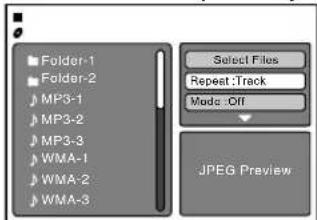
1 In the file browser, press ▲/▼/◄/► to select "Repeat".
2 Press ENTER repeatedly to select "Track" or "All".
3 Press PLAY.
The unit automatically starts repeat playback after finishing the current track.
To resume normal playback, select Repeat: "Off" in step 2.
NOTE:
- The repeat or random function is canceled when you eject the disc or turn the power off.
- The track repeat function is canceled when SKIP ◀◀ or ▶▶pressed.
- In case of Audio CD, the function of A-B Repeat also can be used (See "A-B Repeat Playback" on page 27).
Random playback (CD)
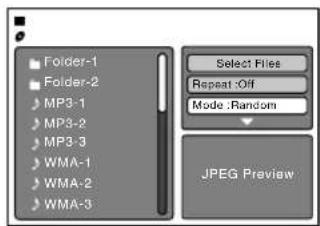
1 In the file browser, press ▲/▼/◄/► to select "Mode".
2 Press ENTER to select "Random".
3 Press PLAY.
The Random playback will start.
To resume normal playback, select Mode: "Off" in step 2.
Zooming
This unit will allow you to zoom in on the frame image. You can then make selections by switching the position of the frame.
1 Press ZOOM during playback. The center part of the image will be zoomed in. Each press of ZOOM will change the ZOOM magnification Q_1 (x 1.3), Q_2 (x 1.5) and Q_3 (x 2.0).
2 Press ▲/▼/◄/► to view a different part of the frame. You may move the frame from the center position UP, DOWN, LEFT or RIGHT.
3 In the zoom mode press ZOOM repeatedly to return to a 1:1 view (Q Off).
NOTE:
- You can select the Pause, Slow or Search playback in the zoom mode.
- Some discs may not respond to zoom feature.
Locating desired scene
Use the title, chapter and time recorded on the disc to locate the desired point to play back.
1 Press JUMP during playback or stop mode.
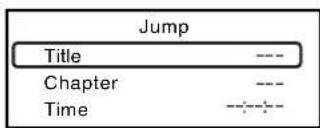
2 Press ▲ or ▼ to select the "Title", "Chapter" or "Time".
3 Press Number buttons (0–9) to input the number.
- If you input a wrong number, press CANCEL.
- Refer to the package supplied with the disc to check the numbers.
4 Press ENTER.
- Playback starts.
- When you change the title, playback starts from Chapter 1 of the selected title.
• Some discs may not work in the above operation.
Repeat playback
Title, Chapter Playback:
1 Press PLAY MODE during playback or stop mode.
2 Press ENTER repeatedly to select "Chapter" or "Title".
The unit automatically starts repeat playback after finishing the current title or chapter.
- If you set the repeat mode during stop mode, press PLAY to start Repeat playback.
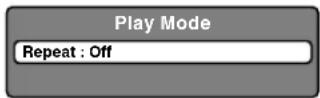
3 Press PLAY MODE again to make the screen disappear.
- In stop mode, press PLAY to start Repeat playback.
- To resume normal playback, select Repeat "Off" in step 2.
A-B Repeat Playback:
A-B repeat playback allows you to repeat material between two selected points.
1 Press REPEAT A-B during playback. The start point is selected.
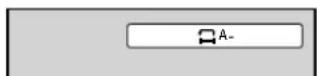
2 Press REPEAT A-B again.
The end point is selected. Playback starts at the point that you selected. Playback stops at the end point, returns to Point A automatically, then starts again.
3 To resume normal playback press REPEAT A-B again.
"Off" appears on the screen.
NOTE:
- Some discs may not work with the repeat operation.
- In A-B repeat mode, subtitles near point A or B may not appear.
- During the A-B Repeat Playback the ANGLE feature will not operate.
- You may not be able to set A-B Repeat, depending on the scenes of the DVD.
- A-B Repeat does not work with an interactive DVD, MP3/WMA/JPEG-CD.
Marking desired scenes
The TV/DVD stores the points that you want to watch again. You can resume playback from that scene.
Marking the scenes:
1 Press MARKER during playback.
2 Select the blank Marker using ▲ or ▼, then press ENTER at the desired scene.
- Up to 3 scenes can be selected.
- Repeat this procedure to set the other 2 scenes.
3 Press MARKER to remove this display.
Returning to the scenes:
1 Press MARKER during playback or stop mode.
2 Press ▲ or ▼ to select the Marker 1-3.
| Marker 1 | 00 27 54 |
| Marker 2 | 01 :16 25 |
| Marker 3 | 02 08 31 |
3 Press ENTER. Playback starts from the marked scene.
To cancel the mark:
1 Press MARKER during playback or stop mode.
2 Press ▲ or ▼ to select the Marker 1-3.
3 Press CANCEL.
Press MARKER to remove this display.
NOTE:
- The marking is canceled when you eject the disc or turn the power off.
- Some subtitles recorded around the marker may fail to appear. [DVD]
- The marking is canceled when you eject the disc or turn the power off.
- Some subtitles recorded around the marker may fail to appear. [DVD]
- The marking is canceled when you eject the disc or turn the power off.
- Some subtitles recorded around the marker may fail to appear. [DVD]
- The marking is canceled when you eject the disc or turn the power off.
- Some subtitles recorded around the marker may fail to appear. [DVD]
- The marking is canceled when you eject the disc or turn the power off.
- Some subtitles recorded around the marker may fail to appear. [DVD]
- The marking is canceled when you eject the disc or turn the power off.
- Some subtitles recorded around the marker may fail to appear. [DVD]
- The marking is canceled when you eject the disc or turn the power off.
- Some subtitles recorded around the marker may fail to appear. [DVD]
- The marking is canceled when you eject the disc or turn the power off.
- Some subtitles recorded around the marker may fail to appear. [DVD]
- The marking is canceled when you eject the disc or turn the power off.
- Some subtitles recorded around the marker may fail to appear. [DVD]
- The marking is canceled when you eject the disc or turn the power off.
- Some subtitles recorded around the marker may fail to appear. [DVD]
- The marking is canceled when you eject the disc or turn the power off.
- Some subtitles recorded around the marker may fail to appear. [DVD]
- The marking is canceled when you eject the disc or turn the power off.
- Some subtitles recorded around the marker may fail to appear. [DVD]
- The marking is canceled when you eject the disc or turn the power off.
- Some subtitles recorded around the marker may fail to appear. [DVD]
- The marking is canceled when you eject the disc or turn the power off.
- Some subtitles recorded around the marker may fail to appear. [DVD]
- The marking is canceled when you eject the disc or turn the power off.
- Some subtitles recorded around the marker may fail to appear. [DVD]
NOTE: - The marking is canceled when you eject the disc or turn the power off.
- Some subtitles recorded around the marker may fail to appear. [DVD]
- The marking is canceled when you eject the disc or turn the power off.
- Some subtitles recorded around the marker may fail to appear. [DVD]
- The marking is canceled when you eject the disc or turn the power off.
- Some subtitles recorded around the marker may fail to appear. [DVD]
- The marking is canceled when you eject the disc or turn the power off.
- Some subtitles recorded around the marker may fail to appear. [DVD]
- The marking is canceled when you eject the disc or turn the power off.
- Some subtitles recorded around the marker may fail to appear. [DVD]
- The marking is canceled when you eject the disc or turn the power off.
- Some subtitles recorded around the marker may fail to appear. [DVD]
- The marking is canceled when you eject the disc or turn the power off.
- Some subtitles recorded around the marker may fail to appear. [DVD]
- The marking is canceled when you eject the disc or turn the power off.
- Some subtitles recorded around the marker may fail to appear. [DVD]
- The marking is canceled when you eject the disc or turn the power off.
- Some subtitles recorded around the marker may fail to appear. [DVD]
NOTE:
Subtitles
Turning the subtitles on and off
When playing back a disc recorded with subtitles, you can turn the subtitles on or off.
Press SUBTITLE during playback until "Off" appears.
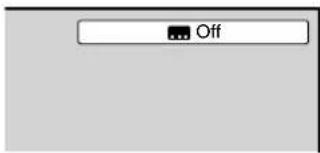
Changing the subtitle language
You can select the language when playing back a disc recorded with multilingual subtitles.
1 Press SUBTITLE repeatedly during playback until your desired language appears.
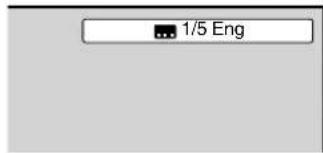
2 The on-screen display will disappear after a few seconds.
NOTE:
- Changing subtitle language is canceled when you eject the disc.
- Some functions may not work on some DVDs. You may not be able to turn subtitles on or off or change subtitles. While playing the DVD, the subtitle may change when:
- you eject the disc.
- you change the title.
- In some cases, the subtitle language is not changed to the selected one immediately.
Changing angles
When playing back a disc recorded with multi-angle facility, you can change the view angle.
1 Press ANGLE during playback.
The current angle will appear.
2 Press ANGLE repeatedly until the desired angle is selected.
NOTE:
- Depending on the DVD, you may not be able to change the angles even if multi-angles are recorded on the DVD.
Title selection
Two or more titles are recorded on some discs. If the title menu is recorded on the disc, you can select the desired title.
1 Press TOP MENU during playback. Title menu appears on the screen.
2 Press ▲/▼ or ◀/► to select the desired title.
3 Press ENTER or PLAY. The playback of the selected title will start.
NOTE:
- Depending on the DVD, you may not be able to select the title. Depending on the DVD, a "title menu" may simply be called a "menu" or "title" in the instructions supplied with the disc.
DVD menu
Some DVDs allow you to select the disc contents using the menu.
When you playback these DVDs, you can select the subtitle language and soundtrack language, etc. using the DVD menu.
1 Press DVD MENU during playback. The DVD menu appears on the screen. • Press DVD MENU again to resume playback at the scene when you pressed DVD MENU.
2 Press ▲/▼ or ◀/▶ to select the desired item.
3 Press ENTER. The menu continues to another screen. Repeat steps 2 and 3 to set additional items if any.
NOTE: DVD menu functions may not work on some DVDs.
Quick guide for DVD menu operation
example: Setting the language.
1 Press SETUP/TV MENU in the stop mode. Press ▲ or ▼ to select 📄 option, then press ◀/▶ or ENTER.
2 Press ▲ or ▼ to select desired option, then press ▶ or ENTER.
3 Press ▲ or ▼ to select your desired language (e.g. English), then press ENTER.
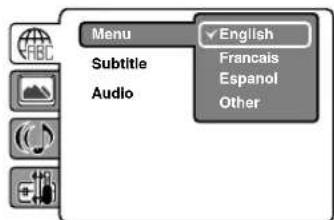
4 Press SETUP/TV MENU to remove the menu screen.
| Icon Function Description | |||
Language *1 | Menu *1Subtitle *1Audio *1 | English / Francais / Espanol | The selected language will be heard or seen. |
| Other Another language may be selected (see the “Language code list” on page 31). | |||
| Off (Subtitle) Subtitles do not appear. | |||
| Original (Audio) | The unit will select the first priority language of each disc. | ||
Picture TV Screen*2 | *2 | 4:3 (Letter box) | When playing back a wide screen-DVD disc, it displays the wide picture with black bands at the top and bottom of screen. |
| 4:3 (Pan Scan) | When playing back a wide screen-DVD disc, it displays the wide picture on the whole screen with left and right edges automatically cut off. | ||
| 16:9 (Wide) | Select this mode when connecting to a wide-screen TV. A wide screen picture is displayed full size. | ||
| Display *3 | Off / On On screen display can be switched on or off when you press any button. | ||
| Picture Mode There are two types of source content in pictures recorded in DVD video discs: film content (pictures recorded from films at 24 frames per second) and video content (video signals recorded at 30 frames per second). Make this selection according to the type of content being viewed. | |||
| Auto Select this position normally. The DVD player automatically detects source content, film or video, of the playback source. | |||
| Film Suitable for playback of film content pictures. | |||
| Video Suitable for playback of video content pictures. | |||
| JPEG Interval *4 | You can continuously playback all JPEG files automatically. | ||
| Off Plays back one file at a time. | |||
| 5 / 10 / 15 Seconds Displays images in the form of a slide show. Every 5 / 10 / 15 seconds the image changes. | |||
Audio | Night Mode *5 | Night Mode enables you to control the dynamic range so as to achieve a suitable sound for your equipment. | |
| Off It plays back at the recording level on the disc. | |||
| On Loud sounds such as explosion or similar are toned down slightly when played back. This makes it suitable for when it is connected to a stereo. | |||
| Digital Out *6 | You can select the digital output sound format corresponding to your system connection. | ||
| Off | There is no sound output from DIGITAL AUDIO OUT jack. | ||
| PCM Change Dolby Digital to PCM for this type of output. Select when connected to a 2 channel digital stereo amplifier. | |||
| Bitstream Disc audio bitstream data will be output. | |||
Setup | Parental | See page 30. | |
| Password | |||
NOTE:
^*1 If the selected language is not recorded on the disc, the first priority language is selected.
^2 If the DVD disc is not formatted in the pan & scan style, it displays 4:3 style.
^3 If “Display” is not set to “On” on screen displays do not appear when you press any buttons except SUBTITLE, PLAY MODE, MARKER, JUMP, DISPLAY and AUDIO.
^4 You cannot display the DVD SETUP screen when the unit is playing a disc.
^5 This function works only during playback of Dolby Digital recorded discs.
^6 Even if you select “Bitstream”, MPEG audio will be output in PCM format.
Parental control
Some discs are specified not suitable for children. Such discs can be limited not to play back with the unit.
Password and setting:
1 Press SETUP/TV MENU in the stop mode or No Disc. Press ▲ or ▼ to select 📄 option, then press ◀/▶ or ENTER.
2 Press ▲ or ▼ to select "Parental", then press ▶ or ENTER.
"Enter Password" screen will appear.
3 Press "0000" using Number buttons (0-9). (This is pre-setting password of this unit). Then press ENTER.
If you input a wrong number, press CANCEL.
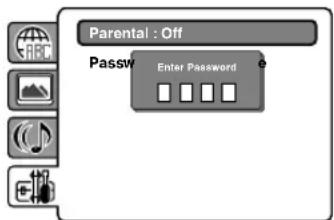
4 The parental level list will appear. Press ▲ or ▼ to select the level 1 to level 8. The limitation will be more severe as the level number is lowered. Then press ENTER.
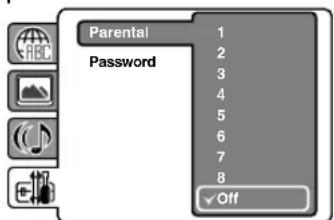
- Level Off : The parental control setting does not function.
- Level 8 : Virtually all DVD software can be played back.
- Level 1 : DVD software for adults cannot be played back.
5 Press SETUP/TV MENU to remove the menu screen.
NOTE:
- If each setup (P.28\~30) has been completed, the unit will use these settings during DVD playback.
Each setup will be retained in memory. - Depending on the discs, the unit may not be able to limit playback.
- Some discs may not be encoded with specific rating level information though its disc jacket says "adult". For those discs, the age restriction will not work.
- After the rating is locked, the setting cannot be changed unless you enter the correct password.
Setting the new password:
1 Press SETUP/TV MENU in the stop mode or No Disc. Press ▲ or ▼ to select 📋 option, then press ◀/▶ or ENTER.
2 Press ▲ or ▼ to select "Password", then press ▶ or ENTER.
"Enter Current Password" screen will appear.
3 Press Number buttons (0-9) to enter the password you have stored.
If you input a wrong number, press CANCEL.
4 Then press ENTER. "Enter New Password" screen will appear. Press Number buttons (0–9) to input the new password.
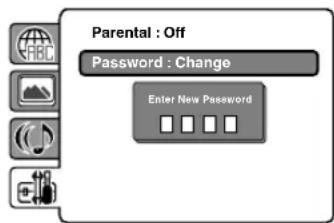
5 Press ENTER. Now your new password has been set. Be sure to remember this number!
NOTE:
- Do not forget the password. If you forget the password, contact Customer Service at 1-800-289-0980. The original remote control will be required.
Temporary disabling of rating level by DVD disc
Some pre-recorded DVD discs may attempt to temporarily cancel the rating level that you have set. You will be given the option to allow or not allow the override.
1 Load a DVD disc (see page 23).
2 If the DVD disc has been designed to temporarily cancel the Rating level, the screen which follows the "Reading" screen will change, depending on which disc is played. If you select "YES" with ENTER key, password input screen will then appear.
3 Enter the password with Number buttons (0-9). Then press ENTER. If you interrupt the entering, press RETURN.
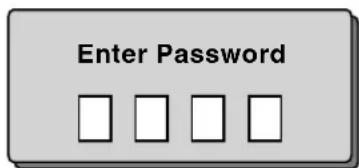
4 Playback will commence if the entered password was correct.
NOTE:
- This temporary cancellation of the rating level will be kept until the disc is ejected.
- When the disc is ejected, the original rating level will be set again automatically.
Enter the appropriate code number for the initial settings "Menu", "Subtitle" and/or "Audio" (see page 29).
| Language Name Code Language Name Code Language Name Code | |||||||
| Abkhazian 1112 Fiji 1620 Lingala 2224 Singhalese 2919 | |||||||
| Afar 1111 Finnish 1619 Lithuanian 2230 Slovak 2921 | |||||||
| Afrikaans | 1116 | French | 1628 | Macedonian | 2321 | ||
| Albanian | 2927 | Frisian | 1635 | Malagasy | 2317 | Somali | 2925 |
| Amharic | 1123 | Galician | 1722 | Malay | 2329 | Spanish | 1529 |
| Arabic | 1128 | Georgian | 2111 | Malayalam | 2322 | Sundanese | 2931 |
| Armenian | 1835 | German | 1415 | Maltese | 2330 | Swahili | 2933 |
| Assamese | 1129 | Greek | 1522 | Maori | 2319 | Swedish | 2932 |
| Aymara | 1135 | Greenlandic | 2122 | Marathi | 2328 | Tagalog | 3022 |
| Azerbaijani | 1136 | Guarani | 1724 | Moldavian | 2325 | ||
| Bashkir | 1211 | Gujarati | 1731 | Mongolian | 2324 | Tamil | 3011 |
| Basque | 1531 | Hausa | 1811 | Nauru | 2411 | Tatar | 3030 |
| Bengali; Bangla | 1224 | Hebrew | 1933 | Nepali | 2415 | Telugu | 3015 |
| Bhutani | 1436 | Hindi | 1819 | Norwegian | 2425 | Thai | 3018 |
| Bihari | 1218 | Hungarian | 1831 | Oriya | 2528 | Tibetan | 1225 |
| Breton 1228 Icelandic | 1929 Panjabi | 2611 Tigrinya 3019 | |||||
| Bulgarian | 1217 | Indonesian | 1924 | Pashto, Pushto | 2629 | Tonga | 3025 |
| Burmese | 2335 | Interlingua | 1911 | Persian | 1611 | Turkish | 3028 |
| Byelorussian | 1215 | Irish | 1711 | Polish | 2622 | Turkmen | 3021 |
| Cambodian | 2123 | Italian | 1930 | Portuguese | 2630 | Twi | 3033 |
| Catalan | 1311 | Japanese | 2011 | Quechua | 2731 | Ukrainian | 3121 |
| Chinese | 3618 | Javanese | 2033 | Rhaeto-Romance | 2823 | Urdu | 3128 |
| Corsican | 1325 | Kannada | 2124 | Romanian | 2825 | Uzbek | 3136 |
| Croatian | 1828 | Kashmiri | 2129 | Russian | 2831 | Vietnamese | 3219 |
| Czech | 1329 | Kazakh | 2121 | Samoan | 2923 | Volapük | 3225 |
| Danish | 1411 | Kirghiz | 2135 | Sanskrit | 2911 | Welsh | 1335 |
| Dutch | 2422 | Korean | 2125 | Scots Gaelic | 1714 | Wolof | 3325 |
| English | 1524 | Kurdish | 2131 | Serbian | 2928 | Xhosa | 3418 |
| Esperanto | 1525 | Laothian | 2225 | Serbo-Croatian | 2918 | Yiddish | 2019 |
| Estonian | 1530 | Latin | 2211 | Shona | 2924 | Yoruba | 3525 |
| Faroese | 1625 | Latvian, Lettish | 2232 | Sindhi | 2914 | Zulu | 3631 |
Connections to other equipment
The exact arrangement you use to interconnect various video and audio components to this unit is dependent on the model and features of each component. Check the Owner's Manual provided with each component for the location of video and audio inputs and outputs.
To connect the LCD TV/DVD to a VCR
Rear of the unit

flowchart
graph LR
    A["COMPONENT"] -->|Y, Pb, Pr| B["VIDEO"]
    A -->|B-VIDEO, L(MOKO), R| C["VIDEO"]
    B --> D["To VIDEO/AUDIO IN"]
    C --> E["To Video/Audio OUT"]
    D --> F["Video/Audio cord (not supplied)"]
    E --> G["Video/Audio OUT"]
To connect the LCD TV/DVD to a VCR with an S-Video cord
If you connect a VCR with a S-Video cable to the S-VIDEO IN jack on the rear side of the unit, you must also connect the audio cables to the AUDIO IN jacks on the rear side of the unit.
The S-Video cable only carries the video signal. The audio signal is separate.
NOTE:
- When the S-Video cable and the standard video cable are connected at the same time, the S-Video cable takes precedence.
Rear of the unit

To connect to a DVD player with Component Video Input
You can enjoy a high quality picture by connecting the unit's COMPONENT VIDEO OUT jacks of your DVD player with the COMPONENT video cables (not supplied).
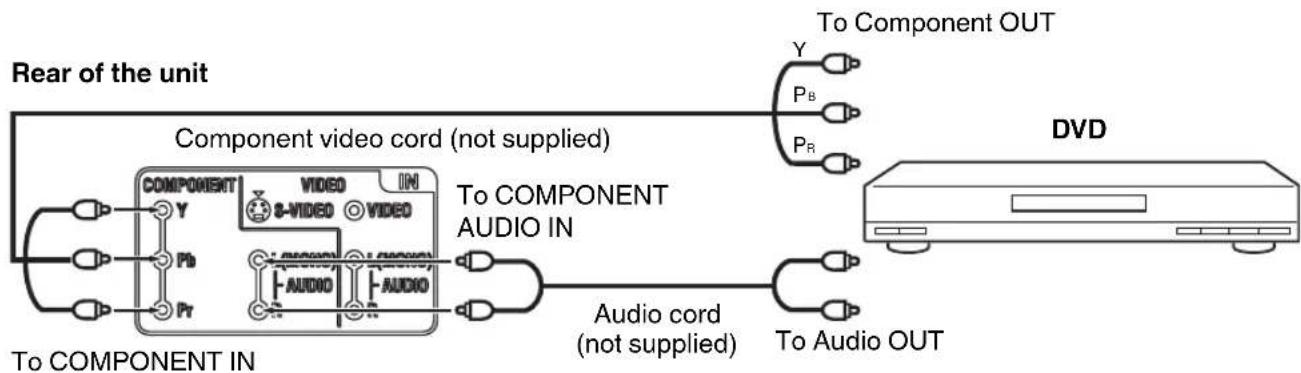
flowchart
graph LR
    A["Rear of the unit"] --> B["Component video cord (not supplied)"]
    B --> C["To COMPONENT IN"]
    B --> D["To COMPONENT AUDIO IN"]
    C --> E["Component Video & Audio"]
    D --> F["Audio cord (not supplied)"]
    D --> G["To Audio OUT"]
    H["DVD"] --> I["To Component OUT"]
NOTE:
- Component Video input of the unit are for use with a device which output 480i/1080i interlaced signals and 480p/720p progressive signals.
Connections to other equipment (continued)
Using an AV Amplifier with built-in digital surround
If you are using an Amplifier with built-in digital surround sound, you can enjoy various audio systems including Dolby Digital Surround audio that sounds just like the movie.
Connect an AV amplifier with built-in Dolby Digital decoder, DTS decoder, or MPEG decoder etc. as shown below.
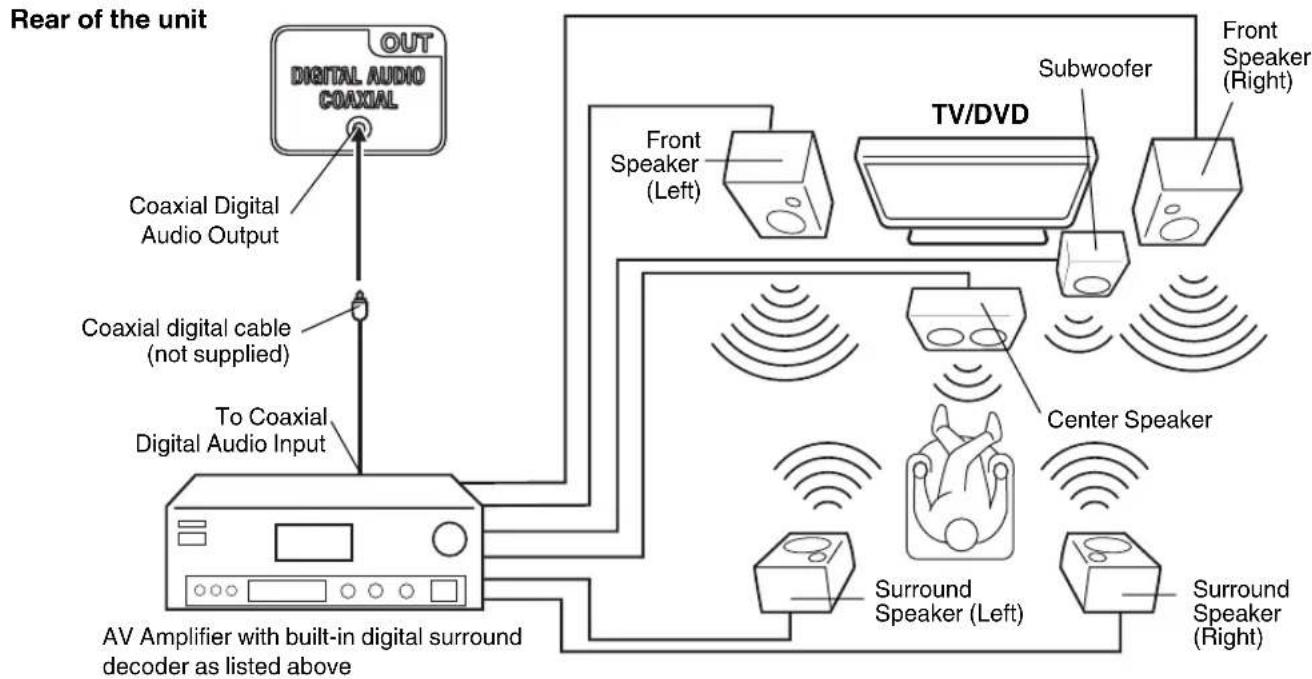
flowchart
graph TD
    A["Out Digital Audio Coaxial"] -->|Coaxial Digital Audio Output| B["To Coaxial Digital Audio Input"]
    B --> C["AV Amplifier with built-in digital surround decoder as listed above"]
    C --> D["Front Speaker (Left)"]
    C --> E["Subwoofer"]
    C --> F["TV/DVD"]
    C --> G["Center Speaker"]
    C --> H["Surround Speaker (Left)"]
    C --> I["Surround Speaker (Right)"]
NOTE:
- When you are viewing digital broadcast, this unit will not work in conjunction with DTS audio or MPEG audio. There will be no sound output if connected to an AV amplifier with a built-in DTS decoder or MPEG decoder.
To connect the TV/DVD to a camcorder, or a TV Game
To playback from a camcorder, connect the camcorder to the unit as shown.
This unit can also be used as a display device for many video games. However, due to the wide variety of signals generated by these devices and subsequent hook-up variations required, they have not all been included in the suggested connection diagrams. You'll need to consult each component's Owner's Manual for additional information.
Rear of the unit

flowchart
graph LR
    A["COMPONENT"] --> B["VIDEO"]
    A --> C["8-VIDEO"]
    A --> D["L(MOKO)"]
    A --> E["AUDIO"]
    A --> F["R"]
    B --> G["To VIDEO/AUDIO IN"]
    C --> H["Video/Audio cord (not supplied)"]
    D --> I["To Video/Audio OUT"]
    E --> I
    F --> I
    G --> J["or TV GAME"]
    I --> K["Output"]
To connect the TV/DVD to a PC (Personal Computer)
Before you connect this TV/DVD to your PC, change the adjustment of your PC's Resolution and Refresh rate (60 Hz).
Connect one end of a (male to male) VGA cable to the video card of the computer and the other end to the VGA connector PC MONITOR on the rear of the TV/DVD. Attach the connectors firmly with the screws on the plug. In case of a Multimedia computer, connect the audio cord to the audio output of your Multimedia computer and to the AUDIO connector of the PC/HDMI AUDIO IN jack of the TV/DVD.
Press INPUT SELECT on the remote control to select PC mode.
Switch on the computer. The TV/DVD can operate as the computer monitor.
Rear of the unit
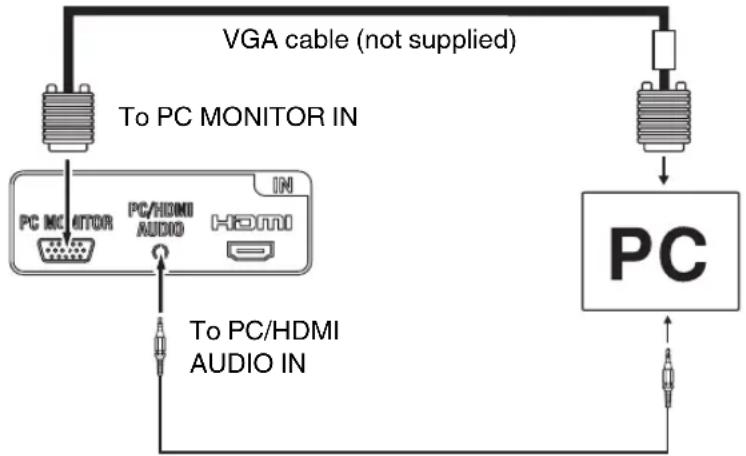
flowchart
graph TD
    A["PC Monitor"] -->|VGA cable (not supplied)| B["PC"]
    C["To PC MONITOR IN"] --> A
    D["To PC/HDMI AUDIO IN"] --> C
    E["PC"] --> F["Output"]
Audio cord (not supplied)
Monitor Display modes
MODE Resolution Refresh rate
VGA 640x480 60/72/75 Hz
VGA 720x400 70Hz
SVGA 800x600 56/60/72/75 Hz
XGA 1024x768 60/70/75 Hz
WXGA 1280x768 60Hz
WXGA 1280x720 60Hz
WXGA 1360x768 60Hz
To return to normal mode
Press INPUT SELECT again.
NOTE:
- The on-screen displays will have a different appearance in PC mode than in TV mode.
- If there is no video signal from the PC when the unit is in PC mode, "No signal" will appear on the TV-screen.
To connect a HDMI or a DVI device to the unit
The HDMI input receives digital audio and uncompressed video from a HDMI device or uncompressed digital video from a DVI device.
When you connect to a DVI device with a HDMI-to-DVI adapter cable, it transfers only video signal. Separate analog audio cords required.
Rear of the unit
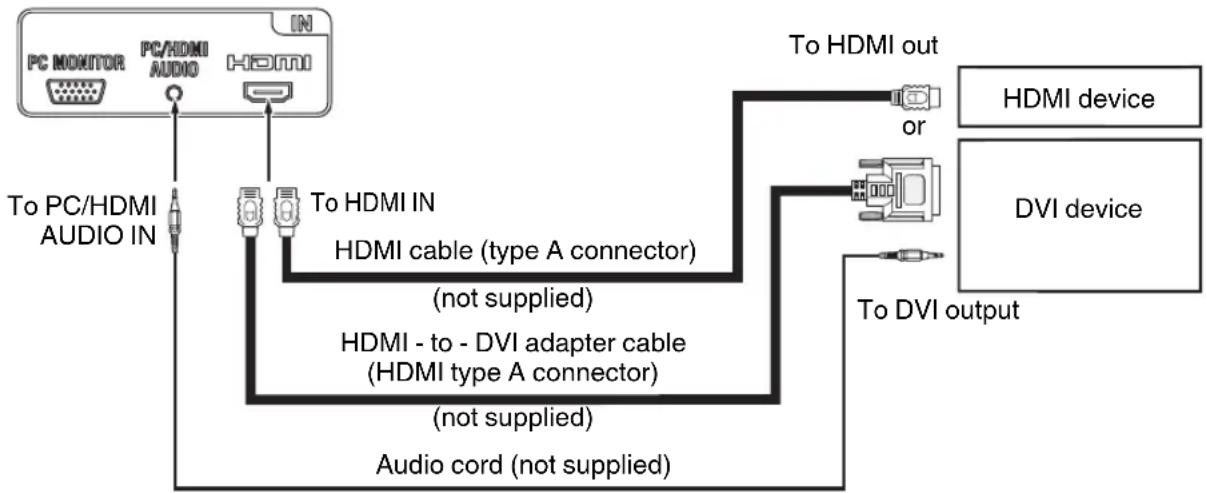
flowchart
graph TD
    A["PC MONITOR"] -->|To PC/HDMI AUDIO IN| B["To HDMI IN"]
    B --> C["HDMI cable (type A connector) (not supplied)"]
    B --> D["HDMI - to - DVI adapter cable (HDMI type A connector) (not supplied)"]
    B --> E["Audio cord (not supplied)"]
    F["To HDMI out"] --> G["or"]
    H["DVI device"] --> I["To DVI output"]
    style A fill:#f9f,stroke:#333
    style B fill:#ccf,stroke:#333
    style F fill:#cfc,stroke:#333
    style H fill:#fcc,stroke:#333
NOTE:
- When using HDMI to connect your HDMI or DVI devices, you must select the corresponding audio input source (HDMI or DVI) on the menu screen (see page 17). Otherwise you will only see the image with no sound.
- If you connect an external component (cable box, satellite receiver, etc.) to this LCD TV using an HDMI cable or a DVI to HDMI cable, the image will not display if the output resolution of the component is set to 480i. To receive the picture you must change the output resolution on the external component.
Should you require further instruction, please contact the manufacturer of the external component.
Most types of television interference can be remedied by adjusting the height and position of the VHF/UHF antenna. Outdoor antennas are recommended for best results. The most common types of television interference are shown below. If one of these symptoms appear when the TV is connected to a Cable TV system, the disturbance may be caused by the local Cable TV company broadcast.
IGNITION
Black spots or horizontal streaks may appear, the picture may flutter or drift. Usually caused by interference from automobile ignition systems, neon lamps or AC powered tools and appliances such as drills or hair dryers.
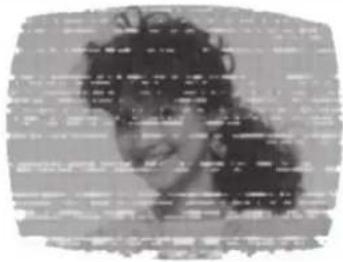
natural_image
Black-and-white photo of a person with curly hair, wearing a cap (no visible text or symbols)GHOSTS
Ghosts are caused by the television signal following two paths. One is the direct path and the other is reflected by tall buildings, hills or other large objects. Changing the direction or position of the antenna may improve the reception.
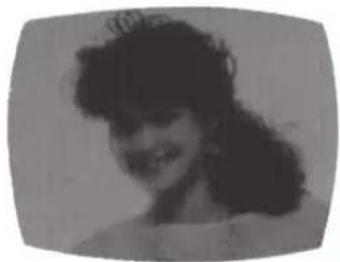
natural_image
Black-and-white portrait of a woman with curly hair, smiling (no text or symbols visible)SNOW
If the TV is located far from the TV station, in a fringe reception area where the signal is weak, small dots may appear in the picture.
If the signal is extremely weak, the installation of a larger external antenna may be necessary.

natural_image
Grayscale close-up of a person's face with dark hair and light patches (no visible text or symbols)RADIO FREQUENCY INTERFERENCE (RFI)
Caused by two-way radios, this type of interference produces moving ripples or diagonal streaks in the picture. Some cases may cause a loss of contrast in the picture. Changing the direction and position of the antenna or installing an RFI filter may improve the picture.
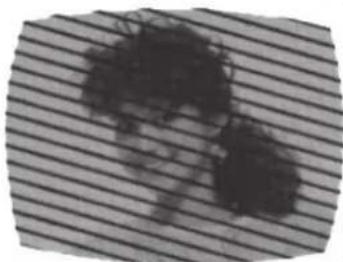
natural_image
Abstract dark ink blot on a striped background (no text or symbols)PICTURE SIZE VARIATION
A slight picture size variation is normal when you adjust the CONTRAST or BRIGHTNESS settings.
natural_image
Portrait of a smiling woman with curly hair and earrings (no text or symbols visible)CARE AND MAINTENANCE
To prevent fire or shock hazard, disconnect the TV from the power source before cleaning.
The finish on the cabinet may be cleaned with mild soap and a soft, damp cloth and cared for as other furniture.
Use caution when cleaning or wiping the plastic parts.
Problems and troubleshooting
Use the following check list for troubleshooting when you have problems with your TV/DVD. Consult your local dealer or service outlet if problems persist.
Be sure all connections are properly made when using with other units.
| SYMPTOMS POSSIBLE SOLUTIONS PAGE | ||
| POWER | ||
| TV/DVD does not operate. | Make sure the power cord is plugged in.Power is off, check fuse or circuit breaker.Unplug unit, then plug it back in. | 12 |
| TV BROADCAST RECEPTION | ||
| Poor sound or no sound. | Station or Cable TV experiencing problems, tune to another station.Check Volume adjustments or muting.Check for sources of possible interference. | 1515, 1635 |
| Poor picture or no picture. | Station or Cable TV experiencing problems, tune to another station.Check antenna or Cable TV connections, reorient antenna.Check for sources of possible interference.Check picture control adjustments. | 1513, 143517 |
| Poor reception on some channels. | Station or Cable TV experiencing problems, tune to another station.Station signal is weak, reorient antenna to receive stronger station.Check for sources of possible interference. | 151335 |
| Poor color or no color. | Station or Cable TV experiencing problems, tune to another station.Make sure channels are set into memory.Check picture control adjustments.Check antenna or Cable TV connections, reorient antenna.Check for sources of possible interference. | 15181713, 1435 |
| Picture wobbles or drifts. | Station or Cable TV experiencing problems, tune to another station.Make sure channels are set into memory.Cable TV company is scrambling signal.Check antenna orientation. | 1518-13 |
| No Cable TV reception. | Check all Cable TV connections.Set Signal Type option to the “Cable” mode.Station or Cable TV system problems, try another station. | 141815 |
| Horizontal or diagonal bars on screen. | Check antenna connections, reorient antenna.Check for sources of possible interference. | 1335 |
| No reception above channel 13. | Make sure Signal Type option is in the appropriate mode.If using antenna, check UHF antenna connections. | 1813 |
| TV shuts off. | No broadcast on station tuned.Sleep Timer is set.Power interrupted. | 1516- |
| Closed - Caption is not activated. | TV station experiencing problems or program tuned is not closed captioned. Try another channel.Check Cable TV connection or VHF/UHF antenna, reposition or rotate antenna.Set Closed caption in the menu. | 1513, 1421 |
| Display is not shown in your language. | Select proper language in the menu options.• 17 | |
- The LCD panel is a very high technology product, giving you fine picture details. Occasionally, a few non-active pixels may appear on the screen as a fixed point of blue, green or red. Please note that this does not affect the performance of your product.
| SYMPTOMS POSSIBLE SOLUTIONS PAGE | ||
| DVD | ||
| Playback doesn't start. | No disc is inserted.The disc may be dirty. Clean up the disc.The unit cannot play CD-ROMs, etc. | 2399 |
| No picture. TV/DVD selector is not set correctly.• 23 | ||
| No sound. | Check the input selector of the amplifier is set properly.The unit is in the Special playback mode.Select the correct Audio Output position on AV amplifier. | -2433 |
| Picture is distorted during CUE or REVIEW. | The picture will be distorted occasionally.• - | |
| Stopping playback, search, slow-motion play, repeat play, or program play, etc. cannot be performed. | Some discs may not allow some functions.• - | |
| No on-screen display. Select Display On.• 29 | ||
| No surround sound. The setup does not match your stereo system.• 33 | ||
| The unit or remote operation key is not functioning. | Turn off the unit and unplug the AC power cord for several minutes, then replug it. | 12 |
| Playback does not start when the title is selected. | Check the Parental setup.• 30 | |
| Audio soundtrack and/or subtitle language is not changed when you play back a DVD. | Multilingual language is not recorded on the DVD disc. | |
| No subtitle. | Some discs have no subtitles.Subtitles are cleared. Press SUBTITLE. | 28 |
| Angle cannot be changed. | Multi-angles are not recorded on the DVD disc. | 28 |
| “X” appears on the screen. | The function is prohibited with the unit or the disc. | |
| REMOTE CONTROL | ||
| The remote control does not function. | Aim at the remote control at the remote sensor.Operate within Approx. 15 feet or reduce the light in the room.Clear the path of the beam.The batteries are weak. Replace the batteries.Check the batteries are inserted correctly. | 12 |
ORION
FOR CUSTOMER SERVICE, ADDITIONAL SET-UP AND OPERATING ASSISTANCE, OR TO ORDER ACCESSORIES PLEASE CALL:
1-800-289-0980
WHEN CALLING CUSTOMER SERVICE – PLEASE HAVE YOUR MODEL NUMBER READY
OR WRITE TO:
ORION SALES, INC.
3471 N. UNION DR
OLNEY, ILLINOIS 62450
FOR INFORMATION ON OUR OTHER PRODUCTS, OR TO ORDER ACCESSORIES ONLINE, PLEASE VISIT OUR WEBSITE AT
www.orionsalesinc.com
GENERAL
Power supply: AC 120V 60Hz
Power consumption: Operation: 38W
Stand by: 0.8W
Weight: 4.2 kg (9.3 lbs)
Dimensions: Width: 472 mm (18-9/16 inches)
Height: 362 mm (14-1/4 inches)
Depth: 174 mm (6-7/8 inches)
Operating temperature: 5°C - 40°C
Operating humidity: Less than 80%
TELEVISION
Type: 47.01 cm (19" class/18.50" diagonal)
Display method: Transmission TFT color LCD panel
Number of Pixels: 1366 (H) x 768 (V)
Tuner type: NTSC standard
ATSC standard (8VSB), QAM
Receiving channels:
VHF 2-13
UHF 14-69
CATV 14-36 (A)-(W)
37-59 (AA)-(WW)
60-85 (AAA)-(ZZZ)
86-94 (86)-(94)
95-99 (A-5)-(A-1)
100-135 (100)-(135)
01 (5A)
Inputs:
S-Video: Y-Input:1.0 V (p-p), 75 ohms
C-Input:0.3 V (p-p), 75 ohms
Video: (RCA) 1 V p-p/75 ohms
Audio: (RCA) -8 dBm/50K ohms
Component video: (Y) 1 V (p-p), 75 ohms
HDMI: HDMI compliant (type A connector)
HDCP compliant
E-EDID compliant
Suggested scan rates: 480p, 480i, 720p, 1080i, 1080p
HDMI Audio: 2-channel PCM
32/44.1/48 kHz sampling frequency
16/20/24 bits per sample
PC Monitor: Mini-Dsub 15pin x 1
Antenna: VHF/UHF In 75 ohms coaxial
Outputs:
Digital audio out: 0.5 Vp-p 75 ohms terminated
Speaker:
25.4 mm x 68.6 mm (1 inch x 2-11/16 inches), 8 ohms x 2
Audio output power:
1.5W + 1.5W
DVD/CD player
Signal system:
NTSC
Applicable disc:
- DVD (12 cm, 8 cm)
2.CD (12 cm, 8 cm)
Pickup:
CD: Wavelength: 790 nm
Maximum output power: 7 mW
DVD: Wavelength: 655 nm
Maximum output power: 5 mW
ACCESSORIES
Remote control
Batteries (AAA) x 2
AC Cord
Stand
Screws x 2
Designs and specifications are subject to change without notice.
ORION
limited WARRANTY
19" TFT LCD TV WITH DVD PLAYER
ORION warrants this product to be free from manufacturing defects in material and workmanship under normal use and conditions for a period of 1 year from date of original purchase in the United States.
Should service be necessary under this warranty for any reason due to a manufacturing defect or malfunction during the first 12 months from date of original purchase, ORION will provide carry-in service only by an ORION authorized Independent Service Center at no charge. Also, if an original part fails due to manufacturing defect in material and workmanship within one year from date of original purchase we will replace the defective part, provided the defect or malfunction is verified along with dated proof of purchase.
There are ORION authorized Independent Service Centers located throughout the country. For the one nearest you, DIAL TOLL FREE: 1-800-289-0980 or visit our website at www.orionsalesinc.com. ORION will not be liable for damages incurred in shipment of the unit. If there are no ORION authorized Independent Service Centers in your area please call - 1-888-296-7466 for assistance.
Note: This warranty is void if the product is:
(a) Damaged through negligence, misuse, abuse, or accident.
(b) Used in a commercial application or rentals.
(c) Modified or repaired by anyone other than an Independent Service Center authorized by ORION to effect warranty repairs to the class of product or by the ORION Factory Service Center.
(d) Damaged because it is improperly connected to the equipment of other manufacturers.
This warranty does not cover:
(a) Damage to video disc.
(b) Damage to equipment not properly connected to the product.
(c) Costs incurred in the shipping of the product to an ORION authorized Independent Service Center or ORION Factory Service Center.
(d) Damage or improper operation of unit caused by customer abuse, misuse, negligence, or failure to follow operating instructions provided with the product.
(e) Ordinary adjustments to the product which can be performed by customer as outlined in the owner's manual.
(f) Signal reception problems caused by external antenna or cable systems.
THIS WARRANTY IS NON TRANSFERABLE AND APPLIES ONLY TO THE ORIGINAL PURCHASER AND DOES NOT EXTEND TO SUBSEQUENT OWNERS OF THE PRODUCT. ANY APPLICABLE IMPLIED WARRANTIES, INCLUDING THE WARRANTY OF MERCHANTABILITY, ARE LIMITED IN DURATION TO A PERIOD OF THE EXPRESS WARRANTY AS PROVIDED HEREIN BEGINNING WITH THE DATE OF ORIGINAL PURCHASE AT RETAIL AND NO WARRANTIES, WHETHER EXPRESS OR IMPLIED SHALL APPLY TO THIS PRODUCT THEREAFTER. ORION MAKES NO WARRANTY AS TO THE FITNESS OF THE PRODUCT FOR ANY PARTICULAR PURPOSE AND USE.
UNDER NO CIRCUMSTANCES SHALL ORION BE LIABLE FOR ANY LOSS, DIRECT, INDIRECT, INCIDENTAL, SPECIAL, OR CONSEQUENTIAL DAMAGE ARISING OUT OF OR IN CONNECTION WITH THE USE OF THIS PRODUCT.
THIS WARRANTY IS VALID ONLY IN THE UNITED STATES OF AMERICA. THIS WARRANTY GIVES YOU SPECIFIC LEGAL RIGHTS, HOWEVER, YOU MAY HAVE OTHER RIGHTS WHICH MAY VARY FROM STATE TO STATE. SOME STATES DO NOT ALLOW LIMITATION ON IMPLIED WARRANTIES OR EXCLUSION OF CONSEQUENTIAL DAMAGE, THEREFORE THESE RESTRICTIONS MAY NOT APPLY TO YOU.
ORION SALES, INC.
3471 N. UNION DR.
OLNEY, ILLINOIS 62450
FRANÇAIS
ATTENTION
RISQUE DE CHOC ELECTRIQUE NE PAS OUVRIR

ATTENTION:
POUR RÉDUIRE LES RISQUES DE CHOC ÉLECTRIQUE, NE RETIREZ PAS LE COUVERCLE (OU LE PANNEAU ARRIÈRE). AUCUNE PIÈCE À L'INTÉRIEUR NE PEUT ÊTRE RÉPARÉE PAR L'UTILISATEUR. CONFIEZ L'APPAREIL À UN TECHNICIEN QUALIFIÉ.
CLASS 1 LASER PRODUCT
natural_image
Diagram of a computer monitor rear panel with two buttons and ventilation indicators (no text or symbols)AVIS IMPORTANT
natural_image
Top-down schematic of a mechanical or electrical component with grid lines and directional arrows (no text or symbols)natural_image
Top-down schematic of a circular panel with internal components and directional arrows, no text or symbols present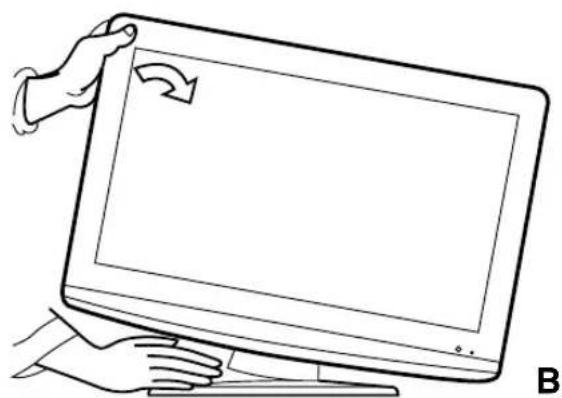
natural_image
Line drawing of a hand holding a laptop with a scroll icon on the screen (no text or symbols)REMARQUE:
G : Tous les âges
natural_image
Two identical diagrams showing a square frame with a circle on top and an oval on the side, both with circular holes at corners (no text or symbols)natural_image
Diagram showing a square object with a circle inside, transforming into a rectangular shape with circles and dots (no text or symbols)natural_image
Line drawing of a hand inserting a CD into a computer monitor (no text or symbols)flowchart
graph LR
    A["▲"] --> B["Reading"]
3 Appuyez sur PLAY.
3 Appuyez sur PLAY.
SVGA 800x600 56/60/72/75Hz
XGA 1024x768 60/70/75Hz
WXGA 1280x768 60 Hz
WXGA 1280x720 60 Hz
WXGA 1360x768 60 Hz
natural_image
Black-and-white portrait of a person with curly hair (no visible text or symbols)IMAGES FANTÔMES
natural_image
Black-and-white portrait of a smiling woman with curly hair (no text or symbols visible)IMAGE ENNEIGÉE
natural_image
Grayscale abstract image with indistinct dark shapes and speckles, no visible text or symbolsBROUILLAGE RADIOÉLECTRIQUE
natural_image
Black-and-white photo of a person with curly hair against a striped background (no text or symbols visible)VARIATION DE LA GRANDEUR DE L'IMAGE
natural_image
Portrait of a smiling woman with curly hair and earrings (no text or symbols visible)SOINS ET ENTRETIEN
Norme ATSC (8VSB), QAM
Audio: (RCA) -8 dBm/50K ohms