LC1521 - Printer STAR - Free user manual and instructions
Find the device manual for free LC1521 STAR in PDF.


| Product type | Serial impact dot matrix printer |
| Brand | Star |
| Model | LC1521 |
| Print technology | 9-pin dot matrix |
| Print speed (Draft) | Up to 300 cps (Pica 10 cpi) |
| Maximum resolution | 240 x 144 dpi |
| Supported paper formats | Separate sheets (width 7"/178 mm to 16.54"/420 mm), continuous paper (4"/101.6 mm to 16.5"/419 mm), labels |
| Dimensions (W x D x H) | 589 x 355 x 186 mm (23.2 x 13.9 x 7.3 inches) |
| Weight | 8.3 kg (18.3 lb) |
| Power supply | 120 V AC ±10%/-17% or 230 V AC ±14%/-13%, 50/60 Hz (depending on country) |
| Power consumption | 11 W standby, 50 W draft printing |
| Connectivity | Standard Centronics parallel; options: RS-232C/RS-422 serial |
| Available options | Pull tractor PT-15HA, automatic sheet feeder SF-15HA, serial interface IS-8H192/IS-32H768, serial-parallel converter SPC-8K |
| Operating environment | Temperature: 5°C to 35°C; humidity: 30% to 80% (non-condensing) |
| Print head life | 200 million dots/pin (normal mode), 100 million (multi-part mode) |
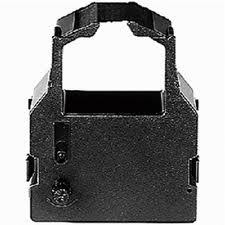
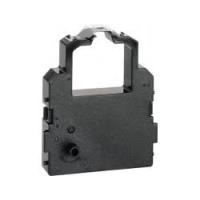
| Ribbon type | Monochrome (black), dedicated cartridge |
| Ribbon capacity | 2.5 million characters (draft 10 cpi) |
| Control panel | Keys: ON LINE, LINE FEED, FORM FEED, FONT, PITCH, SET/EJECT/PARK; status indicators |
| Main functions | Draft and NLQ modes, EDS (electronic DIP switches), quiet mode, multi-part mode, cut function, graphics printing, adjustable fonts and pitches |
| Maintenance and cleaning | Unplug before cleaning; use a soft dry cloth; do not use solvents or oil |
| Safety | Do not move the print head while the printer is on; wait 5 seconds before turning on after turning off; unplug before servicing |
| Spare parts and repairability | Ribbon cartridge, tractors, paper guide, covers, options; contact your dealer for repairs |
| General information | 192-page user manual downloadable at notice-facile.com |
Frequently Asked Questions - LC1521 STAR
User questions about LC1521 STAR
0 question about this device. Answer the ones you know or ask your own.
Ask a new question about this device
Download the instructions for your Printer in PDF format for free! Find your manual LC1521 - STAR and take your electronic device back in hand. On this page are published all the documents necessary for the use of your device. LC1521 by STAR.
USER MANUAL LC1521 STAR
Manufacturer's Declaration of Conformity
EC Council Directive 89/336/EEC of 3 May 1989
This product, has been designed and manufactured in accordance with the International Standards EN 50081-1/01.92 and EN 50082-1/01.92, following the provisions of the Electro Magnetic Compatibility Directive of the European Communities as of May 1989.
EC Council Directive 73/23/EEC and 93/68/EEC of 22 July 1993
This product, has been designed and manufactured in accordance with the International Standards EN 60950, following the provisions of the Low Voltage Directive of the European Communities as of July 1993.
The above statement applies only to printers marketed in EU.
Ambient Noise Statement
Machine Noise Information Ordinance 3. GSGV, January 18, 1991: The sound pressure level at the operator position is equal or less than 70 dB(A) according to ISO 7779.
The above statement applies only to printers marketed in EU.
Trademark acknowledgments
FR-15, IS-8H192, IS-32H768, LC-1511, LC-1521, PT-15HA, SF-15HA, SPC-8K, XR-1500, XR-1520, ZA-250:
Star Micronics Co. Ltd.
EX-800, FX-1170: Seiko Epson Corporation
IBM PC, IBM Proprinter, IBM Proprinter II, IBM Proprinter III, OS/2: International Business Machines Corporation.
TrueType: Apple Computer Inc.
MS-DOS, Microsoft Windows, Windows 3.1, Windows 95: Microsoft Corporation
Notice
- All rights reserved. Reproduction of any part of this manual in any form whatsoever, without STAR's express permission, is strictly forbidden.
- The contents of this manual are subject to change without notice.
- All efforts have been made to ensure the accuracy of the contents of this manual at the time of printing. However, should any errors be found, STAR would greatly appreciate being informed of them.
- The above notwithstanding, STAR can assume no responsibility for any errors in this manual.
EX-800, FX-1170: Seiko Epson Corporation
IBM PC, IBM Proprinter, IBM Proprinter II, IBM Proprinter III, OS/2: International Business Machines Corporation
True Type: Apple Computer Inc.
MS-DOS, Microsoft Windows, Windows 3.1, Windows 95: Microsoft Corporation
Remarque
EX-800, FX-1170: Seiko Epson Corporation
IBM PC, IBM Proprinter, IBM Proprinter II, IBM Proprinter III, OS/2: International Business Machines Corporation.
True Type: Apple Computer Inc.
MS-DOS, Microsoft Windows, Windows 3.1, Windows 95: Microsoft Corporation
Hinweis
© Copyright 1995 Star Micronics Co., Ltd.
CE
Star Micronics Co. Ltd.
EX-800, FX-1170: Seiko Epson Corporation
IBM PC, IBM Proprinter, IBM Proprinter II, IBM Proprinter III, OS/2: International Business Machines Corporation.
TrueType: Apple Computer Inc.
MS-DOS, Microsoft Windows, Windows 3.1, Windows 95: Microsoft Corporation
Avvertenze
© Copyright 1995 Star Micronics Co., Ltd.
About this manual
This manual describes how to set up, use, and care for the Star LC-1511 and LC-1521 printers. The following is a list of what you can expect to find in each chapter.
Chapter 1 Choosing a place for your printer, unpacking and setup, ribbon cassette installation, loading paper, connecting to your computer.
Chapter 2 How to use the control panel
Chapter 3 How to use the printer's Electronic DIP Switch (EDS) Mode to set up the printer to match the needs of your system and software
Chapter 4 Installing, starting up and using the User Setup Utility
Chapter 5 How to set up for printing with Microsoft Windows 3.1, how to prepare for printing, how to print a document
Chapter 6 How to set up for printing with Microsoft Windows 95, how to prepare for printing, how to print a document
Chapter 7 How to set up for printing with IBM OS/2 Warp, how to prepare for printing, how to print a document
Chapter 8 How to set up for printing with MS-DOS
Chapter 9 Selecting the best type of paper, adjusting for paper thickness, manual sheet feeding, clearing paper jams
Chapter 10 Optional accessories that are available for your printer
Appendix A How to deal with printing problems
Appendix B Specifications
Appendix C Interface information
Appendix D Character sets
Appendix E Printer control codes
Appendix F Control panel operation guide
Chapter 1: Printer Setup ....1
Choosing a place for the printer 1
Unpacking the printer 3
General guide 3
Opening the front cover 5
Removing the protective materials 5
Installing the platen knob 7
Installing the ribbon cassette 7
Removing the ribbon cassette 9
Installing the paper guide 11
Standing up the paper guide 11
Connecting to a power outlet and turning power on and off 13
Loading fanfold paper 13
Printing on fanfold paper 19
Parking fanfold paper 19
Unparking fanfold paper 21
Using the tear-off function 21
Connecting to your computer 21
Chapter 2: Control Panel Operations ...... 25
Switching between on-line and off-line 25
Selecting a font 27
Entering the Font Lock Mode 27
Setting the character pitch 29
Entering the Pitch Lock Mode 29
Line feed 31
Paper eject (cut-sheet paper) 31
Form feed (fanfold paper) 31
Parking fanfold paper 31
Micro feed 31
Setting the top of form position 33
Tear-off function (fanfold paper) 33
Selecting the Quiet Print Mode 33
Changing the auto load position 35
Saving a macro 37
Clearing the printer's buffer 37
Initializing the printer 39
Entering the Multi-part Mode 39
Table des matières
Chapter 3: Using the EDS Mode ...... 41
About EDS Mode settings 41
Entering the EDS Mode 41
Selecting a bank 43
Selecting a switch 43
Changing a switch setting 45
Printing the current switch settings 45
Checking the settings of switches in a bank 45
Exiting the EDS Mode 45
EDS Mode Settings 47
Chapter 4: User Setup Utility 67
Installing the User Setup Utility 67
Starting up the User Setup Utility 71
Changing the General, Font, Paper and Adjust Settings 71
To select a window 71
To select a setting box 73
To change a setting 73
Adjusting the dot alignment 73
Changing the printer port 75
Saving setup data in a configuration file 75
Importing setup data from a configuration file 77
Returning to default settings 77
Exiting the User Setup Utility 77
Using the Help menu 77
Chapter 5: Using the Printer with Windows 3.1 ..... 79
Setting up for printing with Microsoft Windows 3.1 79
Getting ready to print 85
Printing a document 87
Installing TrueType fonts 89
Selecting fonts in Windows applications 91
Chapter 6: Using the Printer with Windows 95 ...... 93
Setting up the printer in Windows 95 93
Preparing to print 101
Printing a document 105
Installing TrueType fonts 107
Chapter 7: Using the Printer with OS/2 Warp ..... 111
Setting up for printing with OS/2 Warp 111
Getting ready to print 113
Printing a document 113
Chapter 8: Using the Printer with MS-DOS .... 115
Setting up for printing with MS-DOS 115
Chapter 9: Paper Handling ....119
Selecting paper types 119
Cut-Sheet Paper (Manual Feed) 119
Cut-Sheet Paper (with Optional Automatic Sheet Feeder) ..... 119
Fanfold Paper 119
Labels 121
Adjusting for paper thickness 121
Automatic fanfold feeding 123
Manual sheet feeding 123
Clearing paper jams 125
Chapter 10: Optional Accessories ...... 127
Automatic Sheet Feeder (SF-15HA) 127
Pull Tractor Unit (PT-15HA) 127
Serial Interface Unit (IS-8H192 and IS-32H768) 127
Serial-to-Parallel Converter (SPC-8K) 131
Appendix A: Troubleshooting 133
Appendix B: Specifications 155
Appendix C: Interface Pin Outs 161
Appendix D: Character Sets ...... 162
Appendix E: Printer Control Codes 167
Appendix F: Control Panel Operation Guide .... 171
Chapter 1: Printer Setup
This chapter contains important information on setting up your printer. Be sure to read this chapter carefully before using the printer for the first time. In this chapter you will learn about:
□ Choosing a place for the printer
□ Unpacking and setting up the printer
□ Installing the platen knob
□ Installing the ribbon cassette
□ Loading paper
□ Connecting to your computer
Choosing a place for the printer
Before actually unpacking the printer, you should take a few minutes to think about where you plan to use it. Remember the following points when doing this.
√ Choose a firm, level surface where the printer will not be exposed to vibration.
√ The power outlet you plan to connect to for power should be nearby and unobstructed.
√ Make sure that the printer is close enough to your computer for you to connect the two with your printer cable.
√ Allow six inches (15 centimeters) of free space on either side of the printer. If you are going to use fanfold paper, make sure that there is adequate space for paper behind the printer.
√ Make sure that the printer is not exposed to direct sunlight.
√ Make sure that the printer is well away from heaters.
√ Make sure that the surrounding area is clean, dry, and free of dust.
√ Make sure that the printer is connected to a reliable power outlet. It should not be on the same electric circuit as copiers, refrigerators, or other appliances that cause power spikes.
√ Use a power outlet that matches the power rating noted on the label affixed to the bottom of your printer.
√ Make sure that the room where you are using the printer is not too humid.
Unpacking the printer
Check to make sure that the carton contains each of the items shown in the following illustration.
If anything is missing, contact the store where you bought the printer and ask them to supply the missing part. Note that it is a good idea to keep the original box and all the packing materials just in case you need to pack the printer up again and send it somewhere at a later date.
A serial-to-parallel interface converter (SPC-8K), a serial interface unit (IS-8H192 or IS-32H768), a pull tractor (PT-15HA), and an Automatic Sheet Feeder (SF-15HA) are also available as options. Consult your dealer for details.
Important!
There are several versions of this printer designed for different voltages. It is not possible to change the voltage of a printer. If the voltage shown on the label on the bottom of your printer does not match the voltage for your area, contact your dealer immediately.
General guide
The following illustrations show the major components of your printer.
natural_image
Technical line drawings of a printer with internal components and exploded view (no text or symbols)Opening the front cover
☐ Lift up on the front cover and swing it open until it stops.
☐ To close the front cover, simply lower it back into place.
Caution!
The tear assist edge is rather sharp. Take care to avoid injuring your hands.
Note:
You can completely remove the front cover from the printer or you can stand it up. You should normally leave the front cover closed, because it protects against objects getting into the printer, and it cuts down on printer noise.
Removing the protective materials
Two small pieces of packing material are inserted into the printer to protect components during shipping. Be sure to remove them before using the printer.
☐ Open the rear cover by pushing it back so that the cover swings back and down.
☐ Remove the two white pieces of packing from inside the printer as shown in the illustration.
A piece of cardboard is inserted into the printer to protect components during shipping. Be sure to remove it before using the printer.
□ Open the front cover.
□ Remove the cardboard from the inside of the front cover as shown in the illustration.
In addition, remove the cardboard from the back of the paper guide.
□ Remove the tape.
☐ Remove the cardboard from the paper guide as shown in the illustration.
natural_image
Technical line drawing of a mechanical assembly with a cylindrical component and rotating parts (no text or symbols)Tension knob
Bouton de tension
Farbbandknopft
Manopla di tensione
Ribbon cassette
Cartouche de ruban!!
Farbbandkassette
Cartuccia del nastrol
text_image
Cut-out Decoupect Ausschmittl IntaglioInstalling the platen knob
The platen knob is packed into a recess in the packaging material.
☐ Install the knob on the shaft located inside the large hole on the left side of the printer. Make sure that the two splines of the platen shaft inside the printer fit into the slots inside the knob's spindle. Press the knob carefully but firmly into place as far as it will go.
Installing the ribbon cassette
□ Make sure the printer is unplugged from its power outlet.
Caution!
Never move the print head while the printer is turned on. Doing so can damage the printer. If you have just finished printing, let the print head cool for a few minutes before you touch it.
☐ Remove the front cover of the printer.
☐ Remove the ribbon cassette from its package.
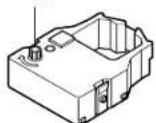
☐ Rotate the knob on the ribbon cassette clockwise to take up any slack in the ribbon.
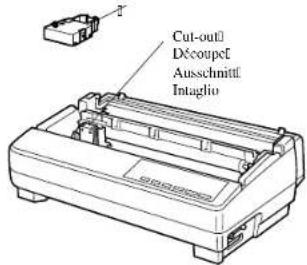
☐ By hand, move the cartridge holder to the left side where there is a cut-out in the top guide to allow easy installation and removal of the ribbon cassette.
☐ Carefully place the cassette onto the cartridge holder making sure that the spindle of the holder fits into the socket on the bottom of the cartridge. Also make sure that the side tabs fit into the grooves on the sides of the cartridge holder.
☐ While guiding the ribbon between the print head and print head shield, press down gently but firmly on the cartridge until the side tabs snap securely into place.
☐ Rotate the knob on the cassette again to take up any slack.
□ Replace the front cover of the printer.
Important!
Printing that is poor quality or too light is almost always due to a ribbon that is simply worn out or "used up." If you experience problems with print quality, check the condition of the ribbon. If the black part looks gray and well-worn, replace the ribbon with a new one.
Removing the ribbon cassette
Use the following procedure to remove the ribbon cassette from the printer when you want to replace it with a new one.
□ Make sure that the printer is unplugged from its power outlet.
Caution!
Never move the print head while the printer is turned on. Doing so can damage the printer. If you have just finished printing, let the print head cool for a few minutes before you touch it.
□ Open the front cover of the printer.
☐ By hand, move the cartridge holder to the left side where there is a cutout in the top guide to allow easy installation and removal of the ribbon cassette.
☐ Using your thumb and forefinger to squeeze the two tabs on the ribbon cassette towards the center, carefully remove the cartridge from the holder.
□ Use the procedure under "Installing the ribbon cassette" on page7 to install a new cartridge.
natural_image
Line drawing of a printer with an open lid and a magnified inset showing the tip detail (no text or symbols)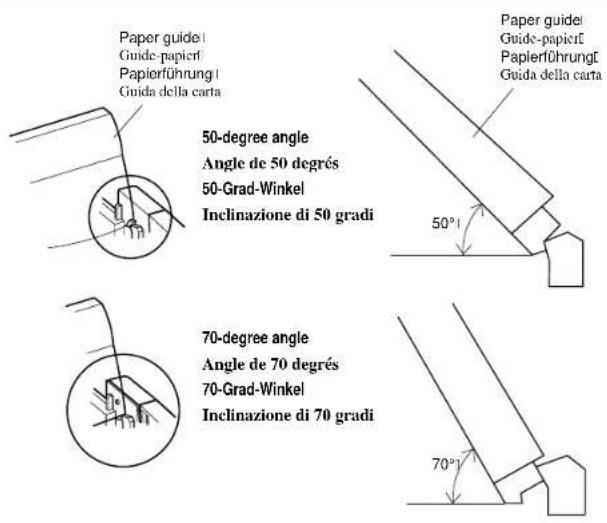
text_image
Paper guide! Guide-papierl Papierführungl Guida della carta 50-degree angle Angle de 50 degrés 50-Grad-Winkel Inclinazione di 50 gradi 70-degree angle Angle de 70 degrés 70-Grad-Winkel Inclinazione di 70 gradiInstalling the paper guide
☐ Insert the two tabs on the rear cover of the printer into the holes in the bottom of the paper guide.
☐ To remove the paper guide from the printer, simply pull the tabs out of the holes.
Standing up the paper guide
☐ You can move the paper guide so that it is at angles of 50 or 70 degrees as shown in the illustrations at the left. The correct angle depends on the type of paper you are using.
The following table shows the correct angle to use for each paper type.
| Paper Type Paper Guide Angle |
| Fanfold 50 degrees |
| Cut-sheet 70 degrees |
natural_image
Pure technical line drawing of a mechanical component with no text or symbols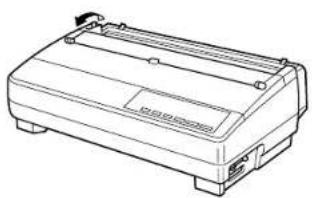
natural_image
Line drawing of a rectangular electronic device with ports and a scroll wheel (no text or symbols)
Connecting to a power outlet and turning power on and off
☐ Plug the power cord of the printer into a standard power outlet whose voltage matches the power rating noted on the label affixed to the bottom of your printer.
Caution!
If the voltage marked on the bottom of your printer does not match the voltage from the outlet you are using, do not plug in the power cord. Contact your dealer for assistance.
☐ Set the switch on the left of the printer to 1 (ON) to turn power on, and to 0 (OFF) to turn power off.
Caution!
Whenever you turn off the power, wait for at least five seconds before turning it back on. Otherwise you may damage the printer. We also recommend that you unplug the printer from the power outlet whenever you do not plan to use it for long periods. Because of this, you should locate the printer so that the power outlet it is plugged into is nearby and easy to access.
At this point you may want to perform a test of the printer to make sure it is working properly. See
"Testing the printer" on page133 for details on how to perform tests.
Loading fanfold paper
This section tells you how to load fanfold paper. Note that you can also use cut-sheet paper. For details on using other types of paper, see "Paper Handling" on page 119 of this manual.
□ Remove the paper guide from the printer.
□ Make sure printer power is turned off.
☐ Set the release lever to the fanfold position.
natural_image
Line drawing of a portable electronic device with two hands operating it (no text or symbols)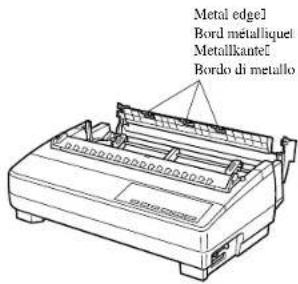
text_image
Metal edge1 Bord metalliquet Metallkantel Bordo di metallo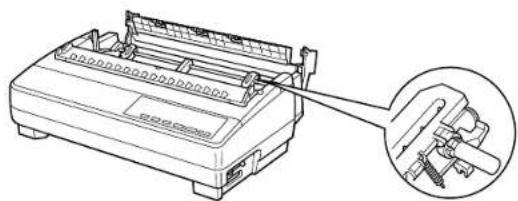
natural_image
Line drawing of a printer with a magnified inset showing internal components (no text or symbols)□ Grasping the two back corners of the printer with the palms of your hands, press back on the two raised areas on the top of the rear cover until it opens.
□ Swing the rear cover back and down until it stops.
Note:
You can also completely remove the rear cover by simply pulling it away from the back of the printer after you open it.
Caution!
The metal edge of the cover is rather sharp. Take care to avoid injuring your hands when handling it.
☐ Pass the fanfold paper through the space between the printer case and the rear cover.
☐ Unlock the two tractor covers by pulling their gray levers up, and slide them so they are aligned approximately with the holes on the sides of the paper. Also move the center paper support so that it is approximately halfway between the two tractors.
☐ Open the covers of both tractors and insert the paper so the tractor pins fit.
natural_image
Line drawing of a printer with paper roll and base (no text or symbols)☐ Close the tractor covers. At this point you can make final adjustments to the paper position by releasing the gray levers and moving the tractors. The paper should lie flat with no buckling or bulging (tractors too close) or no stretching or elongation of the holes (tractors too far apart). After making these adjustments, be sure that you re-lock the tractors by pushing the gray levers back into their original positions.
Before printing, make sure that the leading edge of the fanfold paper extends about 0.8 inch (two centimeters) past the front the paper chute, as shown in the illustration below.
☐ Close the rear cover and press down gently on it until it locks into place with a click.
Caution!
Since printing with an open rear cover may cause paper feeding problems, be sure to close the rear cover before printing.
☐ Install the paper guide so that it is standing up (at a 50-degree angle) as shown on page 11. In this position, the paper guide keeps the printed paper separate from the unprinted paper. Then slide the right and left paper guides apart so they do not interfere with the fanfold paper feeding.
□ Turn on the printer.
The printer will beep a number of times to indicate that paper is not loaded properly. Also, the control panel's POWER indicator flashes whenever paper is not loaded.
☐ Press the SET/EJECT/PARK button to feed the paper to the starting position.
Printing on fanfold paper
When printing on fanfold paper, take care not to print too close to the perforations that separate each sheet. The following shows the recommended print area for fanfold paper, cut-sheet paper and label paper.
Parking fanfold paper
It is not necessary to remove fanfold paper currently loaded in the printer in order to print on cut-sheet paper. Instead, simply use the following procedure to park the fanfold paper.
□ Tear off the paper at a perforation so there is no more than half a page sticking out of the front cover of the printer.
If necessary, you can press the control panel's ON LINE button to put the printer off-line, and then use the LINE FEED button to feed the paper until a perforation is just past the front cover.
□ Press the control panel's ON LINE button to put the printer off-line.
☐ Press the control panel's SET/EJECT/PARK button. The printer automatically reverse feeds the fanfold paper until it is no longer in contact with the platen, which is indicated by the printer beeping a number of times. Also, the control panel's POWER indicator starts to flash because paper is not loaded.
□ Move the release lever to the cut-sheet position.
☐ Change the paper guide to its upright position.
You can now load cut-sheet paper into the printer using the procedures under “Manual sheet feeding” on page123.
Unparking fanfold paper
After you are finished printing on cut-sheet paper, use the following procedure to unpark fanfold paper and make it available for printing.
☐ Remove all cut-sheet paper from the printer.
□ Move the paper guide so that it is at a 50-degree angle. (Refer to page 11.)
□ Move the release lever to the fanfold position.
☐ Press the SET/EJECT/PARK button to feed the paper to the starting position.
The printer automatically goes back on-line at this time.
Using the tear-off function
The following procedure makes it easy to tear off fanfold paper.
☐ Check to make sure that the printer is on-line.
☐ Press the FORM FEED button to perform the long tear-off operation, or press the LINE FEED button to perform the short tear-off operation.
The long tear-off operation causes the paper to be fed automatically so the tear assist edge of the printer cover is aligned with the paper's next perforation.
The short tear-off operation causes the paper to be fed automatically so the tear assist edge of the printer cover is located just below the last line printed on the paper.
☐ Pull the paper against the tear assist edge to tear it off.
Connecting to your computer
The computer sends data to the printer through a cable. This printer does not come with a cable, so you must purchase one separately. You will probably want to use a standard parallel cable for connection, but note that you can also use an optional serial-to-parallel interface converter (SPC-8K) or an optional serial interface unit (IS-8H192 or IS-32H768).
Important!
The following instructions apply to the Centronics parallel cable that is used with an IBM-compatible personal computer. Note that they do not apply to all types of computers and cables. If you are unsure about what type of cable you should use to connect with your computer, consult your dealer.
natural_image
Line drawing of a portable electronic device with a close-up inset showing a cable being inserted (no text or symbols)For an IBM-compatible personal computer:
√ Use a standard 36-pin Centronics parallel cable.
√ The parallel cable should be no longer than six feet (two meters). Longer cables can result in poor transfer of information.
Important!
Make sure that the printer and the computer are turned off before connecting them.
☐ Plug one end of the parallel cable into the parallel port of your computer. The parallel port should be labeled "Printer," "Parallel," "PRN," "LPT1," or something similar.
☐ Plug the other end of the parallel cable into the socket on the side of the printer and secure it in place with the clips.
Note:
Consult your dealer for details on how to set up your computer when using the optional SPC-8K serial-to-parallel interface converter or the IS-8H192 (or IS-32H768) serial interface unit.
Chapter 2: Control Panel Operations
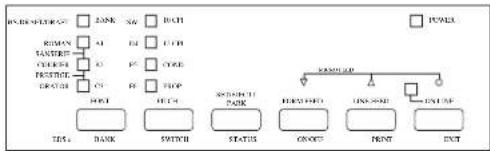
The control panel gives you push-button control over the printer's operations. It includes indicator lights, which tell you the current status of the printer at a glance.
flowchart
graph TD
    A["POWER"] --> B["START"]
    B --> C["BACK"]
    C --> D["Switch"]
    D --> E["STATUS"]
    E --> F["GROUP"]
    F --> G["LINK"]
    G --> H["INT"]
    H --> I["INPUT"]
    style A fill:#f9f,stroke:#333
    style I fill:#f9f,stroke:#333
This chapter describes control panel functions that can be performed while the printer is turned on and either on-line or off-line. The buttons perform different functions in the EDS and Dot Adjustment Modes. Functions of control panel buttons in these modes are described in the relevant sections covering them.
Switching between on-line and off-line
☐ Press ON LINE to switch the printer between being on-line and off-line.
☐ When the printer is on-line, the ON LINE indicator is lit and the printer can receive data from the computer. You should make sure that the printer is on-line whenever you are trying to print.
☐ When the printer is in off-line, the ON LINE indicator goes out, which means that the printer cannot receive any data.
☐ Note that you can also press ON LINE while a printing operation is in progress to stop the printing.
Important!
Make sure that the on-line/off-line setting of the printer is correct before performing a control panel operation.
☐ Make sure the printer is off-line (ON LINE indicator is not lit).
☐ Press FONT to change the font selection. An indicator lights to the left of the name of the font that is currently selected. HS-Draft is selected when all font indicators on the LC-1521 are off.
| Lit Indicator Font | |
| DRAFT Draft | |
| ROMAN Roman | |
| ROMAN + COURIER Sanserif | |
| COURIER Courier | |
| COURIER + ORATOR Prestige | |
| ORATOR Orator |
Note:
The font setting you make with the above procedure can be changed if the software you are using overrides the setting on the control panel. You can prevent this by using the following procedure to put the printer into the Font Lock Mode when you turn it on..
Entering the Font Lock Mode
When the printer is in the Font Lock Mode, the font settings you make on the control panel are used even if your software tries to override the font. Use the following procedure to enter the Font Lock Mode.
□ Turn off the printer.
☐ While holding down FONT, turn printer power on.
The printer is now in the Font Lock Mode. You could enter the Font Lock Mode and Pitch Lock Mode (page29) at the same time by holding down both FONT and PITCH when you turn on printer power.
To exit the Font Lock Mode, simply turn the printer off.
Important!
Font lock will not function if you are using Windows Truetype fonts.
Setting the character pitch
The character pitch setting controls how many characters are printed per inch. Use the following procedure to select the pitch you want.
☐ Make sure the printer is off-line (ON LINE indicator is not lit).
☐ Press PITCH to change the pitch selection.
The following shows the meanings of the indicators that light on the control panel when you press PITCH.
| Lit Indicators Meaning |
| 10CPI 10 characters per inch (Pica) |
| 12CPI 12 characters per inch (Elite) |
| 10CPI + COND 17 characters per inch (Condensed Pica) |
| 12CPI + COND 20 characters per inch (Condensed Elite) |
| PROP Proportional |
Note:
The pitch setting you make with the above procedure can be changed if the software you are using overrides the setting from the control panel. You can prevent this by using the following procedure to put the printer into the Pitch Lock Mode when you turn it on.
Entering the Pitch Lock Mode
When the printer is in the Pitch Lock Mode, the pitch settings you make on the control panel are used even if your software tries to override the pitch. Use the following procedure to enter the Pitch Lock Mode.
□ Turn off the printer.
☐ While holding down PITCH, turn printer power on.
The printer is now in the Pitch Lock Mode. You could enter the Pitch Lock Mode and Font Lock Mode (page 27) at the same time by holding down both FONT and PITCH when you turn on printer power.
To exit the Pitch Lock Mode, simply turn the printer off.
Important!
Pitch lock will not function if you are using Windows Truetype fonts.
☐ Make sure the printer is off-line (ON LINE indicator is not lit).
☐ Press LINE FEED once to feed paper one line. Holding down LINE FEED continually feeds paper, one line at a time, until you release the button.
Paper eject (cut-sheet paper)
☐ Make sure the printer is off-line (ON LINE indicator is not lit).
☐ Press SET/EJECT/PARK to eject the paper.
☐ After the paper is ejected, the printer will beep and the POWER indicator will flash to indicate there is no paper in the printer.
Form feed (fanfold paper)
☐ Make sure the printer is off-line (ON LINE indicator is not lit).
☐ Press FORM FEED and the printer will automatically feed the paper to the top of the next page.
Parking fanfold paper
☐ Make sure the printer is off-line (ON LINE indicator is not lit).
Press the control panel's SET/EJECT/PARK button.
☐ The printer automatically reverse feeds the fanfold paper until it is no longer in contact with the platen.
Micro feed
Use the following operation to feed the paper in very small increments. This makes it possible to align the print head exactly where you want it.
☐ Make sure the printer is off-line (ON LINE indicator is not lit).
☐ While holding down ON LINE, press LINE FEED to feed the paper forward or FORM FEED to feed the paper backward.
Saut de ligne
Setting the top of form position
The current position of paper loaded in the printer is automatically set as the top of the page whenever you turn power on. You can also use the following procedure at any time to specify a different position as the top of the page.
☐ Make sure the printer is off-line (ON LINE indicator is not lit).
☐ Use the micro feed operations (see above) to move the paper so that the print head is located where you want the new top of form position to be.
☐ While holding down FONT, press SET/EJECT/PARK.
The printer will beep once to indicate that a new top of form position has been set.
Tear-off function (fanfold paper)
This procedure feeds fanfold paper to a position where it can be torn off easily.
☐ Check to make sure that the printer is on-line.
☐ Press the FORM FEED button to perform the long tear-off operation, or press the LINE FEED button to perform the short tear-off operation.
The long tear-off operation causes the paper to be fed automatically so the tear assist edge of the printer cover is aligned with the paper's next perforation.
The short tear-off operation causes the paper to be fed automatically so the tear assist edge of the printer cover is located just below the last line printed on the paper.
☐ Pull the paper against the tear assist edge to tear it off.
☐ When you resume printing, the printer reverse feeds the paper to its former position.
Selecting the Quiet Print Mode
The Quiet Print Mode lets you print with less noise than that produced with normal printing. Use the following procedure to enter and exit the Quiet Print Mode.
Important!
Though the Quiet Print Mode prints more quietly, it also causes printing to take considerably longer than normal printing.
☐ Make sure the printer is on-line (ON LINE indicator is lit).
☐ Press SET/EJECT/PARK, to toggle between the Quiet Print Mode and normal printing.
The printer emits one short beeps when the Quiet Print Mode is selected, and two short beep when normal printing is selected.
Changing the auto load position
Normally the printer automatically feeds paper to a standard position (1/6-inch from the top of the paper). This is called the auto load position. You can use the following procedure to specify a different auto load position.
☐ Make sure the printer is off-line (ON LINE indicator is not lit).
☐ While holding down ON LINE, press SET/EJECT/PARK and then release the two buttons.
The printer will automatically eject the cut-sheet that is in the printer, or reverse feed fanfold paper until it is no longer in contact with the platen. Also, all the font and pitch indicators on the control panel will light.
☐ Press SET/EJECT/PARK to feed the paper to the starting position.
☐ Feed the paper so the print head is located where you want the new auto load position to be.
Press LINE FEED to feed the paper forward and FORM FEED to feed the paper backward. This is the micro feed operation.
☐ After you have the paper at the position you want, hold down ON LINE and press LINE FEED to make the current print head position the new auto load position. The printer will beep twice to indicate that the new auto load position is set.
☐ To clear the new auto load position and return to the one that you set previously (using the above procedure), press ON LINE. To clear the currently set auto load position and return to the standard position (1/6-inch from the top of the paper), hold down ON LINE and press SET/EJECT/PARK.
Note:
The auto load position you set remains in effect until you turn the printer off. If you want to save the auto load position in memory, press FORM FEED instead of LINE FEED while holding down ON LINE in the above step.
Normally, any settings you make on the control panel are cleared when you turn the printer off. Use the following procedure to save the current control panel settings so that they are used whenever you turn the printer on.
☐ Make the control panel settings you want.
☐ Use ON LINE to put the printer off-line (ON LINE indicator is not lit).
☐ Hold down FONT and then PITCH. Keep both buttons held down until the printer beeps twice.
Pressing FONT normally changes the font setting, so when you press it in the above step the indicator for the next font lights. Pressing PITCH, however, returns the font setting to what it was before you pressed FONT.
This procedure saves the following settings.
- Current font and pitch settings
- Quiet Print Mode status
These items can be set separately for the Standard mode and the IBM mode.
☐ To clear saved control panel settings repeat the above procedure, but keep FONT and PITCH depressed after the printer beeps twice. Soon the printer will beep again three times to indicate that the saved control panel settings have been cleared.
Clearing the printer's buffer
When the printer receives data from a computer, it temporarily stores it in a memory called a buffer. If you stop a printing job partway through, there is the chance that some data will remain in the buffer. The following procedure clears the printer's buffer by deleting any data that might be there.
☐ Execute the necessary command in the program you are using to stop the print job.
Important!
Be sure to stop the print job before taking the printer off line. Otherwise, the print job will resume from where you interrupted it when you put the printer back on-line.
☐ Use ON LINE to take the printer off line (ON LINE indicator is not lit).
☐ Hold down FONT and then FORM FEED. Keep both buttons held down until the printer beeps once, which indicates that the buffer is cleared.
Initializing the printer
The following procedure initializes the printer to its power-on settings. If you have control panel settings stored in memory, this procedure sets up the printer using them.
☐ Use ON LINE to take the printer off line (ON LINE indicator is not lit).
☐ Hold down FONT and then FORM FEED. Keep both buttons held down until the printer beeps once (indicating the printer buffer is cleared) and then beeps again three times, which indicates that the printer is reset.
Entering the Multi-part Mode
When the printer is in the Multi-part Mode, the print head prints with greater impact. It should be noted, however, that printing in the Multi-part Mode also reduces the life of the print head. Because of this, you should use the Multi-part Mode only for printing on four or five-ply paper. Return to the normal mode for printing on one to three-ply paper.
Use the following procedure to enter the Multi-part Mode
□ Turn off the printer.
While holding down the control panel's SET/EJECT/PARK button, turn the printer back on.
☐ To exit the Multi-part Mode, simply turn the printer off and back on again.
Chapter 3: Using the EDS Mode
The letters "EDS" stand for "Electronic DIP Switches." Just like the small DIP switches that are used by many computers, printers, and other devices, the EDS mode lets you configure the printer so that it matches your system and software needs. This chapter describes how to enter the printer's EDS Mode and provides details about available settings and how to change them.
All switch settings, except for F-2, are ON when the printer is shipped from the factory.
About EDS Mode settings
EDS Mode settings are grouped among six "banks" (representing banks of switches) that are identified by the letters A through F. Each bank contains a number of "switches" numbered 1 through 6 that you can turn on and off to configure the printer.
Entering the EDS Mode
□ Make sure that paper is loaded in the printer.
□ Turn off the printer.
While holding down the control panel's ON LINE, LINE FEED, and FORM FEED buttons, turn the printer back on.
This causes the following message to be printed, which indicates the printer is in the EDS Mode.
CURRENT EDS SETTINGS
| Bank | A | B | C | D | E | F |
| Switch | 123456 | 123456 | 123456 | 123456 | 123456 | 123456 |
| ON | ***** | ***** | ***** | ***** | ***** | *** |
| OFF | * |
While in the EDS Mode, use the control panel's BANK button to select a bank. When the BANK indicator flashes it indicates the current bank selected.
| Lit Indicator Selected Bank | |
| A1 | A |
| B2 | B |
| C3 | C |
| D4 | D |
| E5 | E |
| F6 | F |
Selecting a switch
While in the EDS Mode, use the control panel's SWITCH button to select a switch. When the SW indicator flashes it indicates the current switch selected.
| Lit Indicator Selected Switch | |
| A1 | 1 |
| B2 | 2 |
| C3 | 3 |
| D4 | 4 |
| E5 | 5 |
| F6 | 6 |
Sélection de groupe
Changing a switch setting
After selecting a bank and switch, press the control panel's ON/OFF button to turn the switch on and off. The current setting of the switch is indicated by the ON LINE indicator: the indicator is lit when the switch is on, and is not lit when the switch is off.
Printing the current switch settings
In the EDS Mode, press the control panel's PRINT button to print out the current switch settings. Asterisks on the printout show whether a switch is turned on or off.
Checking the settings of switches in a bank
After selecting a bank, press the control panel's STATUS button to view the status of each switch in that bank. The control panel's font indicator is lit when the switch is on, and is not lit when the switch is off.
| Lit Indicator Selected Switch | |
| A1 | 1 |
| A2 | 2 |
| A3 | 3 |
| A4 | 4 |
| A5 | 5 |
| A6 | 6 |
Exiting the EDS Mode
☐ Press the control panels EXIT button to exit the EDS Mode.
The following details all of the settings you can program in the EDS Mode. You can print out a detailed overview of all the settings by performing a test of the printer (page 133).
BANK A
Switch 1: Emulation
Selects Standard emulation (ON) or IBM emulation (OFF). Standard emulation causes the printer to act like the Epson ESC/P (9-pin), while IBM emulation makes it act like the IBM Proprinter III.
Switch 2: Character Table
The function of this switch depends on whether you are using IBM or Standard emulation.
| Emulation | Switch 2 Setting | Description |
| Standard | ON Graphics: IBM Character Set #2 | |
| OFF Italics: Italic character table used | ||
| IBM | ON IBM Character Set #2 | |
| OFF IBM Character Set #1 | ||
Switch 3: RAM Usage
Specifies whether RAM should be used as an input buffer (ON) or as a download buffer (OFF). Selecting input buffer (ON) tells the printer to use available RAM to store data it receives from the computer, which speeds up the printing. Selecting download buffer (OFF) tells the printer to use available RAM to store character patterns.
Switch 4: Automatic Sheet Feeder
Specifies whether the optional SF-15HA Automatic Sheet Feeder is installed (OFF) or not installed (ON).
Switch 5: Paper Out Detector
Specifies whether the printer's paper out detector is enabled (ON) or disabled (OFF). When the paper out detector is enabled (ON), the printer automatically stops printing whenever it senses there is no more paper. When it is disabled (OFF), the printer continues printing as long as there is data. Selecting disabled (OFF) makes it possible to print right up to the bottom of a page, but it also creates the danger of printing when there is no paper loaded in the printer, which can damage the print head and platen.
Switch 6: Multi-Part Mode
Specifies whether the printer's Multi-Part Mode is enabled (OFF) or disabled (ON). When the Multi-Part Mode is enabled (OFF), the impact of the print head is increased, but head life is decreased. Enable the Multi-Part Mode when printing on four to five-ply paper. Disable the Multi-Part Mode when printing on 1 to 3-ply paper.
BANK B
Switch 1: Graphics Direction
Selects uni-directional (OFF) or bi-directional (ON) printing for graphics. Bi-directional printing (ON) is faster, while uni-directional (OFF) printing generally provides better print quality in the graphics mode.
Switch 2: Auto Tear-off (Long)
Specifies whether the printer's auto tear-off (long) feature (page 33) is enabled (OFF) or disabled (ON). Note that this setting controls the application software's tear-off function only. It does not affect the manual tear-off function that is performed using the control panel buttons as described on page 21. The manual tear-off function is always enabled.
Switch 3: Line Spacing
Selects 1/6-inch (ON) or 1/8-inch (OFF) spacing between lines.
Switch 4: Auto LF with CR
Specifies whether auto LF with CR is enabled (OFF) or disabled (ON). When auto LF with CR is enabled (OFF), the printer automatically performs a line feed whenever it receives a carriage return from the computer. When it is disabled (ON), the computer must send both a line feed code and a carriage return code at the end of each line. Most applications do this automatically. Note the following check points when trying to figure out which setting to use here:
√ If you find that your output is double-spaced when it should not be, turn this switch ON (Disabled).
√ If you find that lines are printing over each other, turn this switch OFF (Enabled).
Switch 5: Zero Style
Specifies whether a normal zero (ON) or a slashed zero (OFF) will be used. Selecting Normal (ON) prints zeros without lines running through them, while Slashed (OFF) prints zeros with a diagonal slash running through them.
Switch 6: Reserved
Turn these switches on or off to select the print mode you want to use.
| Print Mode SW1 | SW2 | |
| Draft ON ON | ||
| NLQ ON OFF | ||
| HS-Draft* OFF ON | ||
* LC-1521 only. Not used with LC-1511.
Switches 3, 4, 5: Print Pitch
Turn these switches on or off to form the pattern that matches the print pitch setting you want to make.
| Print Pitch SW3 SW4 SW5 | ||
| 10cpi ON ON ON | ||
| 12cpi OFF ON ON | ||
| 17cpi ON OFF ON | ||
| 20cpi OFF OFF ON | ||
| Proportional ON ON OFF |
Switch 6: Quiet
When the Quiet Mode is enabled (OFF), the printer prints with less noise than normal printing. Though the Quiet Mode prints more quietly, it also takes considerably longer than normal printing.
GROUPE C
| Modo di stampa | SW1 | SW2 |
| Draft ON ON | ||
| NLO ON OFF | ||
| HS-Draft' OFF ON |
Switches 1, 2, 3, 4: Page Length
Turn these switches on or off to form the pattern that matches the Page Length setting you want to use.
| Page Length SW1 | SW2 SW3 SW4 | ||
| 11"/Letter ON ON ON | |||
| 8" | OFF ON ON ON | ||
| 11.7"/A4 ON OFF ON ON | |||
| 12" | OFF OFF ON ON | ||
| 8.5"/Letter ON ON OFF ON | |||
| 14"/Legal OFF ON OFF ON | |||
| 10.5"/Executive ON OFF OFF ON | |||
| 7.25"/Executive OFF OFF OFF ON | |||
| 3.5' | ON ON ON OFF | ||
| 5.5' | OFF ON ON OFF |
Switch 5: CR Centering Position
Specifies whether the printer's CR centering is long (ON) or short (OFF). When the CR centering position is long (ON), the carriage moves to the center of the platen before the paper is inserted or ejected. When CR centering is short (OFF), the carriage moves to the left side of the platen.
In order to prevent paper feeding problems, set the CR centering position to short (OFF) when narrow (less than 5.6") paper is used and set it to long (ON) when wider (more than 5.6") paper is used.
GROUPE D
Switches 1, 2, 3, 4, 5: Code Page/International Character Set
If your EDS settings specify IBM emulation (Bank A, Switch 1 OFF) with either character table (Bank A, Switch 2), or Standard emulation (Bank A, Switch 1 ON) with the graphics character table (Bank A, Switch 2 ON), use the Bank E switches to select the default character code page you want to use.
| Code Page SW1 SW2 SW3 SW4 SW5 | |||||
| #437 IBM-PC ON ON ON | ON ON | ||||
| #850 Multi-lingual OFF ON | ON ON ON ON | ||||
| #860 Portuguese ON OFF | ON ON ON ON | ||||
| #861 Icelandic OFF OFF | ON ON ON | ||||
| #863 Canadian French ON | ON ON OFF ON ON | ||||
| #865 Nordic OFF ON OFF | ON ON ON | ||||
| #866 Russian ON OFF | OFF ON ON | ||||
| #3840 IBM-Russian OFF | OFF OFF ON ON | ||||
| #3841 Gost-Russian ON | ON ON OFF ON | ||||
| #3843 Polish OFF ON ON | OFF ON | ||||
| #3844 CS2 | ON OFF | ON OFF ON | |||
| #3845 Hungarian | OFF OFF | ON OFF ON | |||
| #3846 Turkish ON ON OFF | OFF ON | ||||
| #3847 Brazil-ABNT | OFF ON | OFF OFF ON | |||
| #3848 Brazil-ABICOMP | ON OFF | OFF OFF ON | |||
| #852 Latin-2 | OFF OFF | OFF OFF ON | |||
| #1001 Arabic | ON ON | ON ON OFF | |||
| #737 Greek | OFF ON | ON ON OFF | |||
| #851 Greek | ON OFF | ON ON OFF | |||
| #869 Greek | OFF OFF | ON ON OFF | |||
GROUPE E
| Pagina codici | Interruttore 1 | Interruttore 2 | Interruttore 3 | Interruttore 4 | Interruttore 5 |
| #437 IBM-PC | ON ON | ON ON ON | |||
| #850 Multi-Lingual | OFF ON | ON ON ON | |||
| #860 Portuguese | ON OFF | ON ON ON | |||
| #861 Icelandic | OFF OFF | ON ON ON | |||
| #863 Canadian French | ON ON | OFF ON ON | |||
| #865 Nordic | OFF ON | OFF ON ON | |||
| #866 Russian | ON OFF | OFF ON ON | |||
| #3840 IBM-Russian | OFF OFF | OFF ON ON | |||
| #3841 Gost-Russian | ON ON | ON OFF ON | |||
| #3843 Polish | OFF ON | ON OFF ON | |||
| #3844 CS2 | ON OFF | ON OFF ON | |||
| #3845 Hungarian | OFF OFF | ON OFF ON | |||
| #3846 Turkish | ON ON | OFF OFF ON | |||
| #3847 Brazil-ABNT | OFF ON | OFF OFF ON | |||
| #3848 Brazil-ABICOMP | ON OFF | OFF OFF ON | |||
| #852 Latin-2 | OFF OFF | OFF OFF ON | |||
| #1001 Arabo | ON ON | ON ON OFF | |||
| #737 Greco | OFF ON | ON ON OFF | |||
| #851 Greco | ON OFF | ON ON OFF | |||
| #869 Greco | OFF OFF | ON ON OFF | |||
| Code Page SW1 SW2 SW3 SW4 | SW5 | ||||
| #928 Greek ON ON OFF | ON OFF | ||||
| #2001 Lithuanian-KBL OFF | ON OFF ON | OFF | |||
| #772 Lithuanian ON OFF | OFF ON OFF | ||||
| #774 Lithuanian OFF OFF | OFF ON OFF | ||||
| #3001 Estonian-1 ON ON | ON OFF OFF | ||||
| #3002 Estonian-2 OFF ON | ON OFF OFF | ||||
| #3011 Latvian-1 ON OFF | ON OFF OFF | ||||
| #3012 Latvian-2 OFF OFF | ON OFF OFF | ||||
| #3021 Bulgarian ON ON | OFF OFF OFF | ||||
| #3031 Hebrew | OFF ON OFF OFF OFF | ||||
| #3041 Maltese | ON OFF OFF OFF OFF | ||||
| Page de code | SW1 SW2 SW3 SW4 SW5 | ||
| 928 Grec | ON ON OFF ON OFF | ||
| 2001 Lithuanien-KBL | OFF ON OFF ON OFF | ||
| 772 Lithuanien | ON OFF OFF ON OFF | ||
| 774 Lithuanien | OFF OFF OFF ON OFF | ||
| 3001 Estonien-1 | ON ON ON OFF OFF | ||
| 3002 Estonien-2 | OFF ON ON OFF OFF | ||
| 3011 Lettonien-1 | ON OFF ON OFF OFF | ||
| 3012 Lettonien-2 | OFF OFF ON OFF OFF | ||
| 3021 Bulgare ON ON OFF OFF OFF | |||
| 3031 Hebreux | OFF ON OFF OFF OFF | ||
| 3041 Maltais | ON OFF OFF OFF OFF |
A code page is the set of symbols and characters taht your printer can print. Your printer converts ASCII hexadecimal data according to a code page to print symbols and characters. By supporting different code pages, the printer can support different language requirements. The following table is detailed information about code pages.
| Code Page Name | Country Remarks | ||
| #437 | IBM PC United Kingdom, France, Germany, Italy, Austria, Switzerland, United States, Spain | ||
| #850 | Multi-Lingual United Kingdom, France, Germany, Italy, Austria, Switzerland, United States, Spain | Preferred by Microsoft | |
| #860 | Portuguese Portugal | ||
| #861 | Icelandic Iceland | ||
| #863 | Canadian French Canada | ||
| #865 | Nordic Denmark, Finland, Norway, Sweden Preferred by Microsoft | ||
| #866 | Russian Russia Preferred by Microsoft | ||
| #3840 | IBM-Russian | Russia, Bulgaria | |
| #3841 | Gost-Russian | Russia Gost: government | standard |
| #3843 | Polish | Poland Also called "Mazowia" | |
| #3844 | CS2 | Czech Republic | Also called "Kamenicky" |
| #3845 | Hungarian | Hungary | |
| #3846 | Turkish | Turkey | |
| #3847 | Brazil-ABNT | ||
| #3848 | Brazil-ABICOMP | ||
| #852 | Latin-2 | Croatia, Czech Republic, Hungary, Poland, Romania, Serbia, Slovak Republic, Slovenia | Preferred by Microsoft |
| #1001 | Arabic | Egypt, Saudi Arabia | Mainly in Arabic speaking countries |
| #737 | Greek | Greece | Almost 80% |
| #851 | Greek | Greece | |
| #869 | Greek | Greece |
If your EDS settings specify Standard emulation (Bank A, Switch 1 ON) with the italic character table (Bank A, Switch 2 OFF), use the Bank E switches to select the international character set you want to use. This setting determines the assignment of 14 character codes in the Standard Italic character set.
| International Character Set | SW1 SW2 SW3 SW4 SW5 | ||
| U.S.A. ON ON ON ON | |||
| France OFF ON ON ON | |||
| Germany ON OFF ON ON | |||
| England OFF OFF ON ON | |||
| Denmark-1 ON ON OFF ON | |||
| Sweden OFF ON OFF ON | |||
| Italy ON OFF OFF ON | |||
| Spain-1 OFF OFF OFF ON | |||
| Japan ON ON ON OFF ON | |||
| Norway OFF ON ON OFF ON | |||
| Denmark-2 ON OFF ON OFF ON | |||
| Spain-2 OFF OFF ON OFF ON | |||
| Latin America ON ON OFF OFF ON | |||
| Korea OFF ON OFF OFF ON | |||
| Ireland | ON OFF OFF OFF ON | ||
| Legal OFF OFF OFF OFF ON |
| Set di caratteri internazionali | SW1 SW2 SW3 SW4 SW5 | ||||
| U.S.A. | ON ON | ON ON ON | |||
| Francia | OFF ON | ON ON ON | |||
| Germany | ON OFF | ON ON ON | |||
| Inghilterra | OFF OFF | ON ON ON | |||
| Danimarca-1 | ON ON | OFF ON ON | |||
| Svezia | OFF ON | OFF ON ON | |||
| Italia | ON OFF | OFF ON ON | |||
| Spagna-1 | OFF OFF | OFF ON ON | |||
| Giappone | ON ON | ON OFF ON | |||
| Norvegia | OFF ON | ON OFF ON | |||
| Danimarca-2 | ON OFF | ON OFF ON | |||
| Spagna-2 | OFF OFF | ON OFF ON | |||
| America Latina | ON ON | OFF OFF ON | |||
| Corea | OFF ON | OFF OFF ON | |||
| Irlanda | ON OFF | OFF OFF ON | |||
| Legal OFF OFF OFF ON | |||||
BANK F
Switches 1, 2, 3, 4, 5: NLQ Font Selection
Turn these switches on or off to form the pattern that identifies the font you want to use for NLQ printing.
| Font SW1 SW2 SW3 SW4 SW5 | |||||
| Roman ON ON | ON ON ON | ||||
| Sanserif OFF ON | ON ON ON ON | ||||
| Courier ON OFF | ON ON ON ON | ||||
| Prestige OFF | OFF ON ON ON | ||||
| Orator OFF | OFF OFF ON ON | ||||
Note:
Bank C switches 1 and 2 need to be in the correct positions before the above setting will have any effect.
GROUPE F
Chapter 4: User Setup Utility
The User Setup Utility is included on the floppy disk that comes with the printer. It allows you to change the EDS settings of the printer from your computer.
To run the User Setup Utility, you need an IBM-compatible computer running PC-DOS or MS-DOS. The computer must be equipped with a 3.5" floppy drive and a hard disk drive.
In this chapter you will learn about:
□ Installing the User Setup Utility
□ Starting the User Setup Utility
□ Editing setup data
□ Loading and saving setup data
☐ Exiting the User Setup Utility and sending the settings to the printer
Important!
See the "readme.txt" file for important information that became available after this documentation was printed.
All the procedures in this chapter assume that you are using a mouse and that you are familiar with common mouse operations like click and double-click. If you need information on mouse operations, see your computer manual. If you want to operate the User Setup Utility using the keyboard instead of the mouse, follow the instructions that appear on your computer's screen.
Installing the User Setup Utility
☐ Insert the disk that contains the User Setup Utility into one of your computer's disk drives. This explanation assumes you are using the A: drive, but you could use any drive. Just remember to change the "A:" drive name specifications in the following steps to the name of the drive you are using.
☐ Execute the following commands to start installation of the User Setup Utility. The following commands assume you are starting from drive C:, and the floppy that contains the User Setup Utility is inserted in drive A:
C:>A:
A:>CD UTILITY
A:\UTILITY>SETUP
text_image
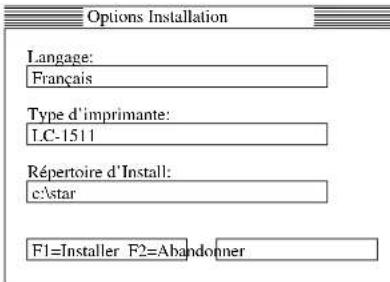
Setting for Install Language: English Printer Type: LC-1511 Install Directory: c:\star F1=Install F2=Cancel☐ Pull down the list of available languages under Language: and double-click the one you want to use.
☐ Pull down the list of available printers under Printer Type: and double-click on the one you want to use. For this printer you should select LC1511 or LC1521.
☐ Click the Install Directory: box to change it into an input box.
Input the drive name and directory where you want the User Setup Utility installed. Make sure to include the full path to the directory. You can use your computer's left and right arrow keys. Delete key, and backspace key to move around the input box and make changes to the text inside it.
☐ Click Install to install the User Setup Utility and start it up.
text_image
Options Installation Langage: Français Type d'imprimante: LC-1511 Répertoire d'Install: c:\star F1=Installer F2=AbandonnerStarting up the User Setup Utility
☐ After you install the User Setup Utility, you can start it up any time by moving to the directory you specified under "Installing the User Setup Utility" on page 63 and inputting the following:
STARSET
text_image
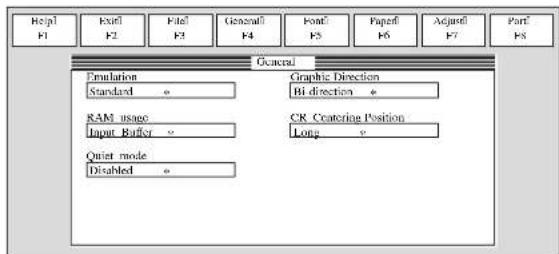
Help F1 Exit F2 File F3 General F4 Font F5 Paper F6 Adjust F7 Port F8 General Emulation Standard Graphic Direction BI direction RAM usage Input Buffer CR Cratering Position Long Quiet mode DisabledWhen you start the User Setup Utility, it reads and displays the last settings that were sent to the printer by the utility.
Note:
The utility does not read the settings from the printer. It reads the settings from a file that was created the last time the utility was run, which are stored on your computer's hard disk. If the EDS settings have been changed using the printer's control panel, those control panel settings will not be shown by the utility, and they will be replaced by the current User Setup Utility settings if you specify that current settings should be sent to the printer (page 75) when you exit the utility.
Now you can use the User Setup Utility to make the setup changes you want.
☐ You can press F1 at any time to access the on-screen help for the setup utility.
Changing the General, Font, Paper and Adjust Settings
The following are basic operations to change settings in the General, Font, Paper and Adjust windows.
To select a window
☐ Click on the name of the window you want to select (General, Font, Paper, Adjust, Port) by clicking on its name at the top of your computer's screen. When you do, the corresponding window appears on the screen. You can also select a window by pressing a function key from F4 to F8.
To select a setting box
☐ Click on the box you want to select or move to it by using your keyboard's Tab or arrow keys. The currently selected setting box is highlighted on the screen.
To change a setting
☐ After you select a setting box, click on the box or press Enter to pull down a list of available settings.
☐ Select the setting you want to use in the list by double-clicking on it, or by moving to it with the arrow keys and pressing Enter.
Note:
An asterisk to the right of a setting indicates that it is the default.
The settings in the General, Font, and Paper windows are identical to those in the EDS Mode. See "EDS Mode Settings" on page 47 for details.
Adjusting the dot alignment
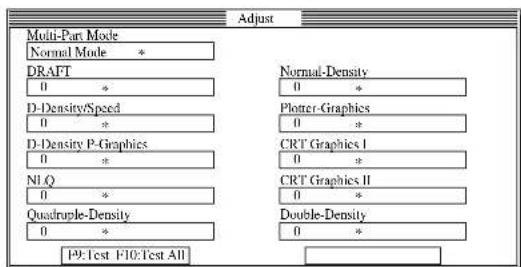
☐ Click on Adjust or press the F7 function key.
text_image
Adjust Multi-Part Mode Normal Mode * DRAFT 0 * D-Density/Speed 0 * D-Density P-Graphics 0 * NI.Q 0 * Quadruple-Density 0 * Normal-Density 0 * Plotter- Graphics 0 * CRT Graphics I 0 * CRT Graphics II 0 * Double-Density 0 * P9:Test F10:Test All☐ Use the above window to test and adjust the vertical alignment of the printer in each printing mode. See “Adjusting the dot alignment” on page 137 for full details on dot alignment.
Changing the printer port
☐ Click on Port or press the F8 function key.
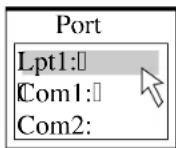
☐ Select the port you want to use by double-clicking on it, or by moving to it with the arrow keys and pressing Enter.
Saving setup data in a configuration file
☐ To save setup data in a configuration file so you can recall it later, click on File or press the F3 function key.
☐ Select Save from the menu that drops down by double-clicking on it, or by moving the highlighting to it with the arrow keys and pressing Enter.
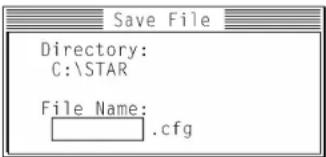
text_image
Save File Directory: C:\STAR File Name: .cfg☐ Input the name that you want to assign to the configuration file and press Enter. The configuration is automatically stored in the directory you specified under "Installing the User Setup Utility" on page 67, and assigned the extension ".cfg".
Important!
Remember that changing User Setup Utility settings on the computer screen does not directly change them in the printer. To change the printer settings to those shown on the screen, use the Exit command (page 77).
Importing setup data from a configuration file
☐ Click on File or press the F3 function key.
☐ Select Load from the menu that drops down by double-clicking on it, or by moving the highlighting to it with the arrow keys and pressing Enter.
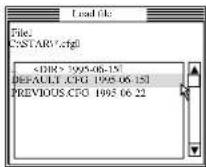
☐ Select the file that contains the configuration you want to use by double-clicking on its name, or by moving the highlighting to its name with the arrow keys and pressing Enter.
Returning to default settings
☐ To make all settings revert to their defaults, perform the procedure under "Importing setup data from a configuration file" in the previous section and select the file named "DEFAULT.CFG".
Exiting the User Setup Utility
To exit the User Setup Utility, pull down the File menu and select Exit.
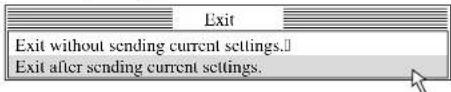
text_image
Exit Exit without sending current settings.1 Exit after sending current settings.☐ Select the option you want by double-clicking on it, or by moving the highlighting to it with the arrow keys and pressing Enter. "Exit after sending current settings" sends all User Setup Utility settings to the printer, which replaces any settings that may have been made using the printer's control panel. "Exit without sending current settings" exits the User Setup Utility without sending anything to the printer.
Using the Help menu
☐ To get information on how to use the User Setup Utility, click Help or press function key F1.
Chapter 5: Using the Printer with Windows 3.1
This chapter contains specific information you need to know when using the printer with Microsoft Windows 3.1. It also tells you how to install the printer driver on your computer so that it can control the printer correctly. In this chapter, you will learn:
☐ How to set up for printing with Microsoft Windows 3.1
□ How to prepare for printing
□ How to print a document
□ How to install TrueType fonts
□ How to select fonts from within an application
Important!
See the "readme.txt" file for important information that became available after this documentation was printed.
Setting up for printing with Microsoft Windows 3.1
This printer is designed to work best with computers running Microsoft Windows 3.1.
Before you can use the printer with Windows, you must first use the procedure outlined below to install the printer driver that is supplied on the 3.5" floppy disk that comes with the printer. This procedure assumes that you are using a mouse and that you are familiar with common mouse operations like click and double-click. If you need information on mouse operations or if you want to install the printer driver without using a mouse, refer to your Microsoft Windows User's Guide.
☐ Insert the disk that contains the printer driver into one of your computer's disk drives. This explanation assumes you are using a drive named "A:", but you could use any drive. Just remember to change the "A:" in the following steps to the name of the drive you are using.
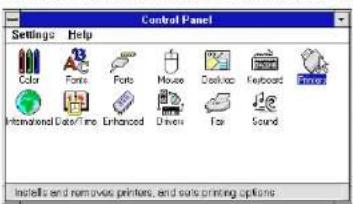
☐ In the Main group, double-click on the Control Panel icon.
☐ Double-click on the Printers icon in the Control Panel window.
text_image
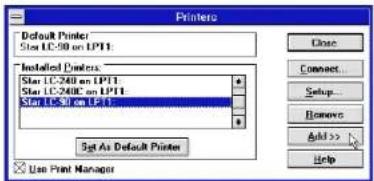
Control Panel Settings Help Color Fonts Ports Mouse Desktop Keyboard Prints Multidimensional Colors/Time Enhanced Drivers Fan Sound Installs and removes printers, and owns printing options☐ Click Add and the dialog box will expand to show a List of Printers.
☐ In the List of Printers: box, select Install Unlisted or Updated Printer.
text_image
Printers Default Printer: Star LC-50 on LP11: Installed Printer: Star LC-240 on LP11: Star LC-2400 on LP11: Star LC-50 on LP11: Set As Default Printer Use Print Manager Close Connect... Setup... Remove Add >> Help□ Click Install
☐ This causes the Install Driver dialog box to appear, which instructs you to insert the disk that contains the printer driver file.
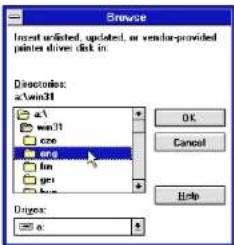
□ Click Browse.
☐ In the Directories: list, select WIN 31
□ Click on the language you want to use and then click OK.
text_image
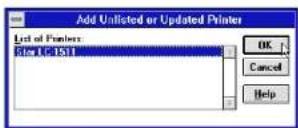
Browse Insert updated, updated, or vendor-provided printes drive disk in: Directories: a1w31 OK Cancel Help Origin: a:☐ In the List of Printers: box of the Add Unlisted or Updated Printer dialog box, select the Star printer driver and then click OK.
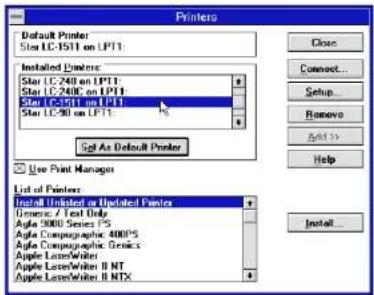
This causes the Printers dialog box to appear. The Star Printer is now listed in the Installed Printers: list.
☐ Double click on the name of the printer model you selected above to select it as the default printer.
text_image
Printers Default Printer Star LC-1511 on LP11: Installed Printer: Star LC-240 on LP11: Star LC-240C on LP11: Star LC-1511 on LP11: Star LC-90 on LP11: % Set As Default Printer Use Print Manager List of Printers Install Updated or Updated Printer Universe A Test Only Aple 3000 Series PS Aple Comparographic 4000'S Aple Comparographic Genics Apple LaserWriter Apple LaserWriter II NT Apple LaserWriter II NTX☐ Click Close to close the Printers dialog box.
Note:
Windows applications automatically print on the currently selected default printer. If you want to print on a different printer, you must first select it.
Getting ready to print
Before printing, there are a number of things you must first do to set up the printer. You must select the printer driver, and the paper source, size, and orientation. Use the following procedure to make these selections.
Note:
You do not need to perform printer driver and paper selections mentioned above each time you print, but only if there are any changes to the last selections you made.
☐ In the Windows Program Manager, open the Main group by clicking on its icon.
☐ Double click on the Control Panel icon.
☐ Double-click on the Printers icon in the Control Panel window.
☐ Double-click on the name of the printer model you selected above to choose it as the default printer.
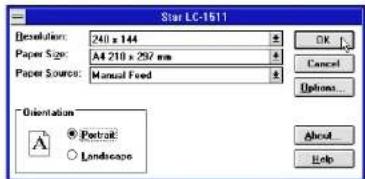
☐ Click on Setup to display the window for setting up your printer.
text_image
Star LC-1611 Resolution: 240 x 144 Paper Size: A4 210 x 297 mm Paper Source: Manual Feed Orientation A * Portrait ○ Landscape OK Cancel Options... About HelpFrom this window you select buttons that let you control a wide variety of printer setup parameters. This manual does not include any information about how to do this because everything you need to know is included in an on-line manual that tells you how to use all the buttons and menus that appear. To view the on-line manual, click on the Help button.
□ After the printer is set up the way you want it, click on OK.
☐ Click on the Close button in the Printers window to save your setup and return to the Program Manager.
Note:
Depending on the application software you are using, settings similar to those in the above procedure can be made using the Print Setup command of the File menu instead of the Control Panel.
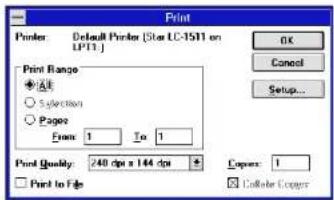
The following Print window appears when you select the Print command of the File menu of your Windows application.
text_image
Print Printer: Default Printer (Star LC-1511 on LPT1.) Print Range ● All ○ Selection ○ Pages From: 1 To 1 Print Quality: 240 dpi x 144 dpi □ Print to Fdp OK Cancel Setup... Copper: 1 □ Collector CopyNote:
The actual appearance of the Print window may differ somewhat depending on the application you are using.
Use this window to specify the range of the pages to be printed, the quality of the printing (in dots per inch), and the number of copies you want to print. Note also that there are boxes that you can select to specify printing to a file or collating (printing from back to front).
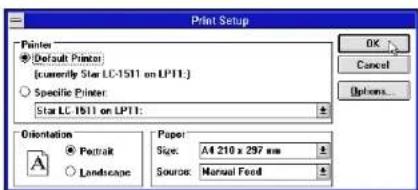
You can change the printer setup by clicking on the Setup button. When you do, the following window for setting up your printer appears on the display.
text_image
Print Setup Printer [Default Printer] (Currently Star LC-1511 on LPT1.) Specific Printer Star LC 1511 on LPT1: Orientation Portrait Landscape Paper: Size: A4 210 x 297 mm Source: Manual Feed OK Cancel Options...Make changes by clicking on the appropriate radio button or highlighting your selection on the appropriate pull-down menu.
The TrueType fonts that are supplied on the 3.5" floppy disk that comes with the printer can be used only when you are running Windows 3.1 or later. Use the following procedure to install the fonts.
□ Launch Windows.
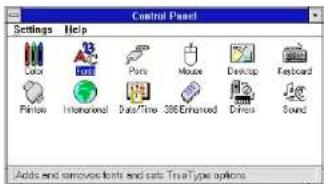
□ Open the Windows Control Panel.
text_image
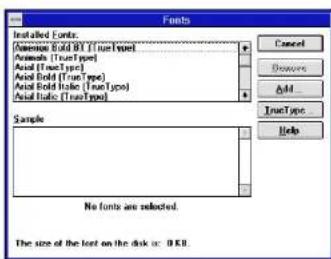
Control Panel Settings Help Color Print Paints Mouse Desktop F Cardboard Prints International Data/Time 300 Enhanced Directs Sound Adds and remove fonts and cats TriaType options☐ Double-click the Fonts icon and the Fonts dialog box appears. Click Add and the Add Fonts dialog box appears.
text_image
Fonts Installed Fonts: Auto Solid True Type Auto Solid True Type Auto Solid True Type Auto Solid True Type Auto Solid True Type Sample No fonts are selected. The size of the font on the disk is: 0 KB.☐ Insert the disk that contains the fonts into one of your computer's disk drives. This explanation assumes you are using a drive named "A:", but you could use any drive. Just remember to change the "A:" in the following steps to the name of the drive you are using.
☐ Select the letter that represents the drive where the floppy disk is installed. When you do, the names of all the fonts on the disk appear in the List of Fonts window. Select the fonts you want to install by clicking on their names. If you want to install all of the fonts, click Select All.
Installation des polices TrueType
☐ Click OK. The Fonts dialog box appears and installation is performed. The names of the newly installed fonts are automatically added to the Installed Fonts list.
While in the application program you are using, select Printer Setup from the application's File menu, and reselect the printer. After that, the application can display on-screen text and print text on the printer using the newly installed fonts.
Selecting fonts in Windows applications
Refer to the manual of the application you are using for details on how to select fonts within that application.
In addition to the Windows fonts, you can also use the TrueType fonts that come with this printer.
Chapter 6: Using the Printer with Windows 95
This chapter describes how to use the printer with Microsoft Windows 95. The following topics are covered:
□ Setting up the printer in Windows 95
□ Preparing for printing
□ Printing a document
□ Installing the TrueType fonts
Note:
The file "readme.txt" on the floppy disk contains any late-breaking information that has been made available since this manual was printed.
Setting up the printer in Windows 95
To use the printer with Windows 95, you need to install a file known as the printer driver onto your computer. This file is supplied on the floppy disk that comes with the printer.
The following description assumes that you are using a mouse ("click" and "double-click" refer to the action of using the mouse to point at an item with the on-screen pointer, and then clicking either once, or twice in quick succession).
To install the printer driver under Windows 95, use the following steps:
☐ Turn on the printer and start up your computer.
☐ Click on the Start button in the bottom lefthand corner of the screen.
□ Select Settings.
☐ Release the mouse button on Printers.
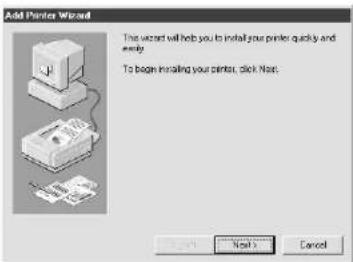
☐ Double-click on the Add Printer icon in the Printers window.
text_image
Add Printer Wizard This wizard will help you to install your printer quickly and easy. To begin installing your printer, click Next.□ Click on the Next button.
text_image
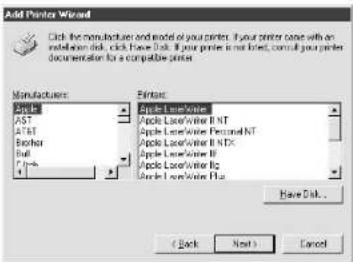
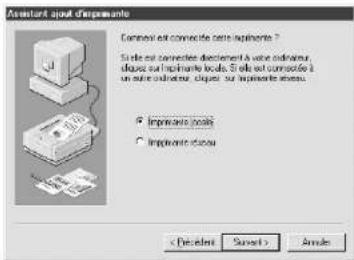
Add Printer Wizard How is this printer attached to your computer? If it is directly attached to your computer, click Local Primer. If it is attached to another computer, click Network Primer. ✓ Local printers ○ Network printers ( Back Next ) Cancel☐ When the above window is displayed, make sure the Local printer radio button is checked. Then click on the Next button twice, and click on the Back button.
text_image
Add Printer Wizard Click the manufacturer end model of your printer. If your printer comes with an installation disk, click Have Disk. If your printer is not closed, consult your printer documentor for a compatible printer. Manufacturer: Arist AST AIST Boucher Ball 1-1 Prints: Apple LaserWriter Apple LaserWriter EINT Apple LaserWriter Performed NT Apple LaserWriter E NDC Apple LaserWriter B Apple LaserWriter Bc Apple LaserWriter Bc Have Disk... ( Back Next ) Cancel□ Click on the Have Disk button.
☐ Insert the disk with the printer driver file on it into the floppy disk drive. Make sure that the drive's name ("A:" or "B:") is displayed in the field named Copy manufacturer's files from:. To select a drive name, click on the arrow by the side of the field and select the drive from the list that appears.
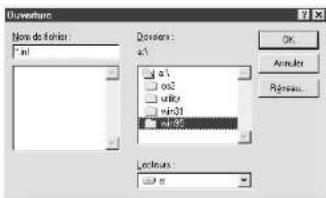
☐ Click on the Browse button. A list of folders on the floppy disk is displayed.
text_image
Upcom File name: F:\ Folders: a\ OK Cancel Network... Original:☐ Select "WIN95" (either by double-clicking on it or by clicking on it and clicking on the OK button).
□ Click on the OK button twice
text_image
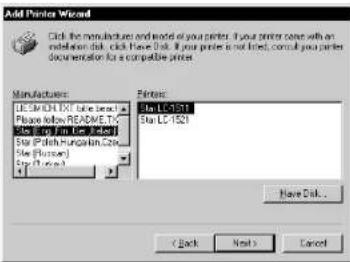
Add Printer Wizard Click the manufacturer end model of your printer. If your printer comes with an remally done disk, click have this. If your printer is not listed, consult your printer documentation for a compatible printer. Manufacturer: LE Star HDX-DCT take best Please follow READ/E.T.C. Star HDX-DCT will be used Star (Pallif-Hungshin) Ltd. Star (Russell) Star (Rusell) Printers: Star LC-1521 Star LC-1521 Have Disk... < Back Next > Cancel☐ Select the language or language group you want to use by clicking on it.
☐ Select the printer model name (“Star LC-1511” or “Star LC-1521”) by clicking on it and then click on the Next button.
text_image
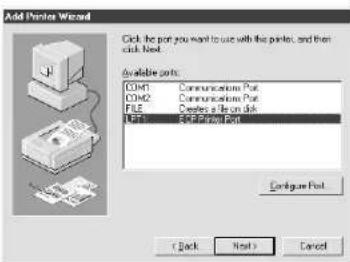
Add Printer Wizard Click the port you want to use with the printer, and then click Next. Available ports: COM1 Communications Port COM2 Communications Port FILE Creates a file on disk USB Connection Port Configure Port (Clock Next) Cancel☐ Select the printer port to which the printer is connected by clicking on it (usually "LPT1"). Click on the Next button.
text_image
Unforestry New do foshin: a1 Divers: a1 a2 a3 win31 win32 Lectons: OK Annuler Réservetext_image
Options Description: File Options A: 1.0 2.0 3.0 4.0 5.0 6.0 7.0 8.0 9.0 Last entries: [ ]text_image
Apo None file: a1 Candle: a1 a2 a3 win31 win35 Units: OK Annals Rate...text_image
Installations stampers Selective the journal's recordable utilization on the stampers, quand document available. Entire deposités COM1: Poles documents score COM2: Poles documents score FILE: Ques in file data EDT1: Poles documents score Configue portstext_image
Add Printer Wizard You can type a name for this printer, or you can use the name supplied below. When you have finished, click back. Printer name: my 10-15-11 Do you want your Windows based programs to use this printer on the default point? Yes No < Back Next > Cancel☐ Change the printer name if you want. If you have previously installed another printer, you must select whether you want the new printer to be the default printer. Click on the appropriate radio button.
Note:
Windows applications always print to the currently selected default printer, unless the user chooses a different printer from within the application.
□ Click on the Next button.
☐ Select whether to print out a test page by clicking on the appropriate radio button.
□ Click on the Finish button.
☐ If a message appears requesting you to insert the Windows 95 CD-ROM, insert it into the CD-ROM drive and click on the OK button.
☐ If a message appears saying that the printer driver file LC15X1.DRV cannot be found on the Windows 95 CD-ROM, click on the Browse button, select the floppy disk drive's name ("A:" or "B:"), click on "WIN95" in the list of directories and click on the OK button (or double-click on "WIN95").
□ Click on the OK button.
This concludes the printer set-up.
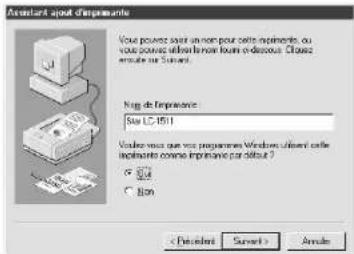
Often you can simply select the Print command in the application you are using, click the OK button, and your document will be printed out. However, sometimes you may need to change certain settings beforehand, such as the default printer, which port a printer uses, which printer driver it uses, the paper size, the paper source etc.
Settings are made by checking radio buttons, entering numbers into fields or by clicking on the arrow by the side of a field and selecting an option from the list that appears. All these settings, and how to make them, are fully explained in the Microsoft Windows 95 User's Guide.
Some settings, e.g. paper size and paper source, can be made within an application when you select the Print command (see the next section: Printing a document). However, settings made within an application only affect printing from that application.
To change the default printer and to make general settings that will apply to any application, proceed as follows:
☐ Click on the Start button in the bottom lefthand corner of the screen.
□ Select Settings
☐ Release the mouse button on Printers.
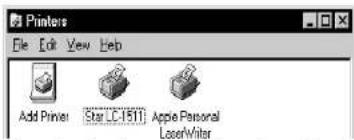
text_image
Printers File Edit View Help Add Printer Star C-1511 Apple Personal LaserWriter☐ Double-click on the icon bearing the name of the printer (Star LC-1511 or Star LC-1521) in the Printers window. A window appears listing any documents that are currently being printed on the printer.
□ Click on the Printer menu.
☐ To set the printer as the default printer, click on the Set As Default command so that a tick mark appears in the check box. This denotes that the selected printer is the default printer.
☐ Click on the Printer menu and click on the Properties command.
text_image
Star LC-1511 on LPT1 Properties Paper | Graphics | Device Users | Paper size: Letter 0.1/2 x 11 in Letter Letter Tr Legal A3 A3 Transv A4 Orientation G Payout A C Landscape Paper source: Textin About... Restore Defaults OK Cancel OK☐ Click on any of the five index-card type buttons and change the parameter settings as you require. For a detailed explanation of any of the settings, click on the “?” button on the top right of the window and then click on the relevant parameter field. Click once more to clear the help message from the screen.
Note:
Paper, Graphics and Device option settings can also be made when you select the Print command in an application. However, settings made within an application only apply to printing from that application.
☐ Click on the Close (X) button on the top right of the Properties window.
☐ Click on the Close (X) button on the top right of the printer's window
This concludes the printing preparation. The printer which you selected is now the default printer, and the page size, paper source setting and any other settings which you made for the printer, apply to printing from all applications. To override these settings for a specific application, refer to the next section. Printing a document.
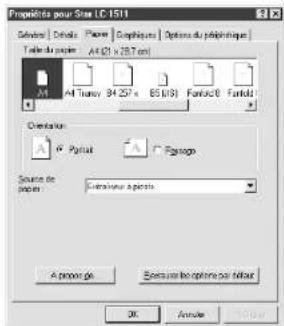
text_image
Propiah - Star LC 1511 Segments | Settings | Fodds | Options | Dimensions: A1.2 x 29.7 px A4: 64 Trimx 64.25 x 05 (JIS) Fourier B Fourier Detektions: ✓ Vertex- ✓ Objectio Altar/Altar: Turkey Information as Earnings OK Apply SaveWindows 95 applications always print to the currently selected default printer. If you want to change the default printer, refer to the previous section, Preparing to print.
To print from any Windows 95 application, proceed as follows:.
□ Click on the application's File menu.
□ Click on the Print command.
Note:
The actual appearance of the Print window may differ somewhat depending on the application you are using.
☐ If you do not want to use the default printer, select a different printer by clicking on the arrow by the side of the Name field and selecting one from the list that appears.
□ Click on the Properties button.
☐ If you want to change any of the printing settings, for example paper size, orientation or paper source, click on the appropriate index card-type button (Paper, Graphics or Device options) and change the parameter settings as you require.
For a detailed explanation of any of the settings, click on the ? button on the top right of the window and then click on the relevant parameter field. Click once more to clear the help message from the screen.
Changes you make here apply only to printing from the current application
☐ Click on the Close (X) button on the top right of the window.
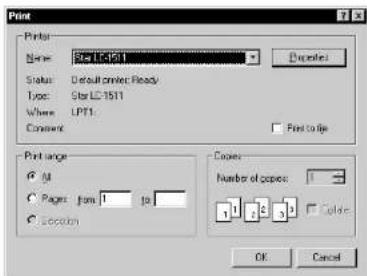
text_image
Print Name: Star LC-1511 Status: Default printer Ready Type: Star LC-1511 Where: LPT1. Comment: Print size ● All ○ Pages: From 1 to _ ○ Screen Copies: Number of copies: 1 2 3 OK Cancel☐ Select how many copies of the document will be printed by entering the appropriate number into the Number of copies field. If you want to print all the pages in your document, make sure that the All radio button is checked. If you do not want to print all the pages in your document, enter the first and last pages to print into the form and to fields.
Impression de document
☐ If you want the output to be collated (each copy automatically sorted into page order) or if you want to print to file (instead of a print-out, a graphic file of the print-out is saved on disk), check the appropriate radio button.
□ Click on the OK button.
Your document will now be printed out.
Installing TrueType fonts
To install the TrueType fonts that are on the floppy disk accompanying this printer, follow the procedure below.
□ Insert the disk in your computer's floppy disk drive.
☐ Click on the Start button in the bottom lefthand corner of the screen.
□ Select Settings
☐ Release the mouse button on Control Panel.
☐ Double-click on the Fonts folder. The currently-installed font files are displayed.
□ Click on the Files menu.
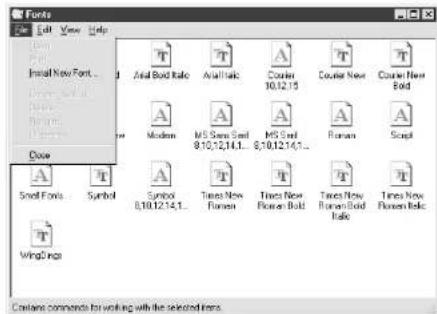
text_image
Fonts Edit View Help New Font... New Text... New Style... Close Small Fonts Symbol Angel Arial Bold Rate Arialalic Courier 10.12.15 Courier New Courier New Fold Modern MS Sans Serif 8.10.12.14.1... MS Serif 8.10.12.14.1... Param Script Symbol 8.10.12.14.1... Times New Flareer Times New Flareer Bold Times New Flareer Bold Rate Times New Flareeralic Wingdings Contents comments for working with the selected times.□ Click on the Install New Font... command.
☐ Display the drive's name ("A:" or "B:") in the Drives field. To select a drive name, click on the arrow by the side of the field and select the drive from the list that appears. The names of the fonts stored on the disk are displayed in the List of fonts window.
☐ Select the fonts you wish to install by clicking on them. If you want to install all of them, click on the Select All button.
□ Click on the OK button.
The new fonts can now be seen in the Fonts folder window. This concludes the font installation.
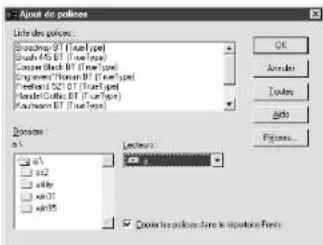
text_image
Ajust de poiesse Liste des policies: Broceed BT (True type) Brush MS BT (True type) Casset Block BT (True type) Engineer BT (True type) Fremiere SCOT (True type) Handel Gables BT (True type) Kraussen BT (True type) Options a1 a2 a3b a4c a5d Lecteur: OK Annuler Codes Arts Figures ✓ Create les policies dans le impôtrieves FondsChapter 7: Using the Printer with OS/2 Warp
These instructions contain specific information about using the printer with IBM OS/2 Warp. They also tell you how to install the printer driver on your computer so you can control the printer. By reading these instructions, you will learn:
☐ How to set up for printing with IBM OS/2 Warp
□ How to prepare for printing
□ How to print a document
Important!
See the "readme.txt" file for important information that became available after this documentation was printed.
Setting up for printing with OS/2 Warp
Before you can use the printer with OS/2 Warp, you must first perform the following procedure to install the printer driver supplied on the 3.5" floppy disk that comes with the printer.
□ Start up the OS/2 system.
☐ Insert the floppy disk that comes with the printer into one of your computer's disk drives.
□ Open the floppy in icon view.
☐ Double click on the OS2\ENG folder.
☐ Double click on the STARDM.DR_file.
☐ Drag the printer driver whose name matches the name of your printer to the desktop.
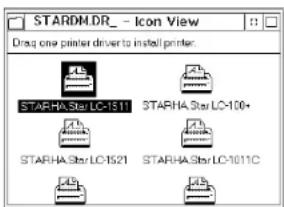
text_image
STARDM.DR - Icon View Drag one printer driver to install printer: STARHA Star LC-1511 STARHA Star LC-100+ STARHA Star LC-1521 STARHA Star LC-1011Ctext_image
STARDM.DR_ - Icon View Drag one printer driver to install printer: STARHA Star LC-1511 STARHA Star LC-100+ STARHA Star LC-1521 STARHA Star LC-1011Ctext_image
STARDHDR_ - Icon View Drag one printer driver to install printer STARHA Star LC1511 STARHA Star LC100+ STARHA Star LC1521 STARHA Star LC1011CGetting ready to print
There are several steps to set up the printer before using it. You must select the printer driver, and specify the source, size, and orientation of the paper. Use the following procedure to make these selections.
Note:
You do not need to select the printer driver and paper specifications each time you print, but only if you want to change any of your previous settings.
□ Point to the printer object.
□ Click mouse button 2.
□ Select Settings.
□ Select the Printer driver tab.
☐ Point to the printer driver you want to use.
□ Click mouse button 2.
☐ Select Settings to display the Properties window for setting up your printer.
With the Properties window, you can click on various buttons to control a wide variety of printer setup parameters. Everything you need to know about these settings is included in an on-line manual that tells you how to use all the buttons and menus that appear on your computer's screen. To view the on-line manual, select Help.
☐ After you get the printer set up the way you want it, select Save.
Printing a document
☐ Select the Print command in the File menu of the application you are using.
Chapter 8: Using the Printer with MS-DOS
This chapter contains information about how to use the printer with applications software running under MS-DOS. In this chapter, you will learn about:
☐ How to set up for printing with MS-DOS.
Setting up for printing with MS-DOS
To print from an application running under MS-DOS, you must first select the printer from within the application. Typically, the program will feature an INSTALL or SETUP command for selection of printers. Refer to the manual for the application you are using for details on how to select a printer for it.
Note:
Remember that you must select a printer for each individual application before you can print from it.
☐ Start up the application and use the correct procedure for that application to select a printer. The following is a list of printers that can be used. If your application lists more than one of these, select the printer that is nearest to the top of this list. For these printers, you should use the EDS Mode or User Setup Utility to select standard emulation (page 47).
| Star LC-1511/1521 |
| Star XR-1520/ZA-250 |
| Star XR-1500/FR-15 |
| Epson FX-1170 |
| Epson EX-800 |
| Star LC-1511/1521 |
| Star XR-1520/ZA-250 |
| Star XR-1500/FR-15 |
| Epson FX-1170 |
| Epson EX-800 |
| Star LC-1511/1521 |
| Star XR-1520/ZA-250 |
| Star XR-1500/FR-15 |
| Epson FX-1170 |
| Epson EX-800 |
| Star LC-1511/1521 |
| Star XR-1520/ZA-250 |
| Star XR-1500/FR-15 |
| Epson FX-1170 |
| Epson EX-800 |
If none of the printers listed above are available in the application, choose one of the printers listed below. Once again, you should choose the printer that is nearest to the top in the following list. For these printers, you should use the EDS Mode or User Setup Utility to select IBM emulation (page 47).
| IBM Proprinter III |
| IBM Proprinter II |
| IBM Proprinter |
To print, follow the instructions given in the manual of the application you are using. Typically, you would select the application's PRINT command, make any necessary changes in the window that appears (such as the number of copies to be printed), and then press the Enter key to start printing.
Chapter 9: Paper Handling
Your printer is designed to print on a variety of paper types. This chapter tells you everything you need to know about paper, and how to set the printer up for manual paper feed. In this chapter, you will learn about:
□ Selecting the best type of paper
□ Adjusting for paper thickness
□ Manual sheet feeding
□ Clearing paper jams
Selecting paper types
Use the following information when selecting paper.
Cut-Sheet Paper (Manual Feed)
Width: 7.0" to 16.54" / 178 to 420mm
Length: 5.5" to 14" / 140 to 356mm
Thickness: 0.00276" to 0.00472" / 0.07 to 0.12mm
Weight: 14 to 24 lbs / 52 to 90g/m ^2 / 45 to 77 kg
Cut-Sheet Paper (with Optional Automatic Sheet Feeder)
Paper size: B5, A4, LT, B4, A3, Legal
Thickness: 0.00315" to 0.00472" / 0.08 to 0.12mm
Weight: 16 to 24 lbs / 60 to 90g/m ^2 / 52 to 77 kg
Hopper: 50 sheets of 64g/m ^2 30 sheets of 80g/m ^2
Stacker: 10 sheets
Fanfold Paper
Width (push feed):4" to 16.5" / 101.6 to 419mm
Width (pull feed): 4" to 16.0" / 101.6 to 406mm
Thickness: 0.00276" to 0.00433" / 0.07 to 0.11mm (1-ply)
0.01378" / 0.35mm max. (total thickness of multi-ply, non-carbon)
Weight: 14 to 22 lbs / 52 to 82g/m ^2 / 45 to 70 kg (one-ply)
11 to 14 lbs / 40 to 52g / m^2 / 34 to 45kg (multi-ply)
Copies: Original + 1 or 2 (Normal Mode)
Original + 3 or 4 (Multi-Part Mode)
Multi-part Mode and an optional pull tractor are recommended when printing on 4 or 5-ply paper.
text_image
Technical diagram showing mechanical assembly with a magnified inset highlighting a numbered component.Labels
Backing sheet: 4.5" to 16.5" / 114 to 419mm
Thickness
Backing sheet: 0.00276" to 0.0035" / 0.07 to 0.09mm
Total: 0.0075" / 0.19mm
- Use labels under normal temperature and humidity conditions only.
Adjusting for paper thickness
Paper comes in different weights, normally expressed as gsm (grams per square meter) or lbs (pounds). Some forms paper also have multiple pages that make them quite thick. Use the following procedure to change the gap between the print head and the platen and adjust for paper thickness.
□ Move the adjustment lever to one of its four settings. Position 2 is most suitable for single-sheet paper.
Etiquettes
The following table provides a general guide for setting the adjustment lever. Experiment with different settings until you find the one that gives you the print quality you want.
| Paper Type Weight Per Sheet Thickness | Recommended Position | |||
| Cut-sheet 52 to 90 g/m ^2 | 0.07 to 0.12mm 1 or 2 | |||
| Fanfold | 1-ply 52 to | 90 g/m ^2 | 0.07 to 0.12mm 2 or 3 | |
| 2-ply 40 to | 52 g/m ^2 | 0.12 to 0.16mm 2 or 3 | ||
| 3-ply 40 to | 52 g/m ^2 | 0.18 to 0.25mm 3 or 4 | ||
| 4-ply 40 to | 52 g/m ^2 | 0.24 to 0.30mm 4 or 5 | ||
| 5-ply 40 to | 52 g/m ^2 | 0.30 to 0.35mm 5 or 6 | ||
| Labels (with backing sheet) —— 3 or 4 | ||||
Important!
Continuous use of the wrong adjustment lever setting can drastically reduce print head life! The Multi-part Mode only is only recommended when printing on 4 or 5-ply paper.
Automatic fanfold feeding
☐ See “Loading fanfold paper” on page 13 for details on using fanfold paper.
Manual sheet feeding
You can use the following procedure to manually feed single sheets of paper into the printer.
☐ Make sure that there is no fanfold paper in the printer. If there is, use the procedure under "Parking fanfold paper" on page 19 to park the fanfold paper and prepare for manual sheet feeding.
☐ Move the paper guide so that it is at a 70-degree angle. (Refer to page 11.)
☐ Set the release lever to the cut-sheet position.
text_image
Technical diagram showing a mechanical assembly with an inset detail view highlighting a component detail.☐ Align the left paper guide with the scale mark that matches the size of the paper you are using. For any paper size other than A3 landscape (horizontal), align the paper guide with scale 0 (zero). For A3 landscape paper, align the paper guide with the ▶ mark.
□ Adjust the right paper guide so there is enough space to insert the paper.
☐ Insert a sheet of paper into the paper guide, with the side you want to print on facing the back of the printer. Gently push the paper down into the printer until you feel it stop.
☐ Press the SET/EJECT/PARK button to feed the paper to the starting position.
☐ If you want to move the paper to another position, use the micro feed function described under “Micro feed” on page 31.
□ Start the printing operation from your software application.
Clearing paper jams
Use the following procedure to clear paper jams from the printer.
□ Unplug the printer from its AC power outlet.
□ Open the front cover of the printer.
□ Carefully try to pull the jammed paper from the printer.
If necessary, change the release lever position or rotate the platen knob to remove the paper.
natural_image
Technical line drawings of three different electronic components with no visible text or symbolsChapter 10: Optional Accessories
This chapter introduces the following optional accessories that are available for this printer:
□ Automatic Sheet Feeder (SF-15HA)
□ Pull Tractor Unit (PT-15HA)
Serial Interface Unit (IS-8H192 and IS-32H768)
Serial-to-Parallel Converter (SPC-8K)
Important!
Always make sure that printer power is turned off whenever installing or removing optional accessories.
Automatic Sheet Feeder (SF-15HA)
The automatic sheet feeder automatically feeds cut sheet paper into the printer.
Preparing the printer
Use the printer's EDS Mode to change the setting of Bank A Switch 4 to OFF (page 47), which tells the printer that the automatic sheet feeder is installed.
Refer to the manual that comes with the automatic sheet feeder for further details on installation and operation.
Pull Tractor Unit (PT-15HA)
The pull tractor unit is recommended when printing with multi-part continuous forms.
Refer to the manual that comes with the pull tractor unit for further details on installation and operation.
Serial Interface Unit (IS-8H192 and IS-32H768)
Installing the serial interface unit provides serial data communications capabilities between the printer and your computer.
Interface RS-232C-level only
Synchronization Asynchronous
Baud rate 150, 300, 600, 1200, 2400, 4800, 9600, 19200 BPS (selectable)
Word length
Start bit 1
Data bits 7 or 8 (selectable)
Parity bit Odd, even, none (selectable)
Stop bits One or more
Signal polarity
Mark Logical 1 (-3V to -15V)
Space Logical 0 (+3V to +15V)
Handshaking DTR, XON/XOFF, ETX/ACK
Data buffer 8 kbytes (standard)
Specifications (IS-32H768)
S-232C Interface
Synchronization Asynchronous
Baud rate 150, 300, 600, 1200, 2400, 4800, 9600, 19200 BPS (selectable)
Word length
Start bit 1
Data bits 7 or 8 (selectable)
Parity bit Odd, even, none (selectable)
Stop bits One or more
Signal polarity
Mark Logical 1 (-3V to -15V)
Space Logical 0 (+3V to +15V)
Handshaking DTR, XON/XOFF, ETX/ACK
Data buffer 32 kbytes (standard)
RS-422A Interface
Synchronization Asynchronous
Baud rate 150, 300, 600, 1200, 2400, 4800, 9600, 19200, 38400, 76800 BPS
(selectable)
Word length
Start bit 1
Data bits 7 or 8 (selectable)
Parity bit Odd, even, none (selectable)
Stop bits One or more
Signal polarity
Mark Logical 1 (A is -0.2 V or less than B)
Space Logical 0 (A is +0.2 V or more than B)
Handshaking DTR, XON/XOFF, ETX/ACK
Data buffer 32 kbytes (standard)
Refer to the manual that comes with the serial interface unit for further details on installation and operation.
Connecting the serial-to-parallel converter to the printer's parallel connector provides serial data communications capabilities between the printer and your computer.
Specifications
Interface RS-232C-level
Synchronization Asynchronous
Baud rate 150, 300, 600, 1200, 2400, 4800, 9600, 19200 BPS (selectable)
Word length
Start bit 1
Data bits 7 or 8 (selectable)
Parity bit Odd, even, none (selectable)
Stop bits One or more
Signal polarity
Mark Logical 1 (-3V to -15V)
Space Logical 0 (+3V to +15V)
Handshaking DTR, XON/XOFF, ETX/ACK
Data buffer 8 kbytes (standard)
Refer to the manual that comes with the serial-to-parallel converter for further details on installation and operation.
This appendix will help you if you experience problems with your printer. It tells you how to test the printer, how to check system software settings, and how to adjust the vertical alignment. In addition, there is information on actions to take for specific problems, and on the meanings of printer beep tones.
Warning!
The printer uses high voltage. Do not attempt any other repair or maintenance except as expressly recommended in this appendix. Unauthorized repair and maintenance not only exposes you to the danger of electrical shock, it also may damage your printer and void your warranty.
Testing the printer
There are three different tests you can use: a short test, a long test and a hexadecimal dump.
Short test
☐ Make sure that paper is loaded in the printer.
□ Turn the printer off.
While holding down the control panel's ON LINE button, turn the printer on.
The short test prints the version number of the software contained in the printer's ROM followed by the current EDS settings.
Annexe A: Dépannage
The short test prints across the entire width of the carriage. Make sure that the printer is loaded with the widest paper available in order to avoid damage to the print head and platen.
Long test
□ Make sure that paper is loaded in the printer.
□ Turn the printer off.
While holding down the control panel's LINE FEED button, turn the printer on.
The long test prints seven lines of text and then continues to print the entire character set for each font and pitch available.
☐ To stop demo printing, turn the printer off.
Note:
- The long test prints across the entire width of the carriage. Make sure that the printer is loaded with the widest paper available in order to avoid damage to the print head and platen.
- Since this test can generate many lines of text and graphics, it is a good idea to perform this test only when using continuous fanfold paper rather than single sheets.
Hexadecimal dump
This procedure prints in hexadecimal format all codes (character codes and control codes) that are sent to the printer by the computer. The printer does not execute any control codes (such as 0A - linefeed), it just prints them out. The hexadecimal dump is useful when you are writing programs for printer control.
☐ Make sure that paper is loaded in the printer.
□ Turn off the printer.
While holding down the control panel's FORM FEED button, turn the printer back on to enter the Hex Dump Mode.
☐ The printer will now print out the hexadecimal values of any data that is subsequently sent to it from your computer.
☐ To exit the Hex Dump Mode, first press ON LINE to set the printer off-line, and then turn the printer off.
Remarque:
Adjusting the dot alignment
You may never have to use the procedure described in this section, but after you have been using your printer for some time you may find that the dots of some graphics do not align correctly. For example, what should look like:

may come out looking like one of the following:

or like this

This is caused when mechanical parts of the printer get out of alignment. This happens only rarely and you may never experience it at all throughout the life of the printer. If you do have problems, use the following procedure to correct it.
□ Make sure that paper is loaded in the printer.
□ Turn off the printer.
While holding down the control panel's FORM FEED and ON LINE buttons, turn the printer back on to enter the Dot Adjustment Mode.
The printer will print something like the following.
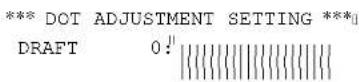
Note that the printer will feed the paper forward and back each time during this operation so you can view the printout.
☐ If the three lines do not align properly, use FONT to move the middle line to the left or PITCH to move it to the right.
The above step performs alignment for the Draft printing mode only. You must make separate adjustments for the HS-DRAFT (LC-1521 only), D-Density/Speed, D-Density P-Graph, NLQ, Quadruple Density, Normal Density, Plotter Graphics, CRT Graphics I, CRT Graphics II, and Double Density modes as well.
☐ Press SET/EJECT/PARK to change to another printing mode.
☐ Repeat the above steps for each printing mode, if necessary.
□ After making changes to adjustments in all the printing modes you want, press ON LINE to exit the Dot Adjustment Mode and register your adjustments.
Use the following table to help track down the causes of problems and to determine the best solution to deal with them.
| Problem Possible Cause Recommended Action | ||
| The ON LINE indicator does not light. | The printer is not receiving power. | Check whether the power cord is correctly plugged into the power outlet. |
| Check whether the power outlet is working by unplugging the printer and plugging in another device. | ||
| Printer sounds like it is printing, but it is not.Printing is weak. | The ribbon is jammed, twisted, or not set correctly between the print head and the print head shield. | Make sure that the ribbon cassette is installed correctly. |
| The printer is not set up correctly for the thickness of paper you are using. | Set up the printer for the paper thickness you are using. See “Adjusting for paper thickness” on page 121. | |
| The ribbon is worn out or “used up.” | Replace the ribbon with a new one. | |
| Printer test works, but printer will not print out data from the attached computer. | Your application program’s or system software’s printer selection is wrong. | Check the printer selection of your application software. |
| The computer’s system software is not set up properly for the printer or for the port you are using. | Check the system software settings. Check the settings for LPT1, COM 1, or COM 2 if you are using the optional serial interface unit. | |
| The interface cable is connected incorrectly or damaged. | Check to make sure that the printer interface cable is connected correctly. If it is, try a different cable. | |
Guide de dépannage
Checking system software settings in Windows
Whenever you have problems printing from a Windows application, you should check the following four things:
√ Is the printer you are using set as the default printer?
√ Is the drive setup correct?
√ Is the printer you are using correctly selected in your application?
√ Is the correct port selected?
You should also refer to your Microsoft Windows User's Guide for other information that might be helpful. If you still experience problems, consult your software dealer.
To check the default printer selection
☐ Double-click the Control Panel icon in the Main window.
□ Double-click the Printers icon.
☐ Check to see that the name of your Star printer is the default printer. If it is not, double-click on the name of your printer in the list of installed printers.
☐ Click on Close to return to the Control Panel window.
To check the application printer selection
Select Print from the application's File menu, and a window appears listing available printers.
☐ Check to see that the name of your Star printer is selected. If it is not, select it and try printing from your application again.
To check the drive setup
☐ Double-click the Control Panel icon in the Main window.
☐ Double-click the Printers icon.
□ Double-click on the name of your Star printer in the list of installed printers.
□ Click on Setup
□ Check resolution, paper source, etc.
□ Click OK.
☐ Click on Close to return to the Control Panel window.
☐ Double-click the Control Panel icon in the Main window.
☐ Double-click the Printers icon.
☐ Double-click on the name of your Star printer in the list of installed printers.
□ Click on Connect.
☐ Make sure that your printer cable is connected to the port highlighted in the list of ports.
If you are using a parallel cable, you will probably be using LPT1. If you are using the optional serial-to-parallel interface converter or optional serial interface unit, you should be using COM1 or COM2. Click on the correct port name.
□ Click OK.
☐ Click on Close to return to the Control Panel window.
Checking system software settings in MS-DOS
If you are using a parallel cable and cannot print a text file using the MS-DOS PRINT command, you may have a problem with your AUTOEXEC.BAT file. Open the file and look for the following line:
MODE LPT1:=COM1 or MODE LPT1:=COM2
These lines indicate you are using a serial cable connection, and so you should delete them, save the AUTOEXEC.BAT file, reboot and try printing again.
Of course, if you are having problems printing with the optional serial-to-parallel converter or optional serial interface unit, you should conversely check to make sure that one of the above lines is included in your AUTOEXEC.BAT file. The file must also contain information on parameter settings. For details, see the user's manual that comes with the optional serial-to-parallel interface converter or optional serial interface unit.
If the above is not the problem or if you make the above changes and still experience problems printing using the MS-DOS PRINT command, refer to your MS-DOS Users' Guide or consult your software dealer.
If you are successful in printing using the MS-DOS PRINT command but cannot print from an application, check to see what printer driver is selected in the application. See “Setting up for printing with MS-DOS” on page 115. If this does not help, consult your software dealer.
Appendix B: Specifications
Printing System Serial Impact Dot-Matrix
Printing Speed Pitch Draft (cps/dpi) NLQ (cps/dpi)
| LC-1521 | Pica (10 cpi) | 300/120H (Normal)400/90H (HS) | 75/240H |
| Elite (12 cpi) 360/120H 90/240H | |||
| Condensed pica (17 cpi) 255/240H 127/240H | |||
| Condensed elite (20 cpi) 300/240H 150/240H | |||
| LC-1511 Pica (10 cpi) 225/120H 56/240H | |||
H: half-dot
Print Direction Draft: Bi-directional logic seeking
NLQ: Uni-directional' bi-directional logic seeking (selectable)
Bit-Image: Uni-directional/bi-directional logic seeking (selectable)
Print Head Number of pins: 9
Life: 200 million dots/pin (Normal Mode)
100 million dots/pin (Multi-Part Mode)
Line Spacing
1/6", 1/8"
7;72", n/72", n/216": software
Character Matrix
| Pitch | Draft | NLO |
| Pica (10 cpi) | 9 · 11H (Normal)9 · 8H (HS) | 18 · 23H |
| Elite (12 cpi) 9 | 9 H | 18 · 19H |
| Condensed pica (17 cpi) | 9 · 11H | 18 · 12H |
| Condensed elite (20 cpi) | 9 · 9H | 18 · 10H |
| cpi) 9 | 11H | 18 · 23H |
| Elite (12 cpi) 9 | 9 H | 18 · 19H |
| Condensed pica (17 cpi) | 9 · 11H | 18 · 12H |
| Condensed elite (20 cpi) | 9 · 9H | 18 · 10H |
Environment
Operating temperature: 41°F to 95°F (5°C to 35°C)
Storage temperature: -22°F to 149°F (-30°C to 65°C)
Operating humidity: 30% to 80% (non-condensing)
Storage humidity: 20% to 90% (non-condensing)
| LC-1521 | Pica (10 car/pouce) | 300/120H (Normal)400/90H (HS) | 75/240H |
| Elite (12 car/pouce) | 360/120H 90/240H | ||
| Pica condensé (17 car/pouce) | 255/240H 127/240H | ||
| Elite condensé (20 car/pouce) | 300/240H 150/240H | ||
| LC-1511 | Pica (10 car/pouce) | 225/120H | 56/240H |
| Elite (12 car/pouce) | 270/120H 67/240H | ||
| Pica condensé (17 car/pouce) | 191/240H 95/240H | ||
| Elite condensé (20 car/pouce) | 225/240H 112/240H |
Paper Cut-sheet (manual feeding)
| Paper width: 7 | " to 16.54" / 178 to 420 mm |
| Paper length: 5.5 | " to 14" / 140 to 356 mm |
| Paper thickness: 0.00276 | " to 0.00472" / 0.07 to 0.12 mm |
| Paper weight: 14 to 24 lbs. / 52 to 90 g/m | ^2 / 46 to 77 kg |
| Cut-sheet (with optional automatic sheet feeder) | |
| Paper size: B5, A4, LT, B4, A3, Legal | |
| Paper thickness: 0.00315 | " to 0.00472" / 0.08 to 0.12 mm |
| Paper weight: 16 to 24 lbs. / 60 to 90 g/m | ^2 / 52 to 77 kg |
| Hopper: 50 sheets of 64 g/m | 2 |
| 30 sheets of 80 g/m ^2 | |
| Stacker: 10 sheets | |
| Fanfold (with push tractor feeder) | |
| Paper width: 4 | " to 16.5" / 101.6 to 419 mm |
| Paper thickness: 0.00276 | " to 0.00433" / 0.07 to 0.11 mm (one-ply)0.01378" / 0.35 mm maximum (total thickness of multi-ply paper, non-carbon) |
| Paper weight: 14 to 22 lbs. / 52 to 82 g/m | ^2 / 45 to 70 kg (one-ply)11 to 14 lbs. / 40 to 52 g/m ^2 / 34 to 45 kg (multi-ply) |
| Copies: Original + 1 or 2 (Normal Mode)Original + 3 or 4 (Multi-Part Mode)* Multi-Part Mode is recommended when using optional pull tractor unit. | |
| Fanfold (with optional pull tractor feeder) | |
| Paper width: 4 | " to 16.0" / 101.6 to 406 mm |
| Paper thickness: 0.00276 | " to 0.00433" / 0.07 to 0.11 mm (one-ply)0.01378" / 0.35 mm maximum (total thickness of multi-ply paper, non-carbon) |
| Paper weight: 14 to 22 lbs. / 52 to 82 g/m11 to 14 lbs. / 40 to 52 g/m ^2 / 34 to 45 kg (multi-ply) | |
| Copies: Original + 1 or 2 (Normal Mode)Original + 3 or 4 (Multi-Part Mode) | |
| Labels | |
| Backing sheet: 4 | .5" to 16.5" / 114 to 419 mm |
| Thickness | |
| Backing sheet: 0.00268 | " to 0.0035" / 0.07 to 0.09mm |
| Total: 0.0075 | " / 0.19mm max. |
| EPSON ESC/P (9-pin) | |
| IBM Mode: | Proprinter III |
| Standard: | Centronics parallel |
| Option: RS-232C / RS-422 serial | |
Papier
Ribbon Type On-carriage, dedicated
Monochrome (Y9WH). Black only
Ribbon Life 2.5 million characters (Draft 10 cpi)
Dimensions and Weight Width: 23.2
" / 590 mm
Depth: 13.9
" / 355 mm
Height: 7.3
" / 186 mm
Weight: 18.3 lbs. / 8.3 kg
Power Supply 120V AC
+10%/-17%, 230V AC +14%/-13%; 50/60Hz
(depending on country of purchase)
Power Consumption
LC-1521 11W during standby / 50W during ASCII draft printing
LC-1511 9W during standby / 30W during ASCII draft printing
Options Pull Tractor Unit PT-15HA
Automatic Sheet Feeder SF-15HA
Serial Interface Unit IS-8H192
Serial Interface Unit IS-32H768
Serial-To-Parallel Converter SPC-8K
| Pin Name Function | ||
| 1 | STROBE | Goes low for ≥ 0.5 ≤ s when active. |
| 2 | DATA0 | These signals represent information for the 1st through 8th bit of parallel data, respectively. Each signal is HIGH when data is logical 1, and LOW when logical 0. |
| 3DATA1 | ||
| 4DATA2 | ||
| 5DATA3 | ||
| 6DATA4 | ||
| 7DATA5 | ||
| 8DATA6 | ||
| 9DATA7 | ||
| 10 ACK 10 —— | ≤ s low to acknowledge receipt of data. | |
| 11 | BUSY | Printer sets line low when ready to receive data. |
| 12 | PAPER | High when paper runs out. |
| 13 | SELECT | High when printer is on-line. |
| 14 | AFXT | Printer ignores this signal |
| 15 | Not used. | |
| 16 | SIGNAL GND | Signal ground |
| 17 CHASSIS Chassis ground (isolated from signal ground) | ||
| 18 | +5V | +5V DC output from printer |
| 19 - 30 GND Twisted pair ground return | ||
| 31 | RESET | Printer is reset when this signal goes low. |
| 32 | ERROR | Low when printing cannot continue due to error. |
| 33 EXT GND External ground | ||
| 34 - 35 Not used. | ||
| 36 | SELECT TIN | Printer ignores this signal |
Optional Serial Interface (IS-8H192 and SPC-8K)
| Pin Name Function | ||
| 1 GND | Printer chassis ground | |
| 2 TXD | Data from printer | |
| 3 RXD | Data to printer | |
| 4 RTS | Always space | |
| 5 CTS | Space when computer is ready to send data. Printer ignores this signal. | |
| 6 Not used. | ||
| 7 GND | Signal ground | |
| 8 - 10 Not used. | ||
| 11 RCH | Printer sets line to space when ready to receive data. Same signal as Pin 20. | |
| 12 - 19 Not used. | ||
| 20 DTR | Printer sets line to space when ready to receive data. | |
| 21 - 25 Not used. | ||
Appendix D: Character Sets / Annexe D: Jeux de caractères Anhang D: Zeichensätze / Appendice D: Gruppi di caratteri
Standard Character Set #2
| 0 | 1 | 2 | 3 | 4 | 5 | 6 | 7 | 8 | 9 | A | B | C | D | E | F | |
| 0 | 0 | @ | P | p | à | S | 0 | @ | P | p | ||||||
| 1 | ! | 1 | A | Q | a | q | è | ß | ! | 1 | A | Q | a | q | ||
| 2 | " | 2 | B | R | b | r | ù | € | 2 | B | R | b | r | |||
| 3 | # | 3 | C | S | c | s | ò | œ | # | 3 | C | S | c | s | ||
| 4 | 4 | D | T | d | t | i | ø | 4 | D | T | d | t | ||||
| 5 | % | 5 | E | U | e | u | * | ø | % | 5 | E | U | e | u | ||
| 6 | & | 6 | F | V | f | v | £ | & | 6 | F | V | f | v | |||
| 7 | ' | 7 | G | W | g | w | j | h | 7 | G | W | g | w | |||
| 8 | ( | 8 | H | X | h | x | ¿ | ð | ( | 8 | H | X | h | x | ||
| 9 | ) | 9 | I | Y | i | y | N | ú | 9 | I | Y | i | y | |||
| A | * | : | J | Z | j | z | ñ | ä | * | : | J | Z | j | z | ||
| B | + | ; | K | [ | k | { | ü | ö | + | ; | K | l | k | { | ||
| C | , | < | L | \ | l | ! | R | ü | , | < | L | \ | l | ! | ||
| D | - | = | M | l | m | } | A | E | - | = | M | } | m | } | ||
| E | . | > | N | ^ | n | ~ | á | é | . | > | N | ^ | n | ~ | ||
| F | / | ? | O | _ | o | (DEL) | ç | # | / | ? | O | _ | o |
IBM Character Set #2, Code Page #437 (IBM-PC)
| 0 | 1 | 2 | 3 | 4 | 5 | 6 | 7 | 8 | 9 | A | B | C | D | E | F | |
| 0 | 0 | @ | P | p | Ç | É | á | L | = | |||||||
| 1 | (DC1) | ! | 1 | A | Q | a | q | ü | æ | í | ± | |||||
| 2 | (DC2) | " | 2 | B | R | b | r | é | É | ó | T | |||||
| 3 | ♥ | (DC3) | # | 3 | C | S | c | s | ã | ð | ú | - | ||||
| 4 | ♦ | (DC4) | 4 | D | T | d | t | ã | ö | ñ | + | F | \Sigma | ∫ | ||
| 5 | ♠ | % | 5 | E | U | e | u | à | ò | Ñ | + | |||||
| 6 | ♠ | & | 6 | F | V | f | v | ã | ù | ä | ÷ | |||||
| 7 | ' | 7 | G | W | g | w | ç | ù | Ω | ≈ | ||||||
| 8 | (BS) | (CAN) | ( | 8 | H | X | h | x | è | ÿ | ¿ | · | ||||
| 9 | (HT) | (EM) | ) | 9 | I | Y | i | y | ë | Ö | - | - | ||||
| A | * | : | J | Z | j | z | è | U | ||||||||
| B | (VT) | (ESC) | + | ; | K | [ | k | { | ï | ¢ | 12 | ^0 | ||||
| C | (FF) | . | < | L | \ | l | ! | î | £ | 14 | ^2 | |||||
| D | (CR) | - | = | M | ] | m | } | i | ¥ | i | = | |||||
| E | (SO) | . | > | N | ^ | n | ~ | Ä | R | « | ± | |||||
| F | (SI) | / | ? | O | _ | o | (DEL) | A | ƒ | » |
International Character Set
The character codes shown in the table are hexadecimal.
| Country | 23 | 24 | 40 | 58 | 5A | 5B | 5C | 5D | 5E | 60 | 7B | 7C | 7D | 7E |
| U.S.A. | # | @ | X | Z | [ | \ | ] | ^ | ~ | : | ) | ~ | ||
| FRANCE | # | à | X | Z | * | ♀ | ^ | ~ | e | ù | è | ~ | ||
| GERMANY | # | X | Z | A | ò | U | ~ | ~ | à | ò | ù | à | ||
| ENGLAND | £ | @ | X | Z | [ | \ | ] | ~ | ~ | { | : | } | ~ | |
| DENMARK 1 | # | @ | X | Z | £ | @ | A | ^ | ~ | æ | ø | à | ~ | |
| SWEDEN | # | ☐ | ≡ | X | Z | A | ò | A | ù | é | à | ò | à | ù |
| ITALY | # | @ | X | Z | * | \ | è | ^ | ù | à | ò | è | 1 | |
| SPAIN 1 | R | @ | X | Z | I | N | ¿ | ~ | ~ | ~ | n | ~ | ||
| JAPAN | # | @ | X | Z | [ | ¥ | ] | ~ | ~ | { | : | } | ~ | |
| NORWAY | # | ☐ | ≡ | X | Z | £ | @ | A | U | é | æ | ø | à | ù |
| DENMARK 2 | # | € | X | Z | £ | @ | A | U | é | æ | ø | à | ù | |
| SPAIN 2 | # | à | X | Z | i | N | ¿ | é | ~ | 1 | n | ò | ù | |
| LITIN AMERICA | # | à | X | Z | i | N | ¿ | é | ù | í | n | ò | ù | |
| KOREA | # | @ | X | Z | [ | W | ] | ~ | ~ | { | : | } | ~ | |
| IRELAND | # | @ | U | ~ | [ | \ | 1 | ~ | ~ | A | E | O | ~ | |
| LEGAL | # | $ | X | Z | * | ' | " | ¶ | ~ | ∅ | ∅ | † | = |
Character Set #1
Other characters are the same as those for Character Set #2
| 0 | 1 | |
| 0 | NUL | |
| 1 | ||
| 2 | DC1 | |
| 3 | DC2 | |
| 4 | DC3 | |
| 5 | DC4 | |
| 6 | ||
| 7 | DEL | |
| 8 | BS | CM |
| 9 | HT | EM |
| A | LF | |
| B | VT | ESC |
| C | FF | |
| D | CR | |
| E | SO | |
| F | SI |
| 8 | 9 | |
| 0 | ||
| 1 | ||
| 2 | ||
| 3 | ||
| 4 | ||
| 5 | ||
| 6 | ||
| 7 | ||
| 8 | ||
| 9 | ||
| A | ||
| B | ||
| C | ||
| D | ||
| E | ||
| F | ||
IBM Special Character Set
The following characters can be printed using the
| 0 | 1 | |
| 0 | ∅ | ▶ |
| 1 | ∅ | ◀ |
| 2 | ∅ | ∅ |
| 3 | ♥ | !! |
| 4 | ♦ | ¶ |
| 5 | ♣ | S |
| 6 | ♠ | - |
| 7 | ♦ | ♠ |
| 8 | □ | ↑ |
| 9 | ○ | ↓ |
| A | ∅ | → |
| B | ♂ | ← |
| C | ♀ | L |
| D | ∅ | ↔ |
| E | ∅ | ▲ |
| F | ※ | ▼ |
Code Page #860
Português
Other characters are the same as those for Code Page #437.
| 8 | 9 | A | B | C | D | E | F | |
| 0 | á | = | ||||||
| 1 | ± | |||||||
| 2 | é | ≥ | ||||||
| 3 | ú | ≤ | ||||||
| 4 | ||||||||
| 5 | ||||||||
| 6 | ≈ | |||||||
| 7 | ||||||||
| 8 | * | |||||||
| 9 | ||||||||
| A | - | |||||||
| B | 14 | |||||||
| C | £ | 14 | ^2 | |||||
| D | ^2 | |||||||
| E | ||||||||
| F |
Code Page #850
Multi-lingual
Other characters are the same as those for Code Page #437.
| 8 | 9 | A | B | C | D | E | F | |
| 0 | - | |||||||
| 1 | D | ± | ||||||
| 2 | = 34 | |||||||
| 3 | ||||||||
| 4 | - | |||||||
| 5 | a | A | 1 | S | ||||
| 6 | A | + | ||||||
| 7 | A | p | . | |||||
| 8 | p | . | ||||||
| 9 | . | |||||||
| A | - | |||||||
| B | i | 12 | ^1 | |||||
| C | i | £ | 14 | ^3 | ||||
| D | i | i | = | Y | ^2 | |||
| E | × | < | ¥ | I | - | |||
| F | > | . |
Code Page #861
Icelandic
Other characters are the same as those for Code Page #437.
| 8 | 9 | A | B | C | D | E | F | |
| 0 | á | = | ||||||
| 1 | æ | ⊥ | ± | |||||
| 2 | é | ≥ | ||||||
| 3 | ú | ≤ | ||||||
| 4 | - | |||||||
| 5 | + | |||||||
| 6 | ú | ÷ | ||||||
| 7 | ≈ | |||||||
| 8 | ^ | |||||||
| 9 | - | ^ | ||||||
| A | - | - | ||||||
| B | 1/2 | |||||||
| C | £ | 1/4 | ^ | |||||
| D | ^2 | |||||||
| E | < | ^ | ||||||
| F | > |
Code Page #863
Canadian French
Other characters are the same as those for Code Page #437.
| 8 | 9 | A | B | C | D | E | F | |
| 0 | ≈ | |||||||
| 1 | ⊥ | ± | ||||||
| 2 | ≥ | |||||||
| 3 | - | ≤ | ||||||
| 4 | .. | + | ||||||
| 5 | . | |||||||
| 6 | ¶ | .. | ÷ | |||||
| 7 | .. | ≈ | ||||||
| 8 | · | |||||||
| 9 | · | |||||||
| A | .. | - | ||||||
| B | 1⁄2 | |||||||
| C | £ | 1⁄4 | ||||||
| D | = | 3⁄4 | ||||||
| E | < | · | ||||||
| F | > | · |
Code Page #866
Russian
Other characters are the same as those for Code Page #437.
Other characters are the same as those for Code Page #437.
| 8 | 9 | A | B | C | D | E | F | |
| 0 | ||||||||
| 1 | ± | |||||||
| 2 | ≥ | |||||||
| 3 | ≤ | |||||||
| 4 | - | |||||||
| 5 | + | |||||||
| 6 | + | |||||||
| 7 | ≈ | |||||||
| 8 | ^ | |||||||
| 9 | ^ | |||||||
| A | - | |||||||
| B | 12 | |||||||
| C | £ | 14 | ^2 | |||||
| D | = | ^2 | ||||||
| E | ^ | |||||||
| F | f |
Code Page #3840
IBM-Russian
Other characters are the same as those for Code Page #437.
Other characters are the same as those for Code Page #437.
| 8 | 9 | A | B | C | D | E | F | |
| 0 | 0 | |||||||
| 1 | ! | 1 | a | A | ||||
| 2 | " | 2 | 6 | p | B | P | ||
| 3 | i | I | # | 3 | c | C | ||
| 4 | I | 4 | d | T | T | |||
| 5 | j | J | % | 5 | e | y | E | Y |
| 6 | & | 6 | ||||||
| 7 | ' | 7 | B | B | ||||
| 8 | ( | 8 | x | X | ||||
| 9 | Y | ) | 9 | n | n | |||
| A | * | : | ||||||
| B | H | + | ; | |||||
| C | . | < | ||||||
| D | - | = | m | M | ||||
| E | . | > | n | H | ||||
| F | £ | / | ? | o | O |
Code Page #3843
Polish
Other characters are the same as those for Code Page #437.
| 8 | 9 | A | B | C | D | E | F | |
| 0 | E | Z | L | = | ||||
| 1 | ü | e | Z | T | ± | |||
| 2 | é | 12 | ó | ≥ | ||||
| 3 | ä | ö | o | T | ≤ | |||
| 4 | ä | ö | n | - | k | ∫ | ||
| 5 | ä | c | N | † | F | |||
| 6 | ä | ü | z | || | ÷ | |||
| 7 | ç | ü | z | || | ≈ | |||
| 8 | è | s | S | μ | * | |||
| 9 | è | ö | r | · | ||||
| A | è | U | || | - | ||||
| B | i | ä | 12 | |||||
| C | i | L | 14 | |||||
| D | c | ¥ | i | ^2 | ||||
| E | A | s | < | · | ||||
| F | A | f | > |
Code Page #3846
Turkish
Other characters are the same as those for Code Page #437.
| 8 | 9 | A | B | C | D | E | F | |
| 0 | C | |||||||
| 1 | ± | |||||||
| 2 | ≥ | |||||||
| 3 | ≤ | |||||||
| 4 | ||||||||
| 5 | ||||||||
| 6 | ÷ | |||||||
| 7 | c | ≈ | ||||||
| 8 | I | ^* | ||||||
| 9 | ^* | |||||||
| A | - | |||||||
| B | 12 | |||||||
| C | 14 | n | ||||||
| D | ¥ | ^2 | ||||||
| E | S | ^* | ||||||
| F | s |
Code Page #3847
Brazil-ABNT
Other characters are the same as those for Code Page #437.
| 8 | 9 | A | B | C | D | E | F | |
| 0 | ^* | A | D | à | d | |||
| 1 | i | ± | A | N | à | ñ | ||
| 2 | c^2 | A | ò | à | ò | |||
| 3 | £ | ^2 | A | ò | à | ó | ||
| 4 | n | ^ | A | ò | à | ò | ||
| 5 | ¥ | u | A | ò | à | ò | ||
| 6 | ; | ¶ | E | ò | æ | ö | ||
| 7 | S | ^* | G | ç | ||||
| 8 | .. | E | ∅ | è | ø | |||
| 9 | ^* | E | ù | é | ù | |||
| A | ā | o | E | ù | è | ú | ||
| B | < | » | E | ù | ē | ù | ||
| C | 14 | í | ù | ì | ù | |||
| D | 12 | í | Y | í | ý | |||
| E | ^* | 14 | í | p | í | p | ||
| F | - | ¿ | í | ß | ï |
Code Page #3844
CS2
Other characters are the same as those for Code Page #437.
| 8 | 9 | A | B | C | D | E | F | |
| 0 | = | |||||||
| 1 | + | ± | ||||||
| 2 | ≥ | |||||||
| 3 | d | ≤ | ||||||
| 4 | ||||||||
| 5 | D | O | N | |||||
| 6 | T | ÷ | ||||||
| 7 | U | ≈ | ||||||
| 8 | ^ | |||||||
| 9 | ^ | |||||||
| A | L | U | r^* | - | ||||
| B | I | S | R | |||||
| C | I | L | 14 | n^2 | ||||
| D | I | Y | S | ^2 | ||||
| E | R | |||||||
| F | A | t |
Code Page #3845
Hungarian
Other characters are the same as those for Code Page #437.
| 8 | 9 | A | B | C | D | E | F | |
| 0 | C | = | ||||||
| 1 | ± | |||||||
| 2 | ≥slant | |||||||
| 3 | ≤slant | |||||||
| 4 | ||||||||
| 5 | ÷ | |||||||
| 6 | ≈ | |||||||
| 7 | U | |||||||
| 8 | U | · | ||||||
| 9 | - | |||||||
| A | U | |||||||
| B | 12 | |||||||
| C | 14 | |||||||
| D | I | i | ||||||
| E | A | R | ||||||
| F | A | f | 1 |
Code Page #3848
Brazil-ABICOMP
The other characters are the same as in code page #437.
| 8 | 9 | A | B | C | D | E | F | |
| 0 | i | |||||||
| 1 | A | à | ||||||
| 2 | A | á | ||||||
| 3 | A | á | ||||||
| 4 | A | á | ||||||
| 5 | A | E | ä | æ | ||||
| 6 | C | U | ç | ü | ||||
| 7 | E | U | è | ú | ||||
| 8 | E | U | é | ú | ||||
| 9 | E | U | ê | ü | ||||
| A | E | Y | ë | ý | ||||
| B | I | i | ||||||
| C | I | £ | 1 | a | ||||
| D | I | î | o | |||||
| E | I | \text{ǐ} | \text{¿} | |||||
| F | \text{N} | \cdot | \text{ñ} | \pm$ |
Code Page #852
Latin-2
Other characters are the same as those for Code Page #437.
| 8 | 9 | A | B | C | D | E | F | |
| 0 | C | € | á | L | d | ó | - | |
| 1 | ü | L | í | ⊥ | Đ | β | .. | |
| 2 | é | I | ó | Đ | Õ | .. | ||
| 3 | ä | ö | ú | E | N | .. | ||
| 4 | ä | ö | A | - | ä | ñ | .. | |
| 5 | ü | L | q | A | + | N | ñ | S |
| 6 | ć | I | z | A | A | i | S | ÷ |
| 7 | c | S | ž | E | ä | í | š | .. |
| 8 | i | s | E | S | u | é | R | .. |
| 9 | è | ö | e | J | U | .. | ||
| A | ö | Ü | r | .. | ||||
| B | ó | T | z | Ü | ú | |||
| C | í | € | C | ý | R | |||
| D | ž | Ł | s | Z | Y | P | ||
| E | A | × | « | z | Ü | t | .. | |
| F | ć | č | » |
Code Page #1001
Arabic
Other characters are the same as those for Code Page #437.
| 8 | 9 | A | B | C | D | E | F | |
| 0 | ||||||||
| 1 | ± | |||||||
| 2 | ≥ | |||||||
| 3 | ≤ | |||||||
| 4 | ||||||||
| 5 | ∫ | |||||||
| 6 | + | |||||||
| 7 | ≈ | |||||||
| 8 | * | |||||||
| 9 | - | |||||||
| A | √ | |||||||
| B | n | |||||||
| C | 2 | |||||||
| D | ■ | |||||||
| E | ||||||||
| F |
Code Page #737
Greek
Other characters are the same as those for Code Page #437.
| 8 | 9 | A | B | C | D | E | F | |
| 0 | A | P | L | L | ω | |||
| 1 | B | Σ | X | ⊥ | T | ± | ||
| 2 | Γ | T | λ | T | ||||
| 3 | Δ | Y | | | | | - | |||
| 4 | E | | | | | + | L | |||
| 5 | Z | X | | | | | + | L | ||
| 6 | H | o | | | | | + | + | ||
| 7 | | | | | + | ≈ | ||||
| 8 | I | Q | | | | | + | · | ||
| 9 | K | | | | | + | A | - | ||
| A | Λ | | | | | + | B | |||
| B | M | | | | | + | H | ^n | ||
| C | N | u | | | | | = | I | ^2 | |
| D | | | + | O | · | ||||
| E | O | | | | | ± | Y | |||
| F | | |
Code Page #851
Greek
Other characters are the same as those for Code Page #437.
| 8 | 9 | A | B | C | D | E | F | |
| 0 | C | I | L | T | - | |||
| 1 | L | ± | Y | ± | ||||
| 2 | O | T | U | |||||
| 3 | T | X | L | |||||
| 4 | A | - | ||||||
| 5 | Y | B | K | S | ||||
| 6 | A | |||||||
| 7 | M | P | ||||||
| 8 | E | N | ||||||
| 9 | Z | J | O | |||||
| A | U | H | ||||||
| B | i | 12 | ||||||
| C | £ | |||||||
| D | B | I | = | |||||
| E | < | O | ||||||
| F | H | L | > |
Code Page #869
Greek
Other characters are the same as those for Code Page #437.
| 8 | 9 | A | B | C | D | E | F | |
| 0 | I | ü | üüü | ü | T | ξ | - | |
| 1 | ü | üüü | üüü | ü | Y | η | ± | |
| 2 | O | ó | üüü | ü | Φ | θ | υ | |
| 3 | ú | üüü | ü | X | L | φ | ||
| 4 | A | üü | ü | - | ψ | χ | ||
| 5 | Y | B | K | ü | Ω | λ | $ | |
| 6 | A | y | Γ | Λ | π | α | μ | ψ |
| 7 | ● | Δ | M | P | β | ν | " | |
| 8 | - | Ω | E | N | μ | γ | ξ | " |
| 9 | ¬ | z | Z | üüü | ü | j | o | " |
| A | ; | ° | H | üüü | ü | r | π | ω |
| B | , | á | hü | üüü | ü | ■ | e | ü |
| C | , | £ | θ | üüü | ü | ■ | σ | ü |
| D | E | é | I | Σ | = | ö | ς | ω |
| E | - | η | < | O | ü | e | τ | ■ |
| F | H | L | > | üüü | ü | ■ |
Code Page #2001
Lithuanian-KBL
Other characters are the same as those for Code Page #437.
Other characters are the same as those for Code Page #437.
| 8 | 9 | A | B | C | D | E | F | |
| 0 | • | L | II | ü | π | |||
| 1 | , | ± | A | P | α | Q | ||
| 2 | , | 2 | B | β | S | |||
| 3 | £ | • | Γ | Σ | γ | σ | ||
| 4 | , | Δ | T | δ | τ | |||
| 5 | - | E | Y | ε | υ | |||
| 6 | ; | A | Z | Φ | ξ | φ | ||
| 7 | $ | - | H | X | η | χ | ||
| 8 | .. | E | θ | Ψ | θ | ψ | ||
| 9 | ● | H | I | Ω | ι | ω | ||
| A | I | E | Υ | χ | ü | |||
| B | < | > | Λ | Υ | λ | ü | ||
| C | ¬ | O | M | α | μ | δ | ||
| D | 1⁄2 | N | ε | ν | ü | |||
| E | Υ | Σ | η | ξ | ω | |||
| F | - | Ω | O | ι | ο |
Code Page #772
Lithuanian
Other characters are the same as those for Code Page #437.
Code Page #774 Lithuanian
Other characters are the same as those for Code Page #437.
| 8 | 9 | A | B | C | D | E | F | |
| 0 | C | E | a | L | a | α | = | |
| 1 | ü | æ | 1 | ⊥ | č | β | ± | |
| 2 | é | K | ó | e | Γ | 2 | ||
| 3 | ä | ö | ú | è | π | ≤ | ||
| 4 | ä | ö | ñ | i | Σ | " | ||
| 5 | ä | ö | N | A | š | σ | " | |
| 6 | ä | ü | ä | C | V | u | μ | + |
| 7 | c | ü | Ω | E | O | u | τ | ≈ |
| 8 | è | ÿ | ¿ | E | ü | ž | Φ | " |
| 9 | è | ö | ¬ | θ | - | |||
| A | è | Ü | ¬ | Ω | - | |||
| B | í | ç | 12 | δ | √ | |||
| C | í | £ | 14 | ∞ | n | |||
| D | i | ¥ | i | I | = | ø | 2 | |
| E | Ä | R | < | S | ε | " | ||
| F | A | f | > | Z | ∩ |
Code Page #3002 Estonian2
Other characters are the same as those for Code Page #437.
| 8 | 9 | A | B | C | D | E | F | |
| 0 | • | A | S | a | s | |||
| 1 | i | ± | A | N | a | n | ||
| 2 | c | ^2 | A | O | a | o | ||
| 3 | £ | ^3 | A | O | a | o | ||
| 4 | π | , | A | O | ä | ö | ||
| 5 | ¥ | μ | A | O | ä | ö | ||
| 6 | ; | ¶ | E | Ö | æ | ö | ||
| 7 | S | - | C | × | c | ÷ | ||
| 8 | .. | E | ∅ | è | ø | |||
| 9 | ● | ^1 | E | Ü | é | ü | ||
| A | ä | Ω | E | Ü | è | ü | ||
| B | < | > | E | Ü | è | ü | ||
| C | ¬ | ^4 | I | Ü | i | ü | ||
| D | ^1/2 | I | Y | í | ÿ | |||
| E | ⊗ | ^3/4 | ī | Z | ì | ż | ||
| F | - | ¿ | ǐ | ß | ǐ | ÿ |
Code Page #3001
Estonian1
Other characters are the same as those for Code Page #437.
| 8 | 9 | A | B | C | D | E | F | |
| 0 | C | E | á | || | ↓ | š | ó | - |
| 1 | æ | ■ | ⊥ | š | β | ± | ||
| 2 | E | ■ | ↑ | E | Ó | = | ||
| 3 | ú | — | — | E | Ó | ‰ | ||
| 4 | ä | ñ | — | — | E | ð | ¶ | |
| 5 | A | + | I | Ö | S | |||
| 6 | ú | A | ǎ | I | + | |||
| 7 | ú | A | A | í | · | |||
| 8 | ý | ¿ | ● | u | ǐ | Z | · | |
| 9 | ● | ■ | 」 | ∪ | · | |||
| A | è | ü | ■ | ■ | - | |||
| B | ¿ | ■ | ■ | ■ | ^1 | |||
| C | £ | ■ | ■ | ■ | ^2 | |||
| D | ¢ | — | — | ^2 | ||||
| E | × | < | ☐ | — | · | |||
| F | > | ☐ | ■ | — | · |
Code Page #3011 Latvian1
Other characters are the same as those for Code Page #437.
| 8 | 9 | A | B | C | D | E | F | |
| 0 | C | E | á | L | S | E | ||
| 1 | T | |||||||
| 2 | G | |||||||
| 3 | C | K | ||||||
| 4 | K | |||||||
| 5 | A | I | ||||||
| 6 | g | L | ||||||
| 7 | n | I | Z | |||||
| 8 | I | Z | ||||||
| 9 | · | |||||||
| A | - | |||||||
| B | ||||||||
| C | £ | N | ||||||
| D | ¥ | |||||||
| E | < | |||||||
| F | A | > |
Code Page #3012
Latvian2
Other characters are the same as those for Code Page #437.
Other characters are the same as those for Code Page #437.
| 8 | 9 | A | B | C | D | E | F | |
| 0 | N | J | d | L | u | α | = | |
| 1 | 2 | D | i | ⊥ | T | β | ± | |
| 2 | λ | ν | σ | Γ | ≥ | |||
| 3 | τ | η | ú | π | ≤ | |||
| 4 | n | p | n | - | r | Σ | ∫ | |
| 5 | r | p | n | σ | + | |||
| 6 | r | x | a | μ | ≈ | |||
| 7 | n | p | Ω | τ | Φ | |||
| 8 | θ | r | i | θ | . | |||
| 9 | r | ψ | r | Ω | - | |||
| A | r | n | r | δ | √ | |||
| B | ρ | φ | 4 | ε | n | |||
| C | ρ | ξ | 4 | φ | 2 | |||
| D | ρ | γ | i | ε | . | |||
| E | ρ | R | < | ∩ | ||||
| F | r | s | > |
Code Page #3021
Bulgarian
Other characters are the same as those for Code Page #437.
Other characters are the same as those for Code Page #437.
| 0 | 1 | 2 | 3 | 4 | 5 | 6 | 7 | |
| 0 | (MUL) | 0 | @ | P | c | p | ||
| 1 | (DC1) | ! | 1 | A | Q | a | q | |
| 2 | (DC2) | " | 2 | B | R | b | r | |
| 3 | ♥ | (DC3) | # | 3 | C | S | c | s |
| 4 | ♦ | (DC4) | 4 | D | T | d | t | |
| 5 | ♣ | S | % | 5 | E | U | e | u |
| 6 | ♠ | & | 6 | F | V | f | v | |
| 7 | (BEL) | ' | 7 | G | W | g | w | |
| 8 | (BS) | (CAM) | ( | 8 | H | X | h | x |
| 9 | (HIT) | (EM) | ) | 9 | I | Y | i | y |
| A | (LF) | * | : | J | Z | j | z | |
| B | (VT) | (ESC) | + | : | K | g | k | G |
| C | (FF) | , | < | L | z | l | z | |
| D | (CR) | - | = | M | n | m | H | |
| E | (SN) | . | > | N | ^ | n | c | |
| F | (SI) | / | ? | O | _ | o | \Delta$ |
Appendix E: Printer Control Codes / Annexe E: Codes de contrôle de l'imprimante Anhang E: Drucker-Steuercodes / Appendice E: Codici di controllo stampante
This appendix lists the printer's control commands. It gives the name of each control command, along with the applicable emulation mode (Standard, IBM, or Both), and the applicable ASCII code.
Font and Character Set Control Commands
| Description Mode ASCII Code | ||
| Select italic | STD | ESC 4 |
| Cancel italic | STD | ESC 5 |
| Select Character Set #2 | Both | ESC 6 |
| Select Character Set #1 | Both | ESC 7 |
| Select Draft resident font IBM | ESC 100H | |
| Select 12 CPI Draft resident font | IBM | ESC 101H |
| Select NLQ resident font | IBM | ESC 102H |
| Select Draft resident font IBM | ESC 103H | |
| Select Draft download font | IBM | ESC 104H |
| Select 12 CPI Draft download font | IBM | ESC 105H |
| Select Draft double-strike download font | IBM | ESC 106H |
| Select NLQ download font | IBM | ESC 107H |
| Select NLQ italic resident font | IBM | ESC 108H |
| Select NLQ italic download font | IBM | ESC 10FH |
| Select international character set | STD | ESC Rn |
| Set Code Page | Both | ESC [T |
| Print characters from all character chart | IBM | ESC \n1 n2 |
| Print one character from all character chart | IBM | ESC ^n |
| Select type face | STD | ESC kn |
| Assign character table | STD | ESC (t |
| Select character table | STD | ESC Ln |
| Select /cancel NLQ print mode | STD | ESC xn |
Print Pitch Control Commands
| Description Mode ASCII Code | ||
| Select condensed print Both | SI | |
| Same as SI STD | ESC SI | |
| Select one line expanded print Both | SO | |
| Same as SO STD | ESC SO | |
| Cancel condensed print STD | DC2 | |
| Set print pitch to pica IBM | DC2 | |
| Cancel one-line expanded print Both | DC4 | |
| Set print pitch to elite IBM | ESC : | |
| Set print pitch to elite STD | ESC M | |
| Set print pitch to pica STD | ESC P | |
| Cancel proportional print IBM | ESC PO0H | |
| Select proportional print IBM | ESC PO1H | |
| Cancel expanded print Both | ESC W0 | |
| Select expanded print | Both | ESC W1 |
| Cancel proportional print | STD | ESC P0 |
| Select proportional print | STD | ESC P1 |
Top/Bottom Margin and Vertical Tab Commands
| Description Mode ASCII Code | ||
| Advance paper to next vertical tab position | Both | VT |
| Select VFU channels STD | ESC /n | |
| Set vertical tab positions | Both | ESC Bn...NULL |
| Set bottom margin | Both | ESC Nn |
| Cancel bottom margin | Both | ESC O |
| Set all tabs to power on defaults | IBM | ESC R |
| Set VFU in a channel | STD | ESC bNm...NULL |
Special Print Mode Commands
| Description Mode ASCII Code | ||
| Set master print mode STD | ESC! | |
| Cancel underlining Both | ESC-0 | |
| Select underlining Both | ESC-1 | |
| Select emphasized print Both | ESC E | |
| Cancel emphasized print Both | ESC F | |
| Select double-strike print Both | ESC G | |
| Cancel double-strike print Both | ESC H | |
| Select superscripts Both | ESC S0 | |
| Select subscripts Both | ESC S1 | |
| Cancel super/subscripts Both | ESC T | |
| Cancel upperlining IBM | ESC _0 | |
| Select upperlining IBM | ESC _1 |
Bit Image Graphic Commands
| Description Mode ASCII Code | ||
| Select bit image mode STD | ESC *m n1 n2 | |
| Redefine bit image mode STD | ESC ? n1 n2 | |
| B-pin single-density bit image Both | ESC K n1 n2 | |
| B-pin double-density bit image Both | ESC L n1 n2 | |
| B-pin double-density bit image, double-speed | Both | ESC Y n1 n2 |
| B-pin quadruple density bit image | Both | ESC Z n1 n2 |
| 9-pin bit image mode | STD | ESC ^ n0 n1 n2 |
Form Feed and Related Commands
| Description Mode ASCII Code | ||
| Advance paper to top of next page (form feed) | Both | FF |
| Return to top line of current page | STD | ESC FF |
| Set top of form to current position | IBM | ESC 4 |
| Set page length to minches | Both | ESC C 00H n |
| Set page length to lines | Both | ESC cn |
Line Spacing Commands
| Description Mode ASCII Code | ||
| Advance paper one line (line feed) | Both | LF |
| Reverse paper one line | STD | ESC LF |
| Set line spacing to 1/8" | Both | ESC 0 |
| Set line spacing to 7/72" | IBM | ESC 1 |
| Set line spacing to 1/6" | STD | ESC 2 |
| Execute ESC A | IBM | ESC 2 |
| Set line spacing to n'216" | Both | ESC 3n |
| Set line spacing to n'72" | STD | ESC An |
| Define line spacing to n'72" | IBM | ESC An |
| One time feed of n'216" | Both | ESC Jn |
| Reverse line feed IBM | ESC ] | |
| One time reverse feed of n'216" | STD | ESC jn |
Download Character Commands
| Description Mode ASCII Code | ||
| Cancel download character set STD | ESC %0 | |
| Select download character set STD | ESC %1 | |
| Define download characters into RAM STD | ESC &00H | |
| Copy standard ROM font into RAM STD | ESC :00H n 00H | |
| Define download characters into RAM IBM | ESC = |
Horizontal Print Position Control Commands
| Description Mode ASCII Code | ||
| Move print head to next horizontal tab position Both | HT | |
| Return print head to left margin (carriage return) Both | CR | |
| Move print head to absolute horizontal position STD | ESC n1 n2 | |
| Add n dot spaces between characters STD | ESCPn | |
| Cancel automatic line feed IBM | ESC 5 00H | |
| Select automatic line feed IBM | ESC 5 01H | |
| Set horizontal tab positions Both | ESC Dn...NULL | |
| Set right margin STD | ESC Qn | |
| Set left and right margins | IBM | ESC X n1 n2 |
| Move print head to specified horizontal position | STD | ESC \ n1 n2 |
| Justification | STD | ESC an |
| Set left margin | STD | ESC ln |
Other Commands
| Description Mode ASCII Code | ||
| Sound printer bell | Both | BEL |
| Move printer head back one space (backspace) | Both | BS |
| Set printer on line | Both | DC1 |
| Set printer off line | STD | DC3 |
| Cancel line in print buffer | Both | CAN |
| Delete last character sent STD | DEL | |
| ASF control | STD | ESC EMn |
| Cancel MSB control | STD | ESC # |
| One-line uni-directional printing | STD | ESC < |
| Set MSB to logical 0 | STD | ESC = |
| Set MSB to logical 1 | STD | ESC > |
| Disable paper out detect | STD | ESC 8 |
| Enable paper out detect | STD | ESC 9 |
| Initialize printer | STD | ESC 8 |
| Deselect printer | IBM | ESC Q03H |
| Cancel uni-directional printing | Both | ESC U0 |
| Select uni-directional printing | Both | ESC U1 |
| Select double or quadruple size | STD | ESC hn |
| Stop printing | IBM | ESC j |
| Control character height, width, line spacing | IBM | ESC [@ |
| Set initial condition | IBM | ESC [K |
| Cancel double-high mode | STD | ESC w0 |
| Select double-high mode | STD | ESC w1 |
Note:
A dot means press and hold and an arrow means to just press. A dot and arrow tied together means hold one while pressing the other.
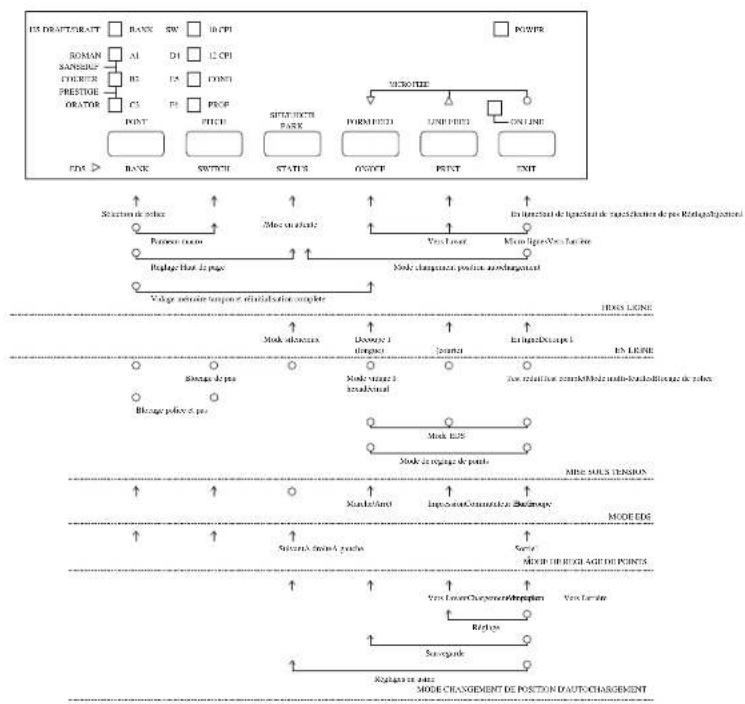
flowchart
graph TD
    A["ES DRAFTORANT"] --> B["BANK"]
    B --> C["SW"]
    C --> D["10 CPI"]
    D --> E["POWER"]
    F["ROMAN"] --> G["AL"]
    G --> H["D1"]
    H --> I["12 CPI"]
    I --> J["SYMBOLIE"]
    K["SANSHUP"] --> L["CHIRER"]
    L --> M["RS"]
    M --> N["L5"]
    N --> O["POINT"]
    P["PRESTOIE"] --> Q["ORATOR"]
    Q --> R["C5"]
    R --> S["L1"]
    S --> T["PROF"]
    U["PONT"] --> V["PNT"]
    W["PAGE"] --> X["FREE"]
    Y["SOUTH DOCT PARK"] --> Z["FORMED"]
    AA["ONLINE"] --> AB["LINE FUEZ"]
    AC["EOG"] --> AD["BANK"]
    AE["SWITCH"] --> AF["STATUS"]
    AG["POST"] --> AH["POWER"]
    AI["OUT"] --> AJ["TYPE"]
    AK["EN"] --> AL["Inverter de fignation de transfection de p# Portugal/Equity"]
    AM["Power source"] --> AN["Capacitor"]
    AO["Voltage bus de p#e"] --> AP["Node charging port, inverter terminal"]
    AQ["Voltage potentiou tempore e atrialisation complete"] --> AR["Node charging port, inverter terminal complete"]
    AS["HDAX LINE"] --> AT["Mode address"]
    AU["EN LINE"] --> AV["Mode voltage 1 looped"]
    AW["Mode E25"] --> AX["Mode voltage 2 insulator"]
    AY["MIDE SOLIC TENSION"] --> AZ["Mide EDE"]
    BA["MODE EDE"] --> BB["MODE EDE"]
    BC["MODE EDE"] --> BD["MODE EDE"]
    BE["SINARIA MOYA P#e"] --> BF["SINARIA MOYA P#e"]
    BG["Ves Lower Chosphorate/Reptun"] --> BH["Ves Lower"]
    BI["Relays"] --> BJ["Souspass"]
    BK["Relays on pole"] --> BL["Relays on pole"]
    BM["MODE CHASSEMENT DE POSTON D AUTO CHASSEMENT"] --> BN["MODE CHASSEMENT DE POSTON D AUTO CHASSEMENT"]
application printer selection checking 151
Auto LF
selecting 49
auto load position changing 35
Auto Tear-off selecting
AUTOEXEC.BAT 153
automatic sheet feeder 47
B
bidirectional printing 49
C
carton contains 3
character pitch setting 29
Character Set
IBM #1 162
IBM#2162
IBM Special 163
international 162
standard italic 162
tables 162
Character Table selecting 47
Code Page 59
Brazil-ABICOMP 164
Brazil-ABNT 164
Canadian French 163
CS2 164
Gost-Russian 164
Greek 134, 165
Hungarian 164
IBM-Russian 163
Icelandic 163
Latin-2 164
Multi-lingual 163
Nordic 163
Polish 164
Portuguese 163
Russian 163
selecting 55
Turkish 164
configuration file 75
connecting
to a power outlet 13
to your computer 21
control panel
printer 25
control panel settings
saving 37
CR centering
setting 53
cut-sheet paper
ejecting 31
manual feeding 119
specifications 119
D
default printer selection
checking 151
dot alignment
adjusting 137
download buffer 47
Drive Setup
checking 151
E
EDS Mode
auto LF with CR 49
auto tear-off 49
automatic sheet feeder 47
character set 55
character table 47
code page 55
A
graphics direction 49
line spacing 49
Multi-Part Mode 49
NLQ font 65
page length 53
paper out detector 47
print mode 51
print pitch 51
printing switch settings 45
Quiet Print Mode 51
RAM usage 47
selecting a bank 43
selecting a switch 43
settings 47
switch settings 45
using 41
zero style 49
eject 31
Electronic DIP Switches 41
emulation 47
F
fanfold paper
form feed 31
parking 19, 31
printing on 19
specifications 97
tear-off function 21, 33
unparking 21
font
selecting 27
Font Lock Mode
entering 27
form feed 31
front cover
opening 5
G
graphics direction
selecting 49
H
hexadecimal dump 135
|
initialization 39
input buffer 47
interface pin outs
optional serial interface 161
parallel interface 161
international character set
selecting 55
L
labels
specifications 121
line feed 31
line spacing
setting 49
M
macro
saving 37
manual sheet feeding 123
micro feed 31
MS-DOS
setting up for printing 115
Multi-part Mode
entering 39
N
NLQ font
selecting 65
0
off-line
switching to 25
ON-LINE
indicator 25
Impression bidirectionnelle 49
getting ready to print 113
printing 113
setting up for 111
P
page length
setting 53
paper
automatic feeding 123
fanfold 19
handling 97
loading 13
micro feed 31
recommended print area 19
setting top of form 33
thickness adjustment 121
paper eject 31
paper guide
installing 11
standing up 11
paper jams 125
paper out detector 47
paper type
selecting 119
parallel cable 23
Pitch Lock Mode
entering 29
platen knob
installing 5
port
checking 153
parallel 23
print mode
selecting 51
print pitch
selecting 51
printer buffer
clearing 37
printer port
changing 75
177
printing
in Windows 79
problem 139
problems
causes and solutions 139
dark printing 143
erratic operation 149
excessive noise 145
hot printer case 145
incorrect characters 147
left margin movement 147
line spacing 141
malformed graphics 143
no printing 139
overprinting lines 141
paper feed 141
power supply 139
print quality 143
printing past paper edge 145
smudged forms 143
sudden stoppage 149
wrong number of lines 143
Q
Quiet Print Mode 33
selecting 51
R
ribbon cartridge
installing 7
removing 9
taking up slack in 7
S
setup
printer 1
specifications
cut-sheet paper 119
fanfold paper 119
labels 121
printer 155
system software settings
MS-DOS 153
Windows 151
Latin-2 164
Multilingue 163
Nordique 163
Polonais 164
Portugais 163
Russe 163
sélection 55
Turc 164
panneau de commande
imprimante 25
papier
tear-off function 21, 33
test
long 135
short 133
test print 133
top of form
setting 33
troubleshooting 133
guide 139
TrueType fonts
installing 89
Windows 95
installing fonts 107
Preparing to print 101
Setting up 93
Z
zero style
selecting 49
U
unidirectional printing 49
unpacking 3,5
User Setup Utility
Adjust window 73
adjusting dot alignment 73
default settings 77
exiting 77
Font window 71
General window 71
Help menu 77
importing setup data 77
installing 67
Paper window 71
printer port 75
saving configuration file 75
starting 71
V
voltage 3, 13
W
Windows 3.1
default printer 83
getting ready to print 85
selecting fonts 91
setting up for 79
T
Customer service information
If you experience any technical difficulties with your Star printer, please refer to Appendix A How to deal with printing problems. This chapter describes easy methods to diagnose and resolve some of the problems that you may encounter.
For further technical support, you should first contact your Authorized Star Dealer. If you require additional support, Star Micronics offers a wide variety of technical support services. Please use one of the telephone numbers listed below, depending on the country in which your Star printer was purchased.
Star Micronics Bulletin Board Service:
Requires a computer modem
United Kingdom: 44-1494-461395
France: 33-1-305807
Germany: 49-69-780929
Netherlands: 31-73-424485
Customer response
Star Micronics Co., Ltd. invites your suggestions and comments on your printer and this manual. Please address your correspondence to Attn: Product Manager
Worldwide Headquarters
STAR MICRONICS CO., LTD.
536 Nanatsushinya, Shimizu,
Shizuoka, 424, Japan
European Market
STAR MICRONICS DEUTSCHLAND GMBH
Westerbachstraße 59
D-60489 Frankfurt
F.R. of Germany
U.K. Market
STAR MICRONICS U.K. LTD.
Star House
Peregrine Business Park
Gomm Road, High Wycombe
Bucks. HP13 7DL, U.K.