Iblik WiFi - Alarm Clock REVO - Free user manual and instructions
Find the device manual for free Iblik WiFi REVO in PDF.


| Product Type | Internet Alarm Clock Radio |
| Brand | REVO |
| Model | Iblik WiFi |
| Power Supply | Included mains adapter (DC) |
| Main Functions | Internet Radio, DAB/DAB+, FM, iPod Dock, Audio Player (PC/Mac via M-Port), Programmable Alarm, Sleep, 10 presets |
| Screen | LCD with station information, time, etc. display |
| Connectivity | Wi-Fi (WEP/WPA/WPA2), Ethernet LAN, M-Port (3.5mm audio input) |
| Antenna | Telescopic for DAB/FM |
| Supported Audio Formats | ACC, AIFF, AU, MP3, RM, WAV, WMA |
| Alarm | 4 programmable alarms, buzzer or radio (Internet, DAB, FM, iPod), Snooze |
| Warranty | 1 year |
| Care and Cleaning | Clean with a soft, dry cloth. Do not use liquid or abrasive products. |
| Safety | Do not expose to water or moisture. Use only the supplied adapter. |
| Spare Parts and Repairability | Contact REVO technical support. No spare parts provided. |
Frequently Asked Questions - Iblik WiFi REVO
User questions about Iblik WiFi REVO
0 question about this device. Answer the ones you know or ask your own.
Ask a new question about this device
Download the instructions for your Alarm Clock in PDF format for free! Find your manual Iblik WiFi - REVO and take your electronic device back in hand. On this page are published all the documents necessary for the use of your device. Iblik WiFi by REVO.
USER MANUAL Iblik WiFi REVO
Welcome to iBLIK RadioStation 3 My Added Stations 9
iBLIK Overview 3 Help 9
Warranty ^+ Warranty Registration 3 Internet Radio Portal 9
Before Getting Started 3 Access Additional Features 9
Wi-Fi Internet Connection 3 Registering Your Radio 9
Registering Your Radio 3 Music Player Mode 10
Controls and Connections 4 Windows PC Set-UP 10
Remote Control Operation 4 Apple Mac Set-Up 11
■ Powering iBLIK 4 DAB Mode 12
Getting Started 5 DAB Mode Menu Options 13
iBLIK's Control Method 5 FM Mode 14
iBLIK's Menu Explained 5 MPort Mode 14
Setting The Time and Date 6 iPod Mode 15
Internet Radio Mode 7 Alarms Mode 16
Connecting To Wi-Fi network 7 Sleep Mode 17
Using Internet Radio Features 8 System Setup 17
Choosing A Station 8 Info 17
Choosing A Podcast 8 Troubleshooting 18
My Favourites 9 User Licence 19
Preface
Copyright and Acknowledgements
Copyright © 2008 Revo Technologies Ltd. All rights reserved.
Revo Technologies Ltd
The Inox Building
Caldwellside
Lanark
Scotland, United Kingdom
ML11 7SR
Tel. 01555 66 61 61
Int. Tel. +44 1555 66 61 61
Fax. 01555 66 33 44
Int. Fax: +44 1555 66 33 44
Email: enquiries@revo.co.uk
Website: www.revo.co.uk
The information in this guide is believed to be correct at the time of publication. However, our policy is one of continuous development and so the information is subject to change without notice.
Revo, iBLIK and M-Port are trademarks or registered trademarks of Revo Technologies Limited.
iPod® is a registered trademark of Apple Computer, Inc.
SafetyWarnings

Do not operate this radio near water.
Avoid small objects and liquids from getting into this product.
Do not remove screws or casing parts. Use only the power supply unit supplied.
EEC: This product has been designed and type-tested to comply with EU requirements and carries a CE mark.
RoHS
COMPLIANT


Technical Support
Should you encounter any difficulties with the operation of your Revo radio, or should you suspect that it may be faulty in some way, please call our technical support department on the number below:
01555666161
Alternatively, email support@revo.co.uk visit the troubleshooting section of our website at: www.revo.co.uk/support
"Made for iPod" means that an electronic accessory has been designed to connect specifically to iPod and has been certified by the developer to meet Apple performance standards.
Welcome to iBLIK RadioStation
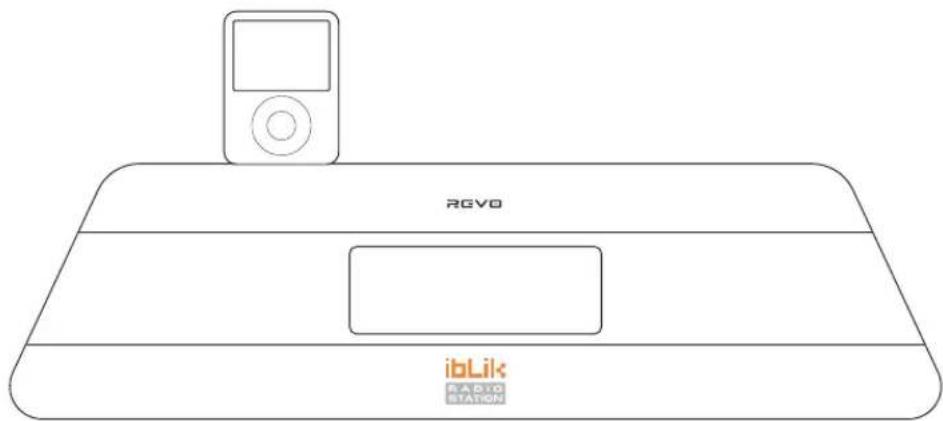
Thank you for buying our iBLIK RadioStation hybrid digital radio, we feel sure that it will provide you with years of enjoyment and reliable service.
This guide has been designed to quickly get you up-and-running and listening to internet radio, offer guidance on the more complex features of this product and provide information on safety, warranty and registration.
iBLIK RadioStation Overview
iBLIK RadioStation is the ultimate 'one box' digital radio, providing an unprecedented choice of over 11,000 stations from around the globe.
Whether your preferred station is broadcasting from your own country on DAB or DAB+ digital radio, or on the other side of the world via the internet radio platform, iBLIK RadioStation is ready to deliver:
iBLIKRadioStation also includes an iPod dock for music playback and charging, as well as coverage of traditional FM radio, and comprehensive electronic alarm clock functionality.
Throw-in class-leading audio performance and the ability to stream music from your PC or Mac, and iBLIK RadioStation becomes the radio of choice for the digital generation.
Warranty
Revo Technologies Ltd warrants to the purchaser that this product will be free from parts and manufacturing defects in the course of normal use for a period of one year from the date of purchase.
This warranty does not apply in cases of accidental damage, where the case has been removed, wear and tear, negligence, modification or inappropriate use.
Should you encounter problems with this product, please contact your supplier or alternatively see page 2 of this guide for technical support contact details.
Warranty Registration
It is a warranty condition that you register your purchase by either completing the warranty card enclosed with your radio or alternatively registering online at www.revo.co.uk/register
Before Getting Started
IMPORTANT
To ensure that your iBLIK RadioStation is running the latest software release (and therefore has access to the latest software
features], we advise you to perform a software update. Please see page 17 of this operating guide for full details.
Network Connection
In order to use the internet radio functions of your iBLIK RadioStation, you will require either a wireless [Wi-Fi] or wired LAN broadband internet connection.
For setup instructions please see page 7.
NB. If your wireless network is configured to use Wired Equivalent Privacy (WEP), or Wi-Fi Protected Access (WPA or WPA2) data encryption, you need to know the WEP or WPA code (Web Key) in order to allow iBLIK to connect to your wireless network.
Registering Your Radio and Accessing Additional Services
Some of iBLIK RadioStation's more advanced internet radio features can only be accessed by visiting the Frontier Internet Radio Portal (www.wifiradio-frontier.com).
These features include the ability to create a "Favours" list and add unlisted radio stations and podcasts. See page 9 for instructions on how to register your radio.
iBLIK RadioStation and DAB+
iBLIK RadioStation is capable of receiving broadcasts on the new DAB+ digital radio platform - without the need for modification or additional software. Meaning that iBLIK
is ready for future developments. This facility is in addition to iBLIK's reception of standard DAB signals.
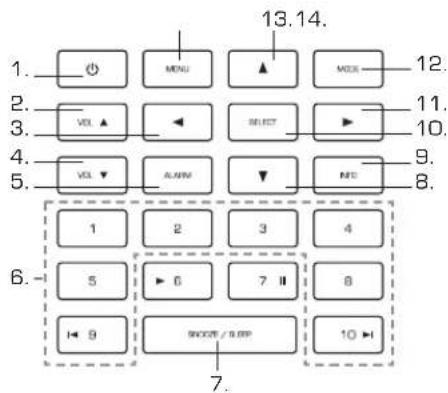
Controls and Connectors
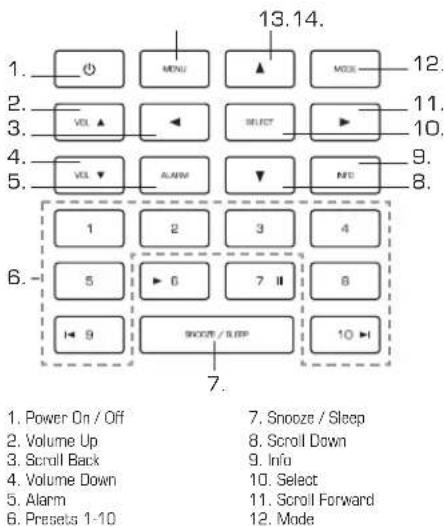
Media Player Controls
PlayPauseSkipBackForward
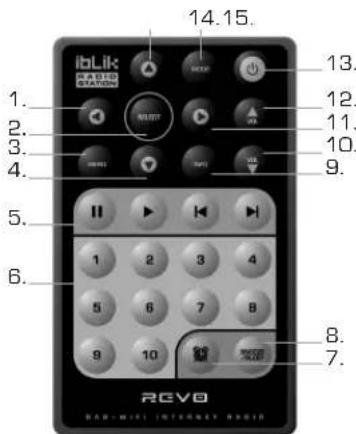
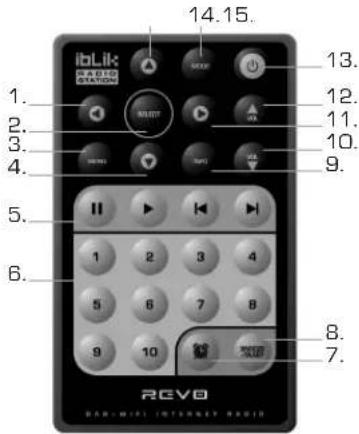
Remote Control
1.Scroll Back
2. Select
3. Menu
4.Scroll Down
5. Media Player Controls
6. Presets 1-10
7. Alarm / Clock
8. Snooze / Sleep
9. Info
10. Volume Down
11.Scroll Forward
12. Volume Up
13. Power On / Off
14.Mode
15.ScrollUp
- Media Player Controls
Pause
Play
Skip Back Slip Forward
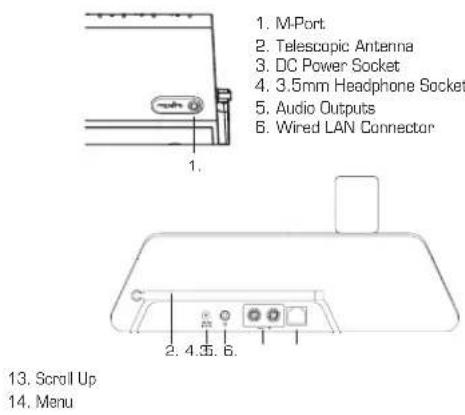
Powering iBLIK RadioStation
Your iBLIK RadioStation can be powered from the mains using the power adaptor supplied.
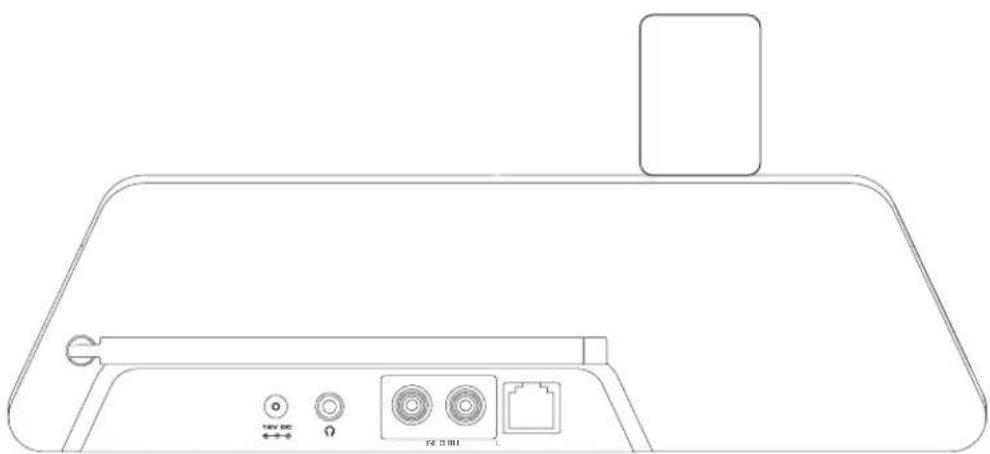
To power from the mains, insert the power adaptor plug into the DC power socket on the rear of iBLIK RadioStation. Pressing the button will switch iBLIK RadioStation on.
Only use the power adaptor supplied. Replacements can be purchased from our website www.revo.co.uk, or alternatively call us on 01555 66 61 61.
Getting Started
Socket
or
iBLIK RadioStation is a sophisticated digital radio device, with several modes of operation and many advanced features.
In order for you to get the most out of iBLIK's functions, it is important that you learn how to use the cursor based control system, and also understand how iBLIK's menus work.
iBLIK RadioStation's Control Method
iBLIK RadioStation's control method is based around seven main keys as identified below.
Scroll Up:
Press to scroll through menu options
Scroll Back:
Press to return to the previously selected menu entry. Repeatedly pressing will return you to the top level of the Mode menu (for the mode you are in).
▶ Scroll Forward:
When in text entry screens, this key can be used to navigate through the characters. It can also be used to move through to the next menu level.
Scroll Down:
Press to scroll through menu options
SELECT - Press to select the current menu entry. In FM mode, pressing SELECT will initiate an FM scan.
Menu:
Press to enter [or return to] the Mode menu for the mode of operation you are currently in. Pressing for a second time will return you to the 'playing' screen.
Mode:
Sequentially cycles through each of the modes of operation.
Using these keys, you will be able to perform most functions and navigate through iBLIK RadioStation's various menus
iBLIK RadioStation's Menu Explained
iBLIK RadioStation has three types of menu as follows:
Main Menu
This is iBLIK RadioStation's principle (top level) menu, and allows you to enter different operating modes, setup the radio, and view information such as software version and your radio's ID number.
Mode Menus
The Mode menus are so called because they show the functions available within the context of each of the operating modes [internet radio mode, DAB mode, iPod mode, FM mode etc. etc.].
Pressing the MENU button at any time will take you to the Mode menu of the operating mode your radio is currently in. Each Mode menu includes a listing for Main Menu - selecting this option will return you to the top level Main Menu [as described above].
Main Menu
The Main menu provides access to the following modes and sub-menus:
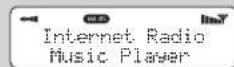
Internet Radio
Music Player
DAB
FM
Mport
iPod
Sleep
Alarms
System Setup
Info
On powering-up iBLIK RadioStation for the first time, you will be presented with this menu. To select an option from the menu, simply use the or keys to move through the menu options, and press
SELECT or to make a selection or move to the next menu level.
yard
Setting the Time and Date
The time and date can be set in one of two ways, either manually from the Time Setup menu, or automatically by selecting Auto update from the Time Setup Menu as follows:
Manually
Time
To set the time manually, first press the MENU key.
Using the and cursor keys, scroll to "System setup" and press the SELECT or key.
Using the and cursor keys, scroll to "Time setup" and press the SELECT or key.
Choosing "Set clock" will allow you to manually set the time.
Use the and cursor keys to set the hours then press the SELECT or key.
Use the and cursor keys to set the minutes then press the SELECT or key.
Date
To set the date manually, first press the MENU key.
Using the and cursor keys, scroll to "System setup" and press the SELECT or key.
Using the and cursor keys, scroll to "Time setup" and press the SELECT or key.
Choosing "Set date" will allow you to manually set the date.
Use the and cursor keys to set the day then press the SELECT or key.
Use the and cursor keys to set the month then press the SELECT or key.
Use the and cursor keys to set the year then press the SELECT or key.
Automatically
To set the time and date automatically, first press the MENU key.
Using the and cursor keys, scroll to "System setup" and press the SELECT or key.
Using the and cursor keys, scroll to "Time setup" and press the SELECT or key.
Using the and cursor keys, scroll to "Auto update" and press the select or key. There are now two types of Auto update available to select, "update from NET" and "update from DAB. Using the and cursor keys, select the type of Auto update you wish to use. Pressing SELECT or will confirm your selection.
Auto update from DAB
Auto update from NET
If you have selected "Set from DAB", the radio will automatically set the date and time the next time you listen to a DAB station. The local time and date will be set and there is no need to adjust the clock for Daylight Saving.
If you have selected "Set from NET", the radio will automatically set the date and time the next time you listen to an internet radio station. The time will be set to GMT, depending on your location you may now need to adjust the Timezone.
The Timezone is set from within the "Time setup" menu. Using the and cursor keys, scroll to "Set timezone" and press the SELECT or key.
Using the and cursor keys, choose the GMT offset required for your location. Press the SELECT or key to confirm your selection.
During daylight saving months, you can Set DST to On. This option is found in the "Time setup Menu".
Using the and cursor keys, scroll to "DST" and press the SELECT or key.
Using the and cursor keys, choose "ON" or "OFF", then press the SELECT or key to confirm your choice.
Please note, once you have set the GMT offset and DST, your selection will be reapplied after a power cut meaning the correct time will be set automatically.
Internet Radio Mode
Connecting to your broadband network
In order to access iBLIK RadioStation's internet radio features, first you must connect to your Wi-Fi broadband connection.
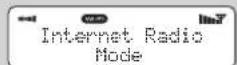
Firstly, select 'Internet Radio' from iBLIK's main menu, or press the MODE key until 'Internet Radio Mode' appears on the display.
- iBLIK RadioStation's will now ask you to select a 'Wlan region'. To do so, use the and cursor keys to scroll through the selections. Press the SELECT or key to make your selection.
■ iBLIK RadioStation's will ask you to choose the network you'd like to use. If there is more than one available, all will be listed. If you are using a wired LAN connection choose 'Wired' option from the network list. To make your selection use the and cursor keys to scroll through the options. Press the SELECT or key to make your choice.
If the Wi-Fi network you have chosen doesn't require a password, iBLIK RadioStation's will automatically connect.
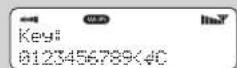
If your chosen network has security enabled, you will be asked to input the relevant key or password. Remember, the password will be case-sensitive.
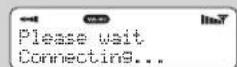
Use the and cursor keys to scroll through the banks of characters. Use the and keys to move the flashing cursor along the row of characters, and press SELECT when your chosen character is flashing. When the password has been entered, move the flashing cursor to the symbol at the end of the line and press SELECT. iBLIK RadioStation's will now connect to the network.
iBLIK RadioStation's will remember the security key or password, you will not be required to enter it again, even after iBLIK has been disconnected from main power.
iBLIK can also remember keys and passwords for multiple Wi-Fi networks.
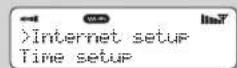
If at some time you would like to connect to another Wi-Fi network, you can do so by selecting 'Wizard' from the 'Internet Setup' option on the main menu, and entering the required key/password.
Advanced users can edit their Wi-Fi settings by accessing the 'System Setup' option from the Main menu.
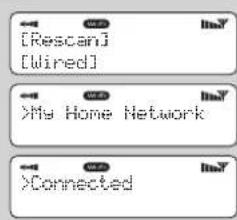
Using Internet Radio Features
The internet radio mode allows you to choose from a number of services, including listening to live radio or Podcasts. There are five options on the internet radio menu as follows:
My Favourites: Used to navigate to your favourite stations. This list is compiled using your PC/Mac via the internet radio portal. See page 9 for details.
Stations: Find stations by location, genre, most popular, new station or by alphabetical search.
Podcast: Find Podcasts or 'Listen-Again' services by location, genre or search.
My Added Stations: Shows stations which you have personally added to iBLIK RadioStation's list through the vTuner internet radio portal. See page 9 for details.
Help: Find your Access Code here, see page 9.
Choosing A Station
To select a station, enter 'Internet Radio Mode' from the Main Menu or by pressing the MODE key until 'Internet Radio Mode' is displayed on iBLIK's LCD display.
Using the and cursor keys, scroll to the Stations' option and press SELECT or the key.
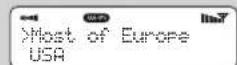
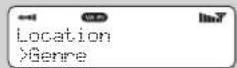
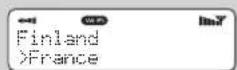
You now have the option of selecting a station by location (country), genre, alphabetical search, most popular stations or new stations. Using the and cursor keys, scroll through the list and press SELECT or the key to choose your search criteria.
Choosing location will give you an alphabetical list of continents/regions and then a list of countries. Use the ▲and cursor keys, scroll through the list and press SELECT or the key to choose your country. You will then be given the option of choosing a genre, to further refine your search.
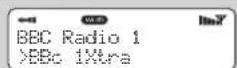
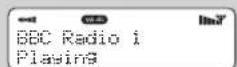
After selecting your search criteria, you will be presented with a list of stations that meet your requirements. Simply select a station from the list to begin listening.
Choosing A Podcast
Podcasts (also referred to as 'Listen Again') are selected in the same way as a regular station.
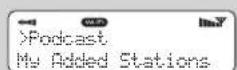
- Select 'Podcast' from the 'Internet Radio' menu, you can search for a station by location, genre or a combination of both.
The main difference is that when you have selected a station, you will then be presented with a list of 'shows' or Podcasts available from that station.
- Select your choice by using the and cursor keys, scroll through the list and press SELECT or the key to make your selection.
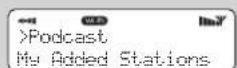
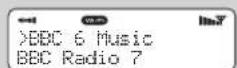
My Favourites
It is possible to compile a list (or lists) of your favourite stations, allowing quick and easy access to a number of varied stations. To do this you must first register your radio and then choose your favourites by visiting the Frontier Internet Radio Portal - see 'Internet Radio Portal' section below for details.
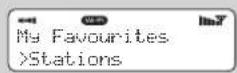
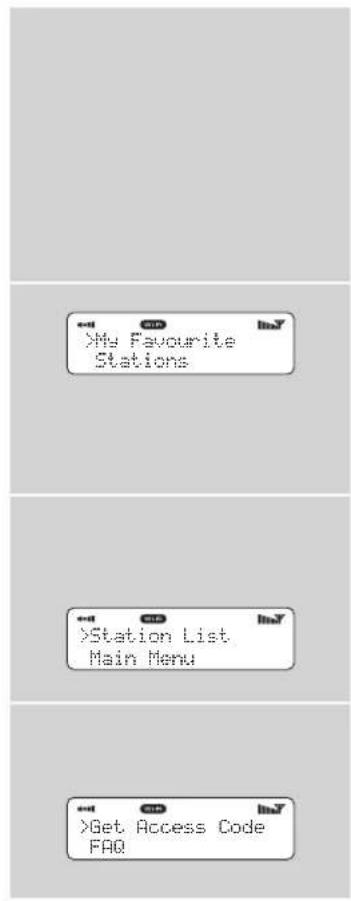
When in 'Internet Radio Mode', choose 'Station List' from the options, then select 'My Favourites'.
If you have set up a 'My Favourites' list via the Frontier Portal, your list will appear on iBLIK's screen.
My Added Stations
If you have added any of your own stations to iBLIK's already huge station list [via the Frontier Portal - see section below], they will be listed here. The 'My Added Stations' option can be found under 'Station List' in 'Internet Radio Mode'.
Help
The 'Help' option is where you can find the Access Code that you require to register your radio on the Frontier Portal (see below for full instructions). A helpful FAQ audio track can also be found under this heading.
Internet Radio Portal
Access Additional Features
Some of iBLIK RadioStation's more advanced internet radio features can only be accessed by visiting the Frontier Internet Radio Portal.
In order to access these features you must first register your radio.
Registering Your Radio
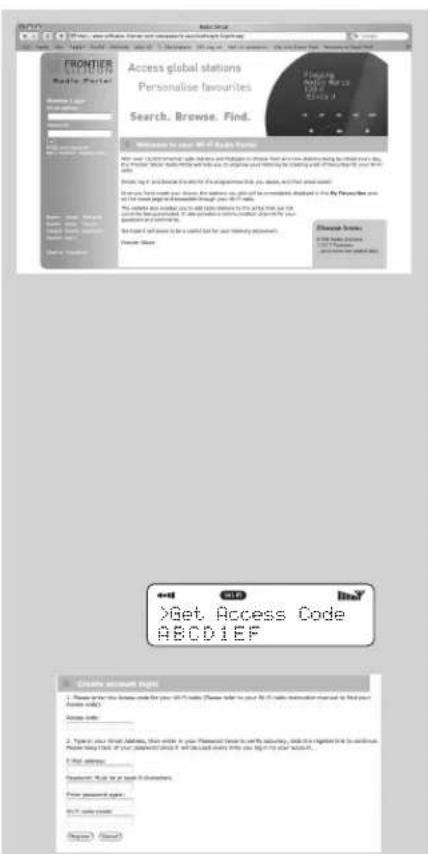
Firstly, open your web browser on your PC or Mac and go to the Frontier Portal at http://www.wifiradio-frontier.com
- Click on the Register link, (located on the left hand panel) to begin the registration process.
You will now be asked for an Access Code.
To find your Access Code enter 'Internet Radio Mode', select 'Station List' from the options, then select 'Help'. From the 'Help' menu now select "Get Access Code".
Now fill-in the rest of the from to complete the registration process. You will now be able to login and take advantage of the various additional features and services offered by the Frontier Internet Radio Portal.
Music Player Mode
Music Player Operation
iBLIK RadioStation's media player functionality allows you to play audio files (ACC, AIFF, AU, MP3, RM, WAV and WMA) and playlists (M3U) stored on a networked PC or Apple Mac. The media player functions have been tested and certified to operate with Windows 2000, Windows XP, Windows Vista and Mac OSX 10.2 - 10.4.9 (currently Mac OSX 'Leopard' is not supported).
Windows PC Set-Up
There are two Music Player modes available. Each of them requires different settings, and either one can be used to playback music from a media server.
Shared Folders (CIFS)
In order to set up the device to playback music stored on shared network drives, user name, password and domain settings must be configured to work with the PC share settings. This is only required if the user has set a password on his/her shared folders.
PC: Domain/Workgroup configuration
The Domain configuration item can be found on a Windows XP machine as follows:
- From the start menu, select Control Panel > System then select the Computer Name tab.
- The Domain or Workgroup that this Computer is a member of is displayed in this tab.
- If the PC is not a member of any Domain or Workgroup then one must be joined. To do this click on the change button on the computer name tab and enter the name of the domain [default on Windows XP is MSHOME].
- A reboot of the PC may be prompted if the Domain or Workgroup has been changed.
PC: Setting up a new user account [Windows XP]
iBLIK RadioStation may require you to set-up a user account on each PC that you wish to browse. By default most PCs have at least one user account associated with it. The user name and password (optional) needs to be the same on each PC as the Internet Radio only stores one user name and one password. For windows XP this can be set up as follows:
- From the start menu, select Control Panel -> User accounts
-
From this screen left click the Add ... and enter the new user name and the Domain/Workgroup setting noted above. Select the type of user (limited) and then select 'create account'.
-
Select the user just created, select 'Create Password ...' and enter a password for this user.
- Note the User Name and Password.
Note for Windows VISTA: Users have to turn on the Guest account via manage user accounts in the control panel in VISTA, then add access to either 'Everyone' or 'Guest' on the shared drive. They could create a new account for the internet radio, with a password, if they are concerned about security. The Guest account has no password by default, so the Wi-Fi radio will connect to it from its factory default settings.
PC: Configuring A Shared Drive
From the Start menu select My Computer and navigate to the directory you wish to share. Right click on the directory and select Sharing and Security. Configure the shared drive as read only, and ensure that the User Name created above has read access to the share.
Wi-Fi Radio: Storing TheUsername And Password
Before the radio can stream music from a PC, you need to ensure you have shared folder available on the PC, and set up the radio so that it knows the username and password (if one has been set) for the shared folder on the PC. This can be set up using the PC settings menu.
Shared Media (UPnP)
Media sharing uses Windows Media Player (WMP) 11 and above as media server. This mode does not require any setting in the radio, but the PC needs to be configured to allow the radio access to the media. You will only have to do it once, following the next steps.
- The PC must be connected to network (wired or wireless) that will be used to share media with the radio.
- Ensure that the radio is powered on and connected to the same network as the PC.
- In WMP, add to the media library the audio files and folders you want to share with your internet radio [in Library > Add to library].
- In the WMP main window, click on Library, then Media sharing.
The Internet radio is presented as an "Unknown Device". Make sure that the device has access to the shared media by selecting it and clicking
The PC is now ready to stream the music to the radio.
Music Player Mode
Apple Mac Set-Up
Set-Up for OSX 10.2.1 -> 10.4.9
Setup Windows File Sharing on the MAC:
From the Dock', click System Preferences'. From the 'System Preferences' window (under the Internet & Network section) click Sharing.
From the 'Sharing' window, do the following:
Under the 'Services' section, enable 'Personal File Sharing' and 'Windows Sharing'. Also, click 'Start' for each of these services. Under Windows file sharing you will also need to 'enable' the account you wish to share from [This needs your administrator password].
Under the 'Firewall' section, keep firewall off.
Under the 'Internet' section, keep 'Internet Sharing' off.
Setup an Account:
From the 'System Preferences' window, under the 'System' section, click 'Accounts'. Select an account and remember its 'Short Name' and password. This information will be used by iBLIK RadioStation when connecting to your Mac.
Directory Setup:
From the 'Dock', click 'Finder'. From the 'Finder' window, click 'Applications > Utilities'. Holding Ctrl click on 'Directory Access' then select 'Get Info' and ensure that read / write enabled. Next double click on 'Directory Access' and enable the following:

AppleTalk LDAPv®

SLP SMB/CIFS
Also, for the 'SMB/CIFS' item, click 'Configure' and select an appropriate workgroup.
To allow your iBLIK RadioStation you need to add your login details, by following the path Main Menu → System Setup → Internet Setup → PC Settings. You should input your short username and administrator password here. Ensure that your Mac is successfully connected to the wireless network. Note, you may need to wait for few minutes for the changes to take effect. You should now be able to access the audio files on your Mac by selecting Browse → SharedFolders on iBLIK, then selecting the workgroup chosen in the step above. On selecting your Mac scroll through the available folders until you find the one which contains your music files.
Apple Mac Set-Up
Set-Up for OSX Leopard 10.5.1-->
Setup Windows File Sharing on the MAC:
From the Dock, click 'System Preferences'. From the 'System Preferences' window (under the 'Internet & Network' section) click 'Sharing'.
From the 'Sharing' window, do the following:
Under the 'Services' section, enable 'File Sharing' click 'Start' for this service. Then under the shared folders click the "+" and select the folder which contains your music files. Then Select the music folder from the shared folders area, in the users area make sure "Everyone" is set to read and write. Finally click on "Options" and make sure "Share files and folders using AFP" is checked and "Share files and folders using SMB" (This will require your admin password to activate) lastly make sure your account is also checked as active.
Ensure that your Mac is successfully connected to the wireless network. Note, you may need to wait for few minutes for the changes to take effect.
You should now be able to access the audio files on your Mac by selecting 'Browse > SharedFolders' on iBLIK, then selecting your Mac from the list of devices. On selecting your Mac, you should see your folder that you selected above.
DAB Mode
Choosing a Station
Extend the telescopic antenna found on the rear of iBLIK RadioStation.
Enter 'DAB Mode' from the Main Menu or by pressing the MODE key until 'DAB Mode' is displayed on iBLIK's LCD display.
If this is the first time iBLIK RadioStation has been used in DAB Mode, it will scan for DAB stations in your area and store them in memory.
- When the station scan has been completed, stations will be displayed in numeric then alphabetic order. The first station in the list will be selected.
If no DAB signal is found, it may be necessary for you to relocate your radio. Or visit www.ukdigitalradio.com/coverage to check that DAB coverage is available in your area.
Select your station choice by using the and cursor keys, scroll through the station list and press SELECT or the key to make your selection.
MODE
DAB Mode
m7
Scanning...
i
BrwRok
BECAsian
BBC 6Music
Service not available
中
Playing
To Change the Display Mode
- iBLIK has nine different display modes.
Simply press the INFO button to cycle through each mode. These display modes are explained in the table opposite:
Display option Example
Normal display
with scrolling text
P
Clls: Rost max
in7
Signal level,
indicator on bar
shows minimum
acceptable level
i.1kSPORT
糟
m7
1
Type of broadcast
D
EPA
in7
Broadcaster
BECReacti
BEC National DFE
B
Station name and
BPC
1.2023年4月2日
m7
.
Signal strength
BBC Radio 1
5.4.3.10
12
96
Data rate and
1
1202kpm 6
1
Time
Pepo
11:48:03
∴ m = 3/11
Date
E
18.12-2007
DAB Mode Menu Options
iBLIK RadioStation has a number of additional functions that are accessed through the DAB Mode menu, as follows:
Station Order
Press the MENU key in DAB Mode then press select Station order.
To specify the order in which stations are displayed
Select the Station order option.
Use the and cursor keys to scroll through the options, and press SELECT or the key to make your selection.
The following table describes the options available under the 'Station Order' menu:
Station order Description
Alphanumeric Lists stations in alphabetical order.
Ensemble Lists stations by multiplex.
Valid Lists only active stations
Manual Tune
Choose the Manual Tune option from the DAB Mode menu.
The Manual Tune selection screen allows you to select a particular frequency to tune to. The list of frequencies displayed is dependant on the currently-set frequency band and contains all of the frequencies within that band. It starts with the short name of the frequency, for example 12B, and is followed by the actual frequency in MHz.
If there is a station corresponding to this station number and frequency, the display will show the name, frequency, and a tuning meter will show the signal strength.
DRC - Dynamic Range Control
iBLIK RadioStation includes a dynamic range control that automatically boosts the volume of quieter sounds for listening in noisy environments.
The DRC control is found in the DAB Mode menu under 'DRC'. There are three pre-defined settings as follows:
Local and Full Scan
As time passes, new stations will become available in your area. To find them and add them to your station list it is necessary to perform either a 'Local' or 'Full' scan. Both operations can be accessed via the DAB Mode menu.
A Local Scan performs a shorter scan of only the 'local' ensemble range.
A Full Scan will take longer, but will cover the complete DAB ensemble range.
Favourite Station Presets
- iBLIK RadioStation allows you to store 10 favourite station presets, either via the 10 preset keys on iBLIK itself, or on the iBLIK remote control.
To save the station you are currently listening to as a preset, simply press and hold a preset key (from 1 - 10) for 2 seconds. iBLIK will confirm that the key has been programmed by displaying 'Preset Stored' on iBLIK's LCD screen.
Please note, if you store a preset on a key that was already holding a favourite station, the previous station will automatically be erased.
DRC Description
DRC Low Dynamic Range Control is set to half
DRC High The recommended setting for noisy environments
DRC Off Dynamic Range Control is switched off
FM Mode
- Extend the telescopic antenna found on the rear of iBLIK RadioStation.
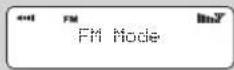
Enter FM Mode' from the Main Menu or by pressing the MODE key until FM Mode' is displayed on iBLIK's LCD display.
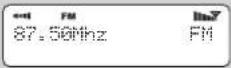
If this is the first time iBLIK has been in FM mode, it will start at the beginning of the FM frequency range. Otherwise, the last FM station you were listening to will be selected.
To scan through the FM frequency range press the and buttons.
To 'SEEK' the next active station, press the SELECT button.
Favourite Station Presets
iBLIK RadioStation allows you to store 10 favourite station presets, either via the 10 preset keys on iBLIK itself, or on the iBLIK remote control.
To save the station you are currently listening to as a preset, simply press and hold a preset key (from 1 - 10) for 2 seconds. iBLIK will confirm that the key has been programmed by displaying 'Preset Stored' on iBLIK's LCD screen.
Please note, if you store a preset on a key that was already holding a favourite station, the previous station will automatically be erased.
MODE
87.5倍比z
F1
BBC Radio 1 Preset Stored
MPort Mode
Using MPort
Revo's MPort connector allows for quick and easy connection of an iPod, similar MP3 player or sound source.
Using the connection lead supplied, iBLIK is transformed into a high quality digital audio speaker system.
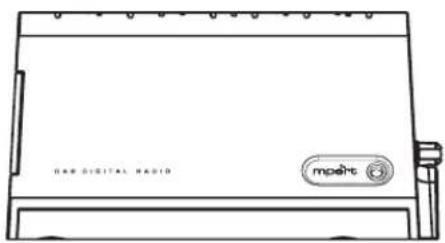
- Connect one end of the supplied audio lead to the headphone (or auxiliary out) socket of your source device, then connect the other end to the MPort on the side of iBLIK.
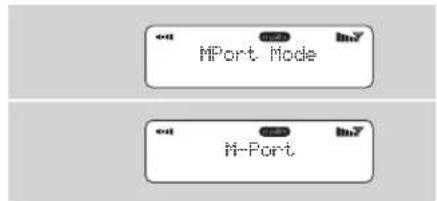
Now press the MODE key and cycle through the options until 'MPort Mode' is displayed.
iBLIK's LCD screen will now display the word 'MPort' on its screen.
- You should adjust the output volume level on both the source device and on iBLIK itself to gain optimal volume levels and sound performance.
iPod Mode
Selecting and Fitting the Dock Adaptor
Before using your iPod with iBLIK RadioStation, please select the adapter that is compatible with your model of iPod, as detailed in the table below:
| Clock Adapter number | iPod 4th generation (colour display) | iPod nano 1st generation | iPod 5th generation (video) | iPod nano 2nd generation (-aluminium) | iPod mini | iPod classic |
| 3 | 4GB, 6GB | |||||
| 6 | 20GB, 30GB | |||||
| 7 | 40GB, 60GB | |||||
| 8 | 1GB, 2GB, 4GB | |||||
| 9 | 30GB | 80GB | ||||
| 10 | 60GB, 80GB | 160GB | ||||
| 11 | 2GB, 4GB, 8GB |
The table above lists the seven iPod Dock Adaptors that are supplied with iBLIK RadioStation.
Each Dock Adaptor is numbered (see diagram on right).
Select the correct adapter number and clip it into the recess on the top face of iBLIK, ensuring that the number side is facing the rear.
iBLIK is compatible with all iPod models that connect to the iPod Universal Dock.
A compatible Dock Adaptor is supplied with most iPod models, if you do not have one, you should contact Apple.
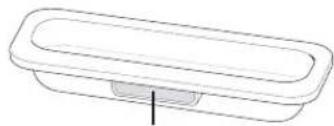
Dock Adaptor Number
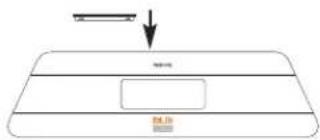
Connecting an iPod
Enter 'iPod Mode' from the Main Menu or by pressing the MODE key until 'iPod Mode' is displayed on iBLIK's LCD display.
Controlling Your iPod
Once connected, you can control the iPod in three different ways as follows:
1] By using the controls on the iPod itself, as normal.
2] By using the keys on the iBLIK's keypad as follows:
3) By using the iBLIK RadioStation remote control. These keys behave in the same way as the controls on the iBLIK keypad.
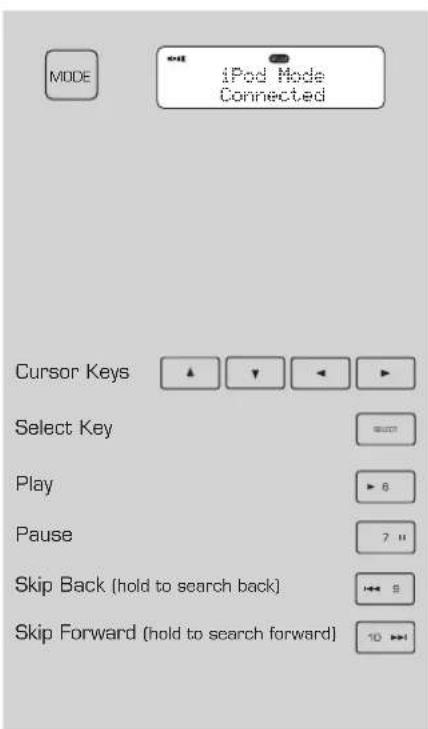
Alarms Mode
iBLIK RadioStation must have its clock and date set to use the alarm functionality.
Full instructions can be found on page 6 of this operating guide.
Setting An Alarm
iBLIK allows you to store up to four different alarm programmes in memory.
To set an alarm, press the ALARM button.
iBLIK will now ask you to choose which of the four alarm memories you'd like to use. Use the and keys too choose an alarm and press SELECT.
You can now switch this alarm on or off
To set the wake-up time, press SELECT and use the and keys to set the wake up hour, then press SELECT or the key to move onto the minute setting. When your wake-up time has been set, press SELECT.
- You can now choose the alarm type. To choose alarm type, use the and cursor until 'Days' is displayed, then press SELECT or the key. There are four options: Daily, Once, Weekdays or Weekends. Make your selection using and then confirm by pressing SELECT or the key.
You can now decide whether you would like to be waken up by Internet Radio, DAB, FM, iPod or Buzzer. To choose the wake-up mode press the key to view the 'Mode' option and press SELECT.
You can now decide whether you would like to be woken-up by the last played station, or by a specific preset (if none are set, iBLIK will wake you up using the default Buzzer).
You will now have the option to set the wake-up volume for your alarm. Use the and keys to adjust the volume and press SELECT to set.
Finally, you should select Save from the menu to complete your alarm programme.
When iBLIK has an active alarm in its memory, the alarm icon will appear on the top line of iBLIK's display at all times.
To halt an alarm, press any button on iBLIK's keypad. Alternatively, tap the SNOOZE button to mute the alarm for a period of 5 minutes. When iBLIK is in Snooze mode, the Snooze icon will be displayed on the LCD screen, together with the current time and remaining Snooze time.
To cancel a preset alarm, go back into the ALARM programming mode and change ON' to OFF. The details of the alarm will continue to be retained in memory, and the alarm programme can be switched back on again at a later date.

Alarm1:Off
Alarm2:Off
Set Alarm Time 07:15
Days: Dails Mode: DAB Mode
Dally Once
Internet Radio DFB Mode
Mode: DAB Mode Last listened
1
W
1 27 Wm707:28:915:00
07:15
off
Sleep Mode
Setting A Sleep Period
It is possible to programme iBLIK RadioStation to turn off after a predefined period of time. To do so, select the 'Sleep' option from the Main Menu.
Now, using the and keys, you can select a sleep time period of 15, 30, 45, 60, 75 or 90 minutes.
iBLIK will now automatically put itself into standby mode after the time has elapsed.
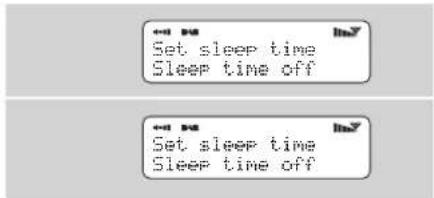
System Setup
Internet Setup
Advanced users can find and edit their Wi-Fi settings in this section, these include MAC address, DHCP status, PC Settings,SSID, IP Settings etc.
Time Setup
The time can be set in one of two ways, either manually via the System Setup option on the Main Menu, or alternatively simply press the MODE key until iBLIK RadioStation enters DAB Mode. In DAB mode, iBLIK will automatically set the correct time and date from the DAB transmitter. iBLIK will remember its time setting even when in standby mode, and will only lose the time/date when power is removed.
Under the 'Time Setup' menu, you can also switch between 12 an 24 hour clock formats.
Lastly, the 'Auto Update' option in the Time Setup' menu allows you to select whether or not the time should be synchronised with the DAB broadcaster clock or from the internet. If 'No Update' is selected, then the clock remains as manually set.
Factory Reset
In the unlikely event that iBLIK RadioStation should 'crash', freeze' or start behaving in a strange way, it is possible to perform a full software reset. This operation will completely reset iBLIK's memory, clearing all WEP/WPA codes and user settings. This will effectively return iBLIK to its default factory settings.
Software Update
It is possible to remotely update iBLIK RadioStation's software via your Wi-Fi internet connection, to ensure that you have all the latest features, or to fix known bugs in the software. To check whether there are any updates available, simply go to the 'System Setup' option on the 'Main Menu' and select 'Software Update'. iBLIK will search to see if a software update is necessary, then report back. If an update is available and necessary, iBLIK will start the download process and install its new software automatically.
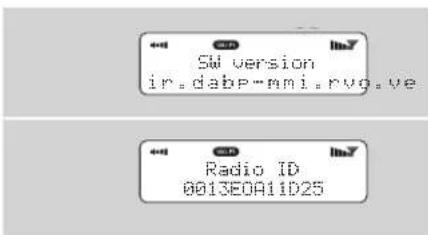
Info
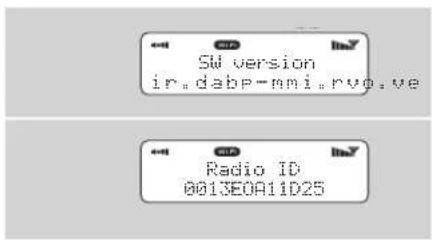
Software Version and Radio ID
You may be asked for one or both of these pieces of information when dealing with a technical support issue.
Both can be found under the 'Info' heading, located in the 'Main Menu'.
Troubleshooting
Wi-Fi Internet Radio
If you are experiencing any problems with your iBLIK RadioStation please read the following 'troubleshooting' guide. Alternatively you can visit the support section of the Revo website (www.revo.co.uk) or call our technical support staff on 01555 66 61 61.
If you have trouble connecting iBLIK RadioStation to your wireless network, these steps may help to resolve the problem:
- Confirm that a Wi-Fi connected PC can access the Internet (i.e. can browse the web) using the same network.
- Check that a DHCP server is available, or that you have configured a static IP address on the radio.
- Check that your network's firewall is not blocking any outgoing ports.
As a minimum, iBLIK RadioStation needs access to UDP and TCP ports 80, 554, 1755, 5000 and 7070.
- Check your access point does not restrict connections to particular MAC addresses. You can view the radio's MAC address under the 'Internet Setup' section, accessed via the 'System Setup' option on iBLIK's main menu.
- If you have an encrypted network, check that you have entered the correct key or pass phrase into the radio. Remember that text-format keys are case sensitive. If, when attempting to connect to an encrypted network, your radio displays: 'Wireless error' followed by a 5-digit number, then please ensure that you enter the correct pass phrase for the network. If the problem persists, then you may need to consult your network configuration.
If iBLIK RadioStation can connect to the network successfully, but is unable to play particular stations, it may be due to one of the following causes:
- The station is not broadcasting at this time of the day [remember it may be located in a different time zone].
- The station has reached the maximum allowed number of simultaneous listeners.
- The station is not broadcasting anymore.
- The link on the radio is out of date.
- The Internet connection between the server (often located in a different country) and you is slow.
DAB Digital Radio
I hear a 'burbling' noise on some stations.
A. If the signal strength is too low, a breakup in reception can occur. This sound is the result. Make sure that iBLIK's antenna is fully extended and in an upright position. If the problem persists, move iBLIK to another location or check that you are in an area where reception of this station is possible. Visit: www.ukdigitalradio.com/coverage to check DAB coverage in your area.
a. I get a 'No stations available' message?
A. Make sure that your antenna is fully extended and vertical. Check the signal strength and move iBLIK to another location if necessary.
a. iBLK's clock isn't set.
A. iBLIK needs to be able to pick-up a DAB signal or have its clock set manually. See page 6 for full instructions on how to set the time and date.
User Licence
By using this product, the user agrees to the following End User Licence conditions:
1) Refrain from modifying, translating, reverse engineering, decompiling, disassembling or using other means to discover the Source Code or otherwise replicate the functionality of the Client Code, except to the extent that this restriction is expressly prohibited by applicable law.
2) This agreement disclaims on behalf of Real Networks Inc. all warranties and conditions other than those set forth in this End User Licence, express and implied, including implied warranties or conditions of merchantability and fitness for a particular purpose; and effectively exclude all liability for indirect, special, incidental and consequential damages, such as lost profits.
3) This product is protected by certain intellectual property rights of Microsoft. Use or distribution of such technology outside of this product is prohibited without a licence from Microsoft.
REVO
ibLil
R A D I O
STATION
Revo Technologies Ltd The Inox Building
Caldwellside Lanark
Scotland, United Kingdom ML11 7SR
Règles de sécurité
Email. enquiries@revo.co.uk
Site Internet: www.revo.co.uk
Controls and Connectors
Media Player Controls
Jouer
Pause
Saut arrriere
Saut avant
Télékommande
Média partages (UPnP)
Service not available
中
BBLBRSIC
Play ing
Normal display with scrolling text
P
ENL RADIO I
CANS COST MAX
Signal level,
indicator on bar
shows minimum
acceptable level
tIKSPORT
糟凿凿凿门糟凿凿凿
Type of broadcast
1
100,9810 1
FOP MUSIC
Broadcaster
1
EMC National
Station name and
EPC
10
中
BBC Radio 1
Sig strength
Data rate and
中
BSC 59101
12CRBFR Spero
Time
中
EBC Radio 6M
11:48:03
Date
中
1042007
10-12-2007
Options du menu en mode DAB
Station order Description
| Clock Adapter number | iPod 4th generation (colour display) | iPod nano 1st generation | iPod 5th generation (video) | iPod nano 2nd generation (-aluminium) | iPod mini | iPod classic |
| 3 | 4GB, 6GB | |||||
| 6 | 20GB, 30GB | |||||
| 7 | 40GB, 60GB | |||||
| 8 | 1GB, 2GB, 4GB | |||||
| 9 | 30GB | 80GB | ||||
| 10 | 60GB, 80GB | 160GB | ||||
| 11 | 2GB, 4GB, 8GB |
Days: Dails Mode: DAB Mode
Dally Once
Internet Radio DFB Mode
Mode: DAB Mode Last listened
1111 1111
W
-22 07:20:015:00
-07:15
off
Mode de veille
Revo Technologies Ltd
The Inox Building
Caldwellside
Lanark
Scotland, United Kingdom
ML11 7SR
Tel. 01555 66 61 61
Int. Tel. +44 1555 66 61 61
Fax.01555663344
Int. Fax. +44 1555 66 33 44
Email: enquiries@revo.co.uk
Website: www.revo.co.uk
Media Player Controls
- Media Player Controls
Pause
Wiedergabe
Rücklauf Vorlauf
The time and date can be set in one of two ways, either manually from the Time Setup menu, or automatically by selecting Auto update from the Time Setup Menu as follows:
Manuell
Zeit
Music Player Operation
| Clock Adapter number | iPod 4th generation (colour display) | iPod nano 1st generation | iPod 5th generation (video) | iPod nano 2nd generation (-aluminium) | iPod mini | iPod classic |
| 3 | 4GB, 6GB | |||||
| 6 | 20GB, 30GB | |||||
| 7 | 40GB, 60GB | |||||
| 8 | 1GB, 2GB, 4GB | |||||
| 9 | 30GB | 80GB | ||||
| 10 | 60GB, 80GB | 160GB | ||||
| 11 | 2GB, 4GB, 8GB |
Days: Daily Mode: DAB Mode
Daily Once
Internet Radio DAB Mode
Mode: DFB Mod Last listened
Harn Volur
1
07:20:01 5:00
07:15
off
Schlaf Funktion
Setting A Sleep Period
Revo Technologies Ltd
The Inox Building
Caldwellside
Lanark
Scotland, United Kingdom
ML11 7SR
Tel. 01555 66 61 61
Int. Tel. +44 1555 66 61 61
Fax.01555663344
Int. Fax. +44 1555 66 33 44
Email: enquiries@revo.co.uk
Sito web: www.revo.co.uk
Controls and Connectors
Comandi Media Player
Play Pausa Skip Indietro Skip Avanti
Telekomando
5. Comandi Media Player
Pause
Play
Skip Back Step Forward
Radio Wi-Fi: Memorizzare Username e Password
Media Condivisi (UPnP)
| Clock Adapter number | iPod 4th generation (colour display) | iPod nano 1st generation | iPod 5th generation (video) | iPod nano 2nd generation (-aluminium) | iPod mini | iPod classic |
| 3 | 4GB, 6GB | |||||
| 6 | 20GB, 30GB | |||||
| 7 | 40GB, 60GB | |||||
| 8 | 1GB, 2GB, 4GB | |||||
| 9 | 30GB | 80GB | ||||
| 10 | 60GB, 80GB | 160GB | ||||
| 11 | 2GB, 4GB, 8GB |
Copyright 2008 Revo Technologies Ltd. All rights reserved.
Revo Technologies Ltd
The Inox Building
Caldwellside
Lanark
Scotland, United Kingdom
ML11 7SR
Tel. 01555 66 61 61
Int. Tel. +44 1555 66 61 61
Fax. 01555 66 33 44
Int. Fax. +44 1555 66 33 44
Email: enquiries@revo.co.uk
Website: www.revo.co.uk
support@revo.co.uk Eller gā inn pa hjemmesiden for feilsaicking pa web: www.revo.co.uk/support

Made for
iPod
Media Player Controls
Play



Fjernkontrollen
1.Scroll Back
2. Select
3. Menu
4. Scroll Down
5. Media Player Controls
6. Presets 1-10
7. Alarm / Clock
8. Snooze / Sleep
9. Info
1D. Volume Down
11. Scroll Forward
12. Volume Up
13. Power On/Off
14.Mode
15.ScrollUp
- Media Player Controls
Pause
Play
Skip Back Shift Forward
Music Player Operation
Shared Folders (CIFS)
Station order Description
| Clock Adapter number | iPod 4th generation (colour display) | iPod nano 1st generation | iPod 5th generation (video) | iPod nano 2nd generation (-aluminium) | iPod mini | iPod classic |
| 3 | 4GB, 6GB | |||||
| 6 | 20GB, 30GB | |||||
| 7 | 40GB, 60GB | |||||
| 8 | 1GB, 2GB, 4GB | |||||
| 9 | 30GB | 80GB | ||||
| 10 | 60GB, 80GB | 160GB | ||||
| 11 | 2GB, 4GB, 8GB |
Tabellen over gir 7 muligheter for "iPod Dock" adaptere somkommen med iBLIK RadioStation.
∴ m = 3/11
Innsovnings modus
Stille inn en innsvningsperiode
Software Version and Radio ID
You may be asked for one or both of these pieces of information when dealing with a technical support issue.
Both can be found under the 'Info' heading, located in the 'Main Menu'.
Radio is our Religion
Revo Technologies Ltd The Inox Building Caldwellside Lanark Scotland United Kingdom ML11 7SR
Telephone Support 01555 686 161
Online Support www.revo.co.uk/support support@revo.co.uk
- PREFACE
- COPYRIGHT AND ACKNOWLEDGEMENTS
- SAFETYWARNINGS
- TECHNICAL SUPPORT
- 01555666161
- WELCOME TO IBLIK RADIOSTATION
- IBLIK RADIOSTATION OVERVIEW
- WARRANTY
- WARRANTY REGISTRATION
- BEFORE GETTING STARTED
- IMPORTANT
- NETWORK CONNECTION
- REGISTERING YOUR RADIO AND ACCESSING ADDITIONAL SERVICES
- IBLIK RADIOSTATION AND DAB
- CONTROLS AND CONNECTORS
- REMOTE CONTROL
- POWERING IBLIK RADIOSTATION
- GETTING STARTED
- IBLIK RADIOSTATION'S CONTROL METHOD
- MENU
- MODE
- IBLIK RADIOSTATION'S MENU EXPLAINED
- MAIN MENU
- MODE MENUS
- SETTING THE TIME AND DATE
- MANUALLY
- TIME
- DATE
- AUTOMATICALLY
- AUTO UPDATE FROM DAB
- AUTO UPDATE FROM NET
- INTERNET RADIO MODE
- CONNECTING TO YOUR BROADBAND NETWORK
- USING INTERNET RADIO FEATURES
- CHOOSING A STATION
- CHOOSING A PODCAST
- MY FAVOURITES
- MY ADDED STATIONS
- HELP
- INTERNET RADIO PORTAL
- ACCESS ADDITIONAL FEATURES
- REGISTERING YOUR RADIO
- MUSIC PLAYER MODE
- MUSIC PLAYER OPERATION
- WINDOWS PC SET-UP
- SHARED FOLDERS (CIFS)
- PC: CONFIGURING A SHARED DRIVE
- WI-FI RADIO: STORING THEUSERNAME AND PASSWORD
- SHARED MEDIA (UPNP)
- APPLE MAC SET-UP
- SETUP AN ACCOUNT
- DIRECTORY SETUP
- DAB MODE
- TO CHANGE THE DISPLAY MODE
- DISPLAY OPTION EXAMPLE
- DAB MODE MENU OPTIONS
- STATION ORDER
- TO SPECIFY THE ORDER IN WHICH STATIONS ARE DISPLAYED
- STATION ORDER DESCRIPTION
- MANUAL TUNE
- DRC - DYNAMIC RANGE CONTROL
- LOCAL AND FULL SCAN
- FAVOURITE STATION PRESETS
- DRC DESCRIPTION
- FM MODE
- MPORT MODE
- USING MPORT
- IPOD MODE
- SELECTING AND FITTING THE DOCK ADAPTOR
- CONNECTING AN IPOD
- CONTROLLING YOUR IPOD
- ALARMS MODE
- SETTING AN ALARM
- SLEEP MODE
- SETTING A SLEEP PERIOD
- SYSTEM SETUP
- INTERNET SETUP
- TIME SETUP
- FACTORY RESET
- SOFTWARE UPDATE
- INFO
- SOFTWARE VERSION AND RADIO ID
- TROUBLESHOOTING
- WI-FI INTERNET RADIO
- DAB DIGITAL RADIO
- USER LICENCE
- IBLIL
- R A D I O
- STATION
- RÈGLES DE SÉCURITÉ
- MEDIA PLAYER CONTROLS
- TÉLÉKOMMANDE
- MÉDIA PARTAGES (UPNP)
- OPTIONS DU MENU EN MODE DAB
- MODE DE VEILLE
- MANUELL
- ZEIT
- SCHLAF FUNKTION
- COMANDI MEDIA PLAYER
- TELEKOMANDO
- RADIO WI-FI: MEMORIZZARE USERNAME E PASSWORD
- MEDIA CONDIVISI (UPNP)
- FJERNKONTROLLEN
- INNSOVNINGS MODUS
- STILLE INN EN INNSVNINGSPERIODE
- RADIO IS OUR RELIGION
Brand : REVO
Model : Iblik WiFi
Category : Alarm Clock