
Moto G5 Plus - Smartphone MOTOROLA - Free user manual and instructions
Find the device manual for free Moto G5 Plus MOTOROLA in PDF.
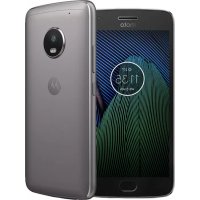



| Product Type | Smartphone |
| Brand | Motorola |
| Model | Moto G5 Plus (XT1685) |
| Dimensions | 150.2 x 74 x 7.7 mm |
| Weight | 155 g |
| Display | 5.2 inches, Full HD 1080 x 1920 pixels resolution |
| Processor | Qualcomm Snapdragon 625 octa-core 2.0 GHz |
| RAM Memory | 3 GB (depending on version) |
| Internal Storage | 32 GB expandable via microSD up to 256 GB |
| Battery | 3000 mAh non-removable Lithium-ion |
| Rear Camera | 12 MP with autofocus and dual-tone LED flash |
| Front Camera | 5 MP with LED flash |
| Operating System | Android 7.0 Nougat |
| Connectivity | Wi-Fi 802.11 a/b/g/n, Bluetooth 4.2, NFC, GPS, microUSB 2.0 |
| Sensors | Fingerprint reader, accelerometer, gyroscope, proximity, compass |
| SIM | Dual nano-SIM (hybrid slot with microSD) |
| Main Features | Moto Gestures (double twist to launch camera, double chop to turn on flashlight), Moto Display (notifications on lock screen), TurboPower fast charging |
| Maintenance and Cleaning | Clean with a soft dry cloth. Do not use abrasive products or solvents. Avoid exposure to water and excessive heat. |
| Safety | Do not attempt to remove the battery yourself. Only use approved chargers. Follow SAR guidelines (keep at least 0.5 cm from the body). |
| Spare Parts and Repairability | Repairs must be carried out by a Motorola authorized center. The battery is not user-replaceable. |
| General Information | Motorola limited warranty. For legal information, check phone settings or visit motorola.com/device-legal. |
Frequently Asked Questions - Moto G5 Plus MOTOROLA
User questions about Moto G5 Plus MOTOROLA
0 question about this device. Answer the ones you know or ask your own.
Ask a new question about this device
Download the instructions for your Smartphone in PDF format for free! Find your manual Moto G5 Plus - MOTOROLA and take your electronic device back in hand. On this page are published all the documents necessary for the use of your device. Moto G5 Plus by MOTOROLA.
USER MANUAL Moto G5 Plus MOTOROLA
Caution: before using your phone, please read the safety, regulatory and legal information provided with your product.
Different is better
lenovo



This product meets the applicable national or international RF exposure guidance (SAR guideline) when used normally against your ear, or when worn or carried, at a distance of 0.5 cm from the body. The SAR guideline includes a considerable safety margin designed
to ensure the safety of all persons, regardless of age and health.
To view the SAR values for your phone, visit https://motorola.com/sar. To view additional SAR information on your phone, swipe up ▲ > Settings > Legal information > RF information. To view the information on the web, visit www.motorola.com/rfhealth.
At a glance
Let's get started. We'll guide you through startup and tell you about your phone.
Note: software updates happen frequently, so your phone may look a little different.
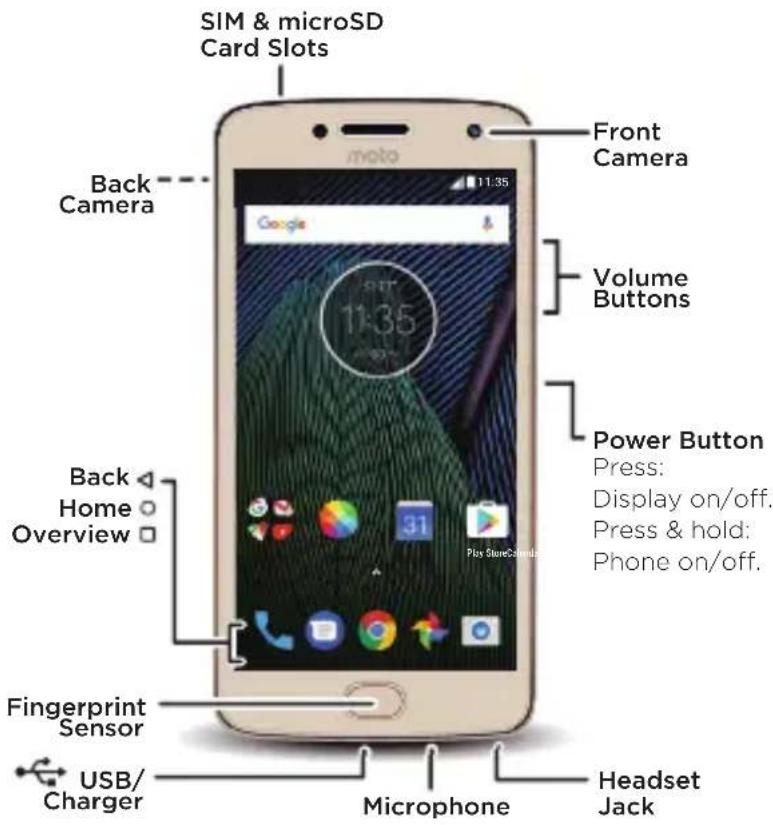
At a glance
1
Put in the cards
Your phone supports two SIM cards.
Caution: make sure you use the correct size and don't cut the SIM card.
Nano SIM
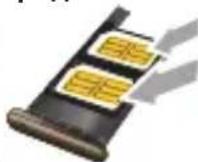
Put in the nano SIM and memory cards.
With the phone facing down, insert the SIM tool into the tray hole to pop out the tray.
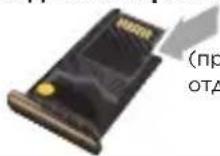
Put in the SIM cards with the gold contacts facing up. Put in an optional microSD card on the back of the tray.
Tray front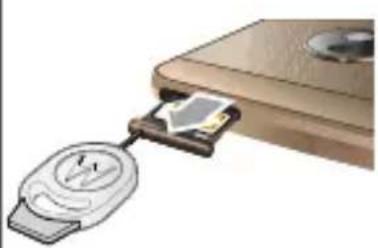
SIM 1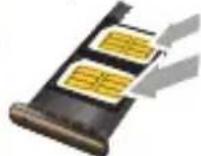
SIM 2 (optional)
Tray back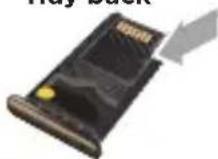
microSD (optional)
Push the tray back into your phone.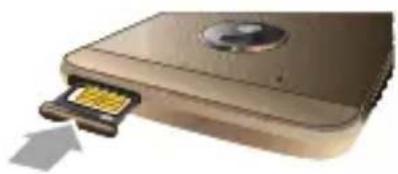
2 Put in the cards
Charge up and power on
Connect your charger to charge your phone fully and turn the power on. Then select your language and follow the screen prompts to get started.
For phones that use two SIM cards, follow the prompts to set them up.
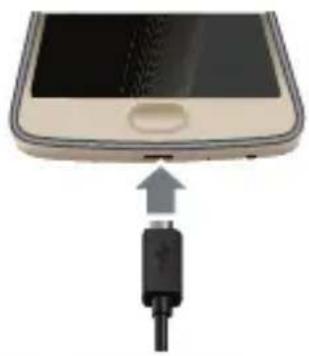
Charge up.
Before using your phone, fully charge it with the charger provided.
Power on.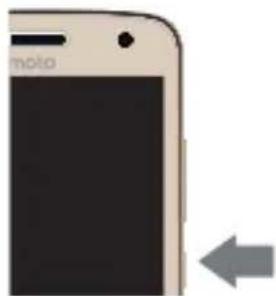
Press and hold Power until the screen lights up.
Charge up and power on
Control with one touch
Lock, unlock and navigate your phone and make mobile purchases with just one touch.
- To find navigation settings, swipe up
Moto > Actions.
• To find lock/unlock settings, swipe up ↗
Settings > Security > Fingerprint.
Note: authorising in-store purchases is not available in all areas (NFC and a mobile payment app are both required).


![graph TD A["Back Swipe left."] --> B["Home/Unlock Screen Press."] B --> C["Lock Screen Press & hold."] D["Overview Swipe right."] --> E["Next Step"]](/content/2026/02/373217/images/bff73a76ed08ceb12a388dff0f2d6a1d24d4d2b8b5df05650c9dd6fa06eee751.jpg)
4 Control with one touch
Home screen & settings
From the Home screen, you can explore apps, check notifications, speak commands and more.
- Add a shortcut: swipe up, tap and hold an app, then drag it to your home screen.
- Settings: to change your Wi-Fi, display brightness and more, swipe the status bar down with two fingers. To open more settings, tap 🔒
- Share your phone: to add a guest user, swipe the status bar down with two fingers and tap the emoji.
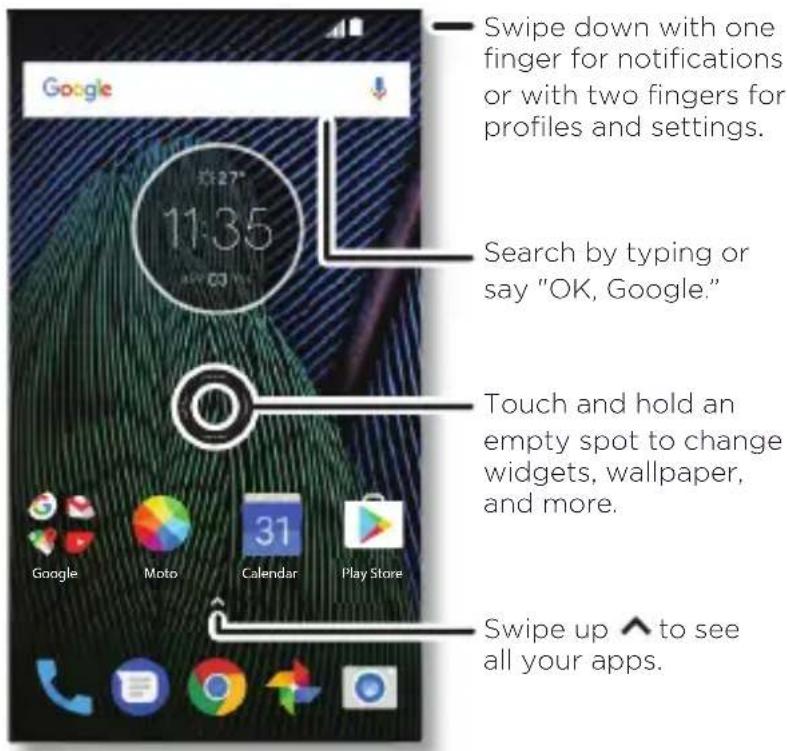
Home screen & settings
Discover your Moto app
Find it: swipe up to open Moto.
- Actions: your phone responds to your gestures instantly. Chop twice to turn on the torch, flip to activate Do Not Disturb mode, and more.
- Display: see messages, calls, and other notifications, even when your phone is asleep. Touch and hold a notification to see what's new, then swipe to take action.
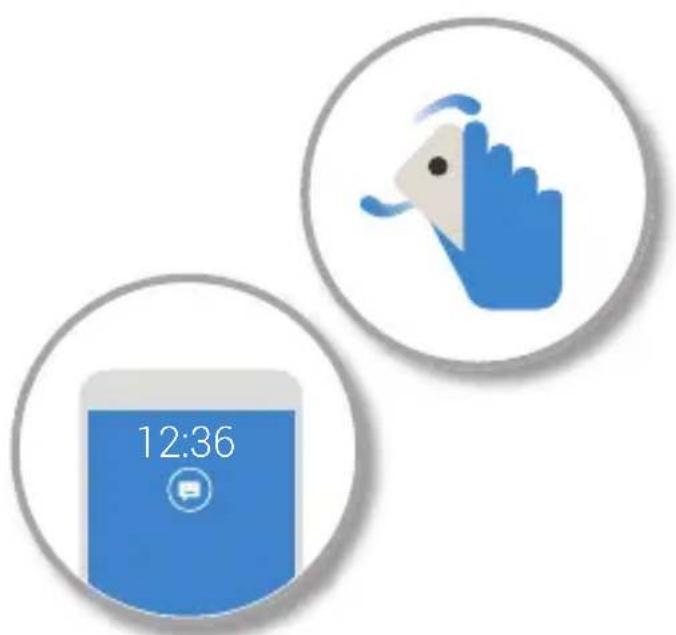
Note: your phone may not have all features.
6 Discover your Moto app
Photos
With two twists of the wrist and a tap on the screen, take crisp, clear photos.
- Launch it: even when your phone is asleep, open your camera with two twists of your wrist. • See it: swipe left for your photo gallery.
- Share it: view a photo or video from your gallery, then tap the share icon.
Tip: swipe right for camera settings and help information.

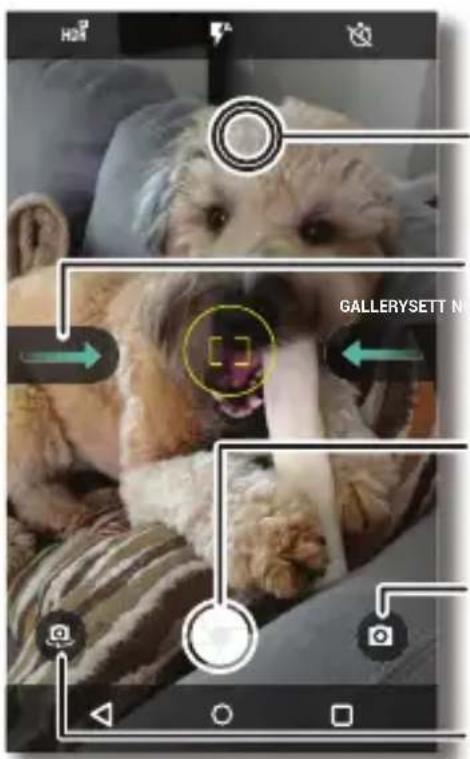
Tap anywhere to change the focus.
Swipe right for settings.
Tap to take a photo. Touch and hold to take multiple shots.
Switch to video camera, slow motion, panorama or professional mode.
Switch to front camera.
Photos
Help & more
Get answers, updates and info:
- Help is here: swipe up to Device Help to get walk-through tutorials, how-tos or FAQs, right on your phone.
- Everything Moto G Plus: get software, user guides, and more at www.motorola.com/mymotog.
Get apps: swipe up to Play Store to buy and download apps.
News: here's how to find us:
YouTube™ www.youtube.com/motorola
Facebook™ www.facebook.com/motorola
Twitter www.twitter.com/moto
Google+™ www.google.com/+Motorola/posts
Where is my legal, safety and regulatory information?
In order to provide you with better access to this important information, we've made the materials accessible from the phone's settings menu and on the web. Review these materials prior to using your device. To access the materials from a connected phone, go to Settings > Legal information and select a topic. To access the materials on the web, visit www.motorola.com/device-legal.
8 Help & more
Battery safety
Before assembling, charging or using your mobile device for the first time, please read the important product safety and legal information provided with your product.
If your mobile device becomes unresponsive, try a reboot - press and hold the Power button until the screen goes dark and your device restarts.
For your safety, the battery in your mobile device should only be removed by a Motorola-approved service centre or independent qualified professional. Don't try to remove or replace the battery yourself – doing so may damage the battery and could cause burning and injury. Don't crush, bend or expose your mobile device to heat or liquid. This may damage the battery and could cause burning and injury. Don't try to dry your mobile device using a microwave oven, conventional oven or dryer.
Warning about high volume usage
To prevent possible hearing damage, do not listen at high volume levels for long periods.

Disposal & recycling
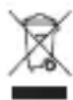
Help do your part! Please don't dispose of mobile devices or electrical accessories (such as chargers, headsets or batteries) with your household waste. Product packaging and product guides should only be disposed of in accordance with national collection and recycling requirements. For details on approved national recycling schemes and Motorola recycling activities, go to: www.motorola.com/recycling.
Usage
This phone supports apps and services that could use a lot of data, so make sure your data plan meets your needs. Contact your service provider for details. Certain apps and features might not be available in all countries.
Regulatory information
To view the Regulatory ID (such as FCC ID) for this device, on the phone, go to Settings > Legal information > Regulatory information, or visit www.motorola.com/device-legal.
Warranty
This product is covered by Motorola's limited warranty. To review the warranty on your phone, go to Settings > Legal information > Warranty, or visit www.motorola.com/device-legal. You may also obtain a copy of the warranty by contacting Motorola at: Motorola Mobility LLC, Attention Customer Service - Warranty Request, 222 West Merchandise Mart Plaza, Suite 1800, Chicago, IL 60654.
Help & more


Except where prohibited by law, any controversy or claim arising out of or relating to any Motorola product will be resolved by binding arbitration, instead of in court, unless you opt-out. To opt out, send a written rejection notice within 30 days of purchase that includes your name, address, phone number, device and device serial number, and tells Motorola that you are rejecting this Arbitration provision to: Motorola Mobility LLC, 222 West Merchandise Mart Plaza, Suite 1800, Attn: Arbitration Provision Opt-Out, Chicago, IL 60654 or arbitrat@motorola.com. For more information on this arbitration provision, on your phone, go to Settings > Legal information > Arbitration and opt-out, or visit www.motorola.com/device-legal.
Legal disclaimers
Certain features, services and applications are network-dependent and might not be available in all areas; additional terms, conditions and/or charges might apply. Contact your service provider for details. All features, functionality and other product specifications, as well as the information contained in this guide, are based upon the latest available information and believed to be correct at the time of printing. Motorola reserves the right to change or modify any information or specifications without notice or obligation.
Copyright & trademarks
MOTOROLA, the stylised M logo, MOTO and the MOTO family of marks are trademarks or registered trademarks of Motorola Trademark Holdings, LLC. LENOVO is a trademark of Lenovo. Google, Android, Google Play and other marks are trademarks of Google Inc. microSD Logo is a trademark of SD-3C, LLC. All other product or service names are the property of their respective owners. © 2017 Motorola Mobility LLC. All rights reserved.
Product ID: Moto G5 Plus (Model XT1685)
Manual Number: 68018290012-A
Motorola Mobility LLC
222 W. Merchandise Mart Plaza
Chicago, IL 60654
www.motorola.com



uk
Moto G5 Plus
Read
Google+™ www.google.com/+moto
Motorola Mobility LLC
222 W. Merchandise Mart Plaza
Chicago, IL 60654
www.motorola.com
22 Installing cards
Finish
Turn on.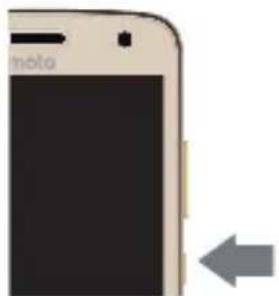
Back
Overview
Motorola Mobility LLC
222 W. Merchandise Mart Plaza
Chicago, IL 60654
www.motorola.com



motog 5 PLUS
read me
32 Insert the cards
Finish
Turn on.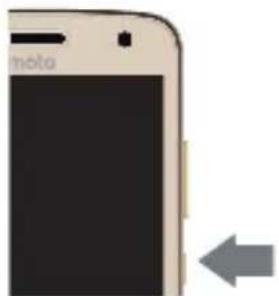
Back
Overview
Motorola Mobility LLC
222 W. Merchandise Mart Plaza
Chicago, IL 60654
www.motorola.com



motorola.com

- AT A GLANCE
- PUT IN THE CARDS
- PUT IN THE NANO SIM AND MEMORY CARDS
- CHARGE UP AND POWER ON
- CHARGE UP
- CONTROL WITH ONE TOUCH
- HOME SCREEN & SETTINGS
- DISCOVER YOUR MOTO APP
- PHOTOS
- HELP & MORE
- WHERE IS MY LEGAL, SAFETY AND REGULATORY INFORMATION
- BATTERY SAFETY
- WARNING ABOUT HIGH VOLUME USAGE
- DISPOSAL & RECYCLING
- USAGE
- REGULATORY INFORMATION
- WARRANTY
- LEGAL DISCLAIMERS
- COPYRIGHT & TRADEMARKS
- MOTO G5 PLUS
- READ
- INSTALLING CARDS
- FINISH
- MOTOG 5 PLUS
- READ ME
- INSERT THE CARDS
Brand : MOTOROLA
Model : Moto G5 Plus
Category : Smartphone