ManualGo.com
LE60C650L1W - Téléviseur SAMSUNG - Free user manual and instructions
Find the device manual for free LE60C650L1W SAMSUNG in PDF.


Download the instructions for your Téléviseur in PDF format for free! Find your manual LE60C650L1W - SAMSUNG and take your electronic device back in hand. On this page are published all the documents necessary for the use of your device. LE60C650L1W by SAMSUNG.
USER MANUAL LE60C650L1W SAMSUNG
imagine the possibilities
Thank you for purchasing this Samsung product.
To receive more complete service, please register
Figures and illustrations in this User Manual are provided for reference only and may differ from actual product appearance.
Product design and specifications may be changed without notice.
1. Functionalities related to Digital TV (DVB) are only available in countries/areas where DVB-T (MPEG2 and MPEG4 AVC) digital terrestrial signals are
broadcasted or where you are able to access to a compatible DVB-C (MPEG2 and MPEG4 AAC) cable-TV service. Please check with your local
dealer the possibility to receive DVB-T or DVB-C signal.
2. DVB-T is the DVB European consortium standard for the broadcast transmission of digital terrestrial television and DVB-C is that for the broadcast
transmission of digital TV over cable. However, some differentiated features like EPG (Electric Programme Guide), VOD (Video On Demand) and so
on, are not included in this specification. So, they cannot be workable at this moment.
3. Although this TV set meets the latest DVB-T and DVB-C standards, as of [August, 2008], the compatibility with future DVB-T digital terrestrial and
DVB-C digital cable broadcasts cannot be guaranteed.
4. Depending on the countries/areas where this TV set is used some cable-TV providers may charge an additional fee for such a service and you may
be required to agree to terms and conditions of their business.
5. Some Digital TV functions might be unavailable in some countries or regions and DVB-C might not work correctly with some cable service providers.
6. For more information, please contact your local Samsung customer care centre.
The reception quality of TV may be affected due to differences in broadcasting method between the countries. Please check the TV performance in
the local SAMSUNG Authorized Dealer, or the Samsung Call Centre whether it can be improved by reconfiguring TV setting or not.
Avoid displaying still images (like jpeg picture files) or still image element (like TV programme logo, panorama or 4:3 image format, stock or news bar
at screen bottom etc.) on the screen. Constant displaying of still picture can cause uneven wear of screen phosphor, which will affect image quality. To
reduce risk of this effect, please follow below recommendations:
Avoid displaying the same TV channel for long periods.•
Always try do display any image on full screen, use TV set picture format menu for best possible match.•
Reduce brightness and contrast values to minimum required to achieve desired picture quality, exceeded values may speed up the burnout process.•
Frequently use all TV features designed to reduce image retention and screen burnout, refer to proper user manual section for details.•
Securing the Installation Space
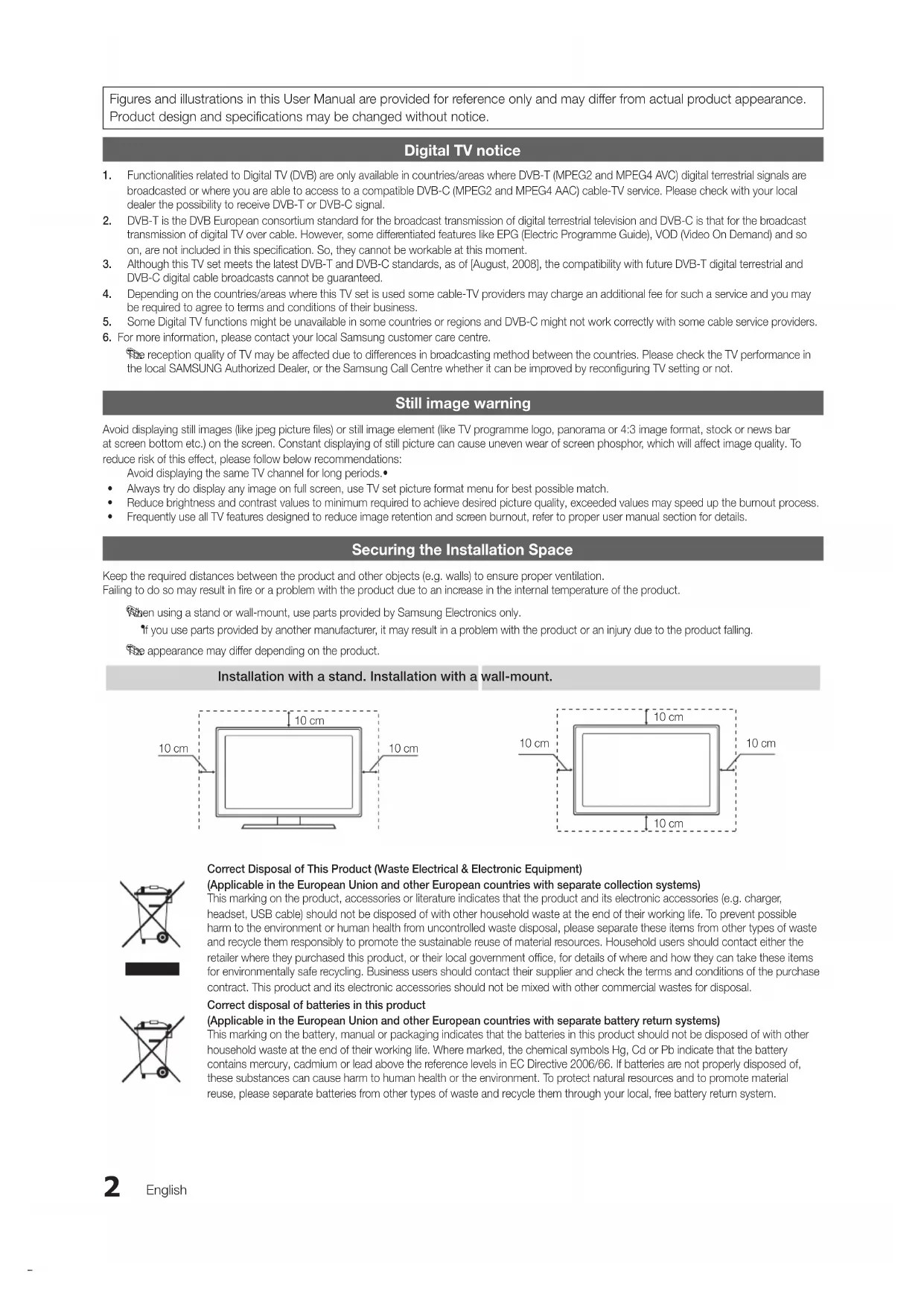
Keep the required distances between the product and other objects (e.g. walls) to ensure proper ventilation.
Failing to do so may result in fire or a problem with the product due to an increase in the internal temperature of the product.
When using a stand or wall-mount, use parts provided by Samsung Electronics only.
If you use parts provided by another manufacturer, it may result in a problem with the product or an injury due to the product falling.
The appearance may differ depending on the product.
Installation with a stand. Installation with a wall-mount.
Correct Disposal of This Product (Waste Electrical & Electronic Equipment)
(Applicable in the European Union and other European countries with separate collection systems)
This marking on the product, accessories or literature indicates that the product and its electronic accessories (e.g. charger,
headset, USB cable) should not be disposed of with other household waste at the end of their working life. To prevent possible
harm to the environment or human health from uncontrolled waste disposal, please separate these items from other types of waste
and recycle them responsibly to promote the sustainable reuse of material resources. Household users should contact either the
retailer where they purchased this product, or their local government office, for details of where and how they can take these items
for environmentally safe recycling. Business users should contact their supplier and check the terms and conditions of the purchase
contract. This product and its electronic accessories should not be mixed with other commercial wastes for disposal.
Correct disposal of batteries in this product
(Applicable in the European Union and other European countries with separate battery return systems)
This marking on the battery, manual or packaging indicates that the batteries in this product should not be disposed of with other
household waste at the end of their working life. Where marked, the chemical symbols Hg, Cd or Pb indicate that the battery
contains mercury, cadmium or lead above the reference levels in EC Directive 2006/66. If batteries are not properly disposed of,
these substances can cause harm to human health or the environment. To protect natural resources and to promote material
reuse, please separate batteries from other types of waste and recycle them through your local, free battery return system.
BN68-02558A.indb 2 2010-02-22 �� 8:00:093 English
4 Viewing the Control Panel
5 Viewing the Remote Control
6 Connecting to an Antenna
6 Plug & Play (Initial Setup)
7 Connecting to an AV Device
8 Connecting to an Audio Device
9 Changing the Input Source
9 How to Navigate Menus
10 Using the INFO button (Now & Next guide)
10 Planning Your Viewing
22 Connecting to a PC
46 Analogue Channel Teletext Feature
48 Assembling the Cables
49 Securing the TV to the Wall
O This function can be used by pressing the TOOLS button on the remote control.Note One-Touch Button BN68-02558A.indb 3 2010-02-22 �� 8:00:104
Please make sure the following items are included with your LCD TV. If any items are missing, contact your dealer.
The items’ colours and shapes may vary depending on the models.
Remote Control & Batteries (AAA x 2) y
Warranty Card / Safety Guide (Not available in some locations) y
Stand (1EA) y Guide Stand (1EA) y Screws (9EA) y
(32 inch model only: 8EA)
Viewing the Control Panel
The product colour and shape may vary depending on the model.
Turns the TV on or off.
Power Indicator Blinks and turns off when the power is on and lights up in standby mode.
SOURCE E Toggles between all the available input sources. In the on-screen menu, use this
button as you would use the ENTER E
button on the remote control.
MENU Displays an on-screen menu, the OSD (on screen display), of your TV’s features.
Y Adjusts the volume. In the OSD, use the Y buttons as you would use the
◄ and ► buttons on the remote control.
Changes the channels. In the OSD, use the z buttons as you would use the
▼ and ▲ buttons on the remote control.
Remote control sensor Aim the remote control towards this spot on the TV.
Do not leave your TV in standby mode for long periods of time (when you are away on a holiday, for example). A small amount
of electric power is still consumed even when the power button is turned off. It is best to unplug the power code. SpeakersPower IndicatorRemote control sensor BN68-02558A.indb 4 2010-02-22 �� 8:00:115
Viewing the Remote Control
This is a special remote control for the visually impaired persons and has Braille points on the Power, Channel, and
Installing batteries (Battery size: AAA)
Use the remote control within 23 feet from the TV.
Bright light may affect the performance of the remote
control. Avoid using nearby special fluorescent light or neon
The colour and shape may vary depending on the model.
ABCD Displays and selects the available video sources. (P. 9)When the ON/OFF light button is set to ON and a certain button is pressed, the remote control buttons will be lit for a moment. (Using the remote control with this button set to On will reduce the battery usage time.)Turns the TV on and off. (P. 6)Press to directly access to channels.Displays the EPG (Electronic Programme Guide). (P. 10)Changes channels.Quickly selects frequently used functions. Displays information on the TV screen. (P. 10)Displays the main on-screen menu. (P. 9)Adjusts the volume.Returns to the previous channel. Buttons in the Channel Manager, Internet@TV, Media Play menu, etc.Use these buttons in the Media Play and Anynet+ modes. (P. 29, 36)(�: controls recording on Samsung recorders with the Anynet+ feature)Cuts off the sound temporarily.Returns to the previous menu. Selects on-screen menu items and change menu values.Exits the menu. MEDIA.P: Views the Media play. (P. 29)INTERNET: Links to various internet services. (P. 39)DUAL I-II: Selects sound mode. (P. 17)AD: Audio Description selection. (Not available in some locations) (P. 17)P.SIZE: Choose the picture size. (P. 15)SUBT.: Digital subtitle display (P. 19)Displays the Content View, which includes Guide, Internet@TV, Media Play, and AllShare. Alternately selects Teletext, Double or MiX.Displays channel list on the screen. (P. 13) BN68-02558A.indb 5 2010-02-22 �� 8:00:126
Connecting to an Antenna
When the TV is initially powered on, basic settings proceed automatically.
Preset: Connecting the mains and antenna.
Plug & Play (Initial Setup)
When the TV is initially powered on, a sequence of on-screen prompts will assist in configuring basic settings. Press the
button. Plug & Play is available only when the Input source is set to TV.
Selecting a language
Press the ▲ or ▼ button, then press the ENTER E
Select the desired OSD (On Screen Display) language.
Selecting Store Demo
Press the ◄ or ► button, then press the ENTER E
Select the y Home Use mode. Store Demo Mode is for retail
Return the unit’s settings from y Store Demo to Home Use
(standard): Press the volume button on the TV. When the OSD
volume is displayed, press and hold MENU for 5 sec.
Select the appropriate country. If the desired country does not exist on the menu, select
After selecting the country in the
Country menu, some models may proceed with an
additional option to setup the pin number.
When you input the PIN number,
Selecting an antenna
Select the channel source to memorise. When setting the antenna source to Cable, a step
appears allowing you to assign numerical values (channel frequencies) to the channels.
For more information, refer to Channel → Auto Store (P. 12).
button at any time to interrupt the memorization process.
Auto, select the time zone which you live.
Viewing the HD Connection Guide.
The connection method for the best HD screen quality is displayed.
If You Want to Reset This Feature...
Select Setup - Plug & Play (Initial Setup). Enter your 4 digit PIN number. The default PIN number is “0-0-0-0.” If you want to
change the PIN number, use the Change PIN function.
or Power InputVHF/UHF Antenna Cable
R-AUDIO-L P R PB Y ANT OUT BN68-02558A.indb 6 2010-02-22 �� 8:00:137 English
Connecting to an AV Device Using an HDMI / DVI Cable: HD connection (up to 1080p) Available devices: DVD, Blu-ray player, HD cable box, HD STB (Set-Top-Box) satellite receiver, cable box, satellite receiver (STB) HDMI IN 1(DVI), 2, 3, 4 / PC/DVI ✎ AUDIO INWhen using an HDMI/DVI cable connection, you must use the x HDMI IN 1(DVI) jack. For the DVI cable connection, use a DVI to HDMI cable or DVI-HDMI (DVI to HDMI) adapter for video connection and the DVI AUDIO IN jacks for audio.If an external device such as a DVD / Blu-ray player / cable box / x STB satellite receiver supporting a HDMI versions older than 1.3 is connected, the TV may operate abnormally (e.g. no screen display / no sound / annoying flicker / abnormal colour).If there is no sound after connecting an HDMI cable, check the HDMI version of the external device. If you x suspect the version is older than 1.3, contact the provider of the device to confirm the HDMI version and request an upgrade. It
x is recommended you purchase an HDMI-certified cable. Otherwise, the screen may appear blank or a connection error may occur.Using a Component (up to 1080p) or Audio / Video (480i only) Cable and Using a Scart CableAvailable devices: VCR, DVD, Blu-ray player, cable box, STB satellite receiver In
✎ Ext. mode, DTV Out supports MPEG SD Video and Audio only.To obtain the best picture quality, the Component connection is recommended over the A/V connection. ✎
R-AUDIO-L P R PB Y DVI OUT R-AUDIO-LP R PB Y HDMI OUT W R R G B W R W R G R W R B R W Y Y R-AUDIO-L P R PB Y COMPONENT OUT R-AUDIO-LP R PB Y AUDIO OUT R-AUDIO-L P R PB Y EXT R-AUDIO-LP R PB Y AUDIO OUT R-AUDIO-L P R PB Y VIDEO OUT W W B G RR W Y Yellow Red White
W W B G RR W Y Red Blue Green
W W B G RR W Y R-AUDIO-LP R PB Y AUDIO OUTDVD Blu-ray player DVDVCR BN68-02558A.indb 7 2010-02-22 �� 8:00:198 English Connections
Connecting to an Audio Device Using an Optical or Audio Cable ConnectionAvailable devices: digital audio system, amplifier, DVD home theatre ✎ DIGITAL AUDIO OUT (OPTICAL)When a digital audio system is connected to the x DIGITAL AUDIO OUT (OPTICAL) jack, decrease the volume of both the TV and the system. 5.1 CH (channel) audio is available when the TV is connected to an external device supporting 5.1 CH. x When the receiver (home theatre) is set to on, you can hear sound output from the TV’s x optical jack. When the TV is receiving a DTV signal, the TV will send 5.1 CH sound to the home theatre receiver. When the source is a digital component such as a DVD / Blu-ray player / cable box / STB (Set-Top-Box) satellite receiver and is connected to the TV via HDMI, only 2 CH audio will be heard from the home theatre receiver. If you want to hear 5.1 CH audio, connect the digital audio out jack from your DVD / Blu-ray player / cable box / STB satellite receiver directly to an amplifier or home theatre.Headphones ✎ H : You can connect your headphones to the headphones output on your set. While the headphones are connected, the sound from the built-in speakers will be disabled.Sound function may be restricted when connecting headphones to the TV. x Headphone volume and TV volume are adjusted separately. x CONNECTIONS COMMON INTERFACE SlotTo watch paid channels, the “CI or CI+ CARD” must be inserted.If you don’t insert the “CI or CI+ CARD,” some channels will ydisplay the message “Scrambled Signal”.The pairing information containing a telephone number, the “CI or yCI+ CARD” ID the Host ID and other information will be displayed in about 2~3 minutes. If an error message is displayed, please contact your service provider.When the configuration of channel information has finished, the ymessage “Updating Completed” is displayed, indicating the channel list is updated. NOTE
✎ You must obtain a “CI or CI+ CARD” from a local cable service provider. x When removing the “CI or CI+ CARD”, carefully pull it out with your hands since dropping the “CI or CI+ CARD” may x cause damage to it.Insert the “CI or CI+ CARD” in the direction marked on the card. x The location of the x COMMON INTERFACE slot may be different depending on the model.“CI or CI+ CARD” is not supported in some countries and regions; check with your authorized dealer. x If you have any problems, please contact a service provider. x Headphone
R-AUDIO-L P R PB Y OPTICALDigital Audio System BN68-02558A.indb 8 2010-02-22 �� 8:00:219 English 02 Connections
Changing the Input Source
Source List Use to select TV or other external input sources such as DVD / Blu-ray players / cable box / STB satellite receiver connected to the TV. TV / Ext.1 / Ext.2 / AV / Component / ■PC / HDMI1/DVI / HDMI2 / HDMI3 / HDMI4 / USBIn the ✎ Source List, connected inputs will be highlighted. Ext.1 ✎ and Ext.2 always stay activated. Edit Name VCR / DVD / Cable STB / Satellite STB / PVR STB / ■AV Receiver / Game / Camcorder / PC / DVI PC / DVI Devices / TV / IPTV / Blu-ray / HD DVD / DMA: Name the device connected to the input jacks to make your input source selection easier.When a PC with a resolution of 1920 x 1080 @ ✎ 60Hz is connected to the HDMI IN 1(DVI) port, you should set to DVI PC mode under Edit Name.When connecting an HDMI/DVI cable to the ✎ HDMI IN 1(DVI) port, you should set to DVI PC or DVI Devices mode under Edit Name. Basic Features
How to Navigate Menus Before using the TV, follow the steps below to learn how to navigate the menu and select and adjust different functions.1 MENU button: Displays the main on-screen menu.2 ENTER E / Direction button: Move the cursor and select an item. Confirm the setting.3 RETURN button: Returns to the previous menu.4 EXIT button: Exits the on-screen menu.How to Operate the OSD (On Screen Display)The access step may differ depending on the selected menu. 1 MENU m The main menu options appears on the screen:Picture, Sound, Channel, Setup, Input, Application, Support. 2
▲ / ▼ Select an icon with the ▲ or ▼ button. 3 ENTER E Press ENTER E to access the sub-menu. 4 ▲ / ▼Select the desired submenu with the ▲ or ▼ button. 5 ◄ / ►Adjust the value of an item with the ◄ or ► button. The adjustment in the OSD may differ depending on the selected menu. 6 ENTER E Press ENTER E to complete the configuration. 7 EXIT e Press EXIT.
BN68-02558A.indb 9 2010-02-22 �� 8:00:2210 English Basic Features
Using the INFO button (Now & Next guide) The display identifies the current channel and the status of certain audio-video settings.The Now & Next guide shows daily TV programme information for each channel according to the broadcasting time. Scroll y , to view information for a desired programme while watching the current channel. Scroll y , to view information for other channels. If you want to move to the currently selected channel, press the ENTER E button. Planning Your Viewing
Guide The EPG (Electronic Programme Guide) information is provided by broadcasters. Using programme schedules provided by broadcasters, you can specify programmes you want to watch in advance so that the channel automatically changes to the selected programme channel at the specified time. Programme entries may appear blank or out of date depending on a channel status. Using Channel View Using Scheduled View 1
Red (View Mode): View the list of programmes that are playing now or coming up. 2
Yellow (+24 hours): Viewing the list of programmes to be broadcasted after 24 hours. 3
Blue (Ch.Mode): Select the type of channels you want to display on the Channel View window.The Ch. Mode differs according to the antenna source. –4 (Information): Displays details of the selected programme. 5 (Page): Moves to the previous / next page.6 ENTER E buttonWhen selecting the current programme, you can –watch the selected programme.When selecting the future programme, you can –reserve to watch the selected programme. To cancel the schedule, press the ENTER E button again and select Cancel Schedules.DTV Air 15
Tanya confesses all to a stunned Babs. Conrad is anxious to hear...
Dani is devastated when scott makes clear his views on marriage...
k E 2:10 Tue 1 jun Guide Channel View - TV1 2 3 4 5 618:11 Thu 6 jan BN68-02558A.indb 10 2010-02-22 �� 8:00:2411 English 03 Basic Features
Channel Manager Delete or set favourites channels and use the programme guide for digital broadcasts. Select a channel in the Channels, My Channels or Scheduled screen. ■ Channels: Shows the channel list according to channel type. * ■
My Channels: Shows the group of the channel. ■ Scheduled: Shows all the currently reserved programmes.Using the colour buttons with the ✎ Channel Manager x
Red (Antenna): Toggle among Air or Cable.
Green (Zoom): Enlarges or shrinks a channel number. x
Yellow (Select): Select desired channels and press the Yellow button to set all the selected channels at the same time. The c mark appears to the left of the selected channels. x (Page): Move to next or previous page. T
(Tools): Displays the Channel Manager option menu. (The Options menus may differ depending on the situation.)Channel Status Display IconsIcons Operations A An Analogue channel. c A channel selected. * A channel set as a Favourite. ( A programme currently being broadcast. \ A locked channel. ) A reserved programme. Using ¦ Favourite Channels
My Channels (in Channel Manager)Shows all favourite channels.Edit My Channels ■ t : You can set the selected channels to desired my channels group. The “ ✎ * ” symbol will be displayed and the channel will be set as a my channel. 1. Select a channel and press the TOOLS button. 2. Add or delete a channel in the my channel groups you want among 1, 2, 3 and 4.One or more groups can be selected. x 3. After you have changed the settings, the channel list for each group can be viewed in My Channels. c 1 1futechc 2 * 24ore.tv 15 abc1 3 BBC World 23 bid-up.tv 33 Boonerang 32 Cartoon Nwk 5 Class News
BN68-02558A.indb 11 2010-02-22 �� 8:00:2512 English Basic Features Channel Menu ¦ Retuning channels
Antenna (Air / Cable)
t Before your television can begin memorizing the available channels, you must specify the type of signal source that is connected to the TV (i.e. an Air or a Cable system). Country The PIN input screen appears. Enter your 4 digit PIN number. Digital Channel ■ : Change the country for digital channels. Analogue Channel ■ : Change the country for analogue channels. Auto Store Scans for a channel automatically and stores in the TV.Automatically allocated programme numbers may not ✎ correspond to actual or desired programme numbers. If a channel is locked using the Child Lock function, the PIN input window appears. Antenna Source (Air / Cable) ■ : Select the antenna source to memorise.Channel Source (Digital & Analogue / Digital / ■Analogue): Select the channel source to memorise. When selecting Cable → Digital & Analogue or Digital: Provide a value to scan for cable channels.Search Mode (Full / Network / Quick): Scans for all channels with active broadcast stations and stores them in the TV.If you set ✎ Quick, you can set up Network, Network ID, Frequency, Modulation, Symbol Rate manually by press the button on the remote control.Network (Auto / Manual): Selects the Network ID setting mode among Auto or Manual. Network ID: When Network is Manual, you can set up Network ID using the numeric buttons.Frequency: Displays the frequency for the channel. (differs in each country)Modulation: Displays available modulation values.Symbol Rate: Displays available symbol rates. Manual Store Scans for a channel manually and stores in the TV.If a channel is locked using the ✎ Child Lock function, the PIN input window appears. Digital Channel ■ : When scanning has finished, channels are updated in the channel list.When selecting ✎
Antenna → Air: Channel, Frequency, Bandwidth.When selecting ✎
Antenna → Cable: Frequency, Modulation, Symbol Rate. Analogue Channel (Programme, Colour System, ■ Sound System, Channel, Search, Store): If there is abnormal sound or no sound, reselect the sound standard required.Channel mode ✎
x (programme mode): When tuning is complete, the broadcasting stations in your area have been assigned to position numbers from P0 to P99. You can select a channel by entering the position number in this mode. C
x (aerial channel mode) / S (cable channel mode): These two modes allow you to select a channel by entering the assigned number for each aerial broadcasting station or cable channel. ¦ Editing channels Channel Manager Option Menu (in Channel Manager) 1. Select a channel and press the TOOLS button. 2. Edit the channel name or number using the Edit Channel Name or Edit Channel Number menu. Edit Channel Name ■ (analogue channels only): Assign your own channel name. Edit Channel Number ■ (digital channels only): Edit the number by pressing the number buttons desired. Other Features ¦
Cable Search Option (depending on the country) Sets additional search options such as the frequency and symbol rate for a cable network search. Freq.Start / Freq.Stop ■ : Set the start or stop frequency (differs in each country) Modulation ■ : Displays available modulation values.
Symbol Rate ■ : Displays available symbol rates.
BN68-02558A.indb 12 2010-02-22 �� 8:00:2613 English 03 Basic Features
Channel Manager Option Menu (in Channel Manager)Set each channel using the Channel Manager menu options (Lock / Unlock, Timer Viewing, Sort, Delete, Select All / Deselect All). Option menu items may differ depending on the channel status. 1. Select a channel and press the TOOLS button. 2. Select a function and change its settings. Lock / Unlock ■ : Lock a channel so that the channel cannot be selected and viewed. NOTE
✎ This function is available only when the x Child Lock is set to On.The PIN input screen appears. Enter your 4-digit PIN, x the default of which is “0-0-0-0”. Change the PIN using the Change PIN option. Timer Viewing ■ : You can set a desired channel to be displayed automatically at the intended time. Set the current time first to use this function. When a digital channel is selected, press the ✎ ► button to view the digital Programme. Sort ■ (analogue channels only): This operation allows you to change the programme numbers of the stored channels. This operation may be necessary after using the auto store. Delete ■ : You can delete a channel to display the channels you want. Select All / Deselect All ■ : Select all the channels or deselect all the selected channels in the channel manager. Scheduled (in Channel Manager)You can view, modify or delete a a show you have reserved to watch. Change Info ■ : Change a a show you have reserved to watch. Cancel Schedules ■ : Cancel a show you have reserved to watch. Information ■ : Display a show you have reserved to watch. (You can also change the reservation information.) Select All / Deselect All ■ : Select or deselect all reserved programmes. Channel List You can see all the channels searched. Channel List Transfer Imports or exports the channel map. You should connect a USB storage to use this function.The PIN number input screen appears. Enter your ✎
4 digit PIN number.The default PIN number of a new TV set is ‘0-0-0-0’. ✎
Import from USB ■ : Import channel list from USB.
Export to USB ■ : Export channel list to USB.
Fine Tune (analogue channels only)If the signal is weak or distorted, fine tune the channel manually. Fine tuned channels are marked with an asterisk “*”. ✎ To reset the fine-tuning, select ✎ Reset. Picture Menu
Changing the Preset Picture Mode ¦
Select your preferred picture type. Dynamic ■ : Suitable for a bright room.
Standard ■ : Suitable for a normal environment.
Natural ■ : Suitable for reducing eye strain. Natural ✎ is not available in PC mode. Movie ■ : Suitable for watching movies in a dark room.
Adjusting picture settings ¦
Backlight / Contrast / Brightness /
Sharpness / Colour / Tint (G/R) Your television has several setting options for picture quality control. NOTE
✎ In analogue x TV, Ext., AV modes of the PAL system, the Tint (G/R) function is not available.In PC mode, you can only make changes to x Backlight, Contrast and Brightness.Settings can be adjusted and stored for each x external device connected to the TV.Lowering picture brightness reduces power x consumption. BN68-02558A.indb 13 2010-02-22 �� 8:00:2614 English Basic Features
Economical Solutions ¦
ECO Solution ■ Energy Saving (Off / Low / Medium / High / Picture Off / Auto) t : Adjust the brightness of the TV in order to reduce power consumption. If you select Picture Off, the screen is turned off, but the sound remains on. Press any button except volume button to turn on the screen. ECO Sensor (Off / On) ■ : To enhance your power savings; the picture settings will automatically adapt to the light in the room.If you adjust the ✎ Backlight, the Eco Sensor will be set to Off. Min Backlight: When ECO sensor is On, the minimum screen brightness can be adjusted manually. If
✎ Eco Sensor is On, the display brightness may change (become slightly darker or brighter) depending on the surrounding light intensity. No Signal Power Off (Off / 15 min / 30 min / 60 min) ■ : Activates the Stand-by mode, in the case of “No Signal” or “Check Signal Cable” status for a certain period of time defined by the user.Disabled when the PC is in power saving mode. ✎
Changing the Picture Options ¦
Advanced Settings (available in Standard / Movie mode)You can adjust the detailed setting for the screen including colour and contrast.In PC mode, you can only make changes to ✎ Dynamic Contrast, Gamma and White Balance. Black Tone (Off / Dark / Darker / Darkest) ■ : Select the black level to adjust the screen depth. Dynamic Contrast (Off / Low / Medium / High) ■ : Adjust the screen contrast. Shadow Detail (-2~+2) ■ : Increase the brightness of dark images.Disabled under PC mode. ✎
Gamma ■ : Adjust the primary colour intensity.
Expert Pattern (Off / Pattern 1 / Pattern 2) ■ : By running the Expert Pattern function, the picture can be calibrated without a generator or filter. If the OSD menu disappears or a menu other than the Picture menu is opened, the calibration is saved and the Expert Pattern window disappears.While the ✎ Expert Pattern is running, sound is not outputted.Only enabled in DTV, Component and HDMI ✎ modes. ■ RGB Only Mode (Off / Red / Green / Blue): You can
adjust Colour or Tint of Red, Green or Blue for the picture from an external device (DVD player, home theatre, etc.). Colour Space (Auto / Native / Custom) ■ : Adjust the range of colours available to create the image. To adjust Colour, Red, Green, Blue and Reset, set Colour Space to Custom. White Balance ■ : Adjust the colour temperature for a more natural picture.R-Offset / G-Offset / B-Offset: Adjust each colour’s (red, green, blue) darkness.R-Gain/G-Gain/B-Gain: Adjust each colour’s (red, green, blue) brightness.Reset: Resets the White Balance to it’s default settings. 10p White Balance (Off / On) ■ : Controls the white balance in 10 point interval by adjusting the red, green, and blue brightness.Available when the picture mode is set to ✎ Movie and when the external input is set to HDMI or Component.Some external devices may not support this ✎ function.Interval: Select interval to adjust.Red: Adjust the red level.Green: Adjust the green level.Blue: Adjust the blue level.Reset: Resets the 10p White Balance to its default settings. Flesh Tone ■ : Emphasize pink “Flesh Tone.”
Edge Enhancement (Off / On) ■ : Emphasize object boundaries. xvYCC (Off / On) ■ : Setting the xvYCC mode on increases detail and colour space when watching movies from an external device (e.g. DVD player) connected to the HDMI or Component IN jacks.Available when the picture mode is set to ✎ Movie and when the external input is set to HDMI or Component.Some external devices may not support this ✎ function.Advanced Settings Dynamic Contrast : MediumShadow Detail : 0Gamma : 0 Colour Space : Native U Move E Enter R Return BN68-02558A.indb 14 2010-02-22 �� 8:00:2715
In PC mode, you can only make changes to the
Tone, Size, Digital Noise Filter and Auto Protection
or Warm2 will be deactivated when the
picture mode is Dynamic.
Settings can be adjusted and stored for each
external device connected to an input on the TV.
Size ■ : Your cable box/satellite receiver
may have its own set of screen
sizes as well. However, we highly
recommend you use 16:9 mode most
Auto Wide: Automatically adjusts the
picture size to the 16:9 aspect ratio.
16:9 : Adjusts the picture size to 16:9 for DVDs or wide
Wide Zoom: Magnifies the picture size more than 4:3.
Adjusts the Position by using
Zoom: Magnifies the 16:9 wide pictures vertically to fit
Adjusts the Position or Size by using
Do not watch in 4:3 format for a long time. Traces
of borders displayed on the left, right and centre
of the screen may cause image retention(screen
burn) which are not covered by the warranty.
Screen Fit: Displays the full image without any cut-off
when HDMI (720p / 1080i / 1080p) or Component
(1080i / 1080p) signals are inputted.
Component (1080i / 1080p) mode, you may need to
3. Press the or button to move the
The available items may differ depending on the
Settings can be adjusted and stored for each
external device connected to an input of the TV.
Screen Fit function with HDMI 720p
input, 1 line will be cut at the top, bottom, left and
right as in the overscan function.
■ Screen Mode (16:9 / Wide Zoom / Zoom / 4:3):
Available only when picture size is set to Auto Wide.
You can determine the desired picture size at the 4:3
WSS (Wide Screen Service) size or the original size.
Each European country requires different picture size.
Digital Noise Filter (Off / Low / Medium / High / Auto ■
/ Auto Visualisation): When the broadcast signal is
weak, some static and ghosting may appear. Select one
of the options until the best picture is displayed.
Auto Visualisation: When changing analogue channels,
displays signal strength.
Only available for analogue channels.
bar is green, you are receiving the best
MPEG Noise Filter (Off / Low / Medium / High / ■
Auto): Reduces MPEG noise to provide an improved
HDMI Black Level (Normal / Low) ■ : Selects the black
level on the screen to adjust the screen depth.
Available only in HDMI mode (RGB signals).
Film Mode (Off / Auto1 / Auto2) ■ : Sets the TV to
automatically sense and process film signals from all
sources and adjust the picture for optimum quality.
Available in TV, AV, COMPONENT (480i / 1080i)
100Hz Motion Plus (Off / Clear / Standard / Smooth / ■
Custom / Demo) : Removes drag from fast scenes with
a lot of movement to provide a clearer picture.
Blur Reduction: Adjusts the blur reduction level from
Judder Reduction: Adjusts the judder reduction level
from video sources when playing films.
Reset: Reset the custom settings.
Auto Protection Time (2 hours/4 hours/8 hours/10 ■
hours/ Off) : If the same image remains on the screen,
Auto Screen Burn Protector will work.
Picture Reset (OK / Cancel)
Resets your current picture mode to its default settings.
Picture Options Digital Noise Filter : Auto
U Move E Enter R Return BN68-02558A.indb 15 2010-02-22 �� 8:00:2816 English Basic Features
Setting up the TV with Your PC ¦ Set the input source to PC. Auto Adjustment
t Adjust frequency values/positions and fine tune the settings automatically. Not available when connecting through HDMI/DVI ✎ cable. Screen
Coarse / Fine ■ : Removes or reduces picture noise. If the noise is not removed by Fine-tuning alone, then adjust the frequency as best as possible (Coarse) and Fine-tune again. After the noise has been reduced, readjust the picture so that it is aligned to the centre of screen. Position ■ : Adjust the PC screen position with direction
button (▲ / ▼ / ◄ / ►).
Image Reset ■ : Resets the image to default settings. Using Your TV as a Computer (PC) DisplaySetting Up Your PC Software (Based on Windows XP)Depending on the version of Windows and the video card, the actual screens on your PC may differ in which case the same basic set-up information will almost always be applied. (If not, contact your computer manufacturer or Samsung Dealer.)1. Click on “Control Panel” on the Windows start menu.2. Click on “Appearance and Themes” in the “Control Panel” window and a display dialog-box will appear.3. Click on “Display” and a display dialog box will appear.4. Navigate to the “Settings” tab on the display dialog-box.The correct size setting (resolution) [Optimum: 1920 X y1080 pixels]If a vertical-frequency option exists on your display ysettings dialog box, the correct value is “60” or “60 Hz”. Otherwise, just click “OK” and exit the dialog box.Sound Menu Changing the Preset Sound Mode ¦
Standard ■ : Selects the normal sound mode.
Music ■ : Emphasizes music over voices.
Movie ■ : Provides the best sound for movies.
Clear Voice ■ : Emphasizes voices over other sounds.
Amplify ■ : Increase the intensity of high-frequency sound to allow a better listening experience for the hearing impaired. Adjusting sound settings ¦
Equalizer Adjusts the sound mode. ■ Balance L/R: Adjusts the balance between the right and left speaker. 100Hz / 300Hz / 1kHz / 3kHz / 10kHz ■ (Bandwidth Adjustment): Adjusts the level of specific bandwidth frequencies. Reset ■ : Resets the equalizer to its default settings.
Sound Systems, Etc. ¦
SRS TruSurround HD (Off / On)
t (standard sound mode only)This function provides a virtual 5.1 channel surround sound experience through a pair of speakers or headphones using HRTF (Head Related Transfer Function) technology. SRS TruDialog (Off / On) (standard sound mode only)This function allows you to increase the intensity of a voice over background music or sound effects so that dialog can be heard more clearly when viewing a show. Audio Language (digital channels only)Change the default value for audio languages. The available language may differ depending on the ✎ broadcast. Audio Format (MPEG / Dolby Digital 5.1) (digital channels only)When sound is emitted from both the main speaker and the audio receiver, a sound echo may occur due to the decoding speed difference between the main speaker and the audio receiver. In this case, use the TV Speaker function.Audio Format ✎ option may differ depending on the broadcast. 5.1ch Dolby digital sound is only available when connecting an external speaker through an optical cable. BN68-02558A.indb 16 2010-02-22 �� 8:00:2817 English 03 Basic Features
Audio Description (not available in all locations) (digital channels only)This function handles the Audio Stream for the AD (Audio Description) which is sent along with the Main audio from the broadcaster. Audio Description (Off / On) ■ : Turn the audio description function on or off. Volume ■ : Adjust the audio description volume.
Auto Volume (Off / Normal / Night) To equalize the volume level on each channel, set to Normal. Night ■ : This mode provides an improved sound experience compared to Normal mode, making almost no noise. It is useful at night. Speaker Select (External speaker /
TV speaker) A sound echo may occur due to a difference in decoding speed between the main speaker and the audio receiver. In this case, set the TV to External Speaker.When ✎ Speaker Select is set to External Speaker, the volume and MUTE buttons will not operate and the sound settings will be limited. When ✎ Speaker Select is set to External Speaker, you should use these settings. TV
x Speaker: Off , External Speaker: OnWhen ✎ Speaker Select is set to TV Speaker, you should use these settings. TV
x Speaker: On , External Speaker: OnIf there is no video signal, both speakers will be mute. ✎
Additional Setting (digital channels only) DTV Audio Level (MPEG / HE-AAC) ■ : This function allows you to reduce the disparity of a voice signal (which is one of the signals received during a digital TV broadcast) to a desired level.According to the type of broadcast signal, ✎ MPEG / HE-AAC can be adjusted between -10dB and 0dB. To increase or decrease the volume, adjust ✎ between the range 0 and -10 respectively. SPDIF Output ■ : SPDIF (Sony Philips Digital InterFace) is used to provide digital sound, reducing interference going to speakers and various digital devices such as a DVD player.Audio Format: During the reception of a digital TV broadcast, you can select the Digital Audio output (SPDIF) format from the options PCM or Dolby Digital.By connecting to 5.1ch speakers in a Dolby ✎ Digital setup, maximize your interactive 3D sound experience.Audio Delay: Correct audio-video mismatch, when watching TV or video, and listening to digital audio output using an external device such as an AV receiver. Dolby Digital Comp (Line / RF) ■ : This function minimizes signal disparity between a dolby digital signal and a voice signal (i.e. MPEG Audio, HE-AAC, ATV Sound).Select ✎ Line to obtain dynamic sound, and RF to reduce the difference between loud and soft sounds at night time.Line: Set the output level for signals greater or less than -31dB (reference) to either -20dB or -31dB.RF: Set the output level for signals greater or less than -20dB (reference) to either -10dB or -20dB. Sound Reset (OK / Cancel) Reset all sound settings to the factory defaults. Selecting the Sound Mode ¦ When you set to Dual l-ll, the current sound mode is displayed on the screen.Audio Type Dual I-II Default A2 StereoMono MonoAutomatic changeStereoStereo ↔ Mono Dual Dual I ↔ Dual IIDual INICAMStereoMono MonoAutomatic changeStereoMono ↔ Stereo Dual Mono → Dual I Dual II Dual IIf the stereo signal is weak and an automatic switching, ✎ occurs, then switch to the mono.Only activated in stereo sound signal. ✎ Only available when the ✎ Input source is set to TV. BN68-02558A.indb 17 2010-02-22 �� 8:00:2818 English Basic Features Setup Menu Setting the Time ¦
Clock ■ : Setting the clock is for using various timer features of the TV.The current time will appear every time you press O the INFO button.If you disconnect the power cord, you have to set ✎ the clock again.Clock Mode (Auto / Manual)Depending on the broadcast station and signal, ✎ the auto time set up may not be correct. In this case, set the time manually.The antenna must be connected in order to set ✎ the time automatically. Clock Set: Set the Day, Month, Year, Hour and Minute manually.Available only when ✎ Clock Mode is set to Manual.Time Zone: You can select your time zone.This function is only available when ✎ Clock Mode is set to Auto.Depending on the broadcast station and signal, ✎ the auto time may not be set correctly. If this occurs, set the time manually. Using the ¦ Sleep Timer Sleep Timer ■ t : Automatically shuts off the TV after a preset period of time. (30, 60, 90, 120, 150 and 180 minutes).To cancel ✎ Sleep Timer, select Off. Setting the On / Off ¦ Timer
Timer 1 / Timer 2 / Timer 3 ■ : Three different on / off timer settings can be made. You must set the clock first.On Time / Off Time: Set the hour, minute, and activate / inactivate. (To activate timer with the setting you’ve chosen, set to Activate.)Volume: Set the desired volume level. Source: Select TV or USB content to be played when the TV is turned on automatically. (USB can be selected only when a USB device is connected to the TV) Antenna (when the Source is set to TV): Select ATV or DTV. Channel (when the Source is set to TV): Select the desired channel. Contents (when the Source is set to USB): Select a folder in the USB device containing music or photo files to be played when the TV is turned on automatically.If there is no music file on the USB device or the ✎ folder containing a music file is not selected, the Timer function does not operate correctly.When there is only one photo file in the USB ✎ device, the Slide Show will not play.If a folder name is too long, the folder cannot be ✎ selected. Each USB you use is assigned its own folder. ✎ When using more than one of the same type of USB, make sure the folders assigned to each USB have different names. Repeat: Select Once, Everyday, Mon~Fri, Mon~Sat, Sat~Sun or Manual to set at you convenience. If you select Manual, you can set up the day you want to activate the timer. The
✎ c mark indicates the day is selected.Auto Power Off (available only when the TV is turned on ✎ by Timer): The TV will be automatically turned off after 3 hours of being left idle to prevent overheating. Locking Programs ¦
Security The PIN input screen appears before the setup screen. ✎ Enter your 4-digit PIN, the default of which is “0-0-0-0”. ✎ Change the PIN using the Change PIN option. ■ Child Lock (Off / On): Lock channels in Channel Manager, to prevent unauthorized users, such as children, from watching unsuitable programme.Available only when the ✎ Input source is set to TV. Parental Lock (Parental Rating) ■ : Prevent unauthorized users, such as children, from watching unsuitable programme with a user-defined 4-digit PIN code. Allow All: Unlock all TV ratings. The items of ✎ Parental Lock differs depending on the country. 10 TV ATV000 00 ▲
■ Change PIN: Change your personal ID number required
If you forget the PIN code, press the remote
control buttons in the following sequence, which
resets the PIN to “0-0-0-0”: POWER (off) →
MUTE → 8 → 2 → 4 → POWER (on).
Menu Language ■ : Set the menu language.
Teletext Language ■ : Set a desired language for teletext.
English is the default in cases where the selected
language is unavailable in the broadcast.
Preference (Primary Audio Language / Secondary ■
Audio Language / Primary Subtitle Language /
Secondary Subtitle Language / Primary Teletext
Language / Secondary Teletext Language): Select
a language, which will be the default language when a
channel is selected.
Use this menu to set the Subtitle mode.
The subtitle feature doesn’t work in
If the programme you are watching does not
support the Hearing Impaired function, Normal
automatically activates even if the Hearing
Impaired mode is selected.
English is the default in cases where the selected
language is unavailable in the broadcast.
Digital Text (Disable / Enable) (UK only)
If the programme broadcasts with digital text, this feature is
Network (Network Type / Network Setup
/ Network Test / Samsung Wireless Link /
For details on setting up options, refer to the “Network
Connection” instructions. (P. 23)
Game Mode (Off / On) ■ : When connecting to a game
console such as PlayStation™ or Xbox™, you can enjoy
a more realistic gaming experience by selecting game
Precautions and limitations for
To disconnect the game console and connect –
another external device, set Game Mode to Off in
If you display the TV menu in Game Mode, the –
screen shakes slightly.
is not available in TV and TV mode.
the game console, set Game Mode
to On to prevent poor picture quality.
Game Mode is On: Picture mode is set to
Standard and Sound mode is set to Custom.
BD Wise (Off / On) ■ : Provides the optimal picture quality
for Samsung DVD, Blu-ray and Home Theatre products
which support BD Wise. When BD Wise is turned On,
the picture mode is automatically changed to the optimal
Available when connecting Samsung products
that support BD Wise through a HDMI cable.
Transparency of the menu.
melody plays when the TV is turned on or off.
CI Menu ■ : This enables the user to select from the CAM-
provided menu. Select the CI Menu based on the menu
Application Info. ■ : View information on the CAM inserted
into the CI slot and on the “CI or CI+ CARD” which is
inserted into the CAM. You can install the CAM anytime
whether the TV is on or off.
1. Purchase a CI CAM module at your nearest dealer or by
2. Firmly insert the “CI or CI+ CARD” into the CAM in the
direction of the arrow.
3. Insert the CAM with the “CI or CI+ CARD” into the
common interface slot, in the direction of the arrow so
that it aligns parallel with the slot.
4. Check if you can see a picture on a scrambled signal
Wireless Remote Control (On / Off)
Turn wireless remote controls on or off or give permission to
wireless remote controls.
BN68-02558A.indb 19 2010-02-22 �� 8:00:2920 English Basic Features
Picture In Picture ( ¦ PIP)
t Watches simultaneously the TV tuner and one external video source. PIP (Picture-in-Picture) does not function in the same mode. NOTE
✎ If you turn the TV off while watching in x PIP mode, the PIP window will disappear.You may notice that the picture in the PIP window x becomes slightly unnatural when you use the main screen to view a game or karaoke.While x
Internet@TV is in operation, the PIP function cannot be used.PIP settings x Main picture Sub pictureComponent, HDMI1/DVI, HDMI2, HDMI3, HDMI4,
PC TV PIP (Off / On) ■ : Activate or deactivate the PIP function.
Channel ■ : Select the channel for the sub-screen. Size ( ■ Õ
à ): Select a size for the sub-picture.Position ( ■ Ã
Picture Test (Yes / No) ■ : Use to check for picture problems and if the problem continues to occur check the colour pattern. Sound Test (Yes / No) ■ : Use the built-in melody sound to check for sound problems. If you hear no sound from the TV’s speakers, ✎ before performing the sound test, make sure Speaker Select is set to TV speaker in the Sound menu.The melody will be heard during the test even if ✎ Speaker Select is set to External Speaker or the sound is muted by pressing the MUTE button. Signal Information ■ : (digital channels only) HDTV channel’s reception quality is either perfect or the channels are unavailable. Adjust your antenna to increase signal strength. Troubleshooting ■ : If the TV seems to have a problem, refer to this description.If none of these troubleshooting tips apply, contact ✎ the Samsung customer service centre. Software Upgrade Software Upgrade can be performed via a broadcasting signal or by downloading the latest firmware from samsung.com to a USB memory device. Current Version the software already installed in the TV. Software is represented as “Year/Month/Day_Version”. ✎ Installing the Latsted Version By ■ USB: Insert a USB drive containing the firmware upgrade file, downloaded from www.samsung.com, into the TV. Please be careful not to disconnect the power or remove the USB drive until upgrades are complete. The TV will be turned off and on automatically after completing the firmware upgrade. When software is upgraded, video and audio settings you have made will return to their default settings. We advise you to to write down your settings so that you can easily reset them after the upgrade.Software UpgradeCurrent Version 2010/01/18_000001U Move E Enter R ReturnBy USB ►By OnlineBy ChannelStandby Mode Upgrade : 2 hours laterAlternative Software ----/--/--/--_------TV Side Panel or USB Drive BN68-02558A.indb 20 2010-02-22 �� 8:00:3021
First, configure your network. For detailed
procedures on using the Network Setup, refer to
the “Network Connection” instructions.
If the internet connection doesn’t operate properly,
the connection may be broken. Please retry
downloading. If the problem persists, download by
By Channel ■ : Upgrade the software using the
broadcasting signal.
If the function is selected during the software
transmission period, software will be automatically
searched and downloaded.
The time required to download the software is
determined by the signal status.
Standby Mode Upgrade ■ : A manual upgrade will be
automatically performed at selected time. Since the
power of the unit is turned on internally, the screen
may be turned on slightly for the LCD product. This
phenomenon may continue for more than 1 hour until
the software upgrade is complete.
Alternative ■ Software (backup): Displays the Software
version downloaded through By Online. During the
software upgrading, When the Upgrade will discontinue
from last step, this function be activated.
Refer to this information when connecting external devices
View this information when your TV does not work properly
or when you want to upgrade the software. You can find
information regarding our call centres, and how to download
products and software.
BN68-02558A.indb 21 2010-02-22 �� 8:00:3022 English Advanced Features Display Modes (D-Sub and HDMI/DVI Input)Optimal resolution is 1920 X 1080 @ 60 HzMode ResolutionHorizontal Frequency (KHz)Vertical Frequency (Hz) Pixel Clock Frequency (MHz) Sync Polarity (H / V) IBM 640 x 350 31.469 70.086 25.175 +/-720 x 400 31.469 70.087 28.322 -/+ MAC 640 x 480 35.000 66.667 30.240 -/-832 x 624 49.726 74.551 57.284 -/-1152 x 870 68.681 75.062 100.000 -/-VESA CVT720 x 576 35.910 59.950 32.750 -/+1152 x 864 53.783 59.959 81.750 -/+1280 x 720 56.456 74.777 95.750 -/+1280 x 960 75.231 74.857 130.000 -/+VESA DMT640 x 480 31.469 59.940 25.175 -/-640 x 480 37.861 72.809 31.500 -/-640 x 480 37.500 75.000 31.500 -/-800 x 600 37.879 60.317 40.000 +/+800 x 600 48.077 72.188 50.000 +/+800 x 600 46.875 75.000 49.500 +/+1024 x 768 48.363 60.004 65.000 -/-1024 x 768 56.476 70.069 75.000 -/-1024 x 768 60.023 75.029 78.750 +/+1152 x 864 67.500 75.000 108.000 +/+1280 x 1024 63.981 60.020 108.000 +/+1280 x 1024 79.976 75.025 135.000 +/+1280 x 800 49.702 59.810 83.500 -/+1280 x 800 62.795 74.934 106.500 -/+1280 x 960 60.000 60.000 108.000 +/+1280 x 720 45.000 60.000 74.250 +/+1360 x 768 47.712 60.015 85.500 +/+1440 x 900 55.935 59.887 106.500 -/+1440 x 900 70.635 74.984 136.750 -/+1600 x 1200 75.000 60.000 162.000 +/+1680 x 1050 65.290 59.954 146.250 -/+VESA GTF1280 x 720 52.500 70.000 89.040 -/+ 1280 x 1024 74.620 70.000 128.943 -/- VESA DMT / DTV CEA 1920 x 1080p 67.500 60.000 148.500 +/+ NOTE ✎
For HDMI/DVI cable connection, you must use the
HDMI IN 1(DVI) jack.
The interlace mode is not supported.
The set might operate abnormally if a non-standard video format is selected.
Separate and Composite modes are supported. SOG(Sync On Green) is not supported.
Connecting to a PC Using an HDMI/DVI Cable / a D-sub Cable
R-AUDIO-L P R PB Y AUDIO OUT R-AUDIO-L P R PB Y AUDIO OUT R-AUDIO-L P R PB Y DVI OUT R-AUDIO-L P R PB Y PC OUT BN68-02558A.indb 22 2010-02-22 �� 8:00:3223
04 Advanced Features
You can set up your TV so that it can access the Internet through your local area network (LAN) using a wired or wireless
Connecting to a Wired Network ¦
You can attach your TV to your LAN using cable in three ways:
You can attach your TV to your LAN by connecting the LAN port on the back of your TV to an external modem using a Cat y
5 cable. See the diagram below.
You can attach your TV to your LAN by connecting the LAN port on the back of your TV to a IP Sharer which is connected y
to an external modem. Use Cat 5 cable for the connection. See the diagram below.
Depending on how your network is configured, you may be able to attach your TV to your LAN by connecting the LAN y
port on the back of your TV directly to a network wall outlet using a Cat 5 cable. See the diagram below. Note that the wall
outlet is attached to a modem or router elsewhere in your house.
If you have a Dynamic Network, you should use an ADSL modem or router that supports Dynamic Host Configuration
Protocol (DHCP). Modems and routers that support DHCP automatically provide the IP address, subnet mask, gateway,
and DNS values your TV needs to access the Internet so you don’t have to enter them manually. Most home networks
are Dynamic Networks.
Some networks require a Static IP address. If your network requires a Static IP address, you must enter the IP address,
subnet mask, gateway, and DNS values manually on your TV’s Cable Setup Screen when you set up the network
connection. To get the IP address, subnet mask, gateway, and DNS values, contact your Internet Service Provider (ISP).
If you have a Windows computer, you can also get these values through your computer.
You can use ADSL modems that support DHCP if your network requires a Static IP address. ADSL modems that
support DHCP also let you use Static IP addresses. The Modem Port on the WallExternal Modem(ADSL / VDSL / Cable TV)TV Rear PanelLAN CableModem CableThe Modem Port on the WallExternal Modem(ADSL / VDSL / Cable TV)TV Rear PanelLAN CableModem CableThe Modem Port on the WallTV Rear PanelLAN CableLAN CableIP Sharer(having DHCP server) BN68-02558A.indb 23 2010-02-22 �� 8:00:3424
Network Setup (Auto)
Use the Automatic Network Setup when connecting your
TV to a network that supports DHCP. To set up your TV’s
cable network connection automatically, follow these steps:
How to set up automatically
1. Connect your TV to your LAN as described in the
2. Turn on your TV, press the MENU button on your
remote, use the orbutton to select Setup, and then
Network screen appears.
4. On the Network screen, select Network Type.
5. Set Network Type to Wired.
6. Select Network Setup. The Network Setup screen
7. Set Internet Protocol Setup to Auto.
8. Auto acquires and enters the needed Internet values
9. Wait two minutes, and then press the RETURN button
10. If the Network Function has not acquired the network
connection values, go to the directions for Manual.
Network Setup (Manual)
Use the Manual Network Setup when connecting your TV to
a network that requires a Static IP address.
Getting the Network Connection Values
To get the Network connection values on most Windows
computers, follow these steps:
1. Right click the Network icon on the bottom right of the
2. In the pop-up menu that appears, click Status.
3. On the dialog that appears, click the Support tab.
4. On the Support Tab, click the Details button. The
Network connection values are displayed.
How to set up manually
To set up your TV’s cable network connection manually,
1. Follow Steps 1 through 6 in the “How to set up
automatically” procedure.
2. Set Internet Protocol Setup to Manual.
3. Press the button on your remote to go to the first
4. Enter the IP Address, Subnet Mask, Gateway, and
DNS Server values. Use the number buttons on your
remote to enter numbers and the arrow buttons to move
from one entry field to another.
5. When done, press the RETURN button on your remote.
6. Select Network Test to check the Internet connectivity.
DNS : Auto DNS Server : U Move E Enter R Return BN68-02558A.indb 24 2010-02-22 �� 8:00:3525 English 04 Advanced Features
Connecting Wireless Network ¦ To connect your TV to your network wirelessly, you need a wireless router or modem and a Samsung Wireless LAN Adapter (WIS09ABGN), which you connect to your TV’s back or side panel USB jack. See the illustration below.Samsung’s Wireless LAN adapter is sold separately and is offered by select retailers, Ecommerce sites and Samsungparts.com. Samsung’s Wireless LAN adapter supports the IEEE 802.11A/B/G and N communication protocols. Samsung recommends using IEEE 802.11N. When you play video over a IEEE 802.11B/G connection, the video may not play smoothly. NOTE
✎ You must use the “Samsung Wireless LAN Adapter” (WIS09ABGN) to use a wireless network. x Samsung’s Wireless LAN adapter is sold separately. The WIS09ABGN Wireless LAN adapter is offered by select x retailers, Ecommerce sites and Samsungparts.com.To use a wireless network, your TV must be connected to a wireless IP sharer. If the wireless IP sharer supports x DHCP, your TV can use a DHCP or static IP address to connect to the wireless network. Select a channel for the wireless IP sharer that is not currently being used. If the channel set for the wireless IP sharer
x is currently being used by another device nearby, this will result in interference and communication failure.If you apply a security system other than the systems listed blow, it will not work with the TV. x If Pure High-throughput (Greenfield) 802.11n mode is selected and the Encryption type is set to WEP, TKIP or x TKIPAES (WPS2Mixed) for your AP, Samsung TVs will not support a connection in compliance with new Wi-Fi certification specifications.If your AP supports WPS (Wi-Fi Protected Setup), you can connect to the network via PBC (Push Button x Configuration) or PIN (Personal Identification Number). WPS will automatically configure the SSID and WPA key in either mode.Keep the Samsung Wireless LAN Adaptor at a distance from the TV. If you watch the TV with the adaptor connected x nearby, images may appear corrupted for some channels.If your router, modem, or device isn’t, it may not connect to the TV via the “Samsung Wireless LAN Adapter.” x Connection Methods x : You can setup the wireless network connection six ways.Samsung Auto Configuration –PBC (WPS) –Auto Setup (Using the Auto Network Search function) –Manual Setup –SWL (Samsung Wireless Link) –Ad-Hoc –All of Samsung Wireless LAN Adapter shoud be connected directly to the TV's USB port. USB HUB are not x supported. or The LAN Port onthe WallLAN CableWireless IP sharerSamsung WirelessLAN AdapterTV Side PanelTo use the SWL(Samsung Wireless Link) function, connect to the ✎ USB 1 (HDD) port. BN68-02558A.indb 25 2010-02-22 �� 8:00:3626 English Advanced Features
(Samsung Auto Configuration) This function is available in APs (Access Points) that support Samsung Auto Configuration. If there is no such AP, you can connect through PBC (WPS) or manually.This function is available when ✎ SWL(Samsung Wireless Link) set to Off.You can check for equipment that supports Samsung ✎ Auto Configuration on www.samsung.com.How to set up using Samsung Auto Configuration1. Place the AP and TV next to each other and turn them on.Because the booting times of applications differ, ✎ you may have to wait for approximately 2 minutes.If the LAN cable connected the WAN port of AP ✎ during Samsung Auto Configuration, you are able to complete until internet connection test. If you do not connect, Samsung Auto configuration will check only device connecting of AP (Not check internet).2. After 2 minutes, connect the Samsung Wireless LAN Adaptor to the TV. When the Samsung Wireless LAN Adaptor is established, the pop-up window appears.3. As soon as a connection is established, place the AP in parallel with the Samsung Wireless LAN Adaptor giving a gap no larger than 25cm.4. Wait until the connection is automatically established.If the connection fails, reset the AP and then try ✎ again.If Samsung Auto Configuration does not connect ✎ your TV to your AP, a pop-up window appears on the screen notifying you of the failure. Reset the AP, and then try again. If the connection fails again, choose one of the other connection setup methods, PBC (WPS), auto, or manual.5. After the connection is established, locate the sharer at the desired location.If the AP settings have been changed or it is the ✎ first time you use the new AP after purchase, you need to set up again beginning from Step 1. Network Setup (PBC (WPS)) How to set up using PBC (WPS)If your router has a PBC (WPS) button, follow these steps:1. Connect your TV to your LAN as described in the previous section.2. Turn on your TV, press the MENU button on your remote, use the ▲or▼ button to select Setup, and then press the ENTER E button. 3. Use the ▲or▼ button to select Network in the Setup menu, and then press the ENTER E button. 4. On the Network screen, select Network Type. 5. Set Network Type to Wireless. 6. Select Network Setup. The Network Setup screen appears.7. Press the Red button on your remote.8. Press the PBC (WPS) button on your router within 2 minutes. Your TV player automatically acquires all the network setting values it needs and connects to your network.9. After the network connection is set up, press the RETURN button to exit the Network Setup screen. Network Setup (Auto) Most wireless networks have an optional security system that requires devices that access the network to transmit an encrypted security code called an Access or Security Key. The Security Key is based on a Pass Phrase, typically a word or a series of letters and numbers of a specified length you were asked to enter when you set up security for your wireless network. If you use this method of setting up the network connection, and have a Security Key for your wireless network, you will have to enter the Pass Phrase during the setup process.How to set up automaticallyTo set up the wireless connection automatically, follow these steps:1. Follow Steps 1 through 6 in the “How to set up PBC (WPS)” above. 2. Press the ▼ button to select Internet Protocol Setup,
3. Press the ▲ button to go to Select a Network, and
then press the ENTER E
button. The Network function
searches for available wireless networks. When done, it
If the AP is set to Hidden (Invisible), you have
to select Add Network and enter the correct
Network Na me (SSID) and Security Key to
establish the connection.
5. If the Security/PIN pop-up appears, go to Step 6. If the
Network Connecting Screen appears, go to Step 10.
6. Press the ▲ or ▼ button to select Security or PIN. For
most home networks, you would select Security (for
Security Key). The Security Screen appears.
7. On the Security screen, enter your network’s Pass
You should be able to find the Pass Phrase on
one of the set up screens you used to set up your
8. To enter the Pass Phrase, follow these general
Press the number buttons on your remote to enter –
Use the direction buttons on your remote to move –
from button to button on the Security Key screen.
Press the Red button to change case or display –
To delete the last letter or number you entered, –
press the Green button on your remote.
9. When done, press the Blue button on your remote. The
Network Connecting screen appears.
10. Wait until the connection confirmation message is
displayed, and then press the ENTER E
Network Setup screen re-appears.
Network Setup (Ad-Hoc)
You can connect to a mobile device without an access point
through the “Samsung Wireless LAN Adapter” by using a
peer to peer network.
This function is available when
Wireless Link) is set to Off.
How to connect to new Ad-hoc
1. Follow Steps 1 through 6 in the “How to set up using
2. Choose Select a network. A list of devices/networks
3. While in the device list, press the Blue button on the
Ad-hoc is a direct WI-Fi
connection with cellphone or PC. The existing
network system may have limited functionality.
Do you want to change the network
connection? is displayed.
4. Input the generated Network Name (SSID) and
Security Key into the device you want to connect.
How to connect an existing Ad-hoc device
1. Follow Steps 1 through 6 in the “How to set up using
2. Choose Select a network. Then, the device list will be
3. Select the device you want in the Device list.
4. If security key was applied, input the security key.
If network doesn’t operate normally, check
the Network Name (SSID) and Security Key
again. An incorrect Security Key may cause a
Network Setup (Manual)
If the other methods do not work, you need to enter the
Getting the Network Connection Values
computers, follow these steps:
3. On the dialog that appears, click the Support tab.
4. On the Support tab, click the Details button. The
Network settings are displayed.
A B C D E F G H I J K L M N O P Q R S T UV W X Y Z 0~9 Security Key0 enteredNumber Lower case
How to set up manually
To enter the Network settings into your TV, follow these
1. Follow Steps 1 through 6 in the “How to set up using
3. Press the ▼ button to go to the first entry field (IP Address).
4. Use the number buttons to enter numbers.
5. When done with each field, use the ► button to move
successively to the next field. You can also use the other
arrow buttons to move up, down, and back.
6. Enter the IP Address, Subnet Mask, and Gateway
7. Press the ▲ or ▼ button to go to DNS.
8. Press the ▼ button to go to the first DNS entry field.
Enter the numbers as above.
9. When done, press the ▲ button to go to Select
a Network. Select your network, and then press
10. Go to Step 4 in the "How to set up automatically" (P. 26),
and follow the directions from that point on.
(SWL (Samsung Wireless Link))
This function lets you connect a Samsung device that
supports the PBC (WPS) to your TV. You can connect
devices to the TV even if a sharer is not connected to the TV.
To use the Internet@TV, the AP (access point) must be
connected to the wireless network.
If a Samsung Wireless Lan Adapter is connected to the
USB 2 port, the network may not operate normally. We
recommend to connect to USB 1 (HDD) port.
Only sharers using the 2.4 Ghz band are supported.
Sharers using the 5 Ghz band are not supported.
You can directly connect a device that supports the PBC
This function is available when
Wireless Link) is set to On.
How to connect Samsung Wireless link
For the procedures to establish a connection, refer to the
1. Follow Steps 1 through 5 in the “How to set up using
2. Select Samsung Wireless Link by using the ▼ button
and press the ENTER E
button to turn it On.
3. Select SWL connect by using the ▼ button and press
4. If the “Press the PBC button on the device which
supports PBC button to connect within 120
seconds” message appears, press the PBC button on
the device to connect.
For more information, refer to the wireless network
setup manual of the device to be connected.
5. If the device is connected properly to the TV after
starting count on message box then message box will
be disappeared automatically.
If the connection fails, please retry after 2 minutes.
If Your TV Fails to Connect to the Internet
Your TV may not be able to connect to the Internet
because your ISP has permanently registered the
MAC address (a unique identifying number) of your
PC or modem, which it then authenticates each time
you connect to the Internet as a way of preventing
unauthorized access. As your TV has a different MAC
address, your ISP can not authenticate its MAC address,
and your TV can not connect.
To resolve this problem, ask your ISP about the procedures
required to connect devices other than a PC (such as your
TV) to the Internet.
If your Internet service provider requires an ID or assword
to connect to the Internet, your TV may not be able to
connect to the Internet. If this is the case, you must enter
your ID or password when connecting to the Internet.
The internet connection may fail because of a firewall
problem. If this is the case, contact your Internet service
If you cannot connect to the Internet even after you have
followed the procedures of your Internet service provider,
please contact Samsung Electronics at 1-800-SAMSUNG.
BN68-02558A.indb 28 2010-02-22 �� 8:00:3729
Connecting a ¦ USB Device
2. Connect a USB device containing photo, music and/or movie files to the USB 1
(HDD) or USB 2 jack on the side of the TV.
3. When USB is connected to the TV, popup window appears. Then you can select
¦ Connecting to the PC through network
You can play pictures, music and videos saved on your PC or on your TV through a network connection in the Media Play
Media Play through saved file on your PC, you should download “PC Share Manager” and users manual from
1. For more information on how to configure your network, refer to ‘Network Connection’.
You are recommended to locate both TV and PC in same subnet. The first 3 parts of the subnet address of the TV and –
the PC IP addresses should be the same and only the last part (the host address) should be changed. (e.g. IP Address:
2. Using a LAN cable, connect between the external modem and the PC onto which the Samsung PC Share Manager
program will be installed.
You can connect the TV to the PC directly without connecting it through a Sharer (Router). –
Enjoy photos, music and/or movie files saved on
a USB Mass Storage Class (MSC) device and/or
your PC. External Modem (ADSL/VDSL/Cable TV)LAN CableWireless IP sharer PC TV Side PanelSamsung Wireless LAN Adapter LAN
Functions that are not supported when connecting to a PC through a network:
Background Music and Background Music Setting functions.
Sorting files by preference in the
Photo, Music, and Movie folders.
(REW) or µ (FF) button while a movie is playing.
The Divx DRM, Multi-audio, embedded caption does not supported.
Samsung PC Share manager should be permitted by the firewall program on your PC.
Media Play mode through a network connection, According to functions of the provided server:
The sorting method may vary.
The scene search function may not be supported.
Play Continuously function, which resumes playing of a video, may not be supported.
The – Play Continuously function does not support multiple users. (It will have only memorized the point where the
most recent user stopped playing.)
(Pause) buttons may not work depending on the content information.
If you experience any file stuttering issue while playing a video over a wireless network, we recommend using a wired
It might not work properly with unlicensed multimedia files.
Need-to-Know List before using
MTP (Media Transfer Protocol) is not supported.
The file system supports FAT16, FAT32 and NTFS.
Certain types of USB Digital camera and audio devices may not be compatible with this TV.
Media Play only supports USB Mass Storage Class (MSC) devices. MSC is a Mass Storage Class Bulk-Only
Transport device. Examples of MSC are Thumb drives, Flash Card Readers and USB HDD (USB HUB are not
supported). Devices should be connected directly to the TV’s USB port.
Before connecting your device to the TV, please back up your files to prevent them from damage or loss of data.
SAMSUNG is not responsible for any data file damage or data loss.
Connect a USB HDD to the dedicated port,
Do not disconnect the USB device while it is loading.
MSC supports MP3 and JPEG files, while a PTP device supports JPEG files only.
The higher the resolution of the image, the longer it takes to display on the screen.
The maximum supported JPEG resolution is 15360X8640 pixels.
For unsupported or corrupted files, the “Not Supported File Format” message is displayed.
If the files are sorted by Basic View, up to 1000 files can be displayed in each folder.
MP3 files with DRM that have been downloaded from a non-free site cannot be played. Digital Rights Management
(DRM) is a technology that supports the creation of content, the distribution and management of the content in an
integrated and comprehensive way, including the protection of the rights and interests of the content providers, the
prevention of the illegal copying of contents, as well as managing billings and settlements.
If more than 2 PTP devices are connected, you can only use one at a time.
If more than two MSC devices are connected, some of them may not be recognized. A USB device that requires high
power (more than 500mA or 5V) may not be supported.
If an over-power warning message is displayed while you are connecting or using a USB device, the device may not
be recognized or may malfunction.
If the TV has been no input during time set in
Auto Protection Time, the Screensaver will run.
The power-saving mode of some external hard disk drives may be released automatically when connected to the TV.
If a USB extension cable is used, the USB device may not be recognized or the files on the device may not be read.
If a USB device connected to the TV is not recognized, the list of files on the device is corrupted or a file in the list is
not played, connect the USB device to the PC, format the device and check the connection.
If a file deleted from the PC is still found when Media Play is run, use the “Empty the Recycle Bin” function on the PC
to permanently delete the file.
Screen Display ¦ Move to the file you desired using the up/down/right/left buttons and then press the ENTER E
(Play) button. The file is played.Supports the ✎
Device Mode and Contents Mode in Media Play homepage.
Videos Playing a Video
1. Press the ◄ or ► button to select Videos, then press the ENTER E button in the Media Play menu. 2. Press the ◄/►/▲/▼ button to select the desired video in the file list. 3. Press the ENTER E button or (Play) button.The selected file is displayed on the top with its playing time. –If video time information is unknown, play time and pregress bar are not displayed. – During video playback, you can search using – ◄ and ► button. In this mode, you can enjoy movie clips contained on a Game, but ✎ you cannot play the Game itself. Supported Subtitle Formats yName File extension FormatMPEG-4 time-based text .ttxt XMLSAMI .smi HTMLSubRip .srt string-basedSubViewer .sub string-basedMicro DVD .sub or .txt string-basedOperation Buttons Red (Change Device): Selects a connected device.
B Green (Preference): Sets the file preference. (not supported in Basic view)
Yellow (Select): Selects multiple files from file list. Selected files are marked with a symbol. Blue (Sorting): Selects the sort list. T Tools: Displays the option menu.Using the ✎
00:04:03 / 00:07:38 1/1
If there are problems with the contents of a codec, the codec will not be supported.
If the information for a Container is incorrect and the file is in error, the Container will not be able to play
Sound or video may not work if the contents have a standard bitrate/frame rate above the compatible Fram/sec
listed in the table above.
If the Index Table is in error, the Seek (Jump) function is not supported.
x Video Decoder Audio DecoderSupports up to H.264, Level 4.1• H.264 FMO / ASO / RS, VC1 SP / MP / AP L4 and AVCHD are not • supported.XVID, MPEG4 SP, ASP :• Below 1280 x 720: 60 frame max –
Above 1280 x 720: 30 frame max – GMC 2 over is not support. •H.263 is not supported.• Only Samsung Techwin MJEPG is supported.• Supports up to WMA 7, 8, 9, STD•WMA 9 PRO does not support 2 channel excess multi channel or •lossless audio.WMA sampling rate 22050Hz mono is not supported.• BN68-02558A.indb 32 2010-02-22 �� 8:00:4333
04 Advanced Features
Movie 01.avi00:04:03 / 00:07:38 1/1
SUM Play continuously E Chaptering L Jump T Tools R ReturnResumes playing from the last viewed scene. Play continuously Playing movie file continuously (Resume Play)
If you exit the playing Videos function, it can be played later from the point where it was stopped.
If you will press the
button during playing the file, you can explore scene divided into 5 chapters you want.
1. Select the movie file you want to play continuously by pressing
the ◄ or ► button to select it from the file list section.
3. Select Play Continuously (Resume Play) by pressing the Blue
button. The Movie will begin to play from where it was stopped.
The Blue button is available when resuming play.
Cont. movie play help function is set to On in the
Settings menu, a pop-up message will appear when you
resume play a movie file.
2. Press the ◄/►/▲/▼ button to select the desired file in the file list.
During music playback, you can search using – ◄ and► button.
� – (REW) and µ buttons do not function during play.
Only displays the files with MP3 and PCM file extension. Other file
extensions are not displayed, even if they are saved on the same
If the sound is abnormal when playing MP3 files, adjust the
Equalizer in the Sound menu. (An over-modulated MP3 file may
cause a sound problem.)
Creating My Playlist
1. Press the ◄/►/▲/▼ button to select the tracks you want to add and press the TOOLS button.
2. Select Add My Playlist.
3. When the Add My Playlist menu appears, select New My Playlist.
To add to an old play list, simply select the play list you want to add music to.
4. The newly created or updated playlist will be in the main Music page.
Select the My Playlist folder and it will play automatically.
Press the ▲ or ▼ button to select a different music file within the play list.
3/15 I Love you Jhon Music 1No SingerMusic 2No SingerMusic 3No SingerMusic 4No SingerMusic 5No SingerI Love You Jhon 1st Album Pop
Photos Viewing a Photo (or Slide Show) 1. Press the ◄ or ► button to select Photos, then press the ENTER E button in the Media Play menu. 2. Press the ◄/►/▲/▼ button to select the desired photo in the file list. 3. Press the ENTER E button or � (Play) button.While a photo list is displayed, press the – � (Play) / ENTER E
button on the remote control to start slide show.All files in the file list section will be displayed in the slide show. –During the slide show, files are displayed in order from currently –being shown.Music files can be automatically played during the Slide Show if the ✎ Background Music is set to On. The
✎ BGM Mode cannot be changed until the BGM has finished loading. Playing the multiple files ¦ Playing the selected video / music / photo files1. Press the Yellow button in the file list to select the desired file.2. Repeat the above operation to select multiple files. NOTE
c ) mark appears to the left of the selected files.To cancel a selection, press the yellow button again. x To deselect all selected files, press the x TOOLS button and select Deselect All. 3. Press the TOOLS button and select Play Selected Contents. Playing the video / music / photo file group1. While a file list is displayed, move to the any file in desired group. 2. Press the TOOLS button and select Play Current Group.
Media Play Additional Function ¦ Sorting the file listPress the blue button in the file list to sort the files.Category Operations Videos Music PhotosBasic ViewIt shows whole folder. You can view the photo by selecting the folder.✓ ✓ ✓TitleIt sorts and displays the file title in Symbol/Number/Alphabet/Special order.✓ ✓ ✓PreferenceIt sorts and displays the file by preference. You can change the file preference in the file list section using the green button✓ ✓ ✓Latest DateIt sorts and shows files by latest date.✓ ✓Earliest DateIt sorts and shows files by earliest date.✓ ✓ArtistIt sorts the music file by artist in alphabetical ✓ AlbumIt sorts the music file by album in alphabetical order. ✓ GenreIt sorts music files by the genre. ✓
Mood It sorts music files by the mood. You can change the music mood information. ✓ MonthlyIt sorts and shows photo files by month. It sorts only by month (from January to December) regardless of year. ✓
1/1 /Movie 01.avi SUM Movie 01.aviJan.10.2010Jan.10.2010Jan.10.2010Jan.10.2010Jan.10.2010Jan.10.2010Jan.10.2010Jan.10.2010Jan.10.2010Jan.10.2010Movie 03.aviMovie 05.aviMovie 07.aviMovie 09.aviMovie 02.aviMovie 04.aviMovie 06.aviMovie 08.aviMovie 10.avi Change Device Select Sorting T ToolsVideos2 les selected Page
During playing a file, press the TOOLS button.
Option menu Operations Videos Music Photos
Title You can move the other file directly.
Repeat Mode You can play movie and music files repeatedly.
Picture Size (Mode1 /
You can adjust the picture size for preference.
Picture Setting You can adjust the picture setting. (P. 13, 14, 15, 16)
Sound Setting You can adjust the sound setting. (P. 16, 17)
You can play the video file with Subtitle. This function only works if
the subtitles are the same file name as the video file.
You can enjoy video in one of supported language as required.
The function is only enabled when steam-type files which support
multiple audio formats are played.
Stop Slide Show / Start
You can start or stop a Slide Show.
Slide Show Speed You can select the slide show speed during the slide show.
Slide Show Effect You can set variously the slide show effect.
You can set and select background music when watching a Slide
Zoom You can zoom into images in full screen mode.
Rotate You can rotate images in full screen mode.
Home Background You can move the file to the Media Play desktop.
Information You can see detailed information about the played file.
Cont. movie play help (resume play) Help (On / Off) ■ : Select to display the help pop-up message for continuous movie
VOD registration code: Shows the registration code authorized for the TV. If you connect to the DivX web
site and register the registration code with a personal account, you can download VOD registration file. If you play the VOD
registration using Media Play, the registration is completed.
For more information on DivX
VOD deactivation code: When DivX
VOD is not registered, the registration deactivation code is
displayed. If you execute this function when DivX
VOD is registered, the current DivX
VOD registration is deactivated.
Information ■ : Select to view information about the connected device.
BN68-02558A.indb 35 2010-02-22 �� 8:00:4736 English Advanced Features Anynet +
t Anynet + is a function that enables you to control all connected Samsung devices that support Anynet + with your Samsung TV’s remote. The Anynet + system can be used only with Samsung devices that have the Anynet + feature. To be sure your Samsung device has this feature, check if there is an Anynet + logo on it.To connect to Home Theatre 1. Connect the HDMI IN (1(DVI), 2, 3 or 4) jack on the TV and the HDMI OUT jack of the corresponding Anynet
+ device using an HDMI cable. 2. Connect the HDMI IN jack of the home theatre and the HDMI OUT jack of the corresponding Anynet
+ device using an HDMI cable. NOTE
Connect the Optical cable between the x DIGITAL AUDIO OUT (OPTICAL) jack on your TV and the Digital Audio Input on the Home Theatre.When following the connection above, the Optical jack only outputs 2 channel audio. You will only hear sound x from the Home Theatre’s Front Left and Right speakers and the subwoofer. If you want to hear 5.1 channel audio, connect the DIGITAL AUDIO OUT (OPTICAL) jack on the DVD / satellite box (i.e. Anynet Device 1 or 2) directly to the Amplifier or Home Theatre, not the TV.Connect only one Home Theatre. x You can connect an Anynet x
+ device using the HDMI cable. Some HDMI cables may not support Anynet + functions.Anynet x
+ works when the AV device supporting Anynet + is in the standby or on status.Anynet x
+ supports up to 12 AV devices in total. Note that you can connect up to 3 devices of the same type.Anynet + MenuThe Anynet + menu changes depending on the type and status of the Anynet + devices connected to the TV.Anynet + Menu DescriptionView TV Changes Anynet + mode to TV broadcast mode.Device List Shows the Anynet + device list. Recording: (*recorder) Starts recording immediately using the recorder. (This is only available for devices that support the recording function.) (device_name) MENU Shows the connected device menus. E.g. If a DVD recorder is connected, the disc menu of the DVD recorder will appear. (device_name) INFO Shows the play menu of the connected device. E.g. If a DVD recorder is connected, the play menu of the DVD recorder will appear.Stop Recording: (*recorder) Stops recording.Receiver Sound is played through the receiver.If more than one recording device is connected, they are displayed as (*recorder) and if only one recording device is connected, it will be represented as (*device_name).Anynet + Device 1HDMI 1.3 CableHDMI 1.3 Cable TV Optical CableHome TheatreAnynet + Device 2, 3, 4 BN68-02558A.indb 36 2010-02-22 �� 8:00:4837 English 04 Advanced Features
Setup ■Anynet + (HDMI-CEC) (Off / On): To use the Anynet+ Function, Anynet + (HDMI-CEC) must be set to On.When the ✎ Anynet + (HDMI-CEC) function is disabled, all the Anynet + related operations are deactivated.Auto Turn Off (No / Yes): Setting an Anynet + Device to turn off automatically when the TV is turned off.The active source on the TV must be set to TV to use the Anynet+ function. ✎ Even if an external device is still recording, it may turn off. ✎
Switching between Anynet ¦
Devices 1. Anynet + devices connected to the TV are listed.If you cannot find a device you want, press the red button to refresh the list. ✎ 2. Select a device and press the ENTER E button. You can switch to the selected device.Only when you set ✎ Anynet +
(HDMI-CEC) to On in the Application menu, the Device List menu appears. Switching to the selected device may take up to 2 minutes. You cannot cancel the operation during the switching x operation.If you have selected external input mode by pressing the x SOURCE button, you cannot use the Anynet + function. Make sure to switch to an Anynet + device by using the Device List. Recording ¦ You can make a recording of a TV programme using a Samsung recorder.1. Select Recording.When there are more than two recording devices ✎ When multiple recording devices are connected, the recording devices are listed. Select one recording device in x the Device List.When the recording device is not displayed, select ✎ Device List and press the Red button to search devices.2. Press the EXIT button to exit.You can record the source streams by selecting ✎ Recording: (device_name).Pressing the ✎ � (REC) button will record whatever you are currently watching. If you are watching video from another device, the video from the device is recorded.Before recording, check whether the antenna jack is properly connected to the recording device. To properly ✎ connect an antenna to a recording device, refer to the recording device’s users manual. BN68-02558A.indb 37 2010-02-22 �� 8:00:5038 English Advanced Features
Listening through a Receiver ¦ You can listen to sound through a receiver (i.e Home Theatre) instead of the TV speaker.1. Select Receiver and set to On.2. Press the EXIT button to exit.If your receiver supports audio only, it may not appear in the device list. ✎ The receiver will work when you have properly connected the optical in jack of the receiver to the ✎ DIGITAL AUDIO OUT (OPTICAL) jack of the TV.When the receiver (i.e Home Theatre) is set to On, you can hear sound output from the TV’s Optical jack. When the ✎ TV is displaying a DTV (aerial) signal, the TV will send out 5.1 channel sound to the receiver. When the source is a digital component such as a DVD and is connected to the TV via HDMI, only 2 channel sound will be heard from the receiver. NOTE
✎ You can only control Anynet x
+ devices using the TV remote control, not the buttons on the TV.The TV remote control may not work under certain conditions. If this occurs, reselect the Anynet x
+ device.The Anynet x
+ functions do not operate with other manufacturers’ products. Troubleshooting for Anynet ¦
+ Problem Possible SolutionAnynet + does not work. Check if the device is an Anynet• + device. The Anynet+ system supports Anynet + devices only.Connect only one receiver (home theatre).•Check if the Anynet• + device power cord is properly connected.Check the Anynet• + device’s Video/Audio/HDMI Cable connections.Check whether Anynet• + (HDMI-CEC) is set to On in the Anynet + setup menu.Check whether the TV remote control is in TV mode.•Check whether it is Anynet• + exclusive remote control.Anynet• +
doesn’t work in certain situations. (Searching channels, operating Media Play or Plug & Play (Initial setup), etc.) When connecting or removing the HDMI cable, please make sure to search devices again or turn your TV off • and on again.Check if the Anynet• + Function of Anynet+ device is set on.I want to start Anynet + . Check if the Anynet• + device is properly connected to the TV and check if the Anynet+ (HDMI-CEC) is set to On in the Anynet + Setup menu. Presshe • TOOLS button to display the Anynet
+ menu and select a menu you want.I want to exit Anynet +
. Select • View TV in the Anynet
+ menu. Press the • SOURCE button on the TV remote control and select a device other than Anynet
+ devices. Press • P
, PRE-CH, and FAV.CH to change the TV mode. (Note that the channel button operates only when a tuner-embedded Anynet+ device is not connected.)The message “Connecting to Anynet + device...” appears on the screen.You cannot use the remote control when you are configuring Anynet• + or switching to a view mode.Use the remote control when the Anynet• + setting or switching to view mode is complete.The Anynet +
device does not play. You cannot use the play function when • Plug & Play (Initial setup) is in progress. The connected device is not displayed.Check whether or not the device supports Anynet• + functions.Check whether or not the HDMI Cable is properly connected.• Check whether • Anynet+ (HDMI-CEC) is set to On in the Anynet
+ setup menu.Search Anynet• + devices again.You can connect an Anynet• + device using the HDMI Cable only. Some HDMI cables may not support Anynet +
functions. If it is terminated by an abnormal situation such as disconnecting the HDMI cable or power cord or a power • failure, please repeat the device scan.The TV programme cannot be recorded. Check whether the antenna jack on the recording device is properly connected.• The TV sound is not output through the receiver.Connect the optical cable between TV and the receiver.• BN68-02558A.indb 38 2010-02-22 �� 8:00:5139 English 04 Advanced Features
Internet@TV Getting Started with Internet@TV ¦
✎ Configure the network settings before using x Internet@TV. For more information, refer to “Network Connection” (P. 23).Unsupported fonts within the provider’s content will not display normally. x Slow responses and/or interruptions may occur, depending on your network conditions. x English may be only supported in application service depending on region. x This feature is not available in all locations x If you experience a problem using a application, please contact the content provider. x According x to circumstances of the contents provider, an application’s updates or the application it self may be discontinued.Depending on your country’s regulations, some application may have limited service or not be supported. x Screen DisplayInternet@TV brings useful and entertaining contents and services directly from the web to your TV.RecommendedMy Applications
D Sort by R Returnby Date 1/1Samsung Apps SettingsRecommended Applications:Displays the recommended service by Samsung. You are not able to add or delete a service in this list.Downloaded Applications:Displays the downloaded applications through the Samsung Apps.TV Screen:Displays the current channel.Information:Displays notices, new applications, and advertisemevnts brought to you by Samsung product introductions.Application service:You can experience various service by provided samsung.Internet@TV Settings:Edit and configure application and Internet@TV settings.Controls : • Red (Login): To log in to to Internet@TV.
• Green (Mark as Favorite): To mark the application as a favorite.• Blue (Sort by): To sort the application. R
• Return: To return to the previous menu. The Color buttons may work differently depending on the application. ✎
BN68-02558A.indb 39 2010-02-22 �� 8:00:5240 English Advanced Features Account LoginFor a application with multiple categories, use and to access the different categories.For a more enjoyable application experience, register ✎ and log in to your account.For instructions on creating an account, refer to ✎ Setting up Internet@TV Internet@TV ID Create. 1. Press the Red button in Internet@TV home page.
2. Select desired User account, then press the ENTER E
button.If you want create account, press Red button then ✎ create account OSD window appear.3. Enter the Password.When login succeeds, User account will be ✎ displayed on the screen. Setting up Internet@TV ¦
Settings Create IDs and configure Internet@TV settings from this screen. Highlight Settings using and buttons and press the ENTER E button.System Setup ■Ticker Autorun ✎ may not be supported depending on country.Ticker Autorun (Off / On): Enable/disable ticker autorun upon powering on the TV.Channel Bound Service (Off / On): Some channels support application as an Internet data service, allowing you to access the Internet service while watching TV.Only available if supported by the broadcaster. ✎ Reset: Resets Internet@TV settings to factory default settings.Change the Service Lock passwordThe default password set is "0-0-0-0." ✎ If you forget the password, press the following ✎ sequence of remote control buttons to reset the password to “0-0-0-0”: POWER (off) MUTE
9 2 8 POWER (on). Internet@TV ID ■You can use this menu when creating, deleting the account. You can control your account including contents site’s account information. Account is only for internet@TV. ✎ Create: Create an account and link it with desired service application. NOTE
✎ Account will be made less than 10. x Maximum number of characters is 10. x R ReturnSettings ResetLogin A R CancelUser account : adgjm BN68-02558A.indb 40 2010-02-22 �� 8:00:5341
04 Advanced Features
How to create Internet@TV ID Before create User account, you should download the
application first on the Samsung Apps.
1. Using the ▲/▼/◄/► button, select Settings. Then
3. Select Create. The Keypad screen will appear.
4. The keypad OSD will be displayed on the screen.
Pressing the – button on the remote while you are
using the Screen Keypad enables you to change the
text fields to lower case, upper case, numbers and
You can use this Screen Keypad in a several
Internet@ TV applications.
Here is how to input characters.
4-1. For example, suppose that you want to input
4-2. Press the – button on the remote twice to
change the input mode from lower case to
4-3. Press the 1, 0 and 5 button in numerical order.
4-4. Press the – button on the remote 3 times to
change the input mode from numbers to upper
4-5. Press the 2 button on the remote 3 times to
4-6. Press the – button on the remote 3 times to
change the input mode from upper case to
Password must be numbers only.
– button, you can change the text
fields to lower case, upper case, numbers and
You can delete the entered character using the
� (REW) or µ (FF) button, you can
select icon you want to enter in icon keypad
6. Account created. You can use the services provided
by all users of your Samsung TV with a single
login by linking the users’ account to the TV ID. If
you want to register a service site ID, select Yes.
Service Site list will appear on the screen.
7. Select Register of the Service Site you want, then
8. Using number buttons, enter your application site ID
and password. Then press the ENTER E
9. Registered successfully. If you add another service
sites such as YouTube.
Change Password – : Change account password.
Delete – : Delete the account.
If you forget the password, press the following
sequence of remote control buttons to reset the
password to “0-0-0-0”: POWER (off) → MUTE
→ 9 → 2 → 8 → POWER (on).
Service Manager ■ : Delete and lock application installed
Lock : Lock the application
Accessing a locked widget requires the password.
Delete : Delete the application
Properties ■ : Display information about Internet@TV. Use
the Check the speed of your internet connection
option to test your network connection.
BN68-02558A.indb 41 2010-02-22 �� 8:00:5442 English Advanced Features Samsung AppSFeaturedTravelMost downloadedMost recent Name Free What’s New!GamesSportsLifestyleInformationOtherMy Page Help Video
Samsung Apps Samsung Apps is a store for downloading applications to beused on Samsung TV/AV equipment.Users can enjoy a variety of contents like videos, music,photos, games, useful information etc. using the downloadedapplications.Additional applications will be available hereafter.Using the colour buttons with the ✎ Samsung Apps. x Red (Login): To log in to the internet service.
x Green (Thumbnail View): To change the view mode. x Blue (Sort By): To sort the application by Featured, Most Downloaded, Most Recent or Name. R
x Return: Moves to previous menu.Using the Samsung Apps by categoryThe following categories are available:What’s New y : Displays newly registered applications.Video y : Displays various video media such as movies, TV shows and short length videos.Games y : Displays various games such as sudoku and chess. Sports y : Displays various sports media such as match information, images and short length video. Lifestyle y : Includes various lifestyle media services such as music, personal photo management tools and social networking such as Facebook and Twitter. Information y : Includes various information services such as news, stocks and weather. Others y : Includes other miscellaneous services.
My Page y : Displays the application list and your cyber cash balance.Starting in the middle of 2010 (US and Korea ✎ only), you can purchase cyber-cash for buying applications through tv.samsung.com. Help y : If you have questions about Internet@TV, check this section first. BN68-02558A.indb 42 2010-02-22 �� 8:00:5443 English 04 Advanced Features
Troubleshooting ¦ for internet@TV Problem Possible SolutionSome application contents only have English. How can I change the language?The application content language may be different from widget user interface language. It depends on service provider.Some application services do not work.Check with that service provider.Refer to help website for widget service provider information.When a network error occurred, I can’t use other menus except setting menu.If network connection doesn’t work, your service might be limited.Because all of function except setting menu are needed to connect internet.Is there any possibility to show adult movies on YouTube?Basically, at the list on the menu it is filtered out. But by using search function, It can be shown. In this case, using the Widget Gallery lock the widget service. Help ¦ Website Approaching step may be changed later on. ✎ It can be different links for special countries. ✎ Country WebsiteAustria www.samsung.com → Produkte → Fernseher → Internet@TV Belgium www.samsung.com → Producten → televisies → Internet@TV
www.samsung.com → Produits → téléviseurs → Internet@TV Czech www.samsung.com → Produkty → televizory → Internet@TV Denmark www.samsung.com → Produkter → stue & soveværelse → Internet@TV Finland www.samsung.com → Tuotteet → kodinelektroniikka → Internet@TV France www.samsung.com → Produits → télévisions → Internet@TV Germany www.samsung.com → Privatkunden → Fernseher → Internet@TV Greecewww.samsung.com → Προϊόντα → τηλεοράσεις → Internet@TVHungary www.samsung.com → Termékek → televíziók → Internet@TV Ireland www.samsung.com → Products → Television → Internet@TV Italywww.samsung.com → Prodotti → TV → Internet@TVNetherlands www.samsung.com → Producten → televisies → Internet@TV Norway www.samsung.com → Produkter → hverdagsrom & soverom → Internet@TV Poland www.samsung.com → Produkty → telewizory → Internet@TV Portugal www.samsung.com → Produtos para Consumidores → televisores → Internet@TV Slovakia www.samsung.com → Produkty → televízory → Internet@TV Spain www.samsung.com → Productos → televisores → Internet@TV Sweden www.samsung.com → Produkter → vardagsrum & sovrum → Internet@TV Switzerland www.samsung.com → Produits → télévisions → Internet@TV
www.samsung.com → Produkte → Fernseher → Internet@TV United Kingdom www.samsung.com → Products → Television → Internet@TV Turkey www.samsung.com → Tüketici Ürünleri → televizyon → Internet@TV Estonia www.samsung.com → Klientidele → Televiisorid → Internet@TV Latvia www.samsung.com → Klientiem → Televizori → Internet@TV Lithuania
www.samsung.com → Namams → Televizoriai → Internet@TV Russiawww.samsung.com → Продукты → Телевизоры → Internet@TVUkrainewww.samsung.com → Потребительские продукты → телевизоры → Internet@TV BN68-02558A.indb 43 2010-02-22 �� 8:00:5544 English Advanced Features AllShare About AllShare ¦ AllShare connects your TV and compatible Samsung mobile phones / devices through a network. On your TV, you can view call arrivals, SMS messages and schedules set on your mobile phones. In addition, you can play media contents including videos, photos and music saved on your mobile phones or the other devices (such as your PC) by controlling them on the TV via the network. Additionally, you can use your TV for browsing web pages in your mobile phones.For more information, visit “www.samsung.com” or ✎ contact the Samsung call center. Mobile devices may need additional software installation. For details, refer to each user’s guide. Setting Up the AllShare ¦
Message (On / Off) ■ : Enables or disables the message function (for call arrivals SMS messages and schedules set on your mobile phones). Media (On / Off) ■ : Enables or disables the media function. When the media function is on, it plays videos, photos and music from a mobile phone or other device that supports ScreenShare. ScreenShare (On / Off) ■ : Enables or disables ScreenShare accesses various contents from mobile phones or other ScreenShare supporting devices. TV name ■ : Sets the TV name so you can find it easily on a mobile device.If you select ✎ User Input, you can type on the TV using the OSK (On Screen Keyboard). Message / Media / ScreenShare Shows a list of mobile phones or connected devices which have been set up with this TV for using the Message, Media, or ScreenShare function. The
✎ Media function is available in all mobile devices which support AllShare. Allowed / Denied ■ : Allows/Blocks the mobile phone.
Delete ■ : Deletes the mobile phone from the list. This function only deletes the name of the mobile ✎ from the list. If the deleted mobile device is turned on or trieds to connect to the TV, it may appear on the list again.Using the Message FunctionUsing this function, you view call arrivals, SMS messages and schedules set on the mobile phone through the alarm window while watching TV. NOTE
✎ To disable the alarm window, set x Message to Off in Setup of AllShare.
x OK is selected, or if OK is not selected after the message has appeared three times, the message will be deleted. The message is not deleted from the mobile phone.The alarm window can be displayed while using x some applications such as Media Play etc. To view the contents of a message, switch to TV viewing mode.When a message from an unknown mobile phone is x displayed, select the mobile phone on the message menu in AllShare and select Denied to block the phone.Message ViewIf a new SMS message arrives while you are watching TV, the alarm window appears. If you click the OK button, the contents of the message are displayed. You can configure the viewing settings for SMS ✎ messages on your mobile phones. For the procedures, refer to the mobile phone manual.Some types of characters may be displayed as ✎ blank or broken characters. AllShare 3/7
TV name : Home TV BN68-02558A.indb 44 2010-02-22 �� 8:00:5645 English 04 Advanced Features
Call Arrival AlarmIf a call arrives while you are watching TV, the alarm window appears.Schedule AlarmWhile you are watching TV, the alarm window appears to display the registered event.You can configure viewing settings for schedule ✎ contents on your mobile phones. For the procedures, refer to the mobile phone manual.Some special characters may be displayed as ✎ blank or broken characters.Using the Media Function An alarm window appears informing the user that the media contents (videos, photos, music) sent from a mobile phone will be displayed on your TV. The contents are played automatically 3 seconds after the alarm window appears. If you press the RETURN or EXIT button when the alarm window appears, the media contents are not played. NOTE
✎ If the media function executes for the first time, x the warning popup window appears. Press Allow button, then you can use Media function on that device.To turn off the media contents transmission from x
the mobile phone, set Media to Off in the AllShare setup. Contents may not be played on your TV depending x on their resolution and format. The
x ENTER E and ◄ / ► buttons may not work depending on the type of media content.Using the mobile device, you can control the media x playing. For details, refer to each mobile’s user’s guide.When you want to play media contents from x your PC, select the PC icon on the main display of AllShare. Then the TV’s Media Play menu automatically changes. For more detail information, refer to “Media Play”.Using ScreenShare FunctionUsing ScreenShare, you can browse various web contents provided by the mobile phone. For example, the image below displays an access page for contents on a mobile. You can read the mobile’s files and view the phone book and calendar on the TV. Also, in the phone book, you can make a call to another person, or send to SMS. NOTE
✎ You must have ScreenShare installed on your x Samsung Mobile phone/device to use this feature.Doc Viewer x can read files in doc format, but cannot modify them.The screen display may differ depending on the x connected device.Using your Samsung Phone to Operate Your TVBefore you can use this feature, you must connect to a Samsung mobile phone that supports ScreenShare functions. When operating the TV with your mobile phone, only the POWER, y , z and MUTE buttons are supported.Even if you keep pressing down on a control button ✎ (channel or volume) on the mobile phone the value will only go up or down by one unit."Unknown Device 0" is requesting that the media file be allowed to play.If you wish to allow the media file to be played at your device, please press "Allow", otherwise press "Deny".You can also change the setting (or resetting) of this feature at "AllShare Setup".Warning: Please note that if your device is connected to unsecured or unfamiliar network, unwanted or inappropriate contents might be played. If you are not sure about the network's identity or content's appropriateness, we strongly recommend that you do not "Allow" the request to play.Allow Deny
My Mobile Contacts Calendar Doc viewer E Select C Return BN68-02558A.indb 45 2010-02-22 �� 8:00:5646 English Other Information
Analogue Channel Teletext Feature
The index page of the Teletext service gives you information on how to use the service. For Teletext information to be displayed correctly, channel reception must be stable. Otherwise, information may be missing or some pages may not be displayed.You can change Teletext pages by pressing the numeric buttons on the remote control. ✎
Other Information The Teletext pages are organized according to six categories:Part Contents Part ContentsA Selected page number. D Date and time.B Broadcasting channel identity. E Text. C Current page number or search indications. F Status information. FASTEXT information.
/ (Teletext on/mix): Activate the Teletext mode after selecting the channel providing the Teletext service. Press it twice to overlap the Teletext mode with the current broadcasting screen. 2
8 (store): Store the Teletext pages. 3
4 (size): Display the double- size letters on the upper half of the screen. For the lower half of the screen, press it again. To display the normal screen, press it once again. 4
9 (hold): Hold the display on a given page if the selected page is linked with several secondary pages which follow on automatically. To resume, press it again 5
0 (mode): Select the Teletext mode (LIST/ FLOF). If you press this button in the LIST mode, the mode is switched into the List save mode. In the List save mode, you can save a Teletext page into list using the 8(store) button. 6
1 (sub-page): Display the available sub-page. 2 (page up): Display the next Teletext page. 7
3 (page down): Display the previous Teletext page. 8
6 (index): Display the index (contents) page at any time while you are viewing Teletext. 9
5 (reveal): Display the hidden text (answers to quiz games, for example). To display the normal screen, press it again. 0
7 (cancel): Display the current broadcast when searching for a page. ! Colour buttons (red/green/yellow/blue): If the FASTEXT system is used by a broadcasting company, the different topics covered on a Teletext page are colour-coded and can be selected by pressing the coloured buttons. Press one of them corresponding to the required. The page is displayed with other coloured information that can be selected in the same way. To display the previous or next page, press the corresponding coloured button. @
BN68-02558A.indb 46 2010-02-22 �� 8:00:5747
05 Other Information
Installing the Wall Mount
Assembling the ¦ Blanking Bracket
When installing the TV onto a wall, attach the Blanking Bracket into the part
that connects to the stand as shown in the picture.
Preparing before installing Wall-Mount (46 ~ 55 inch TVs) ¦
To install a wall-mount from another manufacturer, use the Holder-Ring.
Installing the Wall Mount Kit ¦
Wall mount items (sold separately) allow you to mount the TV on the wall.
For detailed information on installing the wall mount, see the instructions provided with the Wall Mount items. Contact a
technician for assistance when installing the wall mount bracket.
Samsung Electronics is not responsible for any damage to the product or injury to yourself or others if you elect to install the
BN68-02558A.indb 47 2010-02-22 �� 8:00:5748 English Other Information
Wall Mount Kit Specifications (VESA) ¦ Wall mount kit is not supplied but sold separately. ✎
Install your wall mount on a solid wall perpendicular to the floor. When attaching to other building materials, please contact your nearest dealer. If installed on a ceiling or slanted wall, it may fall and result in severe personal injury. NOTE
✎ Samsung is not liable for product damage or personal injury when a non-VESA or non-specified wall mount is used or x the consumer fails to follow the product installation instructions.Standard dimensions for wall mount kits are shown in the table below. x When purchasing our wall mount kit, a detailed installation manual and all parts necessary for assembly are provided. x Do not use screws longer than the standard dimension, as they may cause damage to the inside of the TV set. x For wall mounts that do not comply with the VESA standard screw specifications, the length of the screws may differ x depending on their specifications.Do not use screws that do not comply with the VESA standard screw specifications. x Do not fasten the screws too strongly, this may damage the product or cause the product to fall, leading to personal x injury. Samsung is not liable for these kinds of accidents.Samsung is not liable for product damage or personal injury when a non-VESA or non-specified wall mount is used or x the consumer fails to follow the product installation instructions.Do not exceed 15 degrees tilt when mounting this TV. x Product Familyinches VESA Spec. (A * B) Standard Screw QuantityLCD-TV19~2275 X 75100 X 100 M4
4 23~29 200 X 10030~40 200 X 200 M646~55 400 X 400 M8 57~65 600 X 40070~80 800 X 40080~ 1400 X 800Do not install your Wall Mount Kit while your TV is turned on. It may result in personal injury due to electric shock.Assembling the CablesEnclose the cables in the Cable tie so that the cables are not visible through the transparent stand.Cable tie BN68-02558A.indb 48 2010-02-22 �� 8:00:5849 English05 Other Information Anti-Theft Kensington LockThe Kensington Lock is a device used to physically fix the system when using it in a public place. The appearance and locking method may differ from the illustration depending on the manufacturer. Refer to the manual provided with the Kensington Lock for proper use.Please find a “ ✎ K” icon on the rear of the TV. A kensington slot is beside the “K” icon.1. Insert the locking device into the Kensington slot on the LCD TV 1 and turn it in the locking direction 2.2. Connect the Kensington Lock cable 3.3. Fix the Kensington Lock to a desk or a heavy stationary object.The locking device has to be purchased separately. ✎ The location of the Kensington Lock may be different depending ✎ on its model.Securing the TV to the Wall Caution: Pulling, pushing, or climbing onto the TV may cause the TV to fall. In particular, ensure that your children do not hang over or destabilize the TV; doing so may cause the TV to tip over, resulting in serious injuries or death. Follow all safety precautions provided on the included Safety Flyer. For added stability, install the anti-fall device for safety purposes, as follows. To avoid the TV from falling ¦ Since the necessary clamps, screws, and string are not supplied, ✎ please purchase these additionally.1. Drive the screws into the clamps and firmly fasten them onto the wall. Make sure the screws are firmly fixed into the wall. Screw Specifications ✎ For a 32 ~ 40 Inch LCD TV: M6 x For a 46 ~ 55 Inch LCD TV: M8 x 2. Remove the screws from the centre back of the TV, put the screws into the clamps, and then fasten the screws onto the TV again.3. Connect the clamps fixed onto the TV and the clamps fixed onto the wall with a strong string and then tie the string tightly.Verify all connections are properly secured. Periodically check ✎ connections for any sign of fatigue for failure. If you have any doubt about the security of your connections, contact a professional installer.Install the TV near to the wall so that it does not fall backwards. ✎
It is safe to connect the string so that the clamps fixed on the wall are equal to or lower than the clamps fixed on the TV.
✎ Untie the string before moving the TV. ✎
If you have any questions about the TV, first refer to this list. If none of these troubleshooting tips apply, please visit
“www.samsung.com,” then click on Support, or contact the call centre listed on the back-cover of this manual.
Issues Solutions and Explanations
Picture Quality First of all, please perform the Picture Test and confirm that your TV is properly displaying test image.
(go to MENU - Support - Self Diagnosis - Picture Test) (P. 20) If the test image is properly displayed, the poor picture may caused by the source or signal.The TV image does not look as good as it did in the store. If you have an analogue cable/set top box, upgrade to a digital set top box. Use HDMI or Component • cables to deliver HD (high definition) picture quality.Cable/Satellite subscribers: Try HD stations from the channel line up.•Antenna connection: Try HD stations after performing Auto programme.•Many HD channels are upscaled from SD(Standard Definition) contents. ✎ Adjust the Cable/Set top box video output resolution to 1080i or 720p.•Make sure you are watching the TV at the minimum recommended distance based on the size and •definition of the signal.The picture is distorted: macroblock error, small block, dots, pixelization Compression of video contents may cause picture distortion especially in fast moving pictures such • as sports and action movies.Low signal level or bad quality can cause picture distortion. This is not a TV issue.• Colour is wrong or missing. If you’re using a component connection, make sure the component cables are connected to the • correct jacks. Incorrect or loose connections may cause colour problems or a blank screen. There is poor colour or brightness. Adjust the • Picture options in the TV menu. (go to Picture mode / Colour / Brightness / Sharpness)
Adjust • Energy Saving option in the TV menu. (go to MENU - Picture - ECO solution - Energy Saving) (P.14) Try resetting the picture to view the default picture settings. (go to • MENU - Picture - Picture Reset) There is a dotted line on the edge of the screen. If the picture size is set to • Screen Fit, change it to 16:9. (P. 15) Change cable/set top box resolution.• The picture is black and white. If you are using an AV composite input, connect the video cable (yellow) to the Green jack of • component input 1 on the TV.When changing channels, the picture freezes or is distorted or delayed. If connected with a cable box, please try to reset the cable box. Reconnect the AC cord and wait until • the cable box reboots. It may take up to 20 minutes.Set the output resolution of the cable box to 1080i or 720p.• Sound Quality First of all, please perform the Sound Test to confirm that your TV audio is properly operating.
(go to MENU - Support - Self Diagnosis - Sound Test) (P. 20) If the audio is OK, the sound problem may caused by the source or signal.There is no sound or the sound is too low at maximum volume. Please check the volume the of external device connected to your TV.•
The picture is good but there is no sound. Set the • Speaker Select option to TV speaker in the sound menu. (P. 17)
If you are using an external device, make sure the audio cables are connected to the correct audio • input jacks on the TV. If you are using an external device, check the device’s audio output option (ex. you may need to • change your cable box’s audio option to HDMI when you have a HDMI connected to your TV). If you are using a DVI to HDMI cable, a separate audio cable is required.•
If your TV has a headphone jack, make sure there is nothing plugged into it.• The speakers are making an inappropriate noise. Check the cable connections. Make sure a video cable is not connected to an audio input.•
For antenna or cable connections, check the signal strength. Low signal level may cause sound • distortion. BN68-02558A.indb 50 2010-02-22 �� 8:01:0051
05 Other Information
Issues Solutions and Explanations
No Picture, No Video
The TV won’t turn on. Make sure the AC power cord is securely plugged in to the wall outlet and the TV.•
Make sure the wall outlet is working.•
Try pressing the • POWER button on the TV to make sure the problem is not the remote. If the TV turns
on, refer to “The remote control does not work” below.
The TV turns off automatically. Ensure the • Sleep Timer is set to Off in the Setup menu. (P. 18)
If your PC is connected to the TV, check your PC power settings.•
Make sure the AC power cord is plugged in securely to the wall outlet and the TV.•
When watching TV from an antenna or cable connection, the TV will turn off after 10 ~ 15 minutes if •
There is picture/Video. Check cable connections (remove and reconnect all cables connected to the TV and external •
Set your external devices’ (Cable/Set top Box, DVD, Blu-ray etc) video outputs to match the •
connections to the TV input. For example, if an external device’s output is HDMI, it should be connect
to an HDMI input on the TV.
Make sure your connected devices are powered on.•
Be sure to select the TV’s correct source by pressing the • SOURCE button on the TV remote.
RF(Cable/Antenna) Connection
The TV is not receiving all channels. Make sure the Antenna cable is connected securely.•
Please try • Plug & Play (Initial setup) to add available channels to the channel list. Go to MENU -
Setup - Plug & Play (Initial setup) and wait for all available channels to be stored.
Verify the Antenna is positioned correctly.•
The picture is distorted: macroblock error
small block, dots, pixelization
Compression of video contents may cause picture distortion, especially with fast moving pictures •
such as sports and action movies.
A low signal can cause picture distortion. This is not a TV issue.•
A “Not Supported Mode” message
Set your PC’s output resolution and frequency so they matche the resolutions supported by the TV. •
“PC” is always shown on the source list,
even if a PC is not connected.
This is normal; “PC” is always shown on the source list, regardless of whether a PC is connected.•
The video is OK but there is no audio. If you are using a HDMI connection, check the audio output setting on your PC.•
Network Connection (Depending on Models)
Wireless network connection failed. Samsung Wireless USB dongle is required to use a wireless network.•
Make sure the Network Connection is set to Wireless.•
Make sure the TV is be connected to a wireless IP sharer (router).•
The picture won’t display in full screen. HD channels will have black bars on either side of the screen when displaying upscaled SD (4:3) •
Black bars on the top and bottom will appear during movies that have aspect ratios different from •
Adjust the picture size options on your external device or TV to full screen.•
The remote control does not work. Replace the remote control batteries with the poles (+/–) in the right direction.•
Clean the sensor’s transmission window on the remote.•
Try pointing the remote directly at the TV from 5~6 feet away.•
The cable/set top box remote control
doesn’t turn the TV on or off, or adjust the
Programme the Cable/Set top box remote control to operate the TV. Refer to the Cable/Set user •
A “Not Supported Mode” message
Check the supported resolution of the TV, and adjust the external device’s output resolution •
accordingly. Refer to the resolution settings on page 20 of this manual.
There is a plastic smell from the TV. This smell is normal and will dissipate over time.•
The TV Signal Information is unavailable
in the Self Diagnosis Test menu.
This function is only available with digital channels from an Antenna / RF/Coax connection. (P. 20)•
The TV is tilted to the side. Remove the base stand from the TV and reassemble it.•
There are difficulties assembling the stand
Make sure the TV is placed on a flat surface. If you can not remove the screws from the TV, please •
use a magnetized screw driver.
The channel menu is greyed out.
The • Channel menu is only available when the TV source is selected.
Issues Solutions and Explanations Your settings are lost after 30 minutes or every time the TV is turned off. If the TV is in the • Store Demo mode, it will reset audio and picture settings every 30 minutes. Change
the settings from Store Demo mode to Home Use mode in the Plug & Play (Initial setup) procedure.
Press the SOURCE button to select TV mode, and go to MENU → Setup → Plug & Play (Initial setup) → ENTER E
. You have intermittent loss of audio or video.Check the cable connections and reconnect them. • Loss of audio or video can be caused by using overly rigid or thick cables. Make sure the cables are • flexible enough for long term use. If mounting the TV to the wall, we recommend using cables with 90 degree connectors.You see small particles when you look closely at the edge of the frame of the TV.This is part of the product’s design and is not a defect.• The PIP menu is not available. PIP• functionality is only available when you are using a HDMI, PC or components source. The message “Scramble signal” or “Weak Signal/No Signal” appears. If you are using a CAM CARD (CI/CI+), check that it is installed into the common interface slot.•
If there is still a problem, pull the CAM CARD out of the TV and insert it into the slot again.• You turned the TV off 45 minutes ago, and it turned on again.It is normal. The TV operates the OTA (Over The Aerial) function itself to upgrade firmware •downloaded whilst your watching TV. There are recurrent picture/sound issues. Check and change the signal/source.• A reaction may occur between the rubber cushion pads on the base stand and the top finish of some furniture. To prevent this, use felt pads on any surface of the TV that comes in direct contact with furniture.•
This TFT LCD panel uses a panel consisting of sub pixels which require sophisticated technology to produce. However,
there may be a few bright or dark pixels on the screen. These pixels will have no impact on the performance of the
Manufactured under licence from Dolby Laboratories. Dolby and the double-D symbol are
trademarks of Dolby Laboratories.
Manufactured under license under U.S. Patent #’s: 5,451,942; 5,956,674; 5,974,380; 5,978,762;
6,487,535 & other U.S. and worldwide patents issued & pending. DTS and the Symbol are
registered trademarks. & DTS 2.0+ Digital Out and the DTS logos are trademarks of DTS, Inc.
Product Includes software. © DTS, Inc. All Rights Reserved.
DivX Certified to play DivX video up to HD 1080p, including premium content.
ABOUT DIVX VIDEO: DivX
is a digital video format created by DivX,Inc. This is an official DivX Certified device that
plays DivX video. Visit www.divx.com for more information and software tools to convert your files into DivX video.
ABOUT DIVX VIDEO-ON-DEMAND: This DivX Certified
device must be registered in order to play DivX Video-on-
Demand (VOD) content. To generate the registration code, locate the DivX VOD section in the device setup menu.
Go to vod.divx.com with this code to complete the registration process and learn more about DivX VOD.
Pat. 7,295,673;7,460,688; 7,519,274
TheaterSound, SRS and the symbol are trademarks of SRS Labs, Inc.
TheaterSound technology is incorporated under license form SRS Lab, Inc.
BN68-02558A.indb 52 2010-02-22 �� 8:01:0153
Panel native 1920 x 1080 @ 60 Hz
Environmental Considerations
Operating Temperature
10°C to 40°C (50°F to 104°F)
10% to 80%, non-condensing
-20°C to 45°C (-4°F to 113°F)
5% to 95%, non-condensing
TV System Analogue : Depending on your country selection
Digital : DVB-T/DVB-C Colour/video system Analogue: PAL, SECAM, NTSC-4.43, NTSC-3.58, PAL60
Audio : Two Channel Linear PCM 32/44.1/48 kHz, 16/20/24bits
(Left / Right) -20˚ ~ 20˚
(Diagonal) 32 inch 37 inch 40 inch 46 inch 55 inch
Output 10W X 2 15W X 2
907.6 X 78.5 X 574.4 mm
(Diagonal) 32 inch 40 inch 46 inch
Design and specifications are subject to change without prior notice.
For the power supply and power consumption, refer to the label attached to the product.
Connecting to a PC 22
Connecting to an Audio Device 8
D Digital Audio Out 8, 36
F Favourites Channel 11
I Installation Space 2
Network Setup 24, 26
PIP (Picture in Picture) 20
Using Channel View 10
Using Scheduled View 10
Using the Favourite Channels 11
✎ Ext.-Modus unterstützt DTV Out nur MPEG SD-Video und -Audio.Um die beste Bildqualität zu erhalten, wird eine Komponentenverbindung über den A/V-Anschluss empfohlen. ✎
R-AUDIO-L P R PB Y DVI OUT R-AUDIO-LP R PB Y HDMI OUT W R Red White
W W B G RR W Y R-AUDIO-LP R PB Y AUDIO OUTDVD R G B W R W R G R W R B R W Y Y R-AUDIO-L P R PB Y COMPONENT OUT R-AUDIO-LP R PB Y AUDIO OUT R-AUDIO-L P R PB Y EXT R-AUDIO-LP R PB Y AUDIO OUT R-AUDIO-L P R PB Y VIDEO OUT W W B G RR W Y Yellow Red White
W W B G RR W Y Red Blue Green Blu-ray-Player DVDVideorekorder BN68-02558BE-Ger.indb 7 2/22/2010 9:05:42 PM8 Deutsch Anschlüsse
Tanya confesses all to a stunned Babs. Conrad is anxious to hear...
Dani is devastated when scott makes clear his views on marriage...
QVC R4DTT American Chopper
Programmes resume at 06:00
A B C D E F GH I J K L M NO P Q R S T UV W X Y Z 0~9 Security Key0 enteredNumber Lower case
(DWL (Samsung Wireless Link (SWL))
4. Wenn die Meldung „Press the PBC button on the
device which supports PBC button to connect within
120 seconds (Press the SWL button on the Samsung
Wireless Link supported device to connect within
120 seconds“ angezeigt wird, drücken Sie die PBC-
Manufactured under licence from Dolby Laboratories. Dolby and the double-D symbol are
trademarks of Dolby Laboratories.
Manufactured under license under U.S. Patent #’s: 5,451,942; 5,956,674; 5,974,380; 5,978,762;
6,487,535 & other U.S. and worldwide patents issued & pending. DTS and the Symbol are
registered trademarks. & DTS 2.0+ Digital Out and the DTS logos are trademarks of DTS, Inc.
Product Includes software. © DTS, Inc. All Rights Reserved.
DivX Certified to play DivX video up to HD 1080p, including premium content.
ABOUT DIVX VIDEO: DivX
is a digital video format created by DivX,Inc. This is an official DivX Certified device that
plays DivX video. Visit www.divx.com for more information and software tools to convert your files into DivX video.
ABOUT DIVX VIDEO-ON-DEMAND: This DivX Certified
device must be registered in order to play DivX Video-
on-Demand (VOD) content. To generate the registration code, locate the DivX VOD section in the device setup
menu. Go to vod.divx.com with this code to complete the registration process and learn more about DivX VOD.
Pat. 7,295,673;7,460,688; 7,519,274
TheaterSound, SRS and the symbol are trademarks of SRS Labs, Inc.
TheaterSound technology is incorporated under license form SRS Lab, Inc.
BN68-02558BE-Ger.indb 52 2/22/2010 9:06:40 PM53
907.6 X 78.5 X 574.4 mm
I Installation Space 2
W WBGRRW Y R G B W R W R G R W R B R W Y Y R-AUDIO-L P R PB Y COMPONENT OUT R-AUDIO-LP R PB Y AUDIO OUT R-AUDIO-L P R PB Y EXT R-AUDIO-LP R PB Y AUDIO OUT R-AUDIO-L P R PB Y VIDEO OUT Jaune Rouge Blanc
W W B G RRWY Rouge Bleu Vert
R-AUDIO-L P R PB Y DVI OUT R-AUDIO-L P R PB Y HDMI OUT W R Rouge Blanc
18:00 - 18:30 Drama Tanya confesses all to a stunned Babs. Conrad is anxious to hear...
18:00 - 18:30 Drama Dani is devastated when scott makes clear his views on marriage...
A B C D E F GH I J K L M NO P Q R S T UV W X Y Z 0~9 Security Key0 enteredNumber Lower case
00:04:03 / 00:07:38 1/1
applications Internet@ TV.
Manufactured under licence from Dolby Laboratories. Dolby and the double-D symbol are
trademarks of Dolby Laboratories.
Manufactured under license under U.S. Patent #’s: 5,451,942; 5,956,674; 5,974,380; 5,978,762;
6,487,535 & other U.S. and worldwide patents issued & pending. DTS and the Symbol are
registered trademarks. & DTS 2.0+ Digital Out and the DTS logos are trademarks of DTS, Inc.
Product Includes software. © DTS, Inc. All Rights Reserved.
DivX Certified to play DivX video up to HD 1080p, including premium content.
ABOUT DIVX VIDEO: DivX
is a digital video format created by DivX,Inc. This is an official DivX Certified device that
plays DivX video. Visit www.divx.com for more information and software tools to convert your files into DivX video.
ABOUT DIVX VIDEO-ON-DEMAND: This DivX Certified
device must be registered in order to play DivX Video-on-
Demand (VOD) content. To generate the registration code, locate the DivX VOD section in the device setup menu.
Go to vod.divx.com with this code to complete the registration process and learn more about DivX VOD.
Pat. 7,295,673;7,460,688; 7,519,274
TheaterSound, SRS and the symbol are trademarks of SRS Labs, Inc.
TheaterSound technology is incorporated under license form SRS Lab, Inc.
BN68-02558ABE-PRFre.indb 52 2/22/2010 8:48:58 PM53
907.6 X 78.5 X 574.4 mm
PIP (Picture in Picture) 20
Collegare un dispositivo AV Usare un cavo HDMI / DVI: Connessione HD (fino a 1080p) Dispositivi disponibili: DVD, lettore Blu-ray, ricevitore via cavo HD, ricevitore satellitare HD STB (Set-Top-Box), ricevitore via cavo, ricevitore satellitare (STB)HDMI IN 1(DVI), 2, 3, 4 / PC / DVI AUDIO IN ✎ Quando si effettua una connessione mediante cavo HDMI / DVI, è necessario utilizzare la porta x HDMI IN 1(DVI). Per la connessione via cavo DVI / HDMI, utilizzare un cavo o una scheda DVI-HDMI per la connessione video e la porta DVI AUDIO IN per l’audio.Collegando al televisore un dispositivo esterno quale un DVD / lettore Blu-ray / ricevitore via cavo / x ricevitore satellitare STB che supporta versioni HDMI precedenti alla 1.3, il televisore potrebbe non funzionare regolarmente (es. nessuna immagine visualizzata / nessun audio / fastidiosi disturbi / colori anomali).Se dopo aver collegato un cavo HDMI non si avverte alcun audio, verificare la versione HDMI del dispositivo x esterno. Se si sospetta che la versione del dispositivo sia precedente alla 1.3, contattare il fornitore del dispositivo per confermare la versione HDMI e richiedere eventualmente un aggiornamento.Si consiglia l’acquisto di un cavo certificato HDMI. In caso contrario, lo schermo potrebbe non visualizzare x alcuna immagine oppure potrebbe verificarsi un errore di connessione.Usare un cavo Component (fino a 1080p) o Audio / Video (solo 480i) e usare un cavo ScartDispositivi disponibili: VCR, DVD, lettore Blu-ray, ricevitore via cavo, ricevitore satellitare STBIn modalità ✎ Est., l’uscita DTV supporta solo video e audio SD MPEG.Per ottenere la migliore qualità delle immagini, si consiglia l’uso della connessione Component rispetto alla ✎ connessione A/V.
R-AUDIO-LP R PB Y HDMI OUT W R R-AUDIO-L P R PB Y DVI OUT Red White
W W B G RR W Y R-AUDIO-L P R PB Y AUDIO OUTDVD R G B W R W R G R W R B R W Y Y R-AUDIO-L P R PB Y COMPONENT OUT R-AUDIO-L P R PB Y AUDIO OUT R-AUDIO-L P R PB Y EXT R-AUDIO-L P R PB Y AUDIO OUT R-AUDIO-L P R PB Y VIDEO OUT W W B G RR W Y Red Blue Green
Blu-ray player DVDVCR W W B G RR W Y Yellow Red White
BN68-02558B-PRIta.indb 7 2/22/2010 9:31:45 PM8 Italiano Collegamenti
Tanya confesses all to a stunned Babs. Conrad is anxious to hear...
Dani is devastated when scott makes clear his views on marriage...
PIP (Picture In Picture) ¦
R-AUDIO-L P R PB Y AUDIO OUT R-AUDIO-L P R PB Y AUDIO OUT R-AUDIO-L P R PB Y DVI OUT R-AUDIO-L P R PB Y PC OUT BN68-02558B-PRIta.indb 22 2/22/2010 9:32:01 PM23
A B C D E F GH I J K L M NO P Q R S T UV W X Y Z 0~9 Security Key0 enteredNumber Lower case
00:04:03 / 00:07:38 1/1
tramite Samsung Apps.
Delete: Elimina widget
Manufactured under licence from Dolby Laboratories. Dolby and the double-D symbol are
trademarks of Dolby Laboratories.
Manufactured under license under U.S. Patent #’s: 5,451,942; 5,956,674; 5,974,380; 5,978,762;
6,487,535 & other U.S. and worldwide patents issued & pending. DTS and the Symbol are
registered trademarks. & DTS 2.0+ Digital Out and the DTS logos are trademarks of DTS, Inc.
Product Includes software. © DTS, Inc. All Rights Reserved.
DivX Certified to play DivX video up to HD 1080p, including premium content.
ABOUT DIVX VIDEO: DivX
is a digital video format created by DivX,Inc. This is an official DivX Certified device that
plays DivX video. Visit www.divx.com for more information and software tools to convert your files into DivX video.
ABOUT DIVX VIDEO-ON-DEMAND: This DivX Certified
device must be registered in order to play DivX Video-
on-Demand (VOD) content. To generate the registration code, locate the DivX VOD section in the device setup
menu. Go to vod.divx.com with this code to complete the registration process and learn more about DivX VOD.
Pat. 7,295,673;7,460,688; 7,519,274
TheaterSound, SRS and the symbol are trademarks of SRS Labs, Inc.
TheaterSound technology is incorporated under license form SRS Lab, Inc.
BN68-02558B-PRIta.indb 52 2/22/2010 9:32:31 PM53
907.6 X 78.5 X 574.4 mm