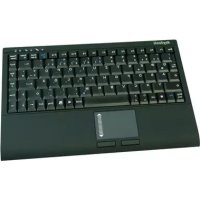
ACK540 BT - Keyboard KeySonic - Free user manual and instructions
Find the device manual for free ACK540 BT KeySonic in PDF.



| Product Type | Bluetooth Keyboard with Smart Touchpad |
| Brand | KeySonic |
| Model | ACK540 BT |
| Key Technology | Membrane Soft-Touch |
| Number of Keys | 89 |
| Key Lifespan | Approximately 5 million keystrokes per key |
| Key Travel | 3.0 ± 0.5 mm |
| Actuation Force | 55 ± 15 g |
| Dimensions (L × W × H) | 291 × 197 × 29 mm |
| Weight (without batteries) | 657 g |
| Power Supply | 2 AAA 1.5 V batteries (included) |
| Connectivity | Bluetooth V2.0 + EDR, 2.4-2.4835 GHz, range up to 10 m |
| Included Adapter | Bluetooth USB Dongle KSR-10 BT |
| Touchpad Functions | Smart Touchpad: 1 finger = click, 2 fingers = scroll, 3 fingers = context menu |
| Additional Buttons | On/Off button, Pairing button |
| LED Indicators | Blue LED for pairing, reconnection and low battery |
| Automatic Sleep Mode | After 15 minutes of inactivity |
| System Compatibility | Windows XP/Vista/7/8/10, Plug & Play (HID Profile) |
| Operating Temperature | 0°C to +50°C |
| Allowed Humidity | Not specified but normal indoor use |
| Maintenance and Cleaning | Slightly damp cloth, no solvents or harsh cleaners |
| Safety | Compliance with battery regulations (mandatory recycling) |
| General Information | Wireless Bluetooth keyboard, black SoftSkin design, virtual numeric keypad |
Frequently Asked Questions - ACK540 BT KeySonic
User questions about ACK540 BT KeySonic
0 question about this device. Answer the ones you know or ask your own.
Ask a new question about this device
Download the instructions for your Keyboard in PDF format for free! Find your manual ACK540 BT - KeySonic and take your electronic device back in hand. On this page are published all the documents necessary for the use of your device. ACK540 BT by KeySonic.
USER MANUAL ACK540 BT KeySonic
MaxPoint LEADING IN PERIPHERALS
CE
Declaration of Conformity
We, MaxPoint Handelsgesellschaft mbH, declare under our sole responsibility, that the product
Type: Wireless Keyboard (Bluetooth)
Mark: EAR888-62976468
Brand Name: KeySonic
Model Name: ACK-340 BT, ACK-540 BT, ACK-595 BT, ACK-3400 BT
is herewith confirmed to comply with the requirements set out in the R&TTE Directive 1999/5/EC of 9. March 1999.
This declaration is based on the full compliance of the product with the following European specifications/standards:
Health EN50371: 2002
Safety EN 60950-1: 2001 + A11: 2004
EMC EN 301 489-1 V1.6.1 (2005-09) EN 301 489-3 V1.4.1 (2002-08)
Radio EN 300 440-1 V1.3.1 (2001-09) EN 300 440-2 V1.1.2 (2004-07)
Ahrensburg, 23.11.2007 Place and Date

MaxPoint LEADING IN PERIPHERALS
CE
Declaration of Conformity
We, MaxPoint Handelsgesellschaft mbH, declare under our sole responsibility, that the product
Type: Bluetooth USB-Dongle
Mark: EAR888-62976468
Brand Name: KeySonic
Model Name: KSR-10 BT
is herewith confirmed to comply with the requirements set out in the EMC Directive 89/336/EEC, 92/31/EEC and R&TTE Directive 1999/5/EC as well as in the EC Low Voltage Directive 73/23/EEC.
This declaration is based on the full compliance of the product with the following European specifications/standards:
EN 301 489-1 V1.4.1 (2002-08) EN 301 489-17 V1.2.1 (2002-08)
EN 300 328 V1.6.1 (2004-11) EN 300 328-2 V1.2.1 (2001-12)
EN 60950-1: 2001


Federal Communications Commission (FCC) Notice
This device complies with Part 15 of the FCC rules. Operation is subject to the following two conditions
(1) This device may not cause harmful interference, and
(2) This device must accept any interference received, including interference that may cause undesired operation.
This equipment has been tested and found to comply with the limits of a Class B digital device, pursuant to Part 15 of the FCC Rules. These limits are designed to provide reasonable protection against harmful interference in a residential installation. This equipment generates, uses and can radiate radio frequency energy and, if not installed and used in accordance with the instructions, may cause harmful interference to radio communications. However, there is no guarantee that interference will not occur in particular installations. If this equipment does cause harmful interference to radio or television reception, which can be determined by turning the equipment off and on, the user is encouraged to try to correct the interference by one or more of the following measures:
- Reorient / Relocate the receiving antenna.
- Increase the distance between the mouse and Receiver.
- Connect the equipment into an outlet on a circuit different from that the Receiver is connected.
CAUTION:
Change or modifications not expressly approved by the manufacturer responsible for compliance could void the user's authority to operate the equipment.
Bluetooth QDID: B013307
KeySonic™
... touch the difference
ACK-340 BT
ACK-540 BT

Bedienungsanleitung

Operation Manual

natural_image
Close-up of a smartphone with app icons and a pen, next to a USB logo (no readable text or symbols on device)





2. Installation
natural_image
Close-up of a black electronic device's cable port with a red arrow pointing to the button (no visible text or symbols)natural_image
Close-up of a mechanical component with a red arrow indicating direction, labeled 'OFF' and 'ON' (no readable text or symbols beyond directional indicators)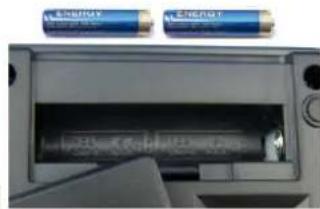
natural_image
Interior view of a printer showing two batteries labeled 'ENERGY' above a black tray (no visible text or symbols on the device itself)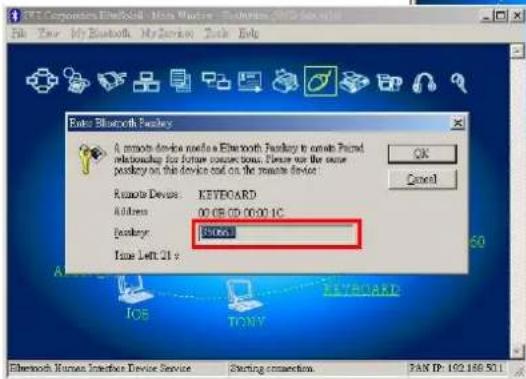
Connect → Bluetooth Human Interface Device Service.
chemical
Three types of organometallic compounds labeled Cd¹, Hg², and Pb³ with cross-shaped metal framework representations1.1 Special Features
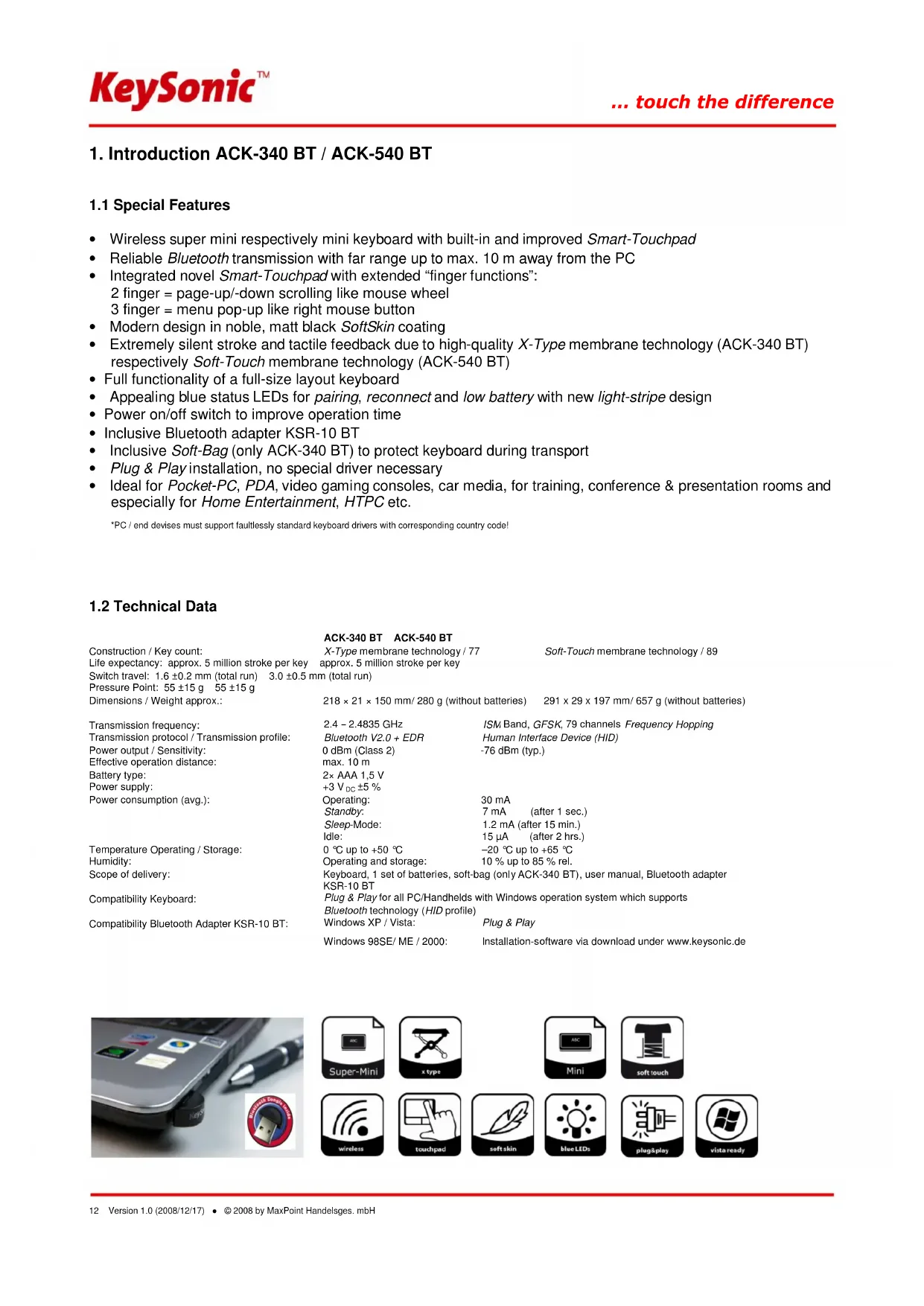
- Wireless super mini respectively mini keyboard with built-in and improved Smart-Touchpad
- Reliable Bluetooth transmission with far range up to max. 10 m away from the PC
- Integrated novel Smart-Touchpad with extended "finger functions":
2 finger = page-up/-down scrolling like mouse wheel 3 finger = menu pop-up like right mouse button
• Modern design in noble, matt black SoftSkin coating - Extremely silent stroke and tactile feedback due to high-quality X-Type membrane technology (ACK-340 BT) respectively Soft-Touch membrane technology (ACK-540 BT)
• Full functionality of a full-size layout keyboard - Appealing blue status LEDs for pairing, reconnect and low battery with new light-stripe design
• Power on/off switch to improve operation time
• Inclusive Bluetooth adapter KSR-10 BT
• Inclusive Soft-Bag (only ACK-340 BT) to protect keyboard during transport - Plug & Play installation, no special driver necessary
- Ideal for Pocket-PC, PDA, video gaming consoles, car media, for training, conference & presentation rooms and especially for Home Entertainment, HTPC etc.
*PC / end devises must support faultlessly standard keyboard drivers with corresponding country code!
1.2 Technical Data
ACK-340 BT ACK-540 BT
Construction / Key count:
Life expectancy: approx. 5 million stroke per key
Switch travel: 1.6 ±0.2 mm (total run) 3.0 ±0.5 mm (total run)
Pressure Point: 55 ±15 g 55 ±15 g
Dimensions / Weight approx.:
X-Type membrane technology / 77
approx. 5 million stroke per key
Soft-Touch membrane technology / 89
218 × 21 × 150 mm/ 280 g (without batteries) 291 × 29 × 197 mm/ 657 g (without batteries)
Transmission frequency:
Transmission protocol / Transmission profile:
Power output / Sensitivity:
Effective operation distance:
Battery type:
Power supply:
Power consumption (avg.):
2.4 - 2.4835 GHz
Bluetooth V2.0 + EDR
0 dBm (Class 2)
max. 10 m
2× AAA 1,5 V
+3 V _DC ±5 %
Operating:
Standby:
Sleep-Mode:
Idle:
0 °C up to +50 °C
Operating and storage:
Keyboard, 1 set of batteries, soft-bag (only ACK-340 BT), user manual, Bluetooth adapter KSR-10 BT
Plug & Play for all PC/Handhelds with Windows operation system which supports
Bluetooth technology (HID profile)
Windows XP / Vista:
Plug & Play
Windows 98SE/ME/2000:
Installation-software via download under www.keysonic.de
natural_image
Close-up of a smartphone with app icons and a pen, next to a USB logo (no readable text or symbols on device)






2. Installation
2.1 System requirements
Precondition for the use of the keyboard is that your device (PC, notebook, tablet, handheld, etc.)
• is hardware-sided Bluetooth-enabled (e.g. by an integrated Bluetooth module or external adapter)
- software-sided (Bluetooth) supports faultlessly the HID profile
- software-sided (operating system) supports faultlessly standard keyboard drivers with corresponding country code
Below there are various technical situations:
• End device is hardware- and software-technically already Bluetooth-enabled
→ Skip the further text and follow the instructions under 2.3
• End device is hardware- and software-technically not Bluetooth-enabled
→ For Windows XP / Vista: Follow the further text!
→ For 98SE/ME/2000: Skip the further text and follow the instructions under 2.3
2.2 Installation of the included Bluetooth adapter under Windows XP / Vista
In order to install the Bluetooth adapter, please perform the following steps:
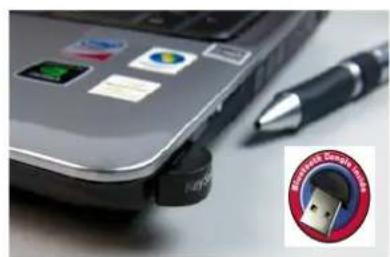
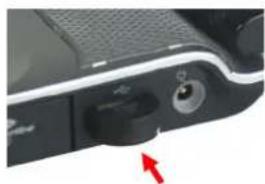
- Connect the included USB adapter (KSR-10 BT) to a free USB port on your computer.
Advise: Please ensure, that the USB adapter has a minimal distance of 20 cm to metallic dividing walls, other computer cases, monitors, ZIP drives, loudspeakers and switching power supplies.
natural_image
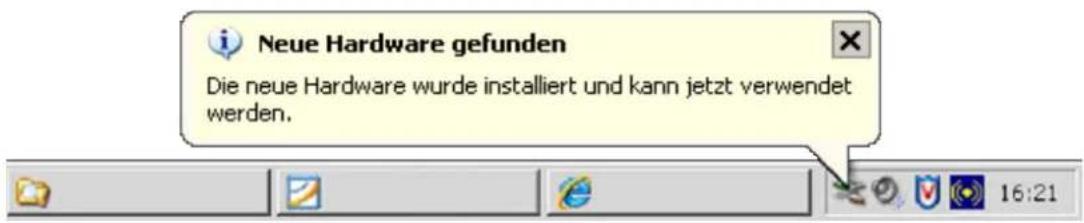
Close-up of a black electronic device's internal components with a red arrow pointing to a button (no text or symbols visible)- All mentioned above state-of-the-art operating systems with Plug & Play support will recognize your USB adapter automatically and load the required drivers. During the phase of installation your operating system informs you via changing Pop-up information windows on the task-bar about the current status of installation. Please be patient, until the system informs you finally about the successful installation. The USB adapter is now ready for operation.
- Older operating systems not always support automatic recognition of USB devices. If you have attached your USB receiver and exactly this error occurs on your system, you have the following alternatives to solve the problem:
- Perform an update of your operating system and return to Step 2.2
- In some cases the installation CD of your operating system is necessary according to the instructions on your screen. In this circumstance please follow these instructions*.
- Check whether your BIOS system supports USB keyboards*. Some main board manufacturers offer BIOS updates for download over the Internet.
- Ensure in your system settings, that the used USB connection was not deactivated in your operating system*.
- Should your system-updates keep out of success, it is recommendable to test the keyboard with another PC with the same operating system to rule out a hardware damage of the USB receiver.
* Refer to the documentation of your PC for details.
Windows XP and Vista (the procedures for both operating systems are nearly identical):
- After connecting the Bluetooth adapter with your PC, the necessary drivers are installed automatically by the Windows' PNP functionality
and the blue Bluetooth logo appears at the bottom right corner of the screen.
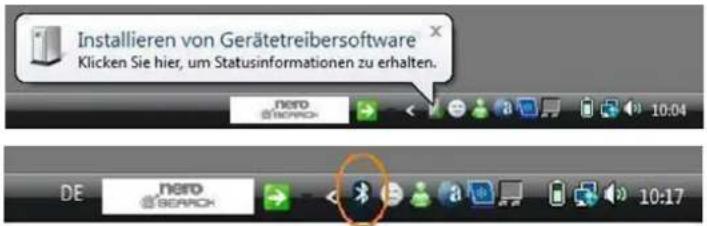
- Now the radio connection must be established between the Bluetooth adapter and the keyboard (Connecting). A double click with the left mouse key on the Bluetooth logo opens the menu „Bluetooth devices“
Click "Add" and „OK".
- Alternatively to the just described method a single click on the Bluetooth logo opens a pull up menu; and after a further click on the option „add Bluetooth devices“ appears the menu (shown in the picture).
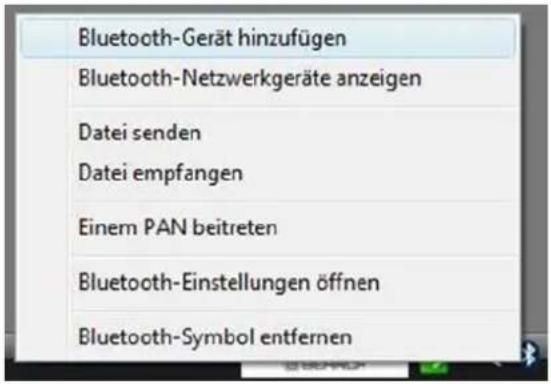
- Place a tick for „Device is set and can be identified“
and click „Continue>“.
- Select the identified keyboard, which is shown in the next window (here „BTKB-66EB – New device“) and confirm with „Continue>“. (Attention: here can be listed of course also more Bluetooth devices as shown in our picture)
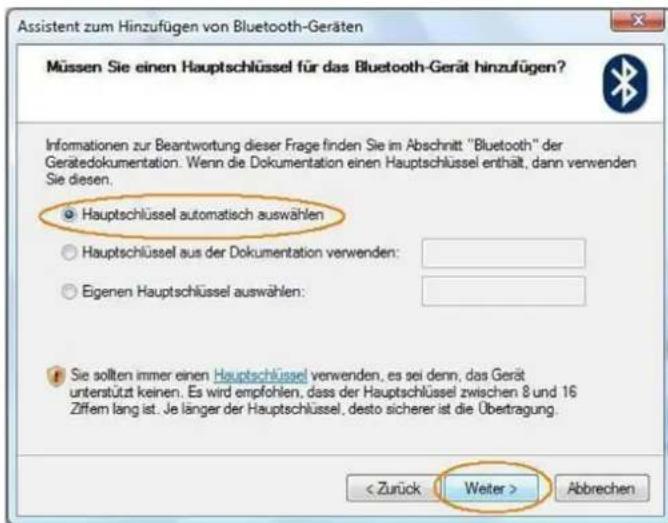
- Type the shown in the menu pass key with the Bluetooth keyboard and confirm with „Enter“.
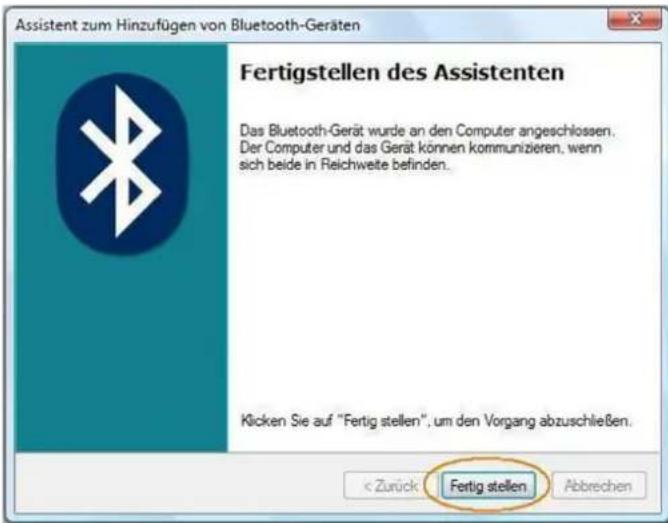
- Finish the Bluetooth assistant with a final click on „Finish“. The Bluetooth keyboard is now ready for use and functional.
Would you like to use instead of the included Bluetooth USB super-mini adapter another Bluetooth adapter or an integrated Bluetooth module, so please note the following instructions:
- If your PC is running Windows XP (SP2) and Vista and the IC of your Bluetooth adapter is from manufacturer CSR, please use the included and preloaded Microsoft Bluetooth driver software. You do not need to install other Bluetooth driver software. If you do not like to use the Microsoft Bluetooth driver software for any reason, you can install optionally Bluetooth driver software Toshiba or BlueSoleil (from software manufacturer IVT). *
-
If your PC is running Windows 98 (SE), ME or 2000 and the IC of your Bluetooth adapter is from manufacturer CSR, please first install the Bluetooth driver software Toshiba or BlueSoleil (IVT).*
-
If your PC is running Windows 98 (SE), ME, 2000, XP (SP2) and Vista and the IC of your Bluetooth adapter is from manufacturer ISSC (Integrated System Solution Corp.), please first install the Bluetooth driver software BlueSoleil (IVT).*
- If your PC is running Windows 98 (SE), ME, 2000, XP (SP2) and Vista and the IC of your Bluetooth adapter is from manufacturer Broadcomm, please first install the Bluetooth driver software WIDCOMM.*
* For details, see the documentation of your PC, your built-in Bluetooth module or your Bluetooth adapter.
Advice:
The most Bluetooth keyboards cannot work under BIOS or DOS environment, because the Bluetooth adapter works only in HID mode (Human Interface Device).
For this a dual Bluetooth USB adapter would be necessary, which supports both HID and HCI mode (Host Controller Interface.
2.3 Keyboard Installation
Ensure for the further procedure that the used Bluetooth driver software was installed correctly on your PC.
- If you haven't done yet, remove the covering of the battery case on the bottom of your keyboard. Insert the included batteries of type AAA 1.5 V considering the right polarity in the battery case (see picture).
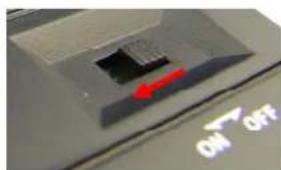
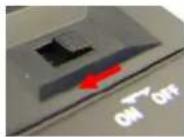
- Switch the I/O sliding switch to ON position!
natural_image
Close-up of a computer mouse with a red arrow pointing to the left side, showing no visible text or symbols on the mouse itself.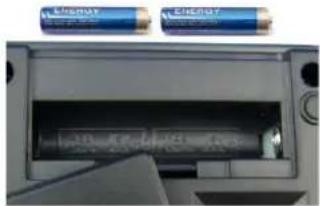
natural_image
Interior view of a device showing two blue energy batteries above a black rectangular chamber (no visible text or symbols)2.3.1 Keyboard installation under Bluetooth driver software BlueSoleil
- Left-click the Bluetooth icon in the system tray area of PC.
- Now opens the menu window of BlueSoleil software.
- After opening the menu turn the sliding switch back side of the keyboard to ON position and afterwards press 1× the Pairing button.
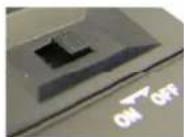
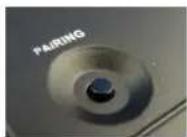

- On the front side of the keyboard the Pairing-LED should flash rapidly indicating the pairing mode.

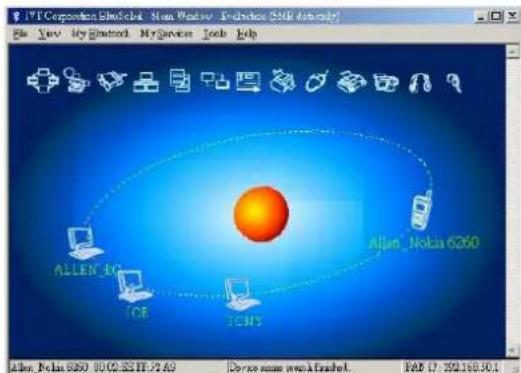
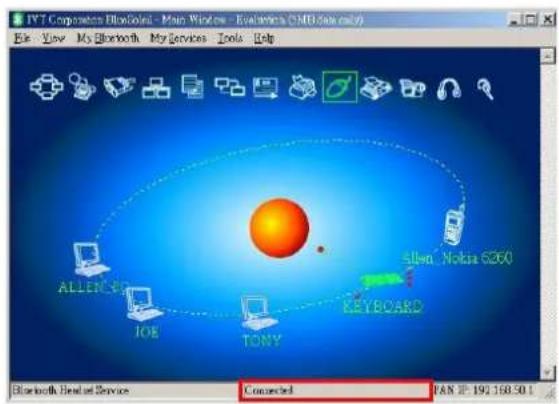
- Click now in the menu window on the globe for searching all discoverable Bluetooth devices around your PC. When your keyboard is identified, please double-click on the keyboard icon with the left mouse key. After that click right on the keyboard icon and choose Pair Device.
- You'll be prompted with a numeric password for pairing between your PC and your keyboard. Please enter exactly the same password on your Bluetooth keyboard and confirm with OK.
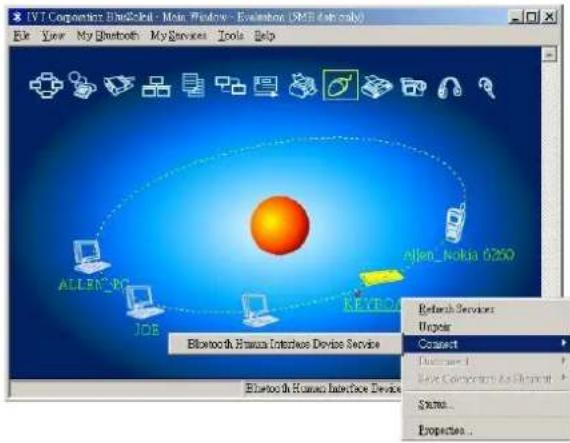
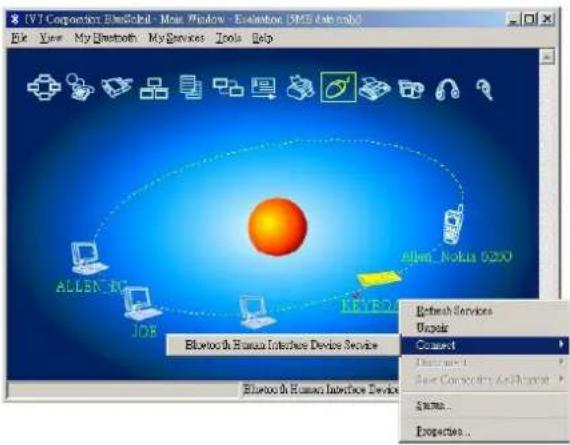
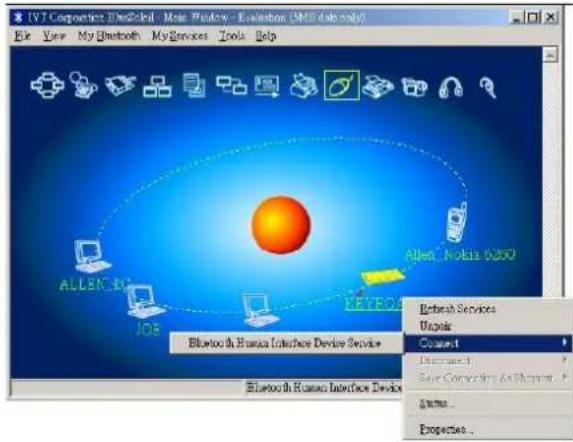
- You will find a red tick Please click the keyboard icon by using the right button of mouse, and tap
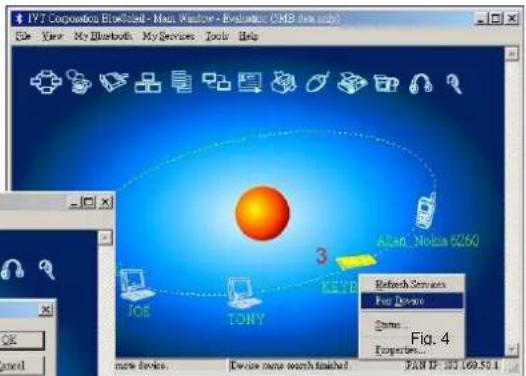
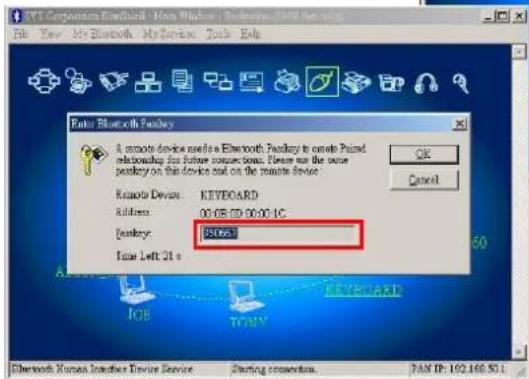
Connect → Bluetooth Human Interface Device Service.
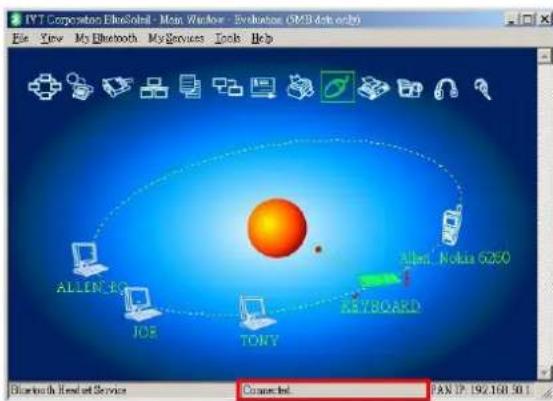
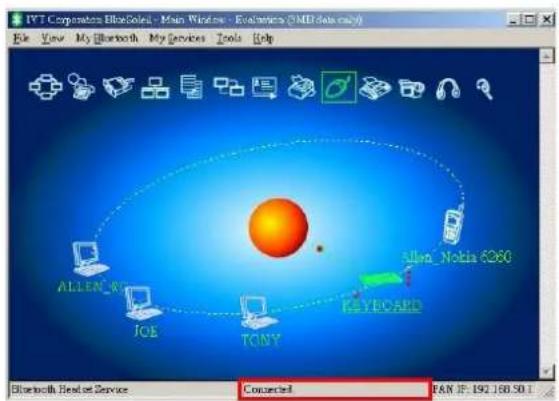
Then you should be able to find a message Connected in status bar. Now you can use this Bluetooth keyboard to input the data into your computer.
Advise:
Once the pairing procedure has been carried out successfully, the computer respectively the Bluetooth keyboard can be turned on and off without repeating the pairing procedure. They will connect automatically again.
2.3.2 Keyboard installation under Bluetooth driver software WIDCOMM
Instructions below are based on WIDCOMM software version 1.4.2 running on Windows XP. Follow the instructions which come with your particular Bluetooth adapter.
- Left-click the Bluetooth icon in the system tray of PC.

- Opens a menu window of WIDCOMM software.
- After opening the menu turn the sliding switch back side of keyboard to ON position and afterwards press 1× the Pairing button.
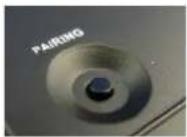

- On the front side of keyboard the Pairing-LED should flash rapidly indicating the Pairing mode.
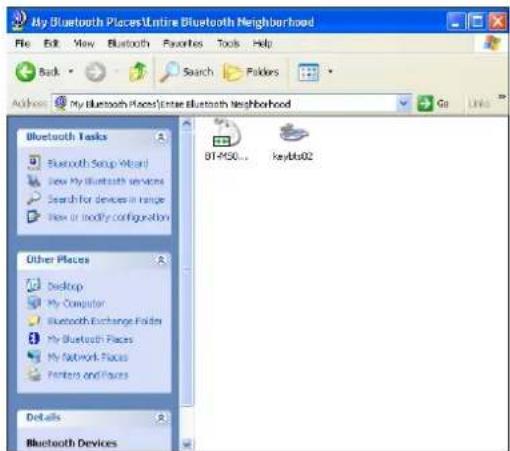
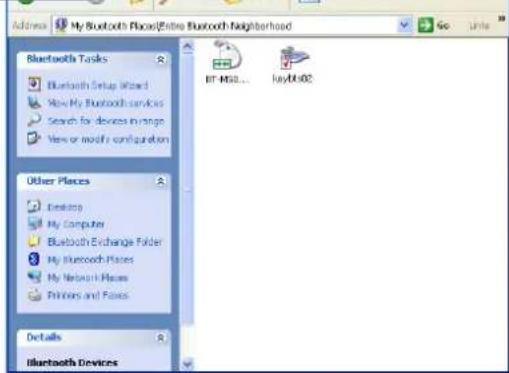
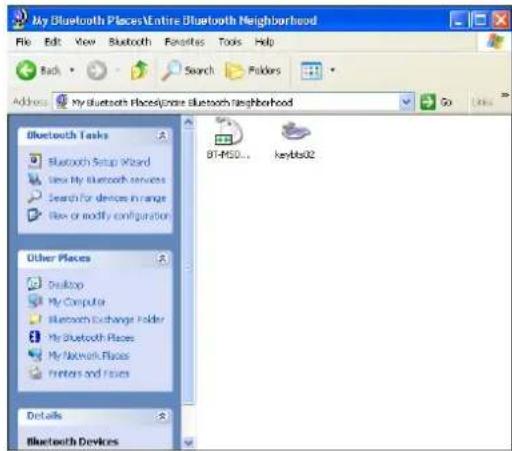
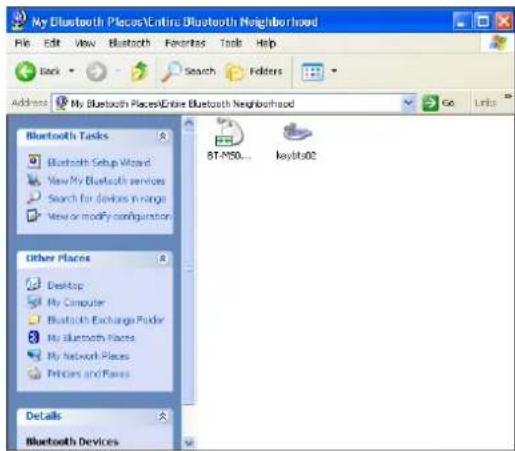
- Following click in the menu window on Search for devices in range task. Then, a keyboard icon will appear in the window.
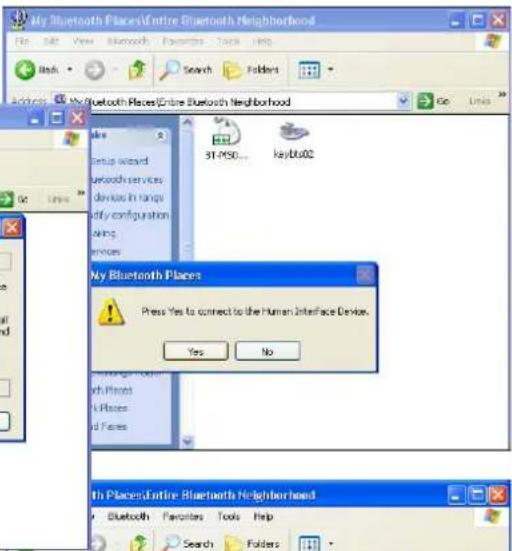
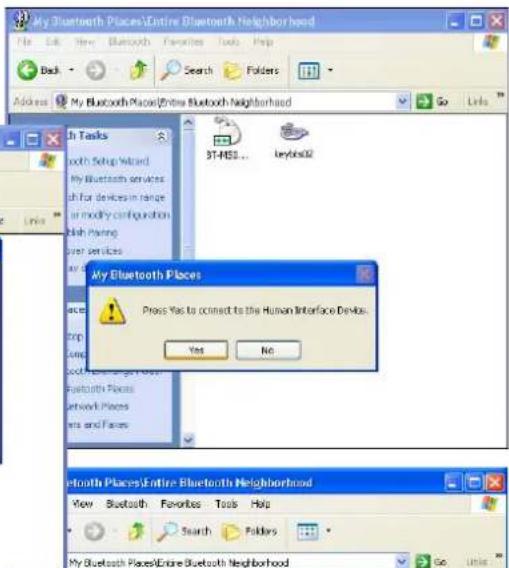
- Double click the Bluetooth keyboard icon, and click YES to connect to the Human Interface Device.
- You'll be prompted with a PIN code for pairing between your PC and your keyboard. Please enter exactly the same PIN code on your Bluetooth keyboard and confirm with OK.
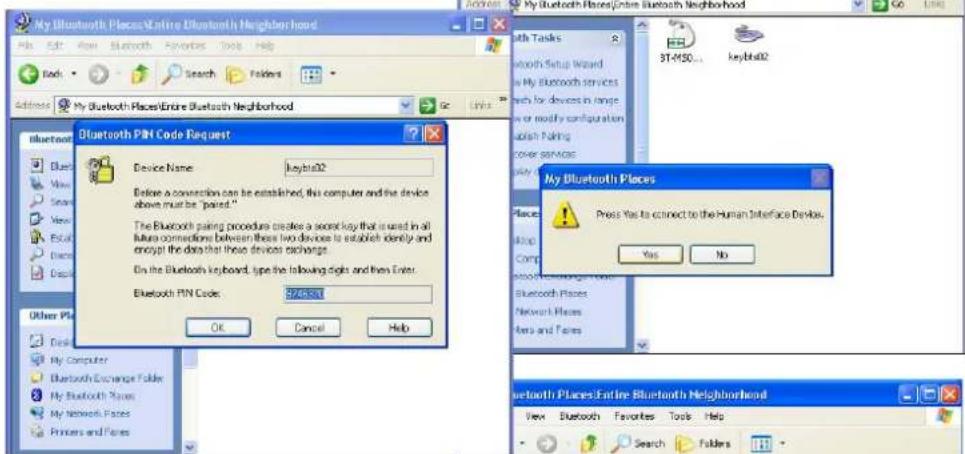
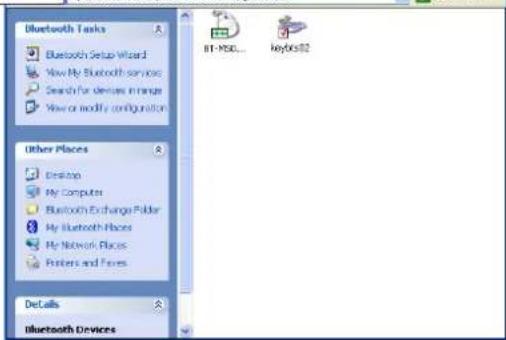
• After input appears a red tick near the keyboard icon.
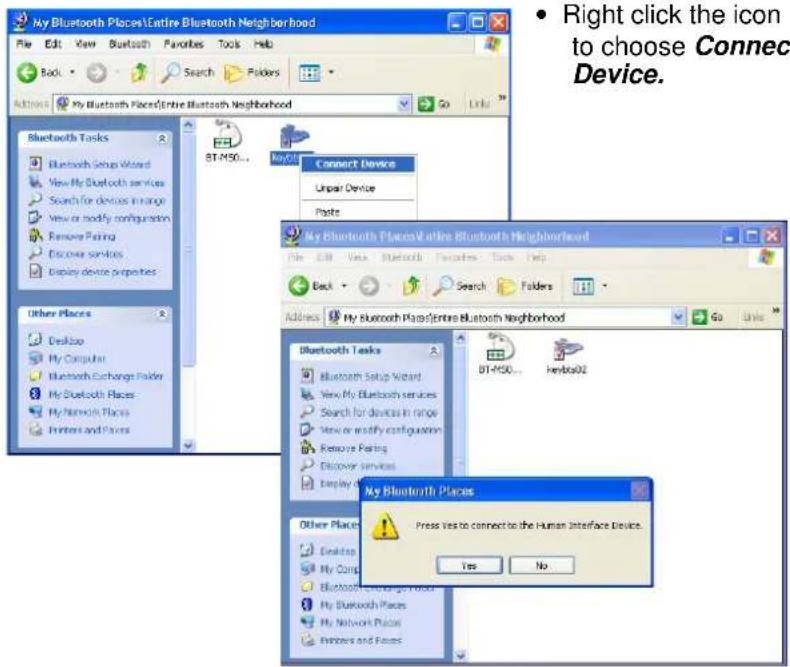
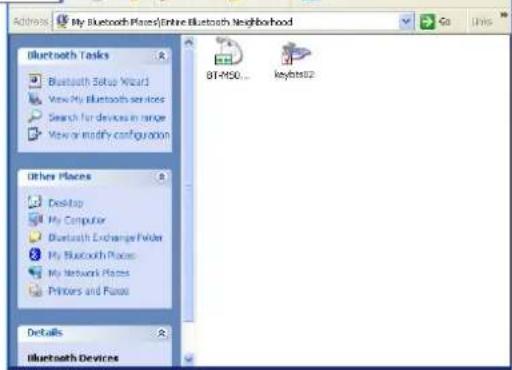
- Confirm the appearing request with YES.
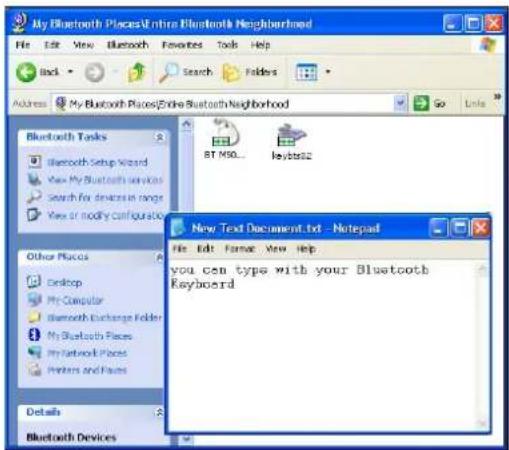
- After the Bluetooth keyboard is paired with your computer, you will get this green indicator icon. Now you can use this Bluetooth keyboard to input the data into your computer.
Advice:
Once the pairing procedure has been carried out successfully, the computer respectively the Bluetooth keyboard can be turned on and off without repeating the pairing procedure. They will connect automatically again.
3. How to use the keyboard
After successful launch of the keyboard enjoy now a free and independent choice of location up to approx. 10 m distance to the PC. More or less range can be caused, like mentioned above, by metallic dividing walls, other computer cases, monitors, ZIP drives, loudspeakers, switching power supplies etc., but also by different loading capacity of the batteries. The status LEDs on the front side of your Bluetooth keyboard inform you about the current operating condition.
3.1 Meaning of status LEDs

- Pairing-LED
It is used to indicate the Bluetooth keyboard is in pairing mode (searching a Bluetooth receiver). When the pairing button is pressed, the LED flashes till a receiver has been found or the relevant computer stops pairing in advance.

- Reconnecting-LED
It is used to indicate that the Bluetooth keyboard is reconnecting to the already founded receiver after waking up or power up via the accordant authority (registered password or PIN).

- Battery Low-LED
It is used to indicate that the battery is below 2.4 Volts. It keeps on until new battery is installed or the battery is total used up. It is flashing only while the keyboard is not in sleep mode.
3.2 Operating modes of the Bluetooth keyboard
- Sleep-Mode
After 15 minutes of no keyboard input, the Bluetooth keyboard will automatically enter into sleep mode to preserve battery power.
- Wake up-Mode
To wake the Bluetooth keyboard up, press any key of the keypad (not the L and R button of touchpad or the touchpad itself!).
- Reconnect-Mode
After reactivation the keyboard reconnects automatically with the Bluetooth dongle. Depending on environmental conditions for the radio transmission it takes less than a second or up to several minutes to reconnect. In the meantime, the Reconnection-LED is blinking.
3.3 Touchpad
As a mouse alternative the keyboard is equipped with an improved Smart-Touchpad inclusive two mouse function keys allowing comfortable and ergonomic handling of the PC, for instance from a sofa. Thereby the handling of the touchpad is as simple as brilliant.
- Gently glide over the touchpad surface with your finger in order to move the cursor, and tap on the surface in order to "click".
- Click, double-click, marking, and drag functions can be performed directly by tapping on the surface of the touchpad. You don't need to apply a lot of pressure in order to do that. You will get the best reaction by clicking gently and rapidly (optional you can use for that the mouse function keys as well).
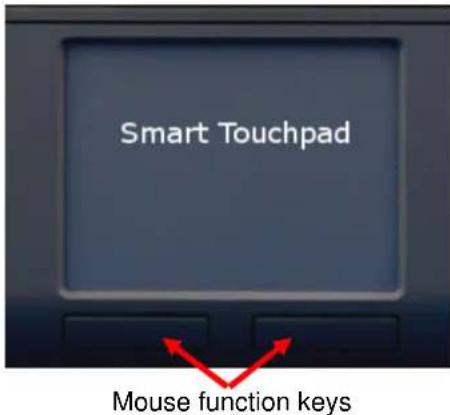
- In order to "drag", to draw, or to mark, you must apply a double-click on the touchpad with the finger remaining on the touchpad after the second click. Then, glide over the touchpad with your finger in order to complete the movement.
- Put two fingers on the Touchpad and glide over it to scroll up and down in your application (identically to a mouse scroll wheel).
- Tap with three fingers on the surface of the touchpad to retrieve the context menu at the related position of the cursor (identically to a right mouse button).
- Using notebooks with already integrated touchpad and mouse function keys you have to de-activate these intern control devices in case of error messages or malfunctions*.
In order to increase or decrease the speed of the cursor movements, change the settings of the mouse options in your system control under Windows*.
Advice:
The sensitivity and the deactivation of the click-function of the touchpad cannot be changed.
There is also no separate driver supporting these settings.
* Refer to the documentation of your PC for details.
3.4 Keys with double functions
Virtual numeric keypad
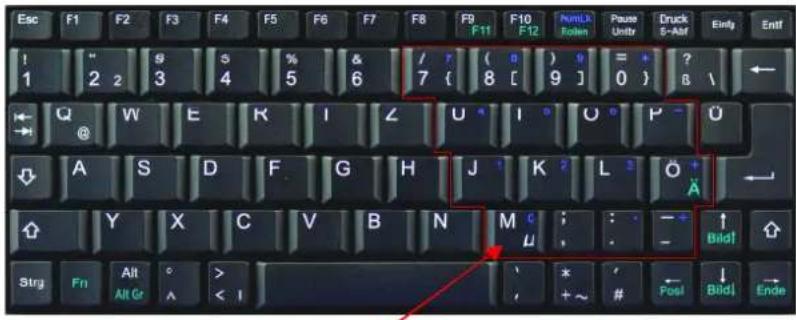
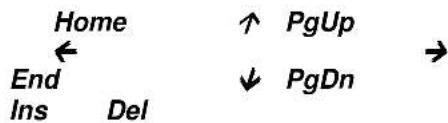
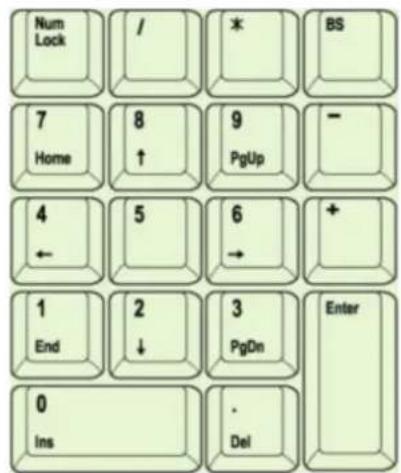
- The layout of the keyboard is a special space-saving layout with the same virtual numeric keypad also used in notebooks. Press the NumLk key in the top key row in order to switch the virtual numeric keypad function on and off. (Characters depicted in blue are assigned to the keys)
- With activated NumLk function you can hold the key Fn in the left down corner pressed deactivating the virtual numeric keypad temporarily. This is particularly convenient to quickly enter letters apart from numbers.
- Without previously activating the NumLk key, the holding down of the Fn key will control the integrated position keys in the same way as an external keypad (please refer to the picture).
flowchart
graph TD
    A["Home"] --> B["End"]
    B --> C["Ins"]
    C --> D["Del"]
    D --> E["↑ PgUp"]
    E --> F["↓ PgDn"]
    F --> G["→"]
- Only ACK-340 BT: Independent of the status of the NumLK function (active or not), further double functions are available by keeping the Fn pressed together with Alt Gr, F11, F12, ScrLk, PgUp, Home, PgDn, End. In case you need e. g. „€“-symbol, you have to press the following keys simultaneously: Fn + Alt Gr + „E“
4. How to clean the keyboard
- Remove dust with a brush, with soft compressed air, or with a vacuum cleaner with brush head nozzle.
- Remove fine dirt with a not-too-damp cloth.
- DO NOT use any aggressive detergents, solvents or gasoline in order to clean the keyboard.
Information on disposal of old batteries (Battery Regulation)
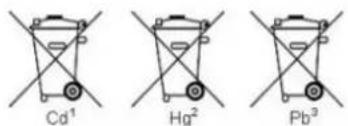
The new Regulation obliges battery manufacturers and importers to take back, sort and dispose all old batteries. The consumer is obliged to give back used batteries in retail stores or in municipal collection points. The disposal in municipal waste is explicitly prohibited according to Battery Regulation. You can send batteries purchased from us after consumption to the following address via sufficient stamped mail: MaxPoint Handelsgesellschaft mbH, Kurt-Fischer-Straße 50, D-22926 Ahrensburg Batteries, which contain pollutants, are marked with the symbol of a crossed-out dustbin, similar to the symbol in the illustration. The chemical description of the pollutant is situated below the symbol of the dustbin. "Cd" stands for Cadmium, "Pb" for Lead, "Hg" for Mercury.
chemical
Three labeled chemical structures: Cd¹, Hg², and Pb³, each with cross-shaped metal centers.Manufacturer's Disclaimer Statement
The information in this document is subject to change without notice and does not represent a commitment on the part of the vendor. No warranty or representation, either expressed or implied, is made with respect to the quality, accuracy or fitness for any particular purpose of this document. The manufacturer reserves the right to make changes to the content of this document and/or the products associated with it at any time without obligation to notify any person or organization of such changes. In no event will the manufacturer be liable for direct, indirect, special, incidental or consequential damages arising out of the use or inability to use this product or documentation, even if advised of the possibility of such damages. This document contains materials protected by copyright. All rights are reserved. No part of this manual may be reproduced or transmitted in any form, by any means or for any purpose without expressed written consent of its authors. Product names appearing in this document are mentioned for identification purchases only. All trademarks, product names or brand names appearing in this document are registered property of their respective owner.
1. Introduction ACK-340 BT / ACK-540 BT
1.1 Caractéristique
1.2 Information technique
ACK-340 BT
ACK-540 BT
Distance effective :
Type de pile
Alimentation :
Human Interface Device (HID)
0 dBm (Class 2)
-76 dBm (typ.)
ca. 10 m
2× AAA 1,5 V
+3 V DC ±5 %
Exploitation :
7 mA (après 1 sec.)
natural_image
Close-up of a smartphone with app icons and a pen, next to a USB logo (no readable text or symbols on device)





2. Installation
2.1 Système requis
natural_image
Close-up of a black electronic device's side panel showing a knob and handle, with a red arrow pointing to the knob (no text or symbols visible)natural_image
Close-up of a mechanical component with a red arrow indicating rotation, labeled 'ON' and 'OFF' (no readable text or symbols beyond directional indicators)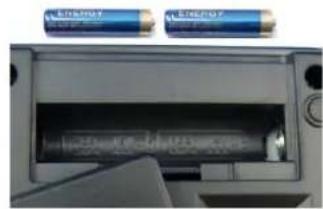
natural_image
Interior view of a battery holder with two cylindrical batteries above it (no visible text or symbols)Connect → Bluetooth Human Interface Device Service.